Operations CRM - Set Payment Terms on a Cash Quote
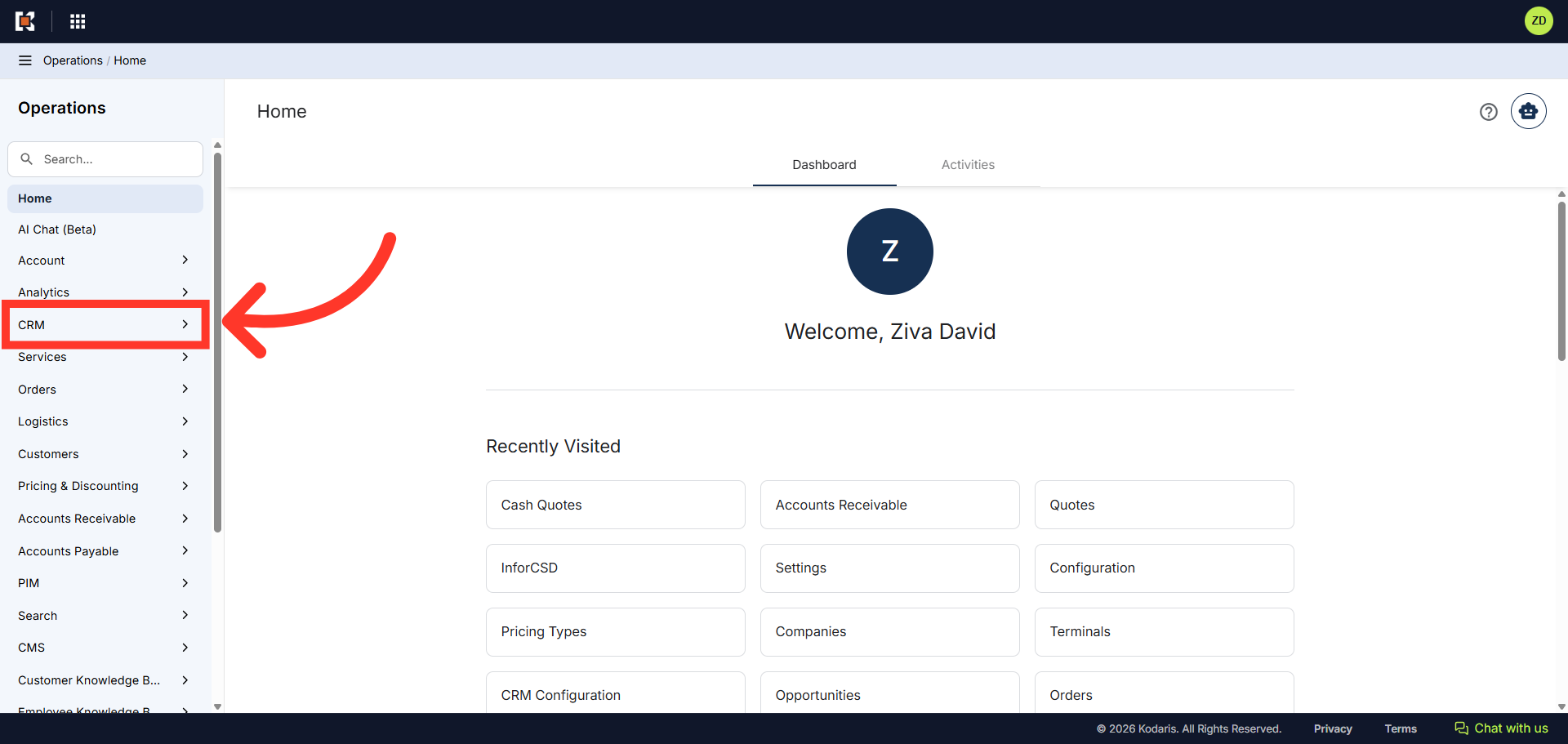
Navigate to "CRM"
You can add or update payment terms on a Cash Quote in the Operations Portal. First, navigate to the "CRM" section.
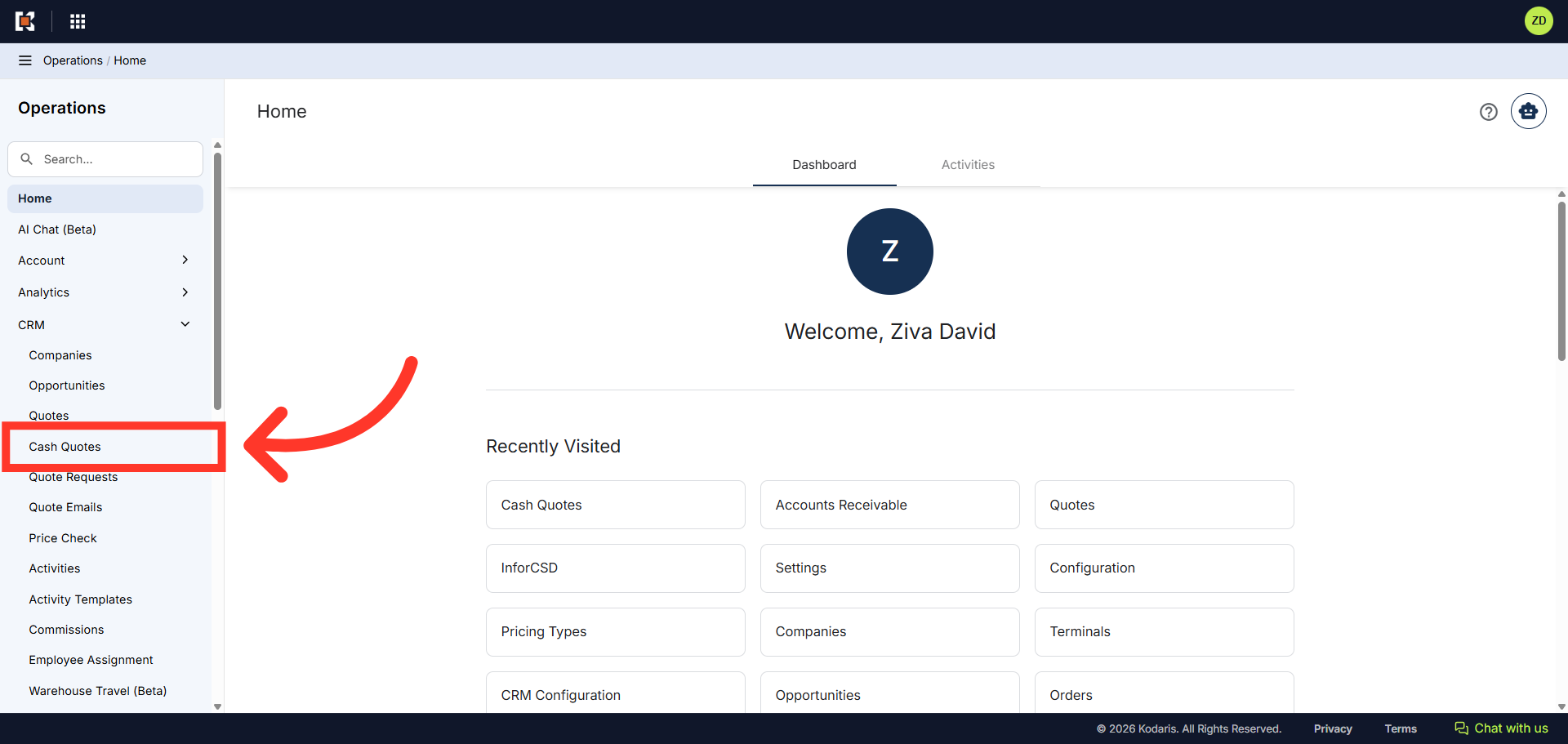
Click "Cash Quotes"
Then, click "Cash Quotes". In order to access "Cash Quotes" you will need to have the role of "administrator" or "superuser", or have the roles of "dashboardSearch" and "dispatch", "orderEdit", and "crmCompanyOrderEdit".
Search for the cash quote
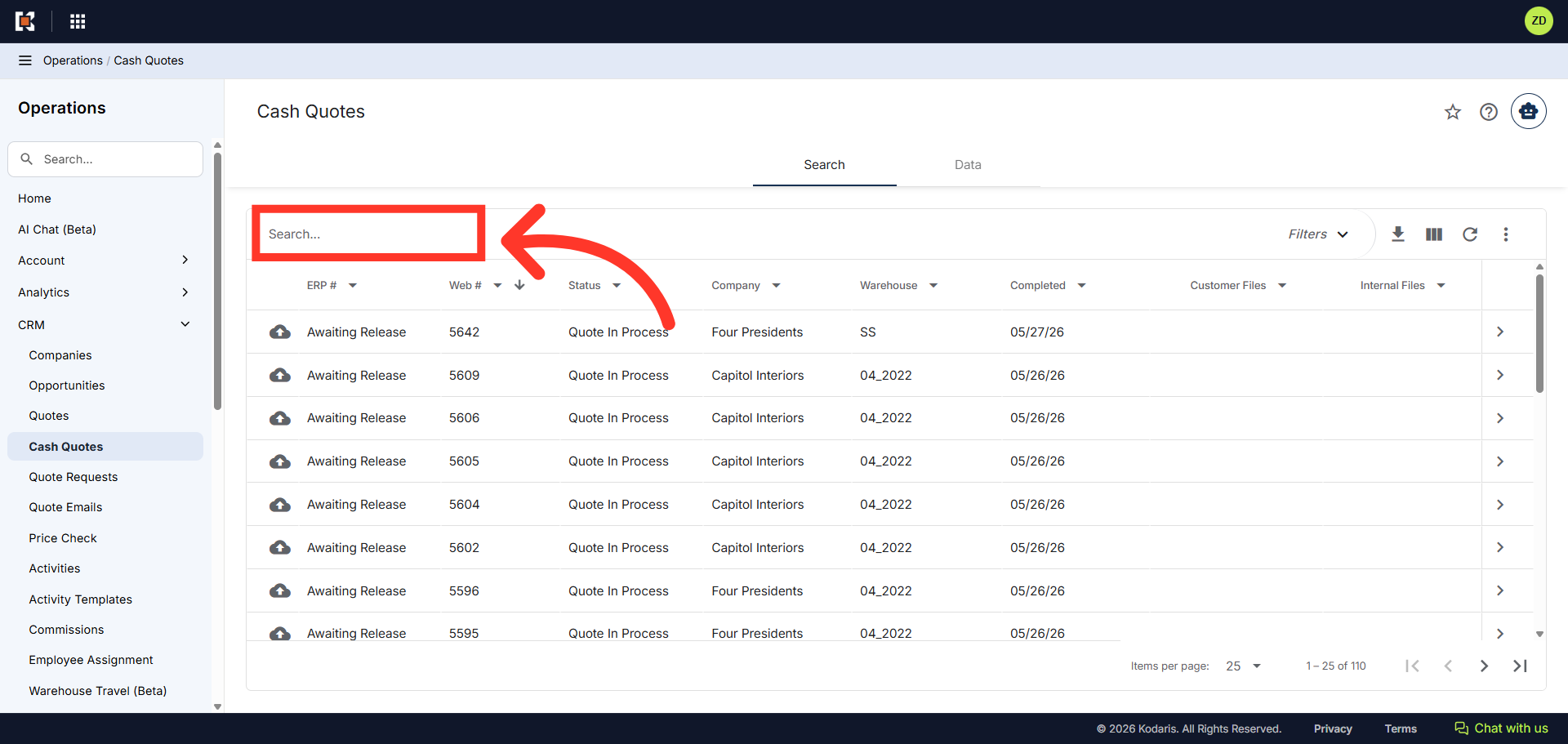
Locate the cash quote you wish to add or update the payment terms on in the "Search..." field.
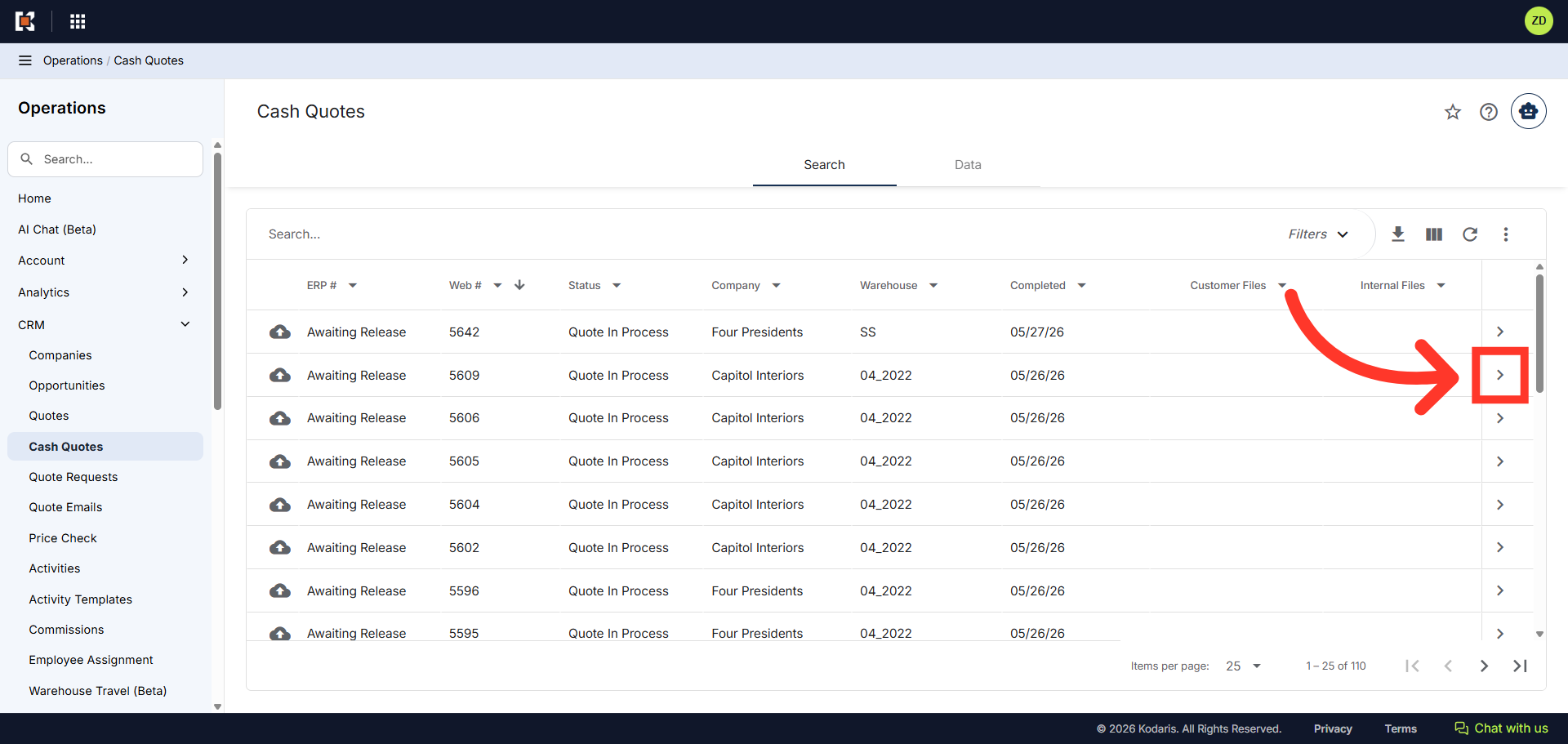
Click on the more details icon
Click on the more details icon to view the cash quote details screen.
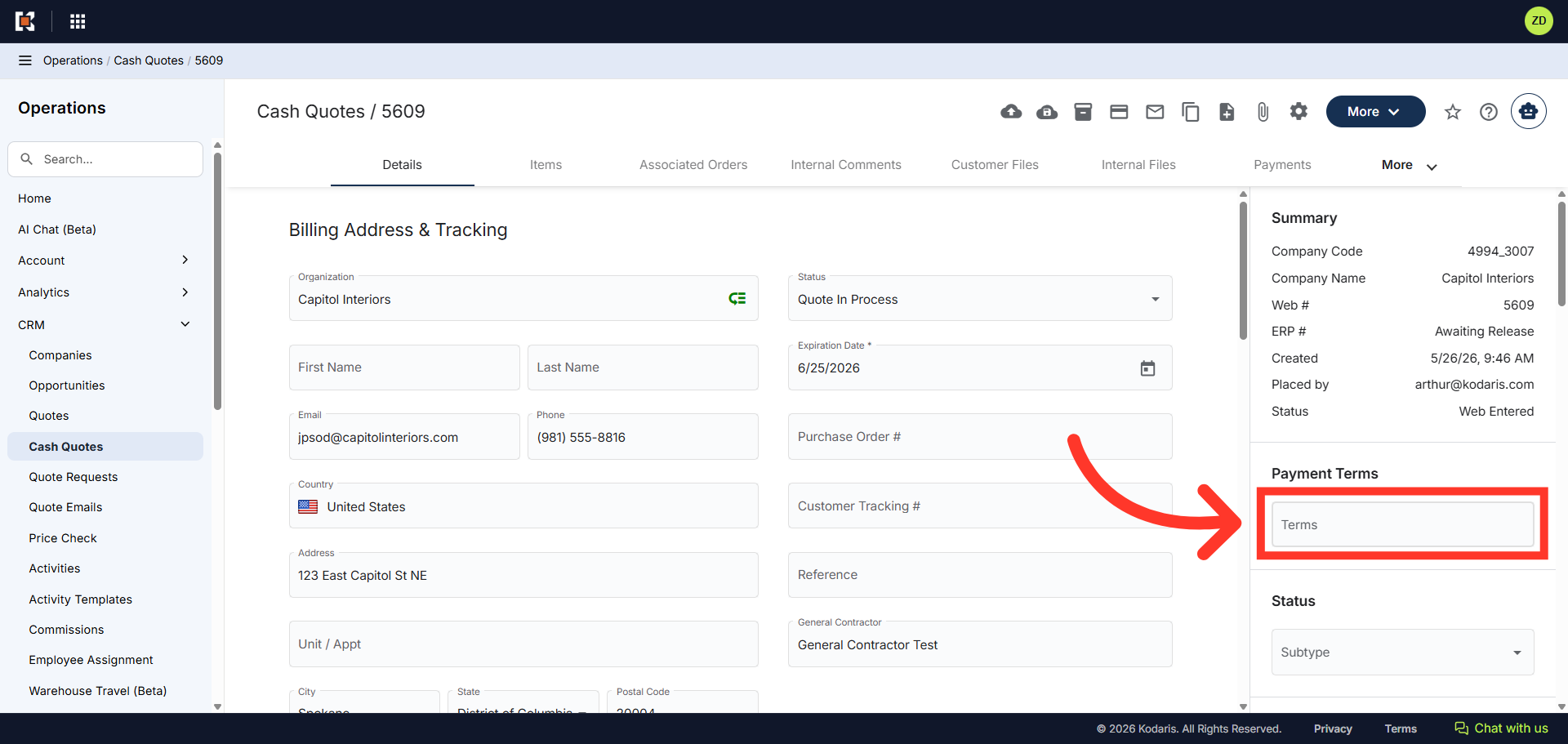
Click "Terms"
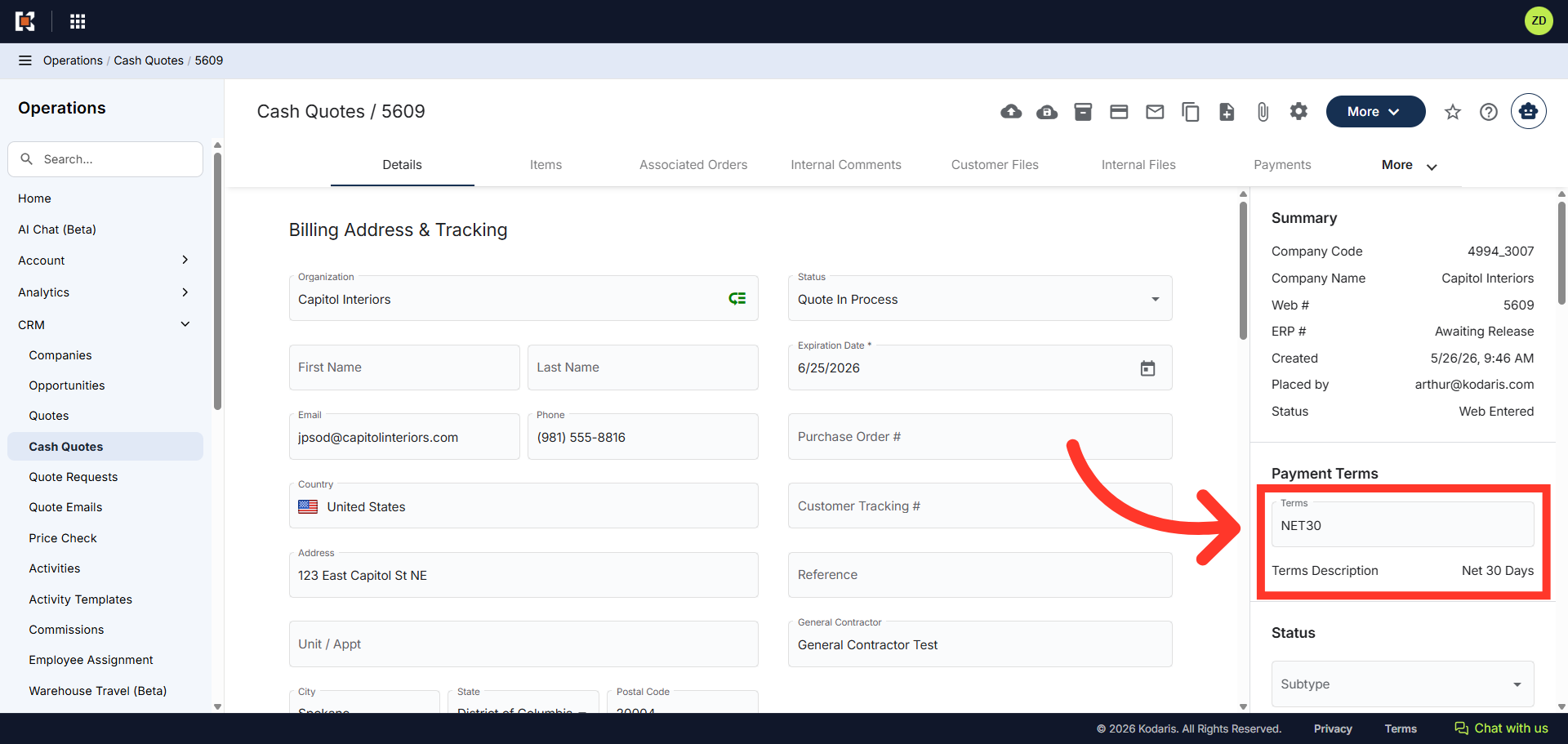
On the right hand side of the details screen, you will see the "Payment Terms" section. Click the "Terms" field to display the dropdown of available terms.
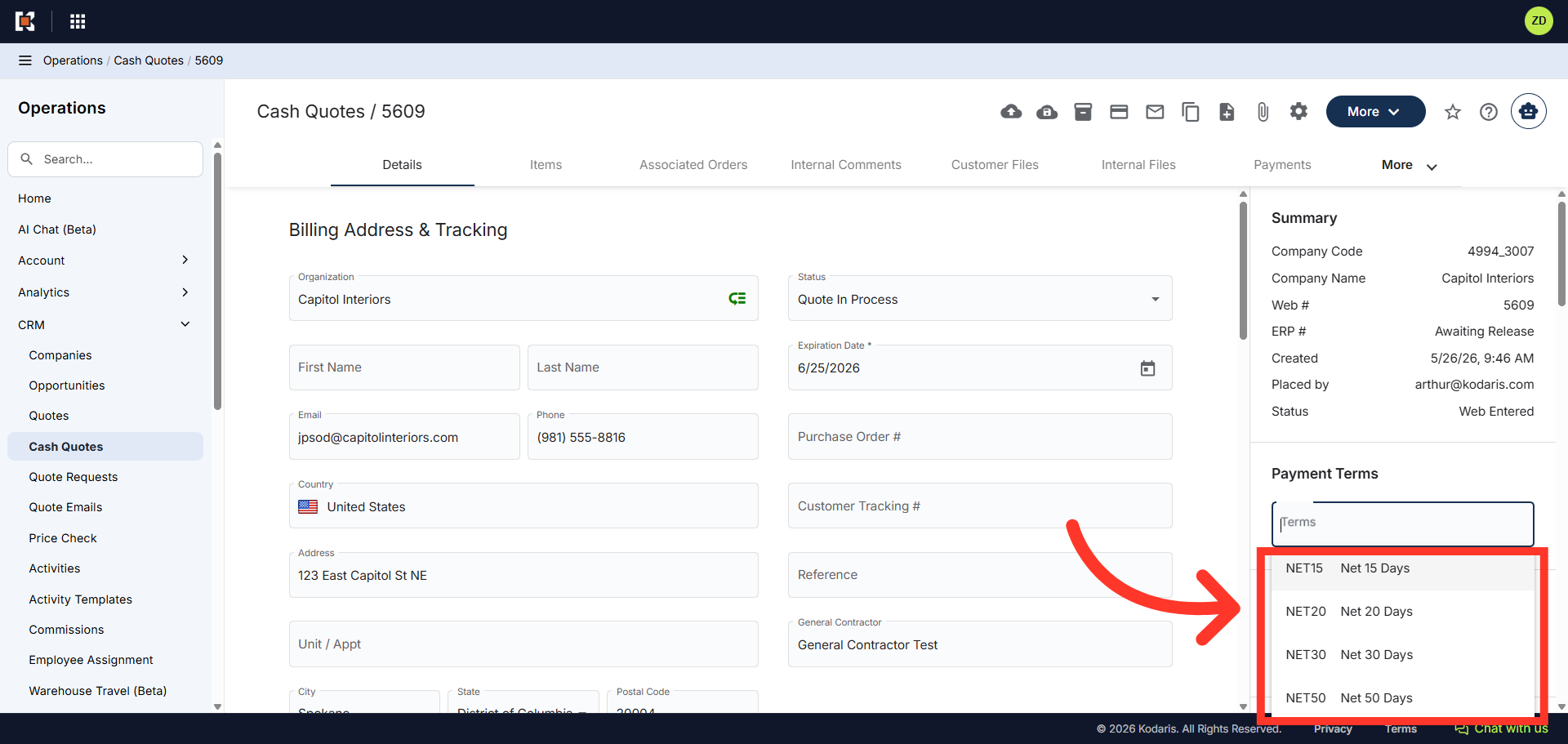
Choose a payment term
The dropdown menu displays payment terms that are available from your ERP, or have been set up in the Operations Portal. Choose the payment term you would like to add to the cash quote.
Verify Payment Term
Once selected, the "Payment Terms" field will update with the payment term code, and terms description. You can repeat the process to change the terms or click in the field and delete the term to remove it from the cash quote.