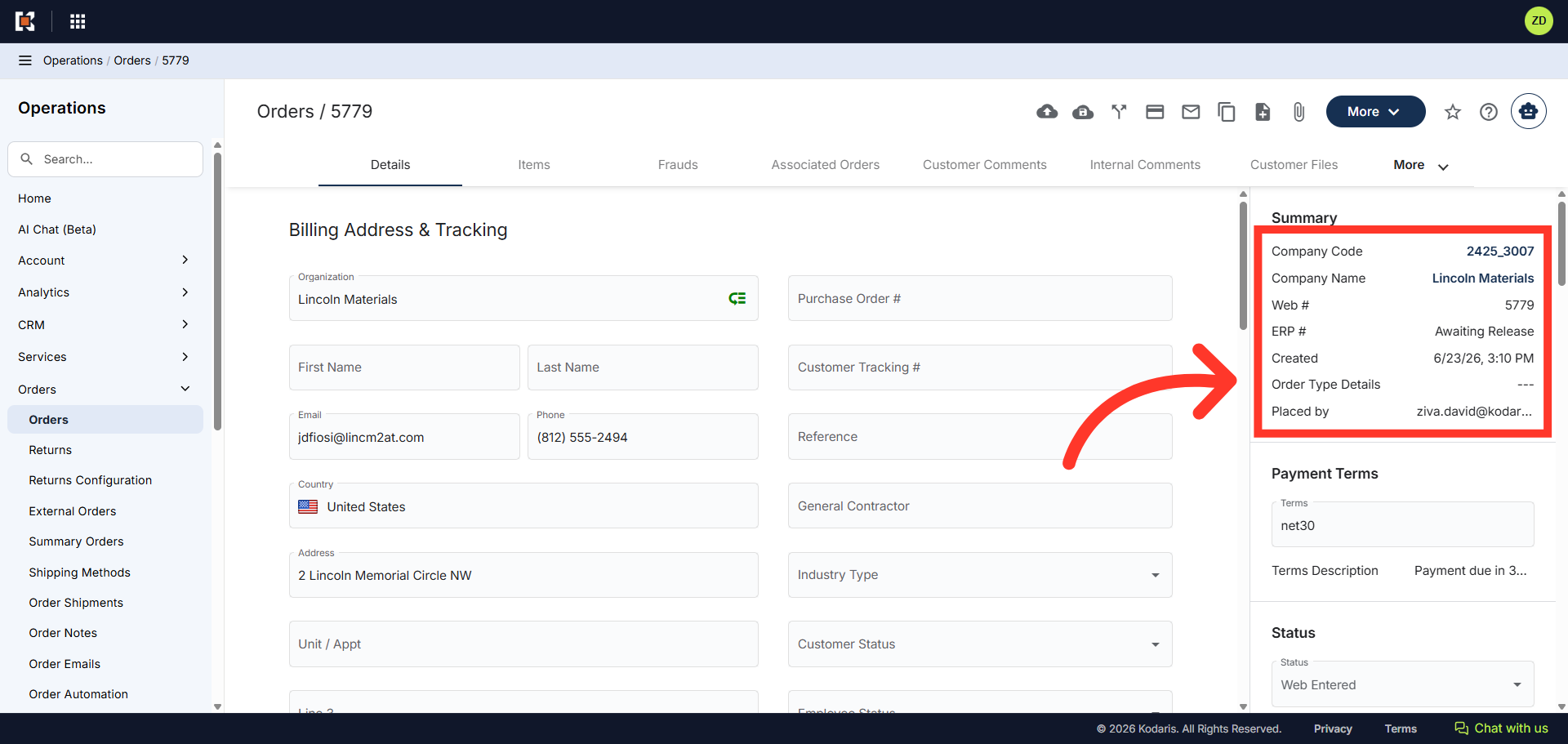
Order Management - Copy an Order that has already been released to ERP
Navigate to "Orders"
You can copy an order that has already been released to the ERP, saving time creating a new order. To copy an order, navigate to the "Orders" section in the Operations Portal.
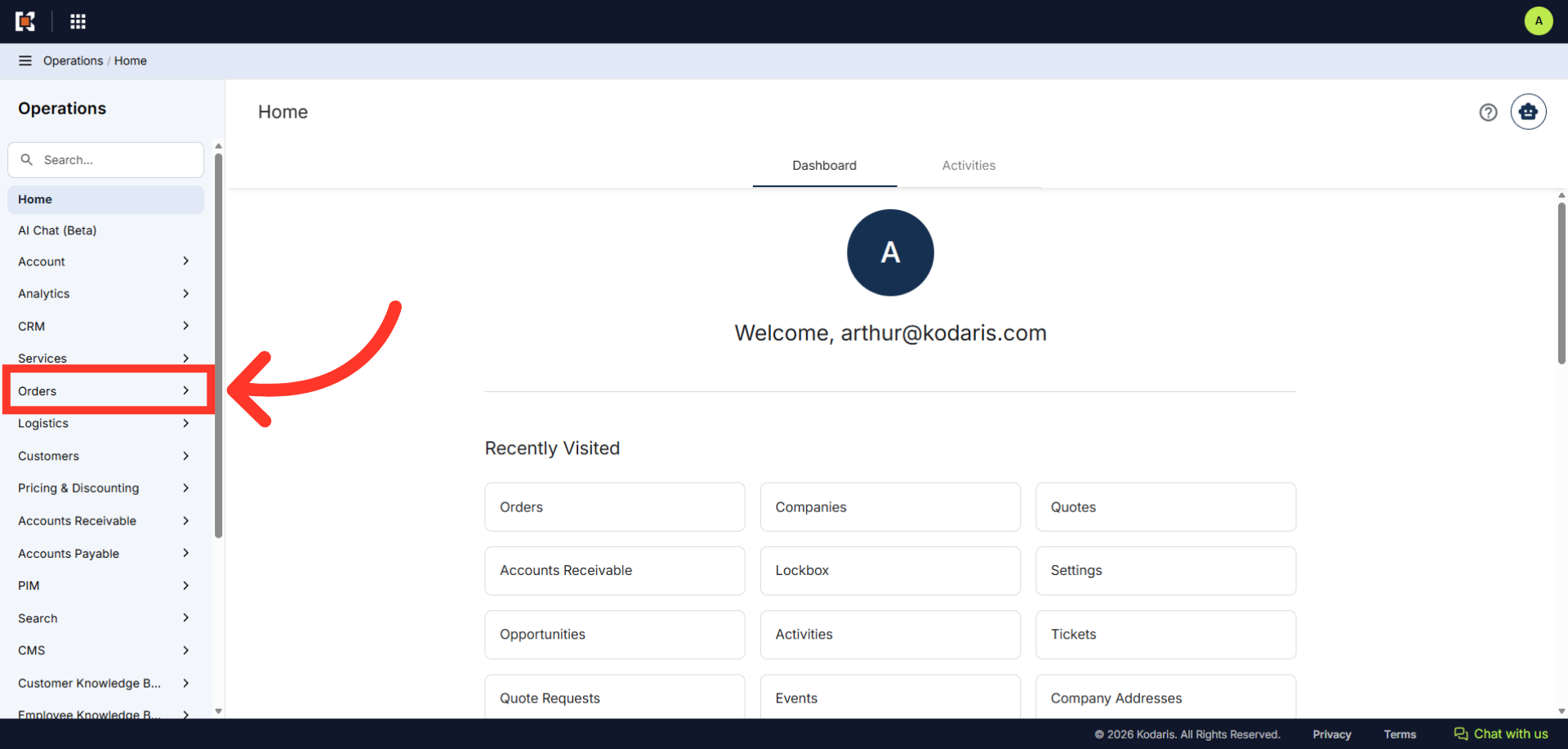
Click "Orders"
Then, click "Orders". In order to access and update "Orders", you will need to be set up either as an "administrator" or a "superuser", or have the following roles: "dispatch", "orderEdit", "crmCompanyOrderView" and "crmCompanyOrderEdit". Just a reminder, "crmCompanyOrderView" and "crmCompanyOrderEdit" access only allows employees to view company orders that are assigned to them.
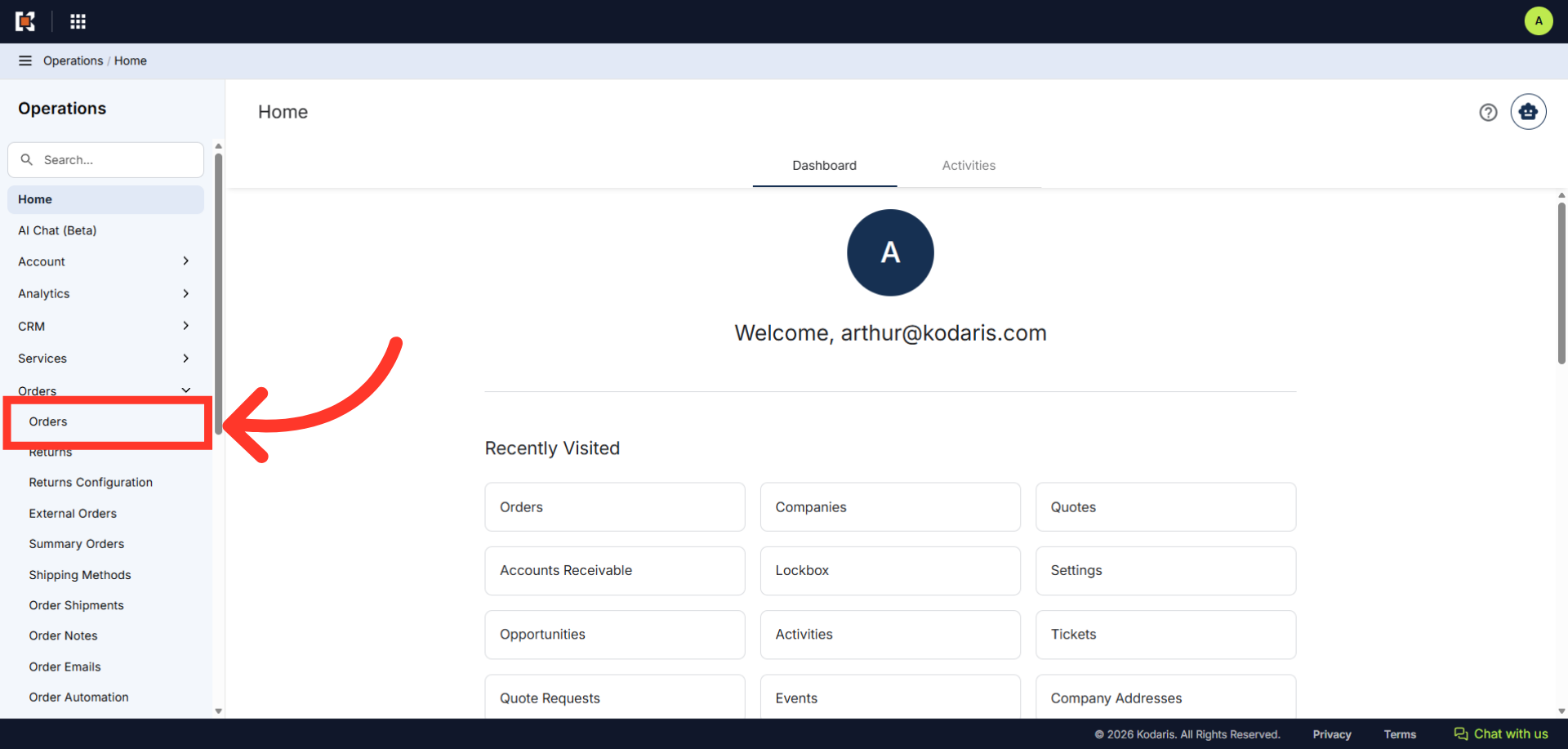
Search for the order
Select the order you want to copy by typing the order number in the "Search" field.
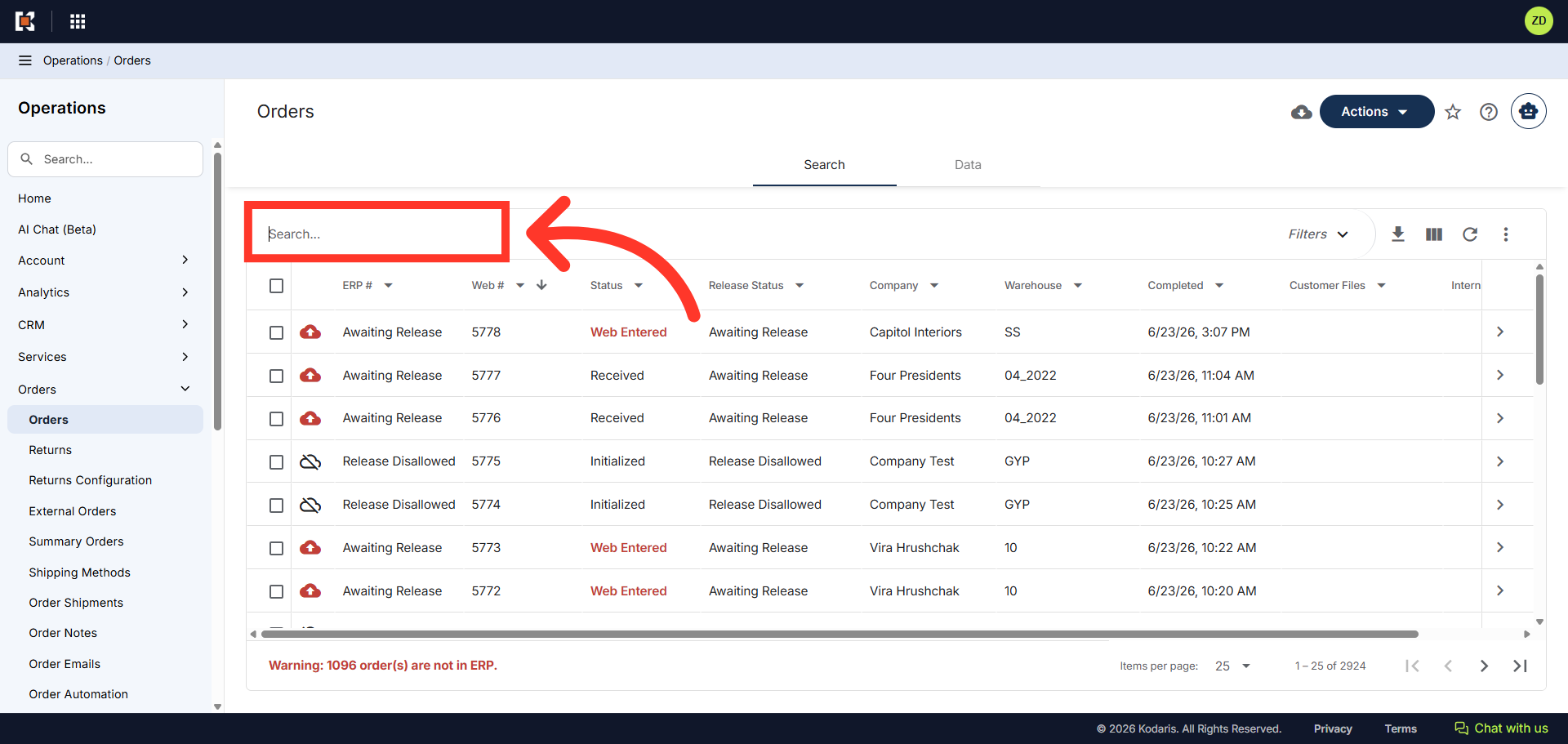
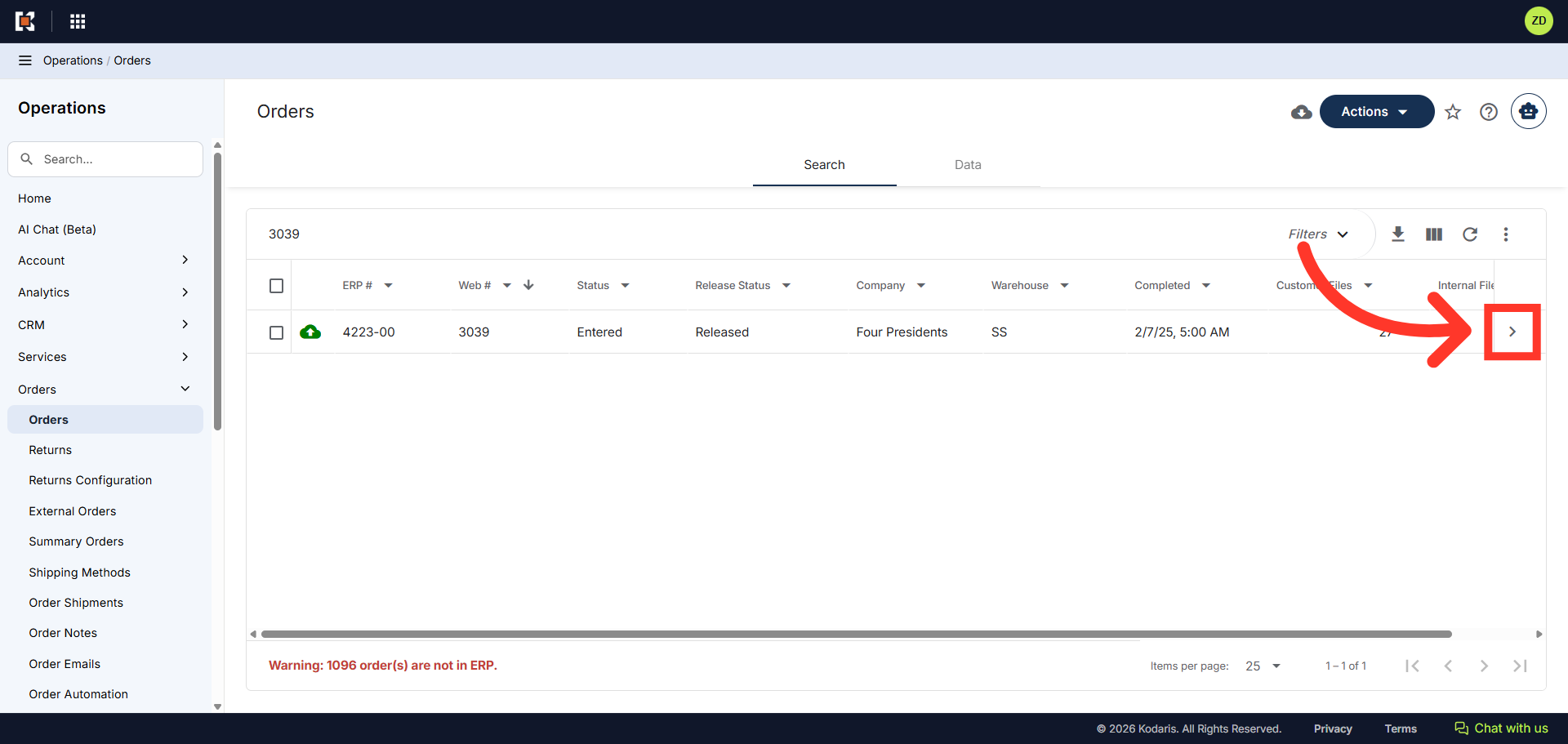
Go to the details page of the order
Click on the more details icon to go to the details page of the order.
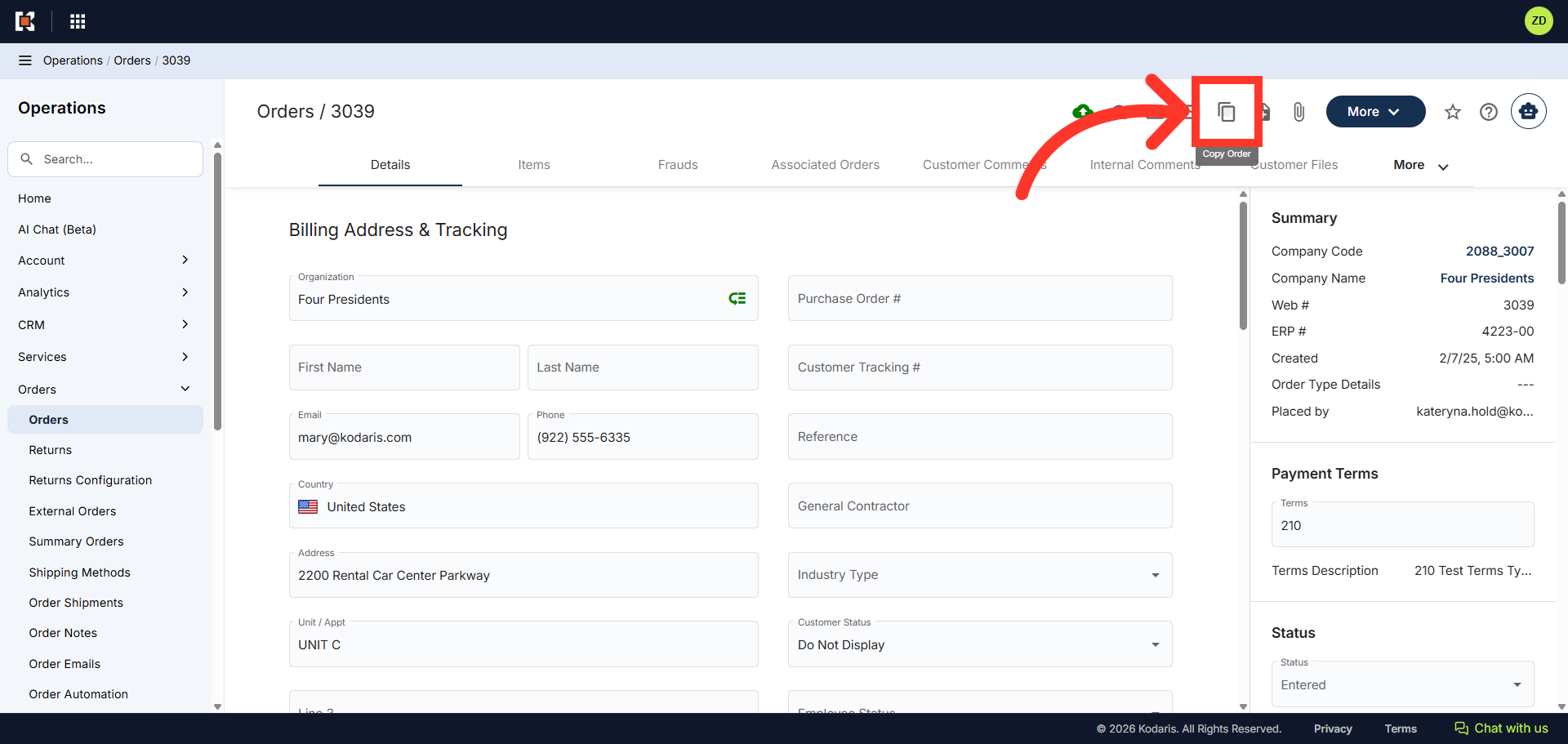
Click "Copy Order"
Click on the "Copy Order" icon.
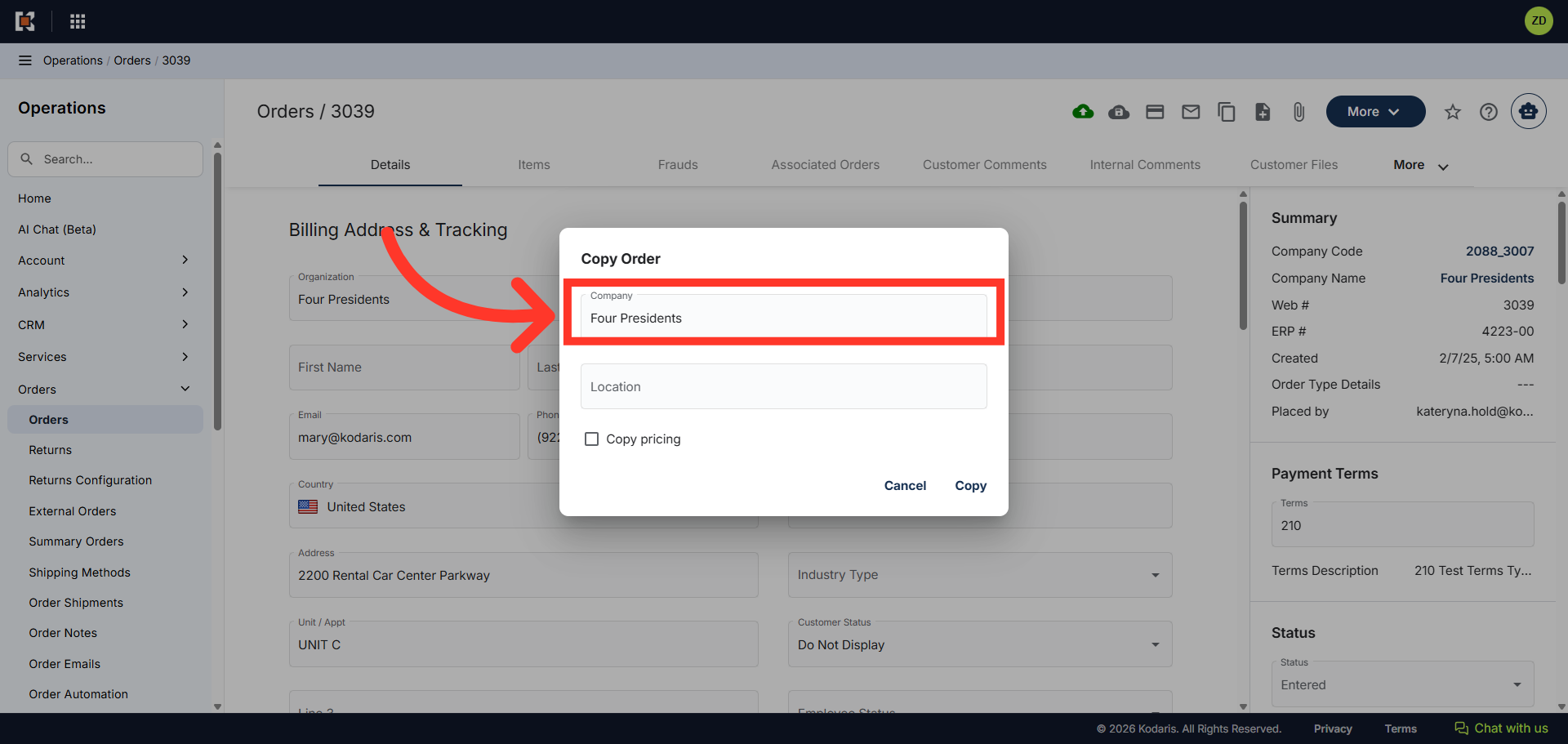
Copy the order to the same company
The "Copy Order" dialog box will appear. By default, the company the order is currently on will be displayed in the "Company" field. You can copy the order to the same company.
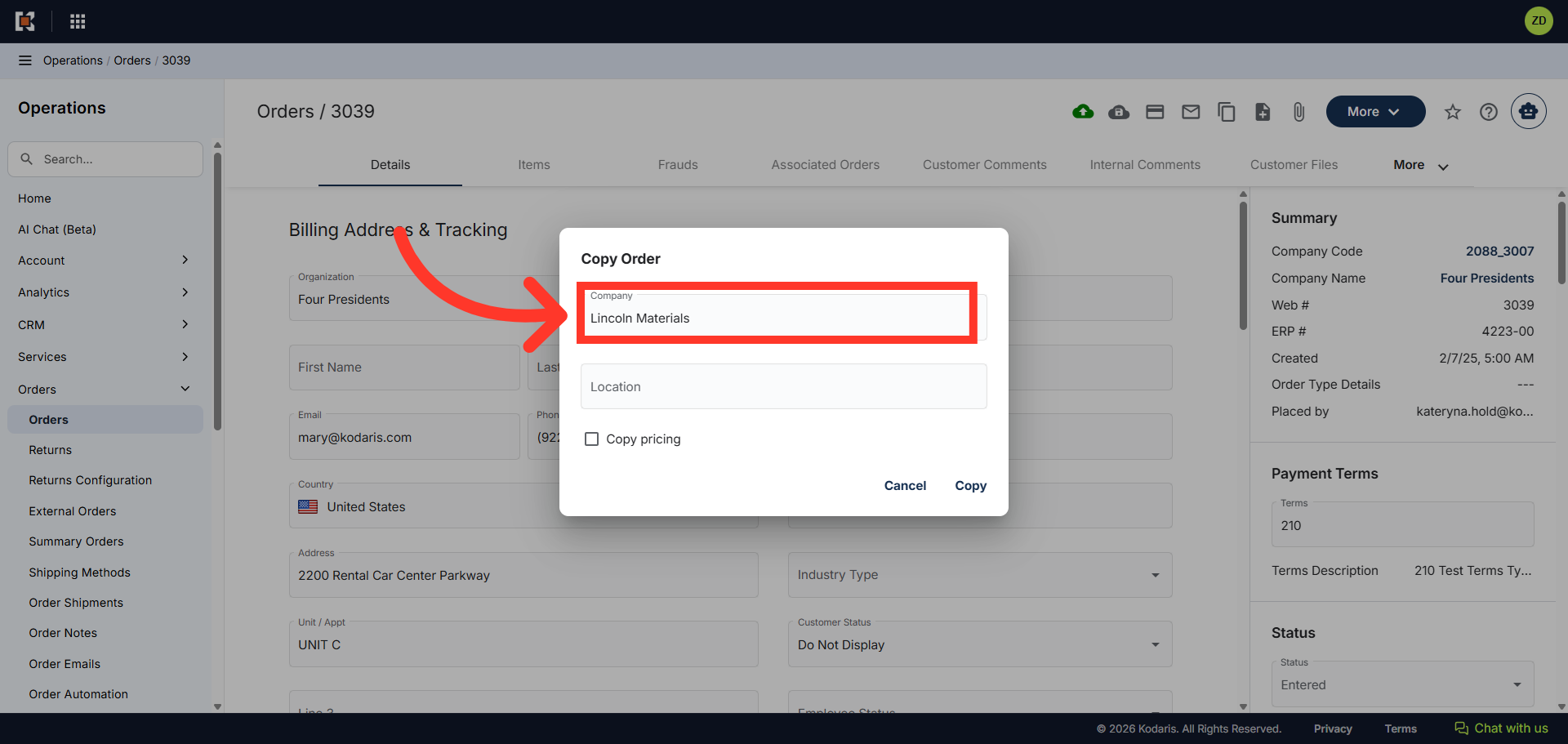
Or, type in the company name or code you want to copy the order to
Alternatively, you can copy the order to a different company. Remove the existing company name and enter the new company name or code where you want to copy the order.
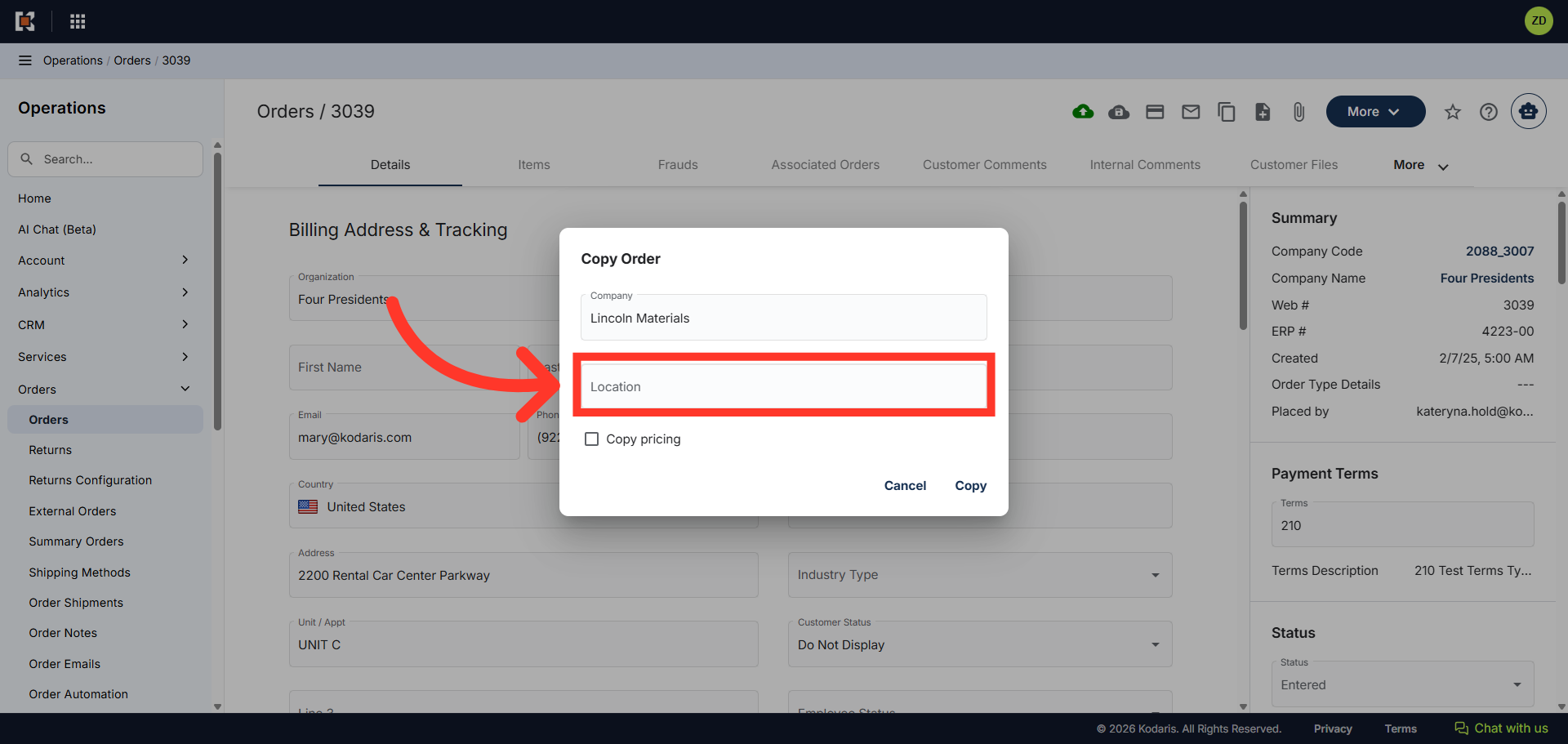
Click "Location"
Next, click in the "Location" field to view the ship-to addresses for that company.
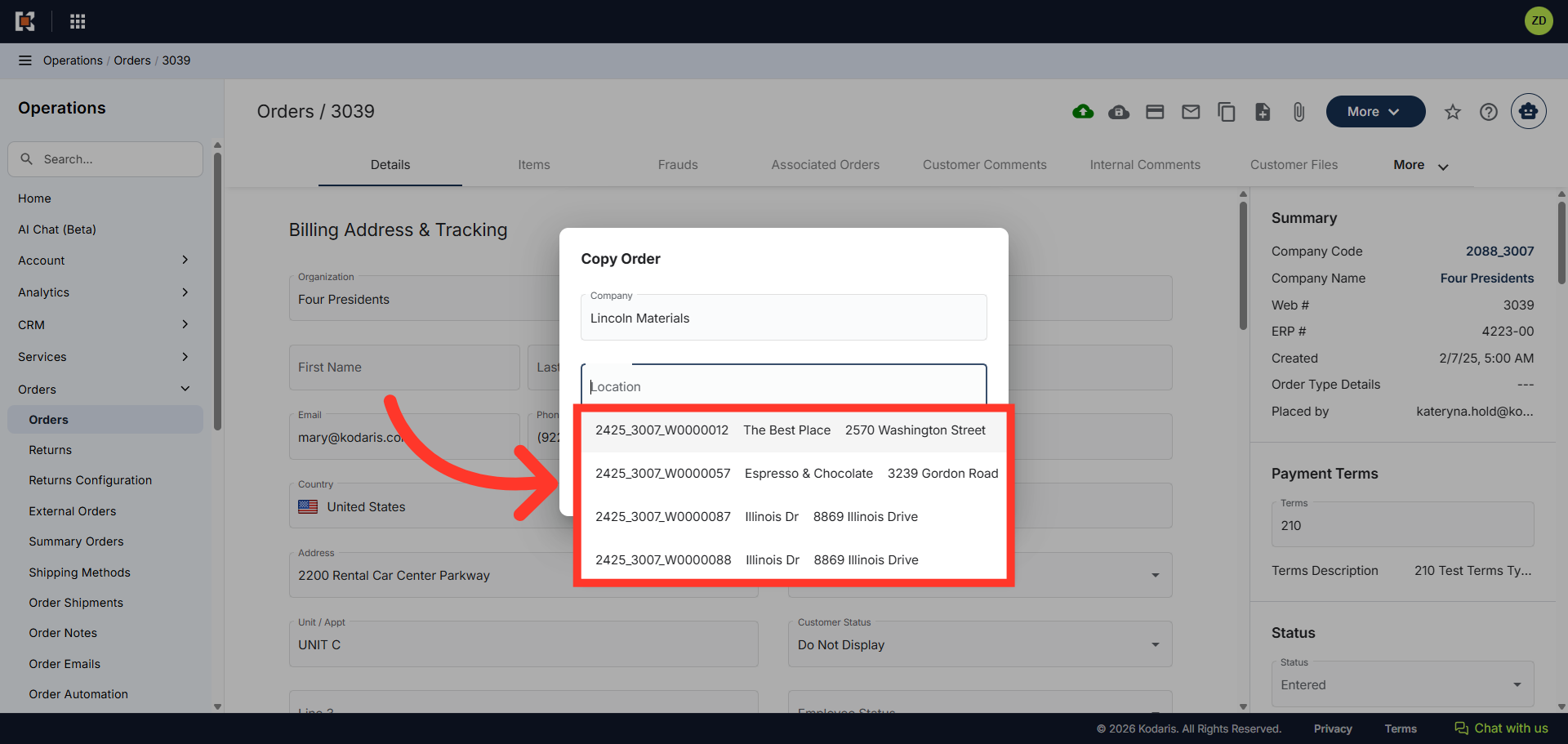
Select the ship-to address from the options
You can select the ship-to address from the options. You can also type to search for the ship-to address.
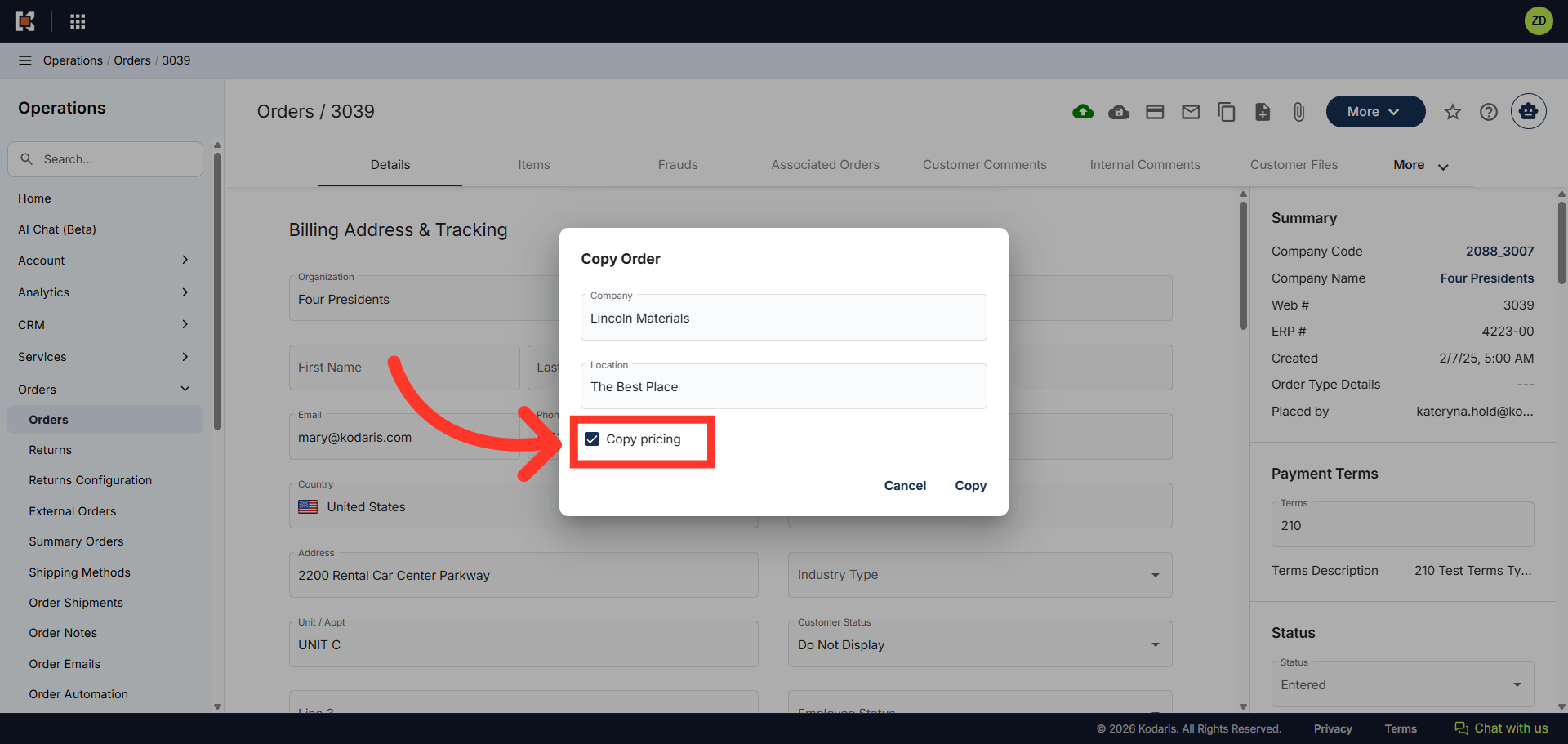
Click "Copy pricing"
Click the "Copy pricing" checkbox if you wish to copy the price to the new order.
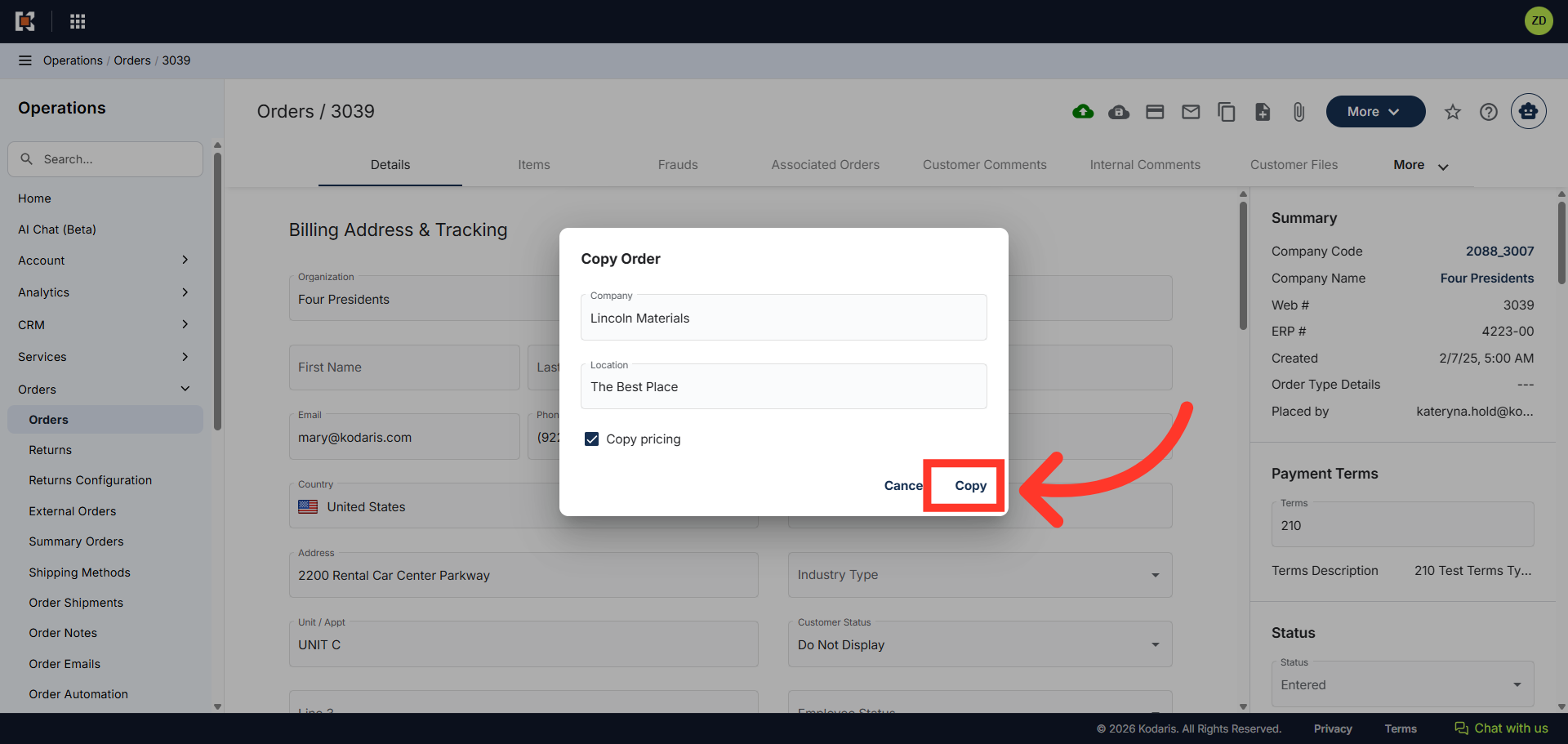
Click "Copy"
Finally, click "Copy".
Check that the new order has been copied to the correct company
The new order will automatically populate. Check that the new order has been copied to the correct company.