
Create an Employee API User & Authenticate to the API
In this guide, we're going to take you through how you can create an employee API user and authenticate to the Kodaris API.
Create an Employee API User
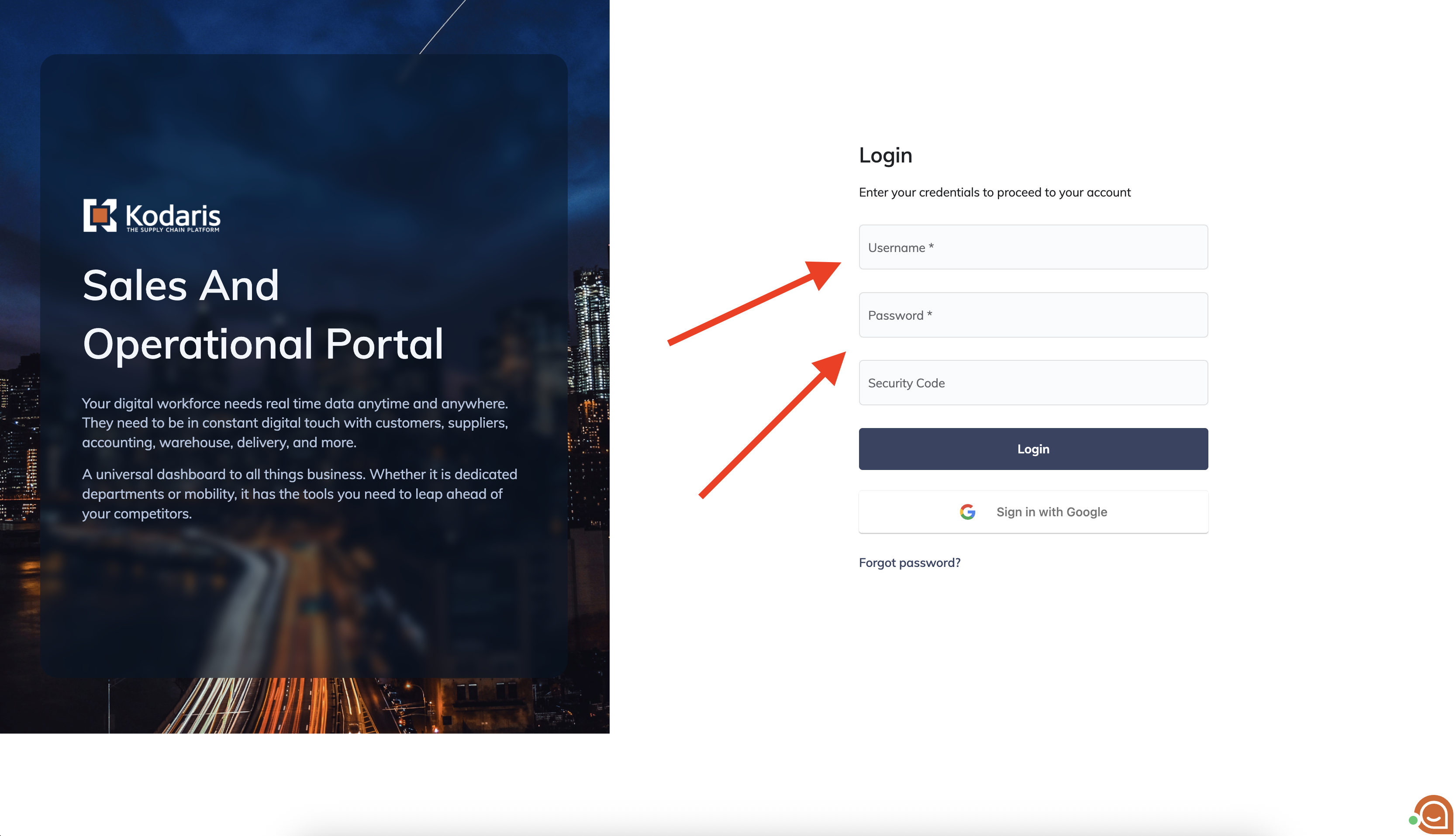
- Sign in to your Kodaris system as an employee.
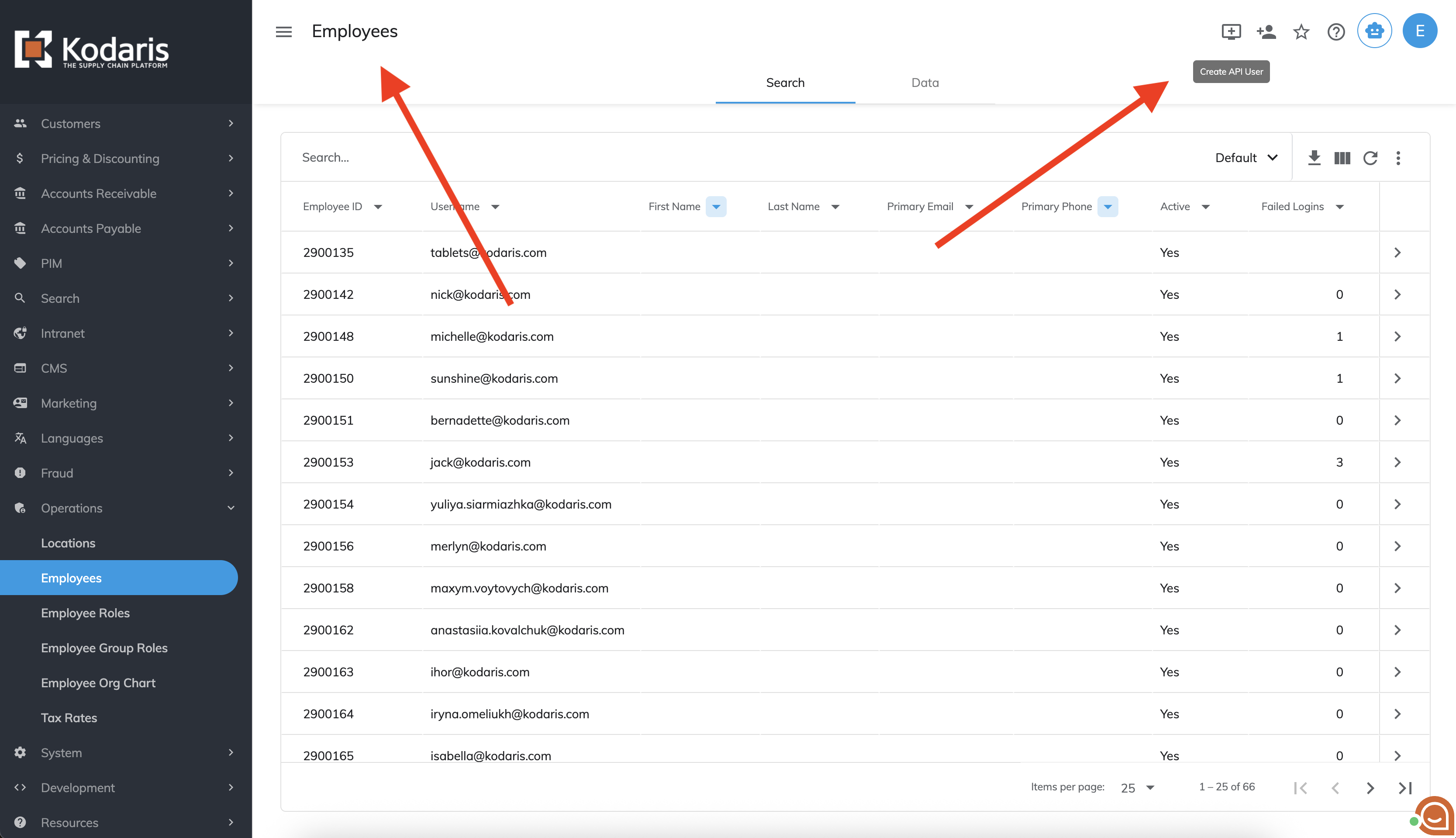
- Navigate to the Employees screen and click Create API User.
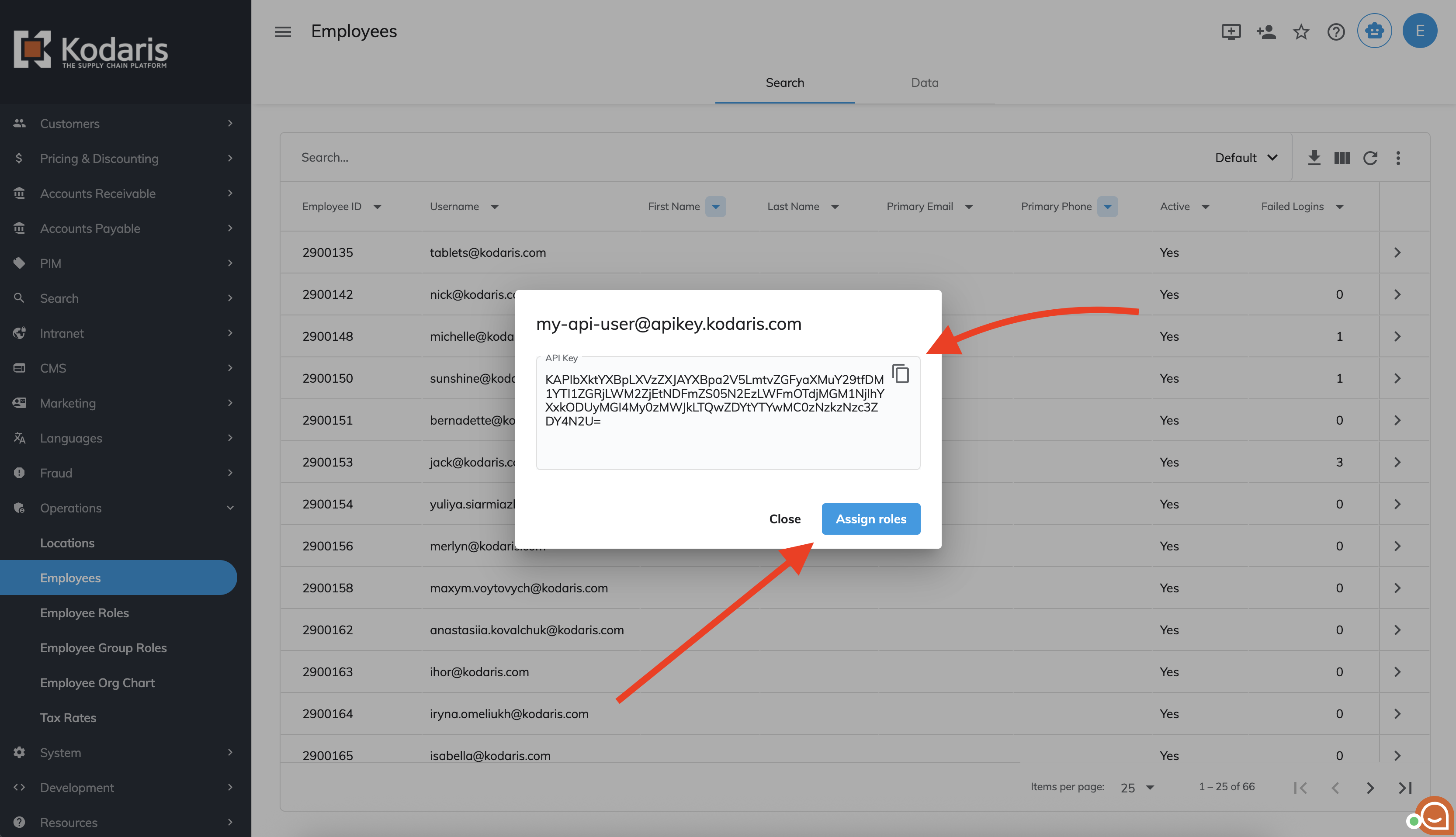
- In the popup window, enter your API user's name and, optionally, a description. Then click Create User.

- After your API user is created, be sure to copy and save the API key. This is the only time the API key will be shown. Once copied, click Assign Roles.
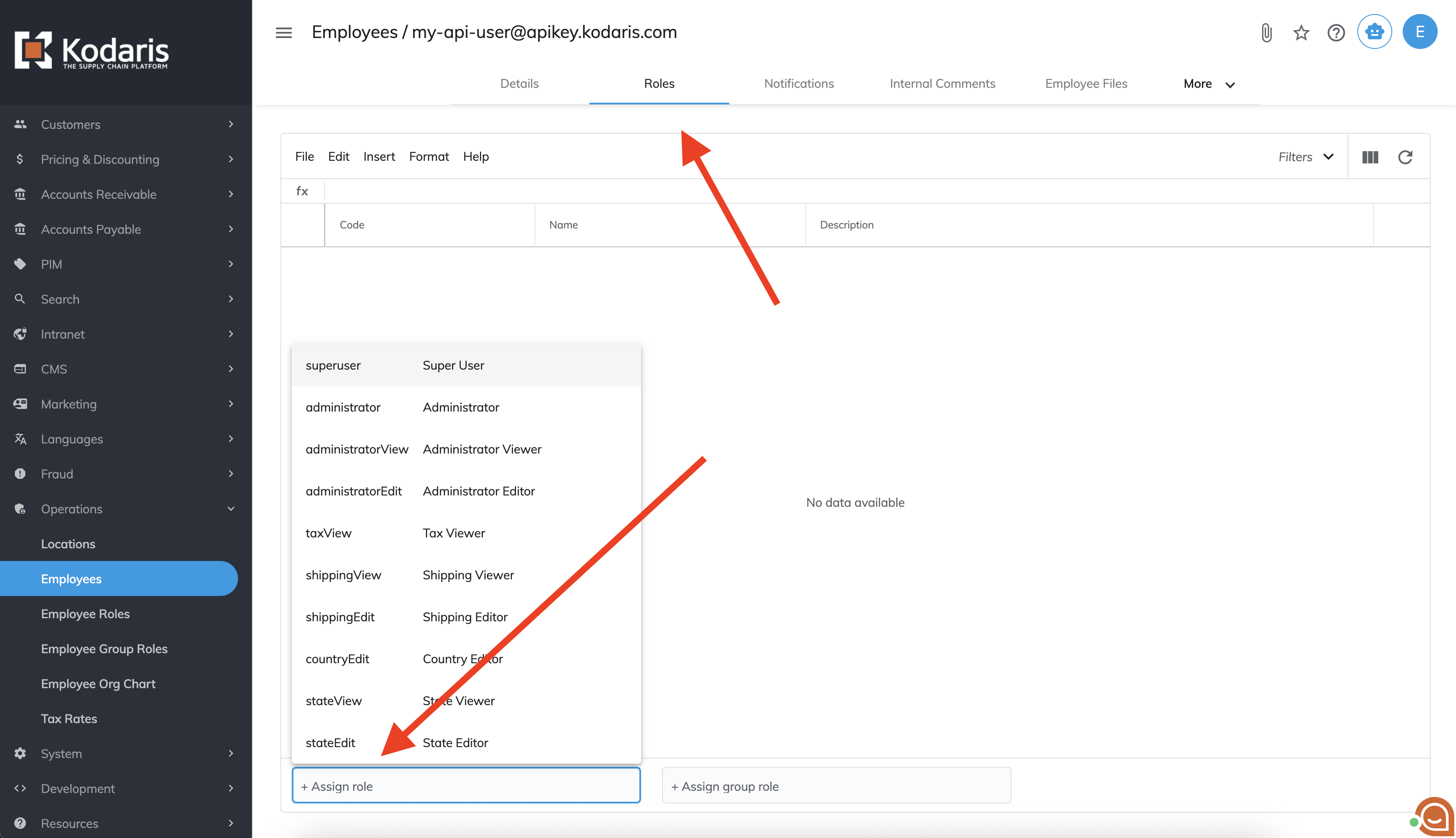
- You should be redirected to the roles screen for your new API user. Here, you can set whatever permissions you'd like your API user to have, for example administrator.
Your API user is all set! You can now authenticate to the Kodaris API.
Authenticate to the API
Fetch Orders under your Company Account
- In this example, we'll authenticate to the Kodaris API and fetch orders.
- Send an API request to endpoint: POST api/system/order/list
- Headers
- Accept - application/json
- Content-Type - application/json
- Authorization - 'Bearer ' + 'xxxx' which is your api key for user
- Body
- page - 0
- Returns the first page of orders
- size - 10
- Returns a page with 10 orders
- page - 0
- Response
- A list of orders will be returned
- Headers
Example:
// get list of orders
var ordersRes = kd.http.fetch({
  method: 'POST',
  url: 'https://commerce.kodaris.com/api/system/order/list',
  version: 2,
  body: {
    page: 0,
    size: 10
  },
  headers: {
    'Accept': 'application/json',
    'Content-Type': 'application/json',
    'Authorization': 'Bearer ' + 'xxxx'
  }
});

kd.log('ordersRes', ordersRes);

-> response ->
{
  "status" : 200,
  "errors" : null,
  "body" : {
    "success" : true,
    "code" : 200,
    "messages" : { },
    "errors" : { },
    "data" : {
      "size" : 10,
      "number" : 0,
      "totalElements" : 1571,
      "isLast" : false,
      "totalPages" : 158,
      "isFirst" : true,
      "hasPrevious" : false,
      "hasNext" : true,
      "numberOfElements" : 10,
      "offset" : null,
      "content" : {
        "0" : {
          "deliveryAddress1" : "123 Main St.",
          "deliveryAddress2" : "",
          "deliveryAddress3" : "",
          "deliveryCity" : "Jenison",
          "deliveryCountry" : "US",
          "deliveryDelivered" : null,
          "deliveryEmail1" : "sales@kodaris.com",
          "deliveryEmail2" : null,
          "deliveryExtra1" : null,
          "deliveryExtra2" : null,
          "deliveryExtra3" : null,
          "deliveryExtra4" : null,
          "deliveryExtra5" : null,
          "deliveryFirstName" : "Jane",
          ... omitted for brevity
        },
        "1" : {
          "deliveryAddress1" : "123 Main St.",
          "deliveryAddress2" : "",
          "deliveryAddress3" : "",
          "deliveryCity" : "Wadsworth",
          "deliveryCountry" : "US",
          "deliveryDelivered" : null,
          "deliveryEmail1" : "sales@kodaris.com",
          "deliveryEmail2" : null,
          "deliveryExtra1" : null,
          "deliveryExtra2" : null,
          "deliveryExtra3" : null,
          "deliveryExtra4" : null,
          "deliveryExtra5" : null,
          "deliveryFirstName" : "Jane",
... omitted for brevity
In this article