Operations System - Create Customer Catalogs by Import
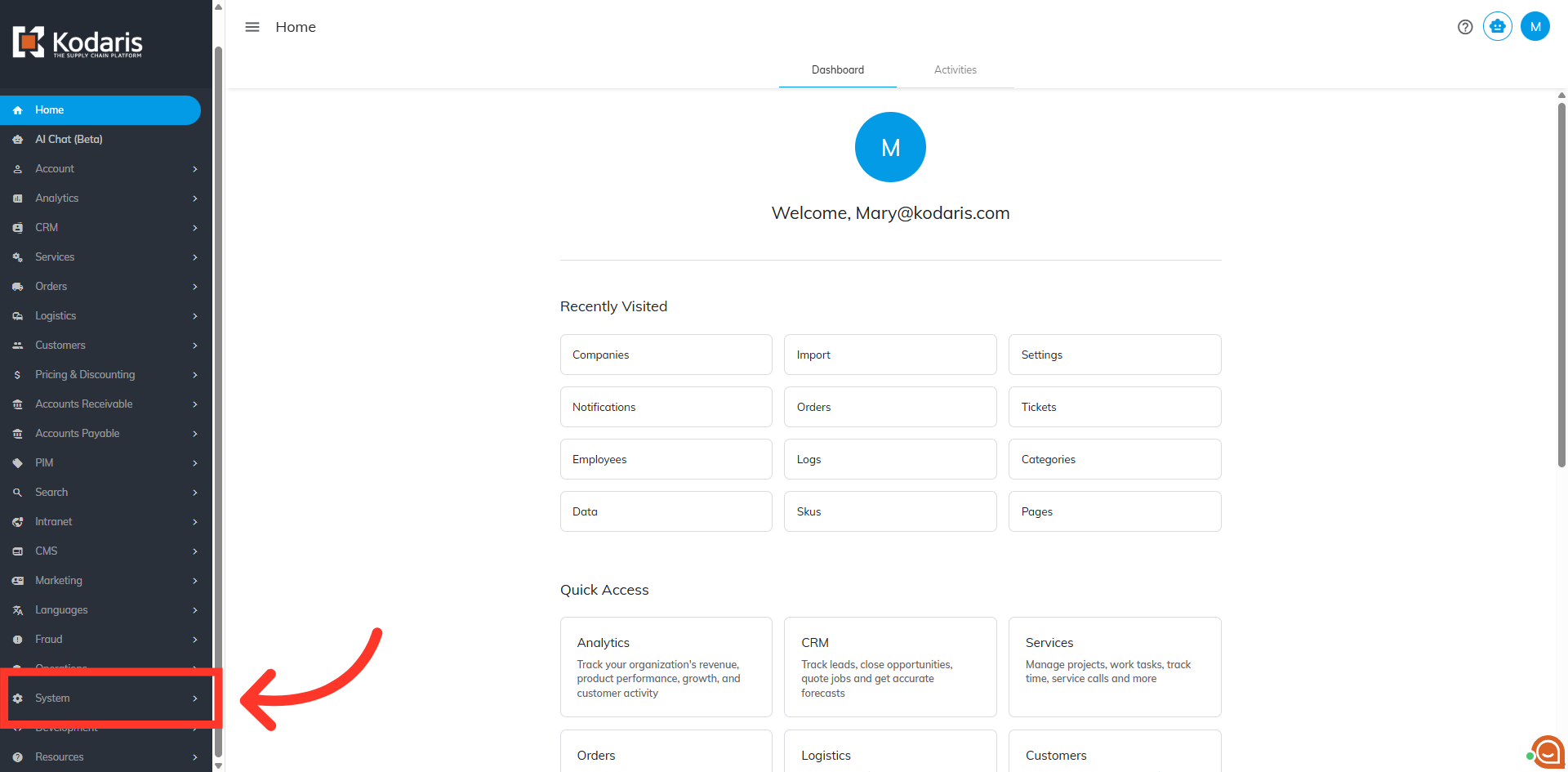
Navigate to "System"
To create customer catalogs by import, navigate to "System" in the Operations Portal.
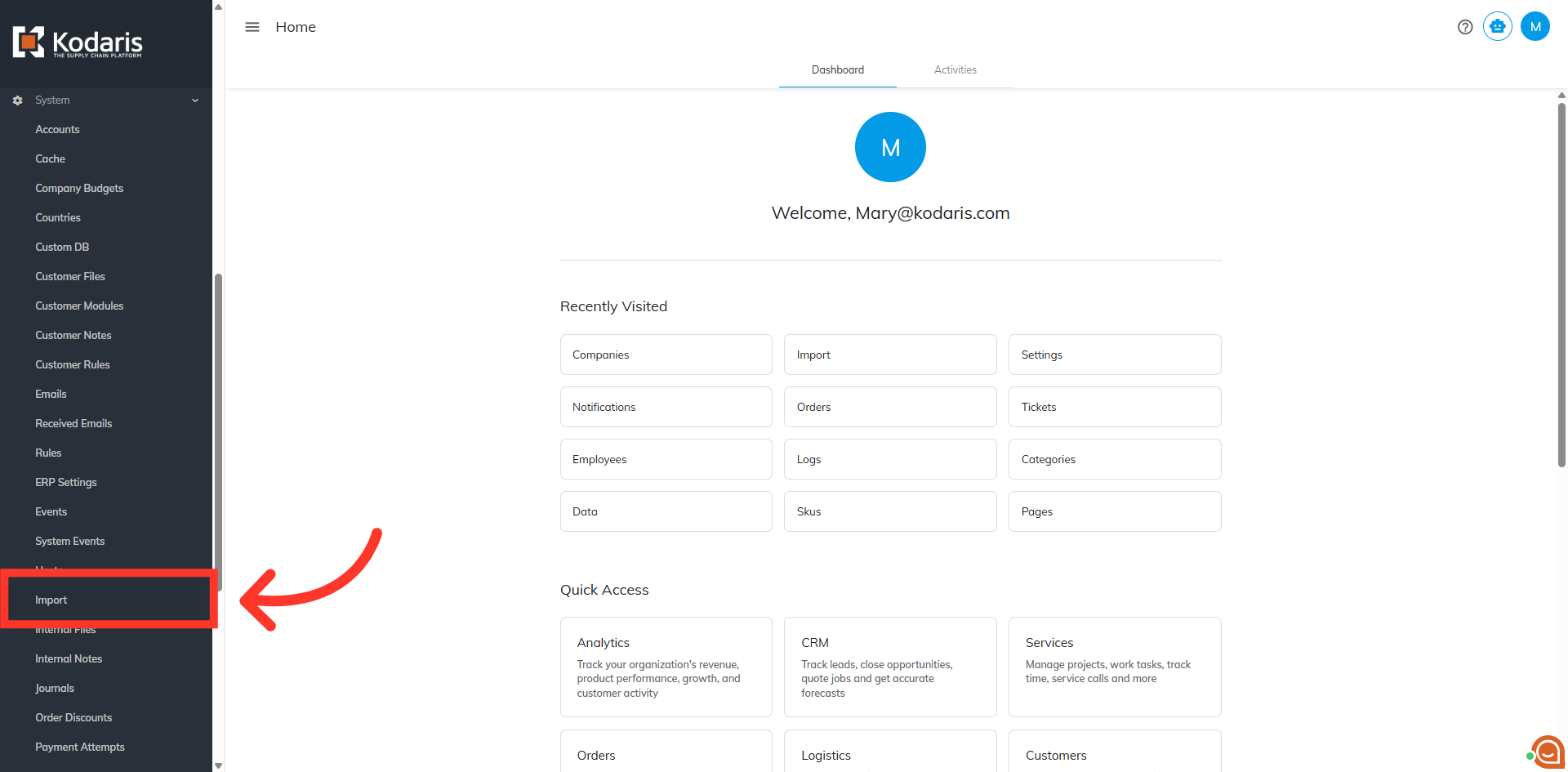
Click "Import"
Then, click "Import". In order to import data, you will need to be set up as an "administrator" or "superuser" or have the role of: "importEdit".
Search for "CompanyProductCategory"
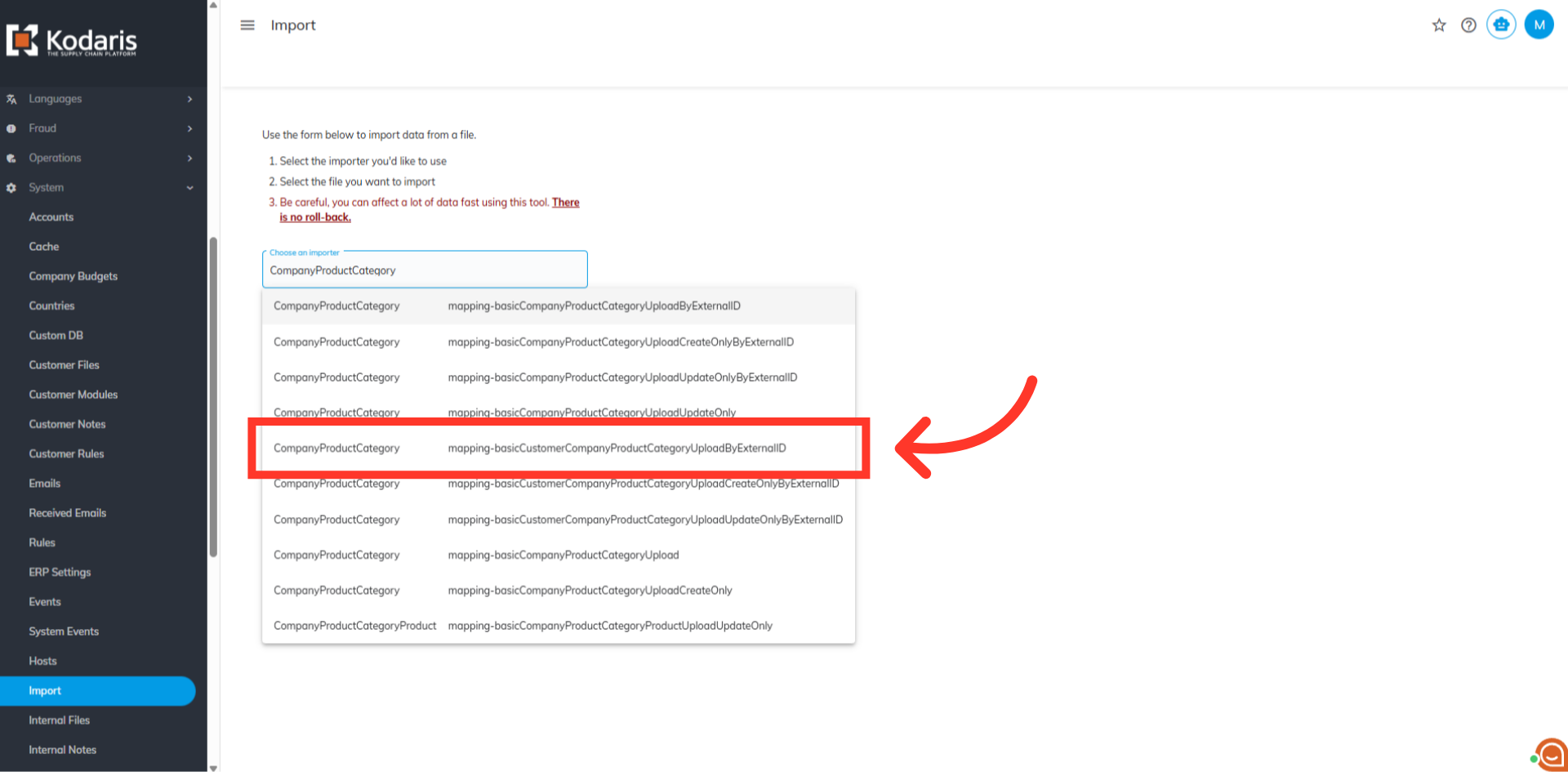
Enter "CompanyProductCategory" in the "Choose an importer"field.
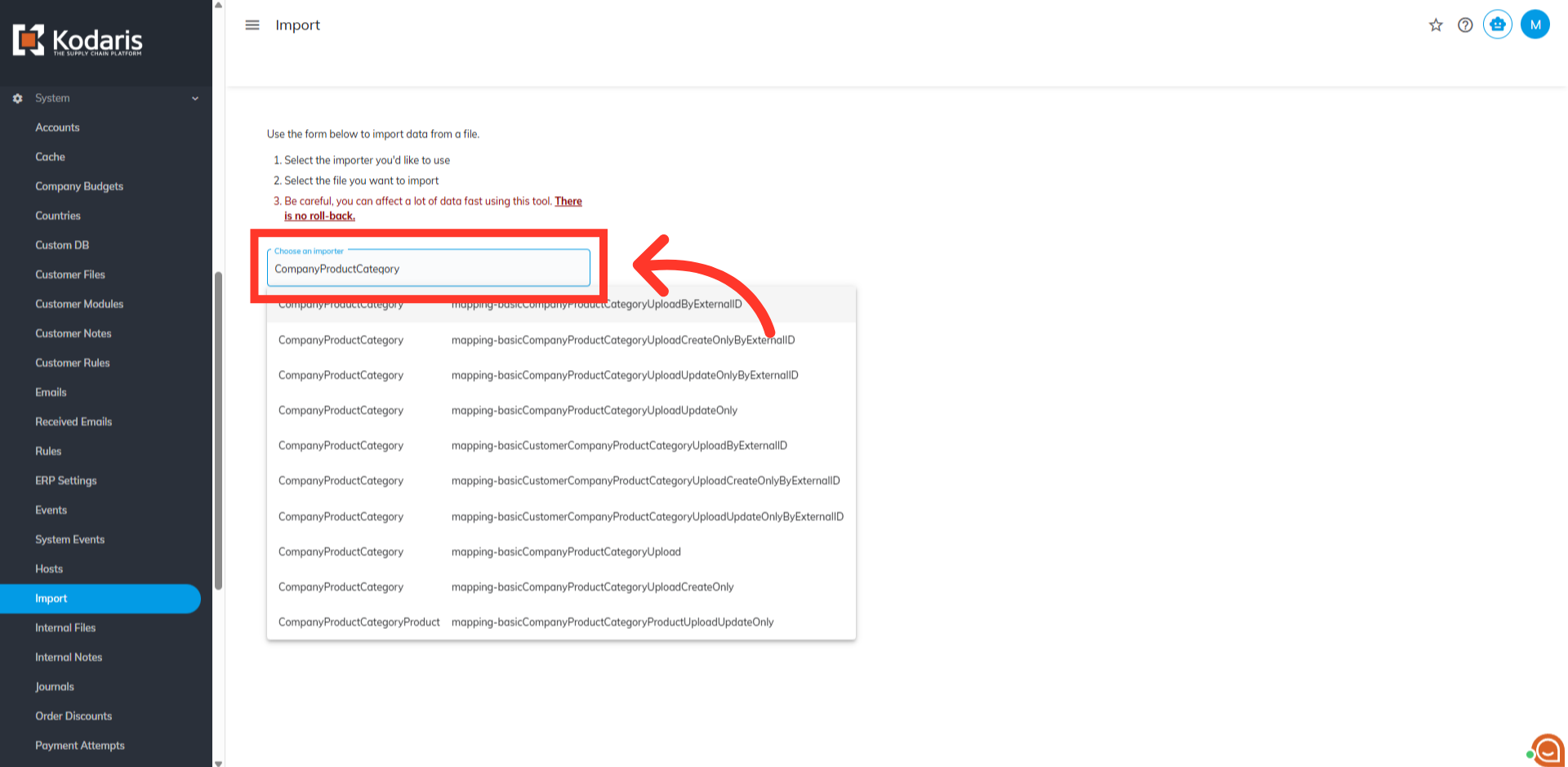
Select the importer to use
Different importers under company product category will show. Select the "mappingbasicCustomerCompanyProductCategoryUploadByExternalID".
Prepare your CSV file
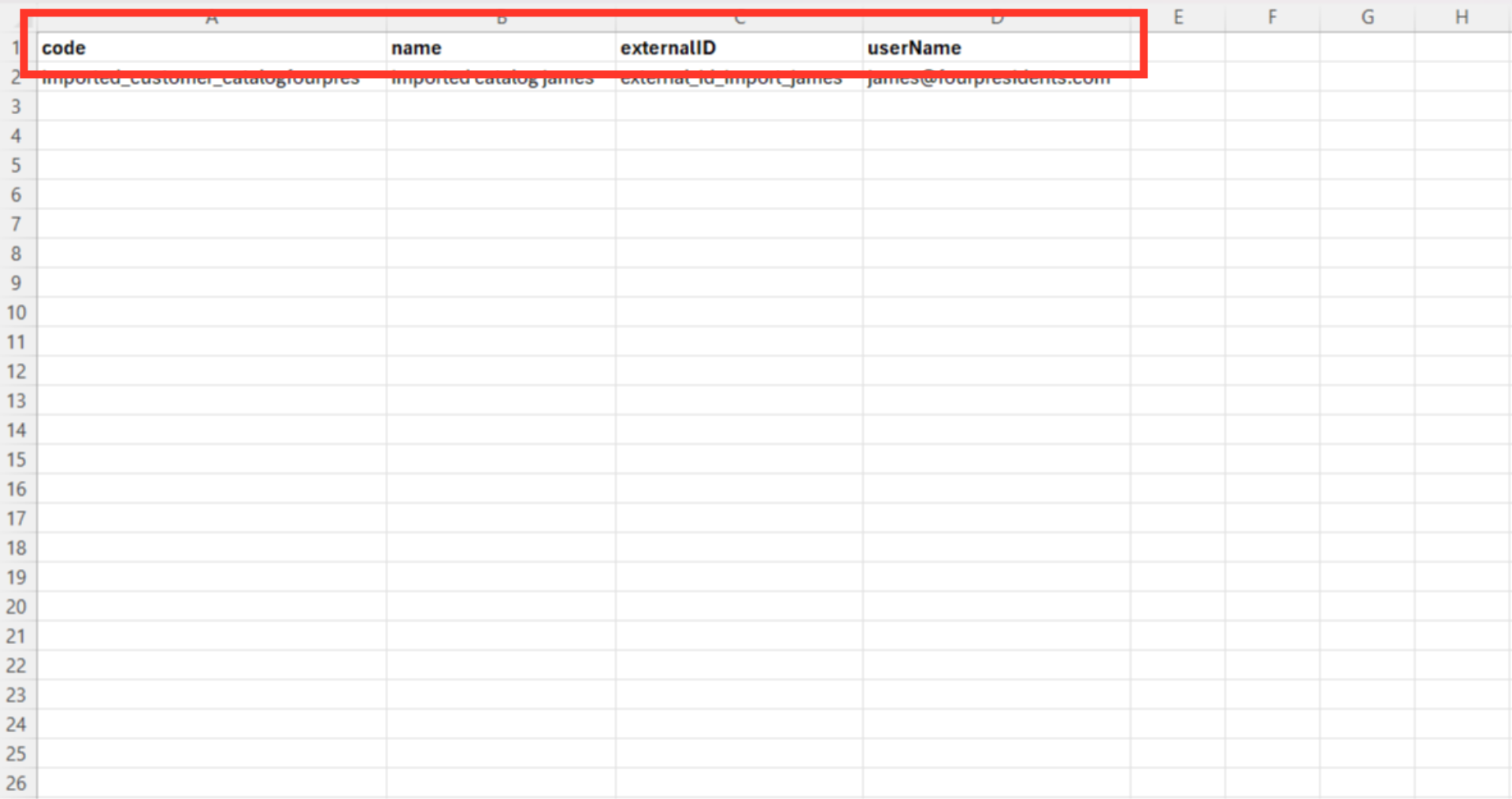
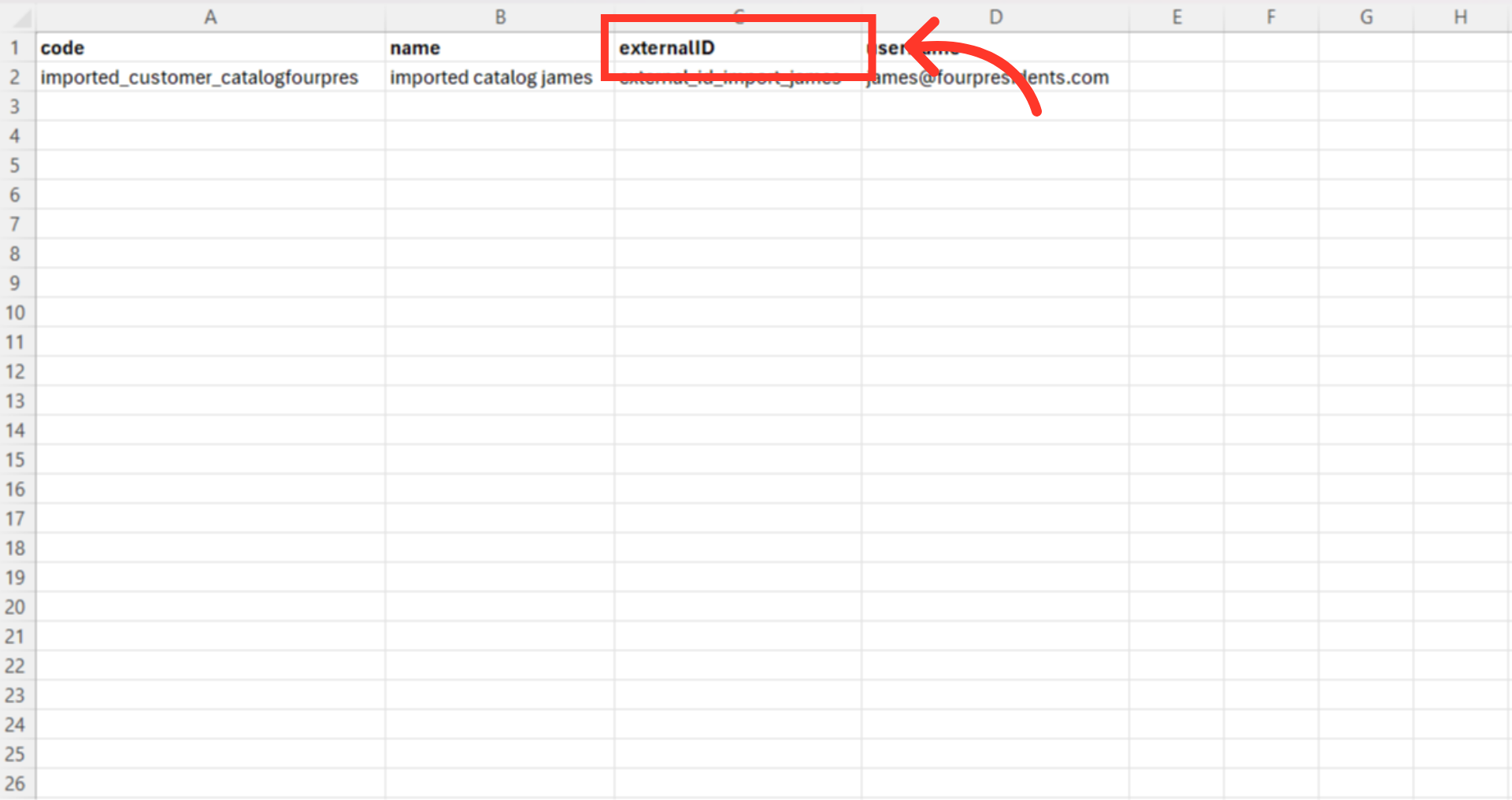
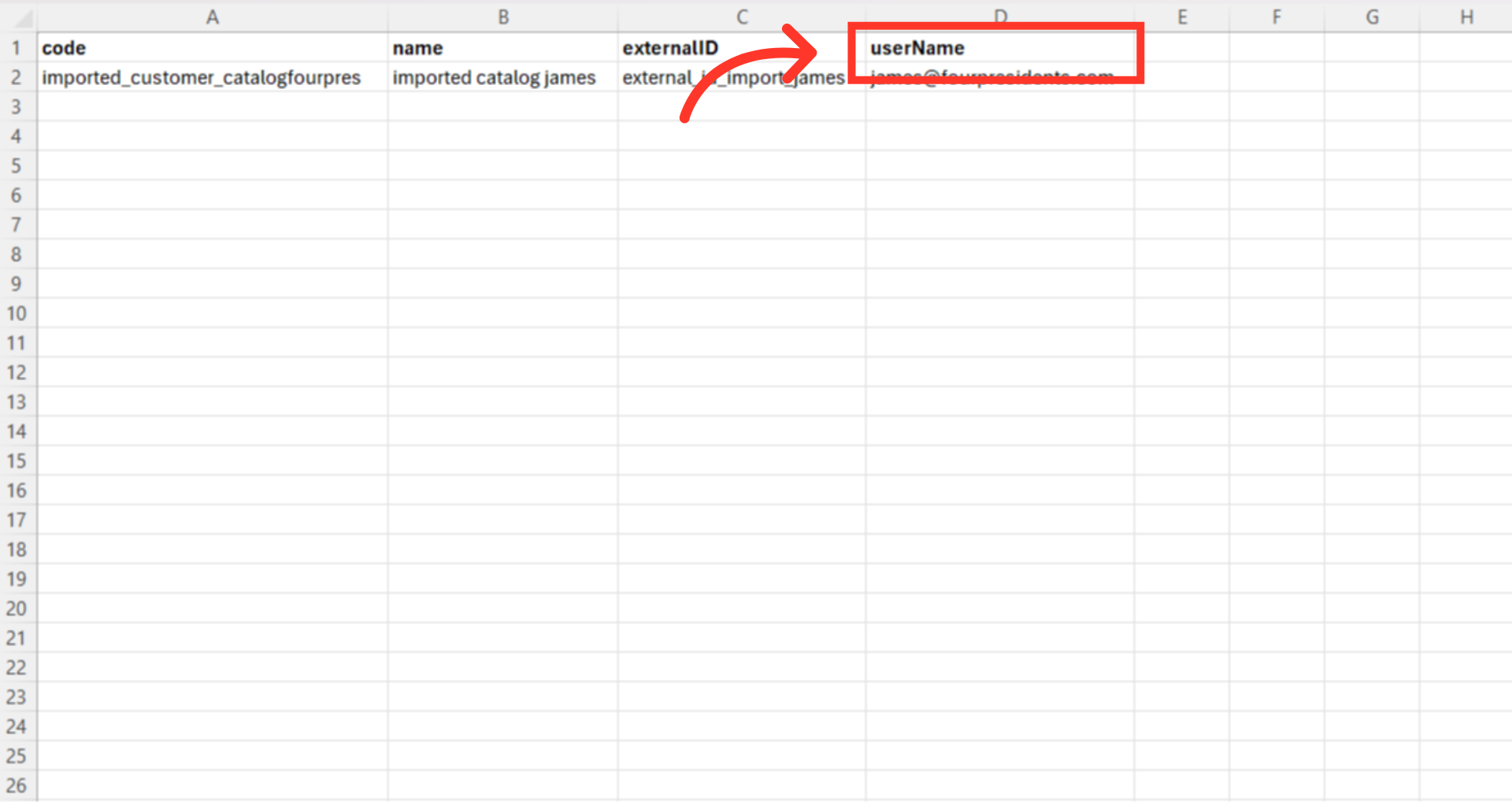
Prepare your CSV file. It should have these column headers: "code", "name", "externalID", and "userName".
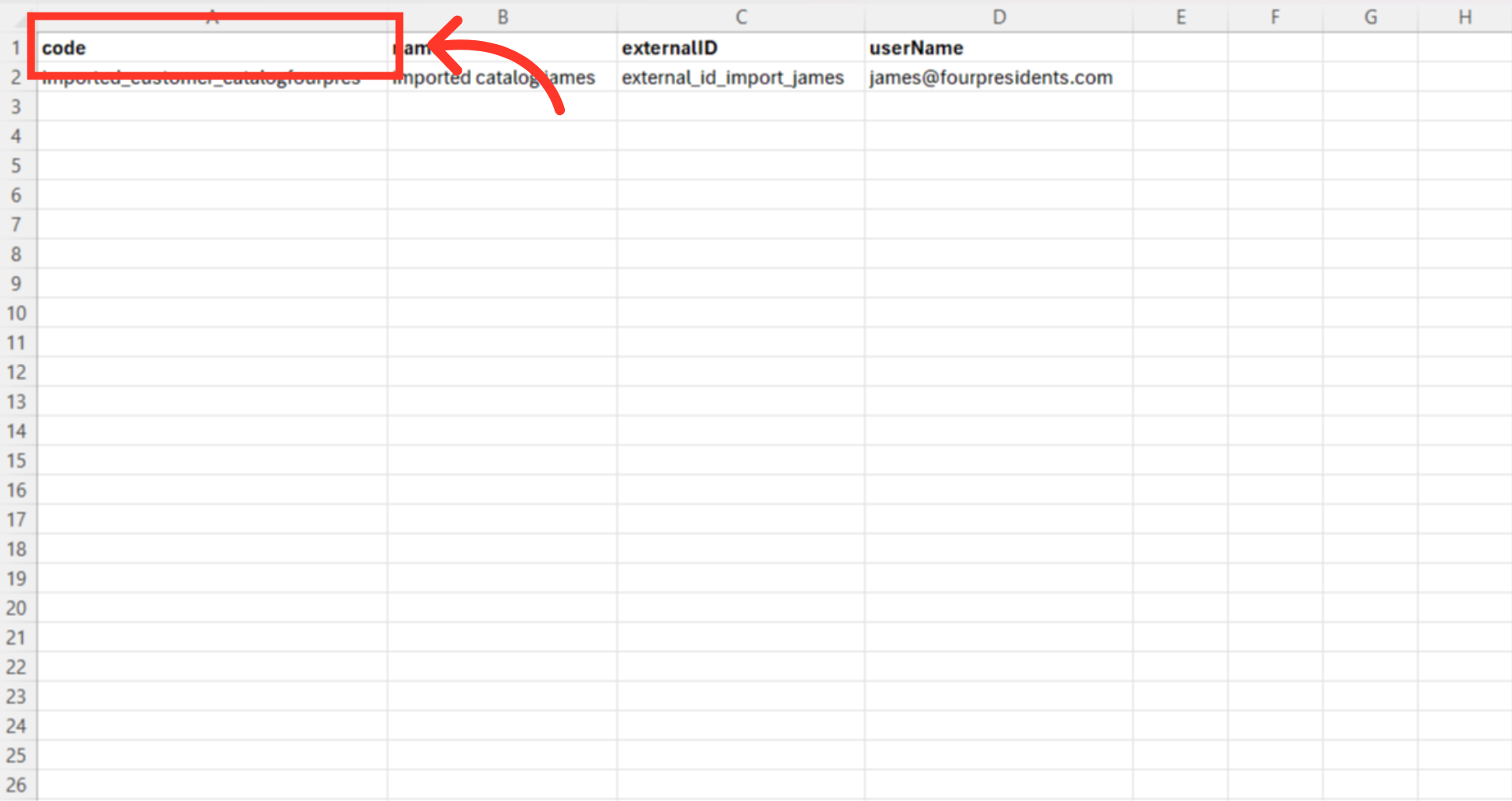
"code" = Catalog Code
The "code" is required when importing, as it serves as an identifying factor for matching information. These are the unique codes for each catalog in the system.
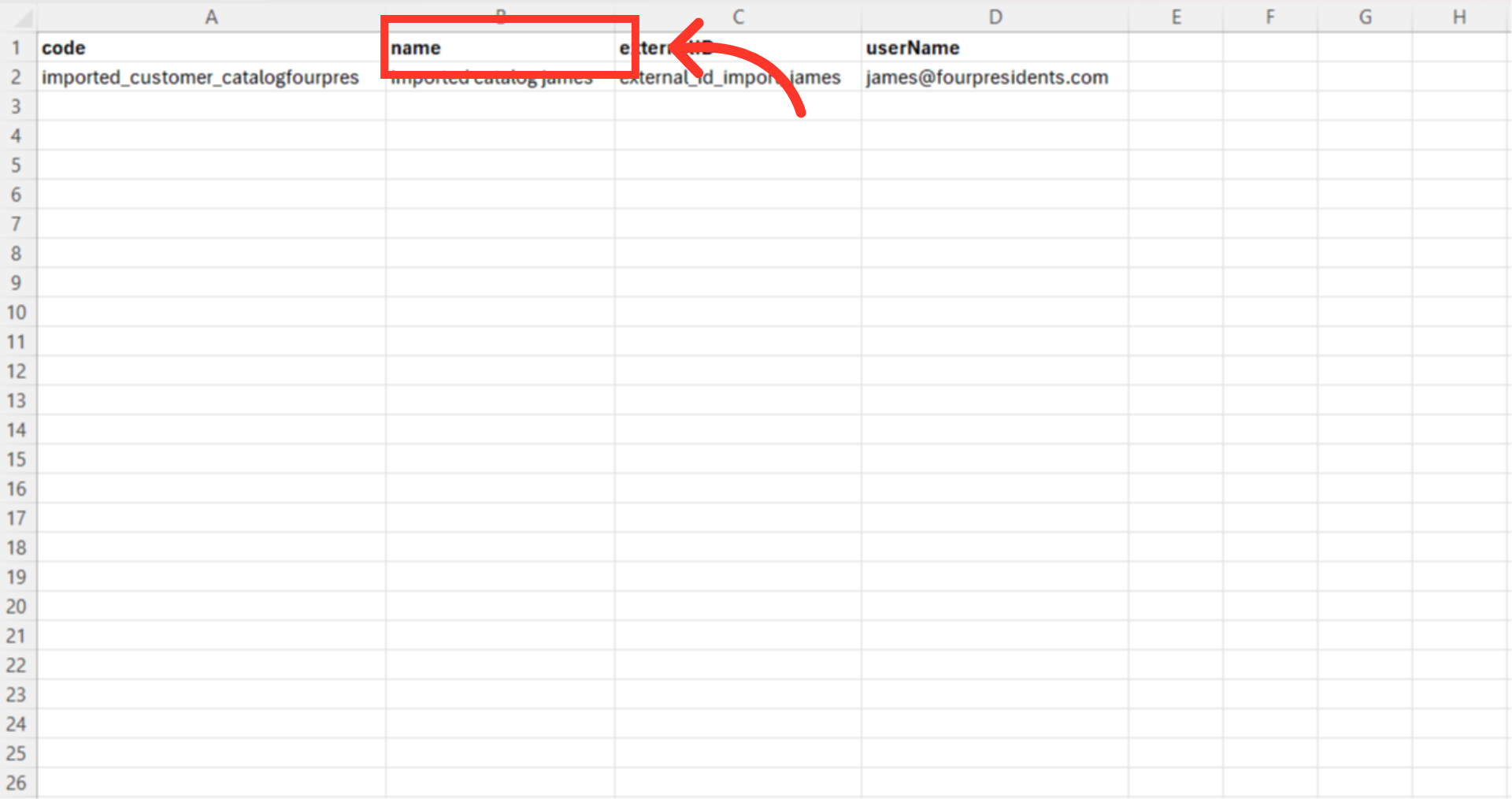
"name" = Catalog name
This is the catalog name and does not need to be unique. This name will be visible to customers.
"externalID" = External ID
The "externalID" is a unique code to link catalogs to a customer. This code can be anything you choose, as long as it is unique.
"userName" = Customer username
The username of the customer to whom you want to upload the catalog.
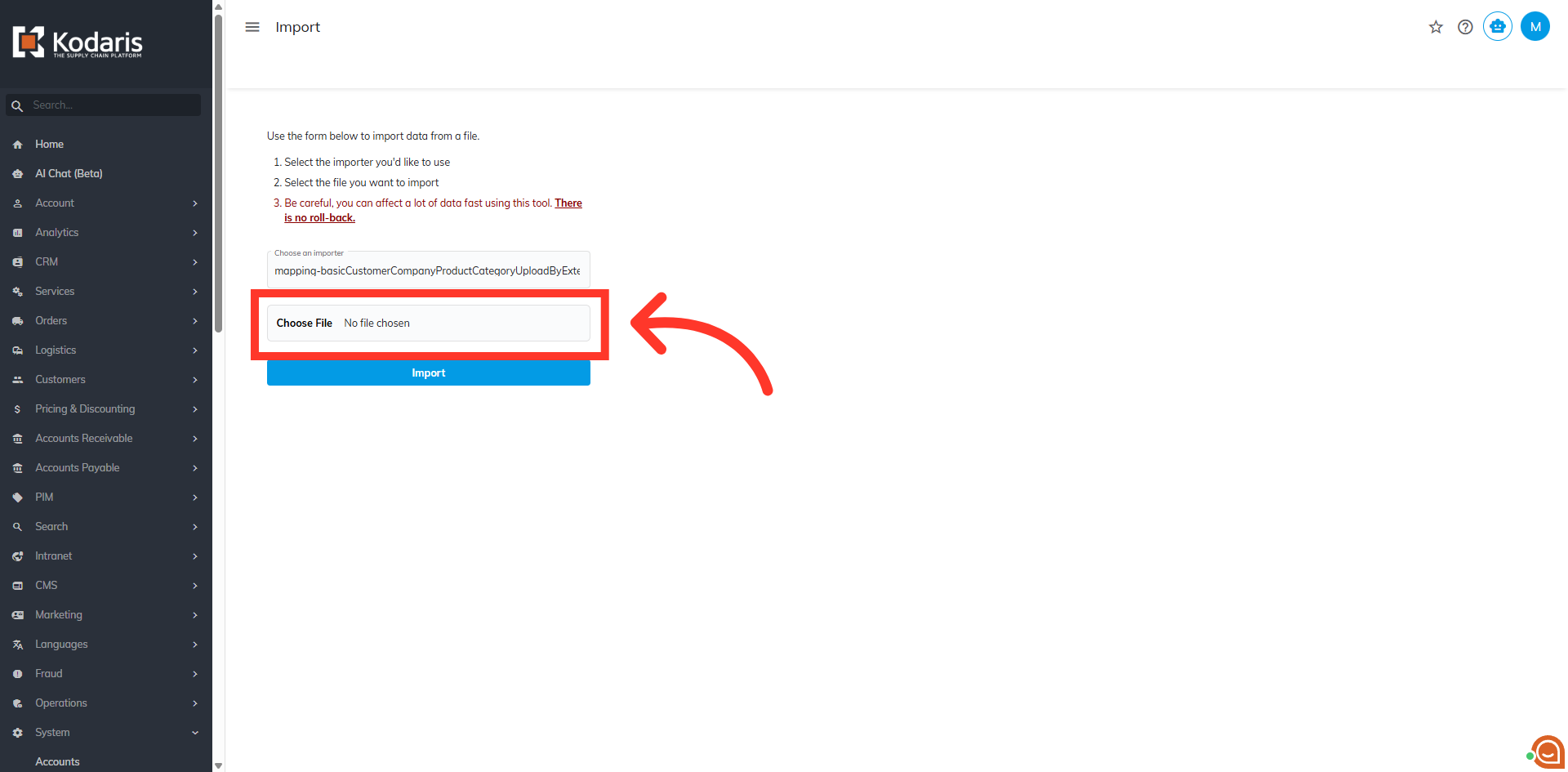
Upload the file
Once the CSV file is ready, click "Choose File" to upload.
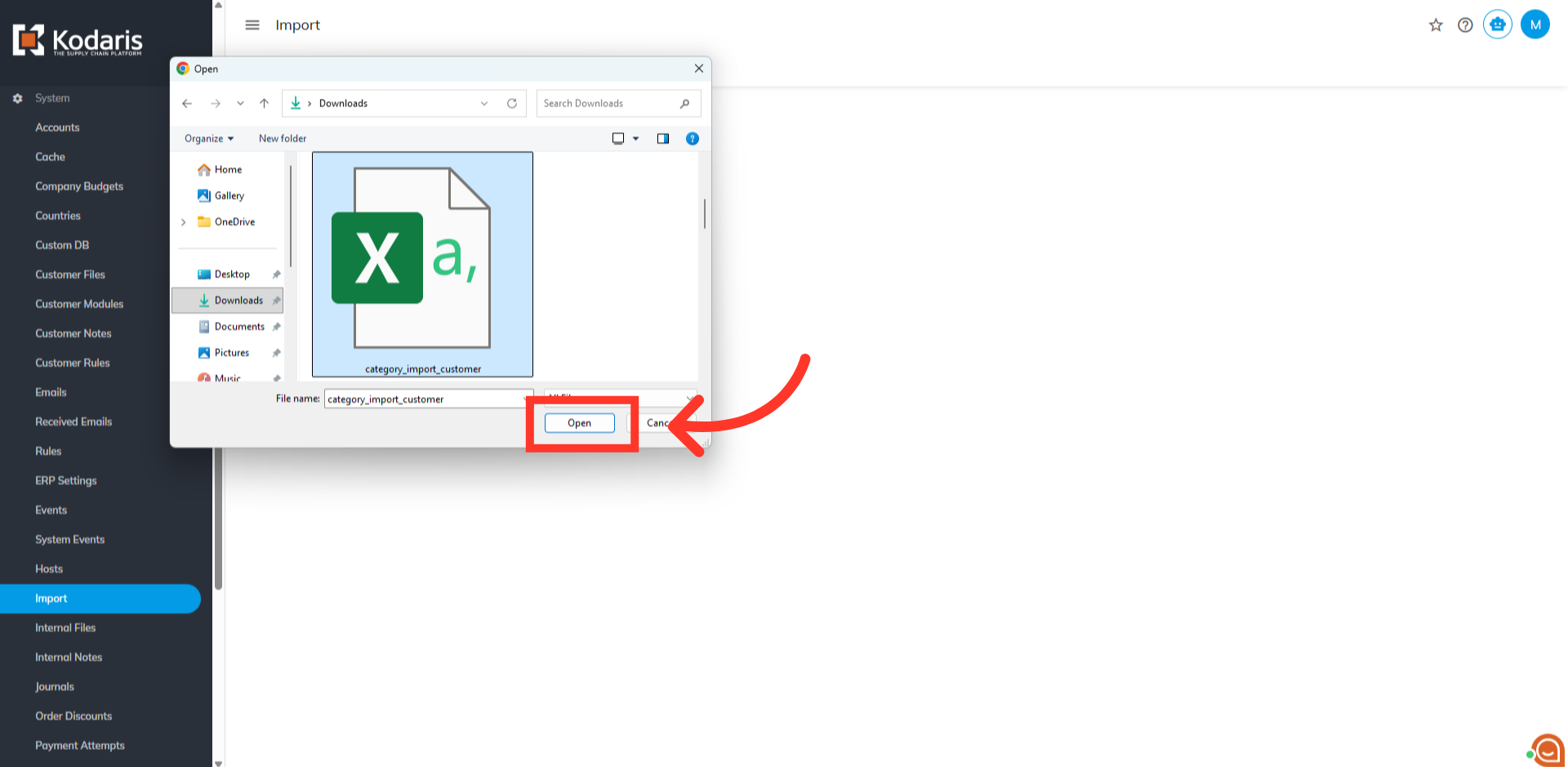
Select the file to import
Your file folder will populate. Choose the CSV file you would like to import. Please be sure that you select the correct file, as there are no rollbacks for imports. Select the file and click "Open".
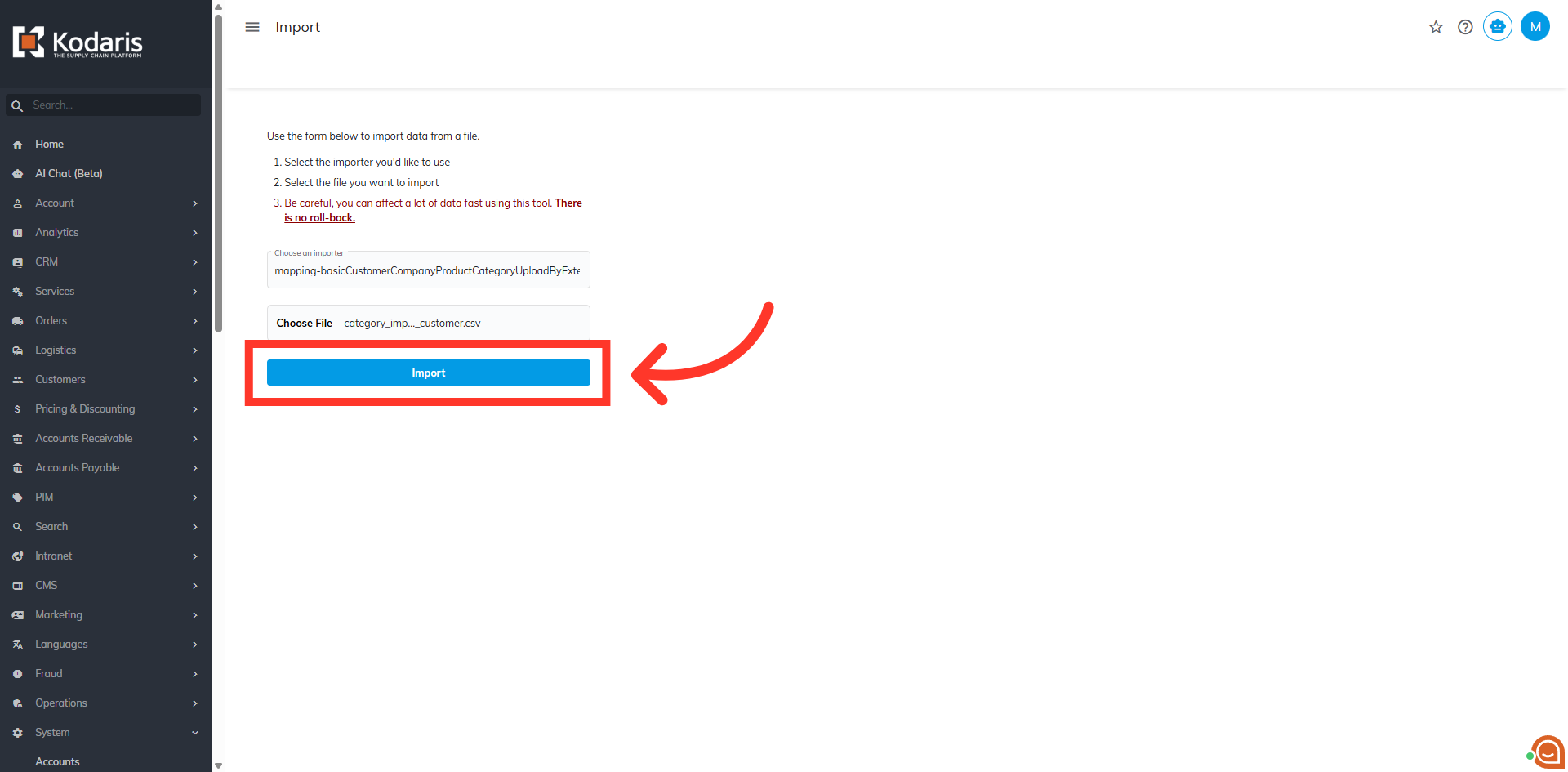
Click "Import"
Click the "Import" button to start uploading.
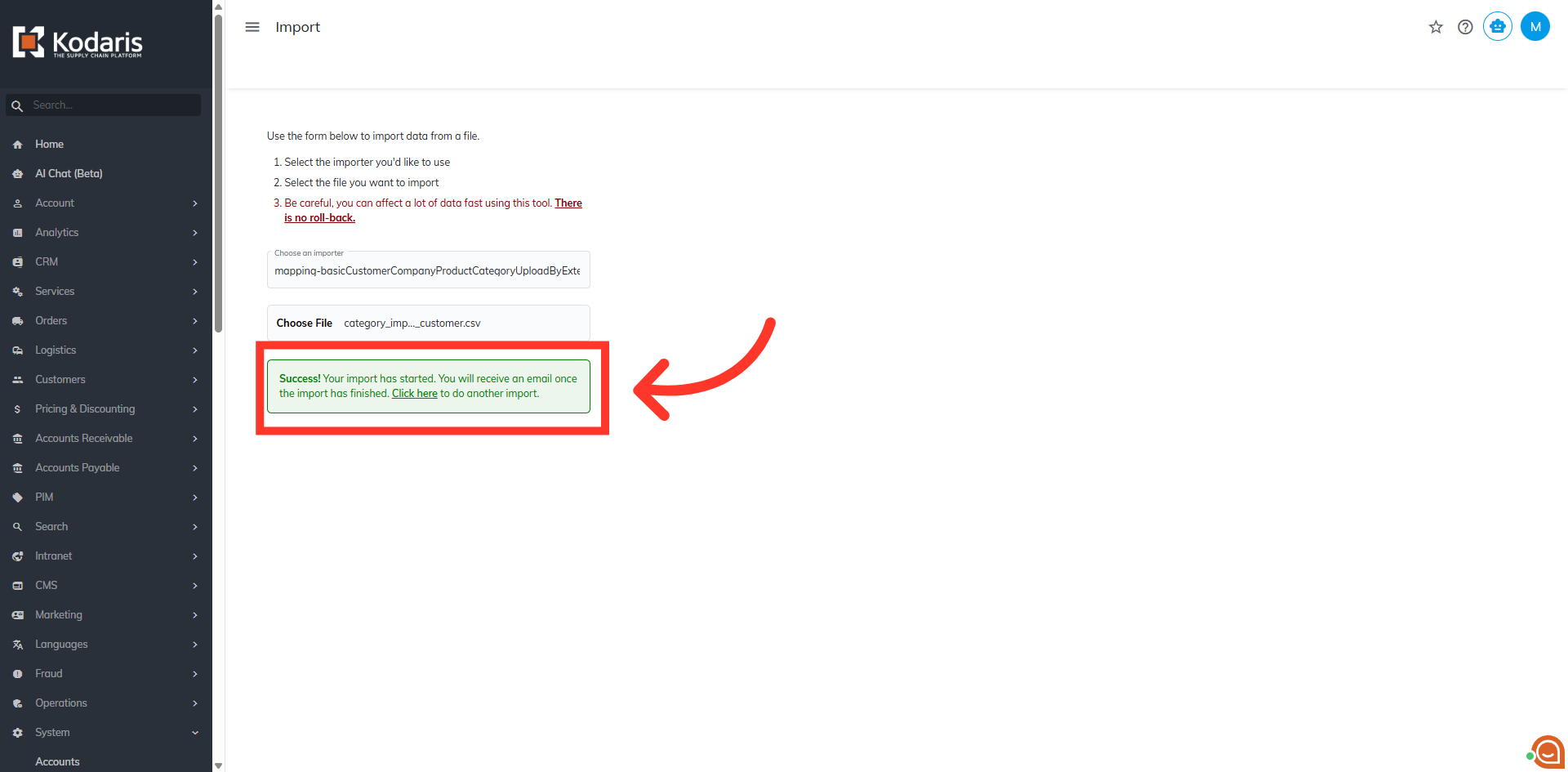
A success message will show
A success message will show that your import has started. If you are importing large amounts of data, it may take a short amount of time to complete. The import will continue to run in the background.
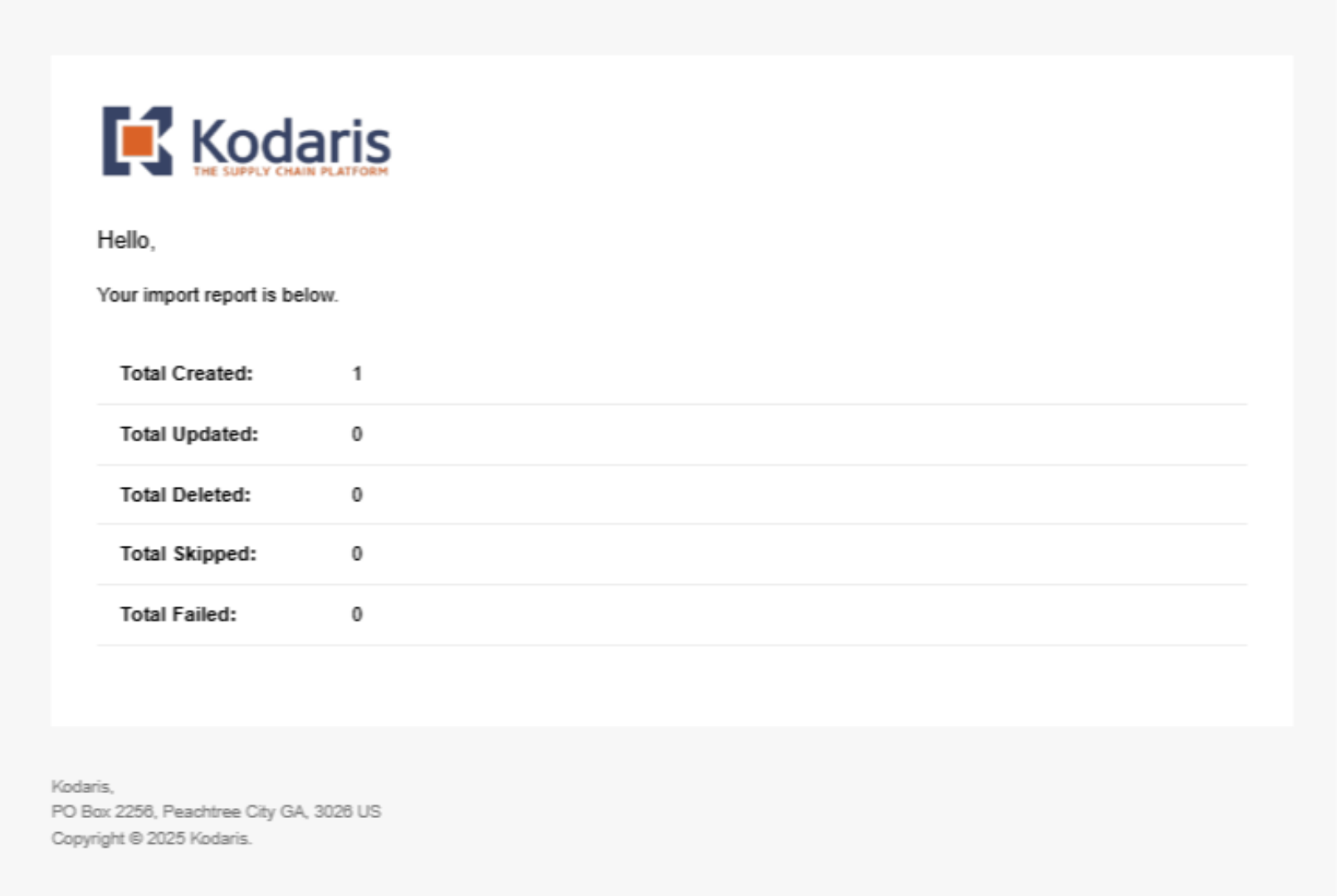
Import Report Email
An import report email will be sent to you with the import results.