Operations Portal - Copy API Request Payloads from Grids
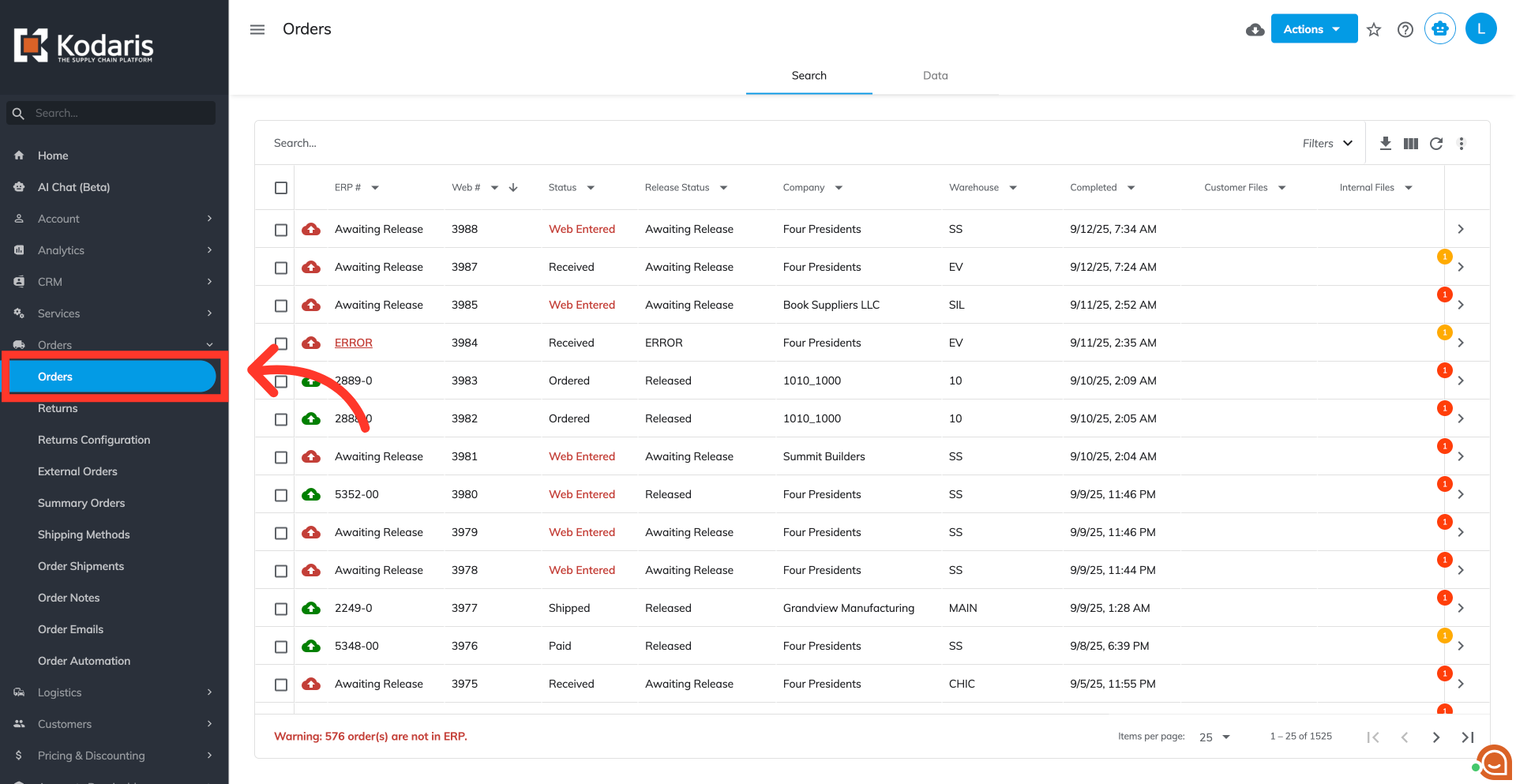
Navigate to the "Orders" screen
When using any search screen or data grid in the operations portal, you can copy the request payload used for that grid. This can be especially useful when developing scripts. Before you begin, open a text editor app to verify the copied text. For this example, navigate to the "Orders" screen in the Orders section. In order to access "Orders" you will need to be set up either as an "administrator" or a "superuser", or have the appropriate roles: "crmCompanyOrderView," "crmCompanyOrderEdit," "orderEdit," "orderView," and "dispatch."
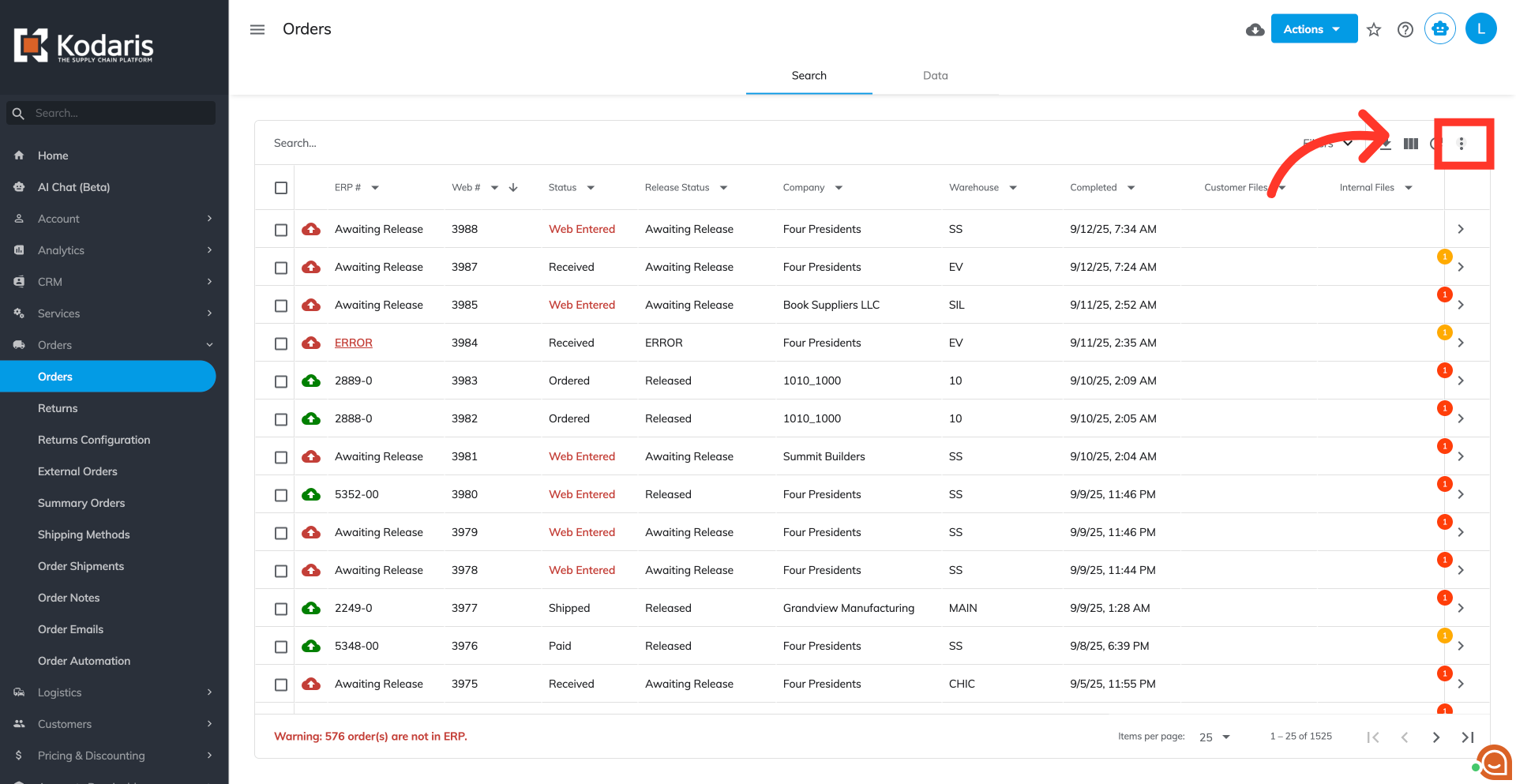
Click the "More menu" icon
On the search tab, click the "More menu" icon.
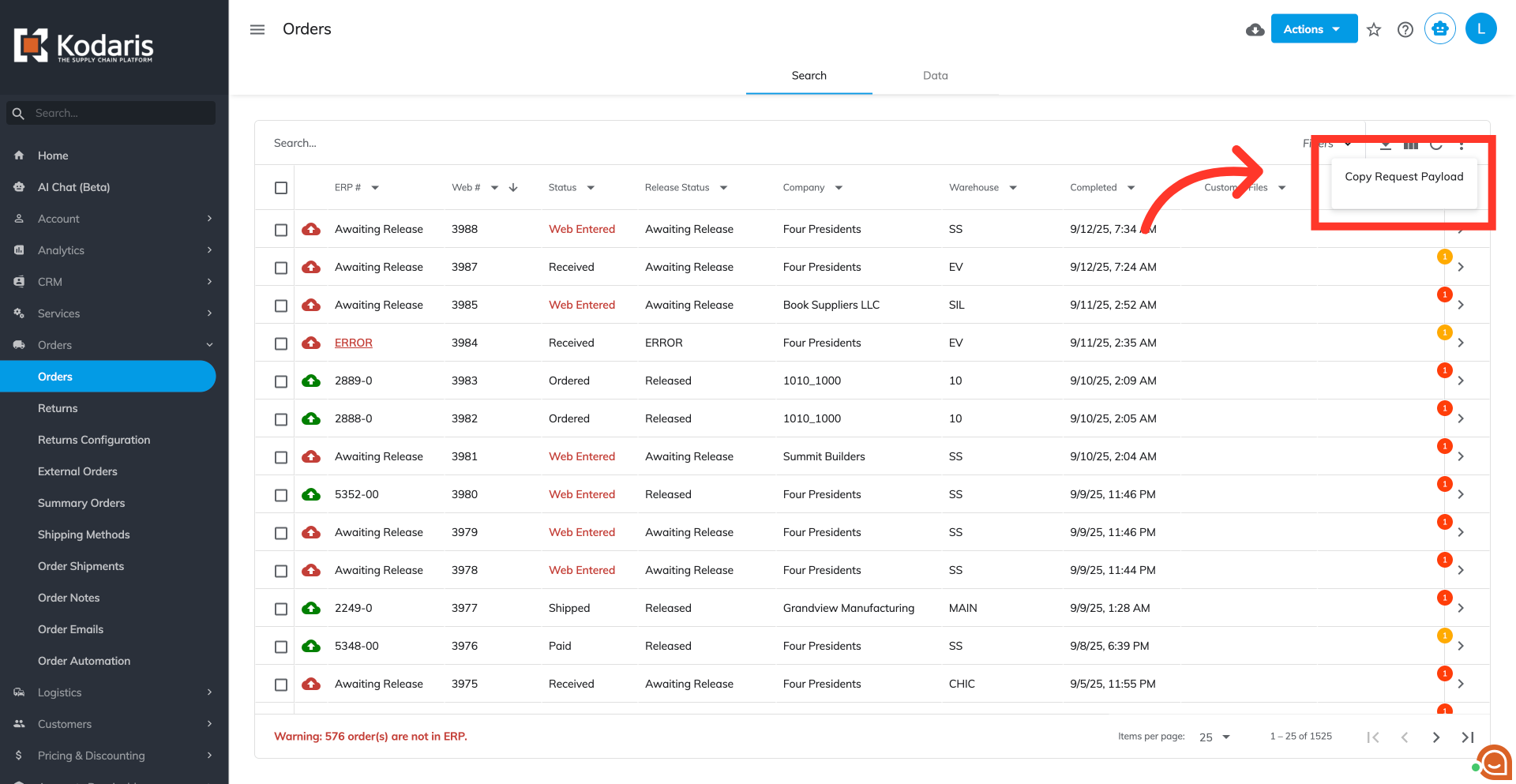
Click "Copy Request Payload"
Then, click "Copy Request Payload" to copy the request payload from the grid.
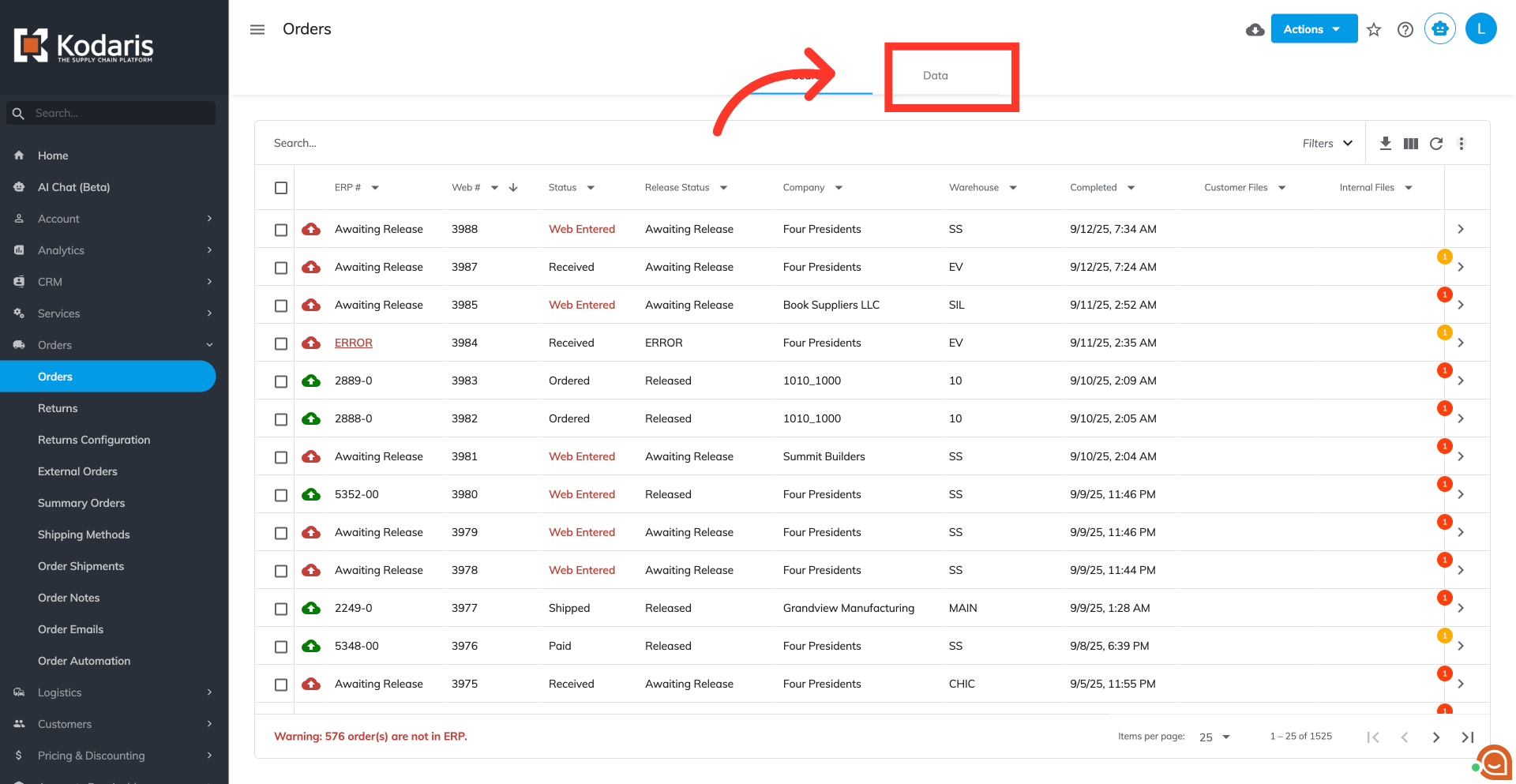
Go to the "Data" tab
You can also find the same functionality on the Data tab. Click on the "Data" tab to access it.
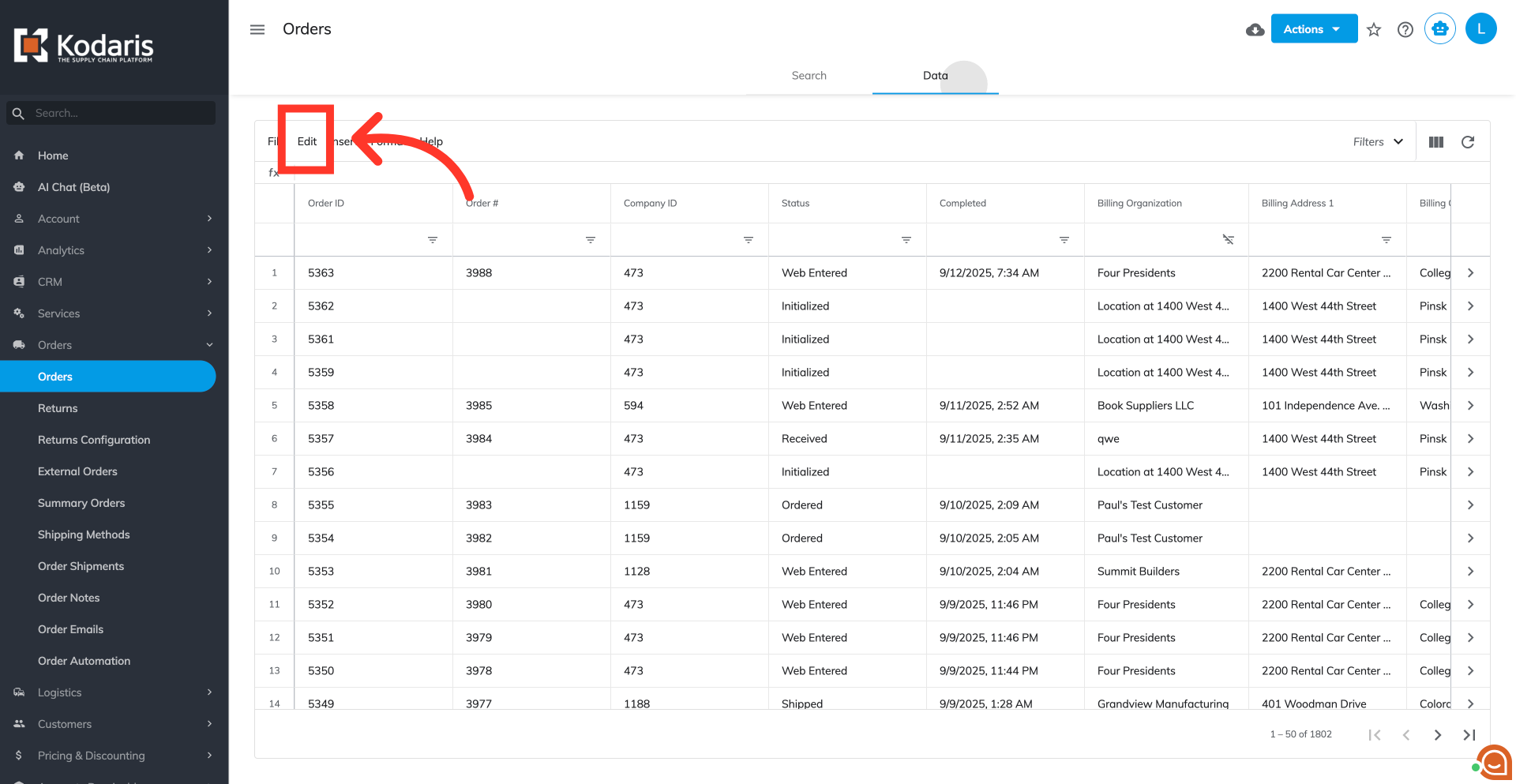
Click "Edit"
Click "Edit".
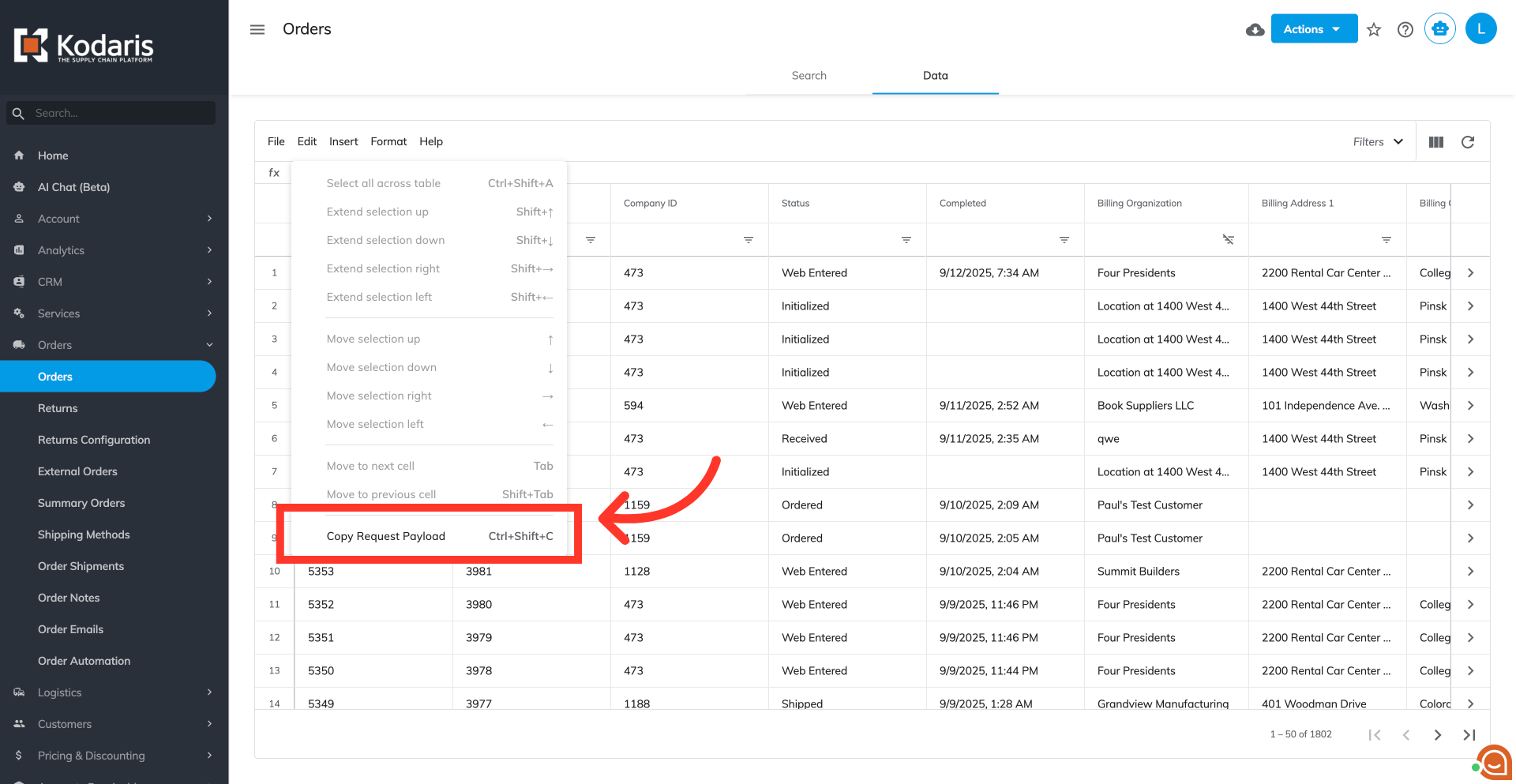
Select "Copy Request Payload"
Then, select "Copy Request Payload" to copy it.
Verify the copied text
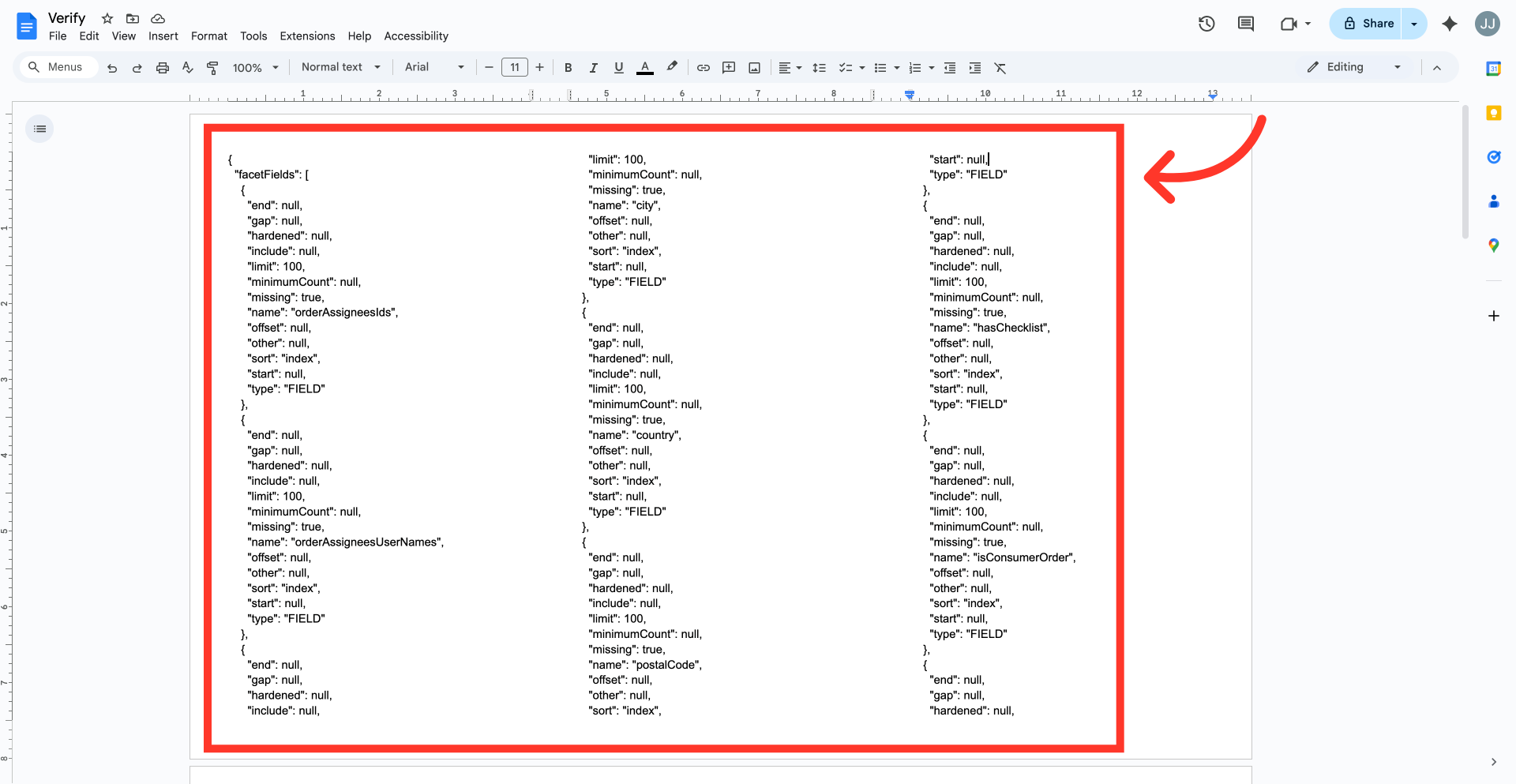
To verify the copied data, paste to the text editor app to confirm it was successfully copied.