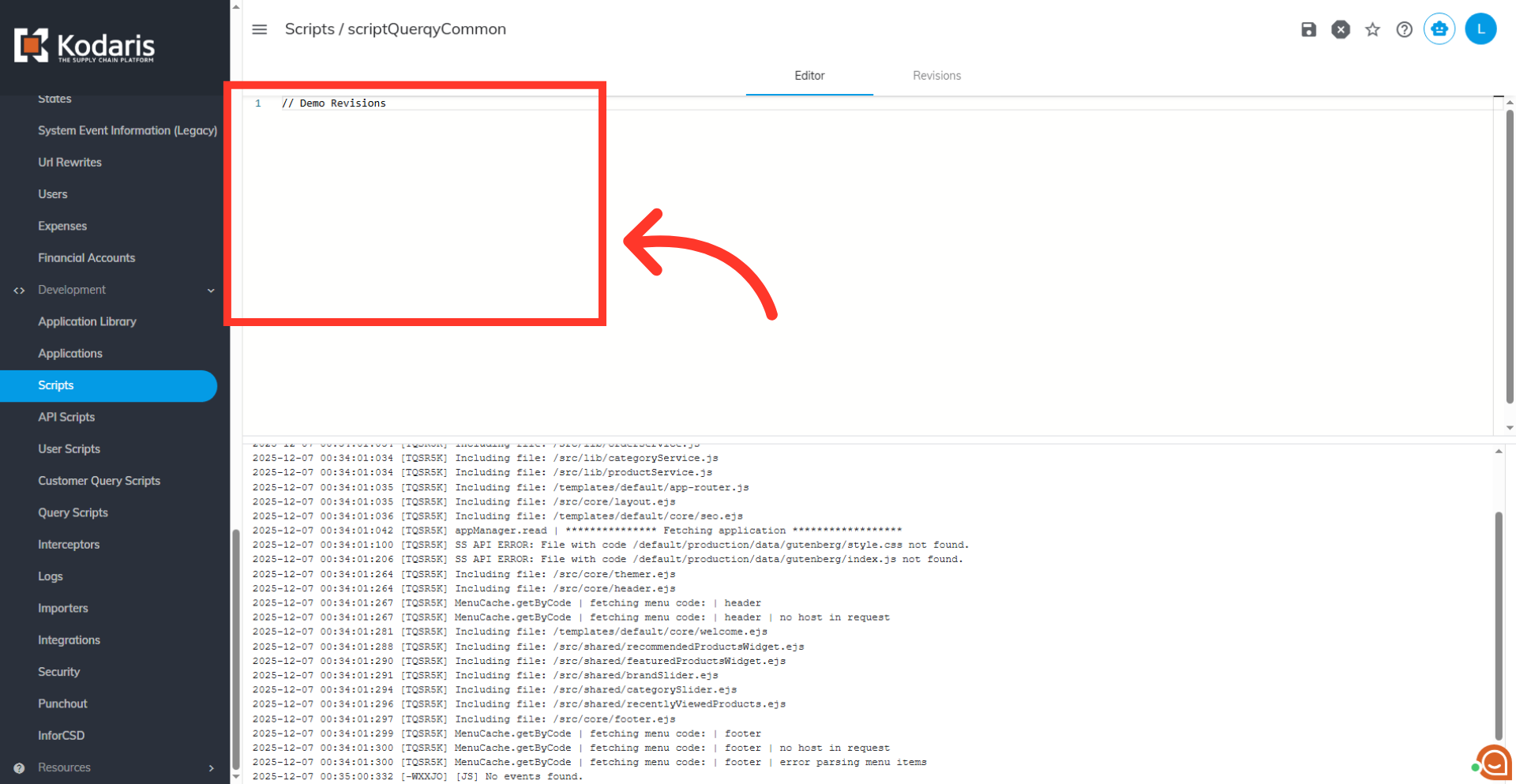
Operations Settings - Enable Script Revisions
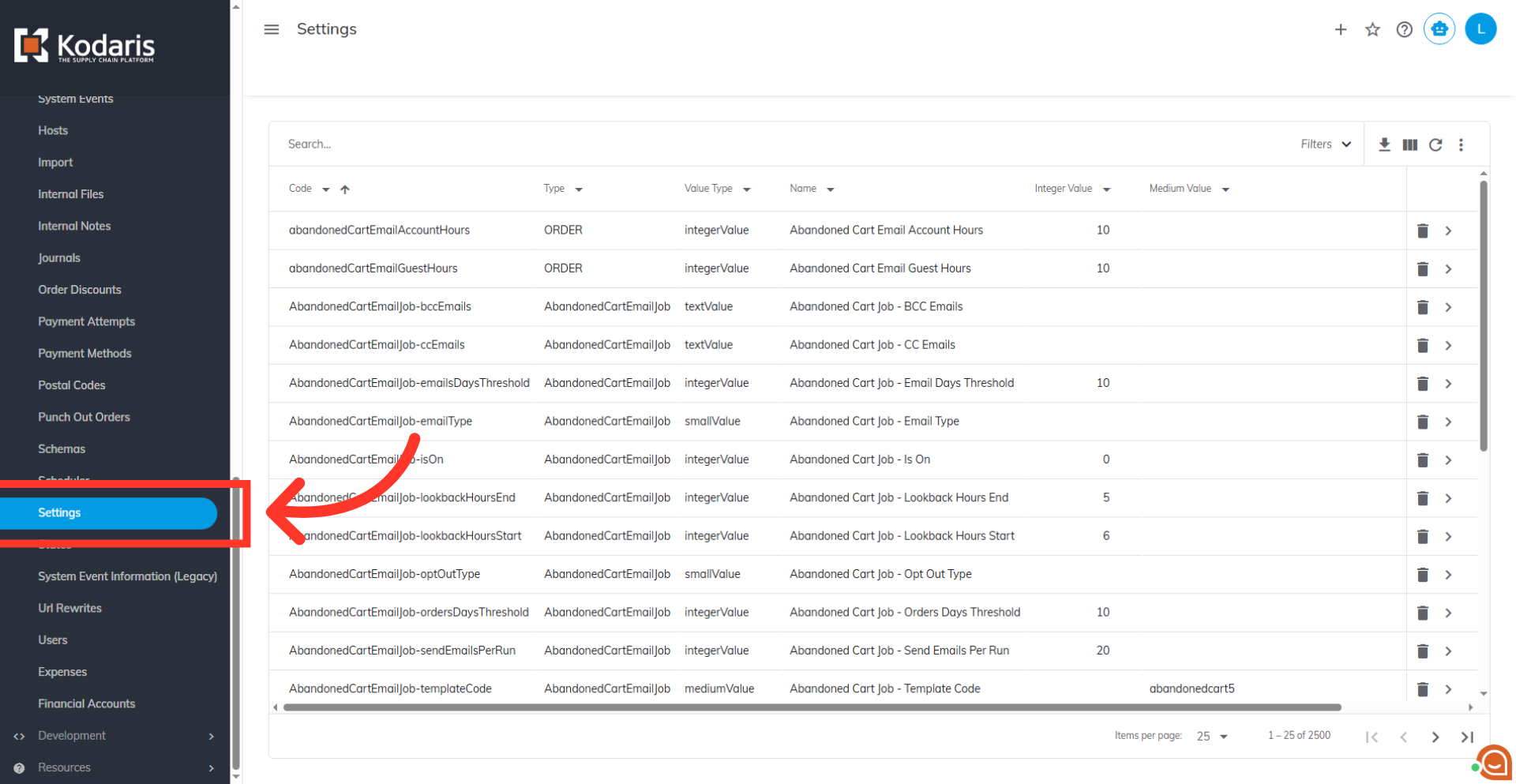
Navigate to "Settings"
To enable script revisions in the operations portal, navigate to "Settings".
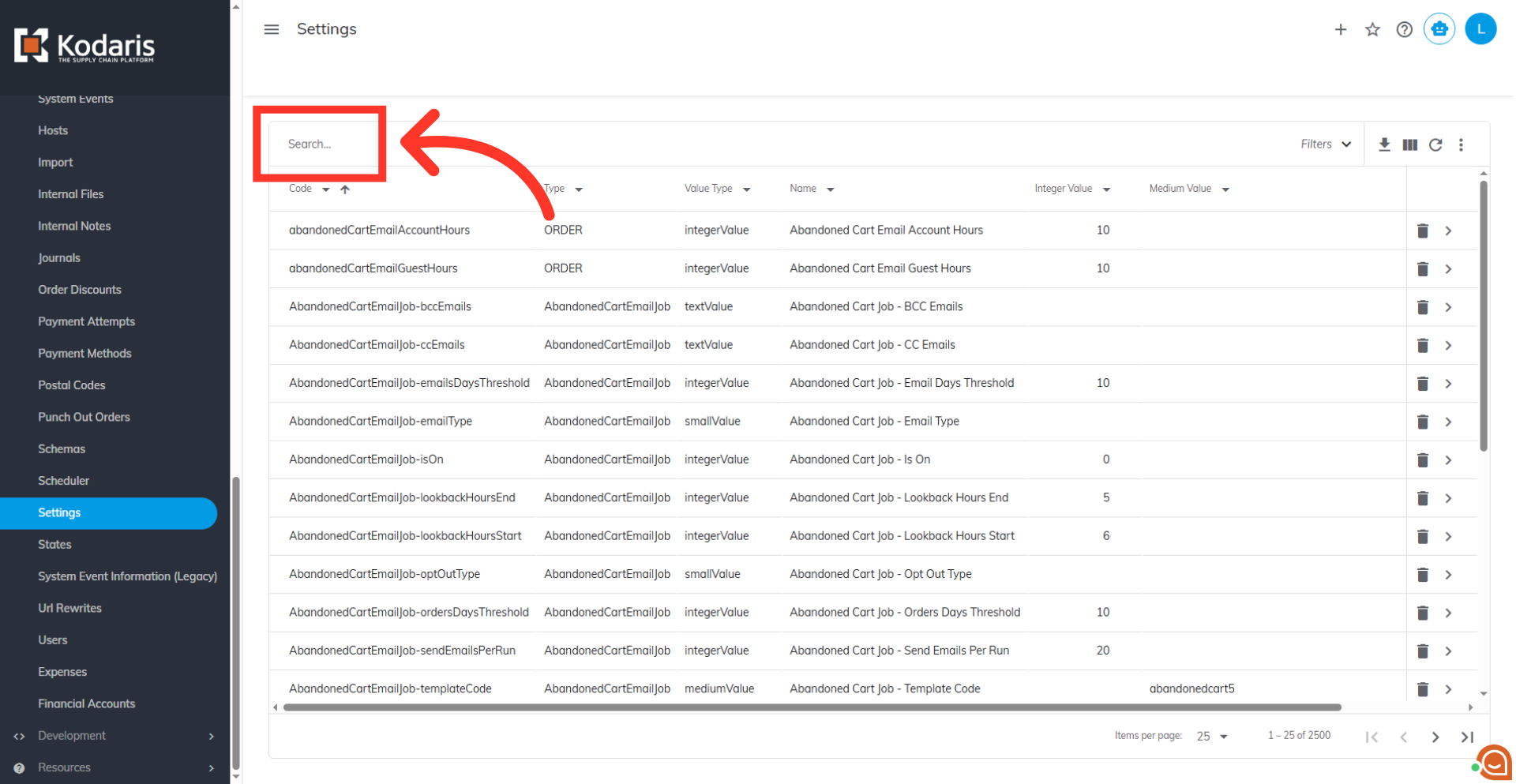
Use search to find settings
In order to access and edit settings, you will need to be set up either as an "administrator" or a "superuser", or have the following roles: "settingEdit" and "settingView". Use the search bar to find the needed settings.
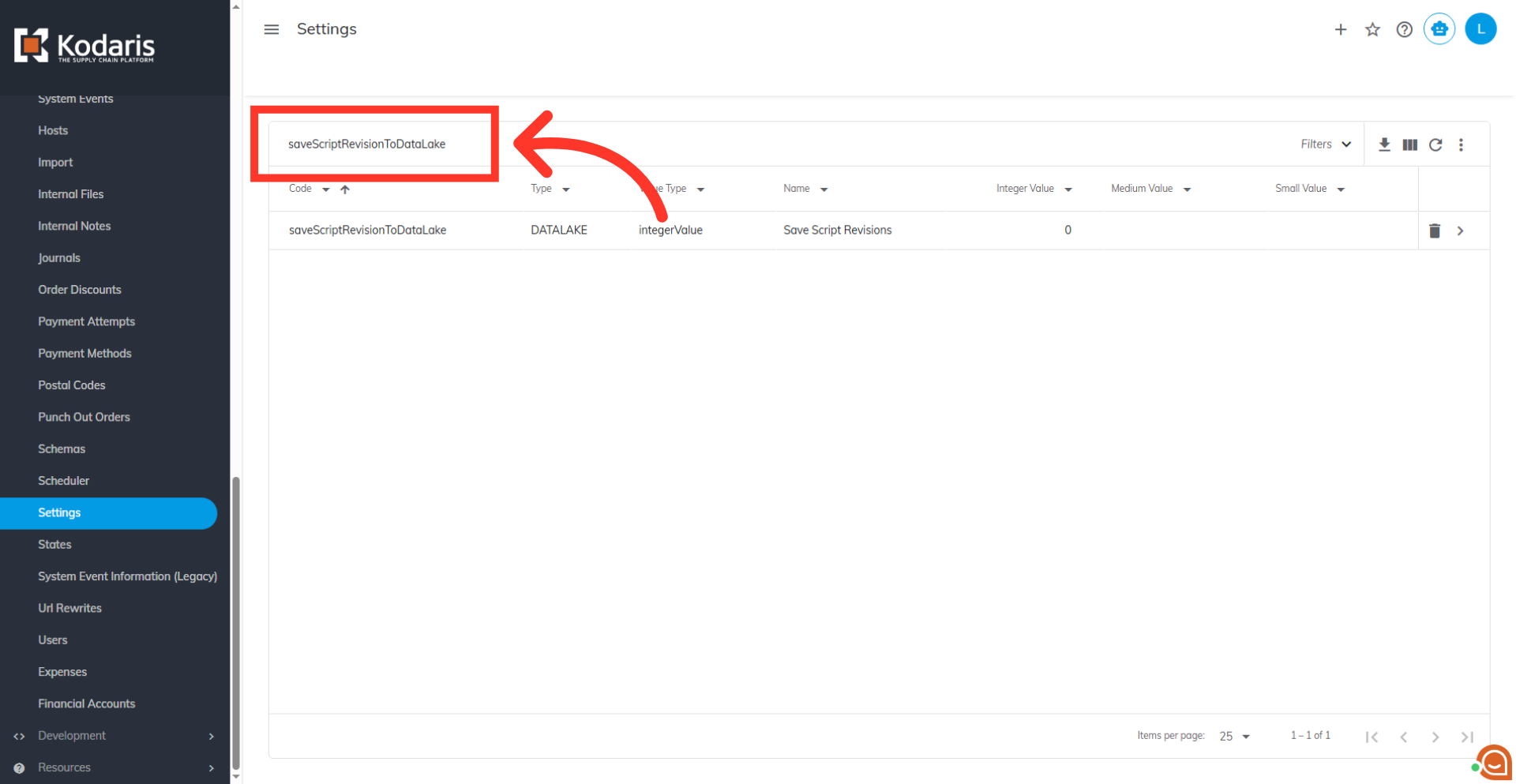
Search for the setting
To enable regular script revisions, search for the "saveScriptRevisionToDataLake" setting.
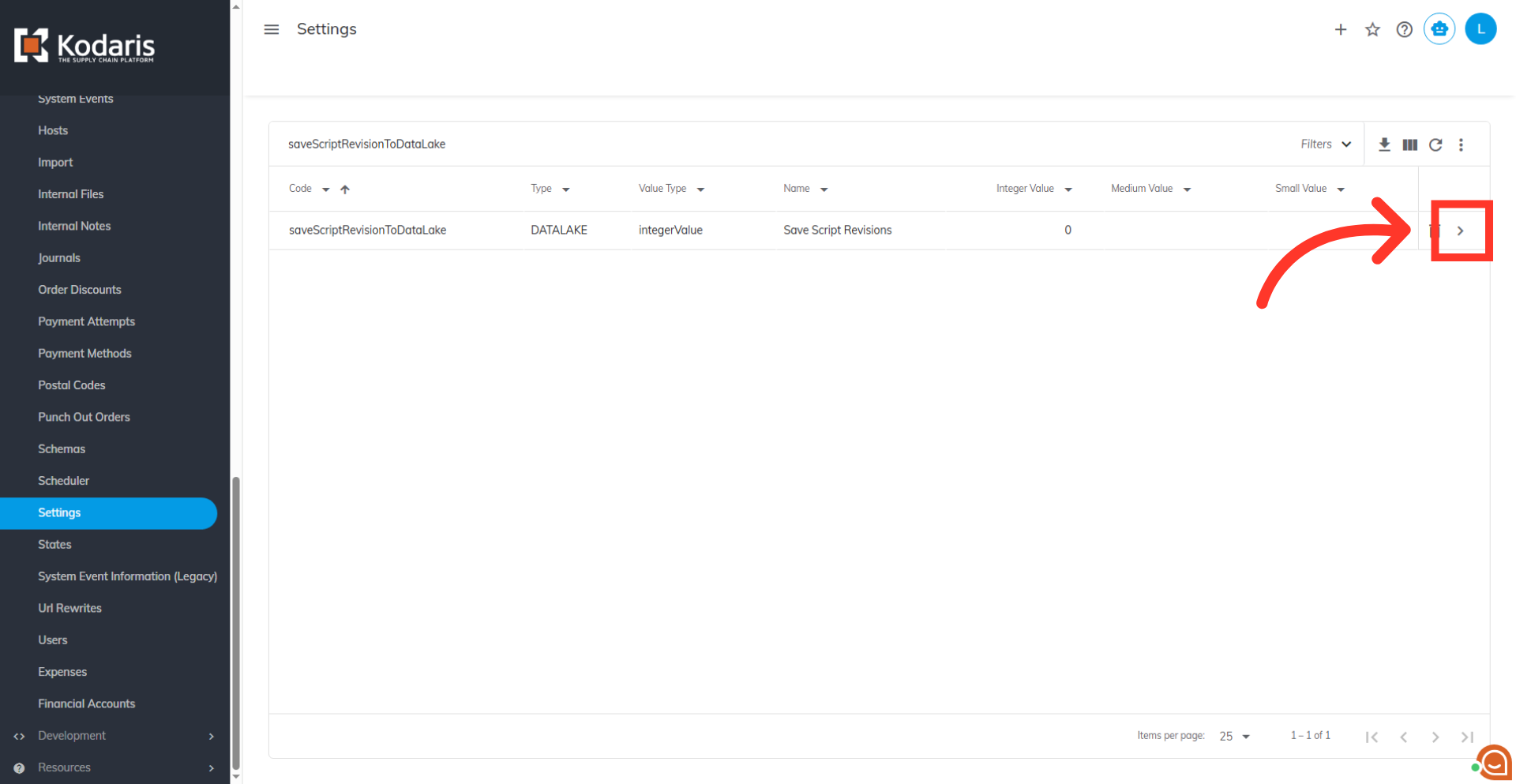
Click "more details"
Click the "more details" icon to view the setting.
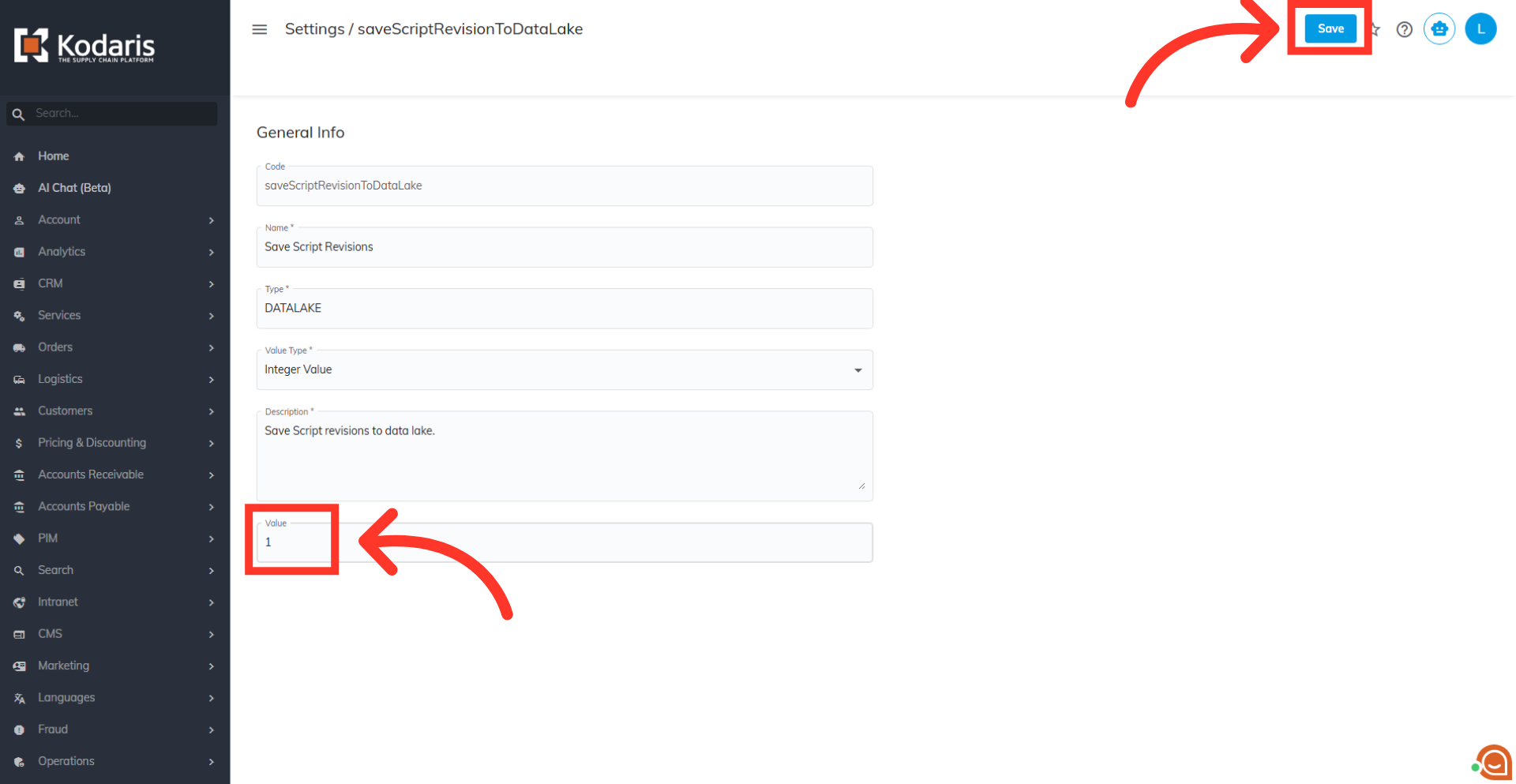
Update the value and save
Change the value field to "1" to turn the setting on. Then, click "Save" to apply the update.
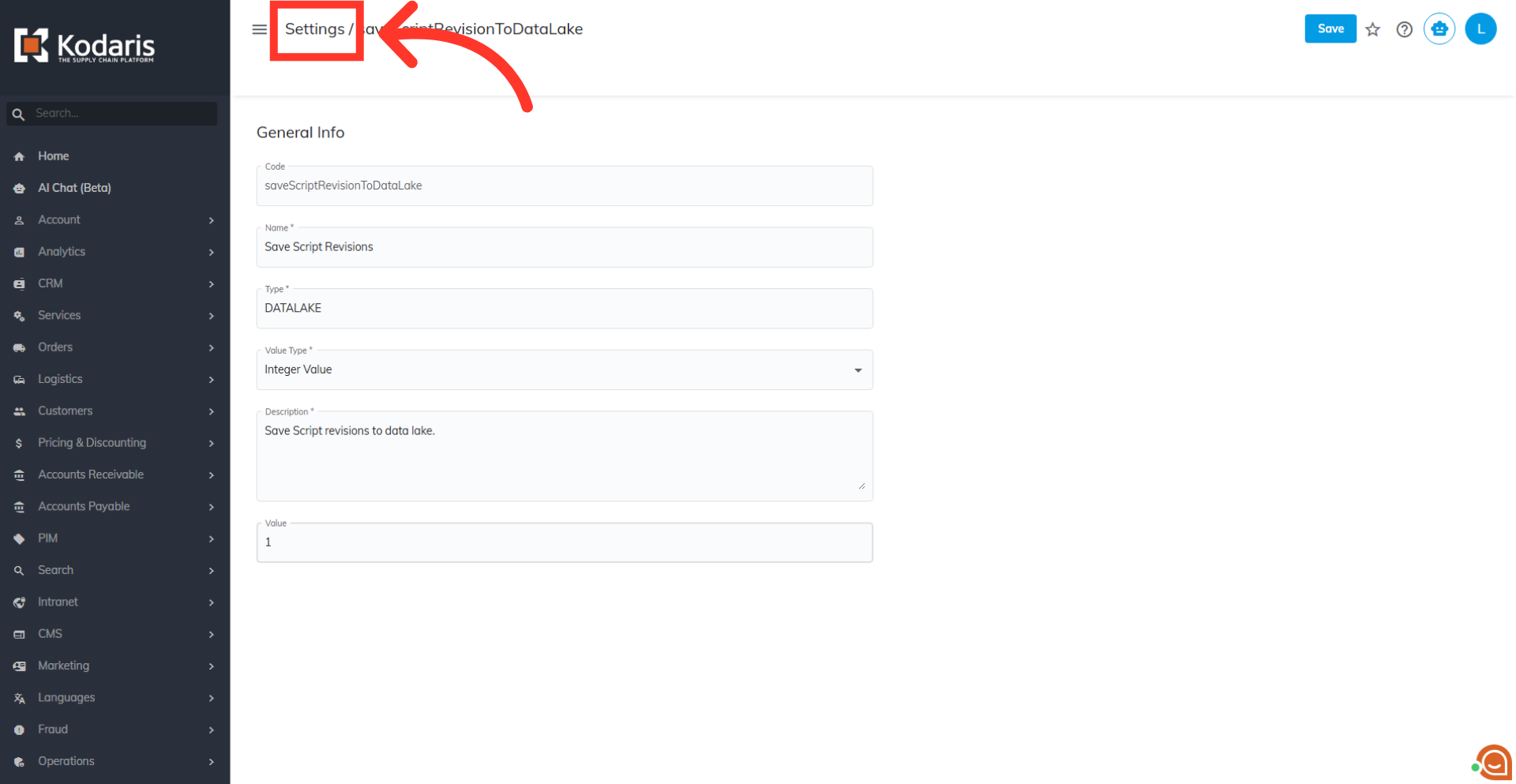
Click on "Settings"
If you would like to enable API script revisions, navigate back to the "Settings" screen.
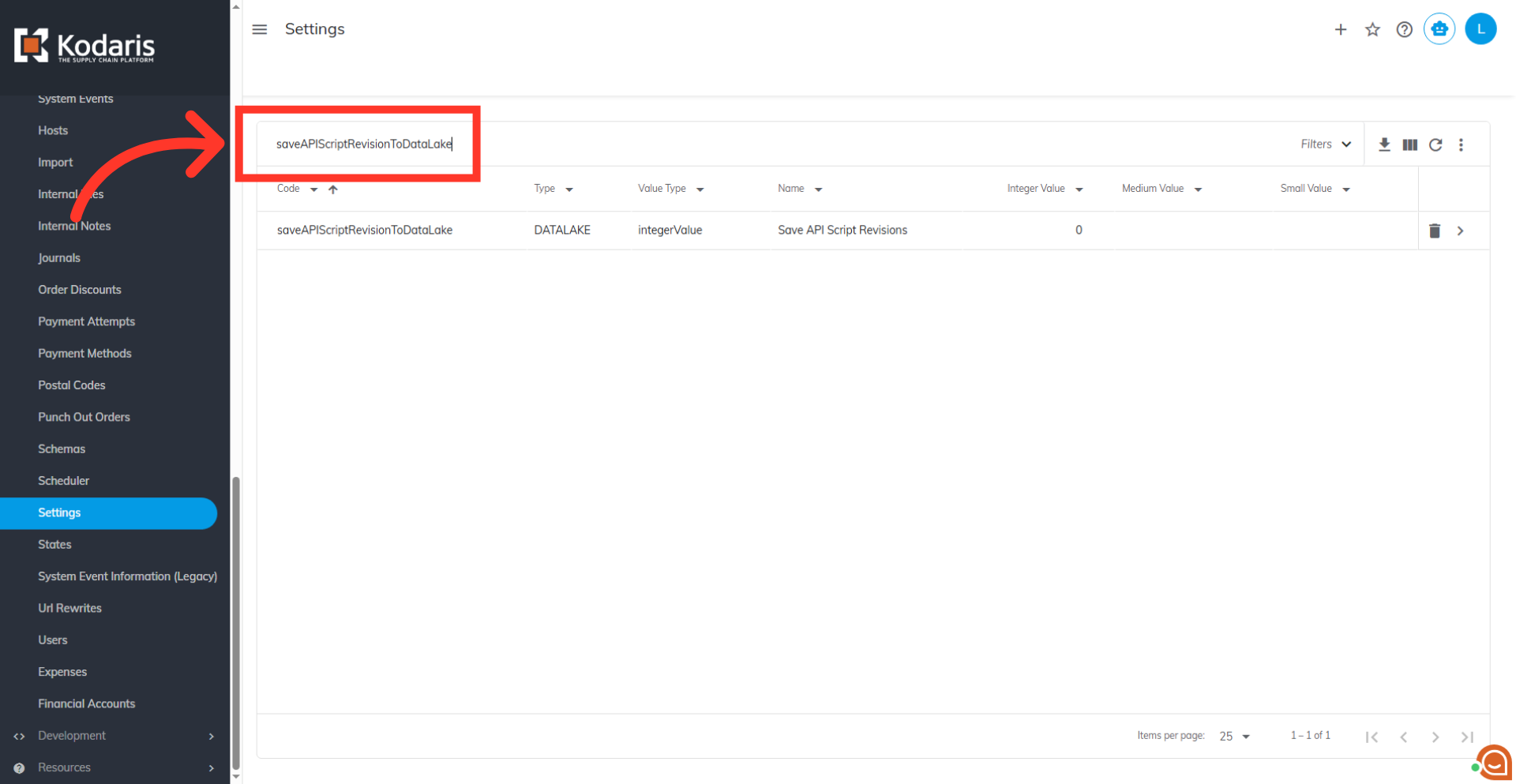
Search for the setting
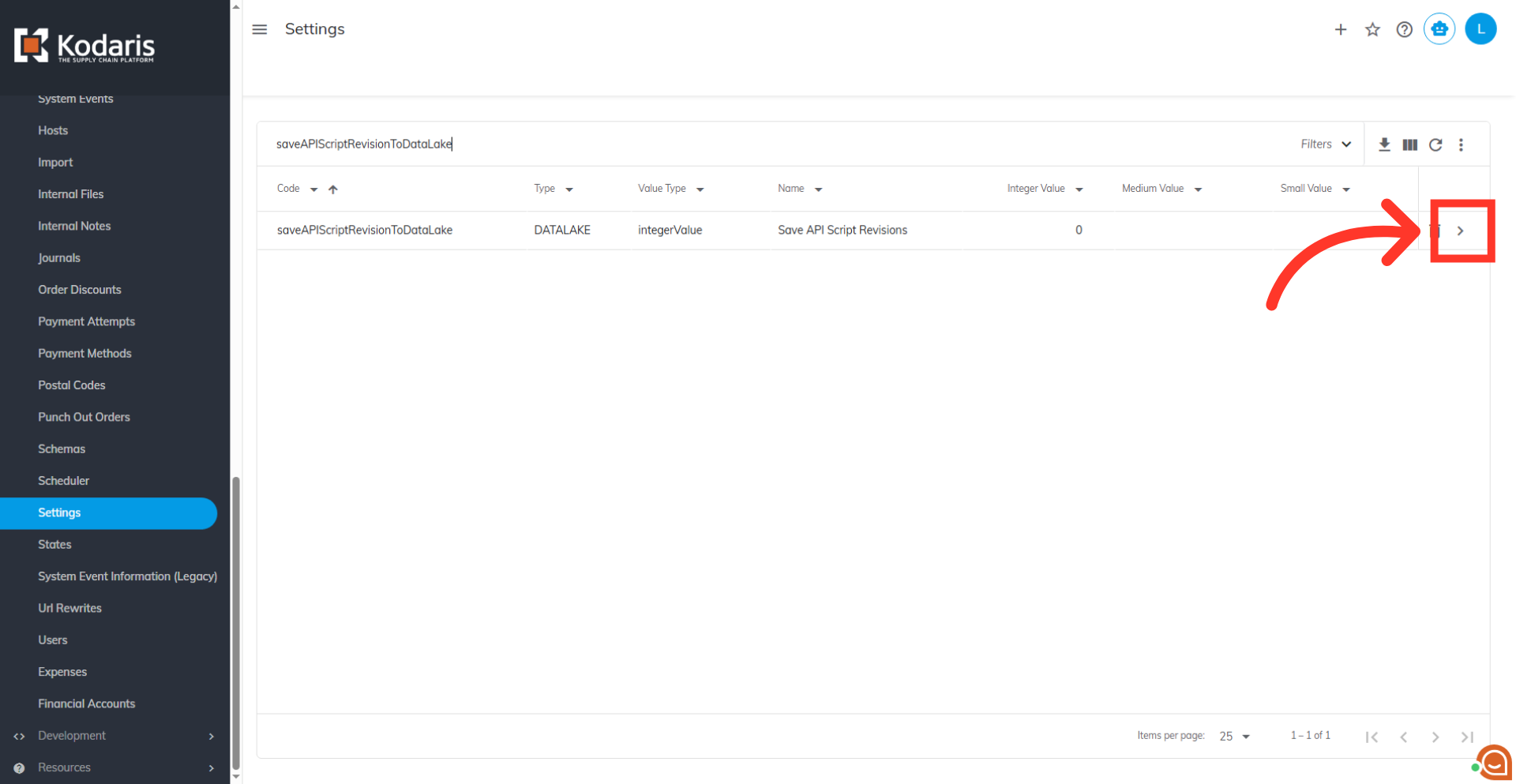
This time, search for the "saveAPIScriptRevisionToDataLake" setting.
Click "more details"
Click the "more details" icon to view the setting.
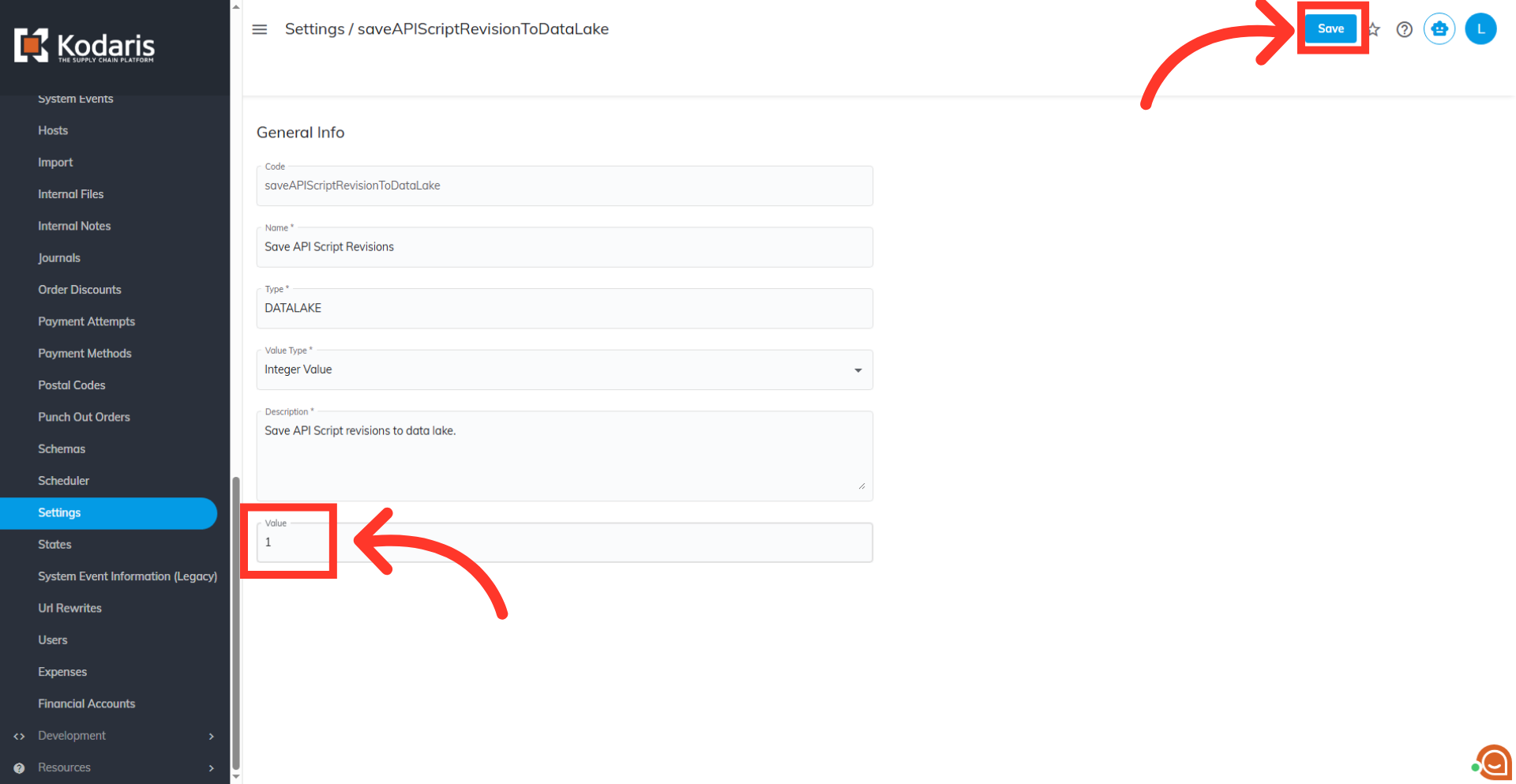
Update the value and save
Change the value field to "1" to turn the setting on. Then, click "Save" to apply the update.
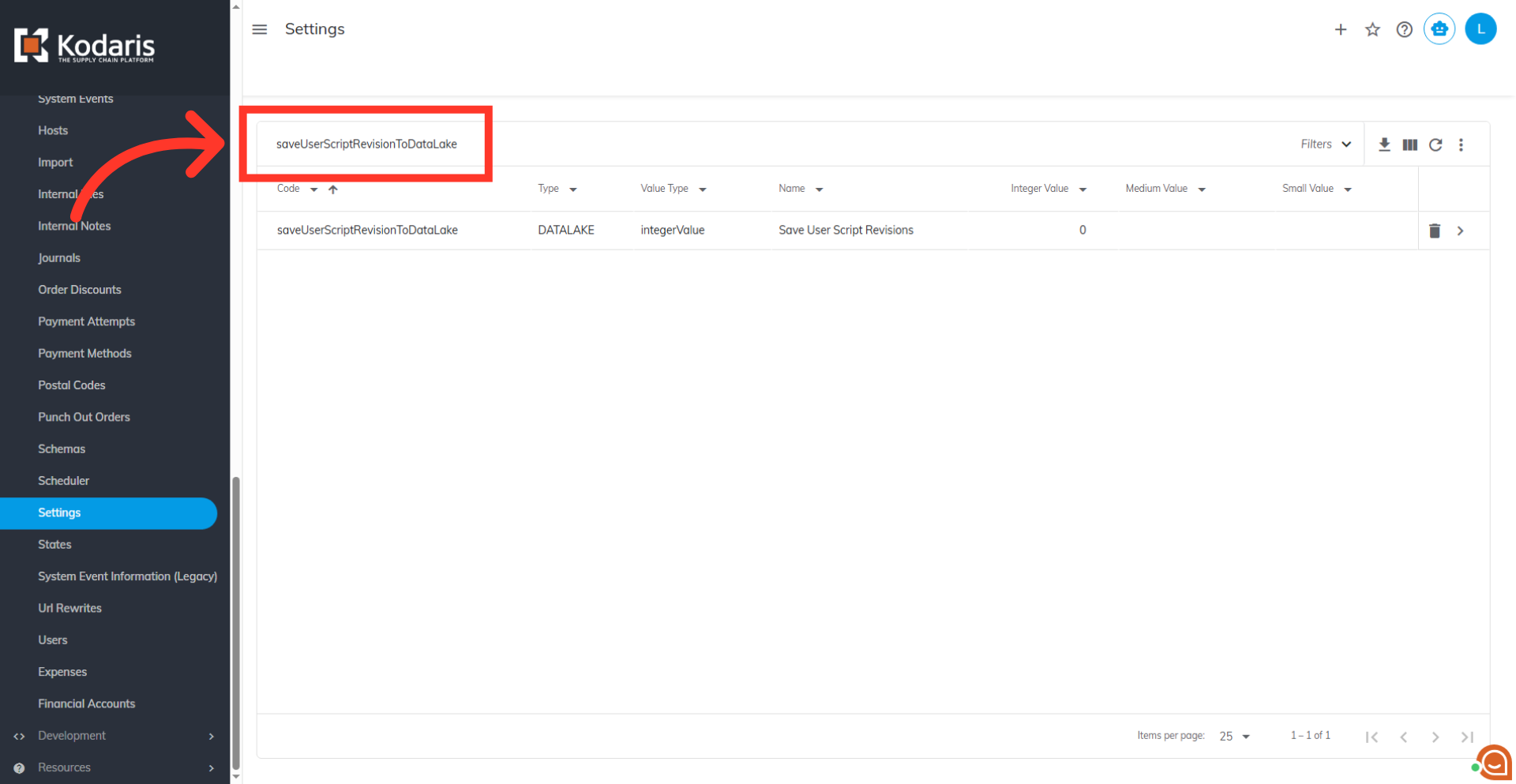
Search for the setting
If you would like to enable revisions for user scripts, navigate back to "Settings" and search for the "saveUserScriptRevisionToDataLake" setting.
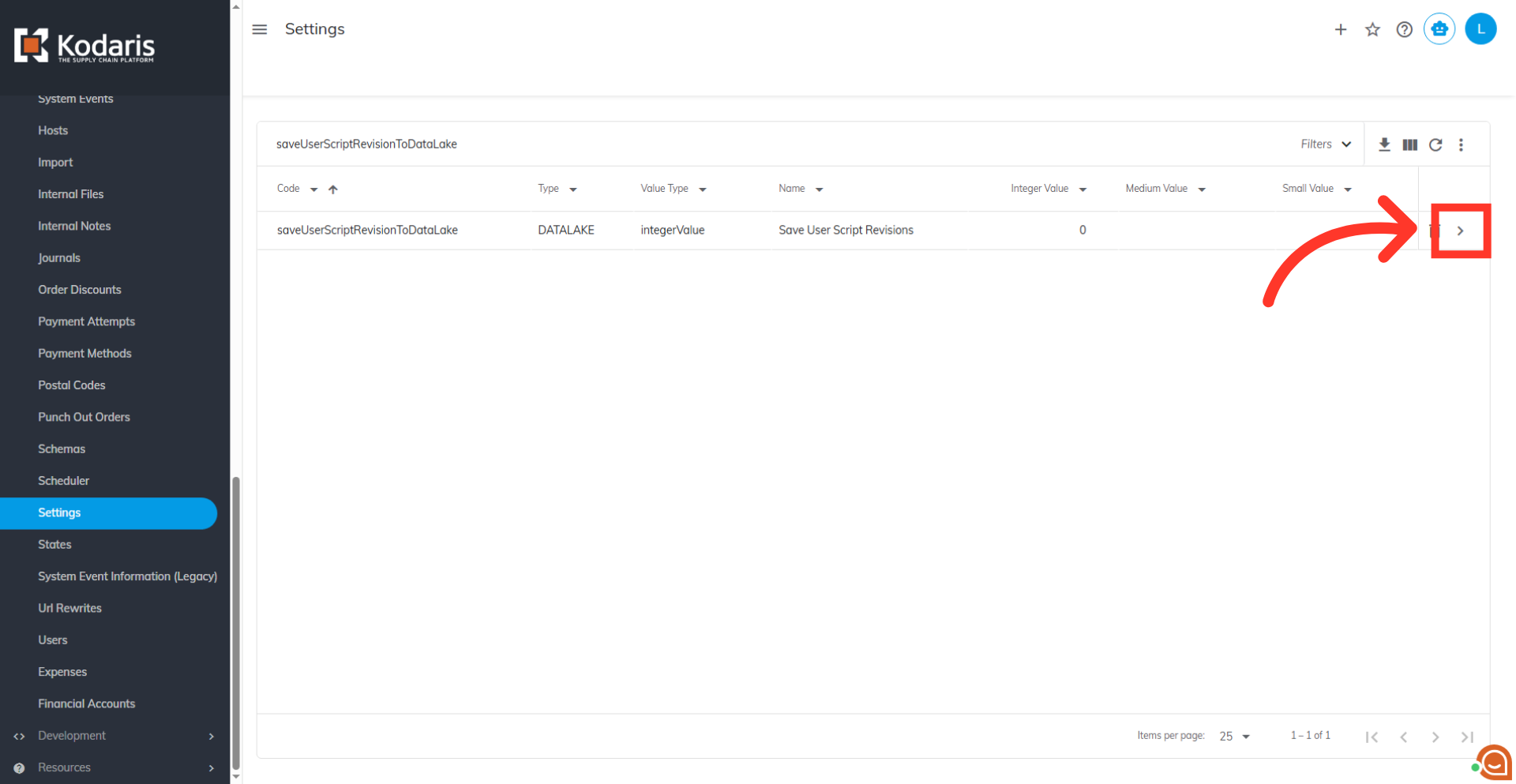
Click "more details"
Click on the "more details" icon to view the setting.
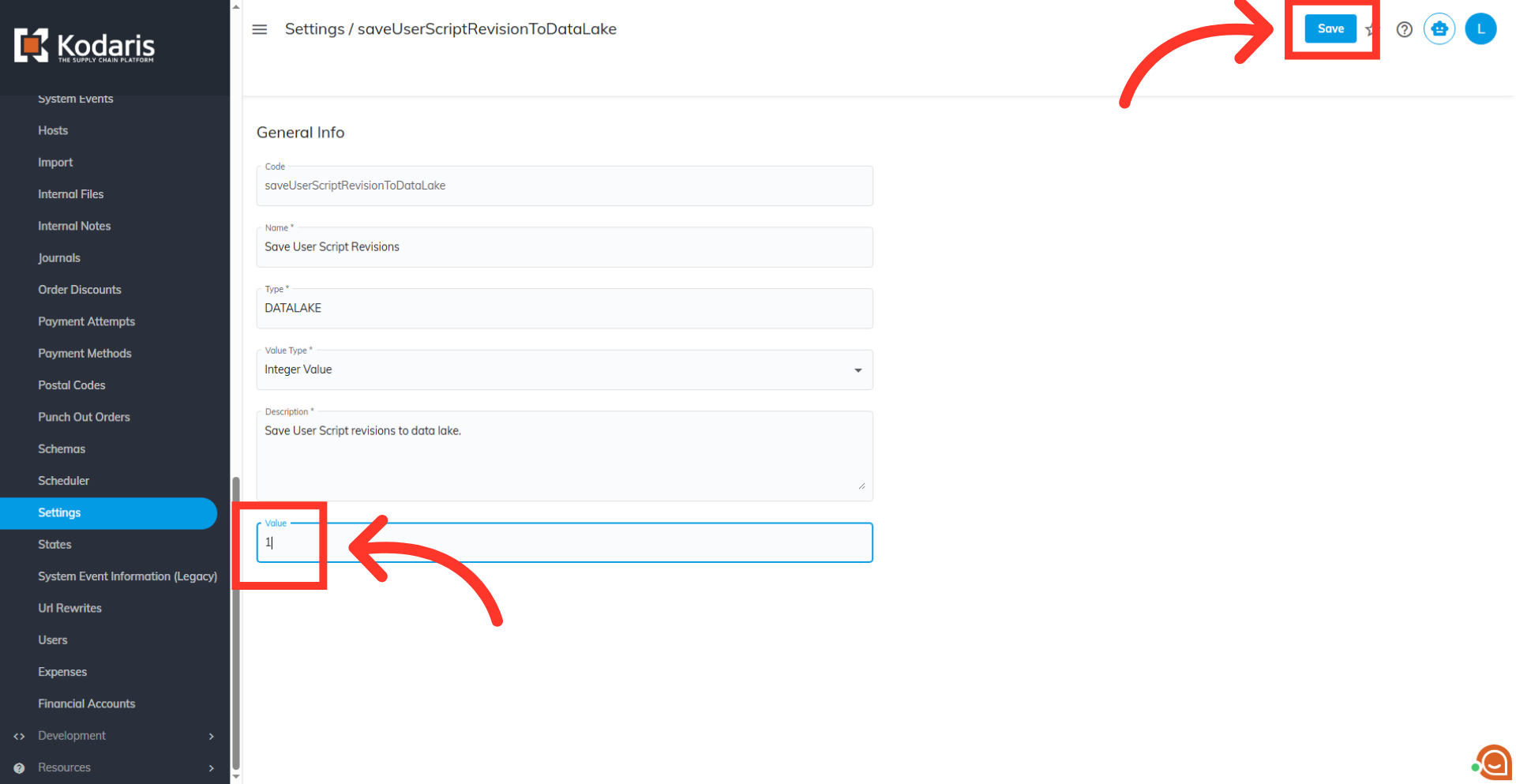
Update the value and save
Change the value field to "1" to turn the setting on. Then, click "Save" to apply the change.
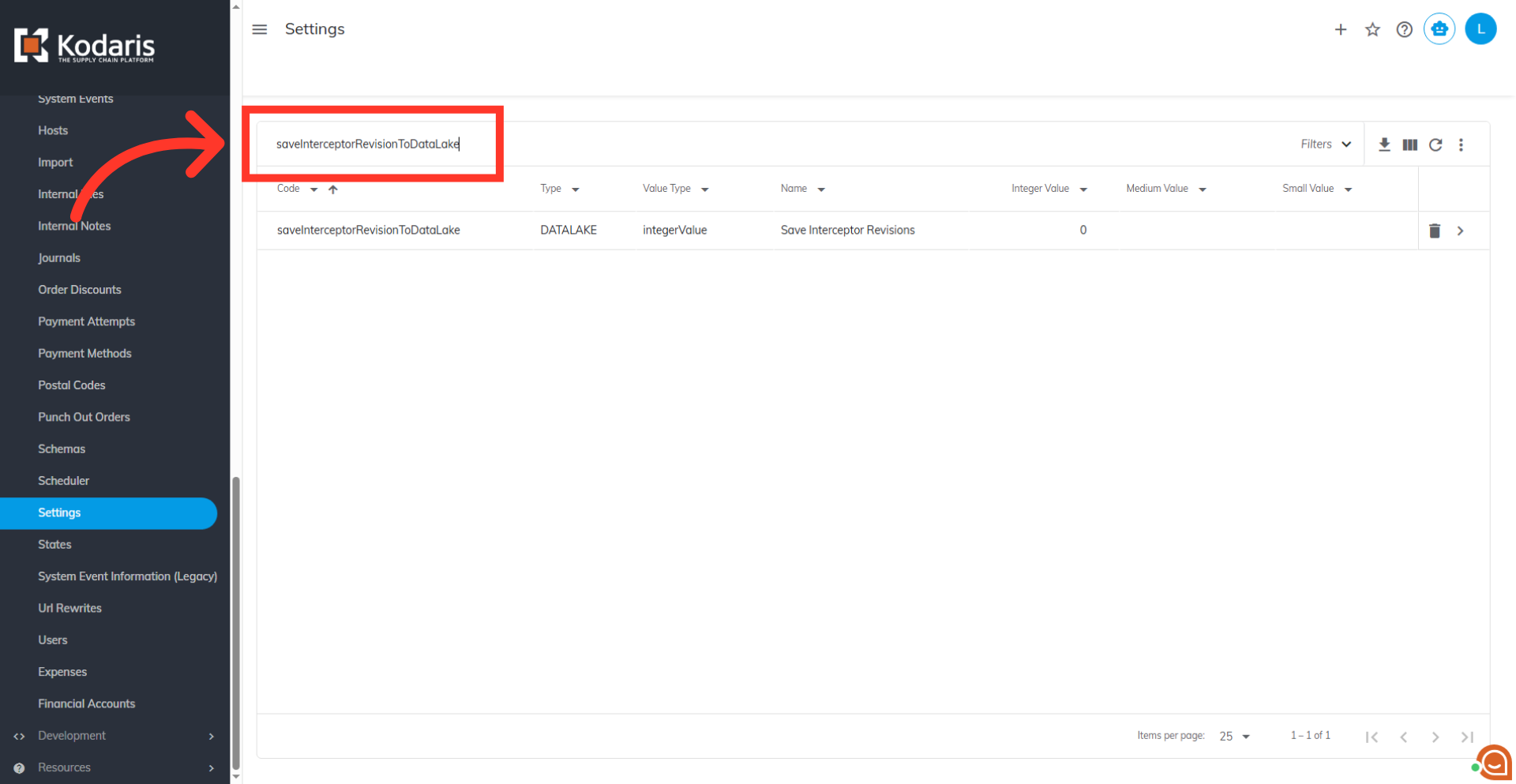
Search for the setting
If you would like to enable revisions for interceptors, navigate back to "Settings" and search for the “saveInterceptorRevisionToDataLake” setting.
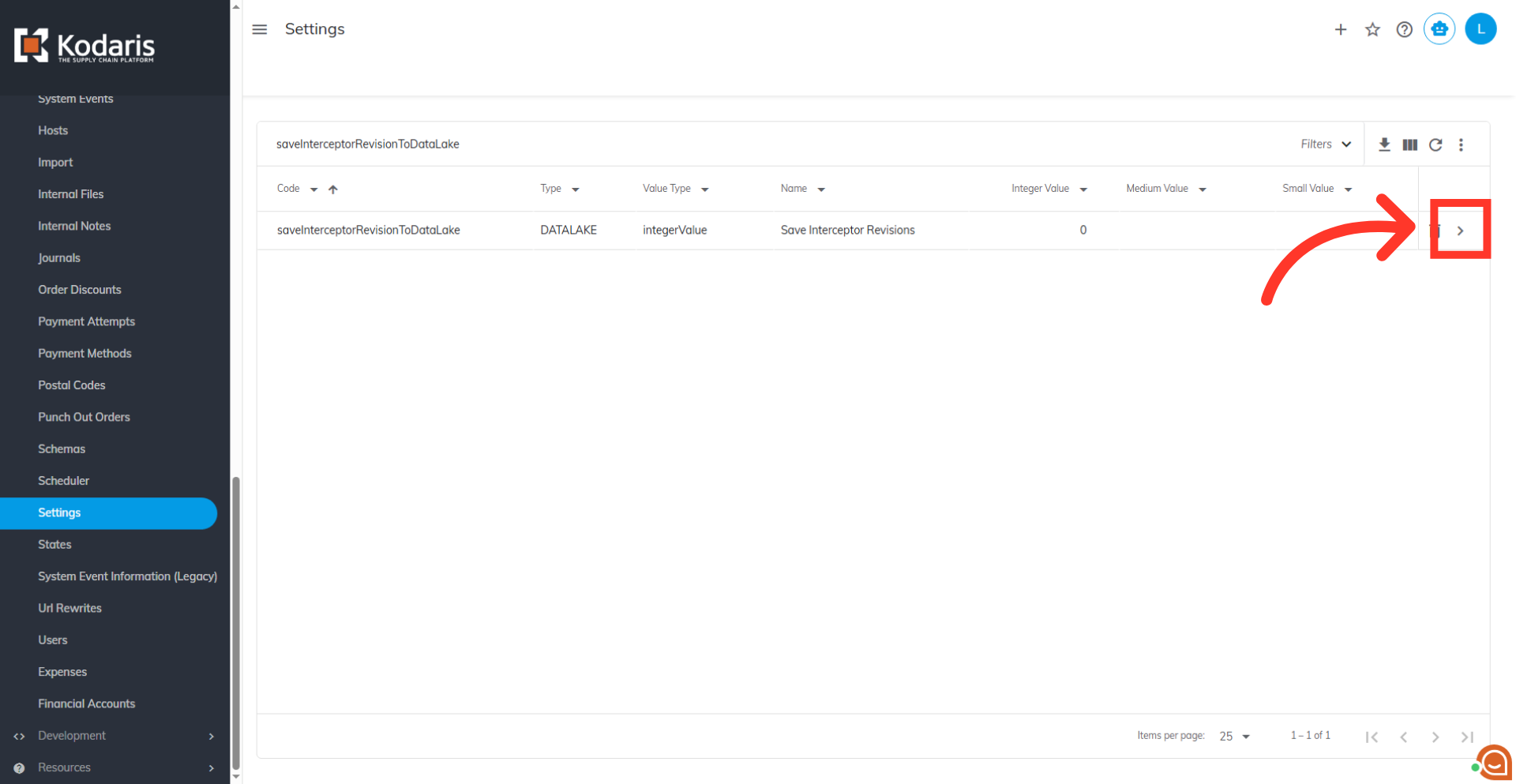
Click "more details"
Click on the "more details" icon to view the setting.
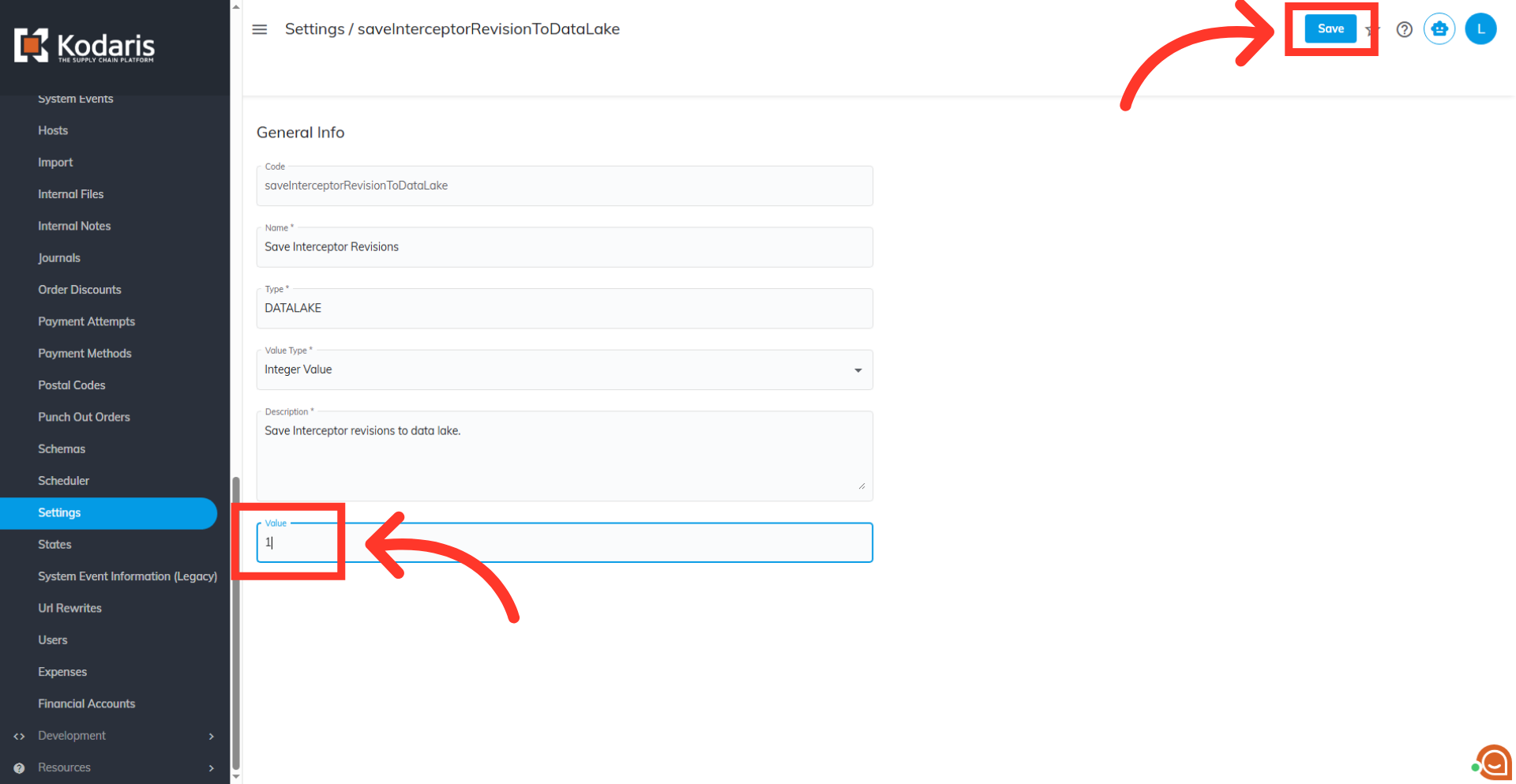
Update the value and save
Change the value field to "1" to turn the setting on. Then, click "Save" to apply the change.
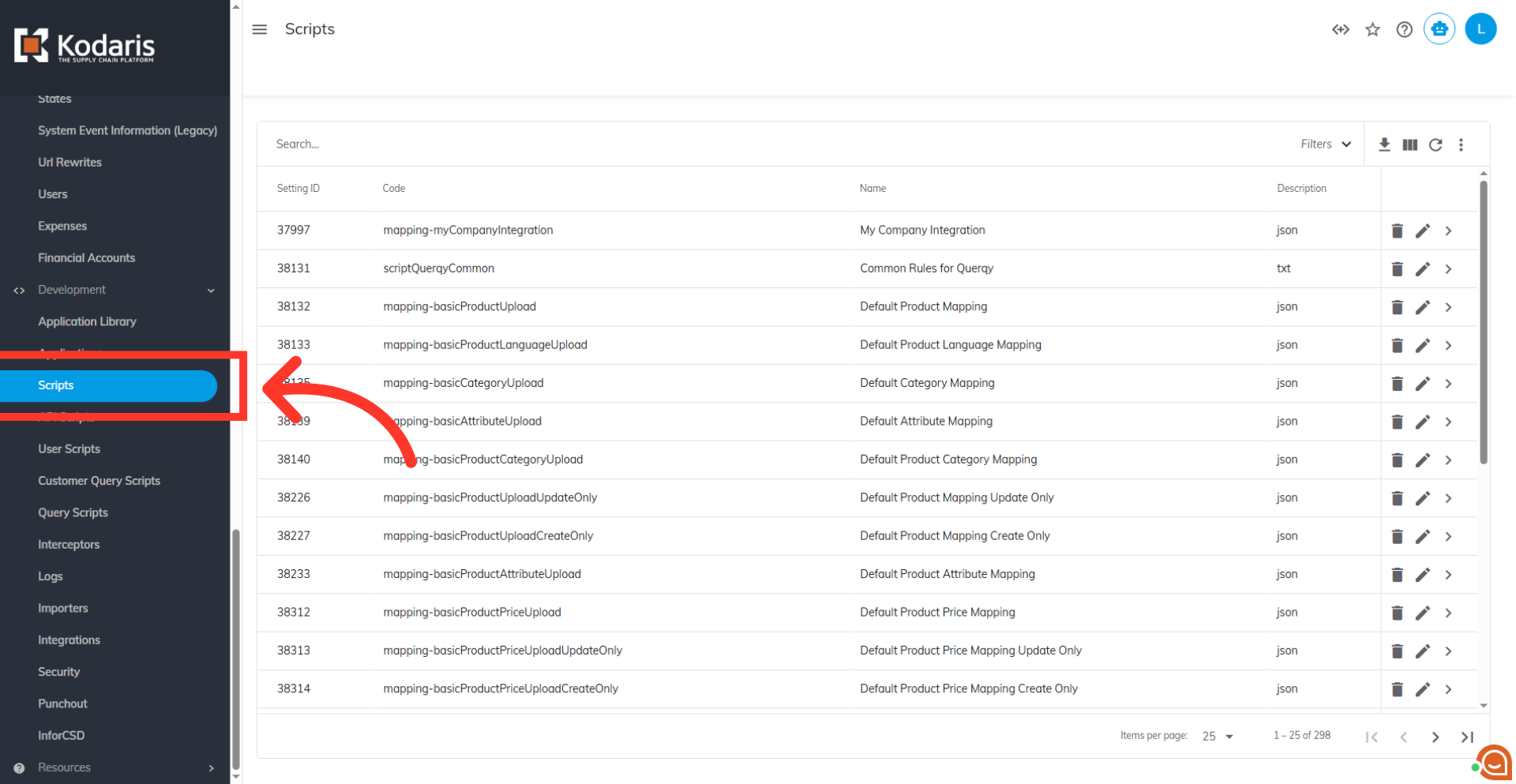
Go to "Scripts"
To view revisions after the settings have been enabled, select a script revision you would like to verify under the "Development" menu. For this example, we are checking regular "Scripts".
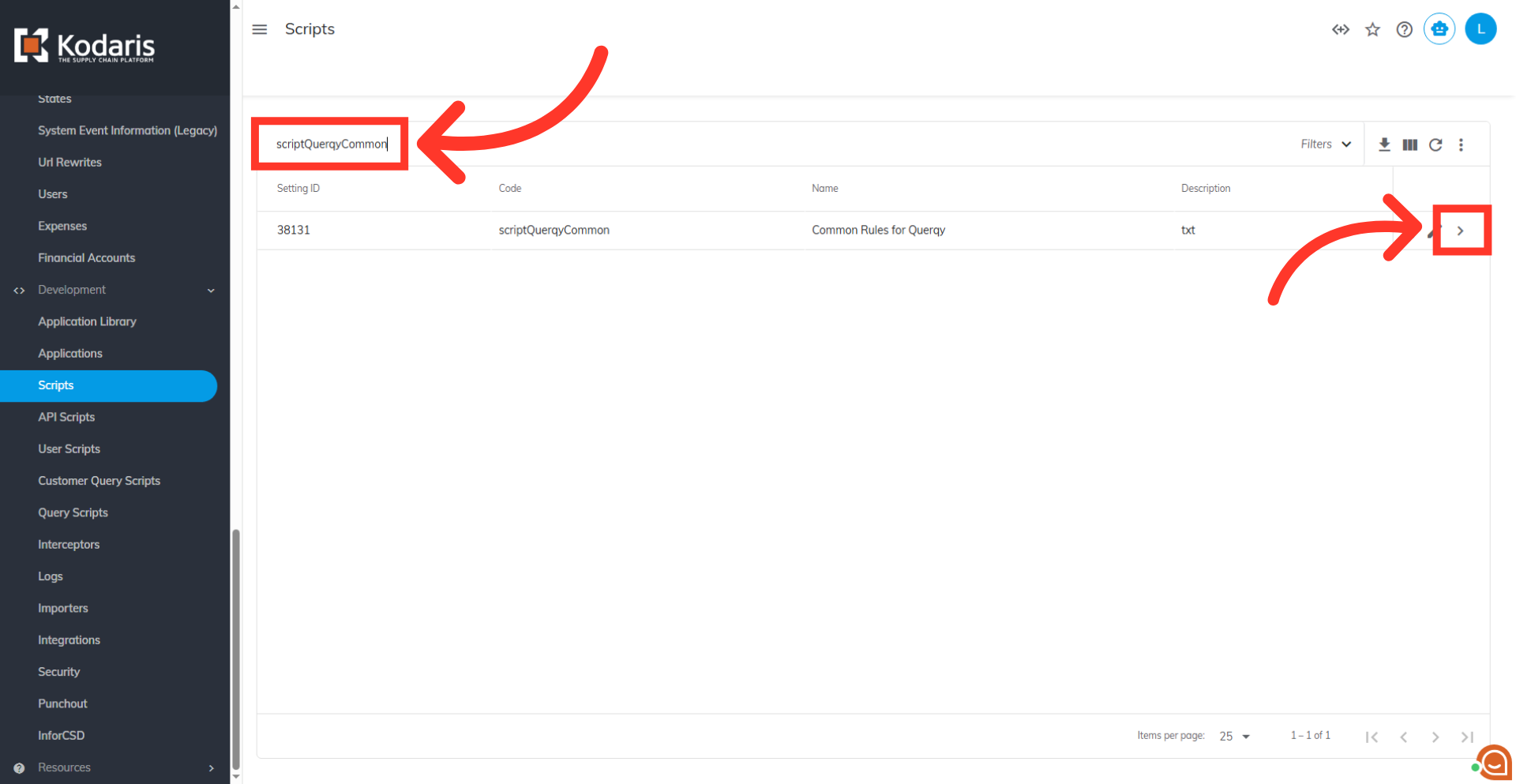
Click "more details"
Use the search bar to find a script, and then click "more details".
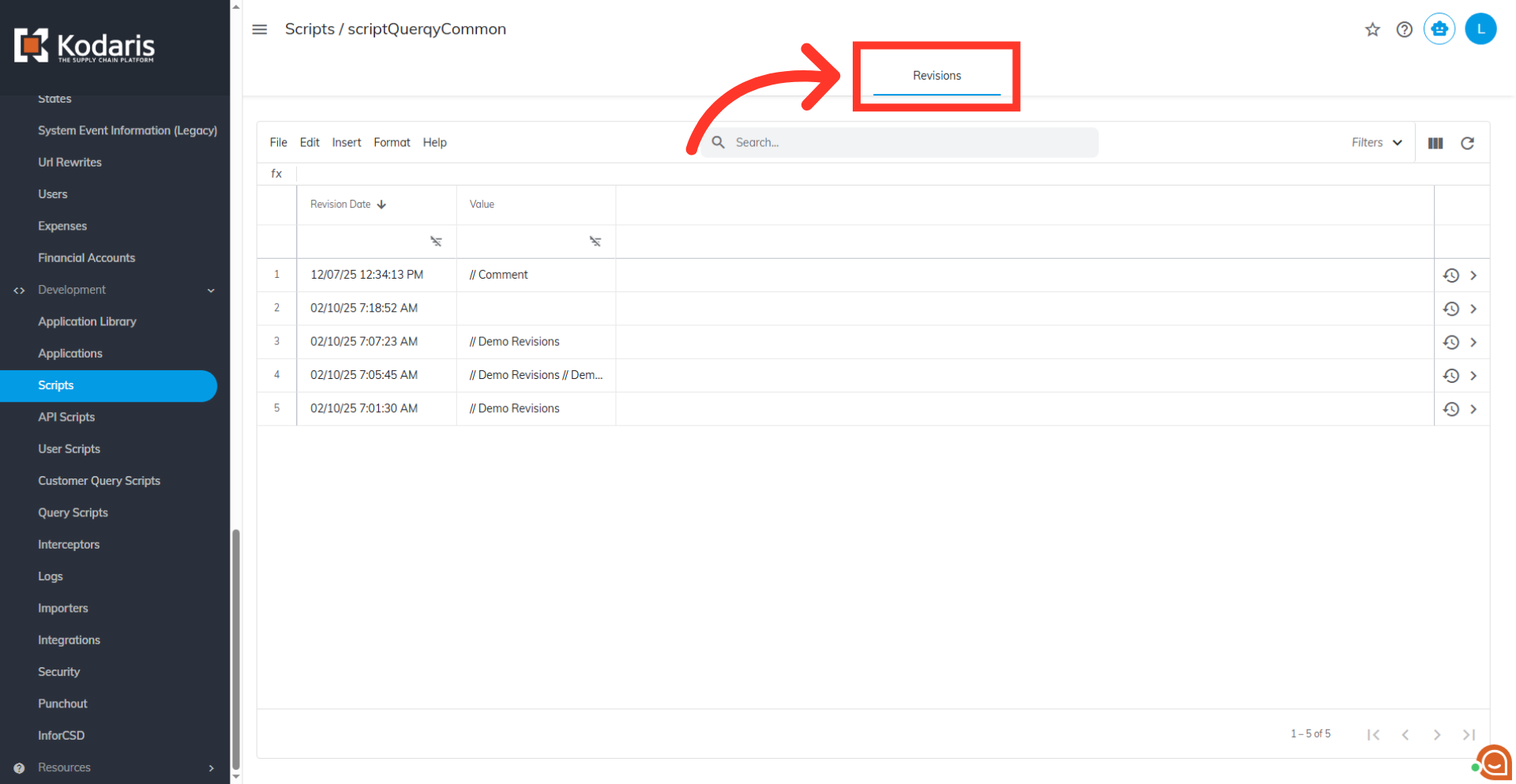
Select the "Revisions" tab
Select the "Revisions" tab to view a log of revisions made to the script.
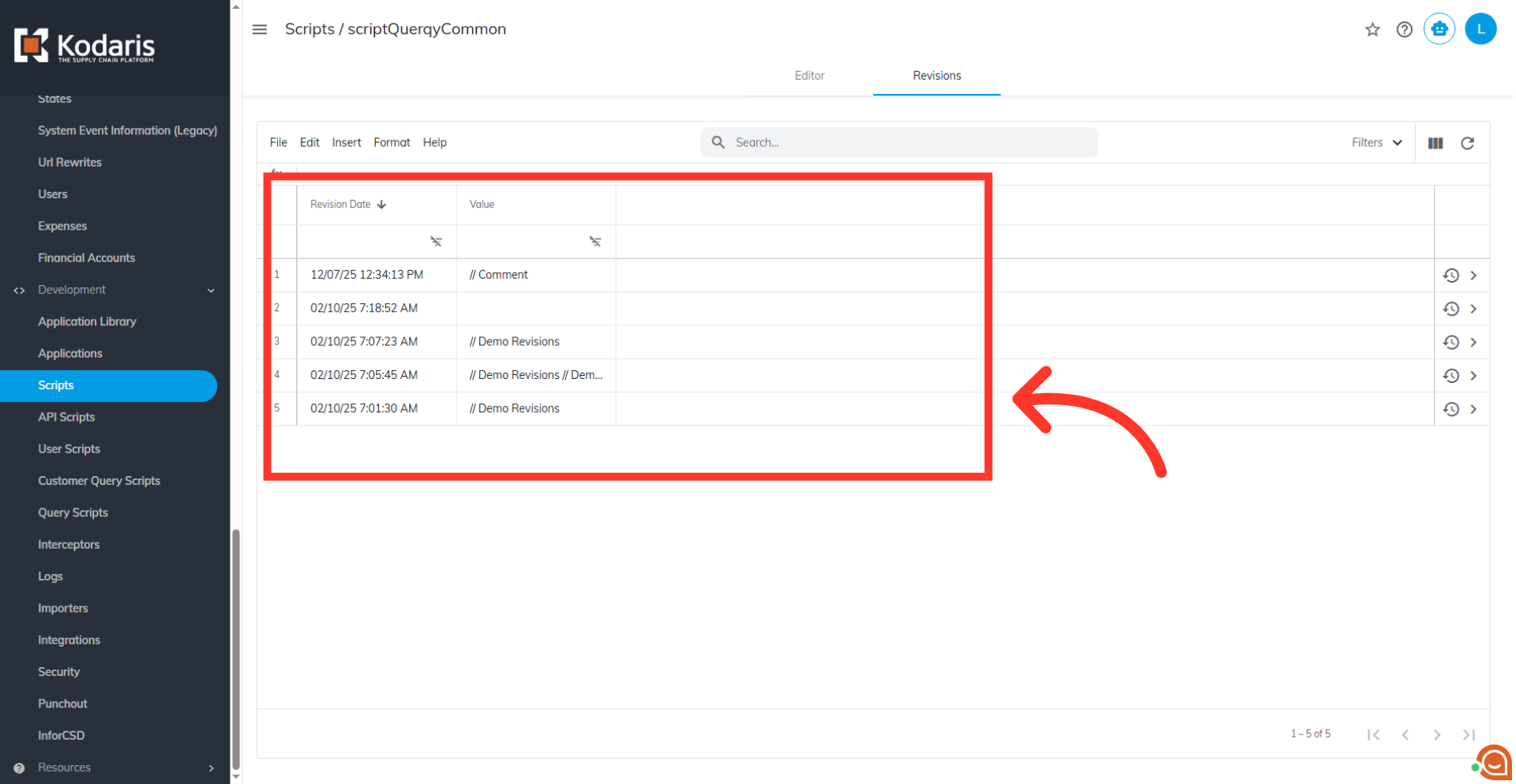
Review script log
The screen will display the updates made in the script.
Revision details
Click on the "more details" icon.
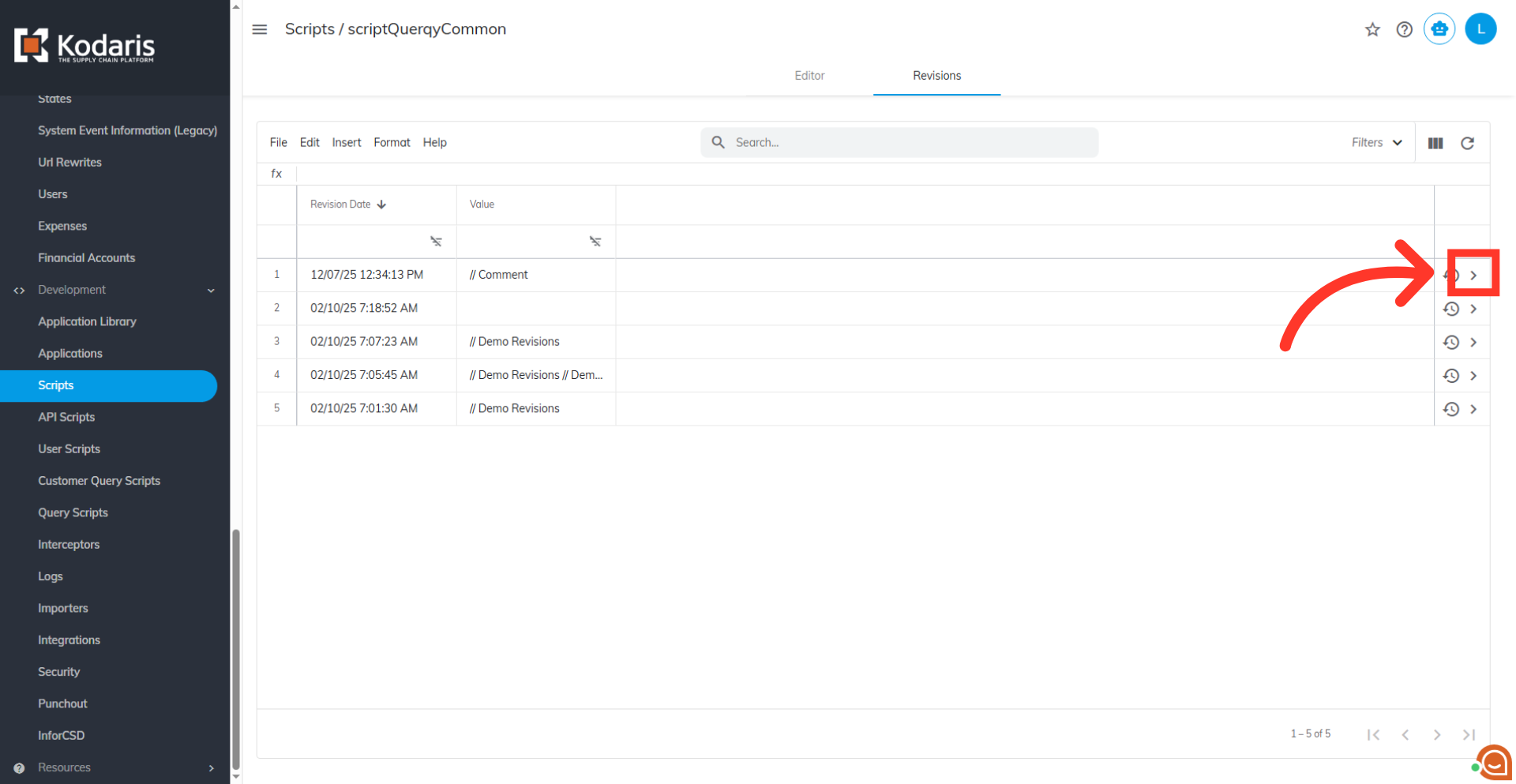
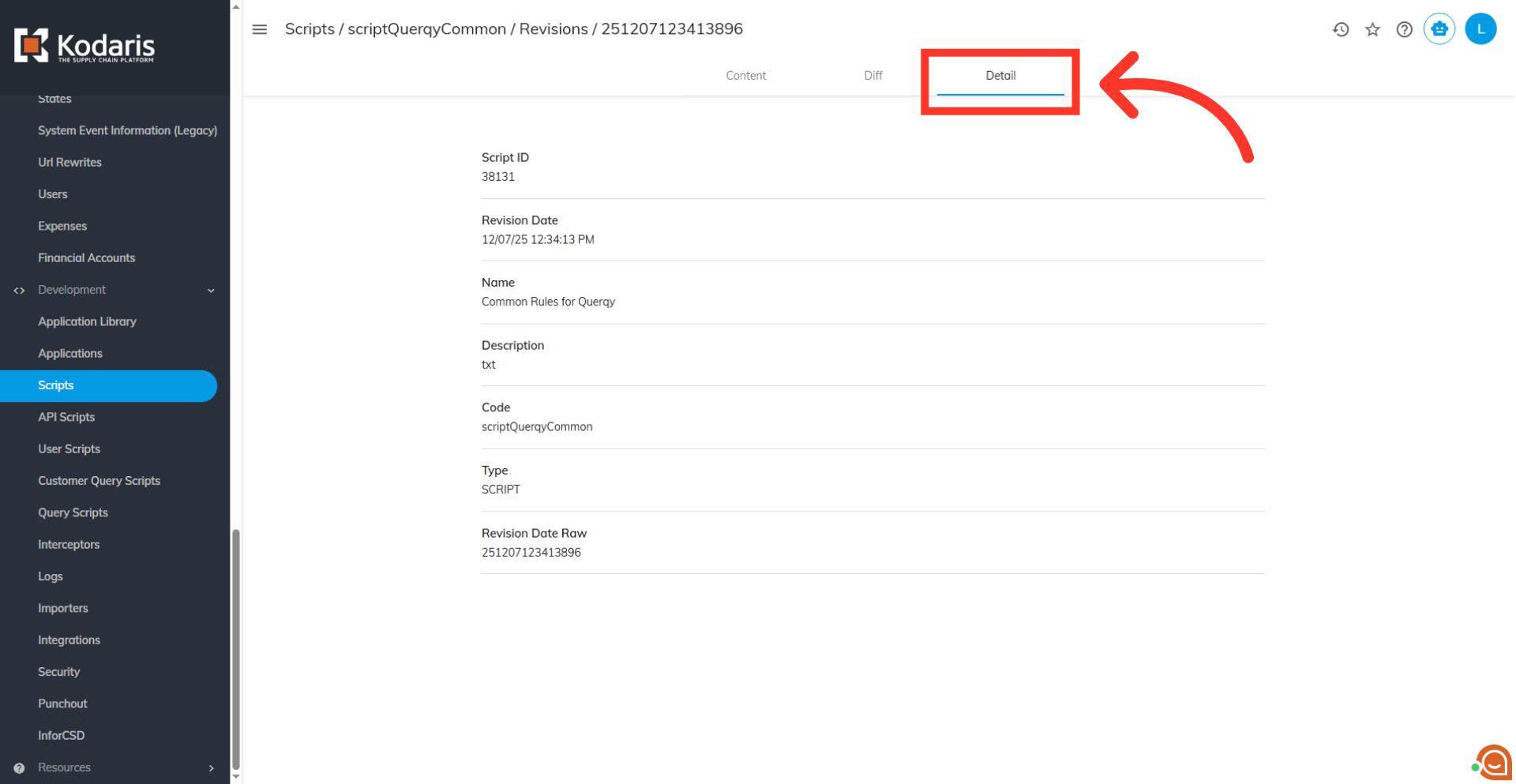
Click on "Details" tab
The details tab will display more information about the revision.
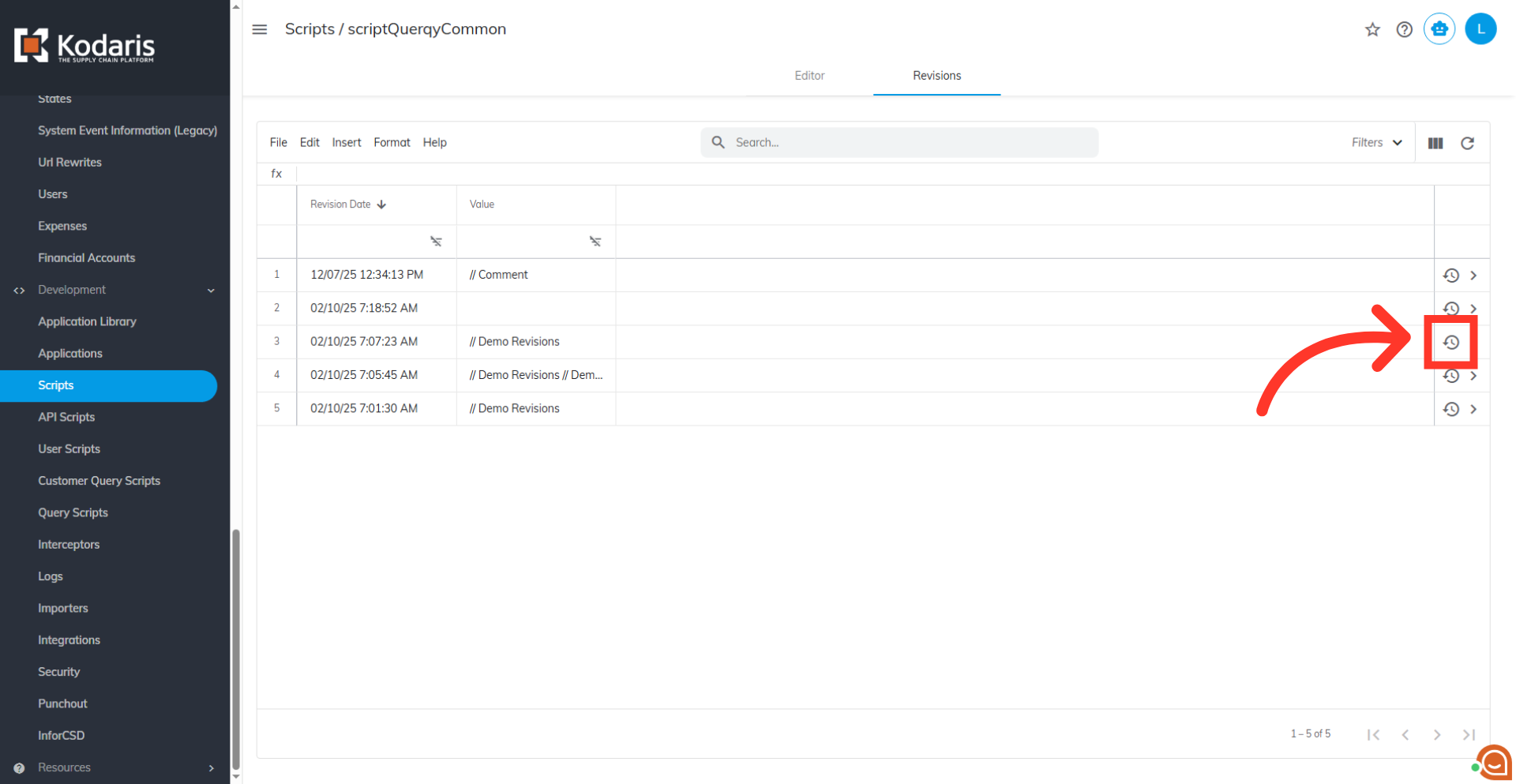
Click on the "Restore" icon
To restore, go back to the "Revisions" screen and click on the "Restore" icon to restore the current script to the selected revision.
Verify revision restore
The action redirects to the script's "Editor" screen, displaying the selected previous revision successfully restored.