Operations Development - View and Apply Script Revisions
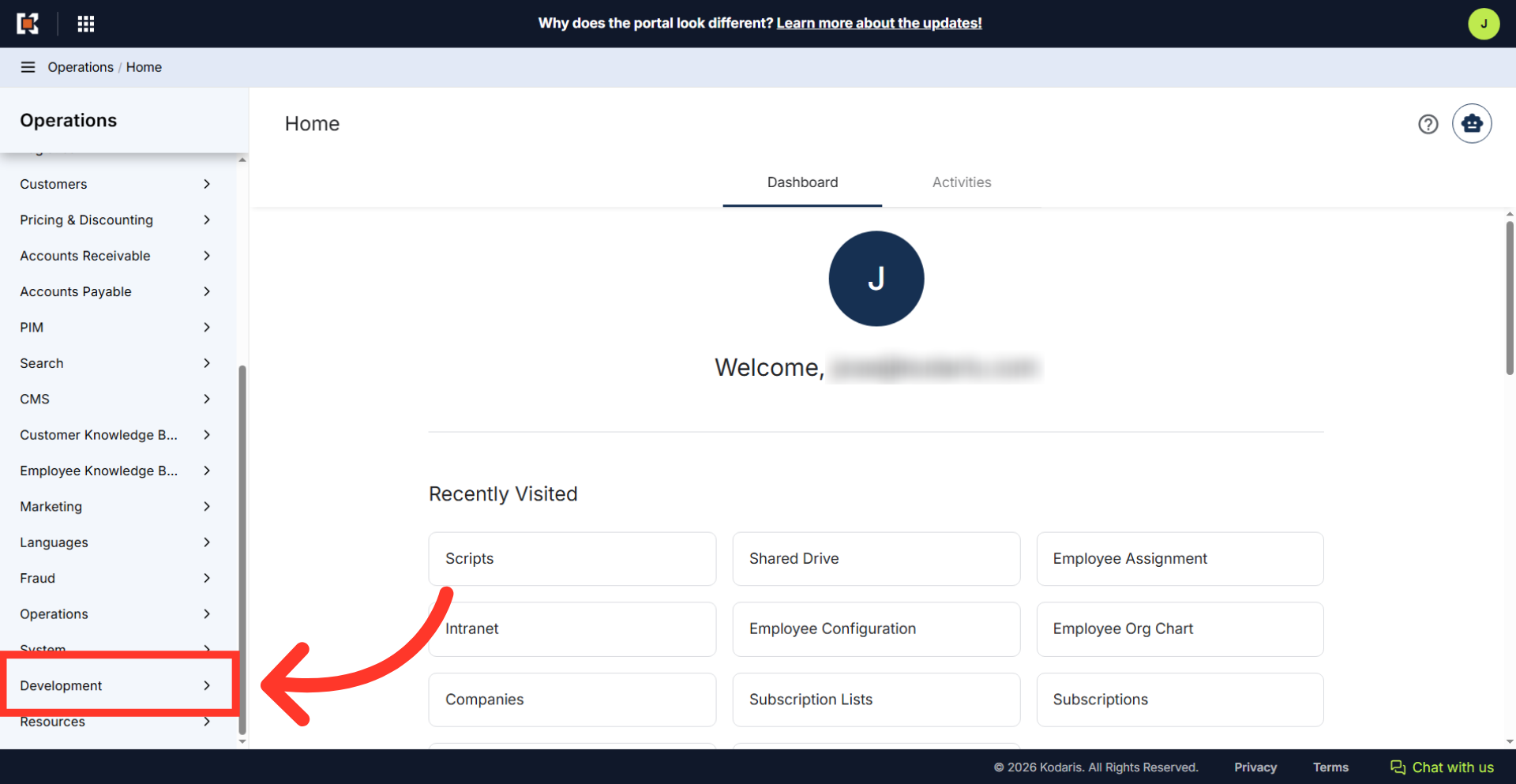
Navigate to "Development"
Script revisions provide access to change history and enable the restoration of previous versions as required. This process works for various script types including regular scripts, API scripts, user scripts, and interceptor scripts. To view and apply script revisions, navigate to the "Development" section in the Operations Portal.
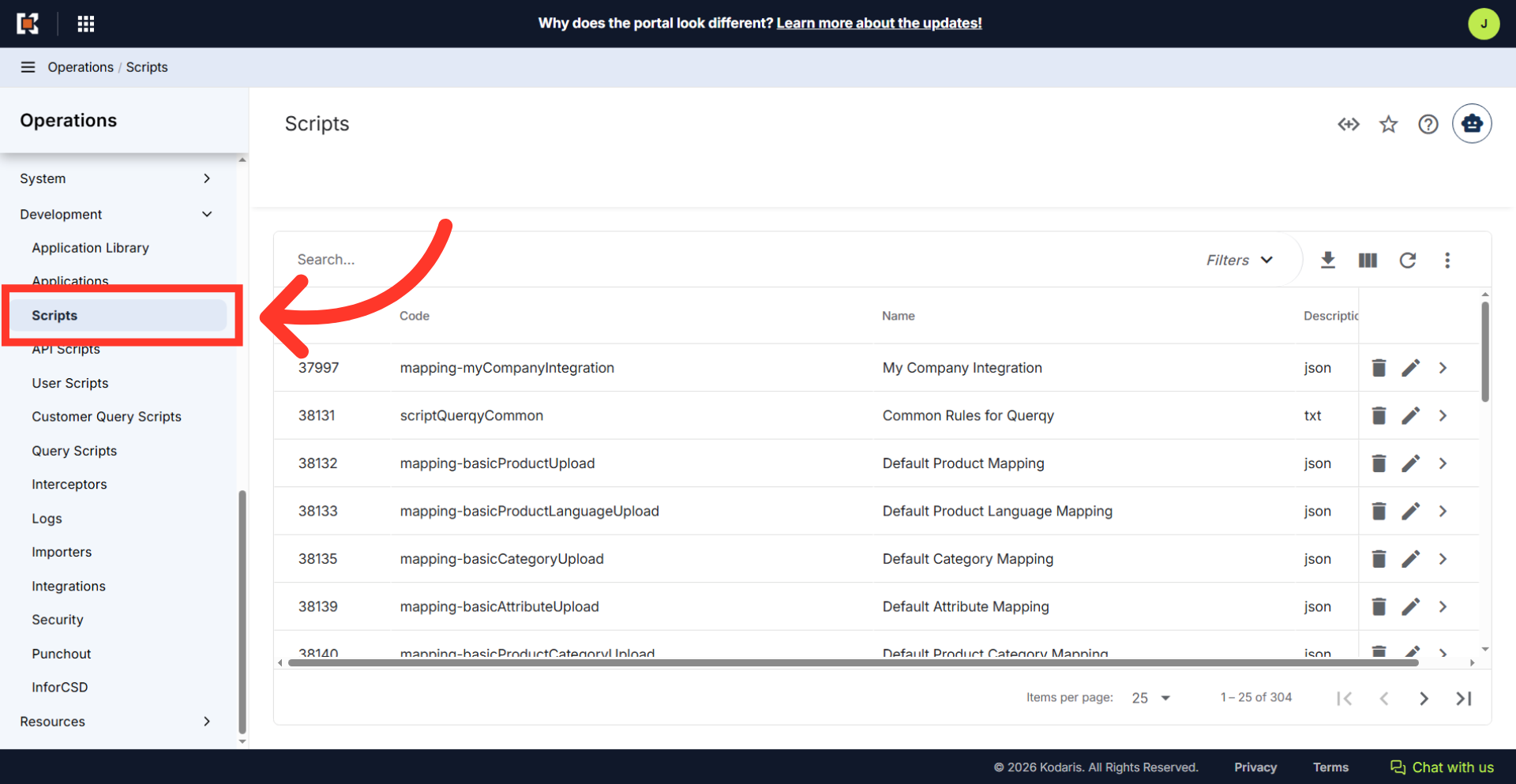
Go to "Scripts"
Then, go to the "Scripts" screen. In order to access "Scripts" the account will need to be set up either as an "administrator" or a "superuser", or have the appropriate role: "scriptEdit".
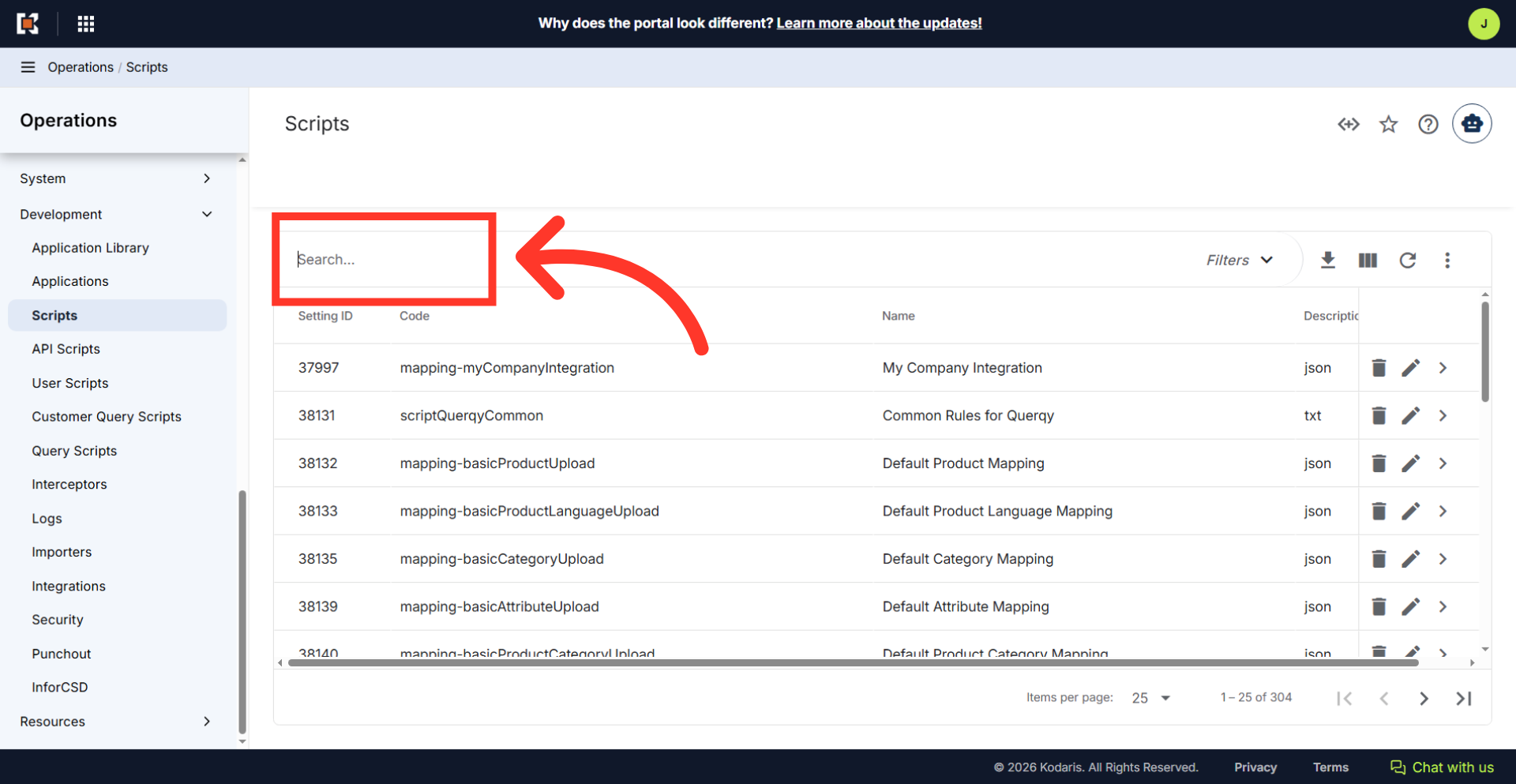
Search for the script
This grid displays all scripts within your system. Click on the "Search..." field and enter a keyword to locate a specific script.
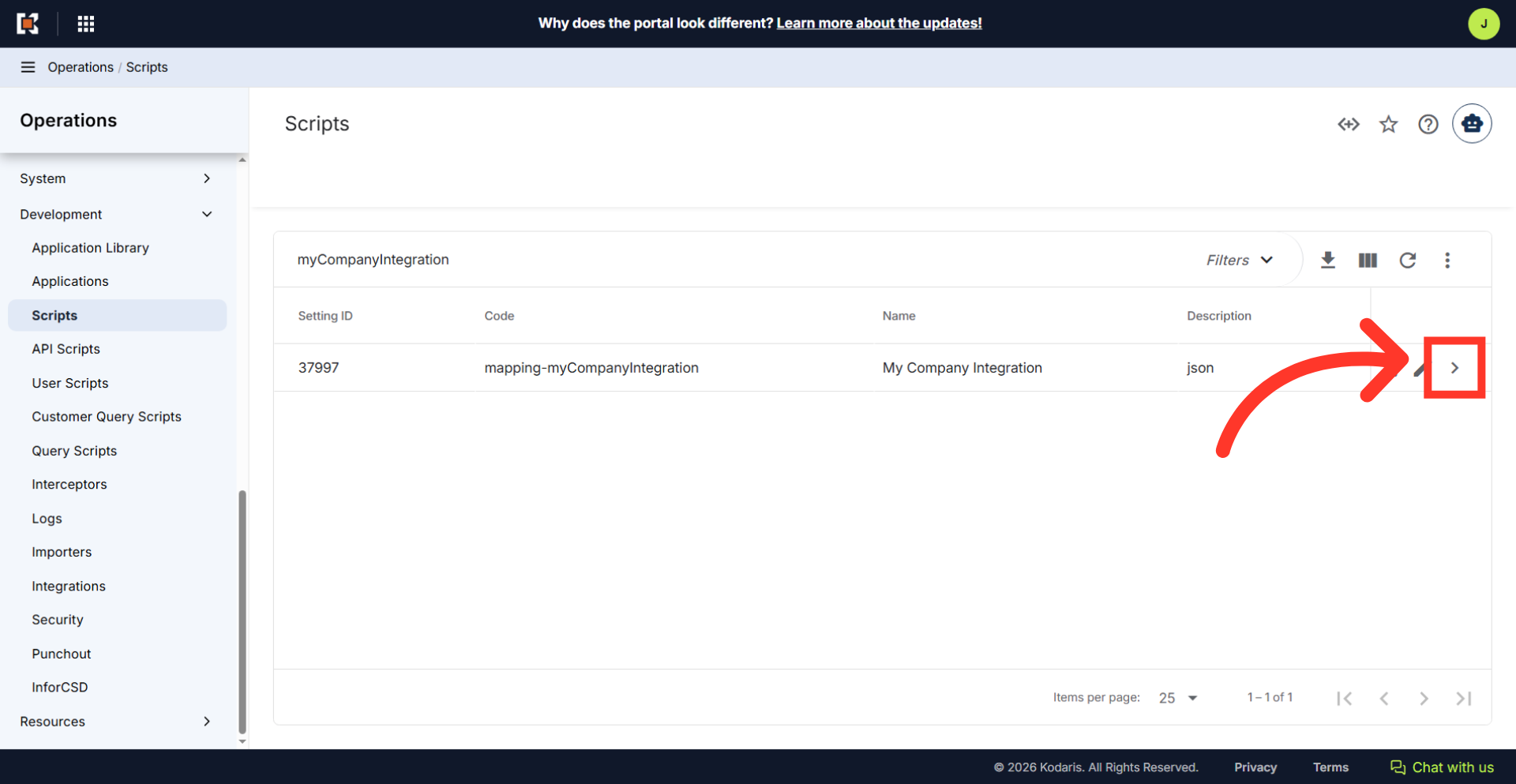
Click on the more details icon
Click on the more details icon to open the script details.
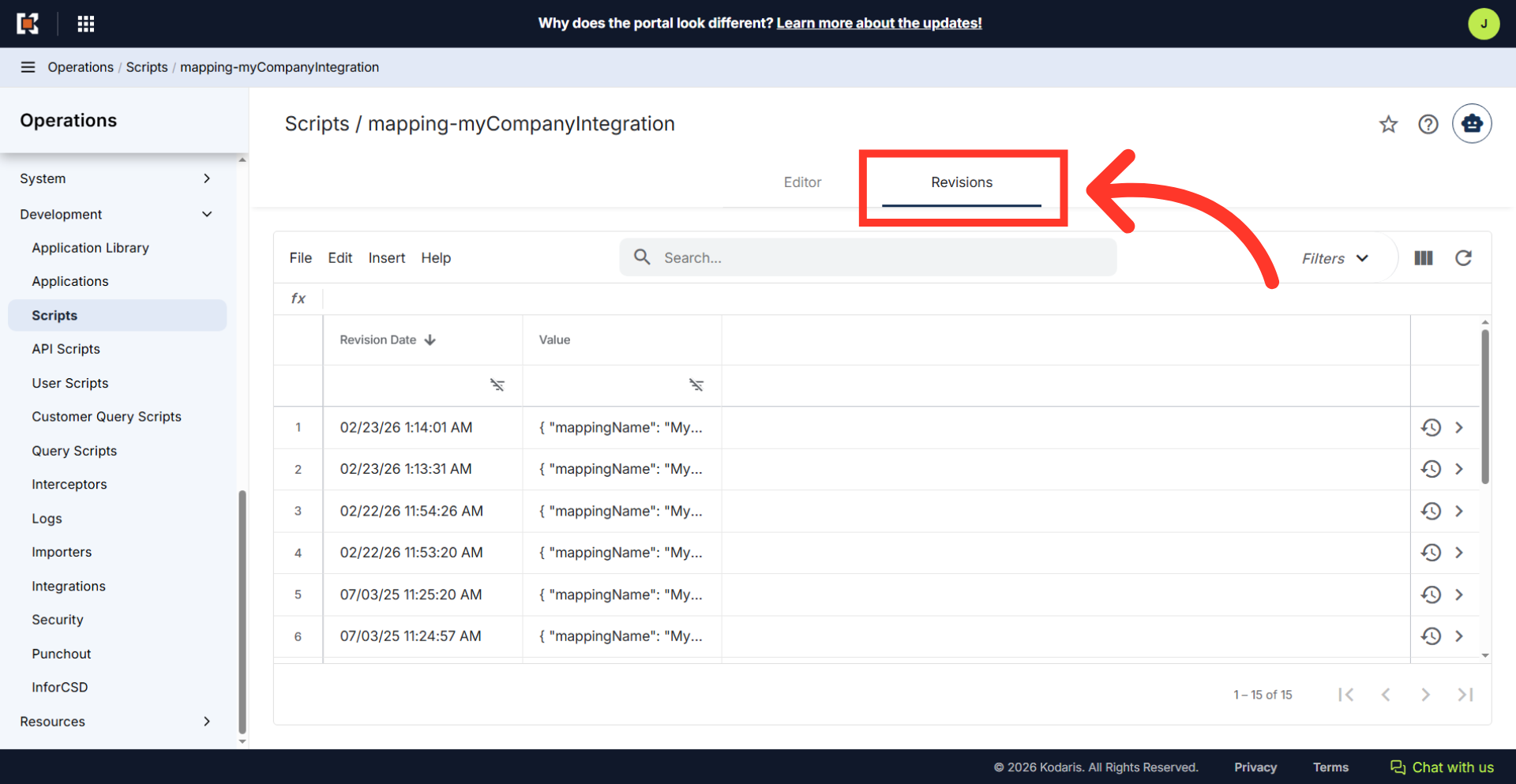
Navigate to the "Revisions" tab
Navigate to the "Revisions" tab.
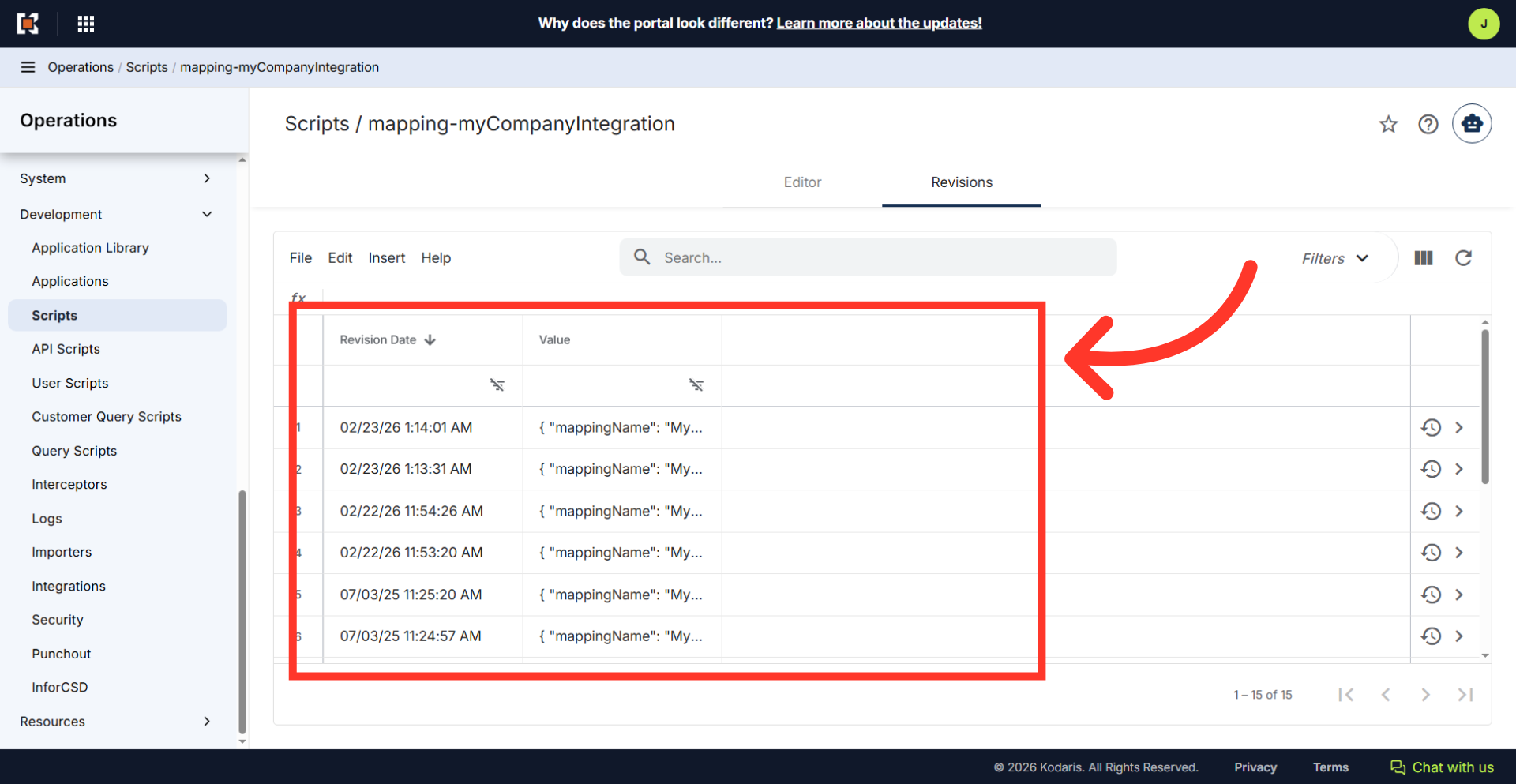
View the available revisions
This list displays the data that is available for each restoration point.
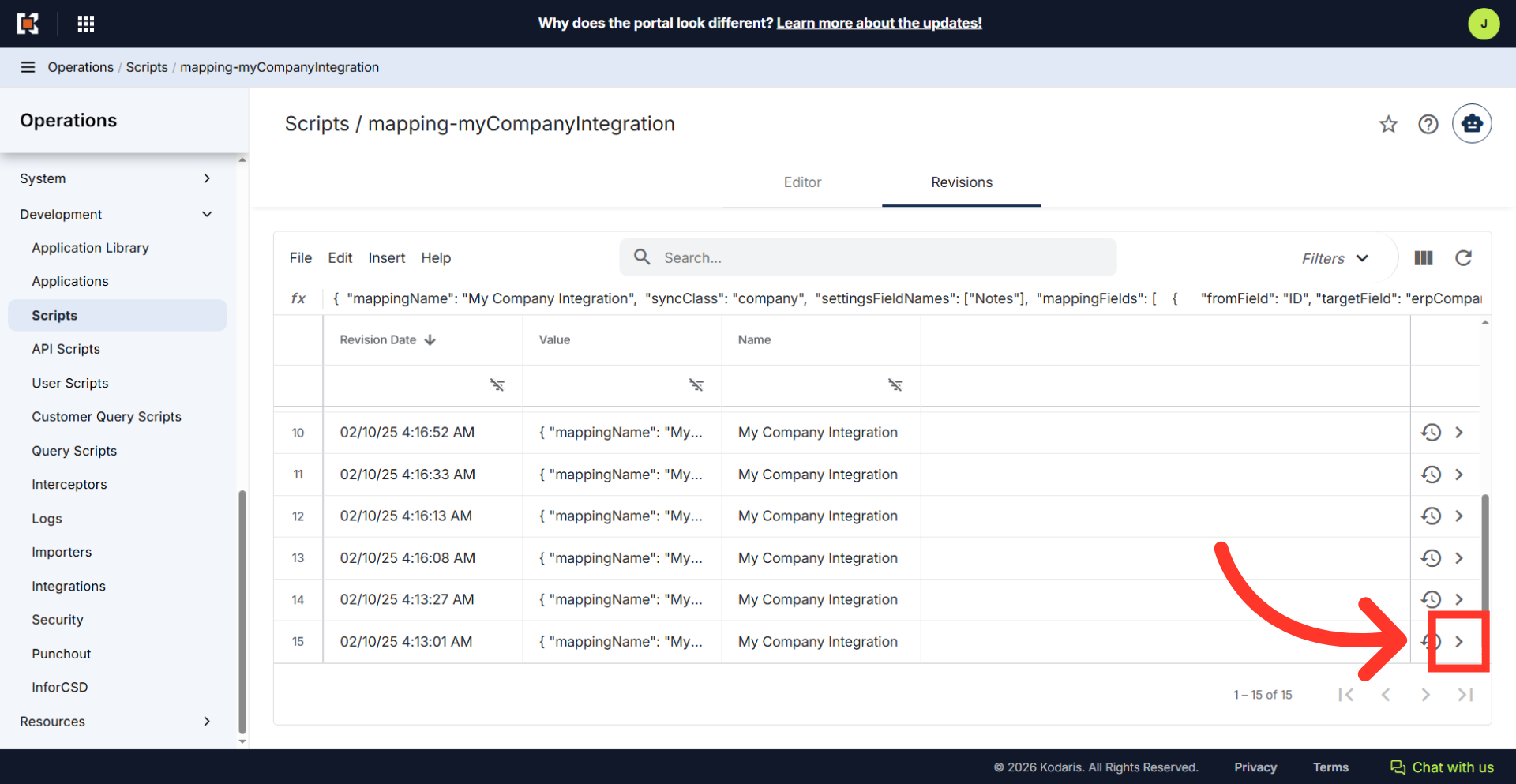
Go to the details of the revision to be restored
From the "Revisions" tab, browse through the available revisions. Click on the more details icon of the specific revision you want to restore.
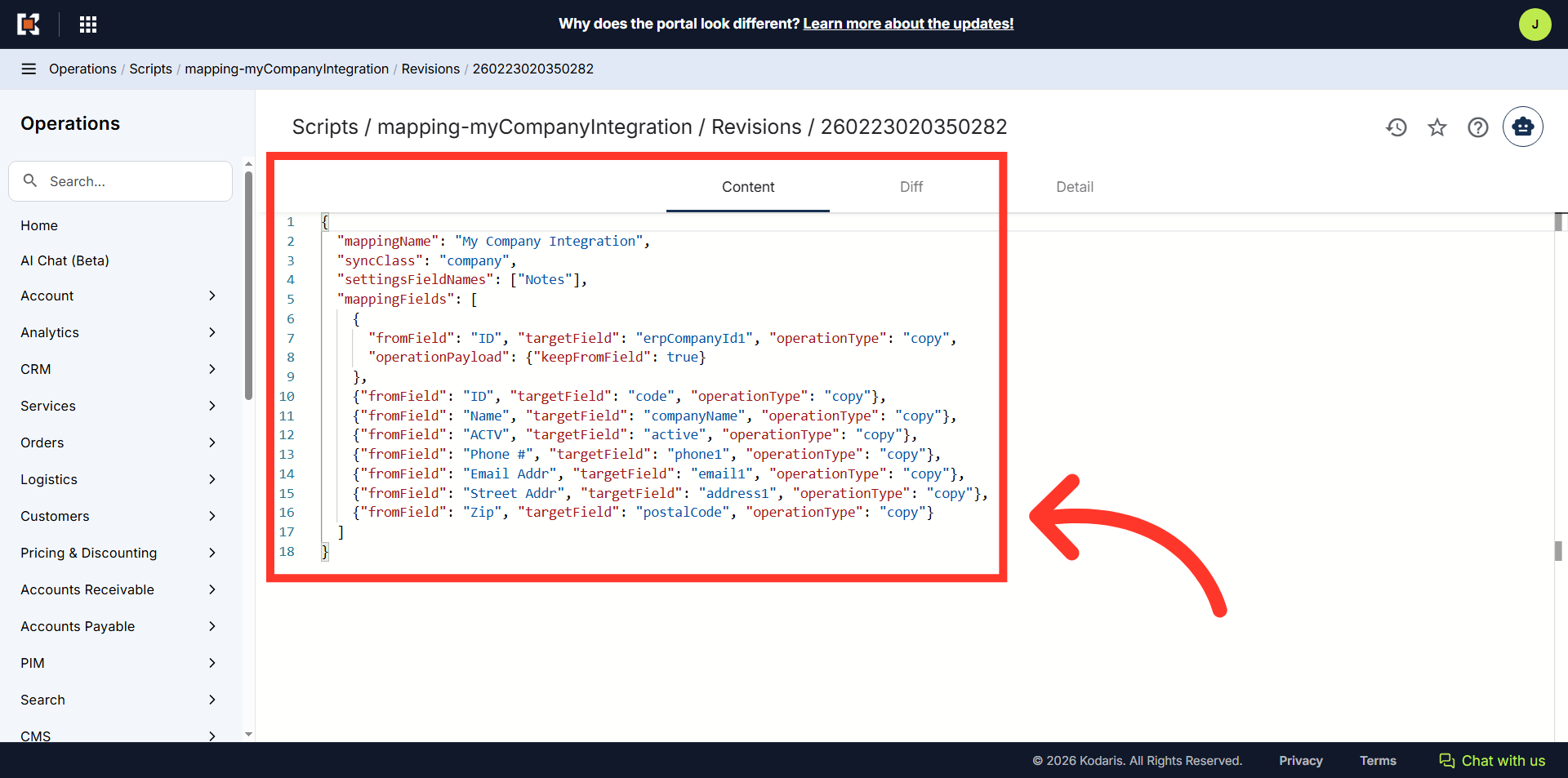
Review the content
The "Content" tab displays the script version associated with the restoration point. Review the values/content of that revision to ensure it's what you need.
Go to the "Diff" tab
Go to the "Diff" tab.
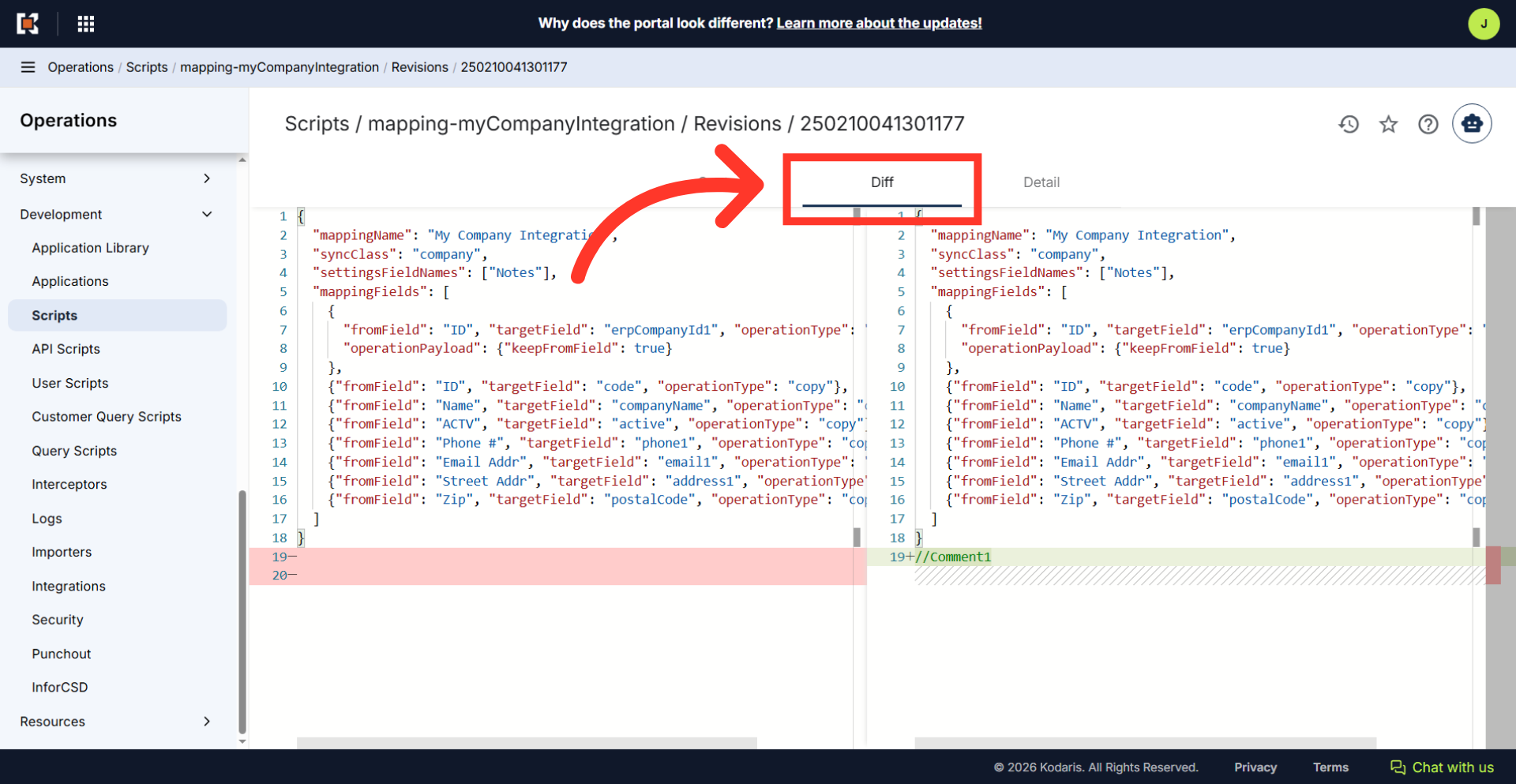
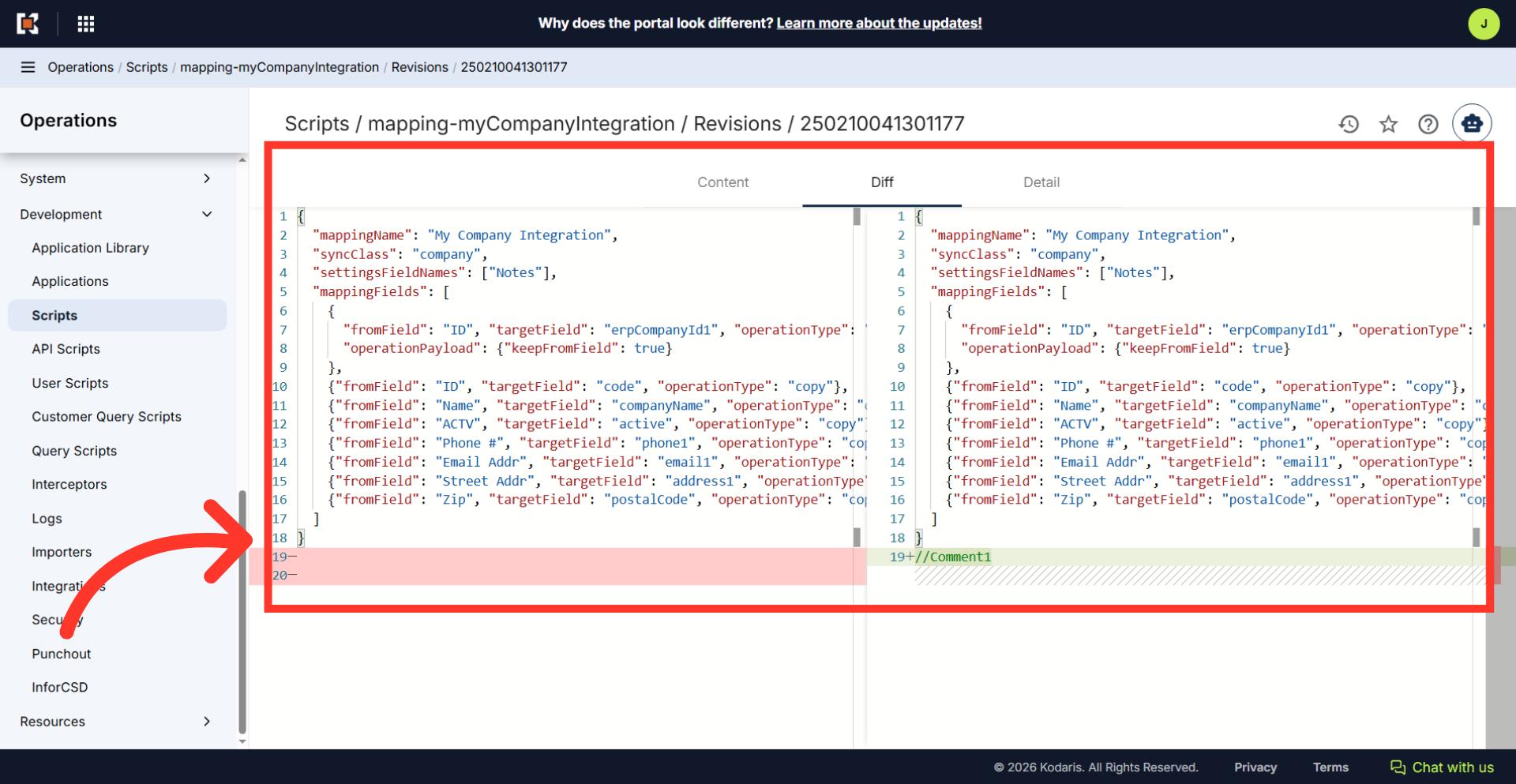
Review the comparison
The "Diff" tab displays the current script version alongside the restoration point for a side-by-side comparison. The highlighted text identifies script segments that have been updated, changed, or are scheduled for restoration.
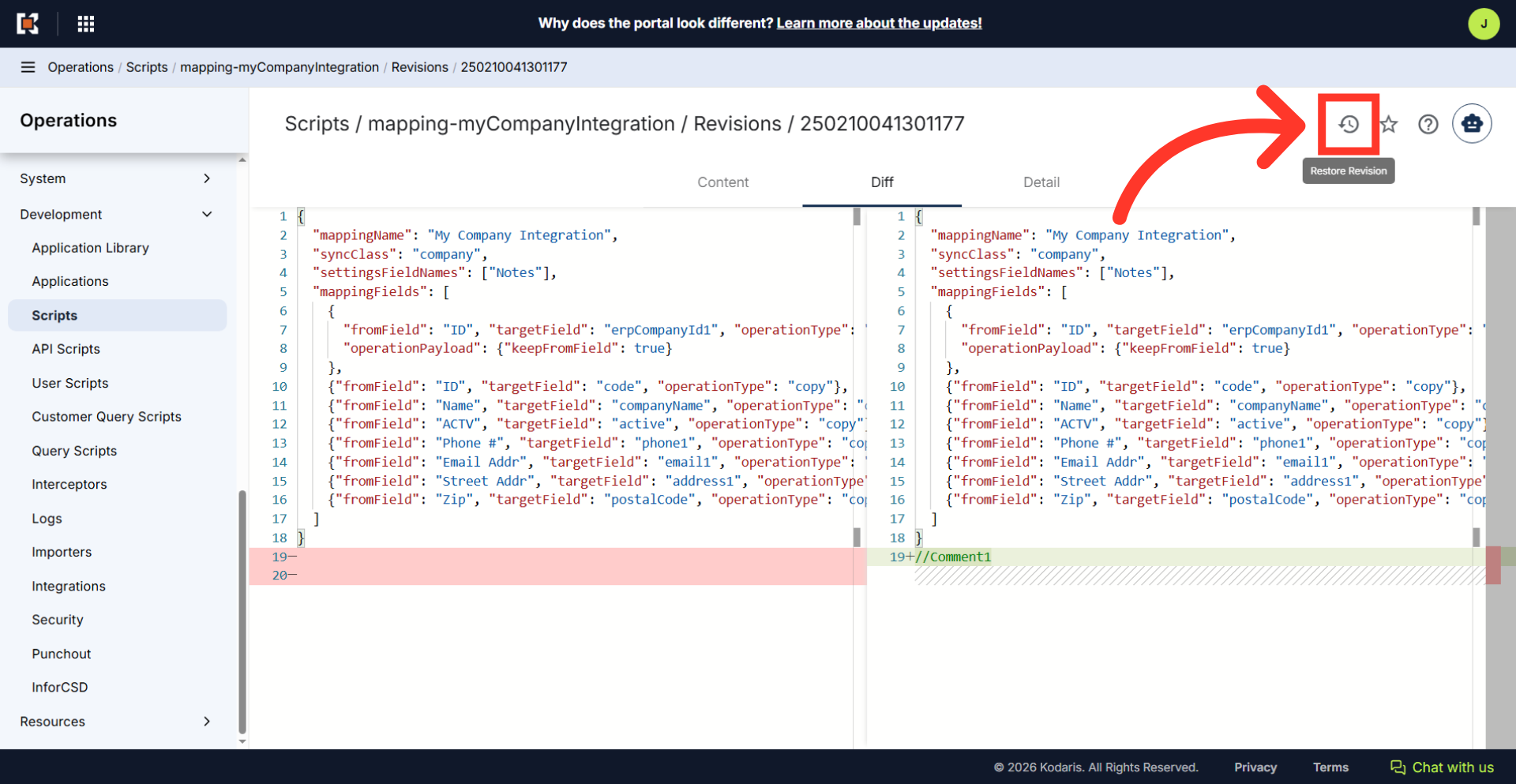
Click "Restore Revision"
Restoring a revision adds a new entry without deleting or replacing any history. Always review the revision content before restoring. Click the "Restore Revision" icon to apply the chosen restoration point.
Verify the Restore
The system redirects to the "Editor" tab to display the updated version of the script. Check that the script content has been updated to match the selected revision.
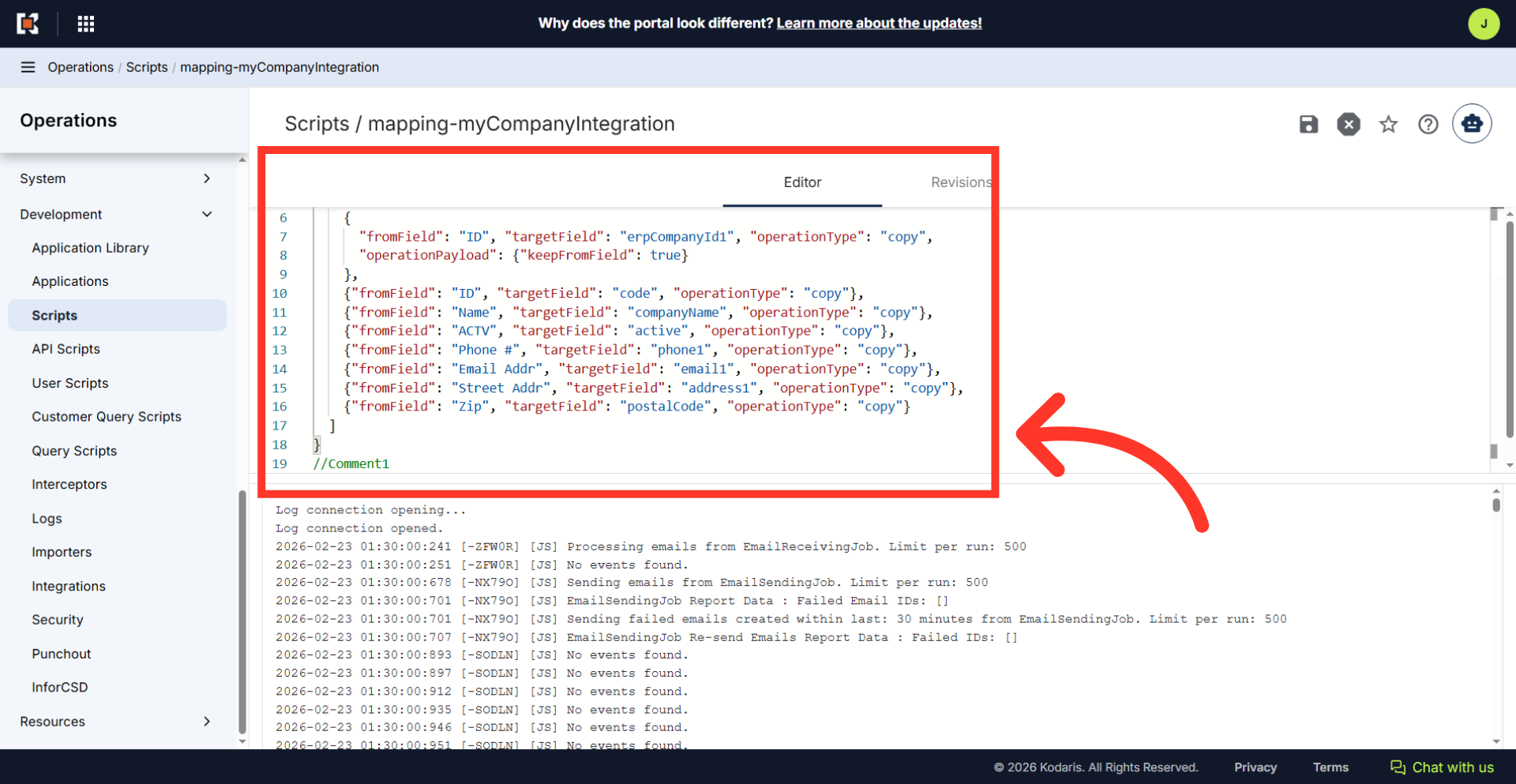
Automatic New Revision
If you go back to the "Revisions" tab, you will see that new revision record will automatically be created when you restore. This preserves the restore action in the revision history.
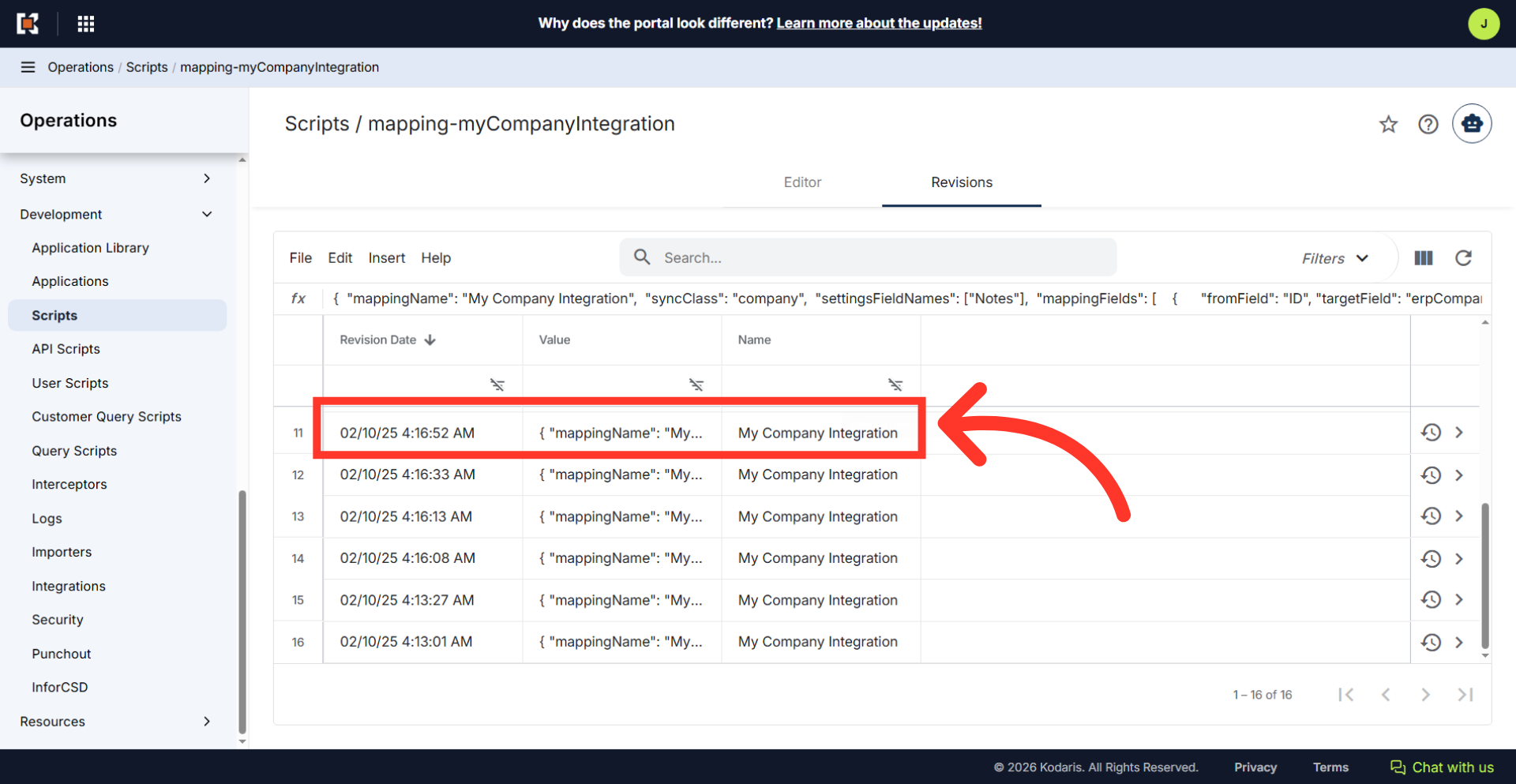
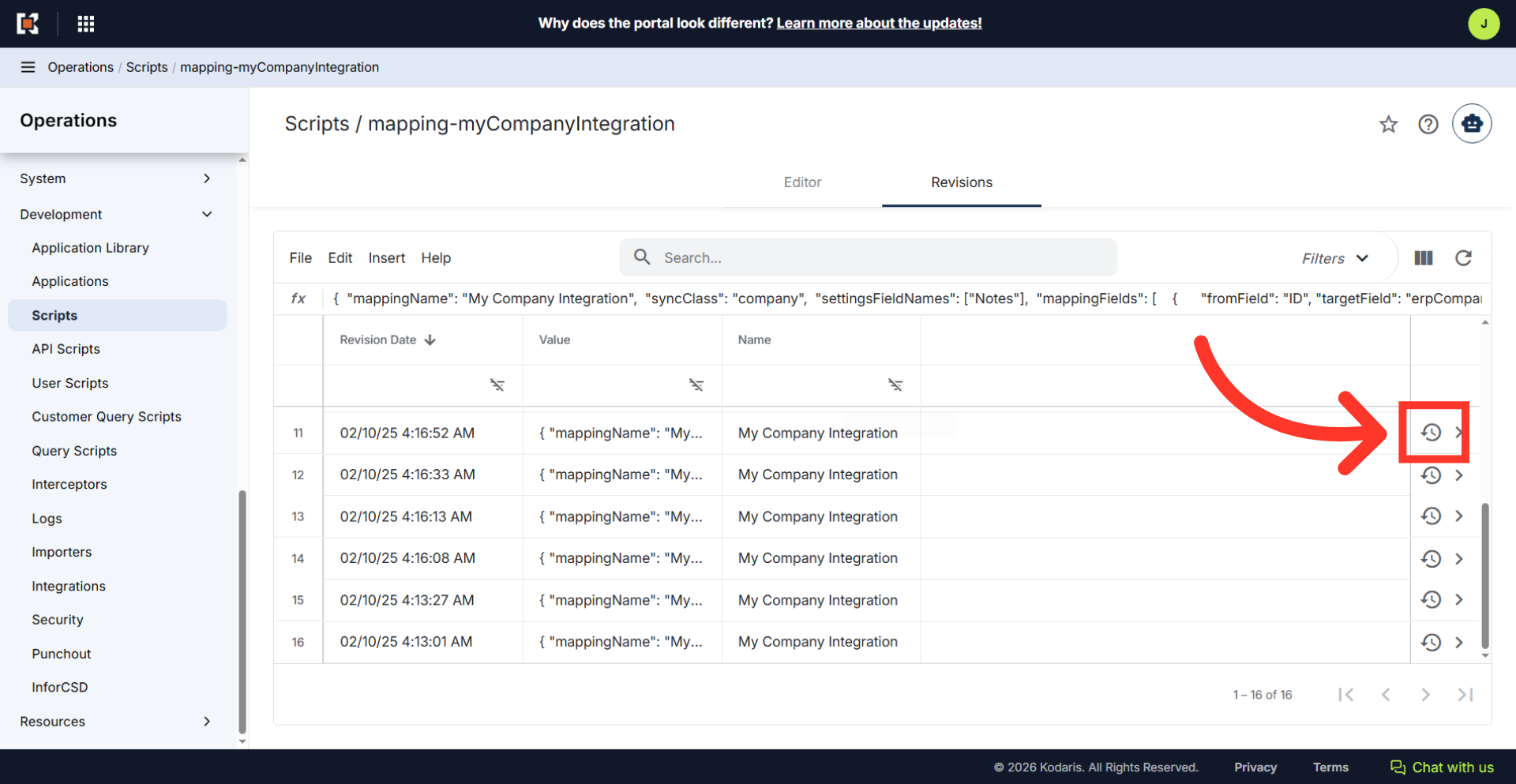
Restoring Revision from the Revisions tab
Alternatively, you can use the restore button directly from the revisions list. Just navigate to the "Revisions" tab and select the restore revision icon for immediate restoration.