Operations Portal - Filter and Sort Payments by Site/Host
Navigate to "Accounts Receivable"
To filter and sort payments by site or host, navigate to the "Accounts Receivable" section in your Operations Portal.
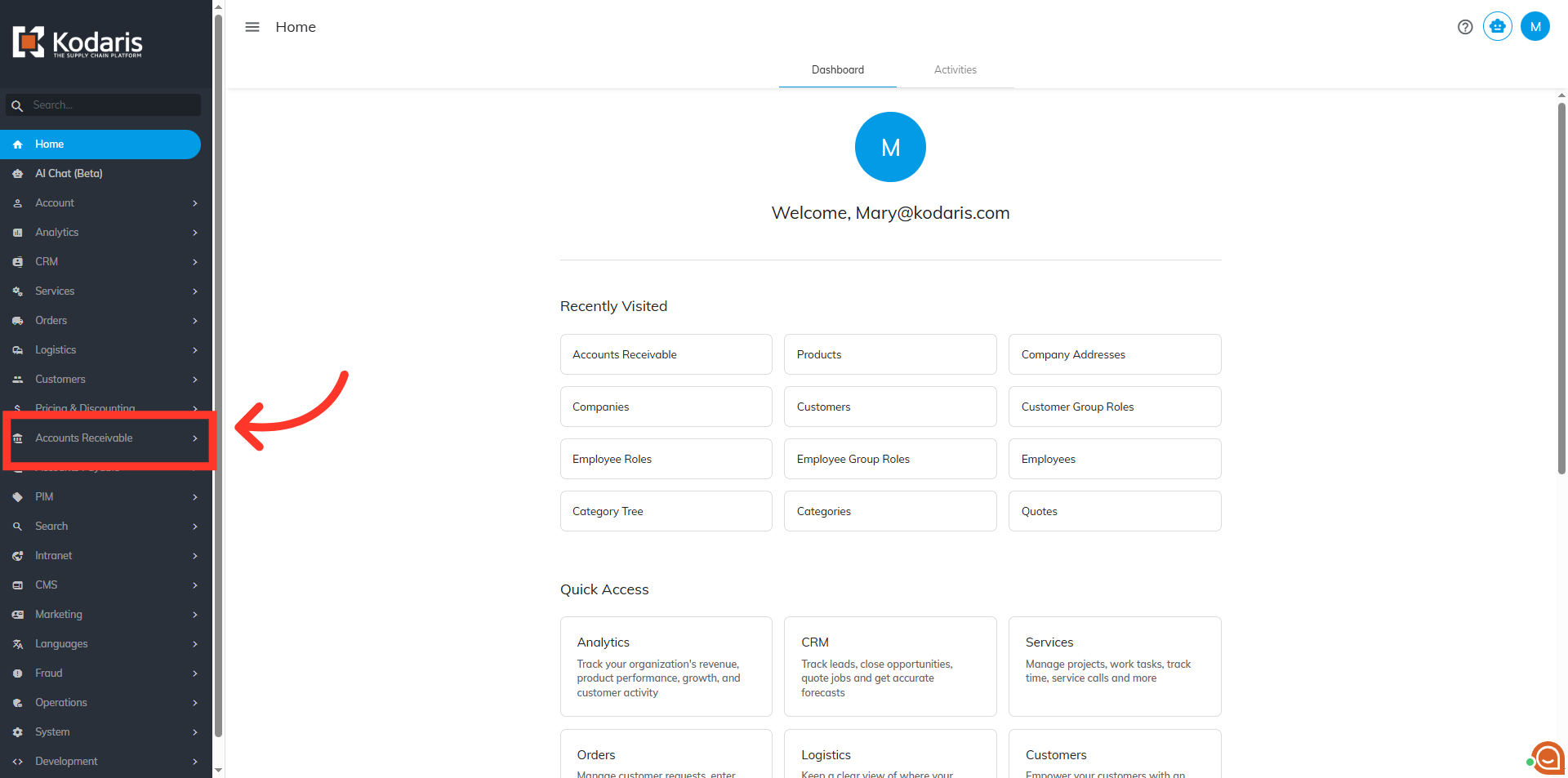
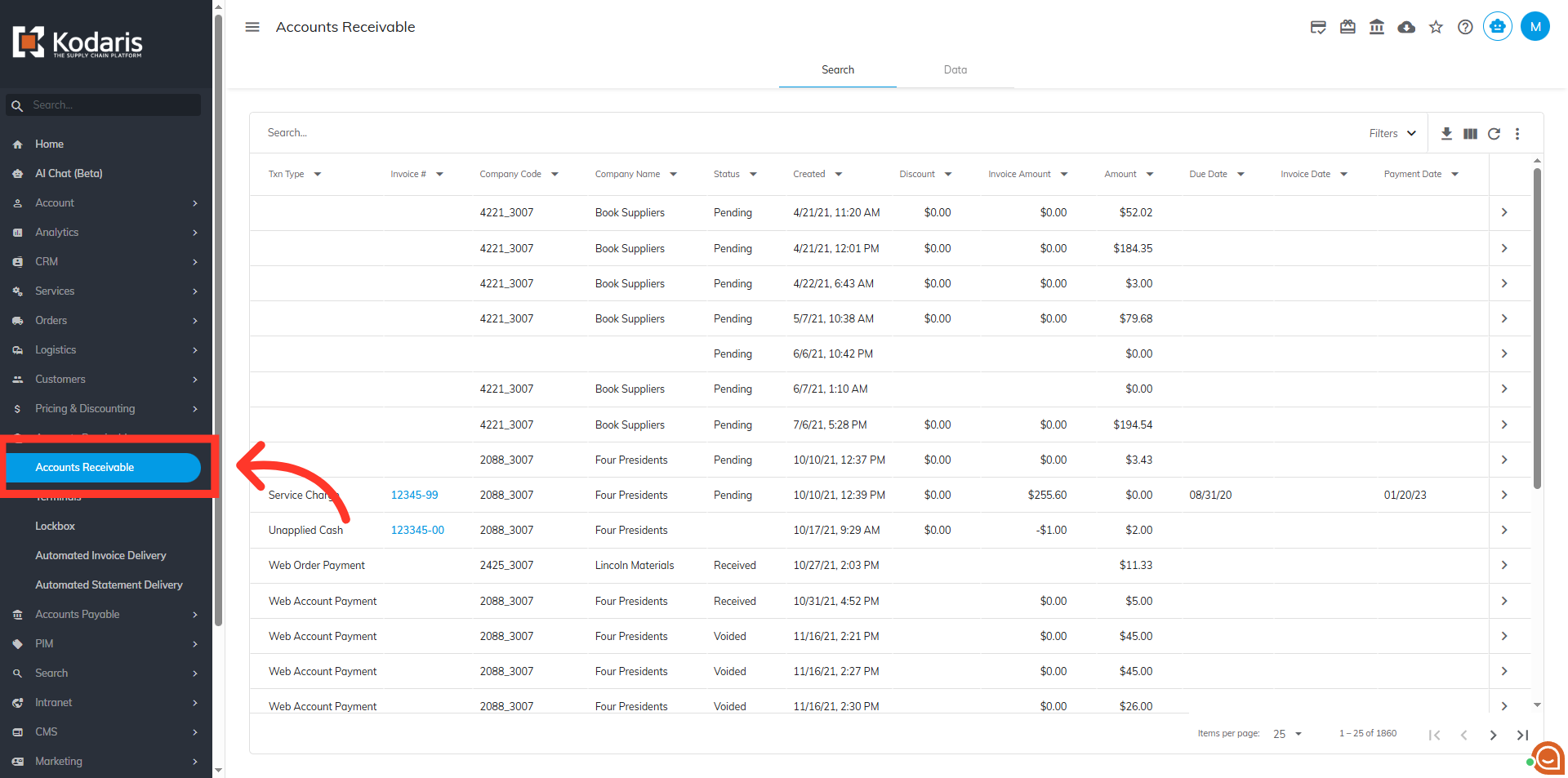
Click the "Accounts Receivable" menu
Then, select the "Accounts Receivable" menu. In order to access "Accounts Receivable",you will need to be set up either as an "administrator" or a "superuser", or “accountant” or have the following roles: "paymentEdit and paymentView”.
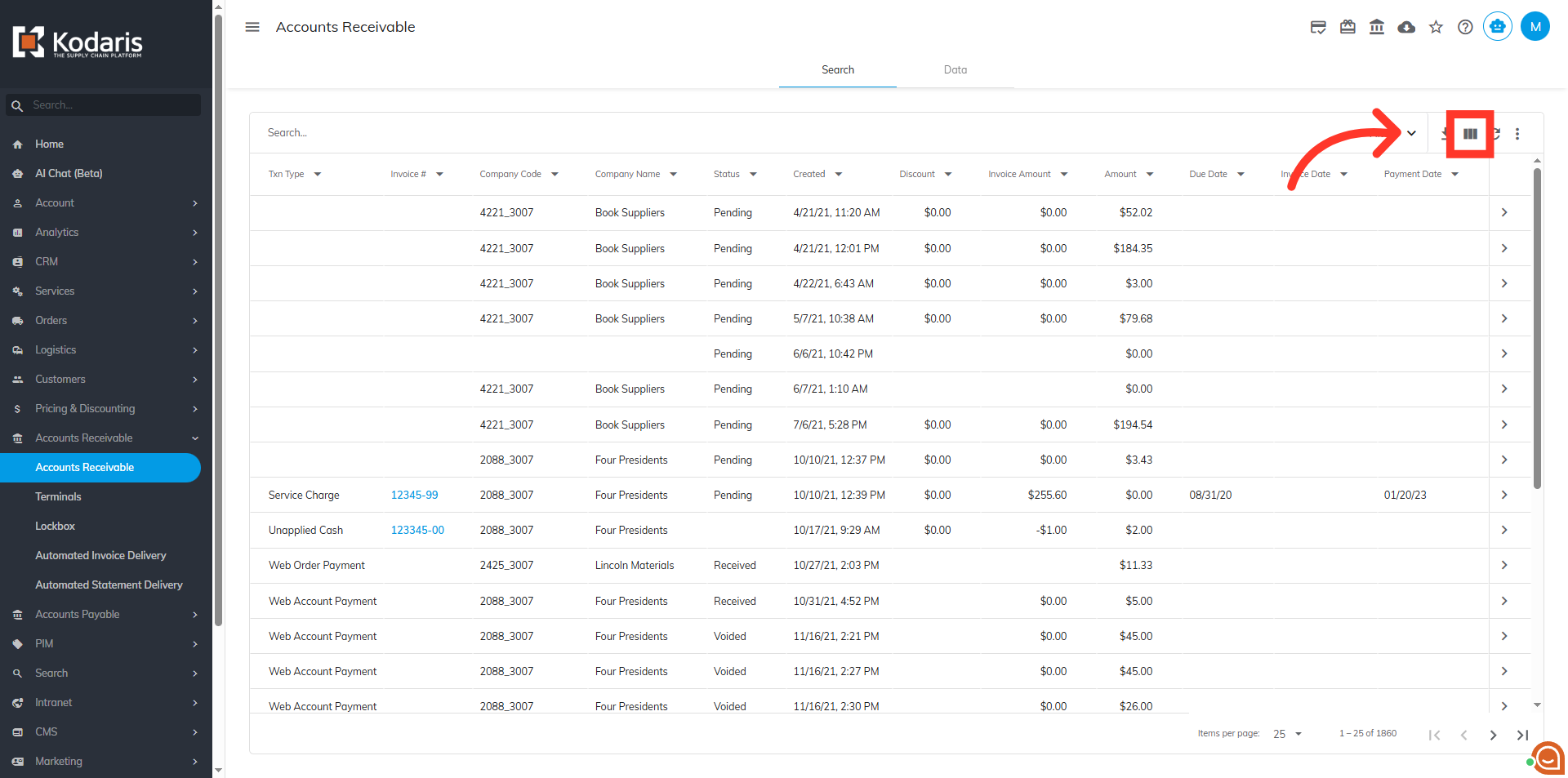
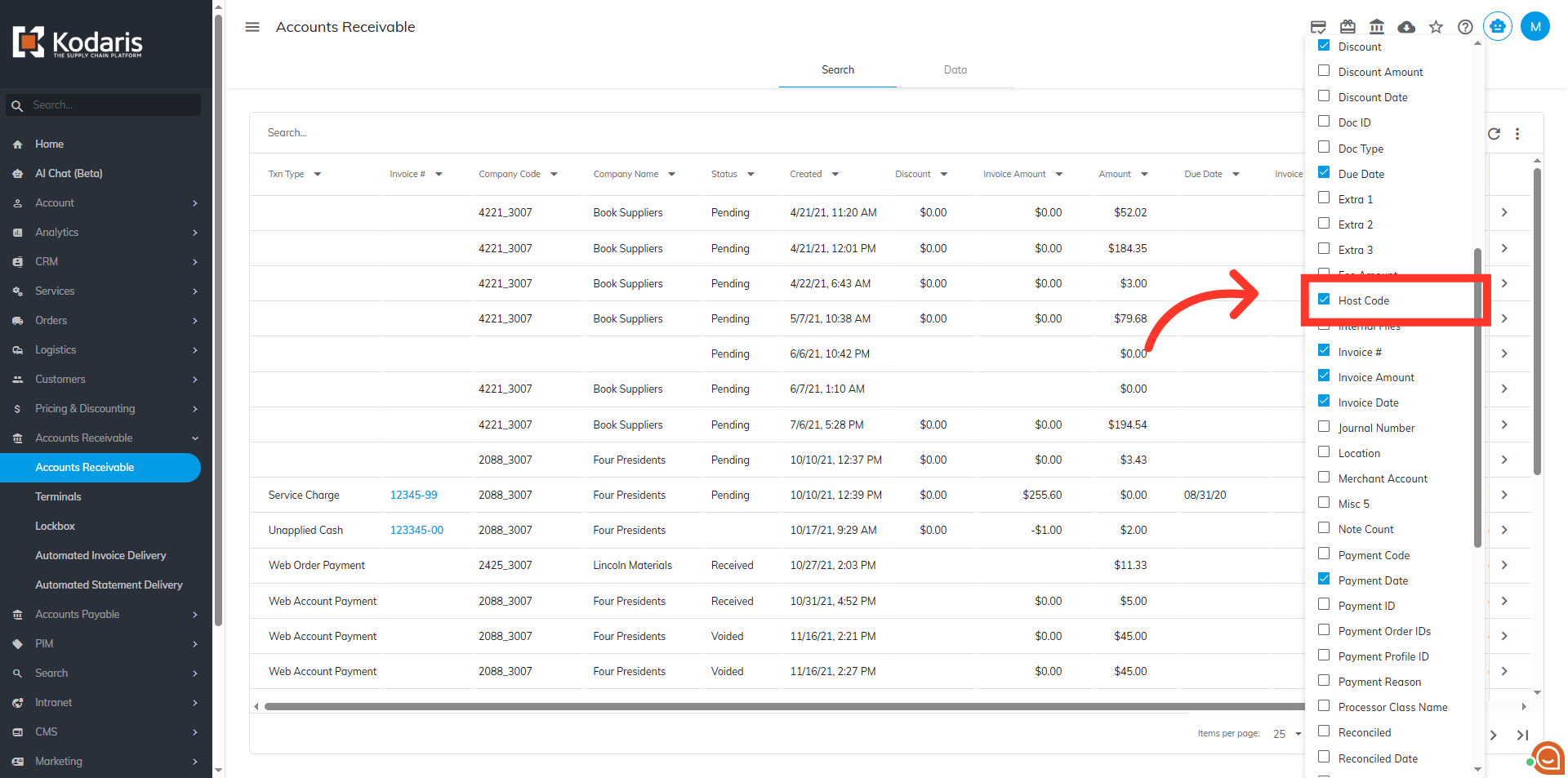
Click the "Show/Hide Column" icon
By default, the Host Code field is not visible here. To make it visible on the grid, click the "Show/Hide Columns" icon.
Select "Host Code"
Select "Host Code" to add this column to the grid.
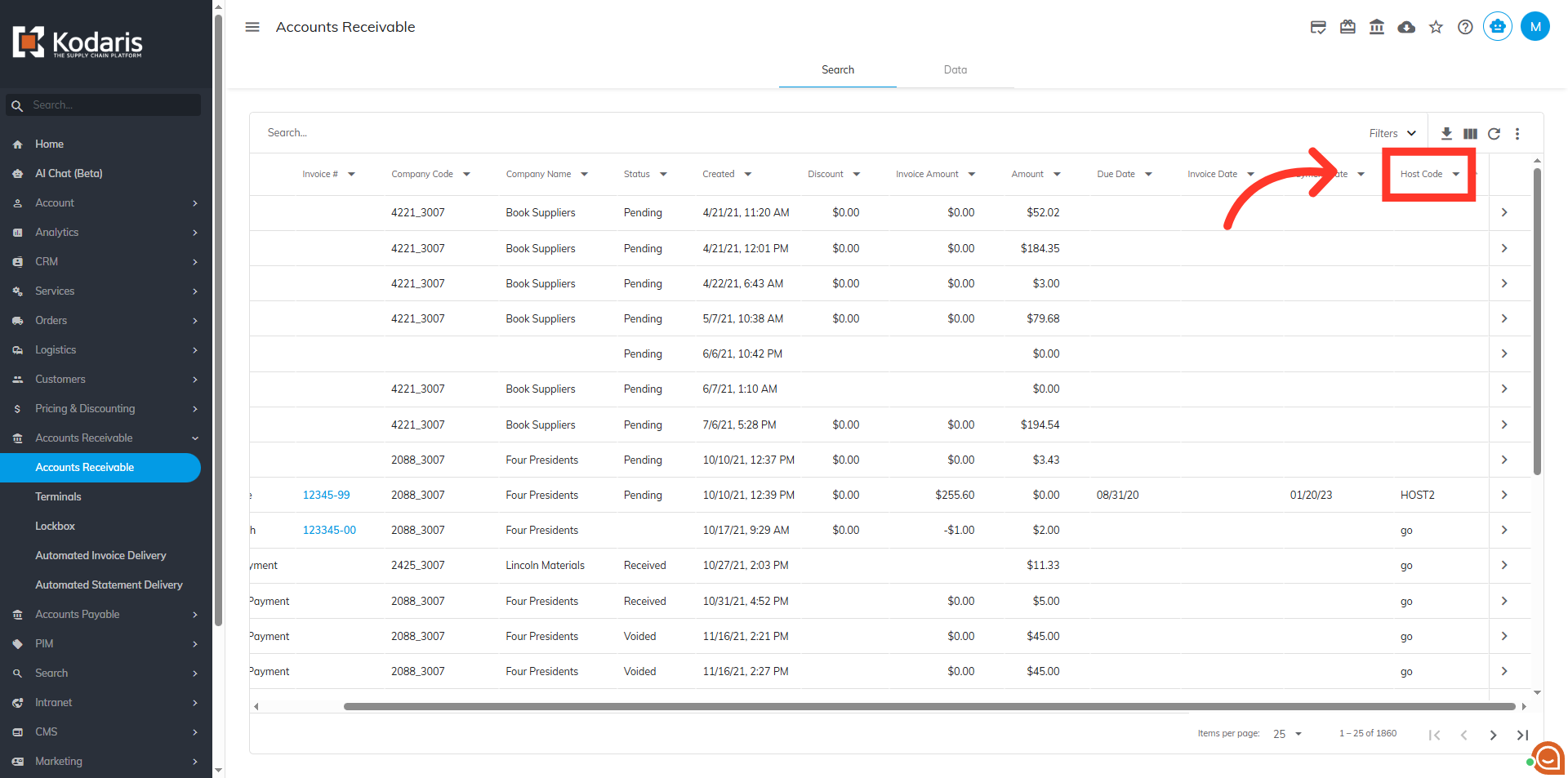
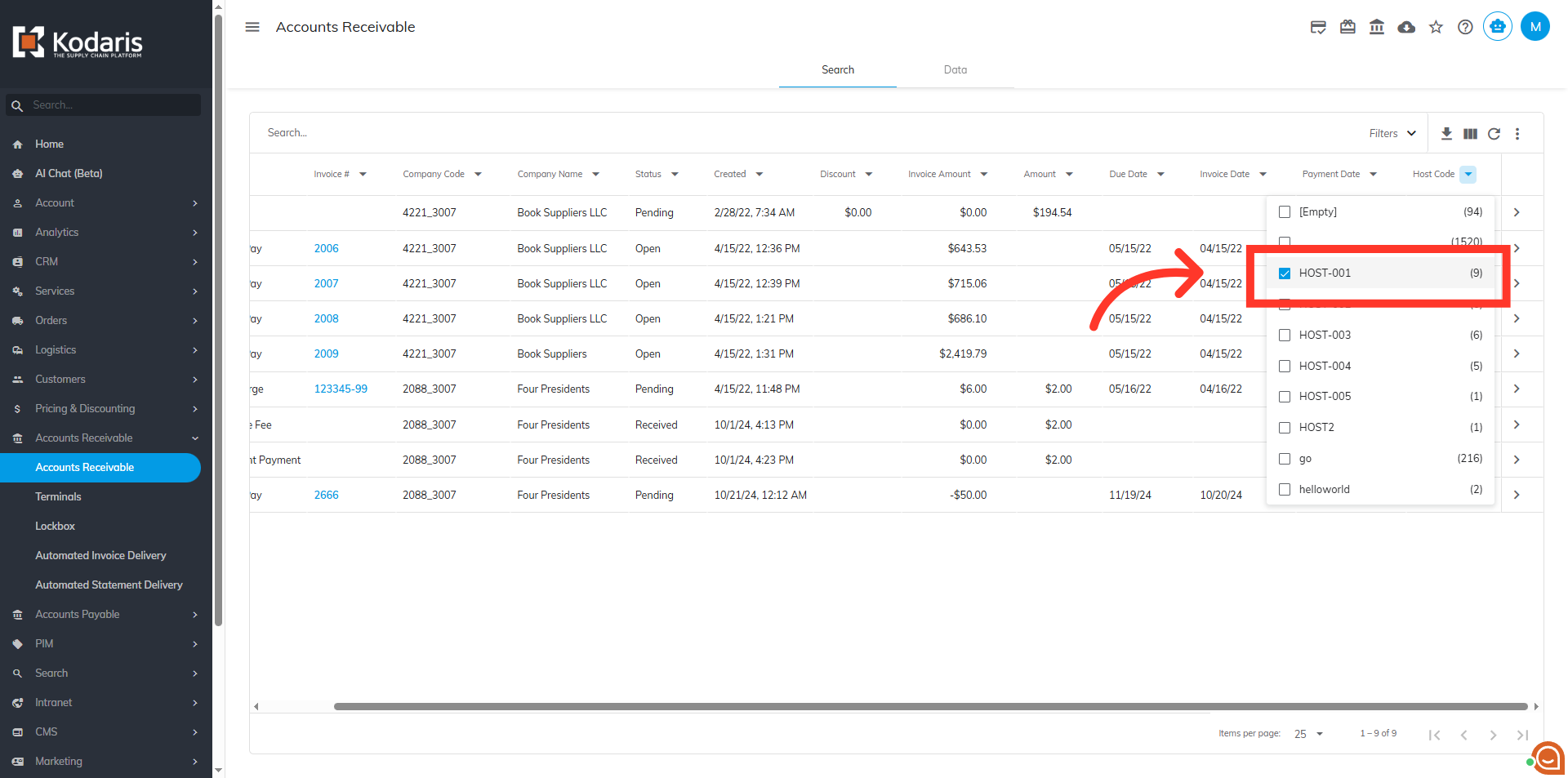
Click the column header to view the filter values
Filter the values in the "Host Code" column by clicking the column header to show the options.
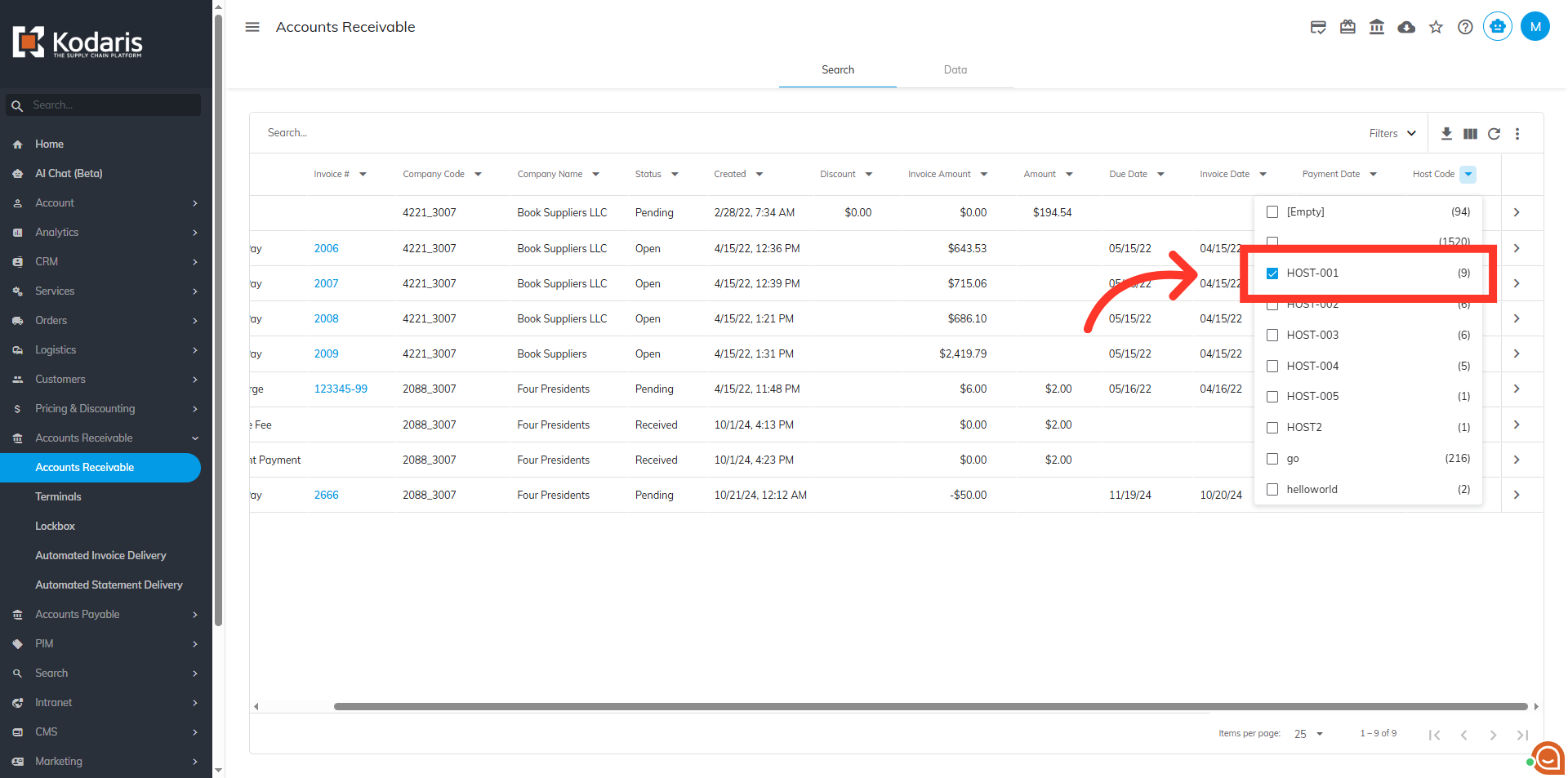
Select the filter value
Select the value you want to filter in this column.
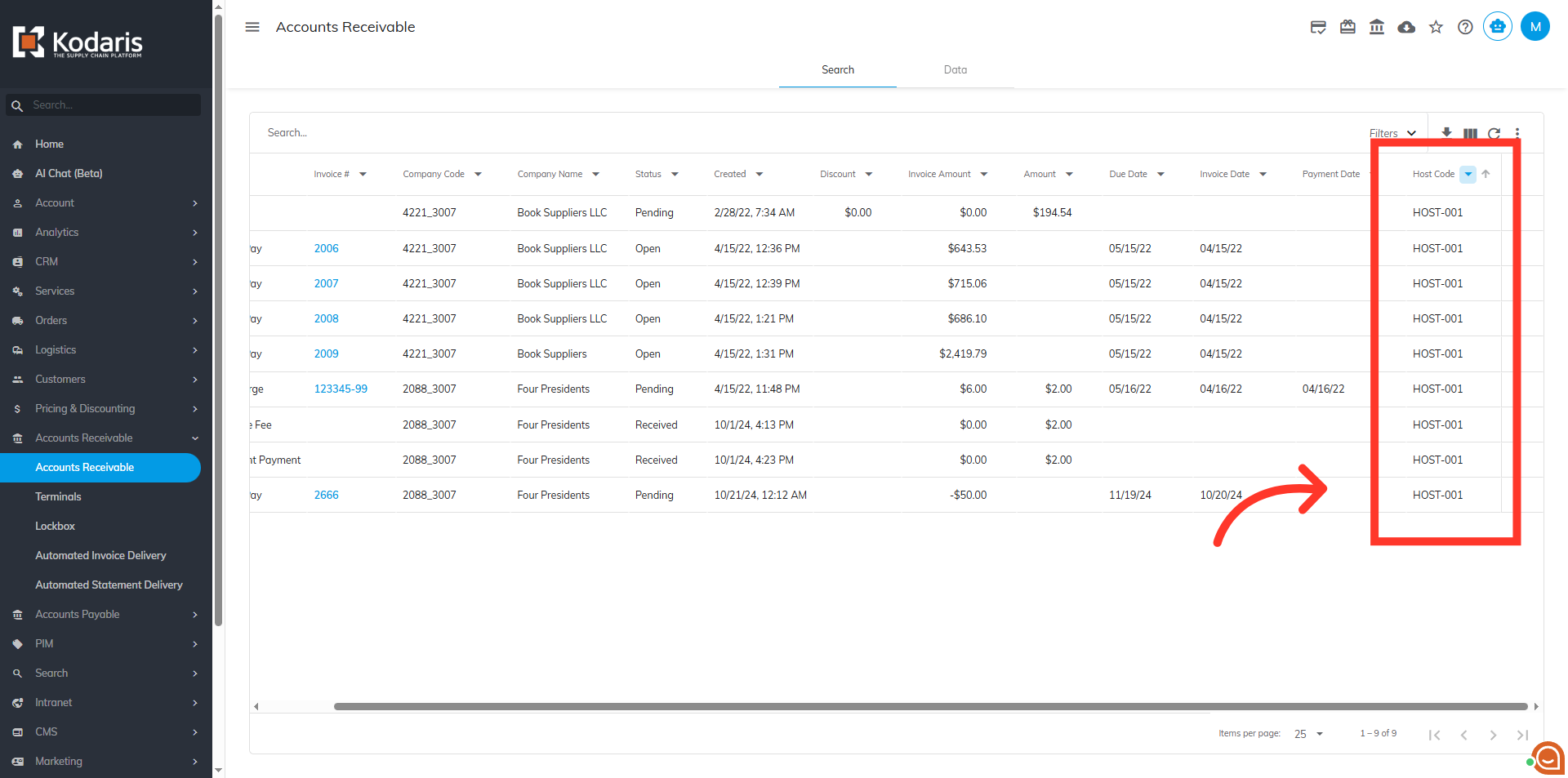
The payments for that Host will be displayed
The payments for that Host will be displayed.
Uncheck the box to clear the filter
Uncheck the box to clear the filters you applied.
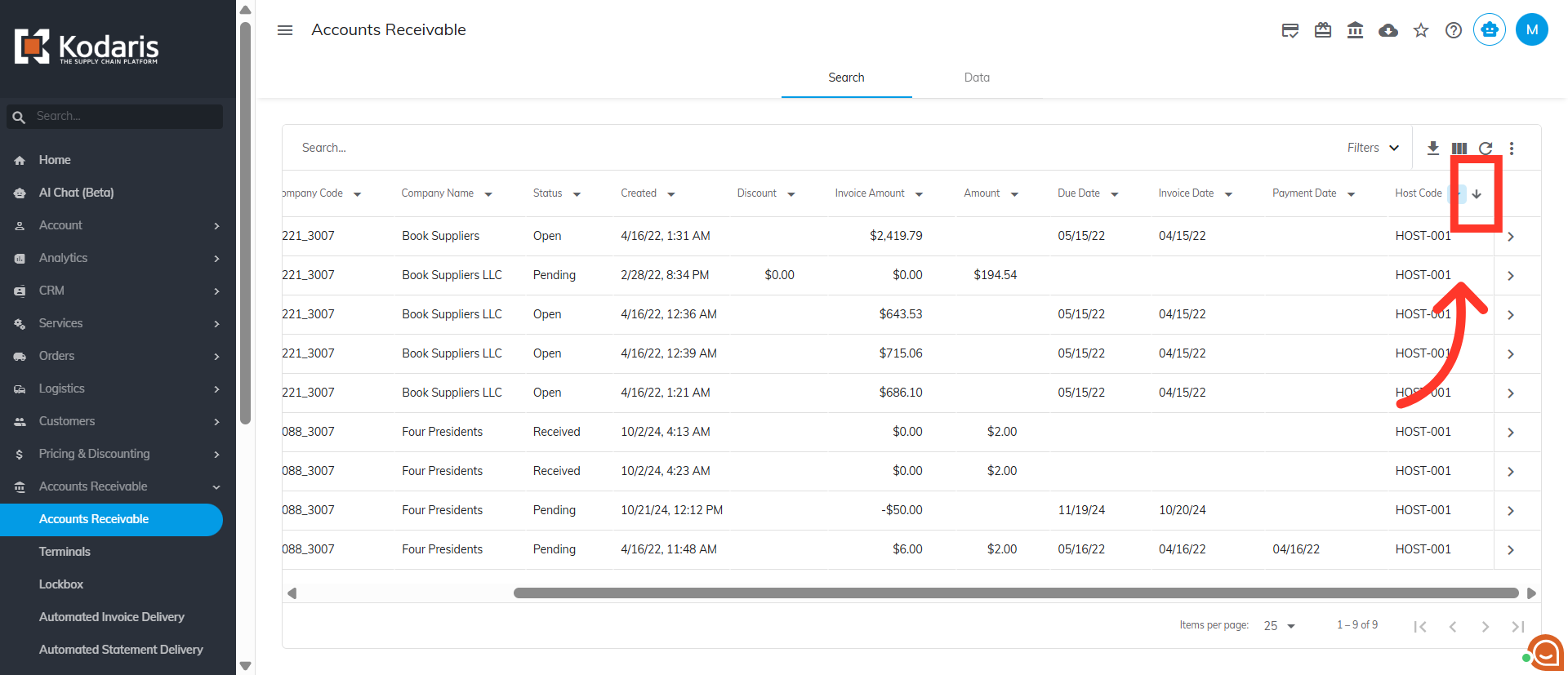
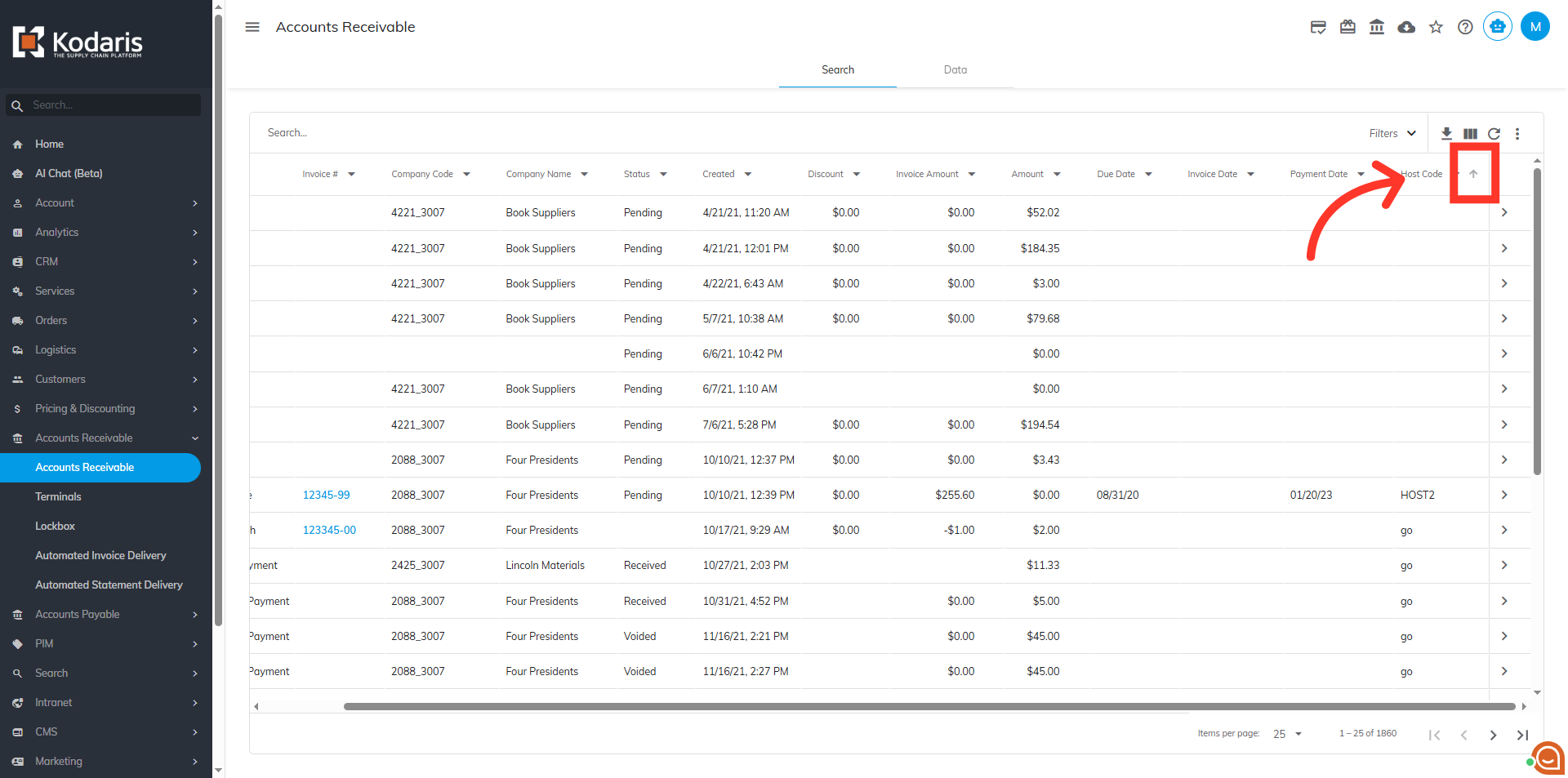
Click the arrow in the column header to sort
You can sort the "Host Code" data by clicking the arrow of the column header. If the arrow points upward, the payments are sorted in ascending order.
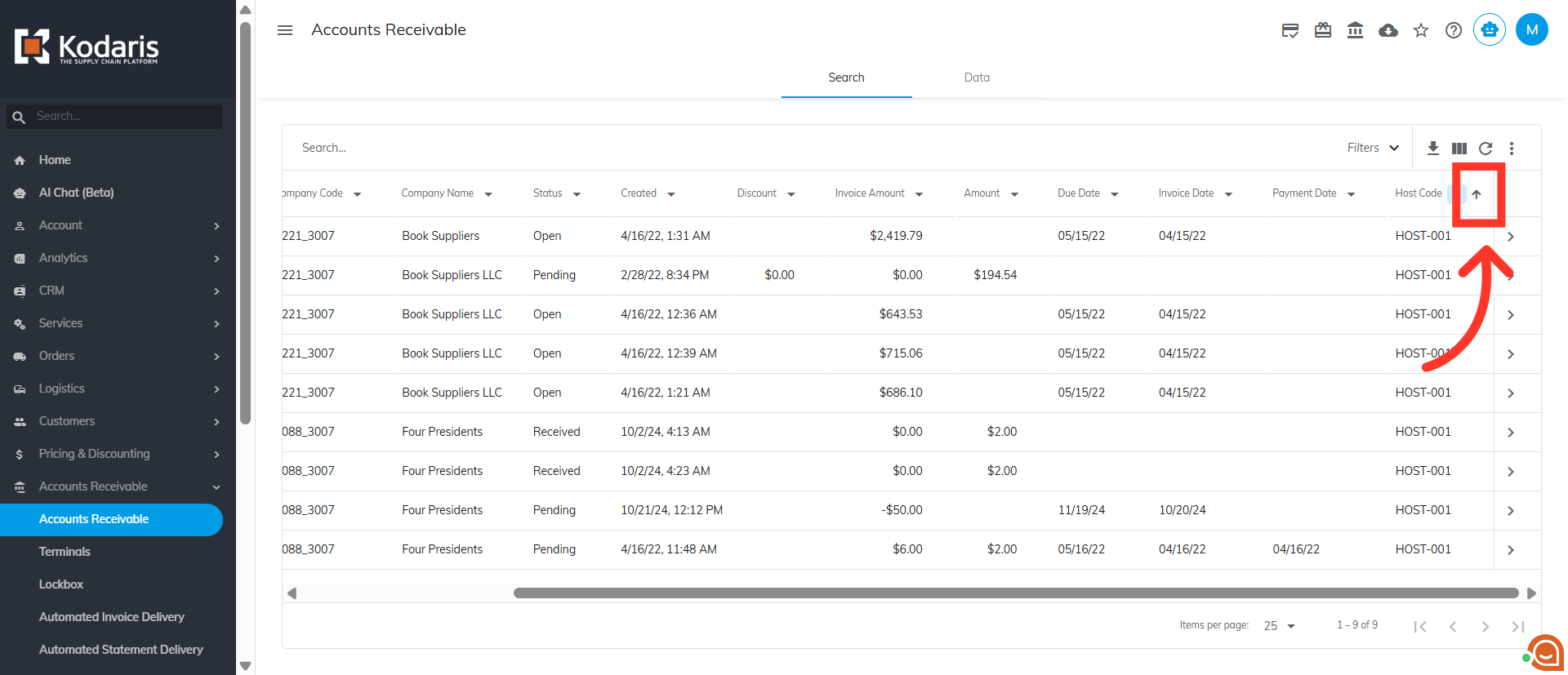
Click the arrow again to sort the values in descending order
To sort the payments in descending order, just click the arrow in the column header to point downward.
Click the arrow again to clear the sort option applied
Click the arrow again to clear the sort option you applied.