Payments - Connect Dejavoo Q Series Terminal to WiFi
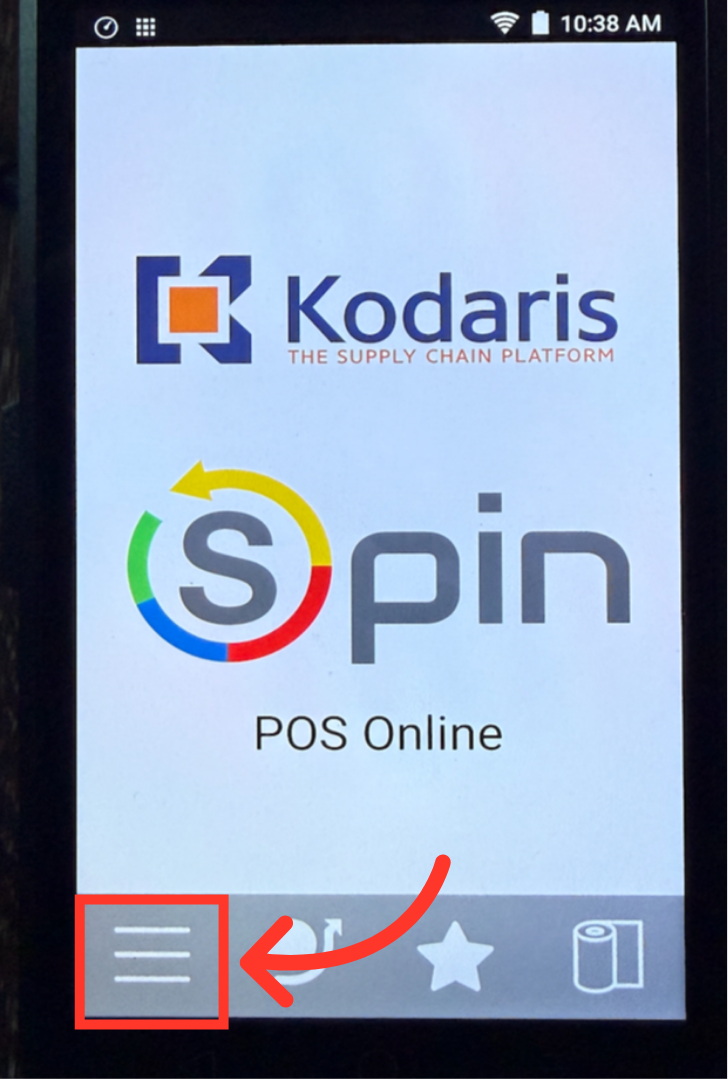
Tap the "Core Menu" Icon
Before card payments can be accepted, the Dejavoo Q Series terminal will need to be connected to the network by either WiFi or Ethernet. To connect the terminal to WiFi, access the device settings by tapping the 3-line "Core Menu" icon in the lower left corner of the screen.
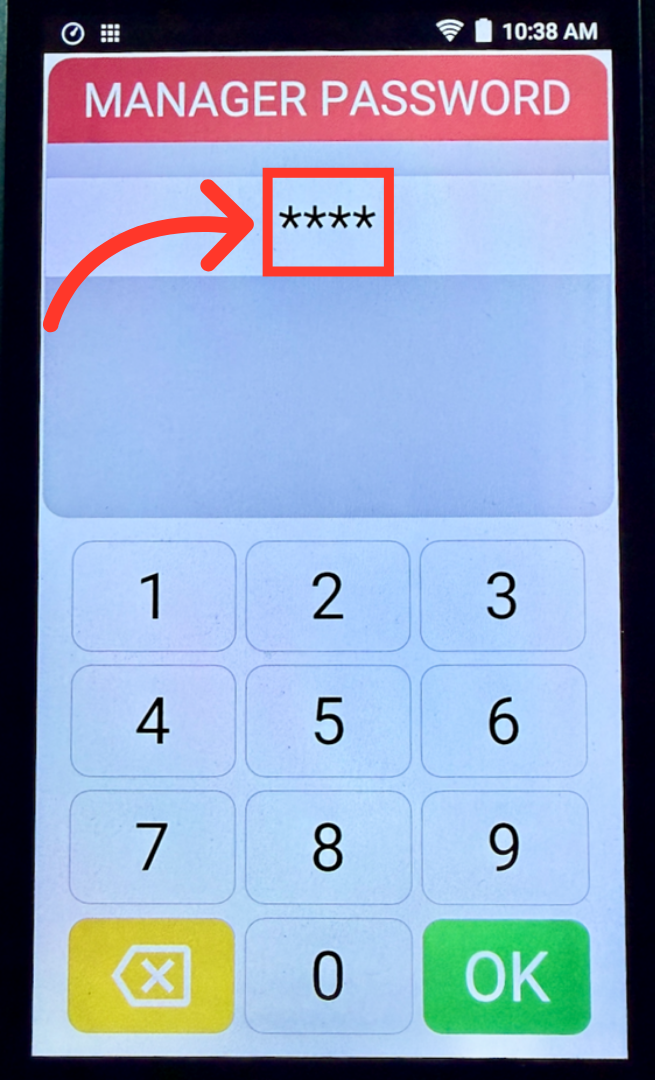
Enter the Manager Password
Using the key pad, enter the Manager Password, "1234" and tap "OK".
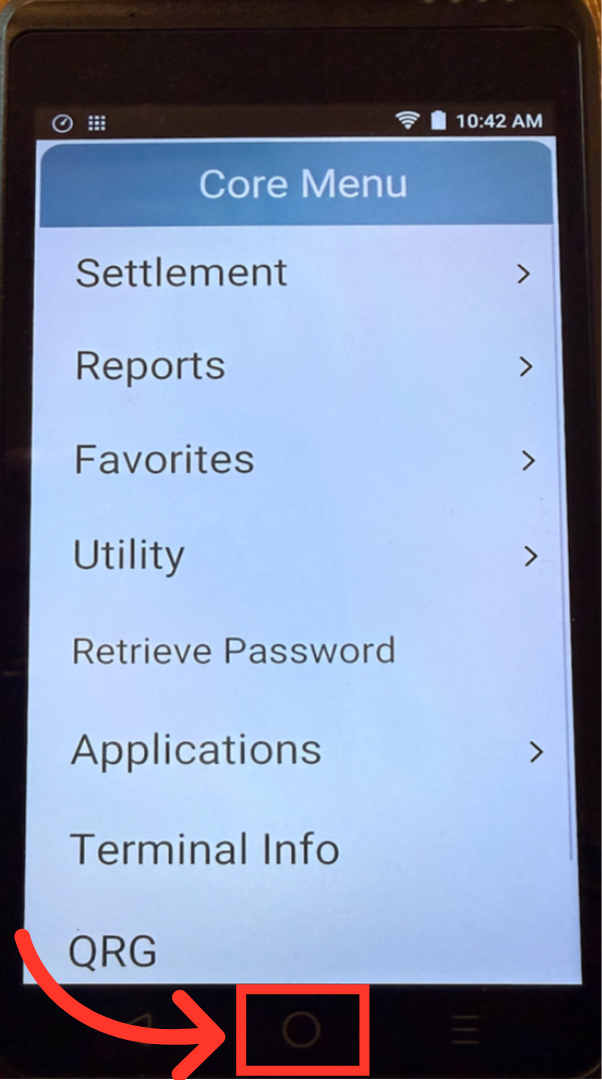
Tap the "Circle"
On the Core Menu screen, tap the "Circle" in the center at the bottom of the device.
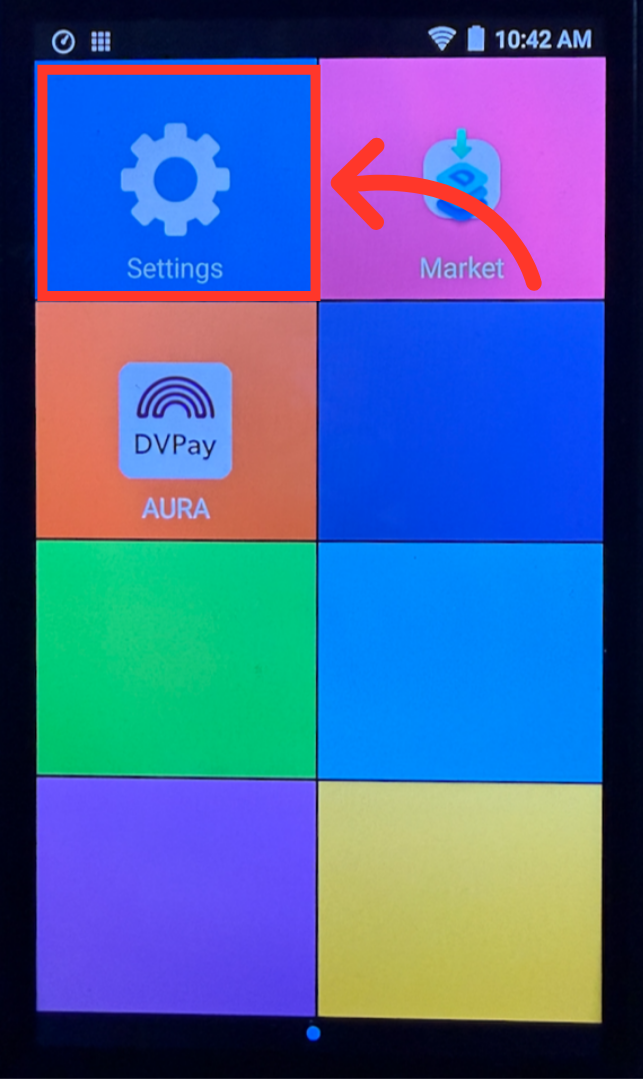
Tap "Settings"
Then, on the menu screen, tap the "Settings" gear icon.
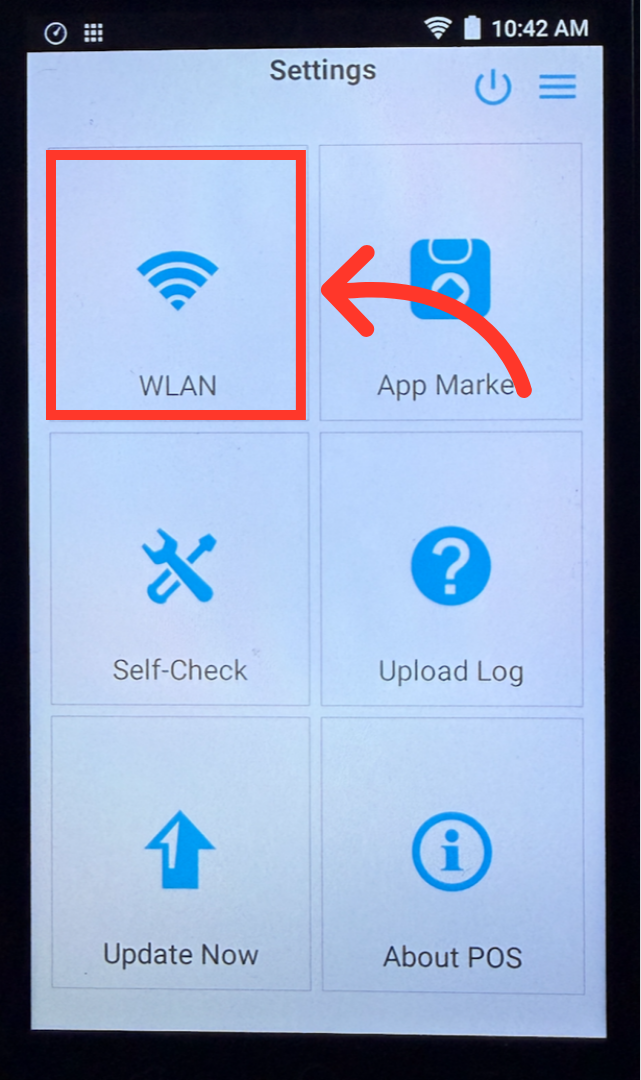
Tap "WLAN"
Next, tap the "WLAN" setting.
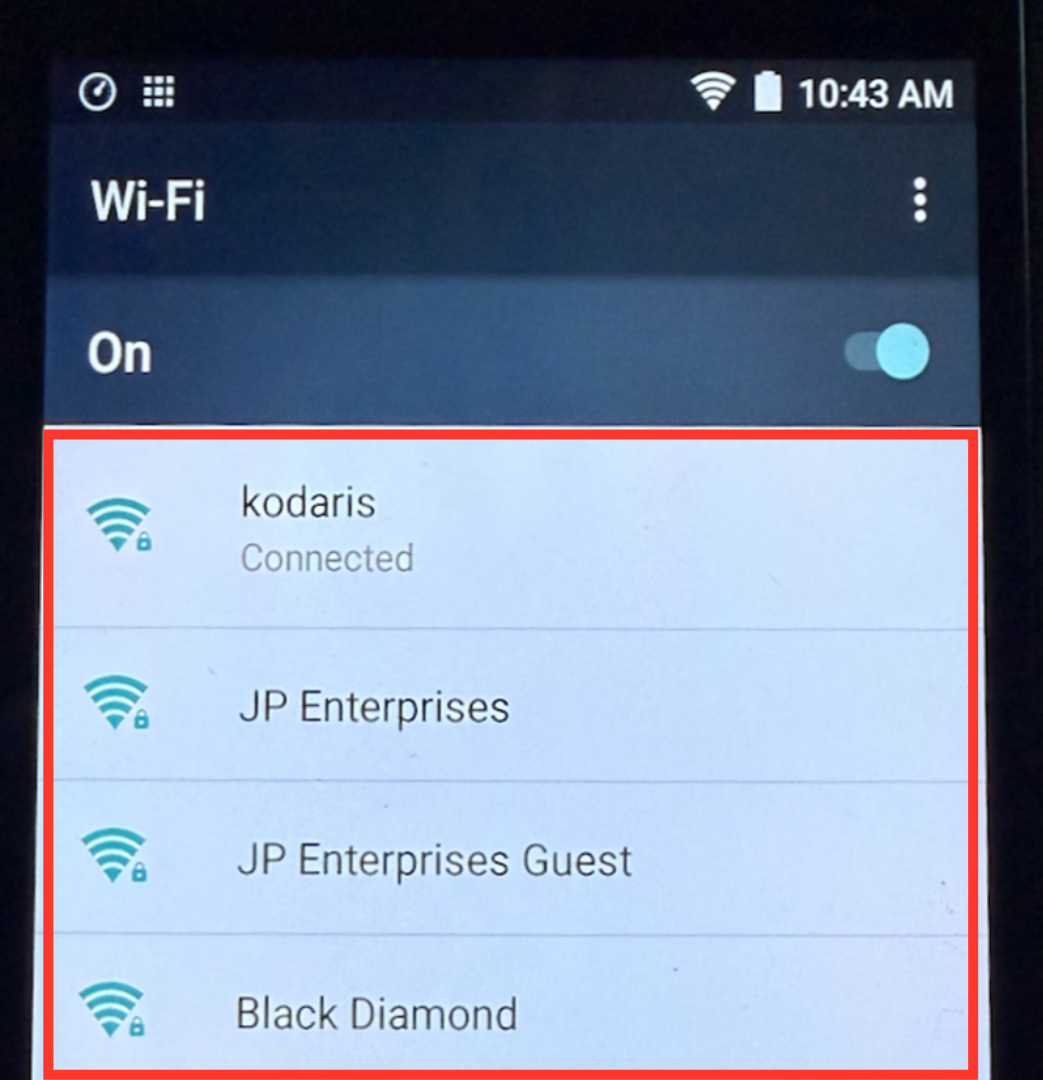
Select Network
From the list of available networks, select the WiFi network you wish to connect.
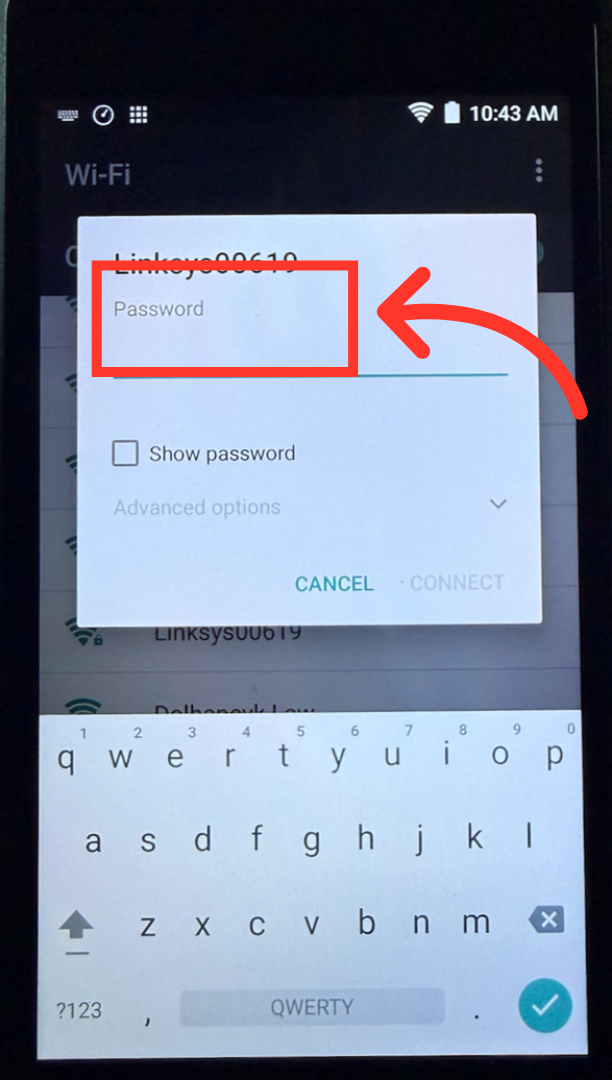
Enter Password
Enter the WiFi network password and tap "Connect" in the lower right corner. Tap "Connect" after the password is entered.
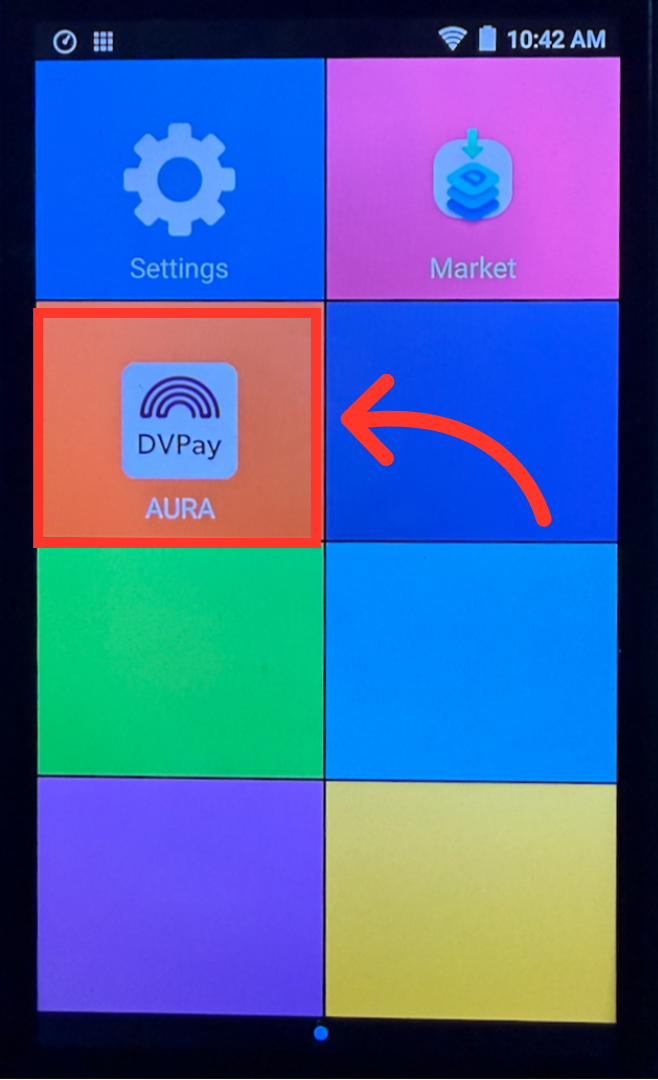
Tap "DVPay AURA"
After the device is connected, return to the main menu by tapping the circle in the center at the bottom of the device. Then tap the "DVPay AURA" app to begin processing transactions.