Payments - Connecting the DejaVoo Z11 Terminal to WiFi Network
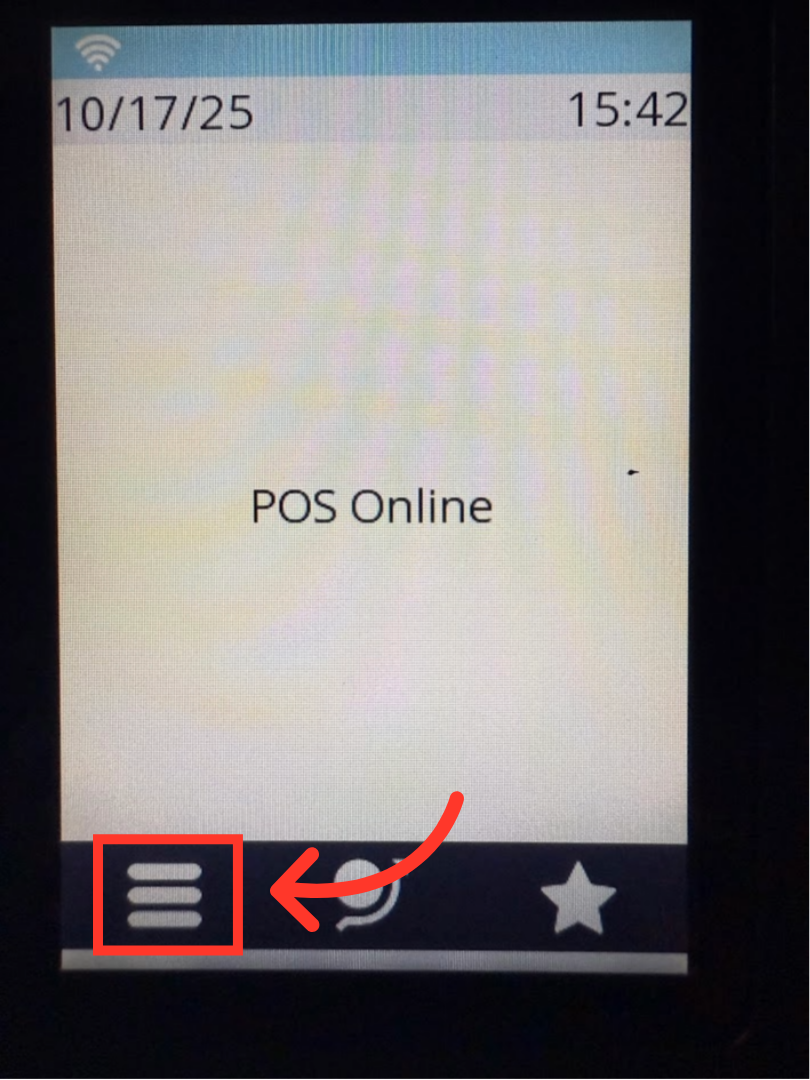
Tap the "Menu" icon
Before you can accept credit cards on your Z11 terminal, you will need to first connect the terminal to your WiFi network. On the Home screen, tap the "Menu" icon on the lower left-hand corner of the terminal touch screen.
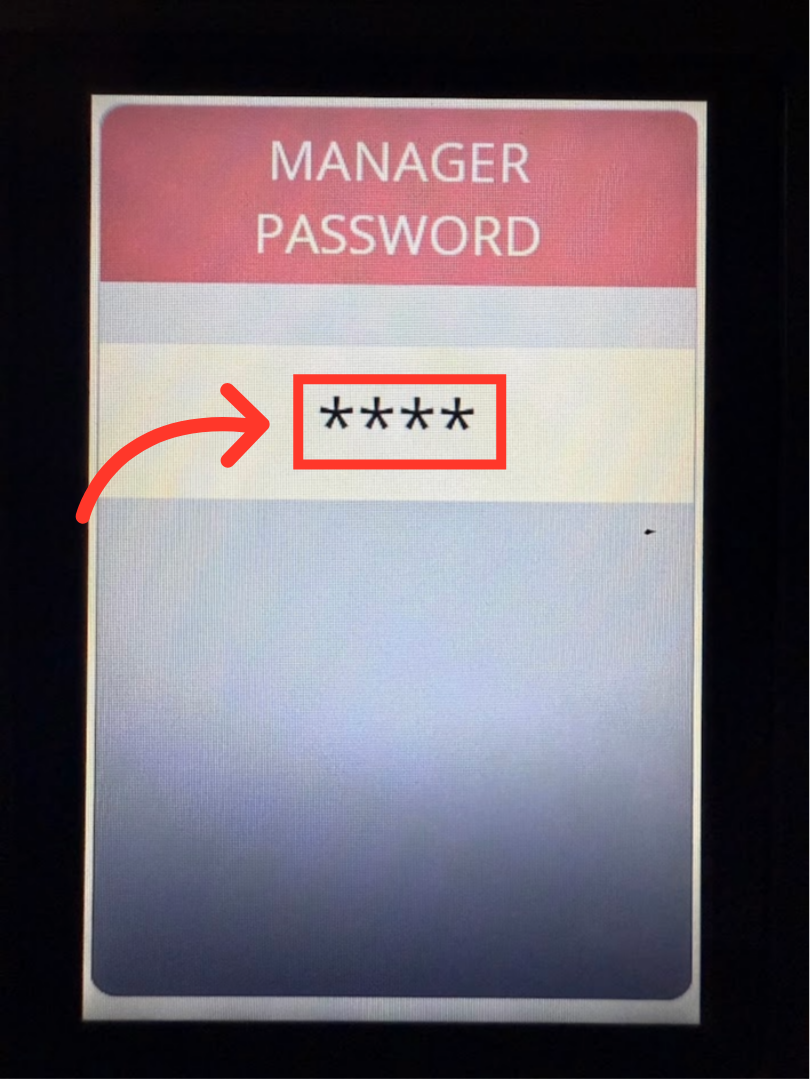
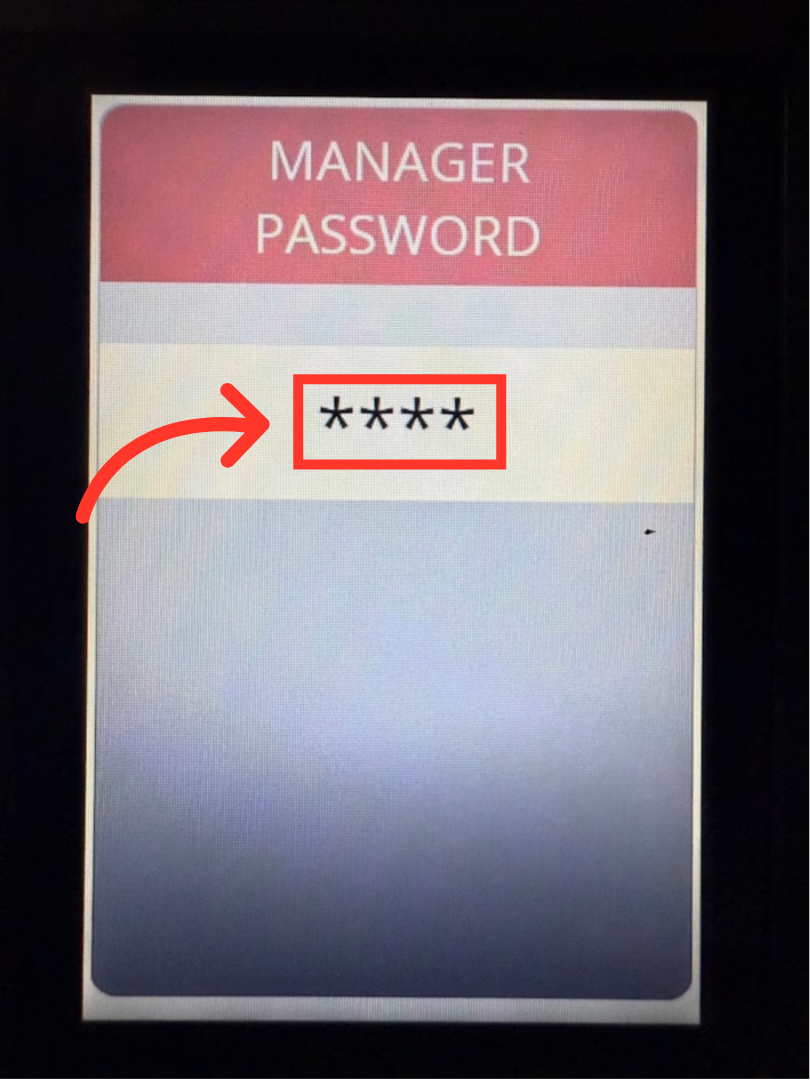
Enter the Manager Password
Using the key pad, enter the Manager Password "1234", and press the green "OK" button.
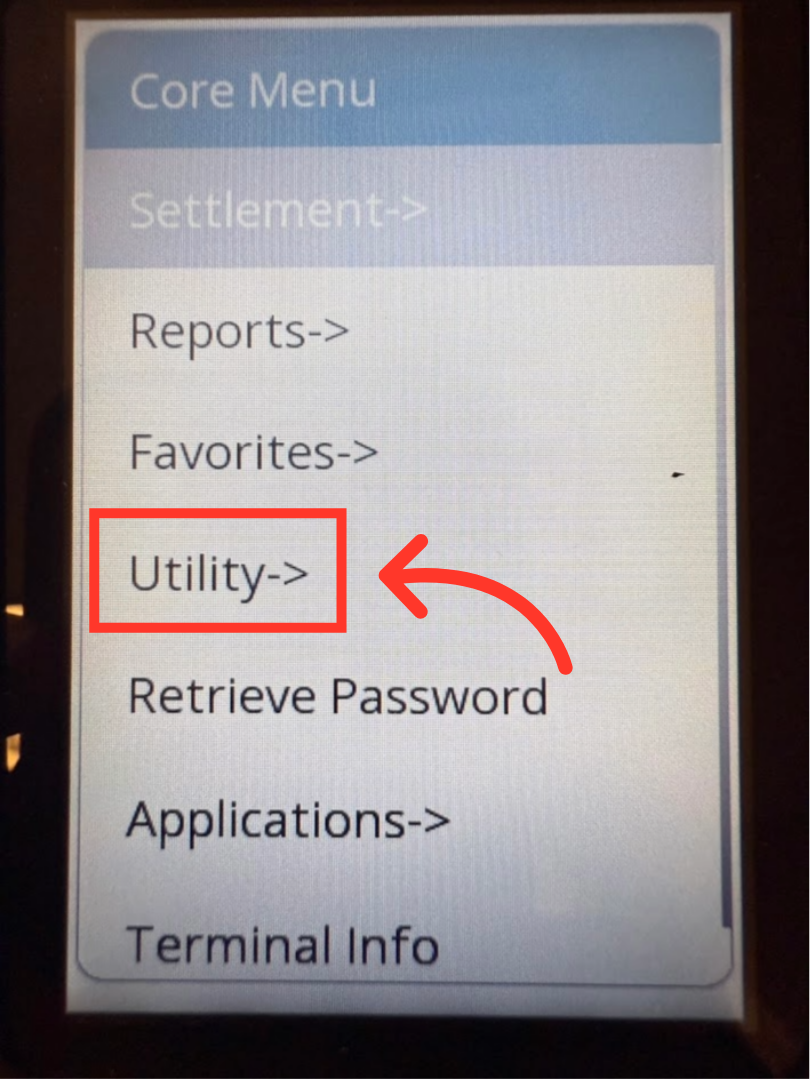
Tap "Utility"
Next, the "Core Menu" screen will appear. Tap "Utility".
Re-enter the Manager Password
On the next screen, you will be prompted to re-enter the manager password. Using the key pad, enter "1234" and press the green "OK" button.
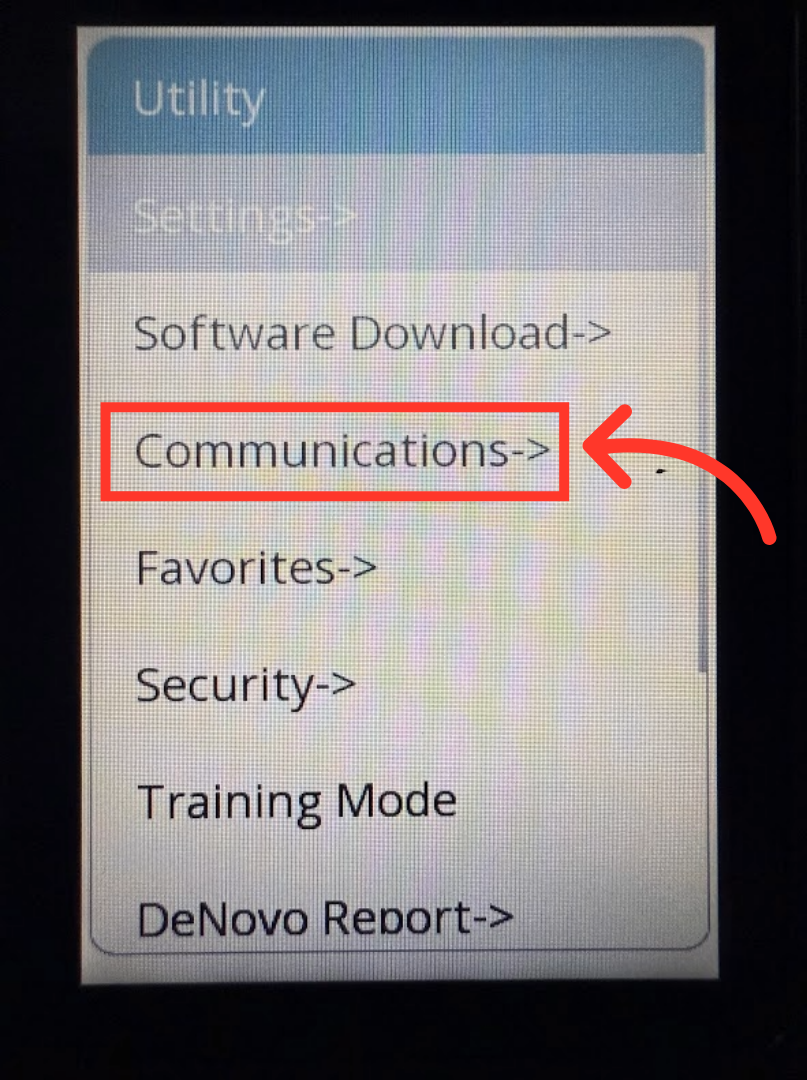
Tap "Communications".
The Utility Menu screen will appear. Now, tap "Communications".
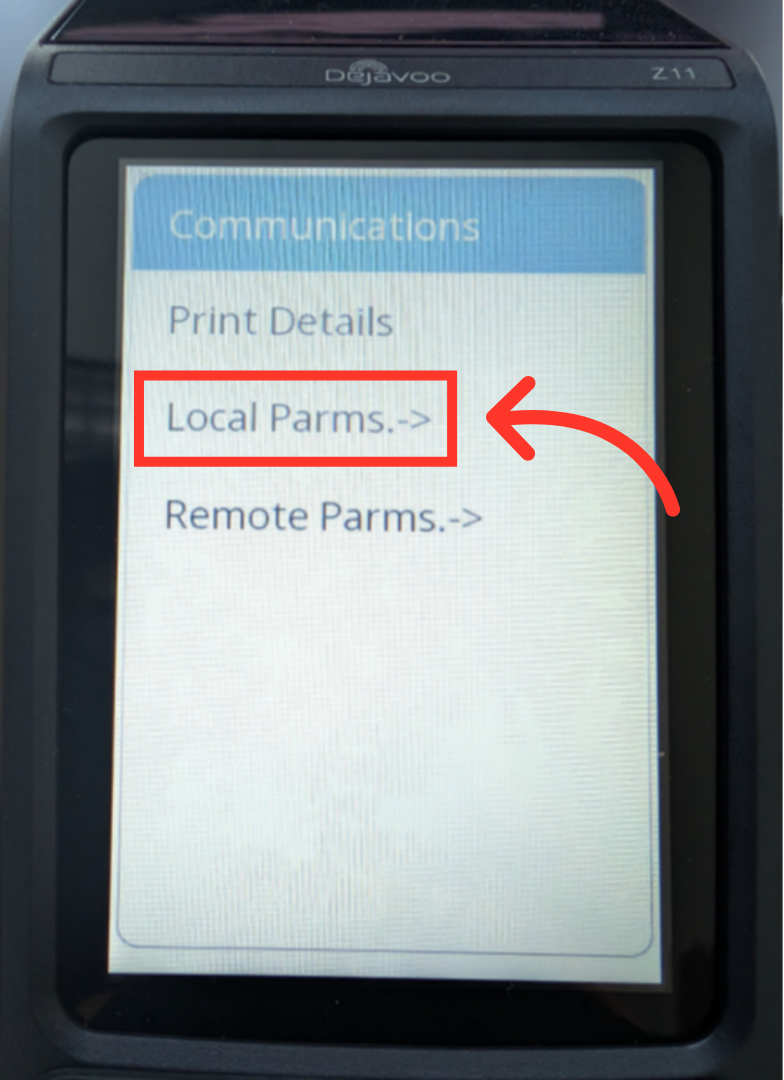
Tap "Local Parms."
In the Communications menu, you need to select "Local Parm.".
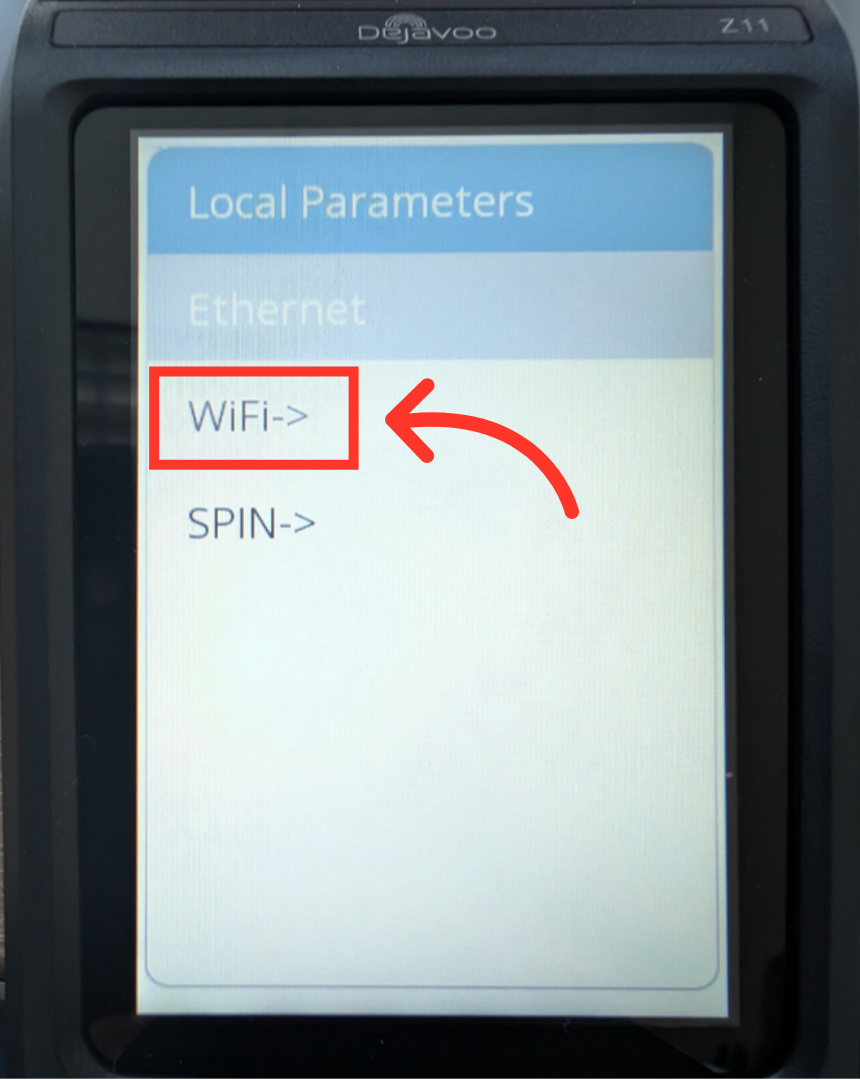
Tap "WiFi"
Then, tap "WiFi".
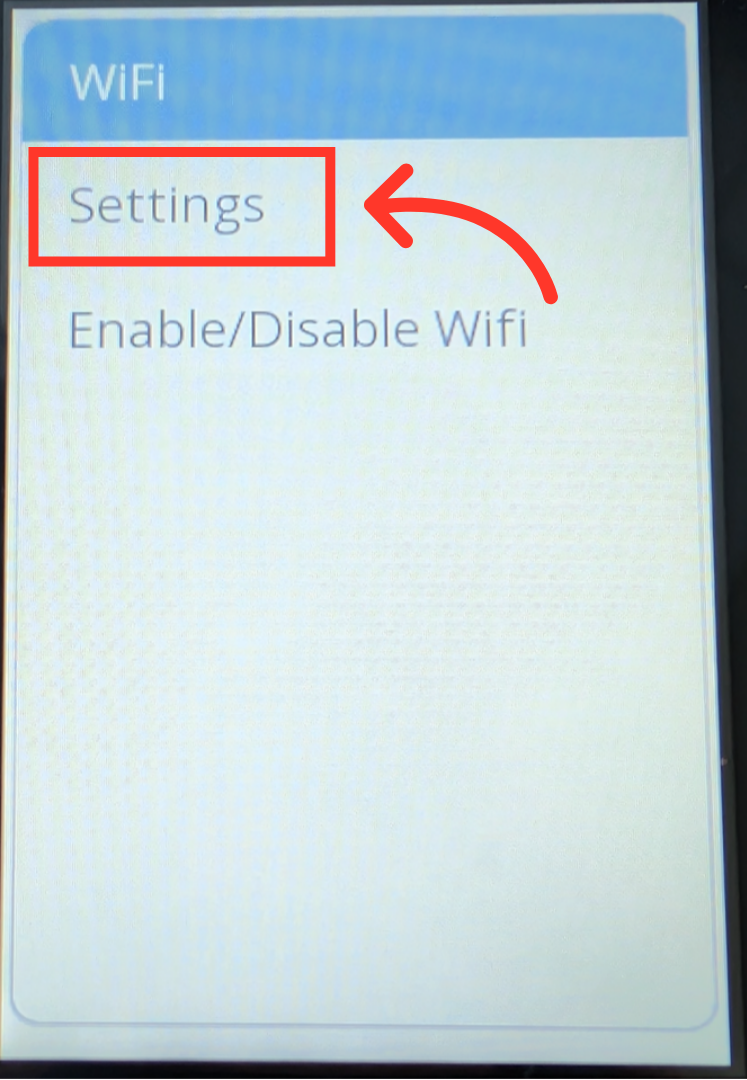
Tap "Settings"
Next, in the WiFi menu, tap "Settings".
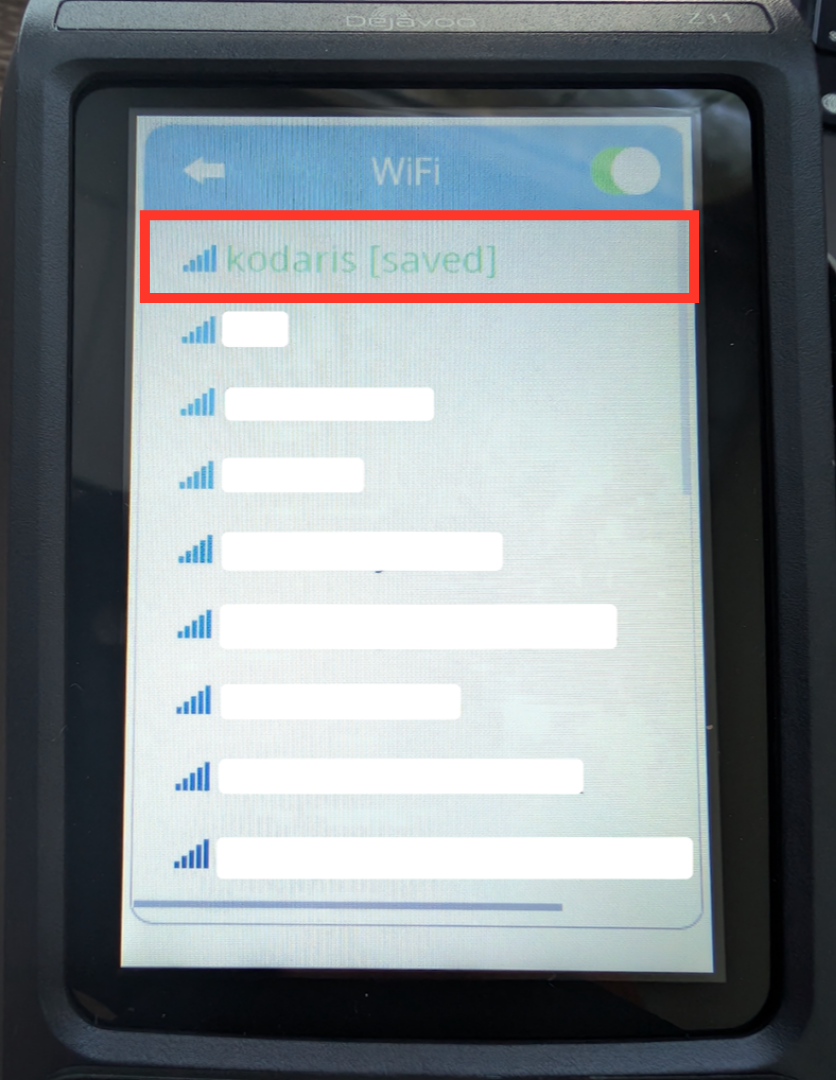
Select WiFi network
Select the WiFi network you wish to connect to from the list of available networks and enter the network password.
Confirmation Message
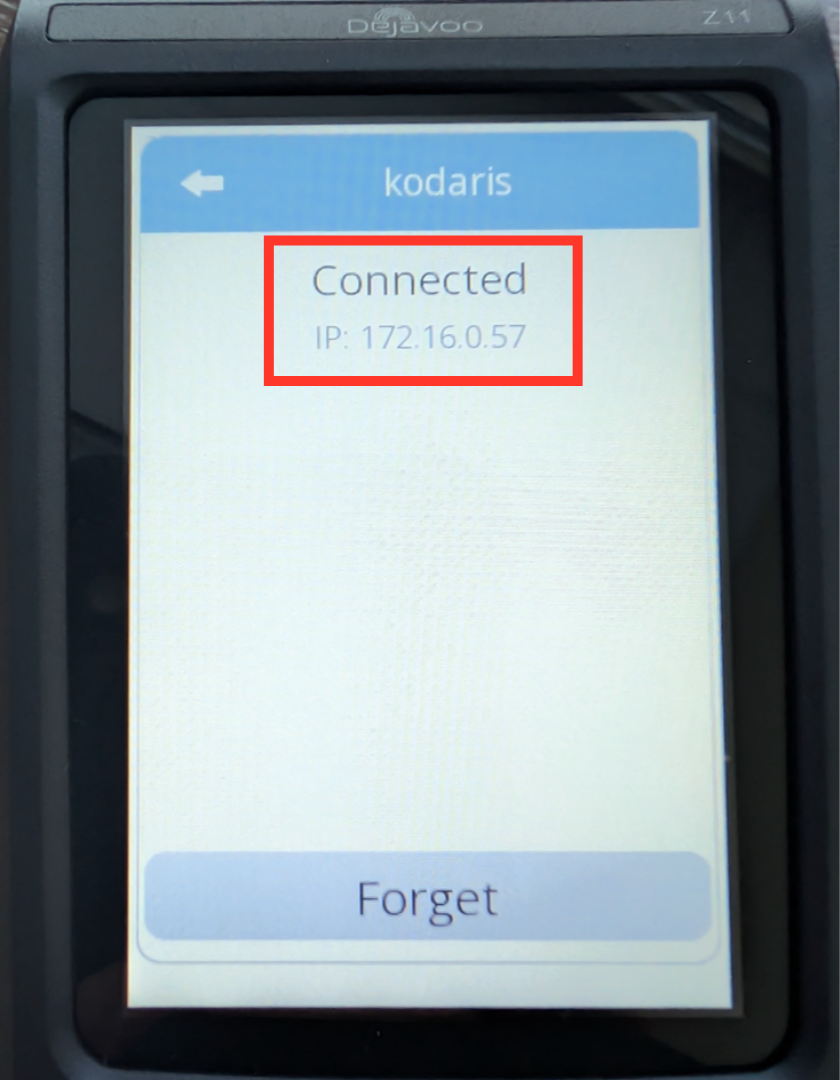
Once the device is connected, you will receive a "Connected" confirmation message. You can return to the Home Screen using the yellow button on the key pad.