How to Find Your TPN in the Operations Portal to Identify Your Dejavoo Terminal
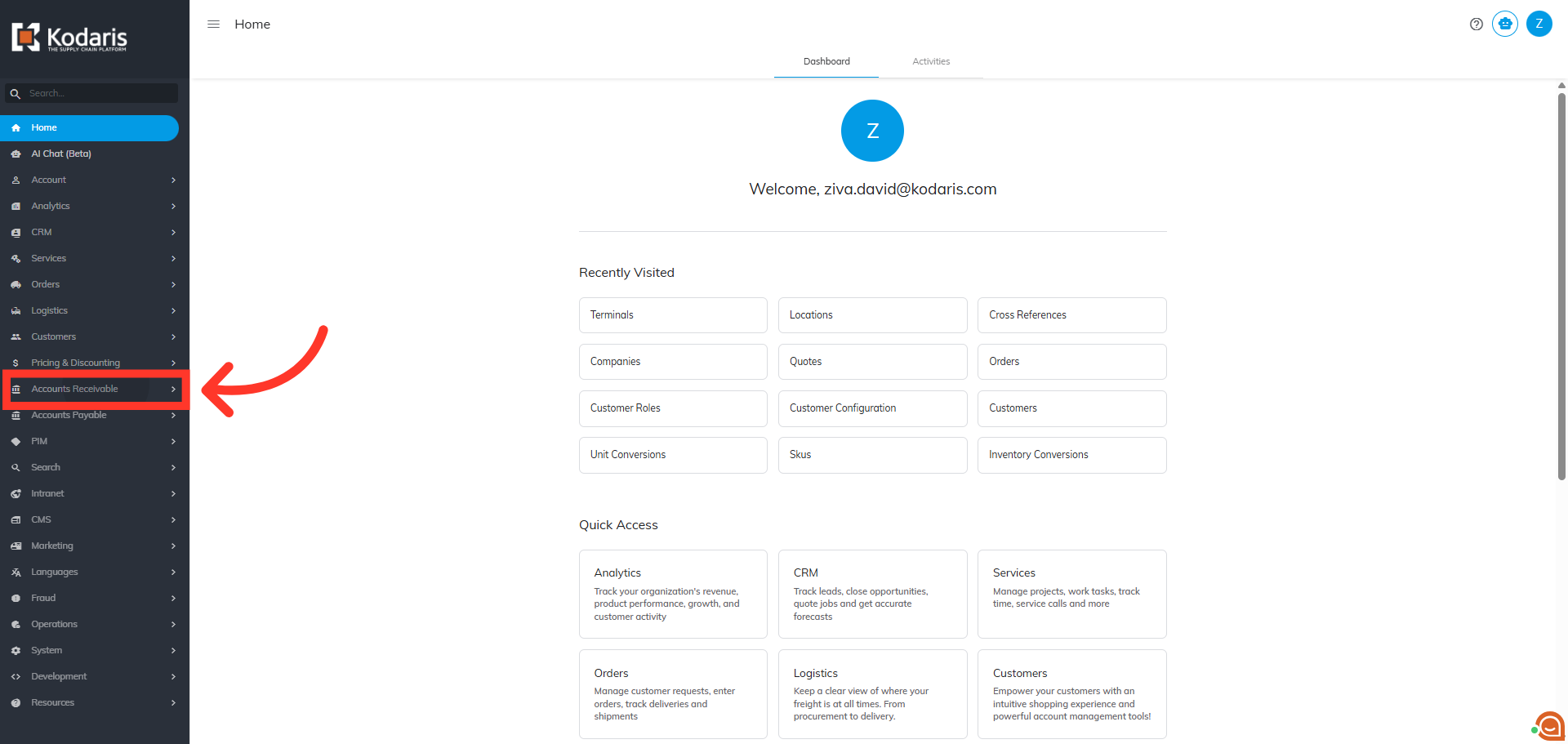
Navigate to "Accounts Receivable"
To find your TPN in the Operations Portal to identify your Dejavoo terminal, you will first need to navigate to the Accounts Receivable section.
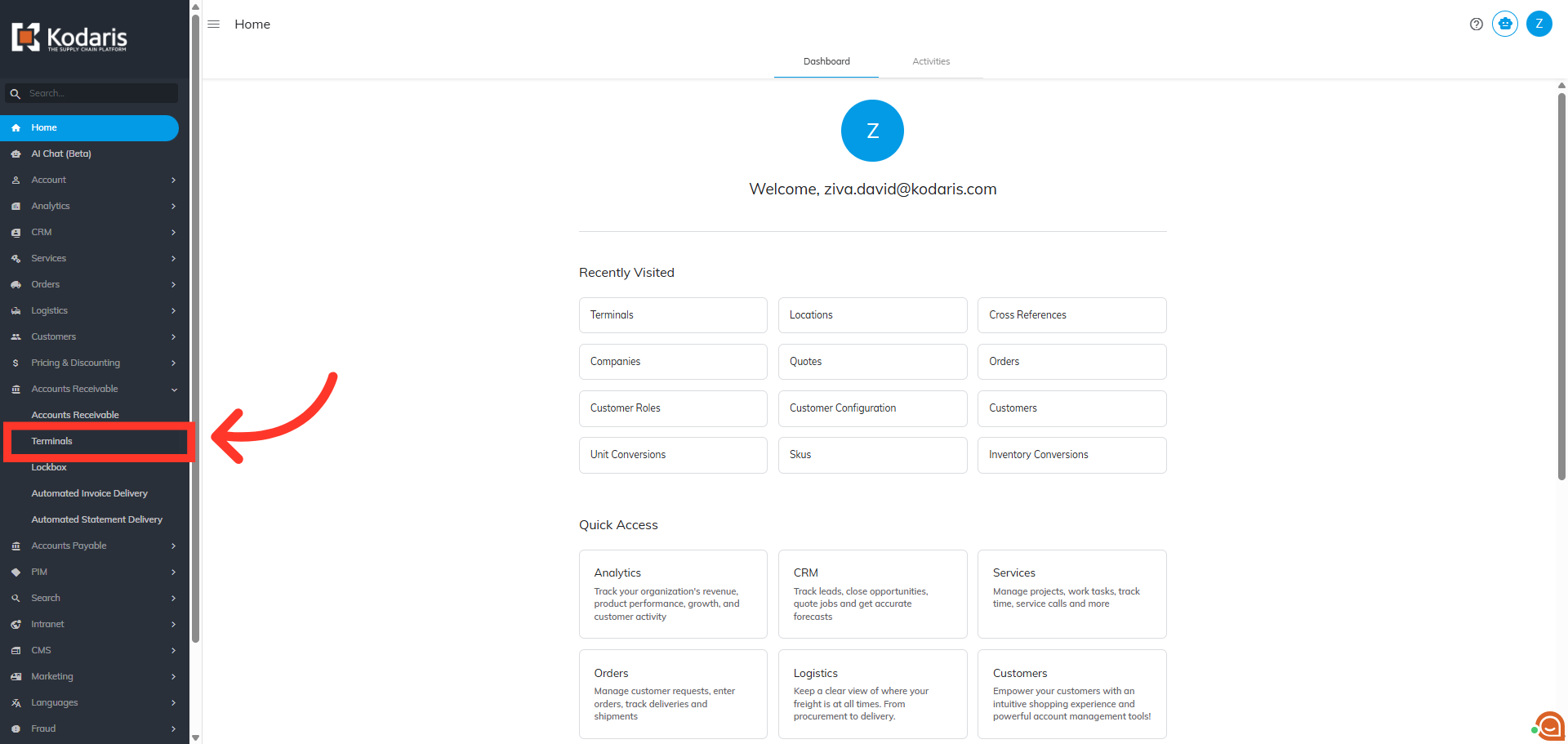
Click "Terminals"
Then, click on "Terminals". In order to access and update “Terminals” you will need to be set up either as an “administrator” or a “superuser”, or have the roles of: “terminalView” and “terminalEdit”.
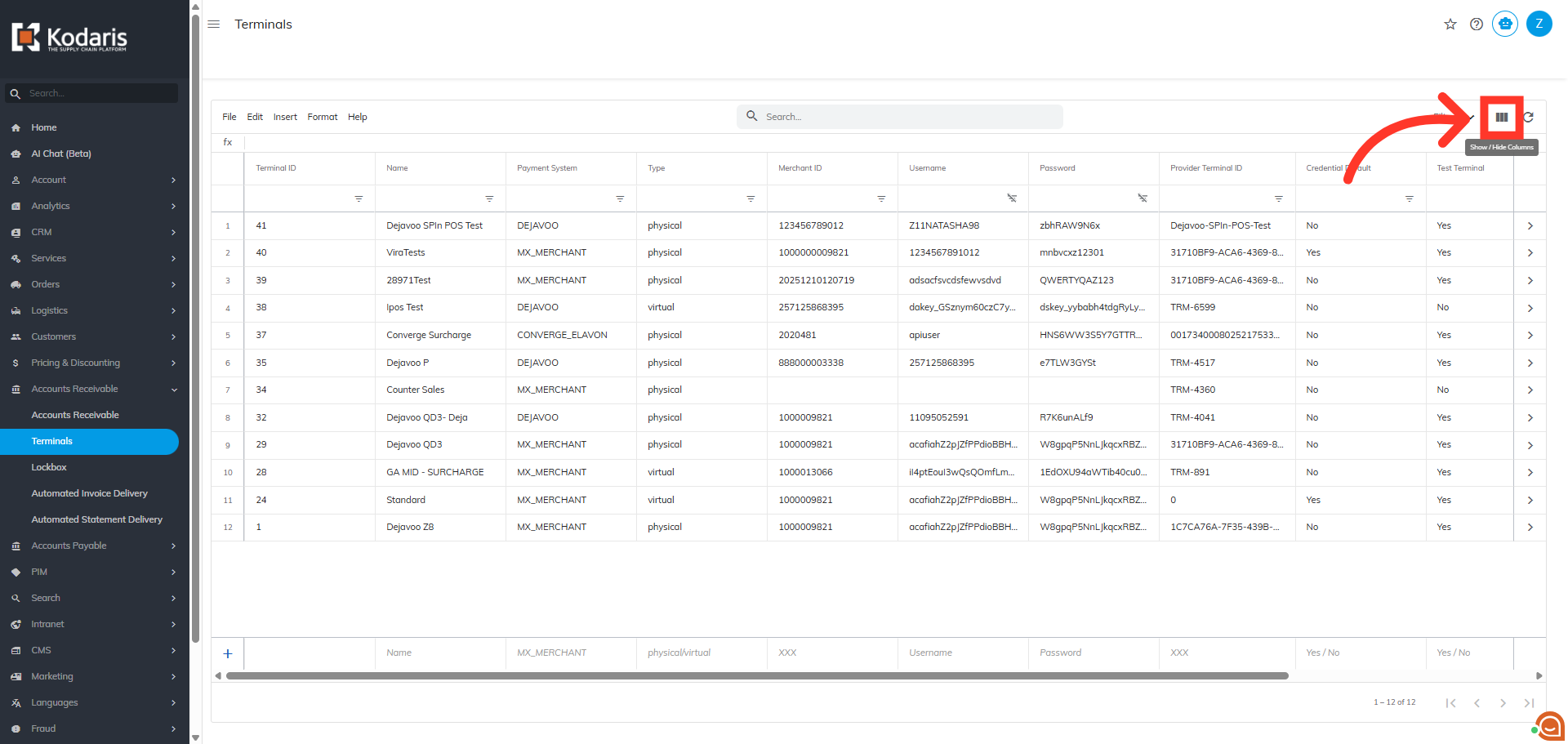
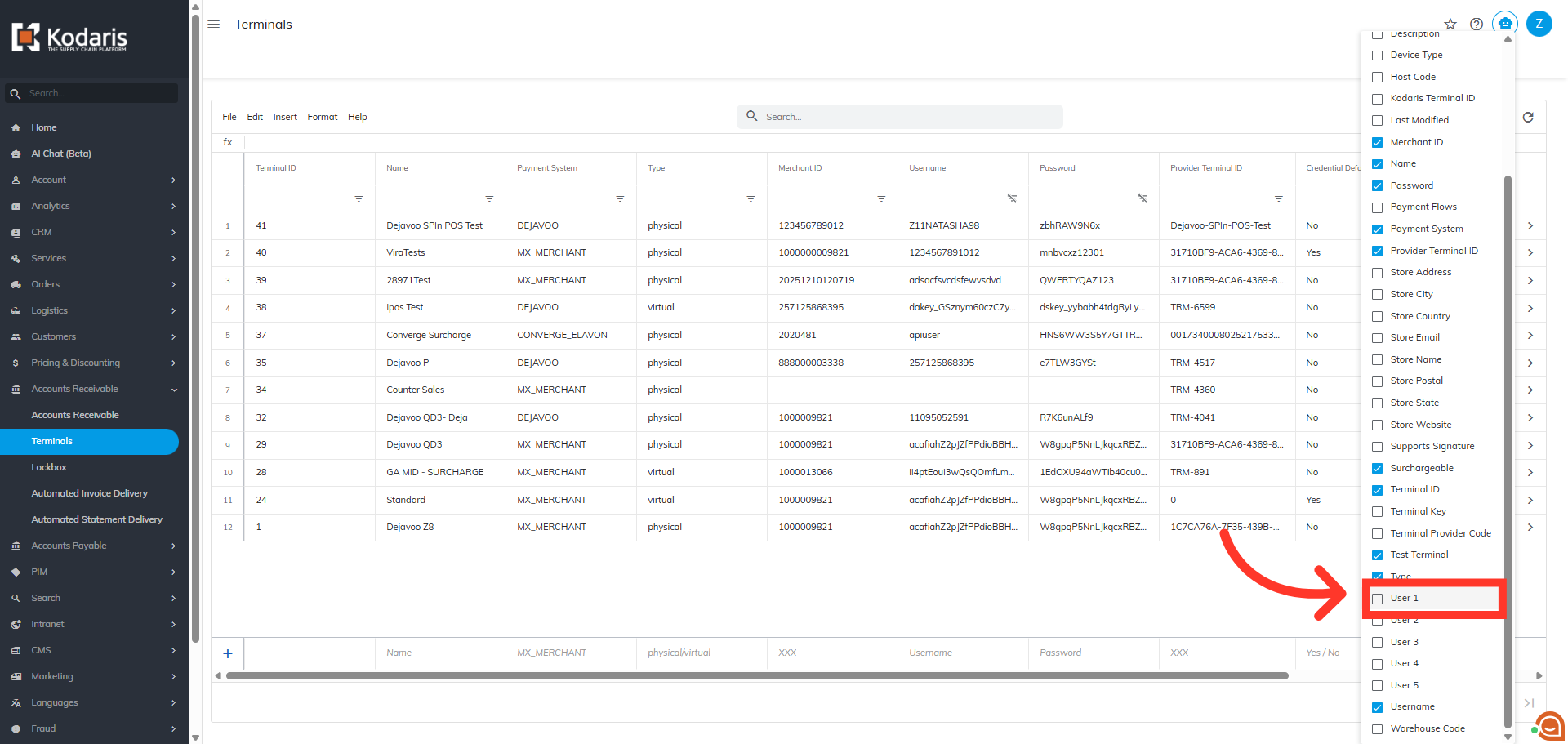
Click "Show/Hide Columns" icon
To view the TPN on this screen, you will need to add the "User 1" column to the grid. Click the "Show/Hide Columns" icon to view the available column.
Click the "User 1" Column Header
Then, select "User 1" to add it to your grid view.
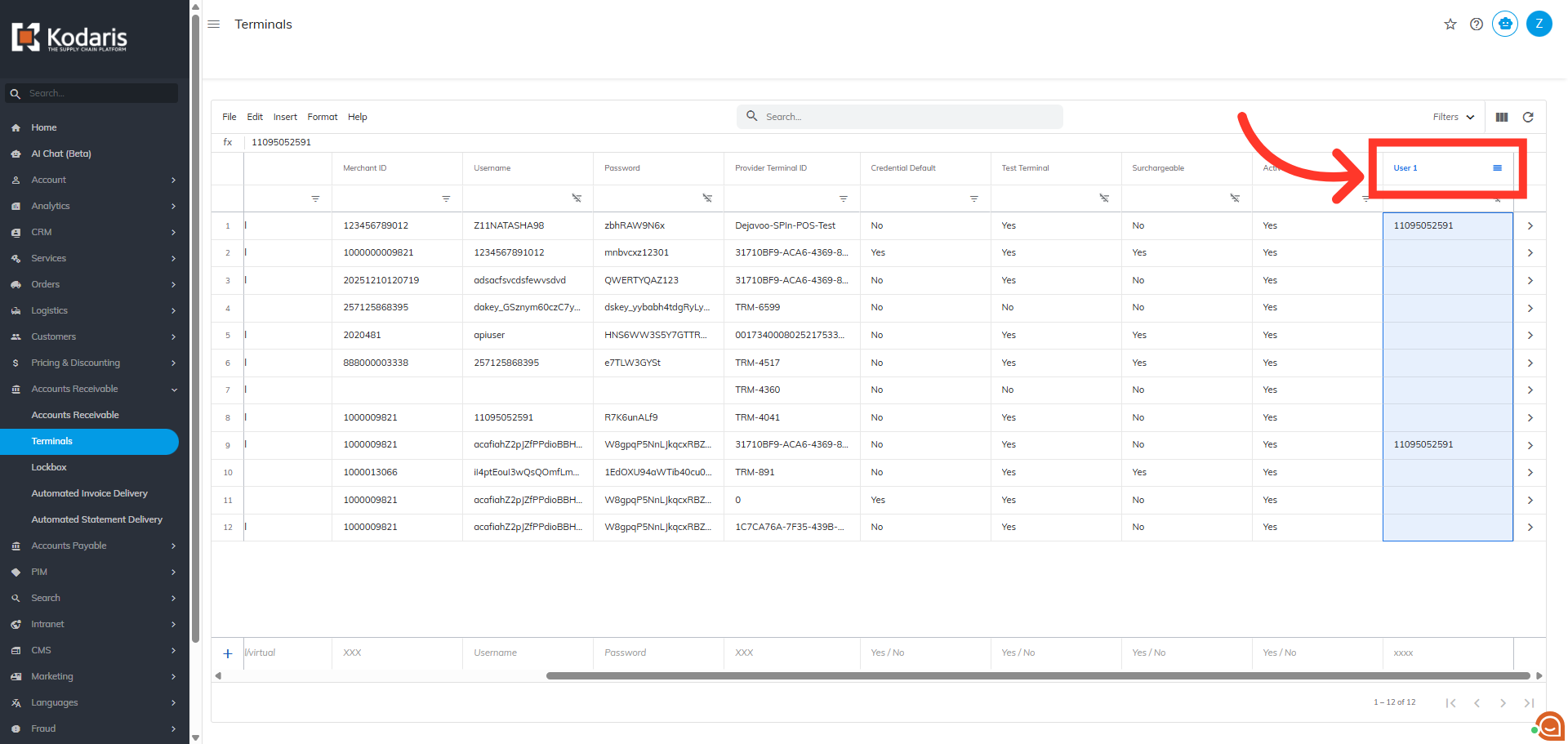
Click in the "User 1" Header
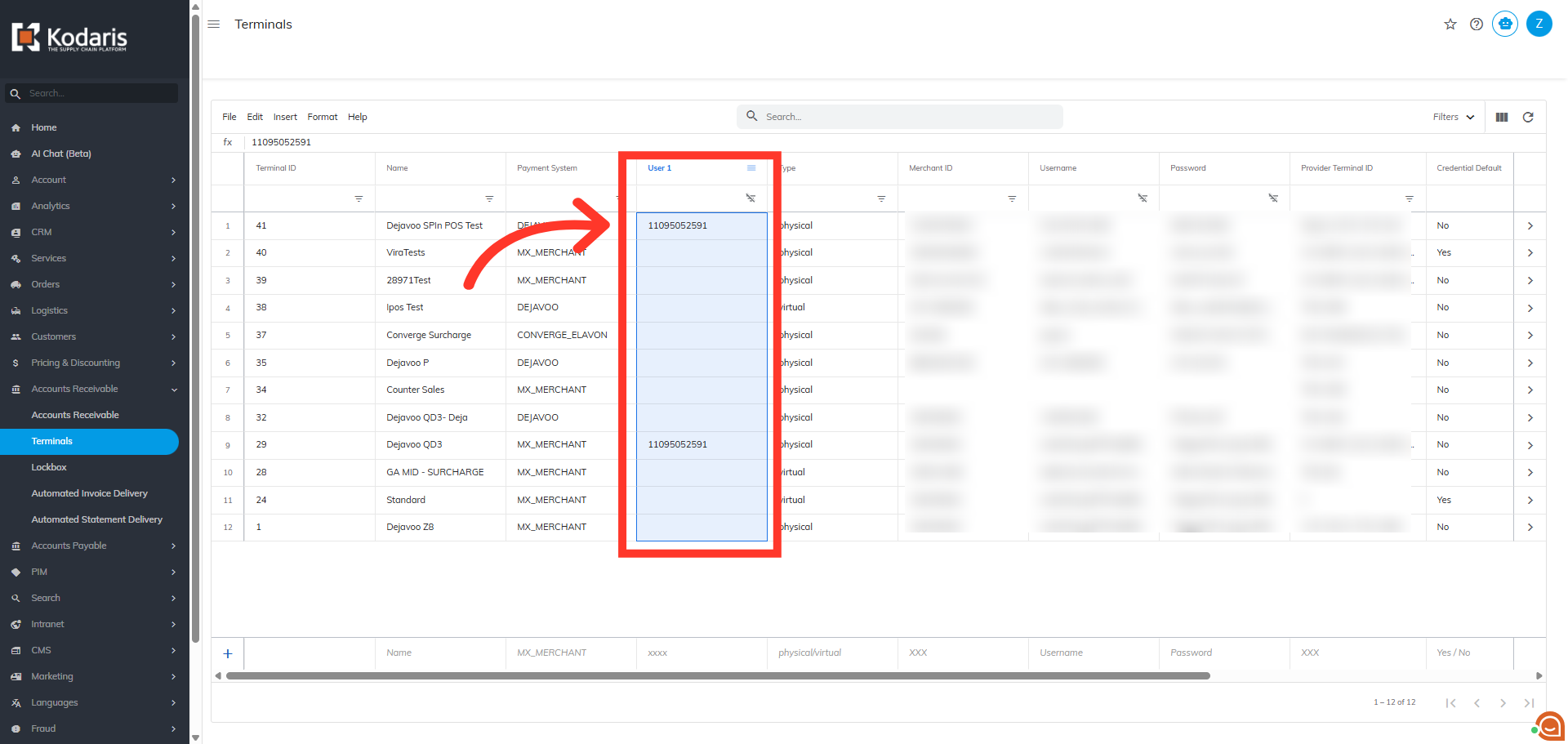
Newly added columns are added to the right of the grid. You can move the column by clicking in the column header and dragging it to the desired place in the grid.
Column has been moved
For the next step, you will need to access your physical terminal.
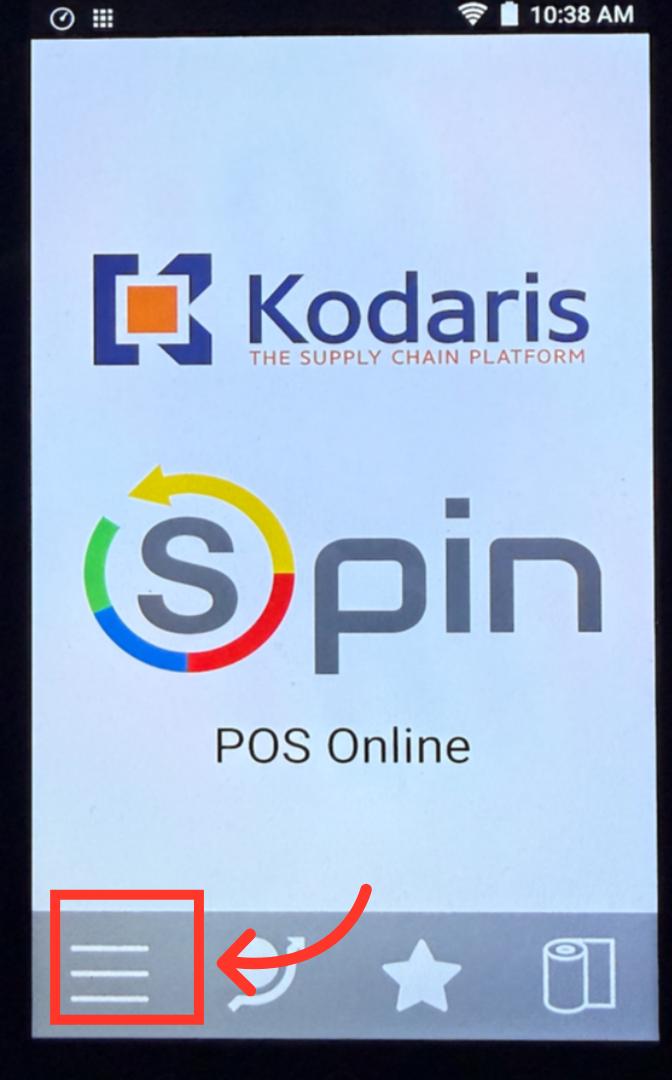
Tap the "Menu" Icon
To view the TPN number in your physical terminal, you will need to access the "Terminal Info" setting. On the Home screen, tap the "Menu" icon on the lower left-hand corner of the terminal touch screen. Note: these steps are the same for both the Q-Series and Z-Series terminals.
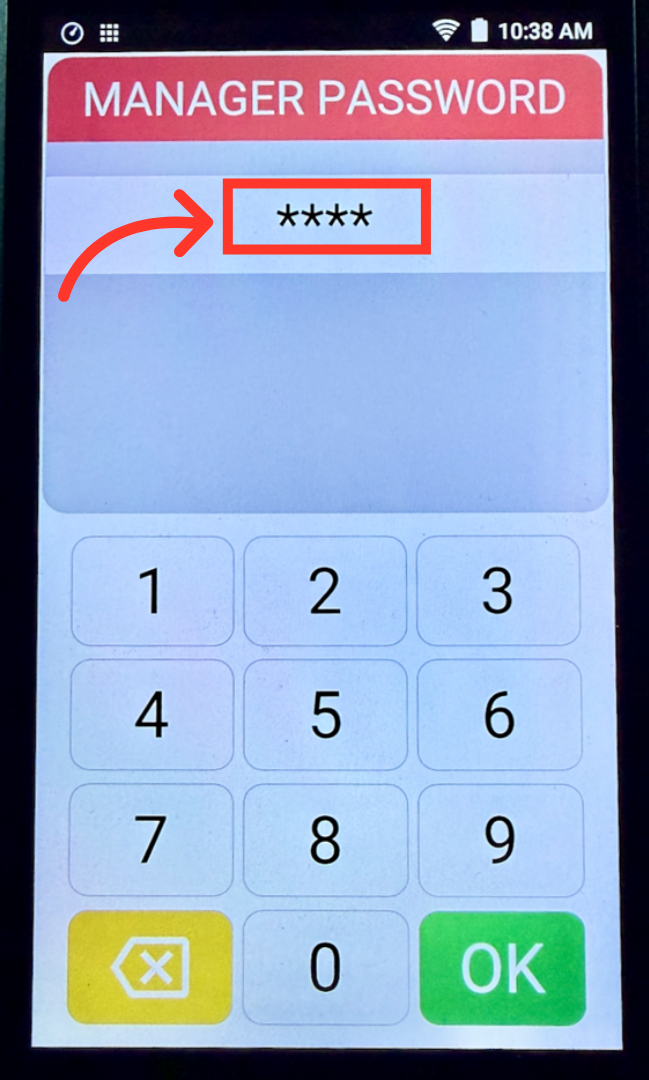
Enter the Manager Password
Using the key pad, enter the Manager Password "1234" and press the green "OK" button.
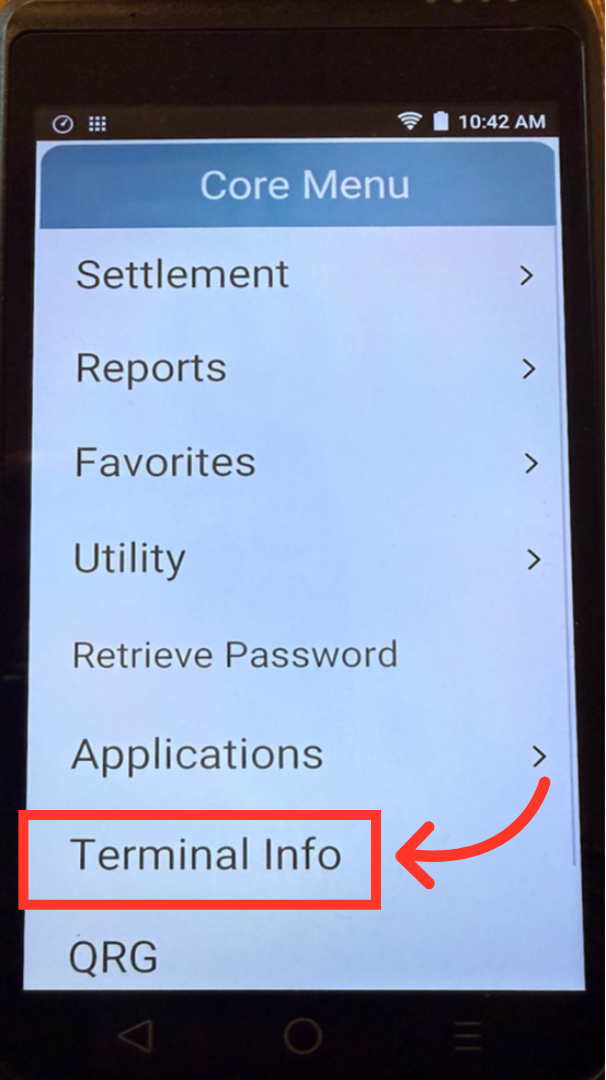
Tap "Terminal Info"
Next, the Core Menu screen will appear. Tap the "Terminal Info".
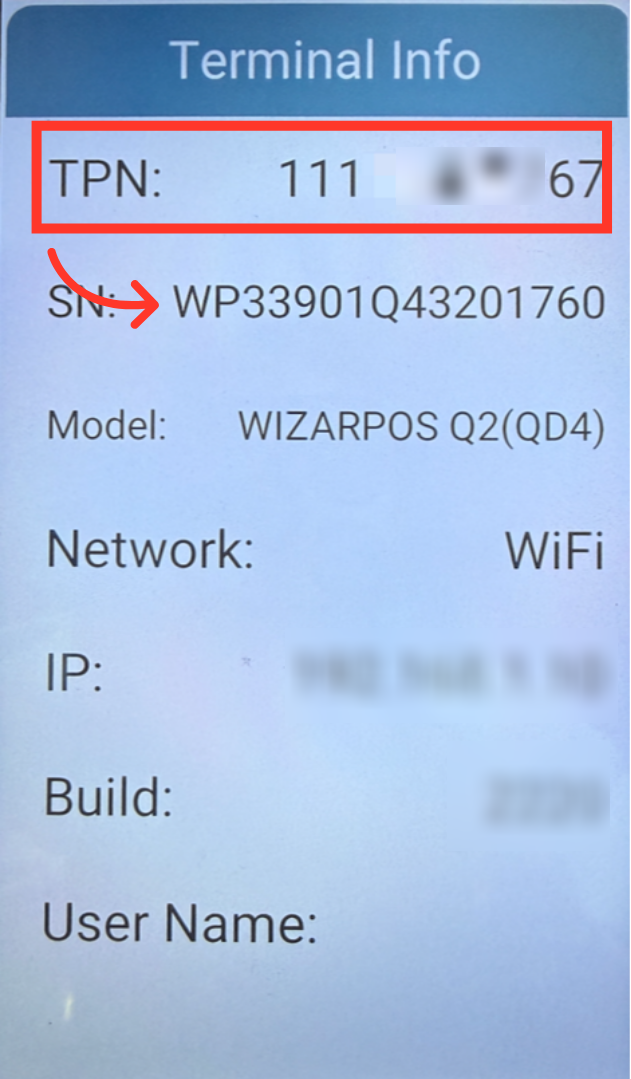
View TPN
Here, you can view the TPN on your terminal. By viewing the TPN in both areas, you can find the matching TPN.