Infor CSD - Store Credit Setup in CSD
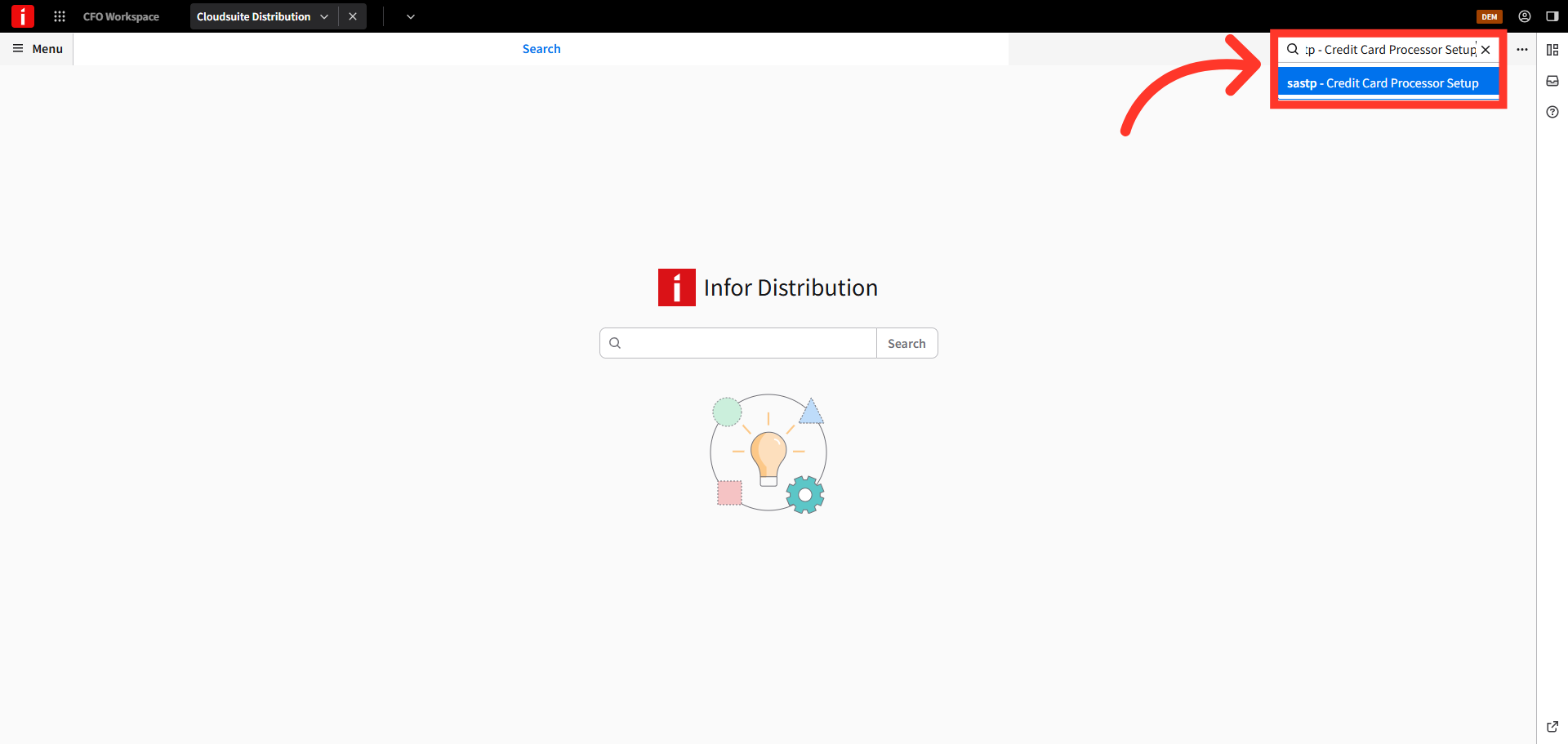
Navigate to "SASTP"
To set up store credits in CSD, navigate to "SASTP" - Credit Card Processor Setup, to set up the credit card payment processor.
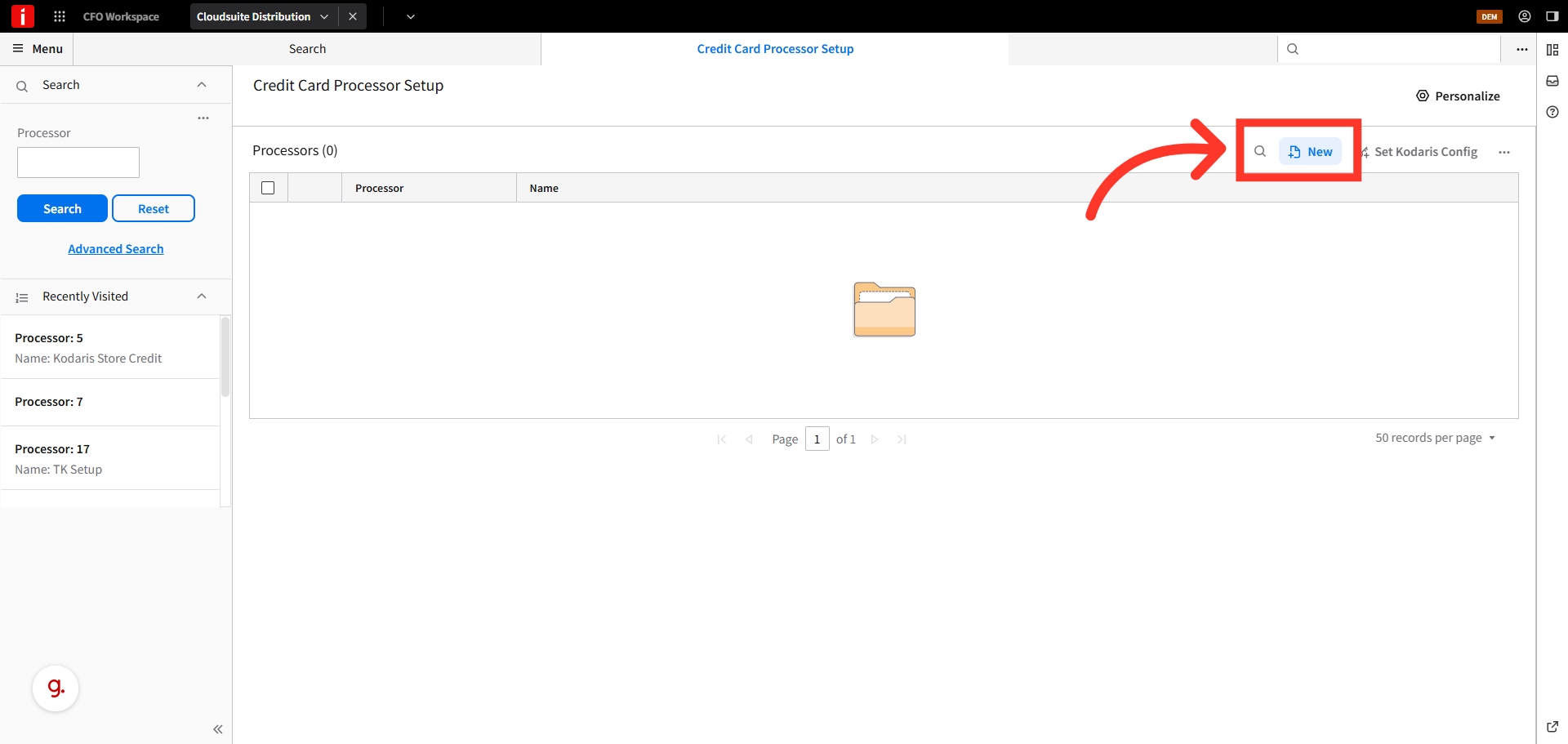
Click "New"
Then, click the "New" button.
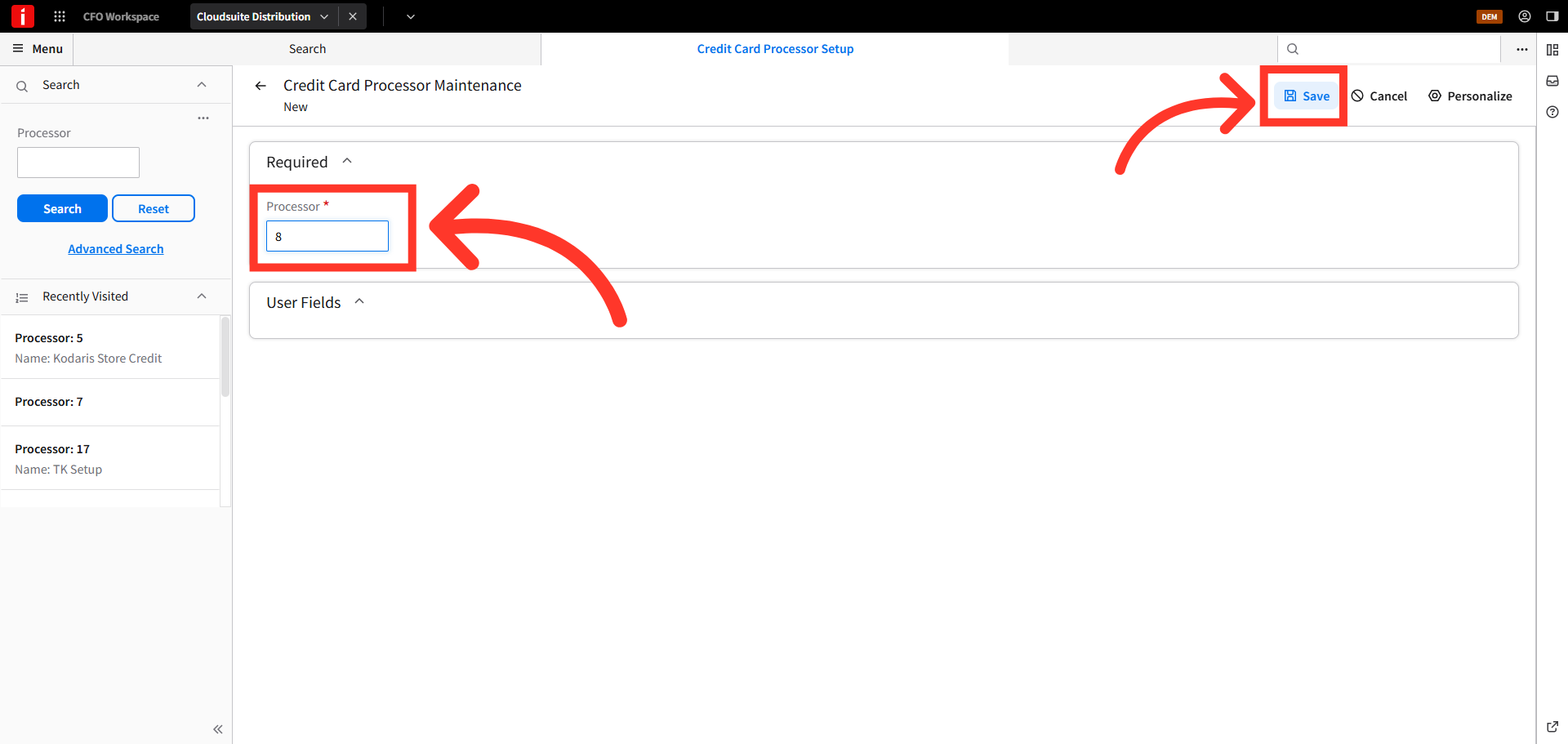
Enter processor number and save
Enter a new processor number, and click "Save".
Click "Save"
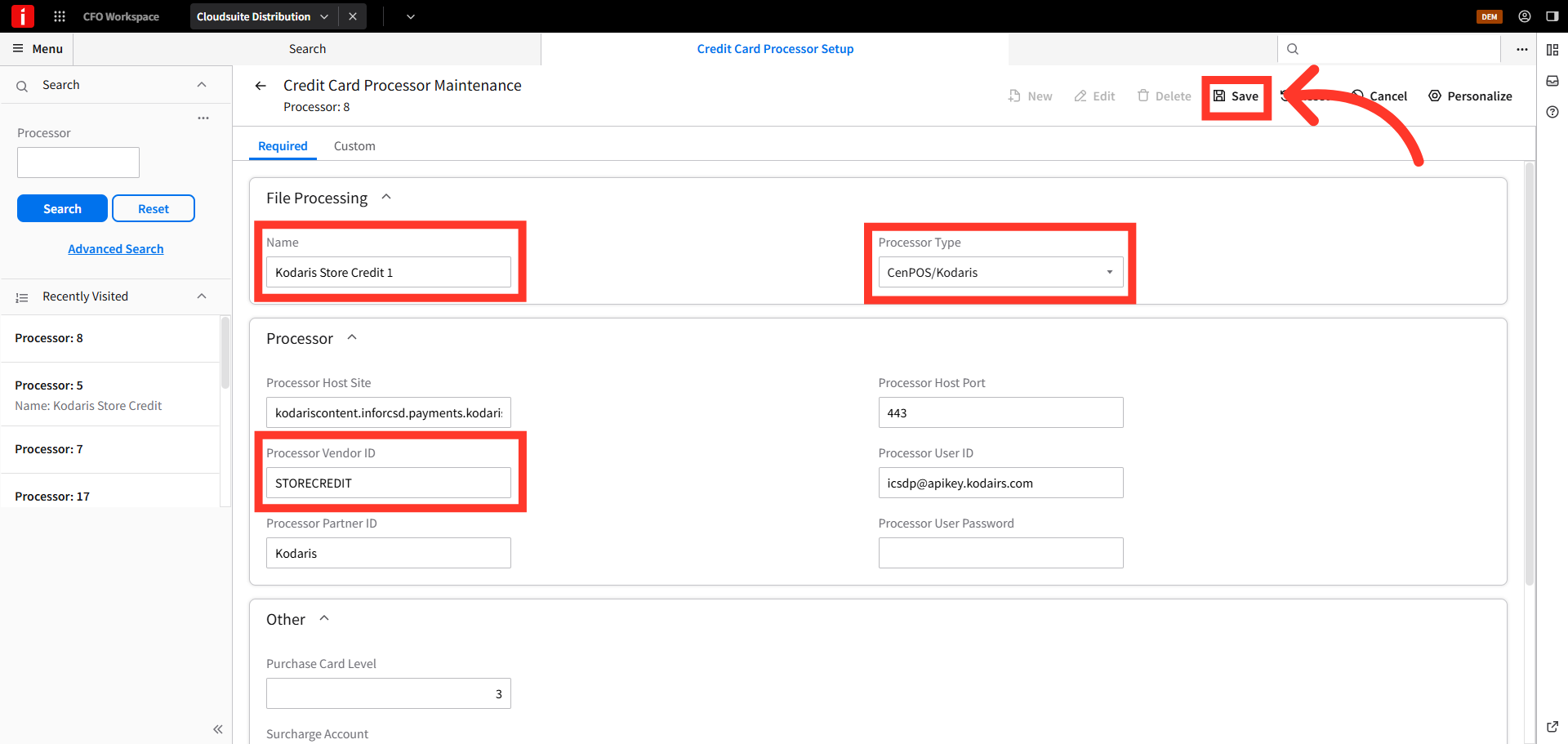
Populate the "Name" field with the preferred name and select "Processor Type" as shown. Update "Processor Vendor ID" as STORECREDIT. This makes the store credit payment processor available and ties it to the Kodaris operations portal. Click "Save".
Navigate to "SASTT"
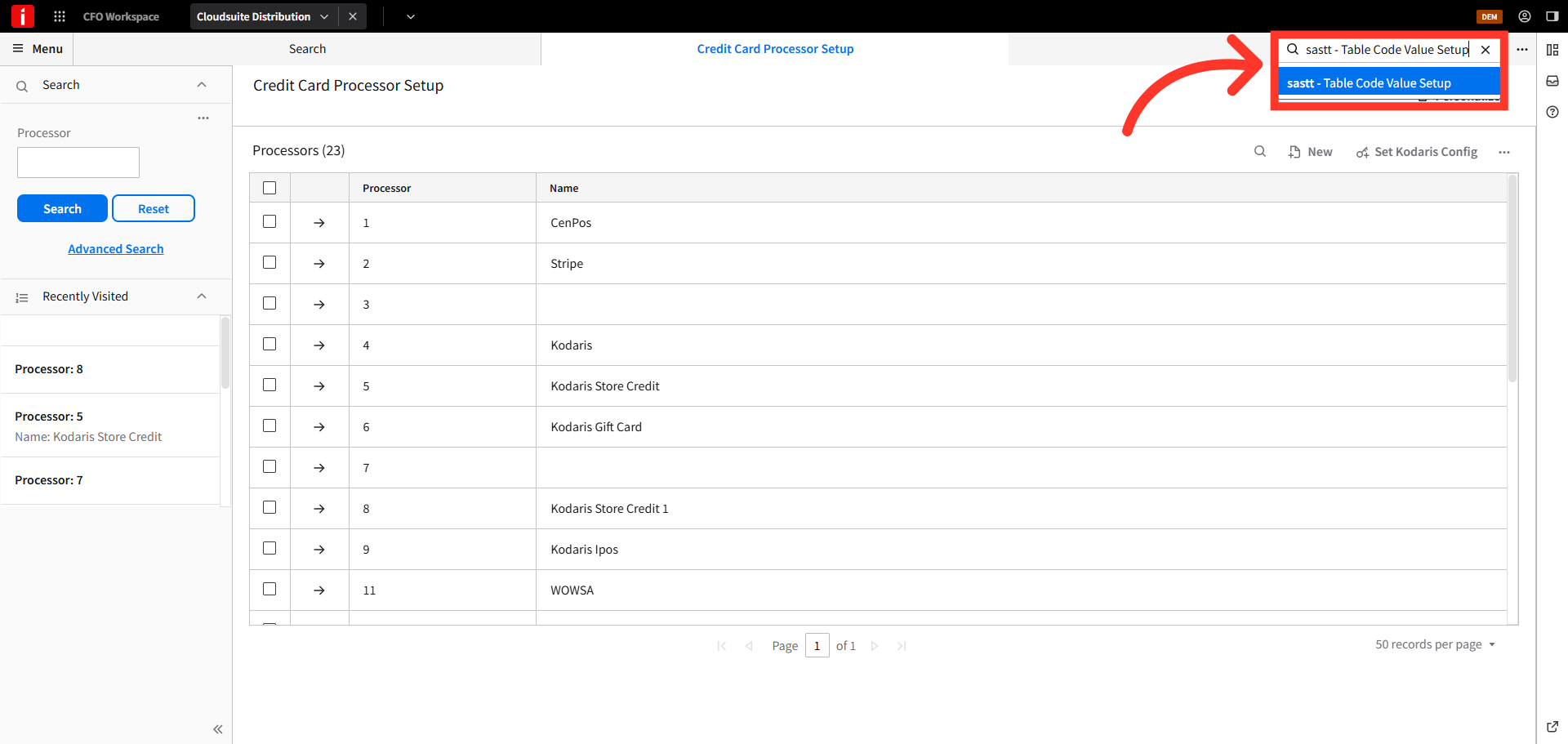
The next step in the process is to navigate to "SASTT" - Table Code Value Setup and you will create the Payment Type for store credit.
Select "Payment Type"
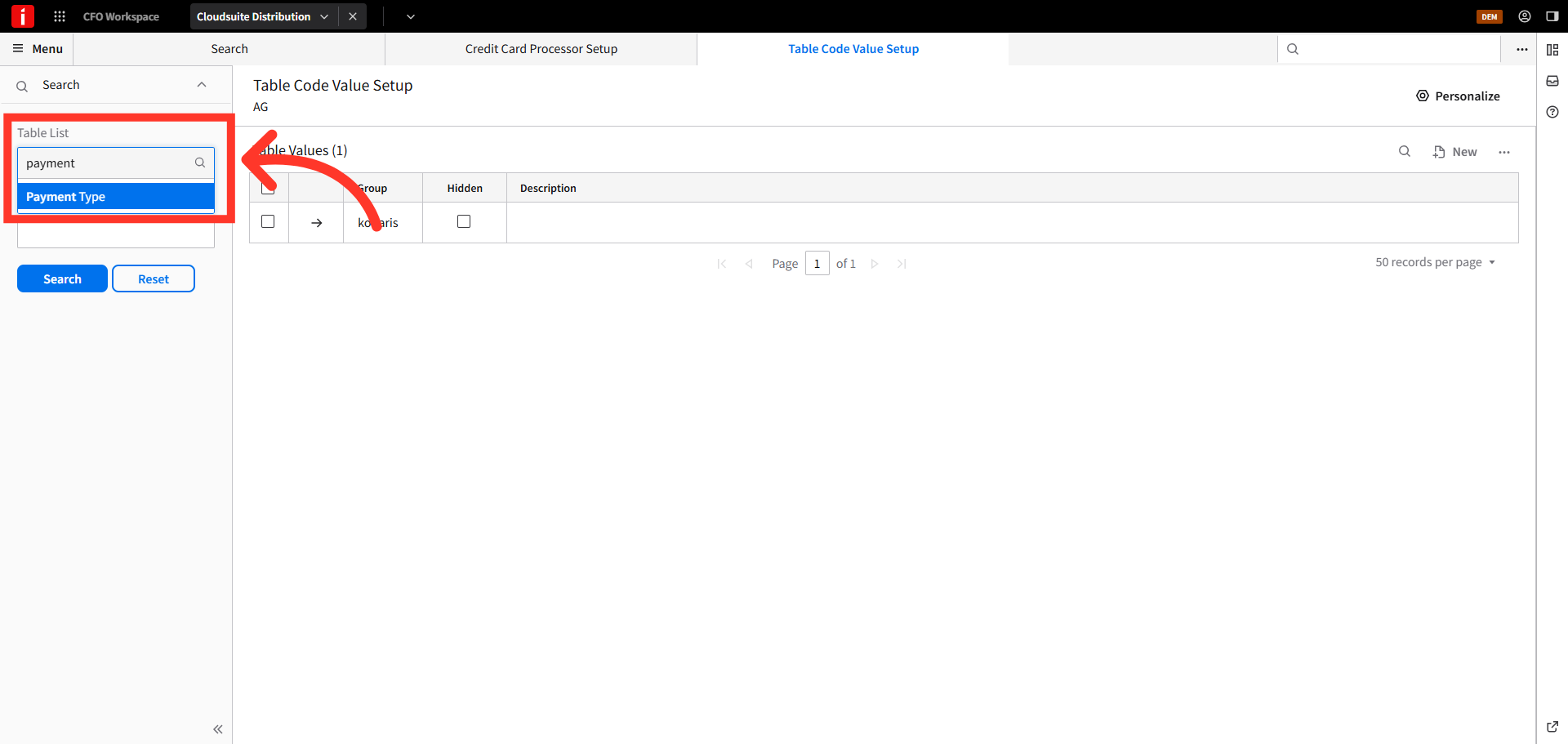
In the Table List, select "Payment Type" to configure payment method options.
Click "New"
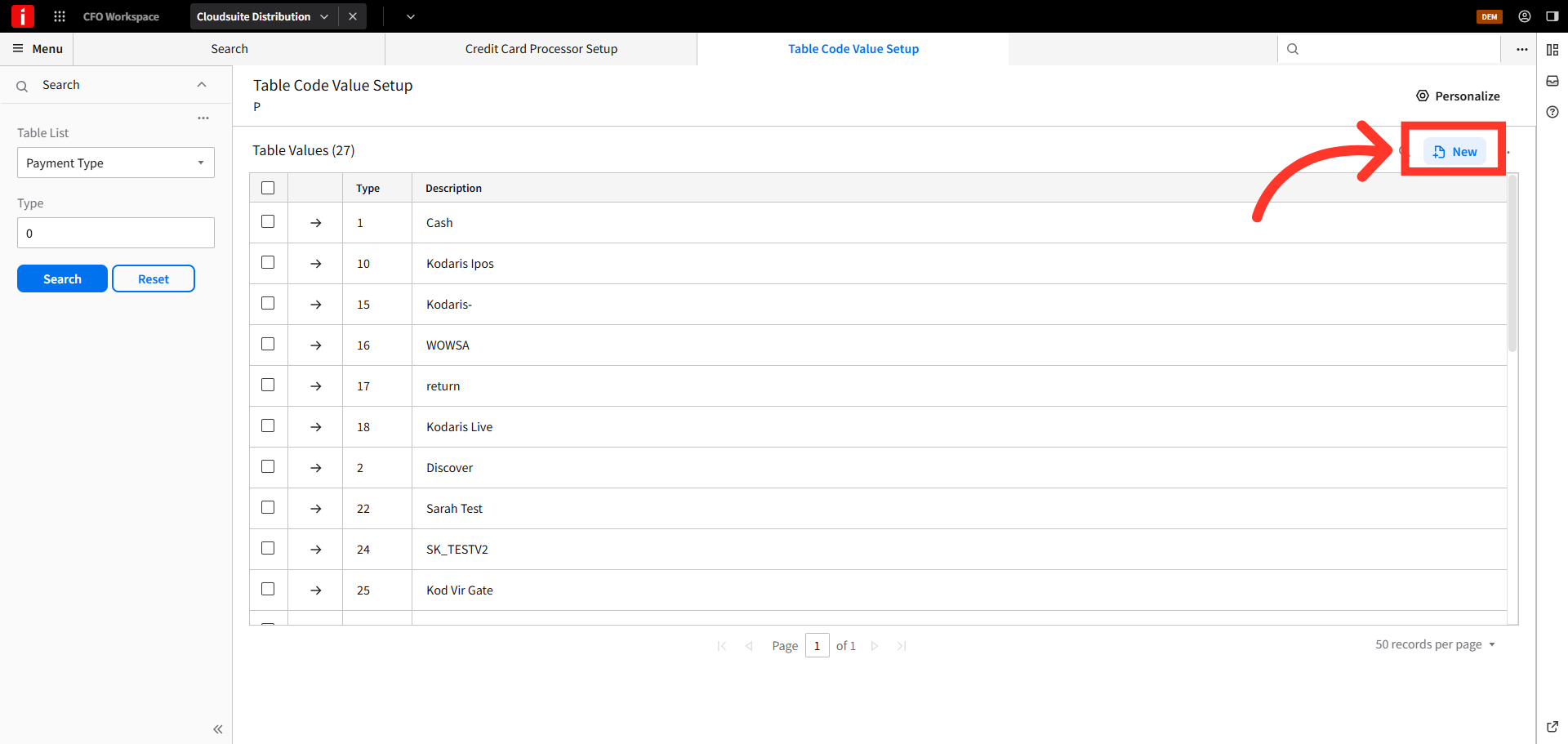
Then, click "New".
Click "Save"
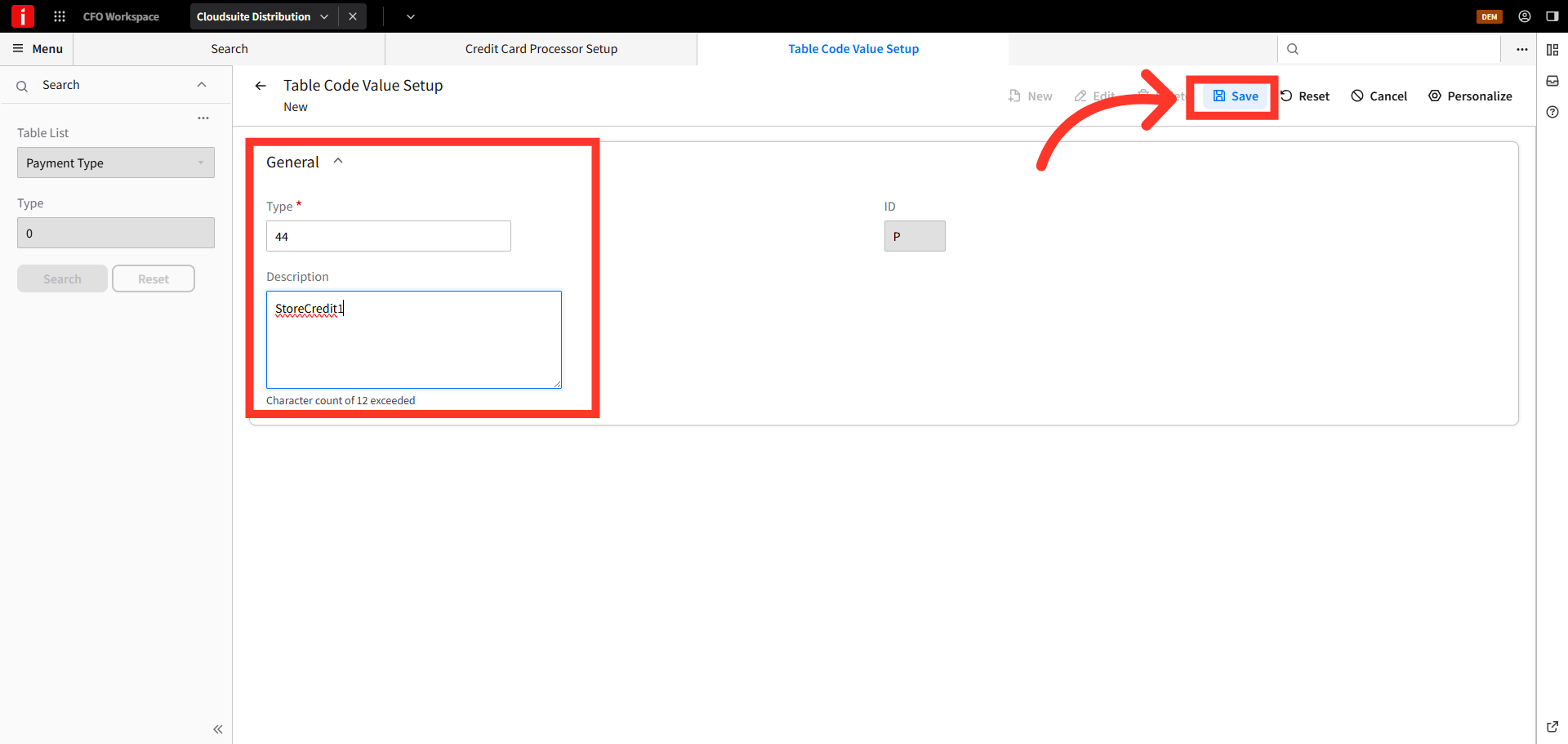
In the "General" section, enter a "Type" number and a "Description" that make identifying the Payment Type as a store credit easy for users to identify when the user is in Order Entry. Click "Save" to apply the updates.
Select the Store Credit Processor
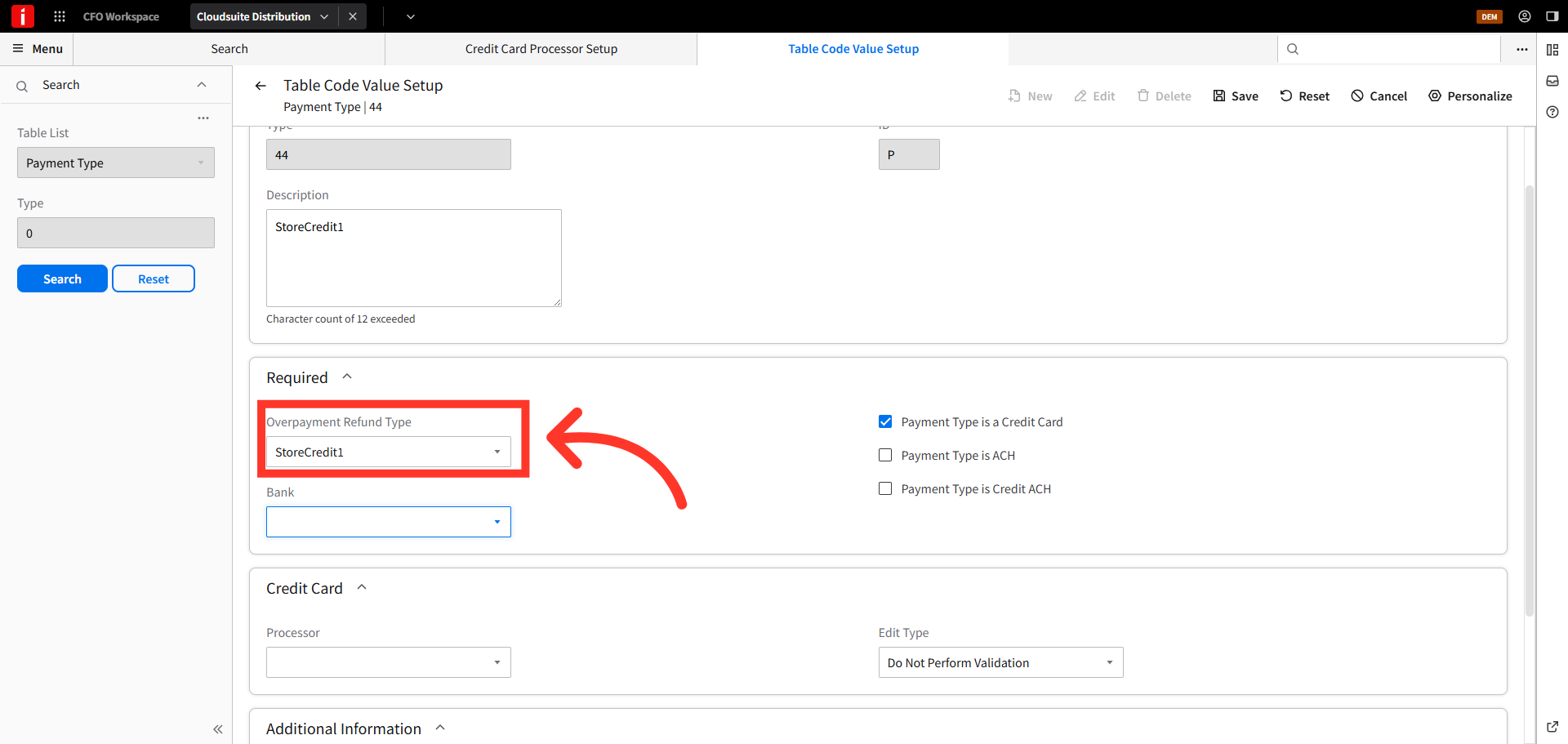
Scroll down to the "Overpayment Refund Type" field, and populate with the store credit processor that was set up in the previous step. In this example, we will use "Store Credit1".
Check the "Payment Type is a Credit Card" Box
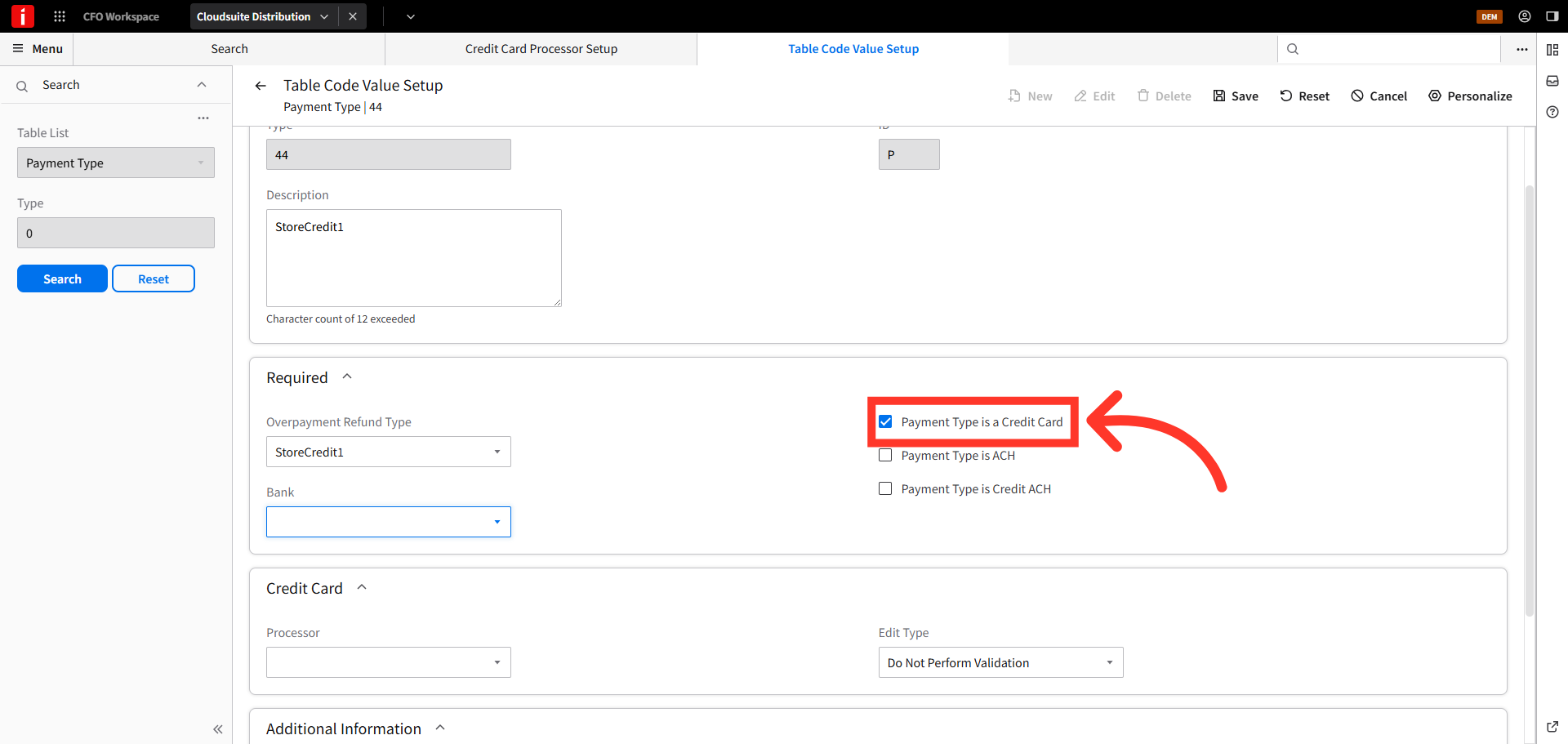
Click the selection box to choose the "Payment Type is a Credit Card" option.
Assign a Store Credits Liability Account
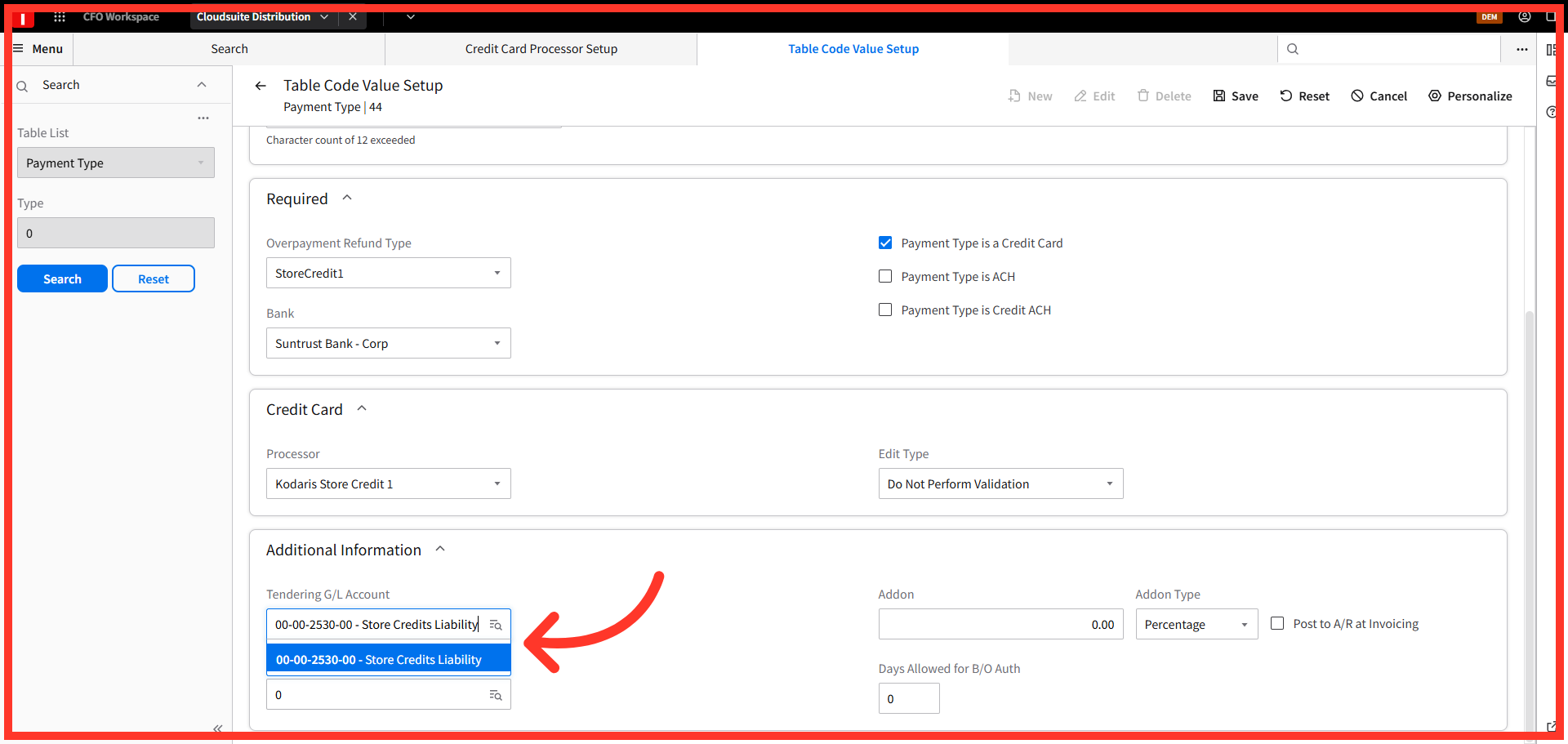
The last step is to assign the Store Credits Liability account to track the store credit liability. This will provide a way to have a running balance of outstanding store credits on your general ledger. You can also view the transaction level detail in the Kodaris Operations Portal.
Confirm Save Completion
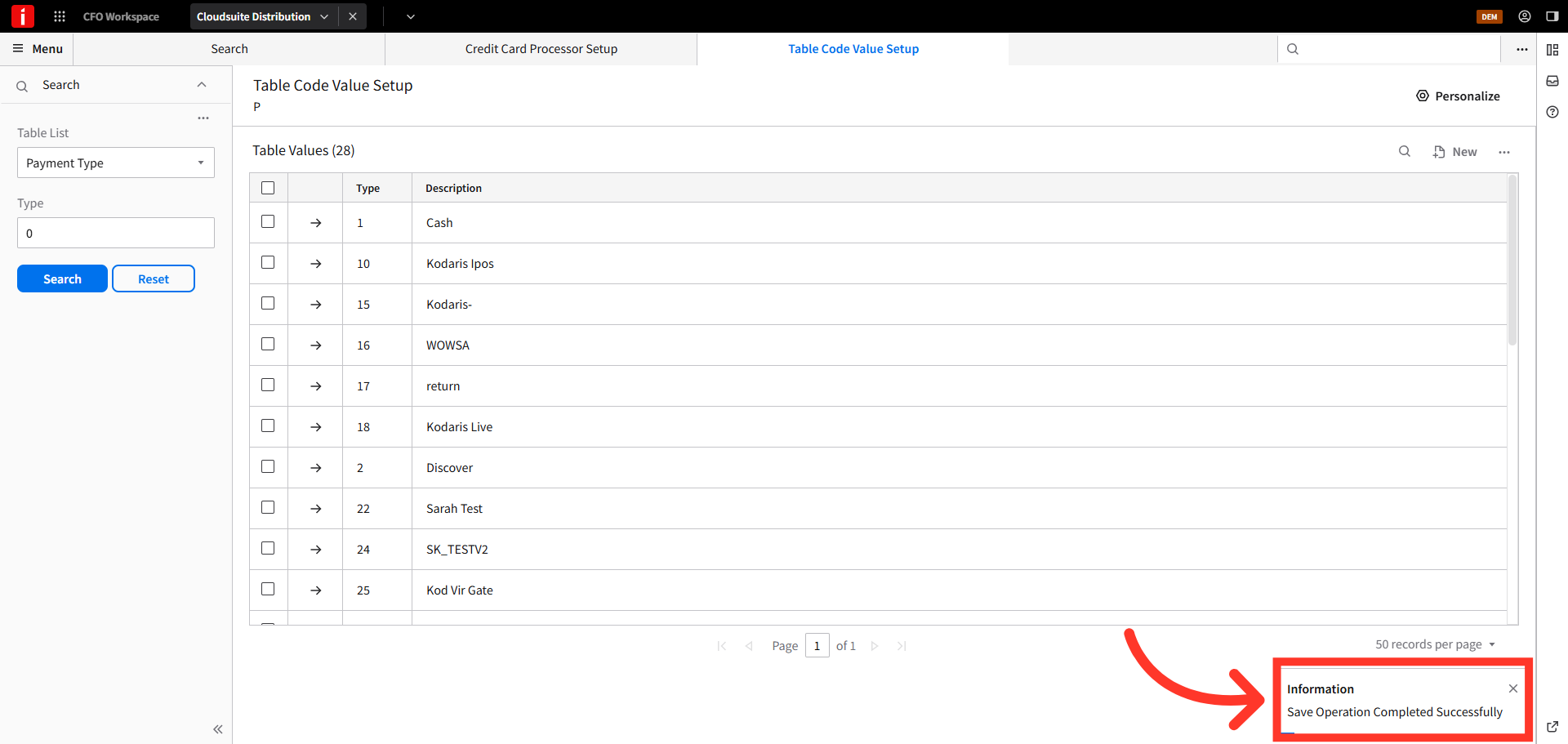
Once saved, a success message will appear. The Store Credit payment method has been created and is ready for use.