
Operations AR - Set Up Emailed Batch Reporting Per Terminal
Navigate to "Accounts Receivable"
Setting up emailed batch reporting per terminal enables automated daily delivery of payment reconciliation reports to a specific email address. To configure the email address to send the reports to, first navigate to the "Accounts Receivable" section in the Operations Portal.

Click "Terminals"
Then click, "Terminals". In order to access and update "Terminals" you will need to be set up as an "administrator" or "superuser" or have the role of: "terminalEdit".

Click "Show/Hide Columns" icon
Click "Show/Hide Columns" icon to view the available columns.

Select "Reporting Email"
Click the checkbox for "Reporting Email" to add the column to the data grid view.

Search for the terminal
Locate or search for the terminal you want to add reporting email.
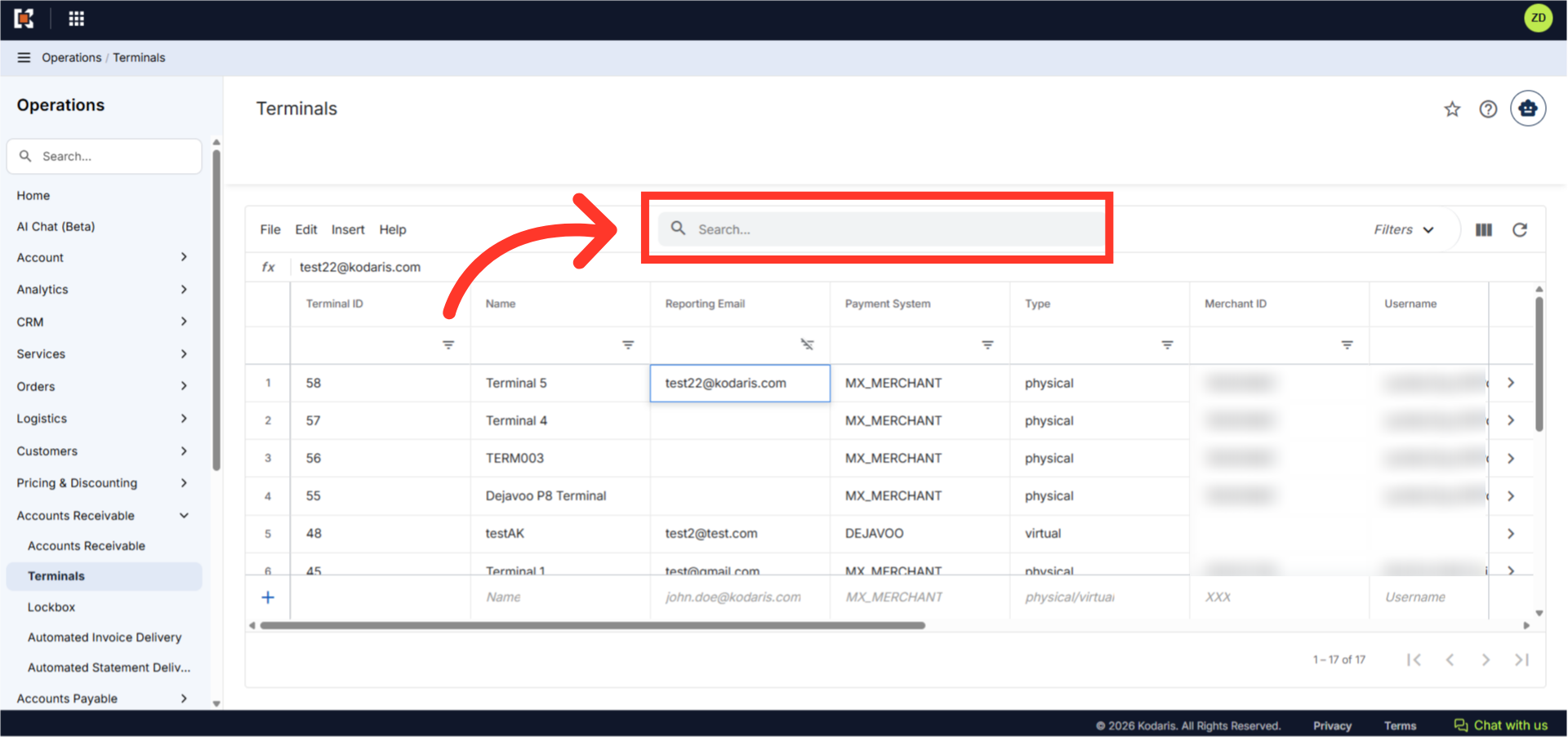
Enter email address
Click in the "Reporting Email" field and add the email address where you want the batch reports sent. Multiple email addresses, separated by commas are supported for the batch reporting.

Hit "Enter" to save the email address
Hit "Enter" to save the email address. You can repeat the process for the other terminals on your account. Note: If there are multiple terminals on the same MID (Merchant ID), the system will send a separate but identical report to each terminal’s reporting email, since the report includes all transactions for the MID regardless of which terminal processed them.

Credit Card Daily Batch Report by Terminal Rule
To enable this feature, the "Credit Card Daily Batch Report by Terminal" rule needs to be active. This rule is in the "Interceptors" section of the "Automation" Apps Menu. To access and edit the "Interceptors" section, you will need to have the appropriate role of "ruleEdit".
