Send a Vaulted Payment Method Email Link from CSD
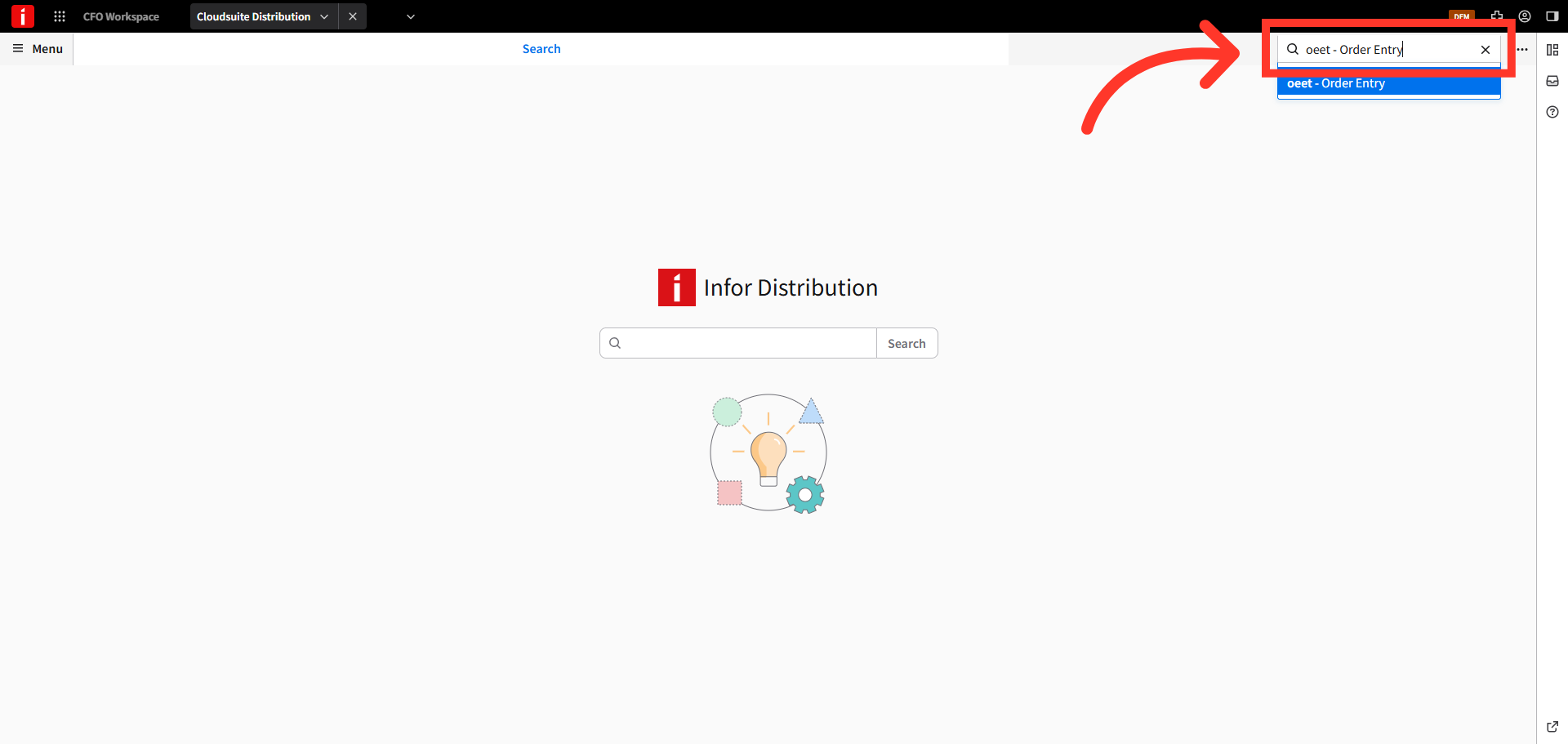
Navigate to "OEET" screen
You can send customers a secure link directly from CSD, allowing them to enter and vault their payment methods. This can be done using the "Order Entry" screen, or the "AR Credit Card Setup" screen in CSD. Navigate to the "OEET - Order Entry" screen in CSD.
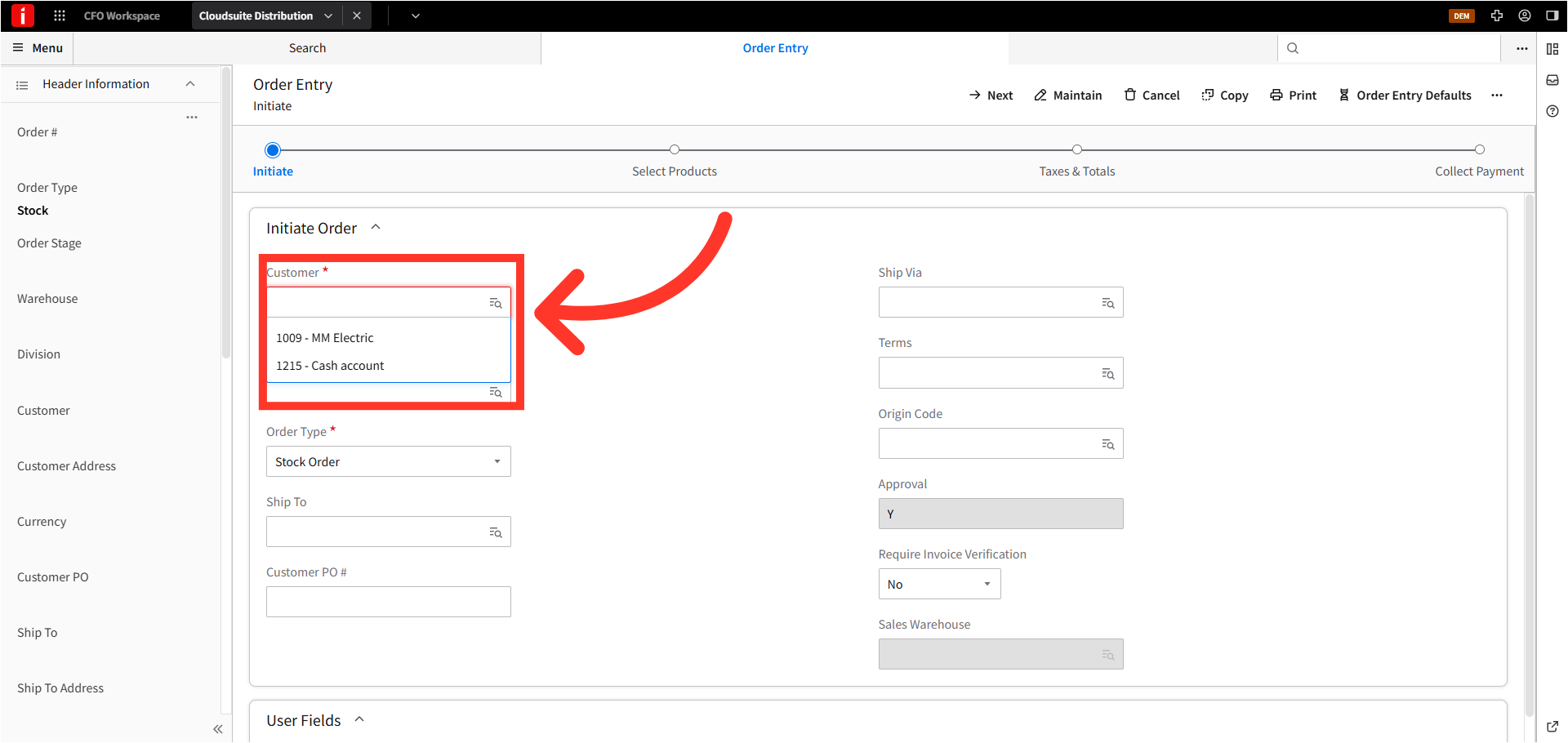
Select a Customer
Select a customer by entering a customer number or selecting from the dropdown menu and then click "Next".
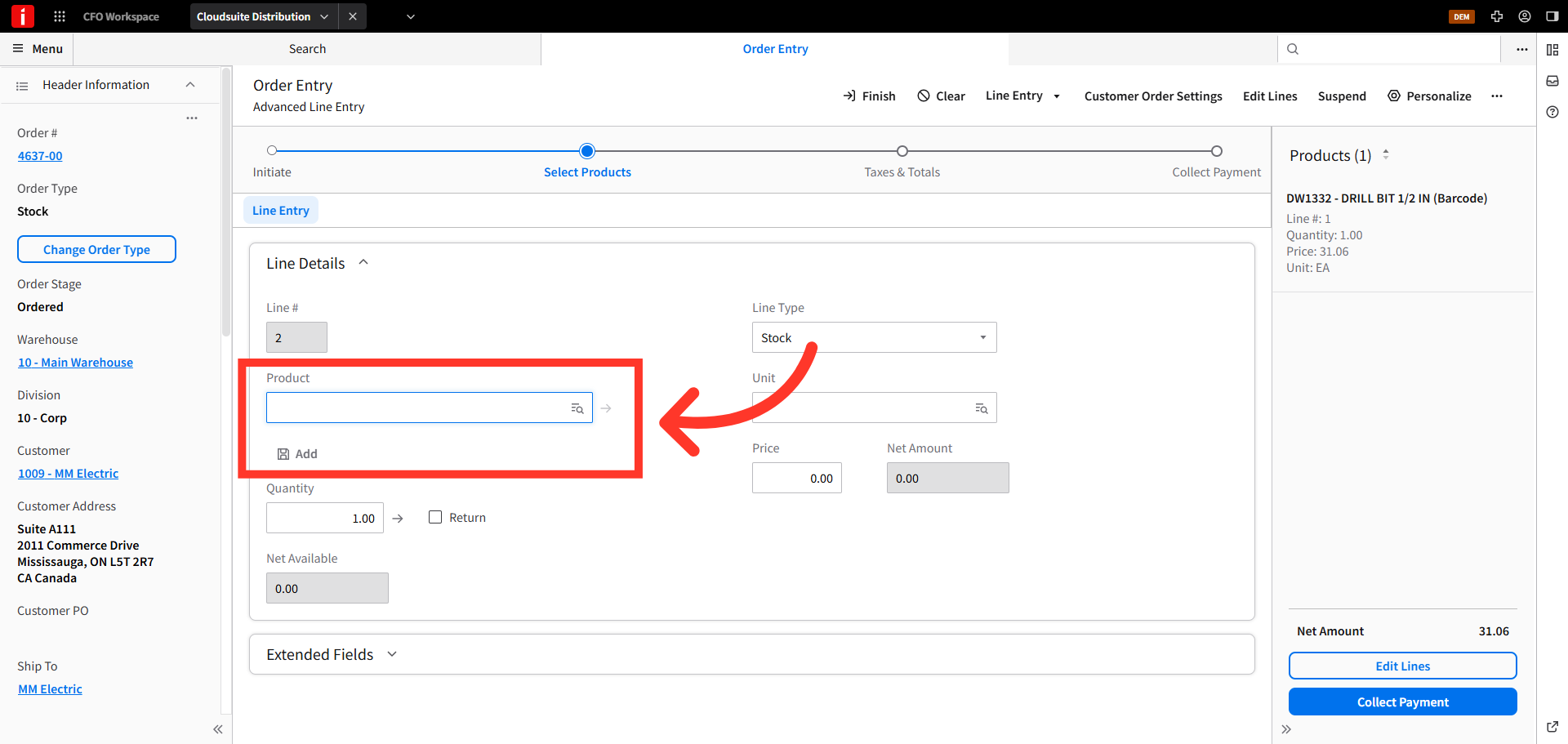
Add a product to the order
Search to find and add products to the order. Once the product has been selected, click "Add".
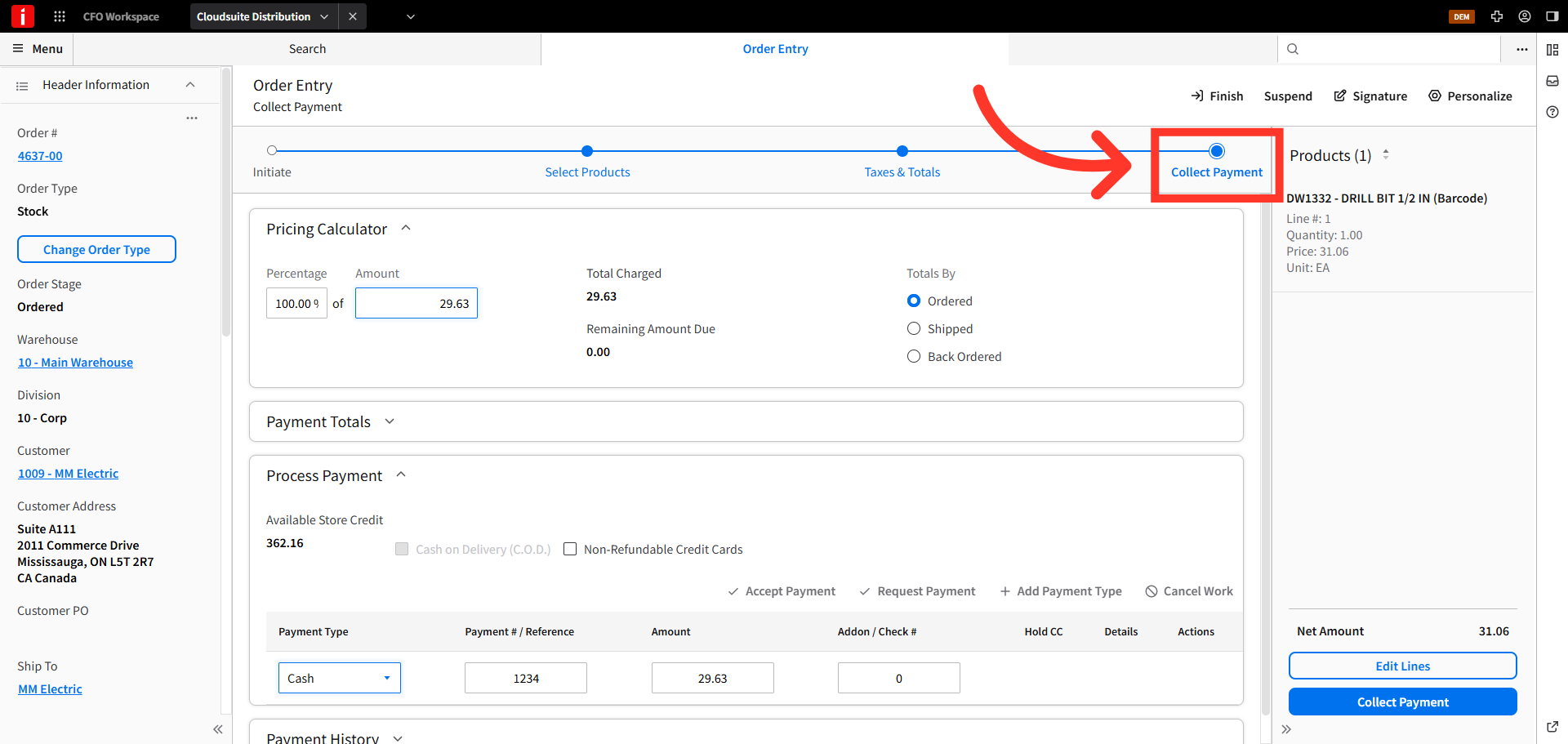
Click "Collect Payment"
Once items have been added to the order, click the "Collect Payment" option at the top of the Order Entry screen.
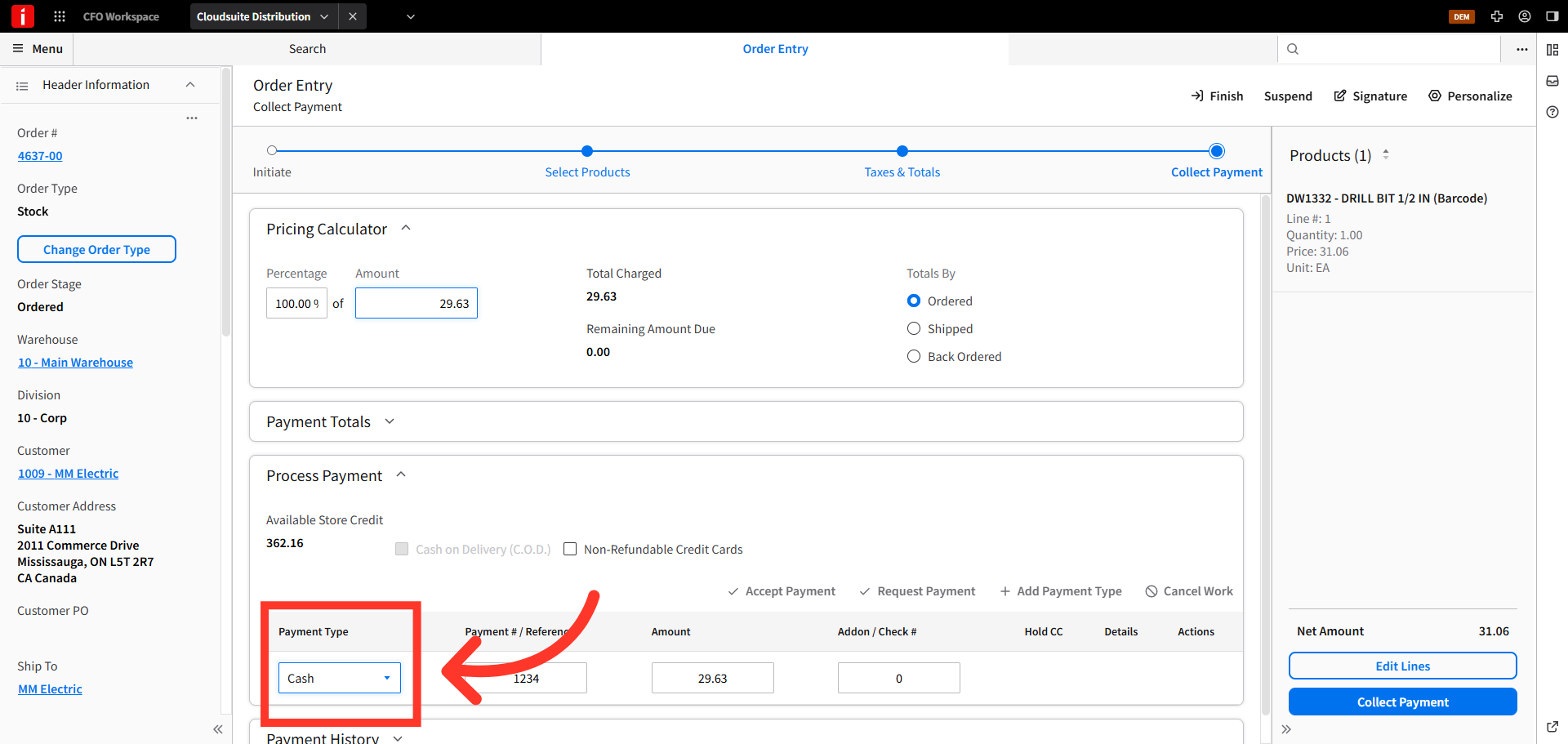
Click "Payment Type"
Then, in the "Process Payment section," click the "Payment Type" dropdown box to view the available payment types.
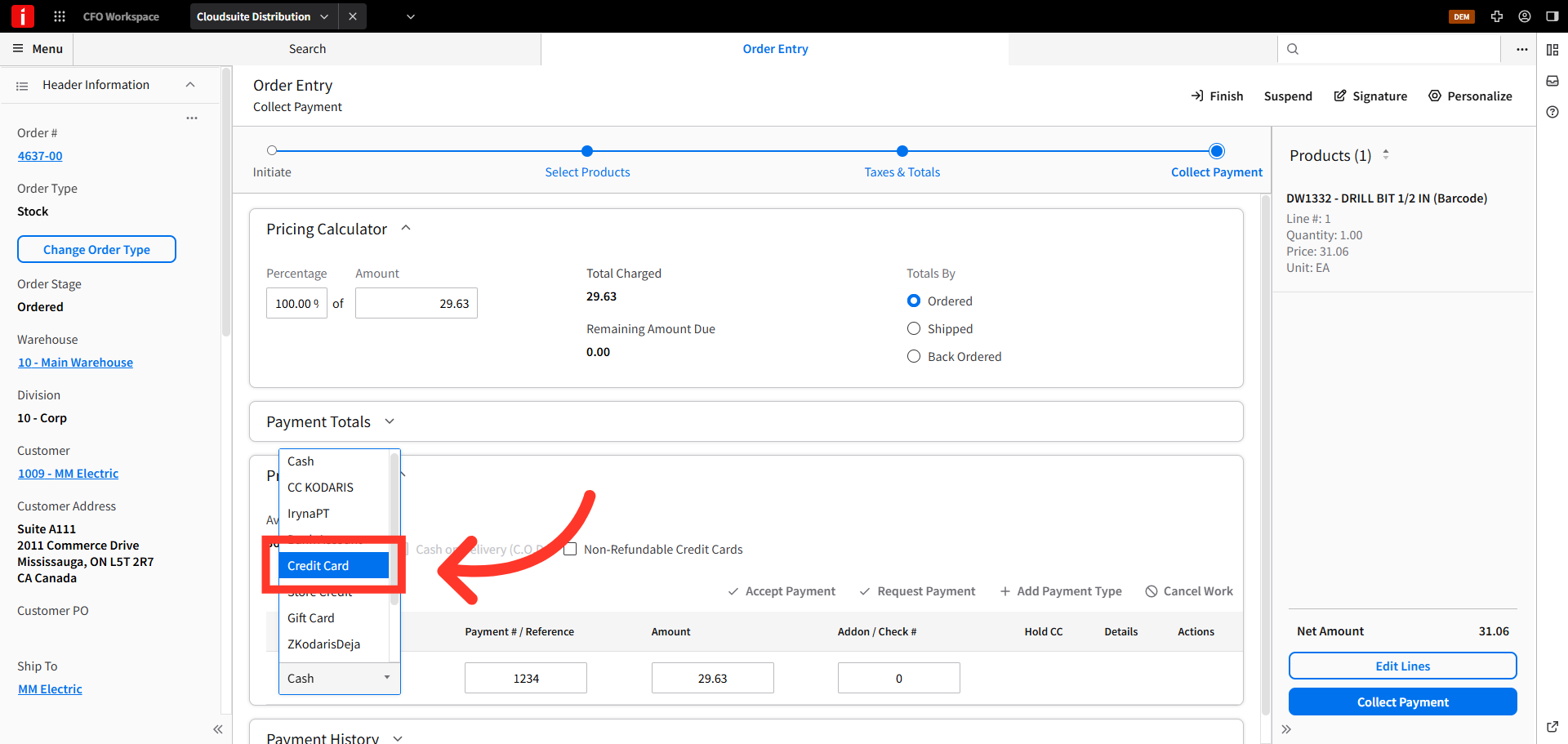
Select a "Payment Type"
Choose the appropriate payment type for credit cards. In this example we will choose the "Credit Card" payment type.
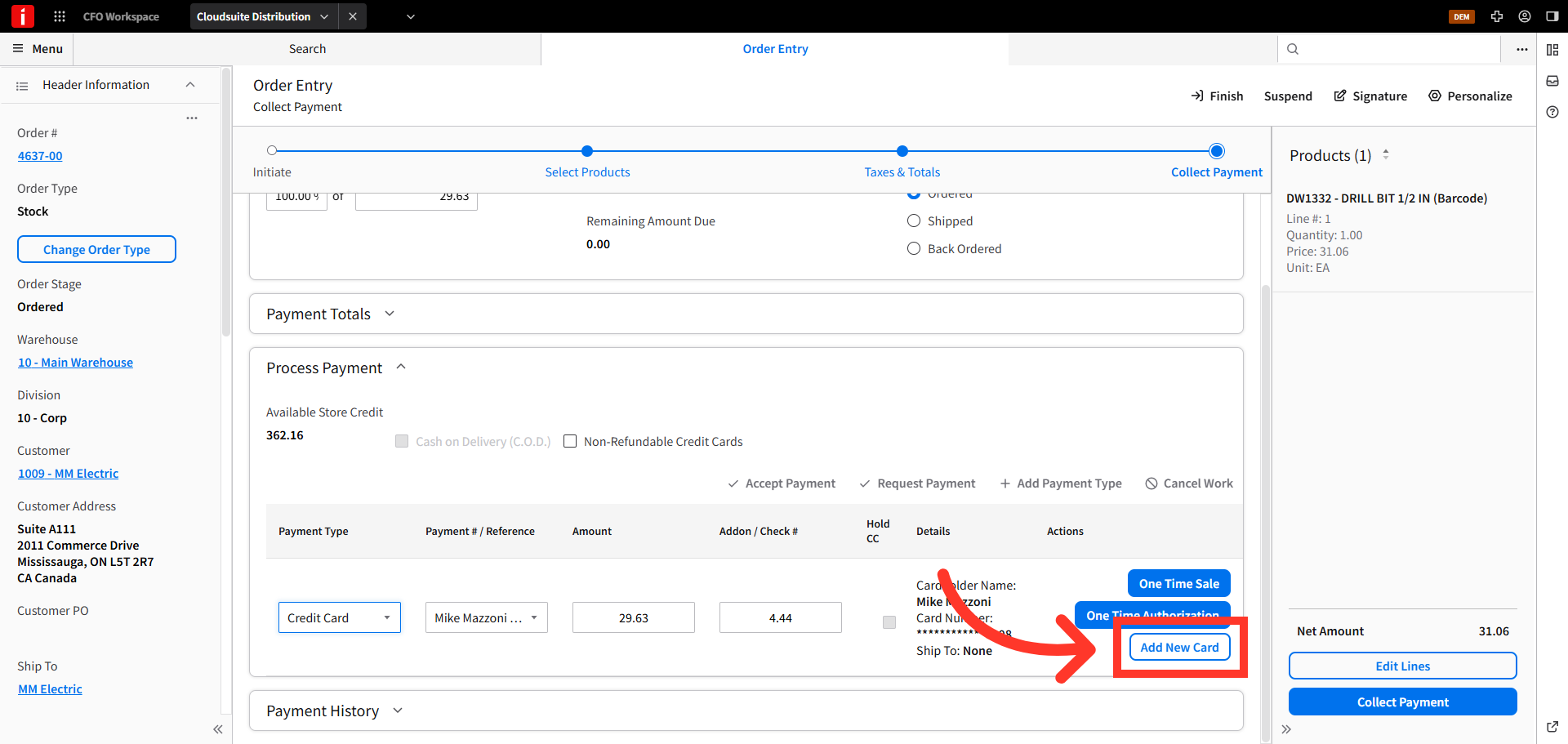
Click "Add New Card"
Then, click the "Add New Card" button.
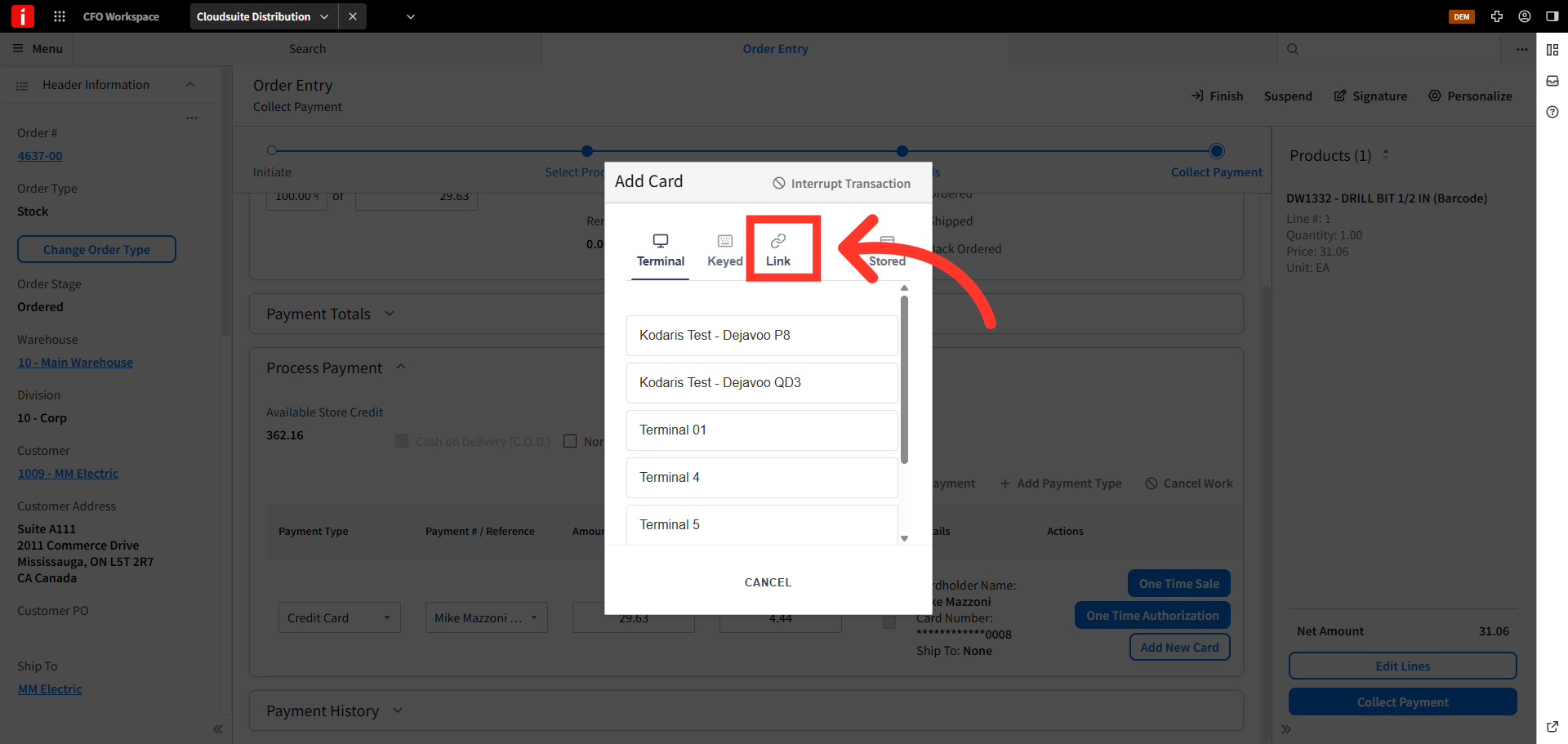
Click "Link"
On the "Add Card" dialog box, click the "Link" icon.
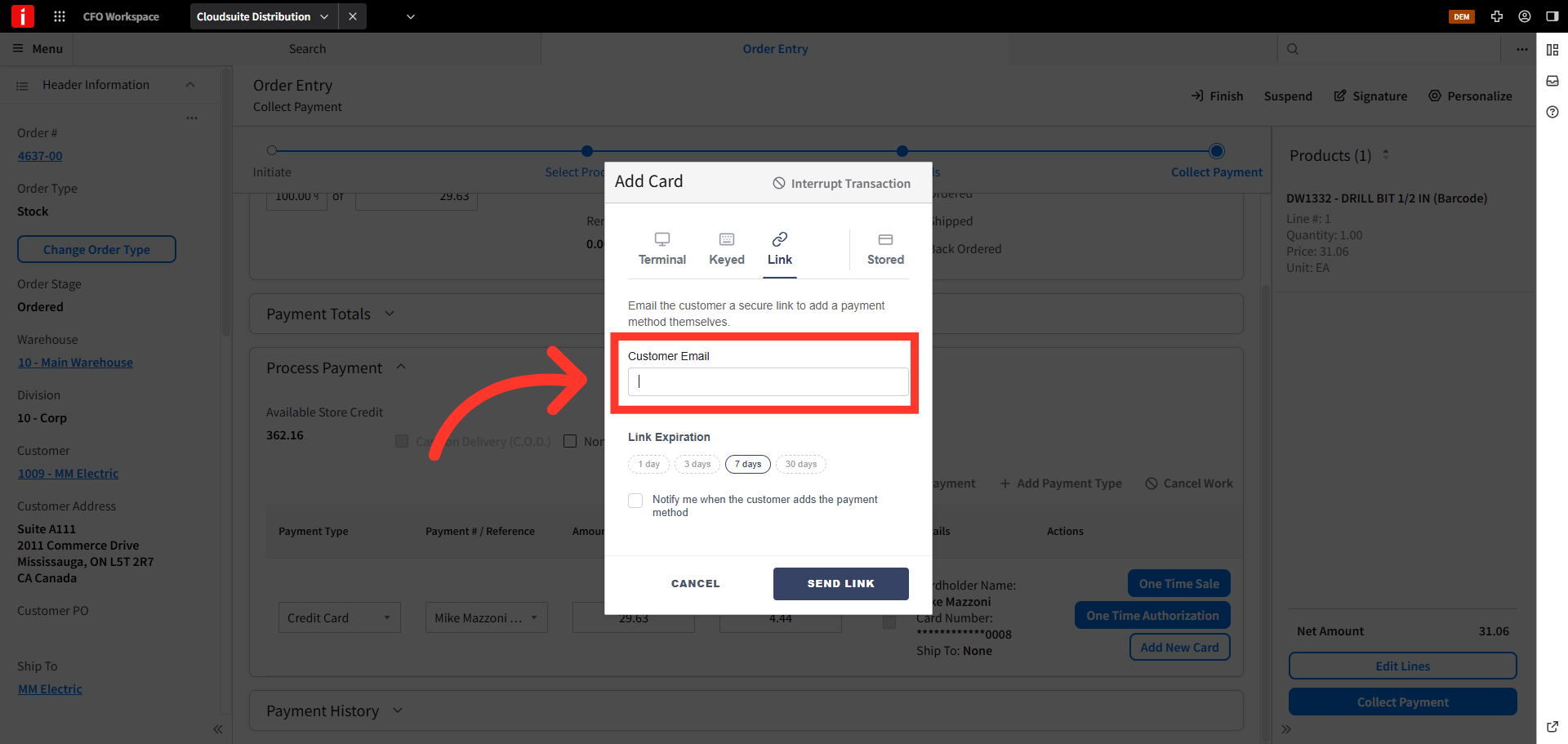
Enter the Customer Email Address
In the "Customer Email" field, enter the email address you wish to send the link to.
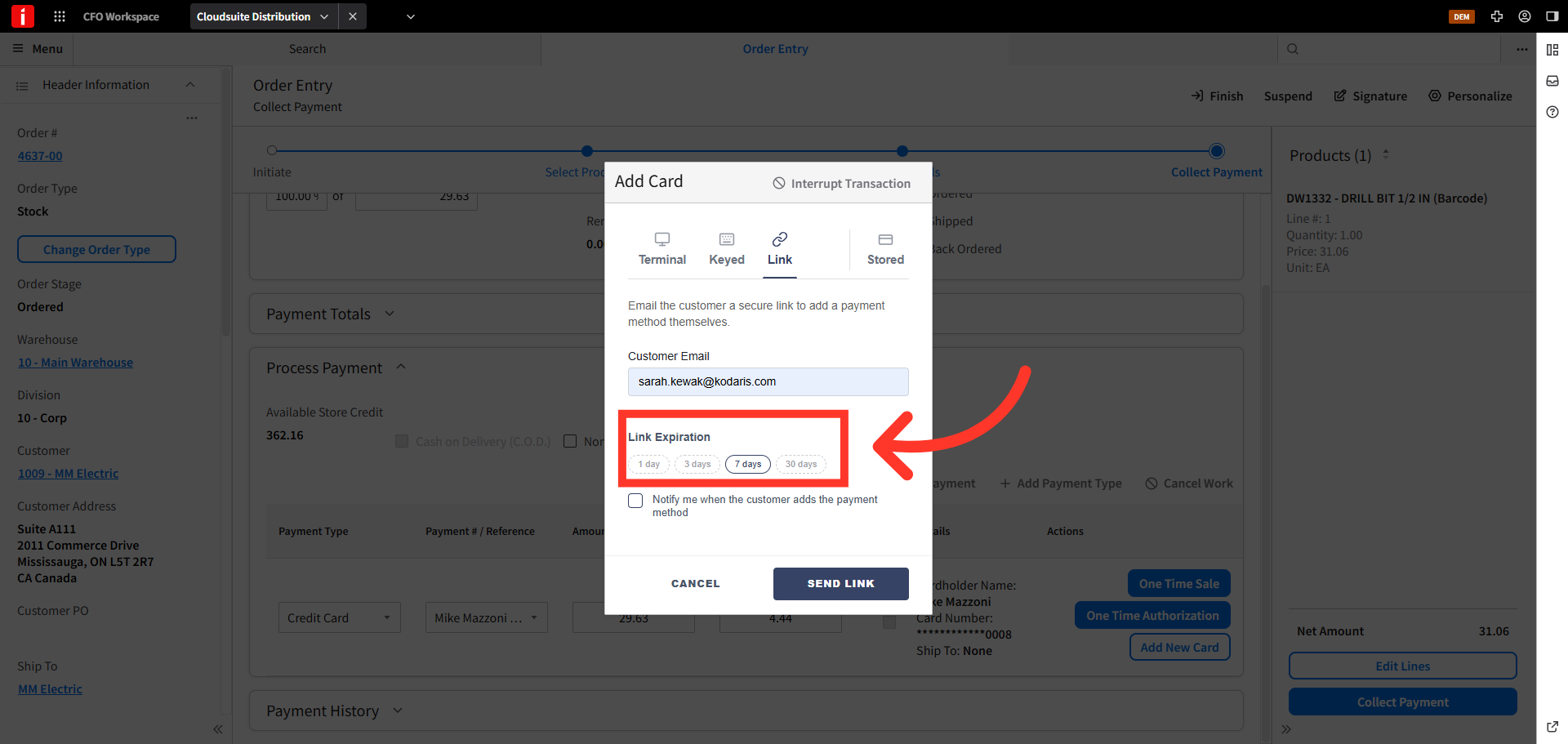
Link Expiration
In the "Link Expiration" section, the "7 days" button is selected by default. This is the number of days the link will be valid. Select your preferred option.
Enable Notification, if preferred
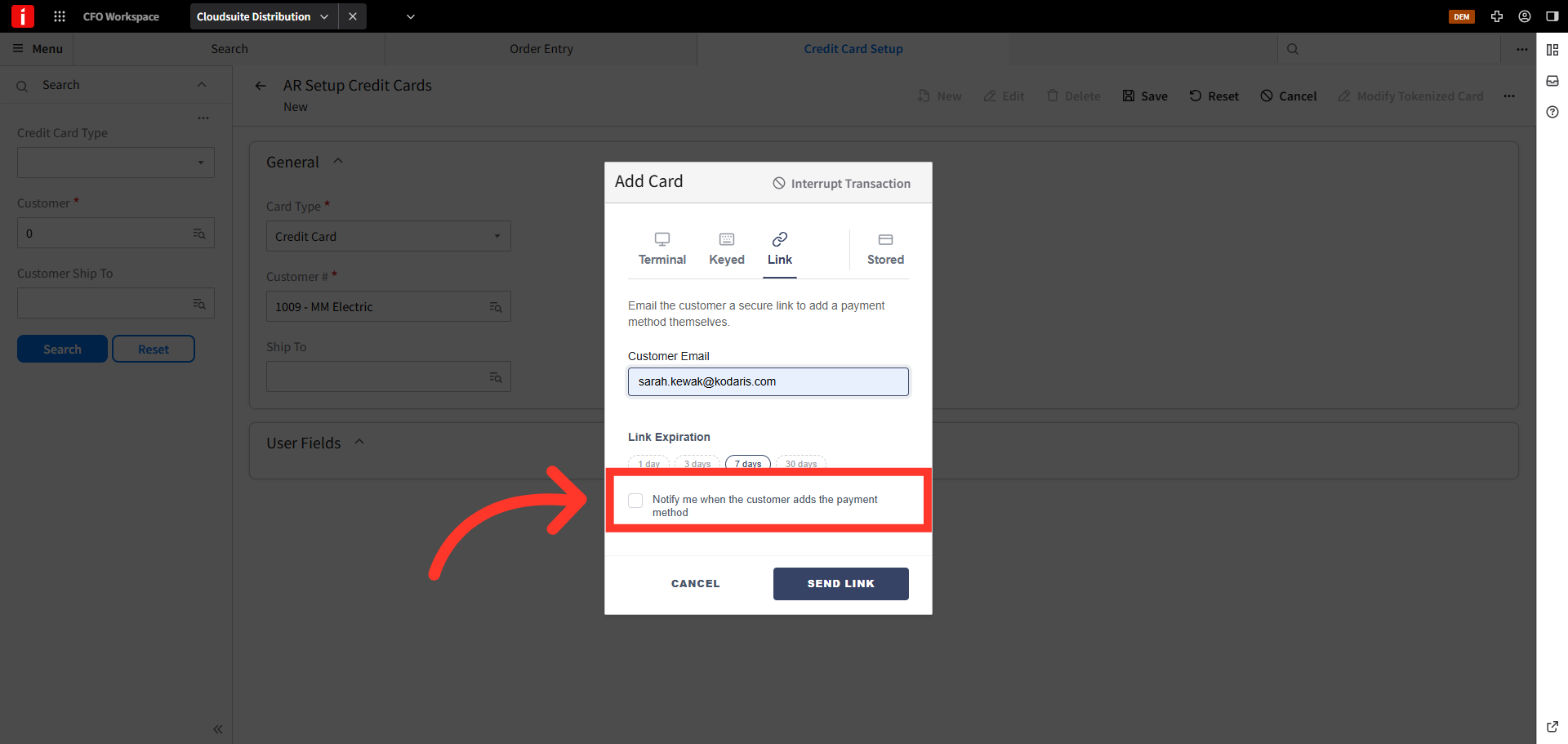
You can choose to be notified when the customer adds the payment method. Select the checkbox to enable this notification.
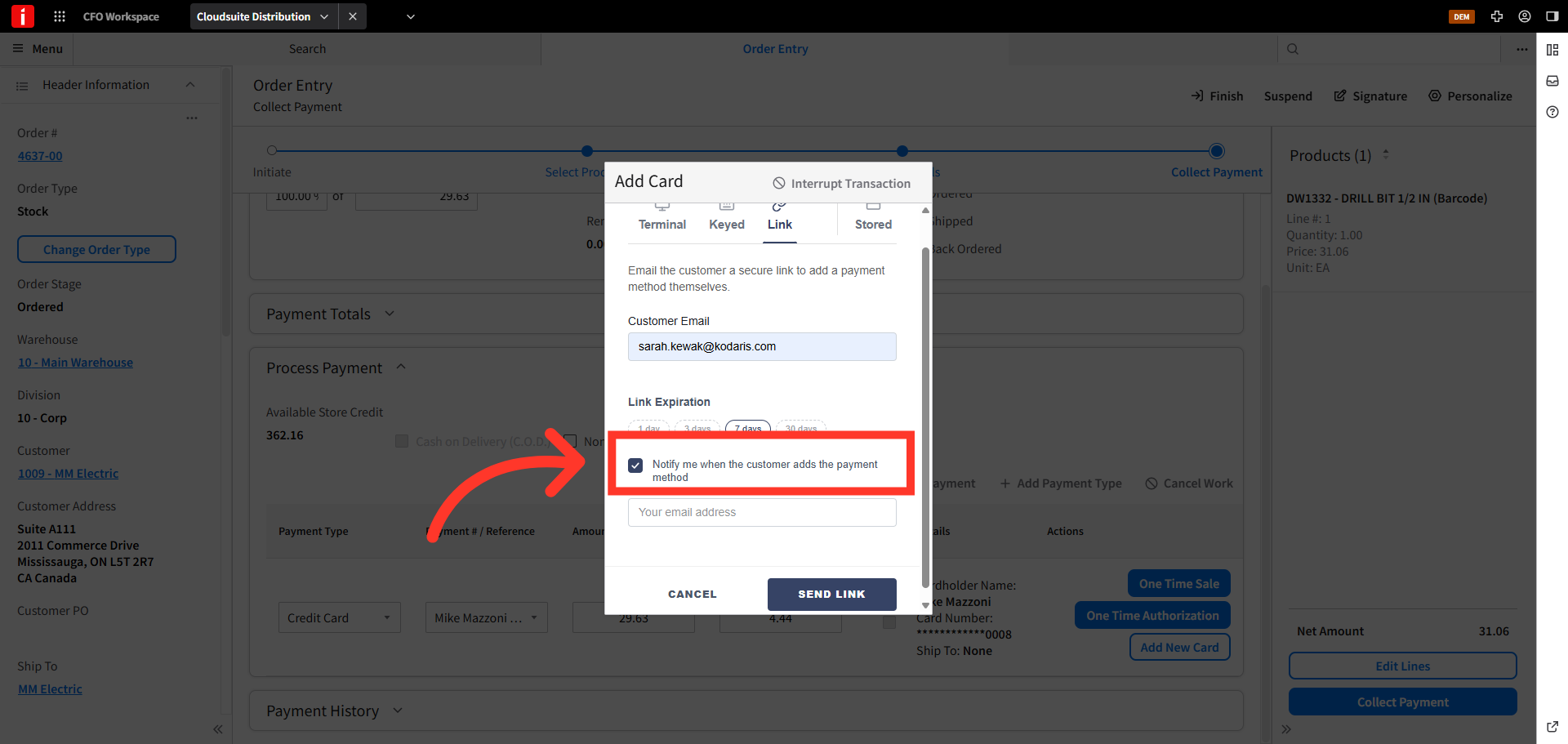
Enter your Email Address
Enter your email address in the "Your email address" field if you choose to be notified.
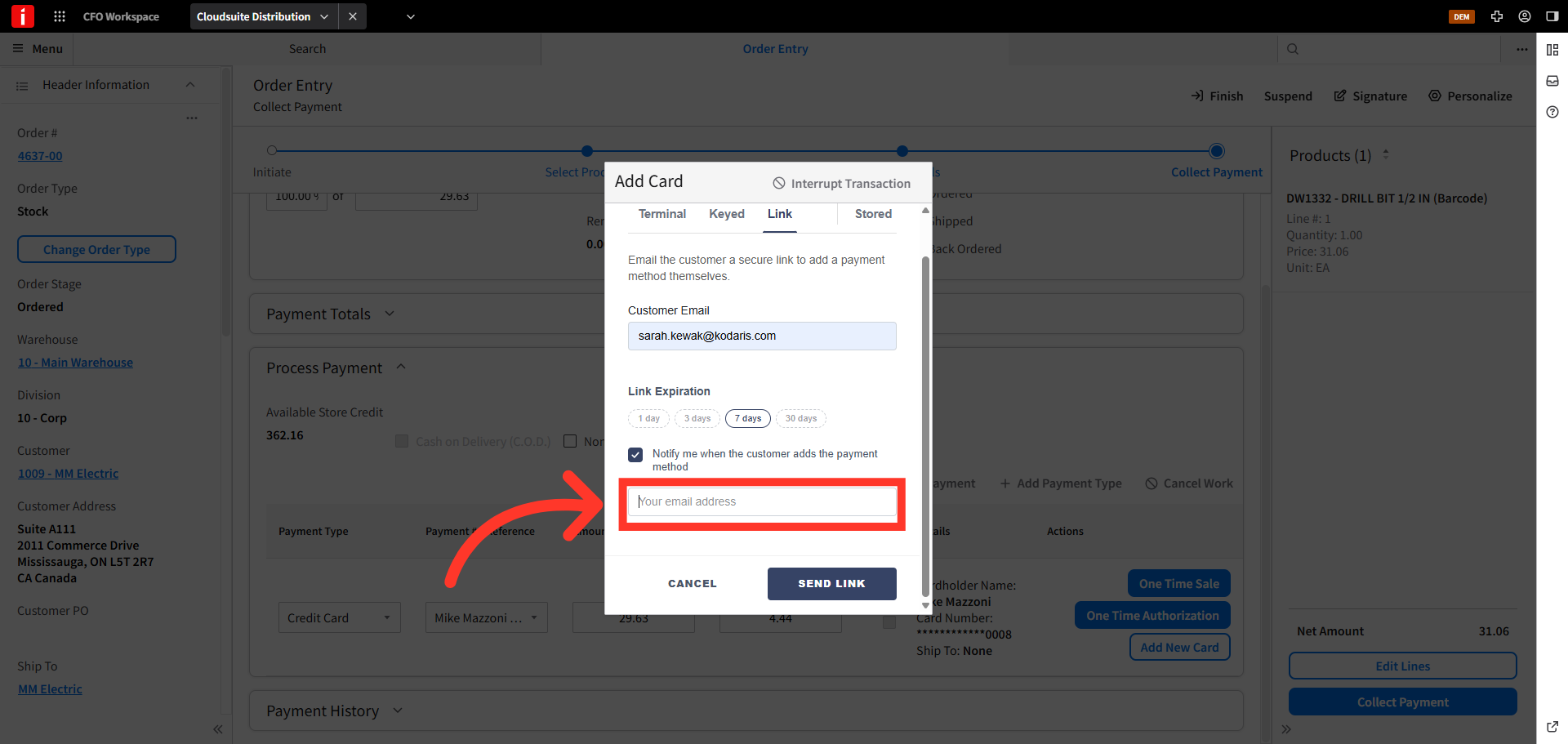
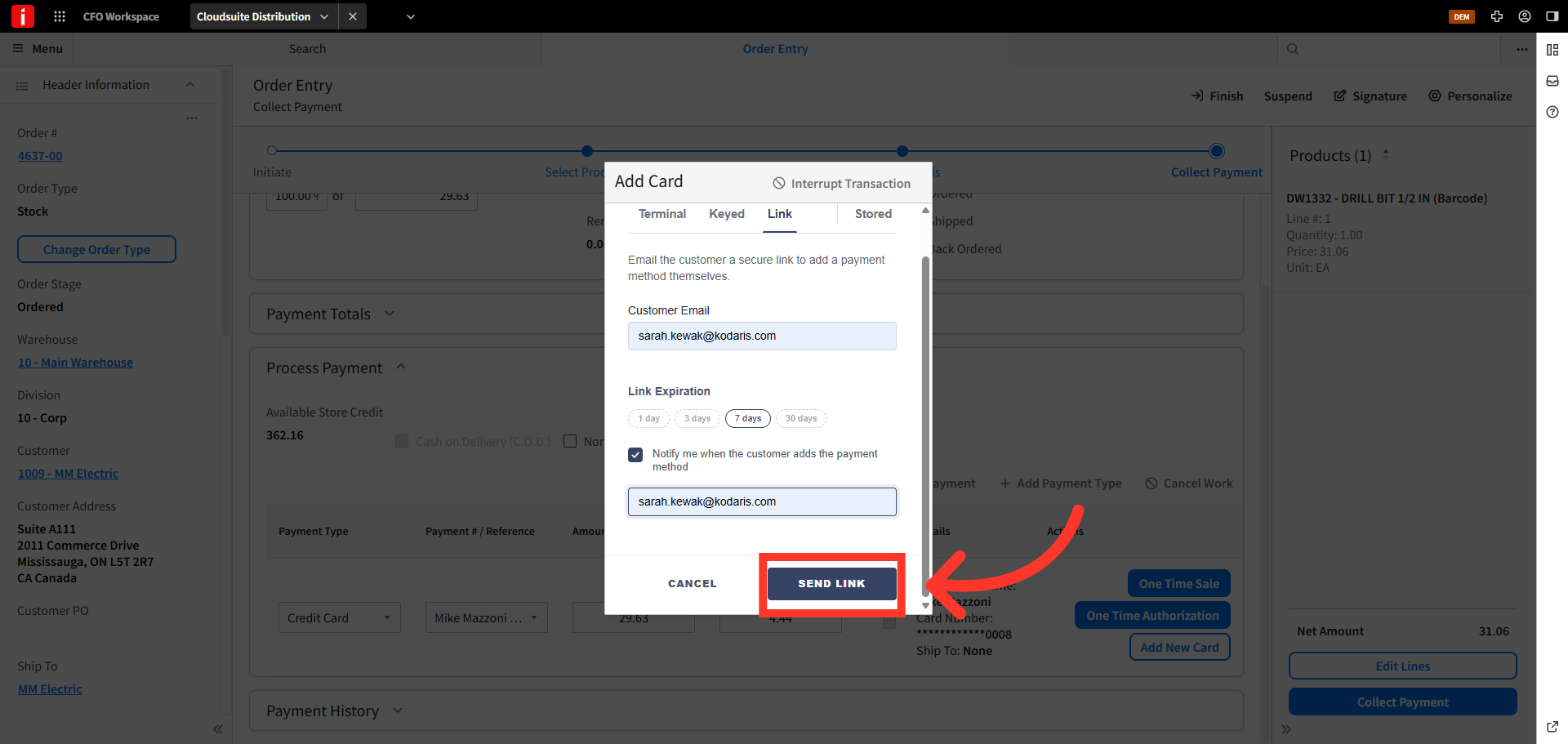
Click "Send Link"
Then, click "Send Link" to send the payment link to your customer.
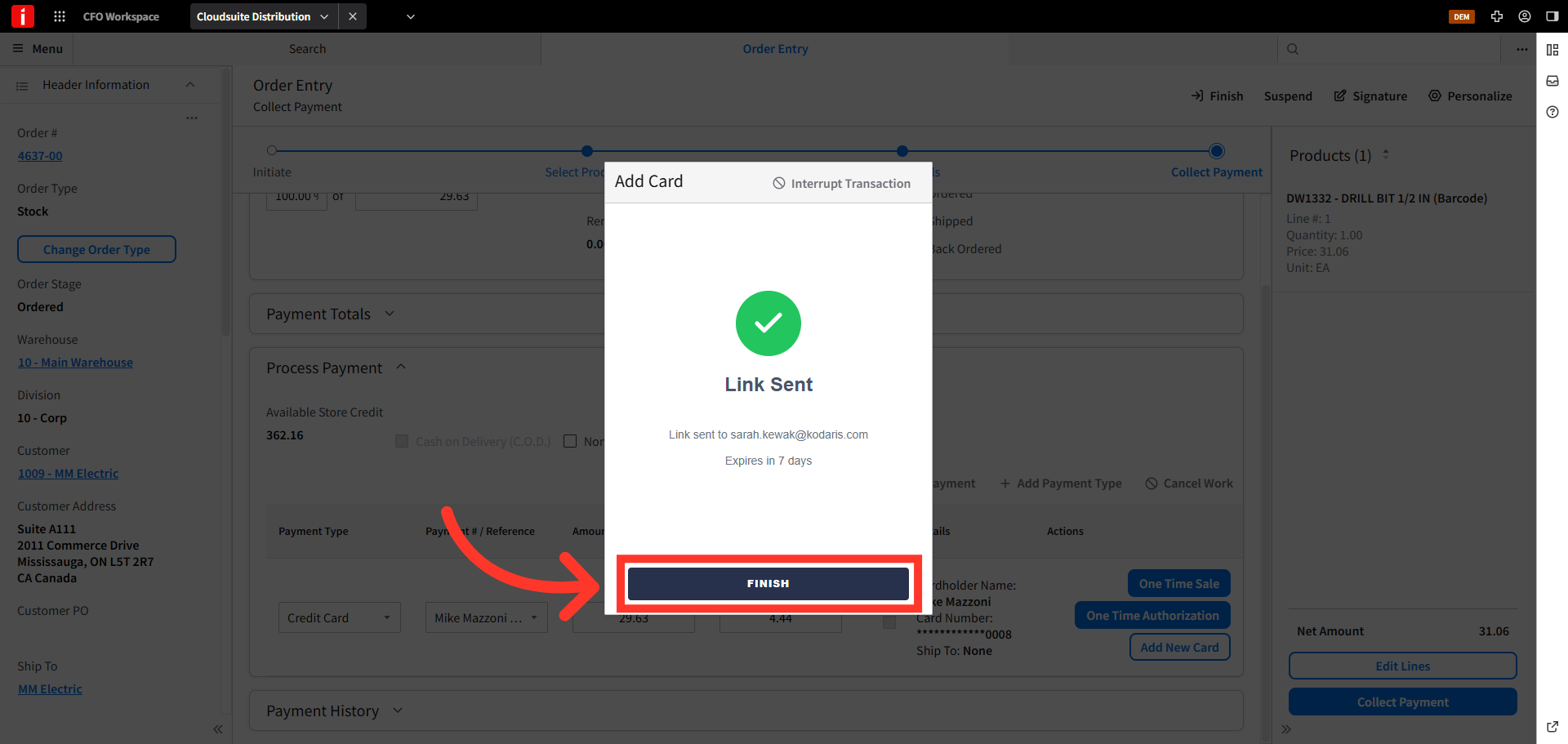
Click "Finish"
Lastly, click the "Finish" button to close the dialog box and return to the order.
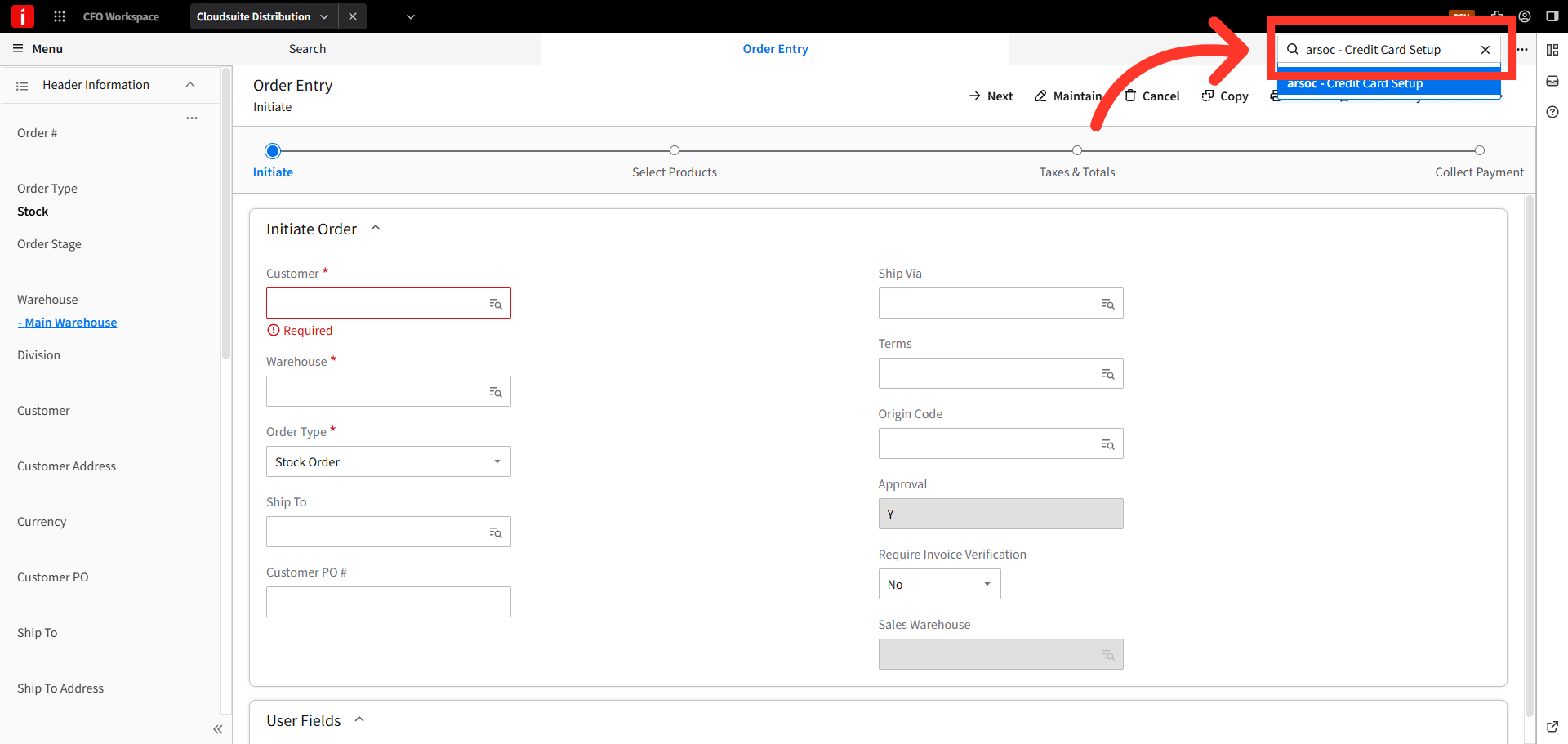
Navigate to "ARSOC"
You can also send customers a secure link to vault their payment methods when using the "ARSOC" or "Credit Card Set Up" screen. Click in the navigation box and type "ARSOC" to search.
Click "New"
Now, click "New".
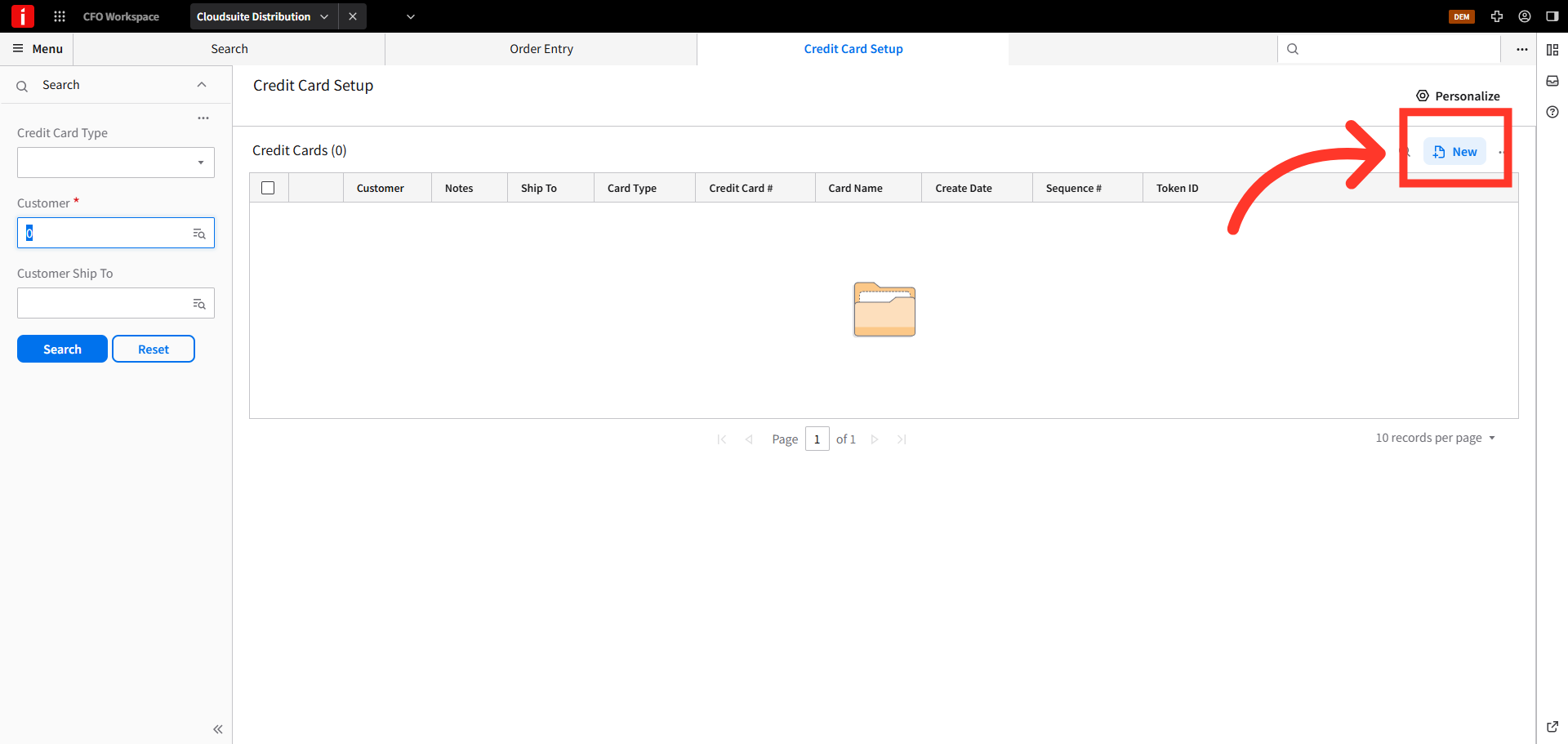
Click "Card Type"
Click the "Card Type" dropdown box to display the available card types.
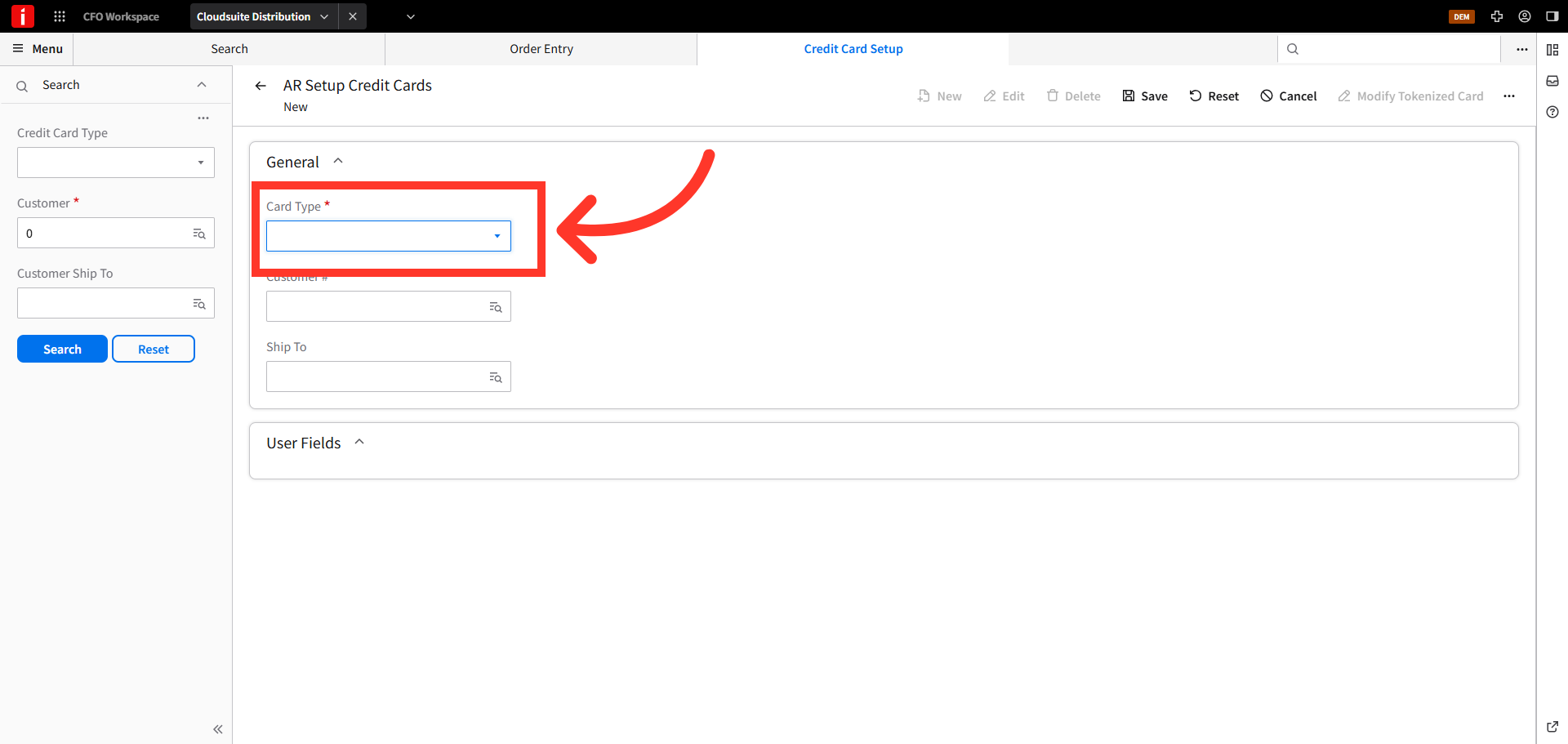
Select a "Card Type"
Then, choose the card type from the menu. In this example, we will select, "Credit Card".
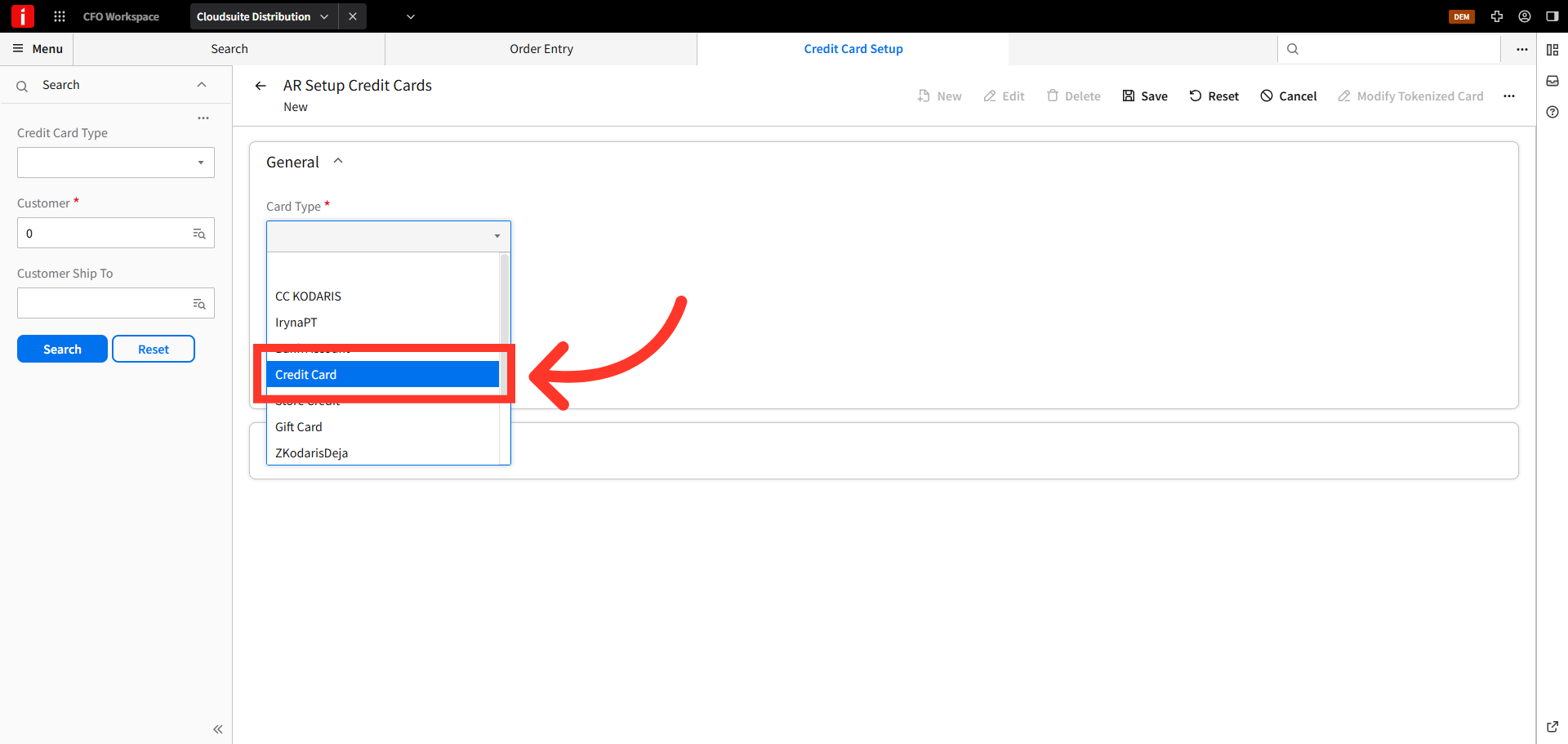
Enter Customer Number
Next, in the "Customer Number" field, enter the customer number or search for your customer.
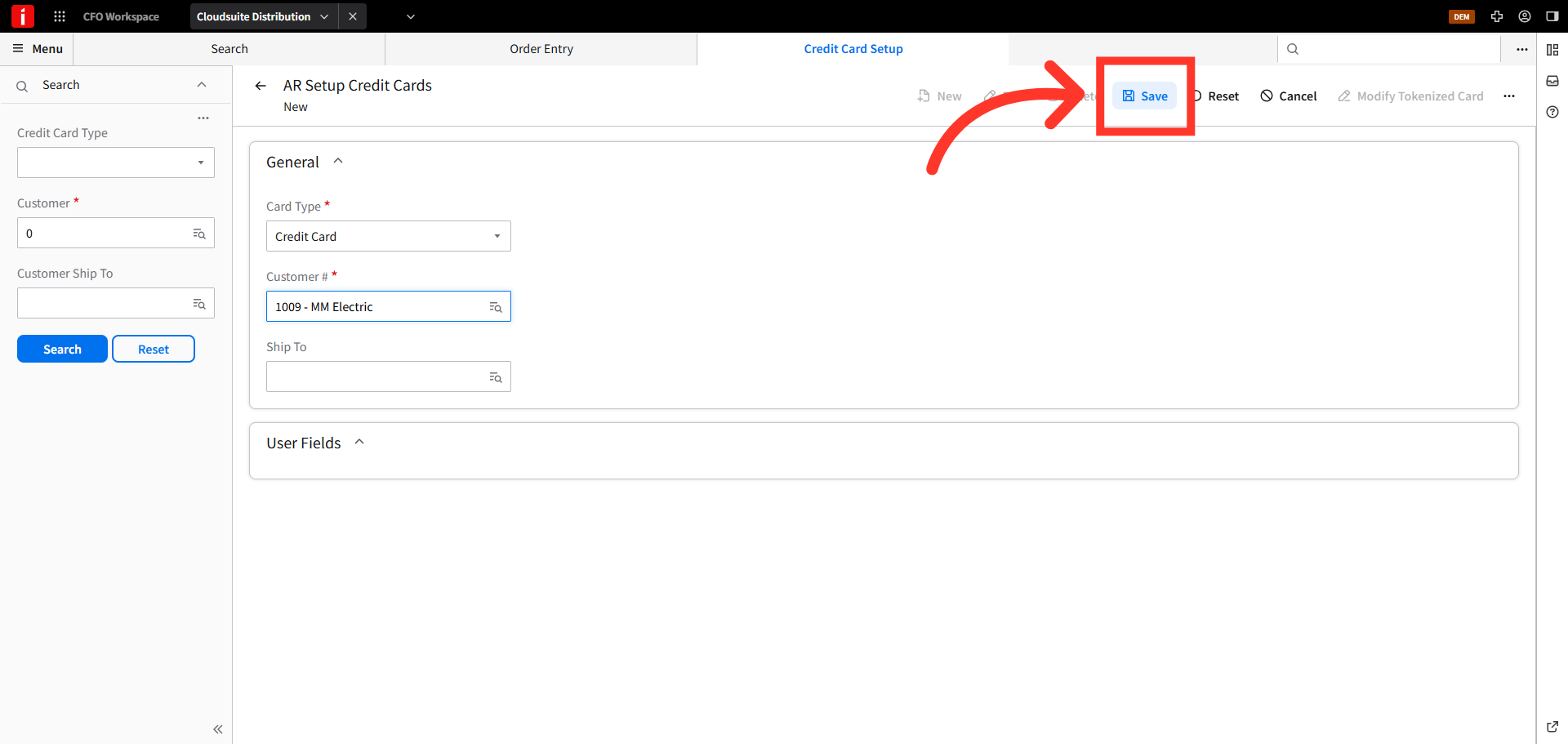
Click "Save"
Then, click "Save".
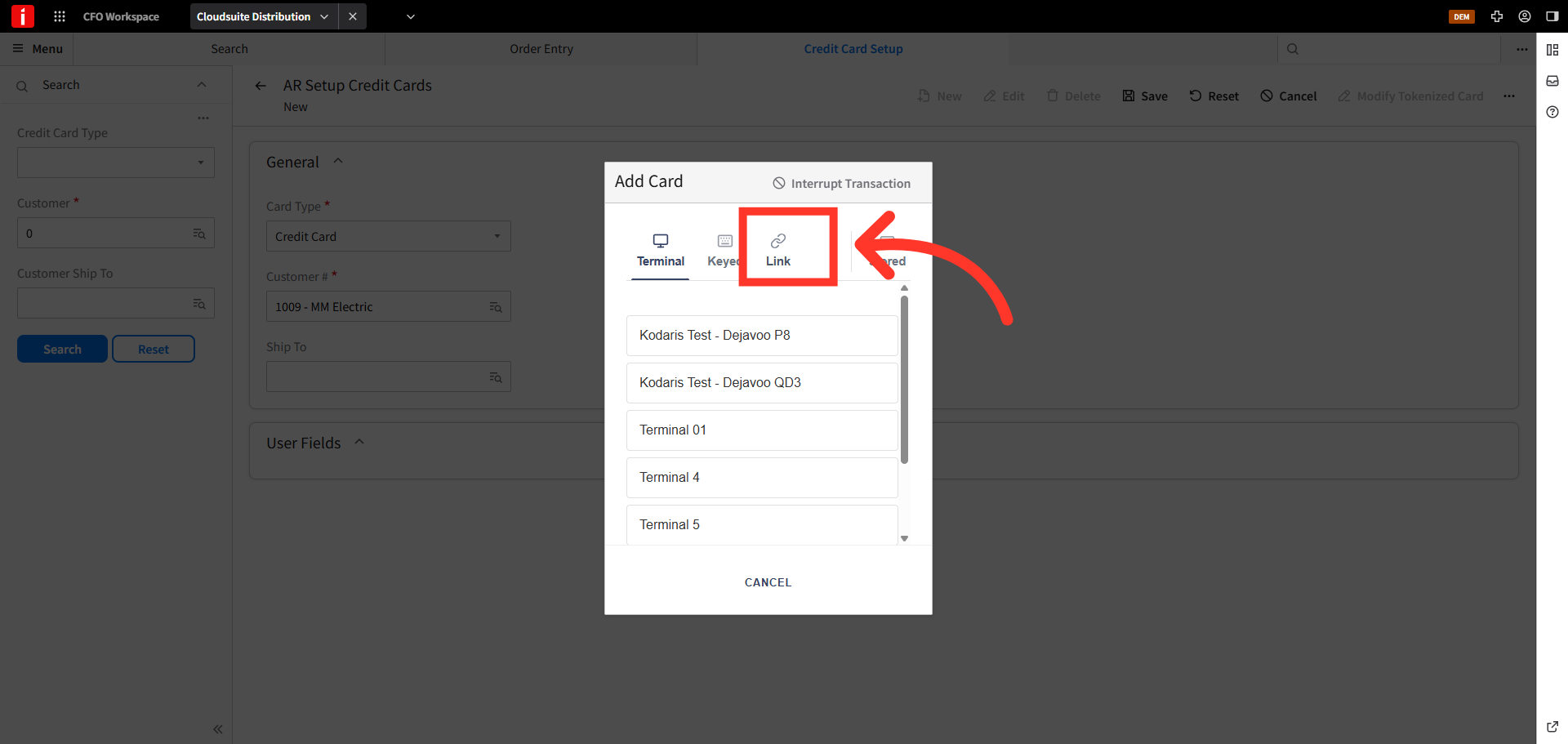
Click "Link"
The "Add Card" dialog box will appear. Click the "Link" icon.
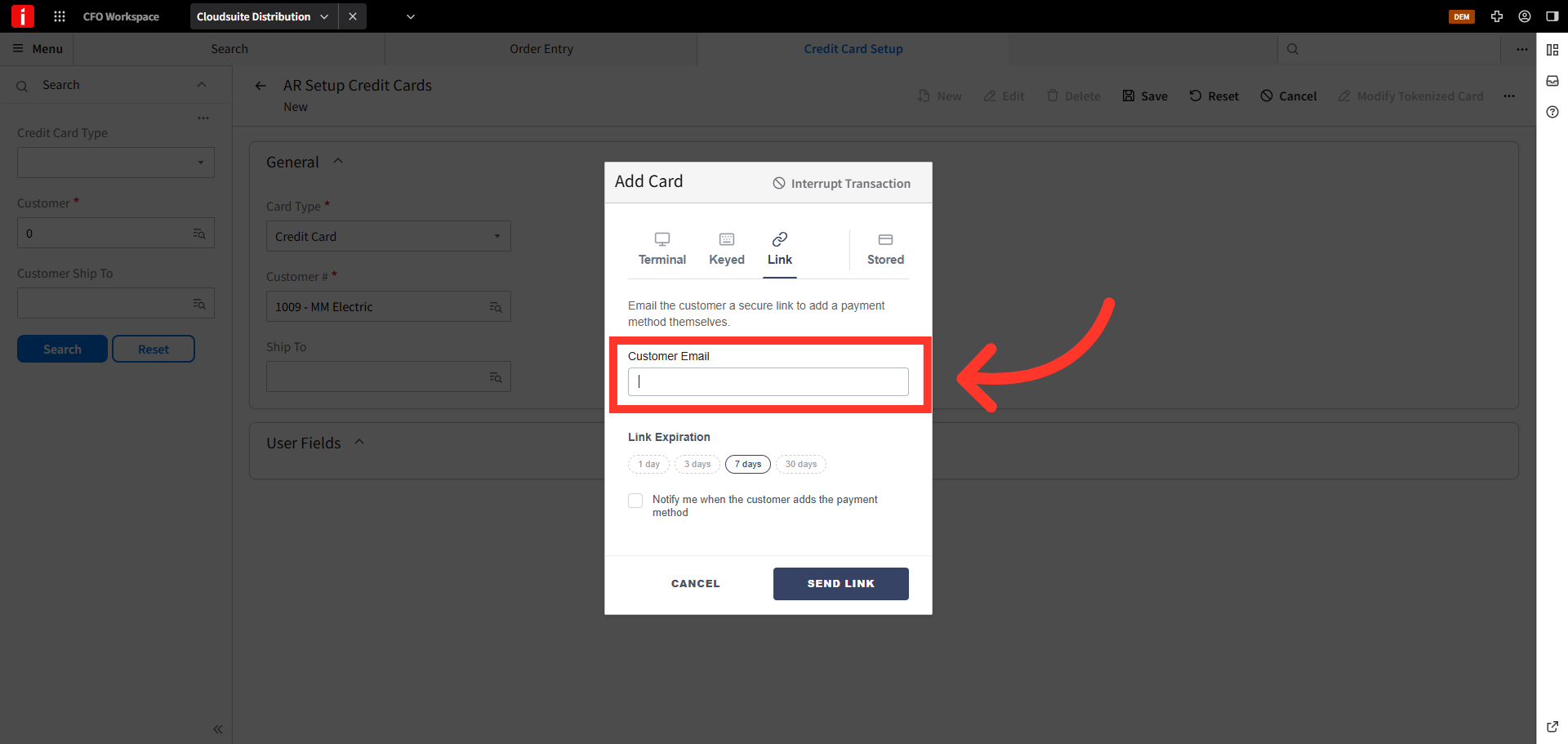
Enter Customer Email Address
In the "Customer Email" field, enter the email address you wish to send the link to.
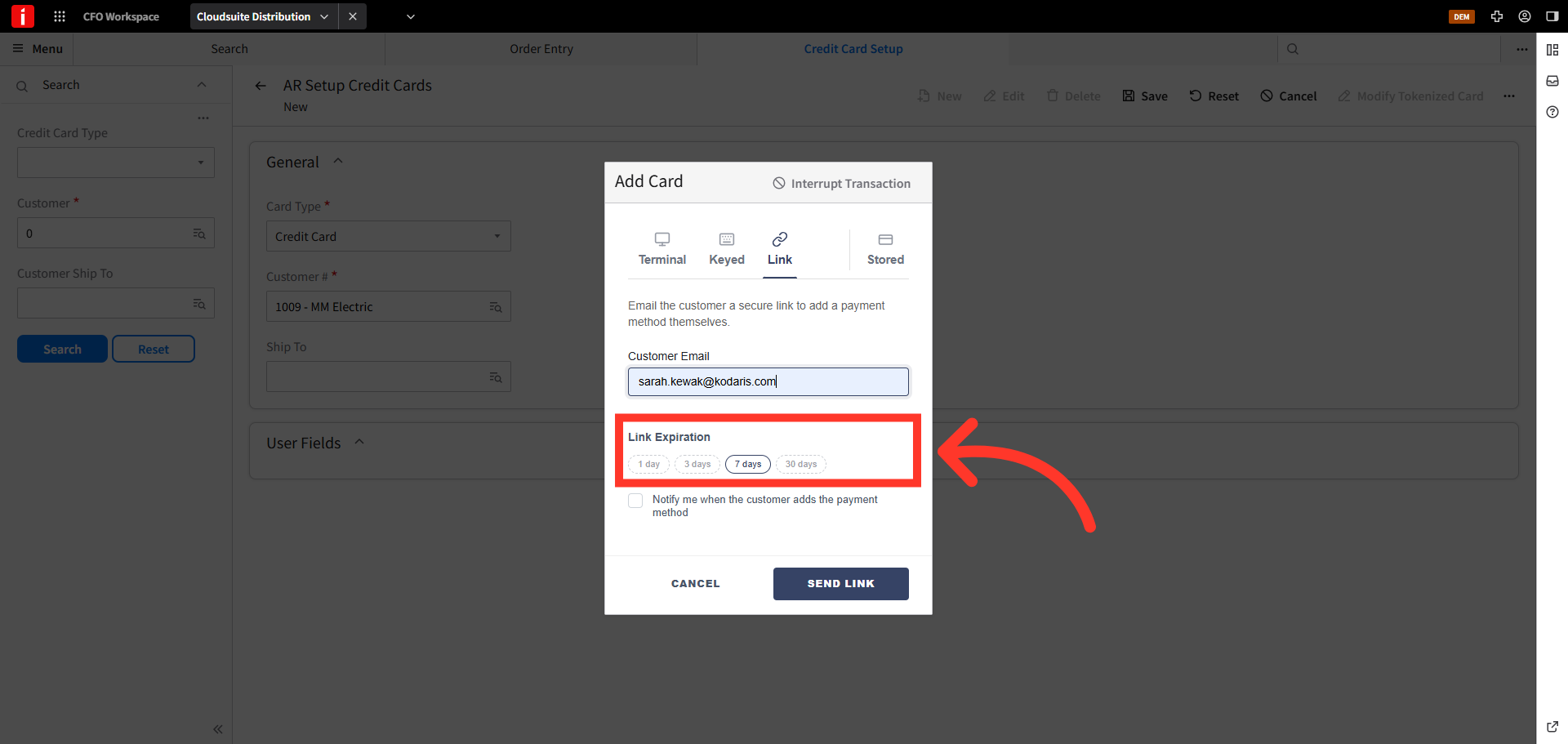
Link Expiration
In the "Link Expiration" section, the "7 days" button is selected by default. This is the number of days the link will be valid. Select your preferred option.
Enable Notification, if preferred
You can choose to be notified when the customer adds the payment method. Select the checkbox to enable this notification.
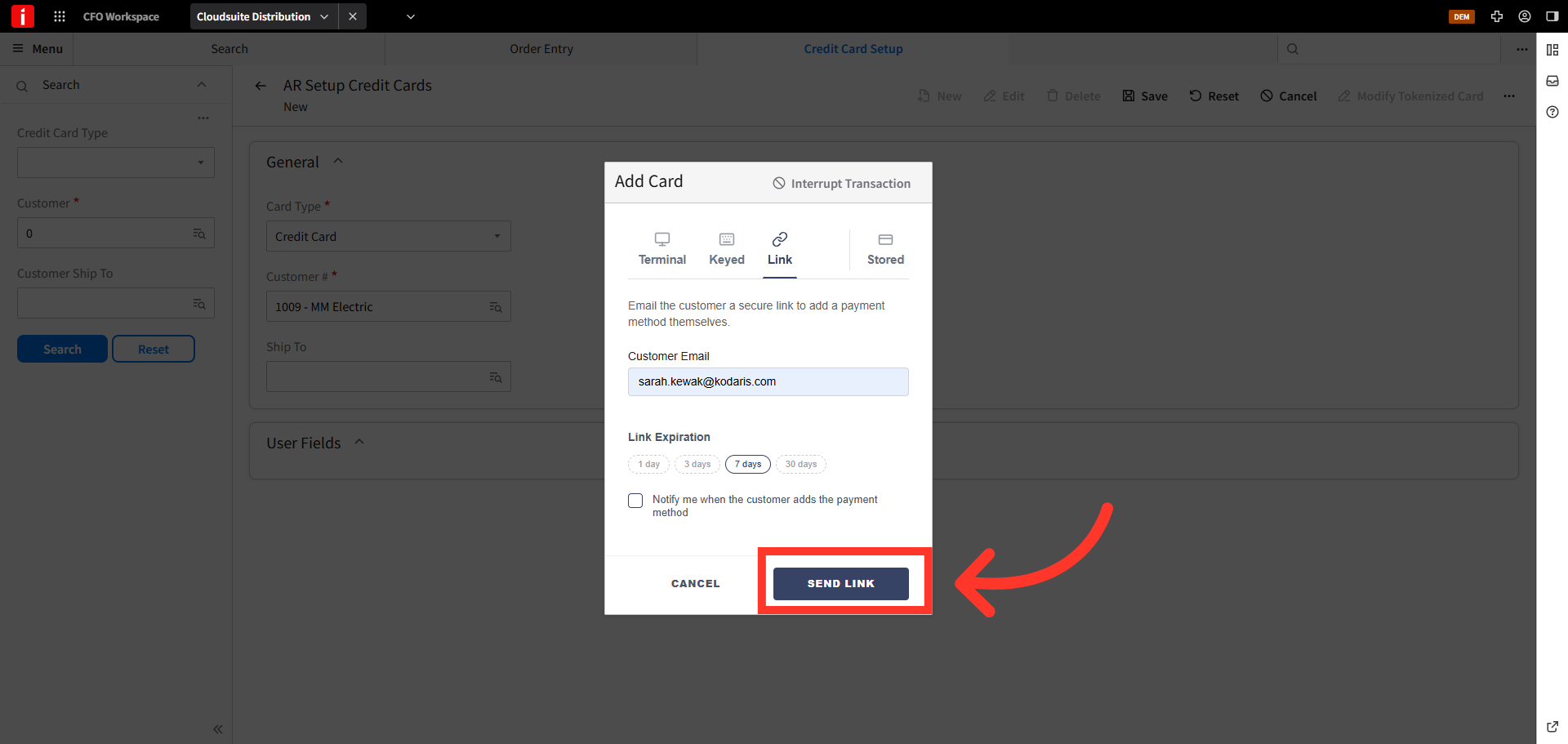
Click "Send Link"
Then, click "Send Link" to send the payment link to your customer.
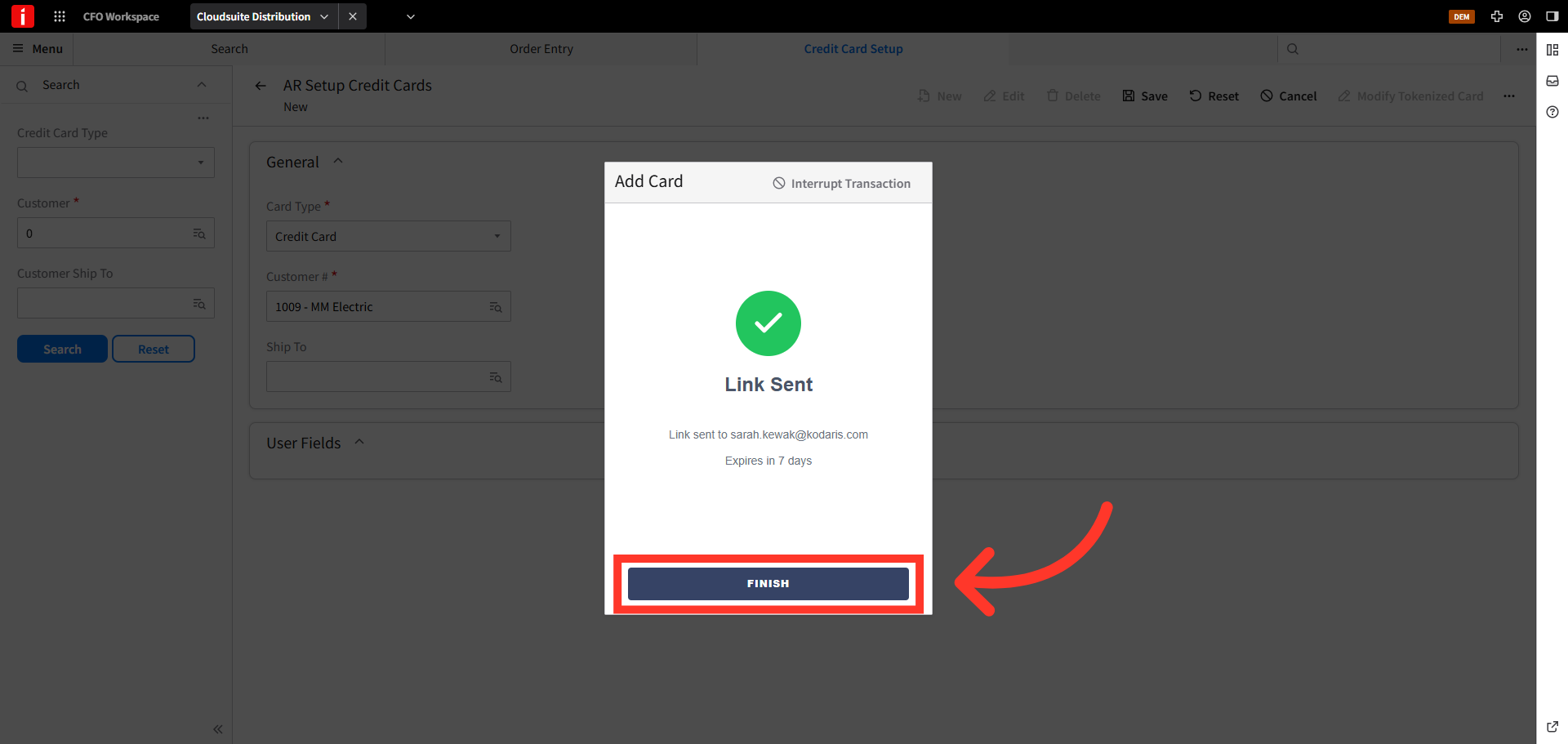
Click "Finish"
Next, click the "Finish" button to close the dialog box.
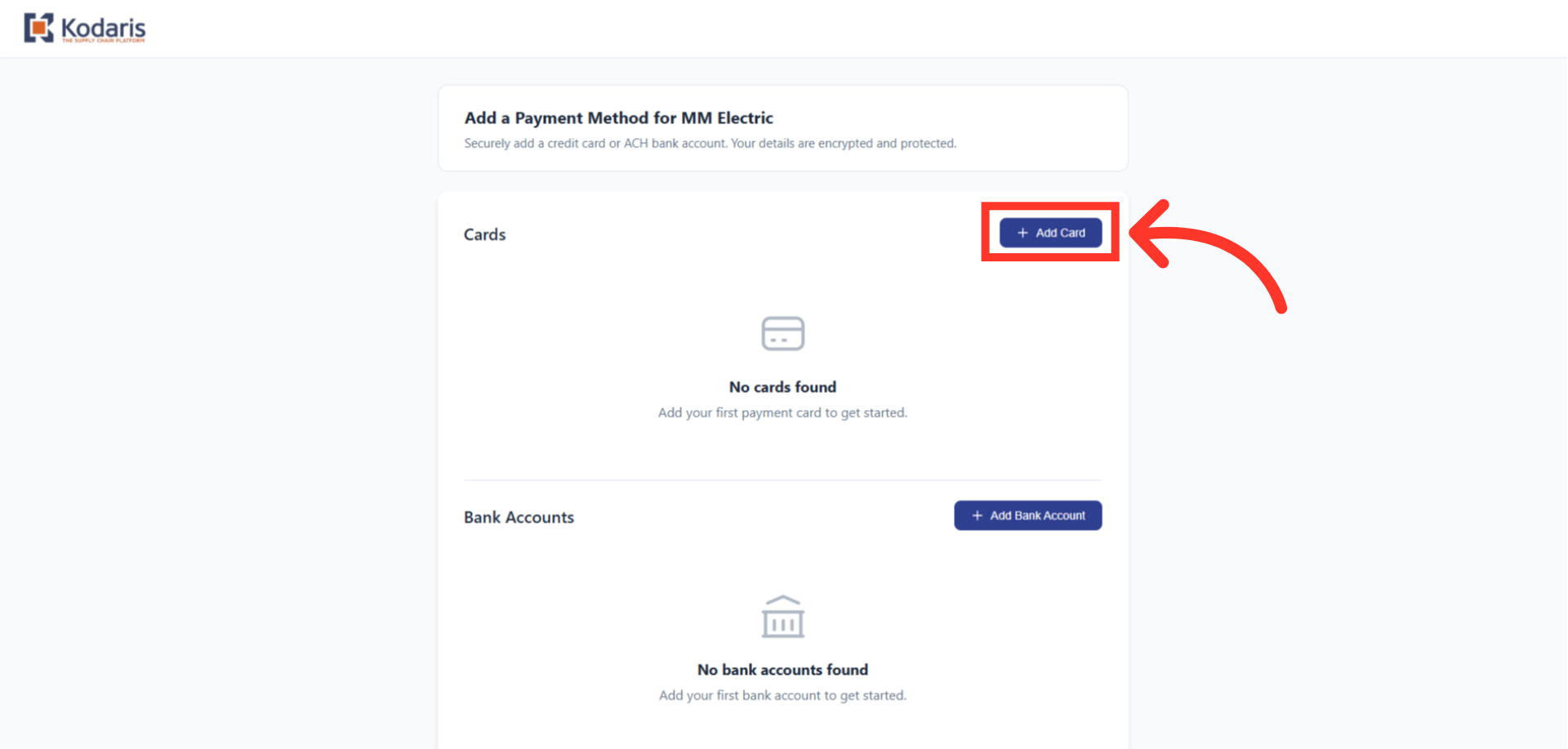
Add Payment Method
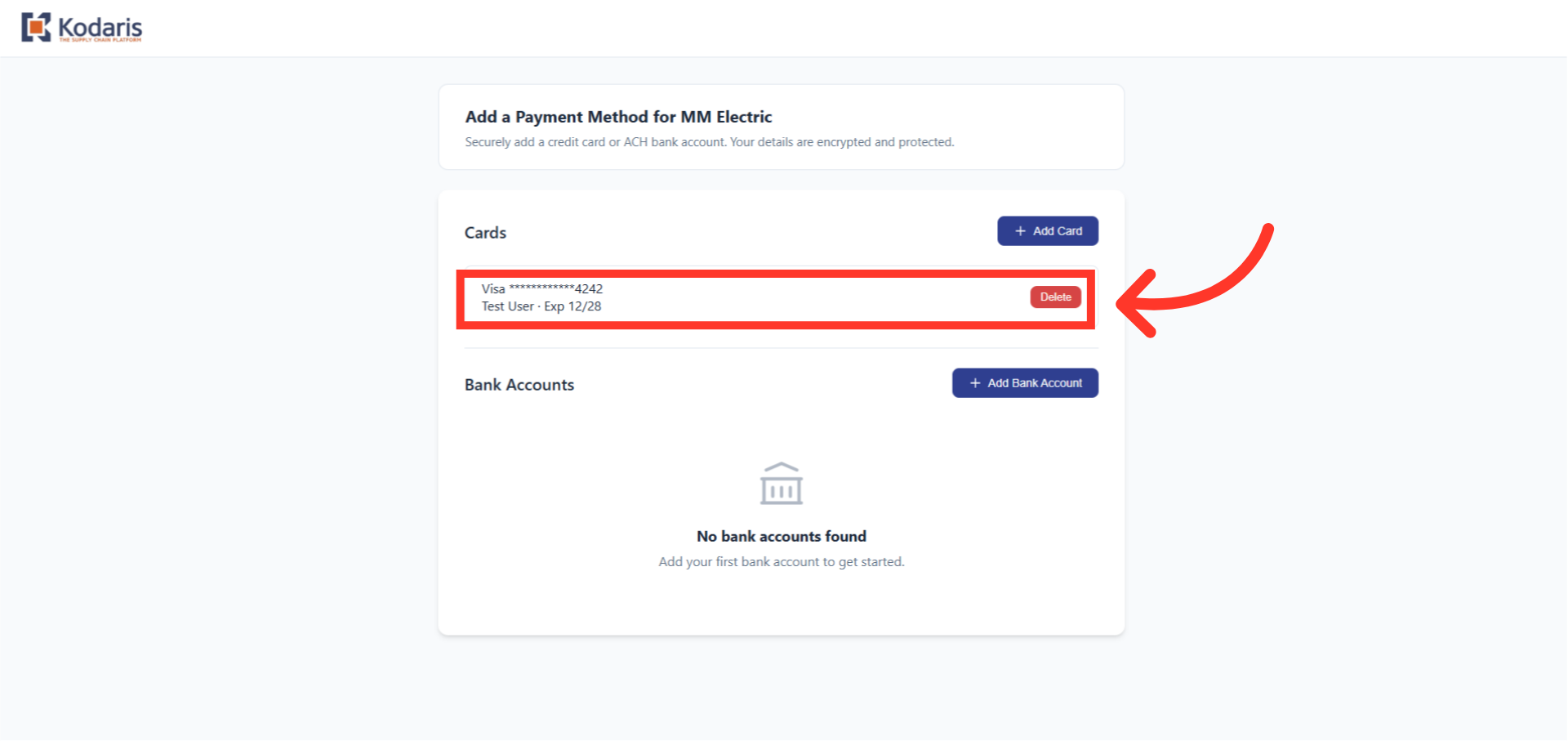
Once the customer clicks on the link received in the email, they will add their payment method. They can choose to add a credit card, or bank account. In this example we will add a credit card by clicking the "Add Card" button.
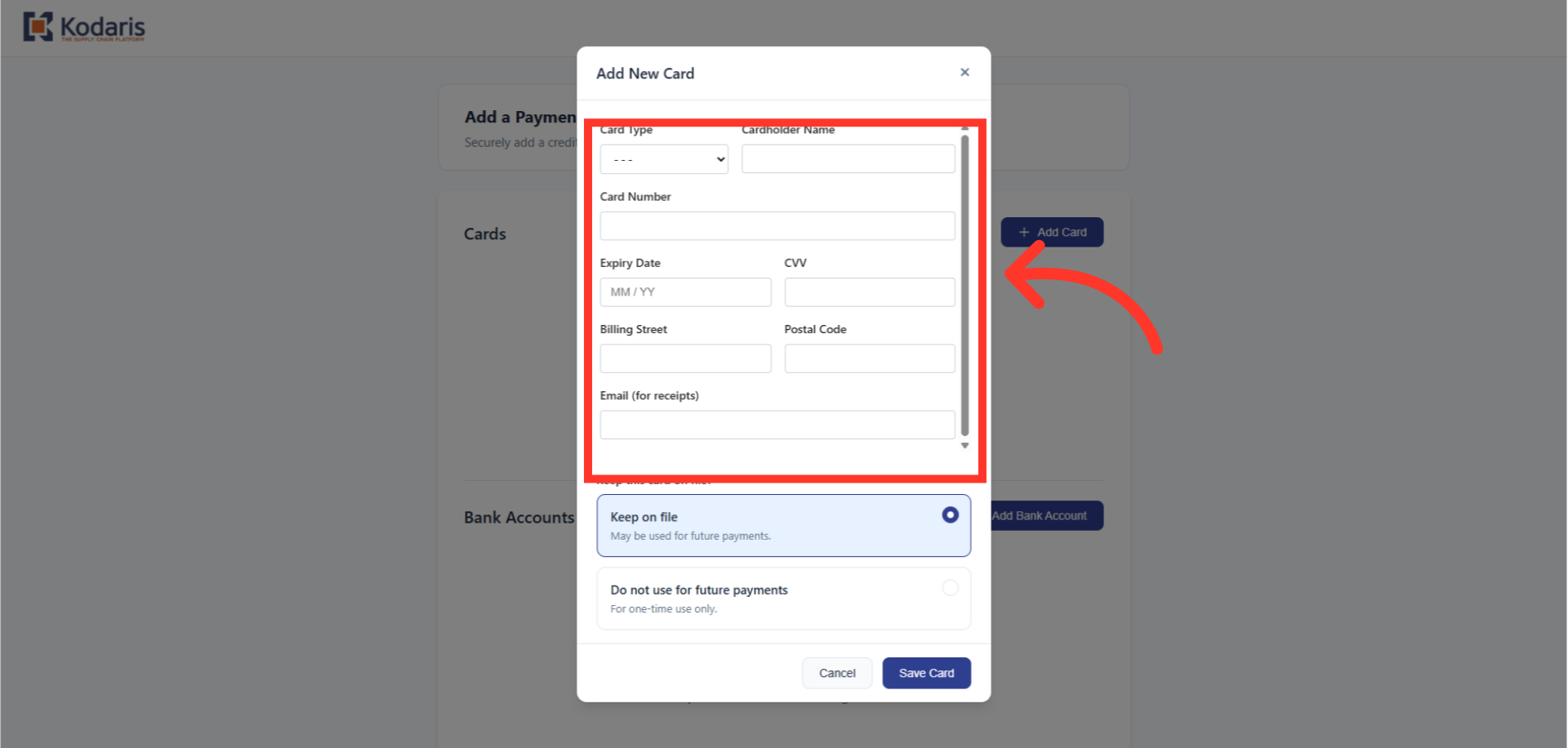
Add New Card Dialog Box
In the "Add New Card" dialog box, the customer will populate the credit card details and an email address for the receipt.
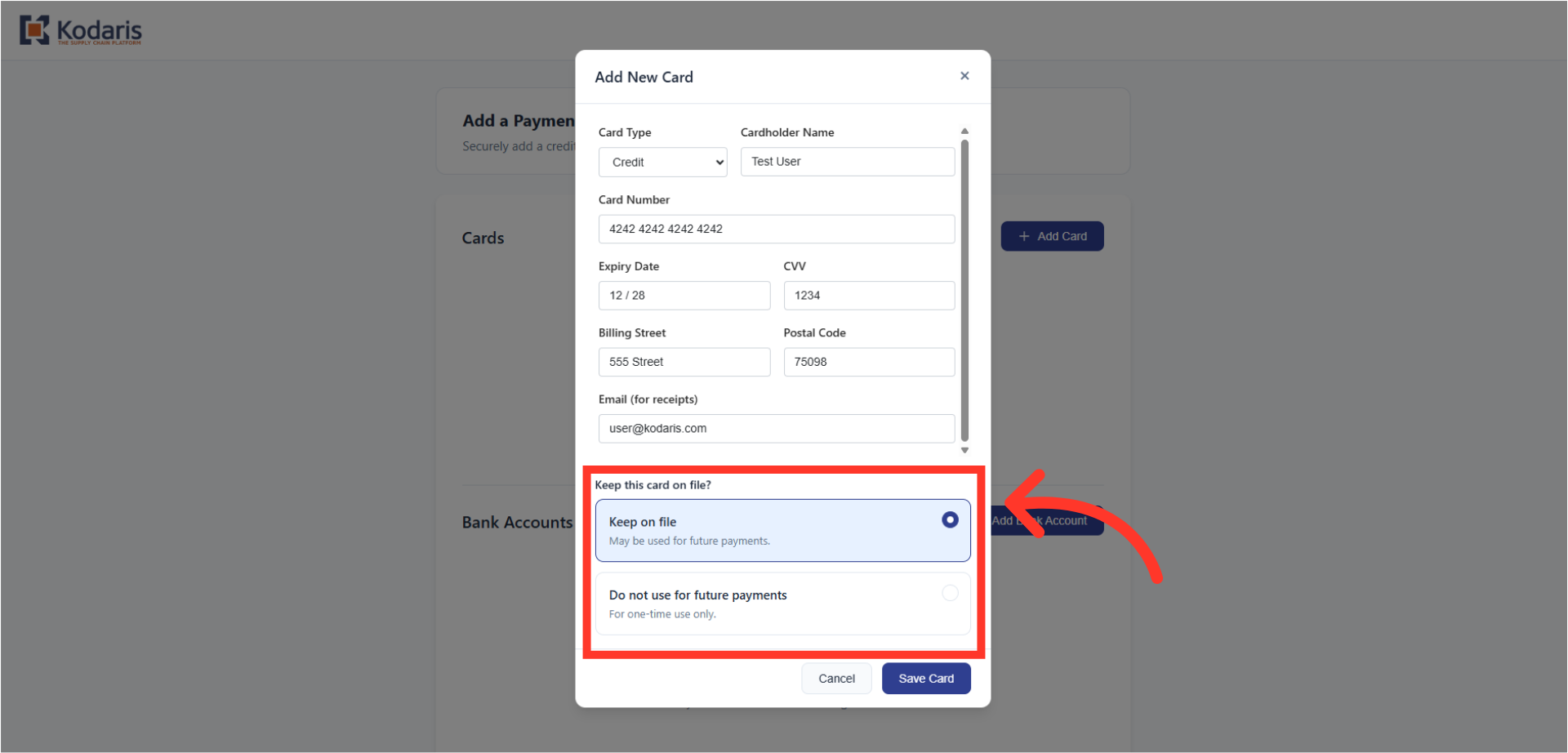
Choose to keep the payment method on file
The customer can choose to keep the payment method on file. If they do not wish to keep the payment method on file, they will choose "Do not use for future payments". In this example, we will select "Keep on file".
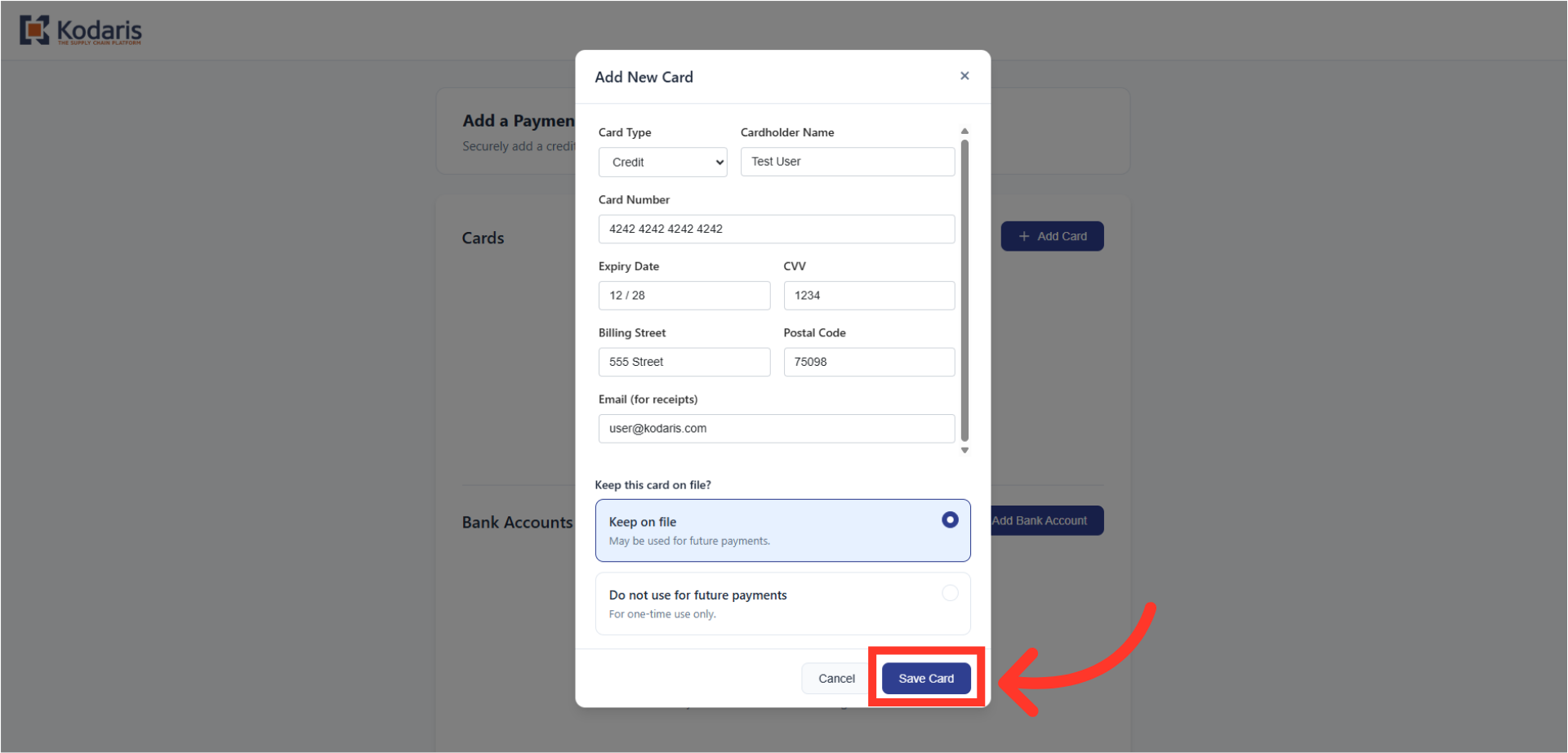
Click "Save Card"
Then, click the "Save Card" button.
Payment Method has been saved.
The payment method has been saved. The process can be repeated to add additional payment methods.