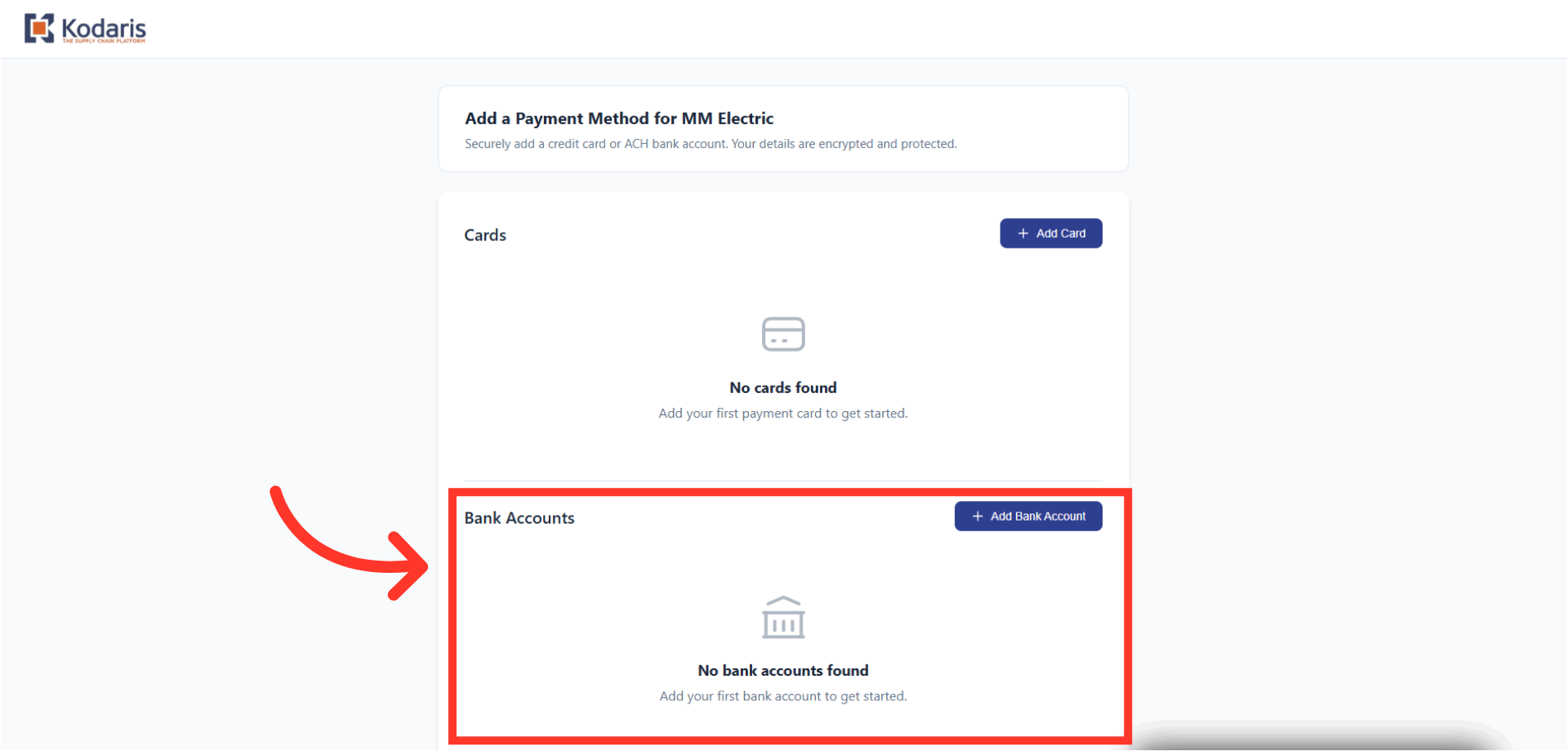
Vault a Payment Method (Customer Email)
Click "Add Payment Method"
Customers can securely add a credit card or bank account to pay for orders by utilizing a payment link sent to their email address. Once the email has been received, click the "Add Payment Method" button in the "Request for Payment Method" email.
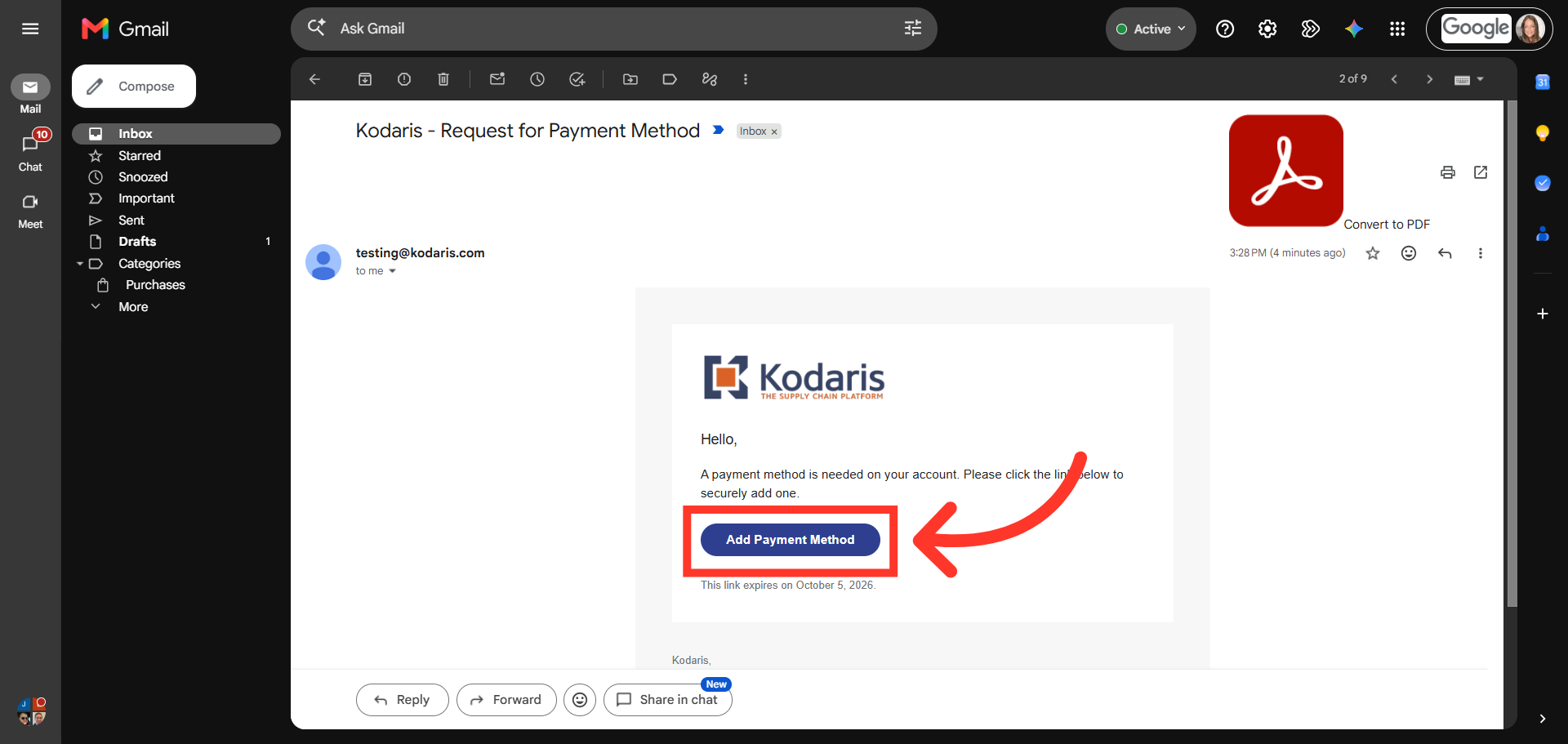
Click "Add Card"
Next, in the "Add a Payment Method" window, click "Add Card".
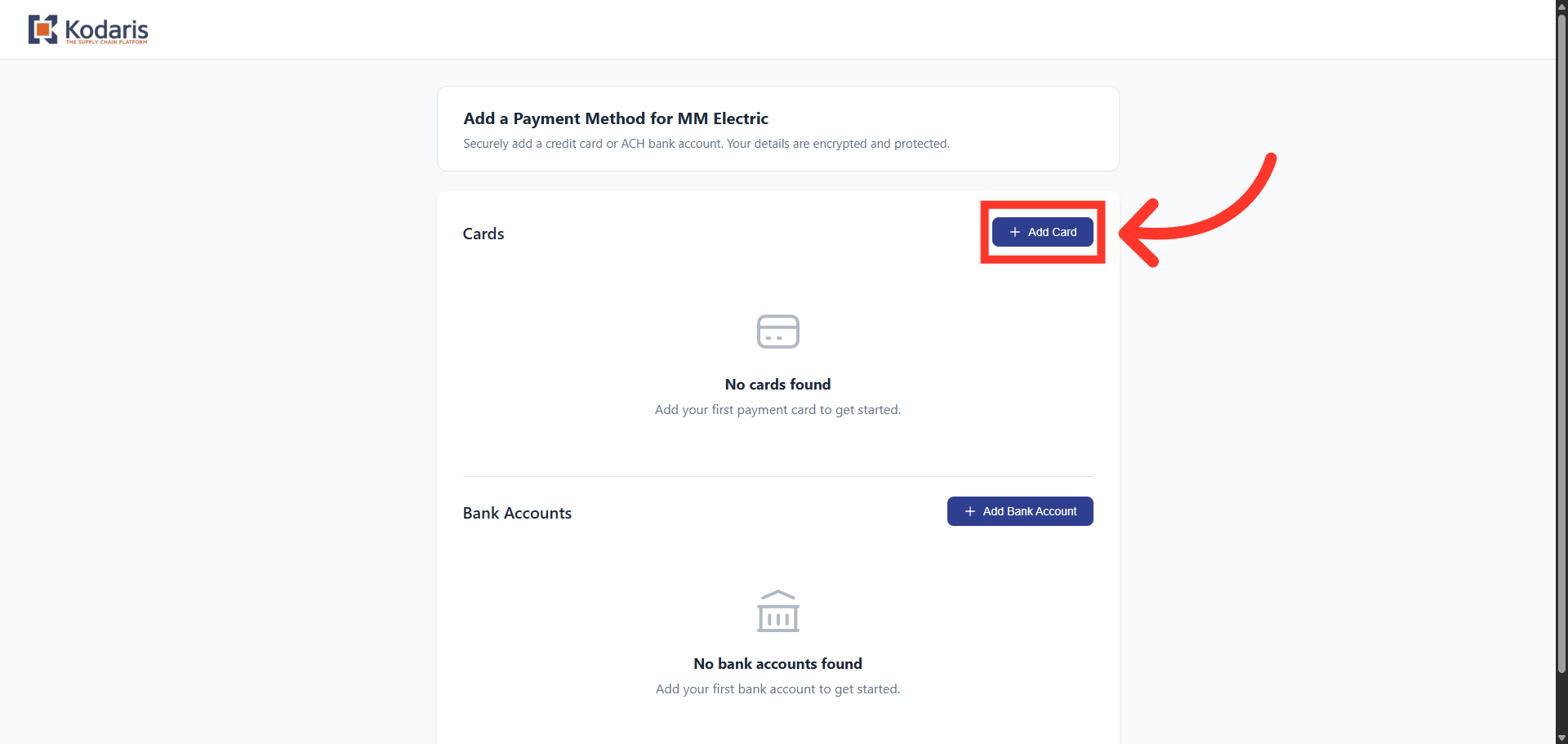
Enter Card Details
In the "Add New Card" dialog box, enter the credit card details such as Card Type, Cardholder Name, Expiration Date, CVV Code, and Billing Address.
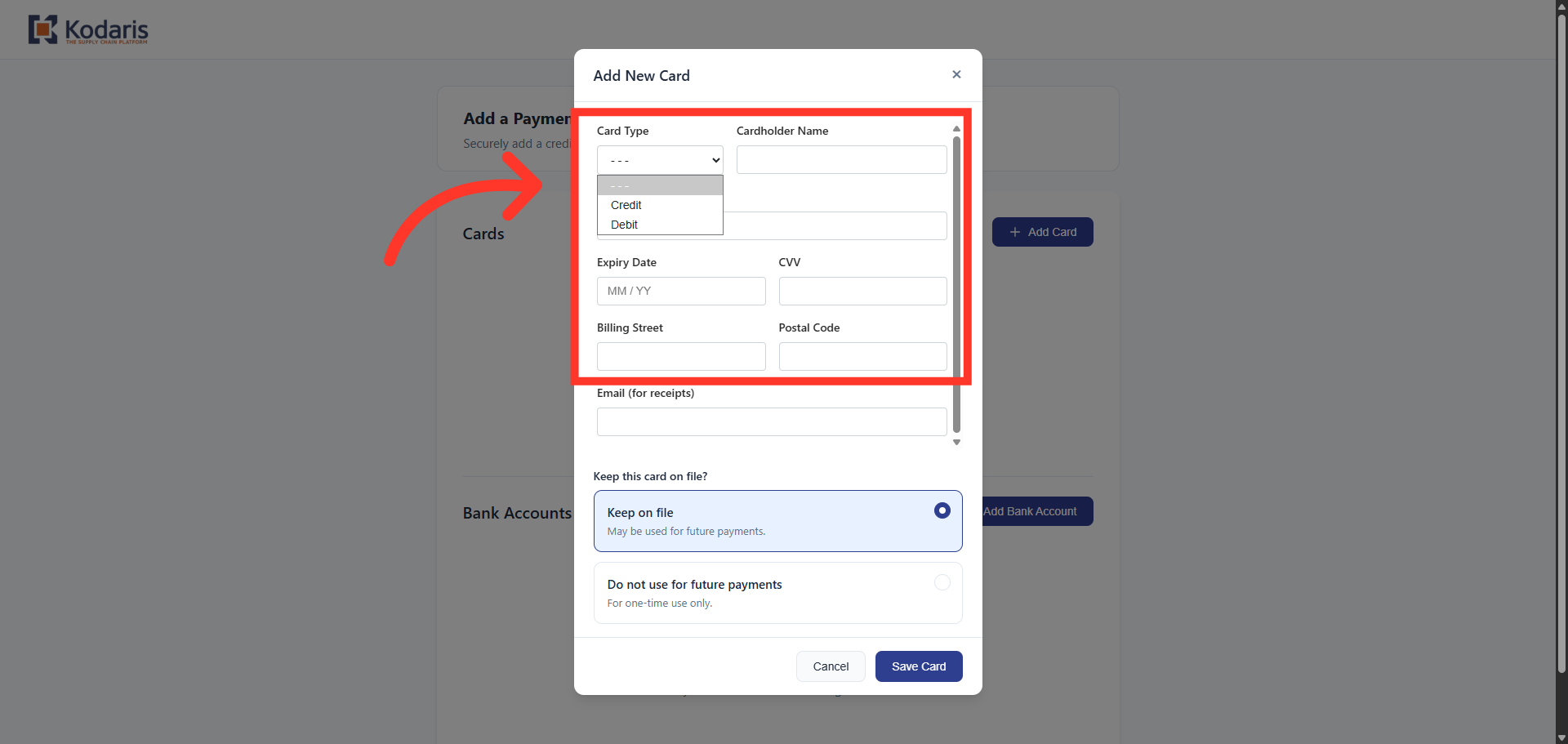
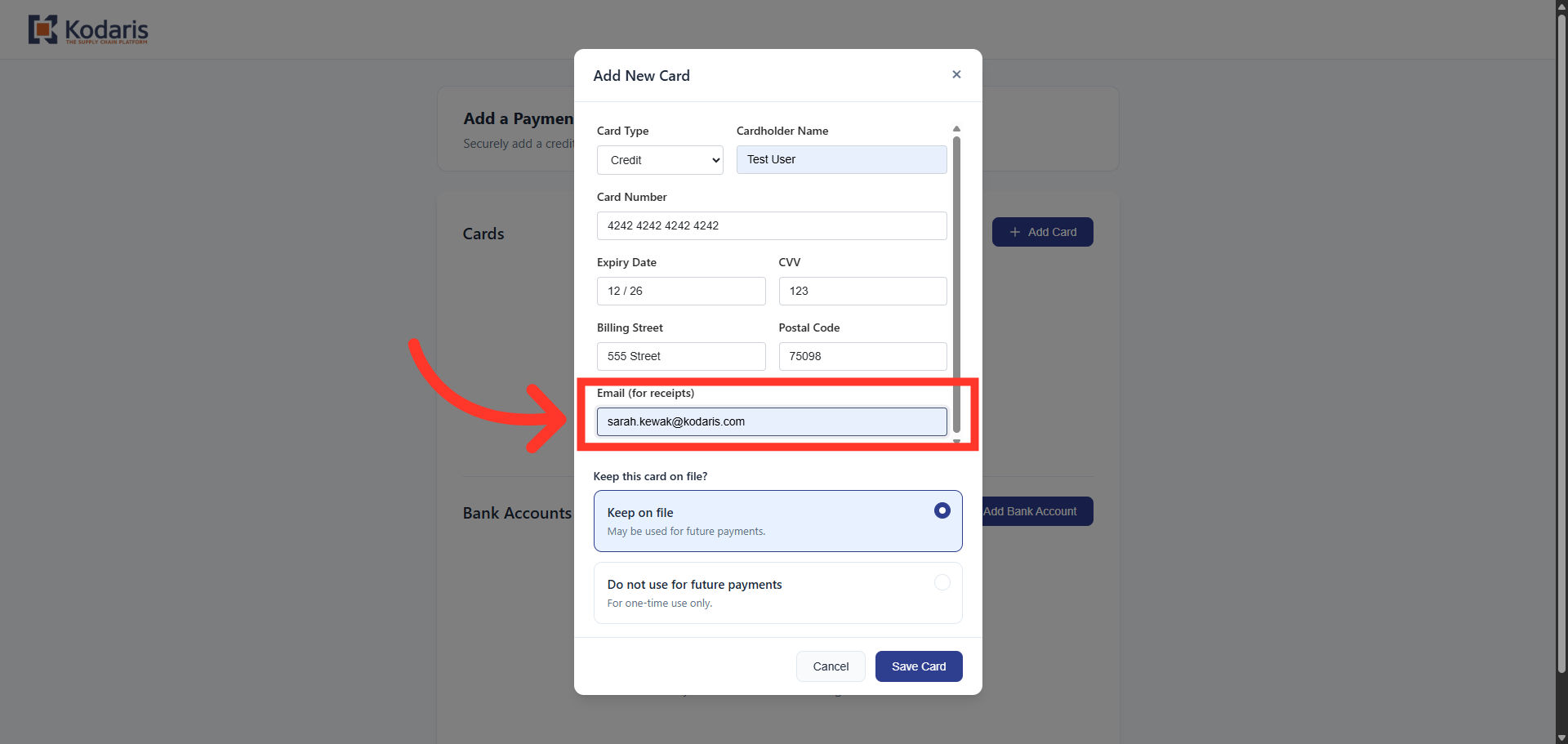
Enter Email Address
If you would like to receive an emailed receipt, enter your email address.
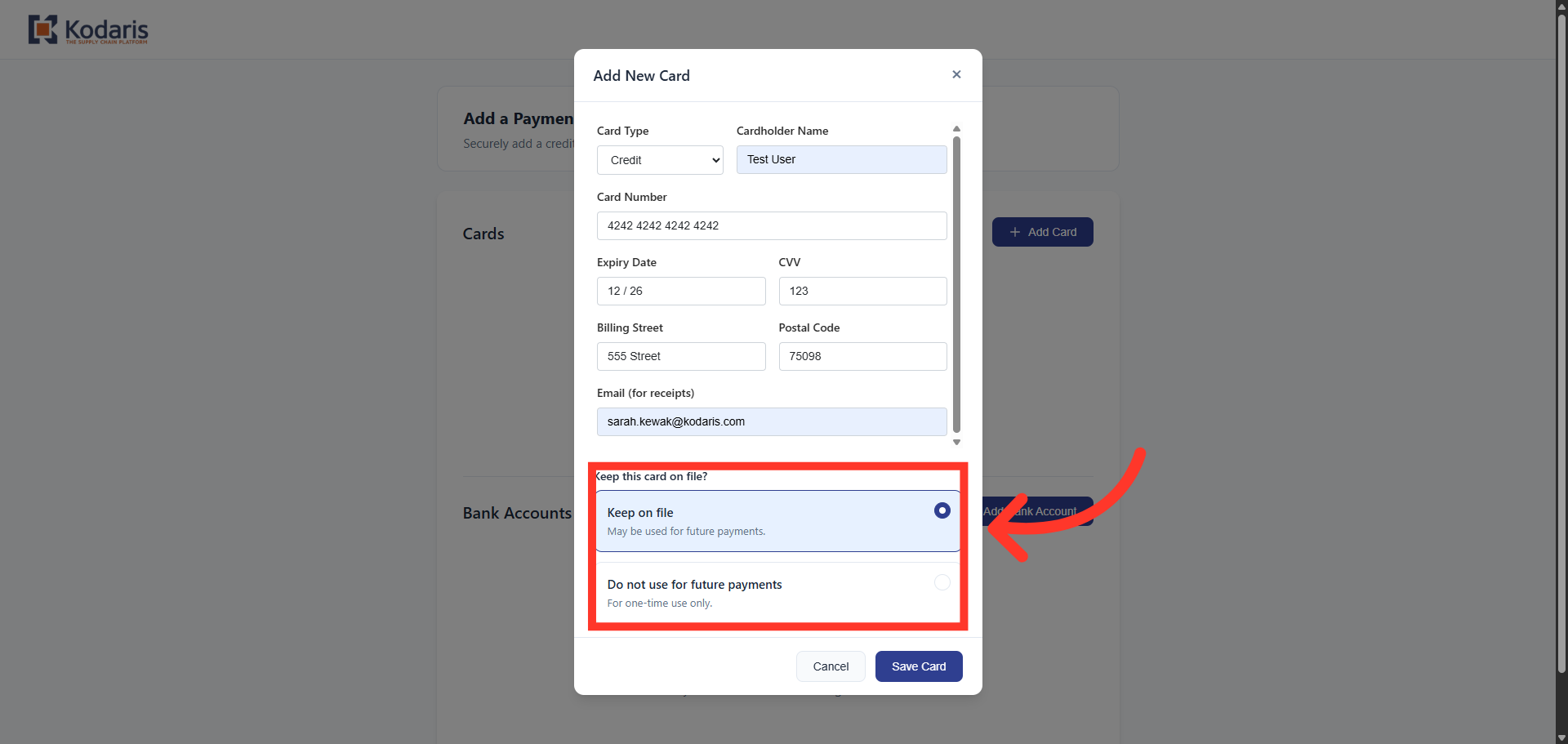
Select Retention Preference
To save the credit card for future orders, select "Keep on file." If you do not want to save the card, select the "Do not use for future payments" option. In this example we will choose the "Keep on file" option.
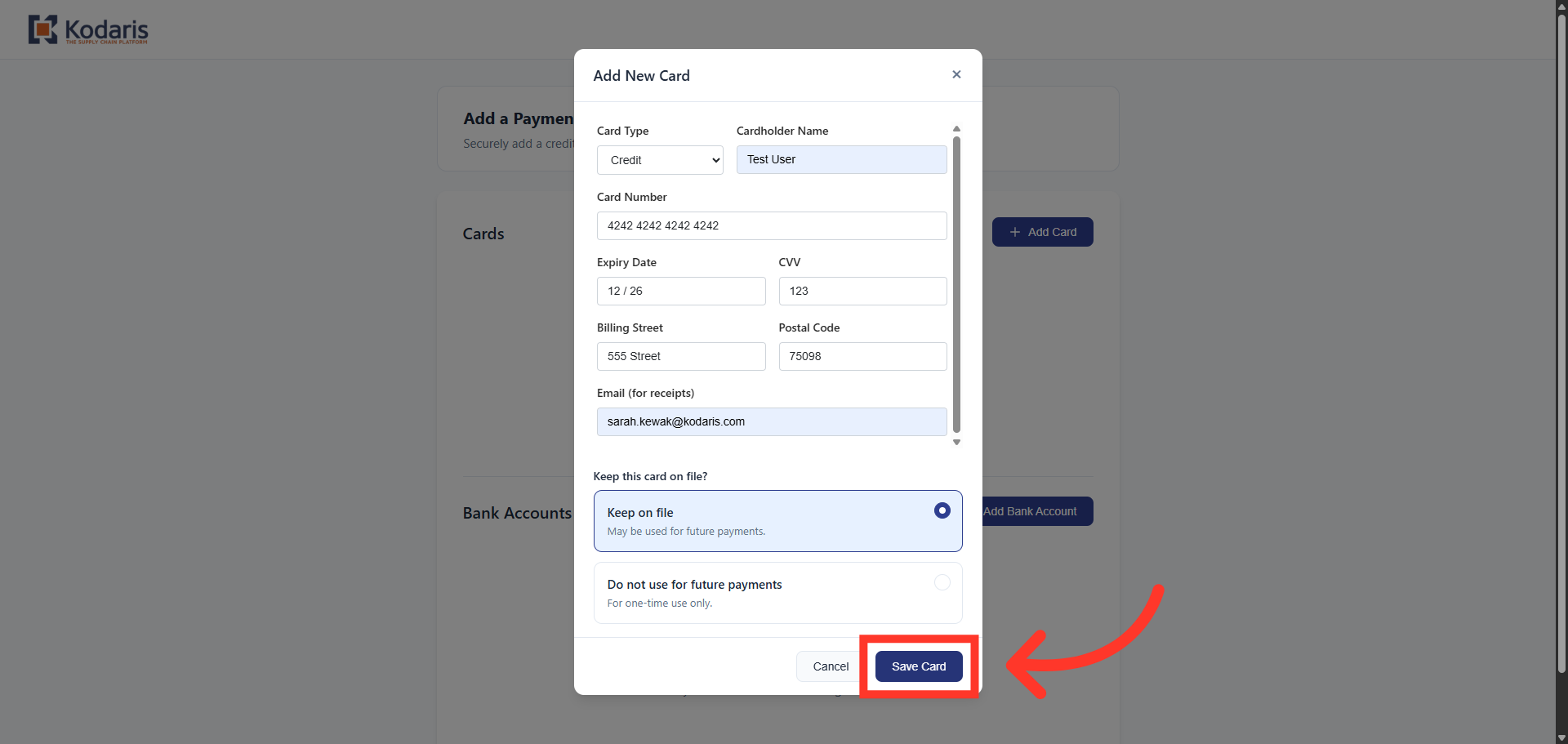
Click "Save Card"
Then, click "Save Card".
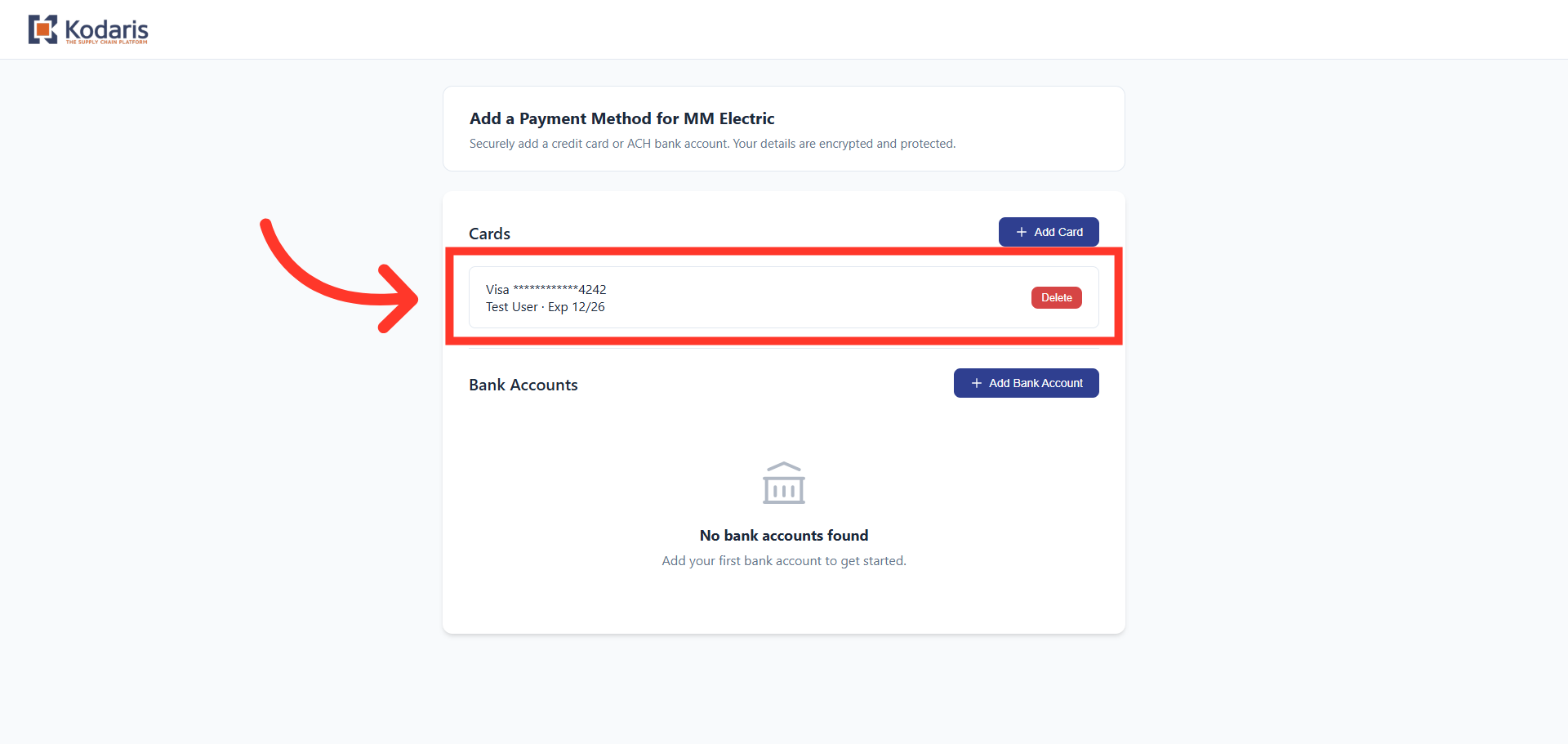
Confirm card has been added
The card has been saved.
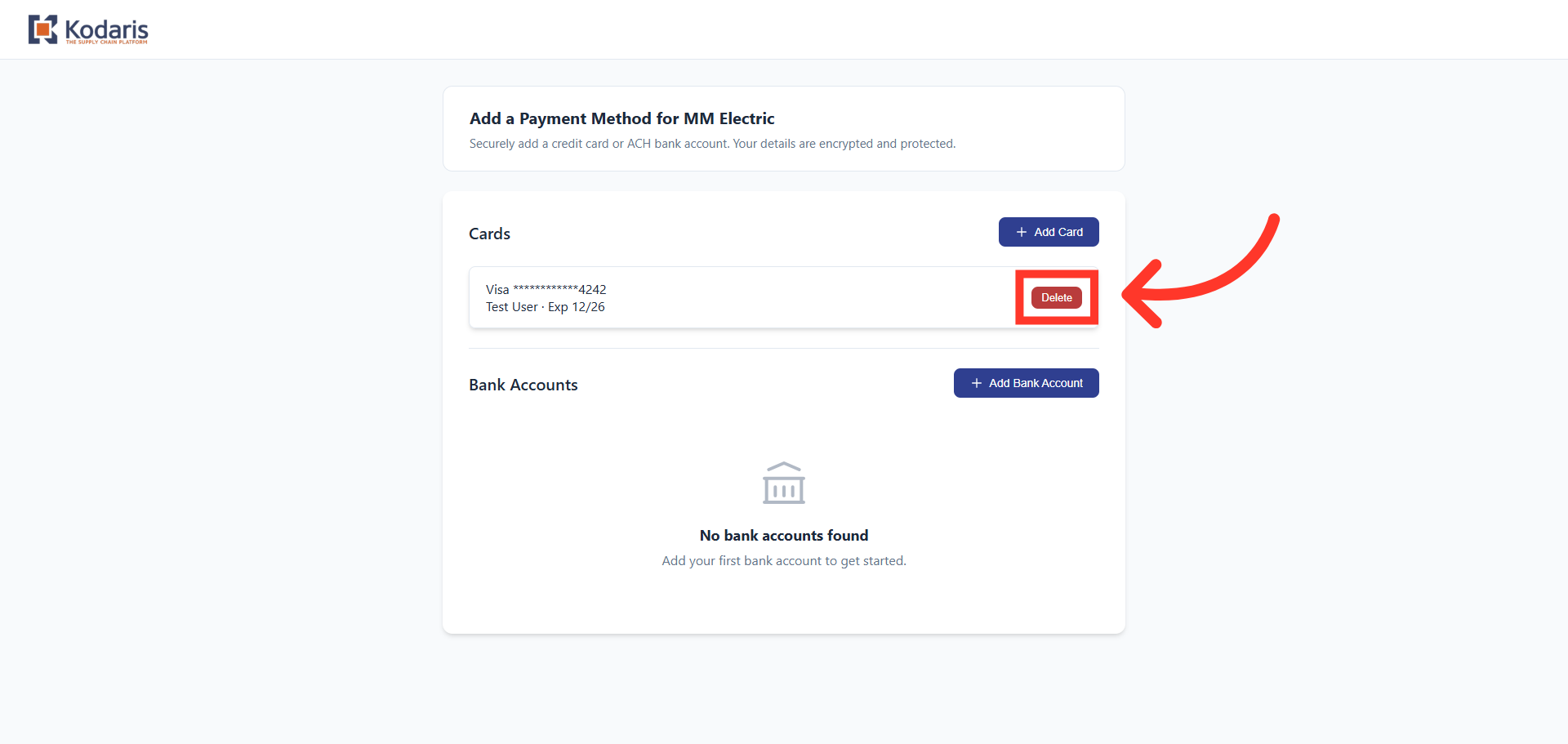
"Delete" button
You can delete the saved card, by clicking the "Delete" button on the payment method you wish to remove.
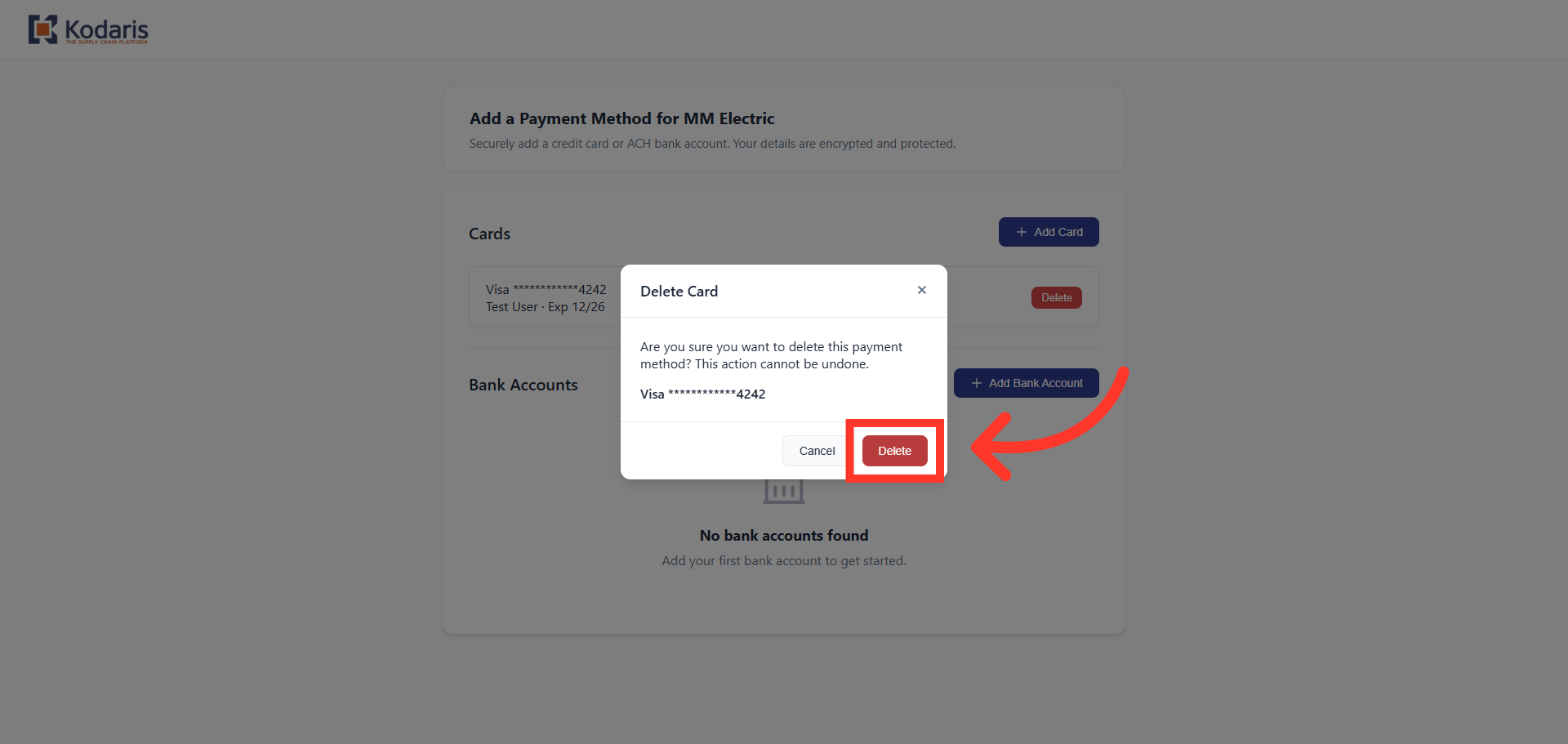
Confirm deletion
From the "Delete Card" dialog box, click the "Delete" button to confirm the action. Note: This action cannot be undone.
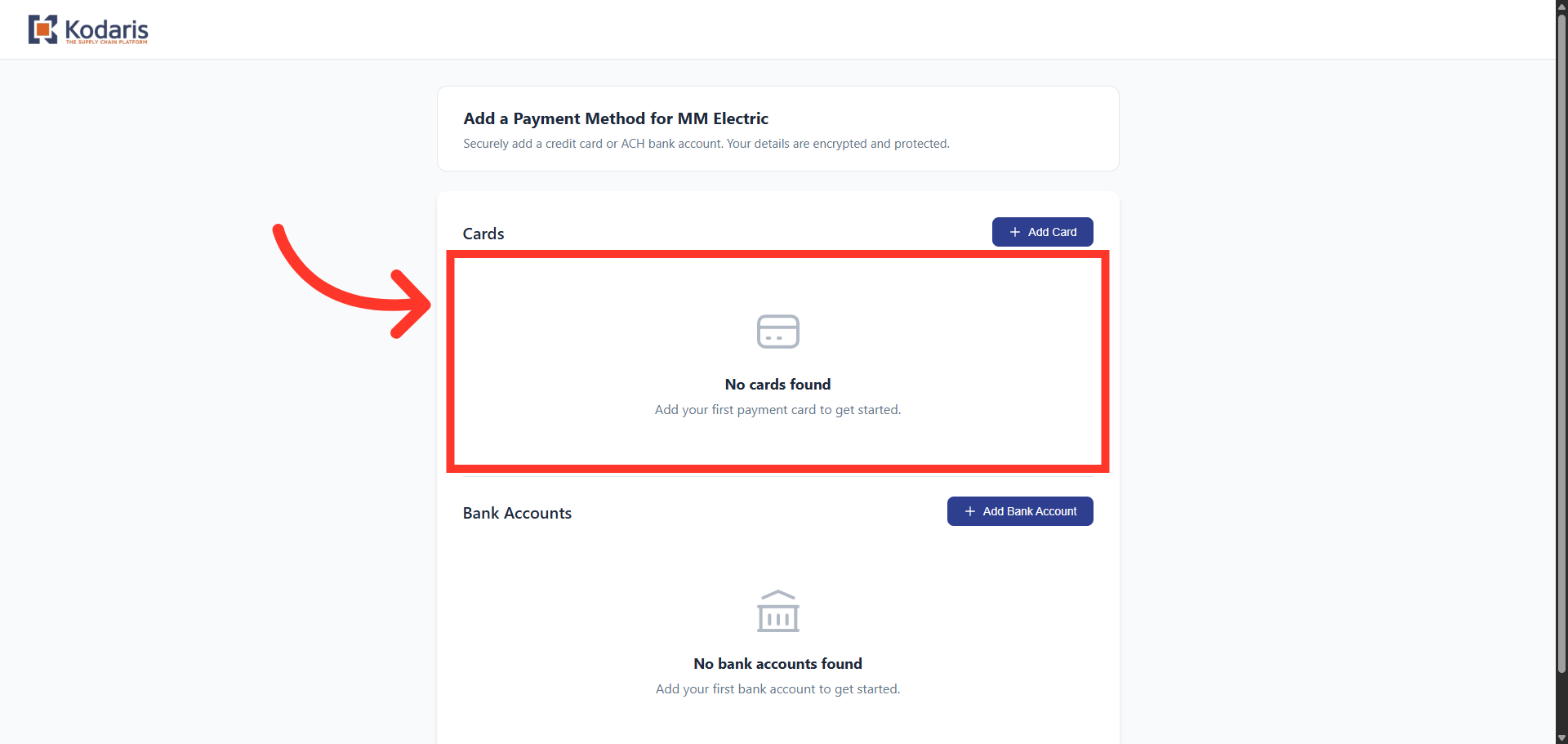
Confirm card has been Removed
The credit card has been removed.
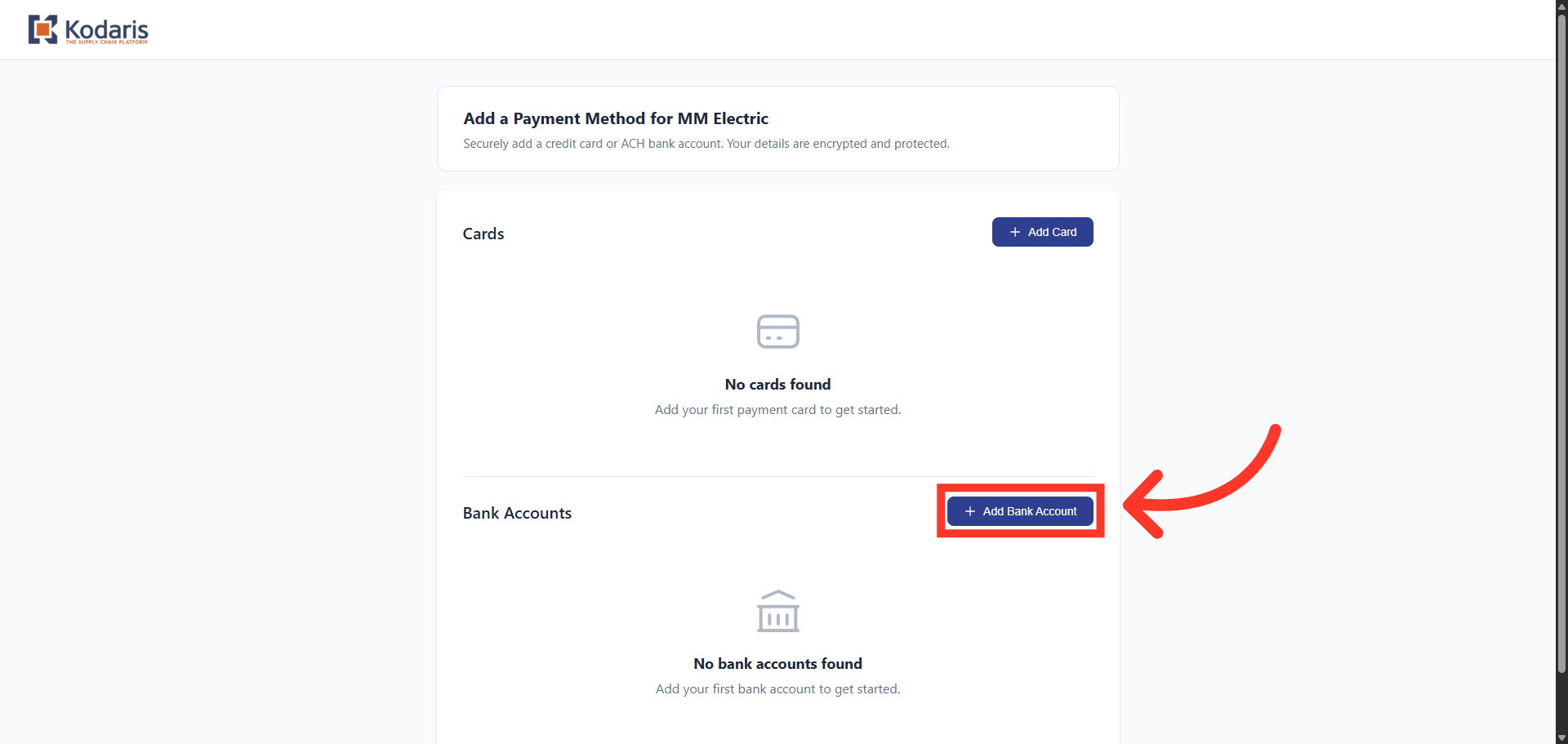
Click "Add Bank Account"
You can also add a bank account as a payment method. In the Bank Accounts section, click "Add Bank Account".
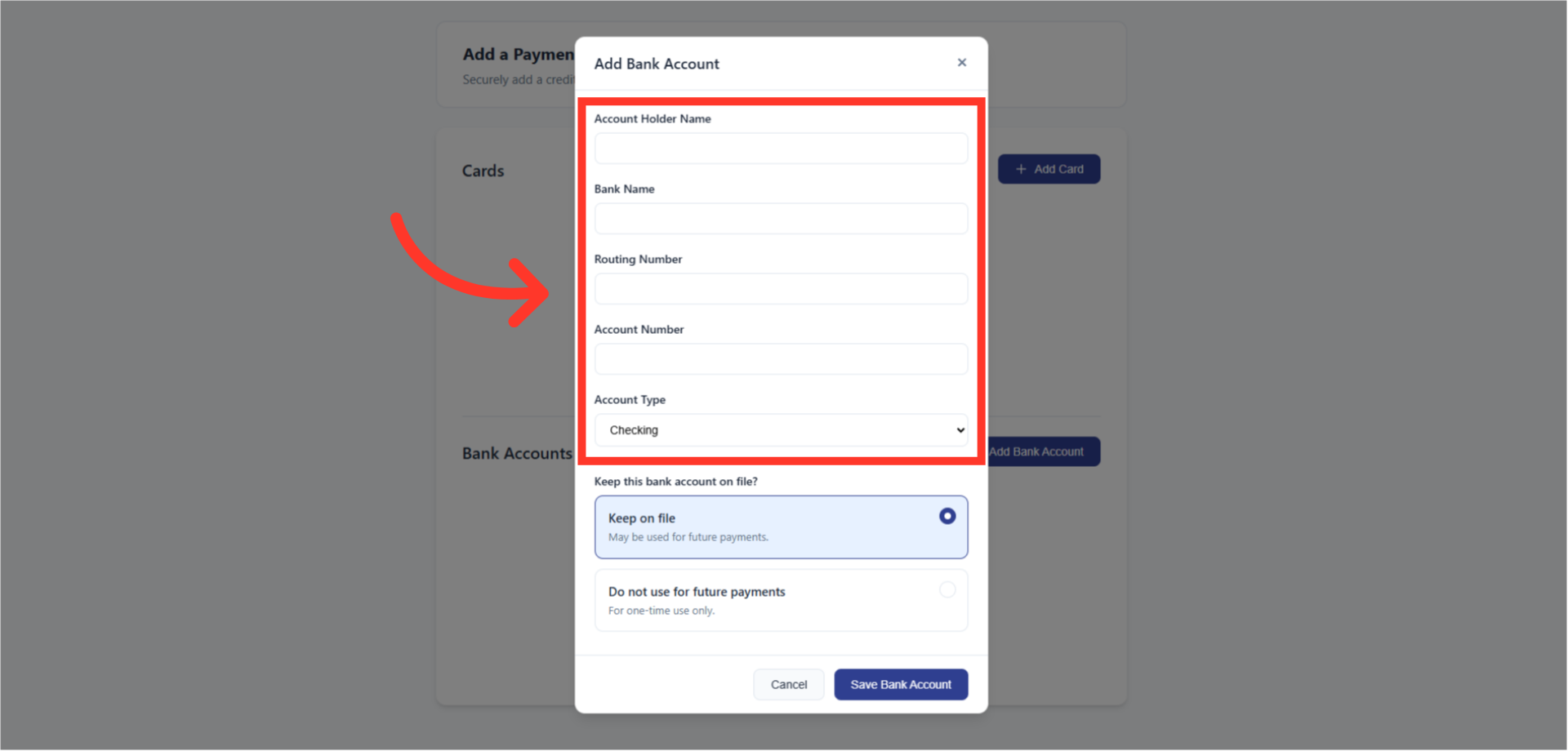
Enter Bank Account Details
Then populate the bank account details such as Account Holder Name, Bank Name, Routing and Account Number and Account Type.
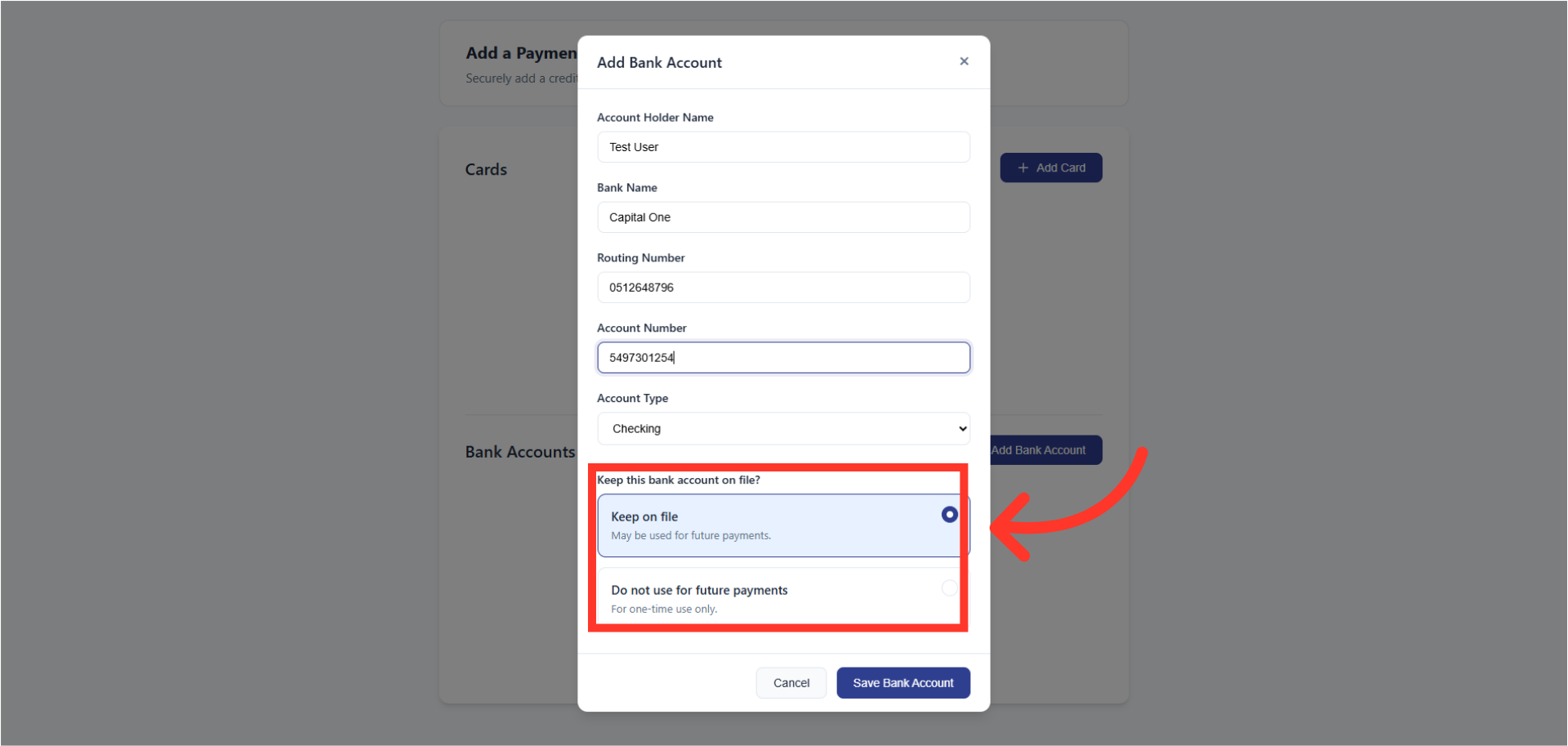
Select Retention Preference
To save the bank account payment method for future orders, select "Keep on file." If you do not want to save the account, select the "Do not use for future payments" option. In this example we will choose the "Keep on file" option.
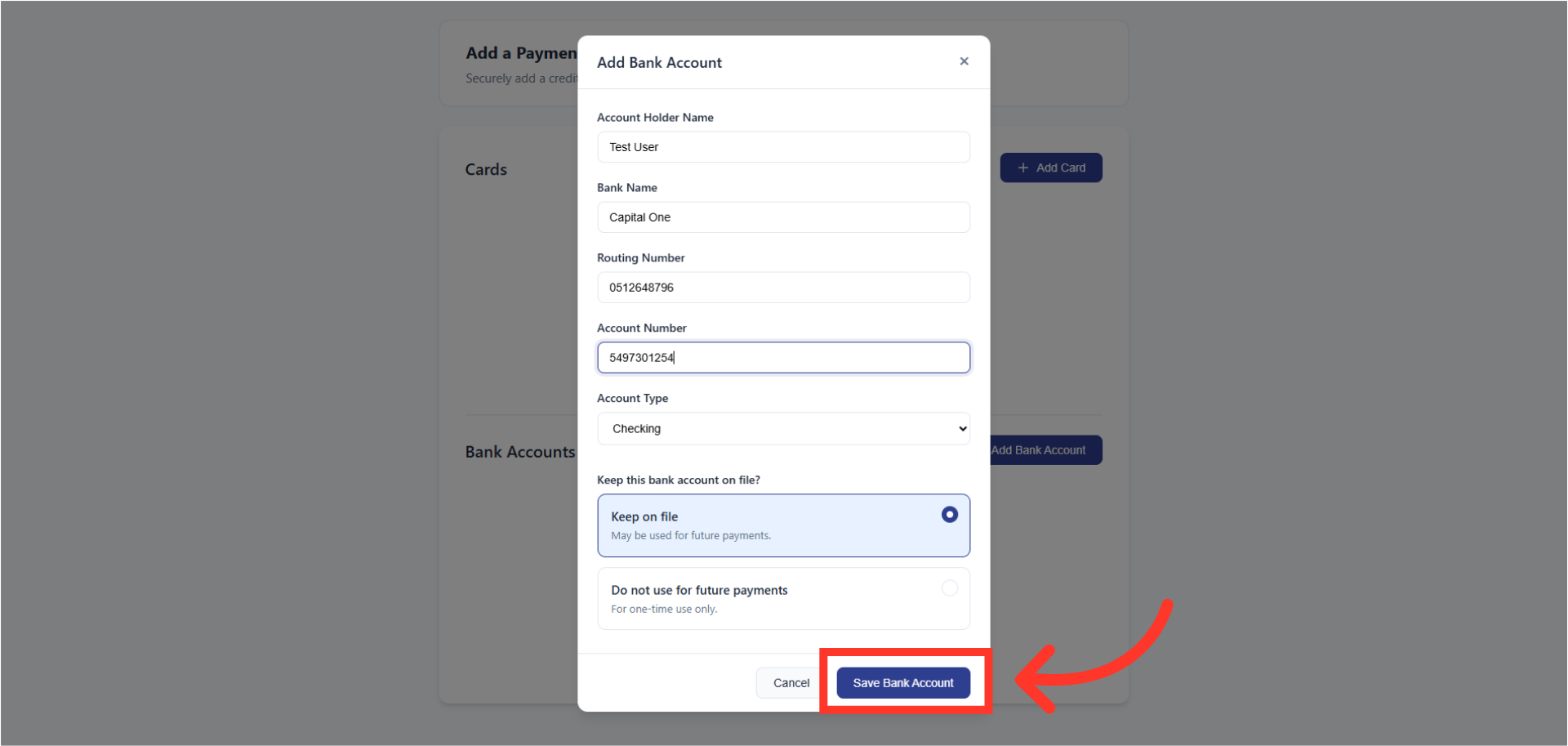
Click "Save Bank Account"
Finally, click "Save Bank Account".
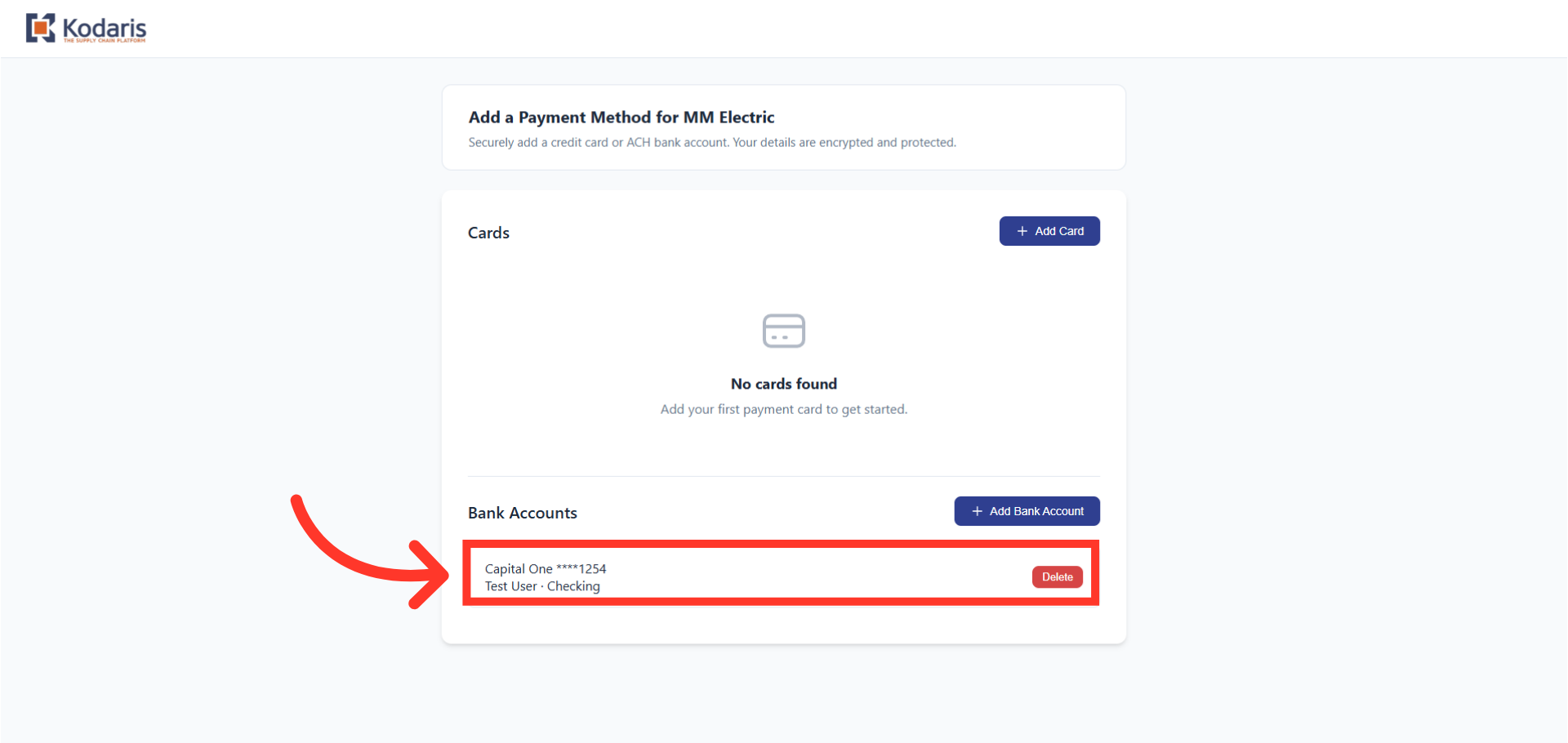
Confirm account has been added
The account has been saved.
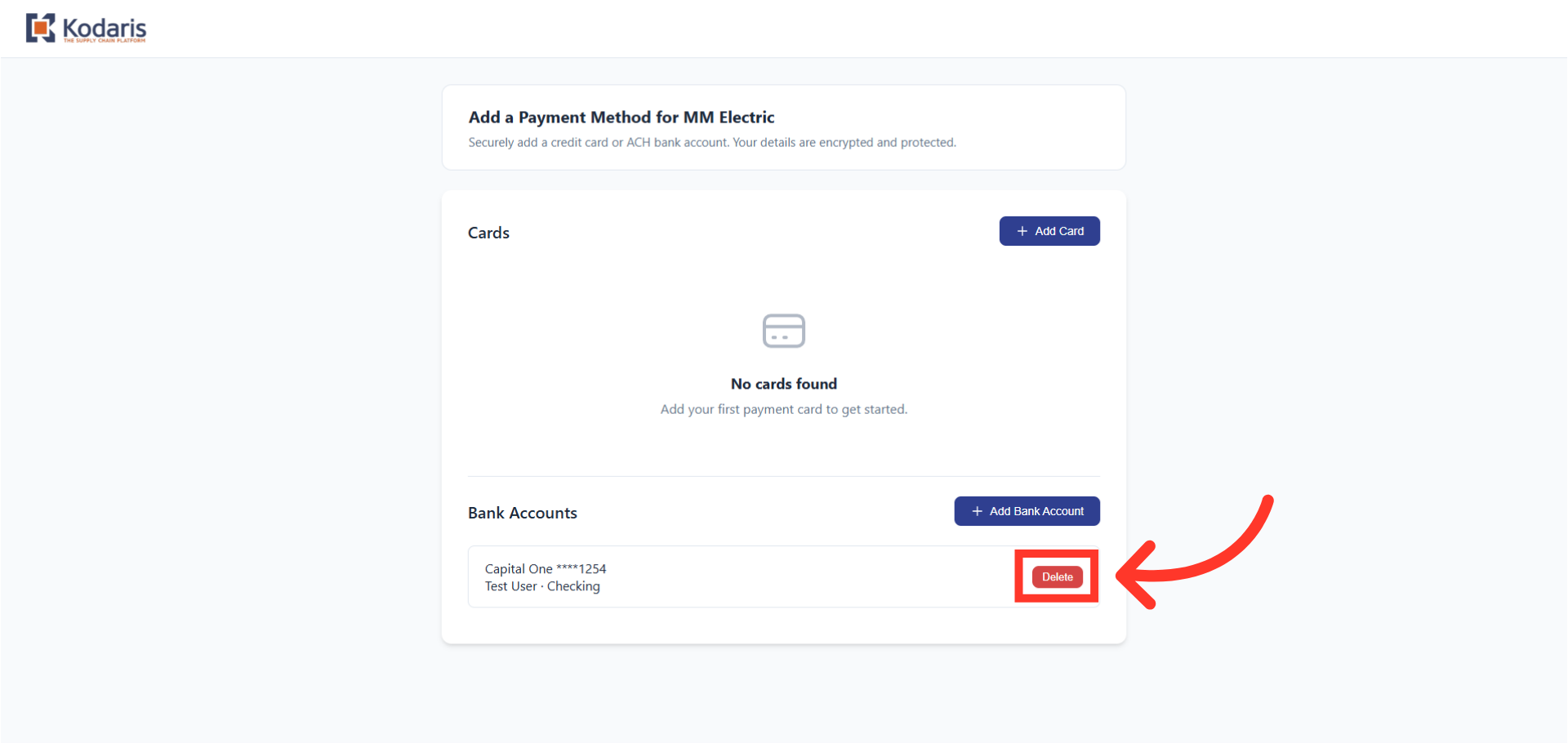
"Delete" button
You can delete the saved account, by clicking the "Delete" button on the accountyou wish to remove.
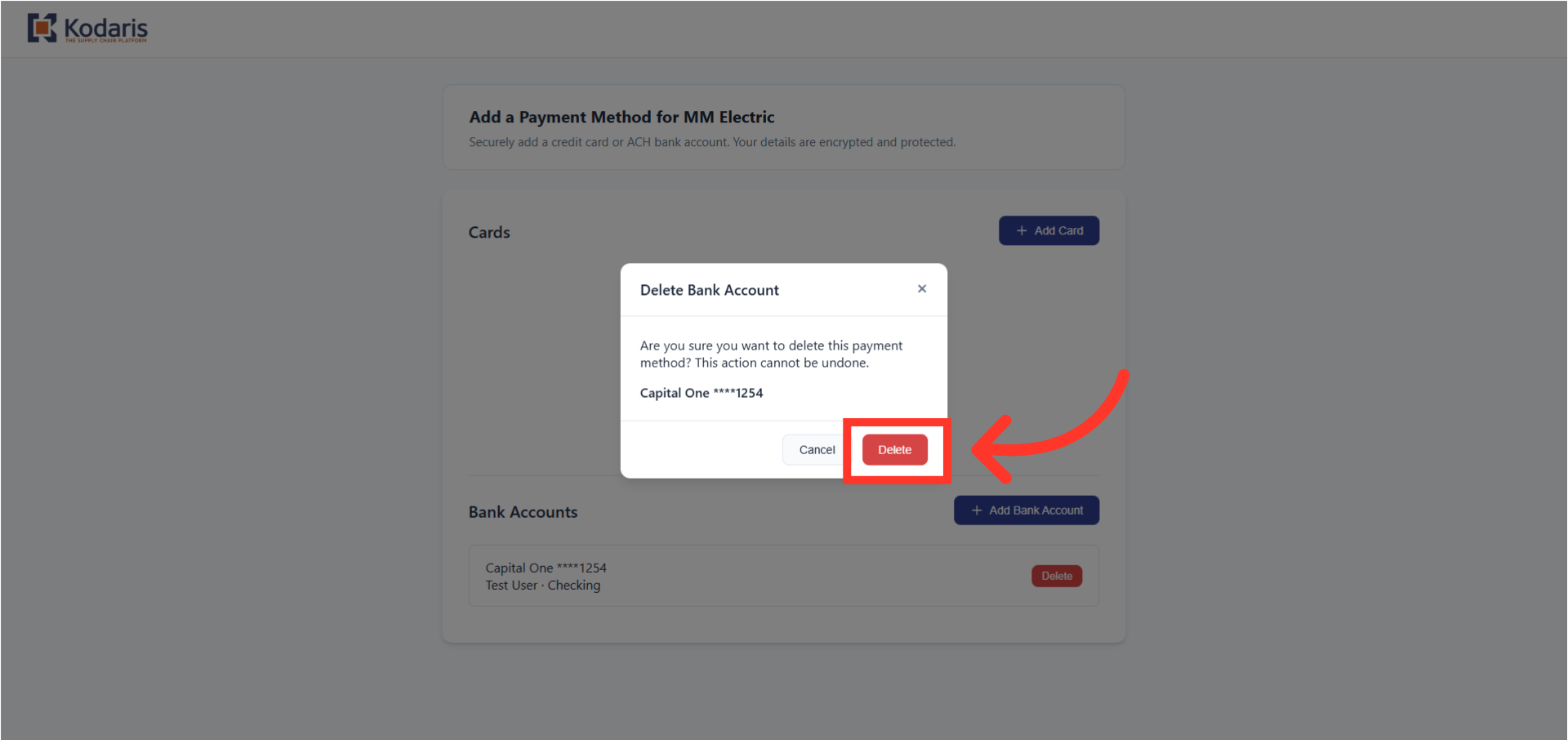
Confirm deletion
From the "Delete Bank Account" dialog box, click the "Delete" button to confirm the action. Note: This action cannot be undone.
Confirm Account has been Removed
The bank account has been removed.