Customer Portal - Select Invoices & Make Payment in the Customer Portal
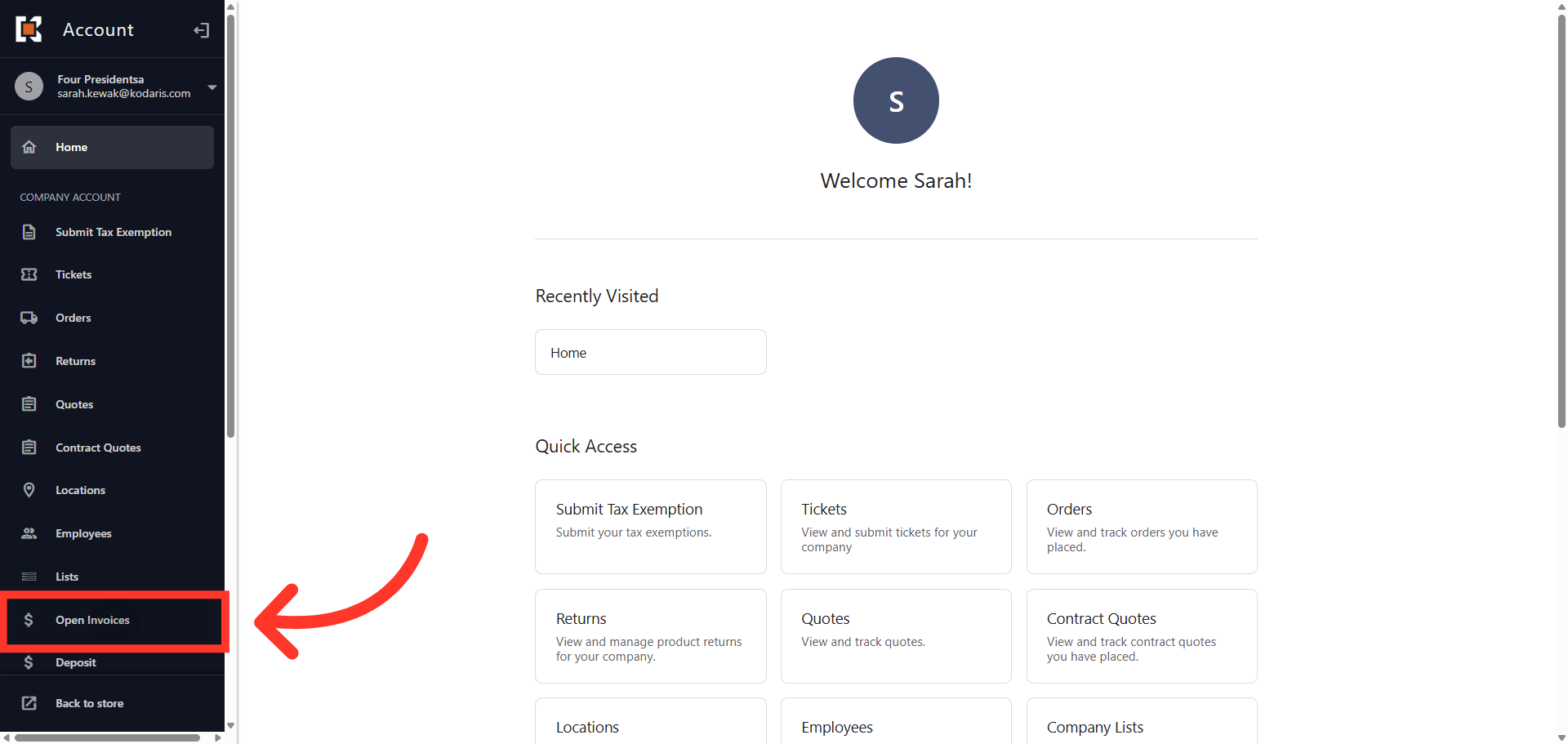
Navigate to "Open Invoices"
To search for and pay open invoices, navigate to "Open Invoices" in the Customer Portal. In order to access "Open Invoices" and make payments, you will need to have the role of "Accounts Payable".
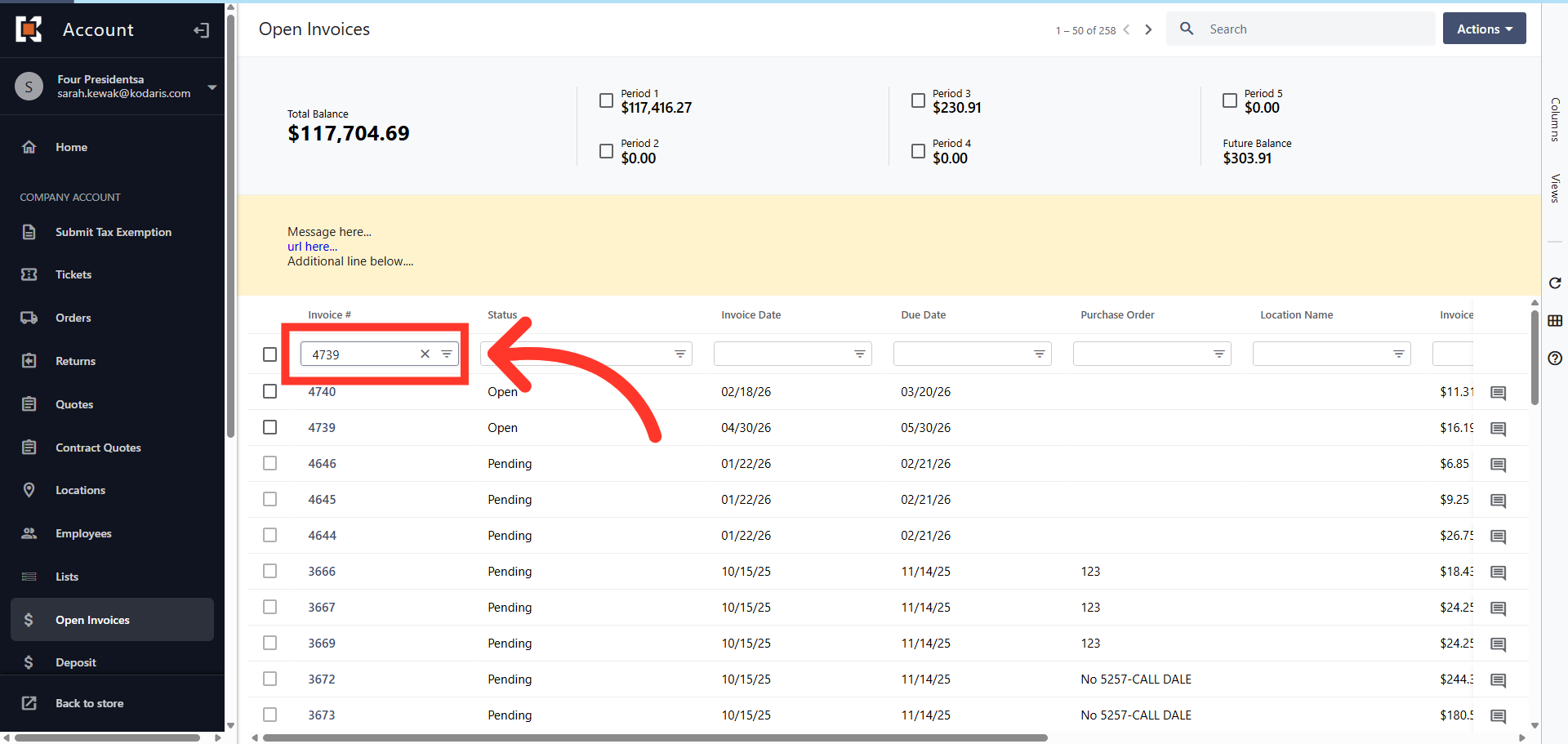
Filter Invoices
To search for an invoice by invoice number, click in the "Invoice number" column filter, enter the invoice number and hit enter.
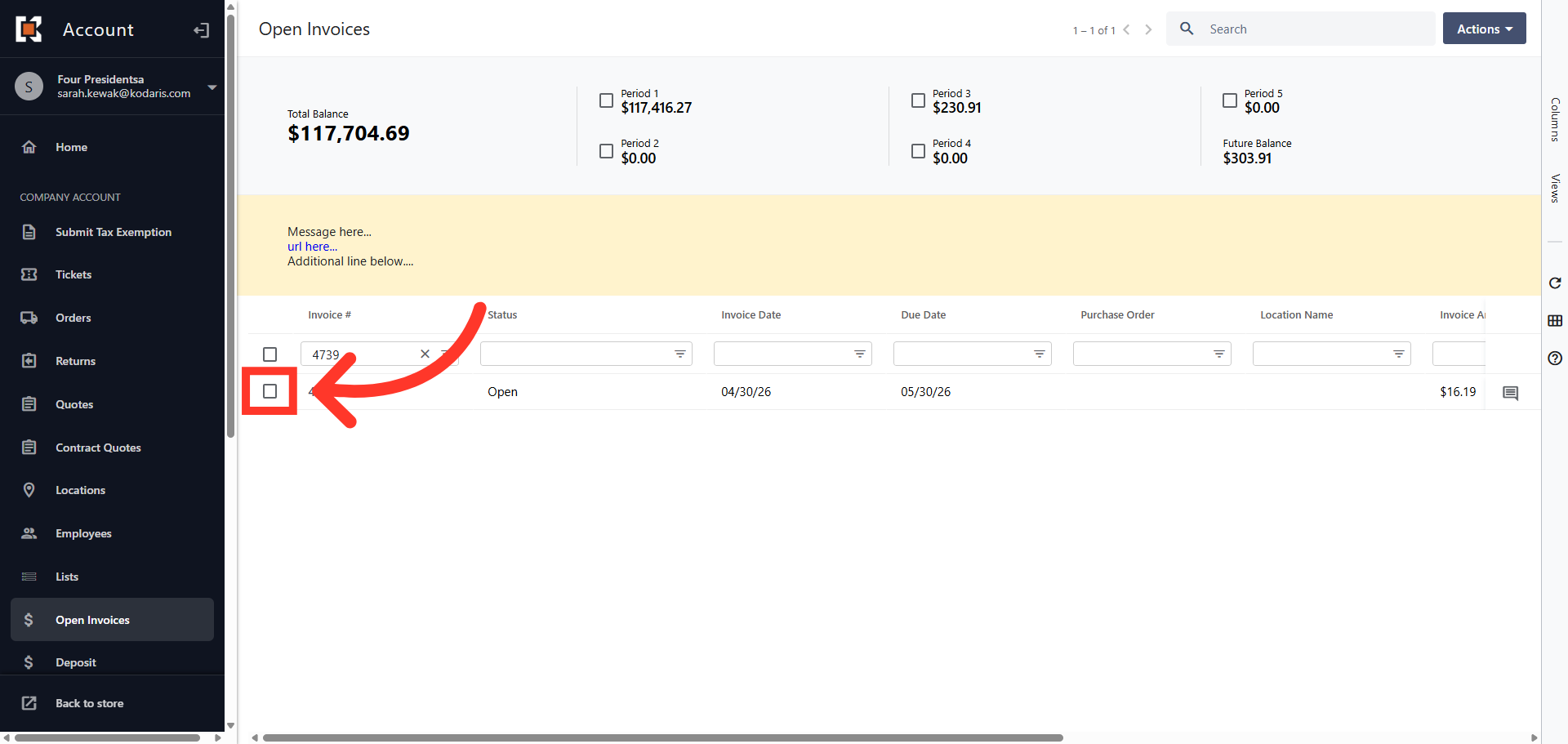
Click the box to select invoice
The invoice is displayed and you can view, add a comment or select to pay.
Click "Actions" dropdown
Next, "Actions" dropdown to view the available payment options.
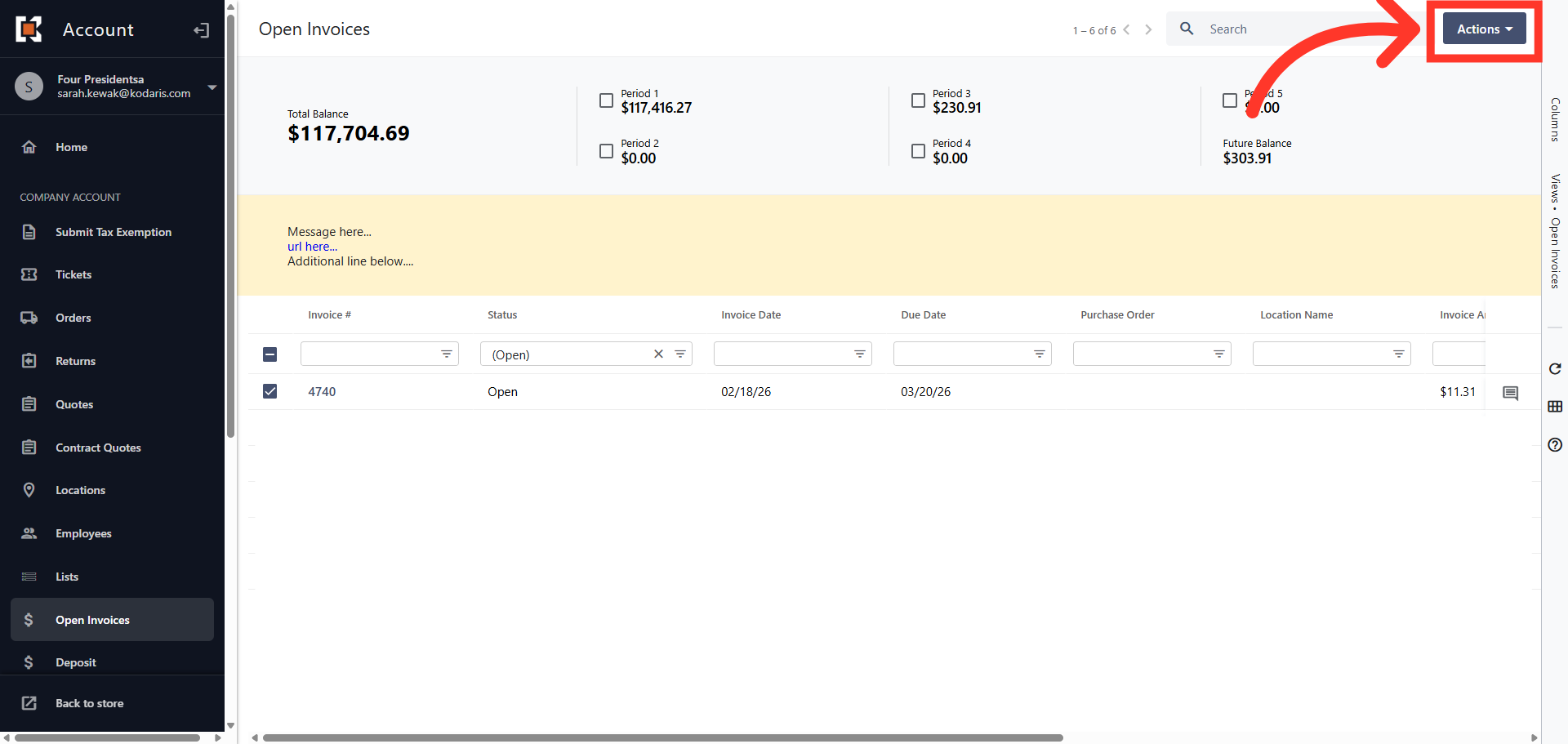
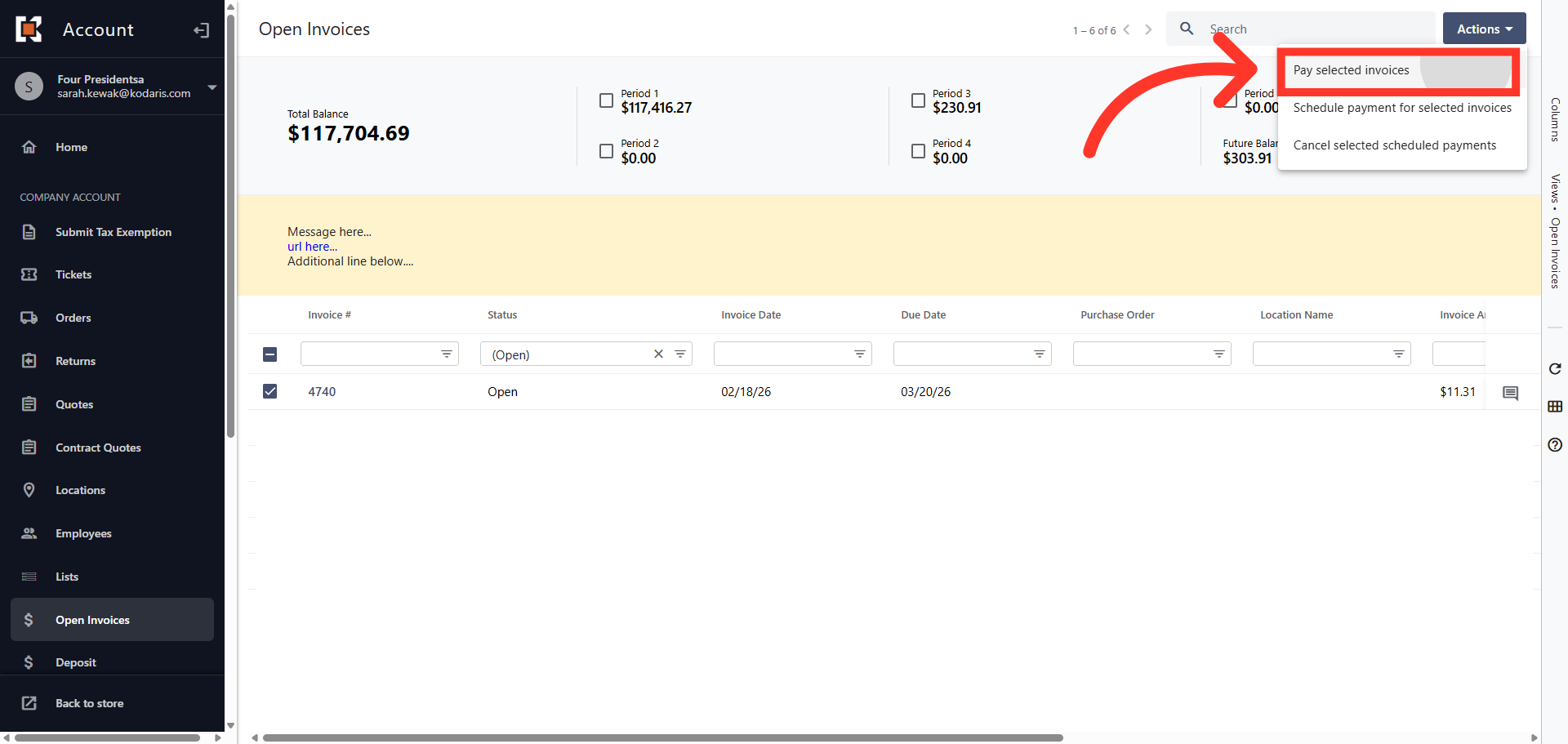
Click "Pay selected invoices"
The "Actions" dropdown menu features three options for paying your invoice. First is "Pay selected invoices" which initiates the payment screen. The second, is "Schedule payment for selected invoices" which allows you to schedule a payment. And finally, "Cancel selected schedule payments", allows you to cancel a previously scheduled payment. Select "Pay selected invoices".
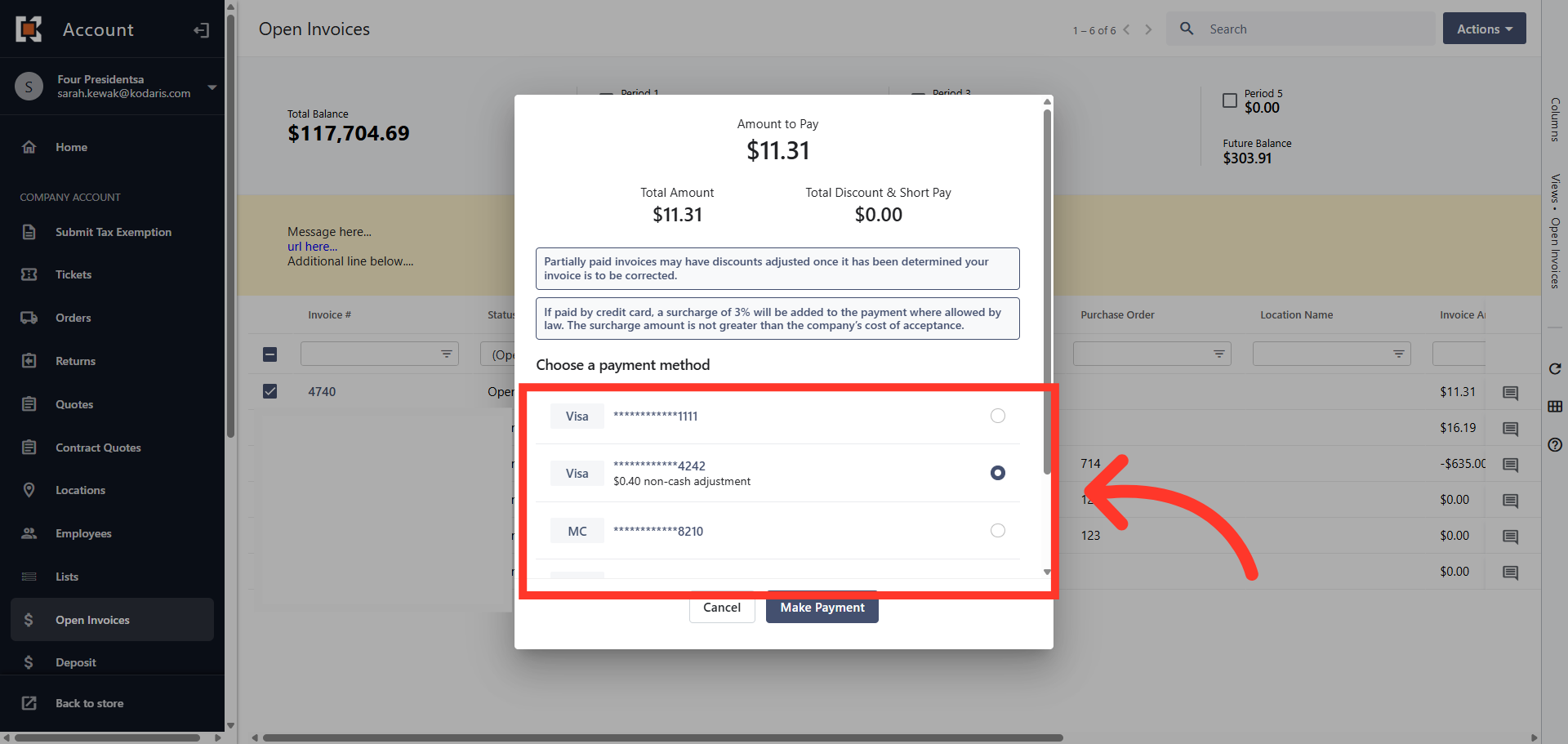
Choose a payment method
From the payment dialog box, choose a payment method.
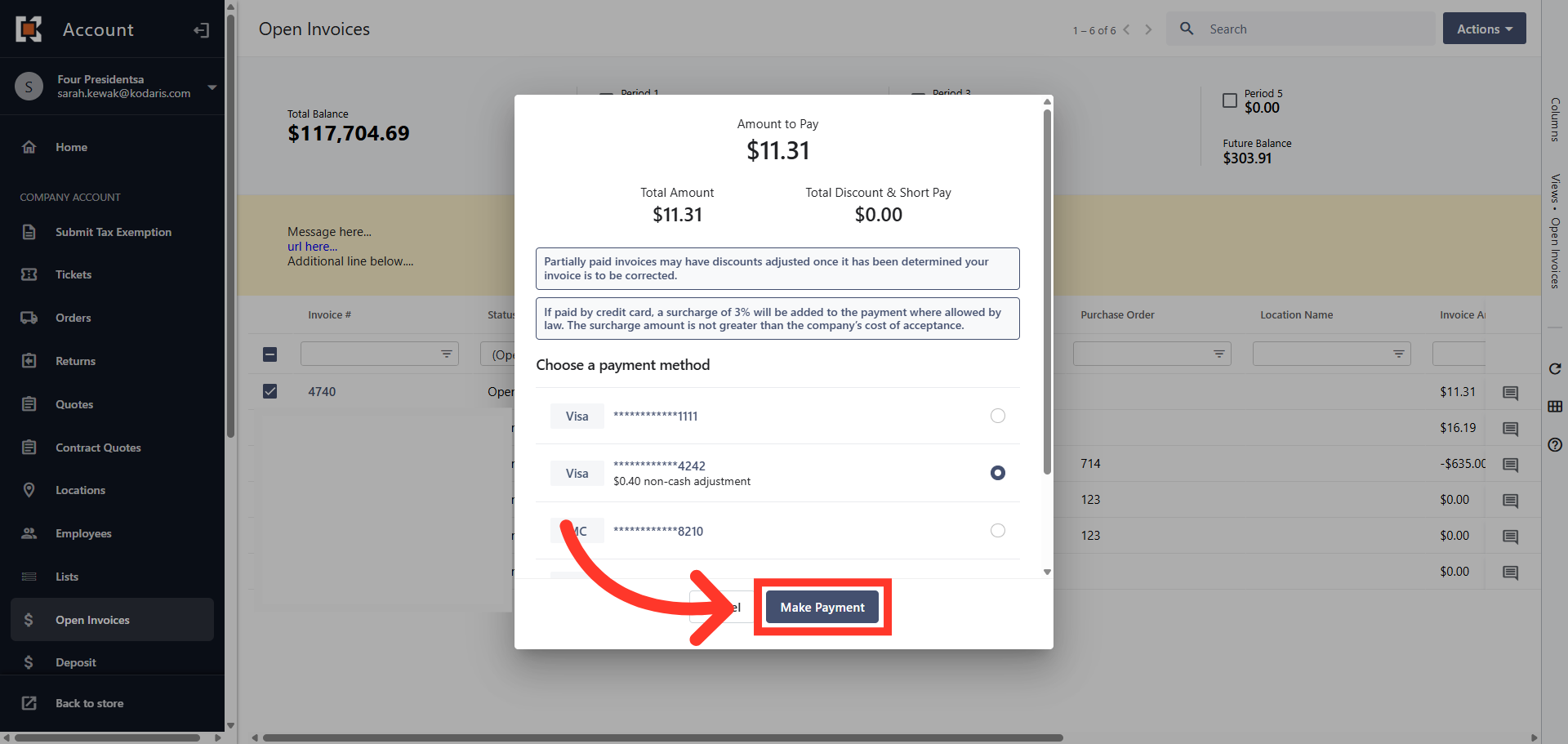
Click "Make Payment"
Then, click "Make Payment".
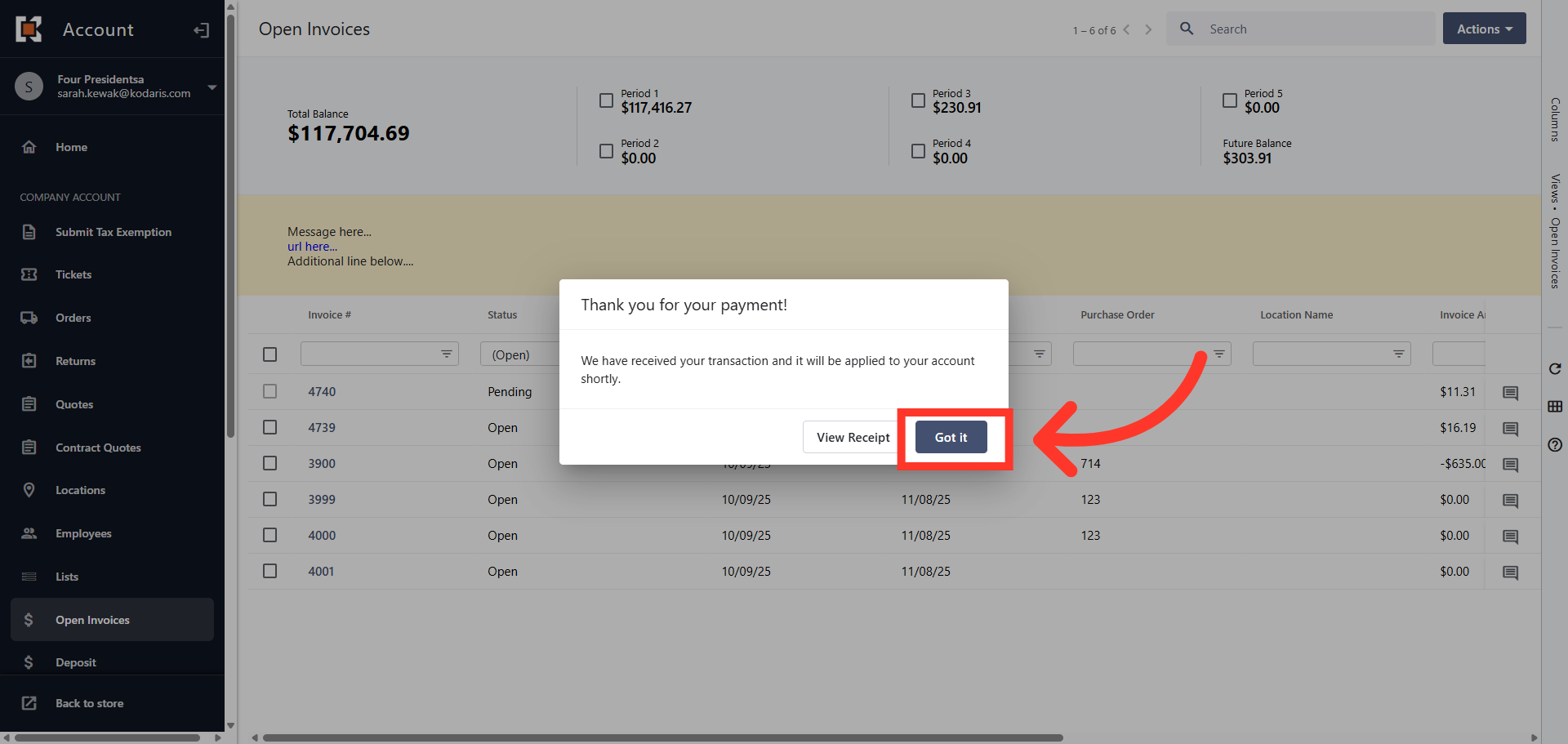
Confirmation message
Once the payment is made, a confirmation message displays. You have the option to view your receipt or click "Got it" to close the message.