Customer Portal - Short Payments
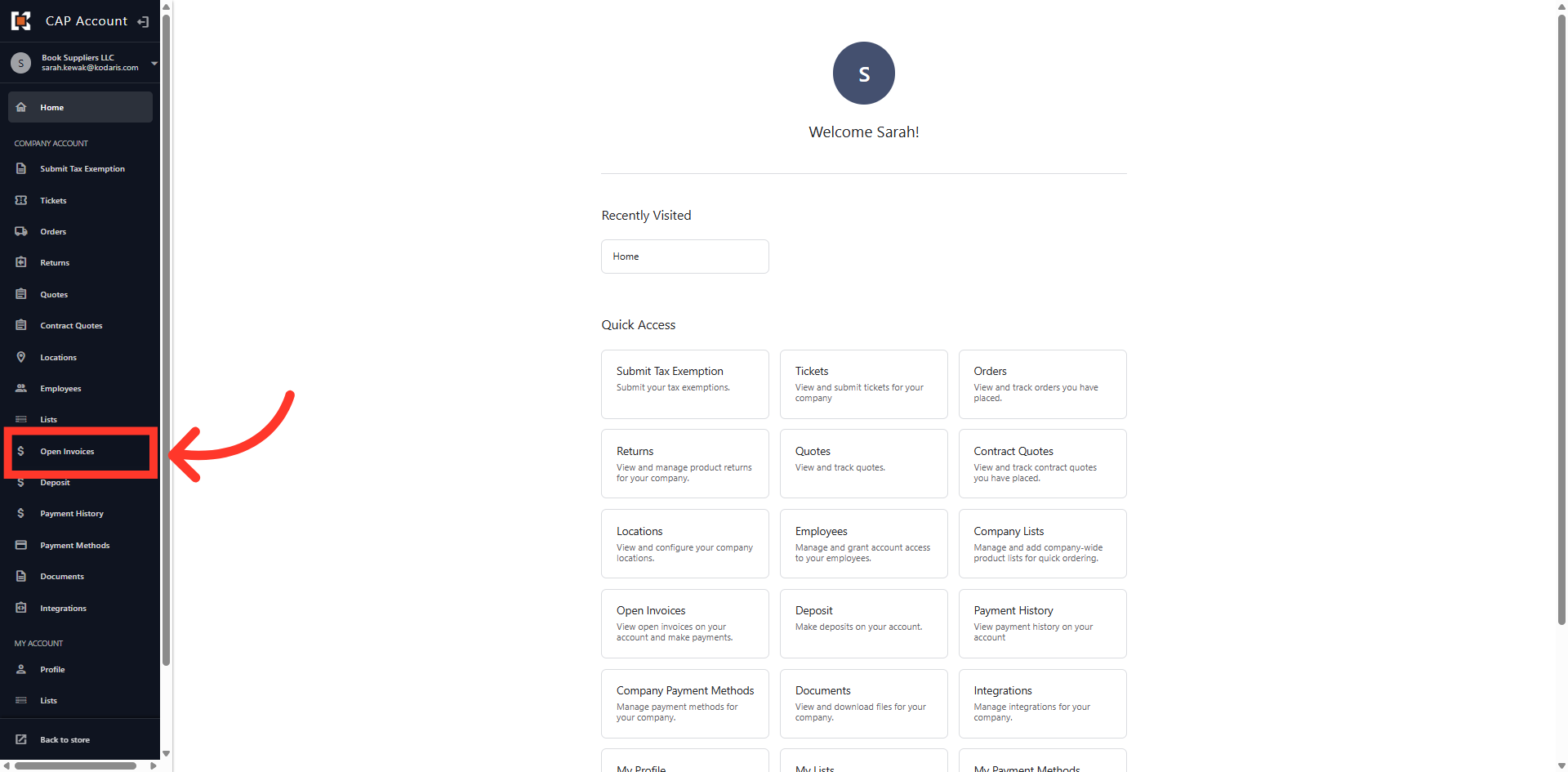
Navigate to "Open Invoices"
You can initiate a short payment on an invoice in the Customer Portal by first navigating to the "Open Invoices" section. In order to initiate a short payment you will need the "Accounts Payable" permission.
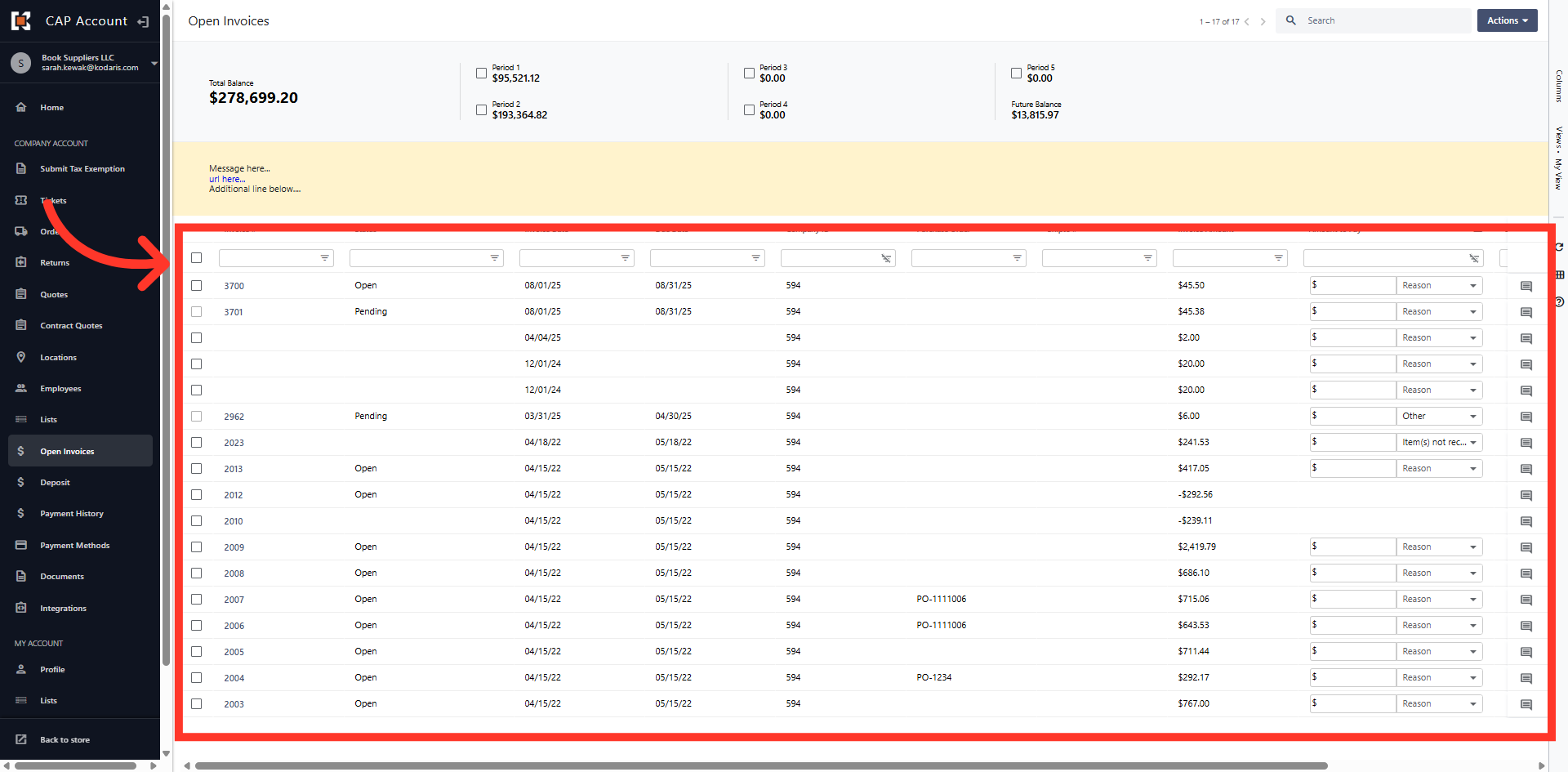
Open Invoice Overview
The "Open Invoices" overview displays all the invoices available to pay on the account. Locate the invoice you wish to short pay from the list.
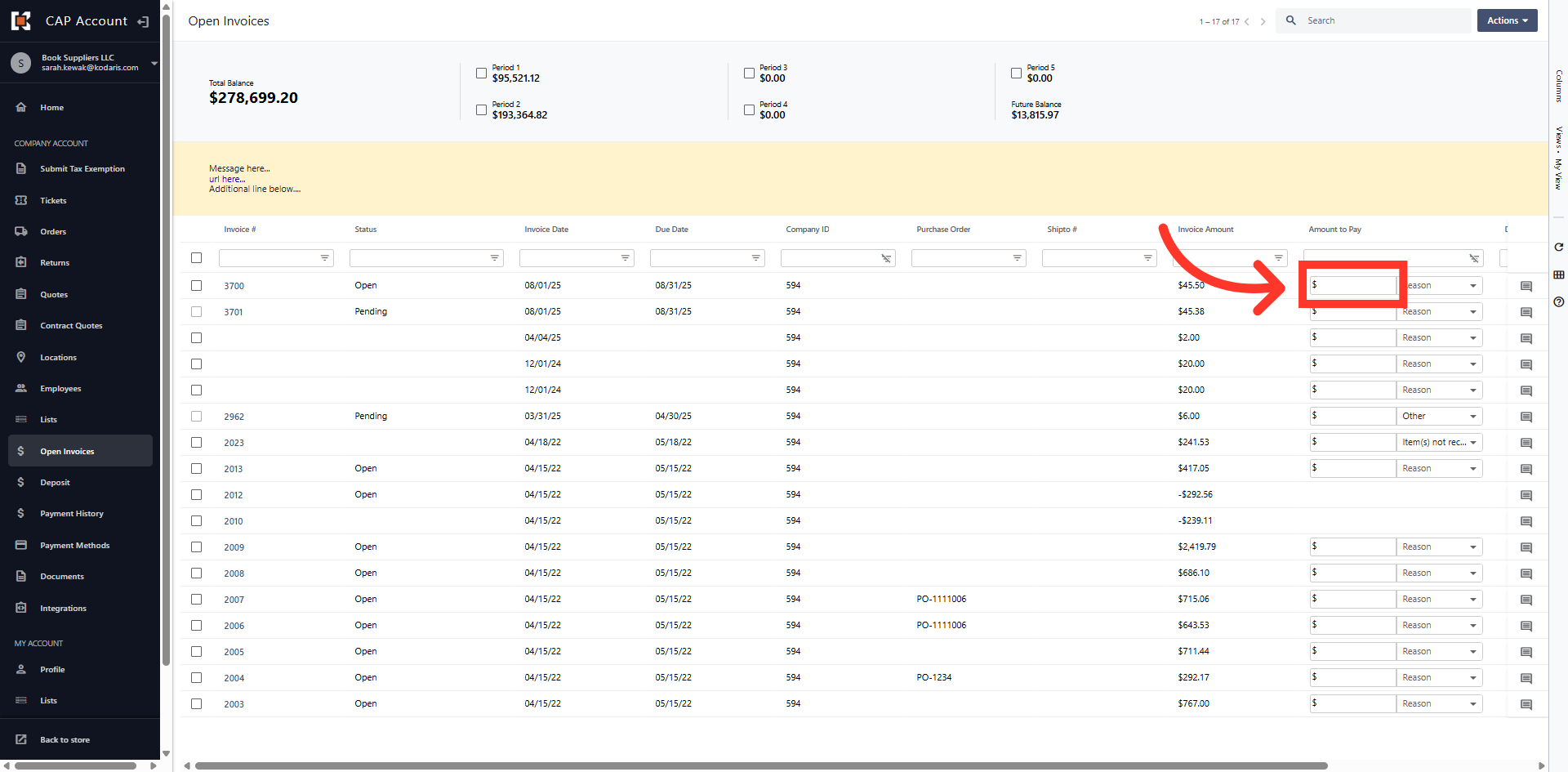
Enter amount to pay
To make a short payment, use the "Amount to Pay" field and enter the amount you wish to pay.
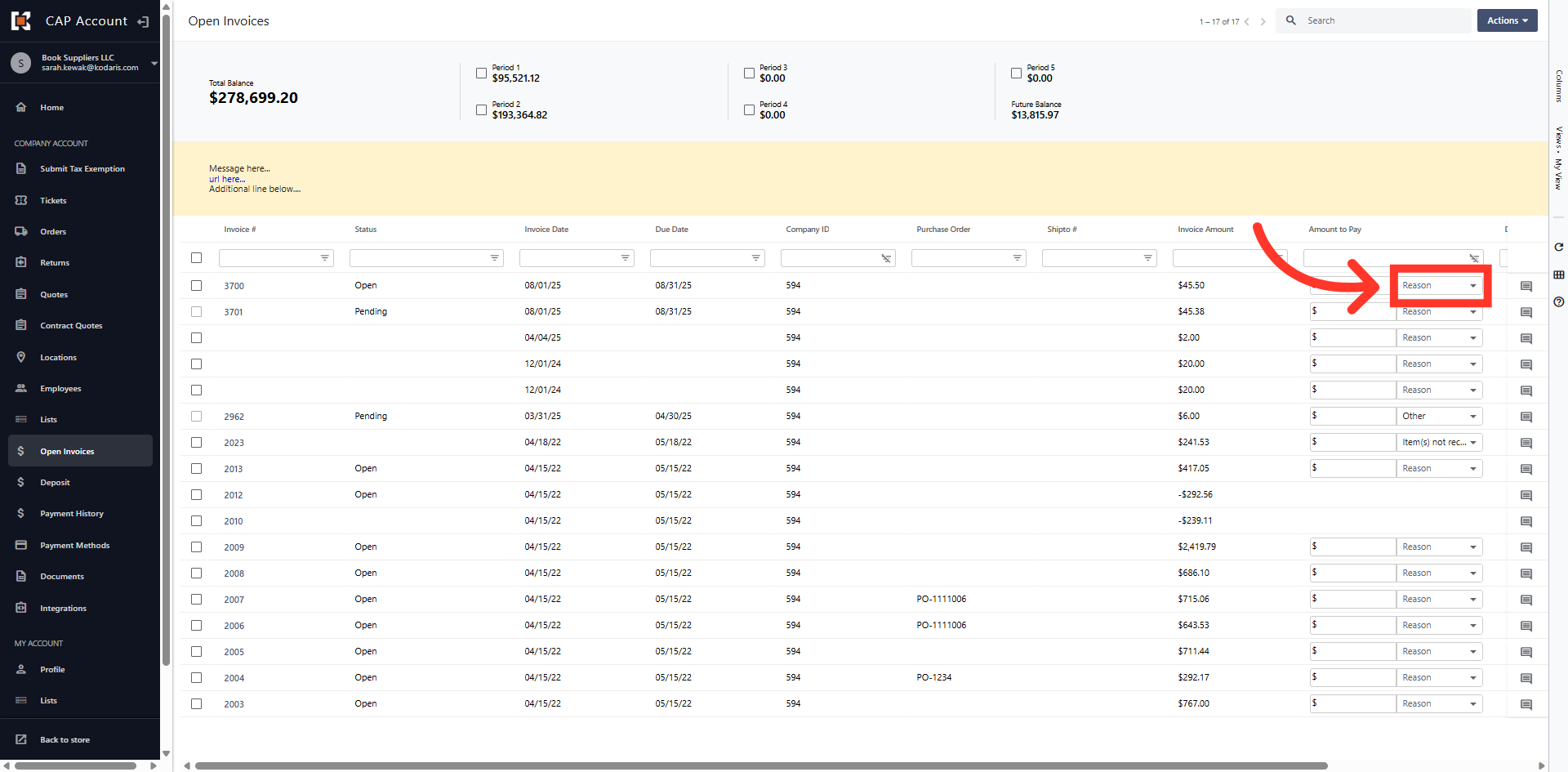
Reason drop down menu
Click the "Reason" drop down to expand the reason options for short payment.
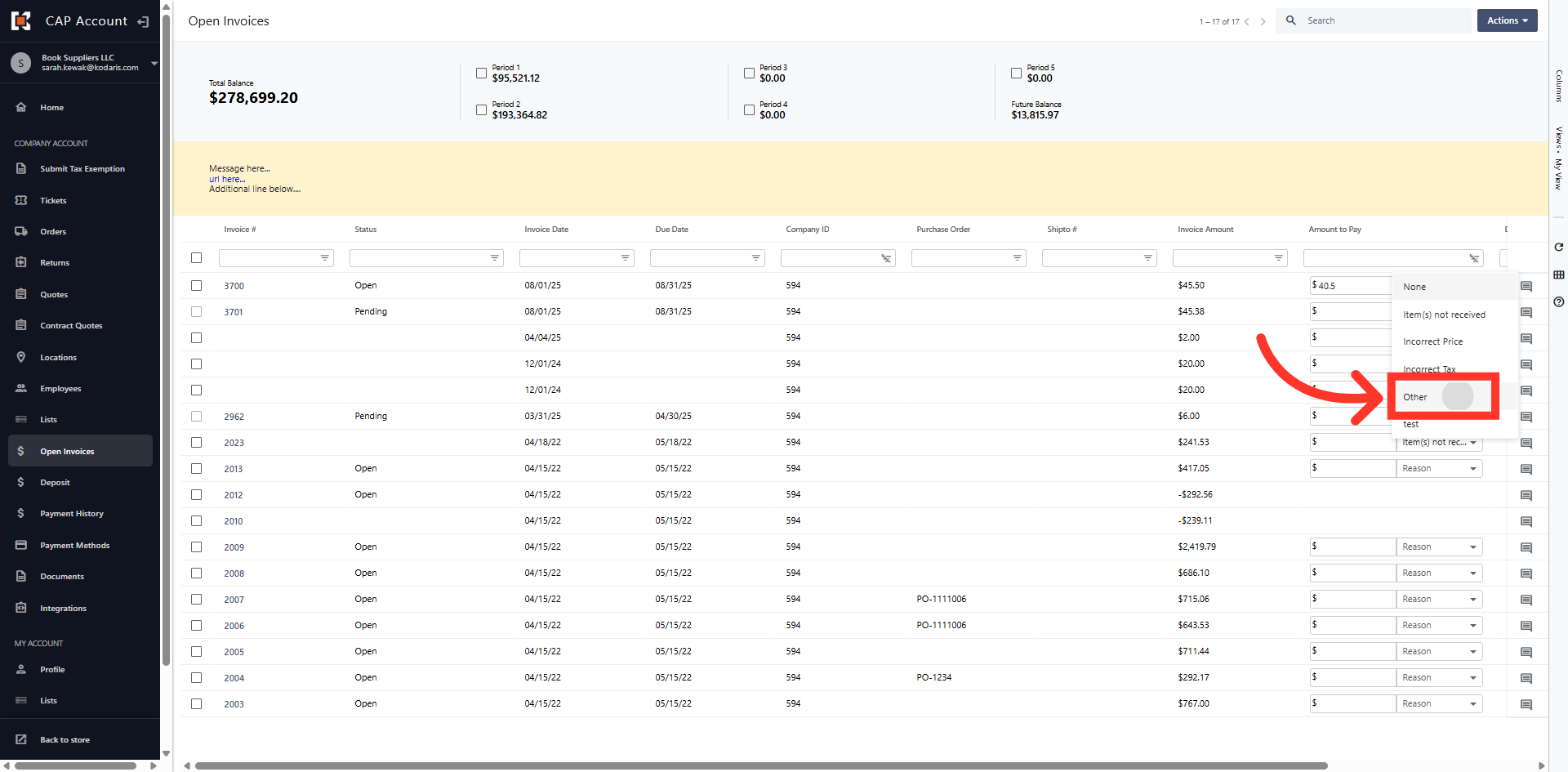
Select Short Payment Reason
Select the reason for the short payment from the available options. These options can be customized based on your company requirements. In this example, we will select "Other".
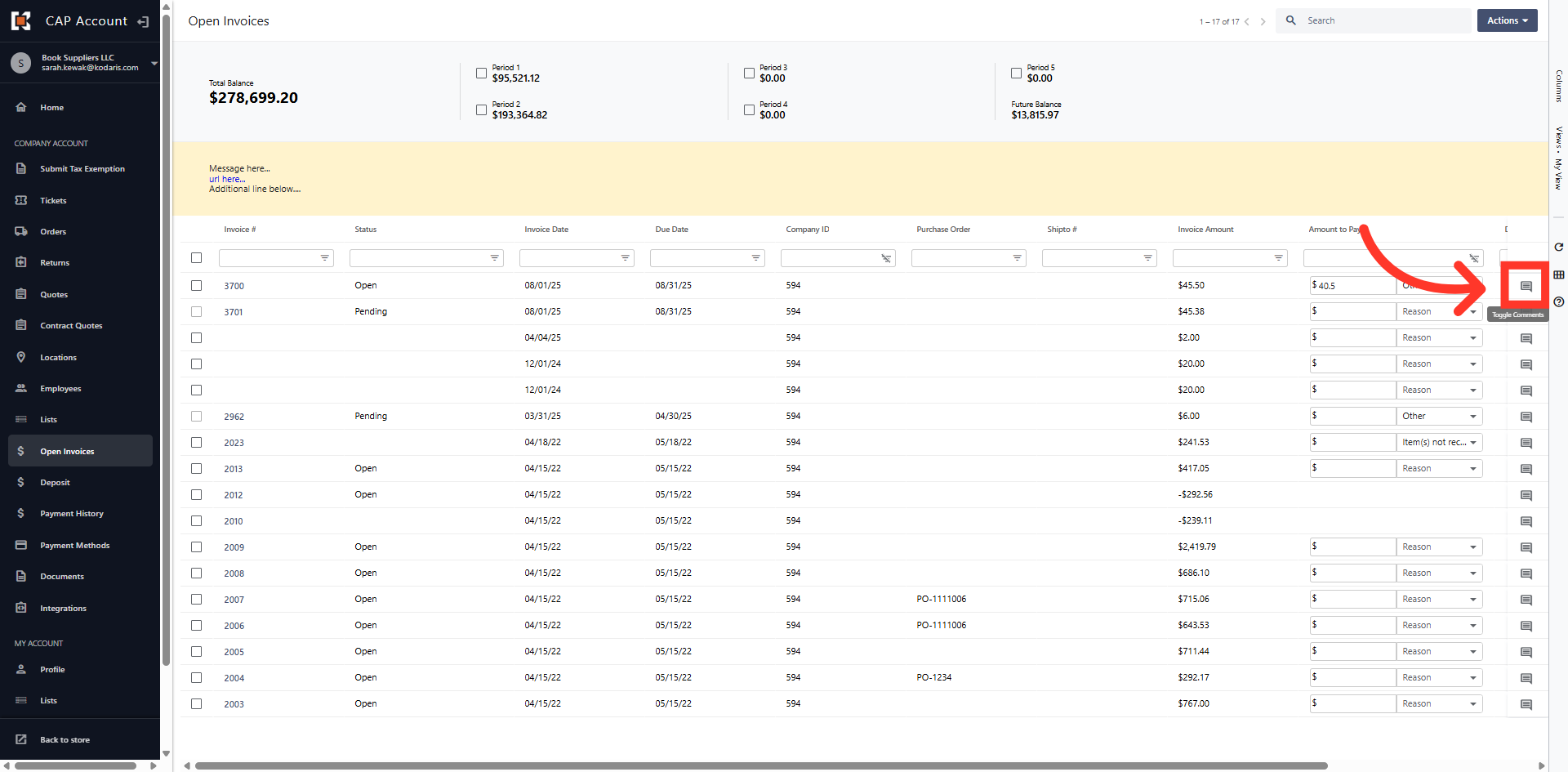
Enter Comment
You can enter a comment using the "Comment" icon to explain why you are making the short payment.
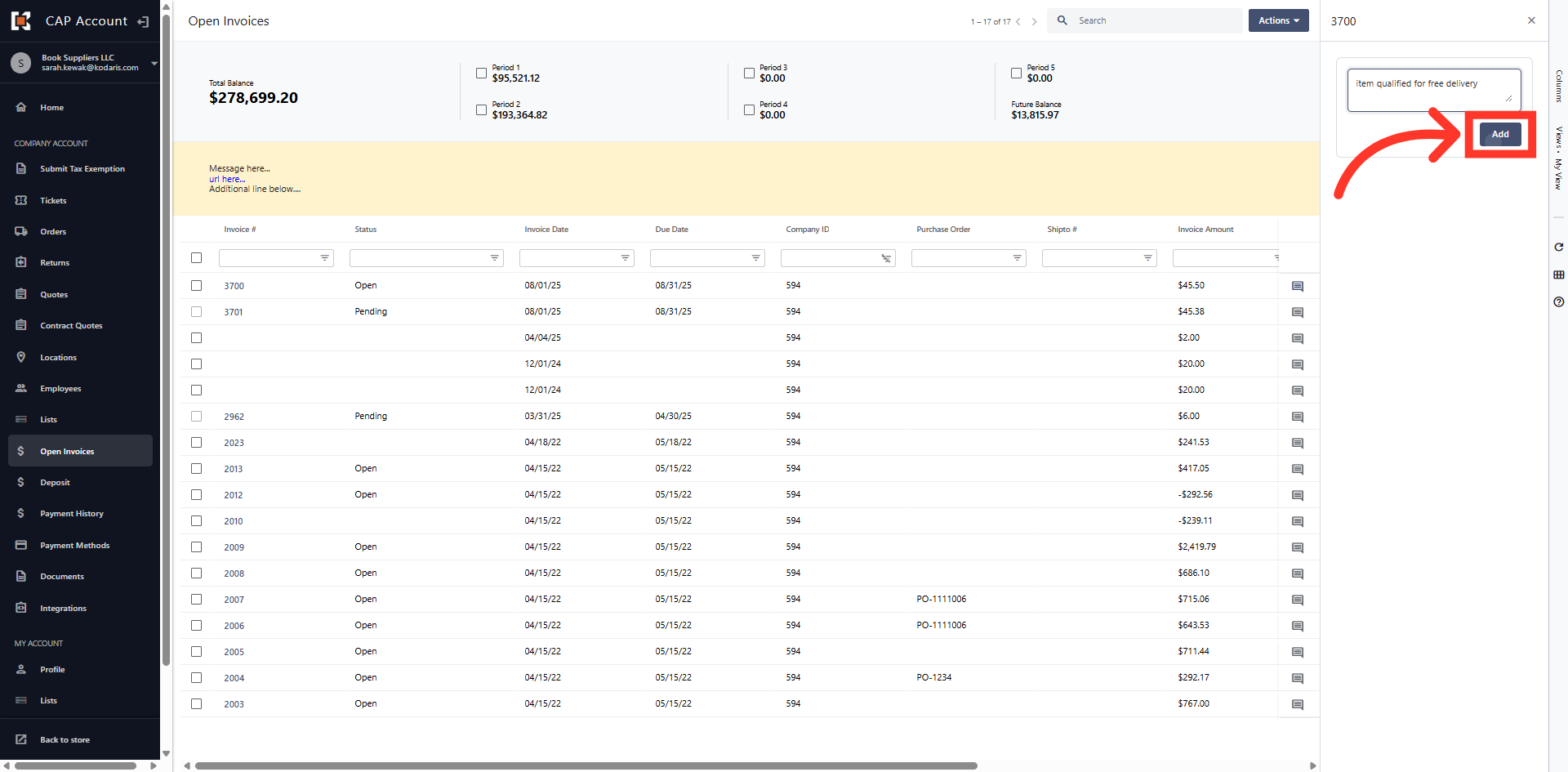
Click "Add"
Click "Add" to save the comment and update the record.
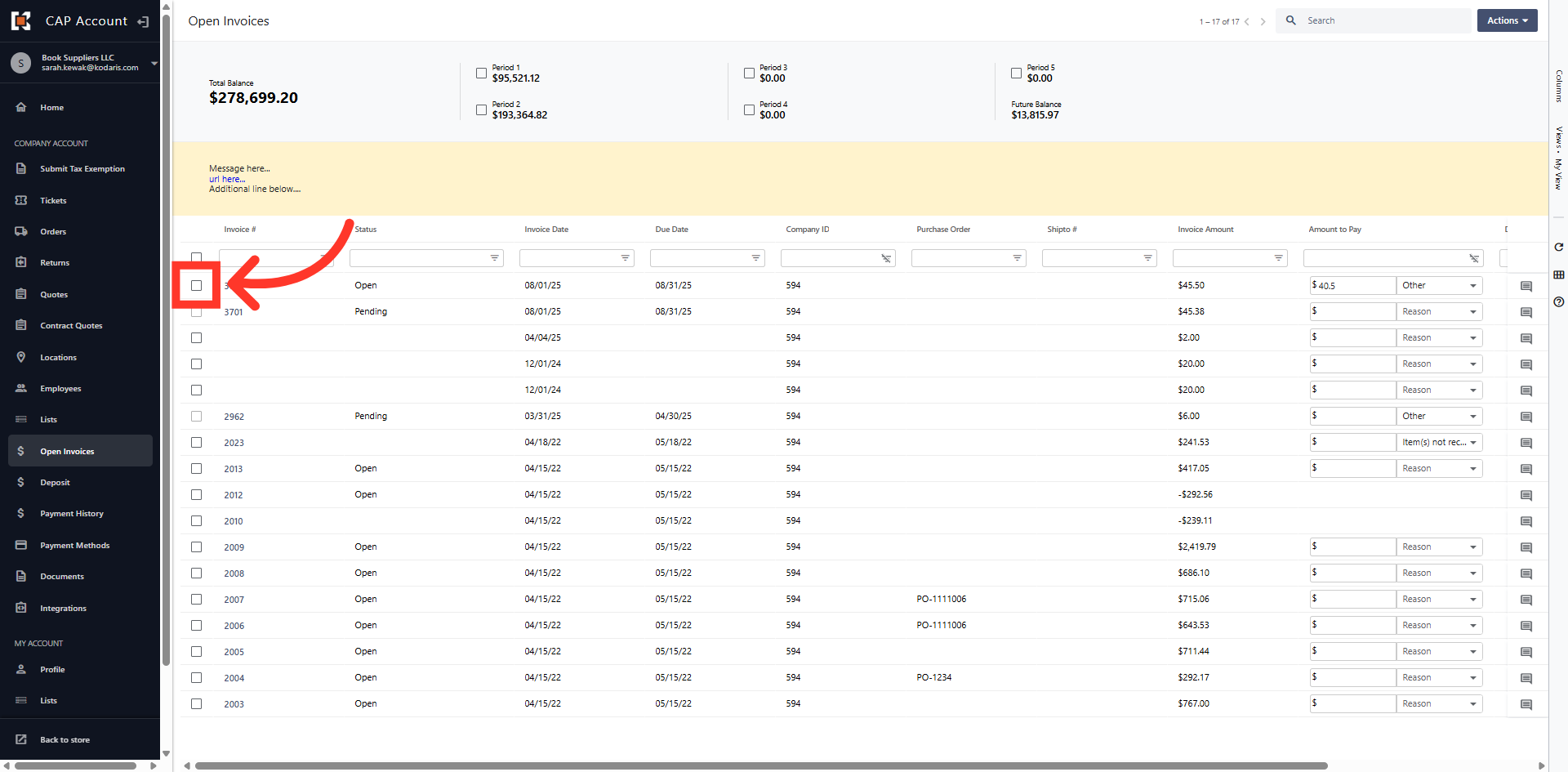
Select the invoice
Then, select the invoice to initiate payment.
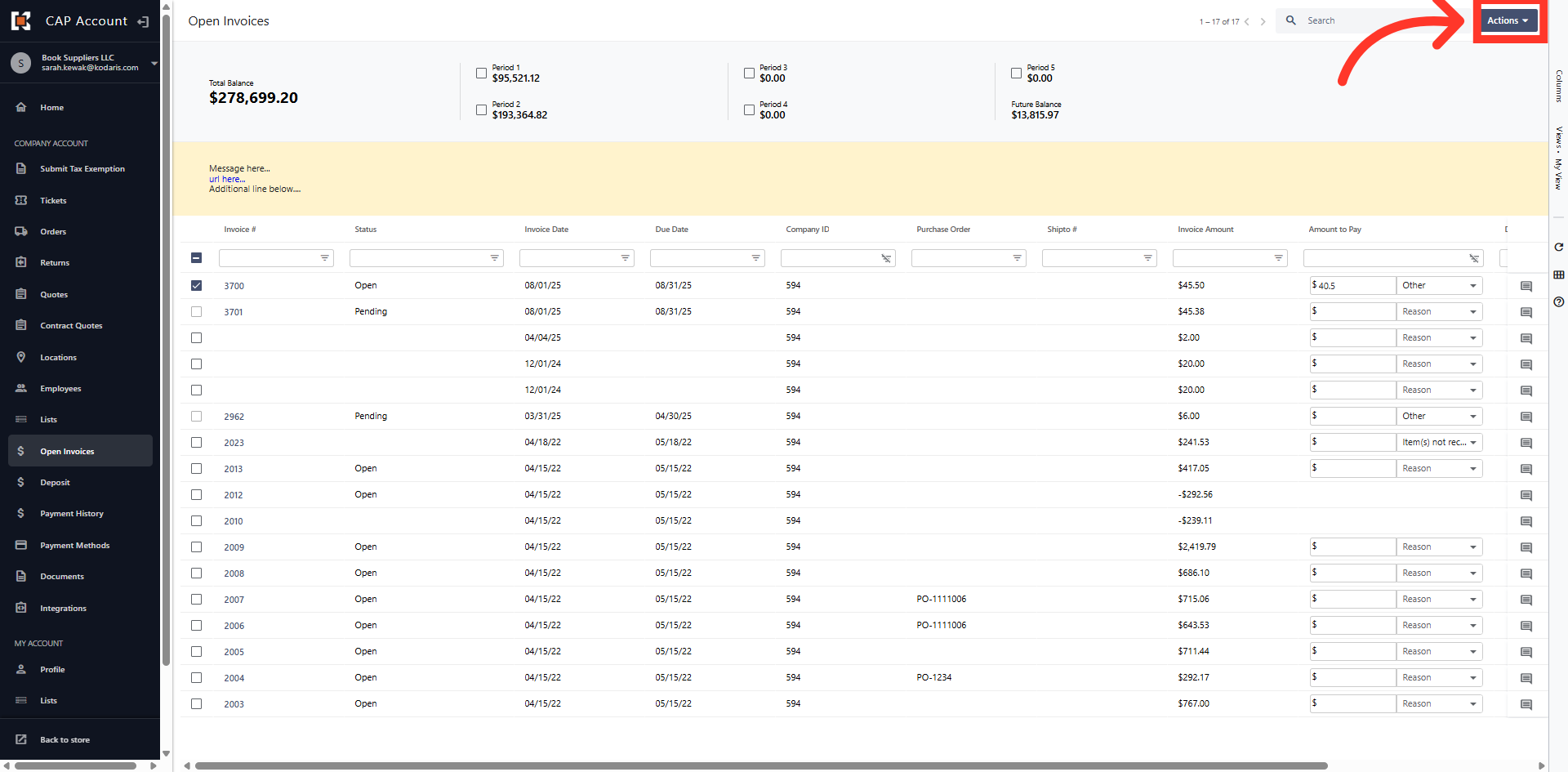
Click the "Actions" Button
Next, click the "Actions" button.
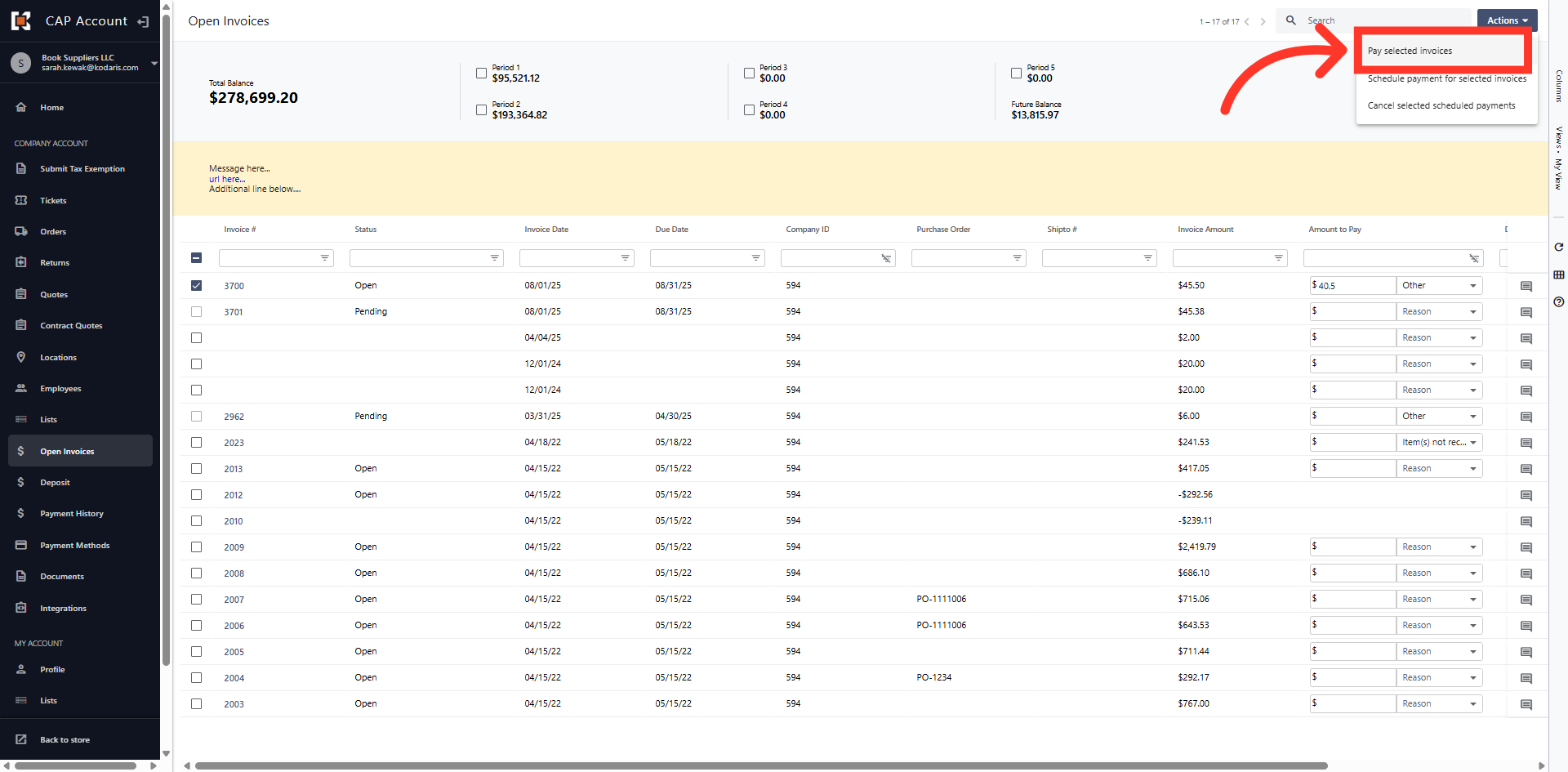
Click "Pay Selected Invoices"
Then, click "Pay selected invoices".
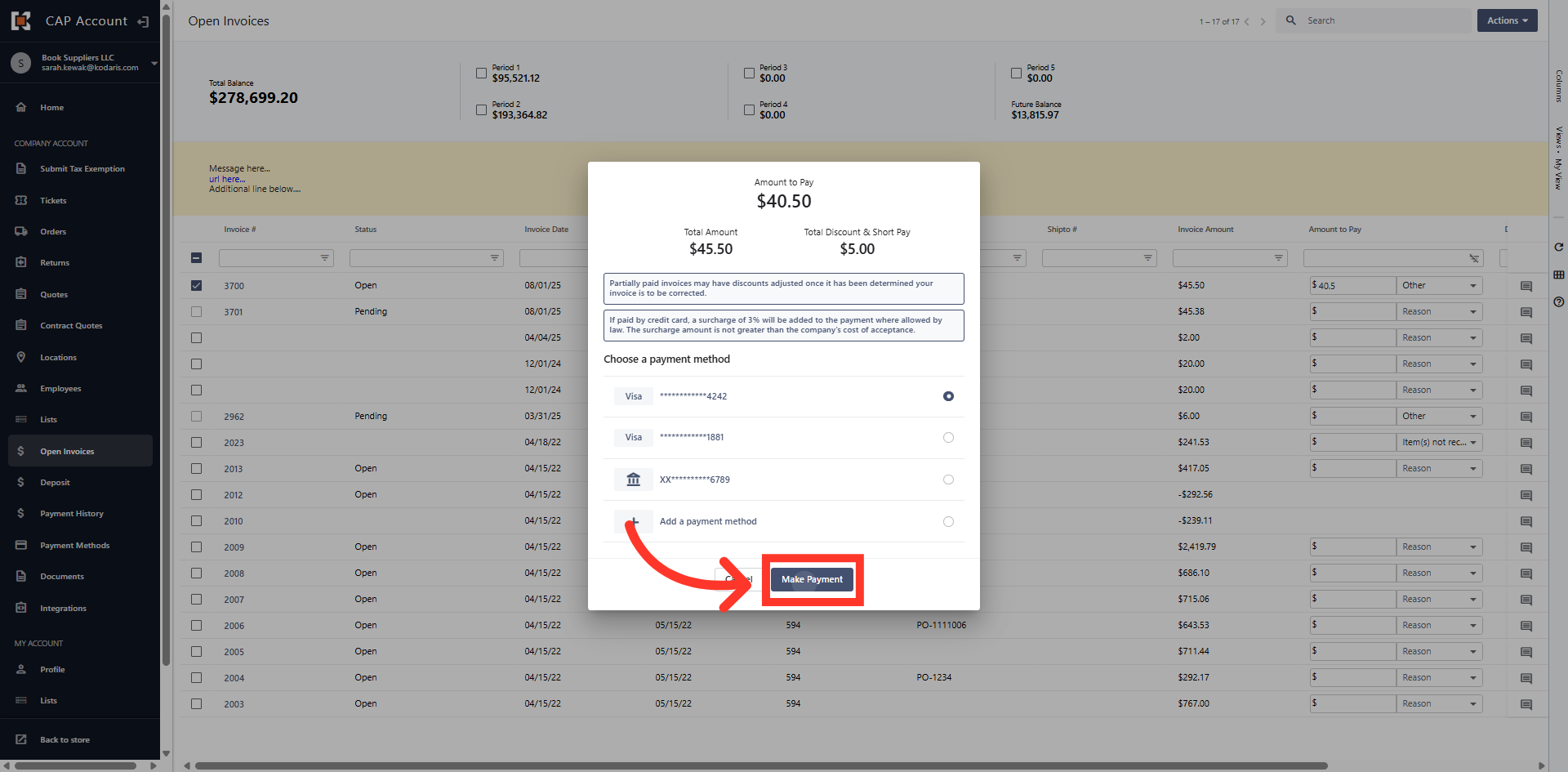
Payment Preview Dialog Box
The "Payment Preview" dialog box shows the amount being paid, and any discounts as well as the short payment. Note: There is a disclaimer that notifies you that if you are making a partial payment, the discounts may be adjusted depending on your system.
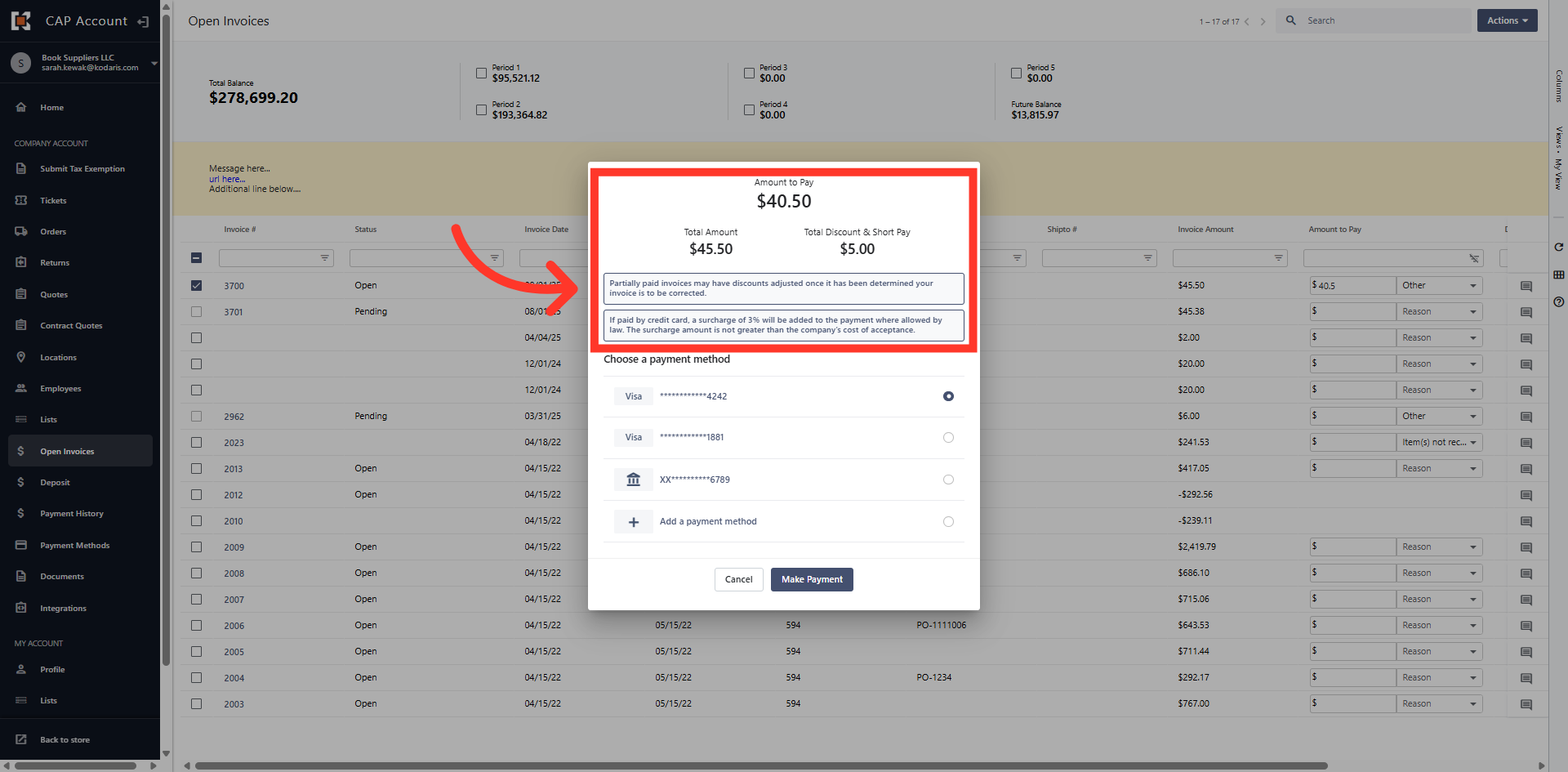
Click "Make Payment"
Select the method of payment from the list or, you can add a new payment method. Once your payment method is selected, Click "Make Payment".
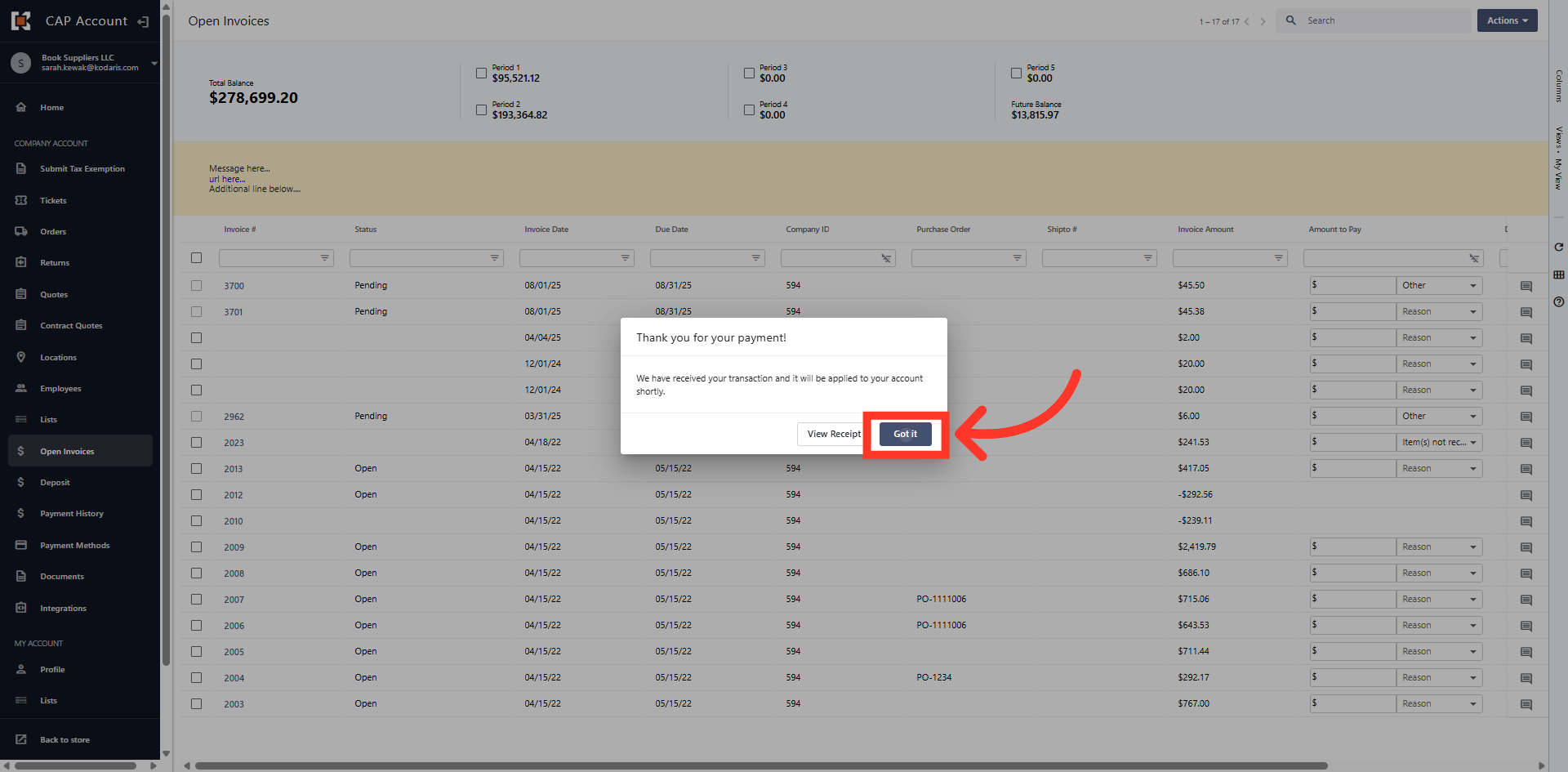
Close Payment Confirmation
Click the "Got it" button to close the confirmation message and return to the "Open Invoices" dashboard.