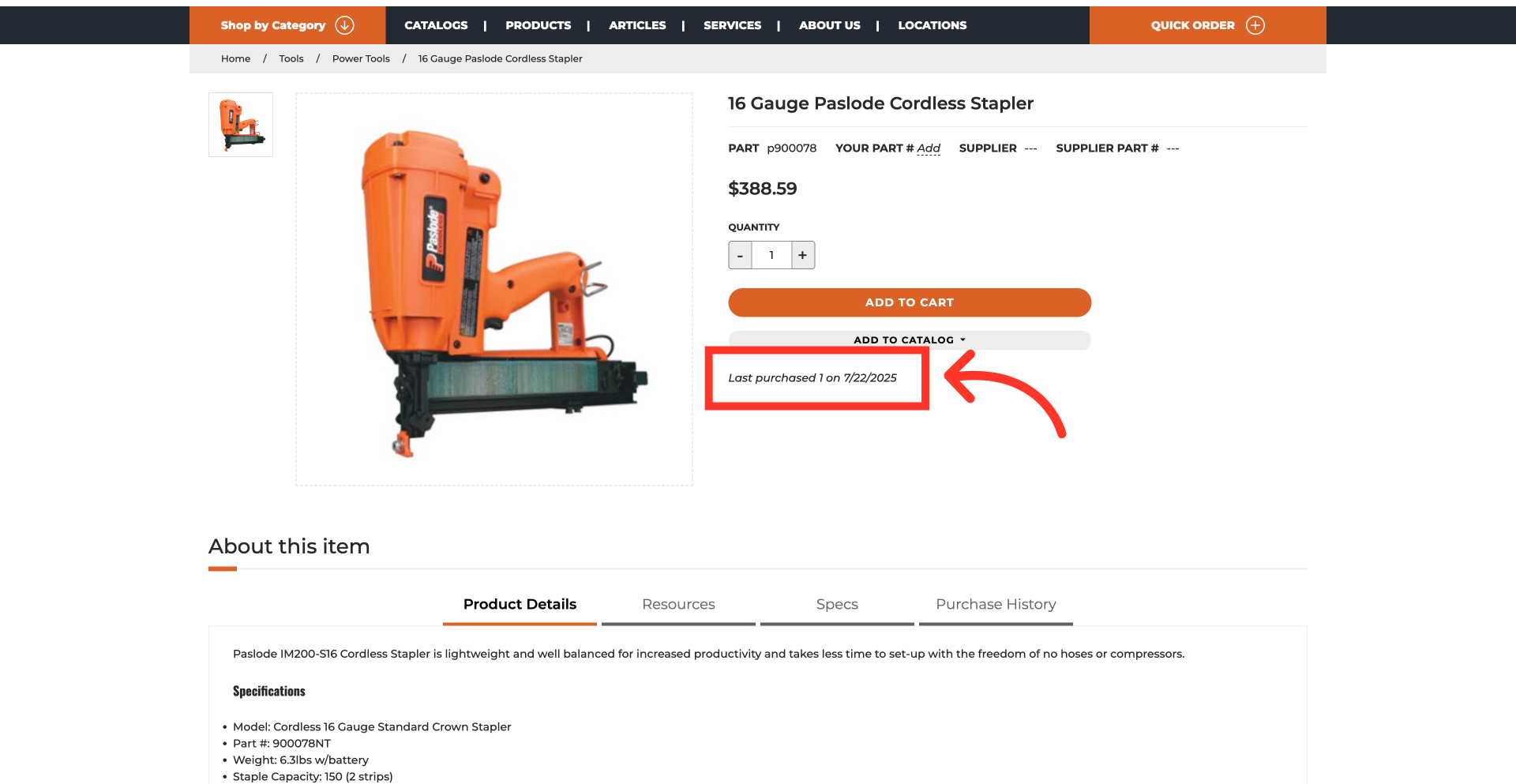
Operations Customers - View When Products Were Last Purchased & How Many Were Purchased
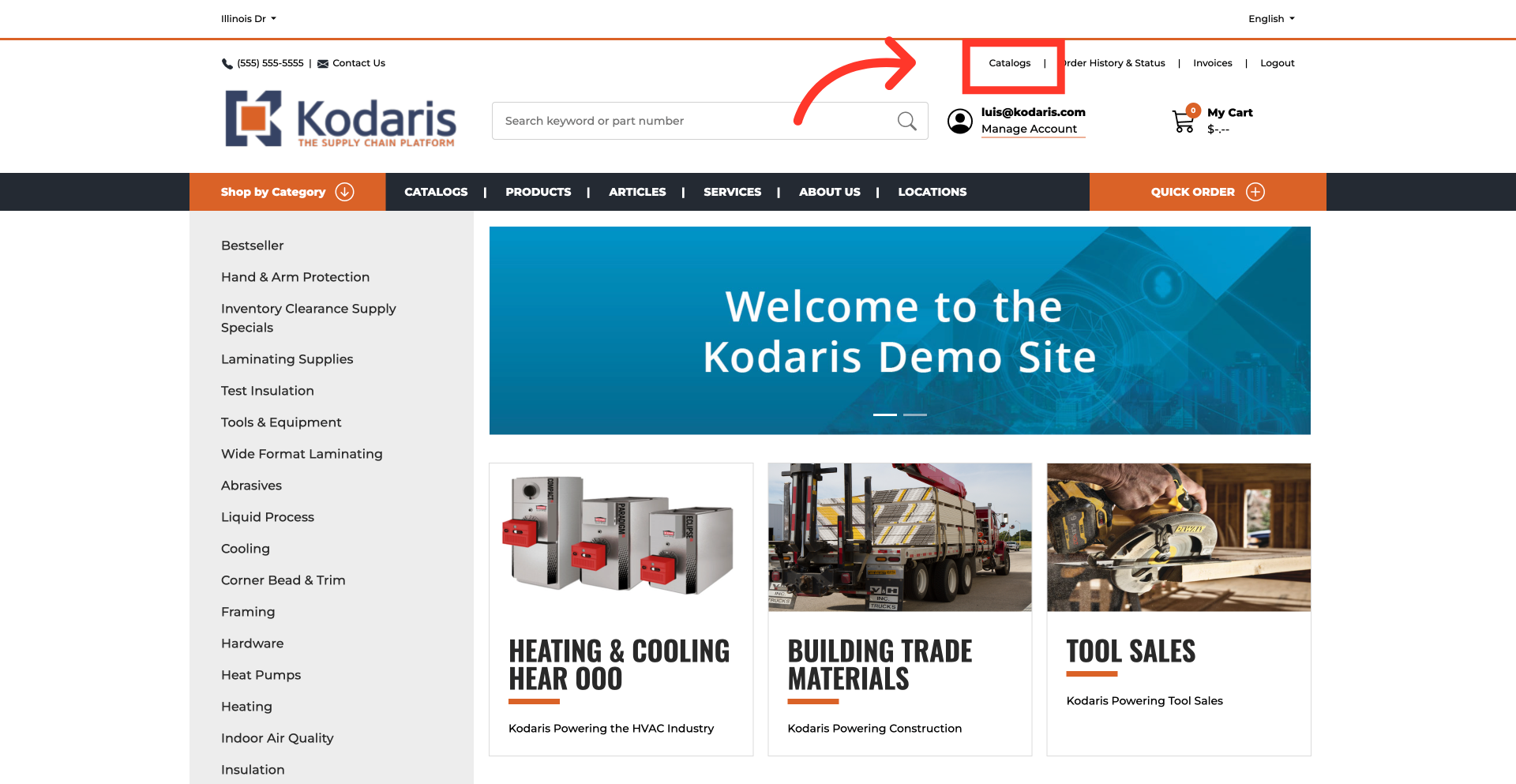
Navigate to "Catalogs" screen
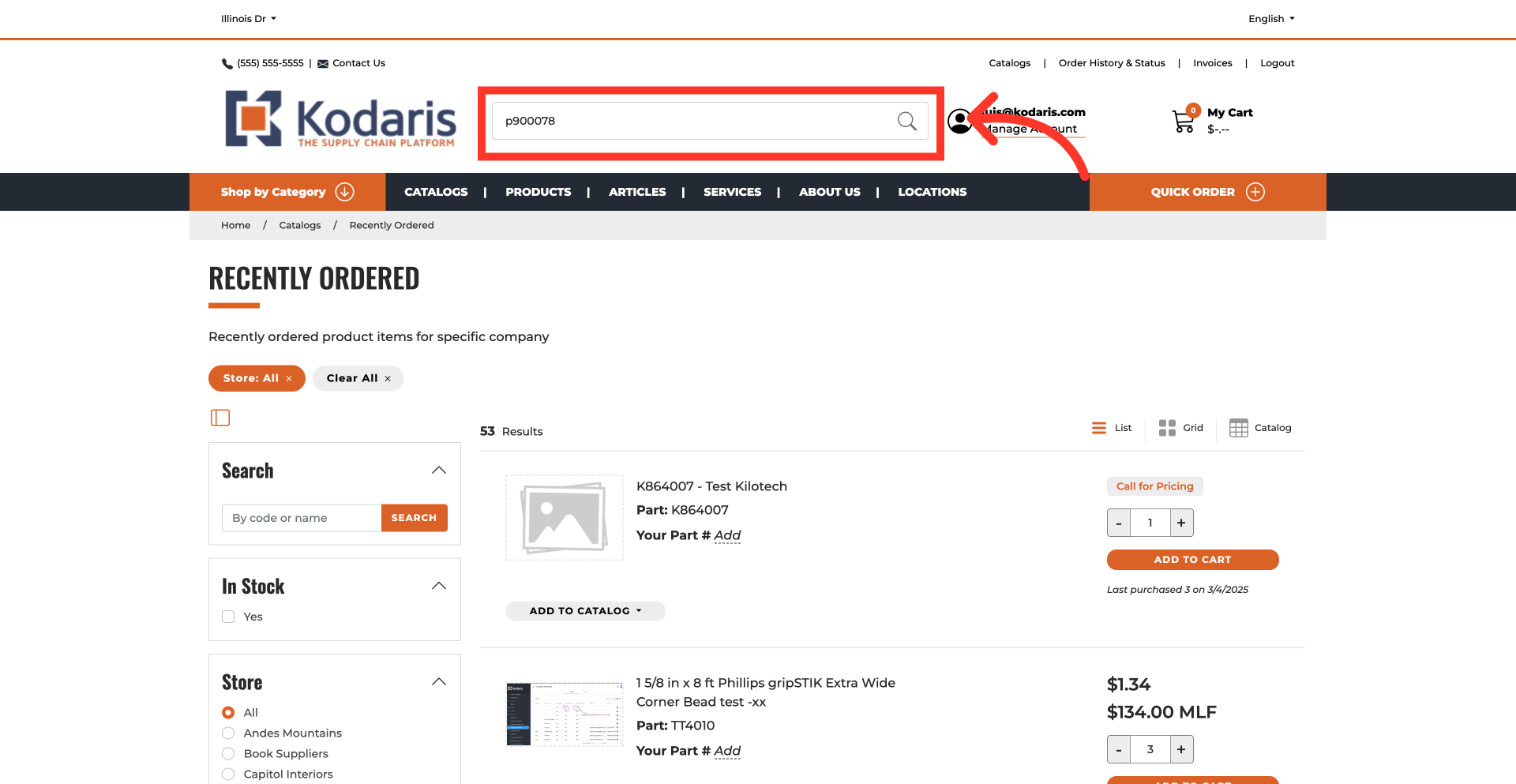
You can view when products were purchased last in several places on your commerce site. To view products with their last purchase date and quantity in your "Recently Ordered" catalog, log in to your customer portal and go to your "Catalogs" screen.
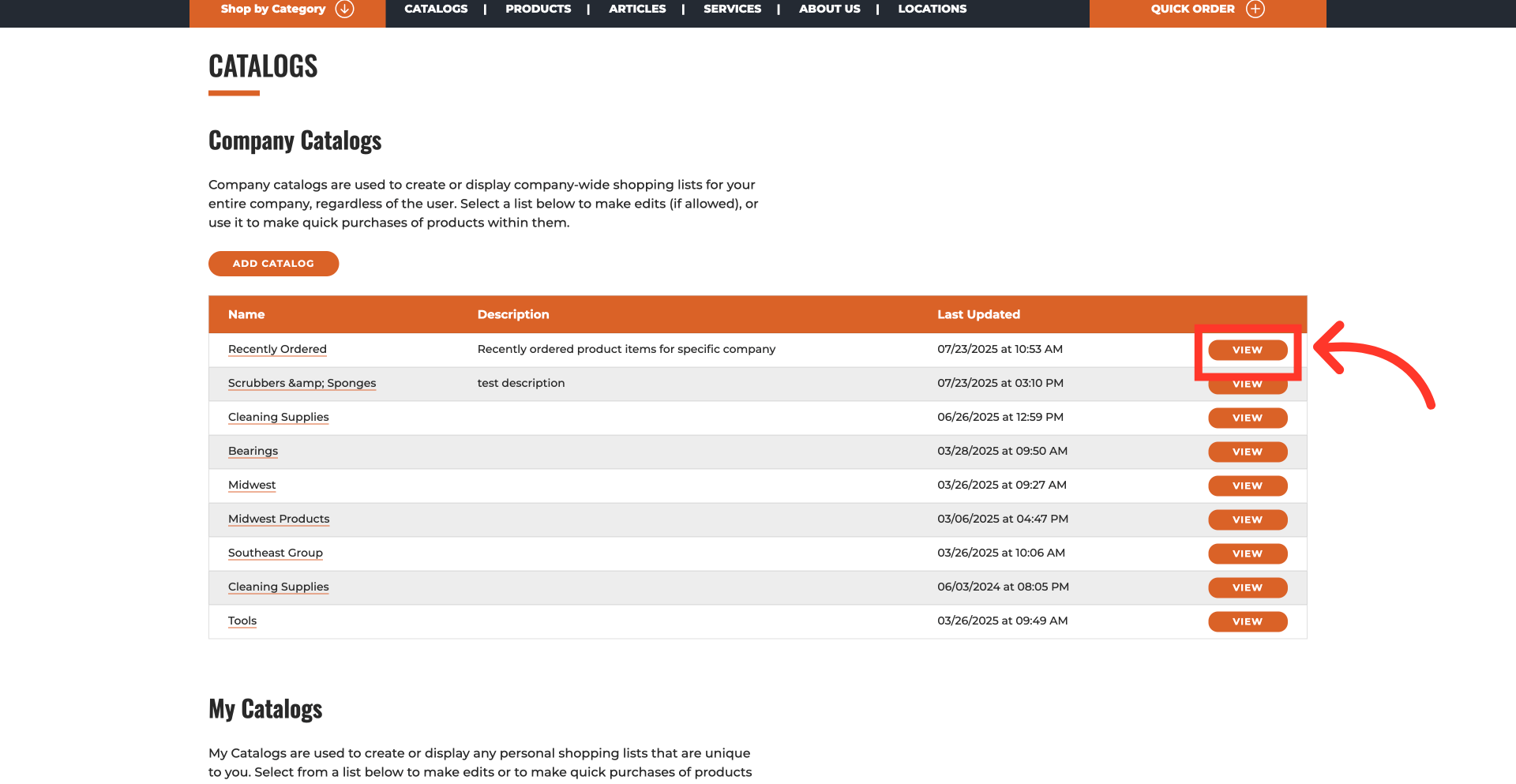
Click on the "Recently Ordered" catalog
To view the "Recently Ordered" catalog in your "Catalogs" screen, you must first set it up in your operations portal by enabling the "Job Populate Recently Order Item" setting and initializing the catalog. It will then appear in the "Company Catalogs" section of this page.
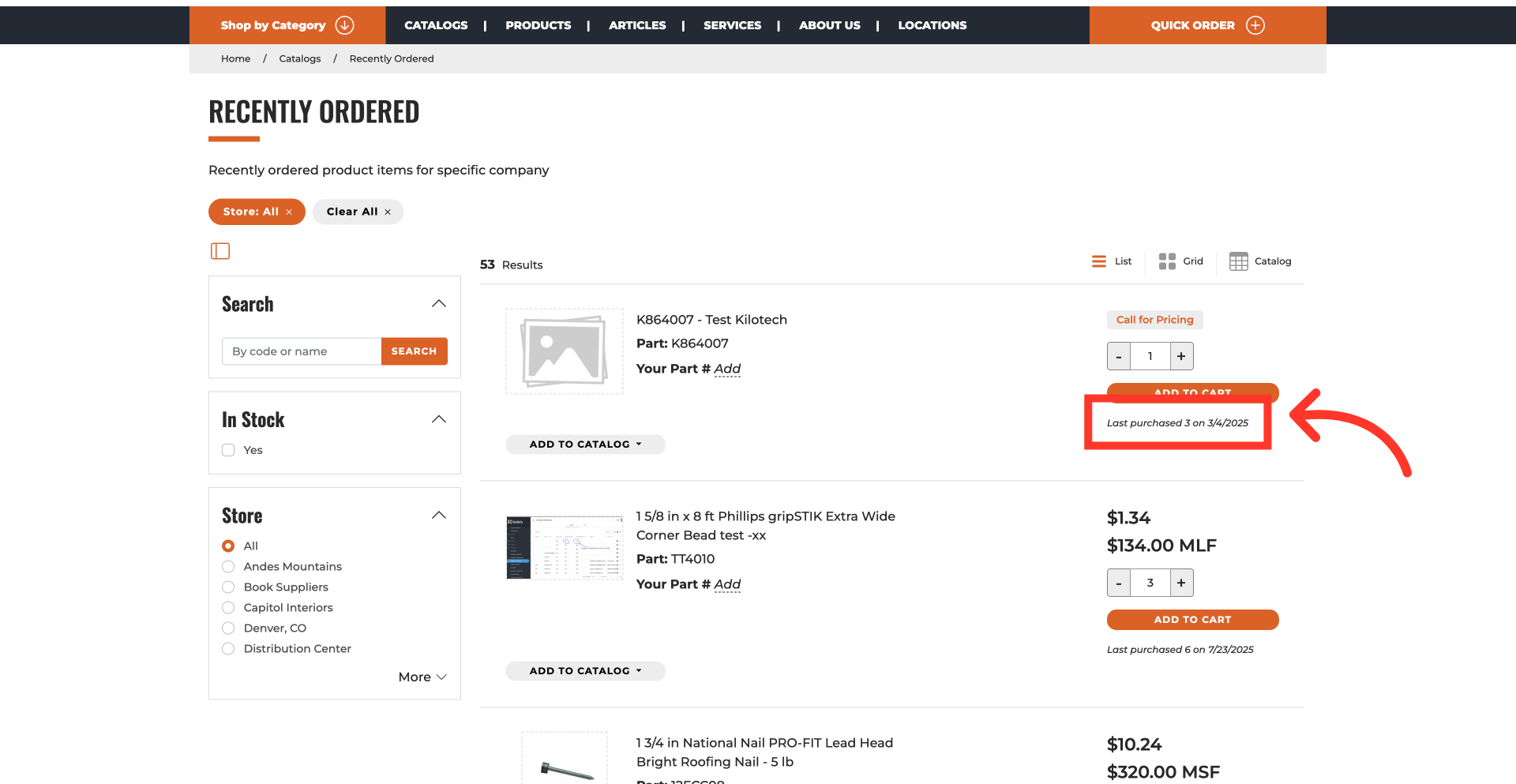
Check the purchased information in "List" or "Grid" views
The last purchase date and quantity are visible within each product information card details when viewing lists in either "List" or "Grid" view. The "Catalog" screen view does not show this information directly as you browse.
Search for a product
Key in a product code or keyword that identifies the product in your search bar, then press "Enter."
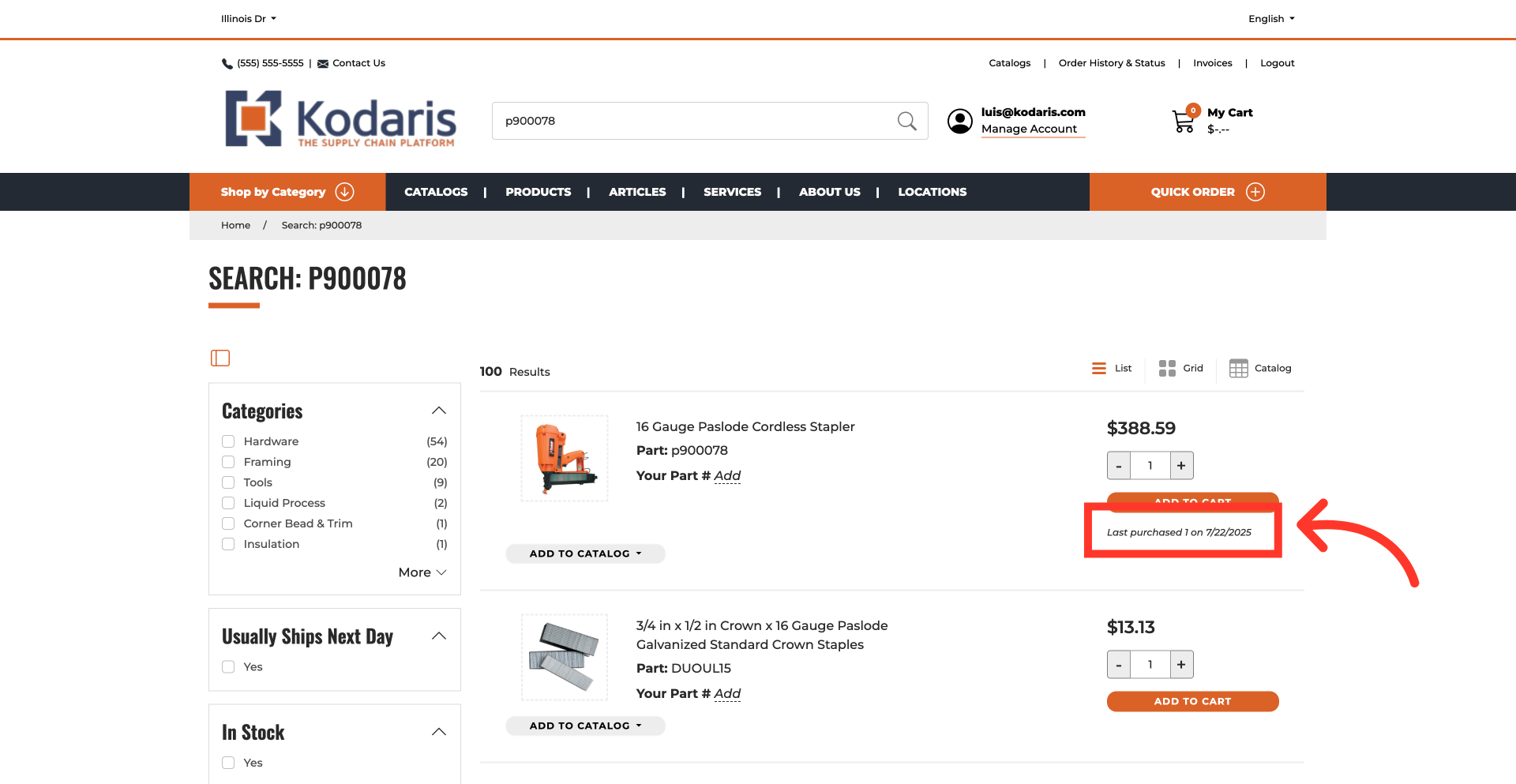
Review search results for purchased information
The search results will display all matching products, and you will notice that each product information card in your results list will include the purchase details.
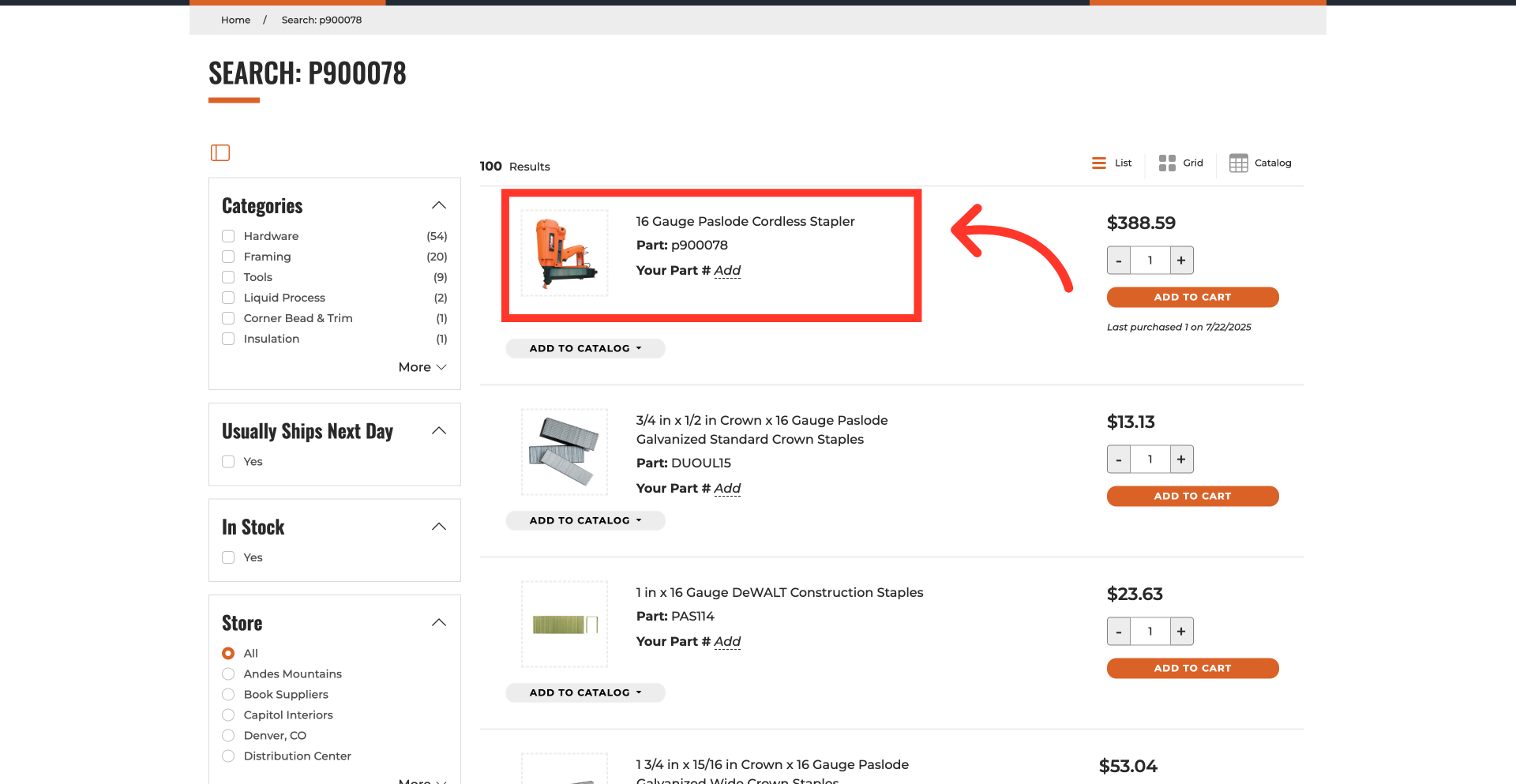
Click on the product
Alternatively, click on the product to view its detailed information.
Check the purchased information
This page will also display the purchase information.