Customer Portal - Preview & Print Receipts
Open Customer Portal
To preview and print receipts in the Customer Portal, you will first need to navigate to the "Payment History" section. In order to complete these actions, you will need the "Accounts Payable" role
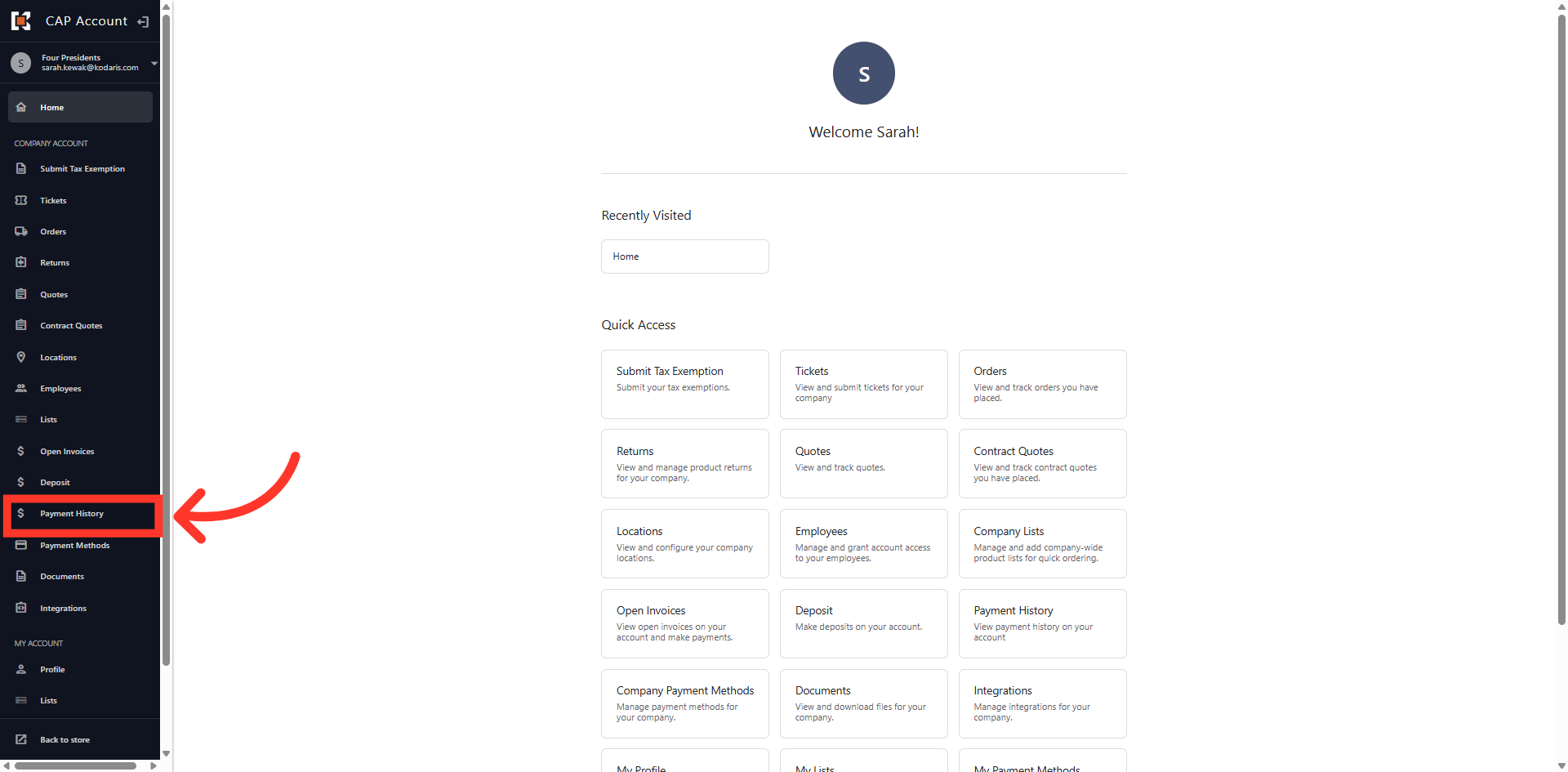
Click More Details Icon
Click the more details icon on a specific payment entry to preview the receipt associated with that transaction.
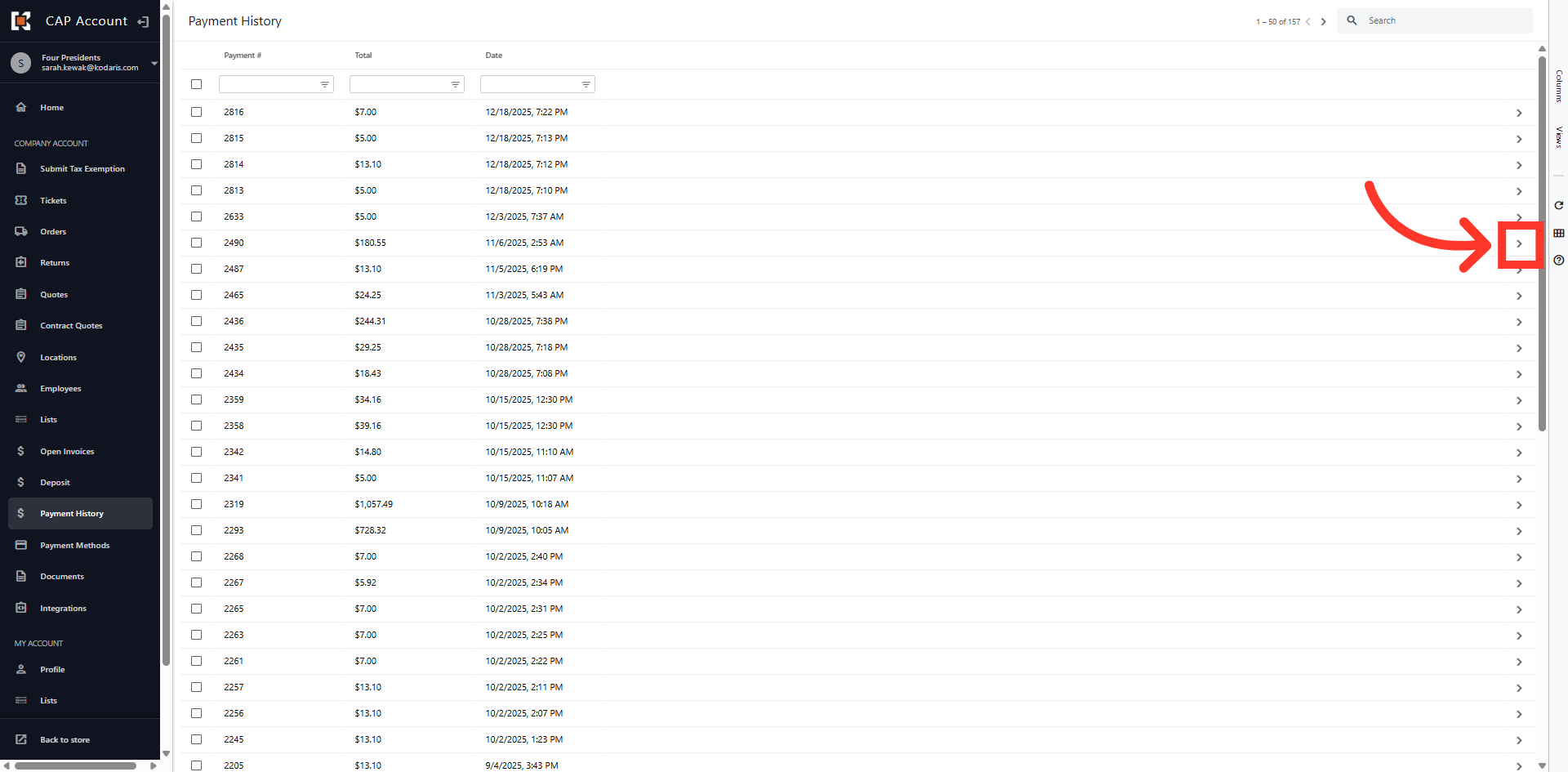
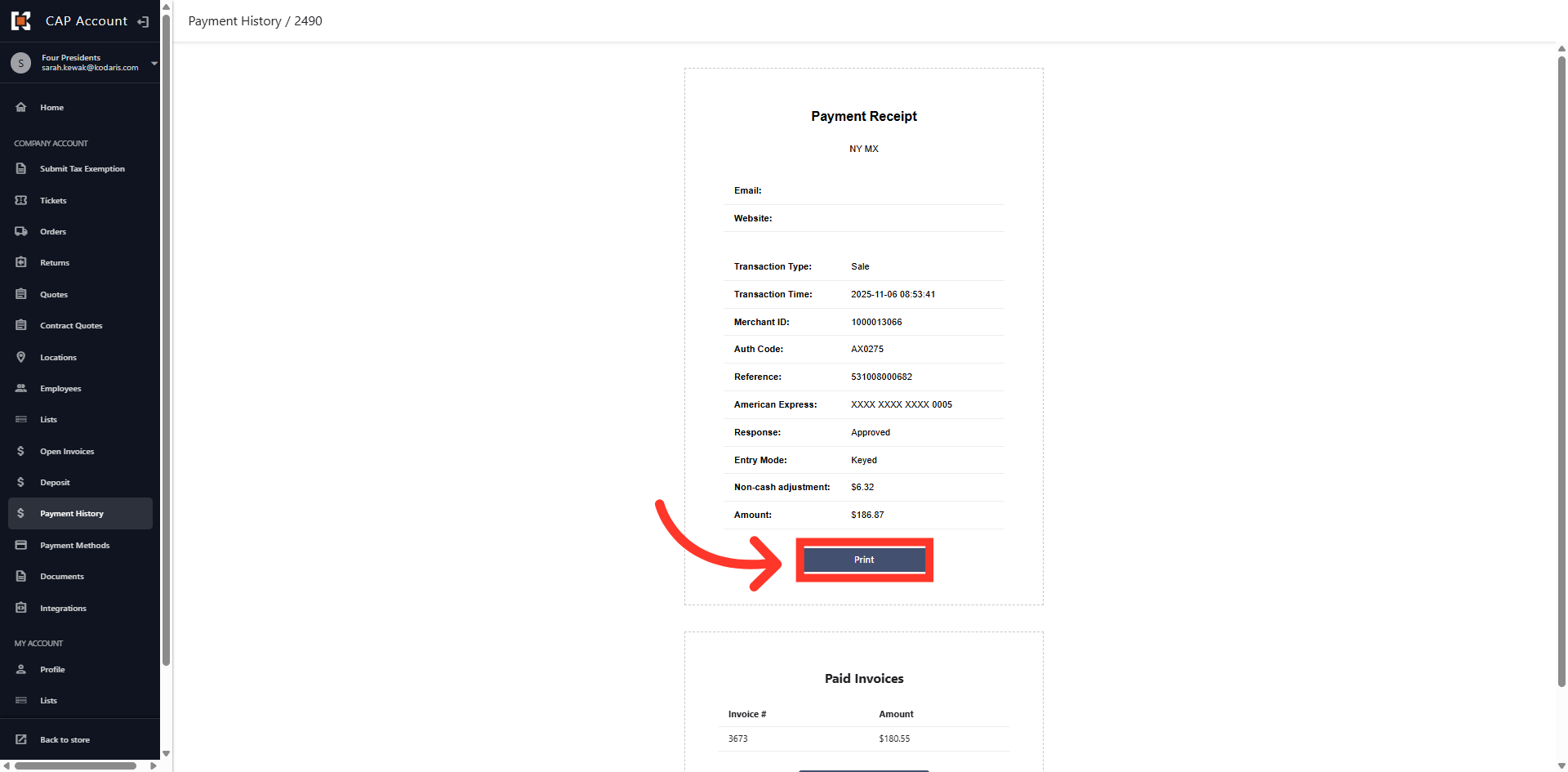
View Receipt Details
Here you will see the transaction details including transaction type, date/time of the transaction, payment method used and amount of transaction.
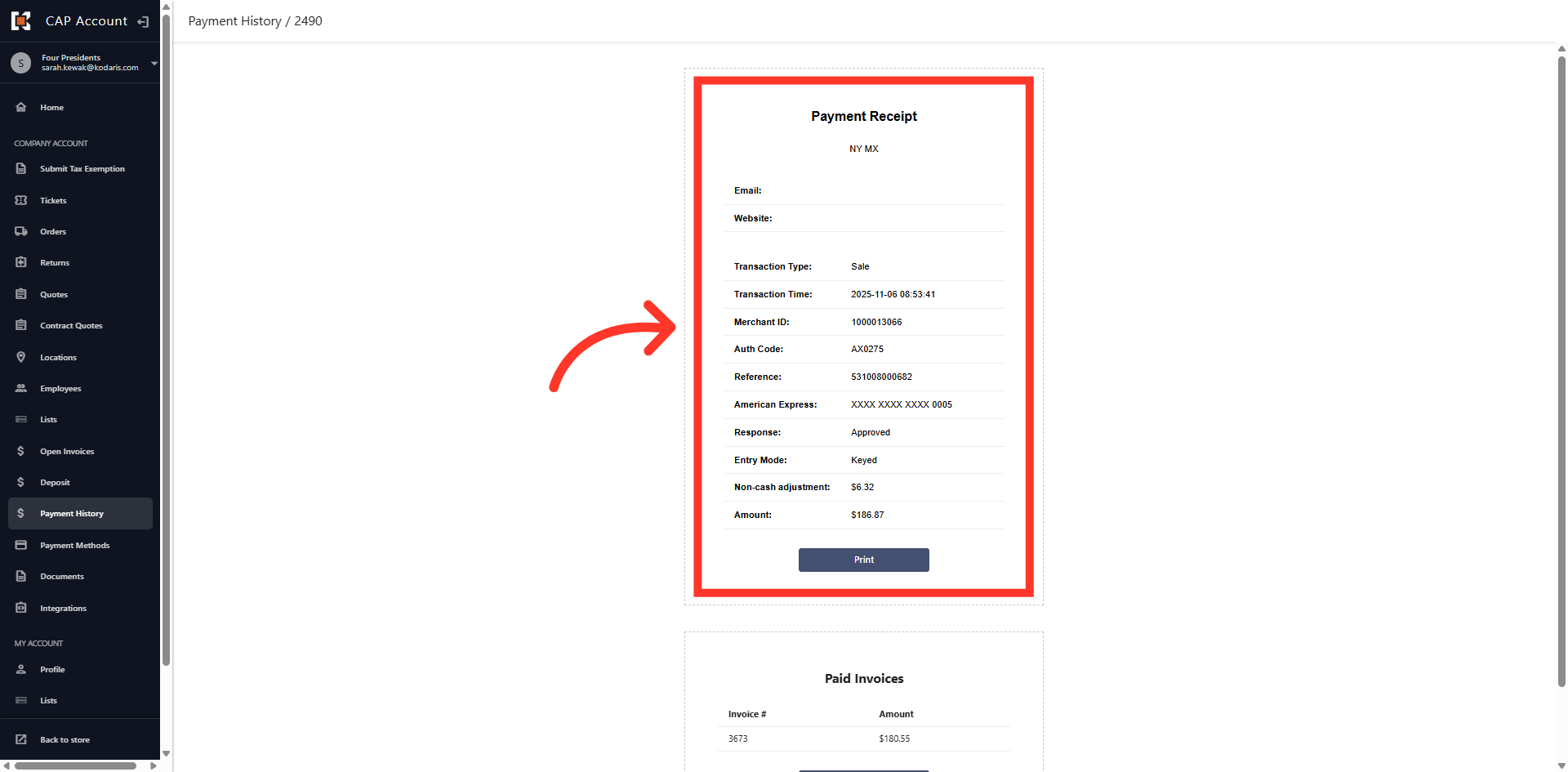
Click "Print"
Click the "Print" button to generate a printable version of your receipt for your records.
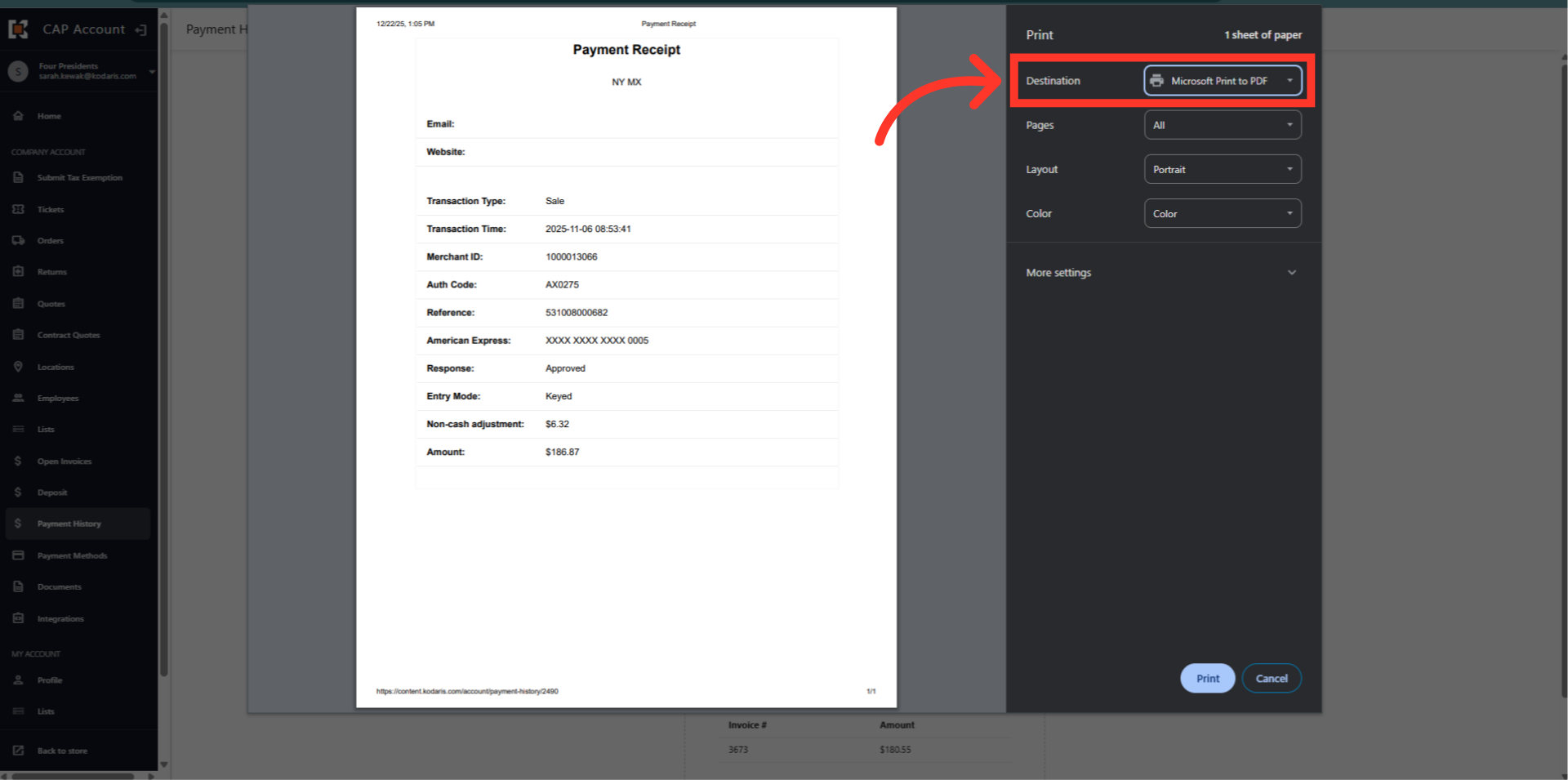
Select print destination
In the Print dialog box, select the printer of your choice. In this example, we will print to a PDF.
Receipt Details
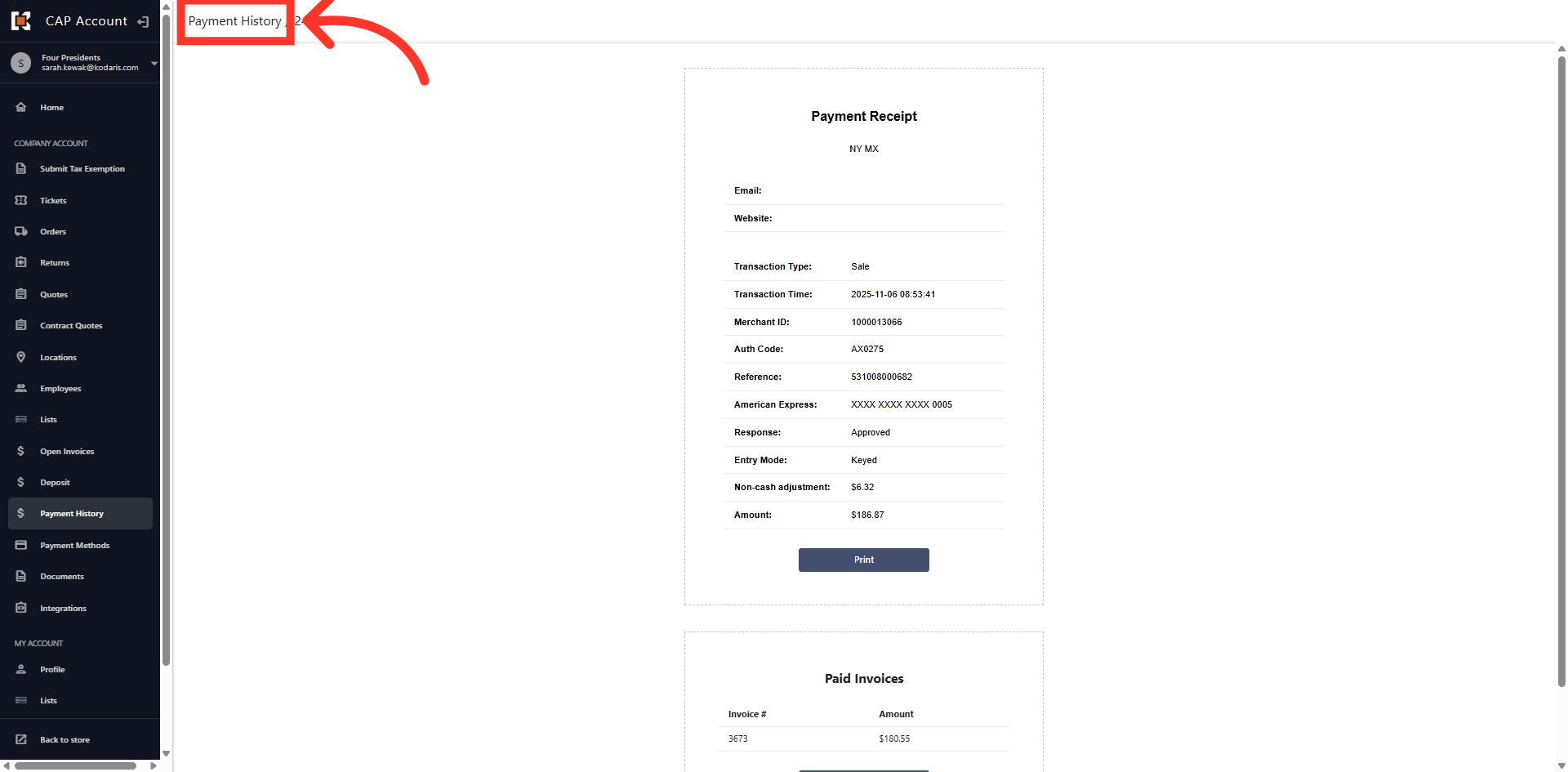
Once the receipt has been printed, you will return to the payment receipt. Click the "Payment History" bread crumb at the top of the screen to return to the Payment History dashboard.