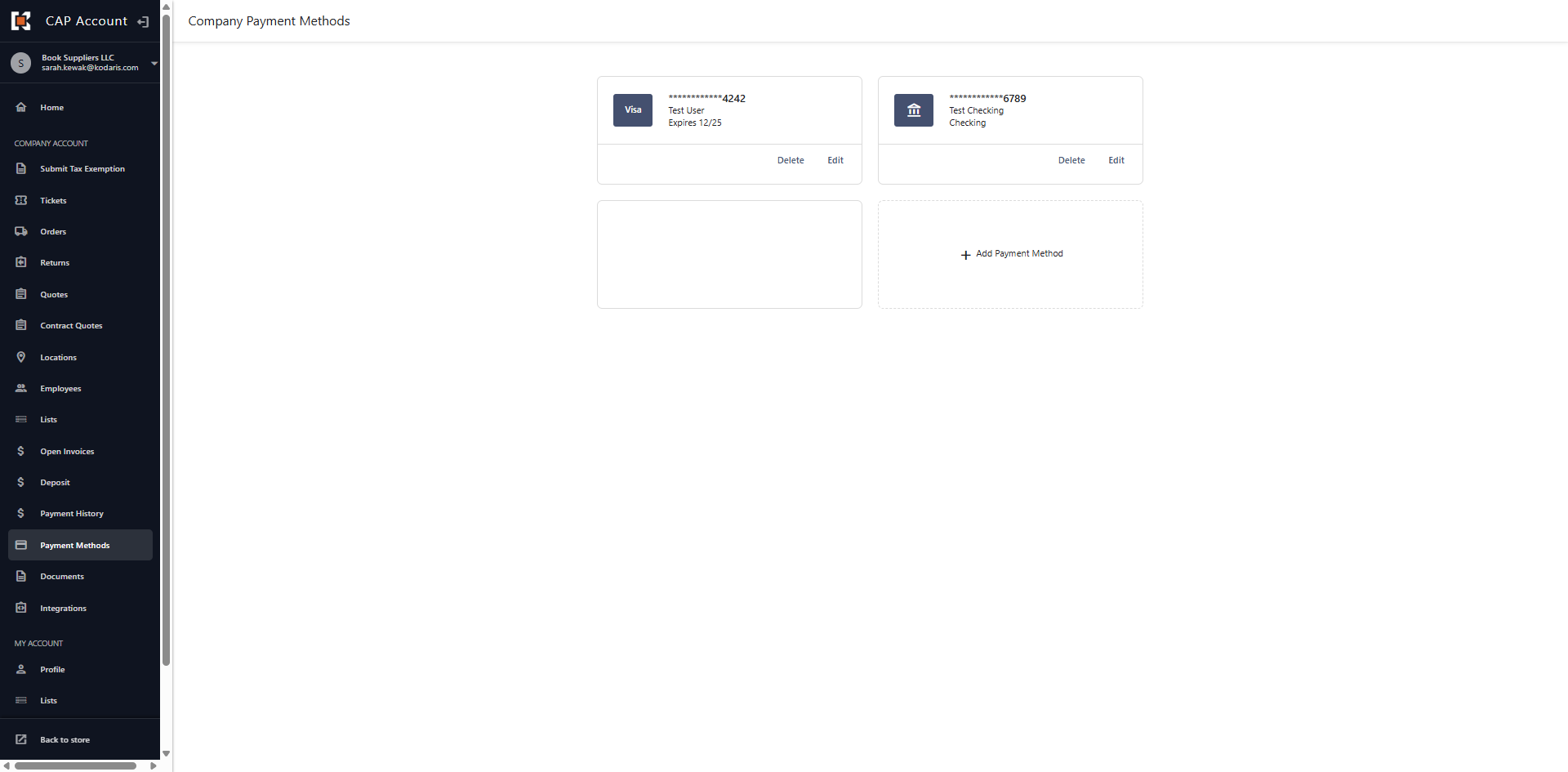
Customer Portal - Edit, Delete and Add Payment Methods
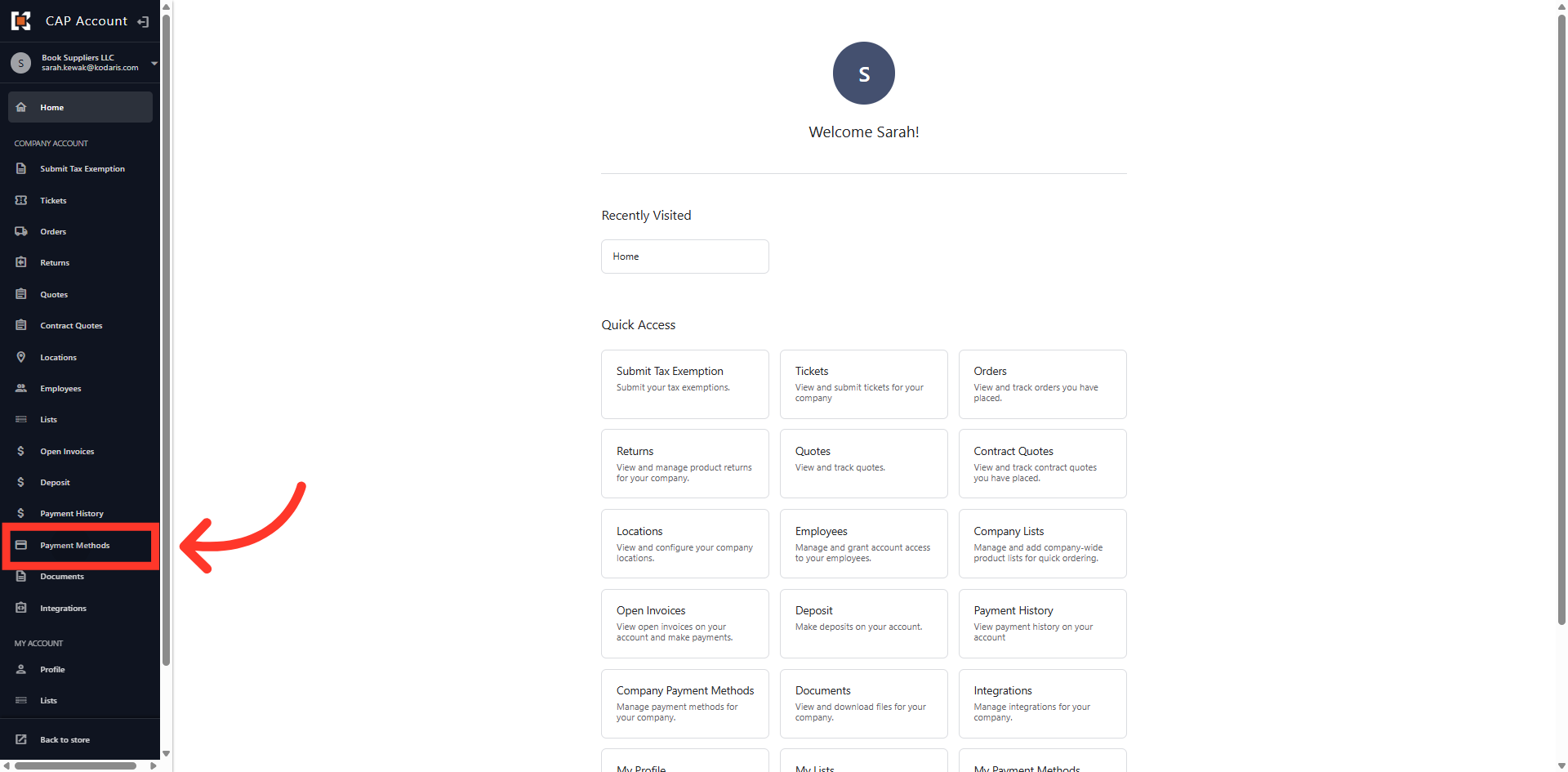
Navigate to "Payment Methods"
You can manage the payment methods used to pay invoices in the Customer Portal by navigating to the "Payment Methods" section. In order to complete these actions, you will need to be assigned the "Accounts Payable" permission.
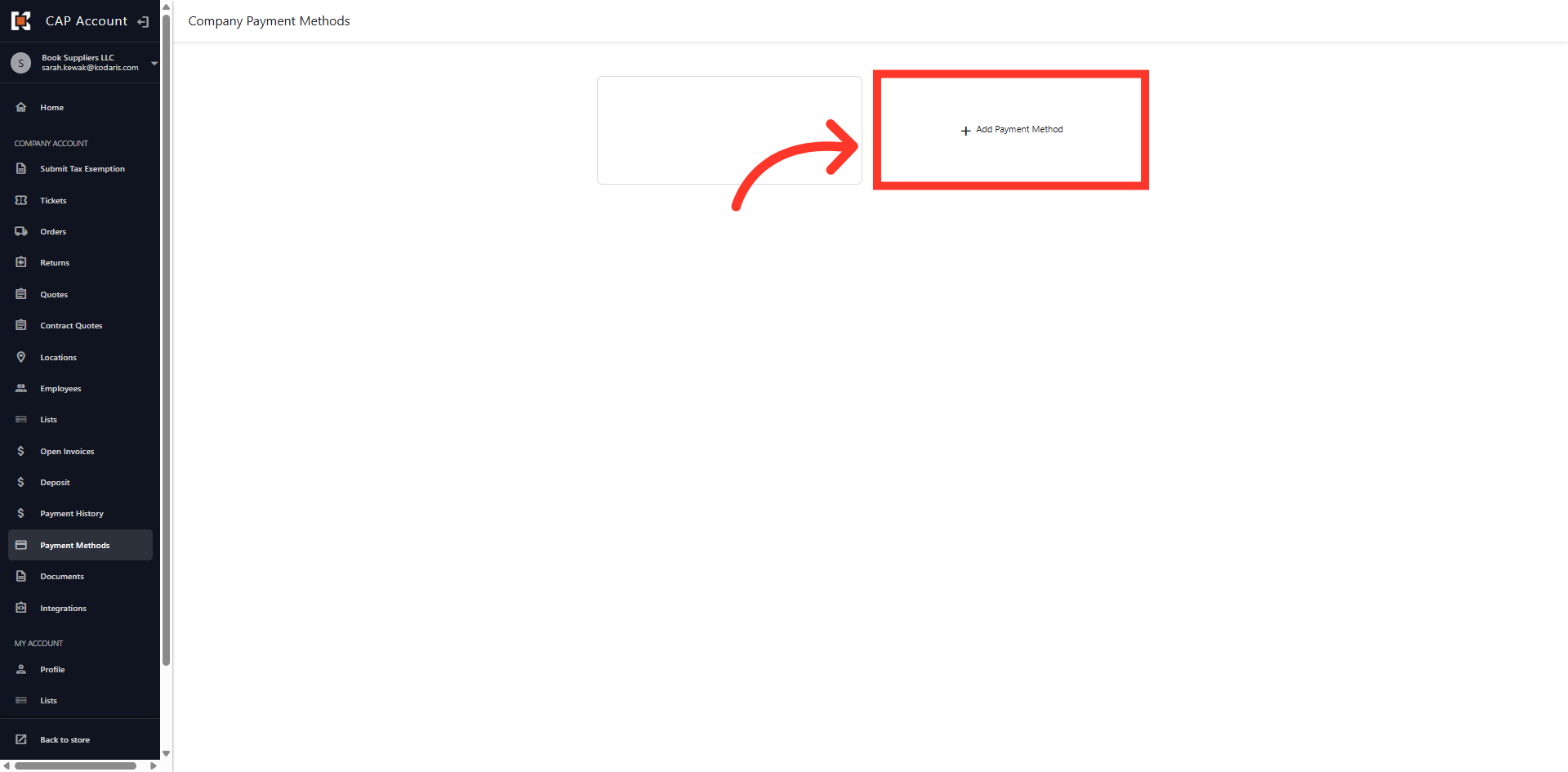
Click "Add Payment Method"
To add a credit card or bank account, click the "Add Payment Method" button.
Select "Card"
To add a credit or debit card, select "Card" from the payment method options.
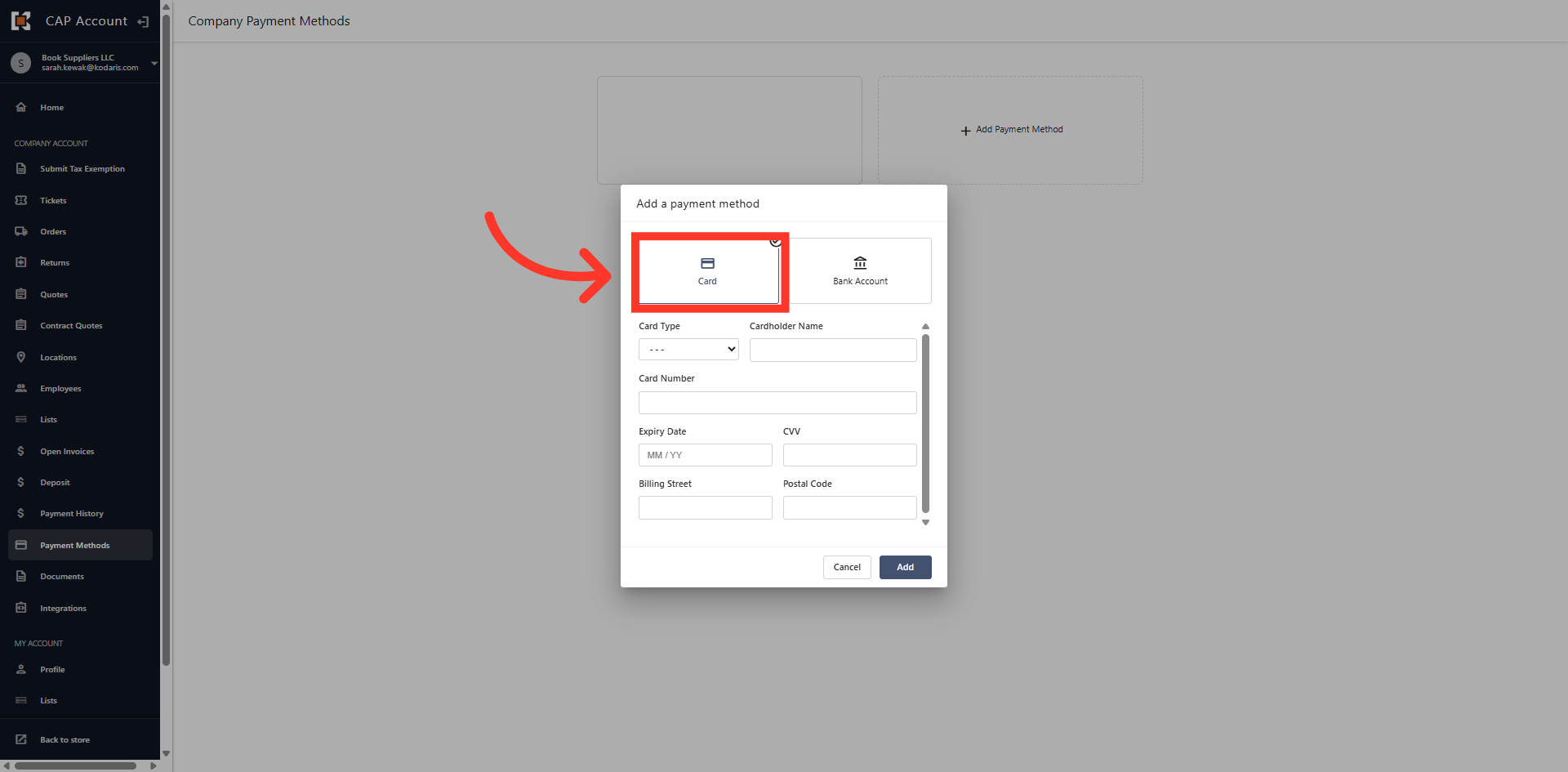
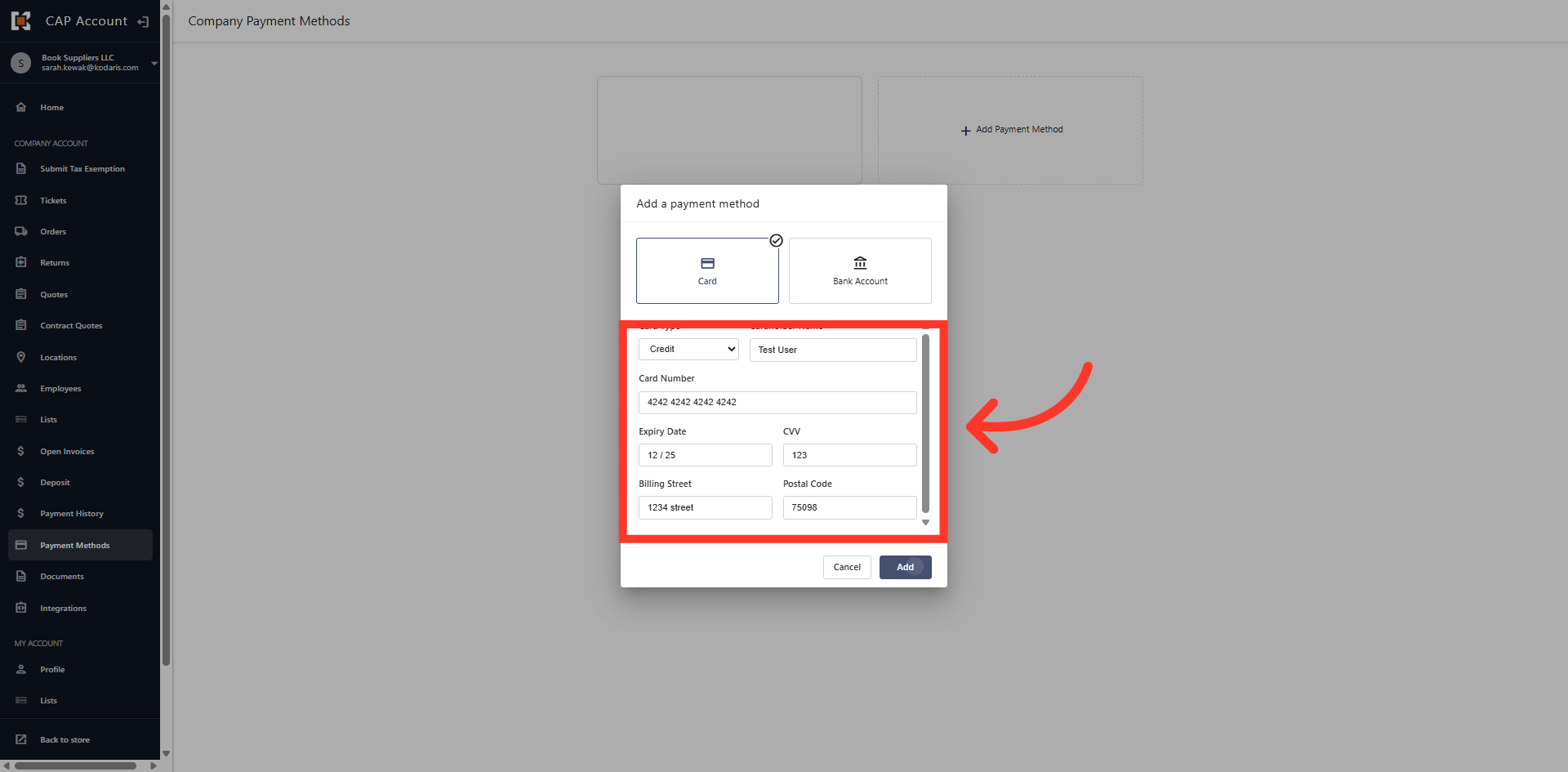
Fill in the card details
Fill in the card details. All fields are required.
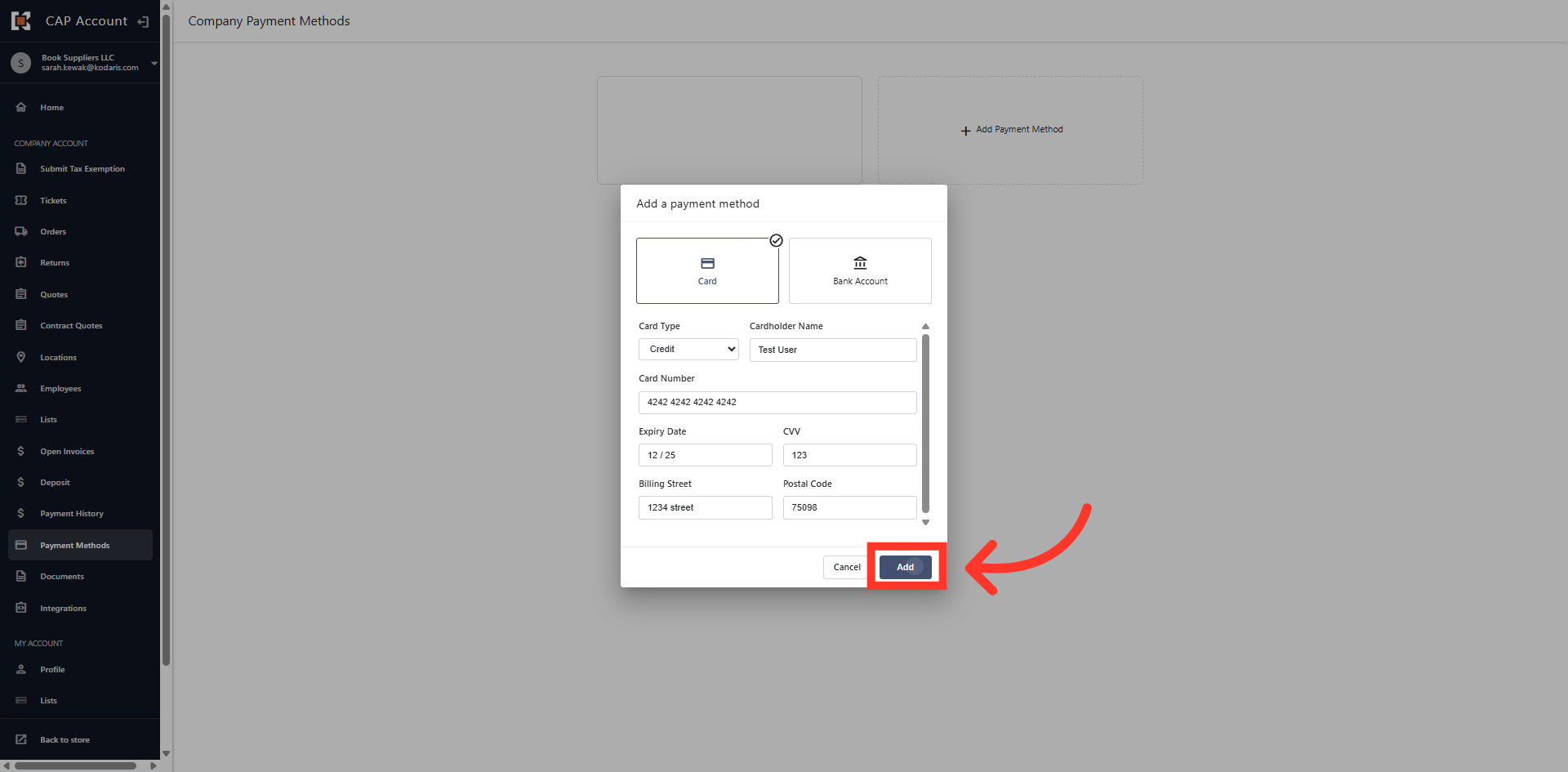
Click "Add"
Add the card details and Click the "Add" button to save.
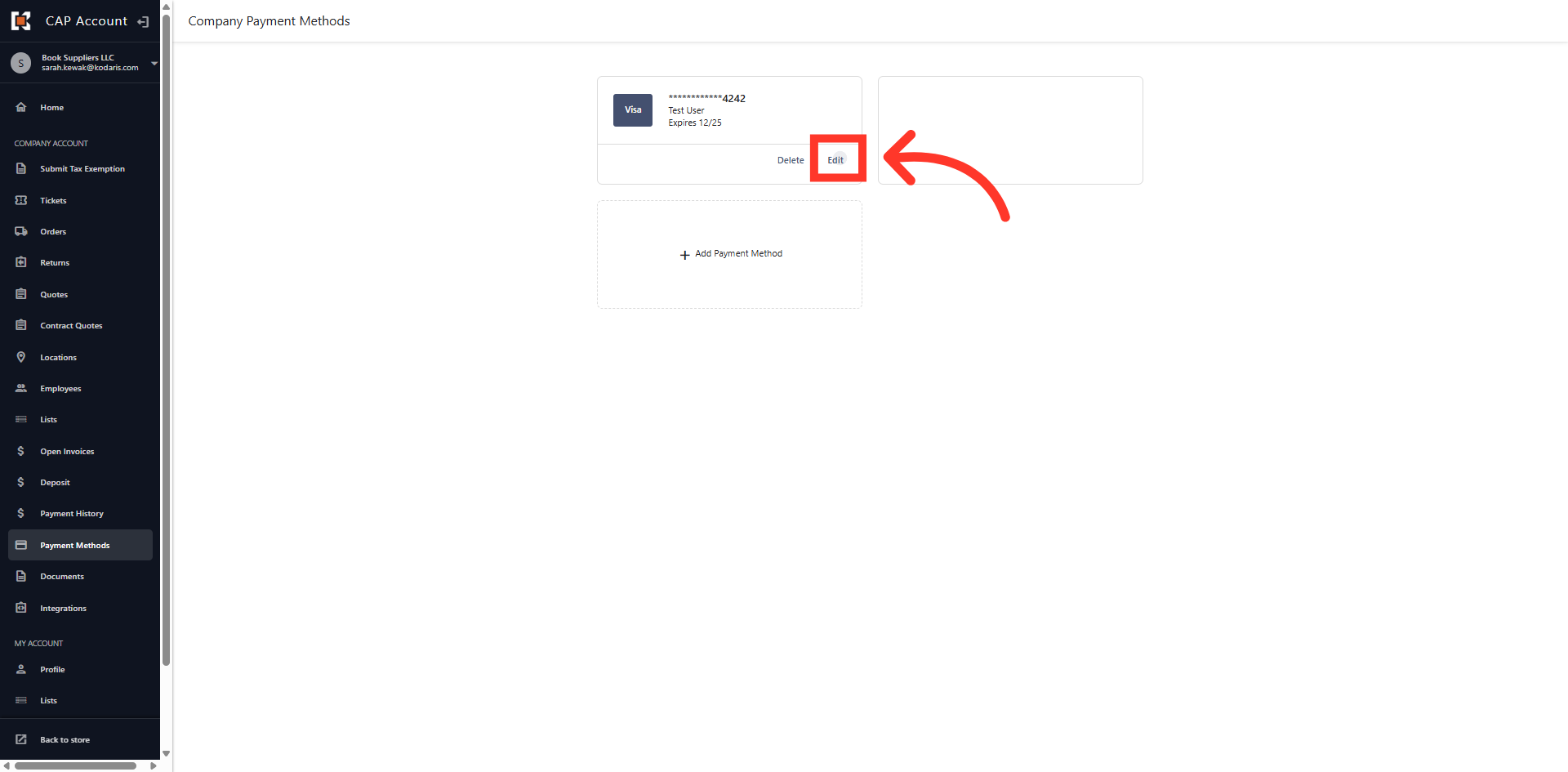
Click "Edit" to update card details
You can edit a saved card, by clicking the "Edit" button on the payment method.
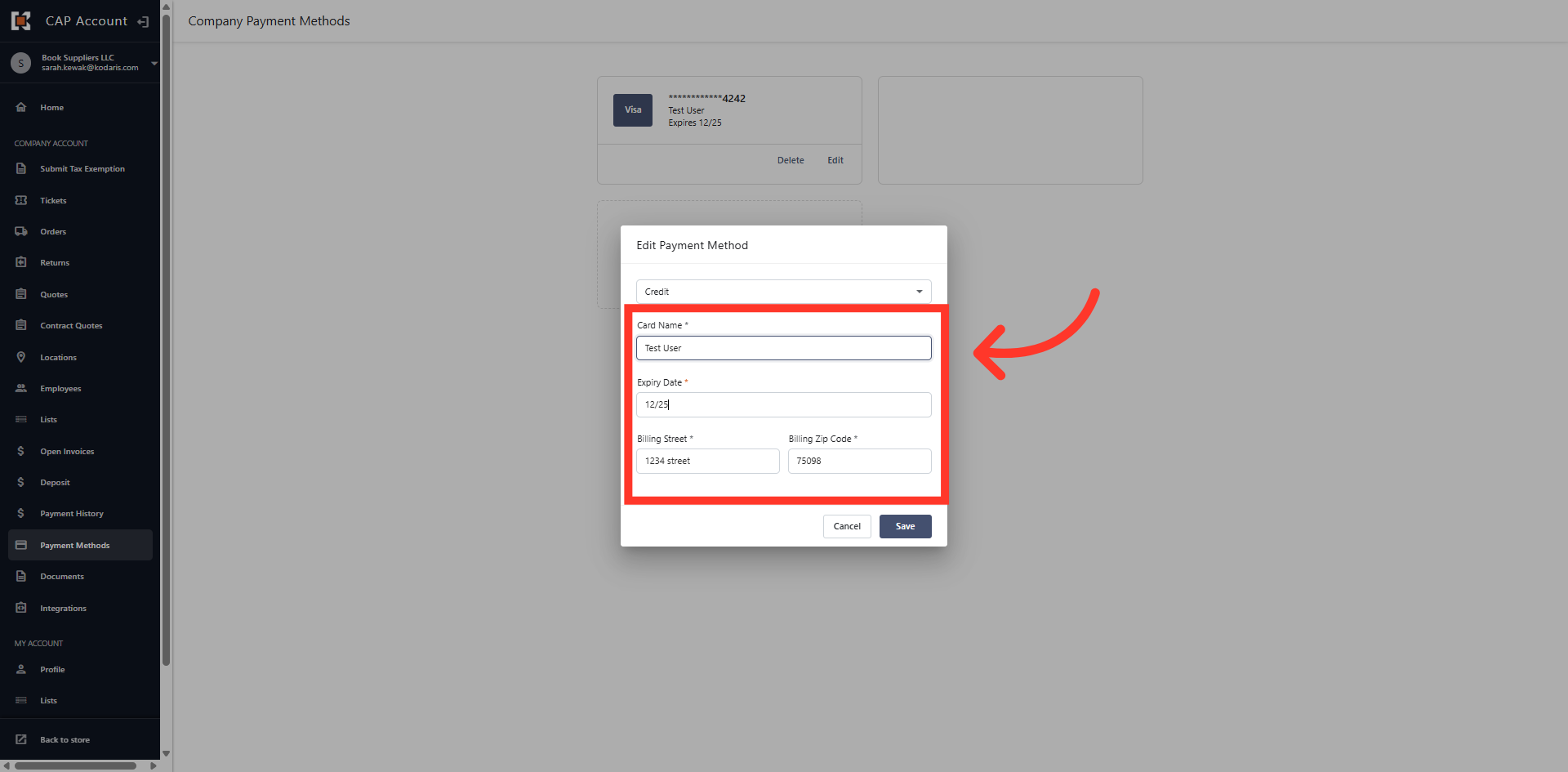
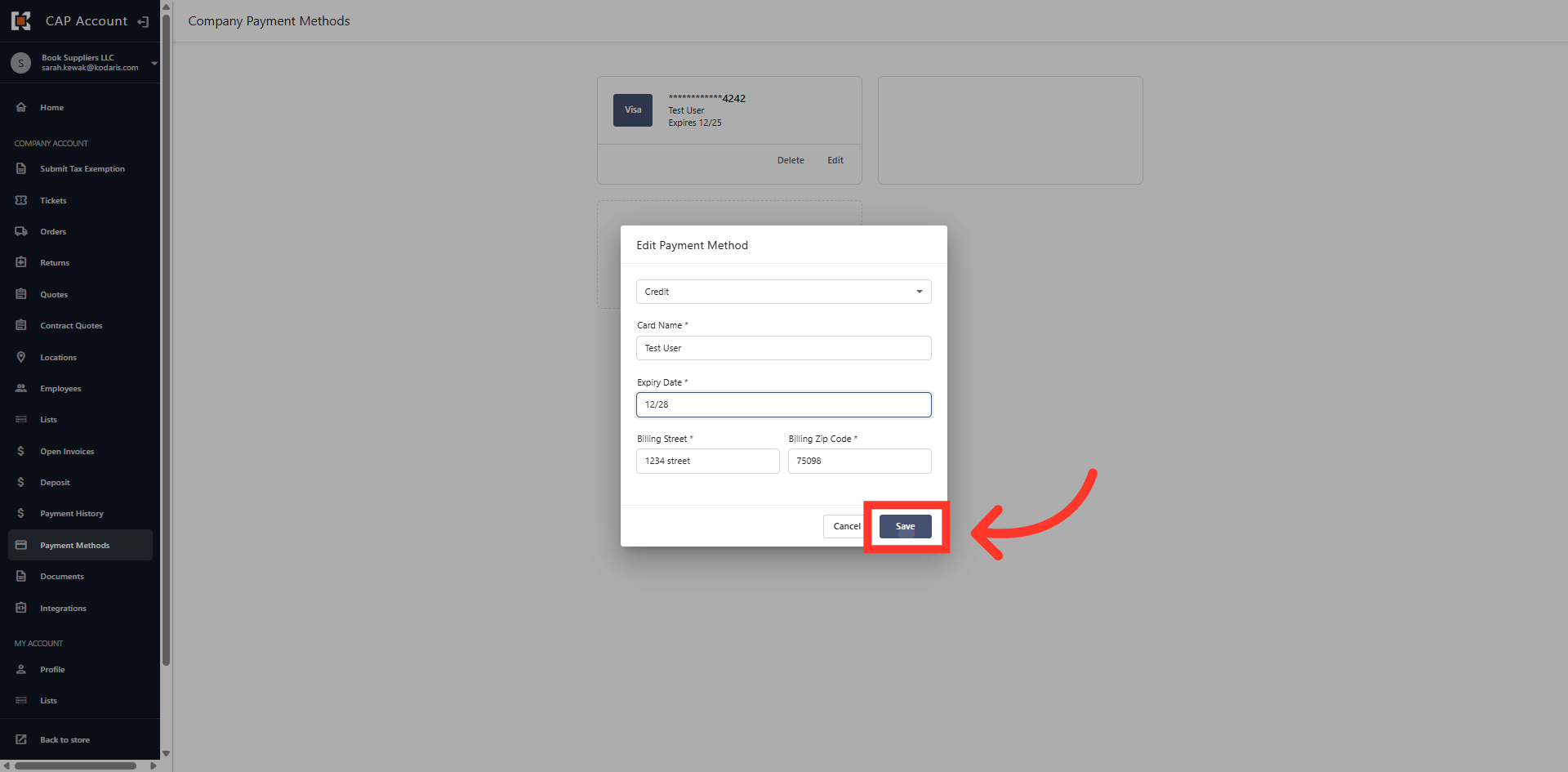
Edit the card details
Then, apply the needed updates. In this example, you can edit the expiration date. This is helpful when updating an existing card's expiration date.
Click "Save"
Once the information has been updated, click "Save" to save the change to the payment method.
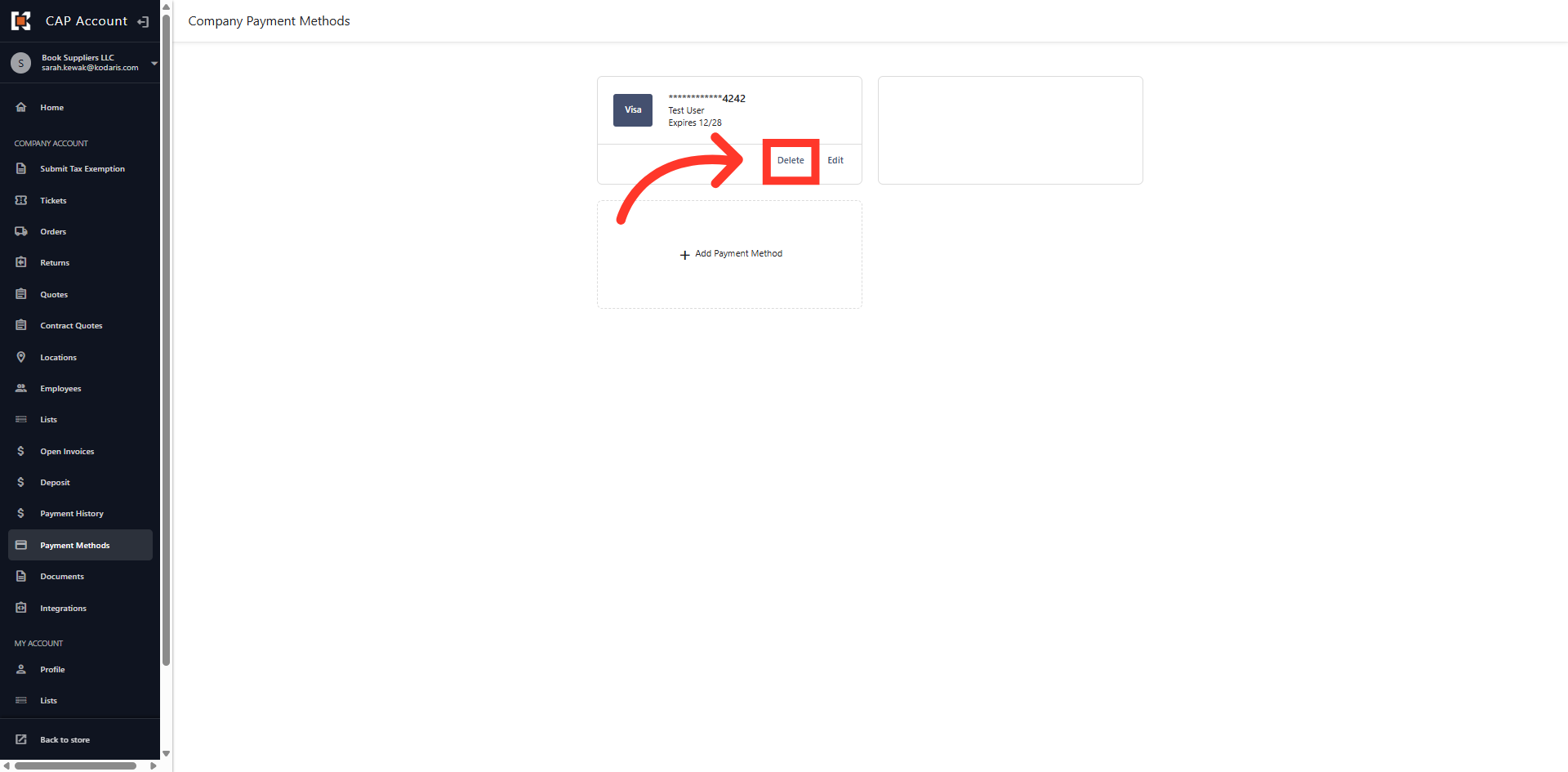
Click "Delete" to remove a payment method
If you no longer need a payment method saved in the Customer Portal, you can remove it by simply clicking the "Delete" button.
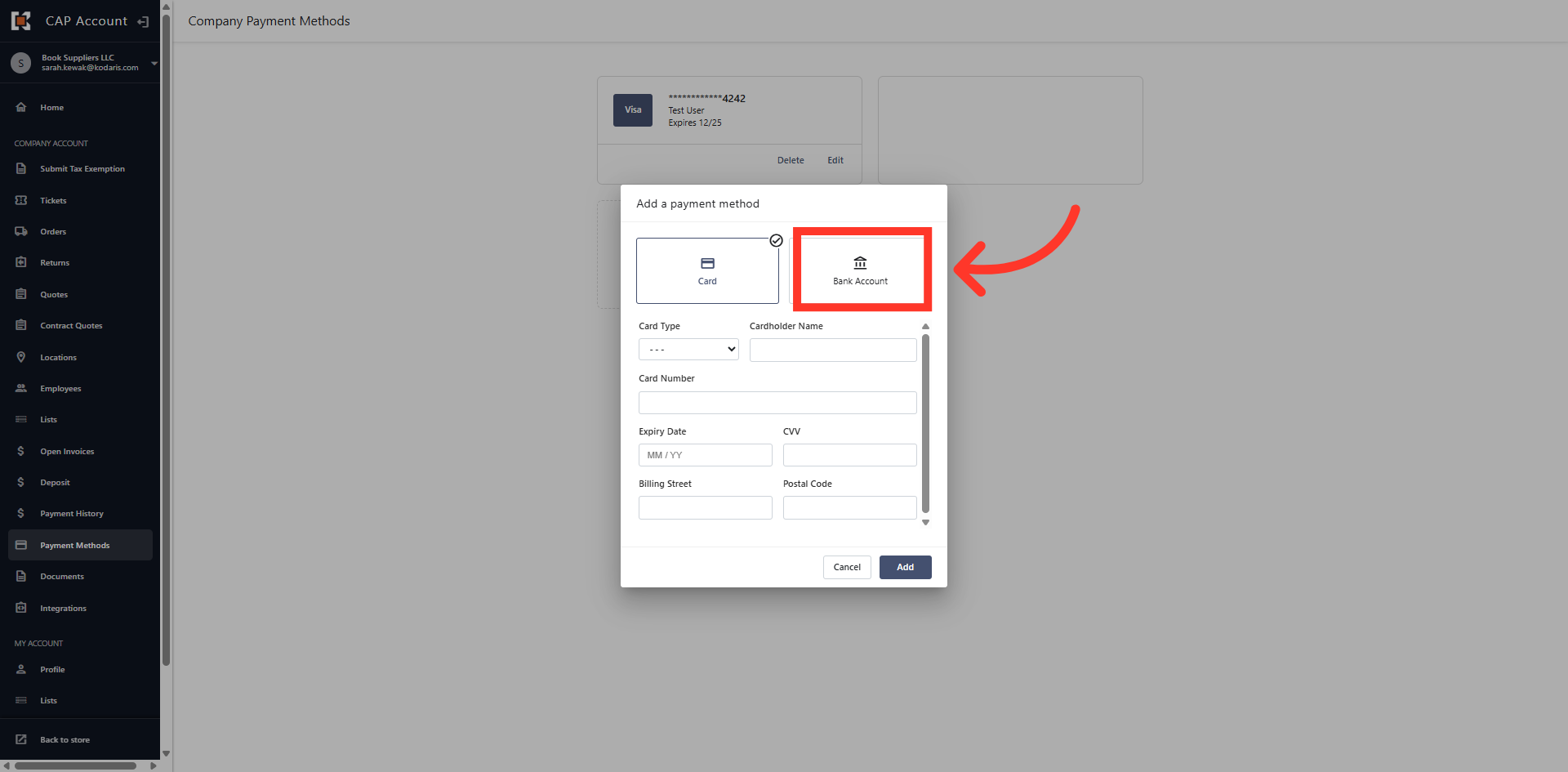
Adding "Bank Account"
You can also add a checking or savings account as your payment method. Just select the "Bank Account" option when adding a payment method.
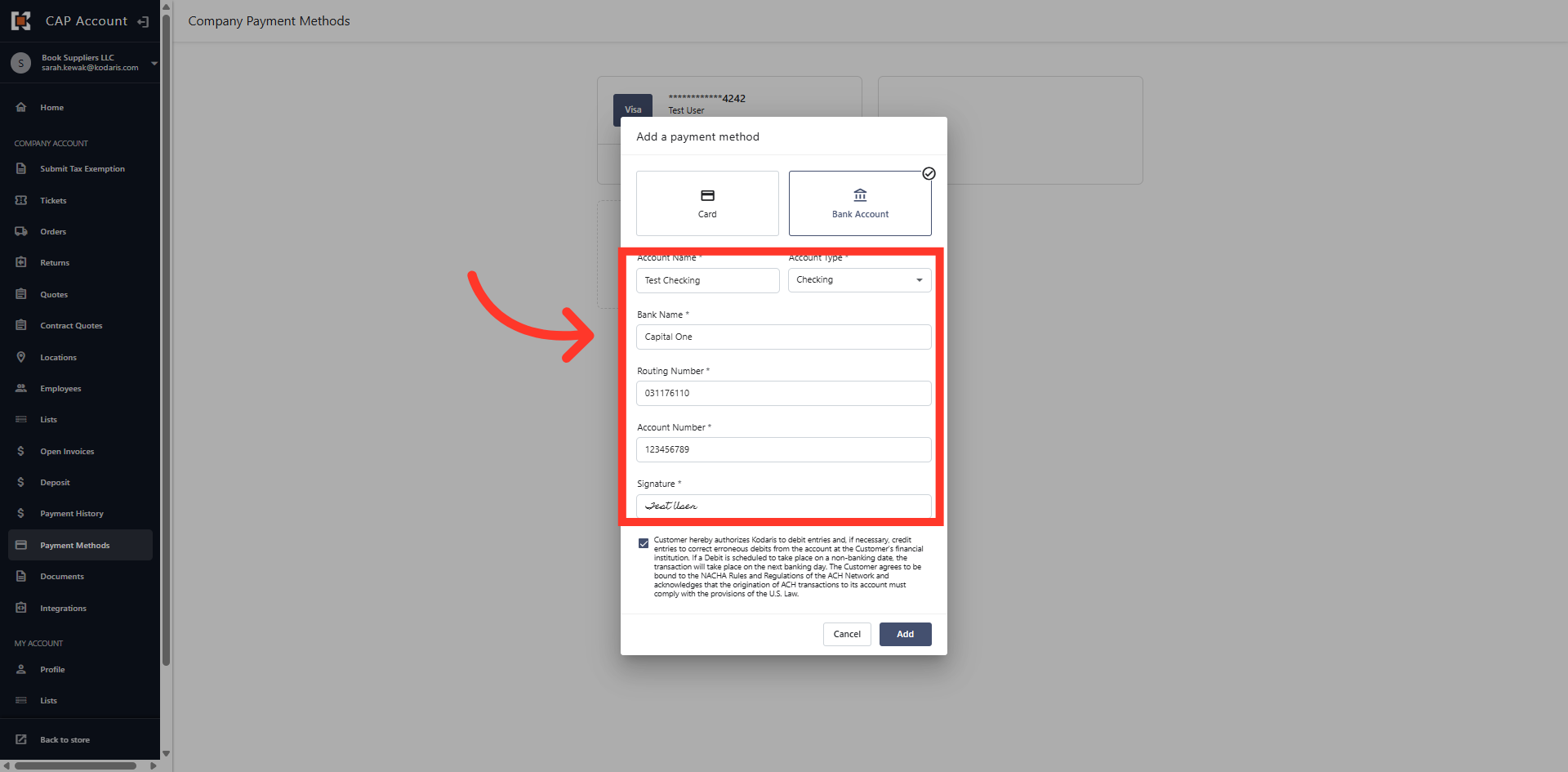
Fill in the checking/savings account details
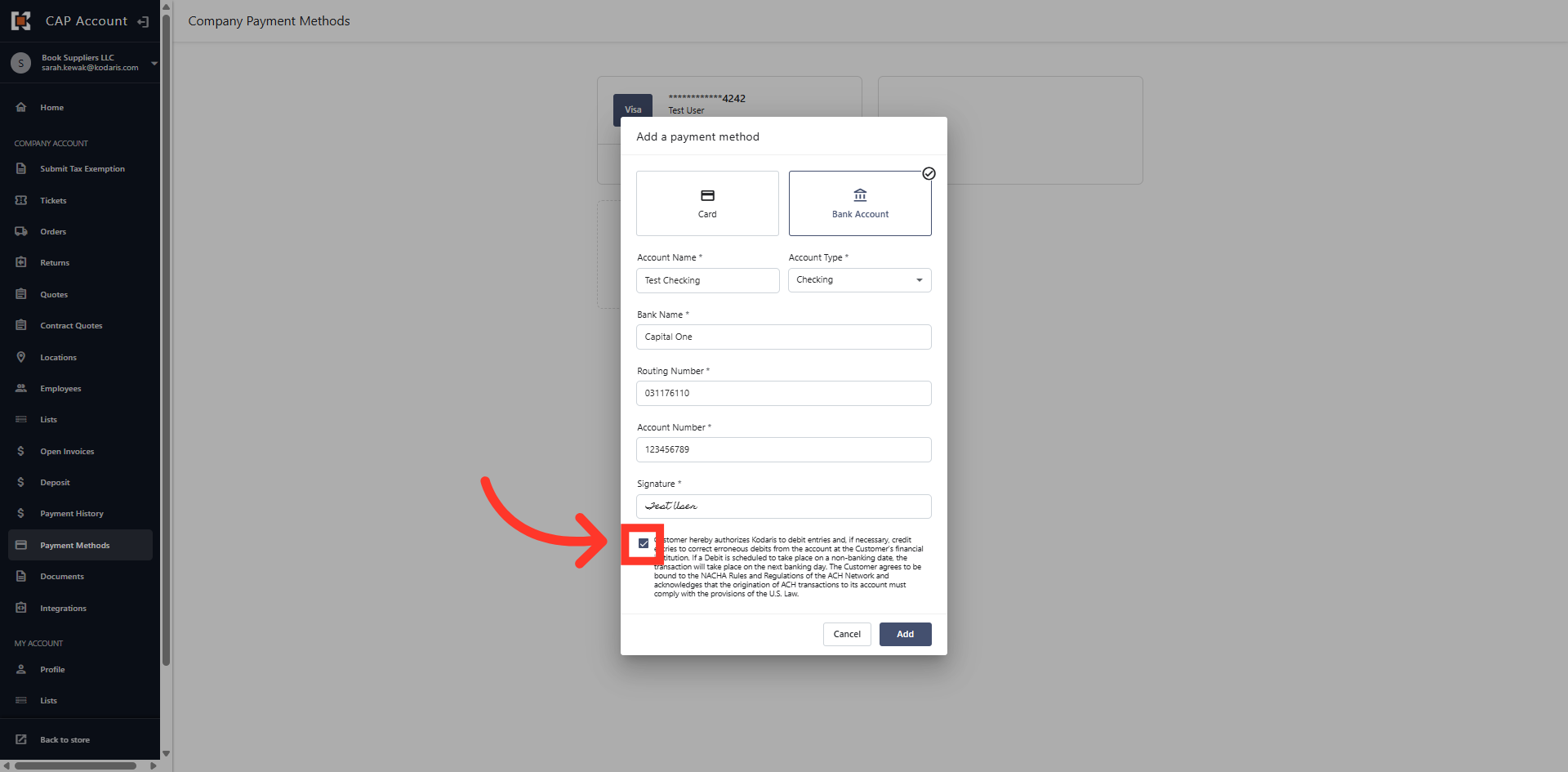
Add the checking or savings account information. Note that all fields are required. If it is your first time adding, you will be prompted to agree to ACH terms & signature.
Click the ACH terms checkbox
Click this checkbox to agree to the ACH terms.
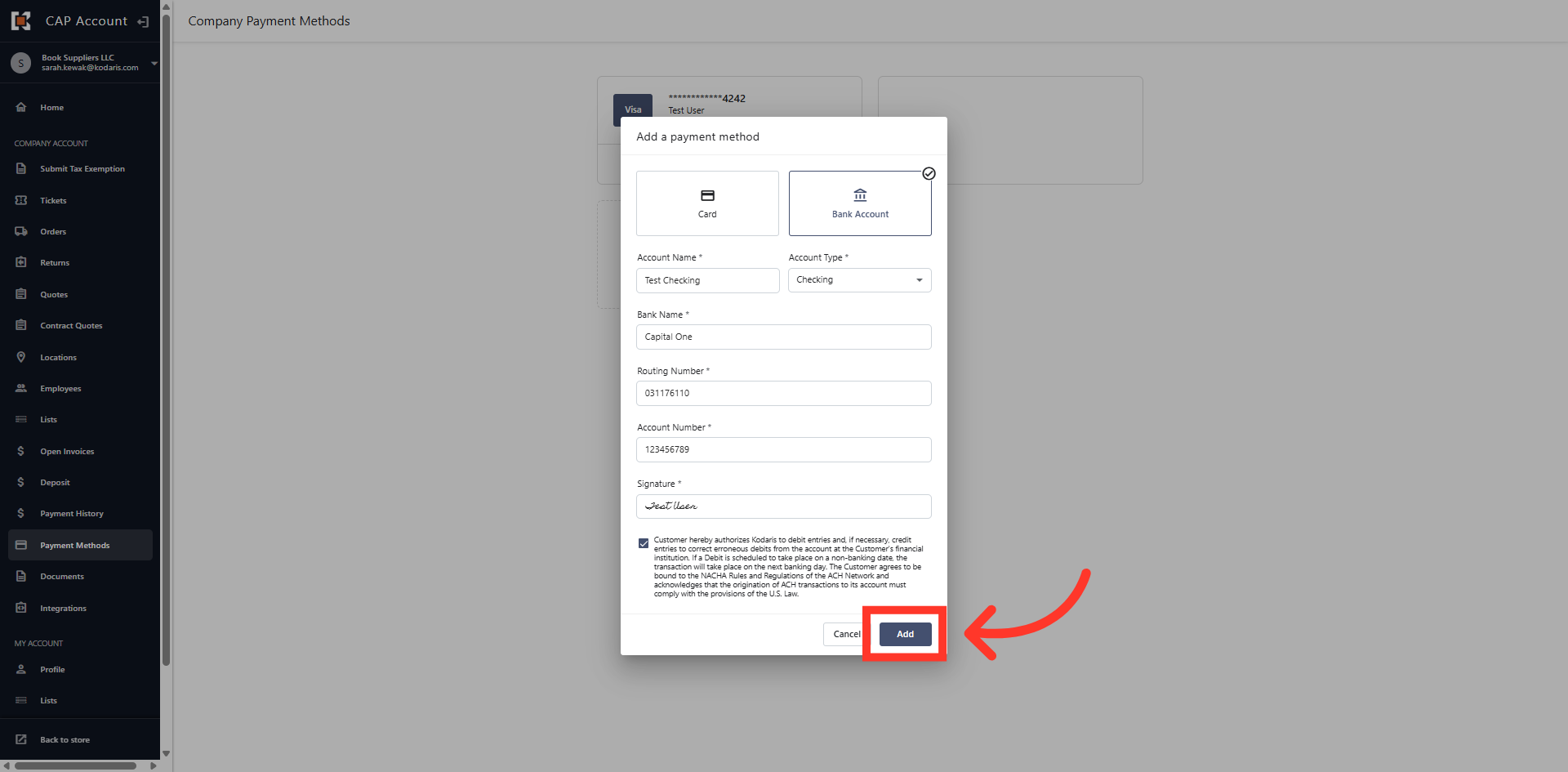
Click "Add"
Click "Add" to add the bank account in your payment methods.
Payment Method Dashboard
You can add multiple credit/debit cards or checking and savings accounts as needed.