Customer Portal - Select Invoices & Make Payments
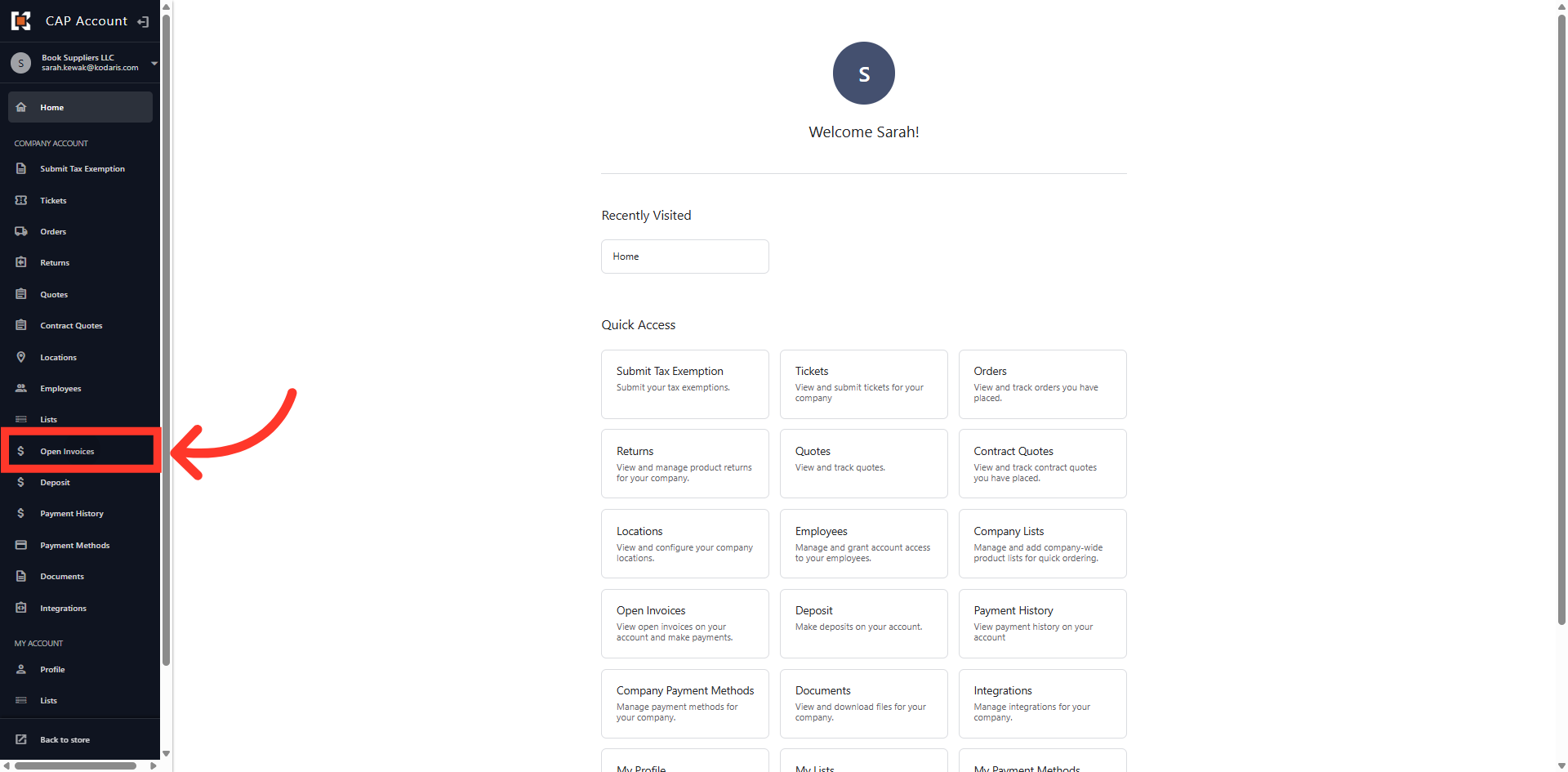
Navigate To Open Invoices
To select and pay open invoices, you will first navigate to the "Open Invoices" section in the Customer Portal. In order to select and pay open invoices, you will need to have the permission of "Accounts Payable".
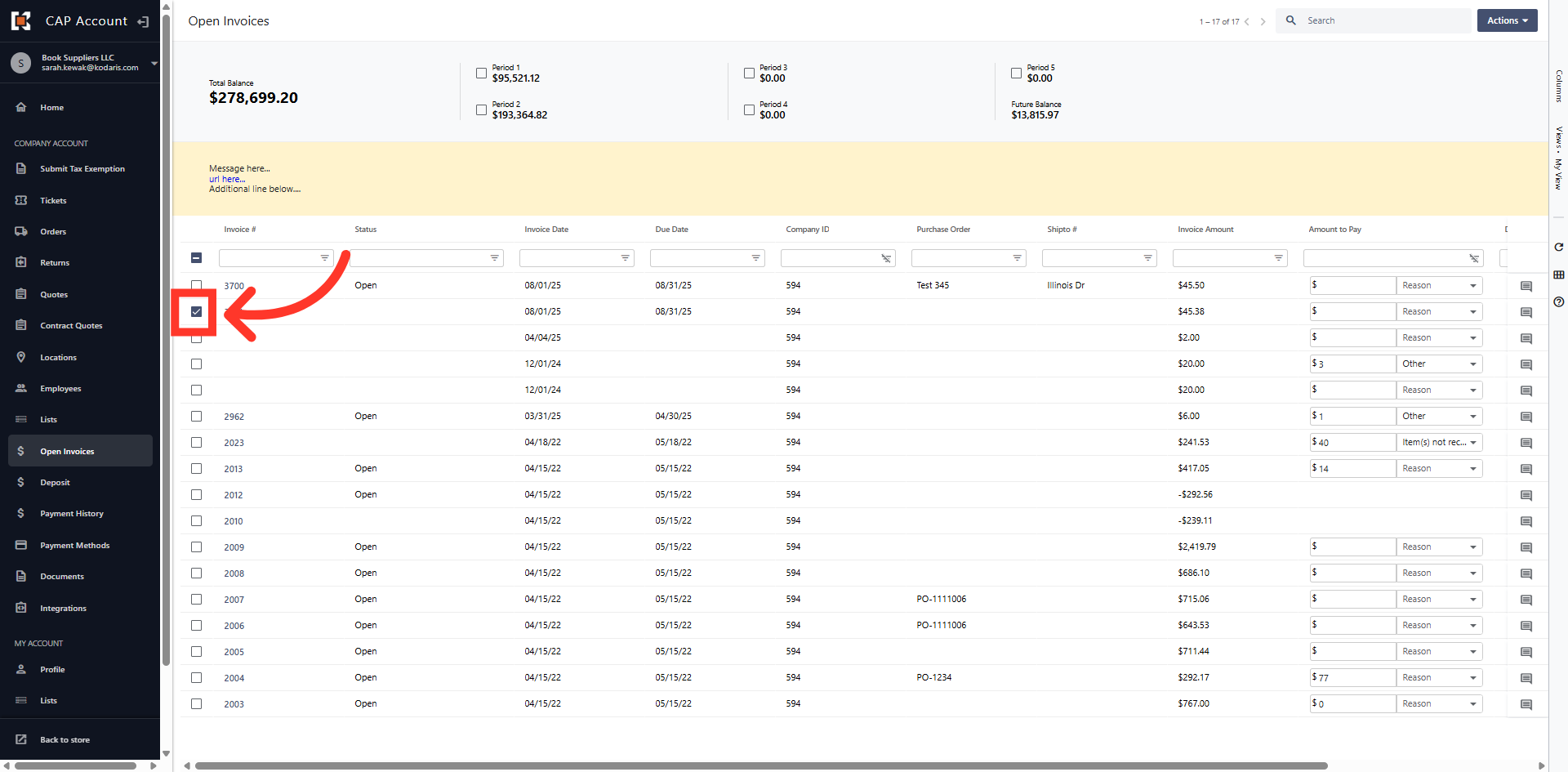
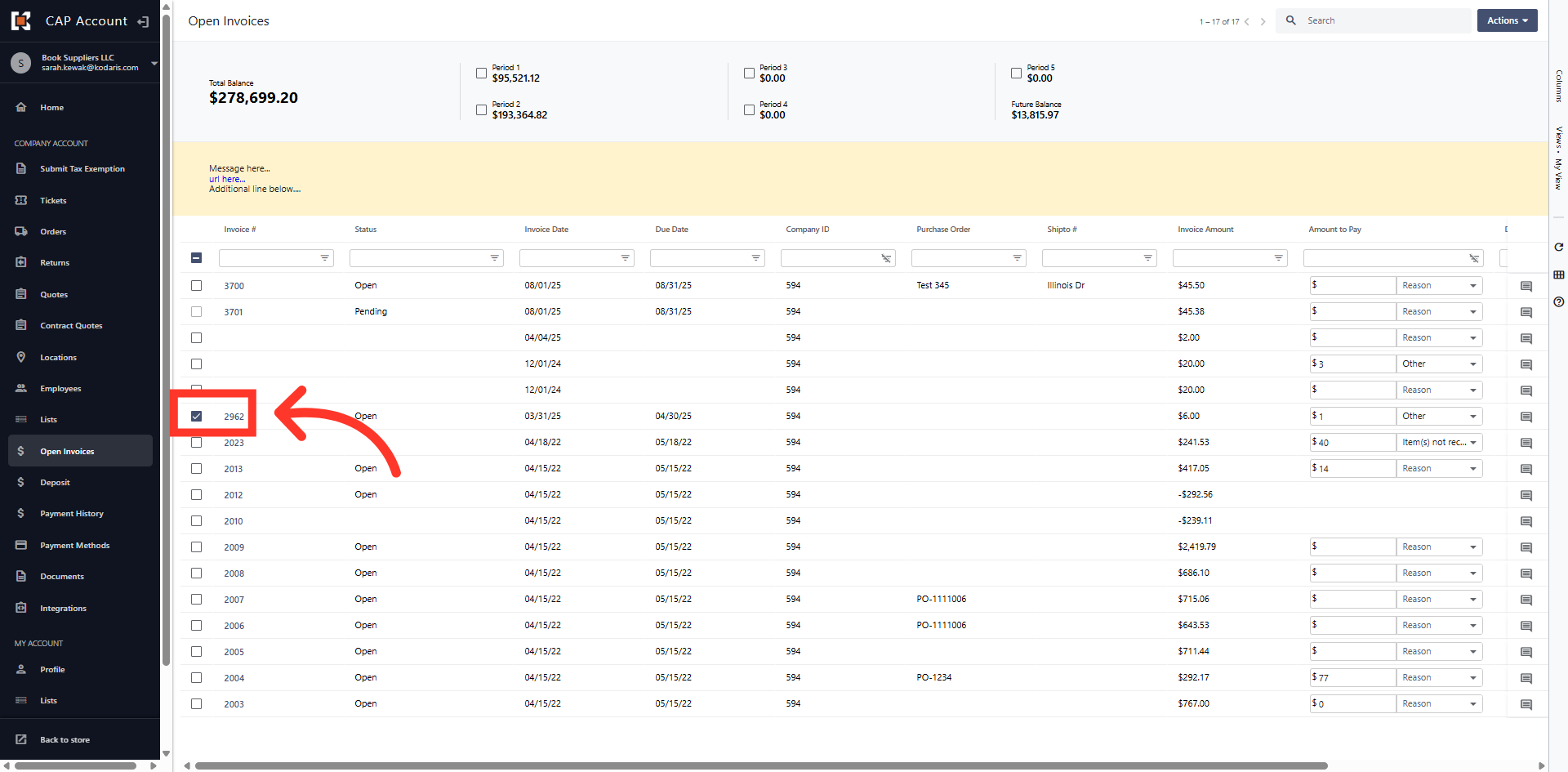
Select Invoice
Select the invoice you wish to pay by clicking the check box.
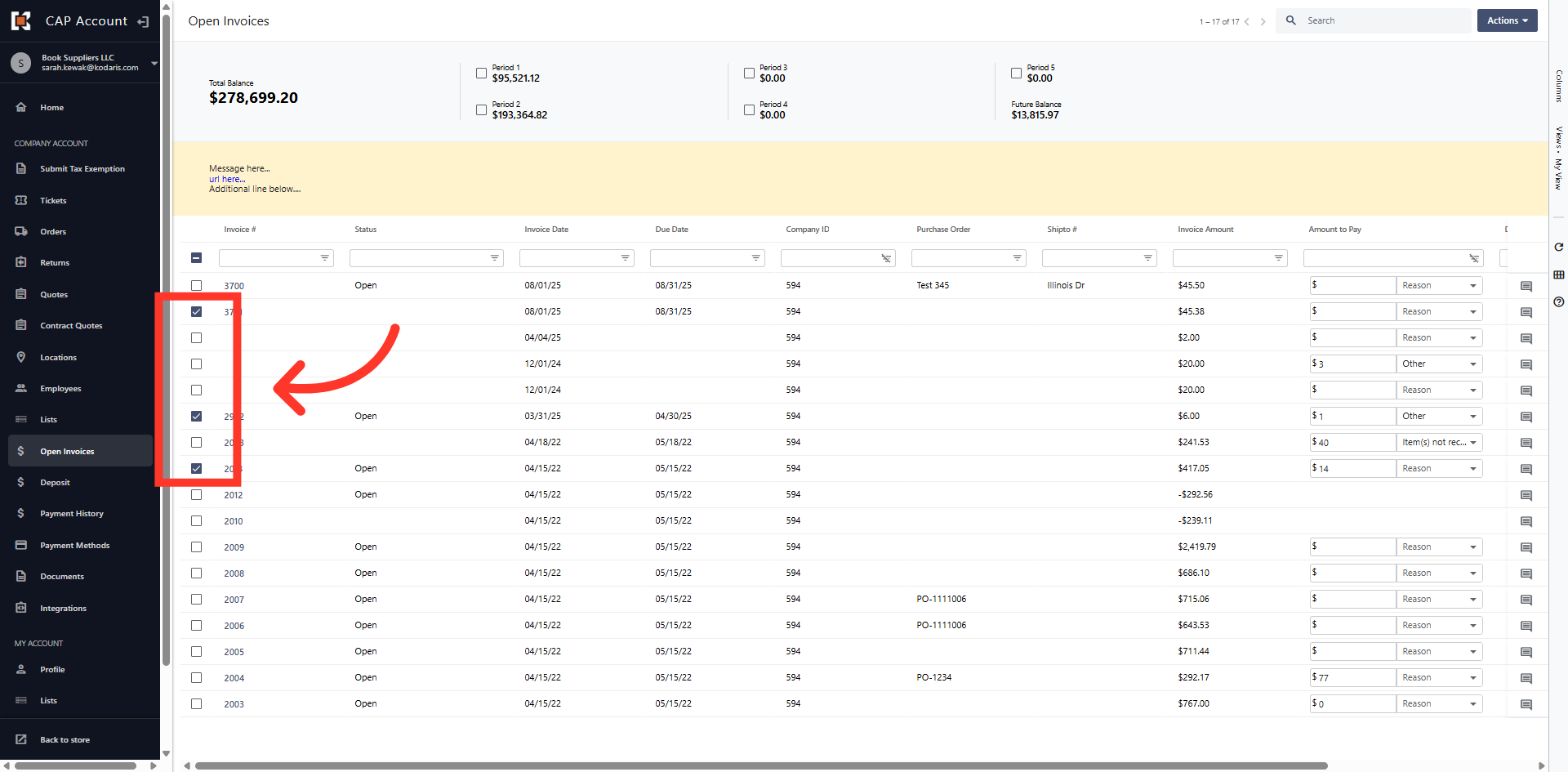
Select Multiple Invoices
You can select one, or multiple invoices to pay.
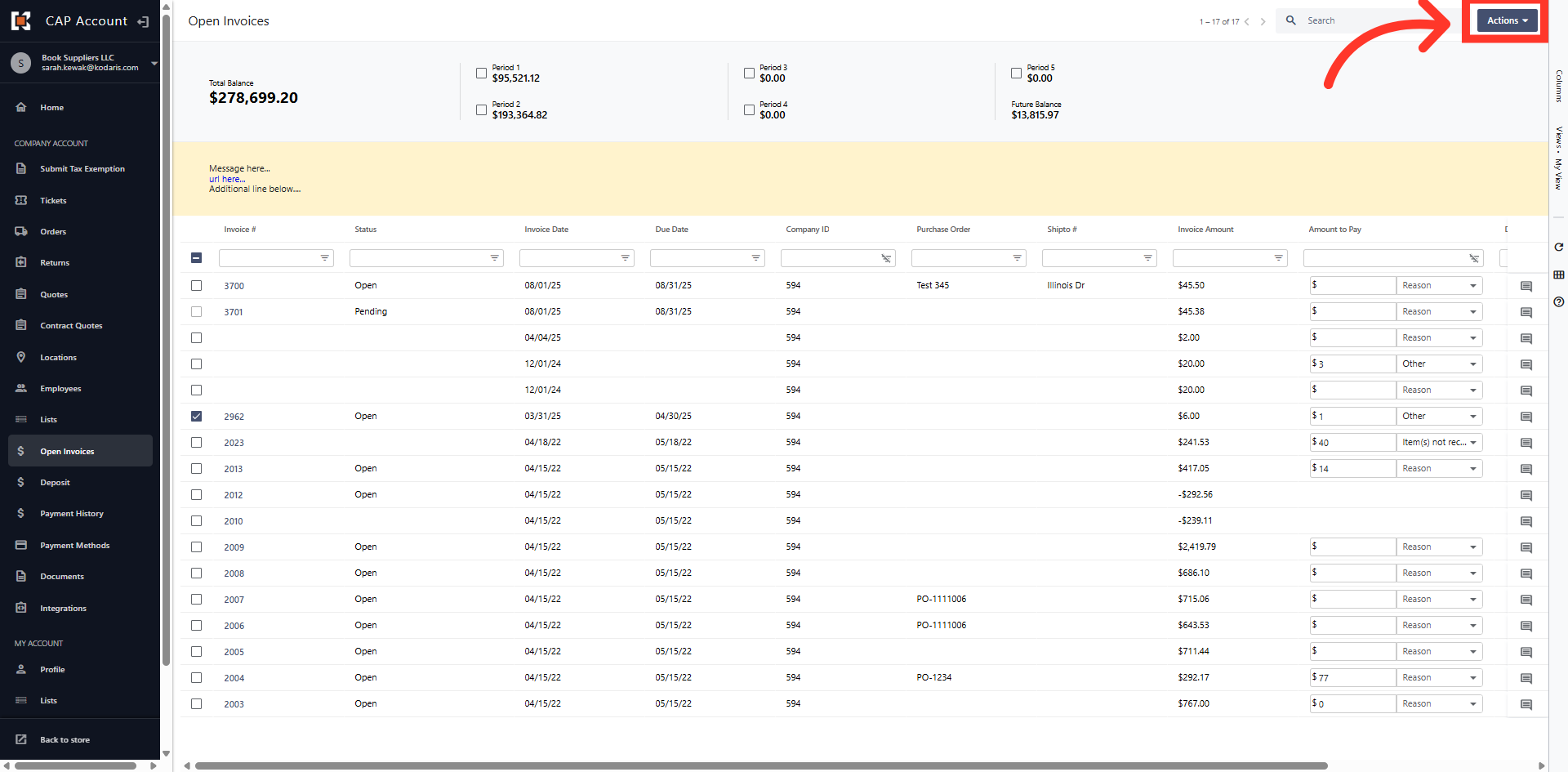
Click "Actions"
Once you have your invoices selected, click the "Actions" button on the upper right hand side of your screen.
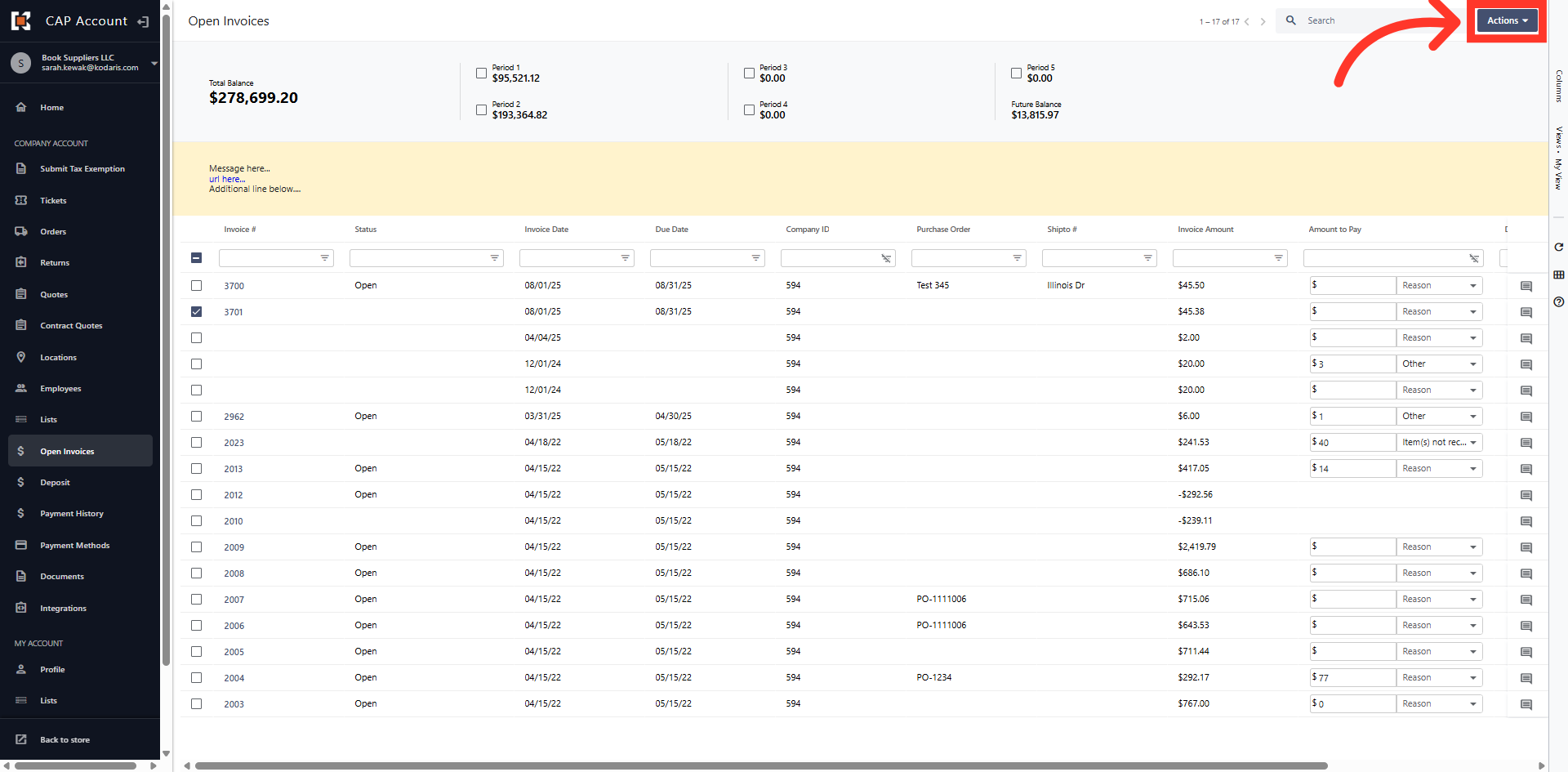
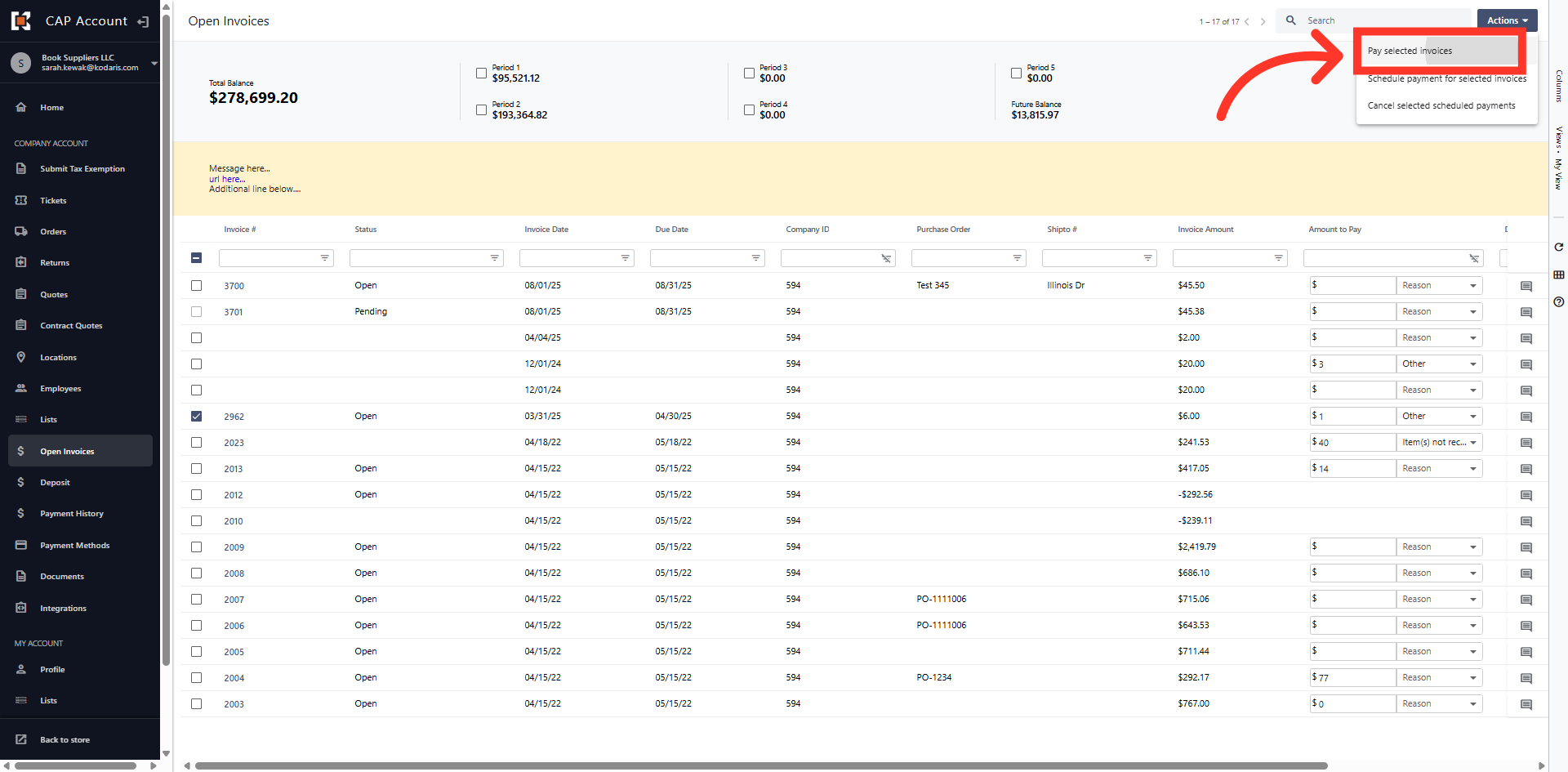
Select "Pay Selected Invoices"
Choose the "Pay Selected Invoices" option from the menu.
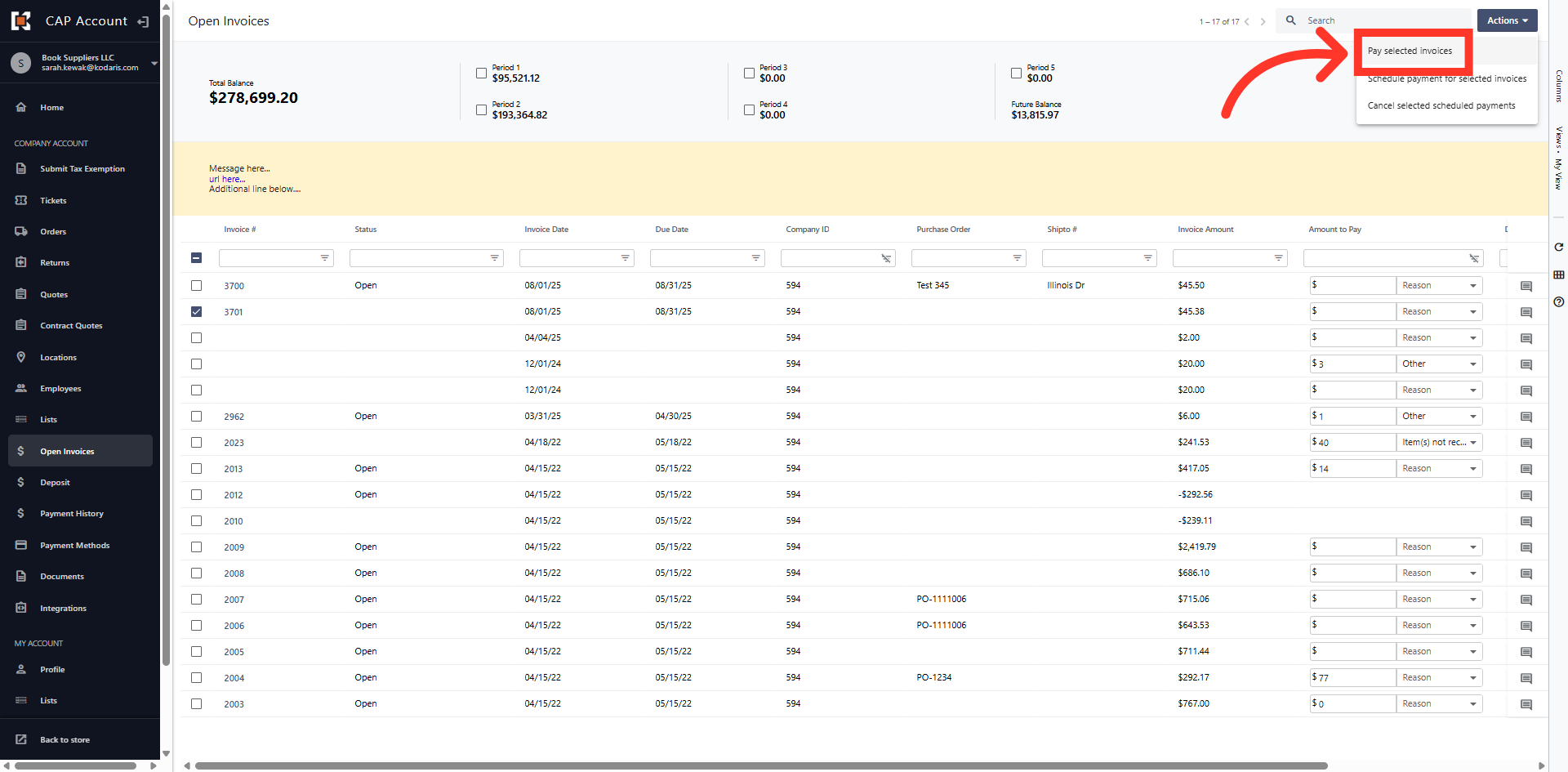
Select the Payment Method
Select your preferred payment method from the list.
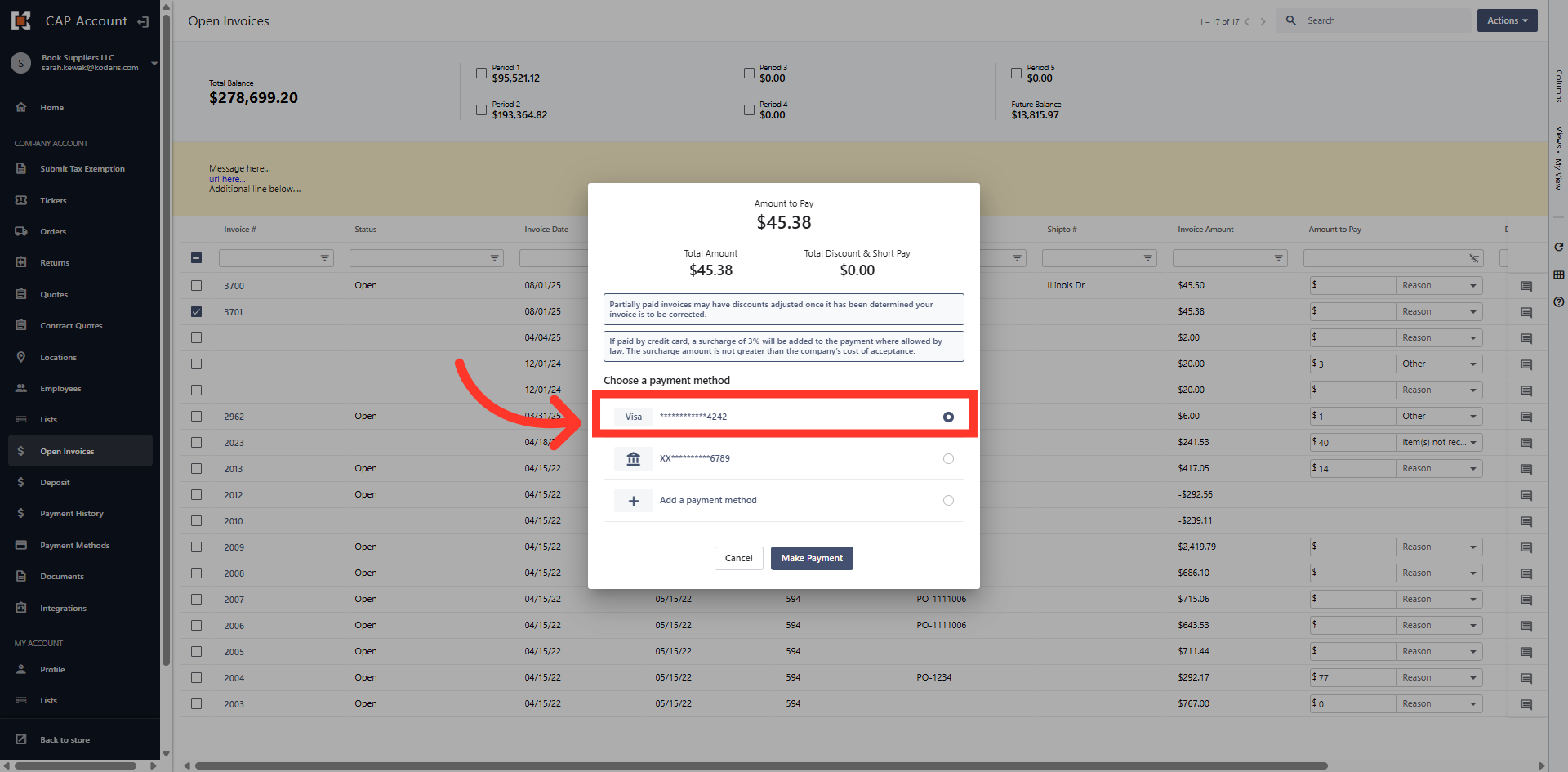
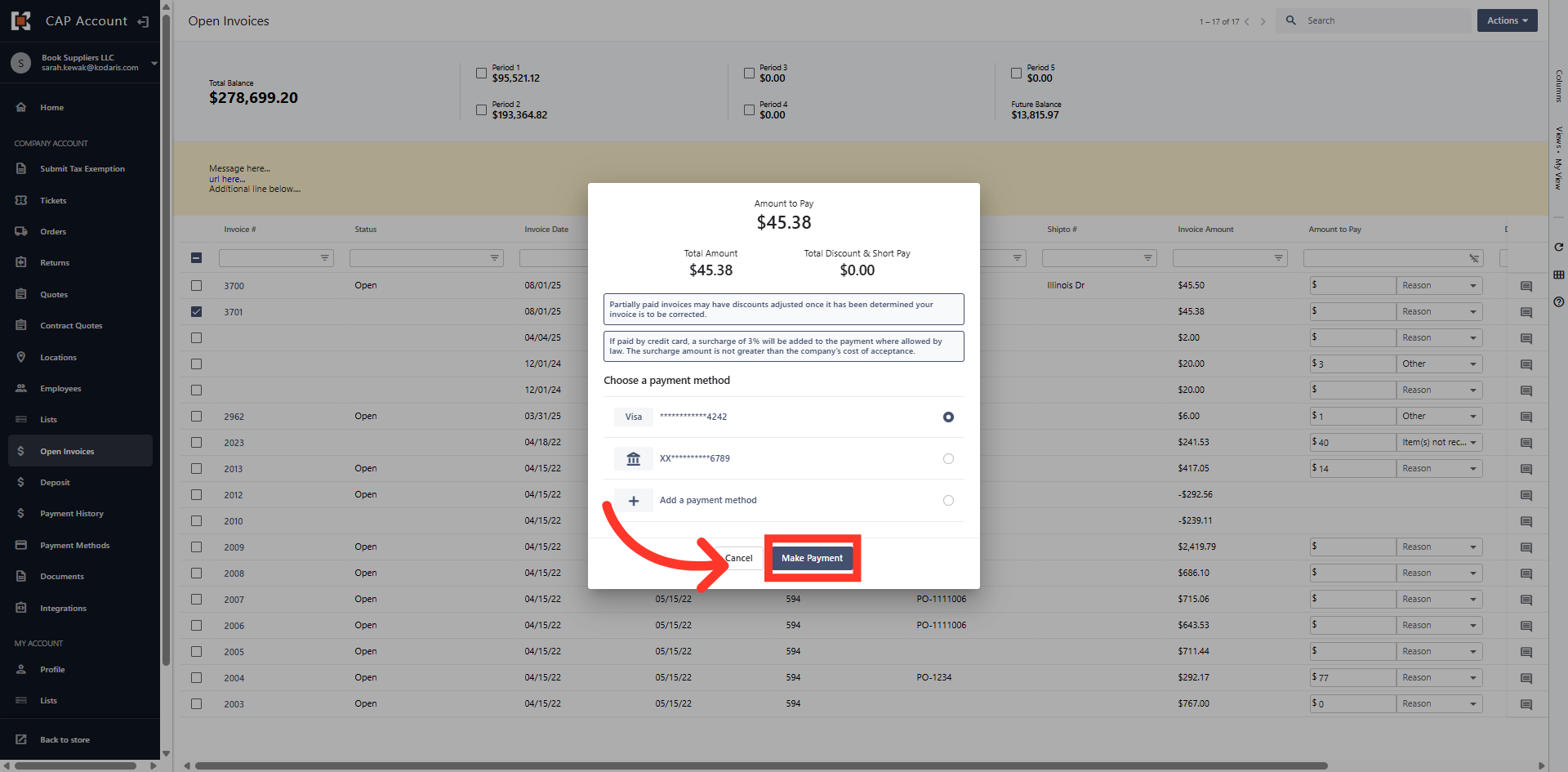
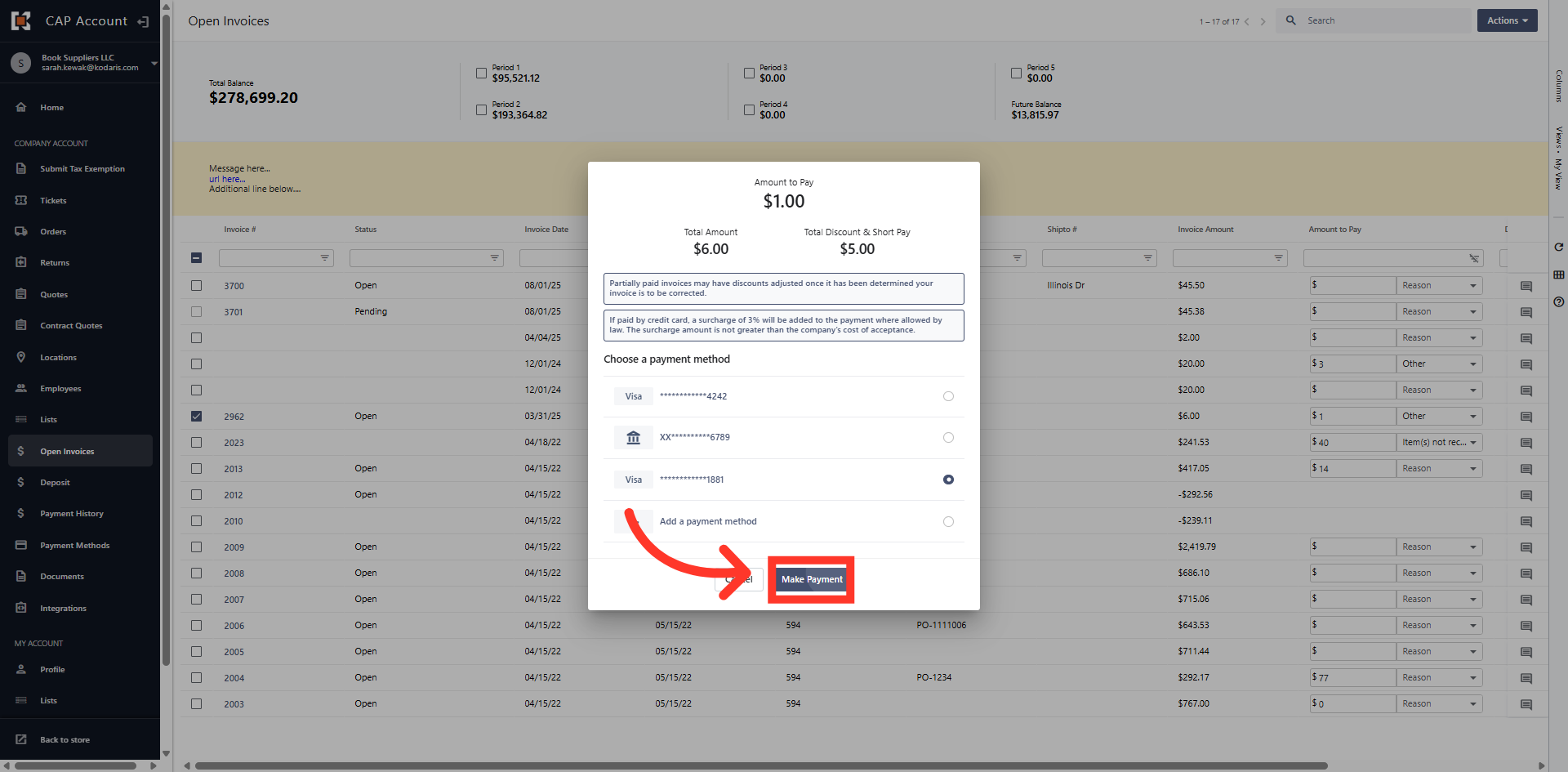
Click "Make Payment" button
Click the "Make Payment" button to submit your payment to complete the transaction and update invoice status.
View Receipt
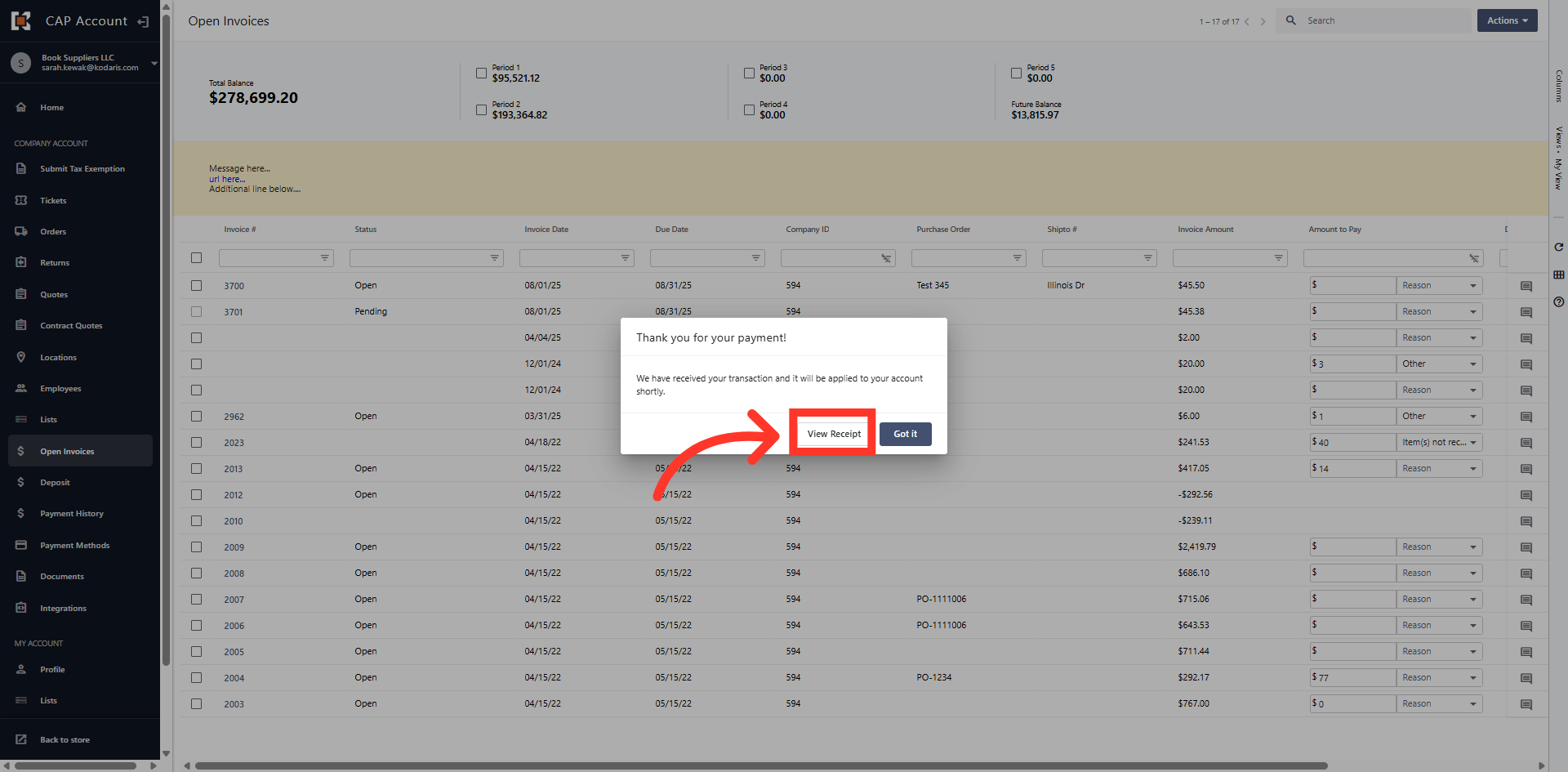
You will receive a payment confirmation message. You can view your receipt by clicking the "View Receipt" button.
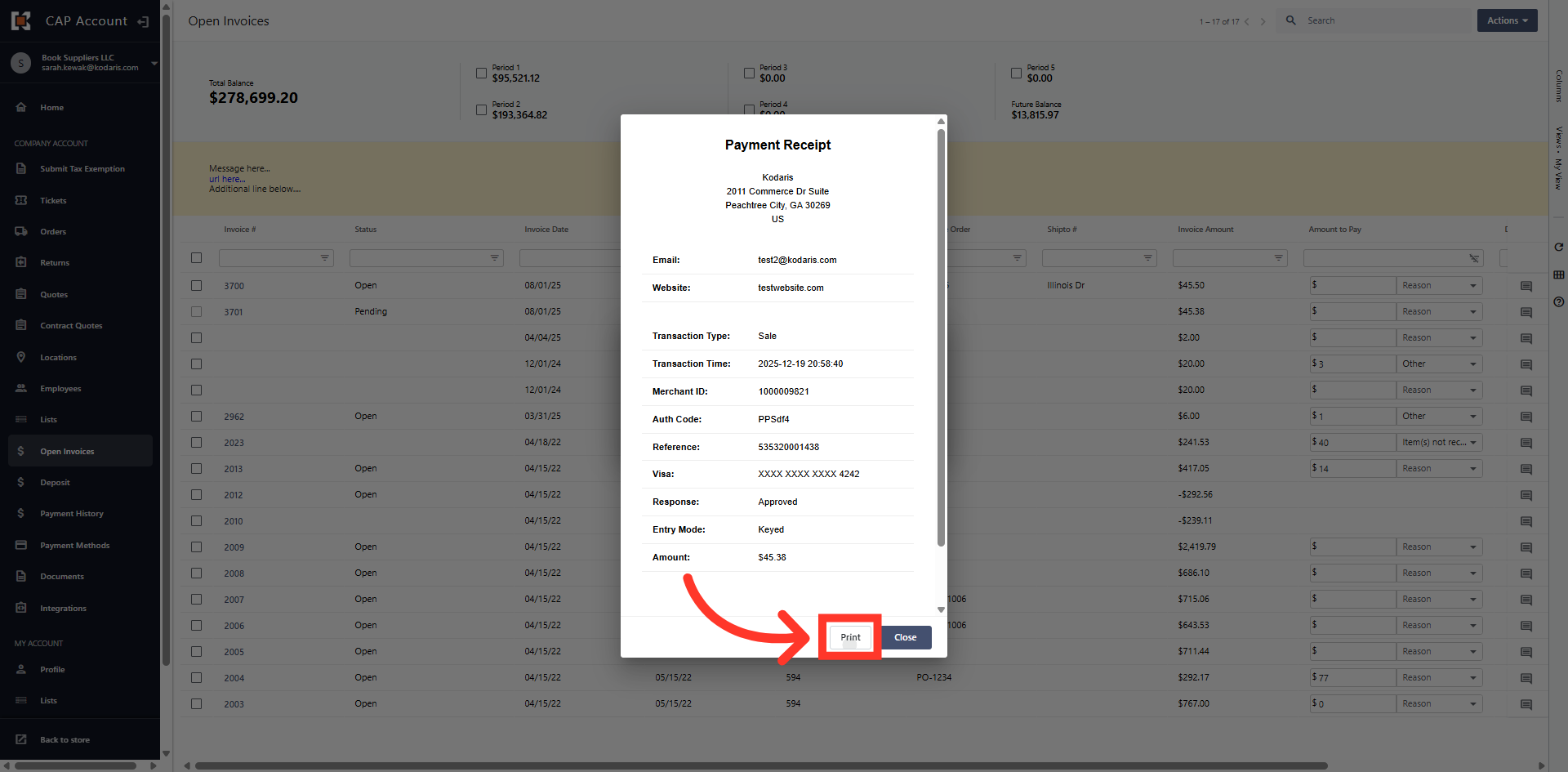
Payment Receipt
The payment receipt lists payment details. You can also "Print" the receipt from this view.
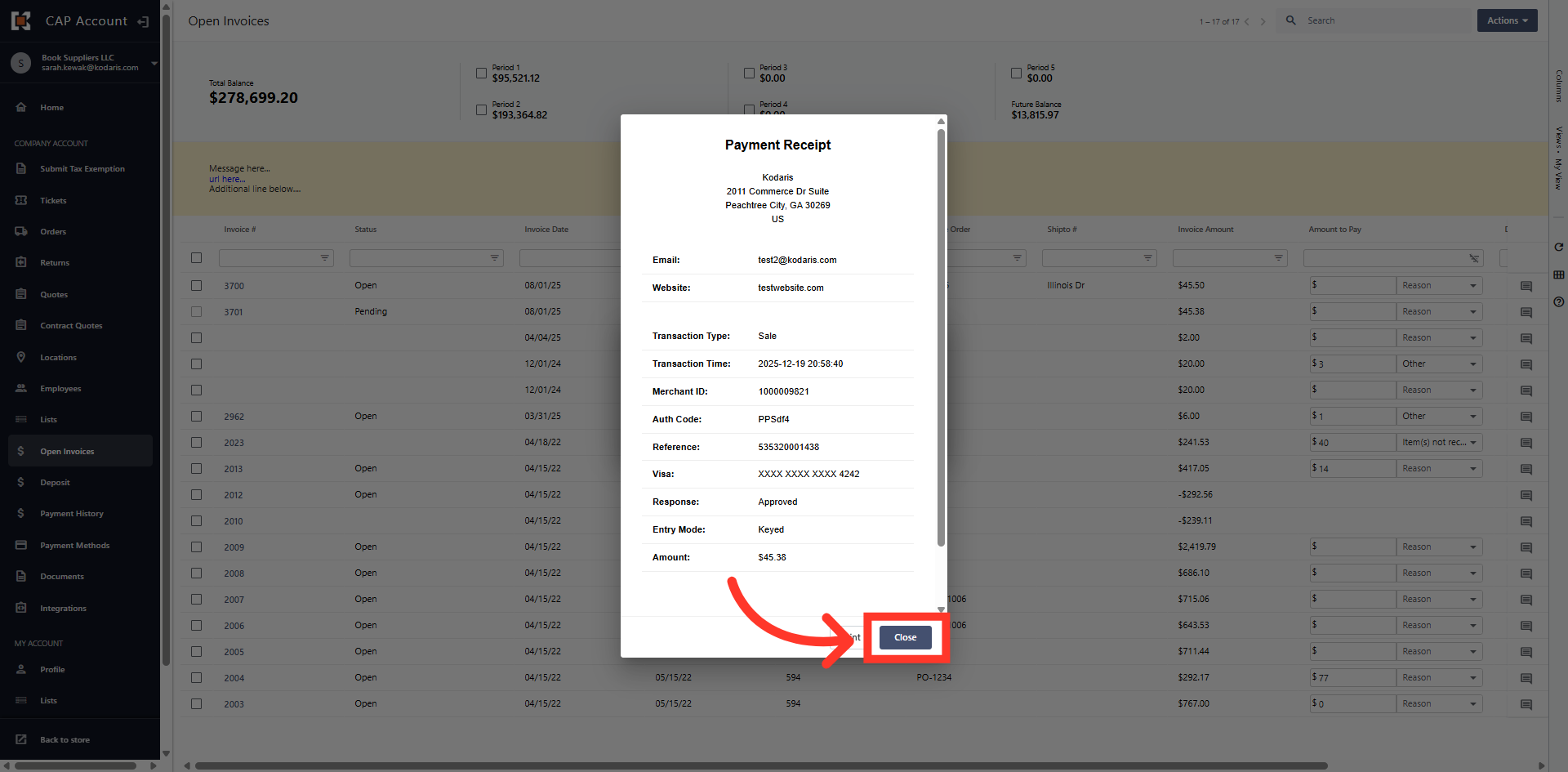
Click "Close"
Click "Close" to close the receipt and return to the payment confirmation message.
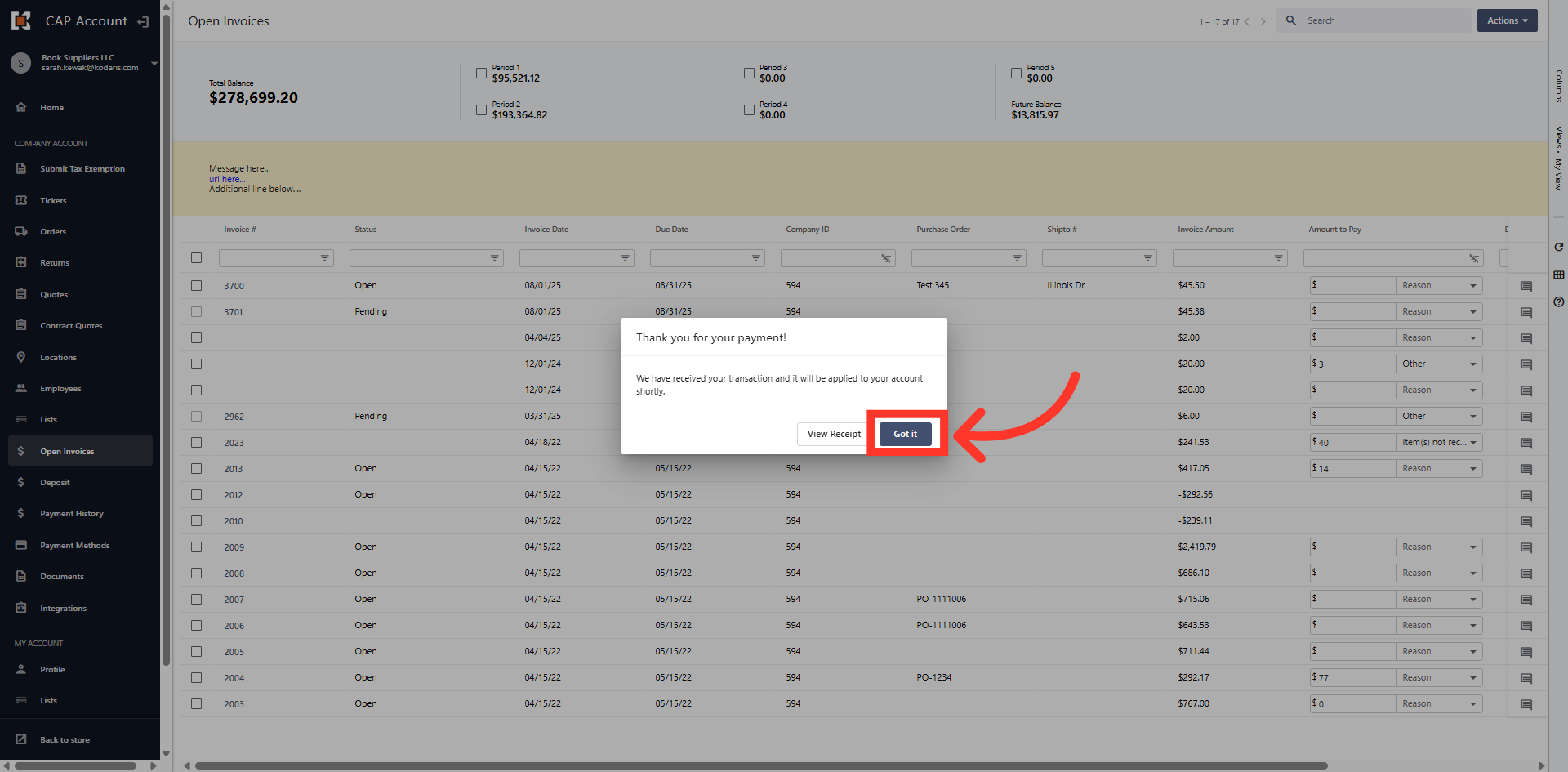
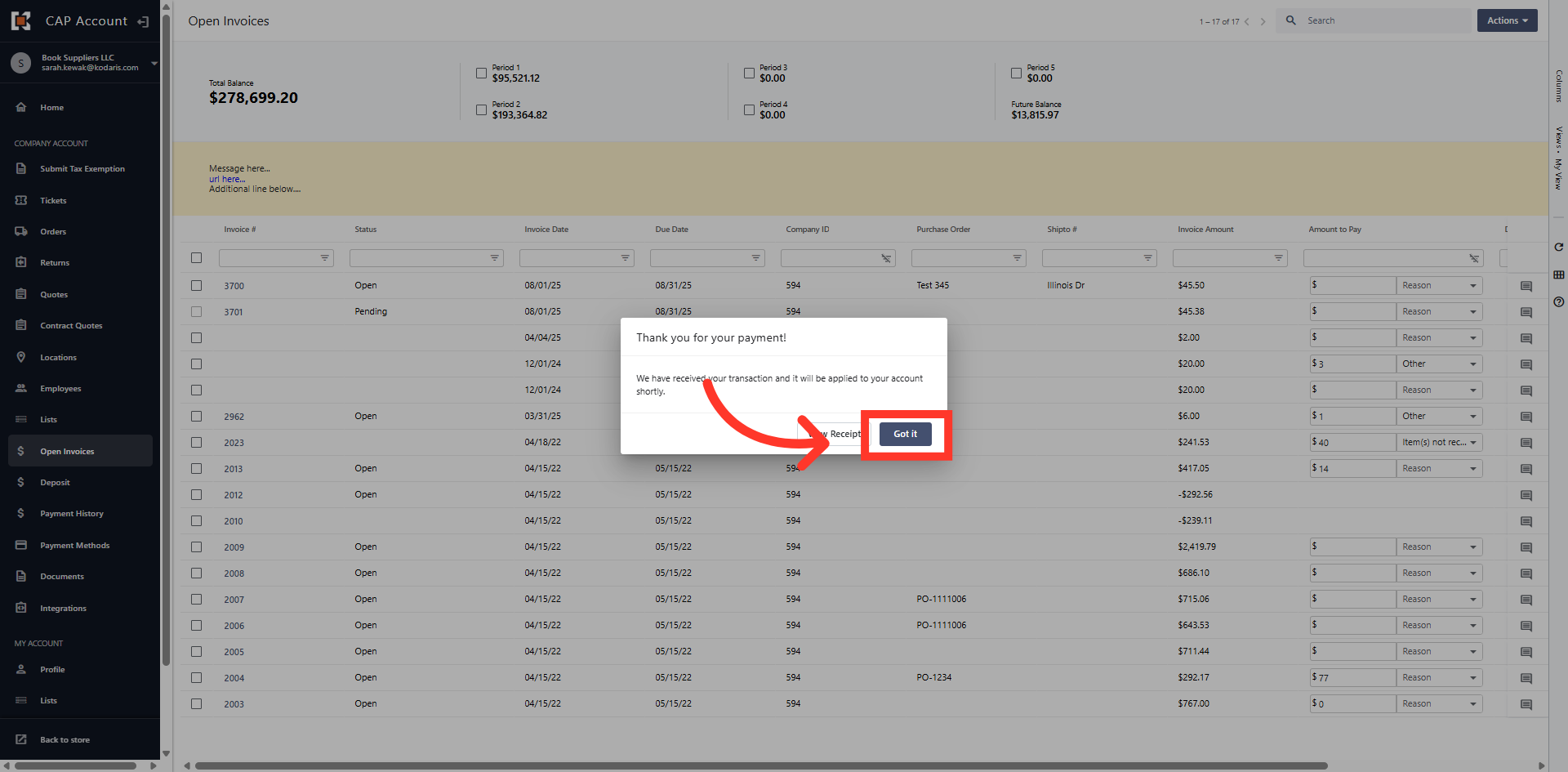
Click "Got It"
Click the "Got It" button to close the payment confirmation message.
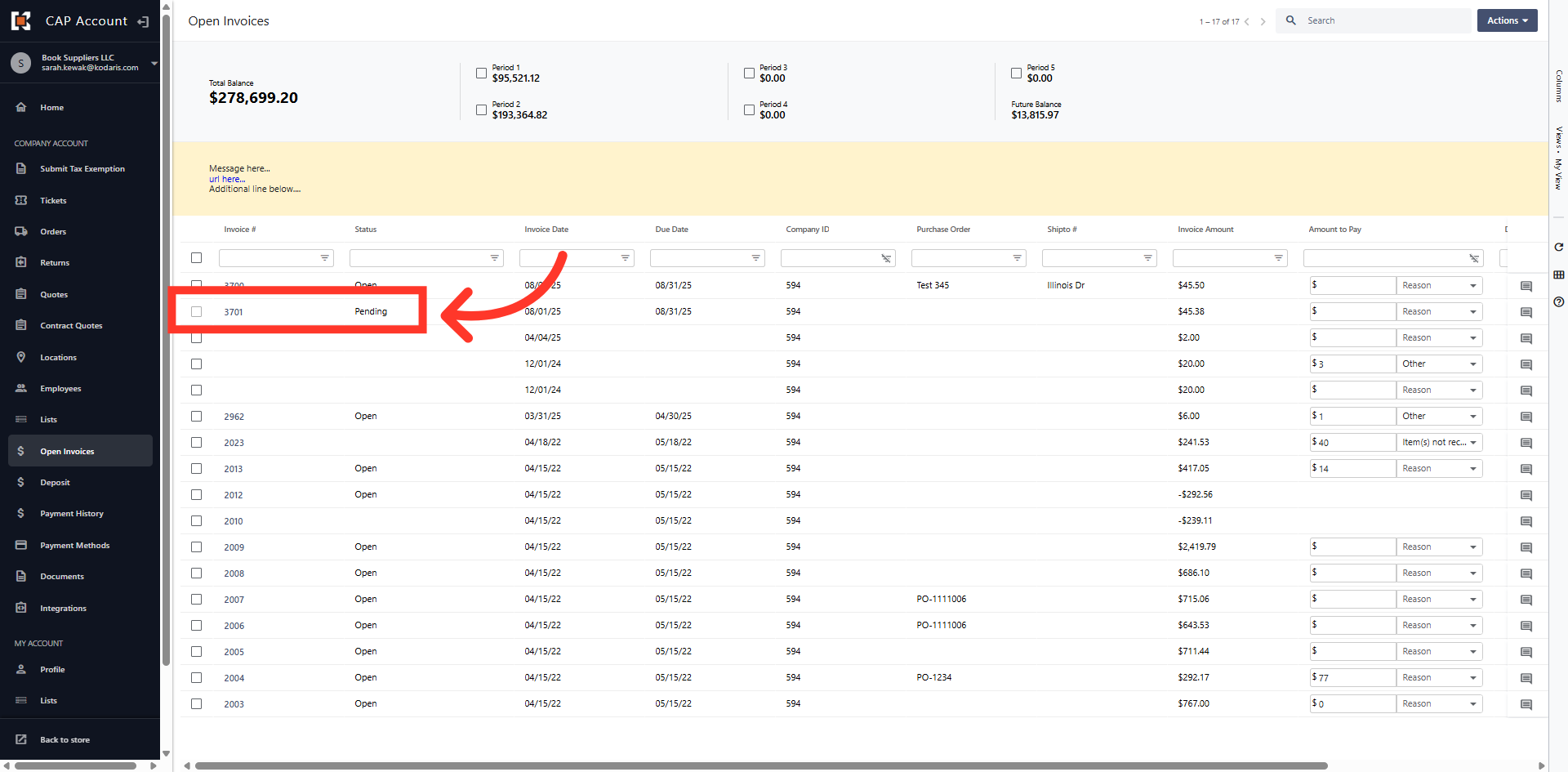
Status "Pending"
Notice the invoice status changed from "Open" to "Pending" and the check box has been greyed out. This prevents you from selecting the invoice again and making a duplicate payment.
Select an Invoice
You can also pay an invoice with a new payment method. First, select an invoice.
Click "Actions"
Then, click the "Actions" button on the upper right hand side of your screen.
Click "Pay Selected Invoices"
Choose the "Pay Selected Invoices" option from the menu.
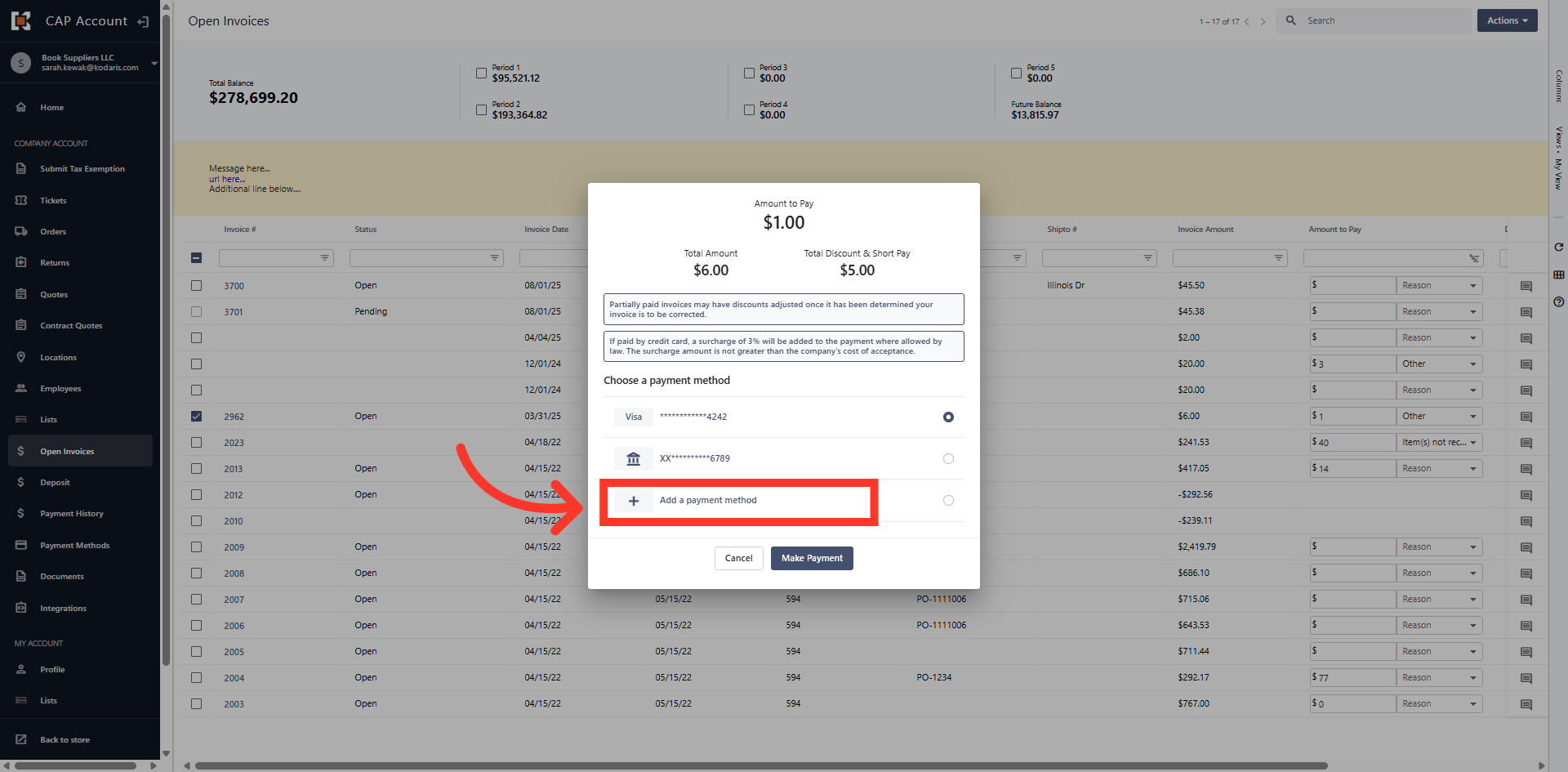
Click "Add a payment method"
Then, choose the "Add a payment method" option from the list.
Choose your payment method
Then, select the payment method you wish to add.
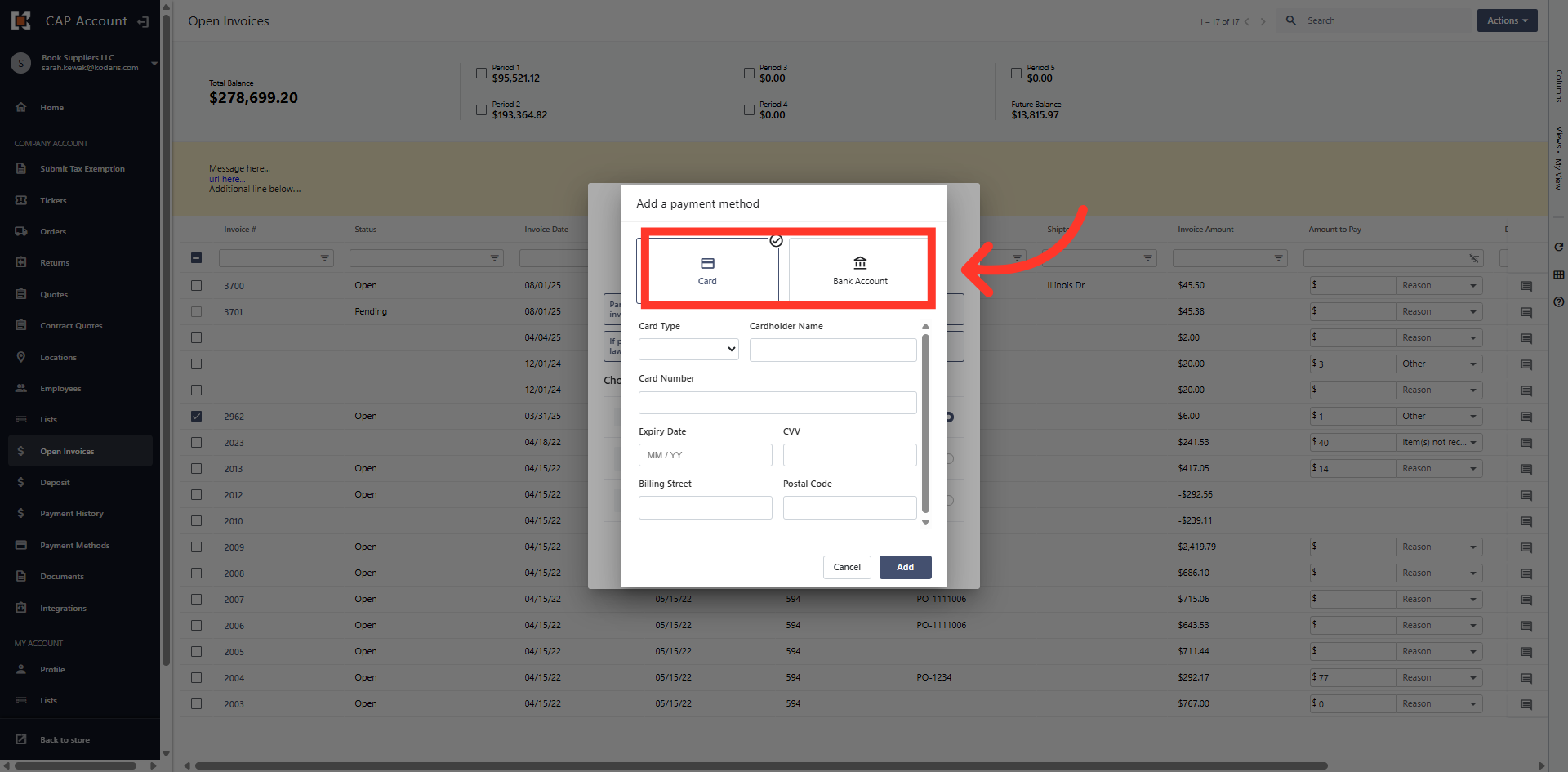
Add Payment Method
In this example, a new credit card has been added. Click "Add" to save the credit card details.
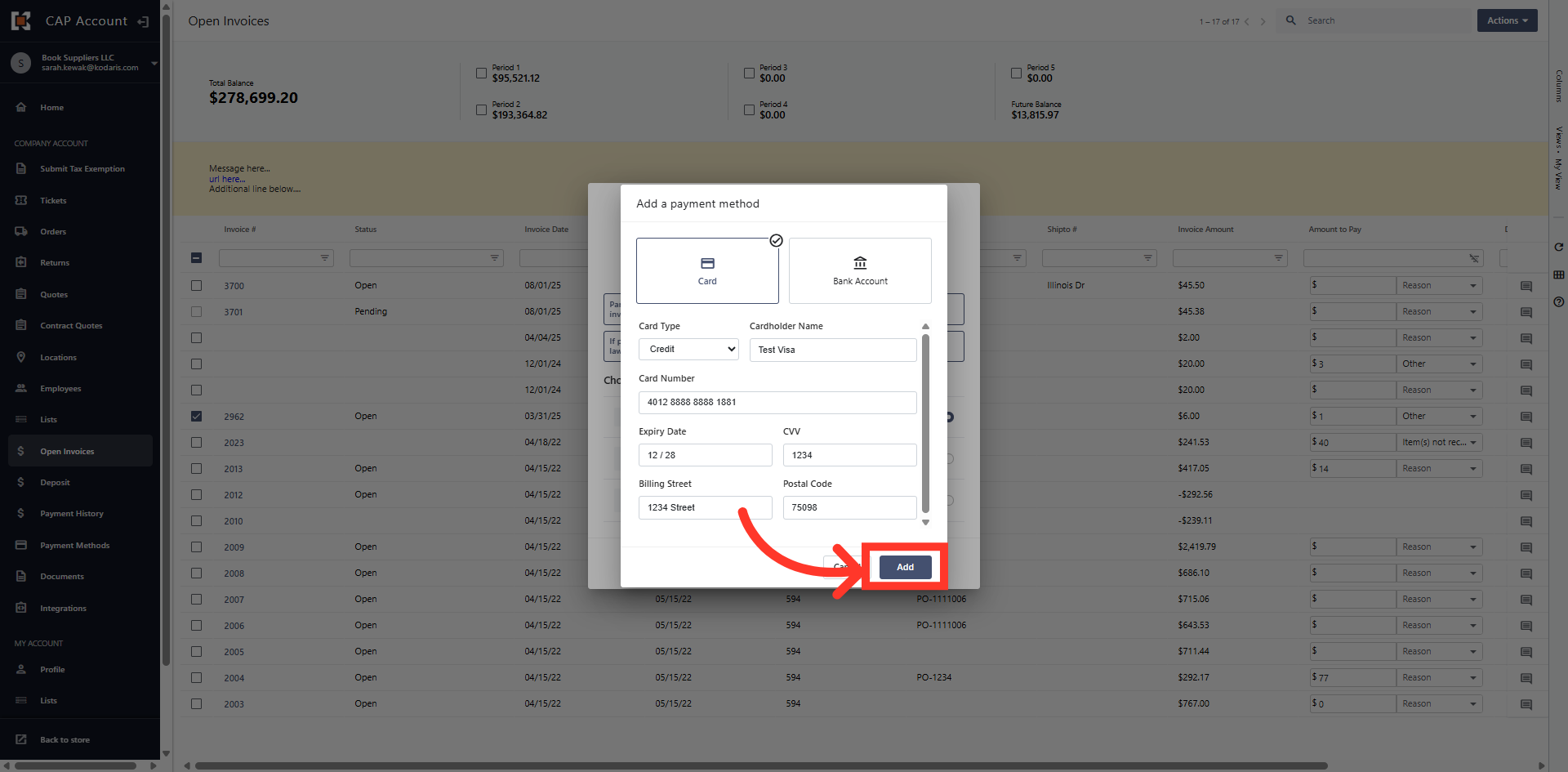
Cancel Scheduled Payment
The new payment method has been added and is automatically selected.
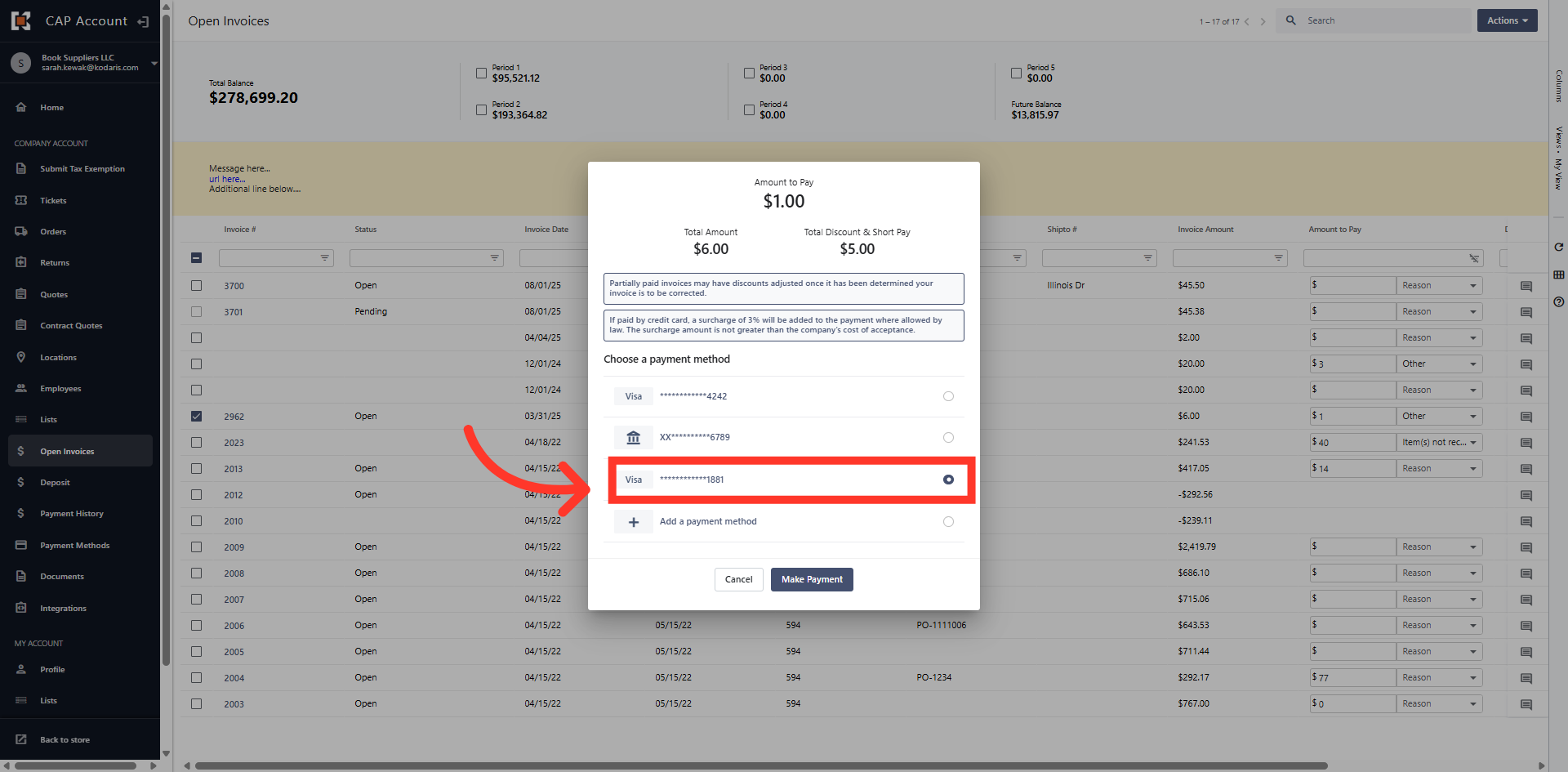
Click "Make Payment"
Click the "Make Payment" button to submit your payment to complete the transaction and update invoice status.
Payment Confirmation Message
A payment confirmation message will be displayed and you can view the receipt or click "Got It" to return to the "Open Invoices" dashboard.