Downloading Price Lists on the Customer Side
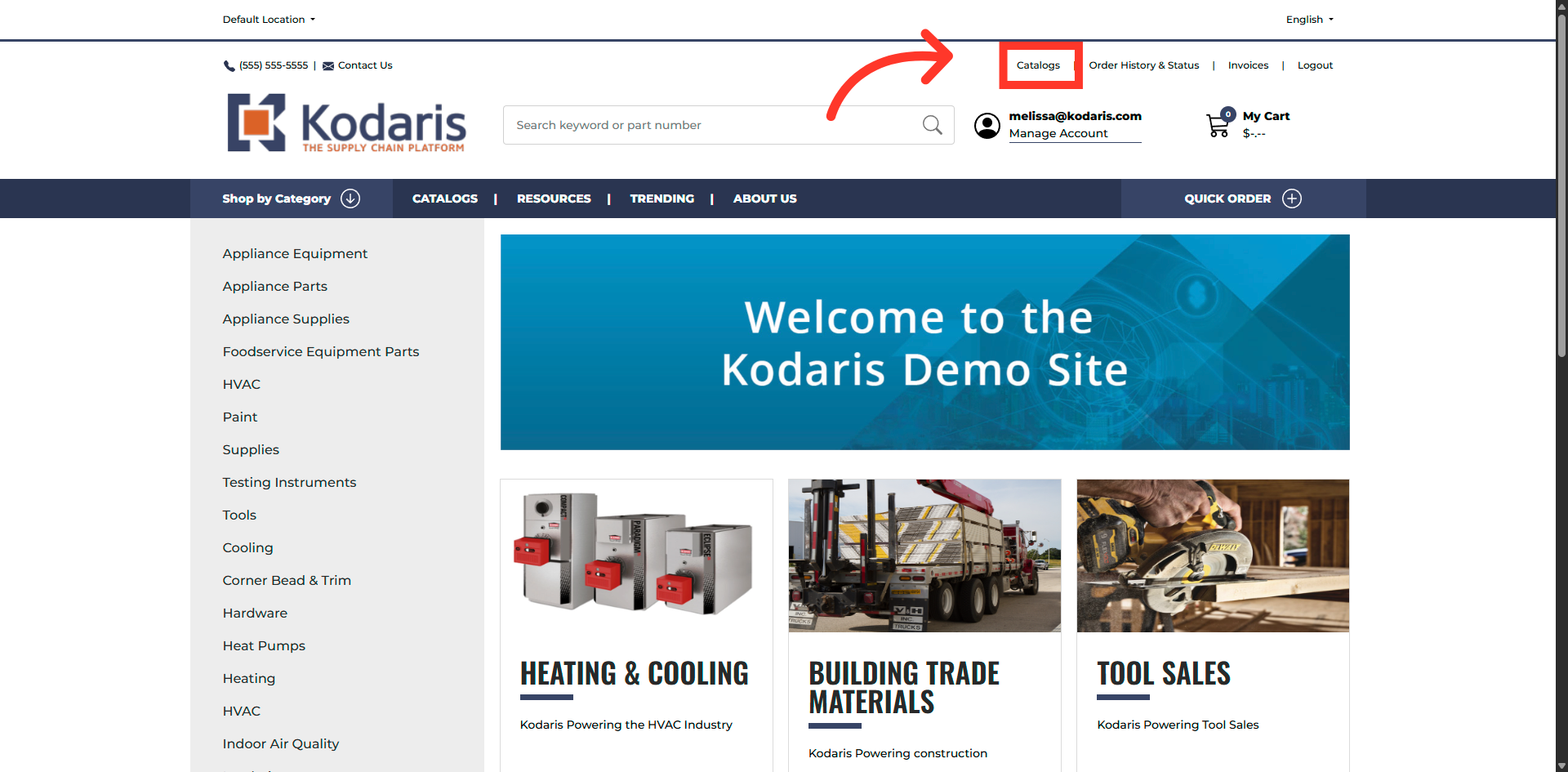
Click "Catalogs"
To download price lists, be sure you are first logged in the commerce site. Next, click "Catalogs".
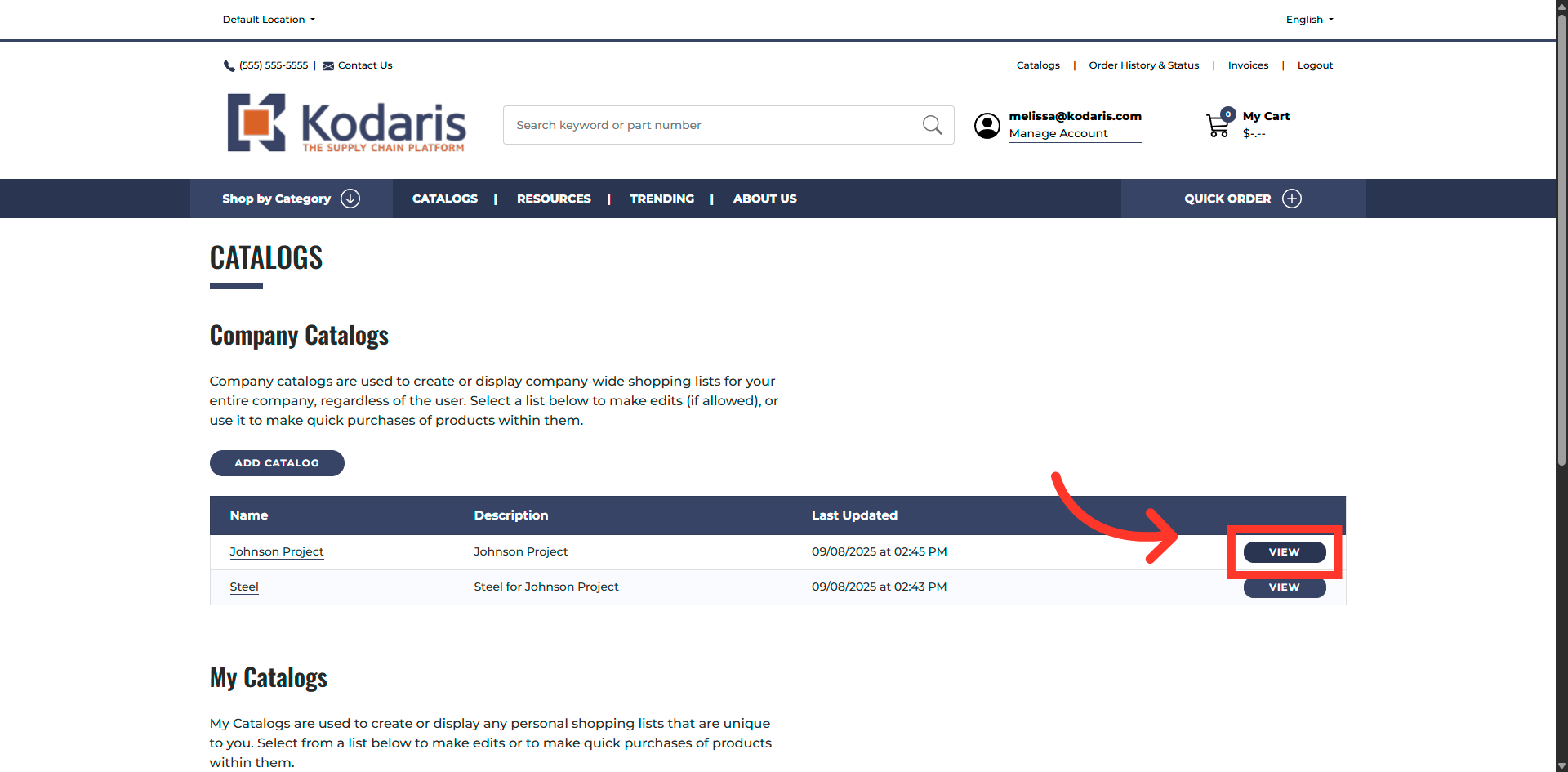
Click "View"
Select the catalog for which you would like to export the price list. Click the "View" button of the catalog.
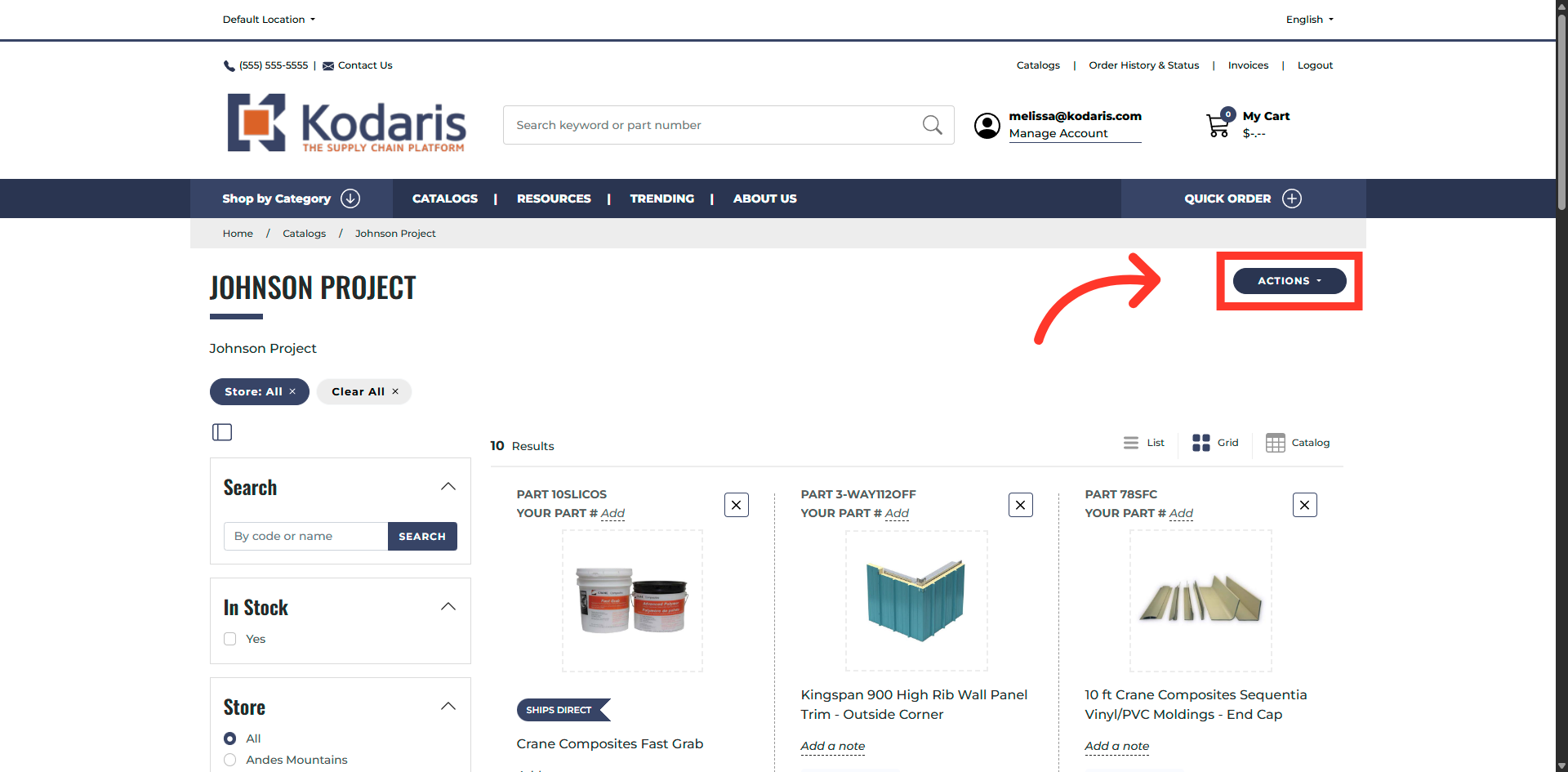
Click "Actions"
Click the "Actions" button.
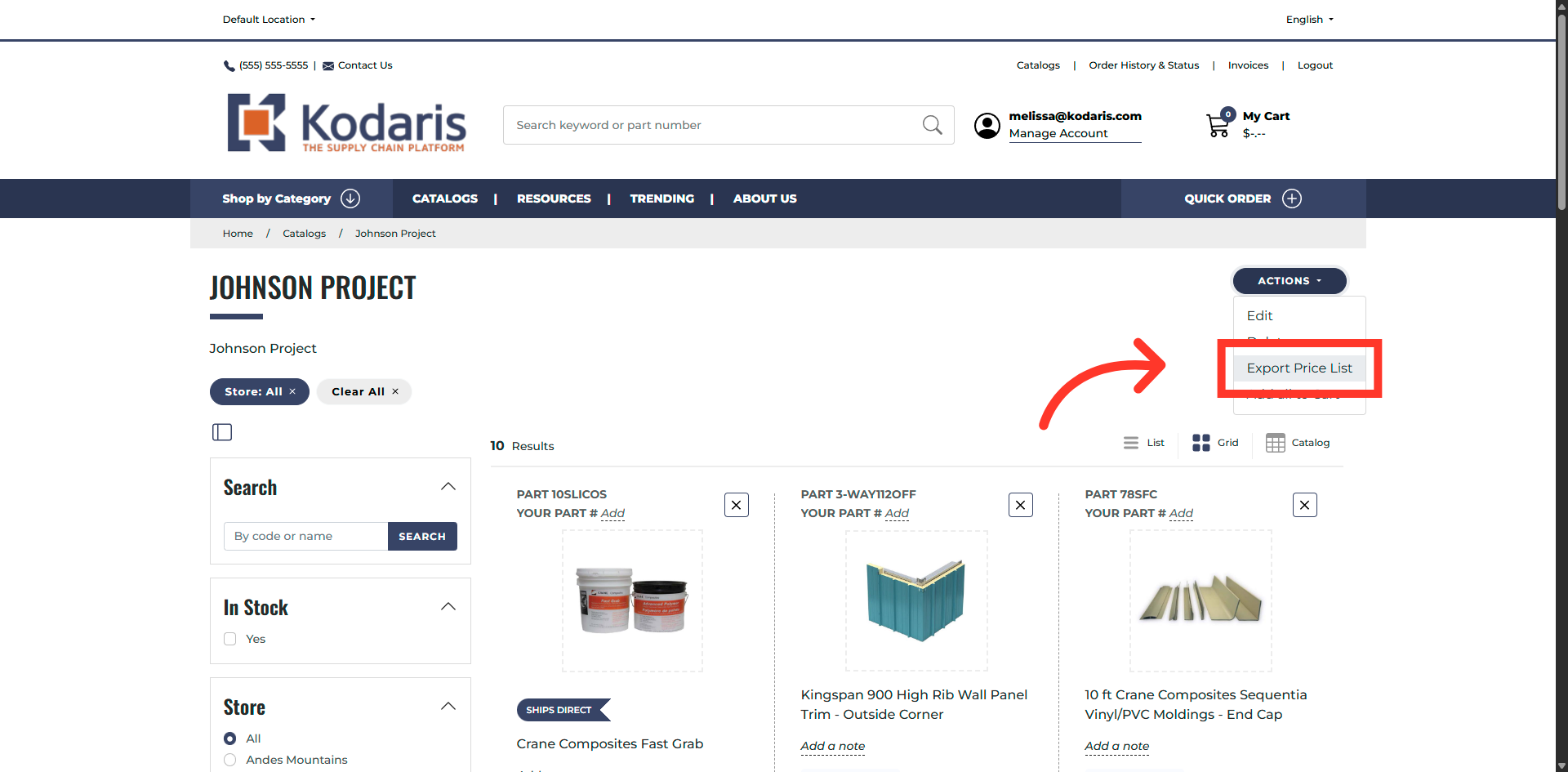
Select "Export Price List"
Then, select the "Export Price List" option.
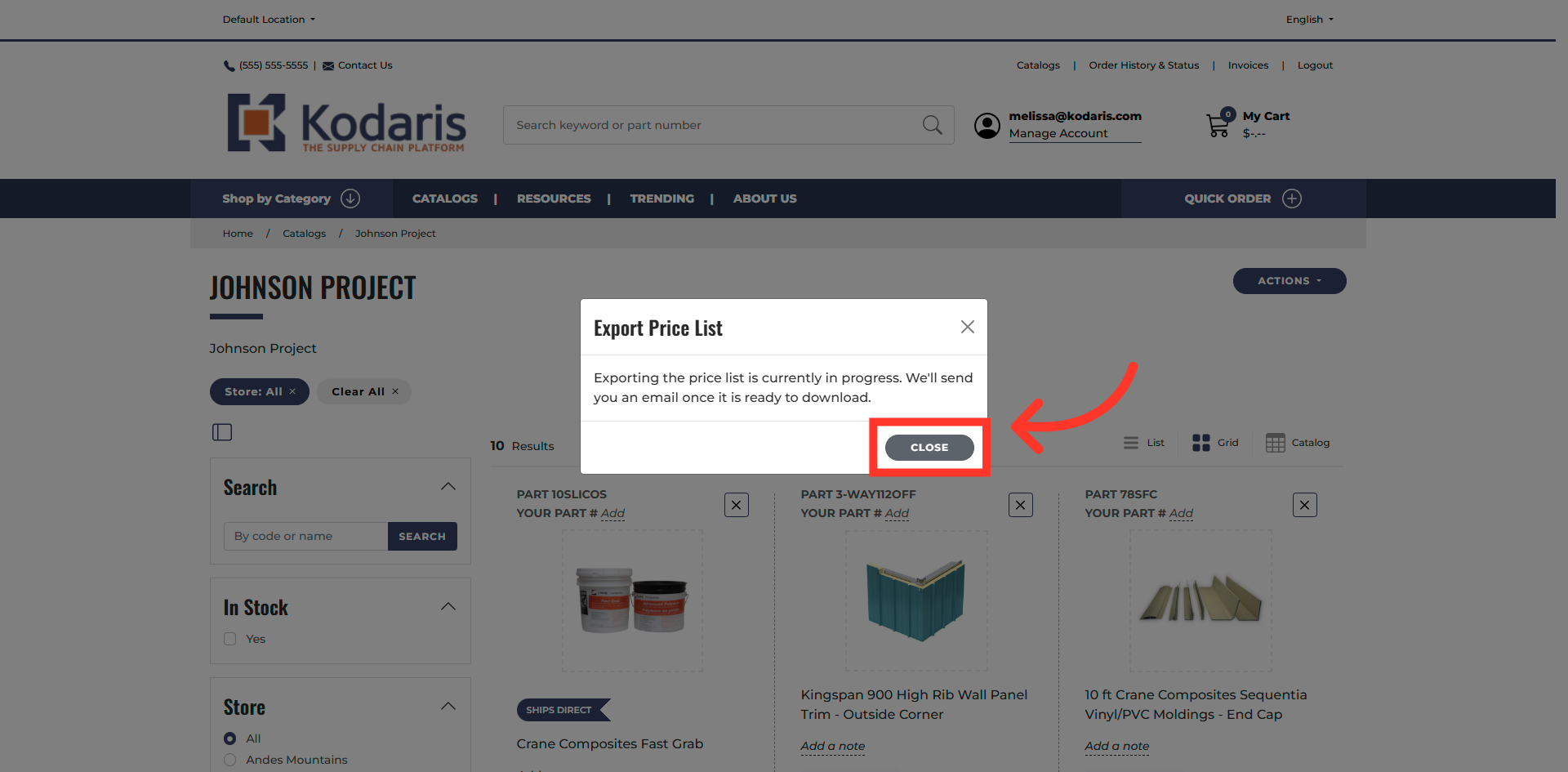
Click "Close"
You will see a notification saying that exporting the price list is currently in progress. You will also receive an email when the export is ready. Click the "Close" button.
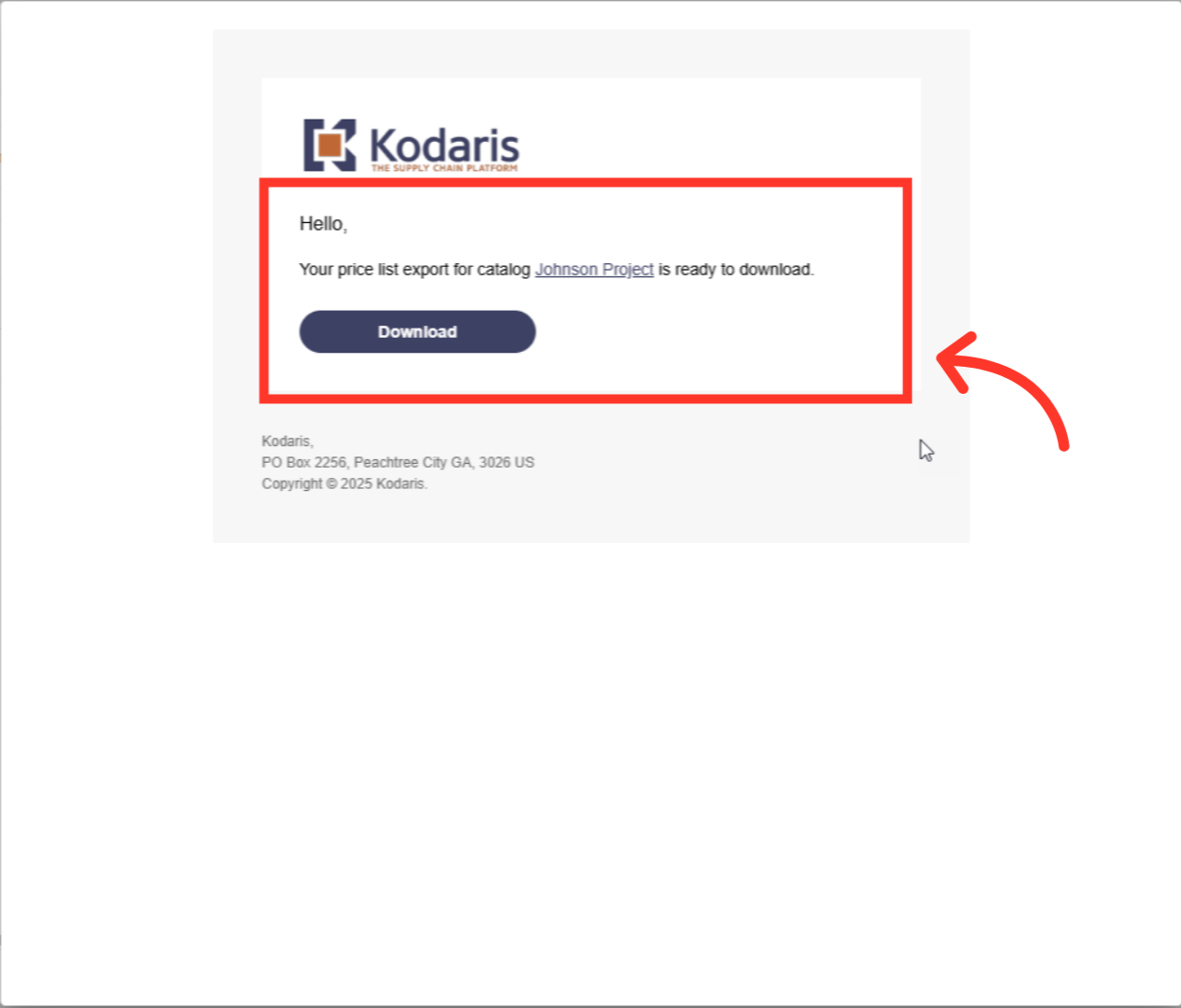
Email example the customer will receive
This is a sample email the user will receive once the price list is ready to be downloaded.
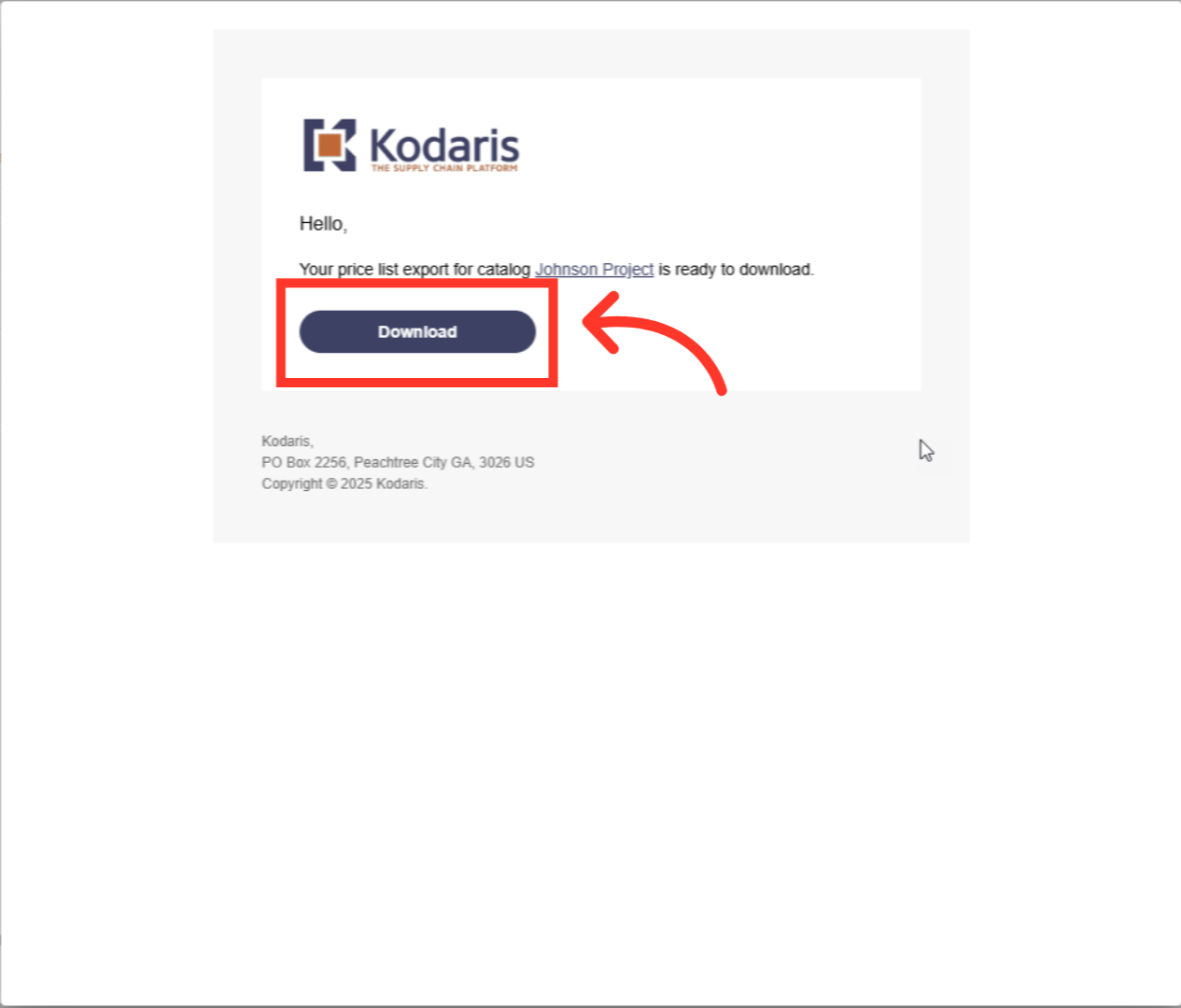
Click "Download"
Now, click the "Download" button to start the export.
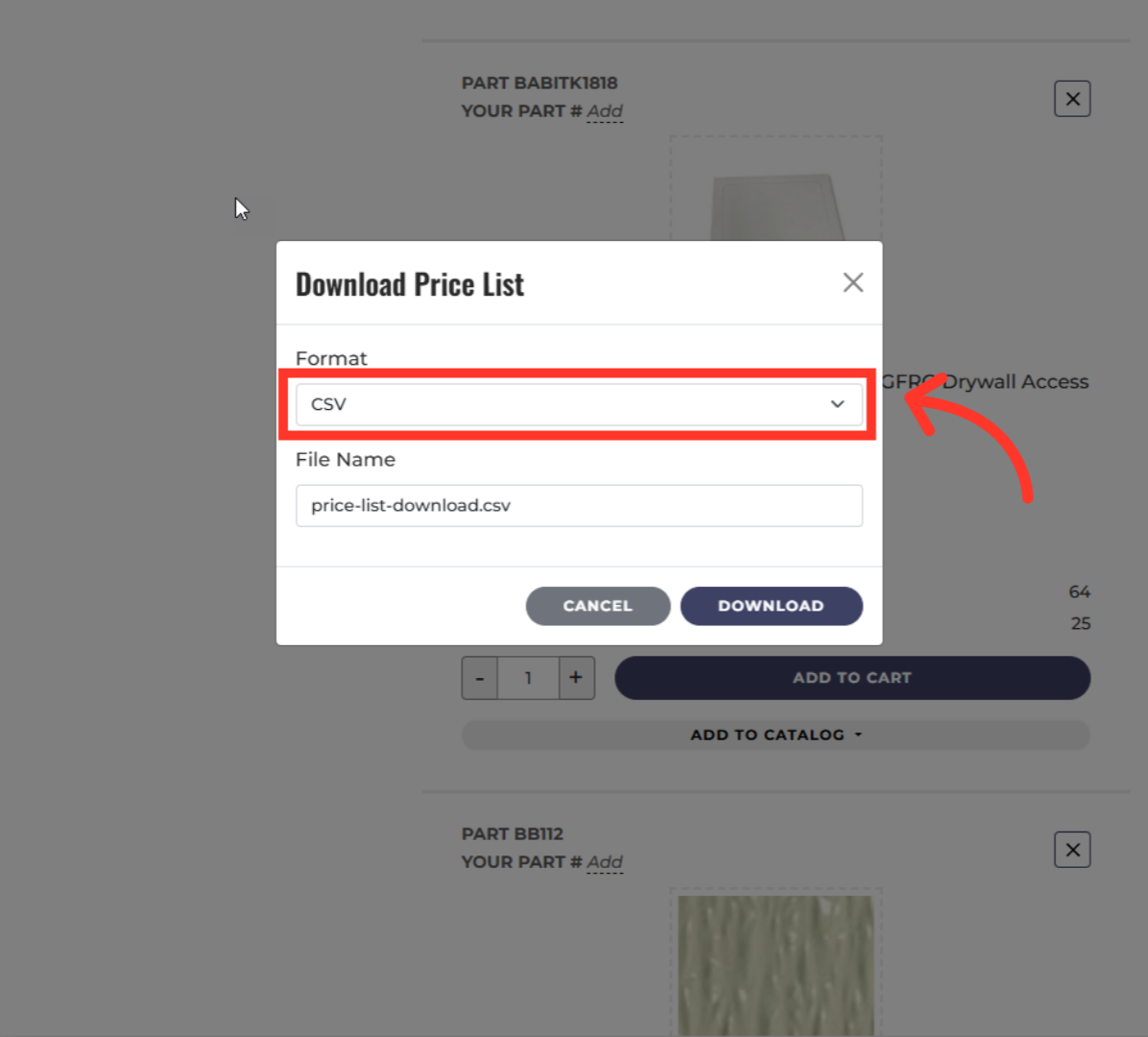
Click "Format"
Here, you can select the format of the file. To select, click the "Format" dropdown
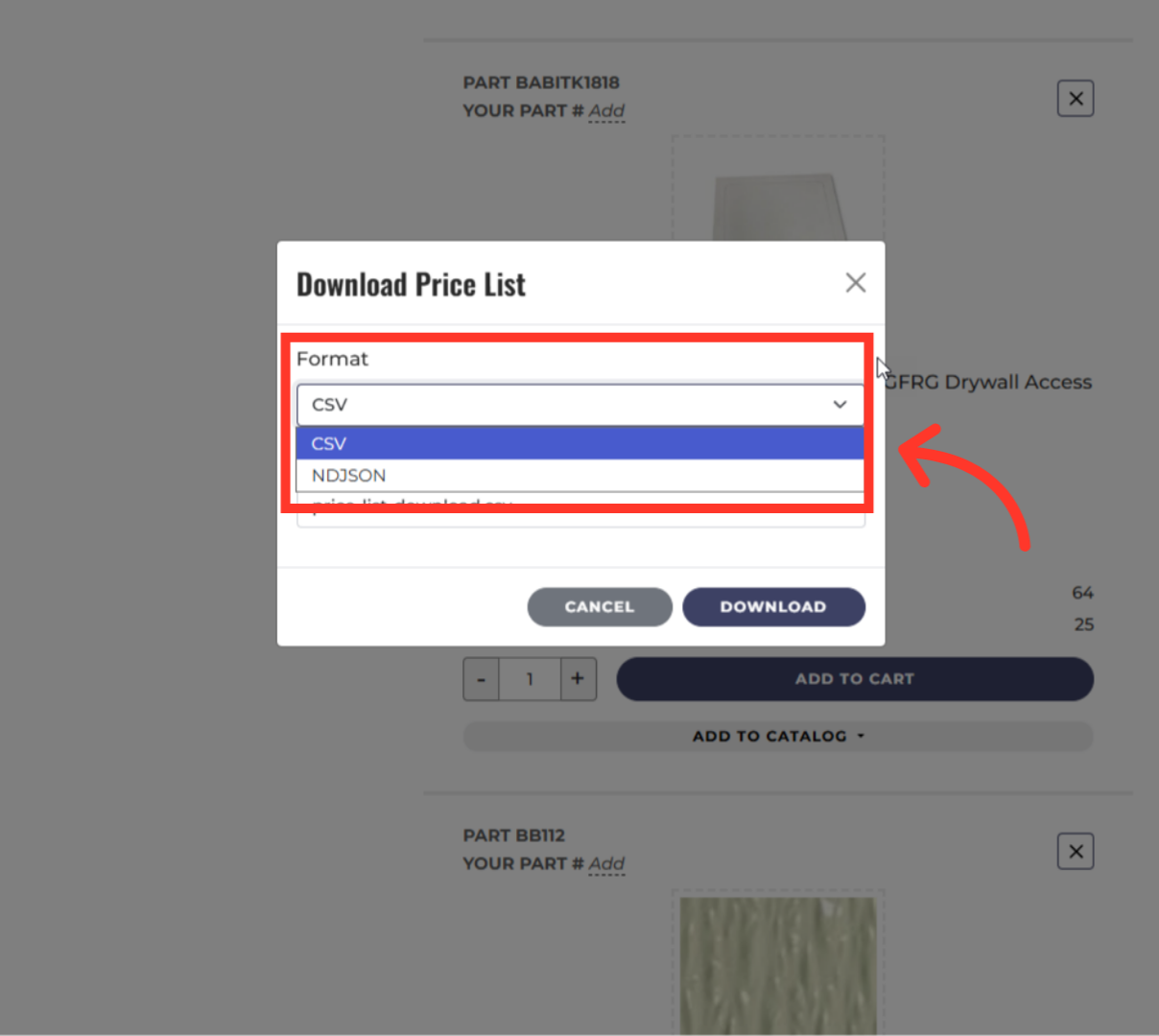
Select the format you want to download
Select the format you want to download.
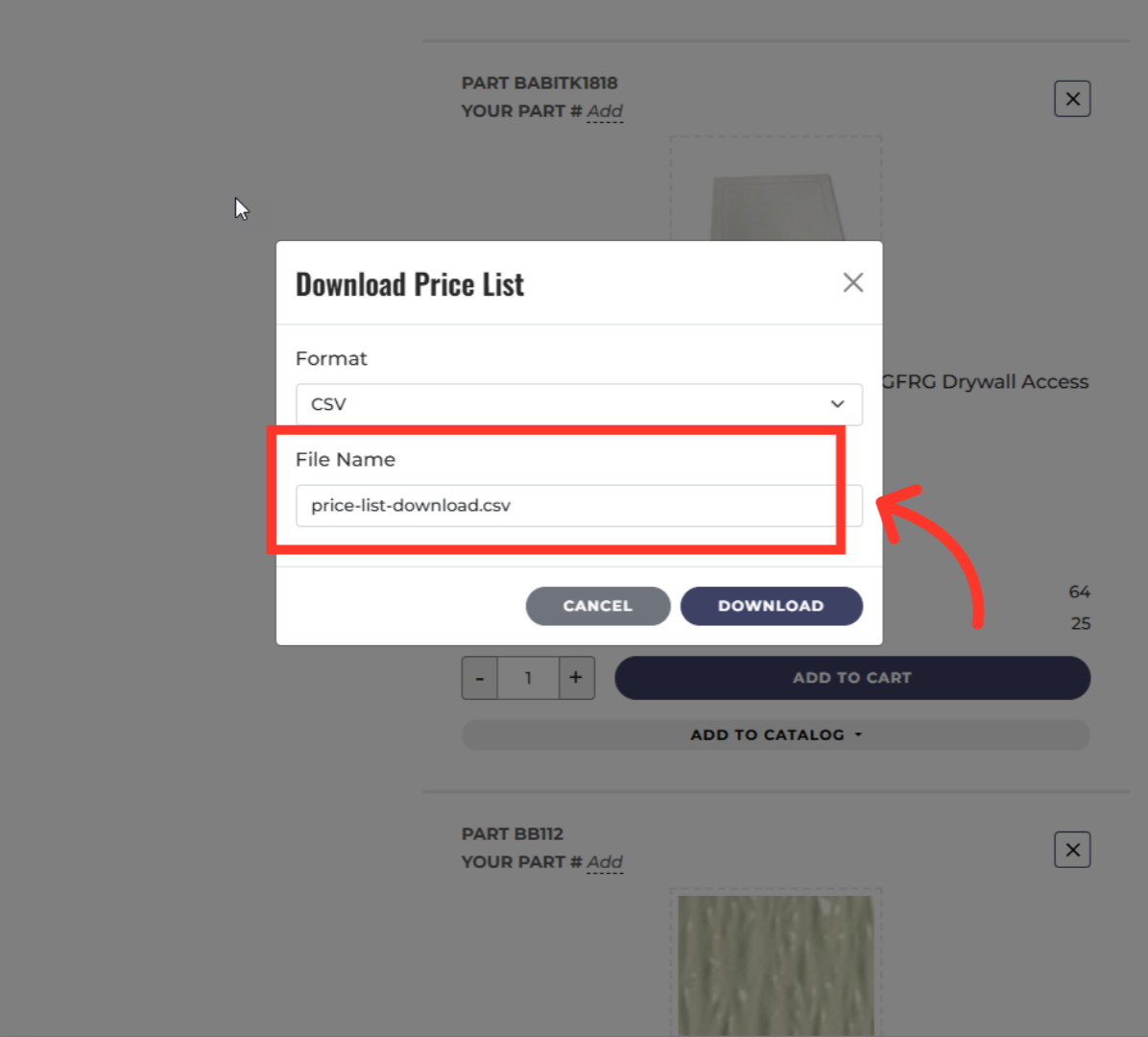
Edit the file name, if needed
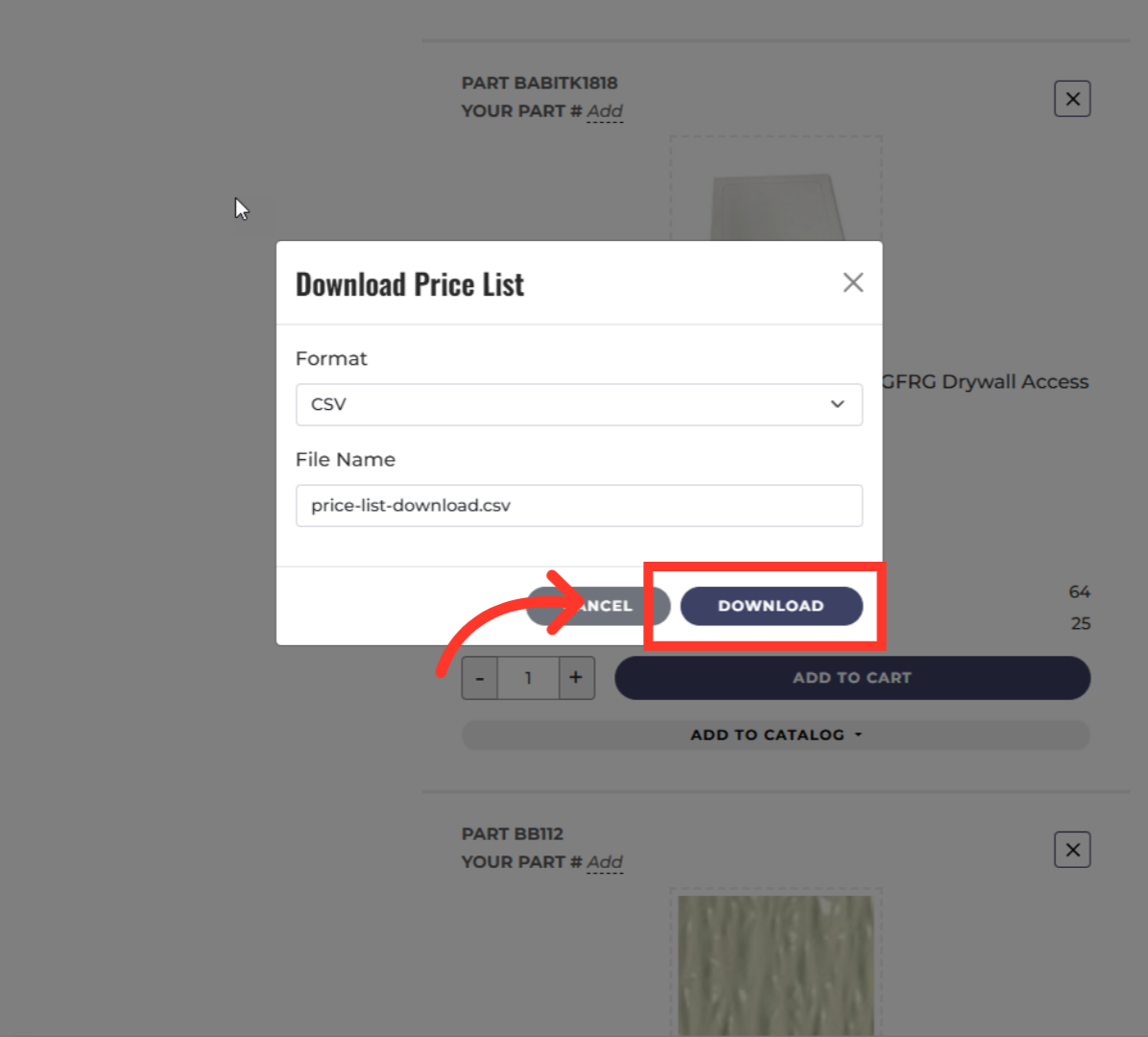
If needed, you can edit the file name.
Click "Download"
Once set, click the "Download" button and the price list will be downloaded to your device or computer.