Customer Portal - View the Original Quote for a Shipto
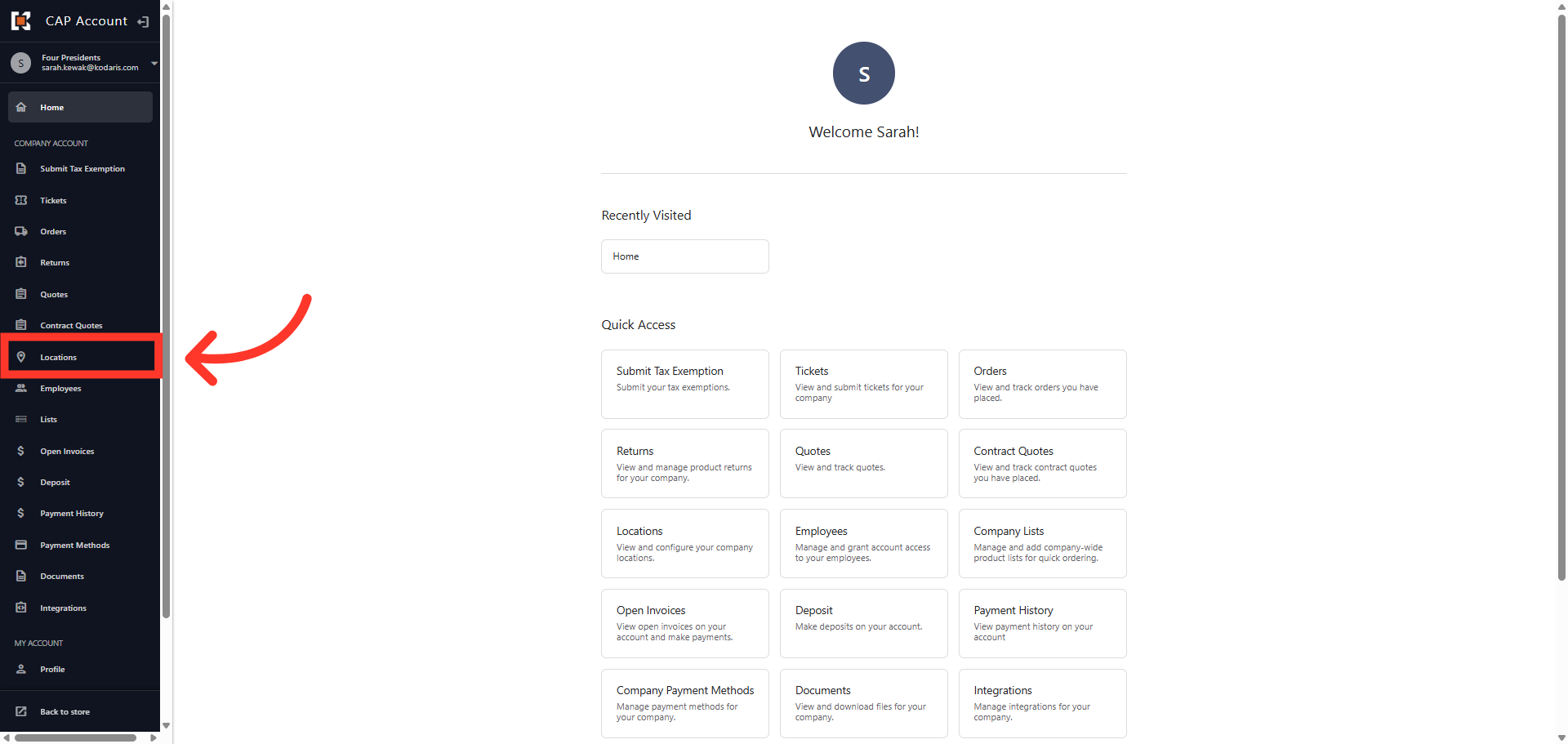
Navigate to "Locations"
To easily view a quote that is linked to a location in the Customer Portal, first navigate to the "Locations" section in your Customer Portal.
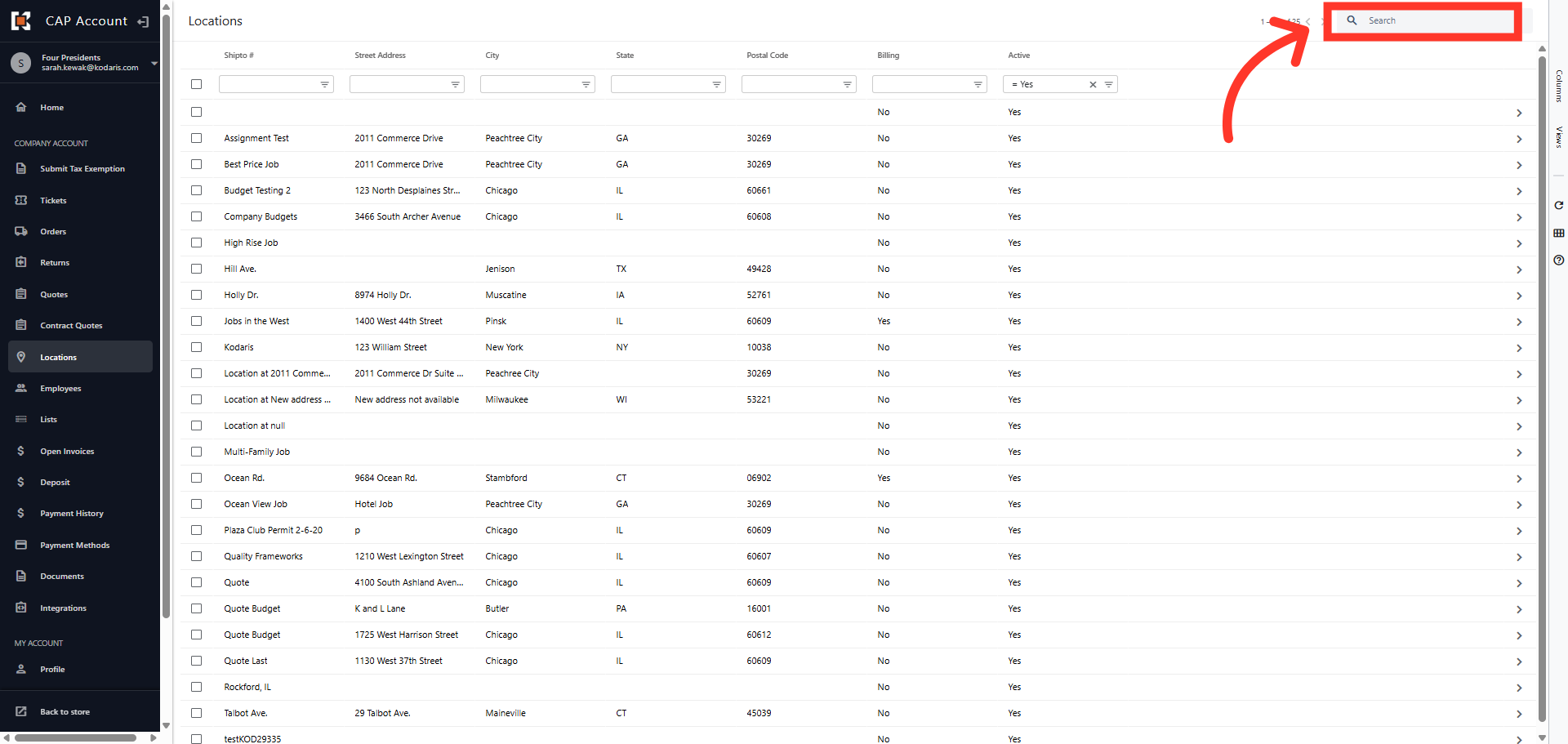
Search for the shipto
In order to access "Locations" you will need to have either "Company Admin", "View Assigned Location Quotes", or "View All Quotes". Search for the shipto in the "Search" field. You can enter the shipto number to search.
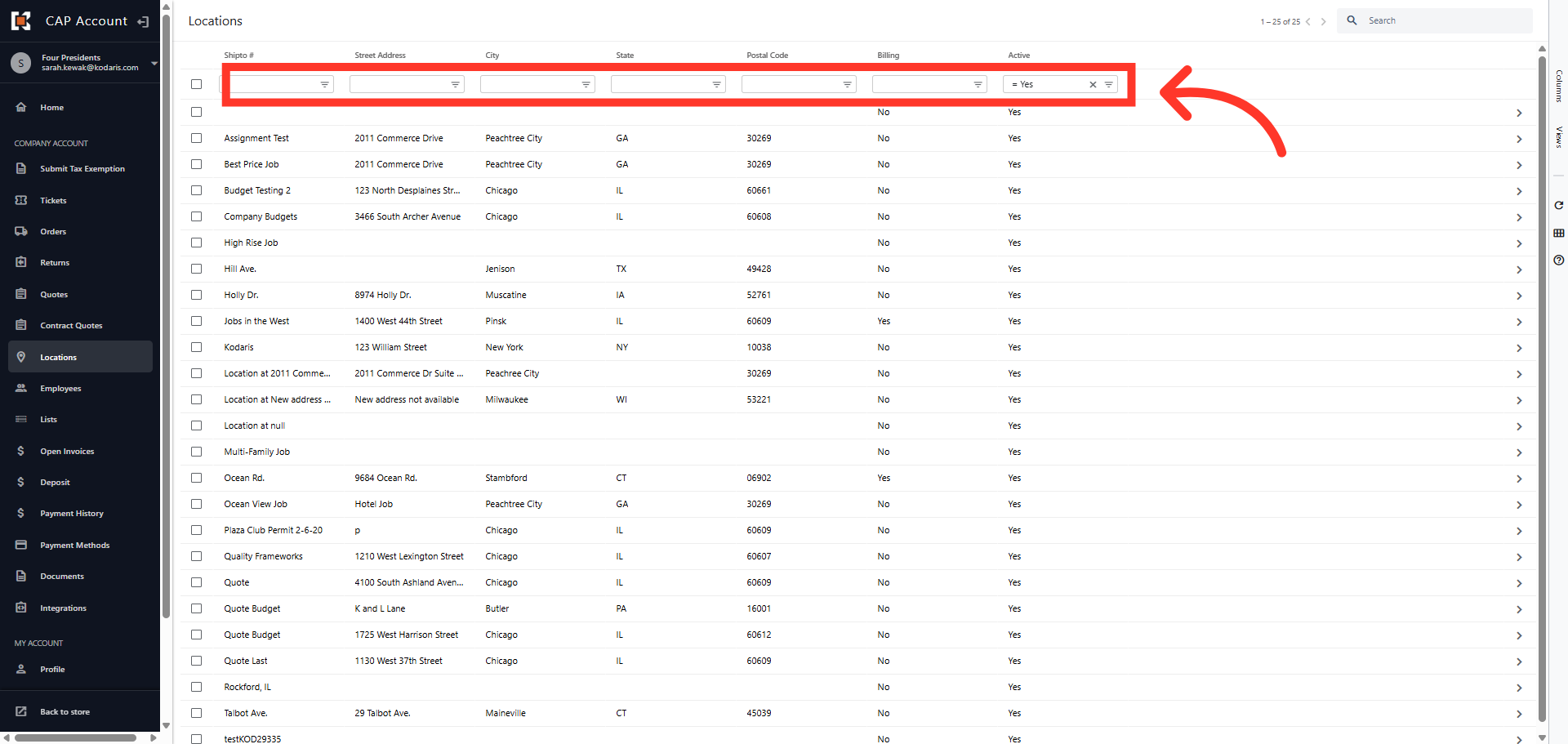
Or, use the column filters to search for the shipto
Or, use the column filters to search for the shipto.
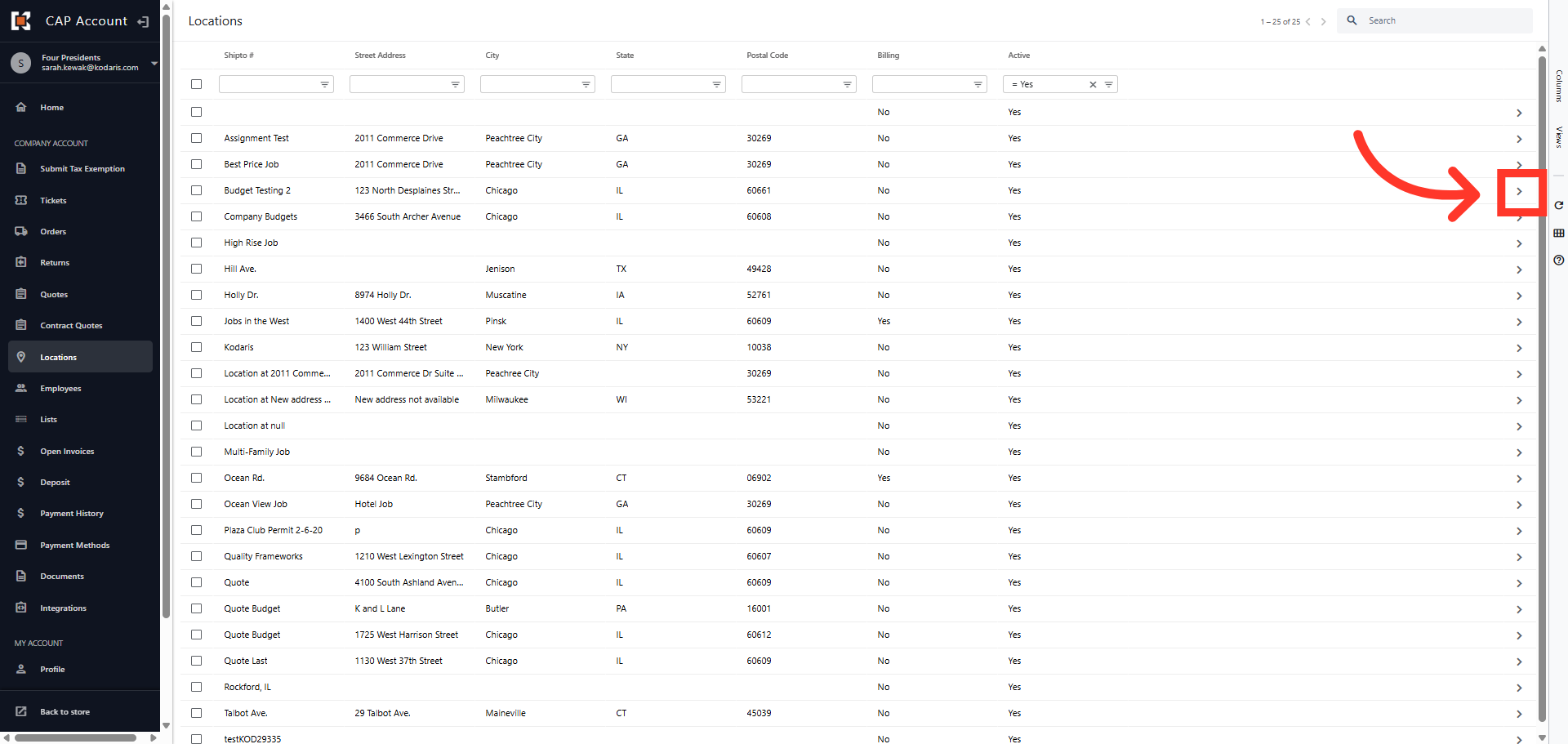
Go to the details page of the shipto
Then, click the more details icon on the shipto you wish to view.
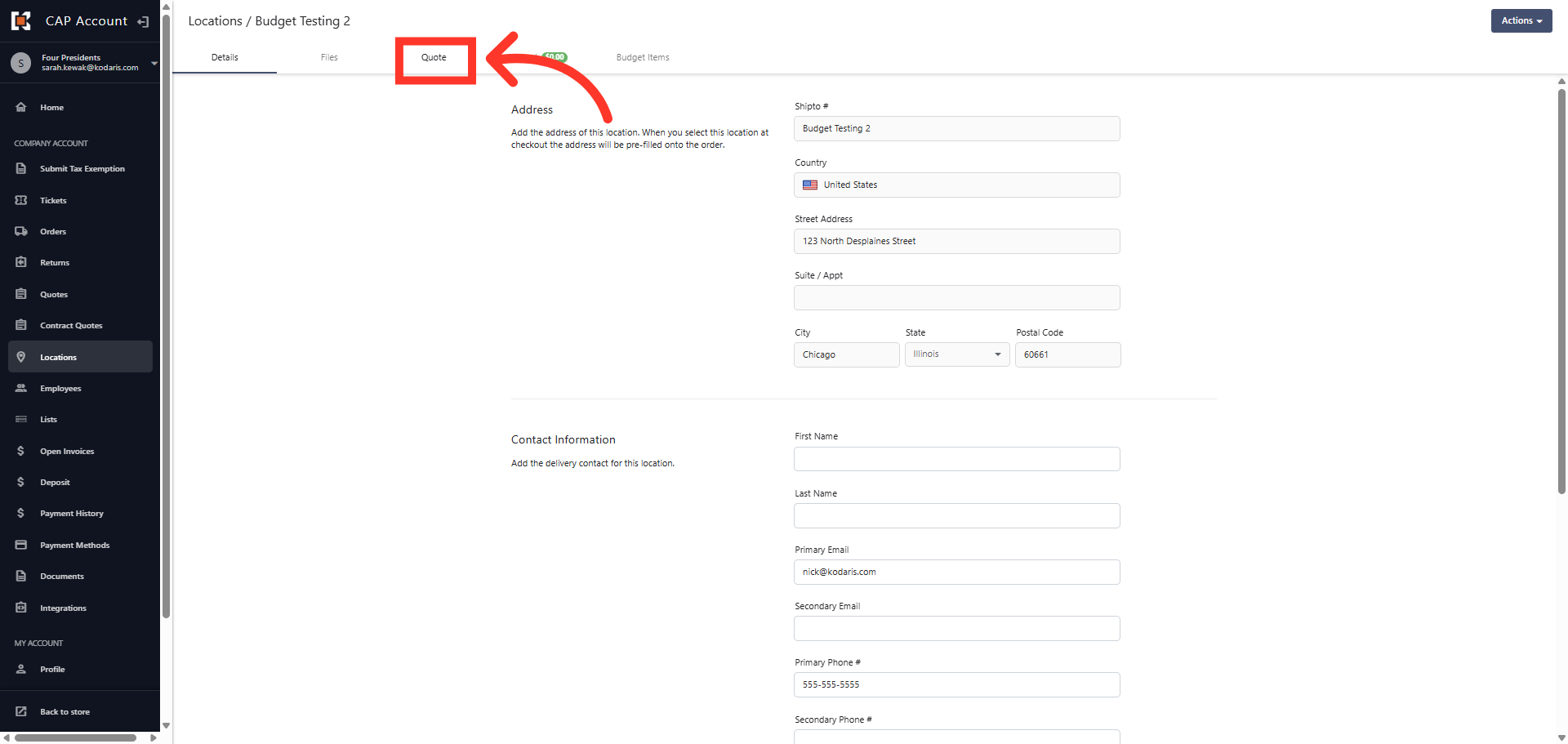
Click "Quote"
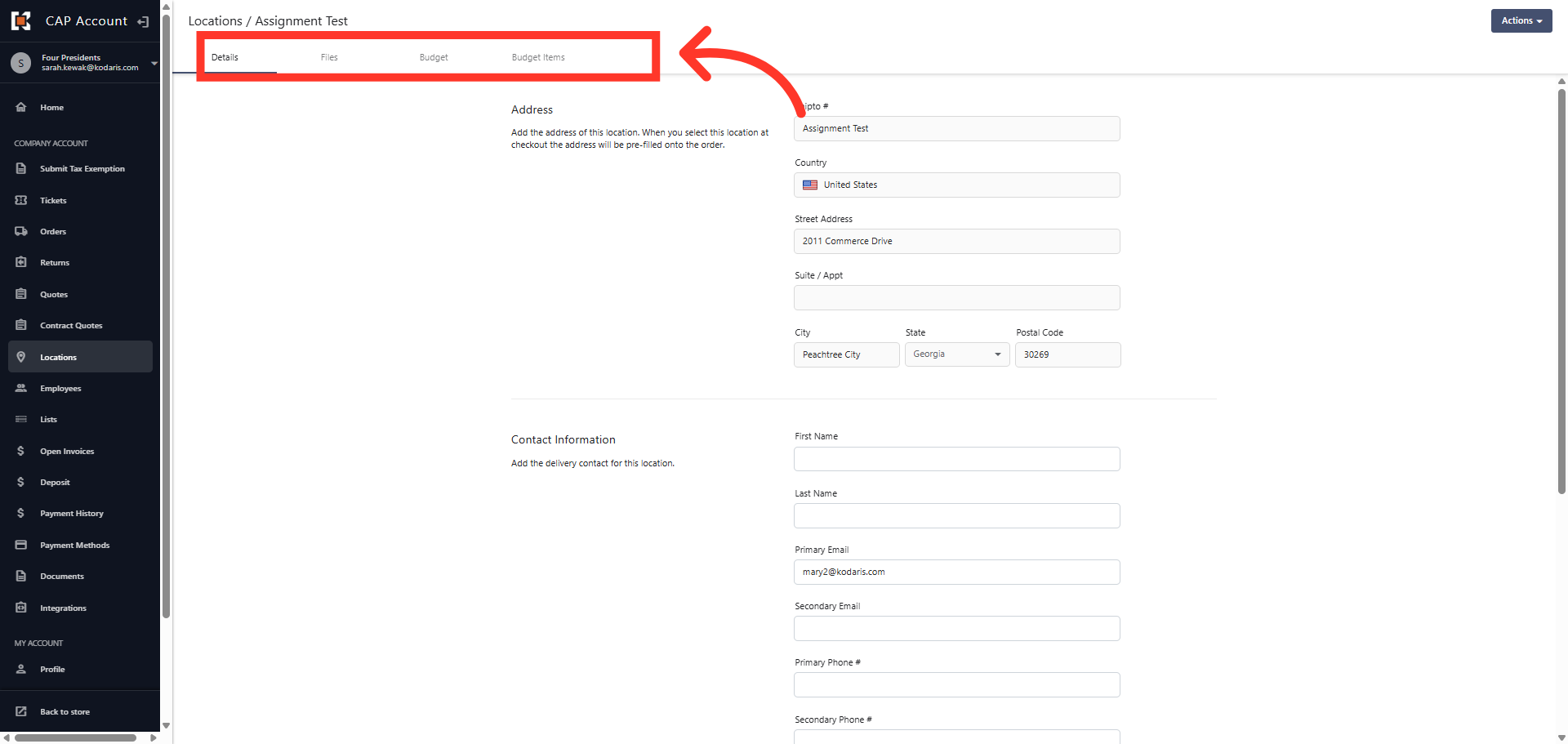
If there is a quote associated with that location, a "Quote" tab will display at the top. To view the quote details, click the "Quote" tab.
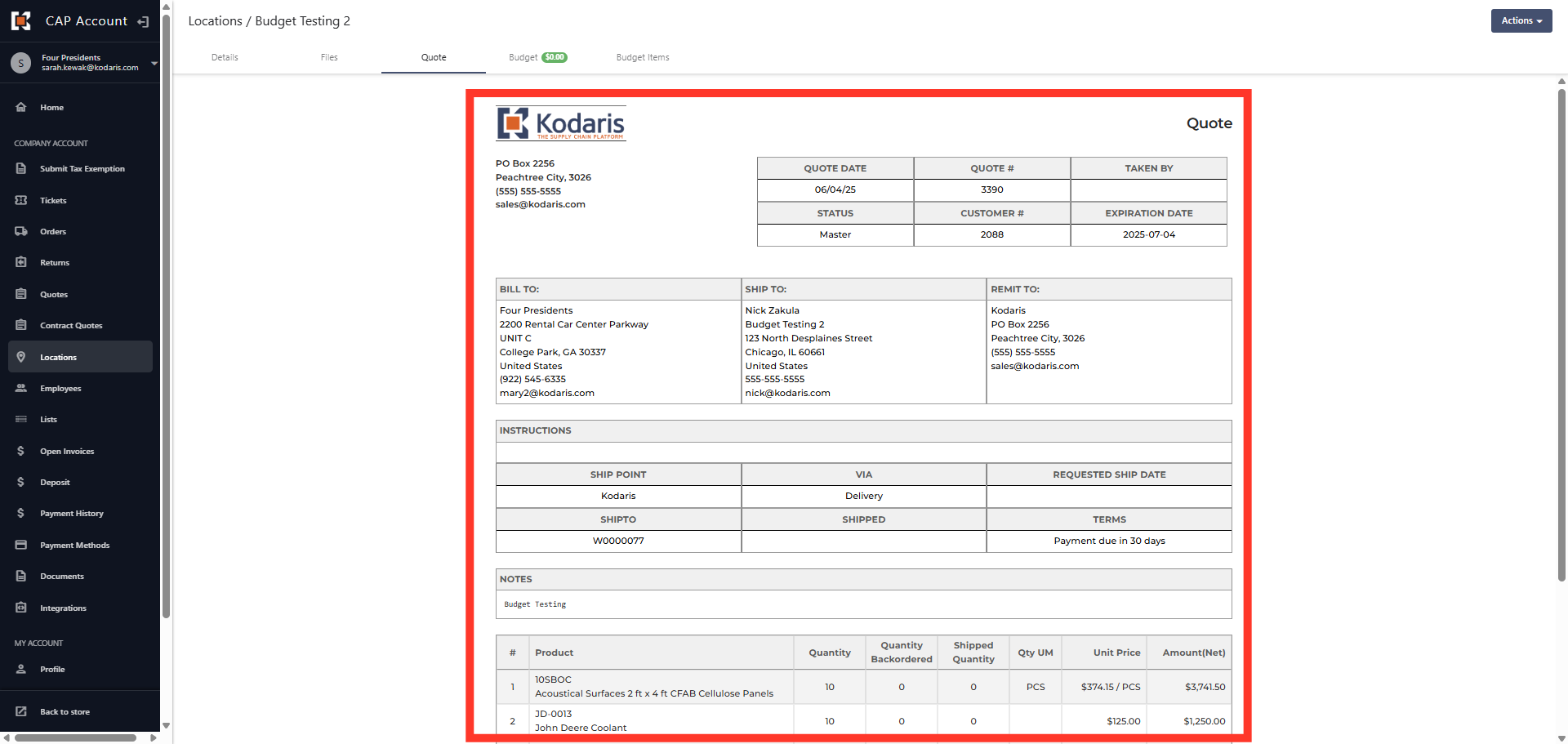
Quote Details
The quote will display details such as Quote #, shipto address, and product details.
Missing "Quote" tab example
Alternatively, If you open a shipto without a related quote, the quote tab will not display. In this example, the "Quote" tab is missing since there is no quote linked to the shipto.