
Operations Marketing - Update an Existing Campaign
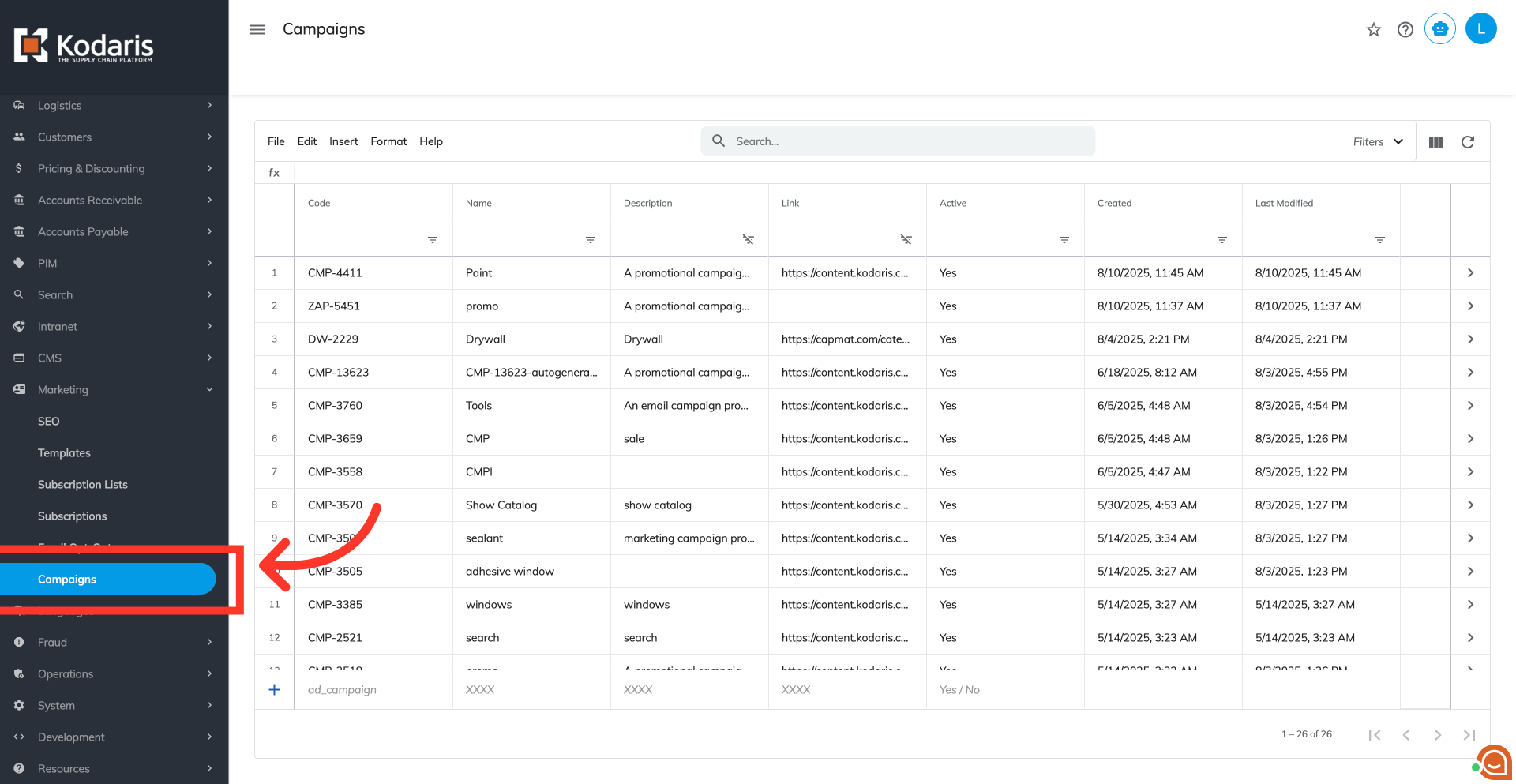
Navigate to the "Campaigns" screen
To modify an existing campaign in the operations portal, navigate to the "Campaigns" screen within the "Marketing" section of your operations portal. To view or update campaigns, users must be an "administrator" or "superuser," or have both "campaignView" and "campaignEdit" roles.
Search for the campaign
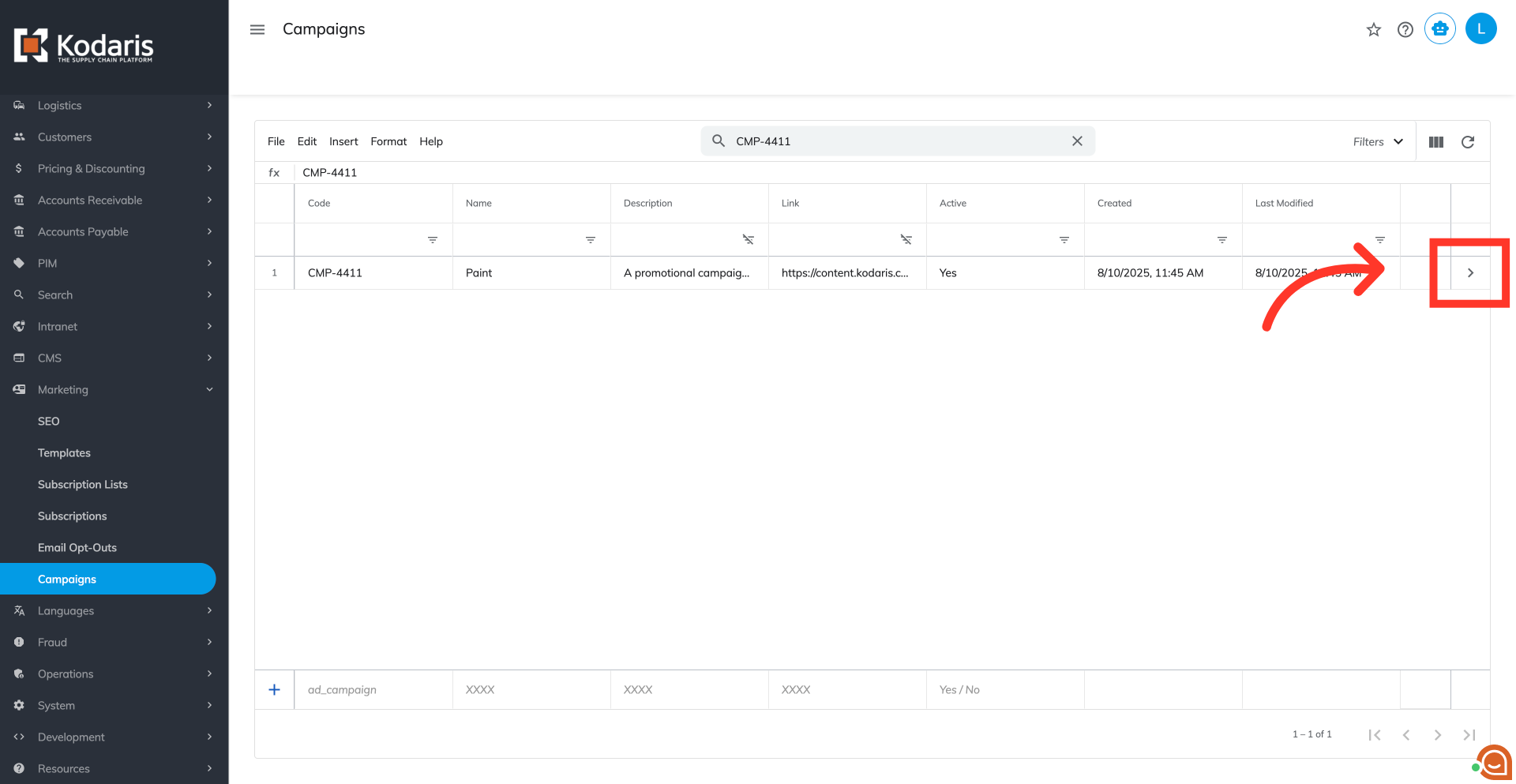
Use the search bar or the column filters to find the campaign you want to update.

Click the more details icon
Click the more details icon.
Update campaign details
On the Details tab, you can update your campaign's information. You can directly edit the "Campaign Name" and "Campaign Description" fields as needed.

Change campaign active dates
Click the "Start Date" field to open the date picker and set when your campaign will begin. Use the "End Date" field to define how long your campaign will be active.

Change the "Active" field to "No"
To deactivate a campaign you no longer need, change the "Active" field to No." This will mark the campaign as inactive and prevent any new tracking activity from being associated with its link.

Remove an item
To remove an item from the list, select its row and then choose “Delete selected rows” from the Edit menu.
