Customer Portal - Add Roles to an Employee
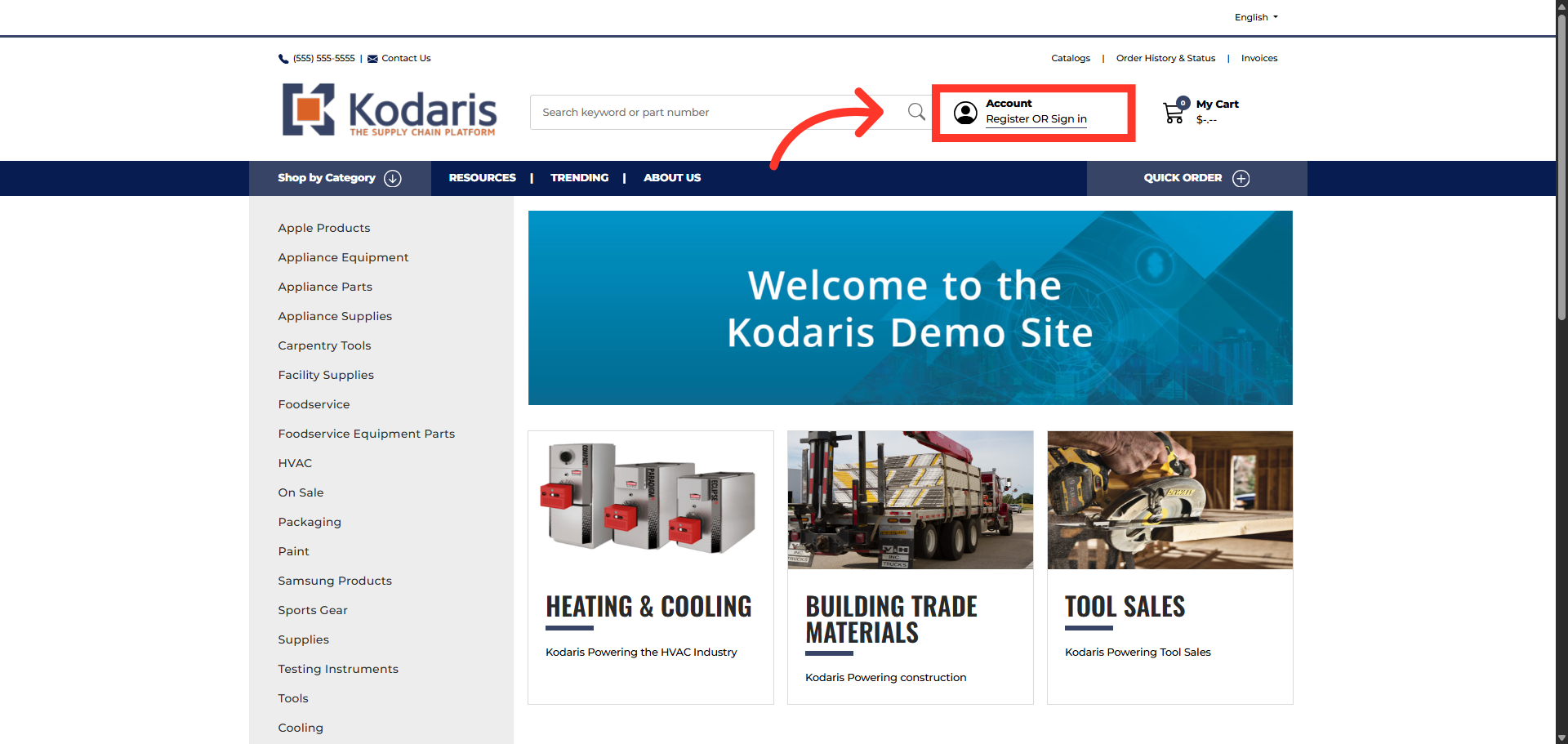
Click "Register OR Sign in"
In order for your employees to perform functions such as placing orders, or viewing invoices and statements, you need to assign roles. To assign employee roles, log into the Customer Portal by clicking on "Register OR Sign In".
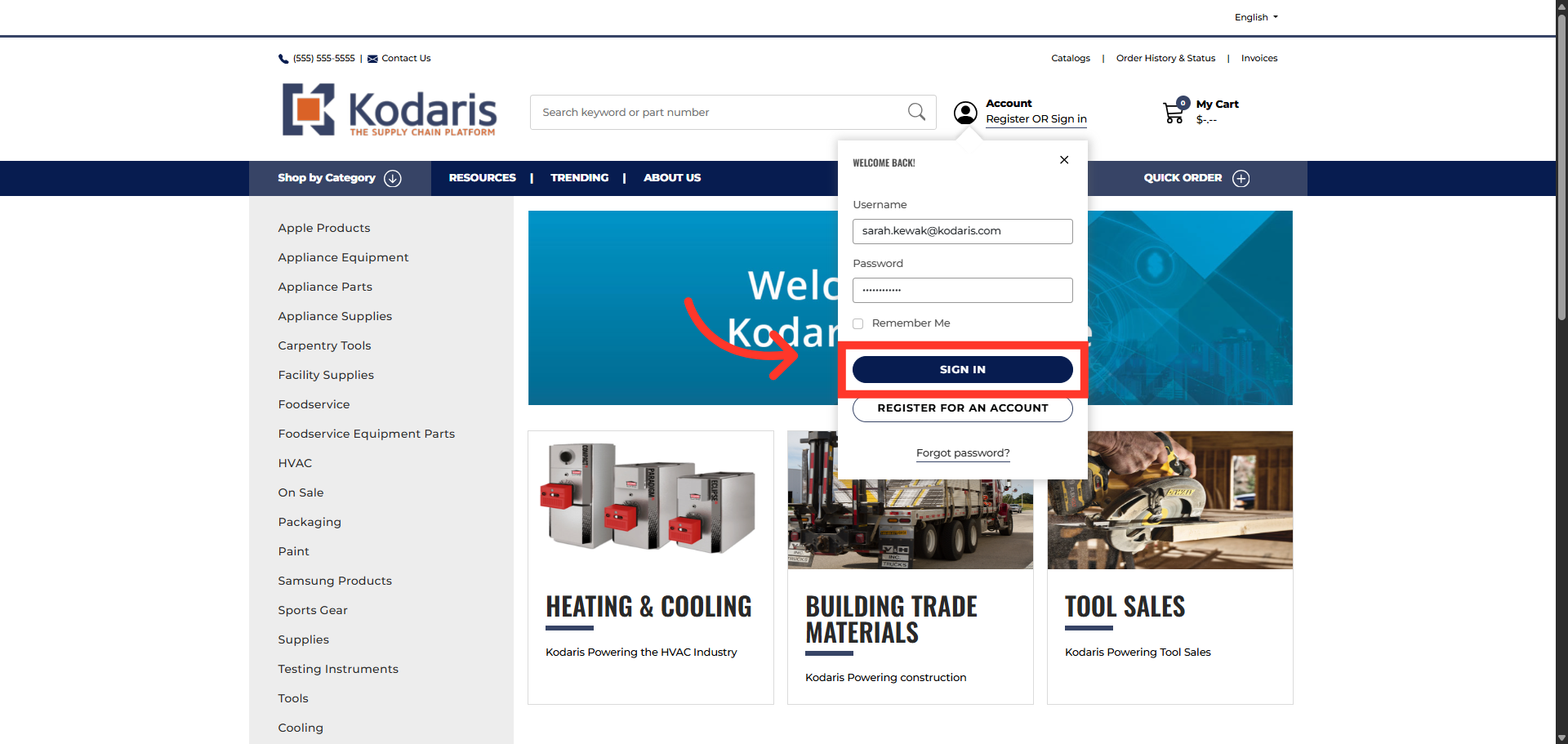
Click "SIGN IN"
Then, enter your login credentials and click "SIGN IN".
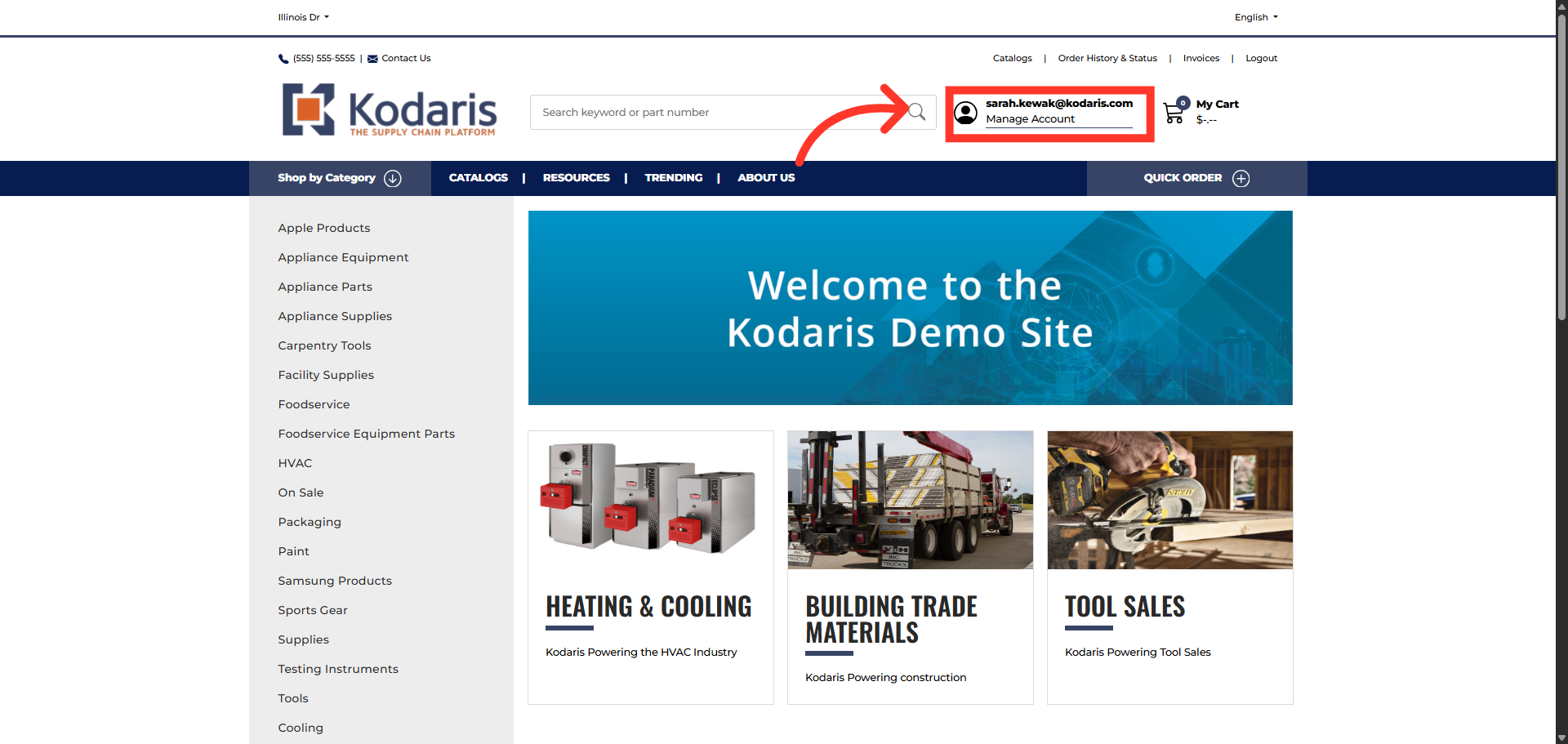
Click "Manage Account"
Next, navigate to the Customer Portal by clicking "Manage Account".
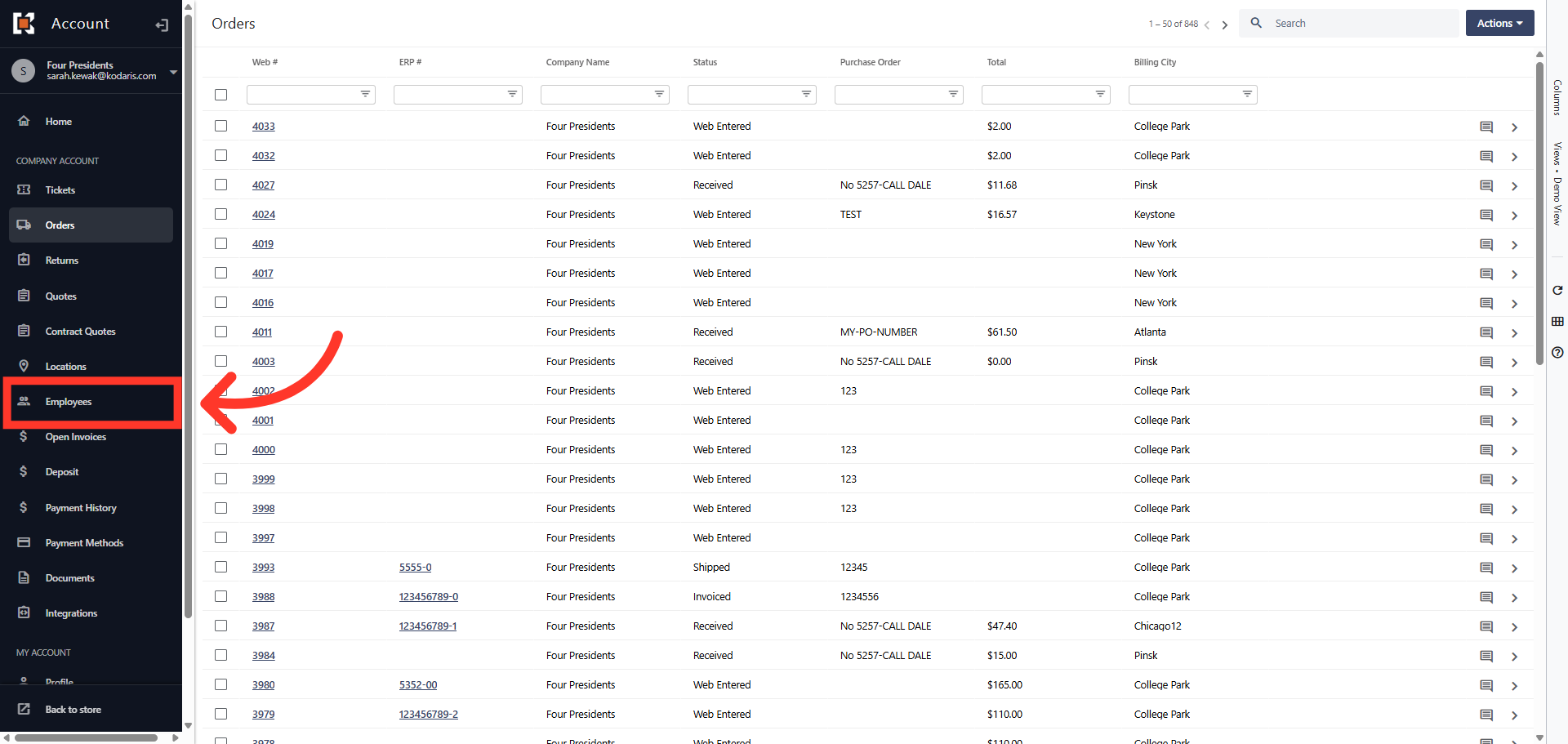
Navigate to "Employees"
Navigate to the "Employees" section by clicking "Employees". In order to access and update Employee Permissions you will need to be set up as a "companyAdmin".
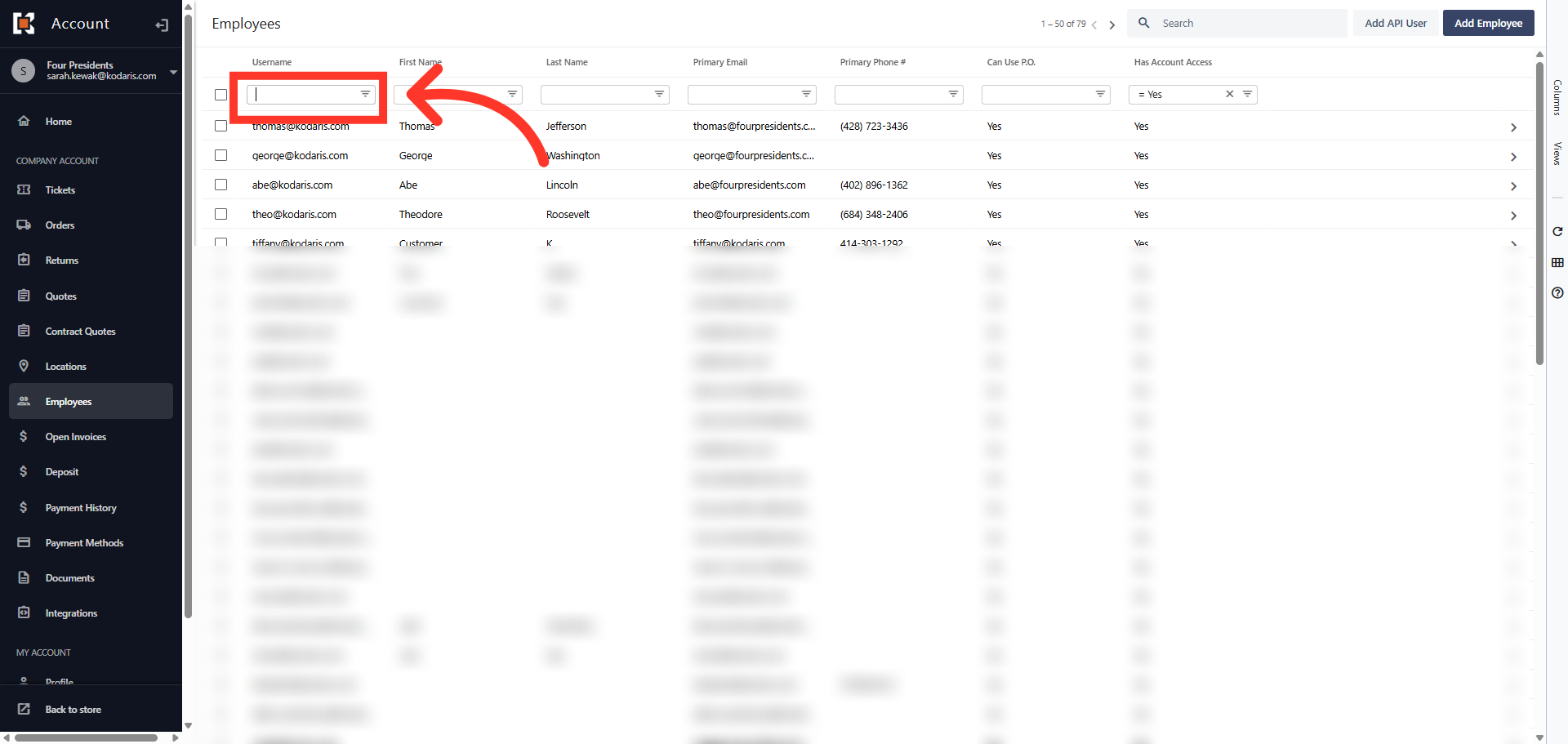
Search for employee
To quickly locate an employee, use the "Search" box and search for the employee's email.
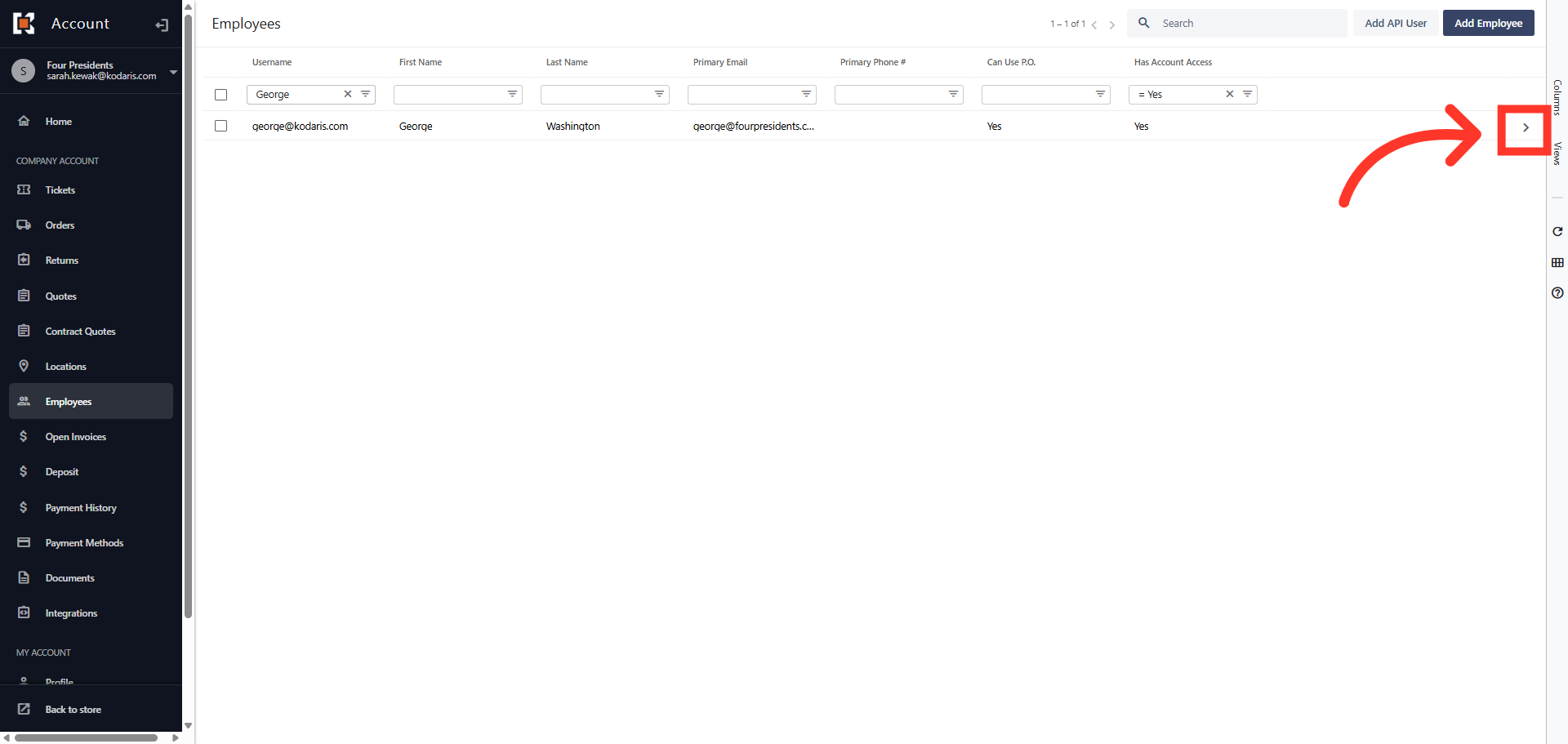
Click the more details icon
Then, click on the more details icon to view the specific employee details.
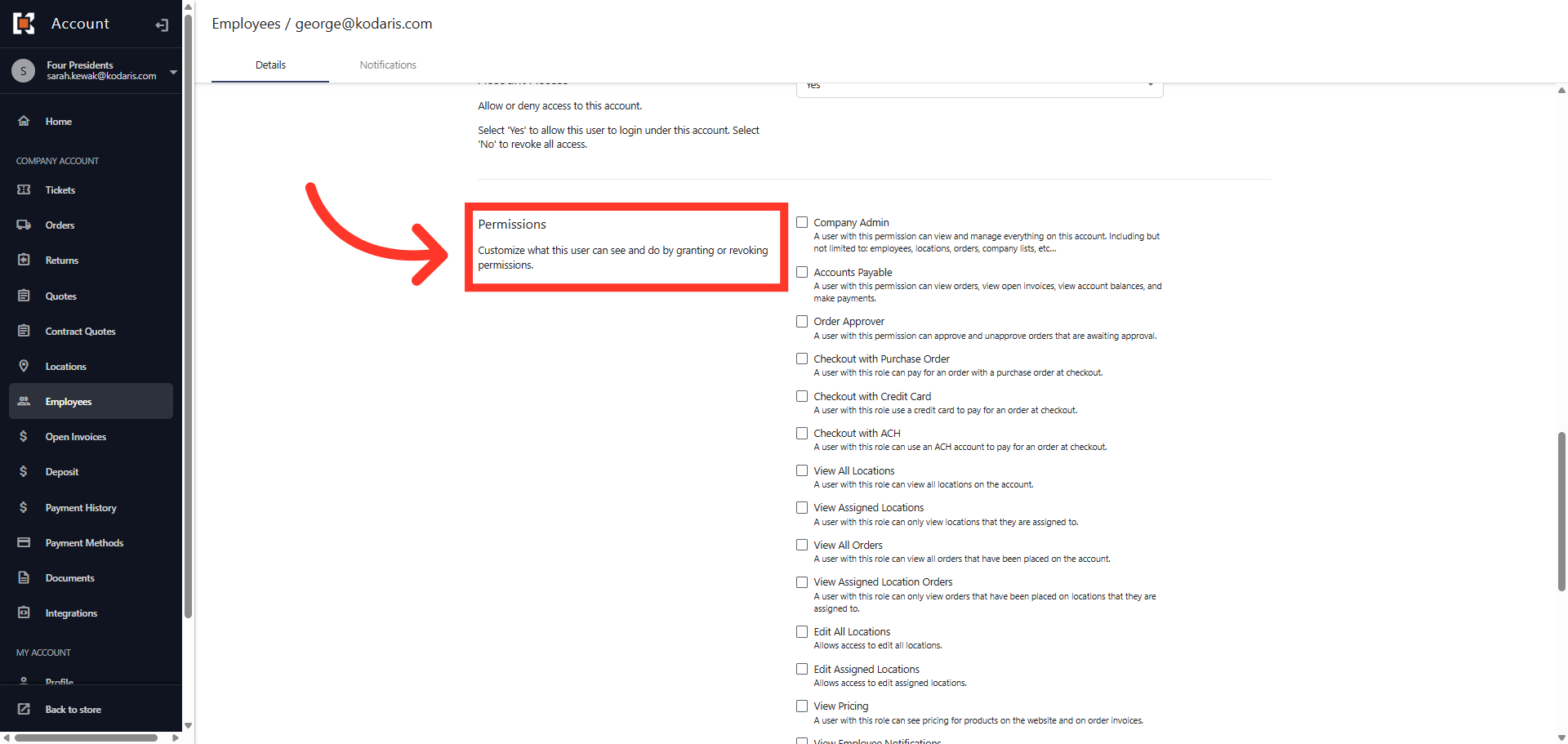
Scroll to the "Permission" Section
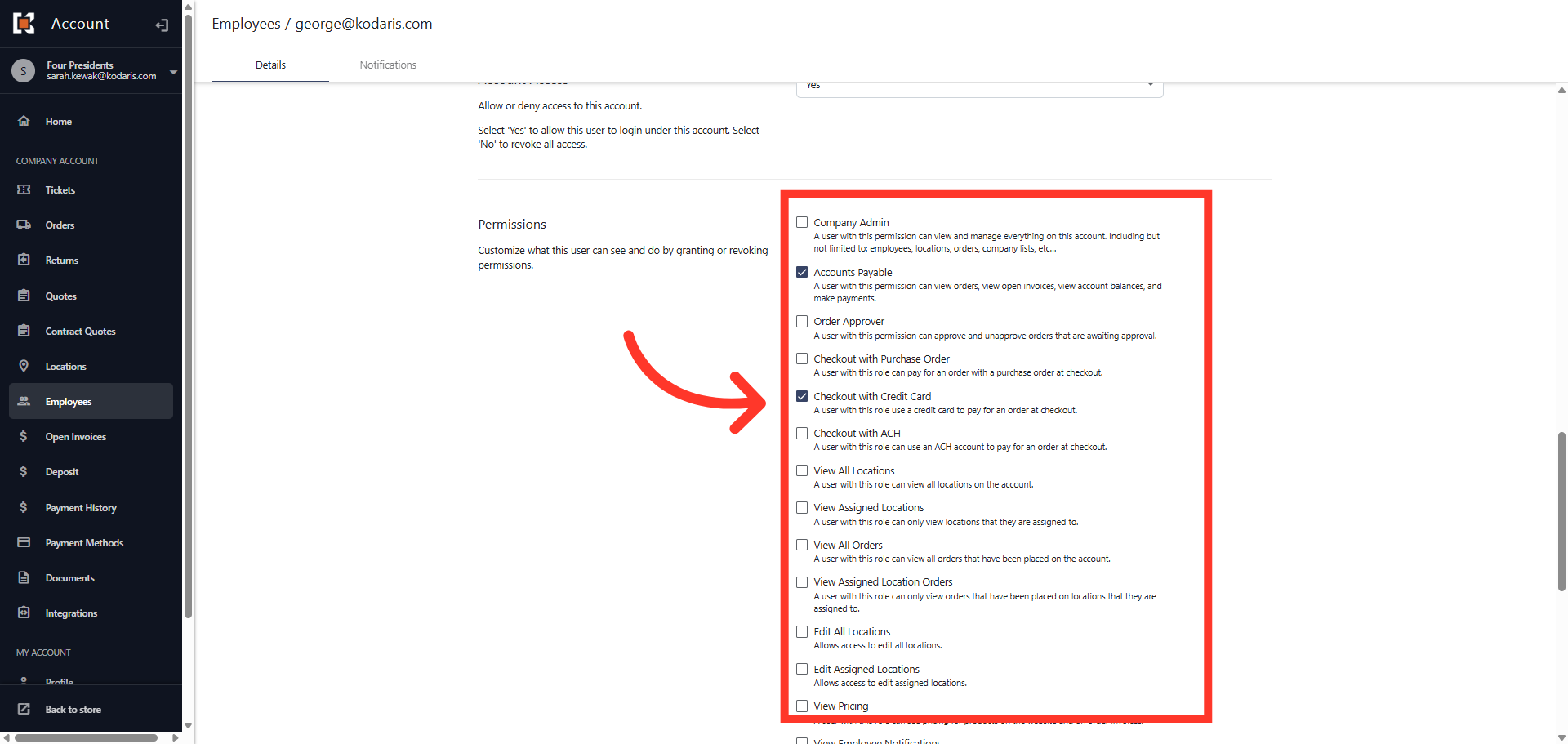
Scroll to the "Permissions" section at the bottom of the employee detail page to view the available permissions. The permissions are listed along with the type of access granted when selected.
Assign Role
Click the check box to assign a role to the employee. You can assign multiple roles to one employee. To unassign a role, uncheck the role. Your changes are saved automatically. Employee roles can be updated at any time.