
Operations CRM - Start Quote From a Quote Request
Navigate to "CRM"
To start a quote from a quote request, navigate to the "CRM" section in the Operations Portal.

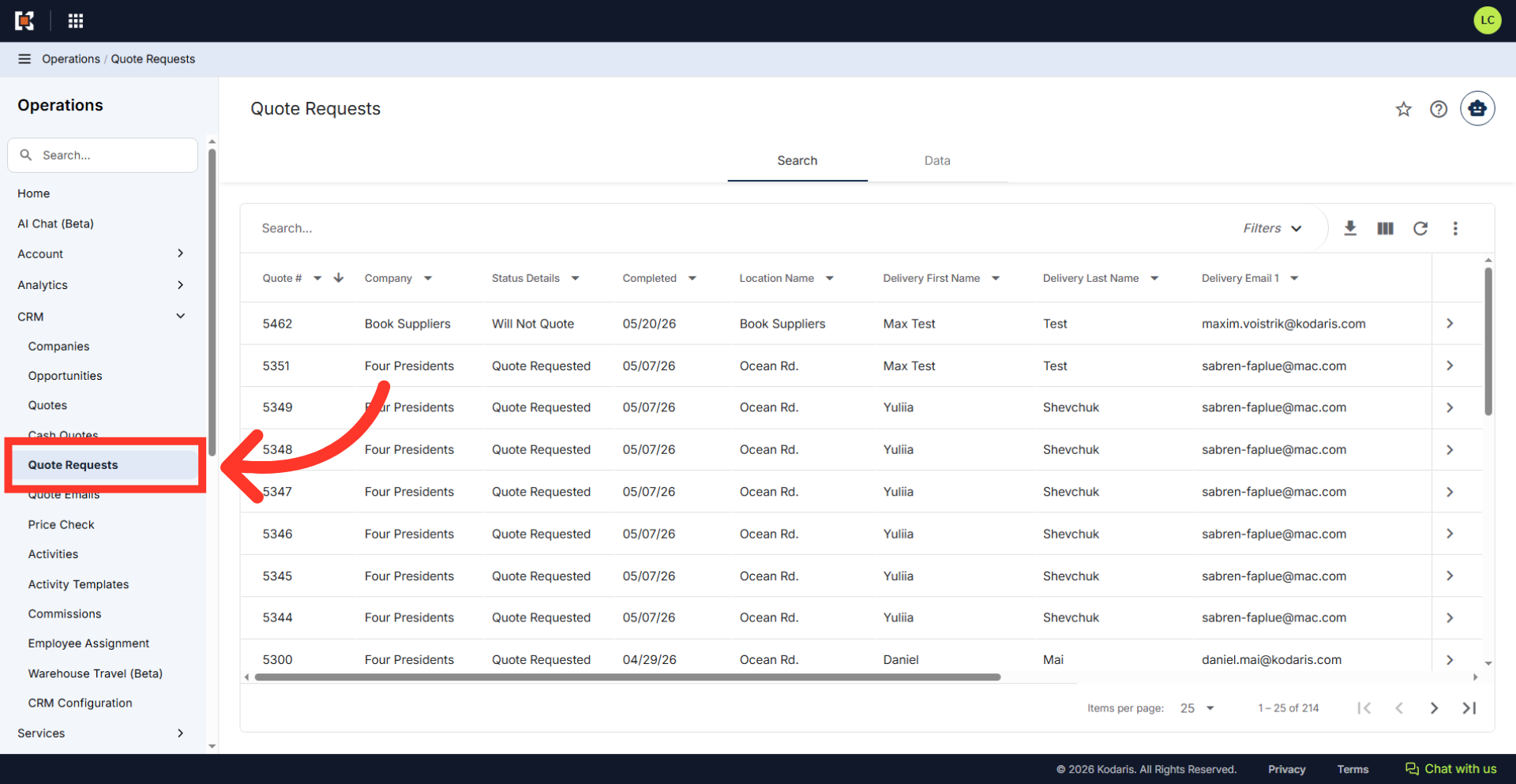
Click "Quote Requests"
Then, click "Quote Requests". In order to access "Quote Requests" the account will need to be set up either as an "administrator" or a "superuser", or have the appropriate role: "quoteEdit", or "accountQuoting".
Search for the quote request
Filter the list by typing a keyword into the "Search..." field to locate the specific quote request.

Click on the more details icon
Click on the more details icon to view more details about the quote request.

Click "Start Quote"
Click the "Start Quote" icon to start.

Click "Quote Type"
Click the "Quote Type" dropdown field to display the available pricing types.

Choose the quote type
Choose the quote type.

Click "Start Quote"
Click the "Start Quote" button on the selected quote request.

Update the quote details, if needed
The quote status automatically updates to "Quote In Process." You can now edit the quote details on this screen. You can also adjust pricing, update product names, assign costs and margins, and calculate totals when accessing the other tabs for this quote.

Click "Status"
Once complete, you will want to change the status to "Quote Pending" for the customer review. To do that, click "Status".

Select "Quote Pending"
Select the "Quote Pending" status to publish it to the customer portal for review.
