
Operations PIM - Import Product Resource Files by URL
Navigate to "PIM"
Resource files can be added to multiple products by importing. In order to add resource files to products, you will need a list of product codes that exist in the operations portal.

Header Row
Once you have a list of product codes that you would like to update, you are ready to create your spreadsheet for importing. This spreadsheet will also need the required header row and data.

"code" = product code
The "code" column contains the product code. When importing data, the code is required as it is the identifying factor for matching information.

"productCode" = product code
The "productCode" column also contains the product code. When importing data, this data is also required in order for the import to run correctly.

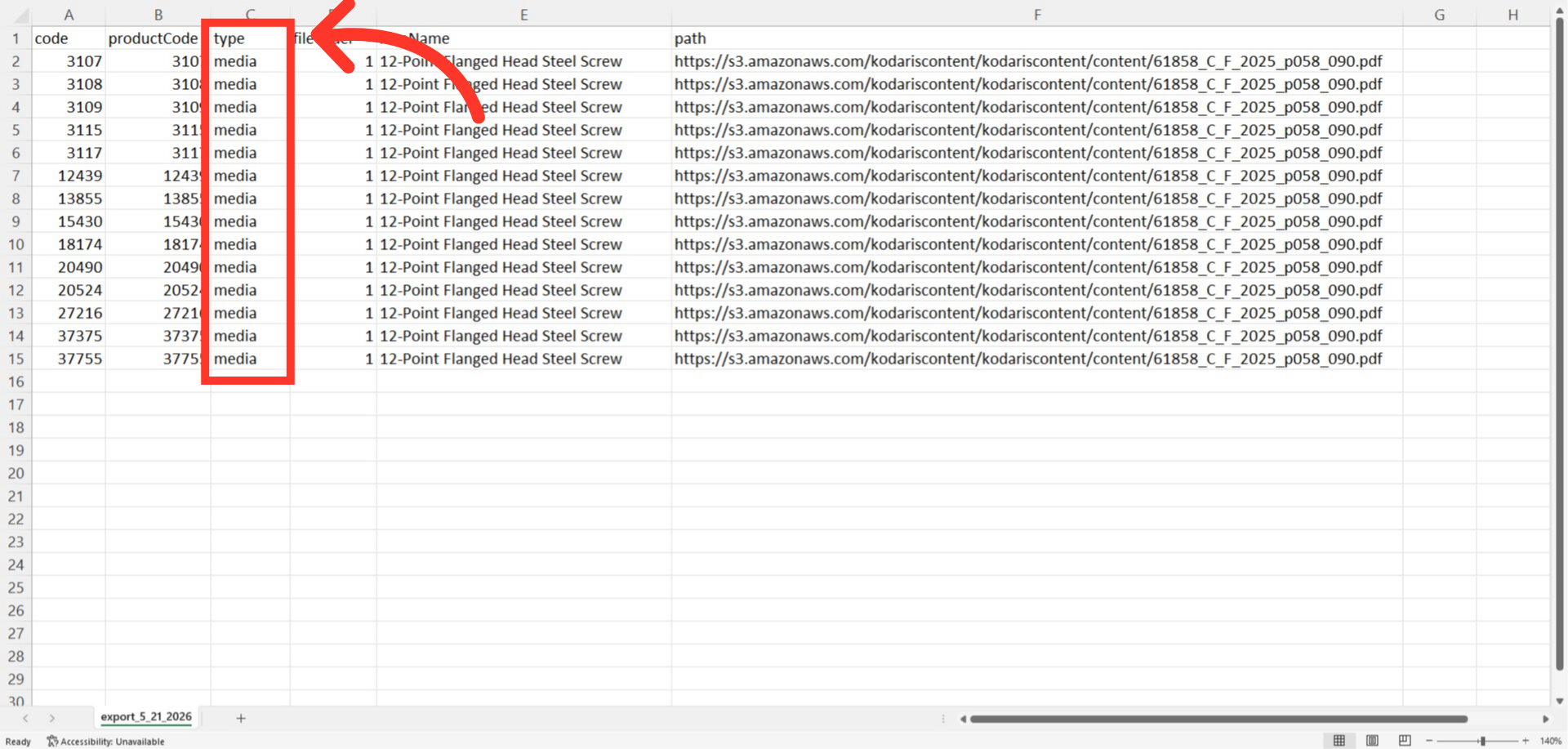
"type" = media
The "type" column contains the file type. In this case, we are adding resource files which are considered "media" files. This column is also required in order for the import to run correctly.
"fileOrder" = numerical value
If you will be adding multiple files to a product, you can control the order of the files by added a numerical value in the "fileOrder" column. The lowest numbered file would appear first. This column is not required for importing data.

"niceName" = file name
The "niceName" column should include the name of your files as you would like them to appear to your customers. This column is required in order for the import to run correctly.

"path" = file url
The "path" column needs to include the full URL or path to your resource file. This column is required for the import to run correctly.

Example spreadsheet
Once you have entered the data that you would like to import, save your spreadsheet as .CSV file which is spreadsheet compatible and your file is ready to import. Be sure the spreadsheet you are using only contains the data that you would like to import.

Click "System"
To import the file, navigate to the "System" section in the Operations Portal.

Click "Customer Files"
Then, click "Customer Files". In order to access and edit Customer Files, you will need to have the role of: "administrator" or "superuser", or have the roles of: "customerFileView" and "customerFileEdit" along with "importEdit and "importView". These last two roles are needed for importing.

Click "File"
Click "File".

Select "Import"
Select "Import".

Choose "Create & Update"
For this import, you will want to choose the "Product Files: Create & Update" option. Once you select the option, you will be prompted to select a file to upload. Be sure to choose the correct file to import.

Import message
Once you click the import option, you will be prompted to choose and upload a file from your computer. Choose the .CSV file you would like to import. Please be sure that you select the correct file, as there are no rollbacks for imports. An import message will appear letting you know that the import file is in process and to check back in a few minutes for the imported data. If you are importing large amounts of data, it may take a short amount of time to complete. The import will continue to run in the background.

Click "Preview on website"
To view updated products, you can search on products on the commerce site - or you can click the "Preview on website" icon on products in the operations portal.

Go to "Resources"
Click the "Resources" tab.

View the added resources
Users can now view the added resources.

View Public Files
You can also go back to the public files screen in the operations portal and view the files that have been added to products. In this example, you can now see that files have been added.
