Operations CRM - View Items in a Quote Request
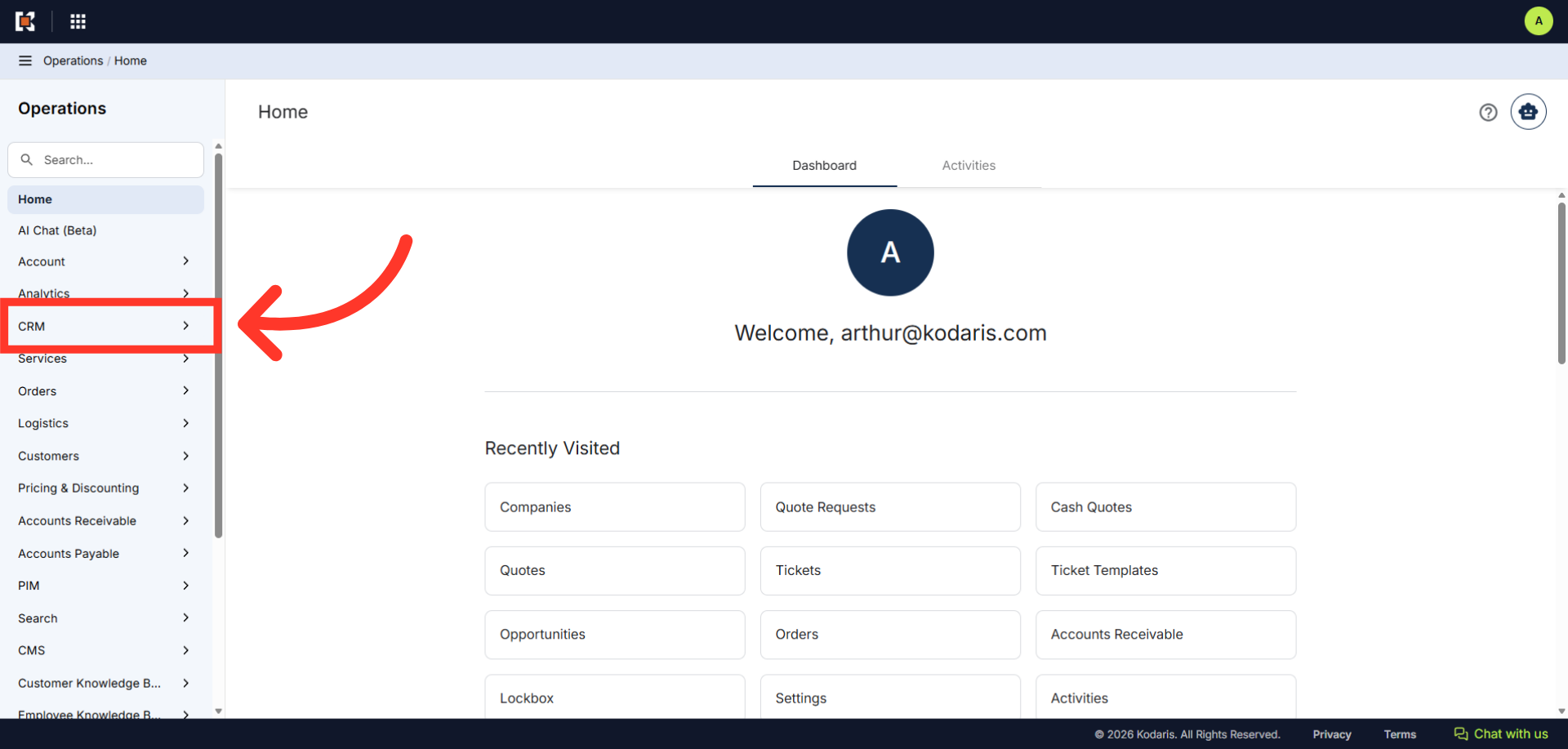
Navigate to "CRM" section
To view items on a Quote Request, navigate to the "CRM" section in the Operations Portal.
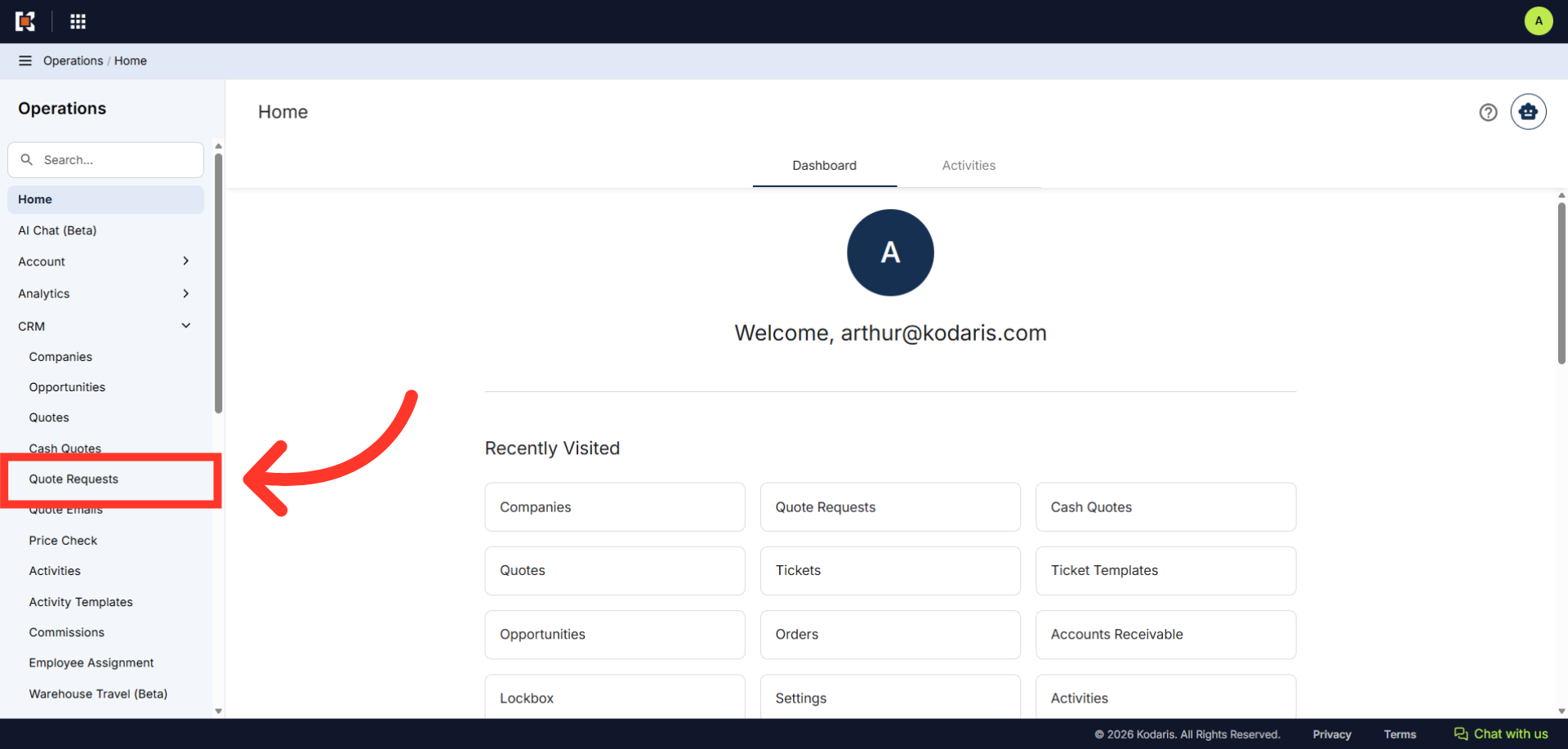
Click "Quote Requests"
Then, click "Quote Requests". In order to access Quote Requests, you will need to have the role of "administrator" or "superuser", or have the role of: "quoteEdit".
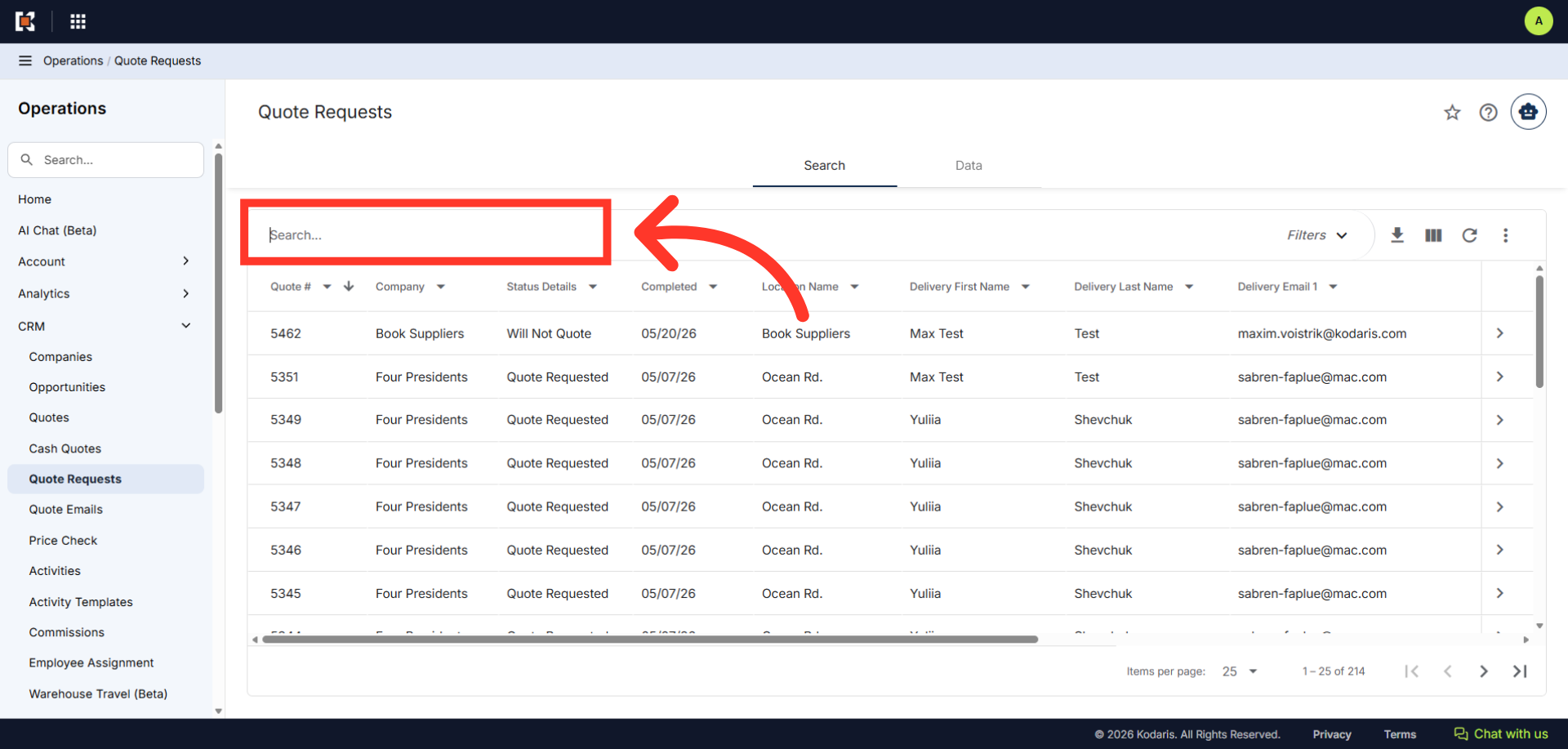
Search for the quote request
Enter the quote request number you would like to view in the "Search..." field.
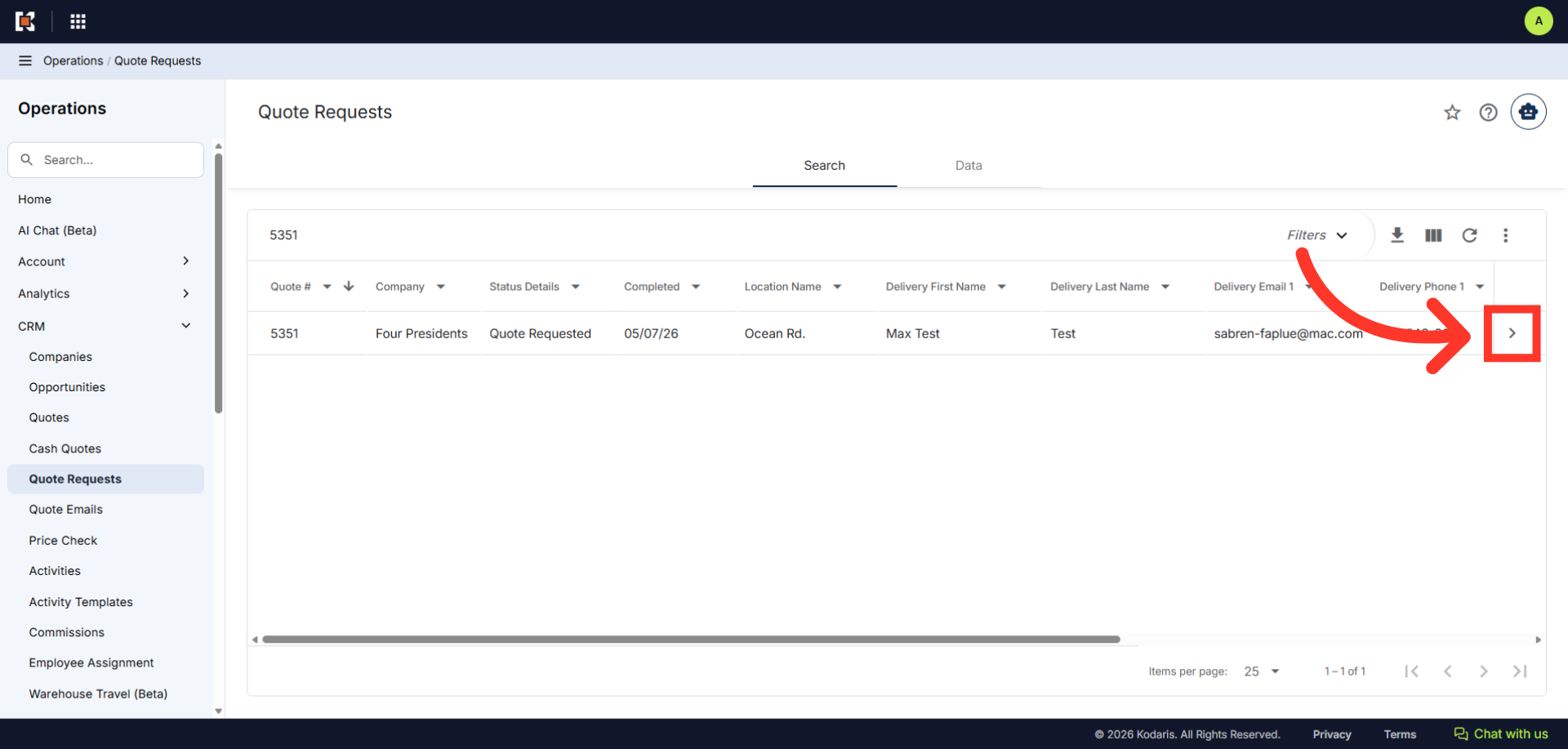
Click on the more details icon
Click on the more details icon to open quote request details screen.
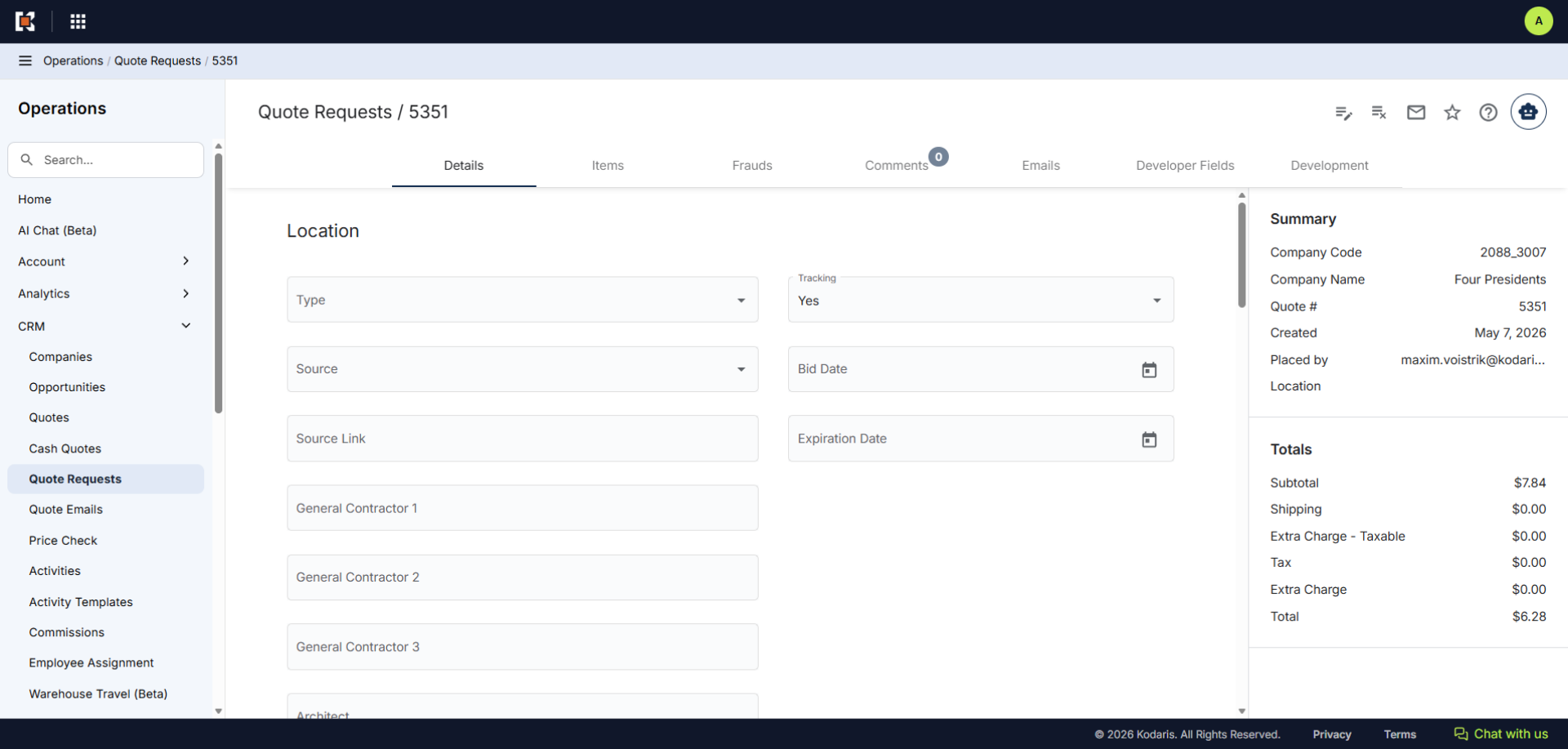
Quote Request Details Page
On this page, you can view different details regarding the quote request like location, delivery address, delivery method and quote request item totals.
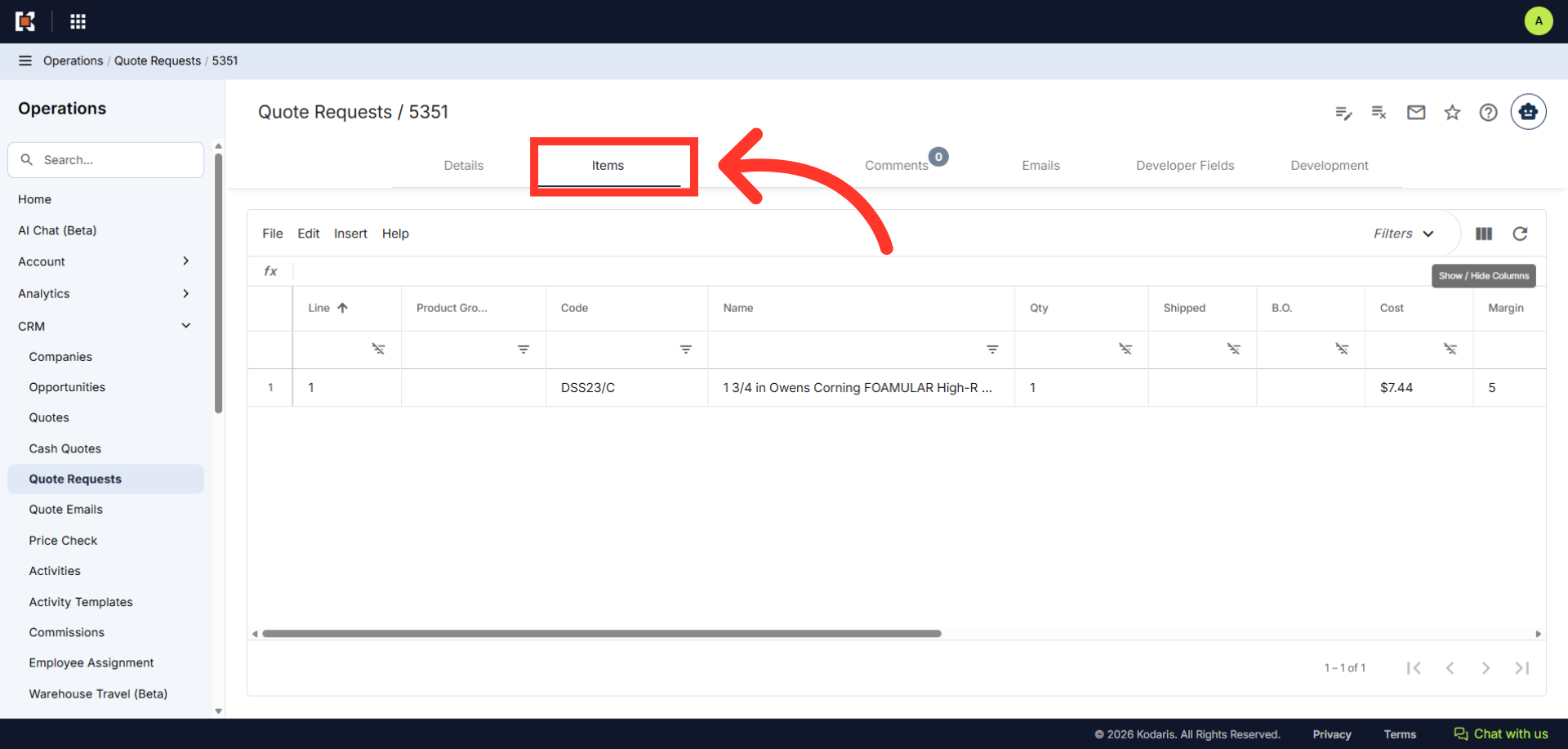
Click "Items"
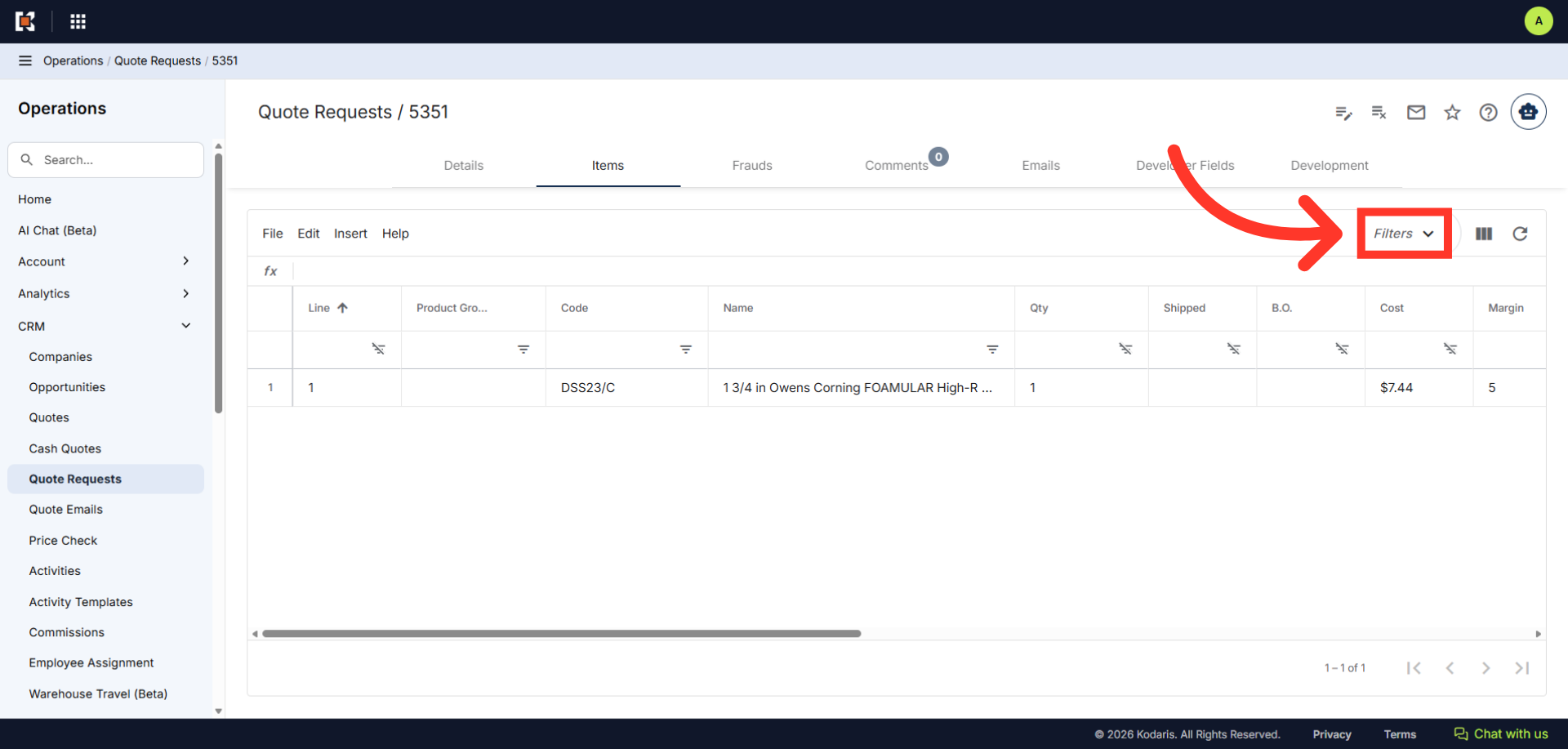
Now, click the "Items" tab. On this screen, you can view the items on the quote request.
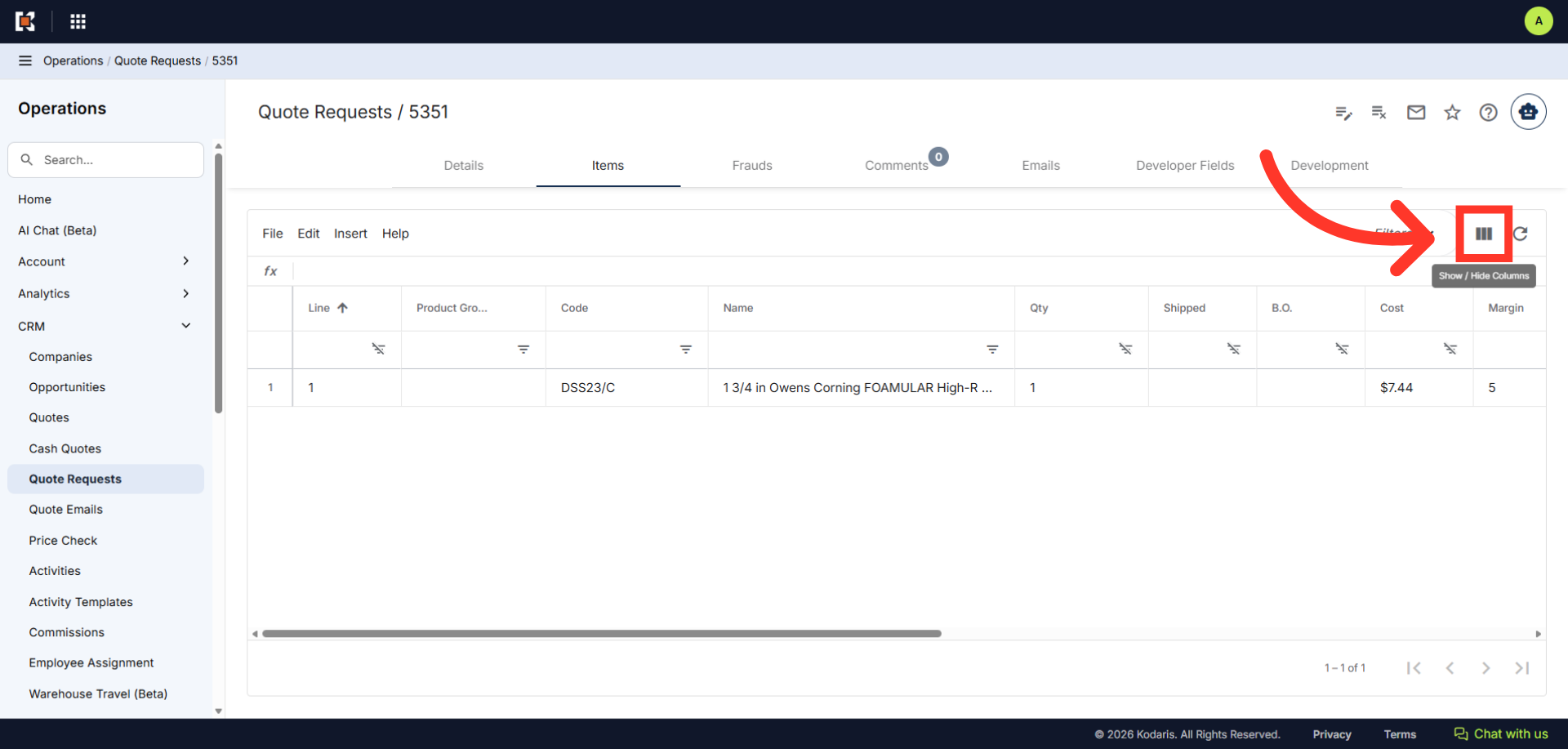
Click "Show/Hide Columns"
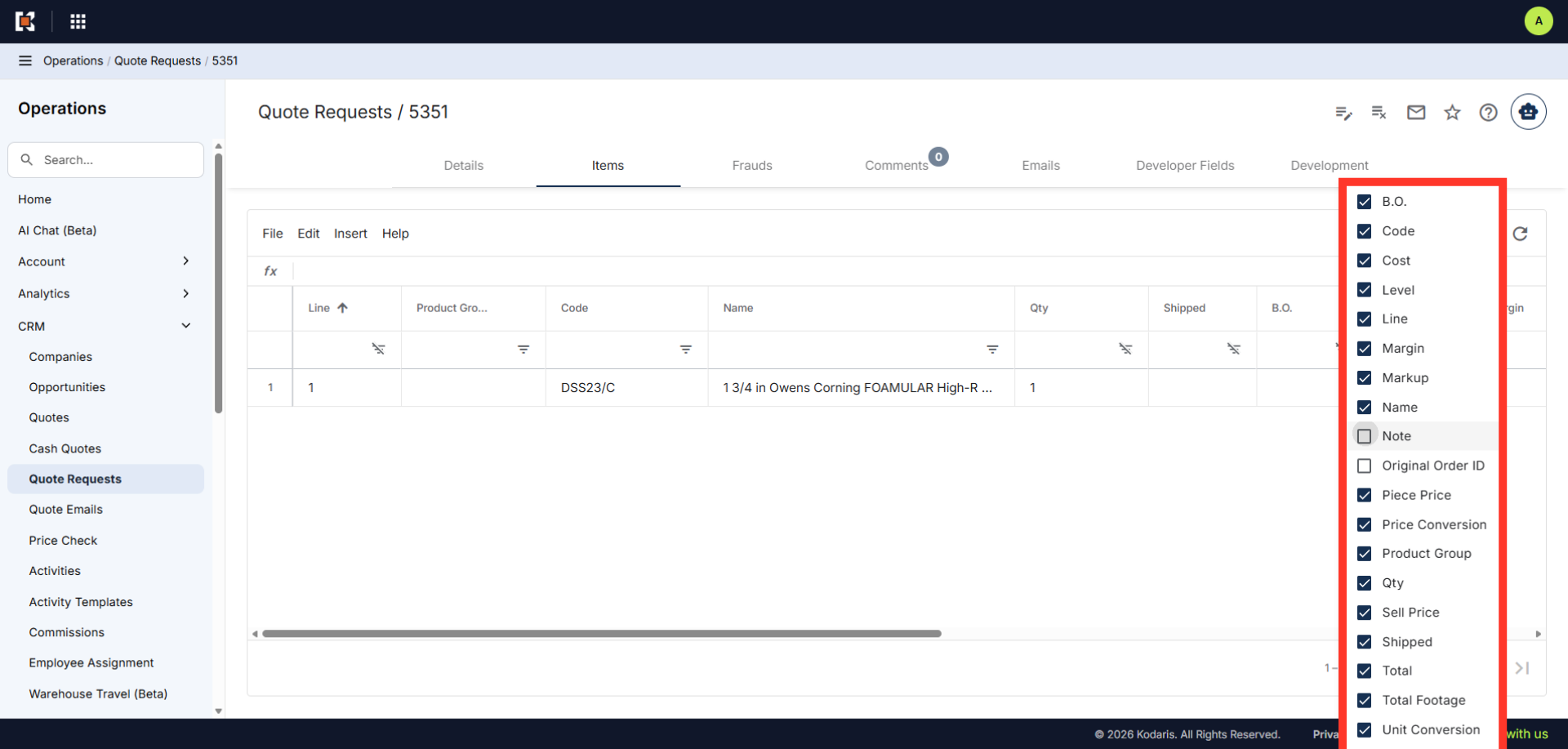
To add or remove columns, cick on the "Show/Hide Columns" icon.
Select/Unselect Columns
You can select/unselect columns according to your needs.
Create "Sticky filters"
You can also create and save filter configurations for easy access.