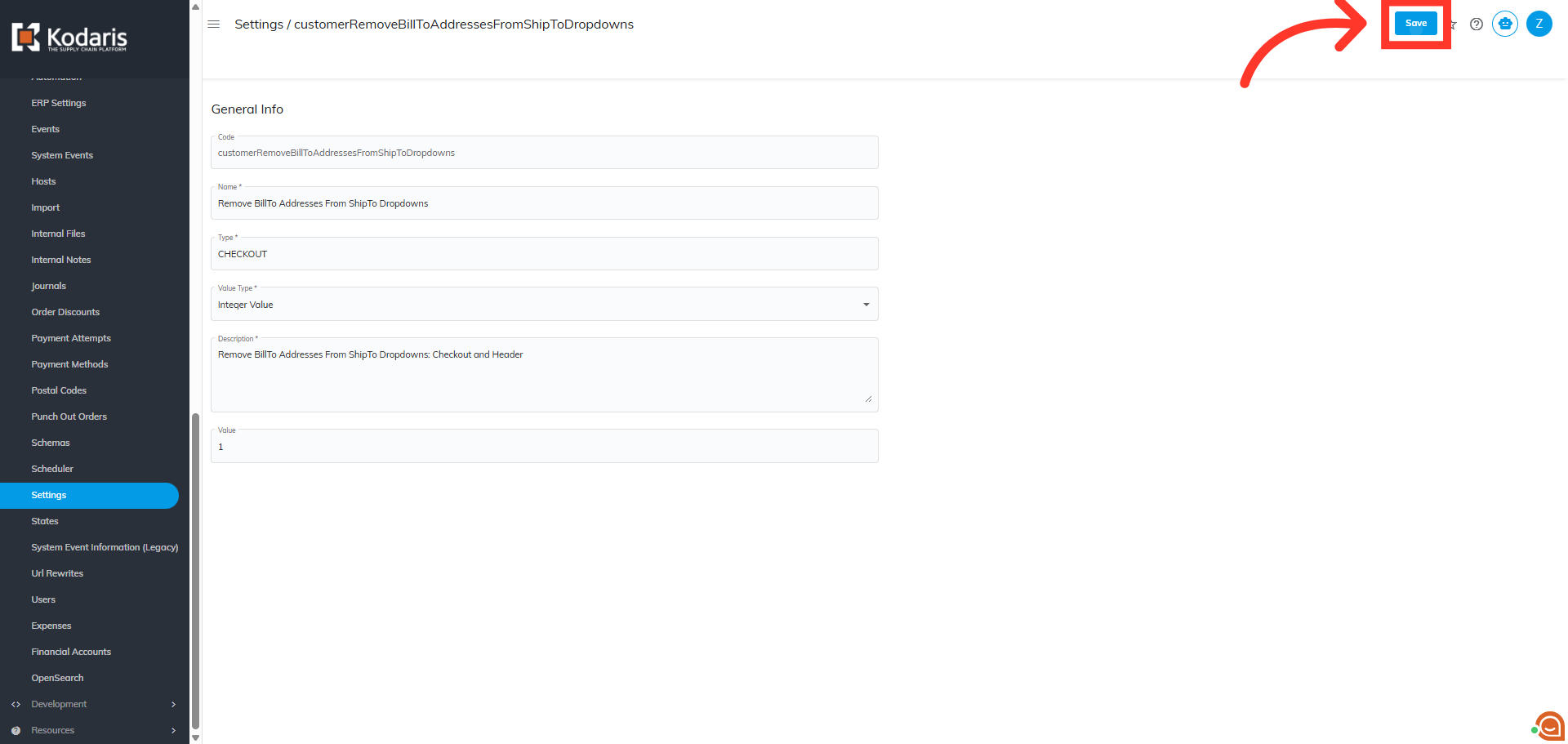
Operations Settings - Remove Bill To Address from Ship To Dropdown
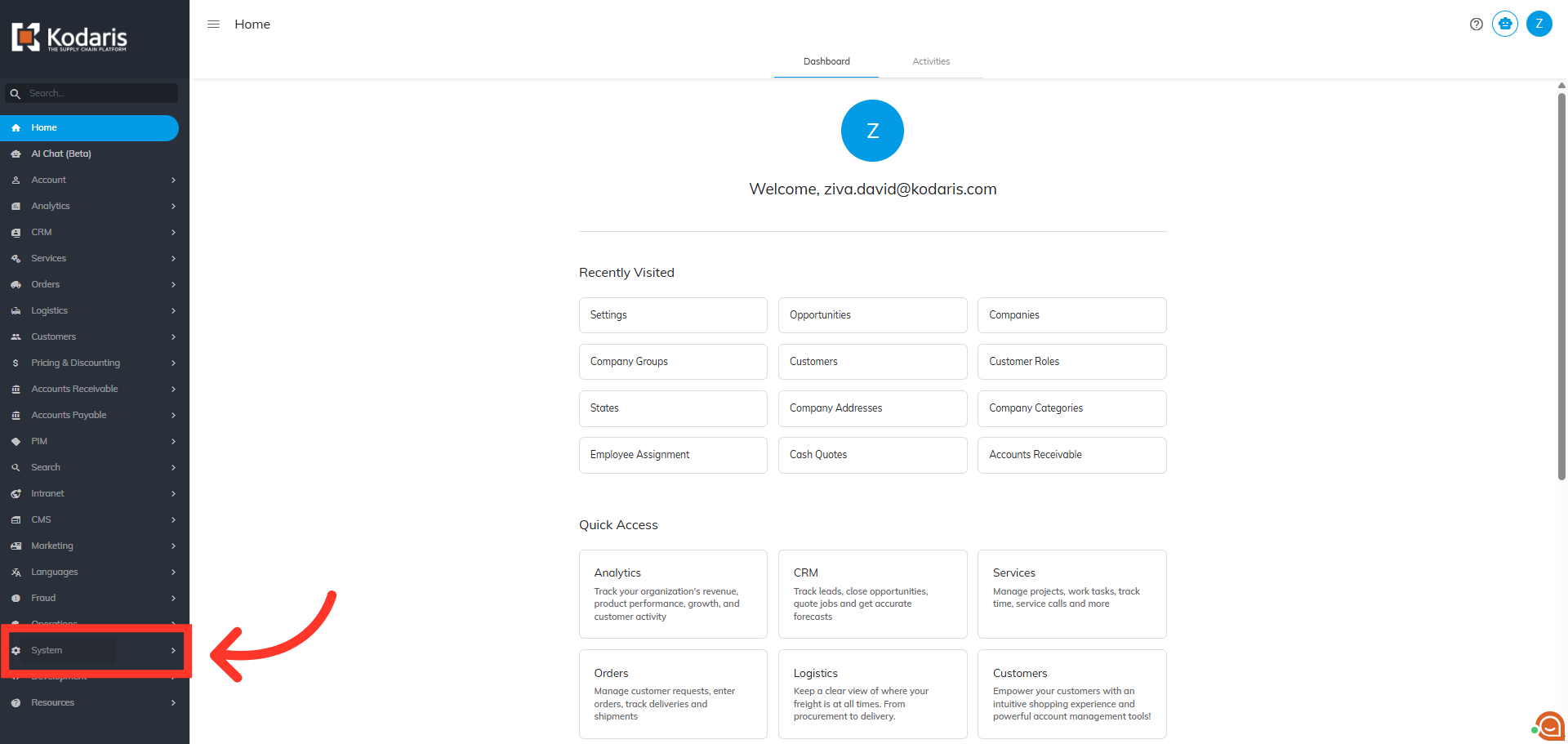
Navigate to "System"
When companies sync from an ERP, the platform creates default billing addresses. These addresses display automatically in the customer facing ship to dropdowns which could create confusion. Users can enable a setting to hide these addresses from the ship to dropdown. To enable this setting, first, navigate to "System" in the Operations Portal.
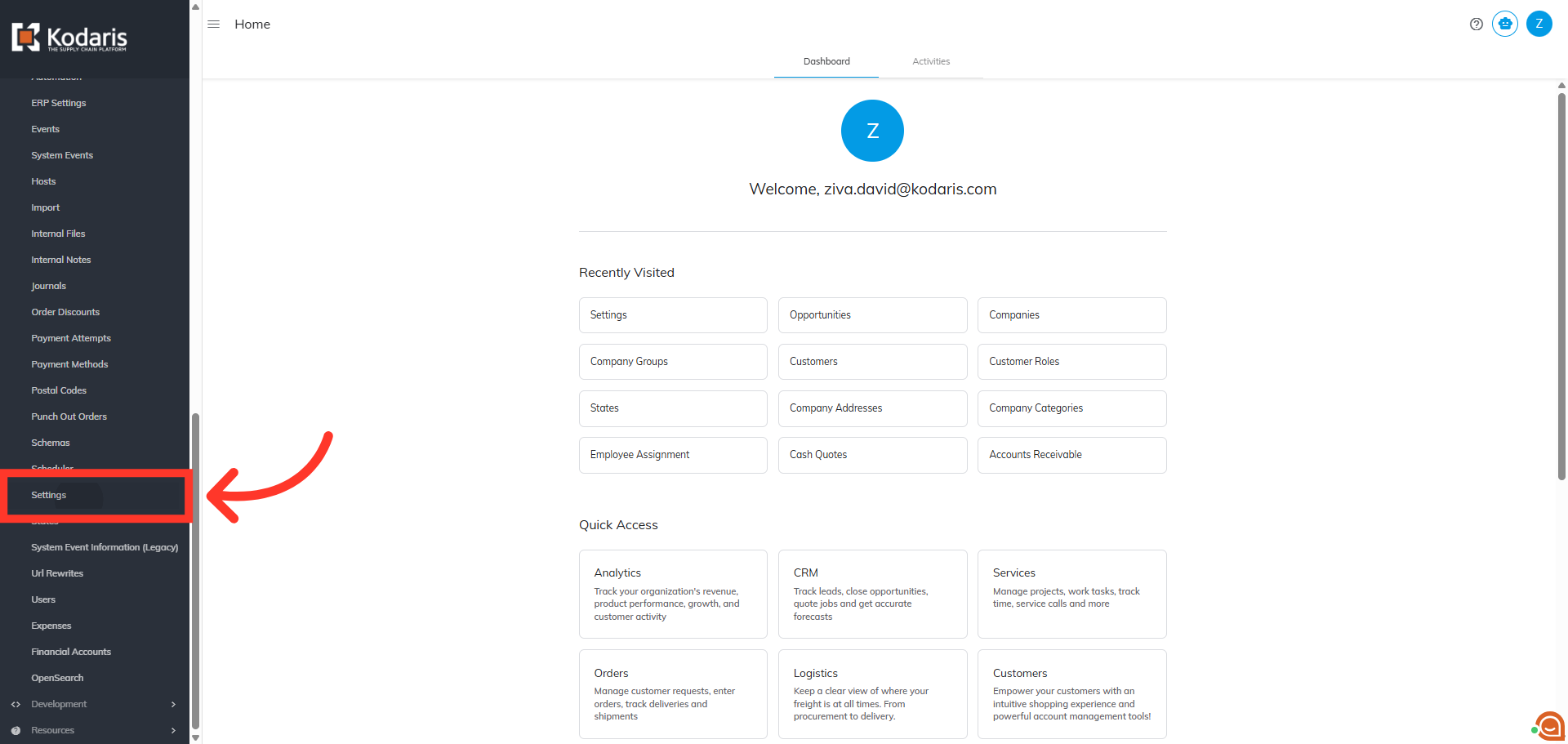
Click "Settings"
Then, click "Settings". In order to access and edit settings, you will need to be set up either as an "administrator" or a "superuser", or have the following roles: "settingEdit" and "settingView".
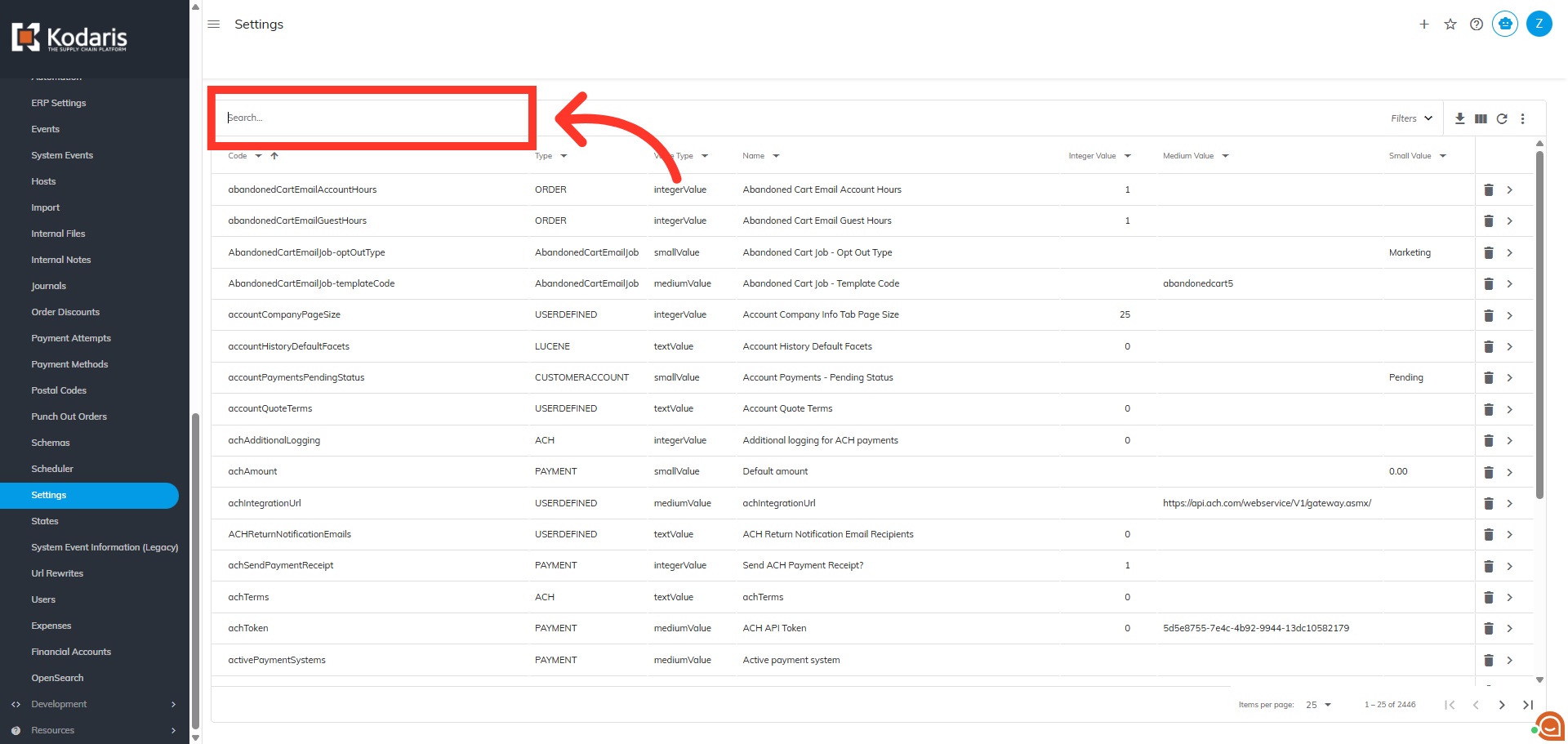
Search for setting
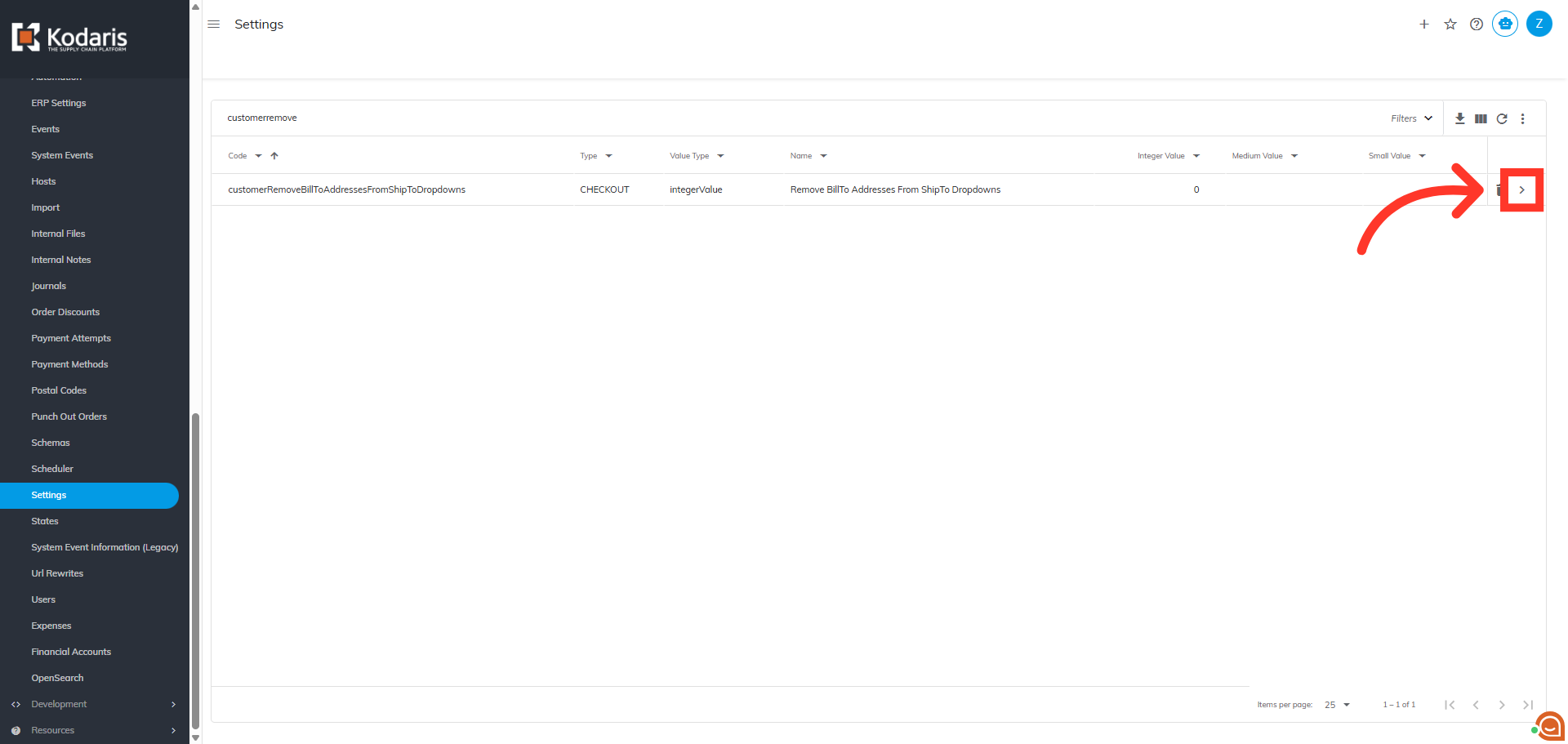
In the "Search" box enter the setting name "customerRemoveBillToAddressesFromShipToDropdowns" and hit enter.
Click the more details icon
Then, click the more details icon to view setting details.
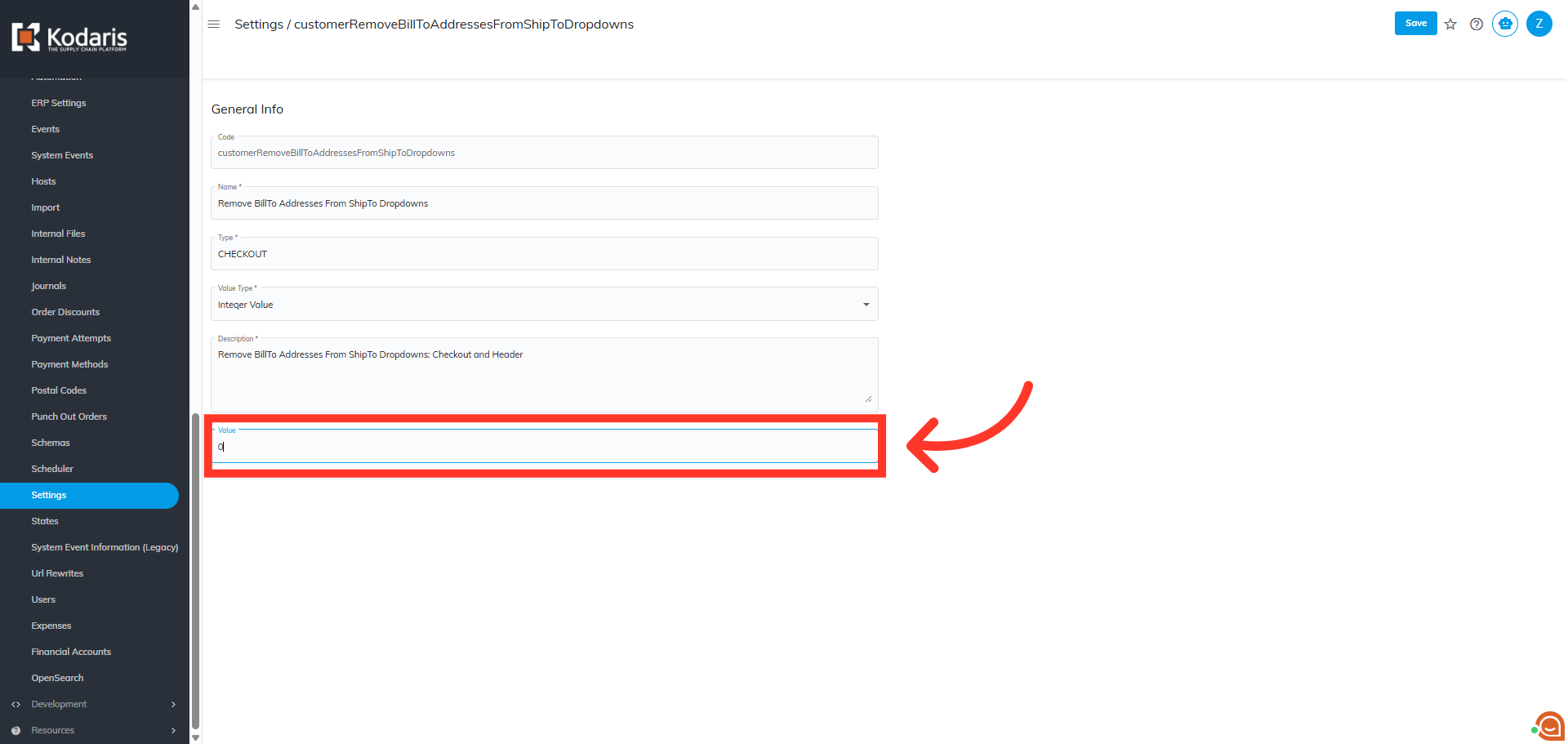
Enter "1" in the "Value" field
Next, in the "Value" field, change the "0" to a "1" to enable the setting.
Click "Save"
Lastly, click "Save". When the setting is set to "0", customers see both billing and ship to addresses in dropdowns. When set to "1", customers will only see the ship to addresses, and not see the billing addresses as an option. This works across checkout pages, ship to dropdowns, and other address selection areas.