
Operation AP - View Vendor Invoice Files in Split View Mode
Navigate to "Accounts Payable"
To view vendor invoice files in split view mode, navigate to the "Accounts Payable" section in the Operations Portal.

Click "Vendor Invoices"
Then, click "Vendor Invoices". In order to access and update "Vendor Invoices" and "Vendor Invoices Internal Files," you will need to be set up either as an "administrator" or a "superuser", or have the roles of: "vendorInvoiceView" and "vendorInvoiceInternalFileView".

Search for the Vendor Invoice
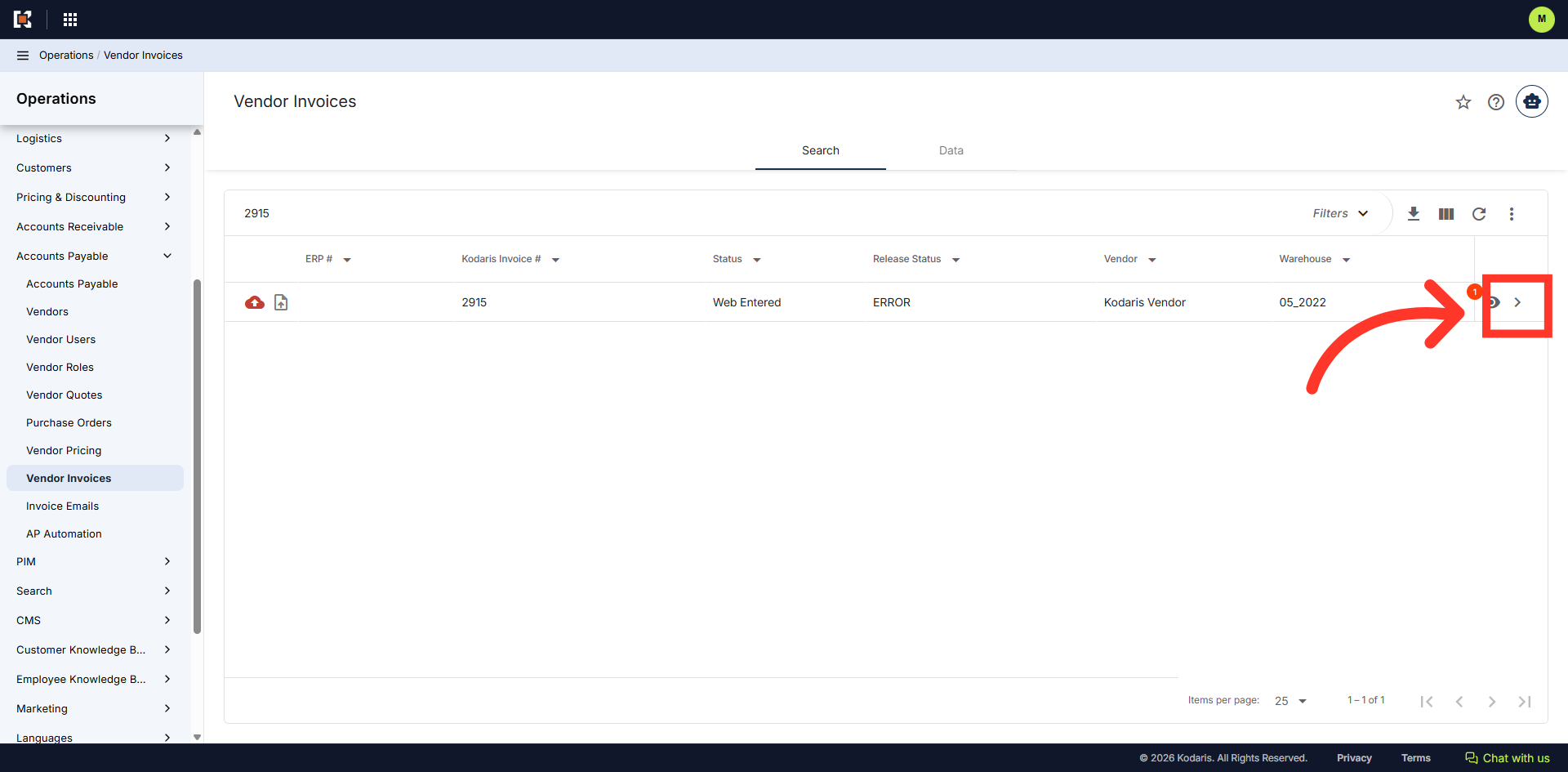
Enter a keyword to search for a vendor invoice.

Click on the more details icon
Click on the more details icon to access the vendor invoice details.
Click "Internal Files" tab
Click the "Internal Files" tab.

Click "Open in Split-View"
Click the "Open in Split-View" icon to open a panel on the right side.

View your selected file in the viewer
View your selected file in the viewer.
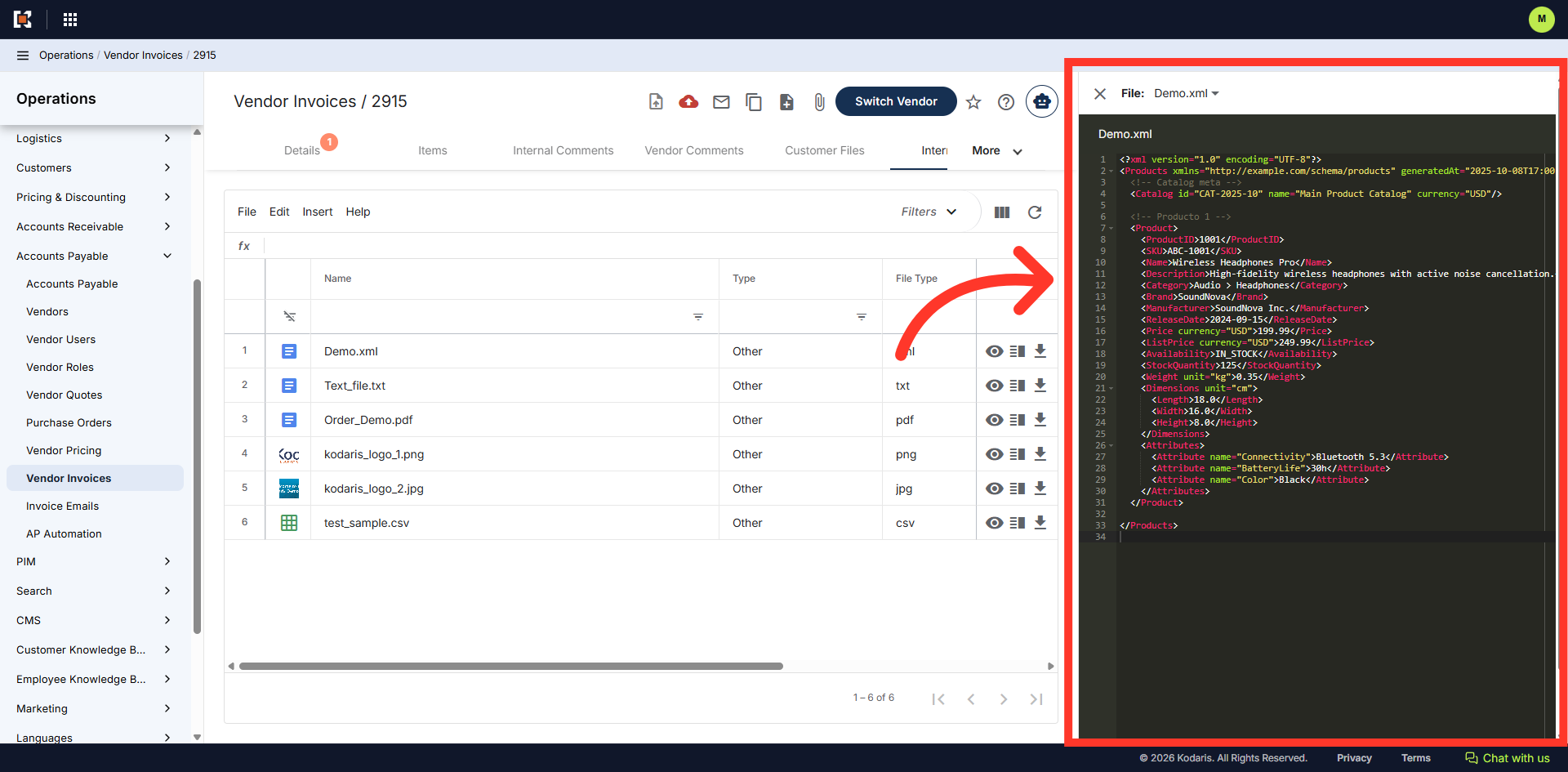
Click dropdown to view other files
At the top of the viewer, click the dropdown to see the same list of files that are displayed in the grid.

View the file list
File types such as XML, PDF, JPG, PNG, CSV, TXT, and others are supported.

Select other files to view
Select any file from the list to easily switch between them.

Adjust the view panel
Drag the side panel left or right to adjust the view.

Utilize the toolbar options
For PDF files, the toolbar options are available to use, such as zoom in or out, rotate, download, or print.

Click "X" to close viewer
Click the "x" to close your current file view or interface. This finalizes your session and clears the workspace.
