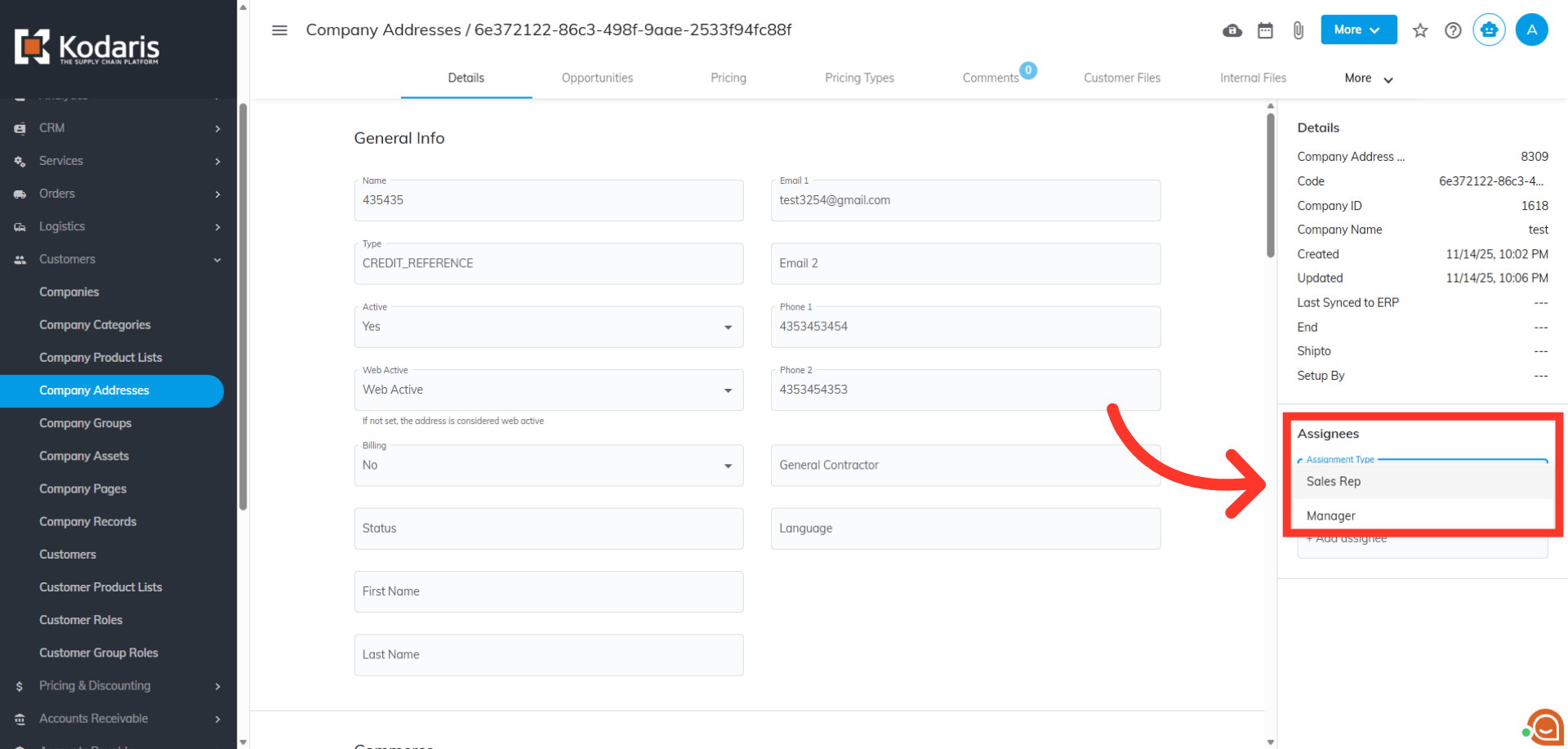
Operations Portal - Customize Company Address Assignment Types
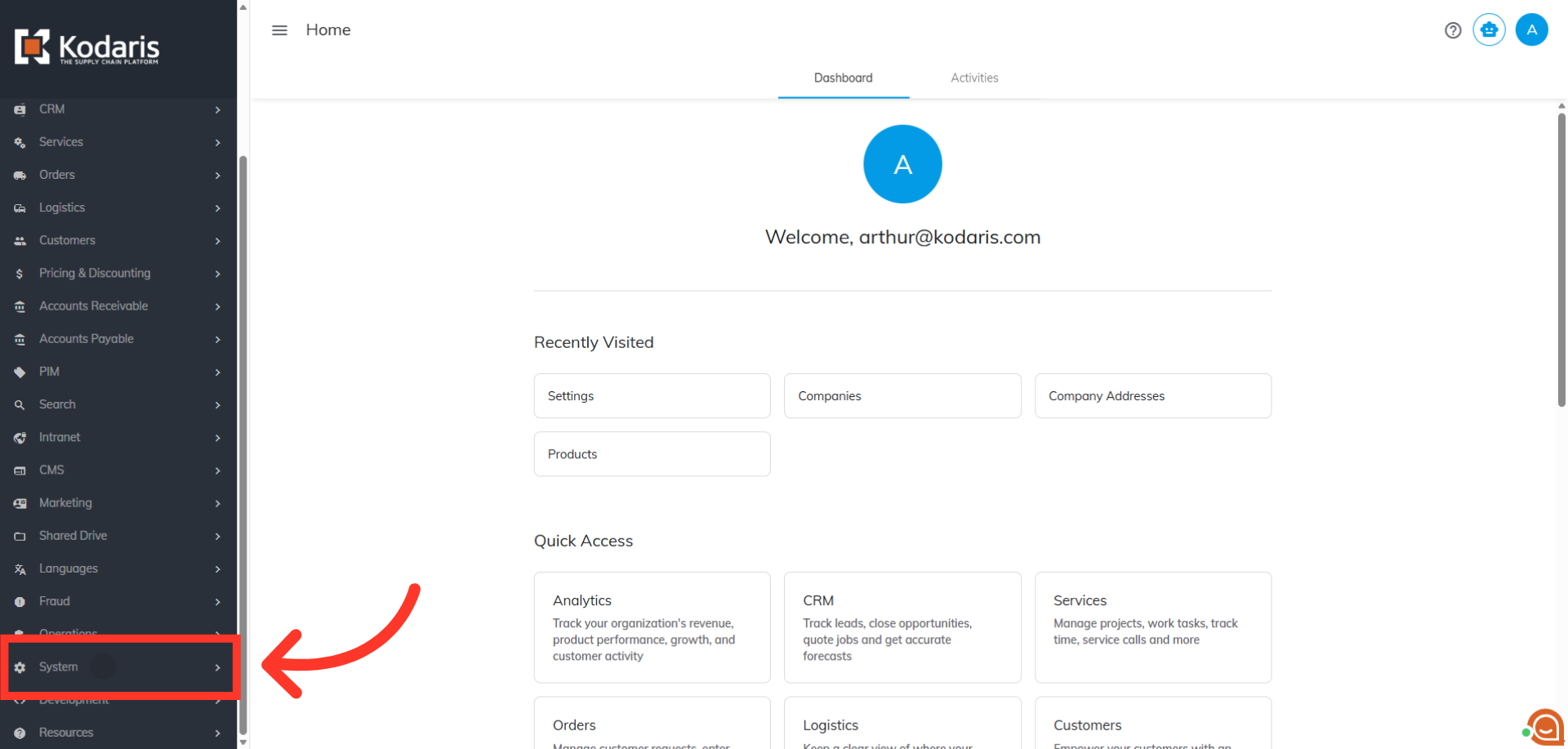
Navigate to "System" section
To customize company address assignment types, navigate to "System" section in the Operations Portal.
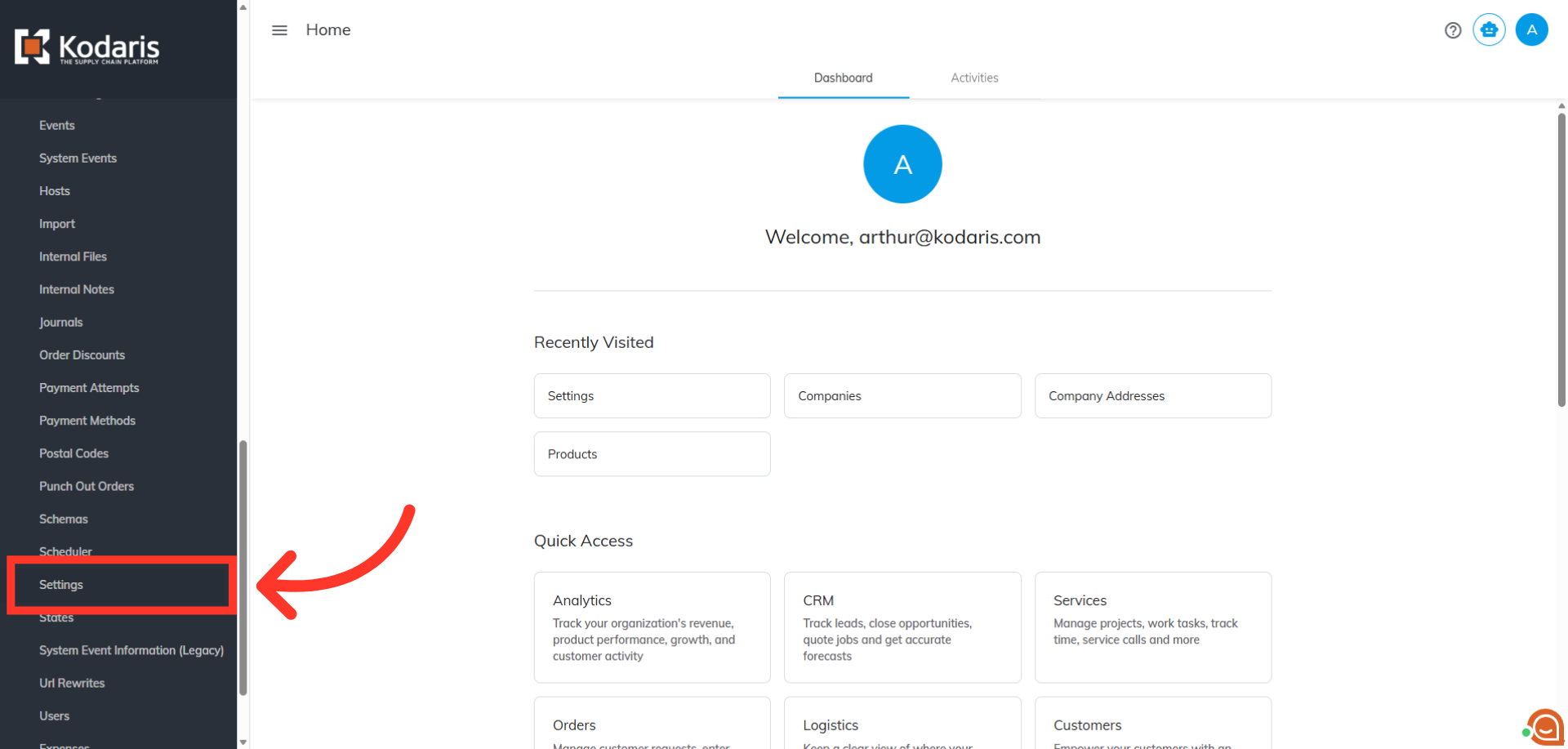
Click "Settings"
In order to access and edit settings, you will need to be set up either as an "administrator" or a "superuser", or have the following roles: "settingEdit" and "settingView".
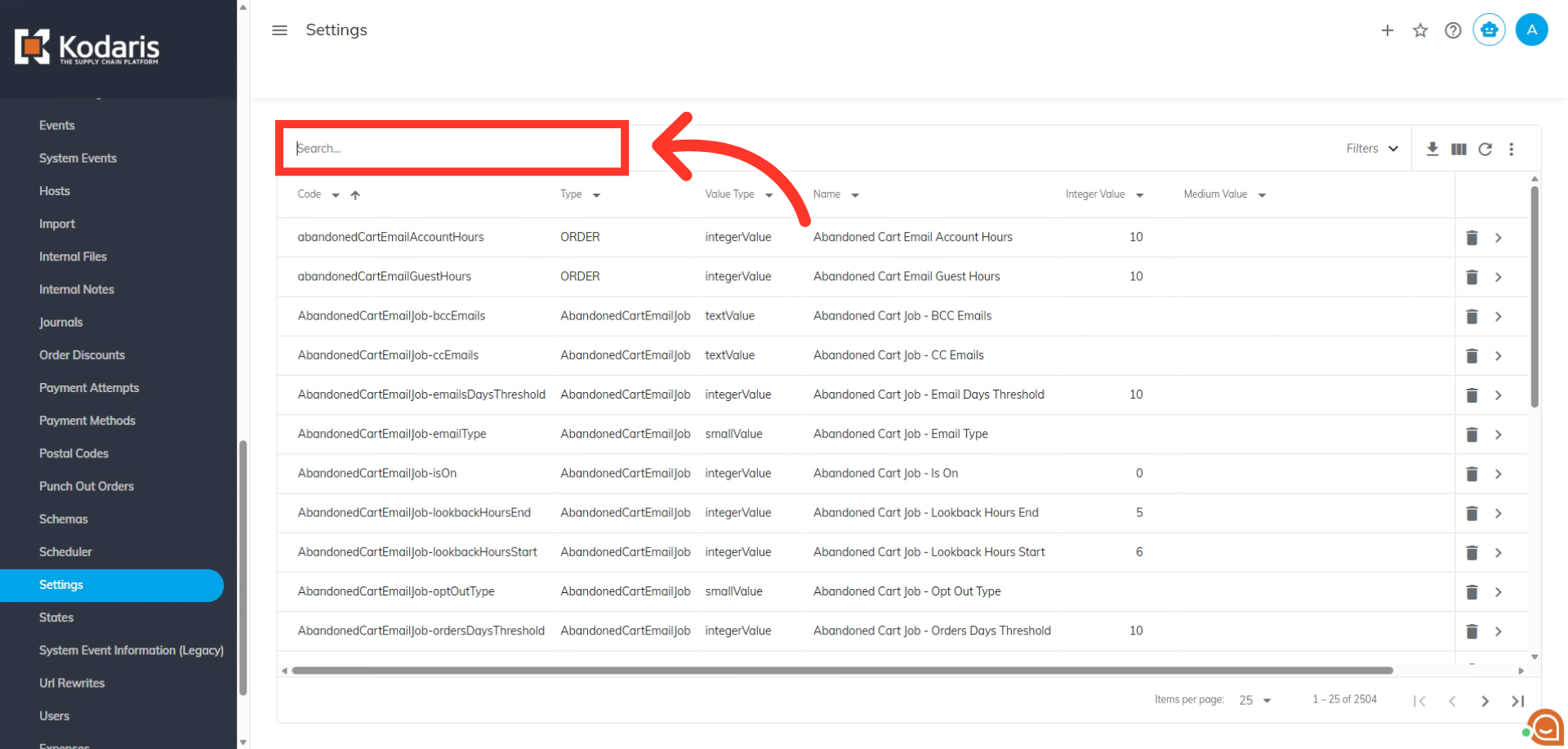
Search for "companyAddressAssignmentTypes"
Search for "companyAddressAssignmentTypes" setting.
Click on the more details icon
Click on the more details icon.
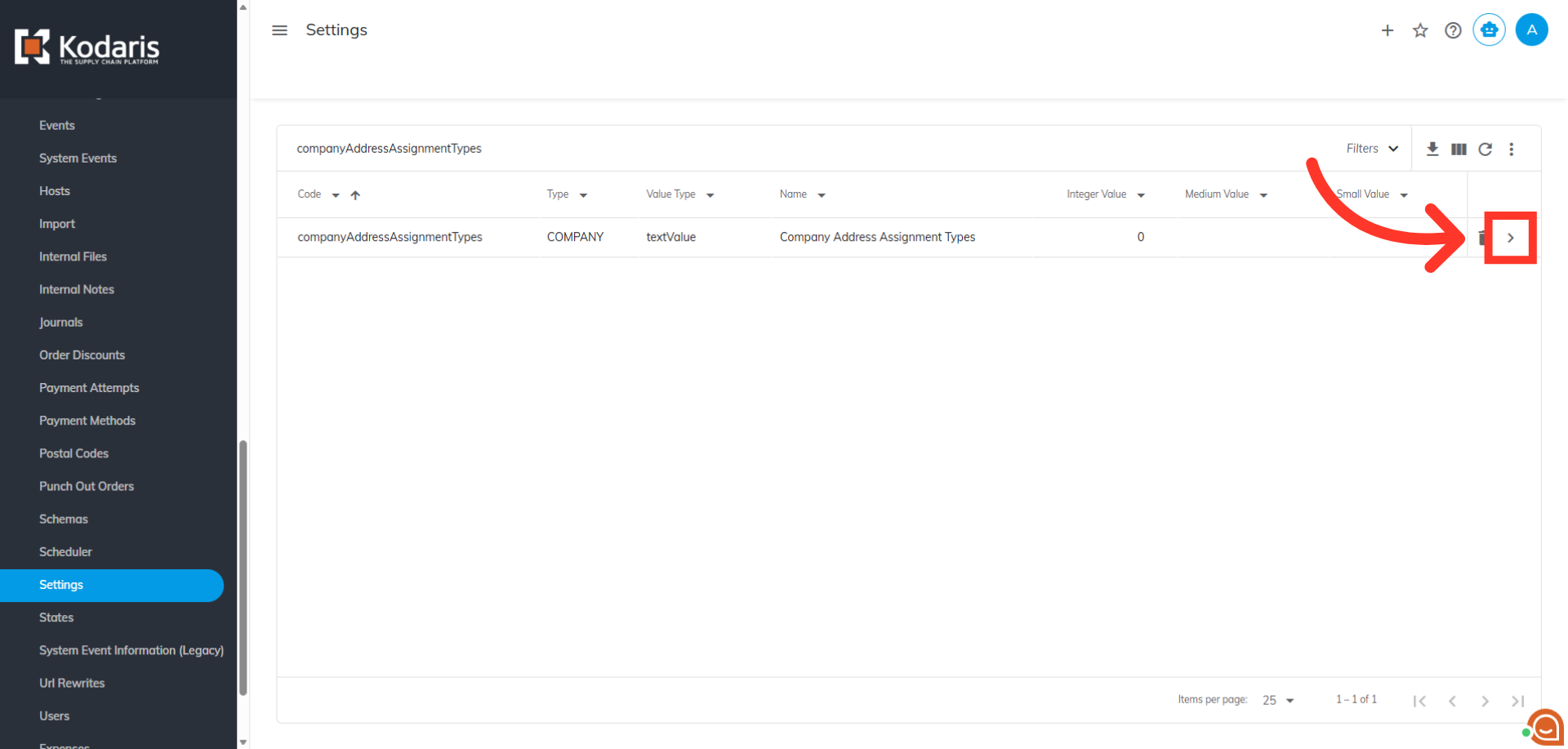
Enter Company Address Assignment Type
Enter a list of company address assignment types in the "Value" field, separated by commas.
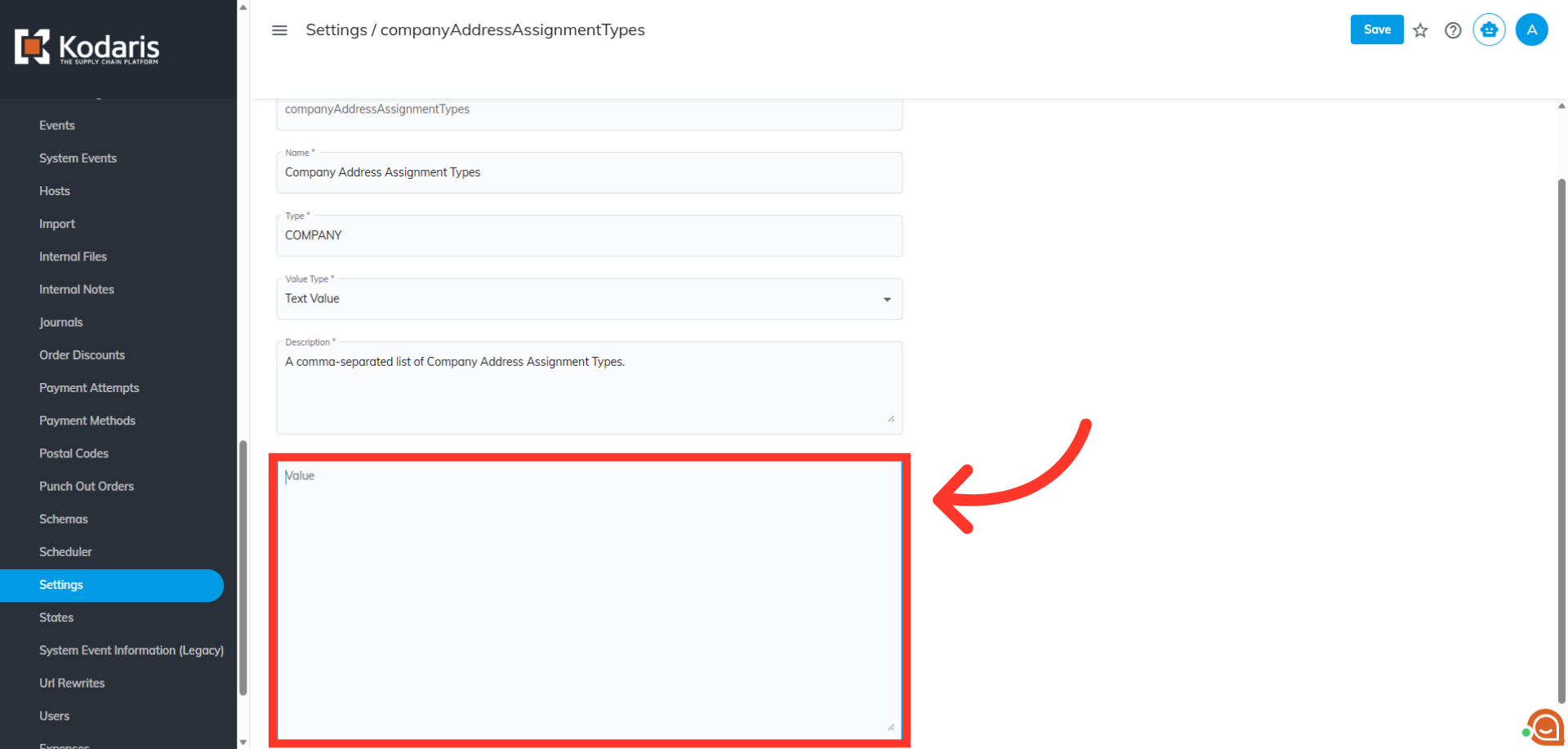
Click "Save"
Click "Save."
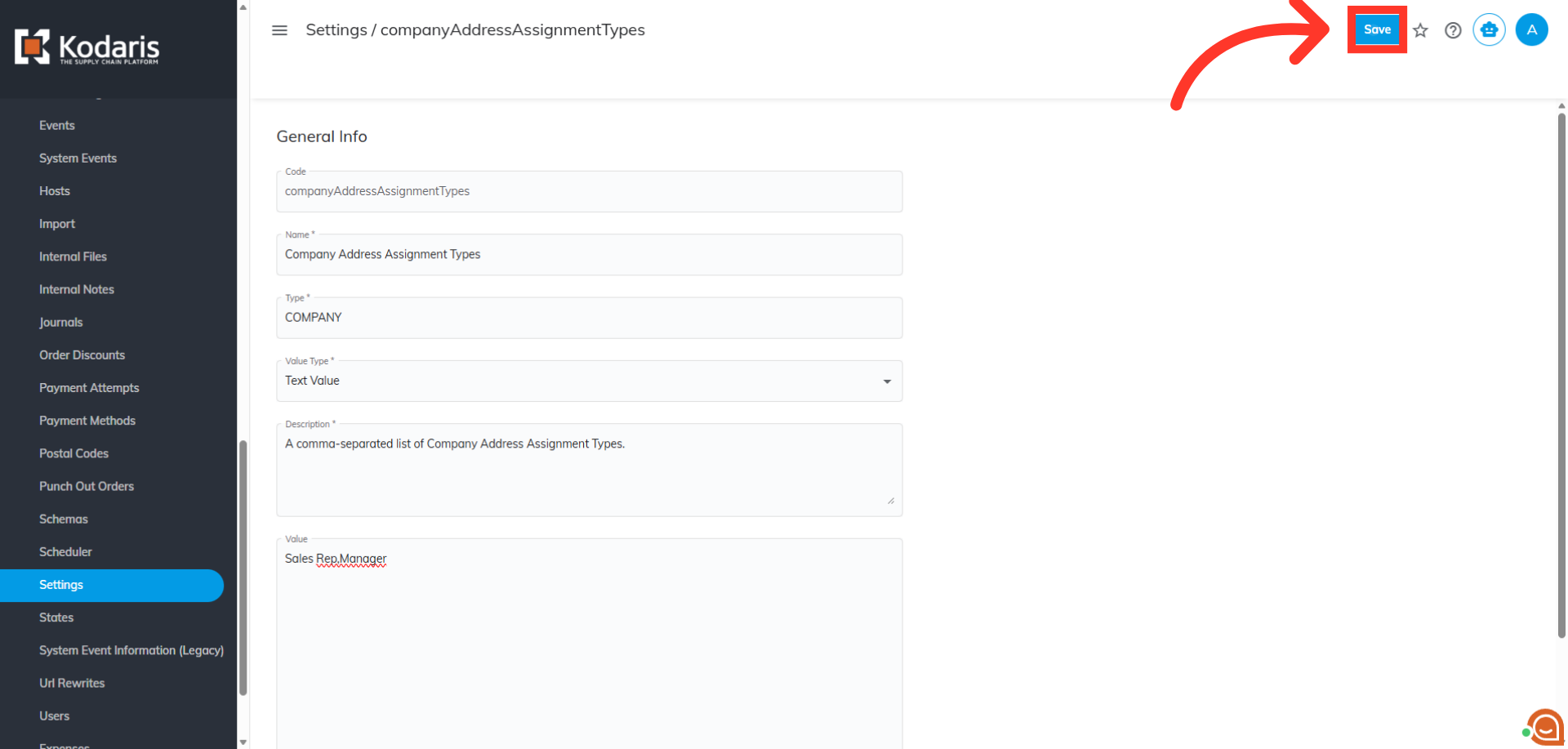
Navigate to "Customers" section
To verify this update, navigate to "Customers" section in the Operations Portal.
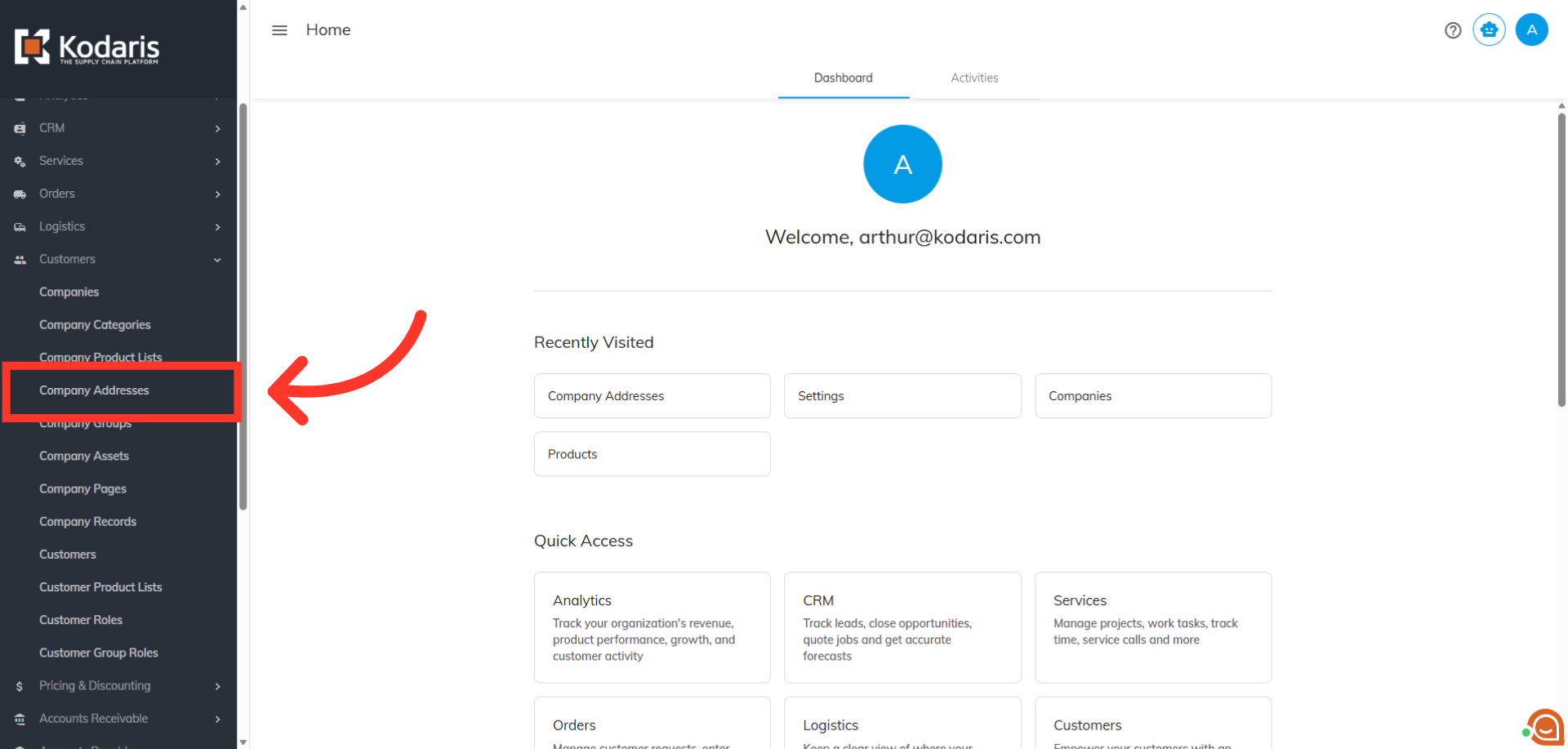
Click "Company Addresses"
Click "Company Addresses." In order to access "Company Addresses" you will need to be set up either as an "administrator" or a "superuser", or have the appropriate roles: "companyAddressView" and companyAddressEdit."
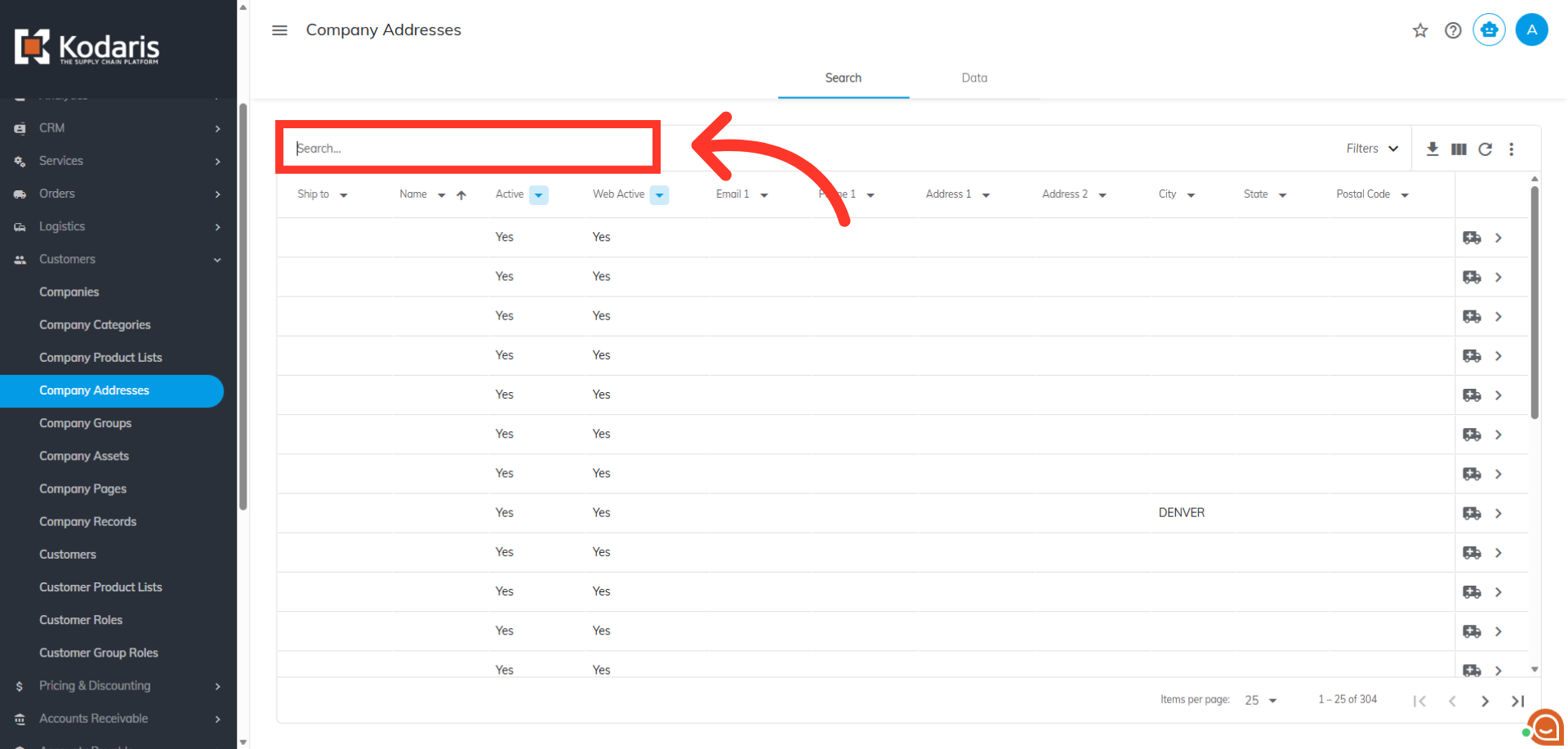
Search for the Company Address
Click on the "Search..." field and enter a keyword to find a specific company address.
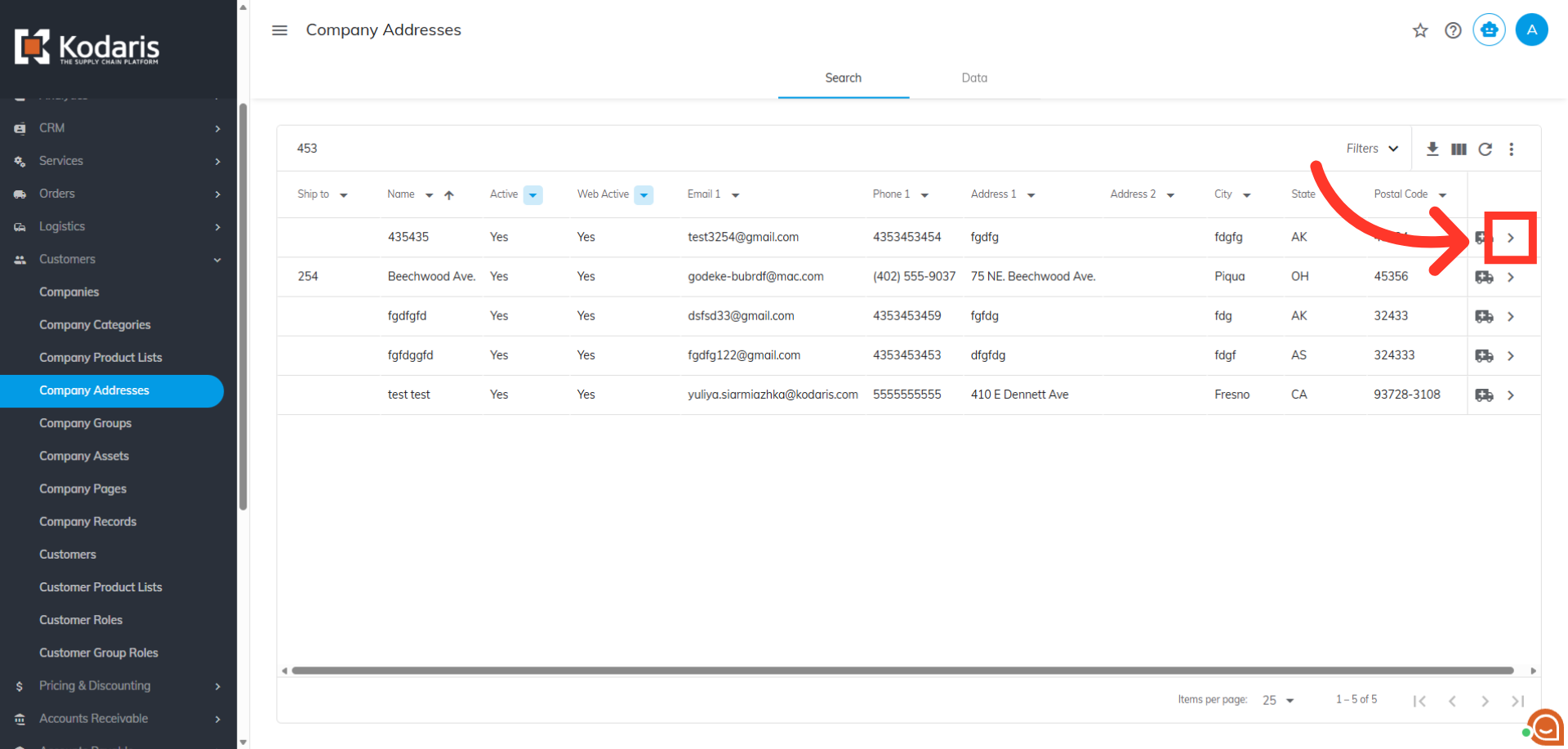
Click on the more details icon
Click on the more details icon.
Click the "Assignment Type" dropdown
Click the "Assignment Type" dropdown.
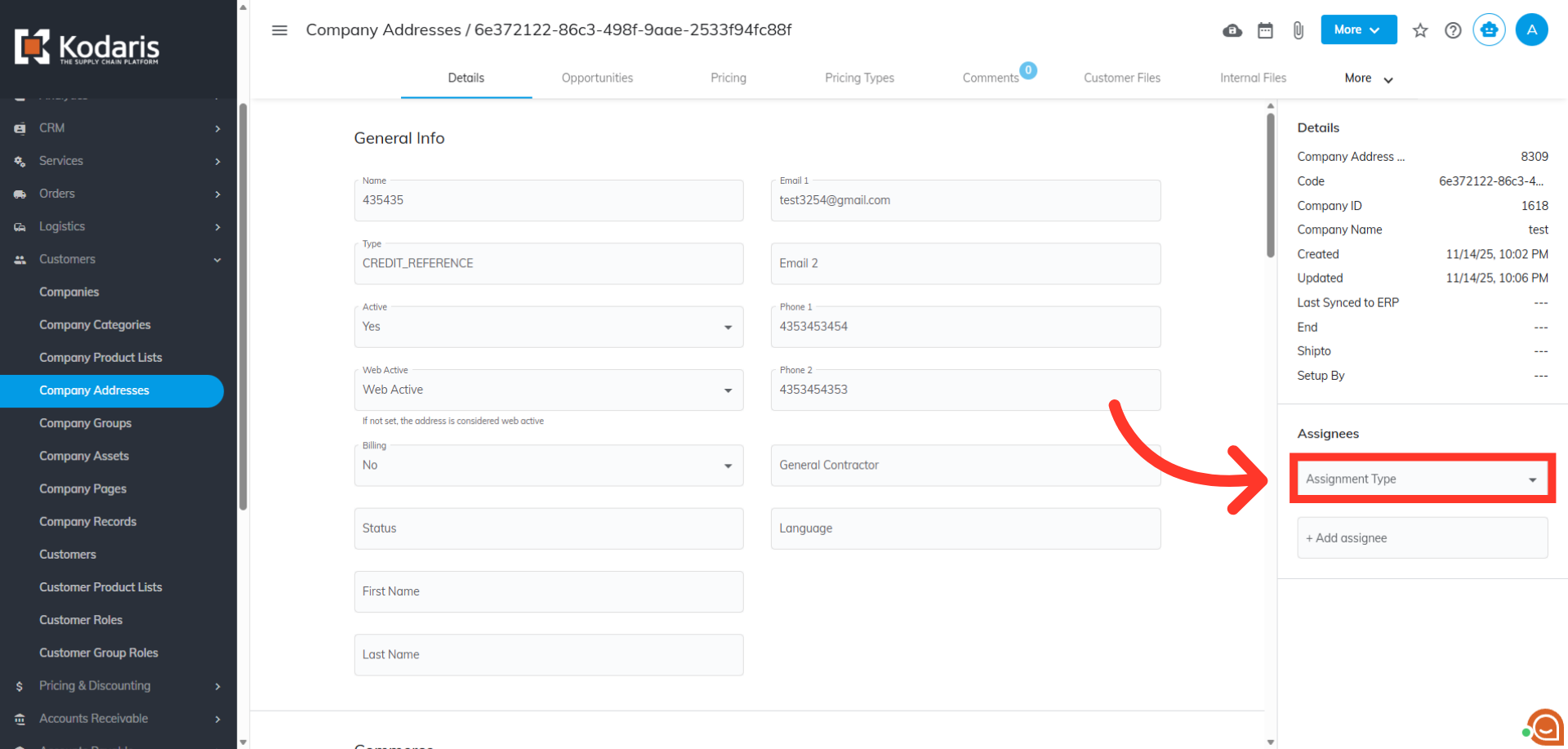
Dropdown list has been updated
Verify that the dropdown list has been updated.