
Operations CRM - Add Individual Items to a Cash Quote
Navigate to "CRM"
To add items to a cash quote in the Operations Portal, navigate to the "CRM" section.

Click "Cash Quotes"
Then, click "Cash Quotes" to view the list of existing cash quotes. In order to access "Cash Quotes", the account will need to be set up either as an "administrator" or a "superuser", or have the appropriate role: "productPriceView", "orderEdit", "crmCompanyOrderEdit", and "dispatch".

Search for the cash quote
Type a unique keyword into the "Search..." field to locate the specific cash quote.

Click on the more details icon
Click on the more details icon to open the cash quote details screen.

Click the "Items" tab
Go to the "Items" tab.

Click "Add item"
Click into the "Add item" field to open the selection dropdown. This allows you to add items one by one (line by line).

Search for the product
Type a product code or name into the search field to display the filtered item list automatically.
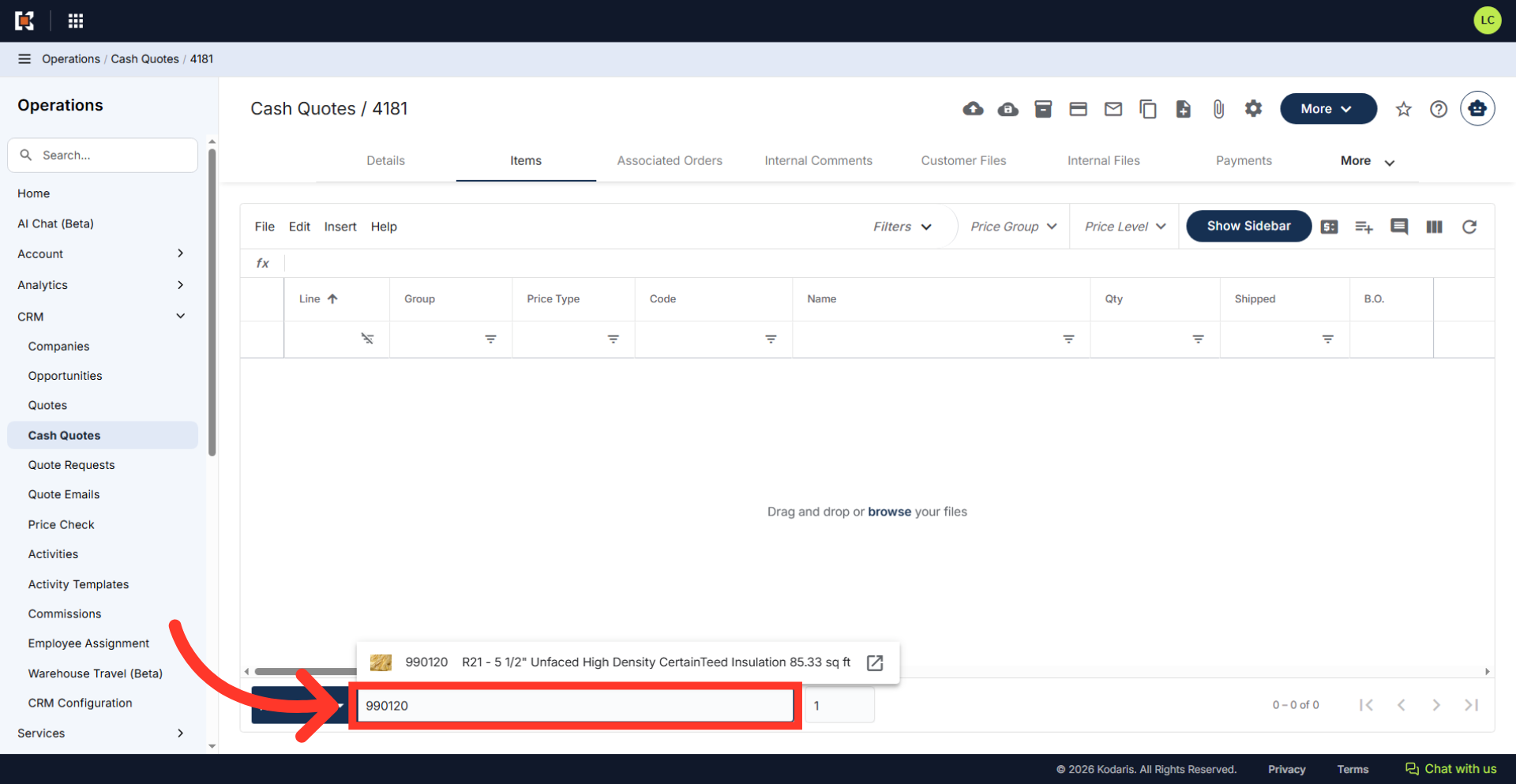
Select the product
Select the product from the search result.

View inventory information
View the inventory and stock information displayed in the window.

Enter the quantity and press "Enter"
Enter the item quantity and press the "Enter" key to add the item.

Item has been added
Item has been added to the cash quote.
