
Operations Customers - Create a Company with an Auto-Generated Code
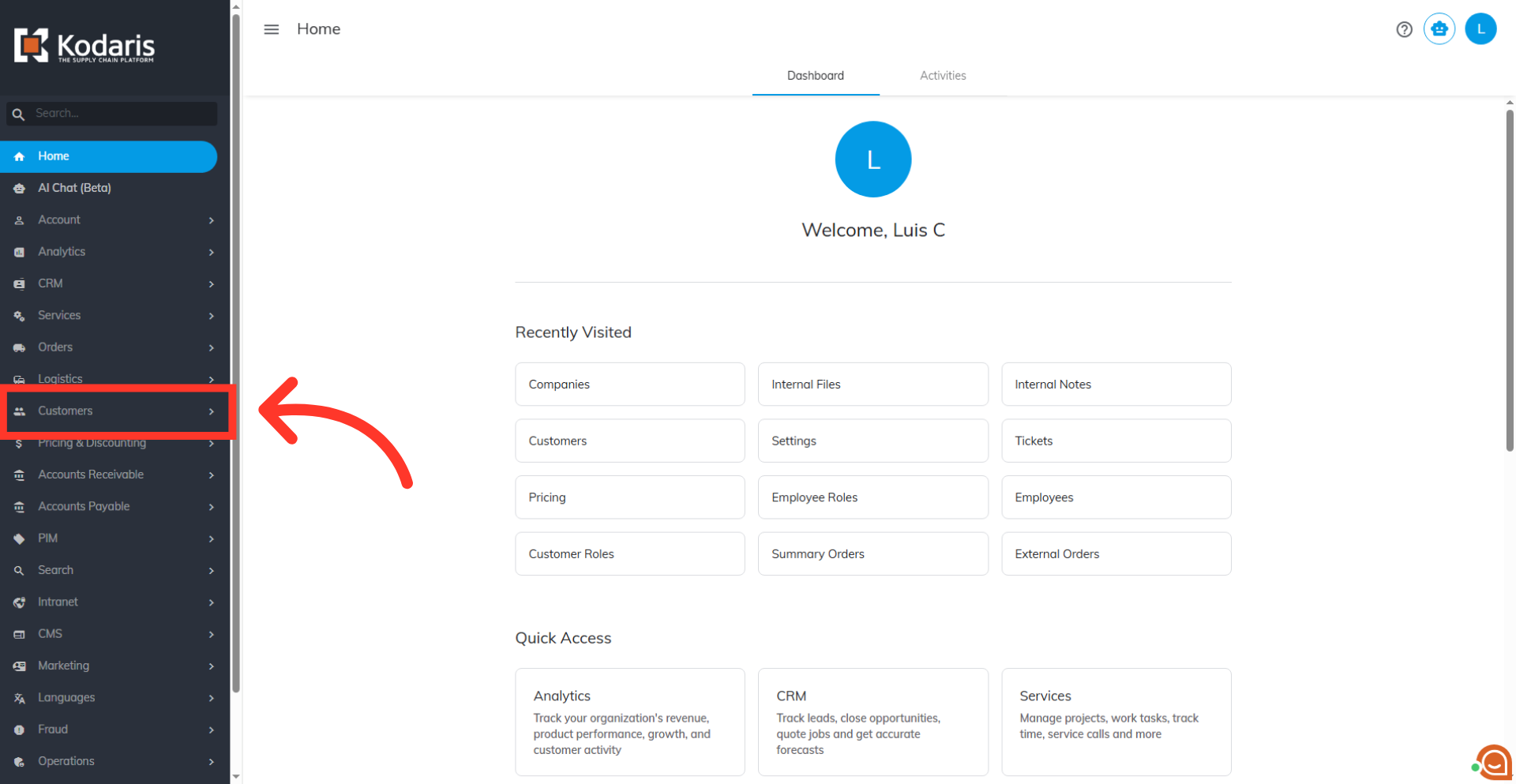
Navigate to "Customers" section
To create a company with an auto-generated code, navigate to "Customers" section in the operations portal.
Click "Companies"
Click on the "Companies" screen. In order to access "Companies" the account will need to be set up either as an "administrator" or a "superuser", or have the appropriate roles: "companyView," "crmCompanyView," "companyEdit," "crmCompanyEdit," and "dispatch."

Click on the "Actions" button
Click on the "Actions" button.

Select "Create Company"
Select "Create Company" from the dropdown menu.

Enter the company name
In the new window that appears, enter the name of the company of choice in the "Name" field.

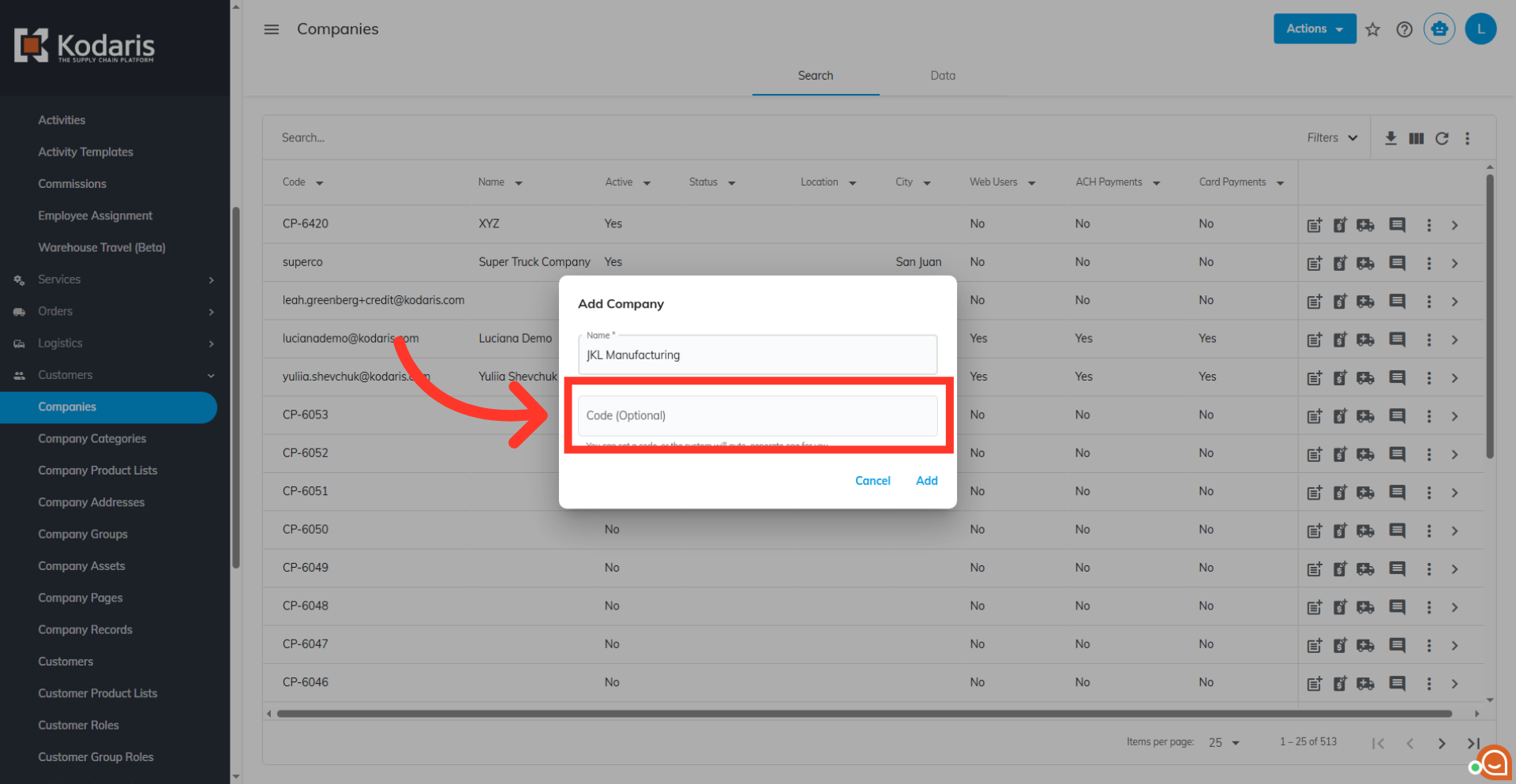
Leave the "Code" field blank
Leave the "Code" field blank so the system will automatically generate a unique code for the new company. Alternatively, a value can be entered in this field for a personalized code.
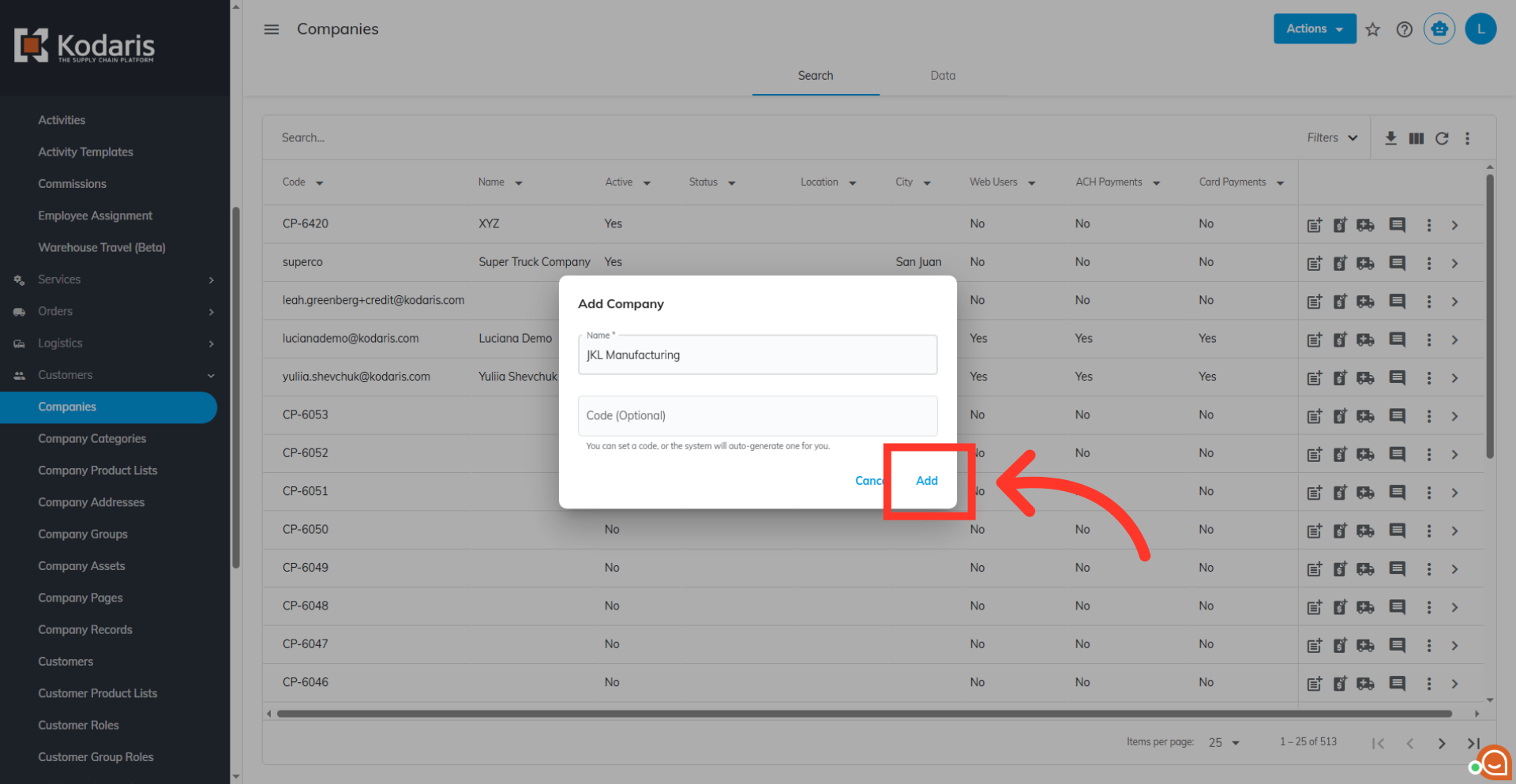
Click the "Add" button
Click the "Add" button to create the company.
Verify the new company
After clicking "Add," the system will redirect to the new company's details screen. Additional fields for the company can be updated on this screen.
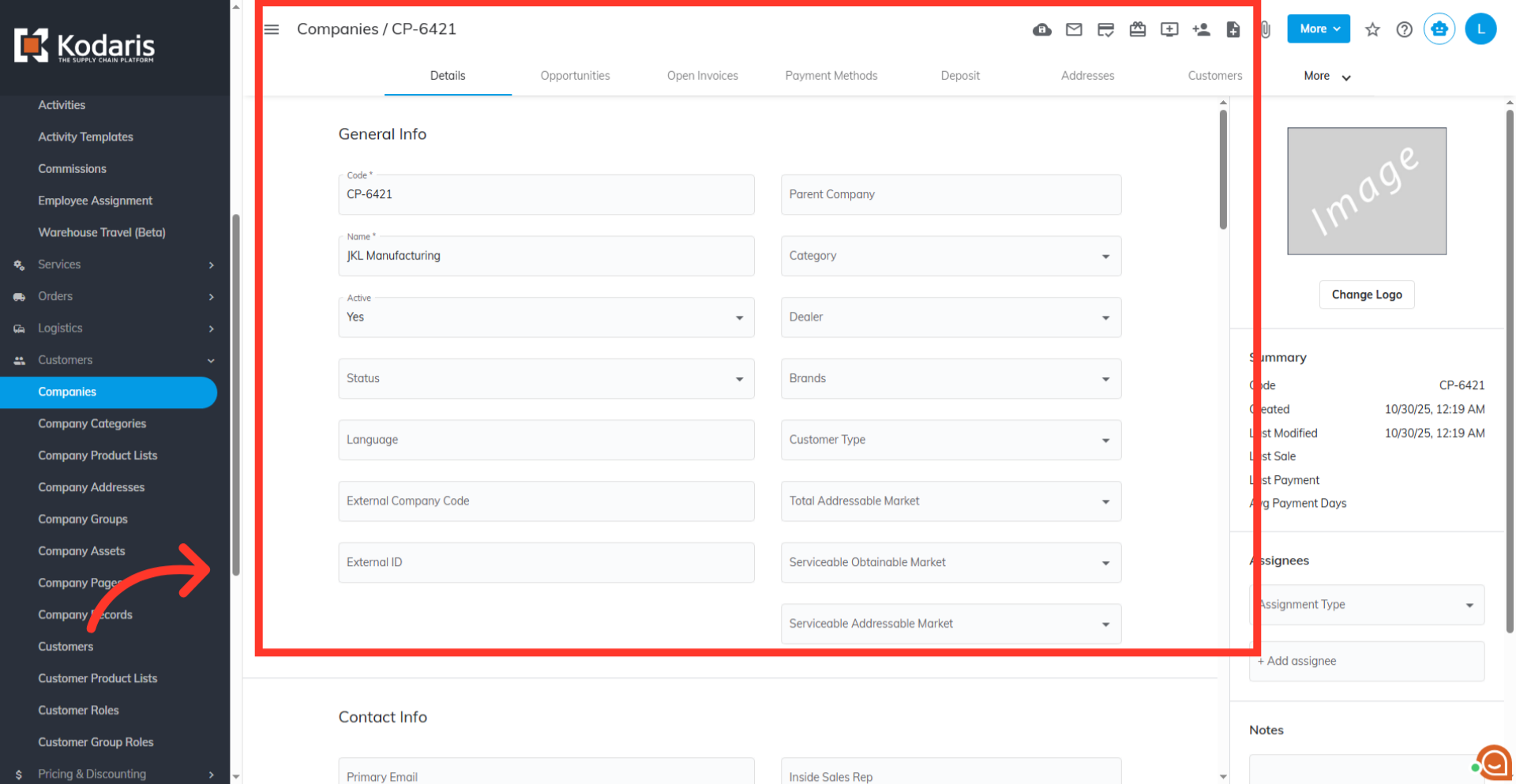
Verify auto-generated code
Verify that code was also successfully auto-generated by the system.
