
Operations CRM - Email a Cash Quote
Navigate to "CRM"
You can email a cash quote to a recipient from the Operations Portal. First, navigate to the "CRM" section.

Click "Cash Quotes"
Then, click "Cash Quotes". In order to access "Cash Quotes" you will need to have the role of "administrator" or "superuser", or have the role of: "orderEdit"

Click the more details icon
Click the more details icon to view the cash quote details.

Click "Email Quote" icon
Click the "Email Quote" icon to configure the email settings.

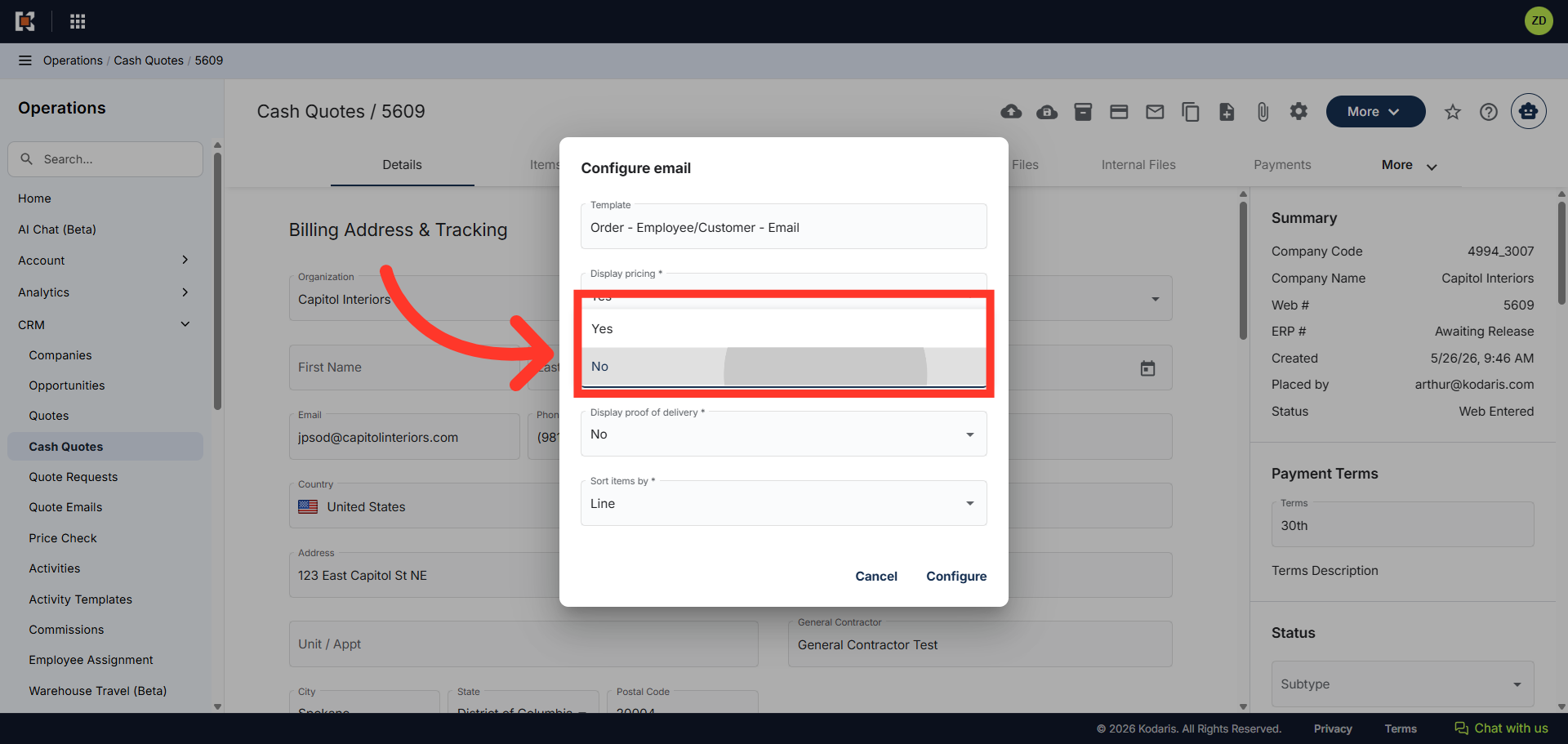
"Display Pricing" options
In the "Display Pricing" field, you can choose to send the quote with or without line item pricing.

"Display Payment Link" options
In the "Display Payment Link" field, you can choose to send the quote with or without a payment link.
"Sort Items By" options
In the "Sort Items By" field, you can choose to sort your items by Line or Product Group.

Click "Configure"
Next, click the "Configure" button to customize the cash quote email.

Enter Email Address
In the "To" field, enter the recipients email address.

Personalize email subject and body, if needed
You can also add a custom subject and message to the body of the email, if needed.

Click "Send"
Finally, click the "Send" button to send the quote to the recipient.

"Delete" icon
If you decide you do not want to send the quote, you can delete it, by clicking on the "Delete" icon.
