Operations Emails - Turn On Credit Manager Email Notifications for Customer Invoice Comments
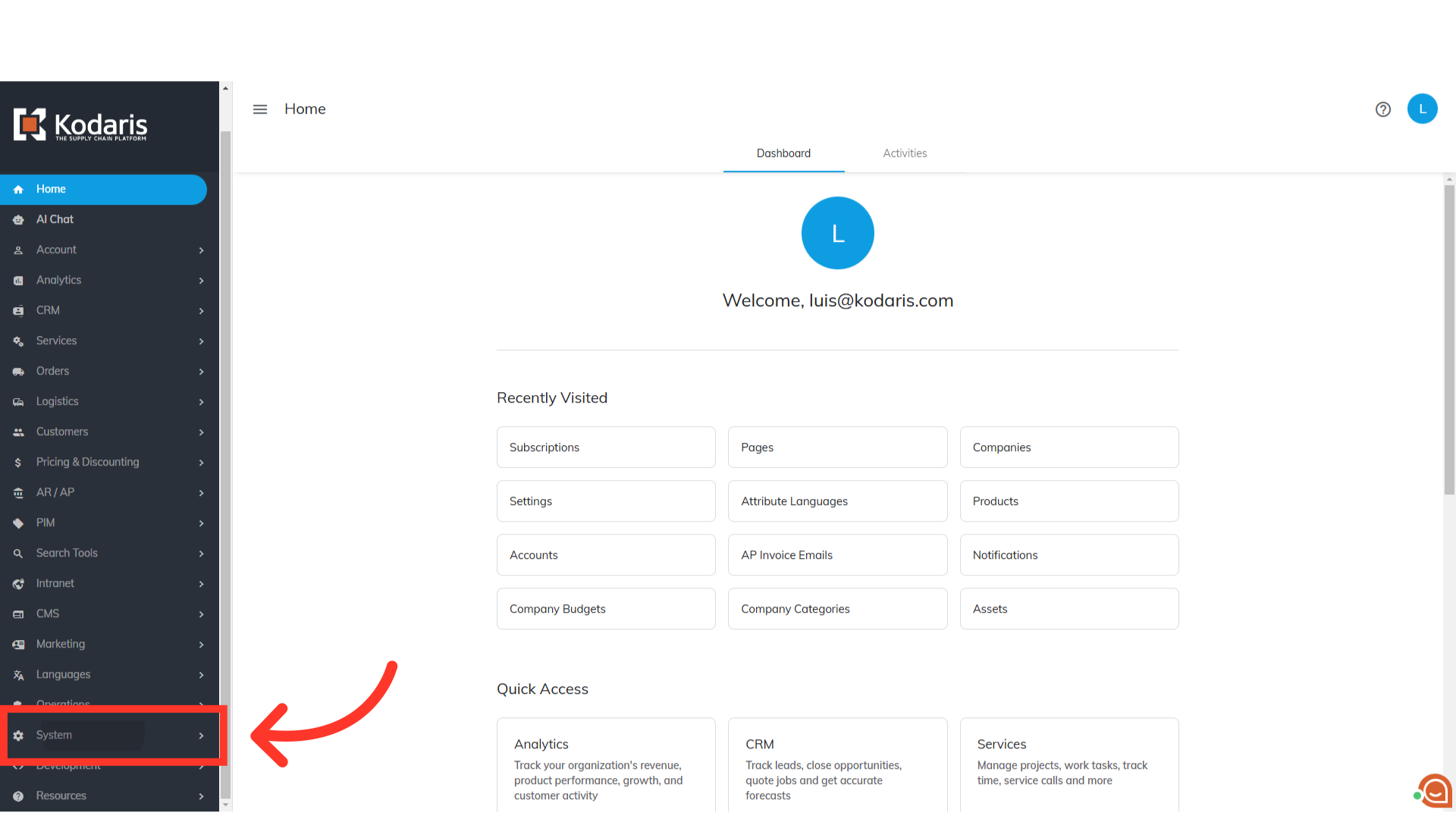
Navigate to "System"
Credit Managers can receive notifications via email when a customer comments on an invoice in the Customer Portal. The email will include the invoice number, the email address of the person who left the comment, date and time the comment was created, and the comment text. To turn on these notifications, start by navigating to "System" in the operations portal.
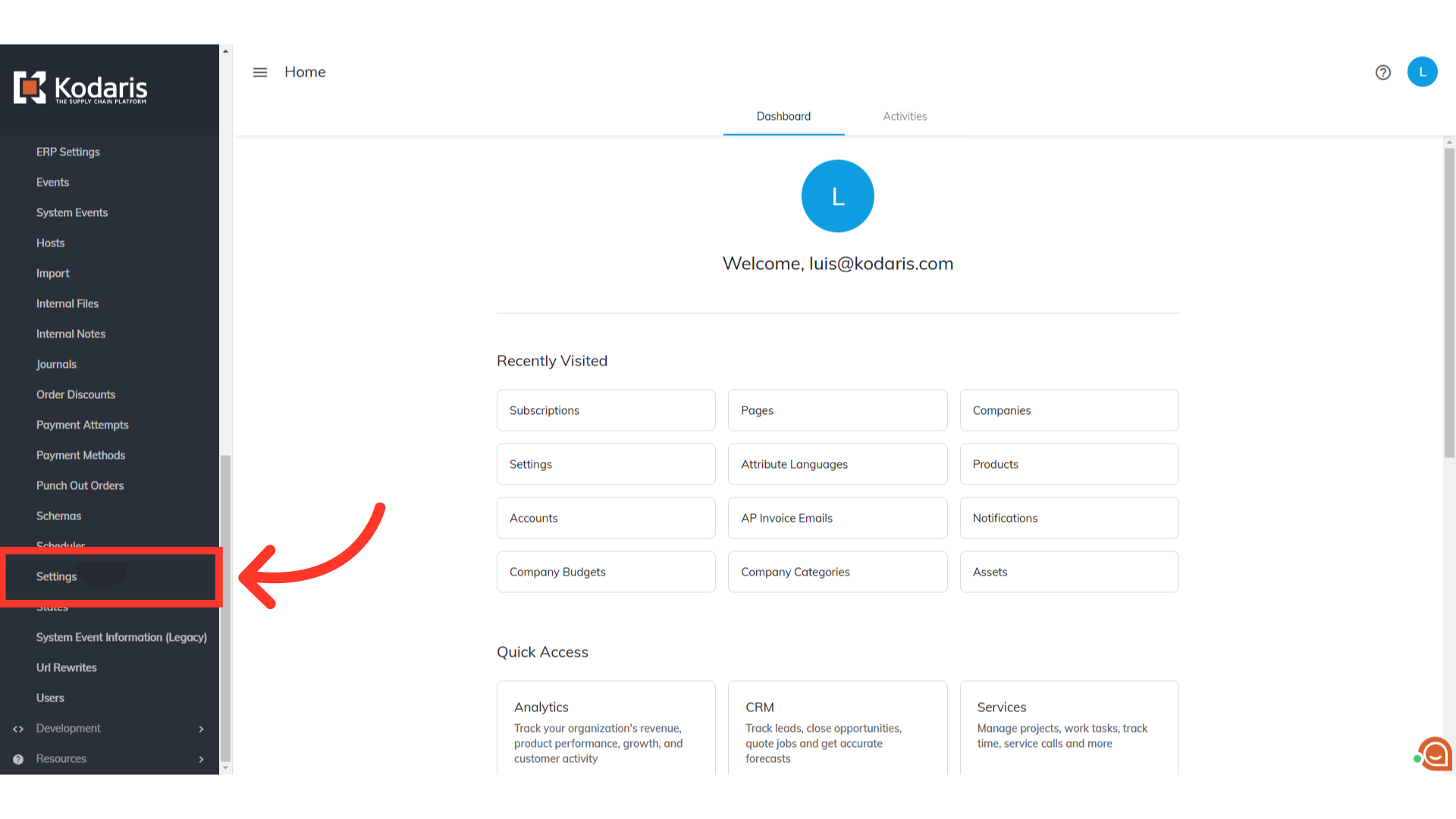
Click "Settings"
Then, click on "Settings". In order to access and edit settings, you will need to be set up either as an "administrator" or a "superuser", or have the following roles: "settingEdit" and "settingView".
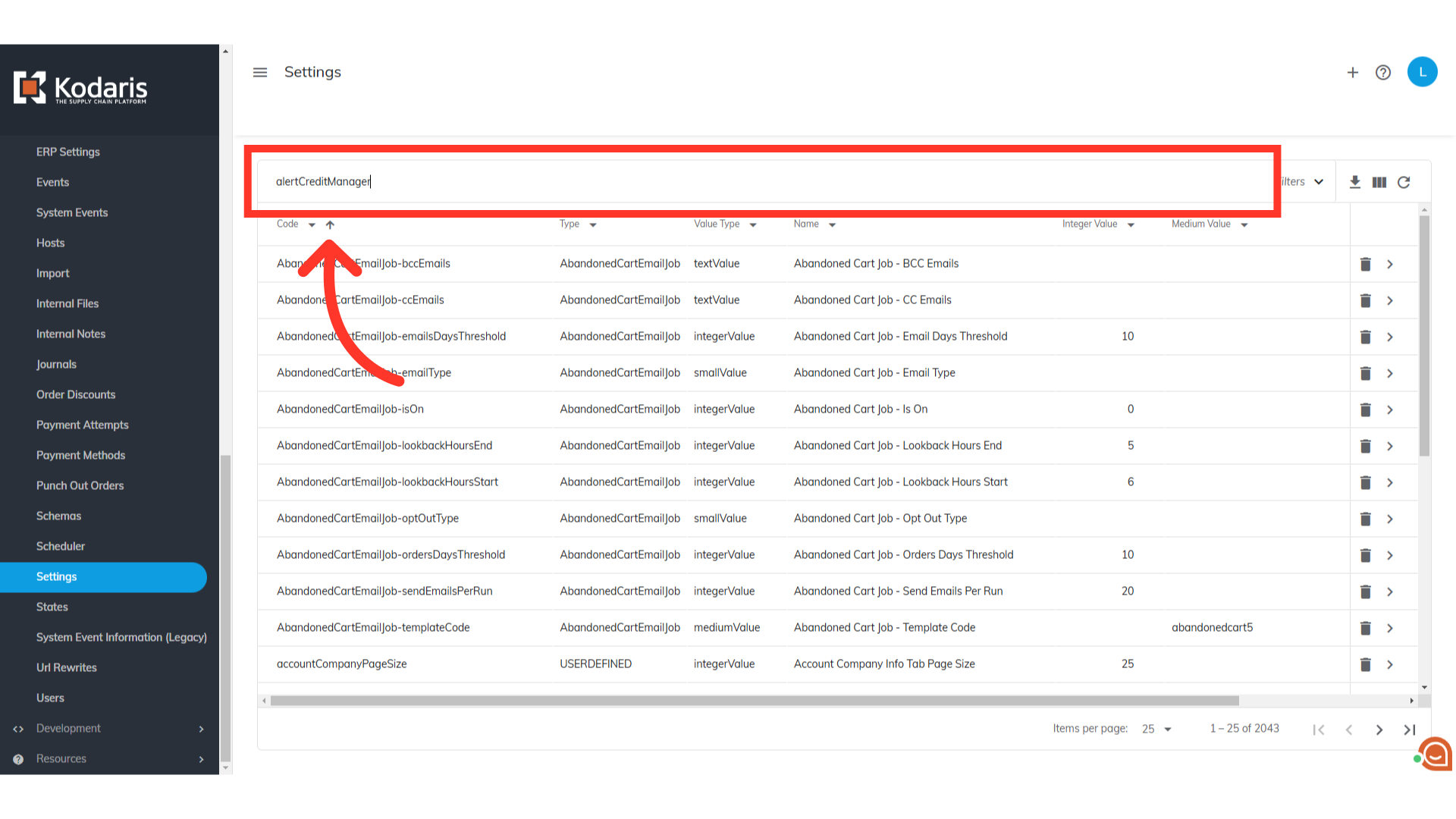
Search for "alertCreditManager"
To enable the feature, search for the "alertCreditManager" setting.
Click the more details icon
Click the more details icon.
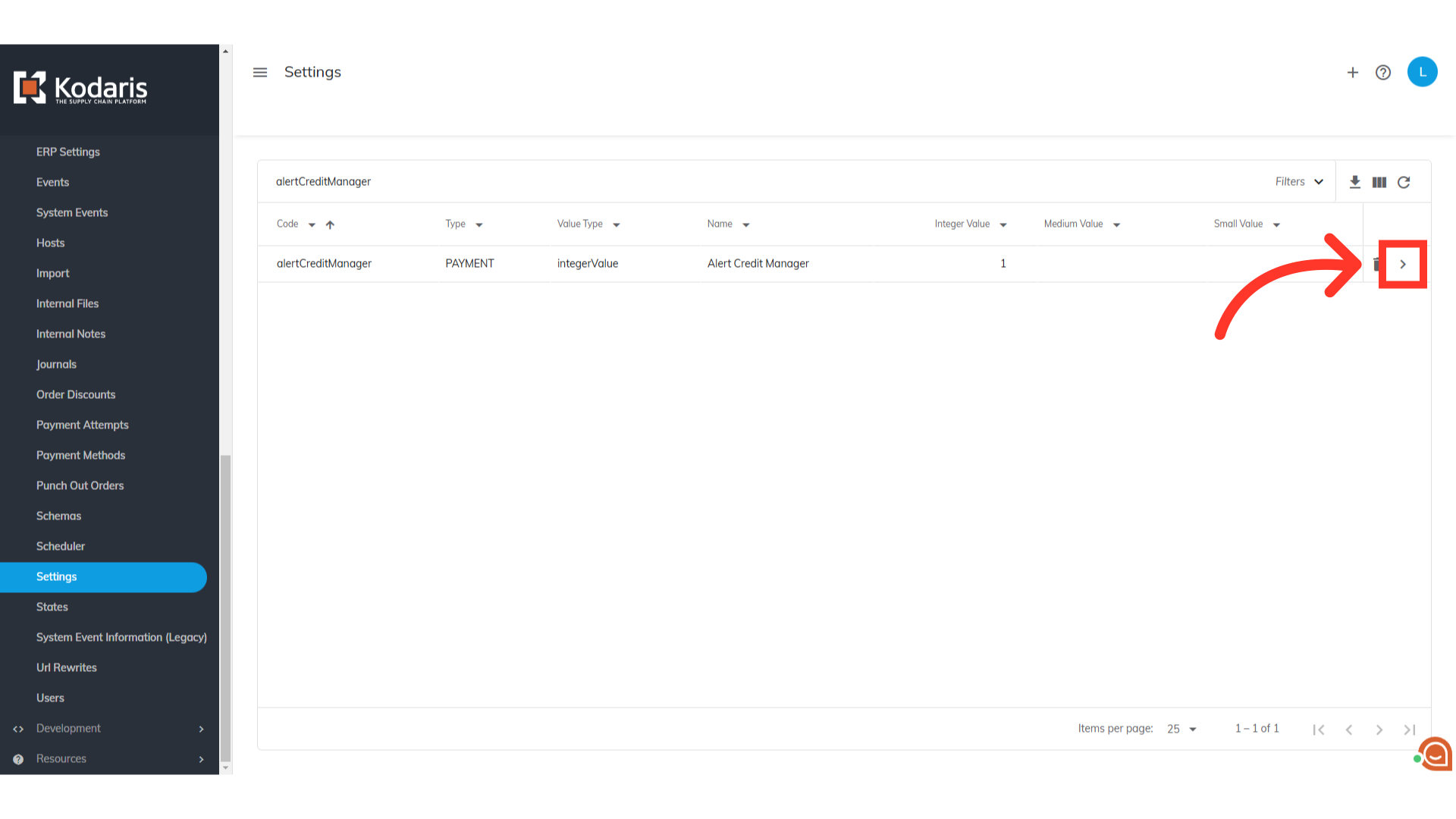
Set the "Value" field to "1"
Set the "Value" field to "1" to enable the feature.
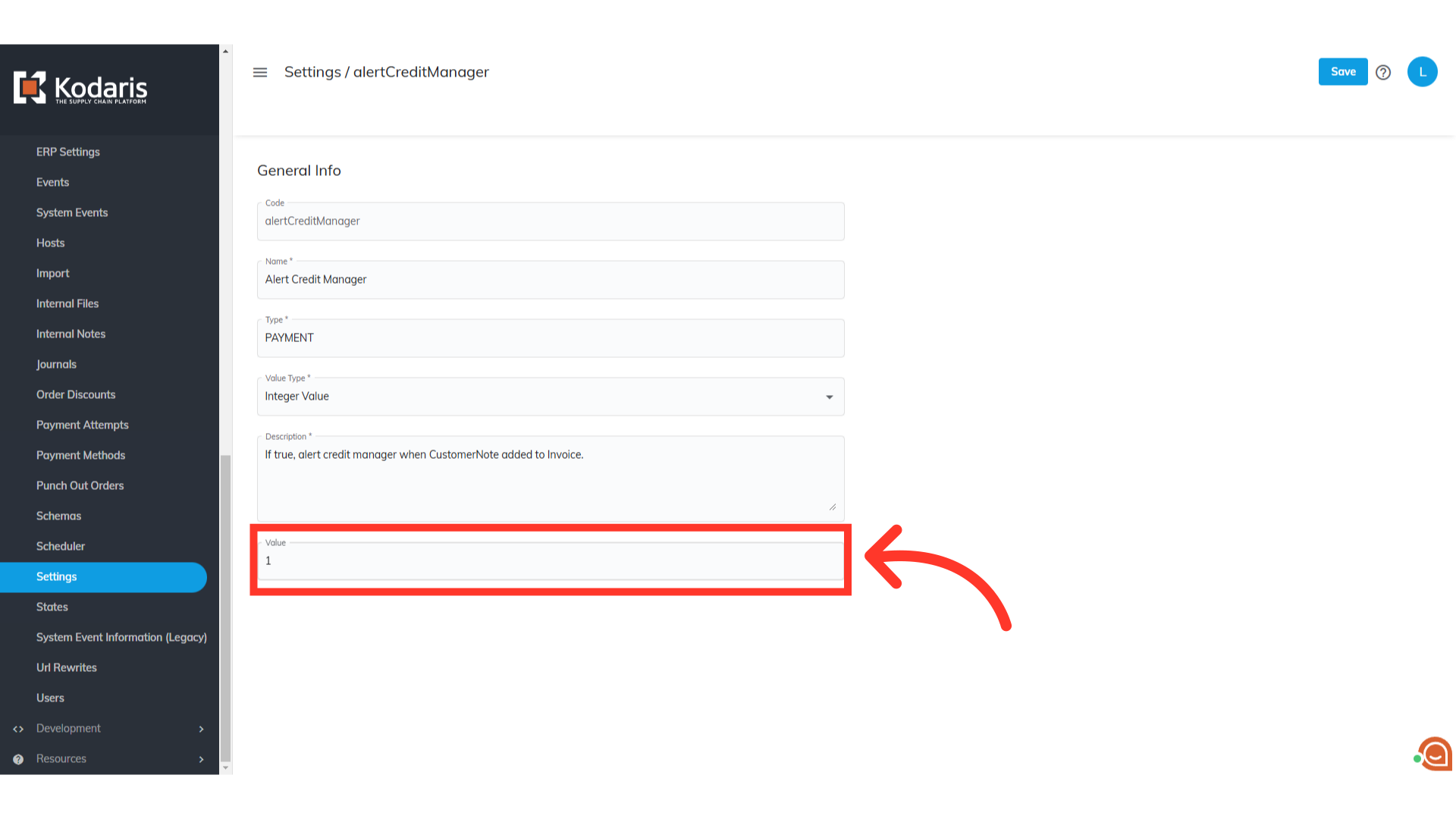
Click "Save"
Click the "Save" button.
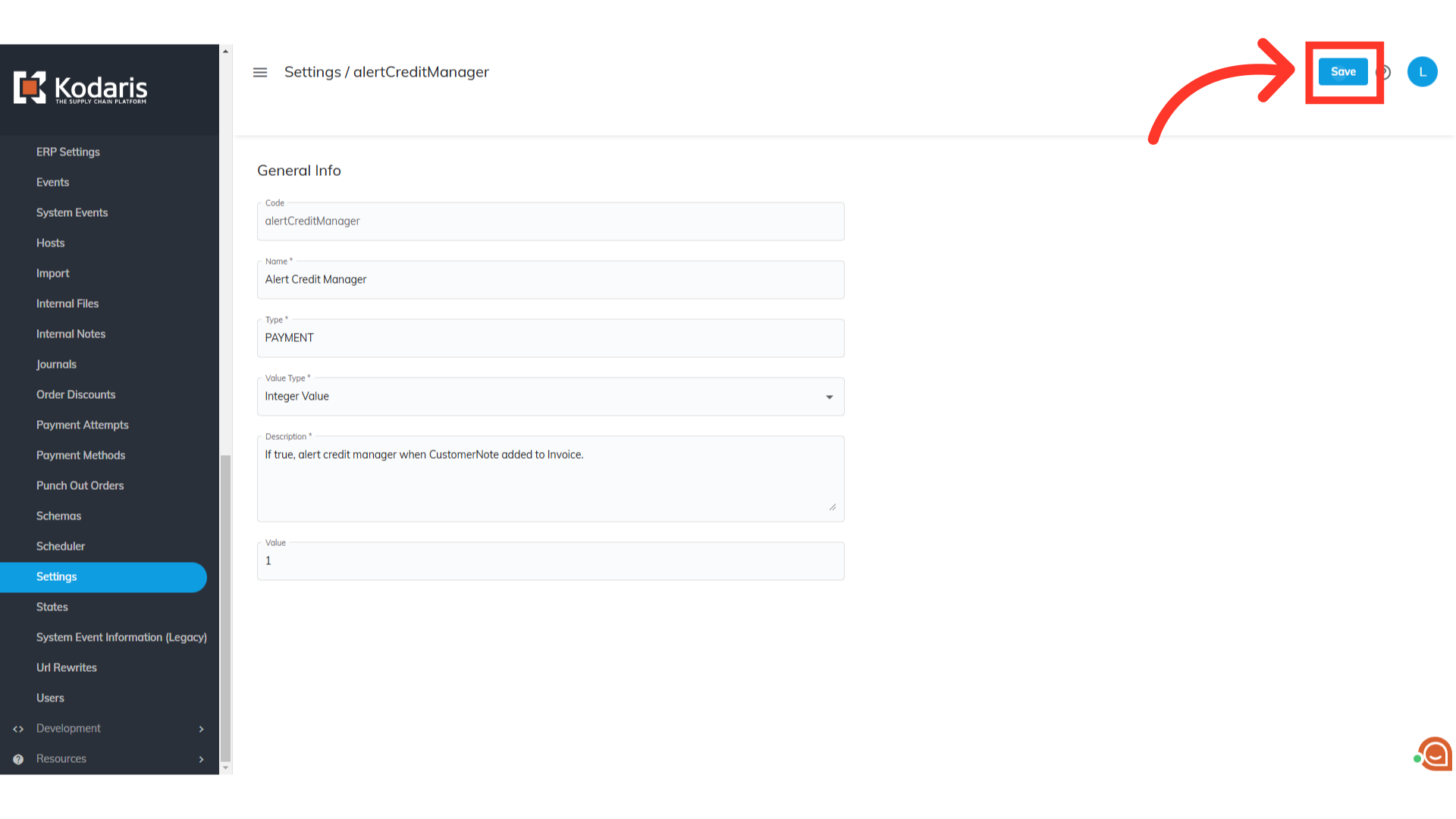
Go to "Companies"
Next, select the company you want to receive notifications for. Navigate to the "Companies" screen under Customers section. In order to access "Companies" you will need to be set up either as an "administrator" or a "superuser", or have the appropriate roles: "companyView and companyEdit", or "crmCompanyView and crmCompanyEdit". Just a reminder, "crmCompanyView and crmCompanyEdit" access only allows employees to view companies that are assigned to them.
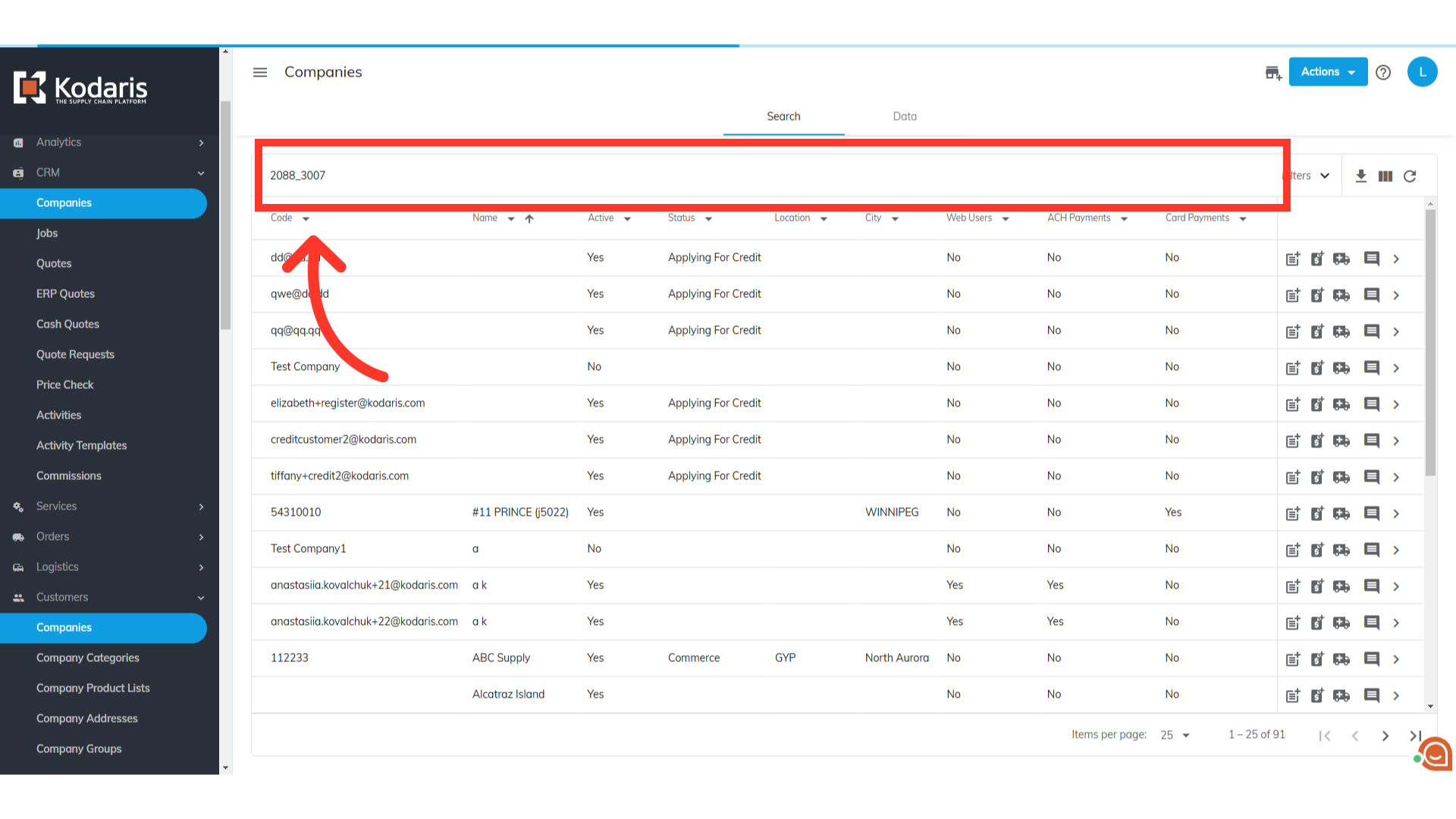
Search for the company
Search for the company by entering the company name or code.
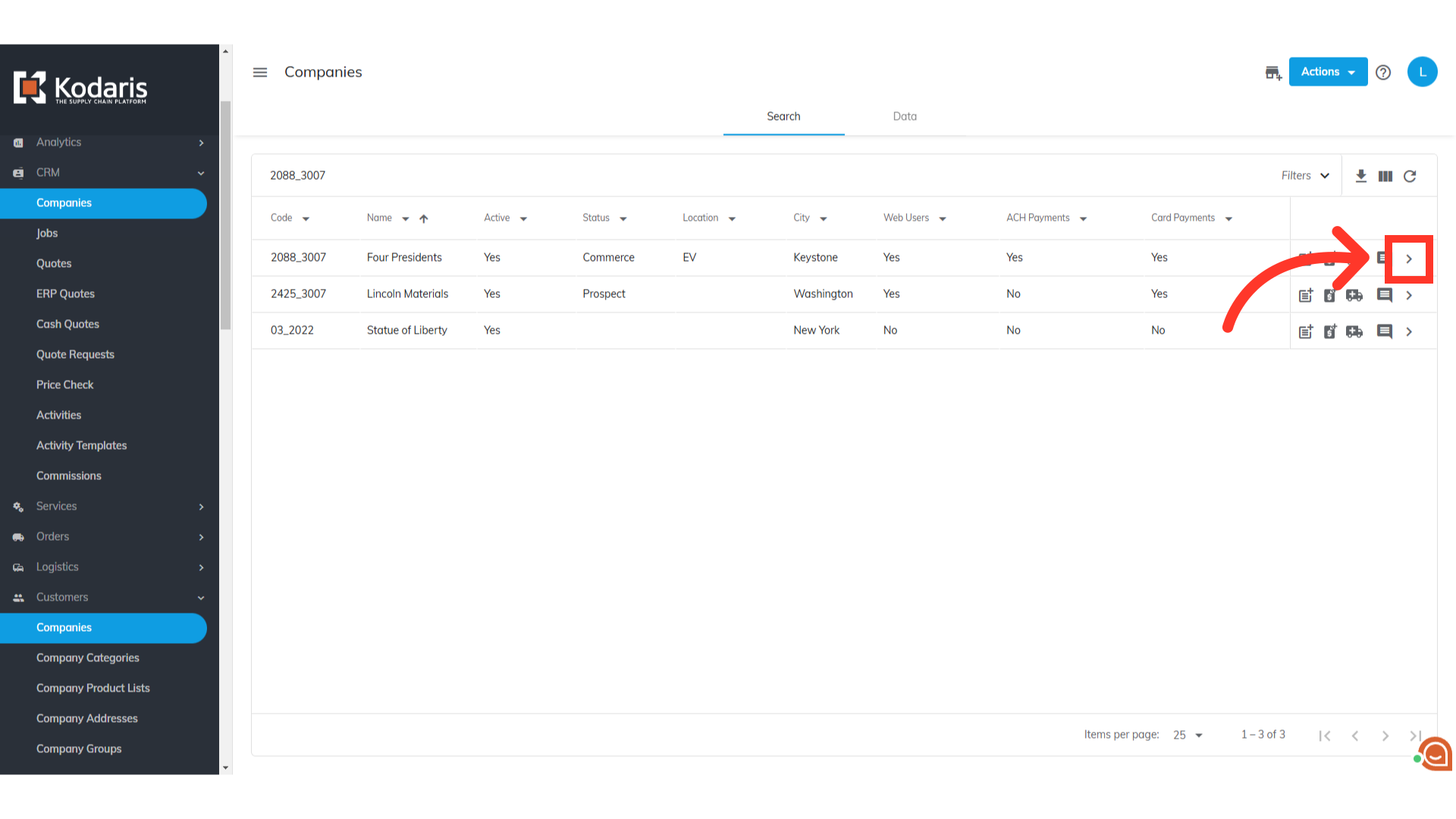
Click the more details icon
Click the company's more details icon.
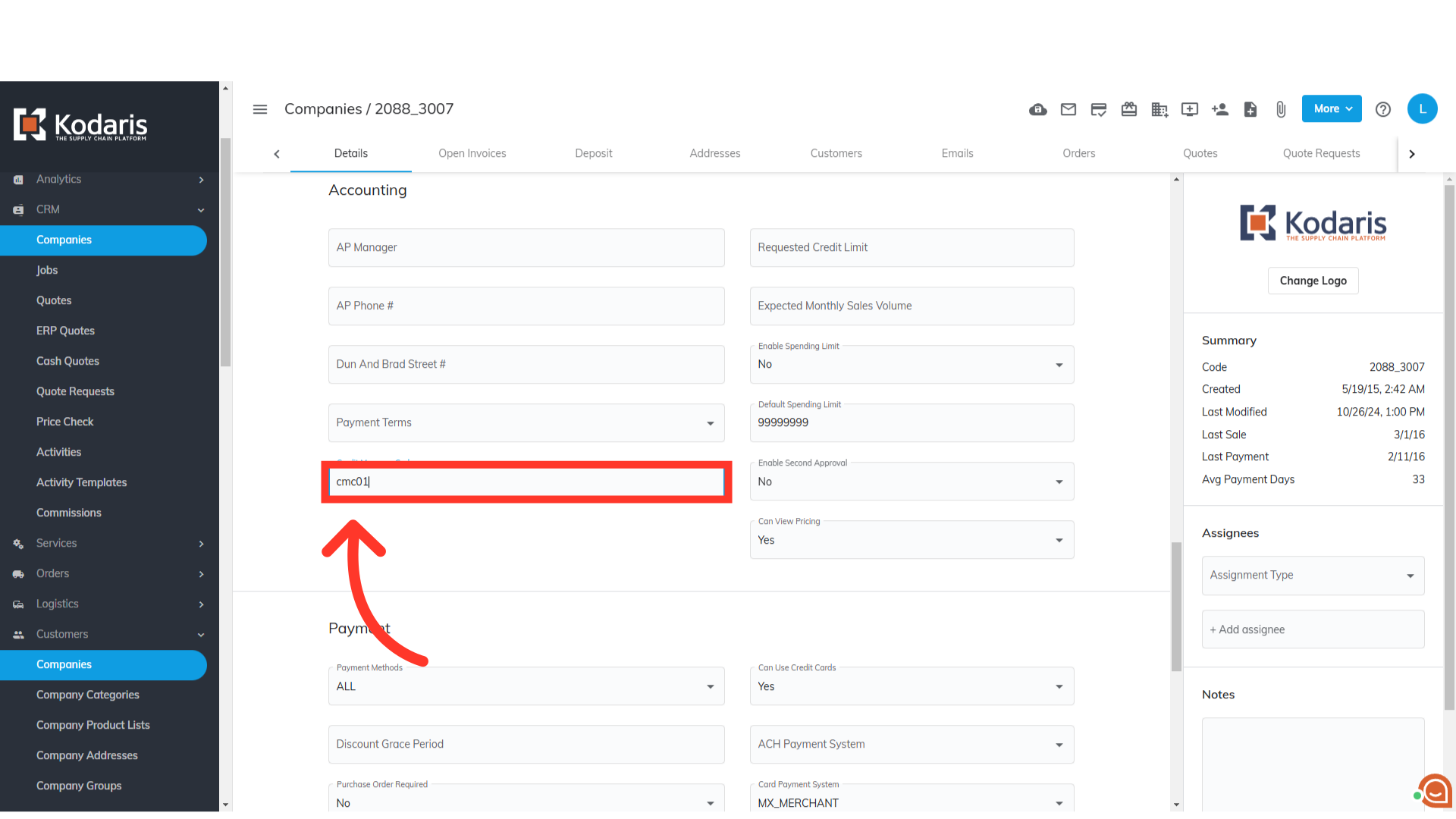
Designate a code in the "Credit Manager Code" field
Scroll down to the "Accounting" section. Add the "Credit Manager Code" to the field. This code can be found in your ERP. Click anywhere to save.
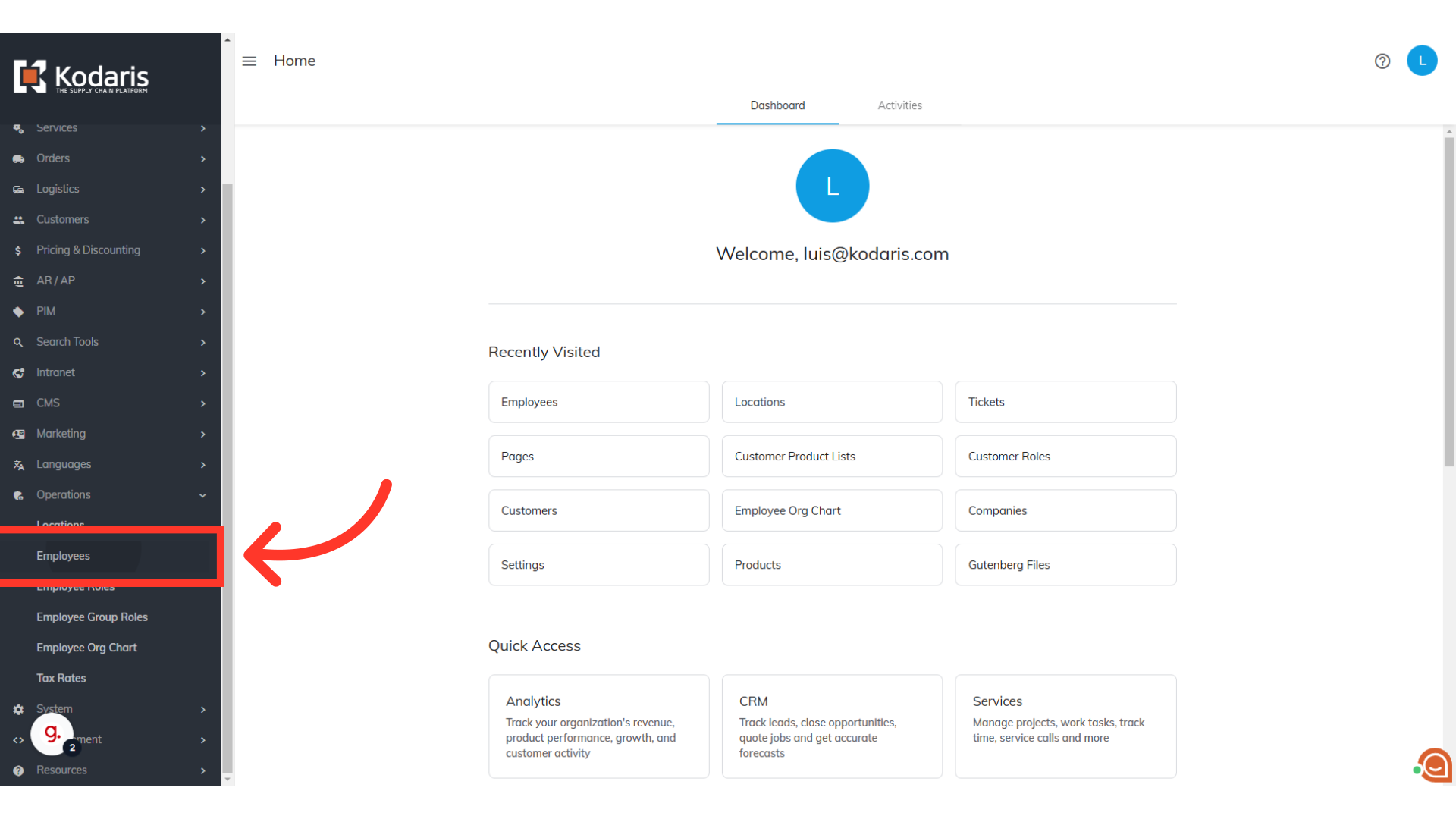
Go to "Employees"
Now, setup the employee who will receive the notifications. Access the "Employees" screen under Operations. In order to access and update "Employees" you will need to be set up as a "superuser" or have the roles of: "administratorEdit" and "administratorView".
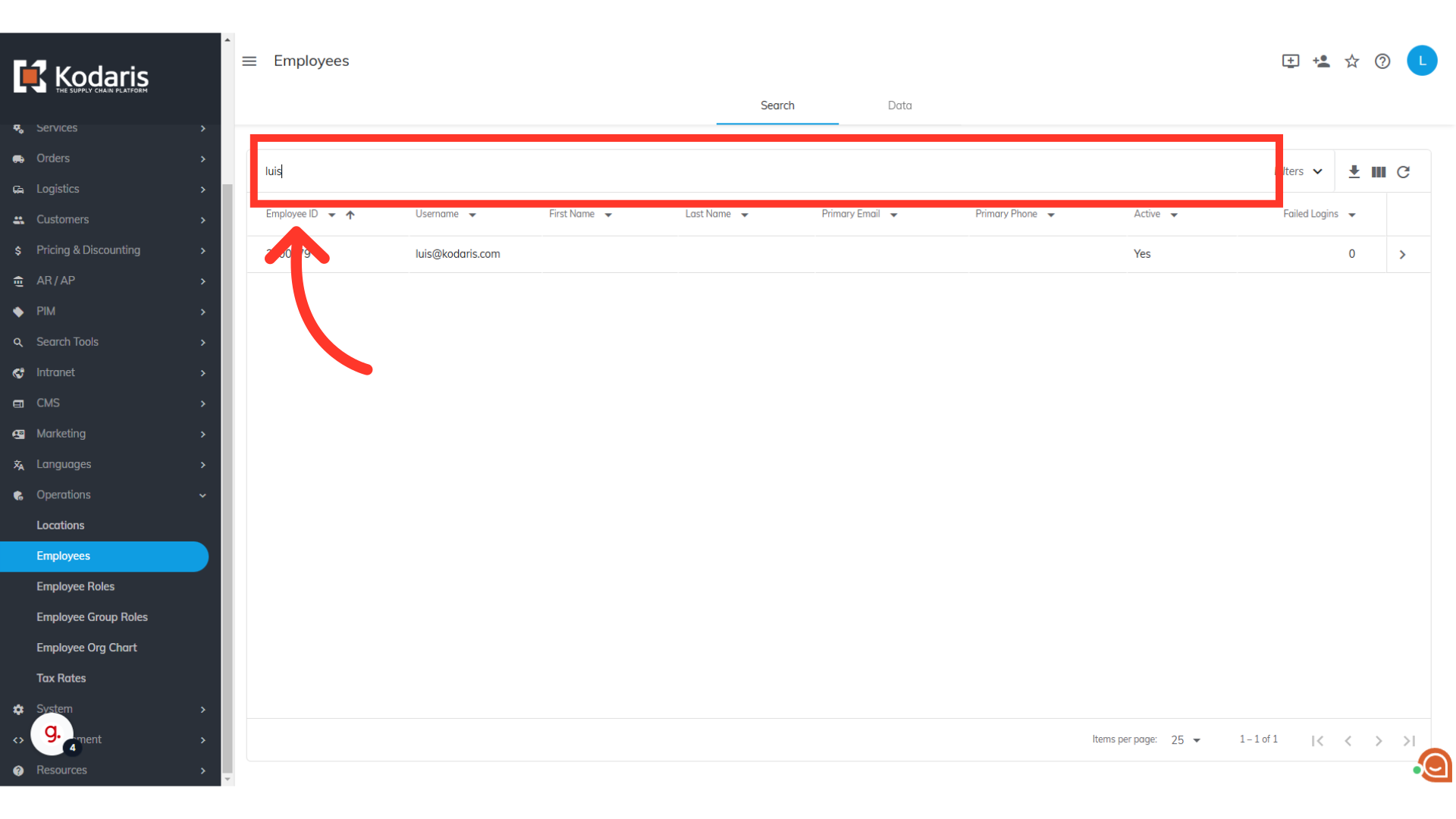
Search for the employee
Search for the employee by entering a name or email address.
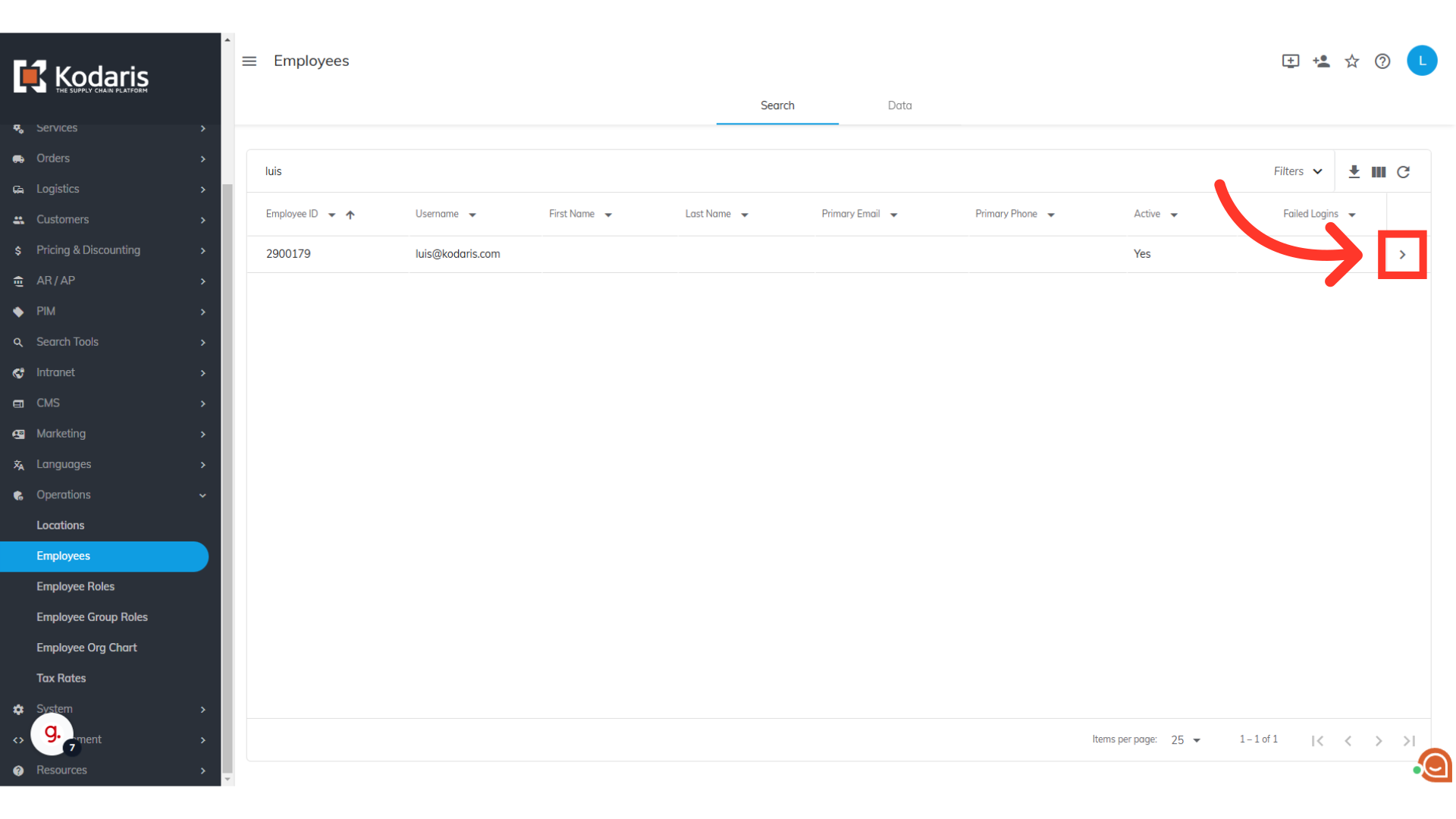
Click the more details icon
Click on the employee's more details icon.
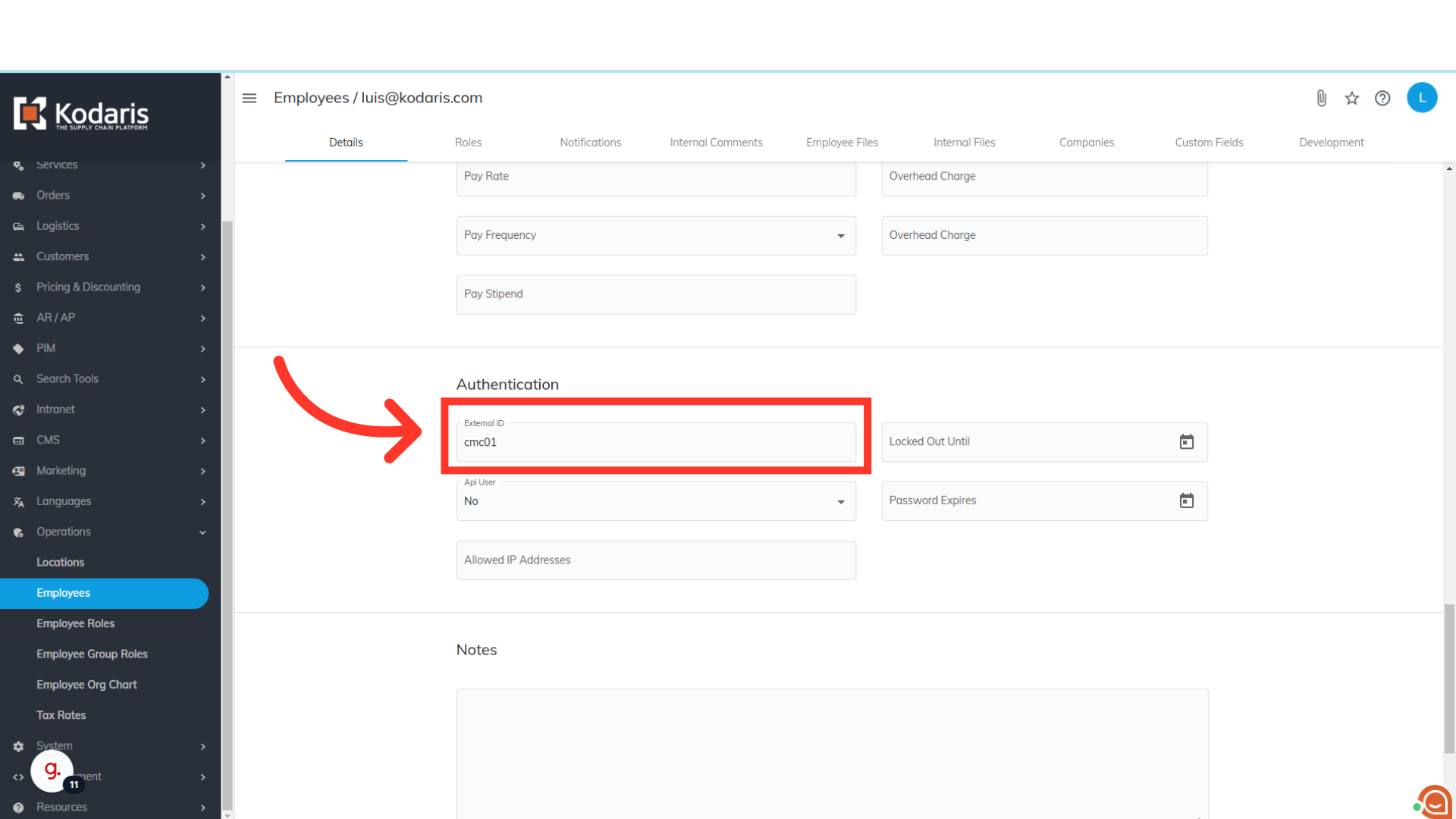
Key in the Credit Manager Code
Scroll down to the "Authentication" section. In the "External ID field, key in the "Credit Manager Code" you added earlier. This employee will now receive notifications for customer comments on invoices under that company.