AHRI Data for HVAC
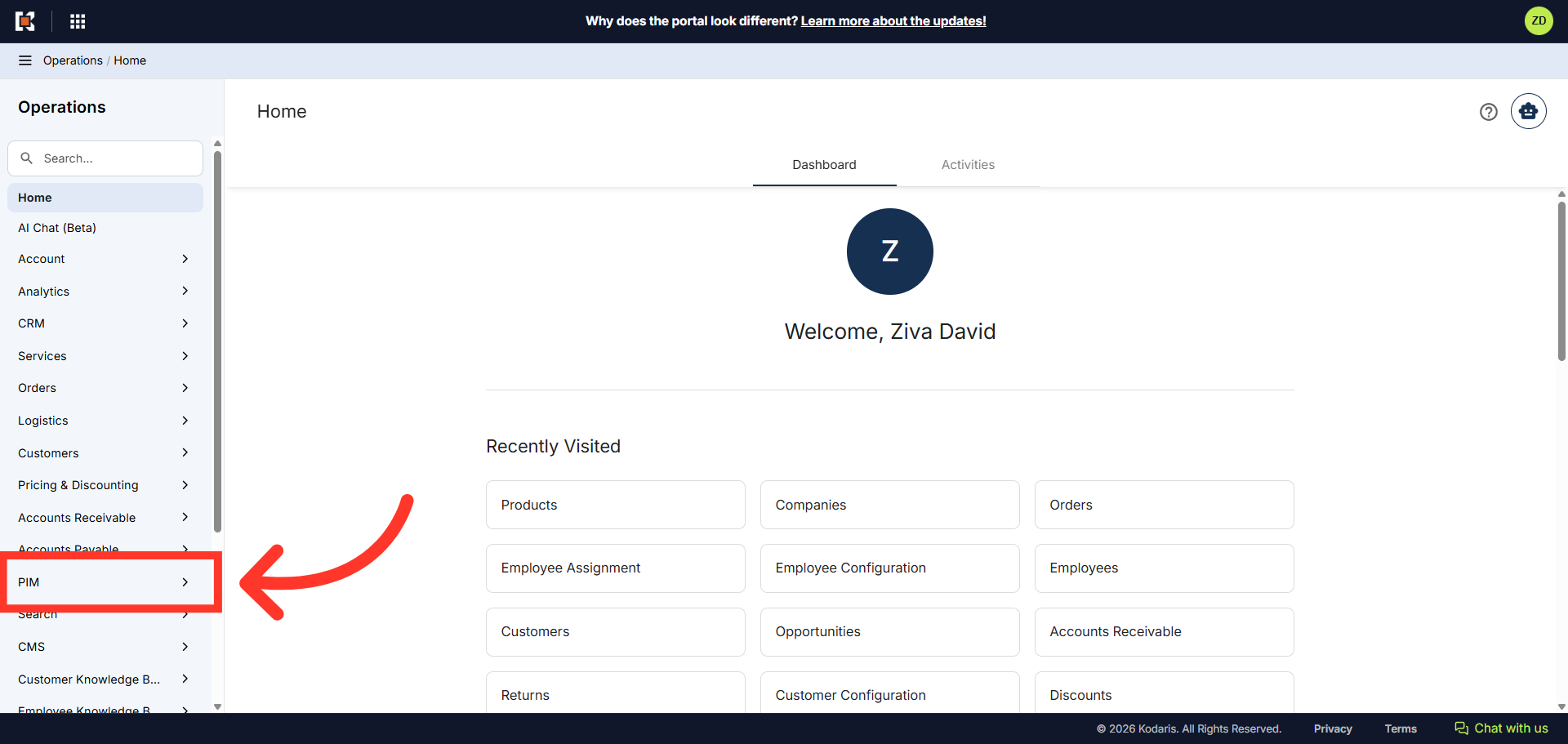
Navigate to "PIM" section
You can use the AHRI product mapping importer to create AHRI products and create a relation to your existing products. First, navigate to the "PIM" section in the Operations Portal.
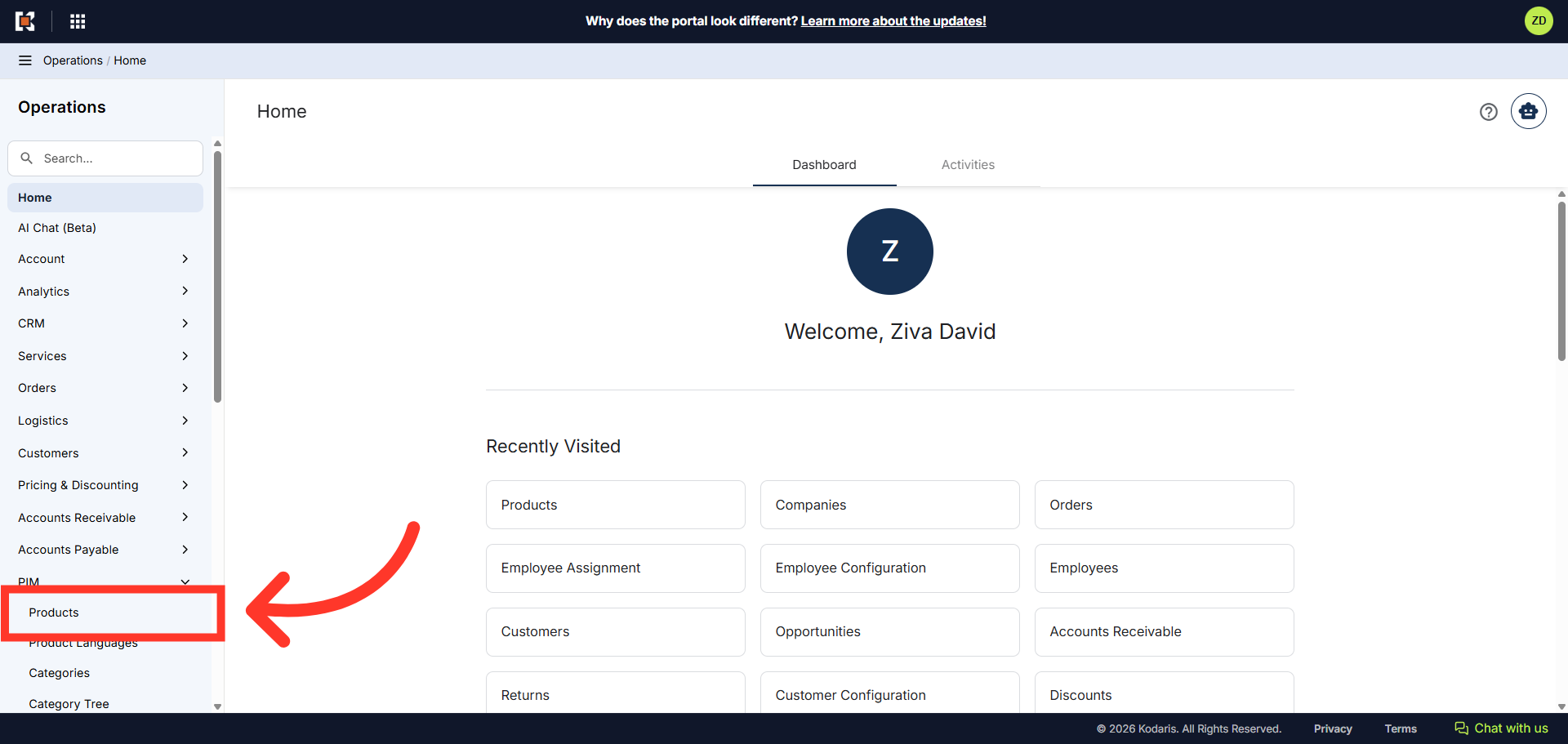
Click "Products"
Then, click "Products." In order to access and update "Products" you will need to be set up either as an "administrator" or a "superuser", or have the role of: "productEdit".
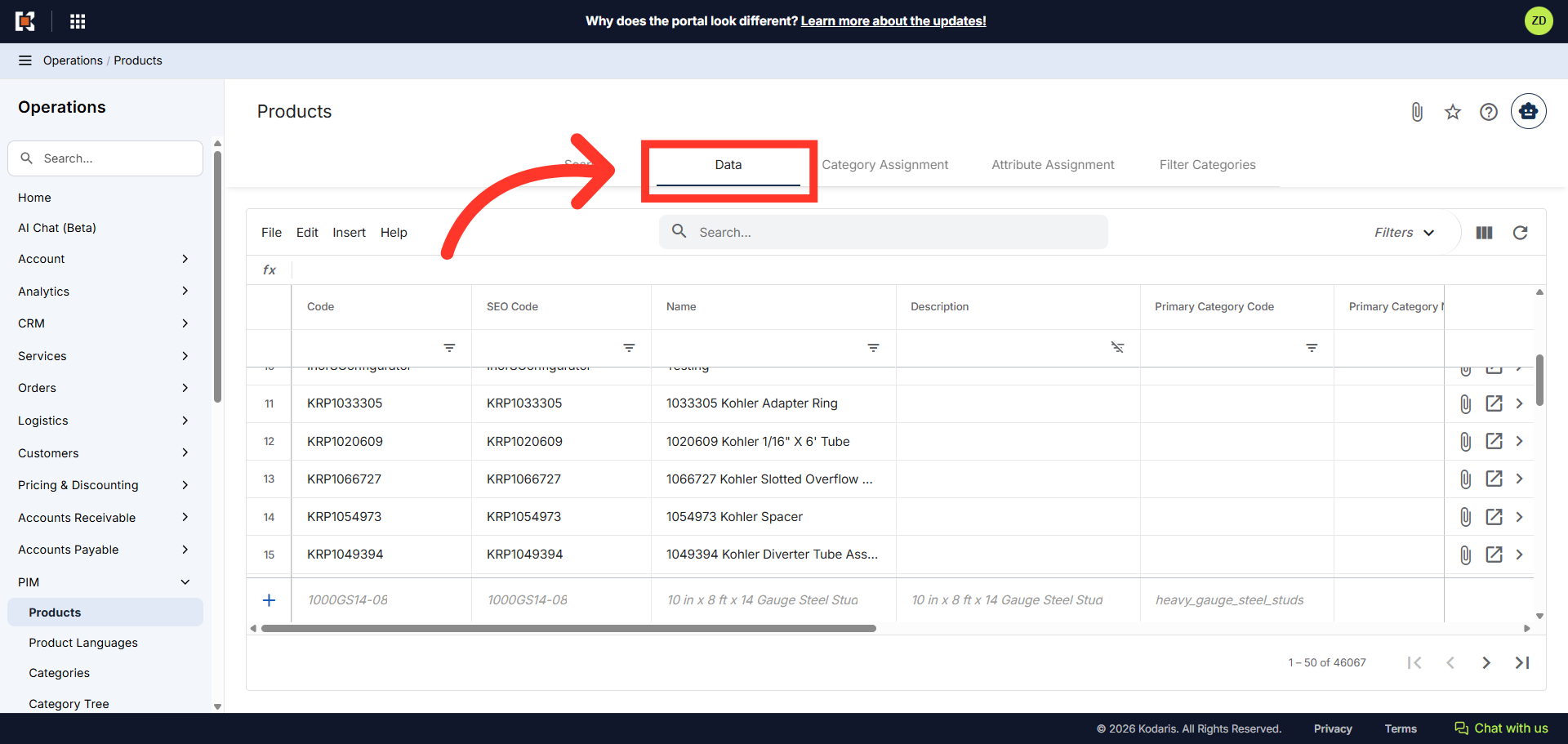
Go to "Data" tab
Go to the "Data" tab.
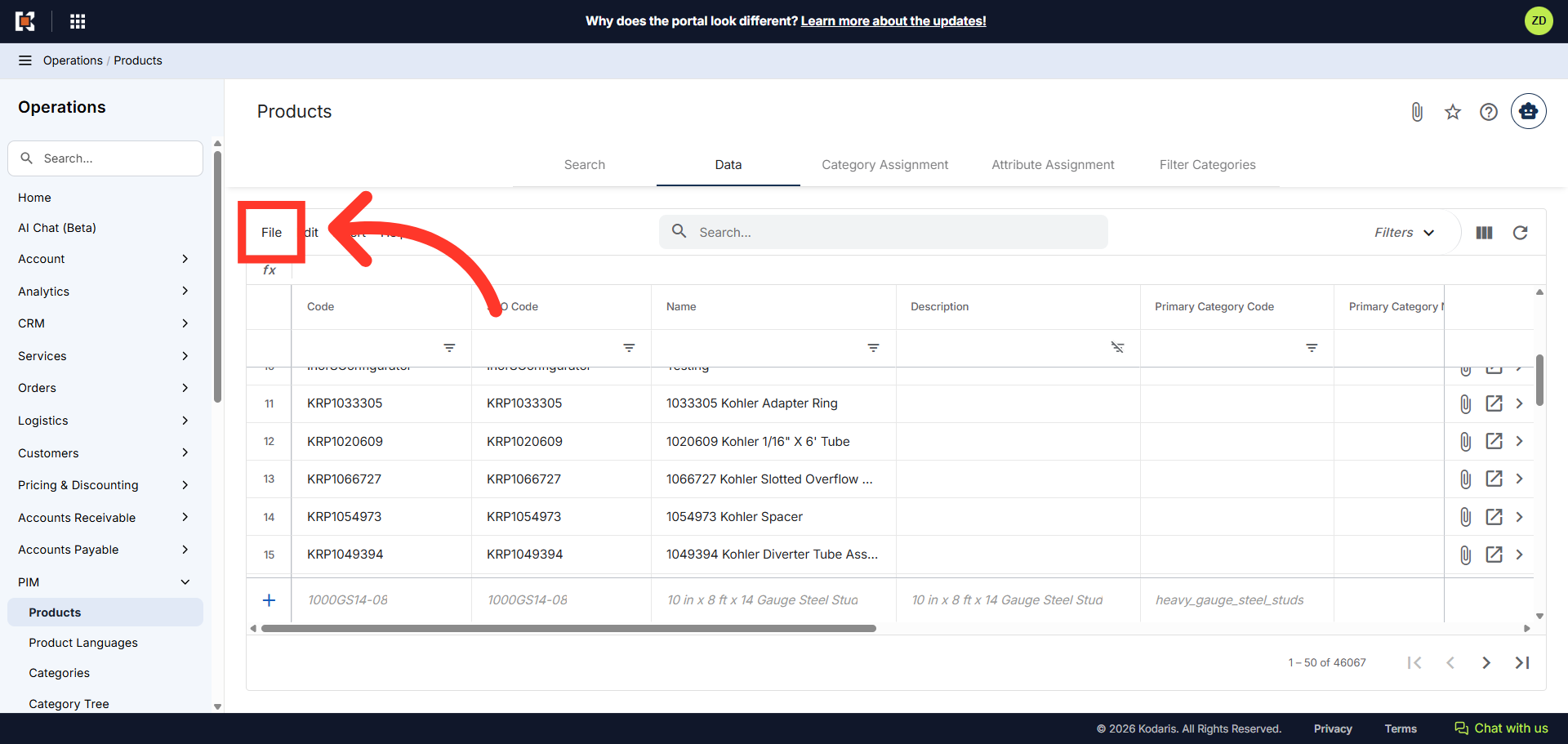
Click "File"
Next, click "File".
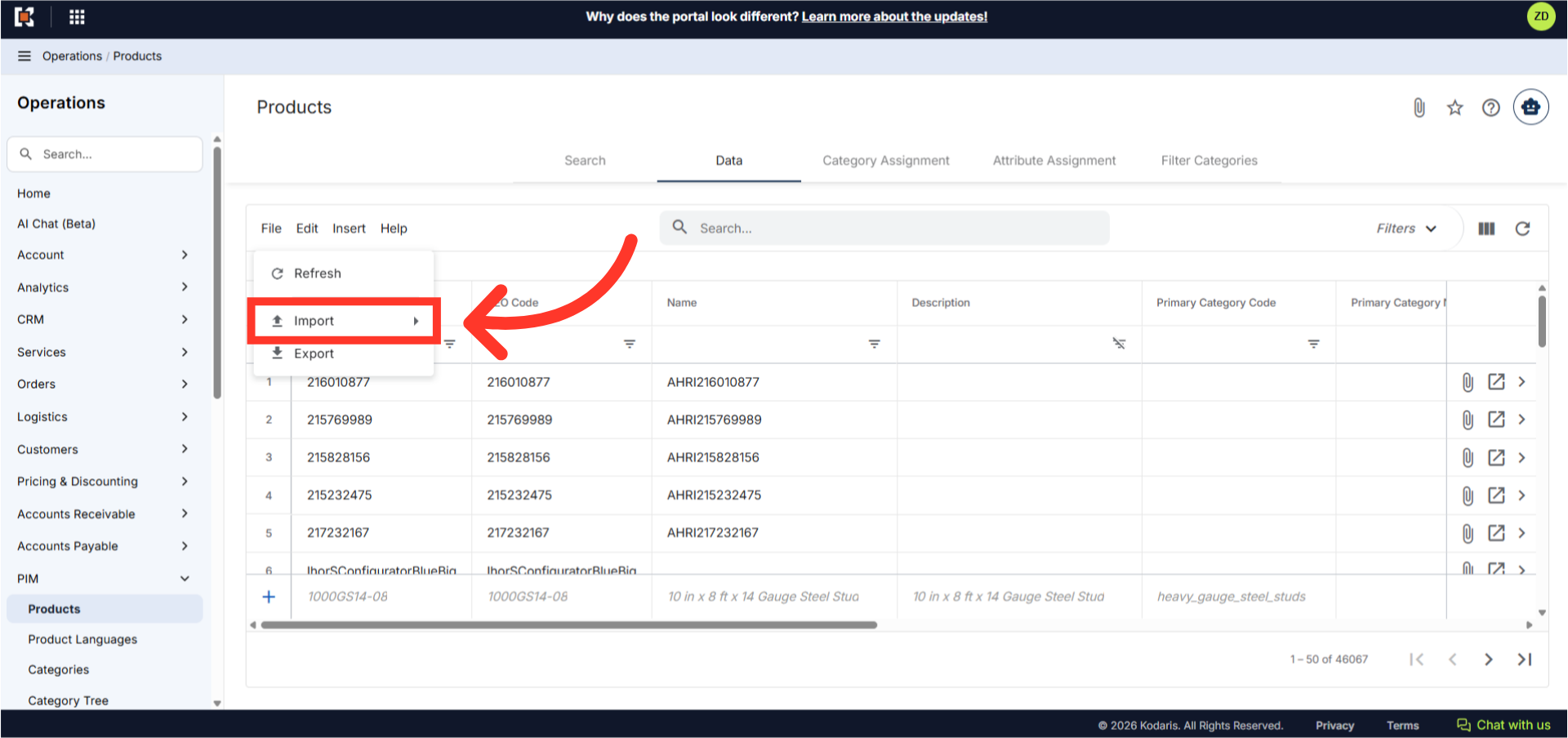
Click "Import"
Then, click "Import" to access the import options. In order to import data, you will need to be set up as an "administrator" or "superuser" or have the roles of: "importEdit".
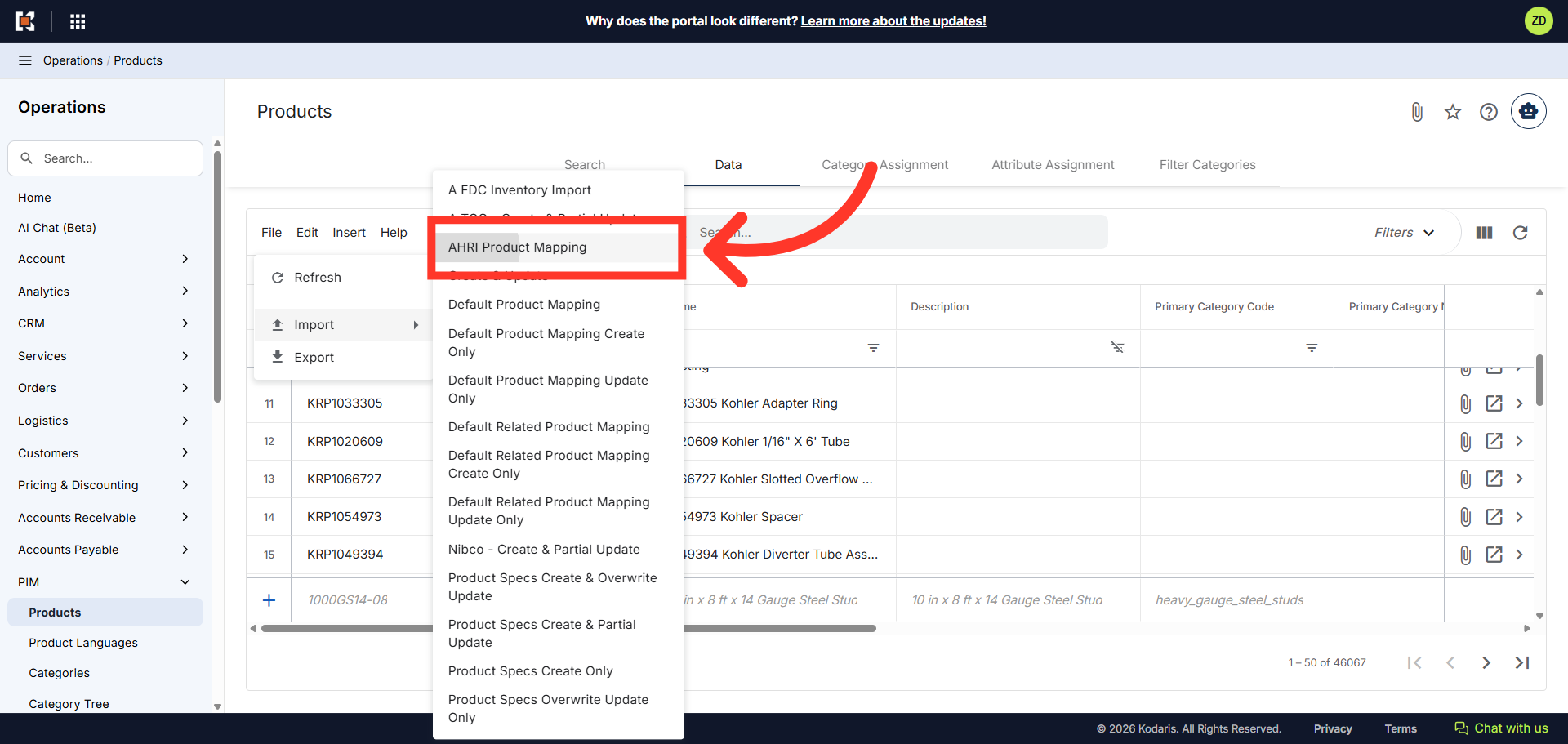
Click "AHRI Product Mapping"
Select the "AHRI Product Mapping" option.
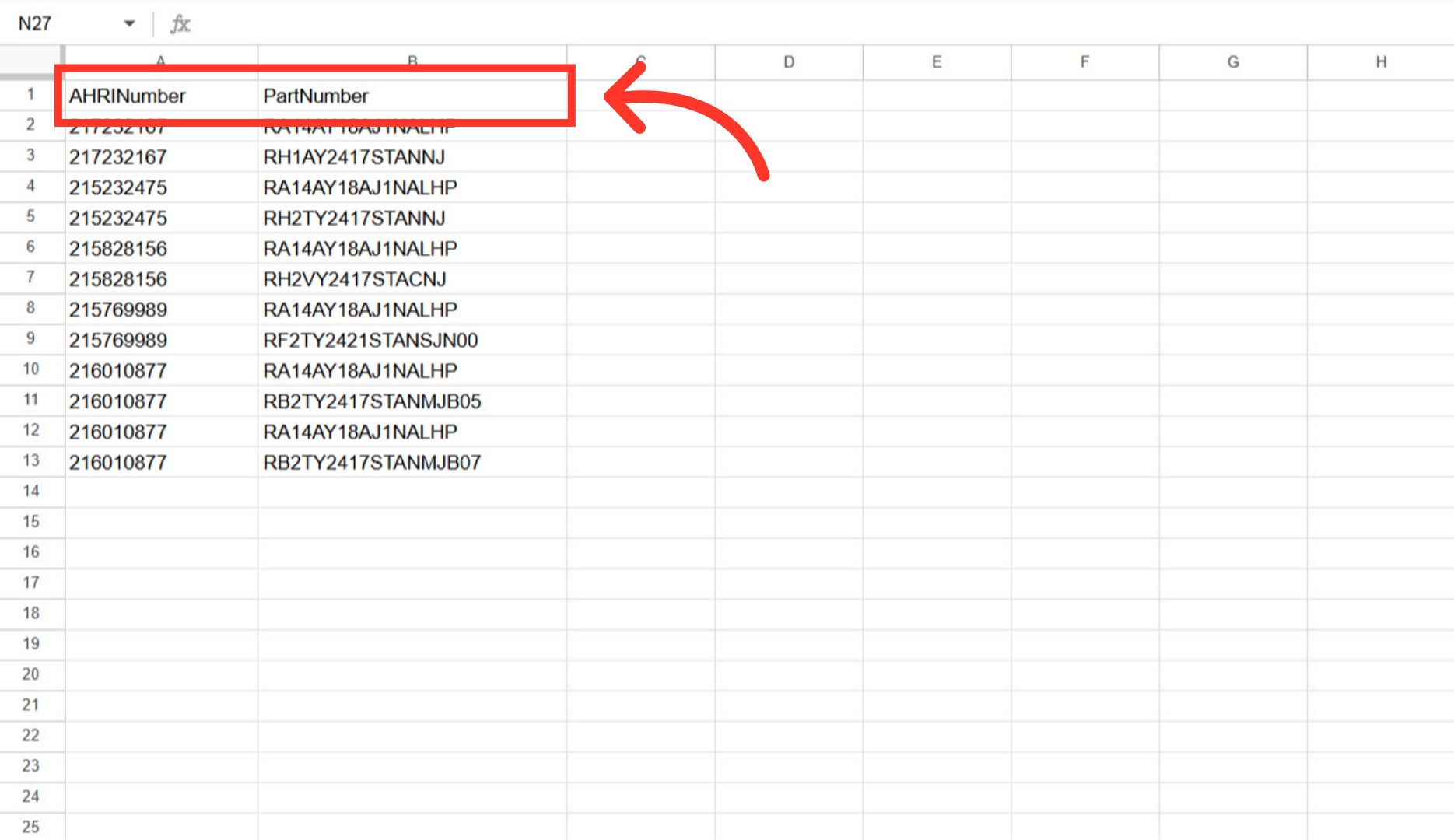
Needed Column Headers
For the import, you will need to create an Excel sheet with two columns. One column will have the AHRI Number, and the other with the Part Number. The part number should be the product code of the products in the PIM. Once the Excel sheet has been created with the needed information, it is important to save the sheet as a .tsv file, as that is what will be used for the import.
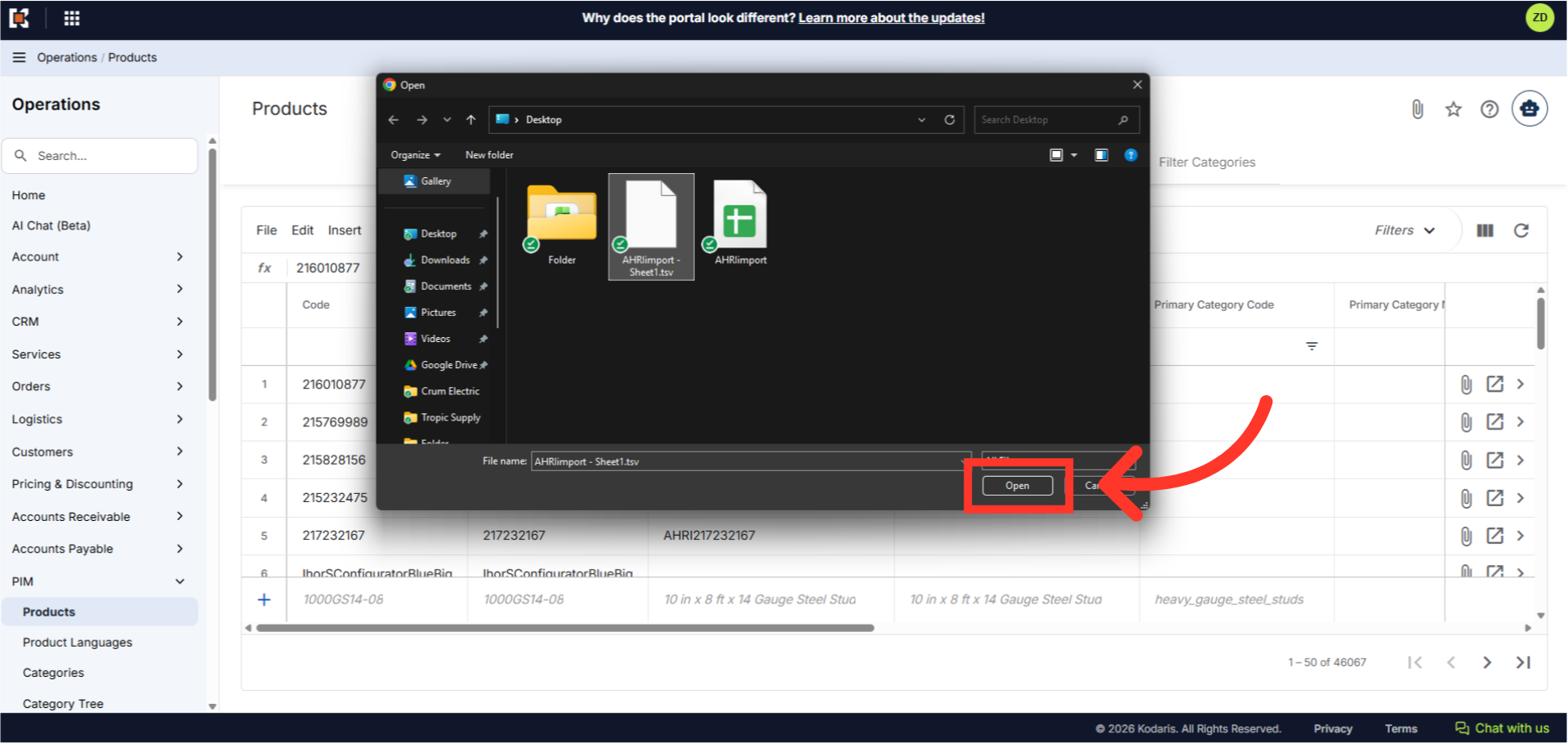
Select the file and click "Open"
Select the ".tsv" import file and click "Open". Please be sure that you select the correct file, as there are no rollbacks for imports.
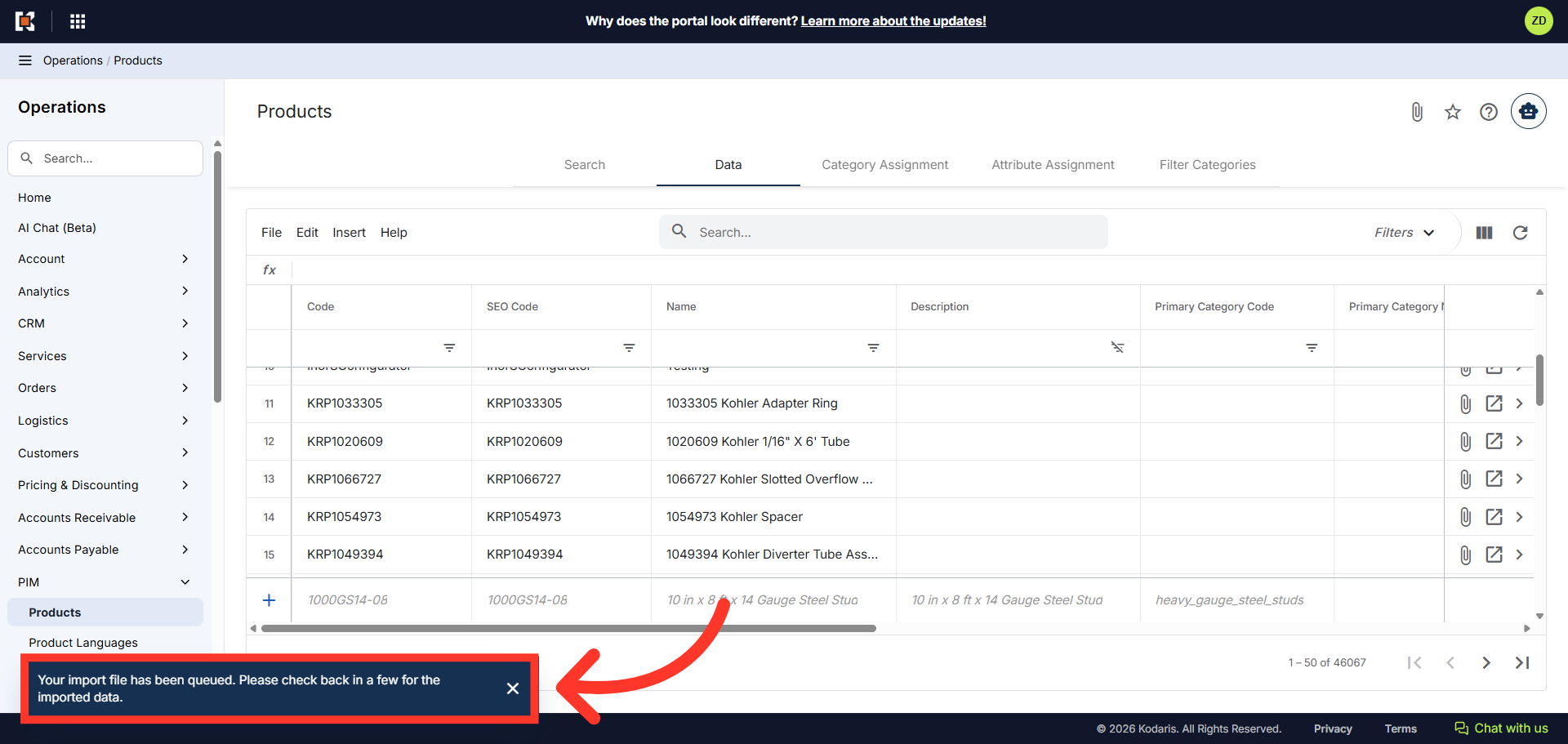
Import confirmation message
If you are importing large amount of data, it may take a short amount of time to complete. The import will continue to run in the background.
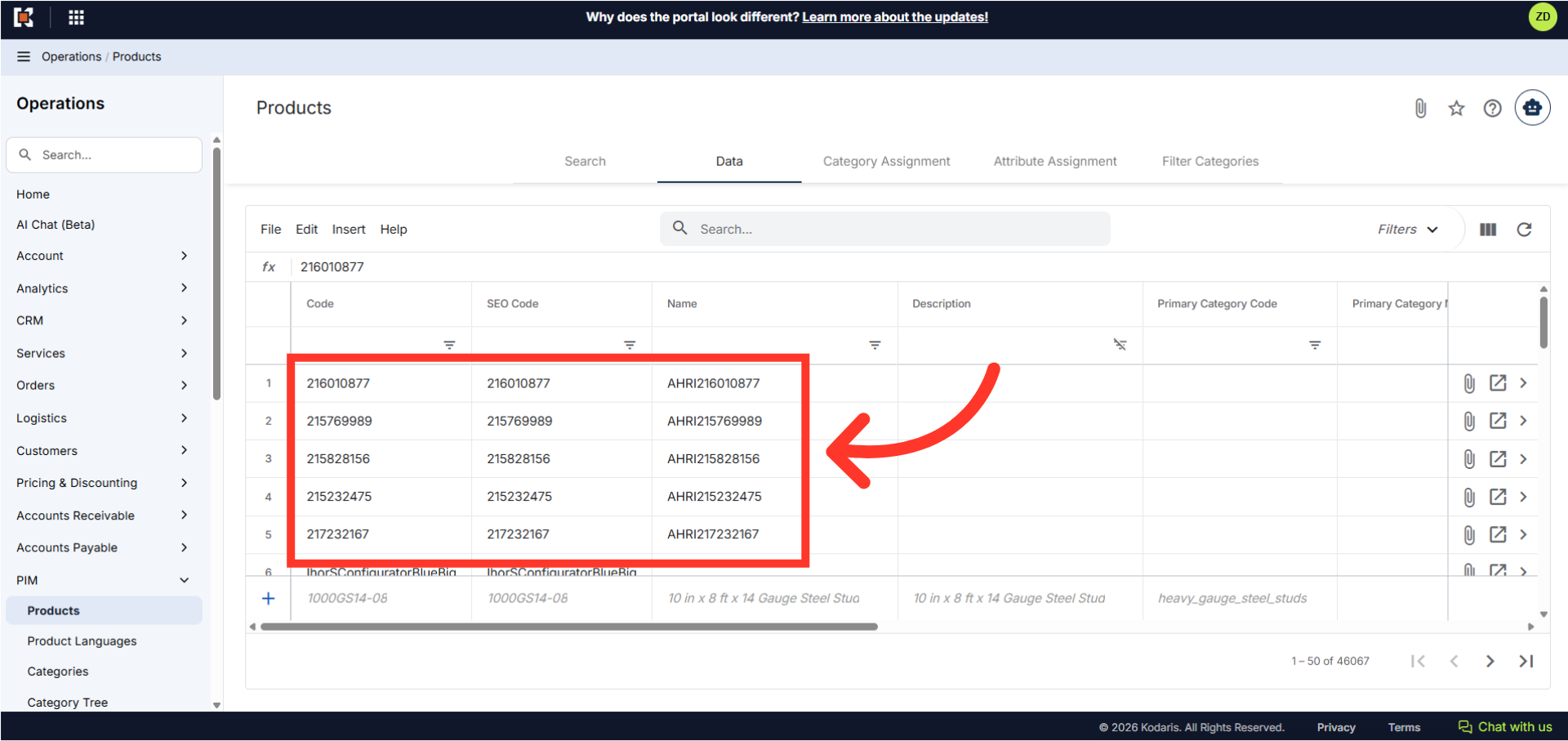
AHRI products
Once the import has finished, you can see that the AHRI products have been created and added to the product list. The AHRI number will populate the Code and SEO Code, while it will autogenerate corresponding name with AHRI + the AHRI number.
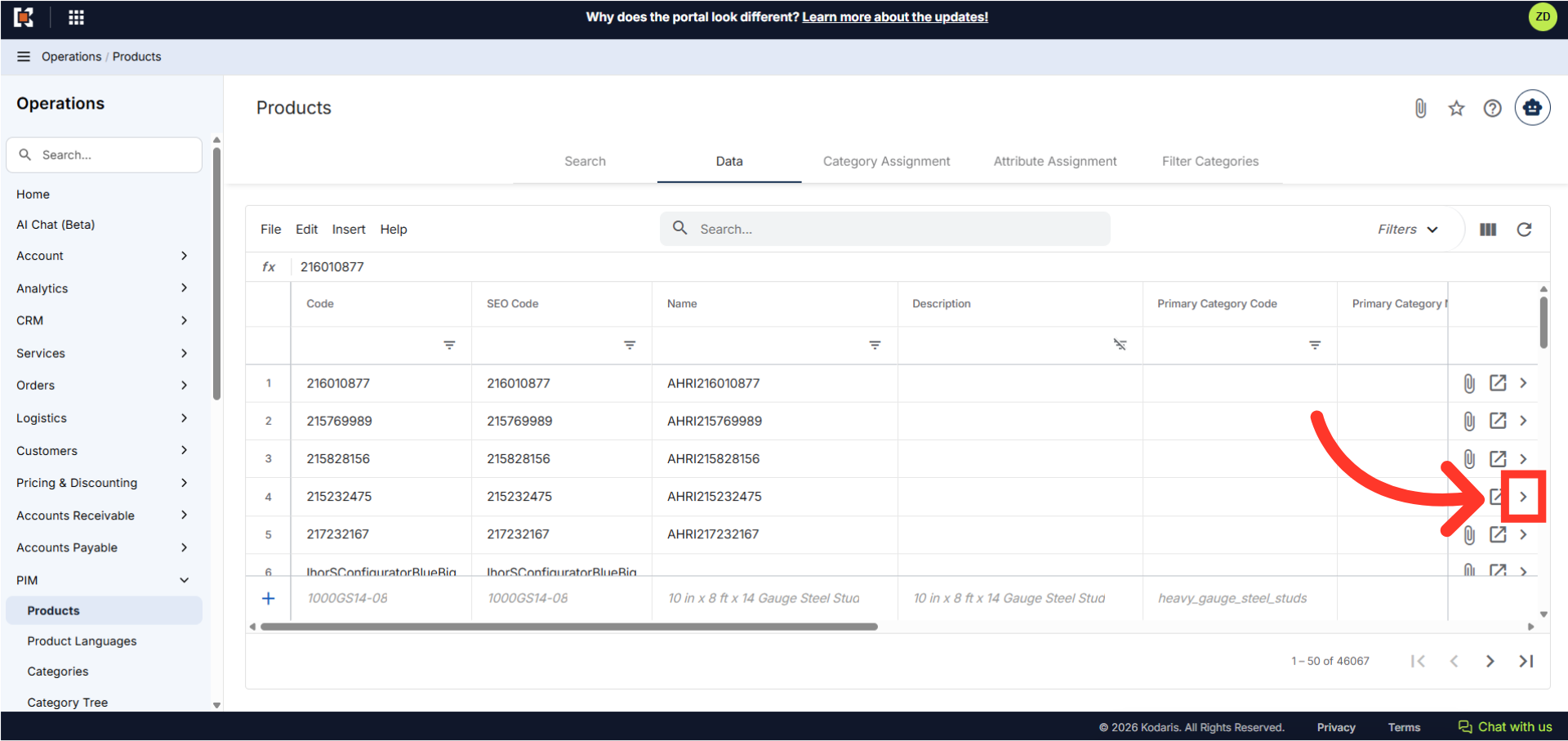
Click the more details icon
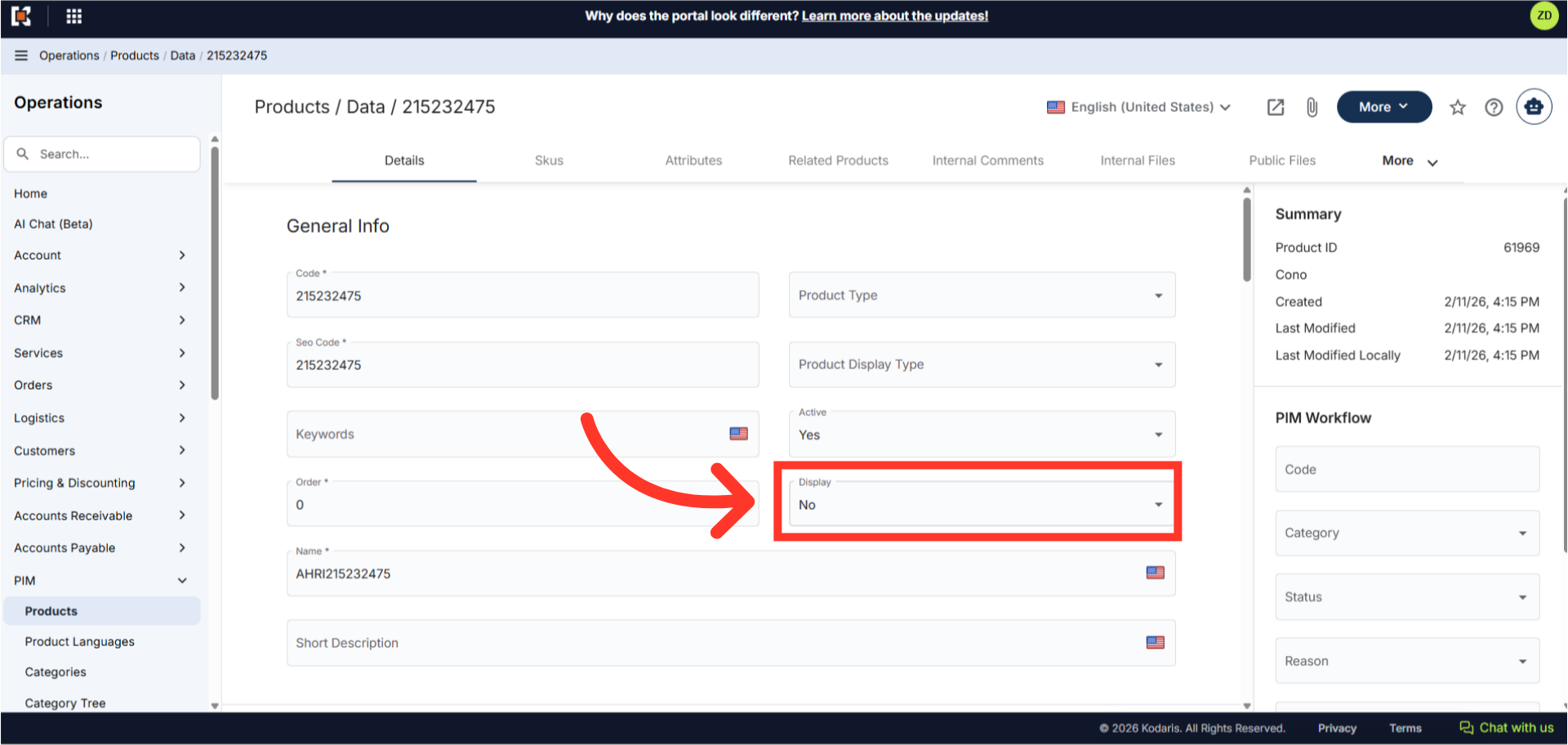
Click the more details icon in one of the AHRI products to view additional details.
Display = "No" by default
The "Display" value is defaulted to "No" so they cannot be viewed on the site.
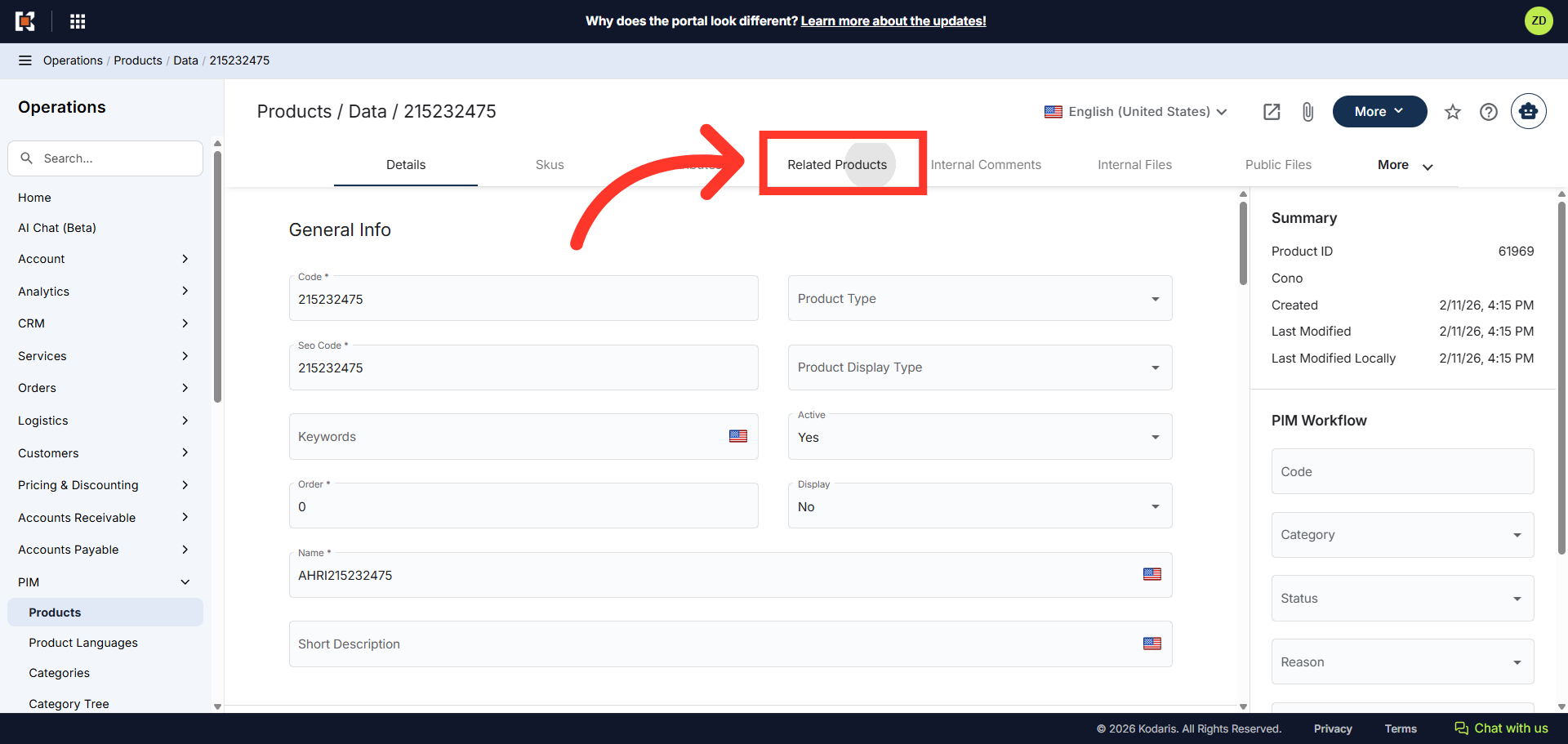
Go to the "Related Products" tab
Next, go to the "Related Products" tab.
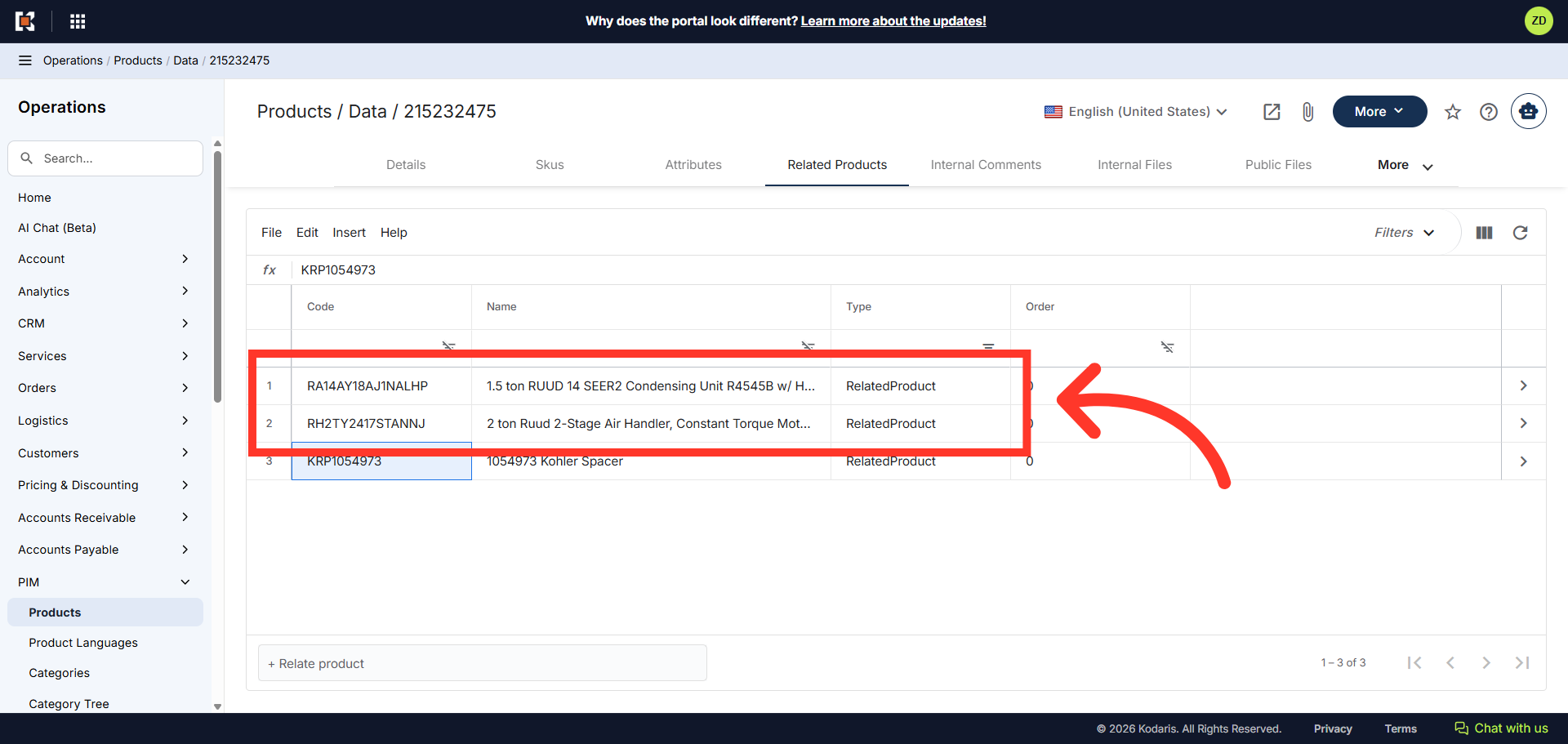
Added Related Products
You can see that the corresponding part number from your import file have been added to the list. If you go to these products' related products tab, you will also see that the AHRI product has been added accordingly.
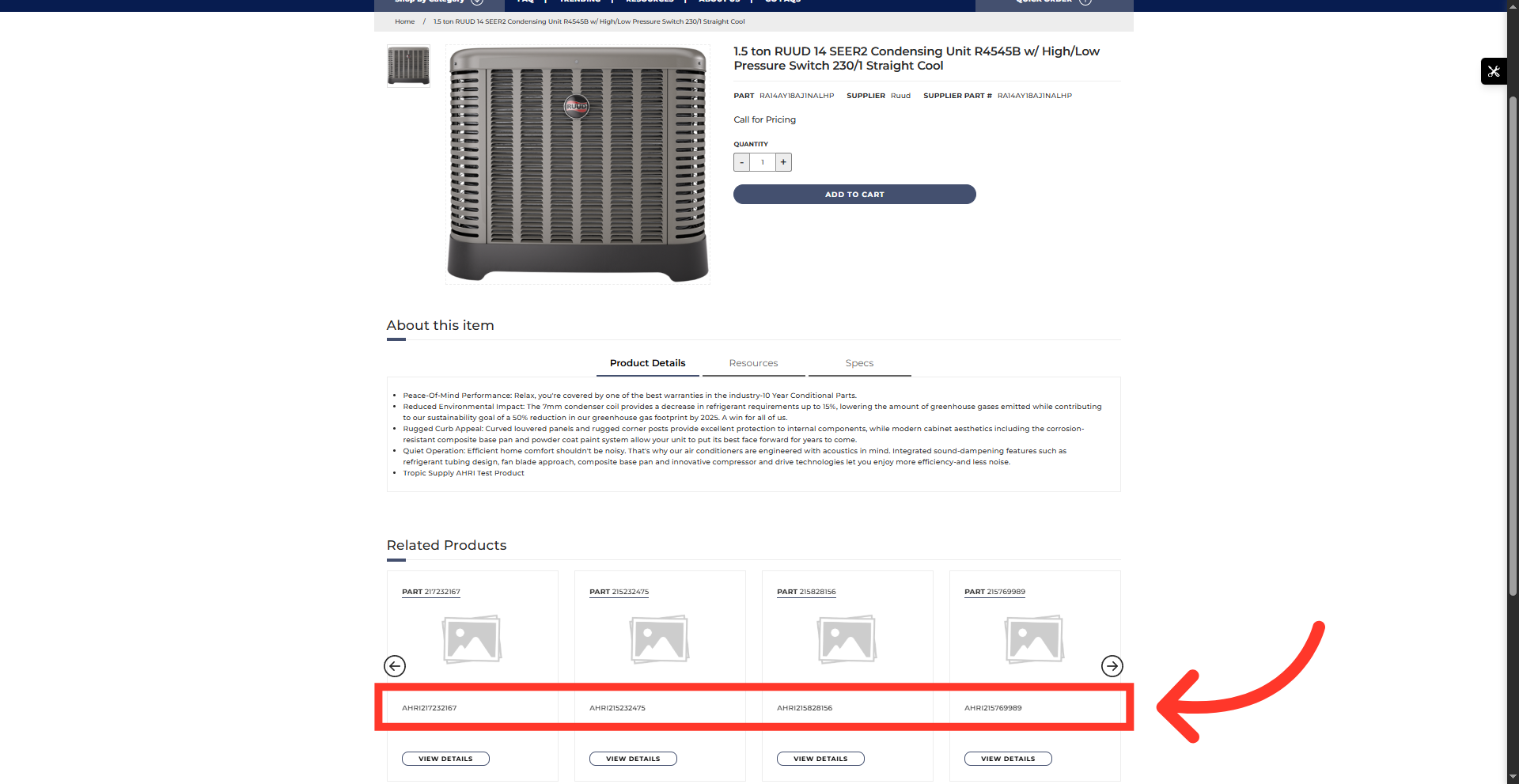
Commerce Product Page Related Products
Go to the product page in commerce site to check if the related AHRI products have been added.