Commerce - Add a "Nonstock" Product to Cart
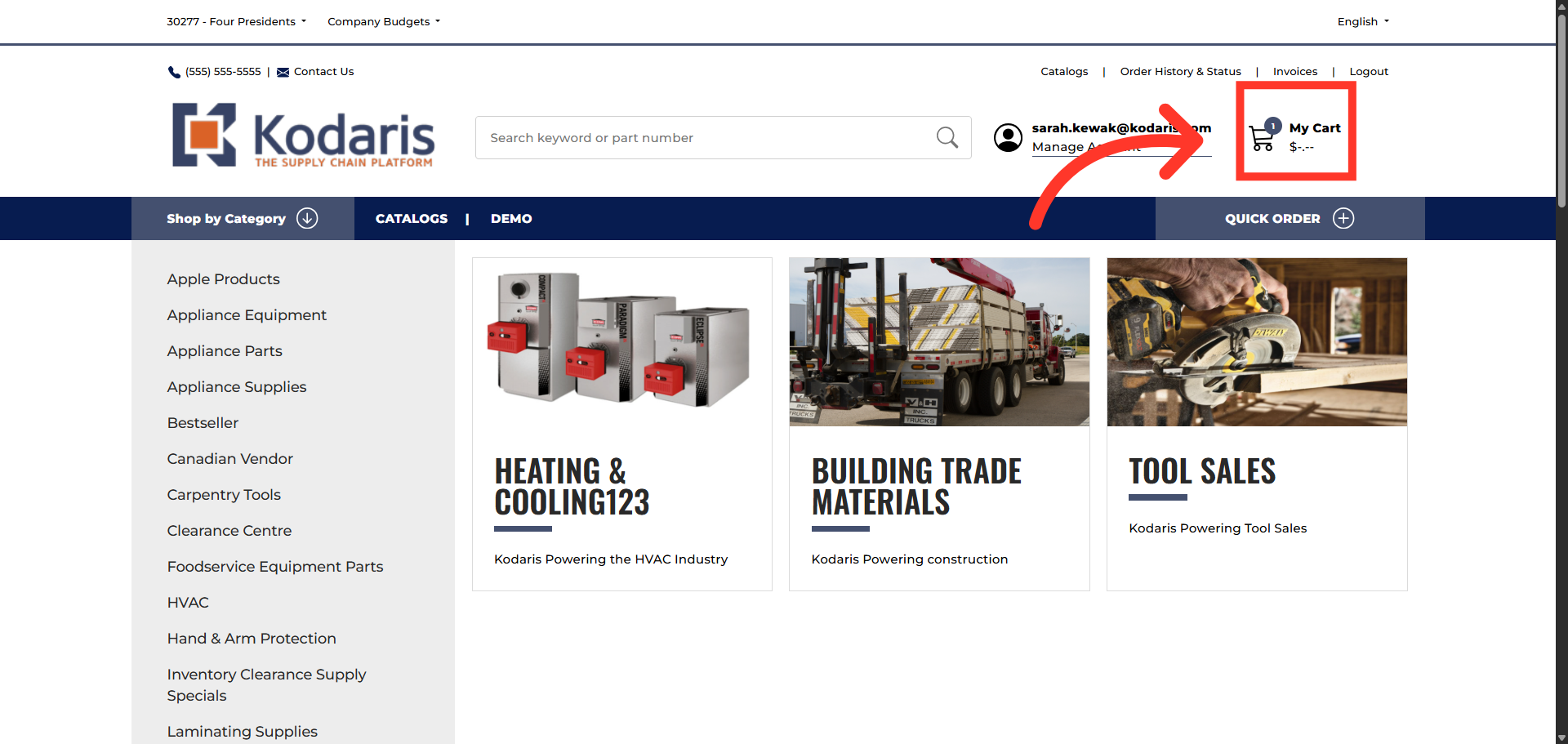
Navigate to "My Cart"
You can request a custom item from the website using the "Request Custom Item" option in the shopping cart. Navigate to "My Cart" on the commerce site.
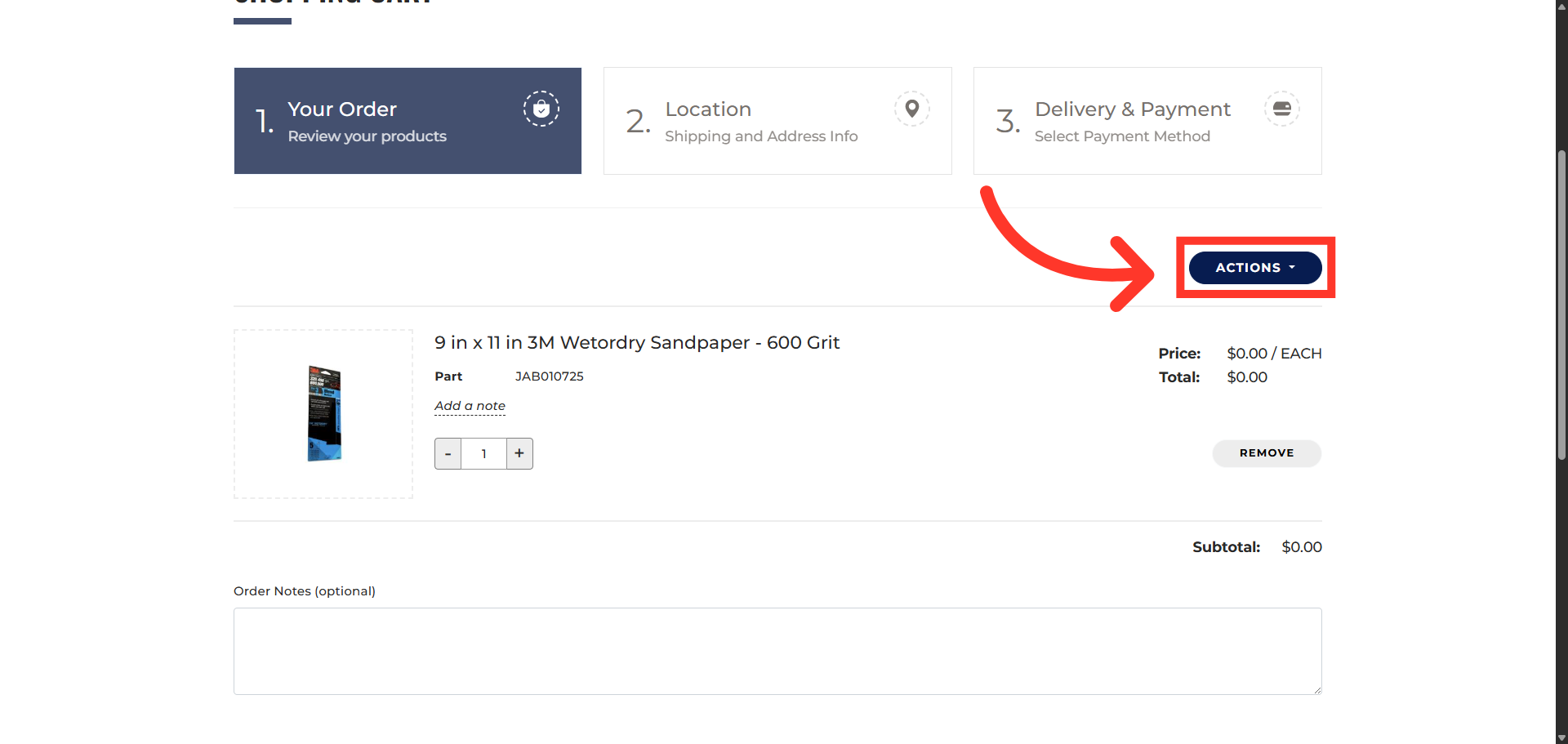
Click "Actions"
Then, click "Actions" to access additional options related to your cart. Note: There need to be items in your cart in order for the "Actions" button to show.
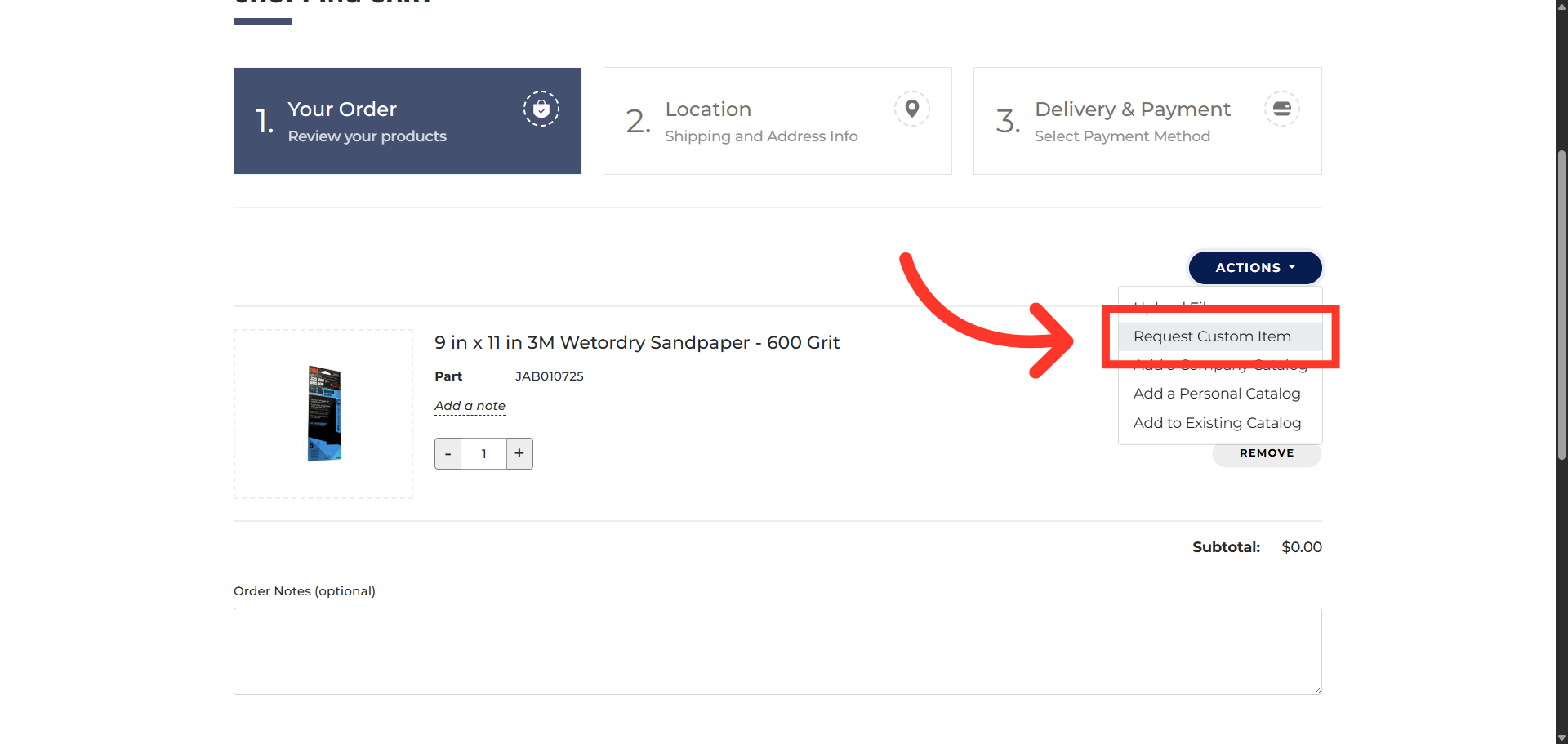
Click "Request Custom Item"
Next, select "Request Custom Item" from the dropdown menu.
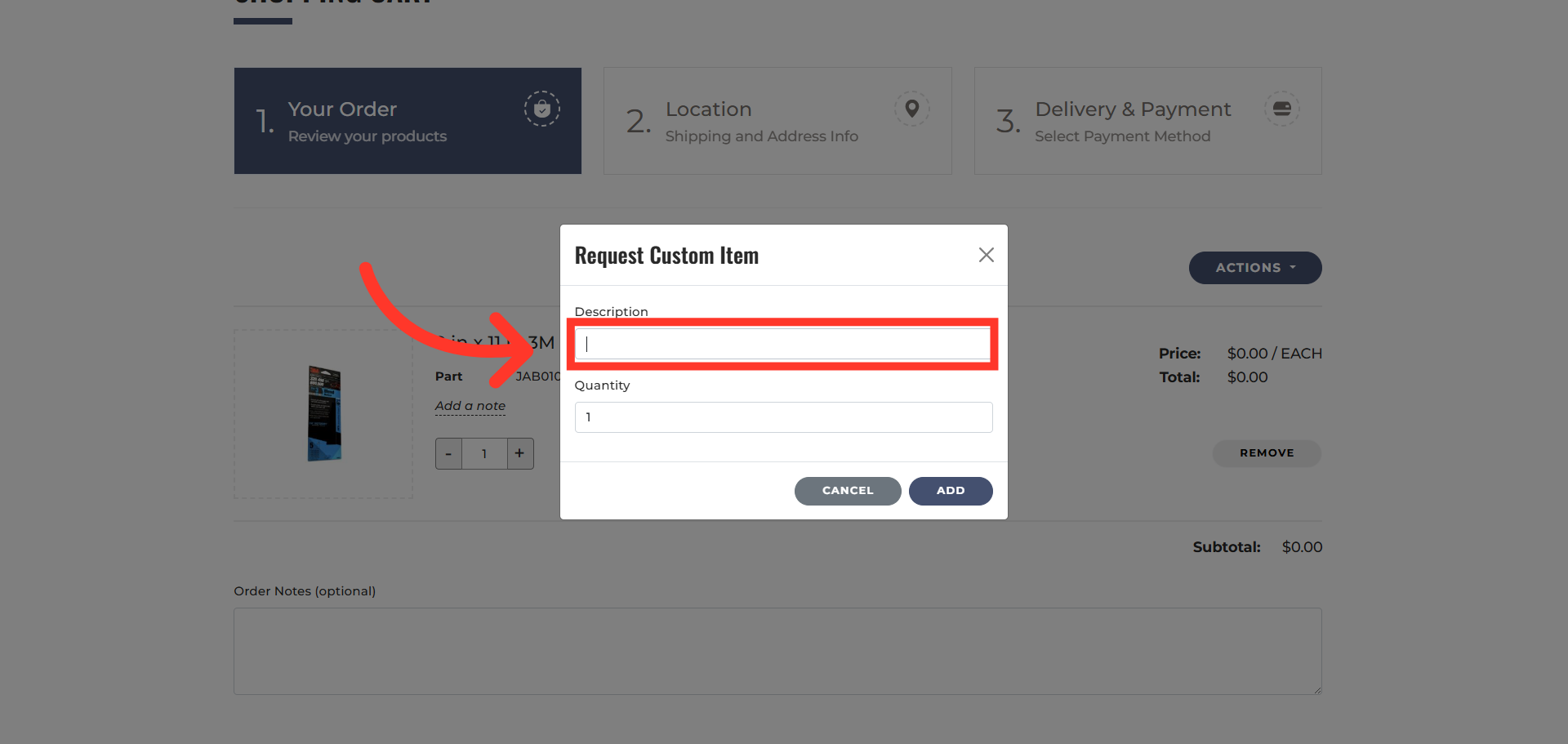
Add a description
A "Request Custom Item" box appears. In the "Description" field, type in a description of the item you would like to purchase. In this example we will type "Orange Paint".
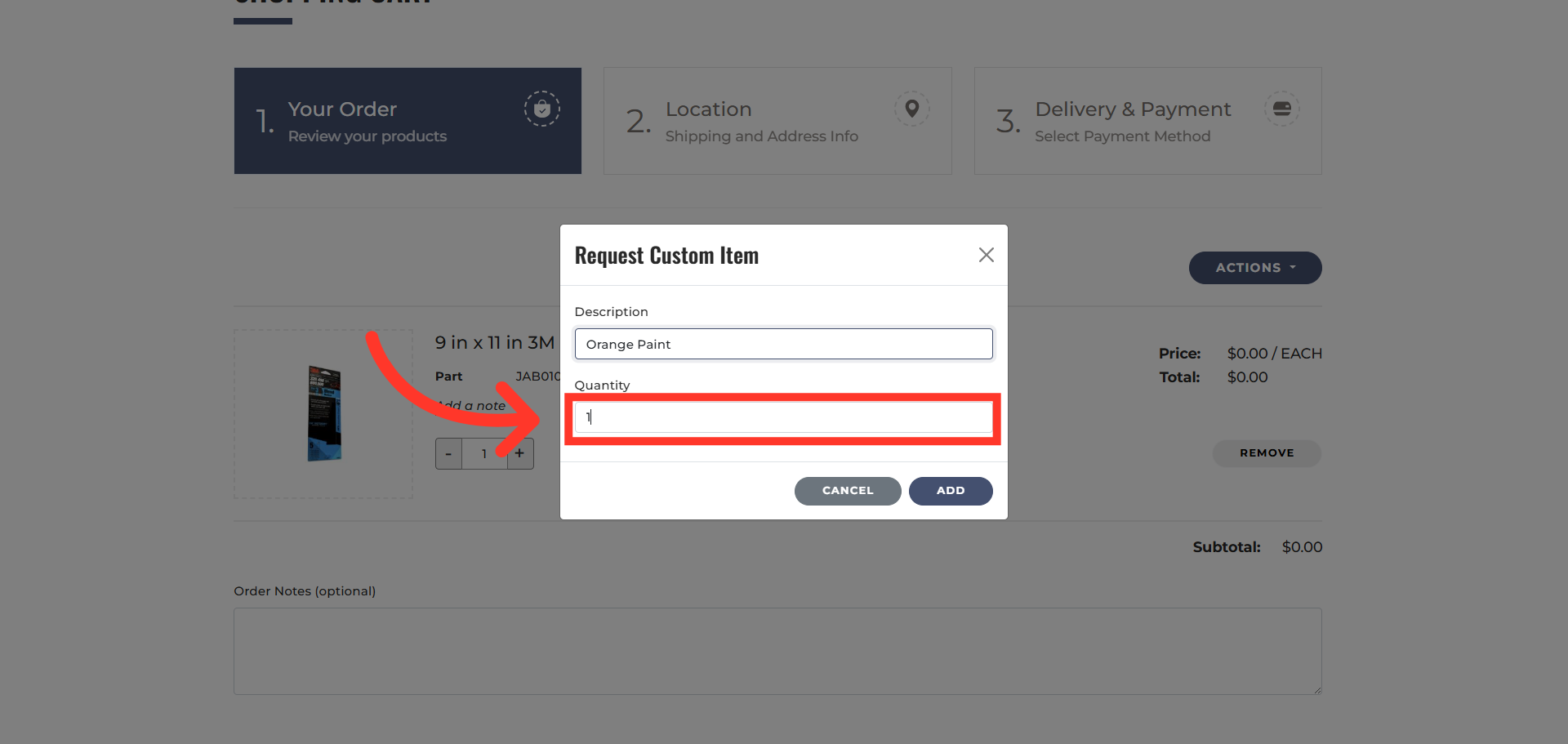
Enter Quantity
Next, enter the quantity you would like to order. In this example, we would like to order "2".
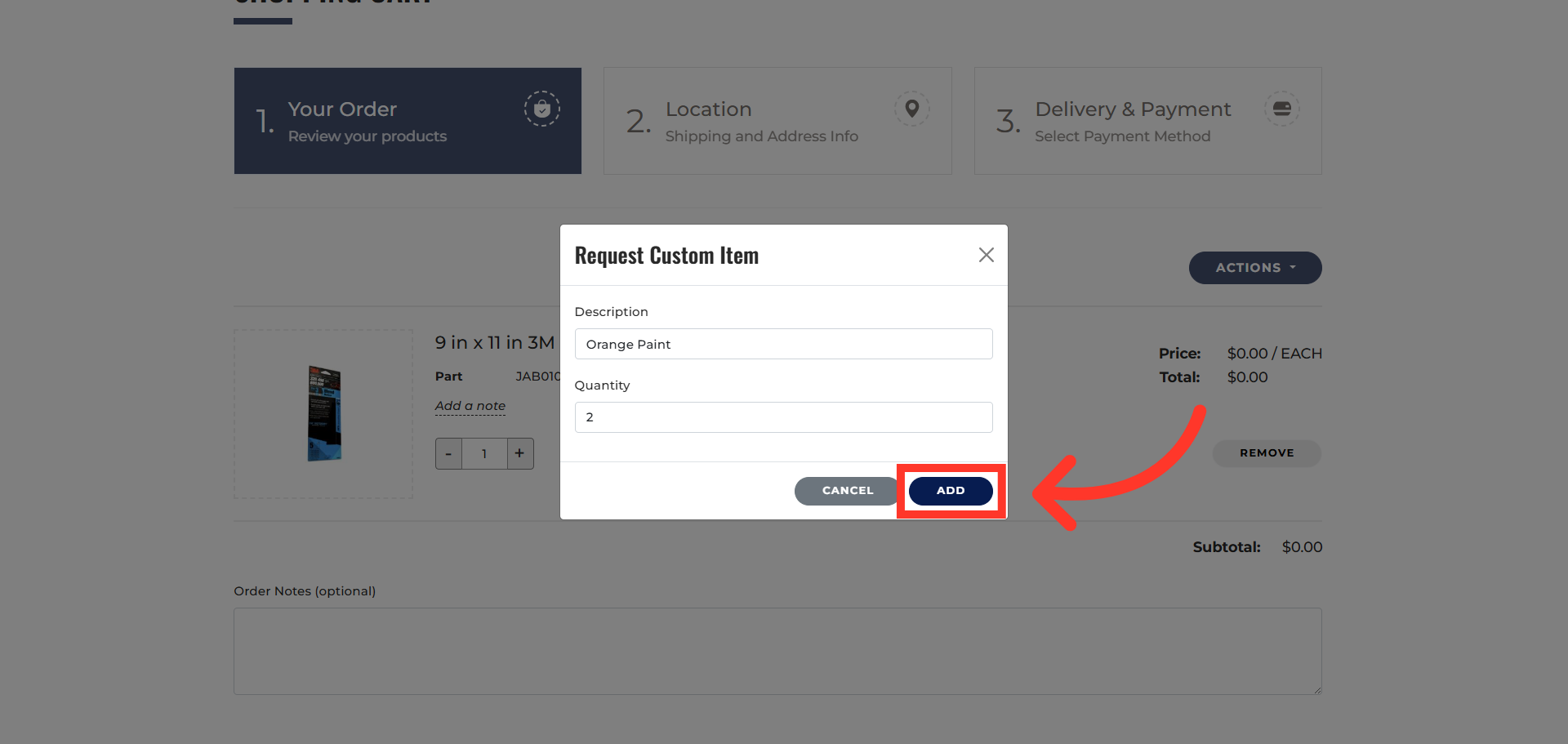
Click "ADD"
Then, click the "ADD" button to include the custom item in your cart and proceed with the order.
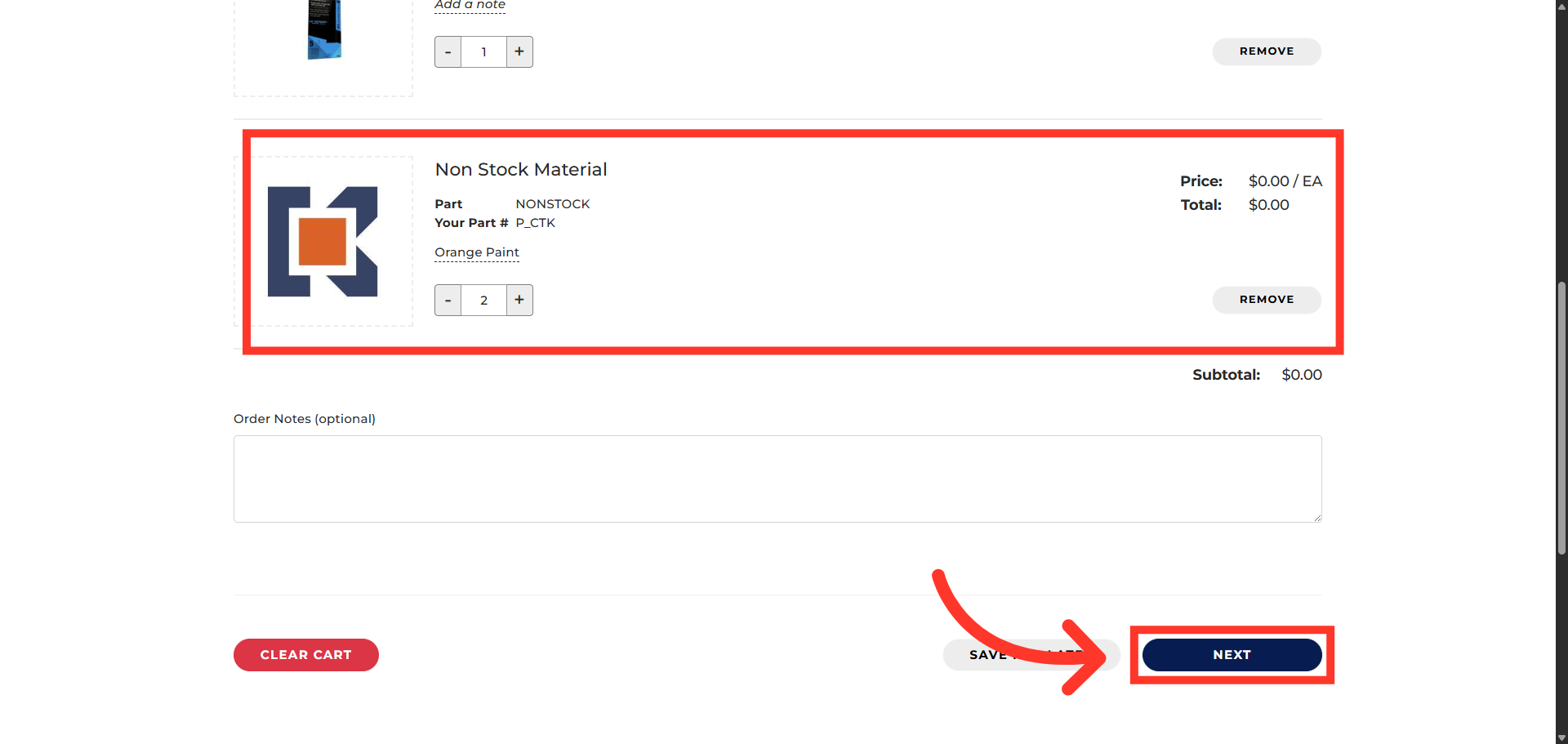
Click "NEXT"
You can see the custom item has been added to the cart, showing up as a "Non Stock Material" item, and it contains the description and quantity that was set. Click "NEXT" to continue with the checkout process.
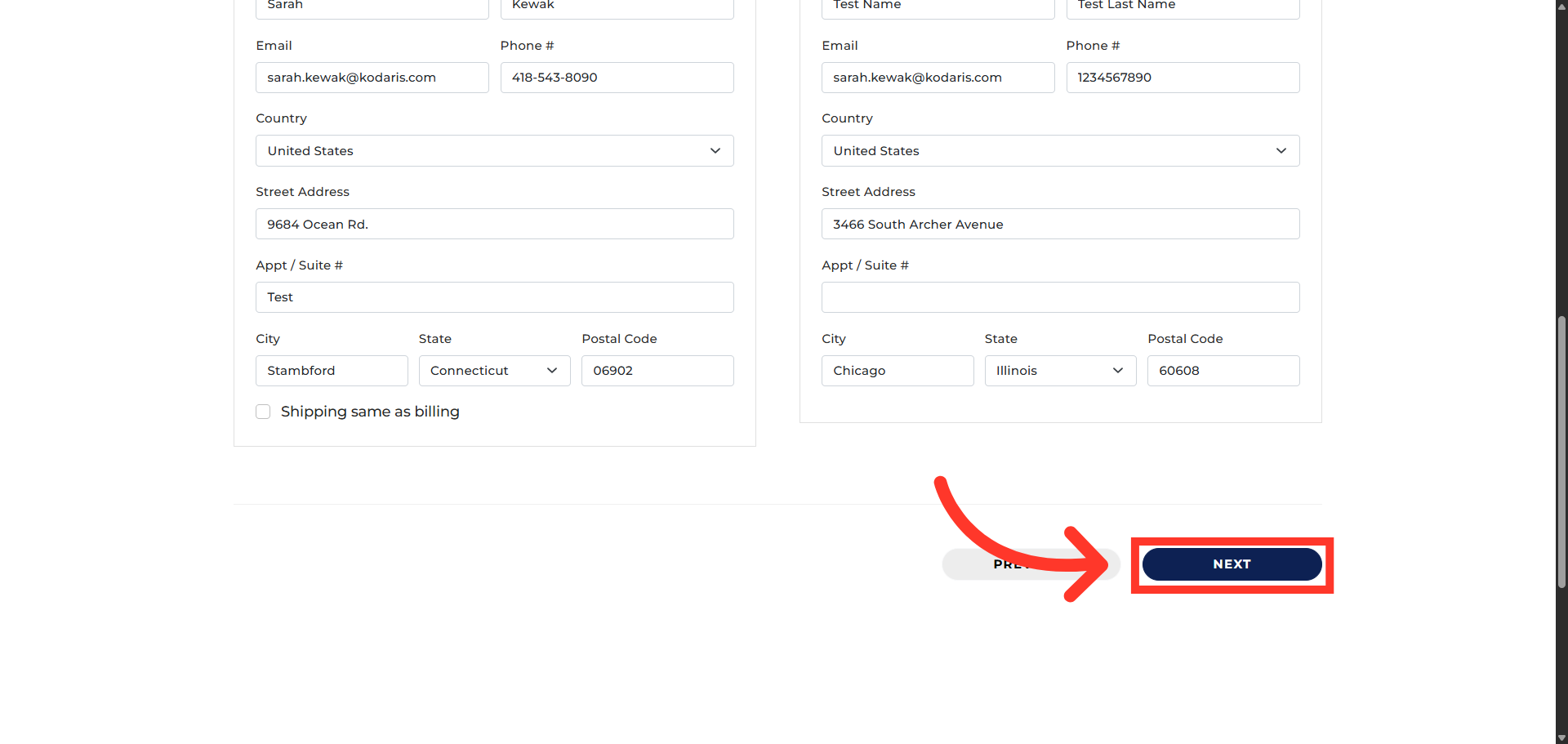
Verify Bill and Shipto information and click "NEXT"
Verify that the "Bill to" and "Ship To" information is correct, then click "NEXT" to proceed with the order.
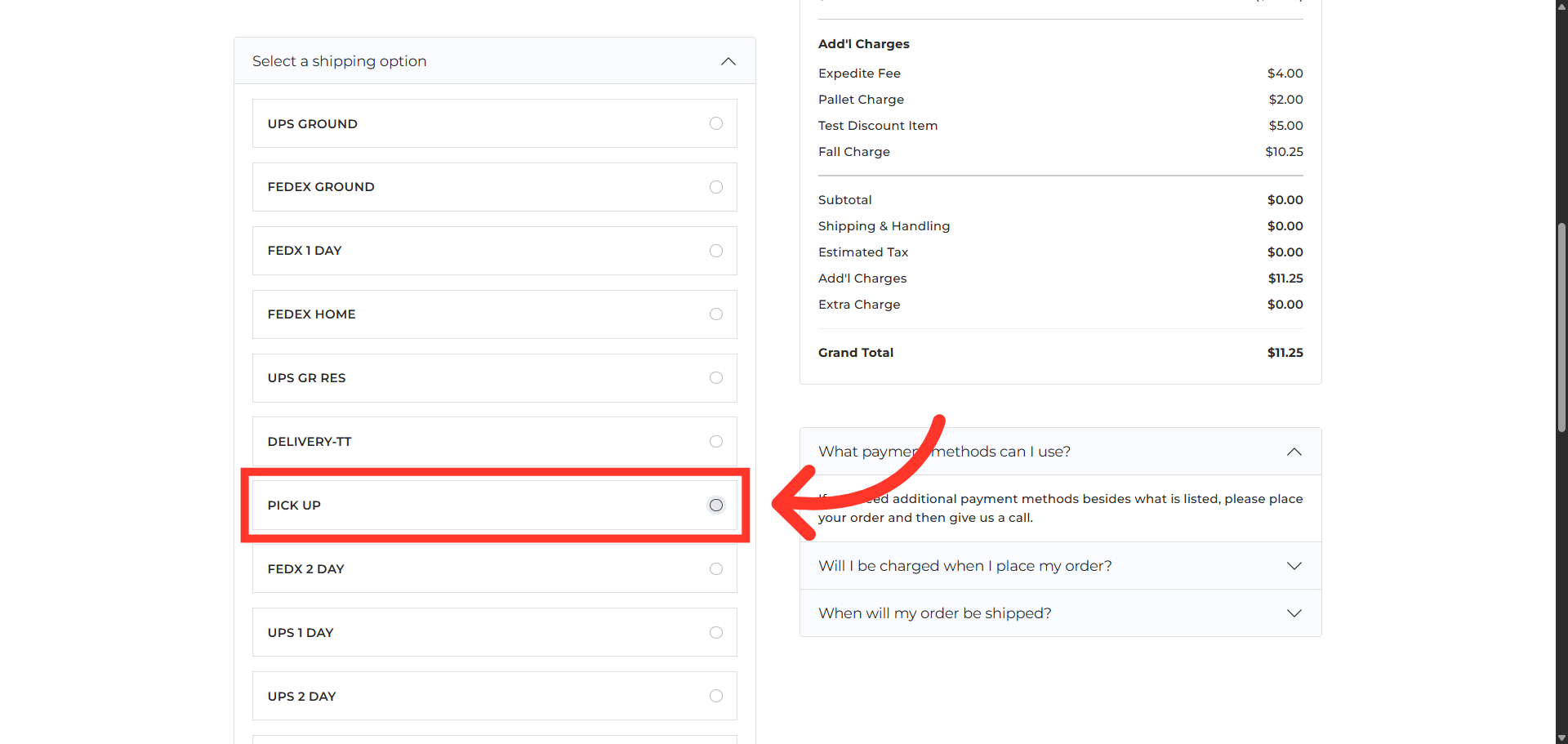
Select a shipping method
On the next screen, select the shipping method. For this example we will choose the "PICK UP" option.
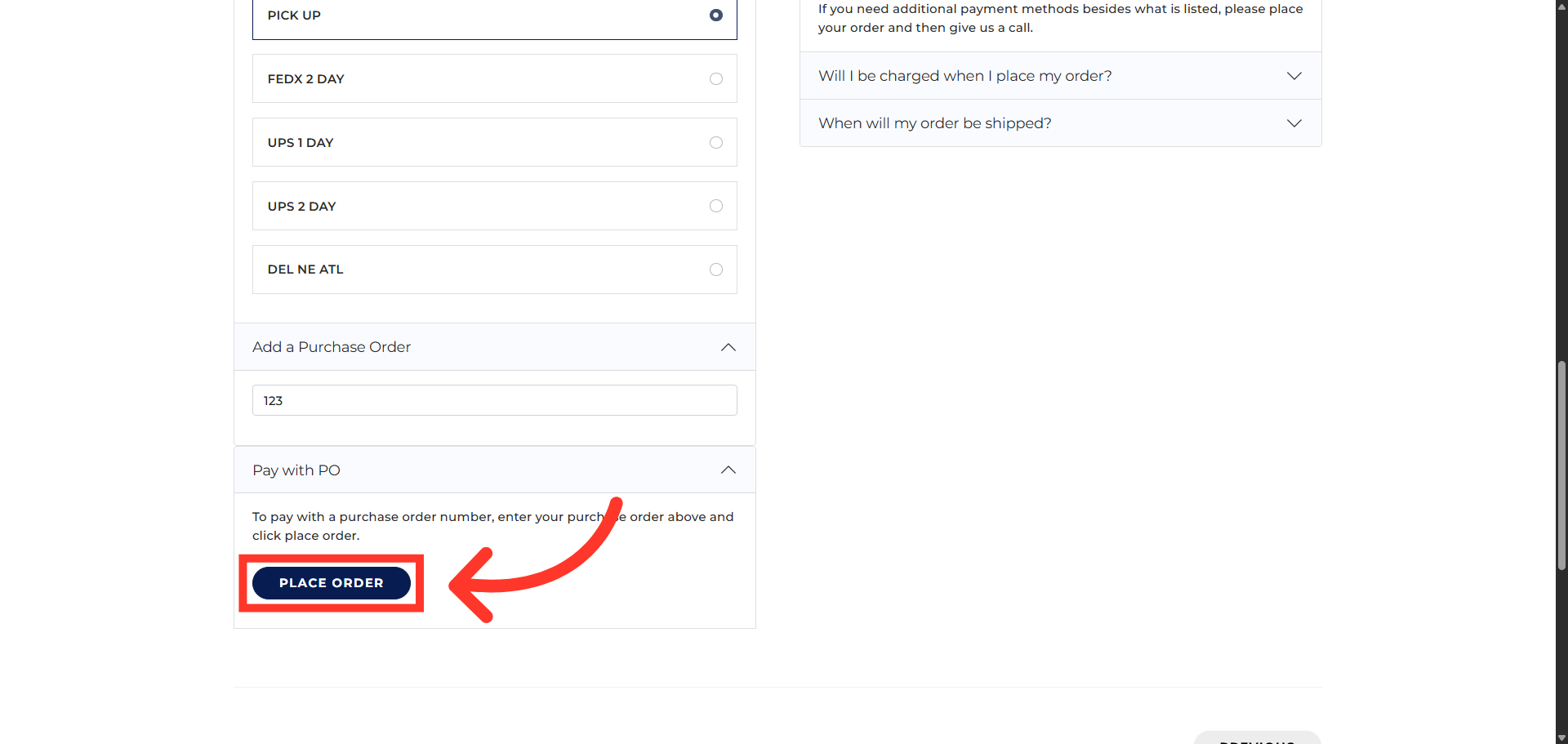
Click "Place Order"
Finally, click "Place Order". When the order is placed, it will be submitted with the "Nonstock" custom item, and usually a sales representative will contact the customer with more information about the custom item.