Commerce - Upload Products from a CSV, TSV, or Excel File
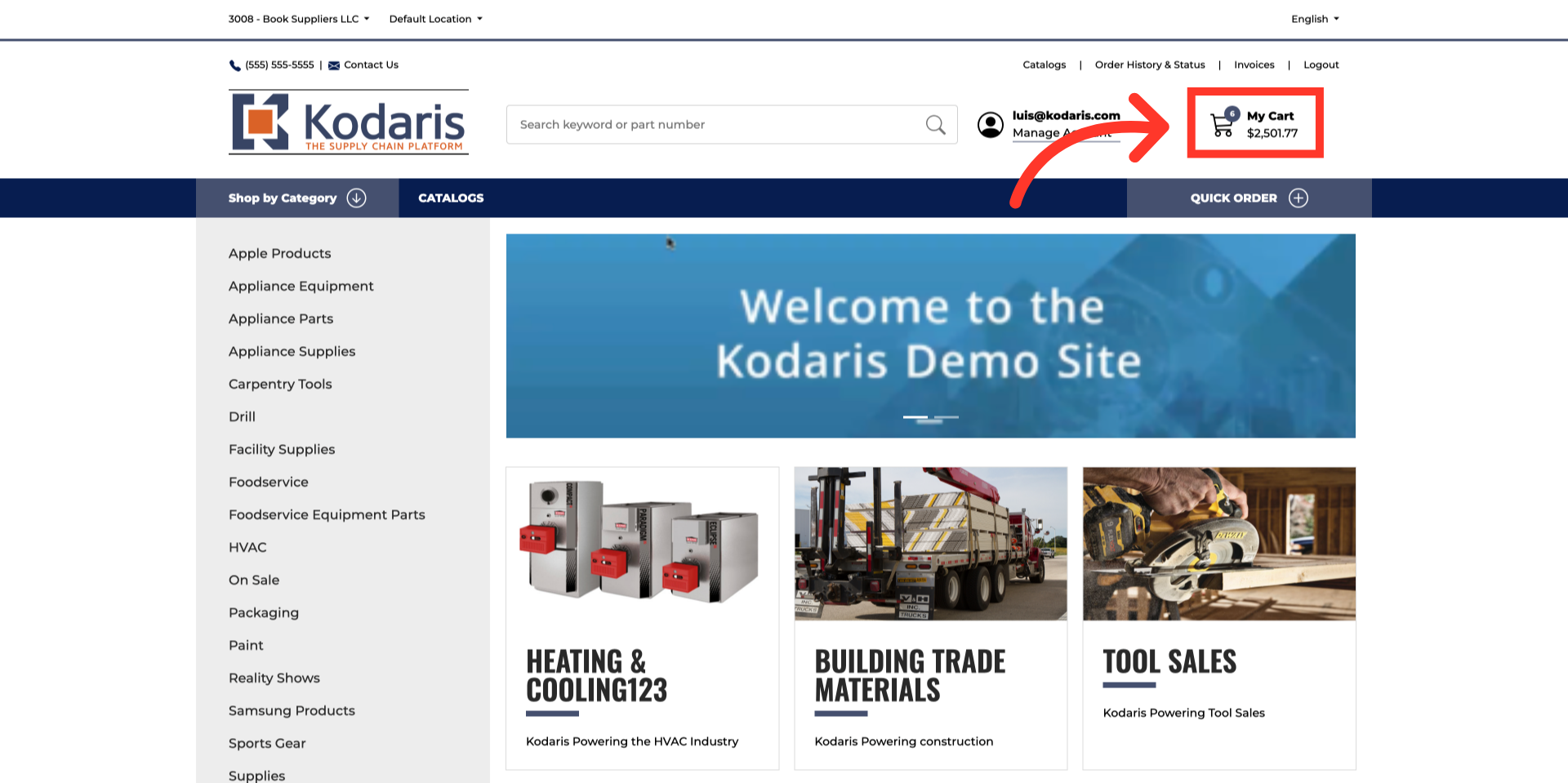
Click "My Cart"
The bulk product upload feature allows users to quickly add multiple products to their shopping cart by importing data from spreadsheet files. Instead of manually searching for and adding products one by one, users can prepare a structured file containing product codes and quantities, then upload it directly to populate their cart efficiently. Log in to the commerce site and click "My Cart".
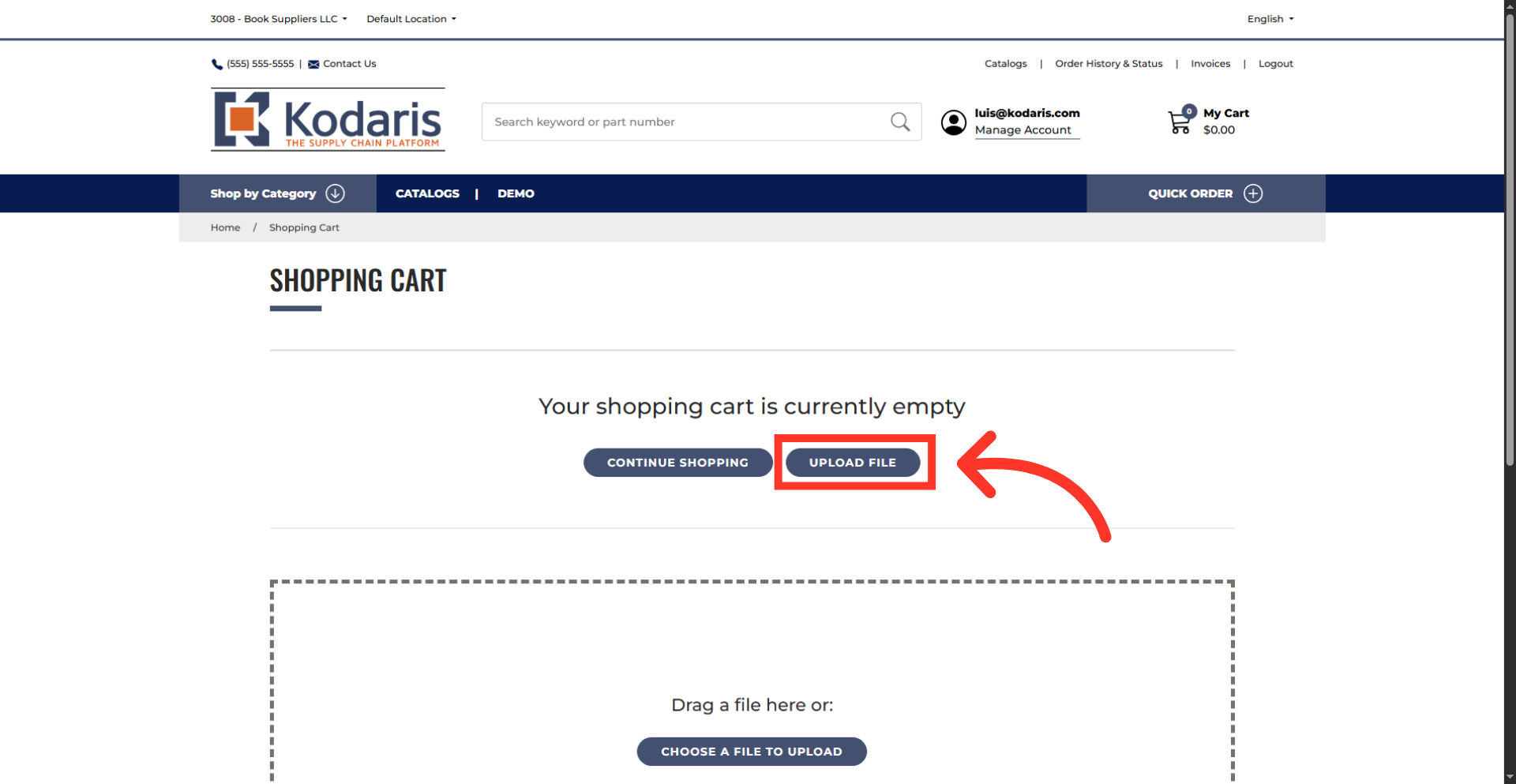
Click "Upload file" button
The "Upload file" and "Choose a File to Upload" buttons appear when the cart is empty. Both options can be used for product uploads from CSV, TSV, or Excel files. Click "Upload file" button.
Click the "File type" dropdown
Click on the "File type" dropdown.
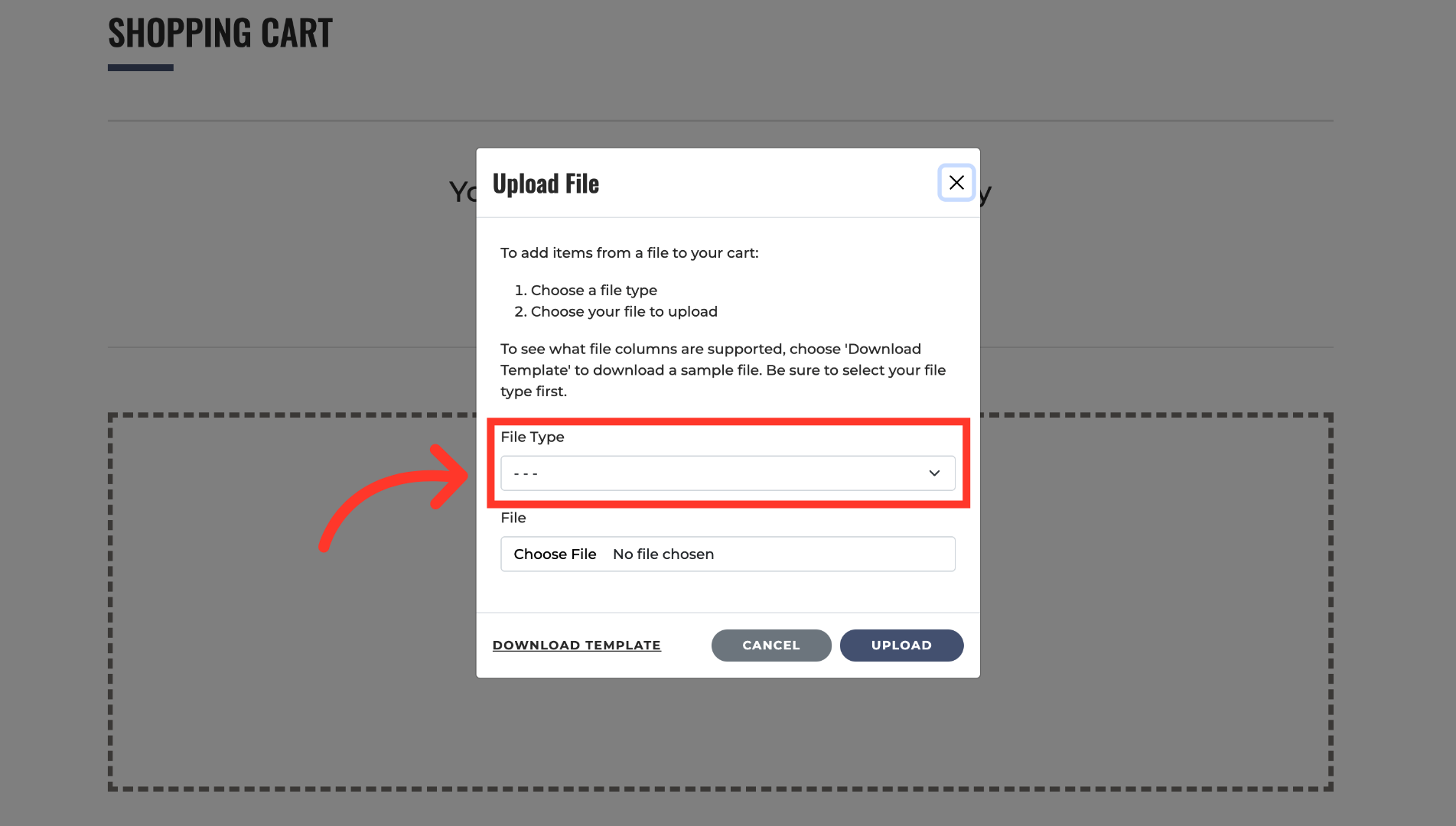
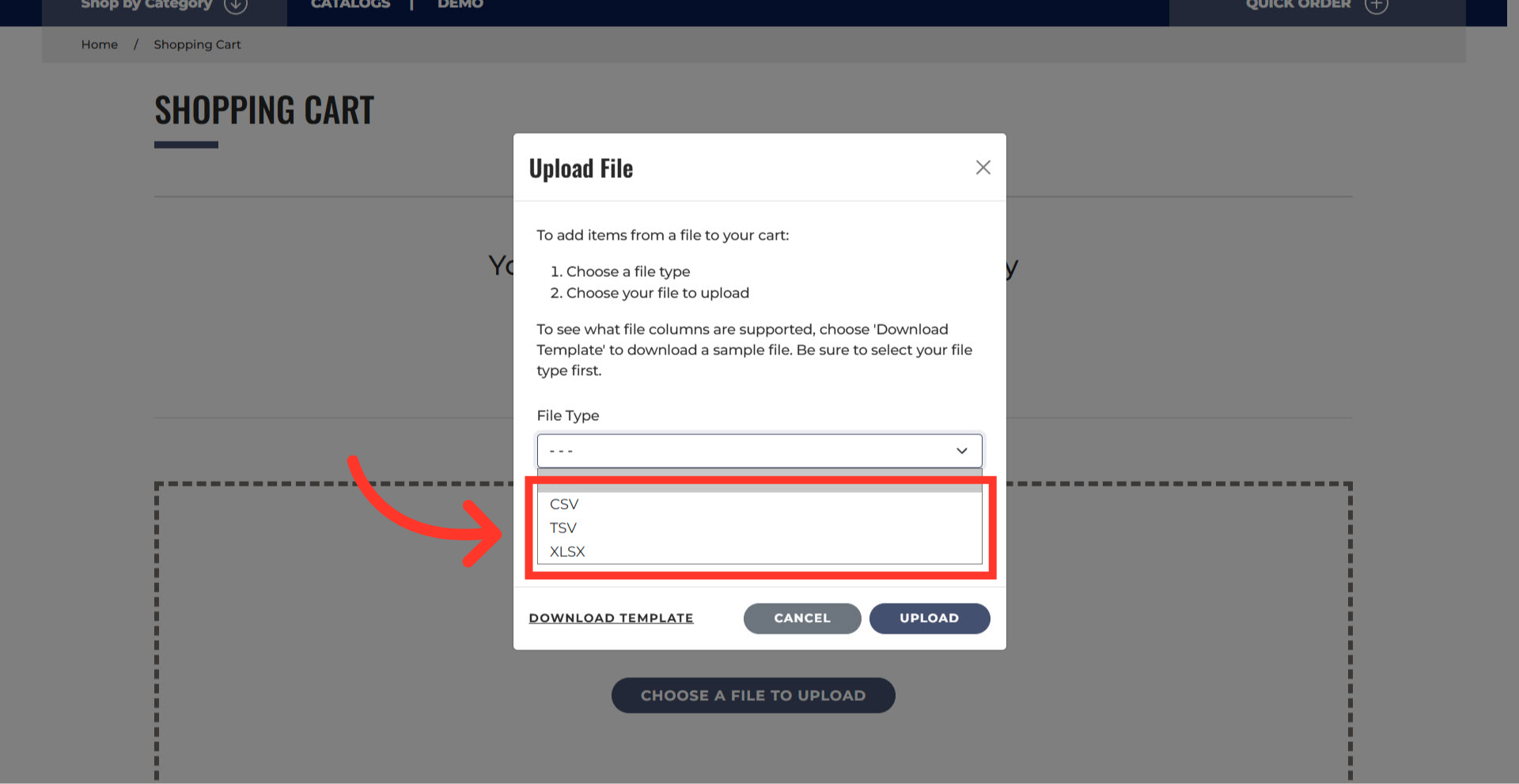
Select a file type
Select a file type. The available formats for import are CSV, TSV, or Excel.
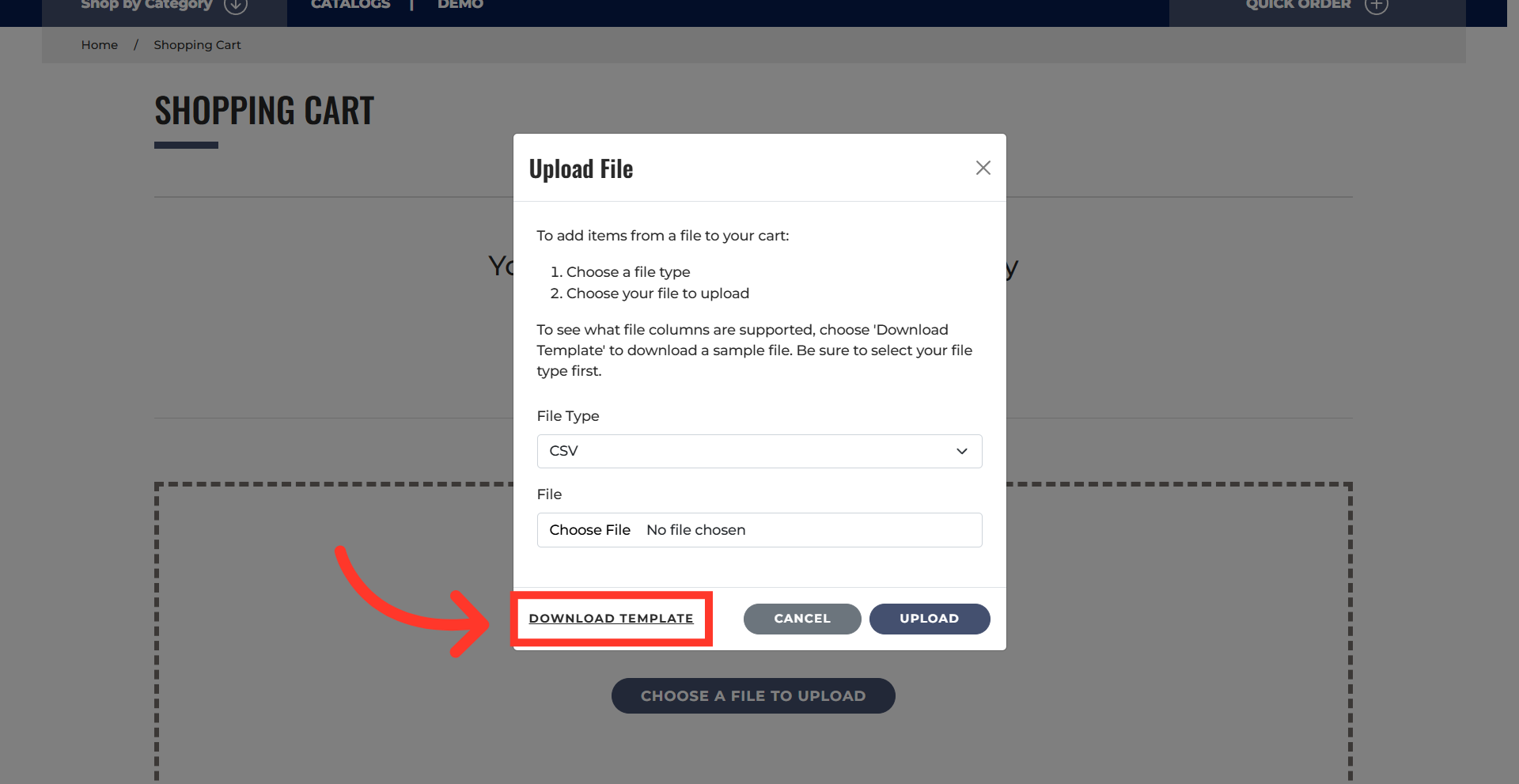
Click "Download Template" Button
Click the "Download Template" button. Use the provided template to ensure proper formatting.
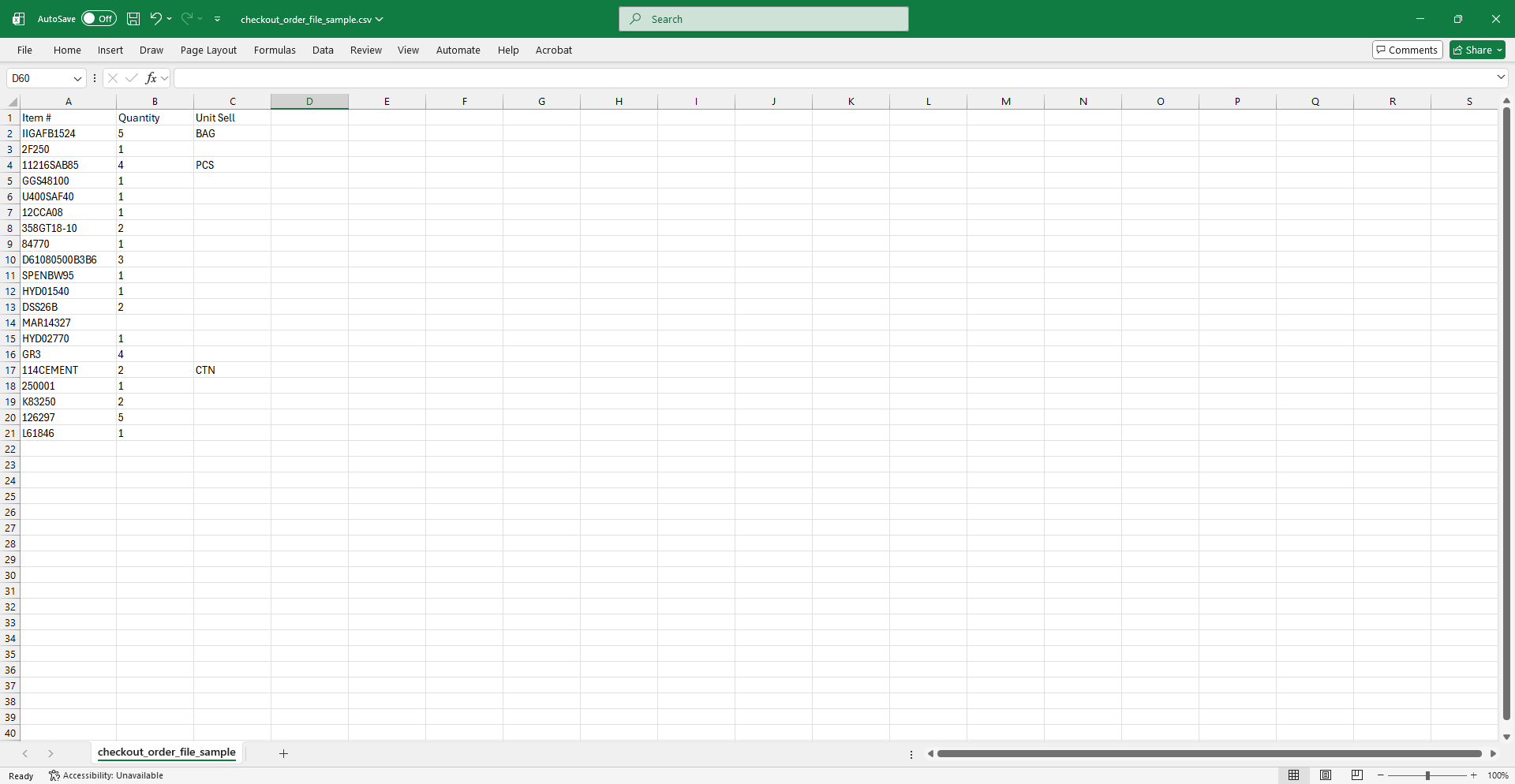
Example spreadsheet
The template contains the necessary header rows for the import. All file types require the same data. Enter the product codes, quantities, and units that you would like to upload.
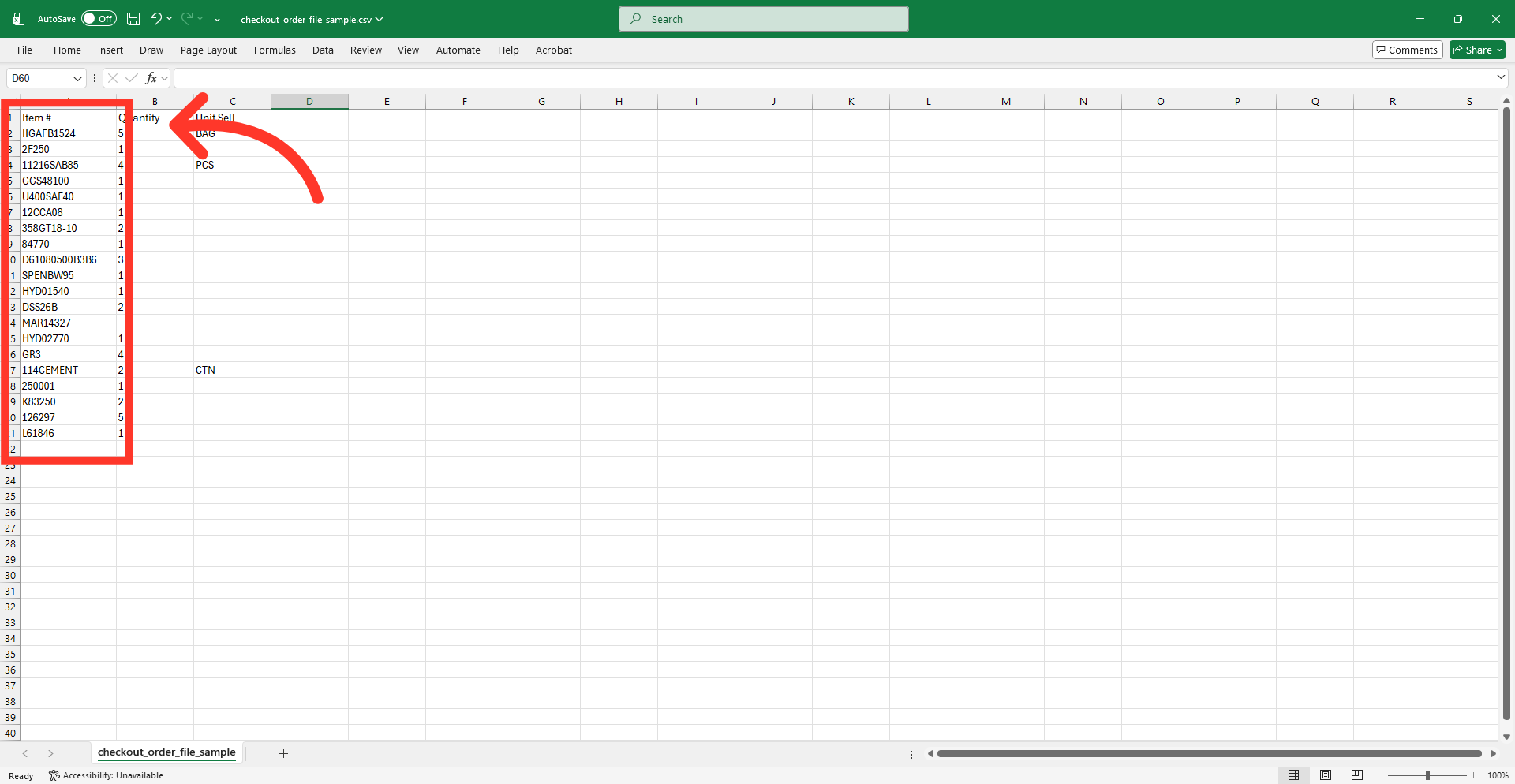
"Items #" = Product Code
The "Items #" column should contain the product codes.
"Quantity" = Item Quantity
The "Quantity" column contains the item quantity. This is a numerical value
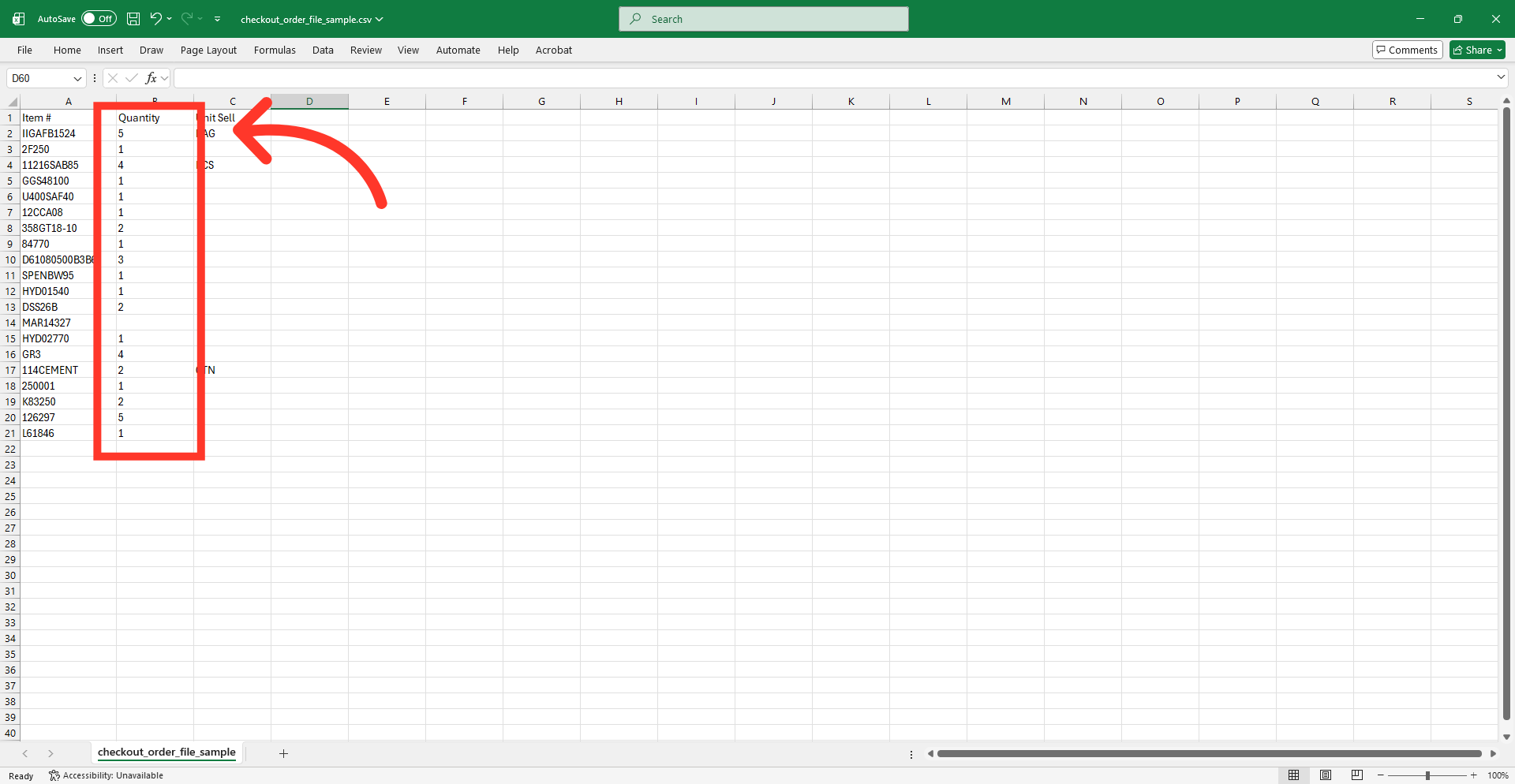
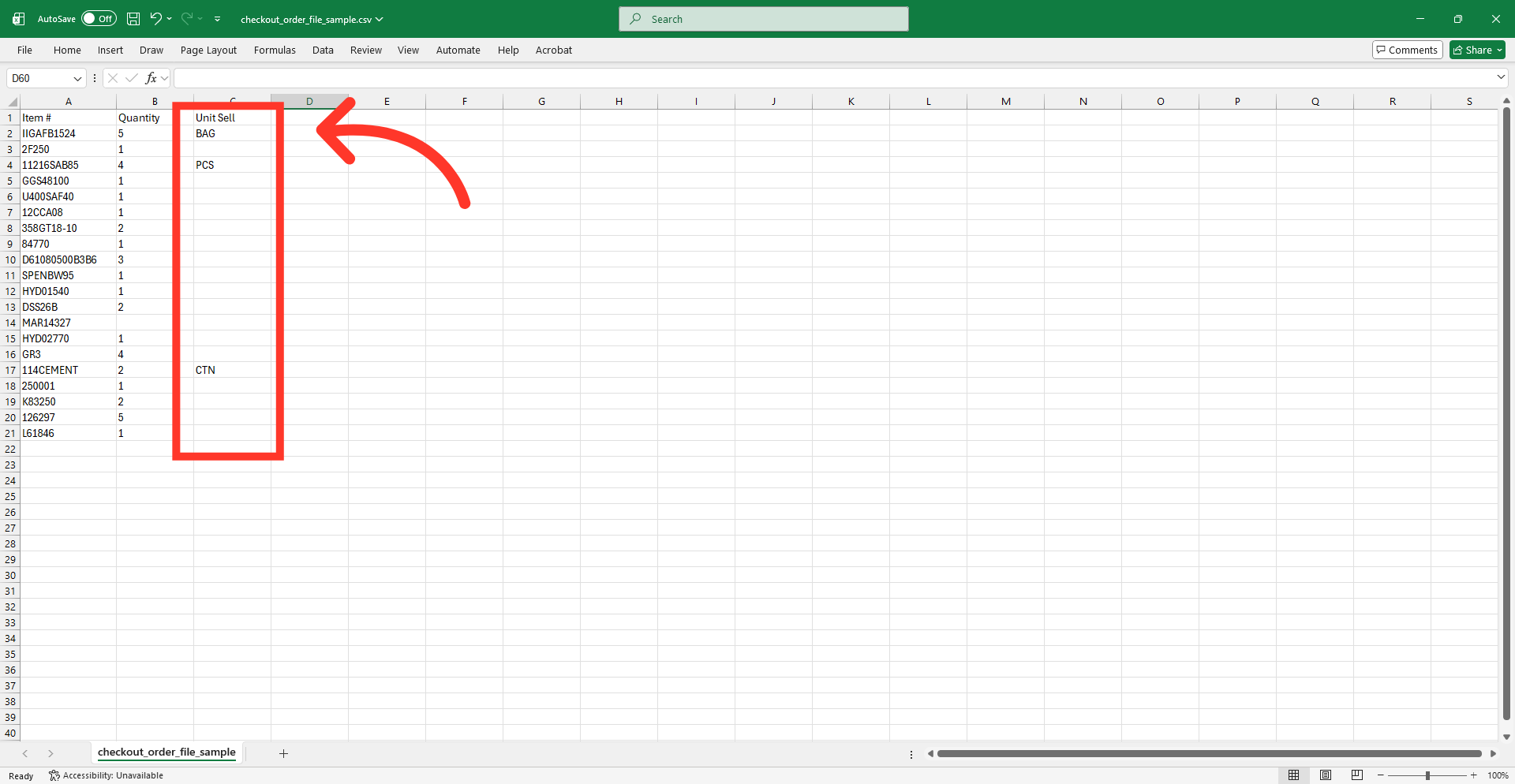
"Unit Sell" = Product Unit
The "Unit Sell" column contains the product unit you are ordering.
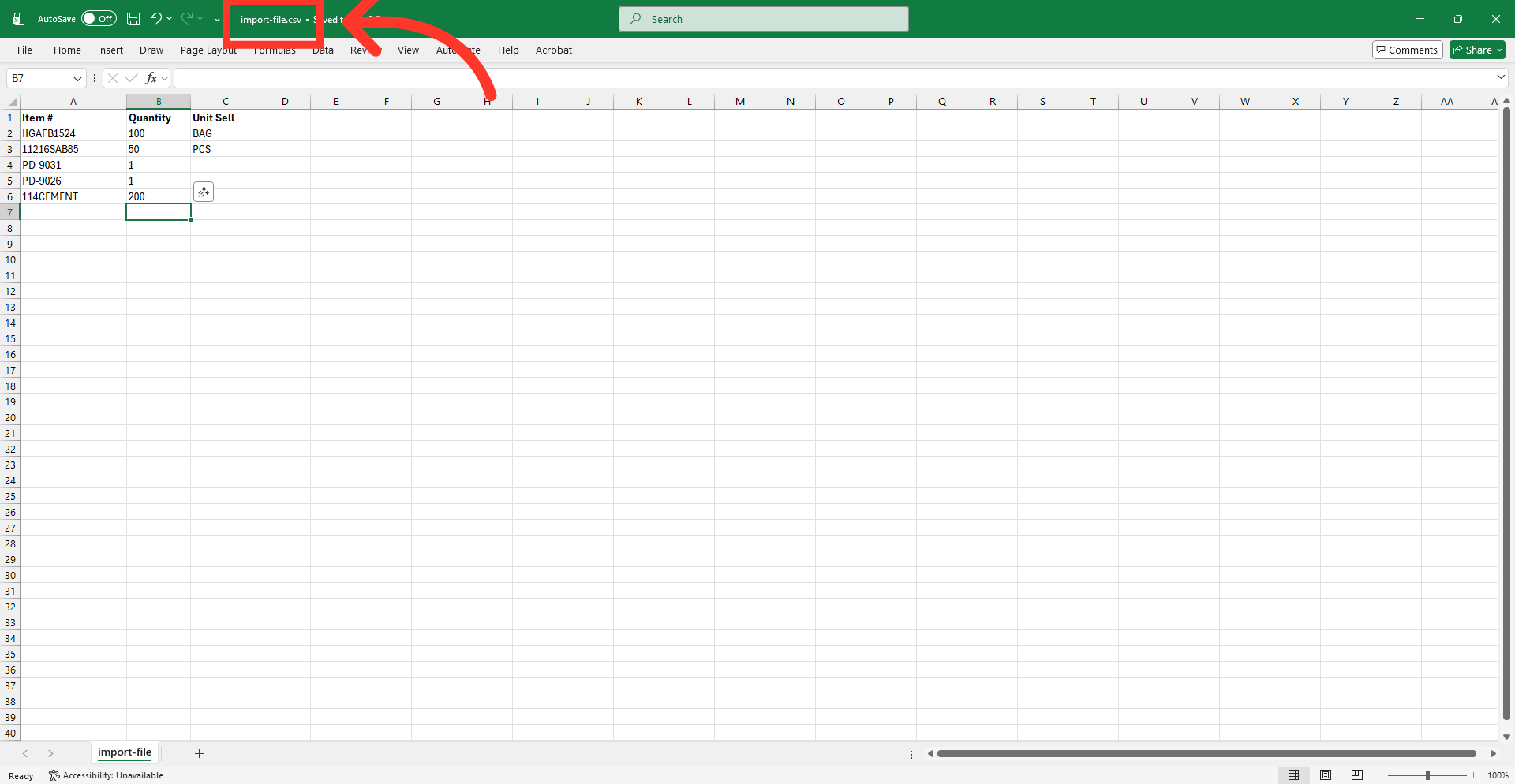
Save your file for import
Save the file for import after you have made updates. Ensure the file contains only the data you would like to add.
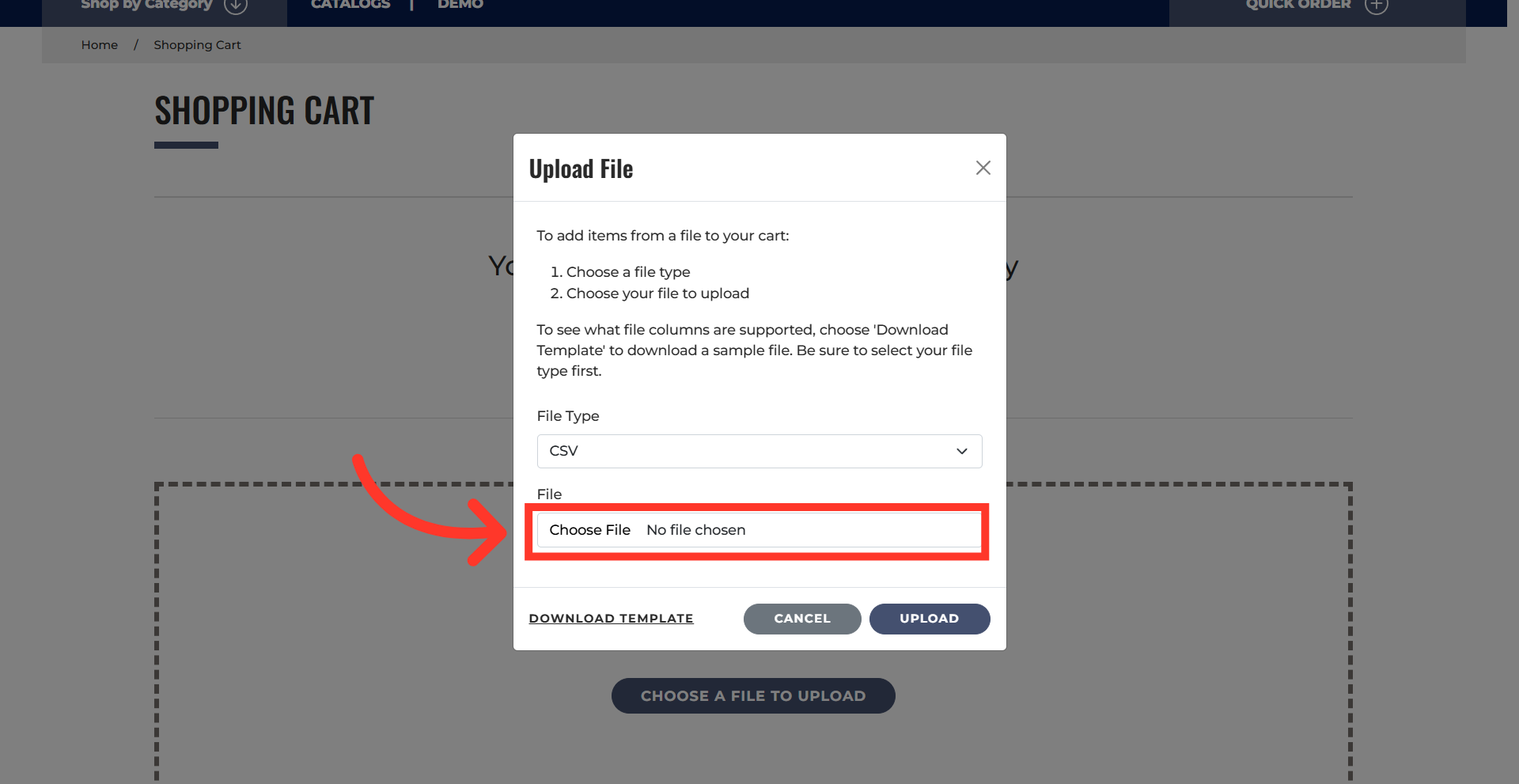
Click "Choose file"
Go back to the "Upload" File dialog box and click "Choose file" to upload your saved file.
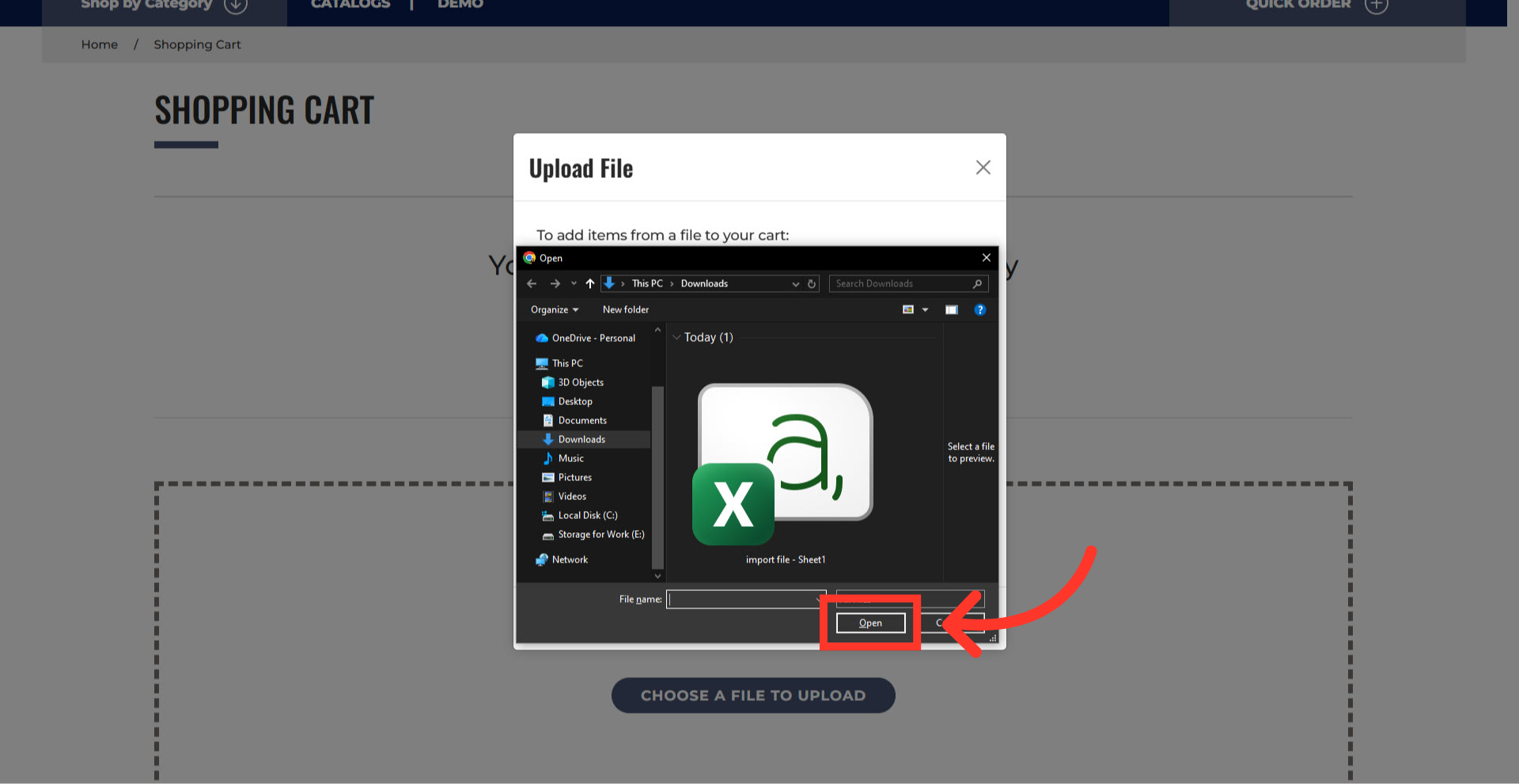
Select the file and click "Open"
Select the file to upload and click "Open".
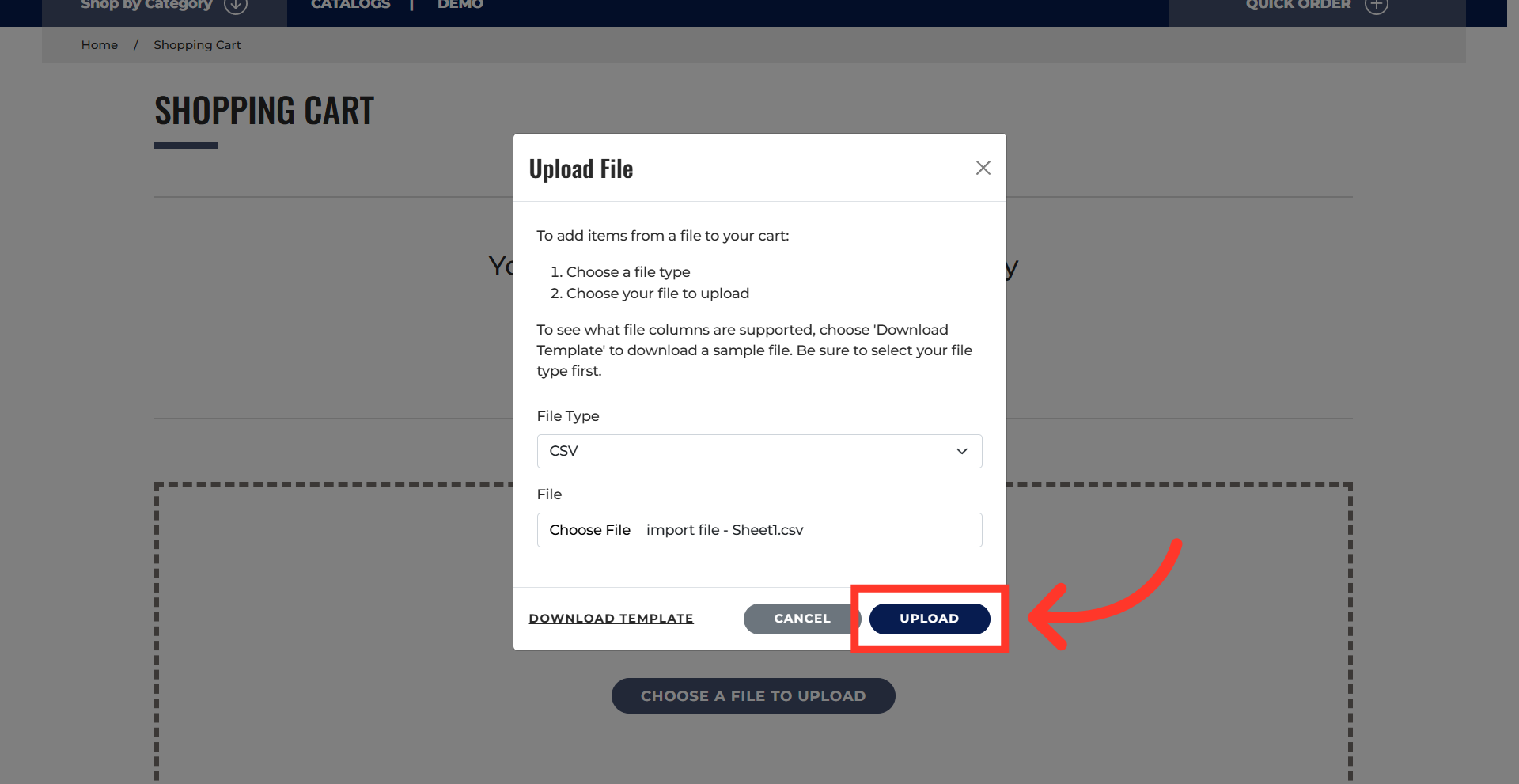
Click "Upload" button
Then, click the "Upload" button. The system will validate your file format before processing. Any issues with product codes or formatting will be reported during upload.
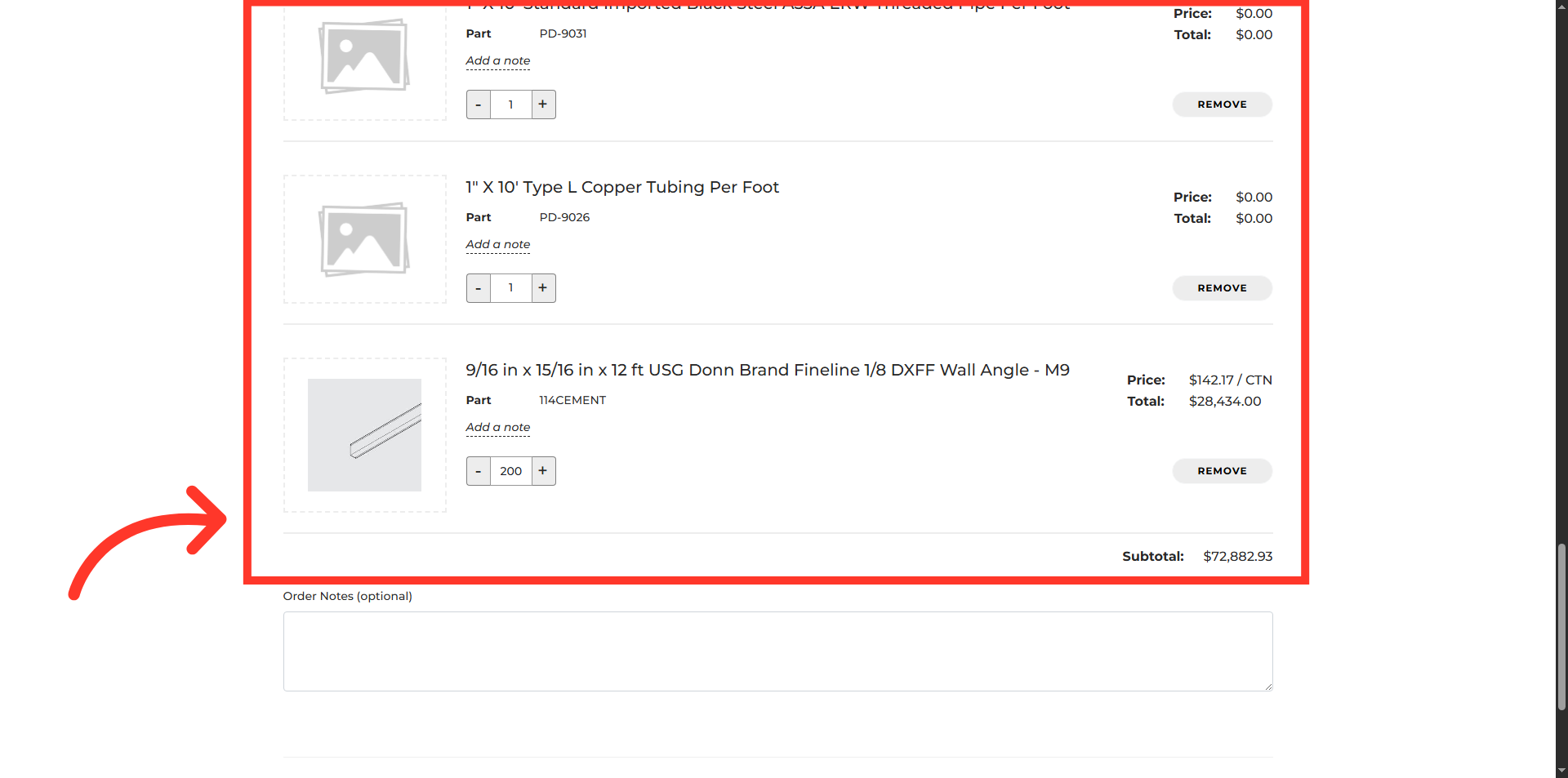
Verify the import results
Review the shopping cart to verify the accuracy of all products and quantities.
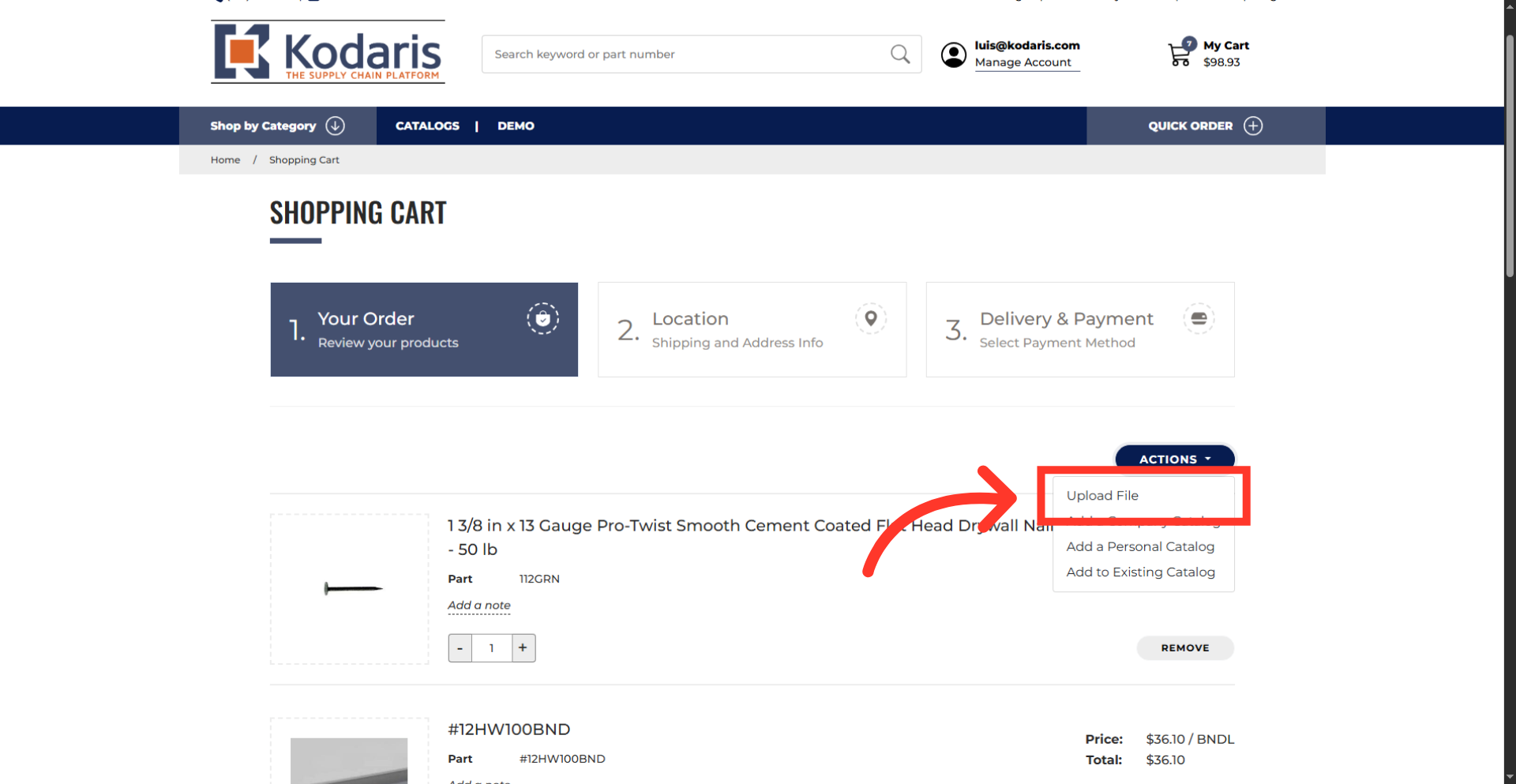
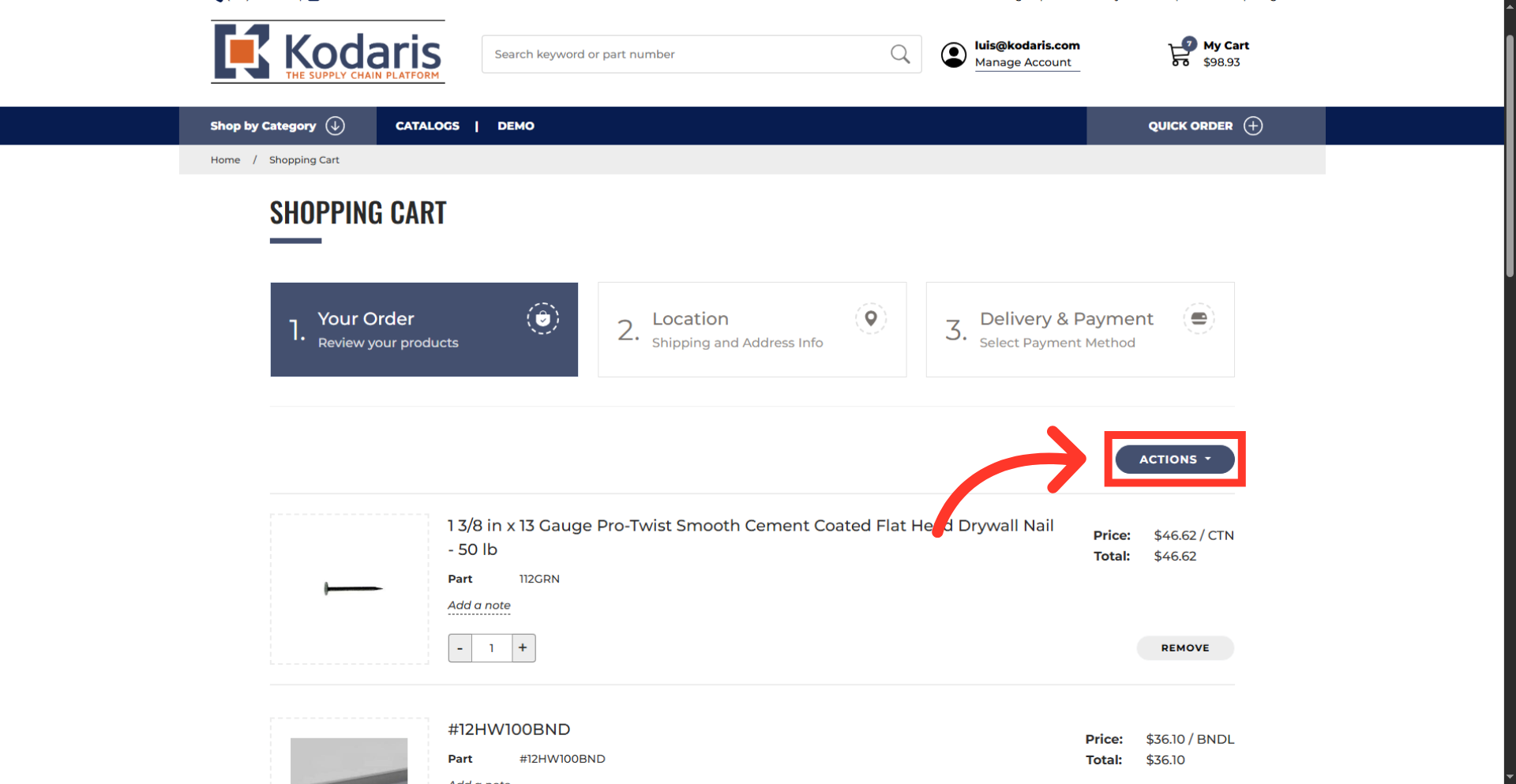
Click the "Actions" dropdown
You can perform multiple uploads to build your cart incrementally. When your cart is not empty, you can find the upload file option under the "Actions" dropdown.
Select "Upload File" option
Select "Upload file." The same upload window will appear. You can then select your next file to add products to your existing cart.