
Operations Marketing - Send an Email to a Subscription List
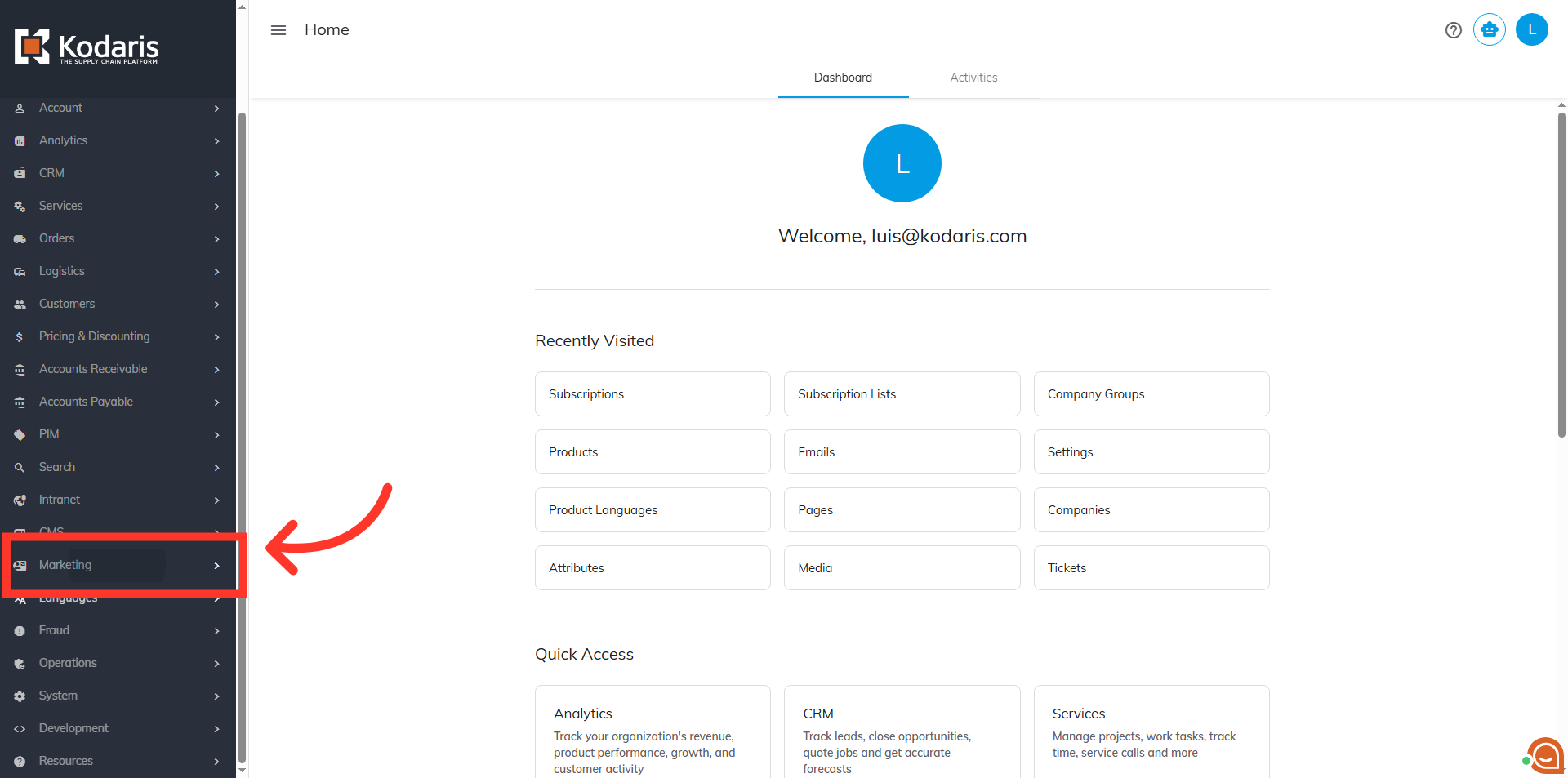
Navigate to "Marketing"
To send an email to a list of users, navigate to "Marketing" in the operations portal.
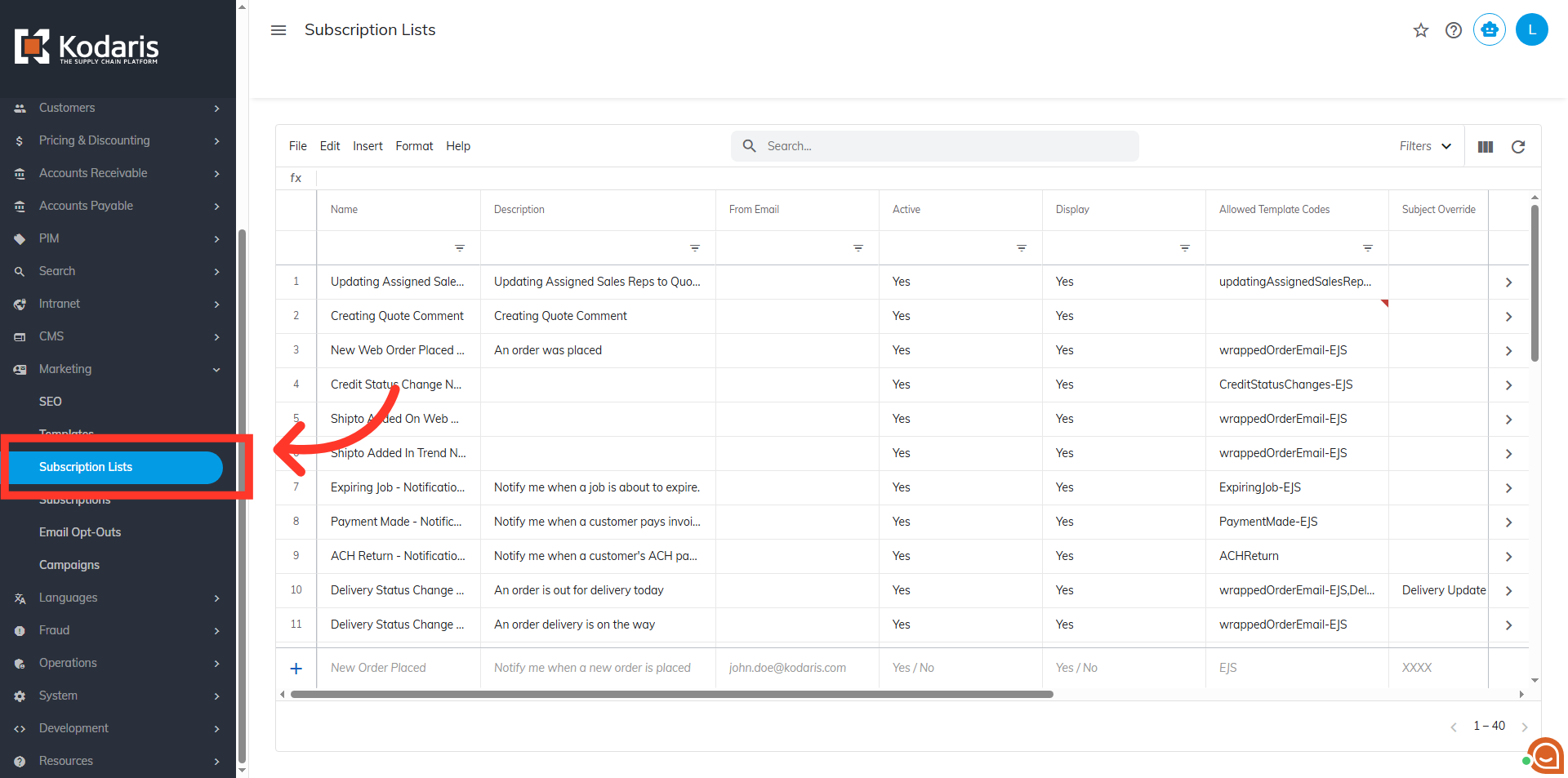
Click "Subscription Lists"
Then, click "Subscription Lists". In order to access "Subscription Lists" you will need to be set up either as an "administrator" or a "superuser", or have the appropriate roles: "subscriptionListView" and "subscriptionListEdit"
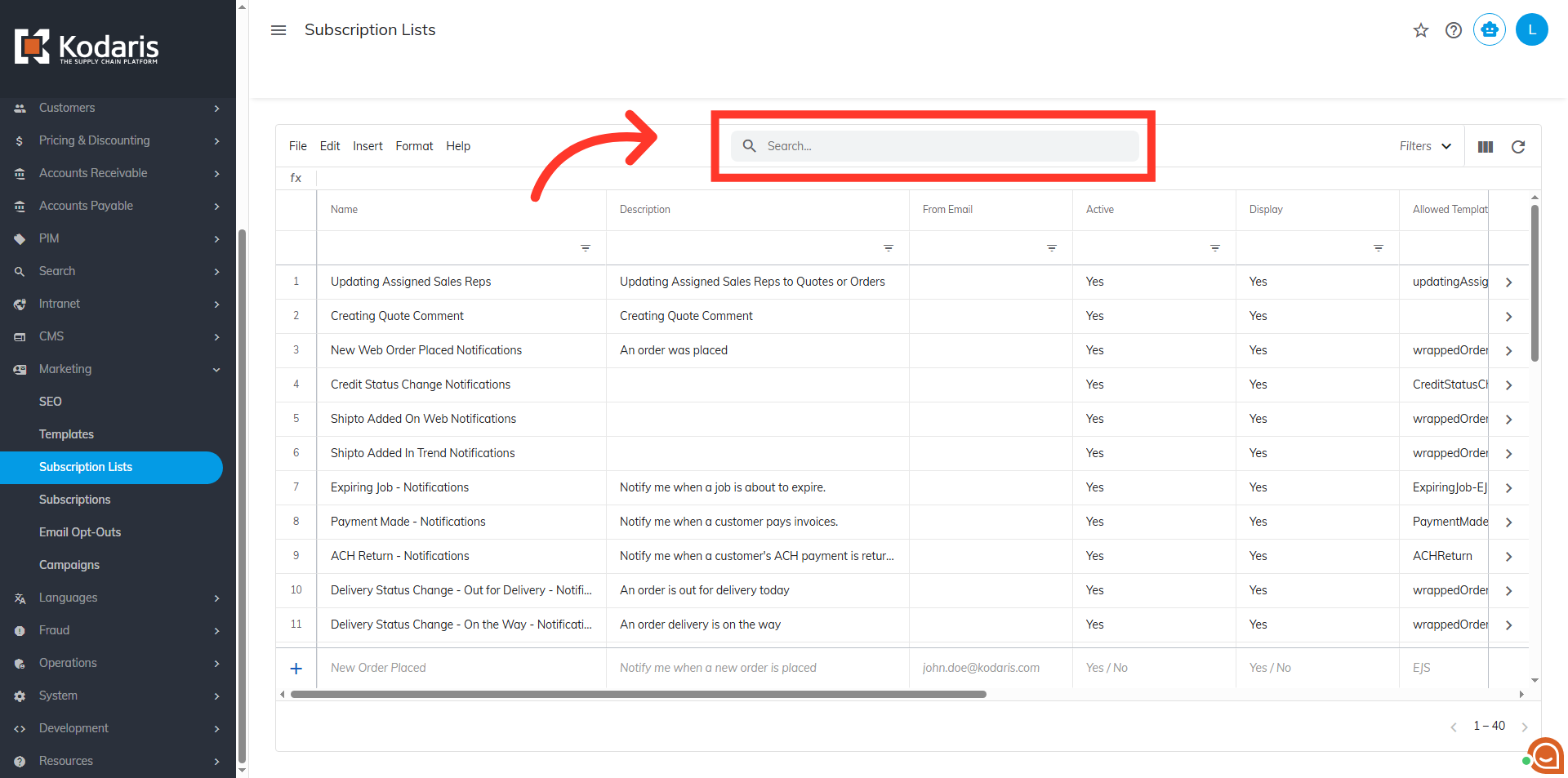
Search for the Subscription List
Scroll down the list or use the search bar to find a subscription list
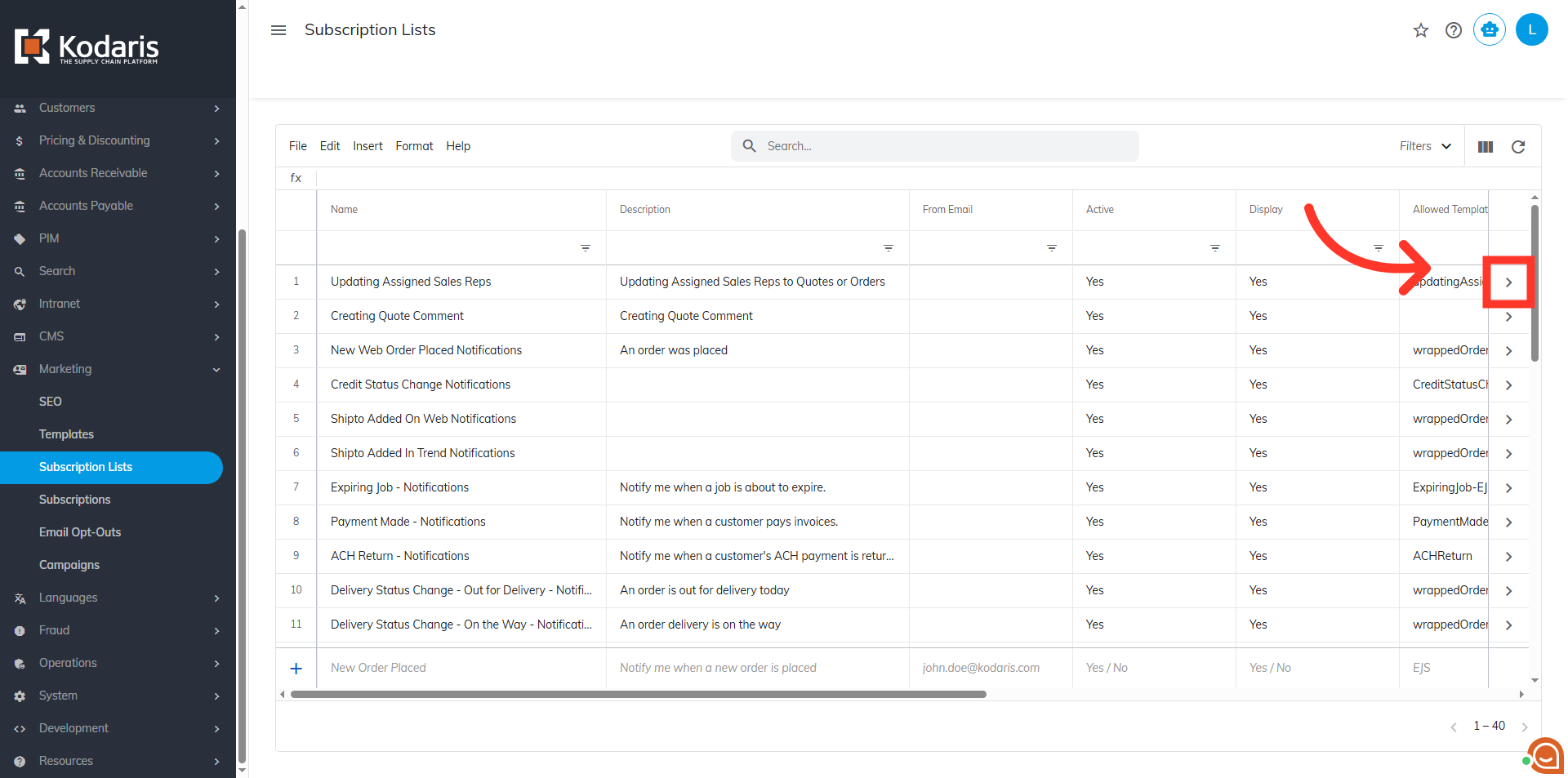
Click the more details icon
Once you find the subscription list, click the more details icon.
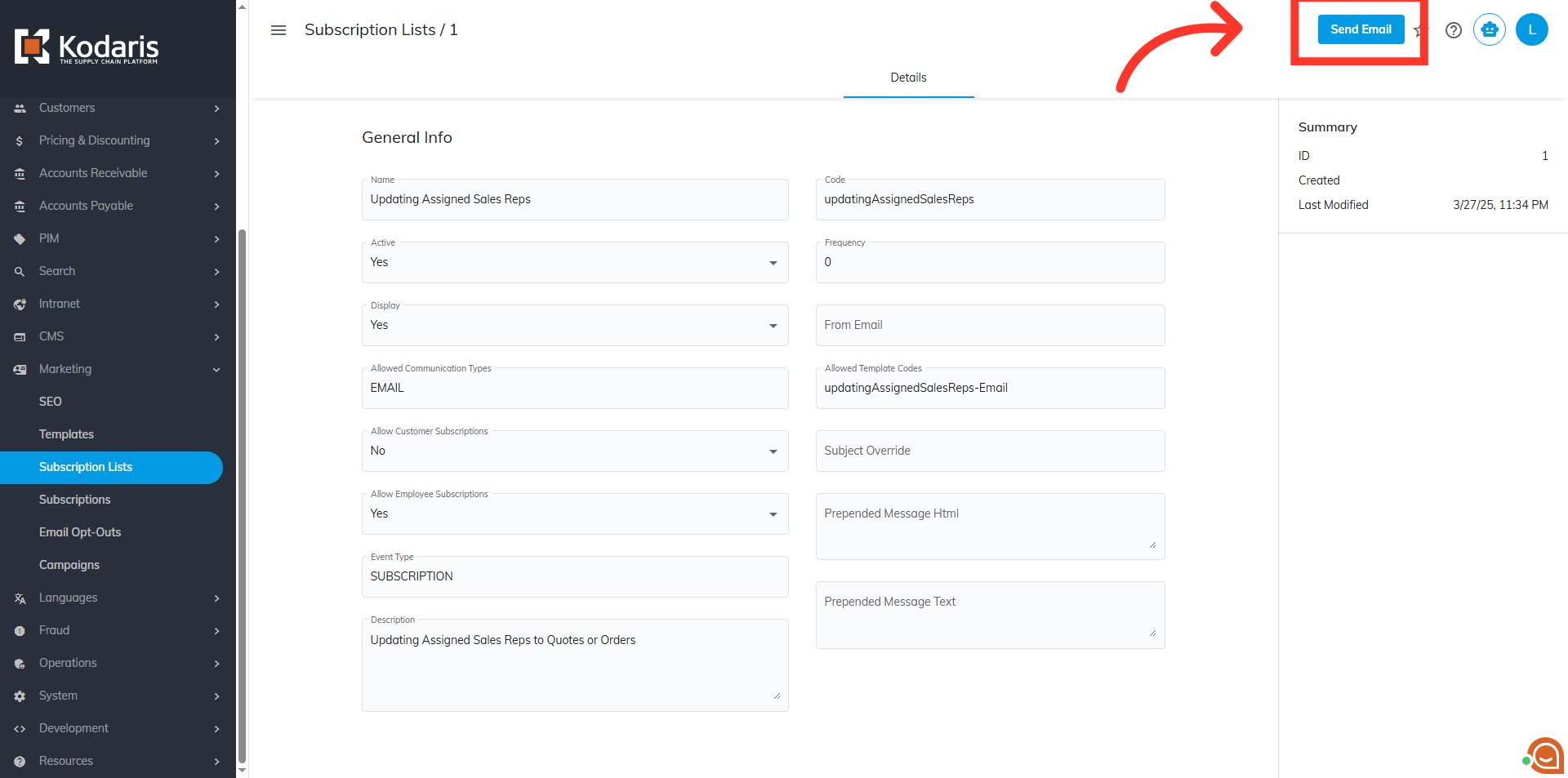
Click "Send Email" button
Next, send the email by clicking the "Send Email" button.
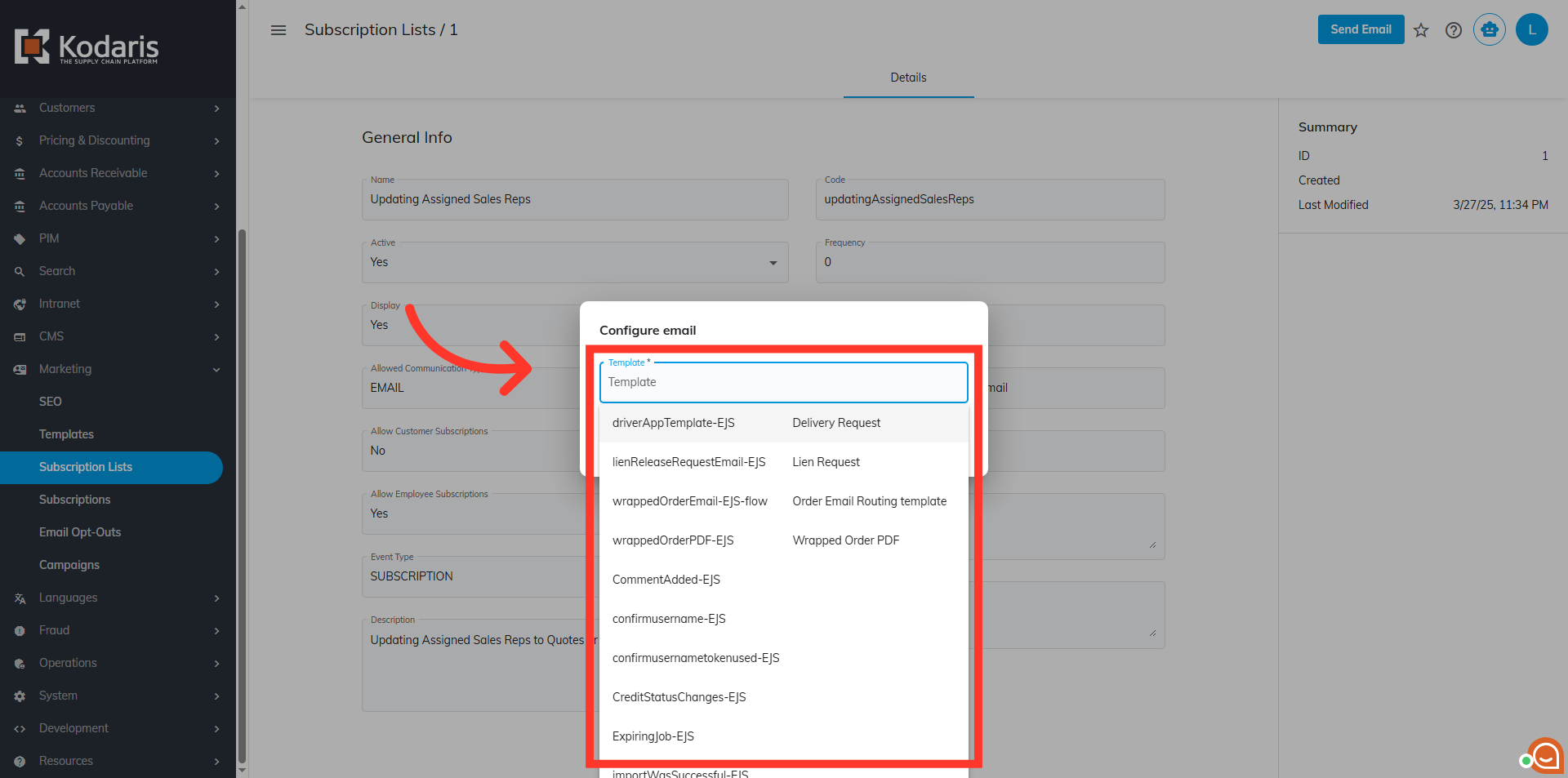
Search and select the Email Template
Find the email template that you would like to use.
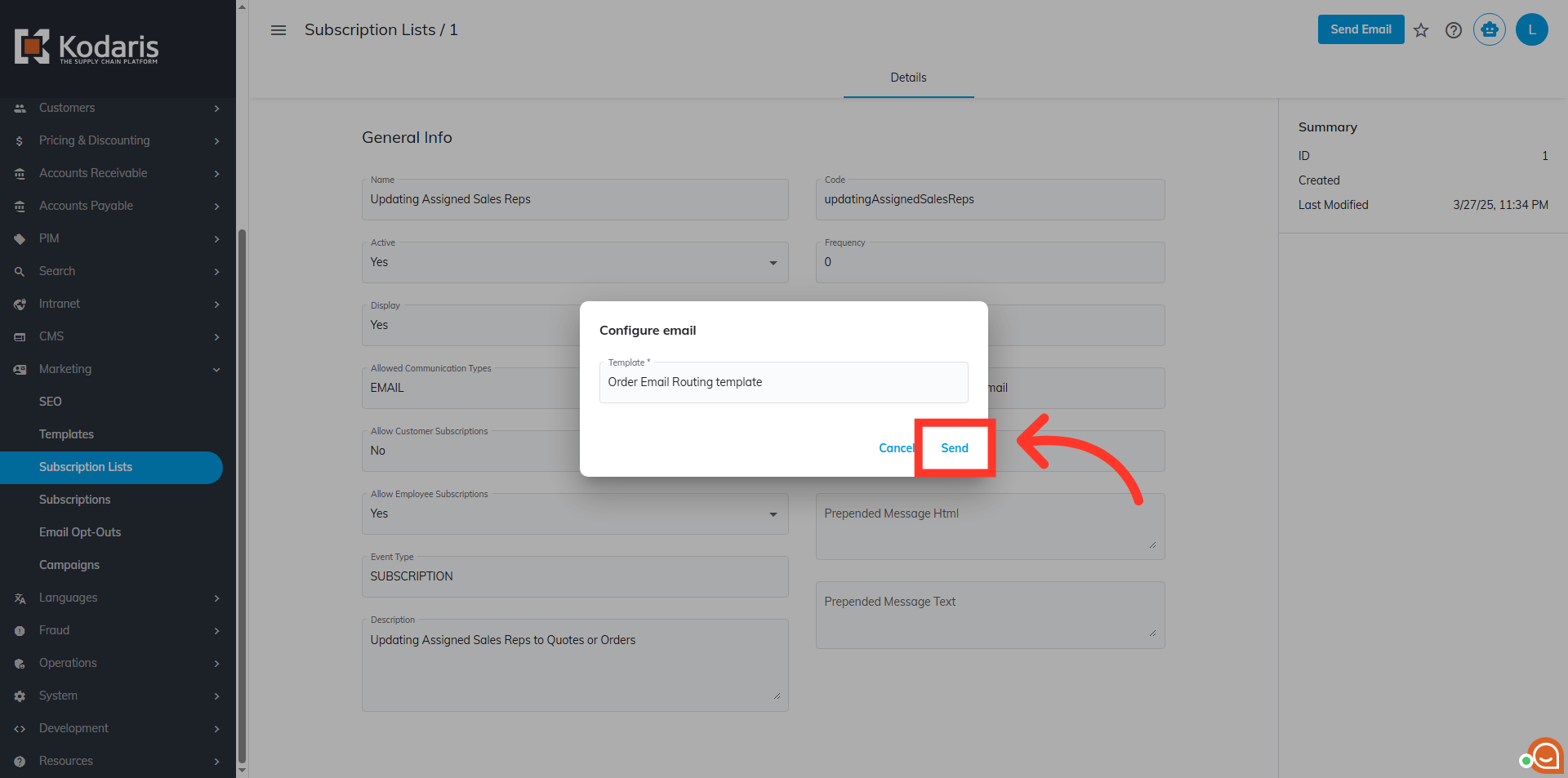
Click "Send"
After choosing a template, click the "Send" button.
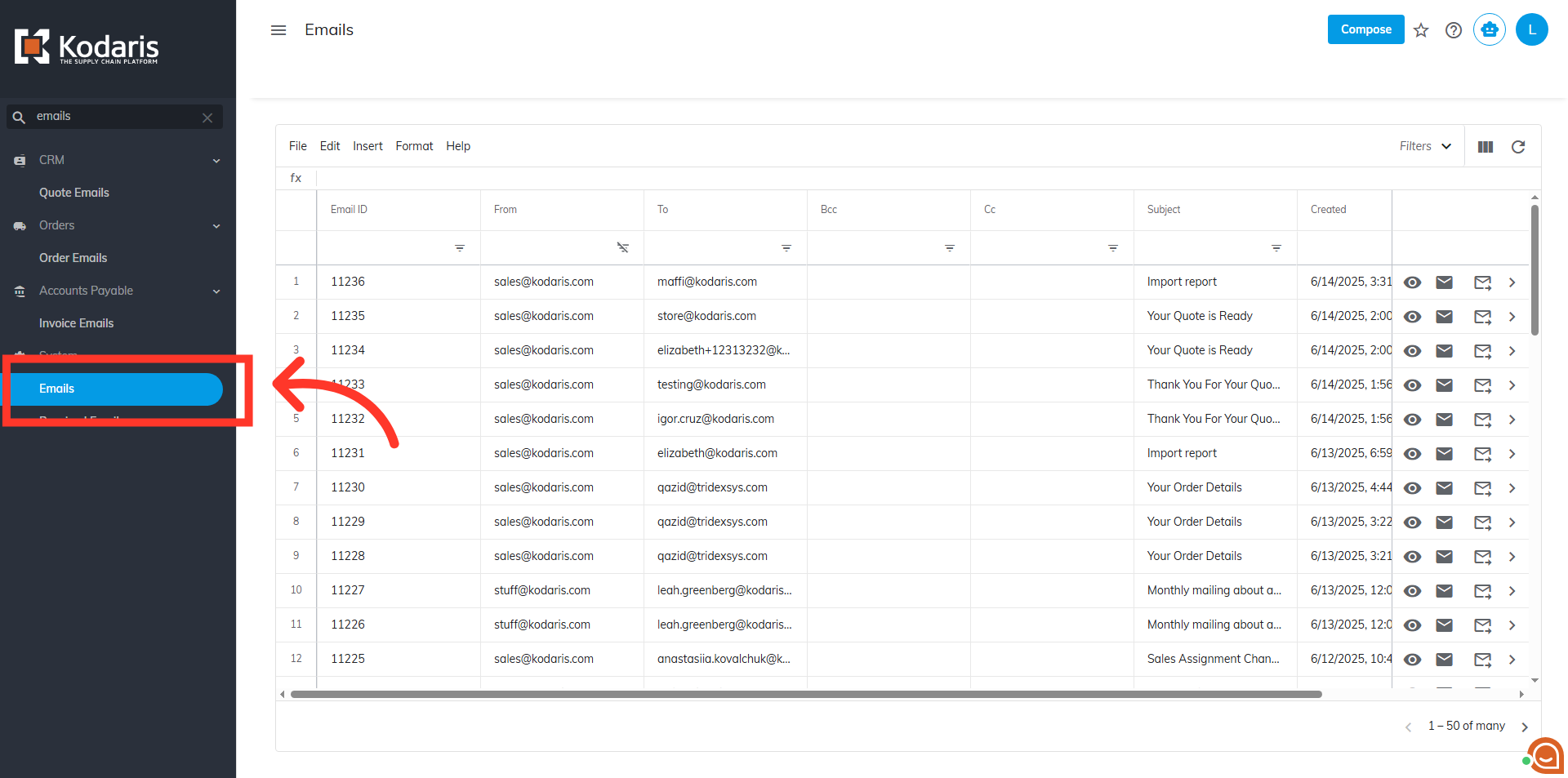
Verify Sent Email
You can verify that the email has been sent by going to the "Emails screen". Refresh the screen to make sure that it has updated.
In this article