Operations Marketing - Set Up a Subscription for a Subscription List
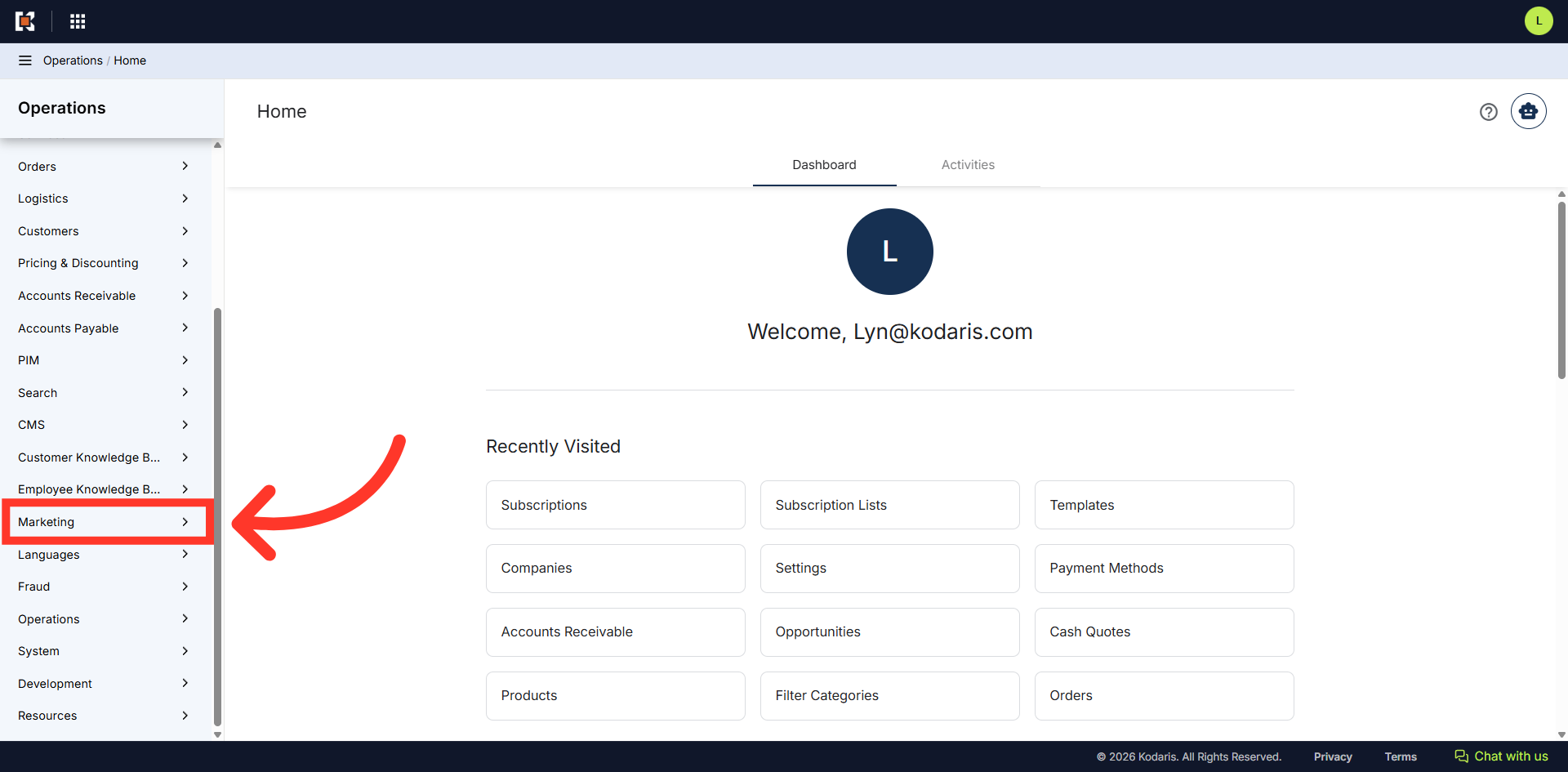
Navigate to "Marketing"
To set up subscriptions for a subscription list, navigate to the "Marketing" section in the Operations Portal.
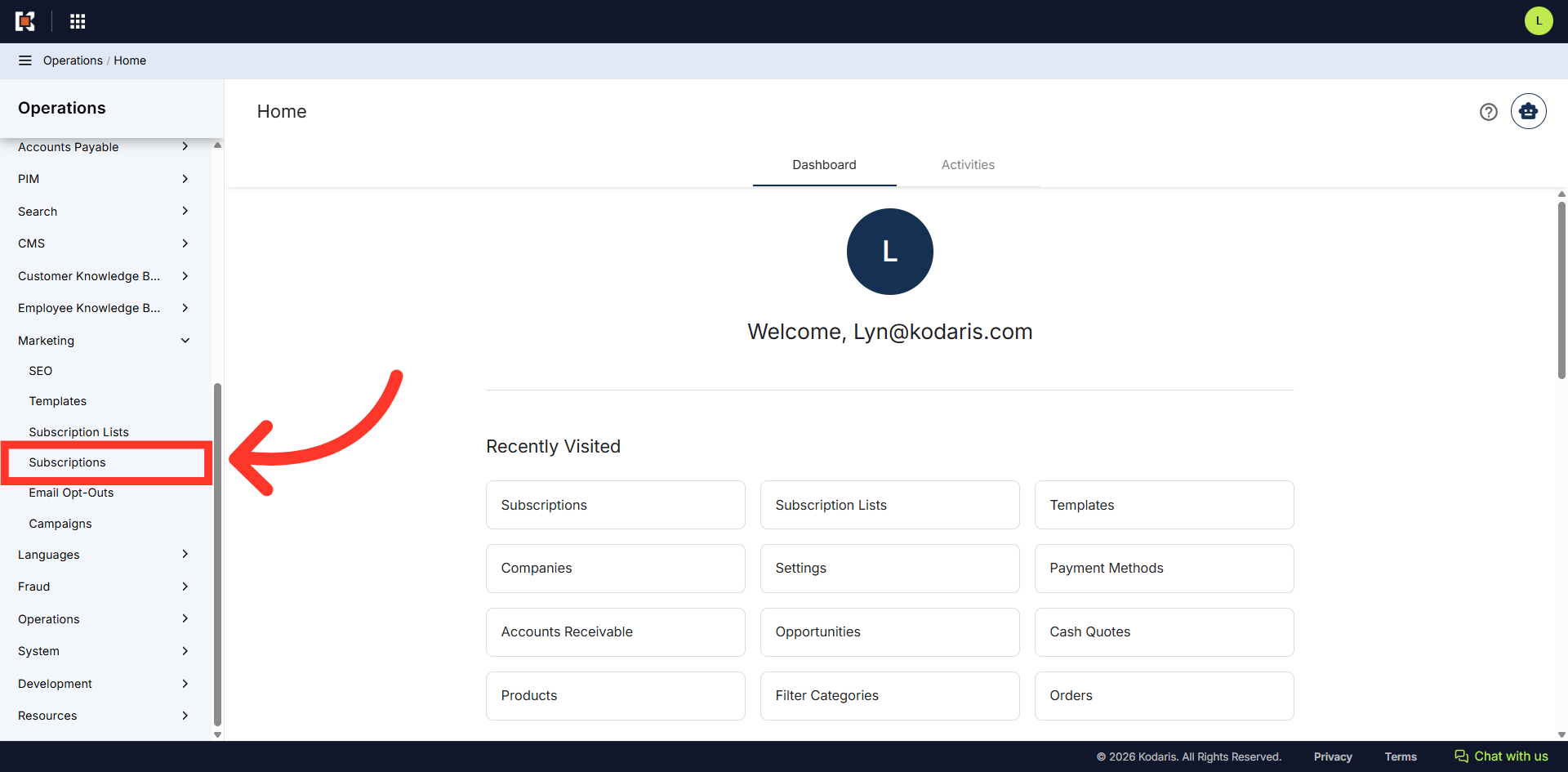
Click "Subscriptions"
Then, click "Subscriptions". In order to access and update subscriptions, you will need to be set up either as an "administrator" or a "superuser", or have the following role: "subscriptionEdit".
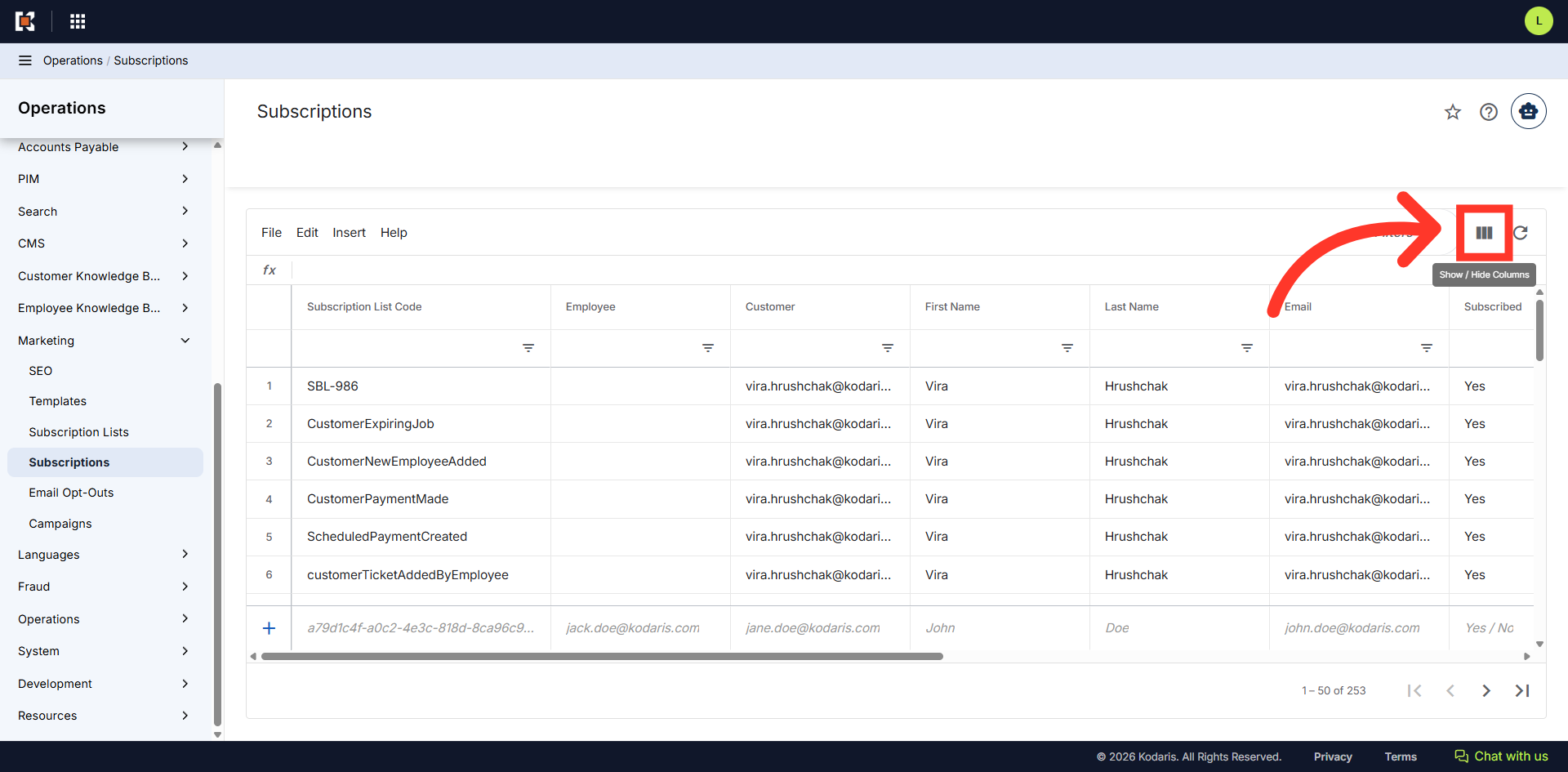
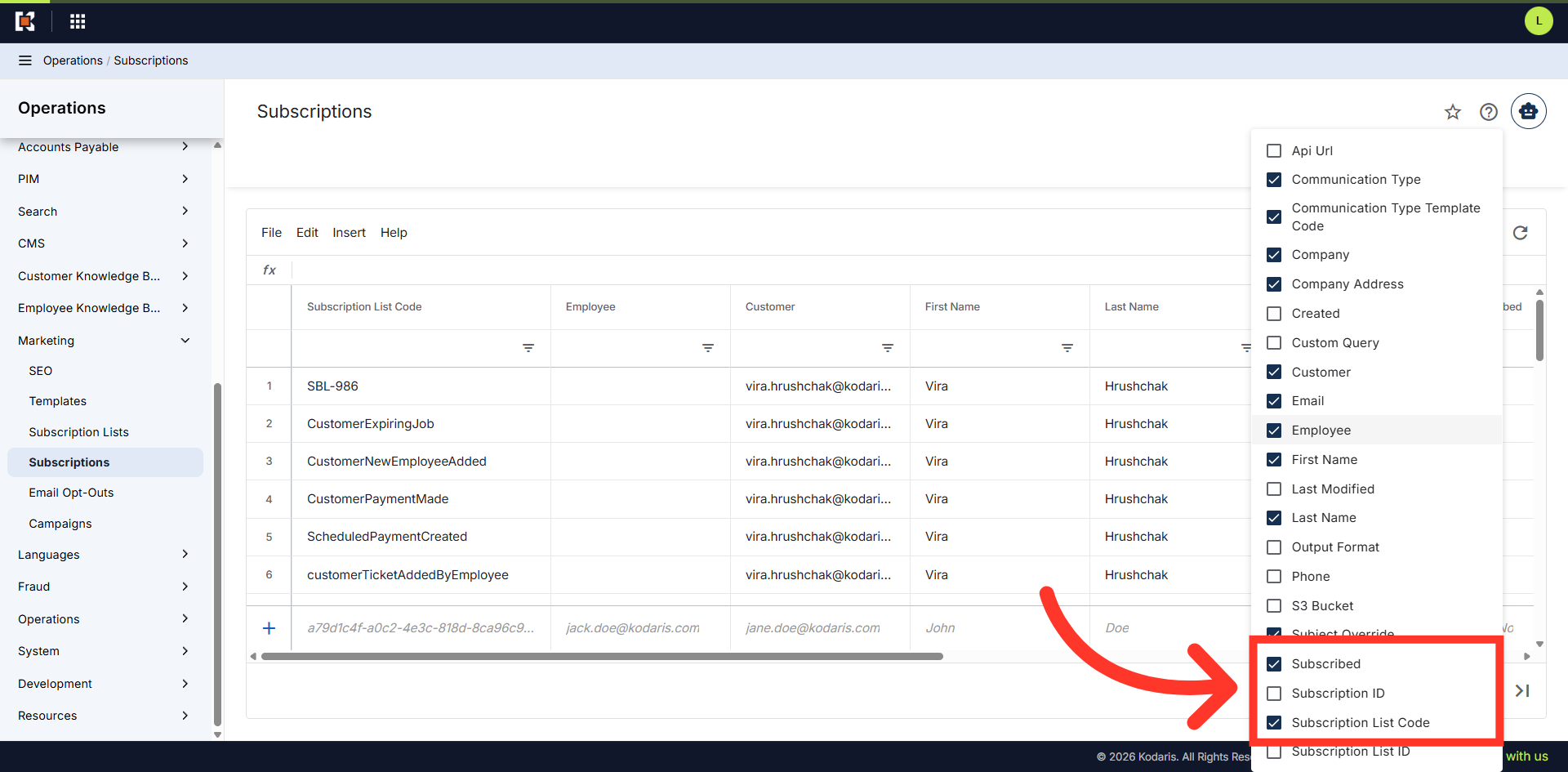
Click the "Show / Hide Columns" icon
Click on the "Show / Hide Columns" icon.
Select required columns
Select the "Subscribed" and "Subscription List Code" columns, as these are needed when creating a subscription.
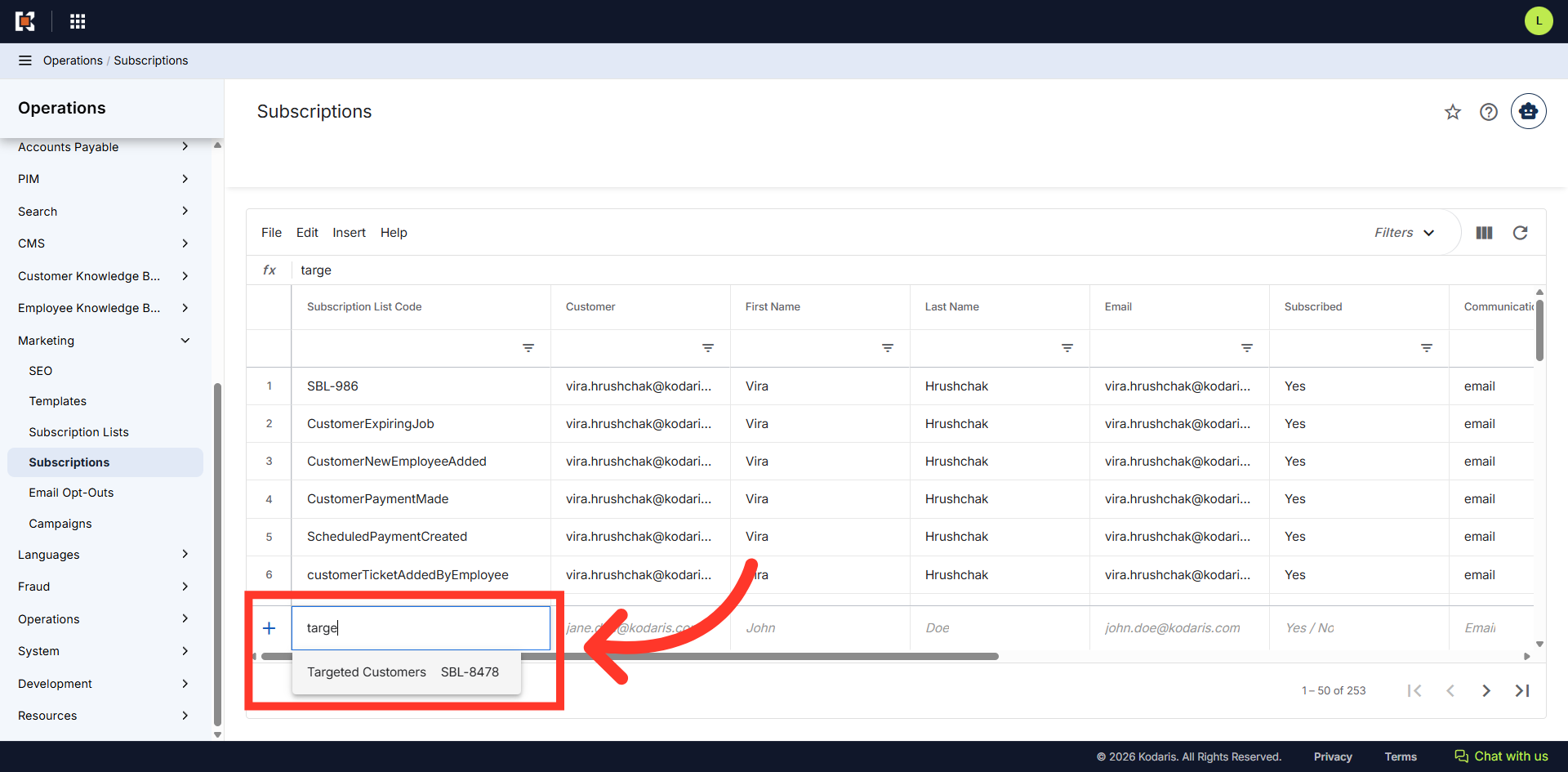
Enter the "Subscription List Code"
In the "Add a row" fields, enter the subscription list name or code. Subscription list matching your keywords will appear as you type.
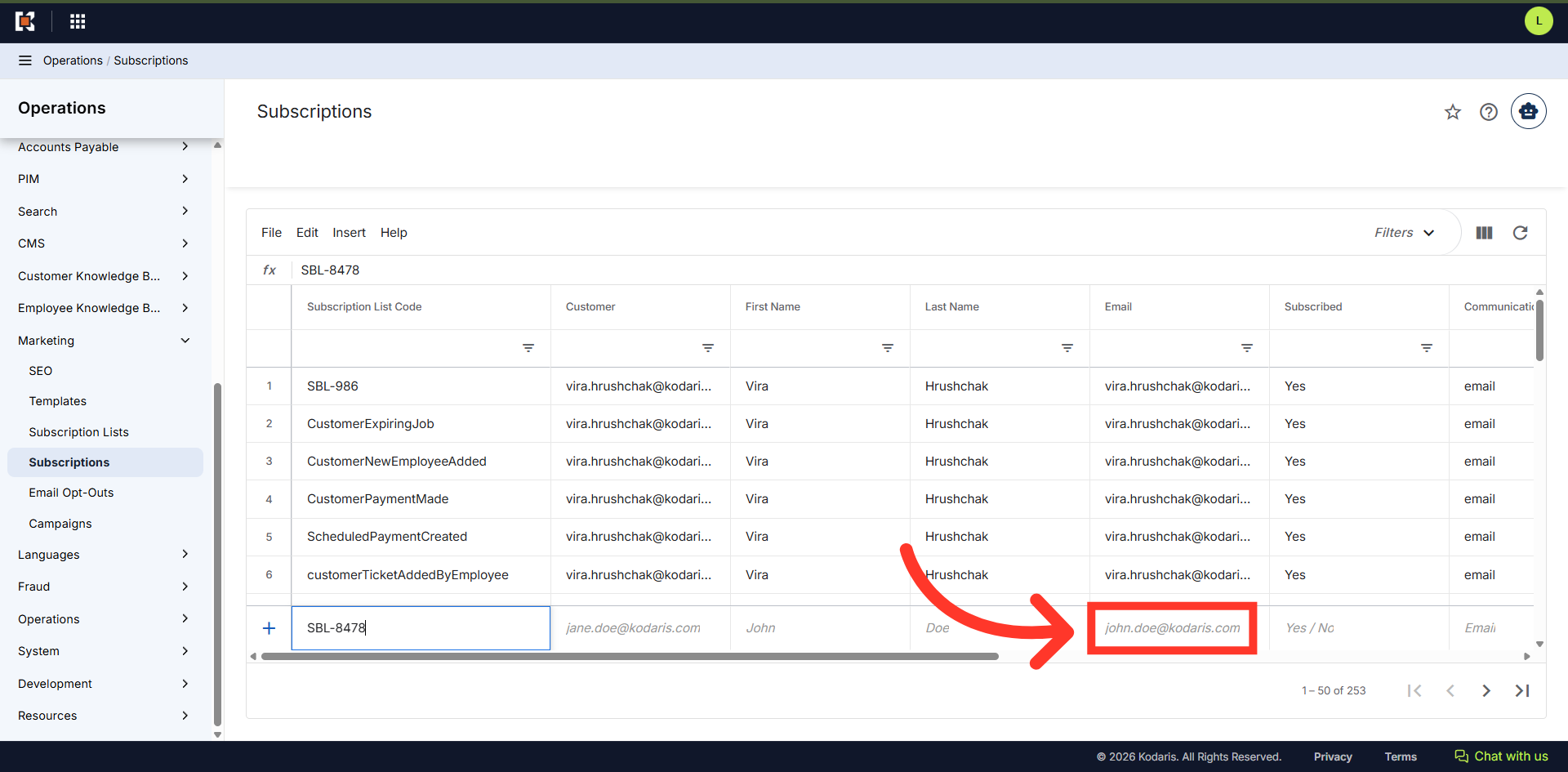
Add "Email"
Then, add the email address of the employee or customer that you would like to subscribe to the list.
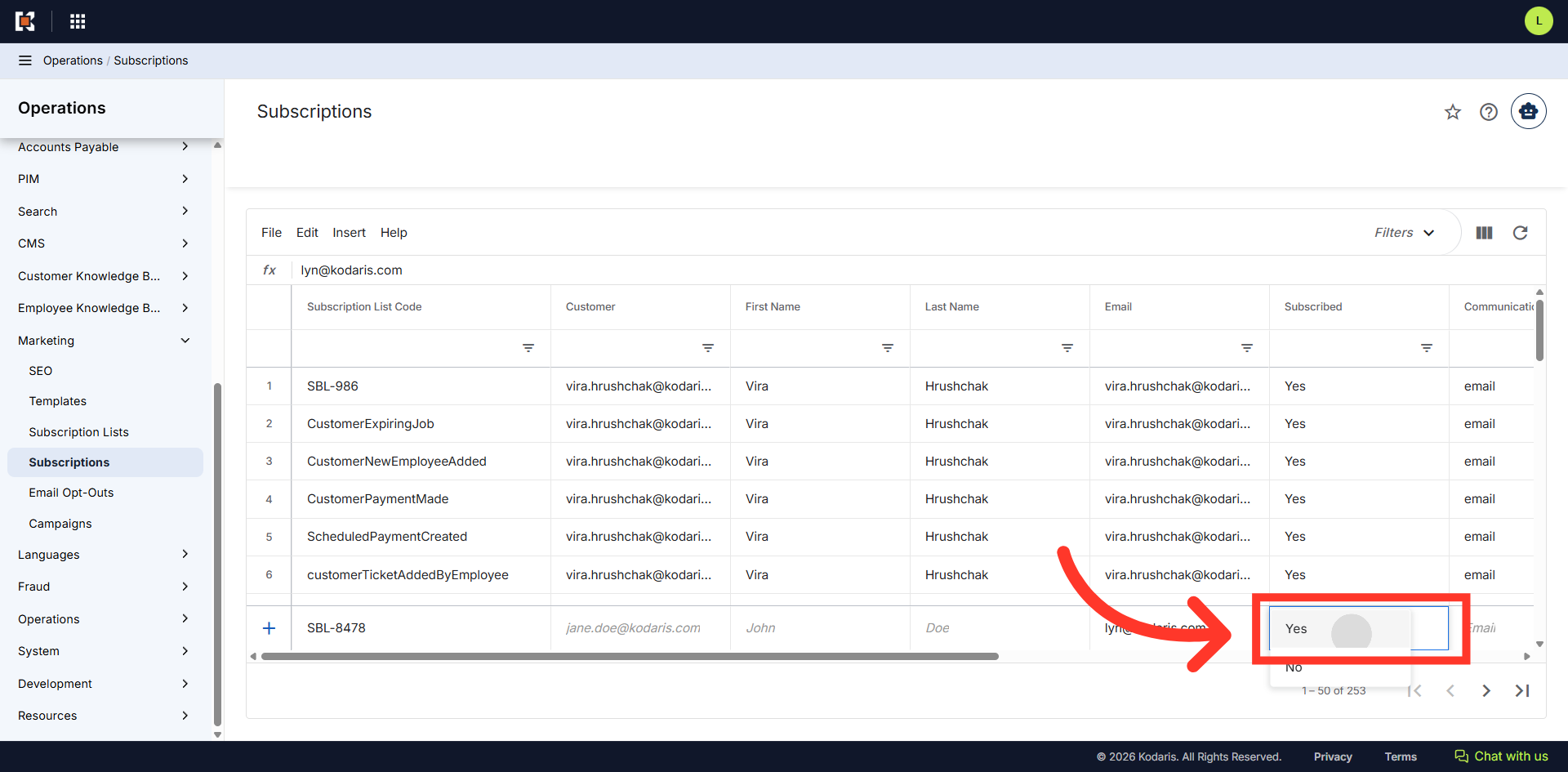
Select "Yes"
Selec "Yes" under "Subscribed" to add them to the list. Then, hit "Enter" to save.