Operations Marketing - Set up a Subscription List
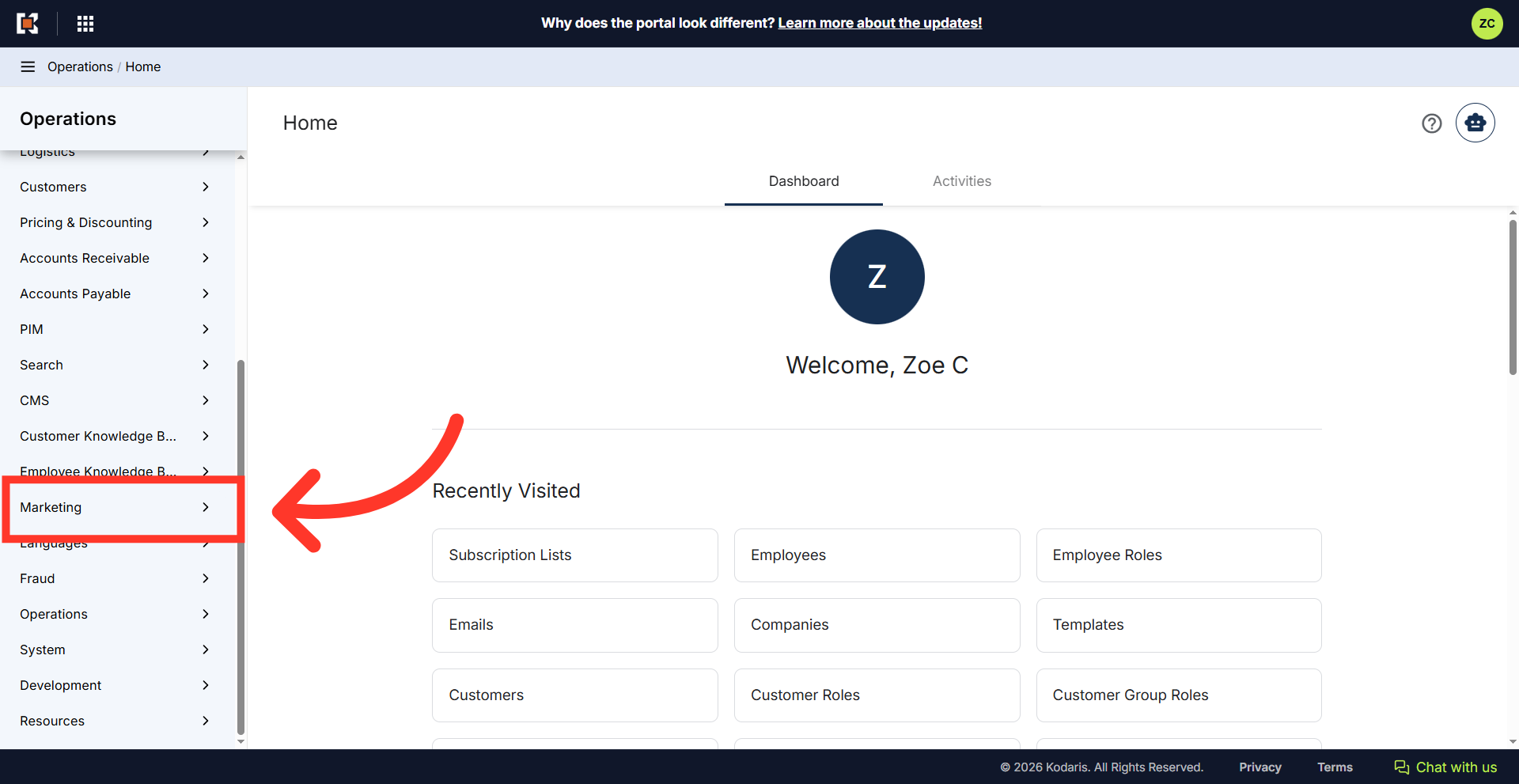
Navigate to "Marketing"
Subscription Lists can be used to create group contacts that you would like to send email communications to. They can also be used for setting up employee and customer notifications. To set up a subscription list, navigate to "Marketing" section in the Operations Portal.
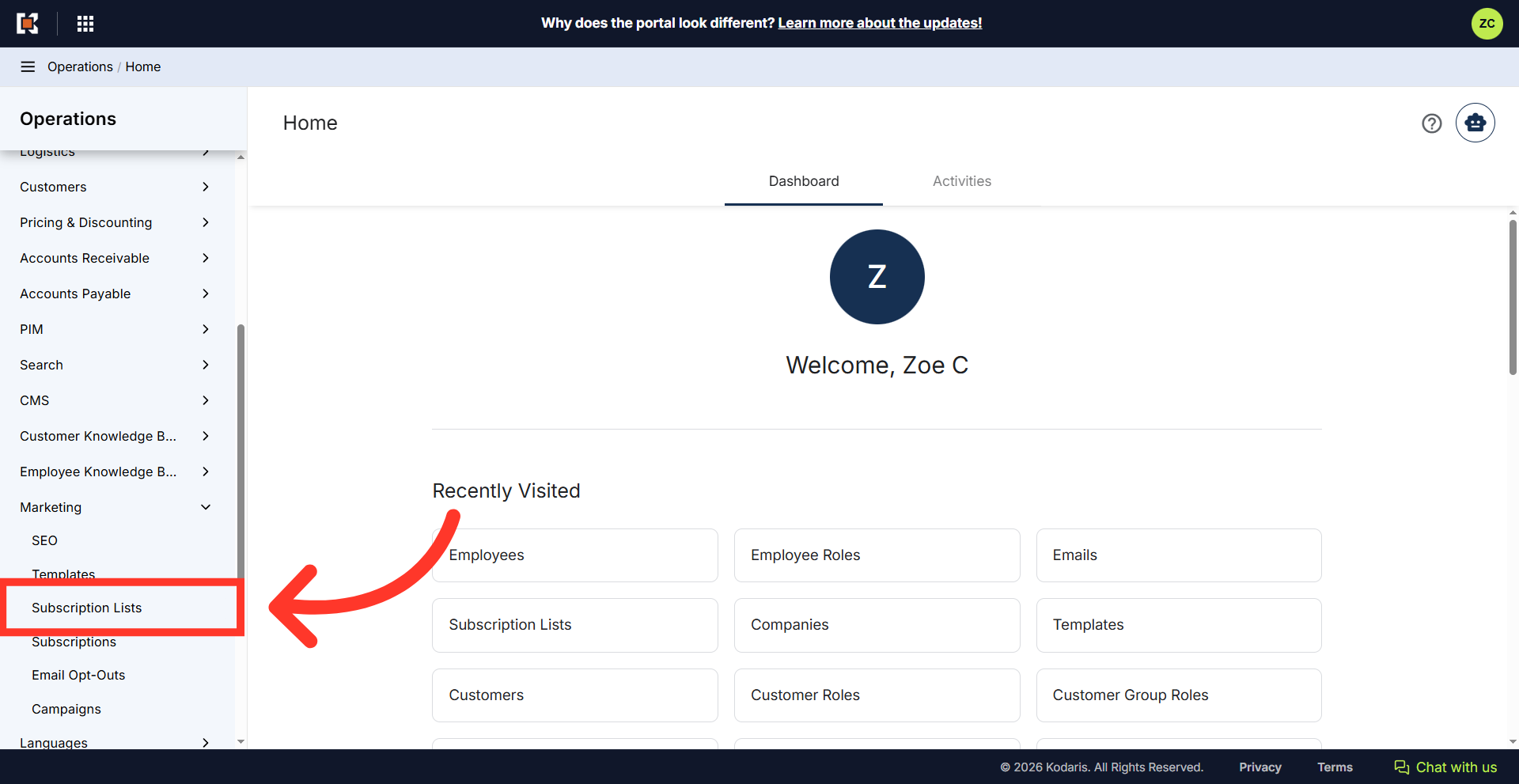
Click "Subscription Lists"
Then, click "Subscription Lists". In order to access and update subscriptions, you will need to be set up either as an "administrator" or a "superuser", or have the following role: "subscriptionEdit".
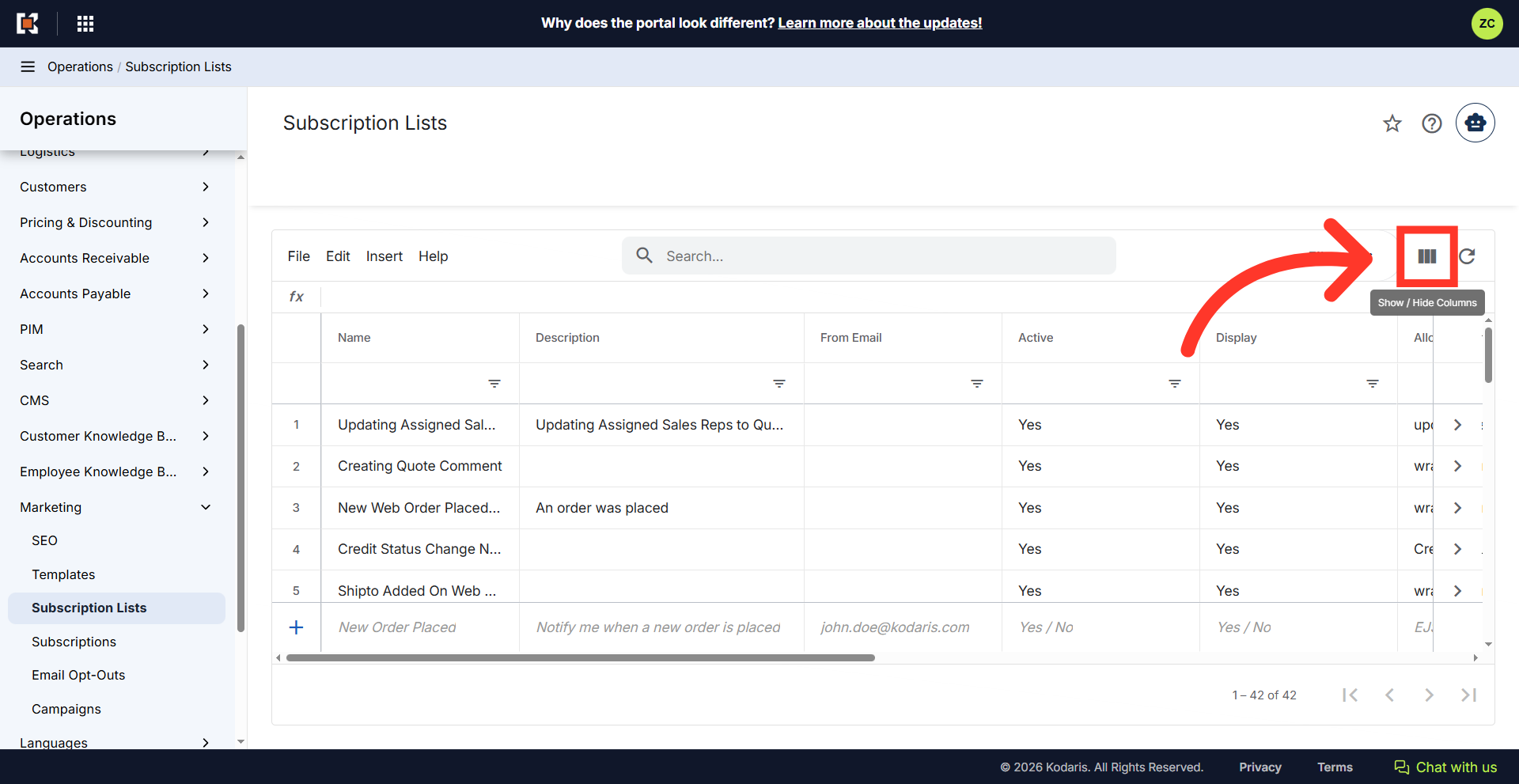
Click the "Show / Hide Columns" icon
Click on the "Show / Hide Columns" icon.
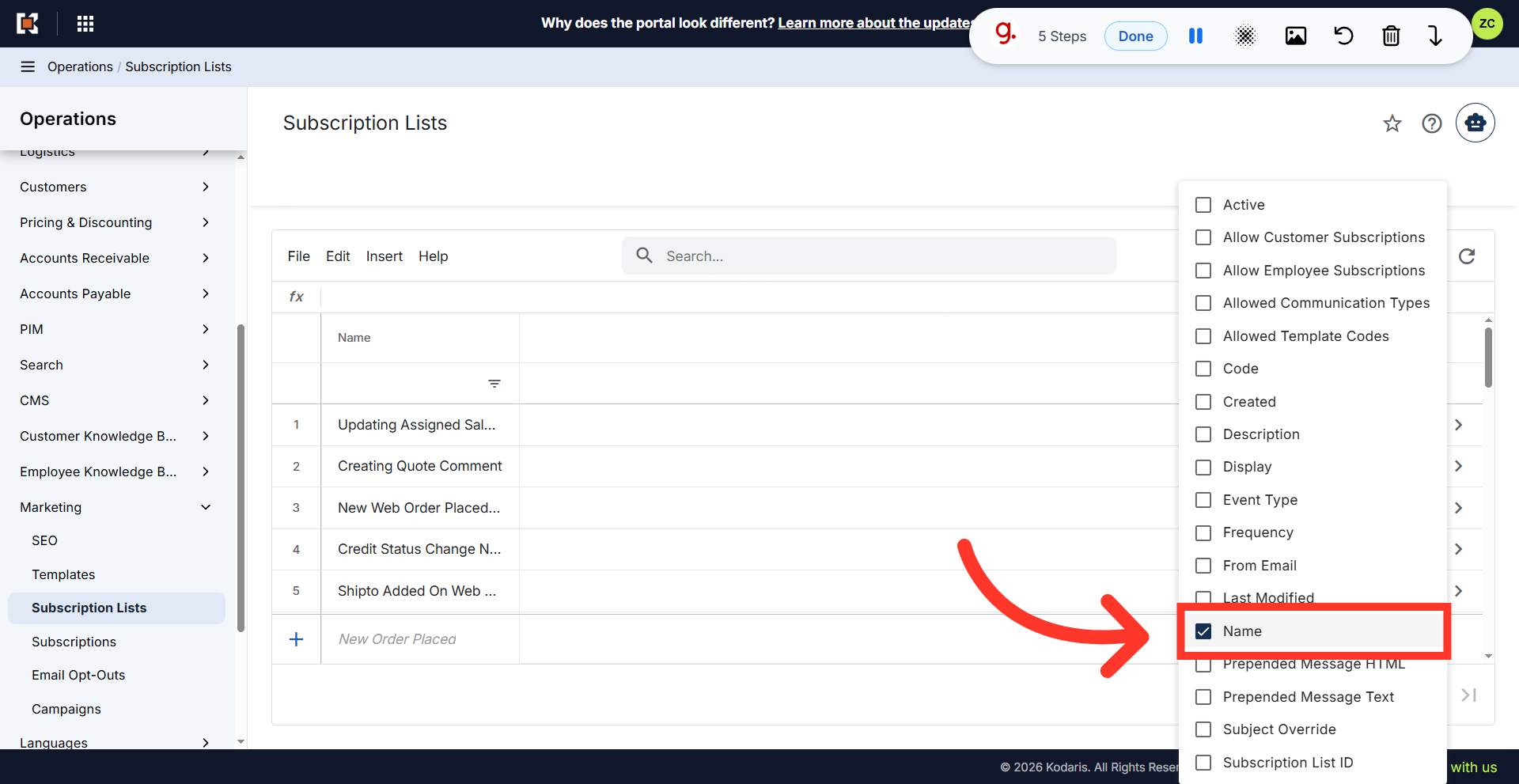
Select "Name" column
Select the columns that you would like to add to your screen. You can add or hide other columns, depending on what fields you would like to update while using the grid screen. The "Name" column is required when creating a subscription list.
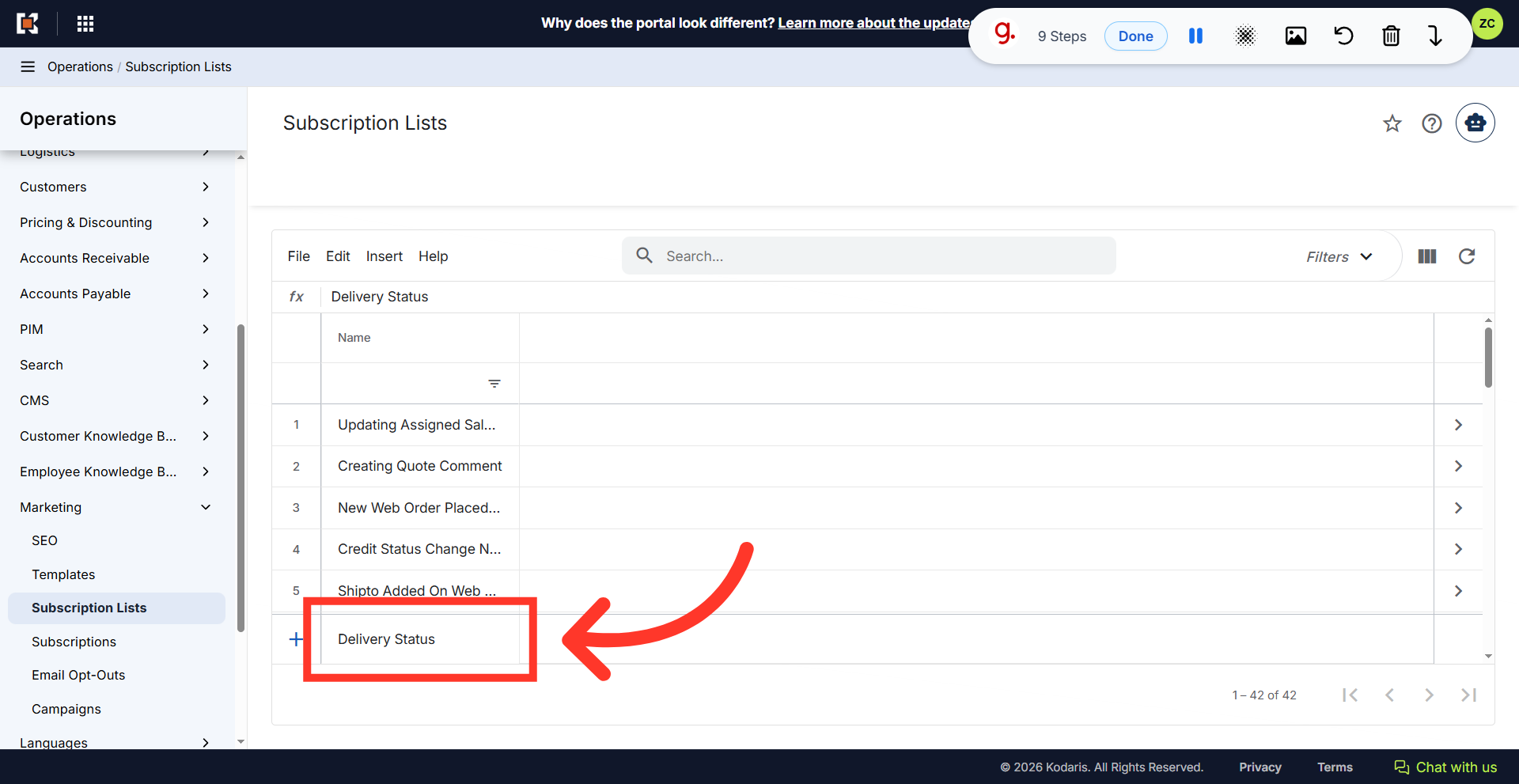
Enter the name
"Name" = Subscription list name. In the "Add a row" fields, enter the preferred subscription list name then press the "Enter" key.
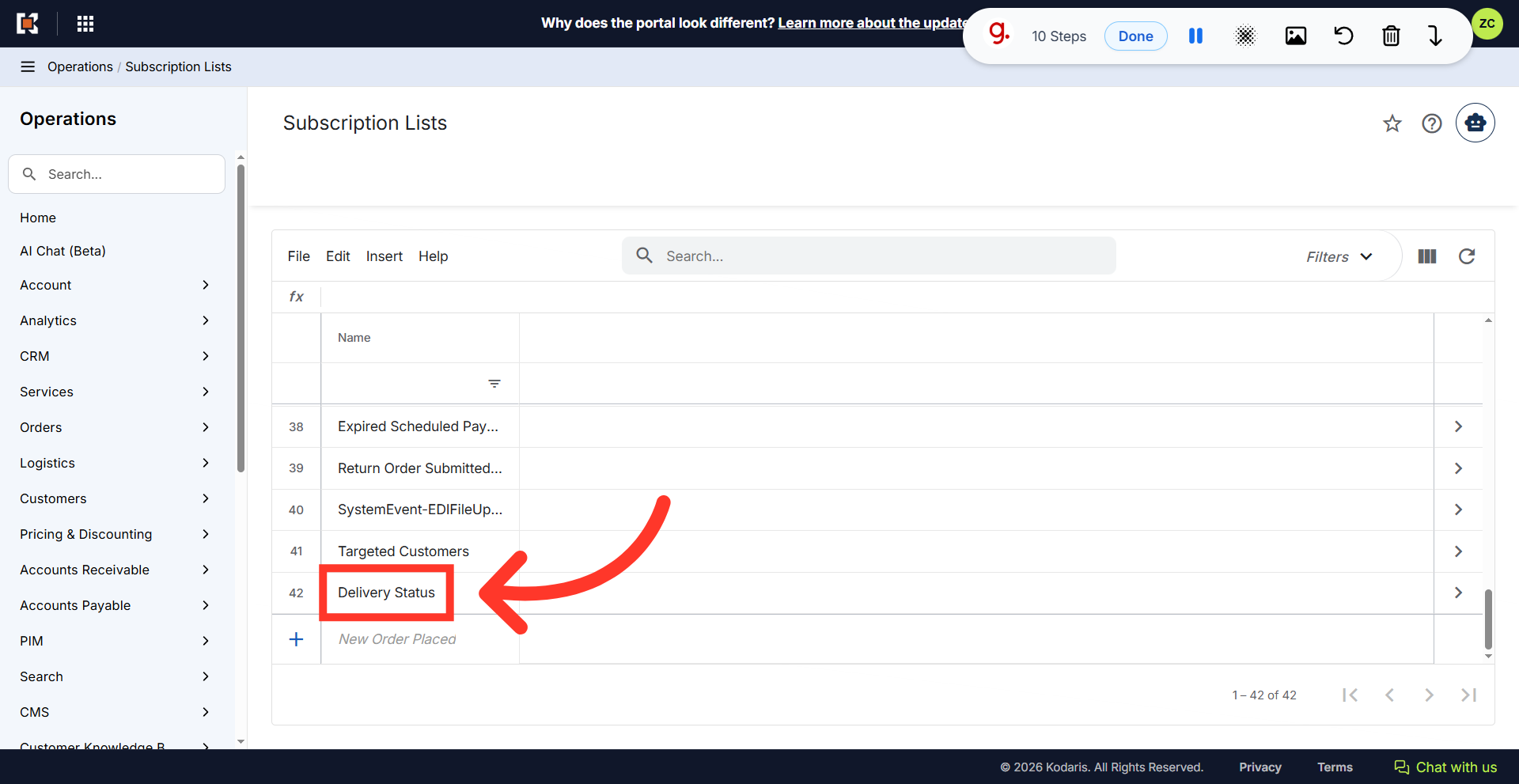
Verify new subscription list
Locate the newly added subscription list in the grid.
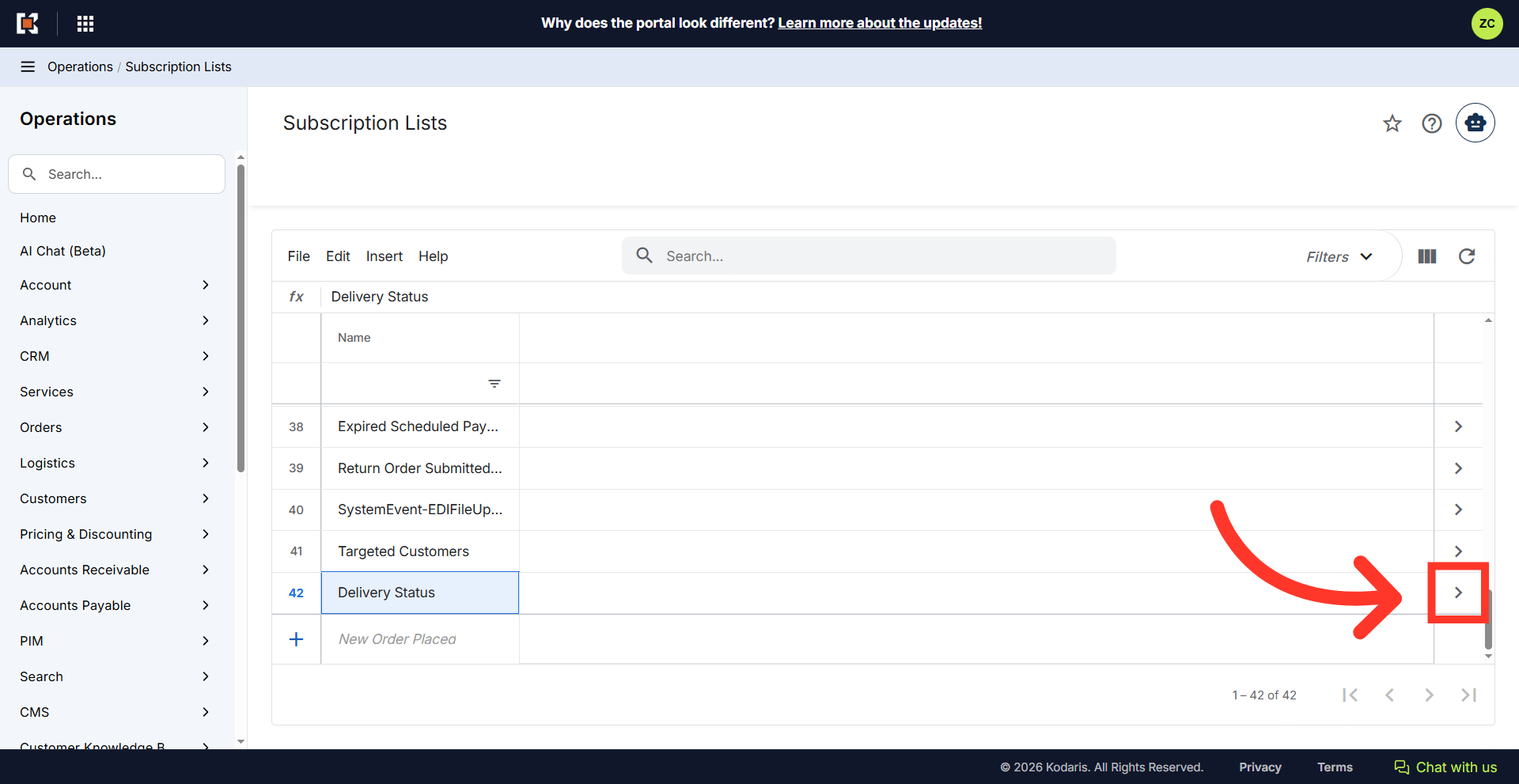
Click on the more details icon
If you need to update the subscription list details, click on the more details icon.
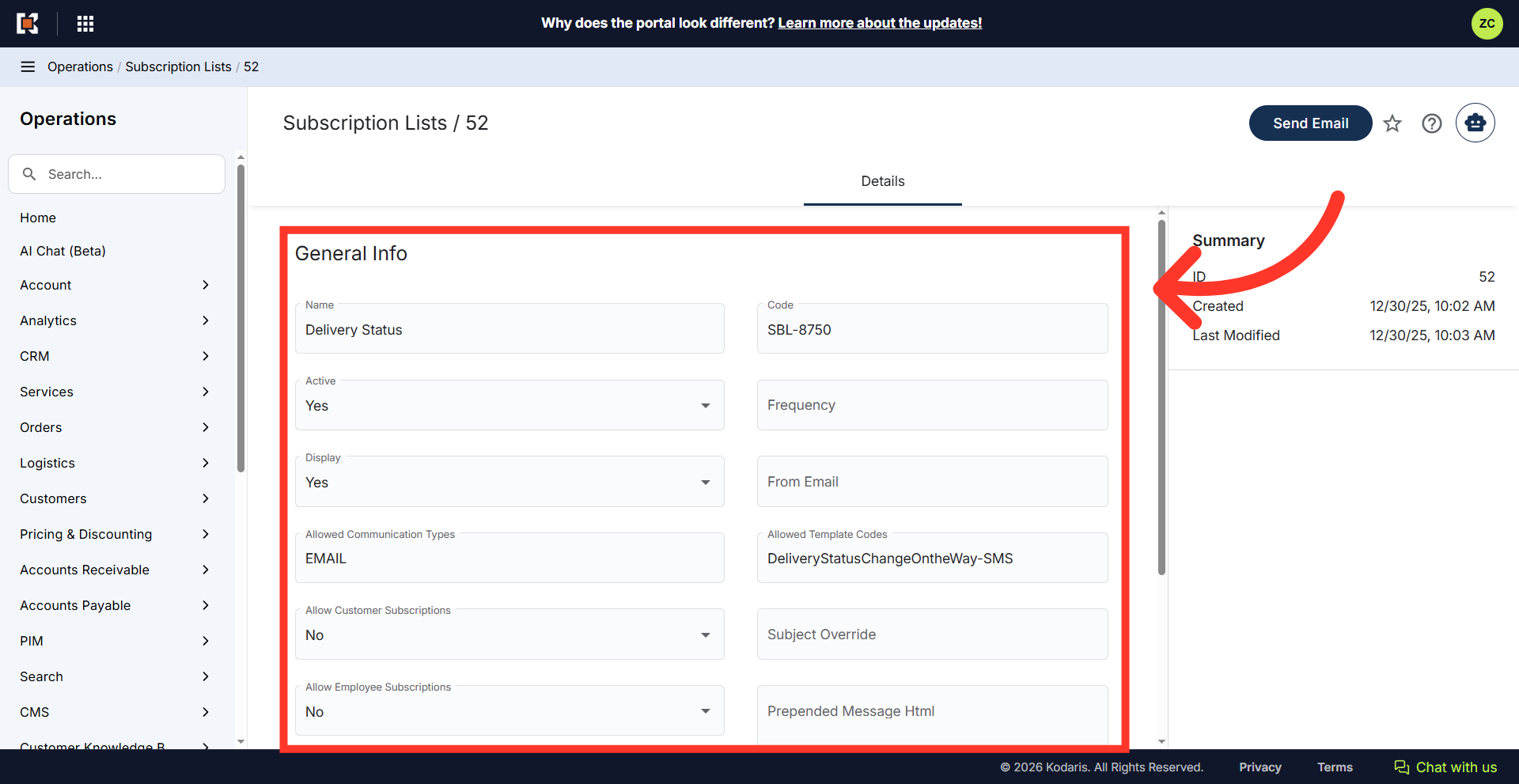
View and manage subscription list details
Here you can view general subscription information including active status, allowed communication types, and template settings to ensure proper configuration. Now that you have your subscription list set up, you can use it to mass send email or notification communications.