
Operations Analytics - Share Data Source with Users
Navigate to "Analytics"
You can share a data source from AWS QuickSight with a user by first navigating to the "Analytics" section in the Operations Portal.

Click "AWS QuickSight"
Then, click "AWS QuickSight" to work with your datasets. In order to access "AWS QuickSight" you will need to be set up as a "superuser", and have the roles of: "qbiAuthor".

Click "Datasets"
Next, click the "Datasets" tab to view and manage your data collections.

Click "New dataset"
Then, click the "New dataset" button.

Select Existing Dataset
Scroll to the bottom of the page to locate an existing data source and click the one you wish to share.

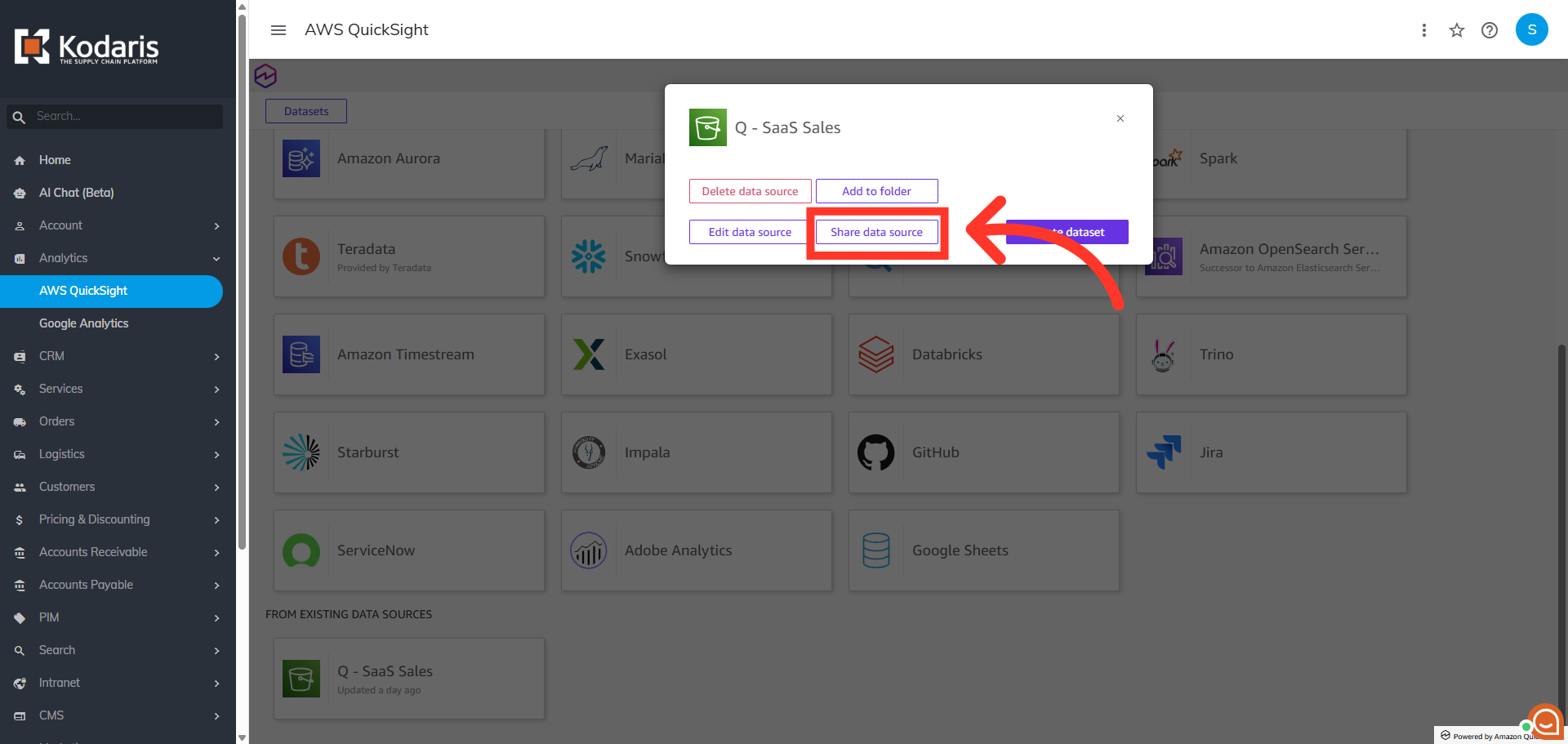
Click "Share data source"
From the "Data Source" dialog box, you can select from the following options. "Delete data source", which will remove the data source. "Add to folder" which will allow you to organize your data. "Edit data source" which allows you to change the parameters for the data source and, "Share data source". In this example, we will click the "Share data source" button allowing us to share with a user.
Click "Invite Users"
Then, click "Invite users" to add a user to this data source.

Search for a user
Using the search field, enter the first three letters of the user name and select the appropriate user from the suggestions.

Assign User Role
Once you have selected the user, you can change the default permission from "User" to "Owner" if needed.

Click "Share"
Then, click "Share".

Verify Shared Users
The user has been added to the data source with the proper permissions.
