
Commerce - Add All Products from a Catalog to your Cart
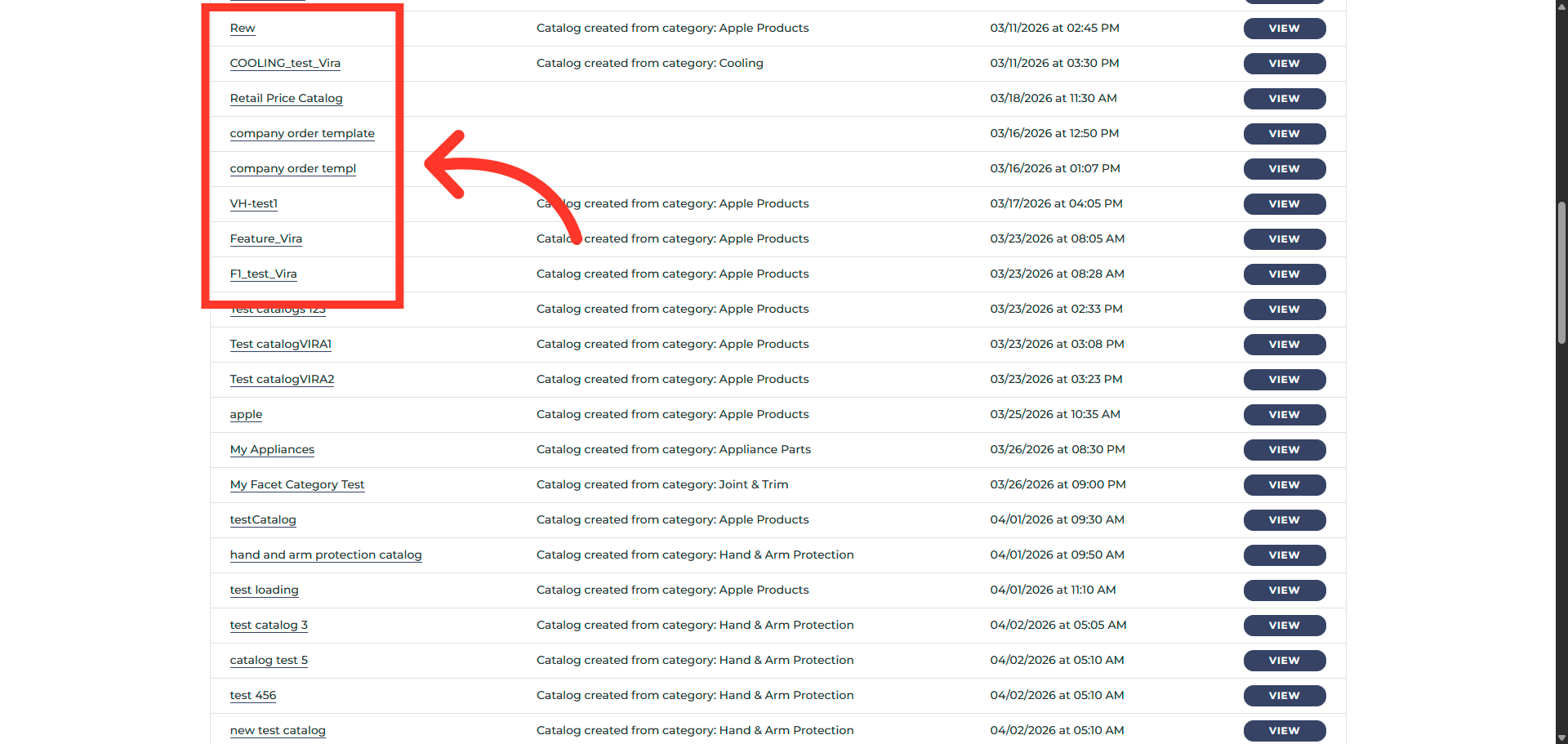
Click "Catalogs"
The "Add all to Cart" feature allows users to add all items in a catalog to their cart with a single action, streamlining bulk ordering and eliminating the need to add products individually. To do this, navigate to "Catalogs" on the commerce site.

Open Specific Catalog Category
Click on a specific catalog containing products you want added to cart.
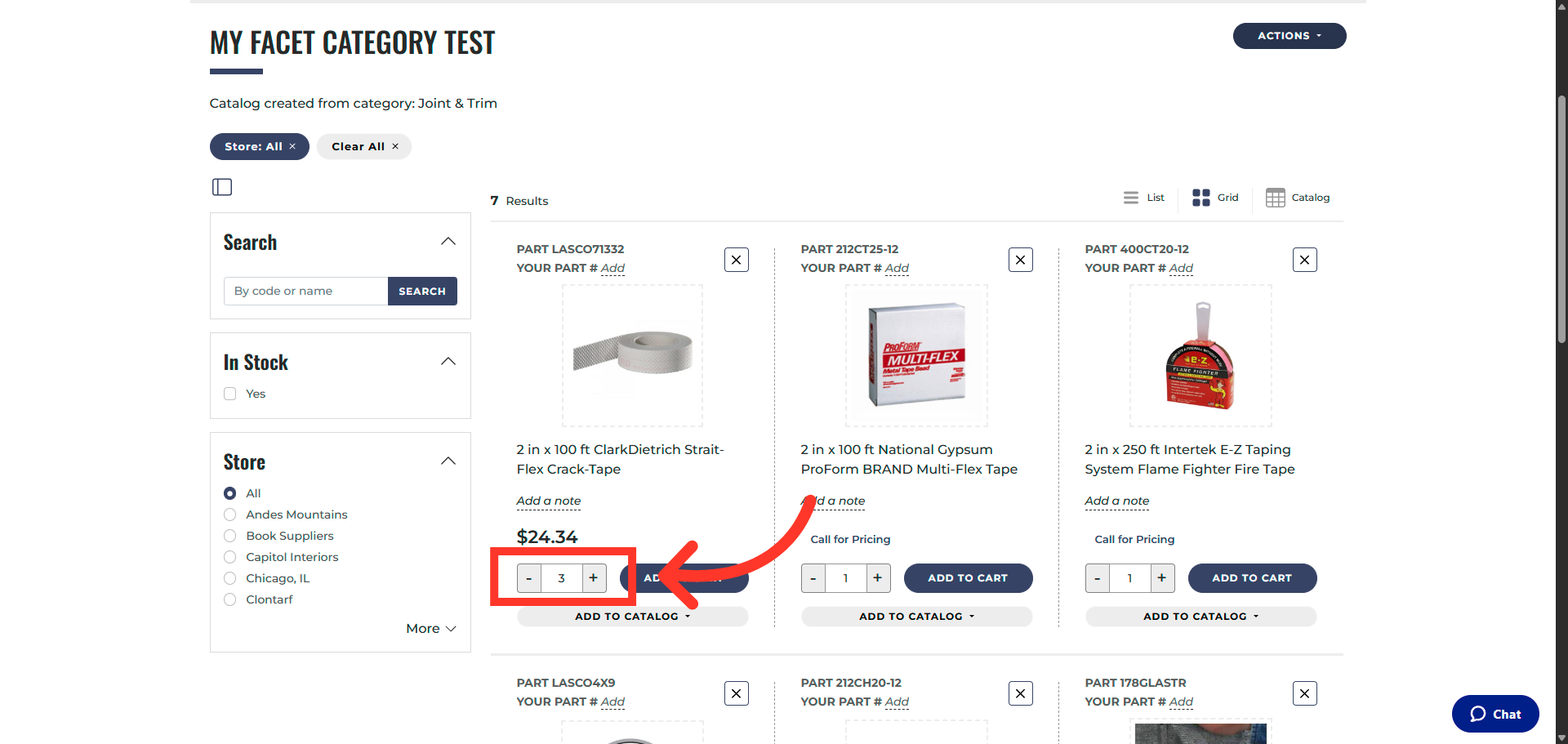
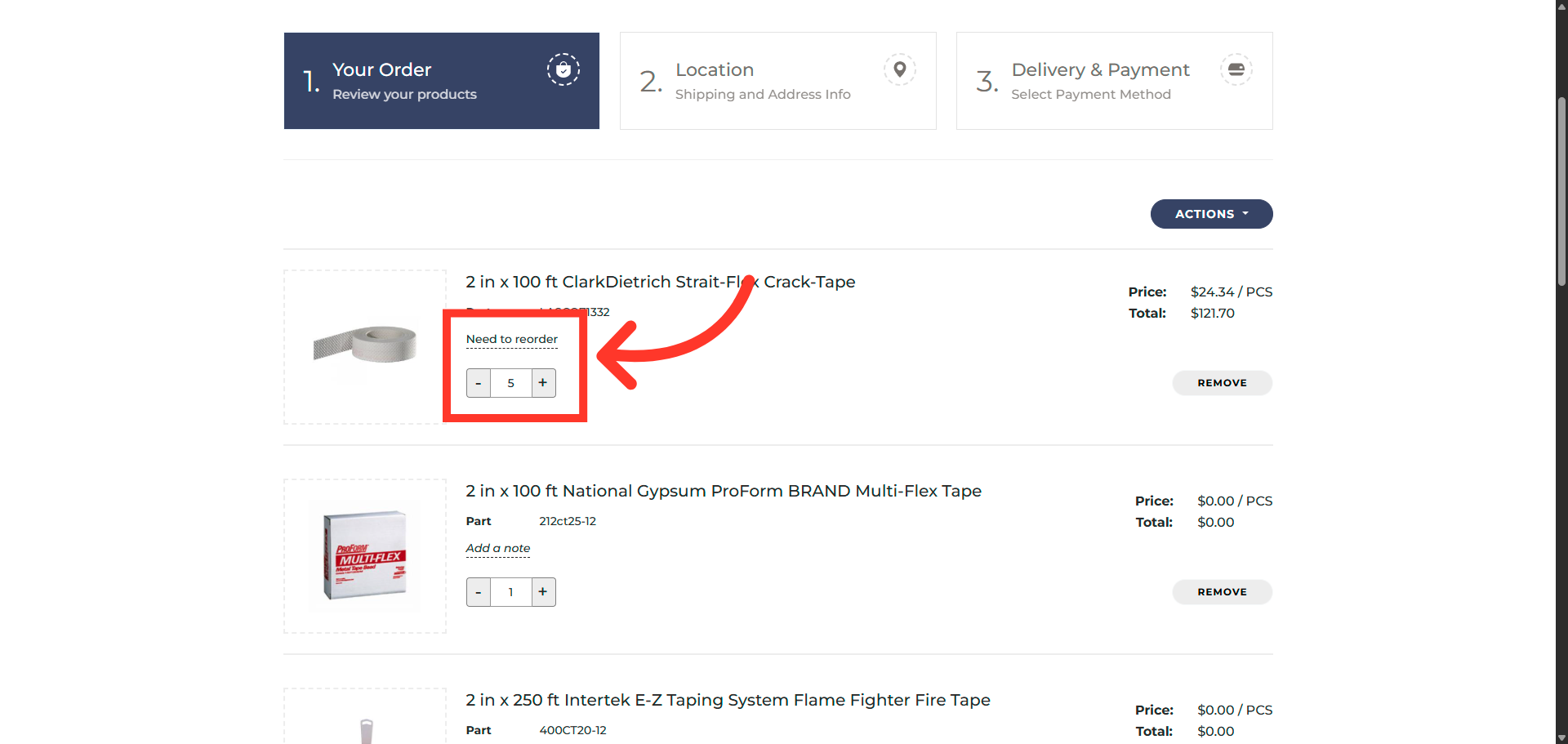
Changing the quantity
Change quantities using the +/- buttons or enter the desired amount in the quantity field.
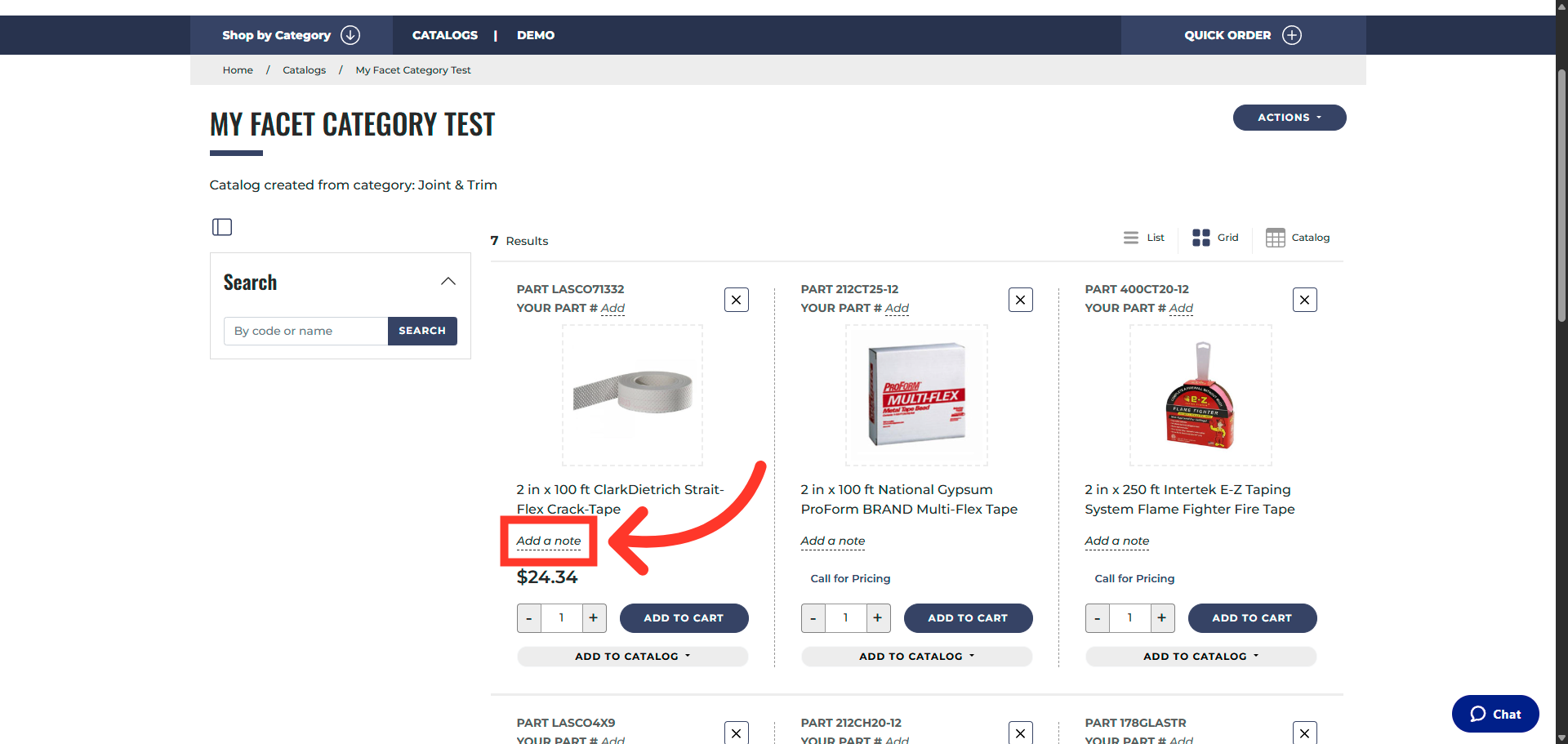
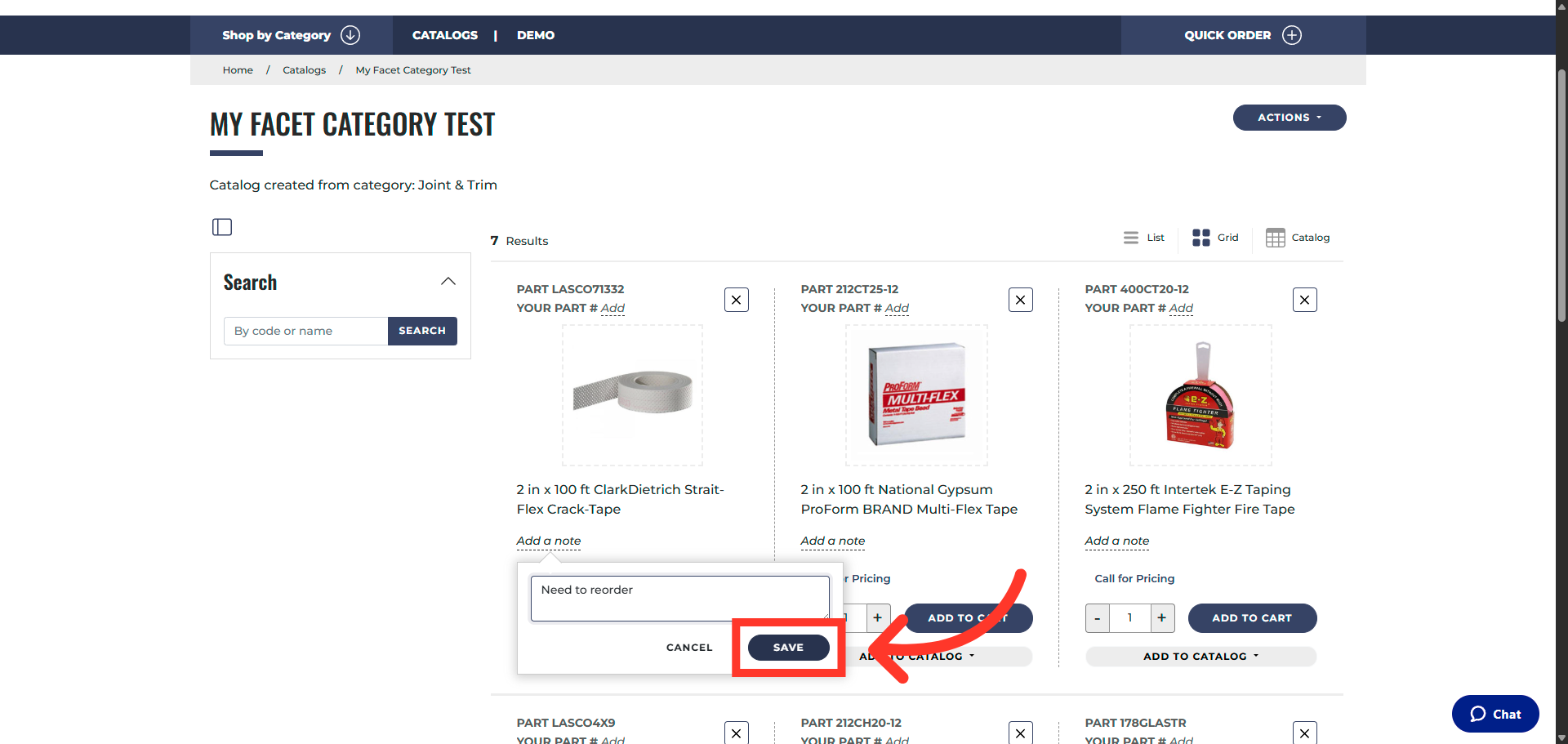
"Add a note" field
Click "Add a note" to add important remarks or instructions.
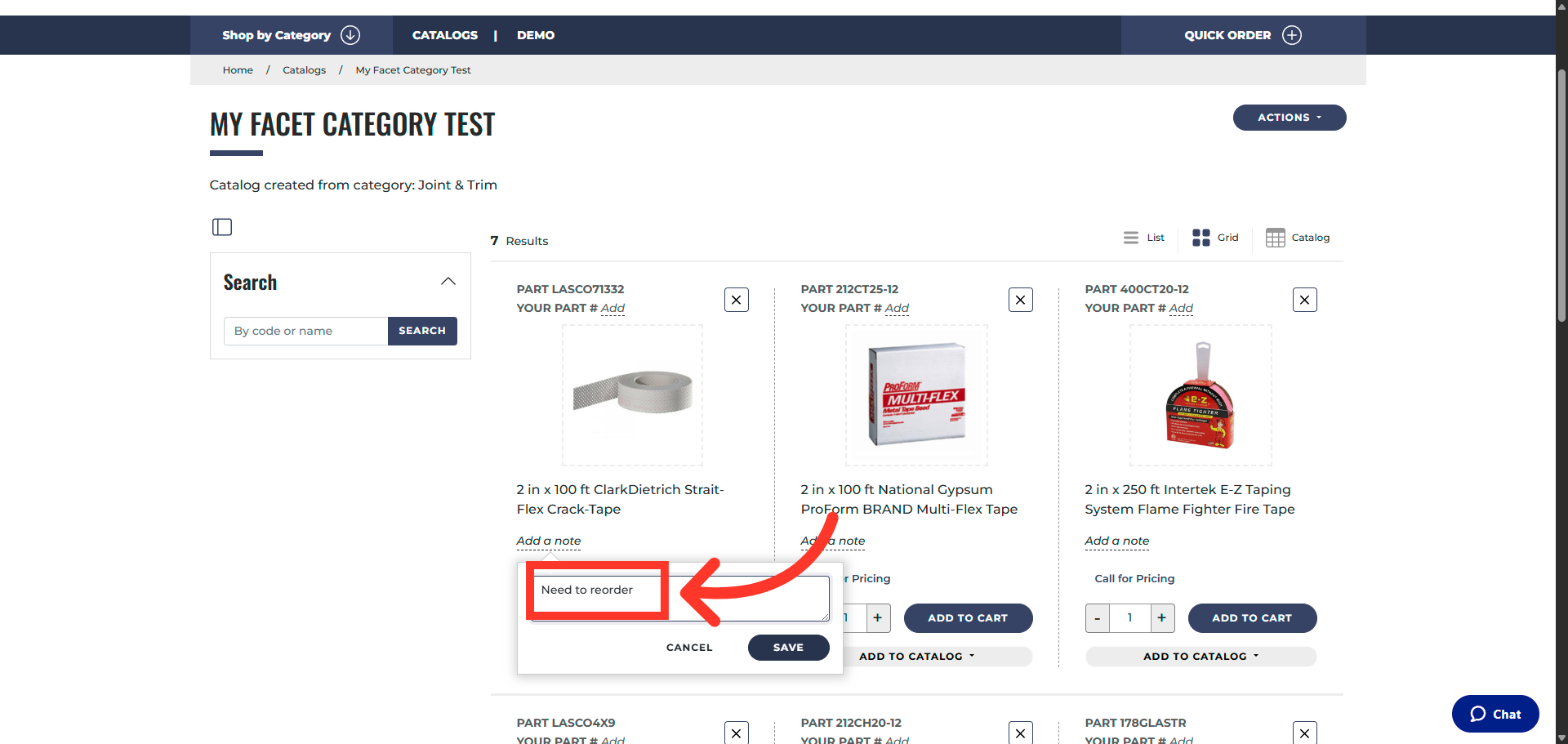
Enter note
Add a note if you would like.
Click "Save"
Click "Save" to save your note.
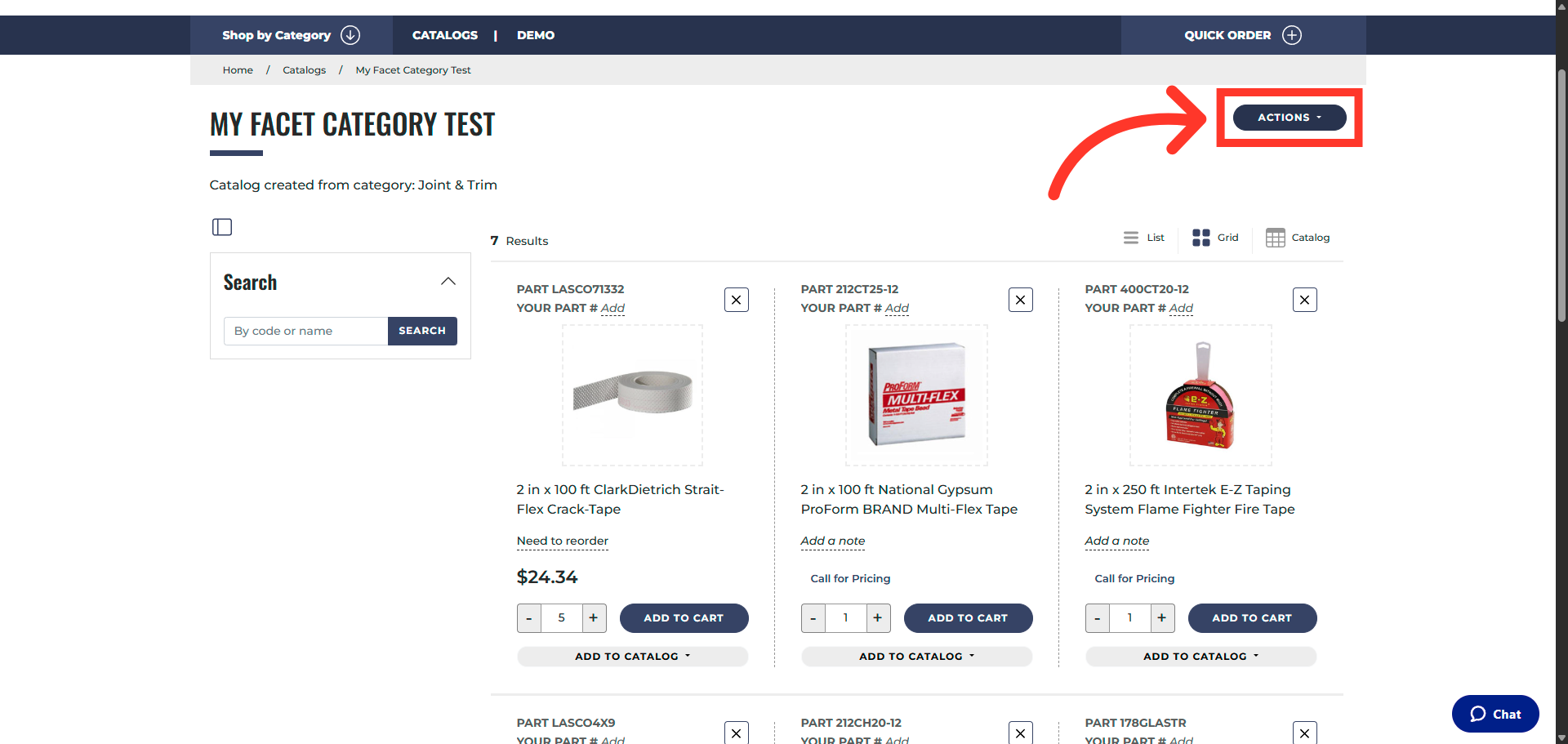
Click the "Actions" button
Now, click the "Actions" button.
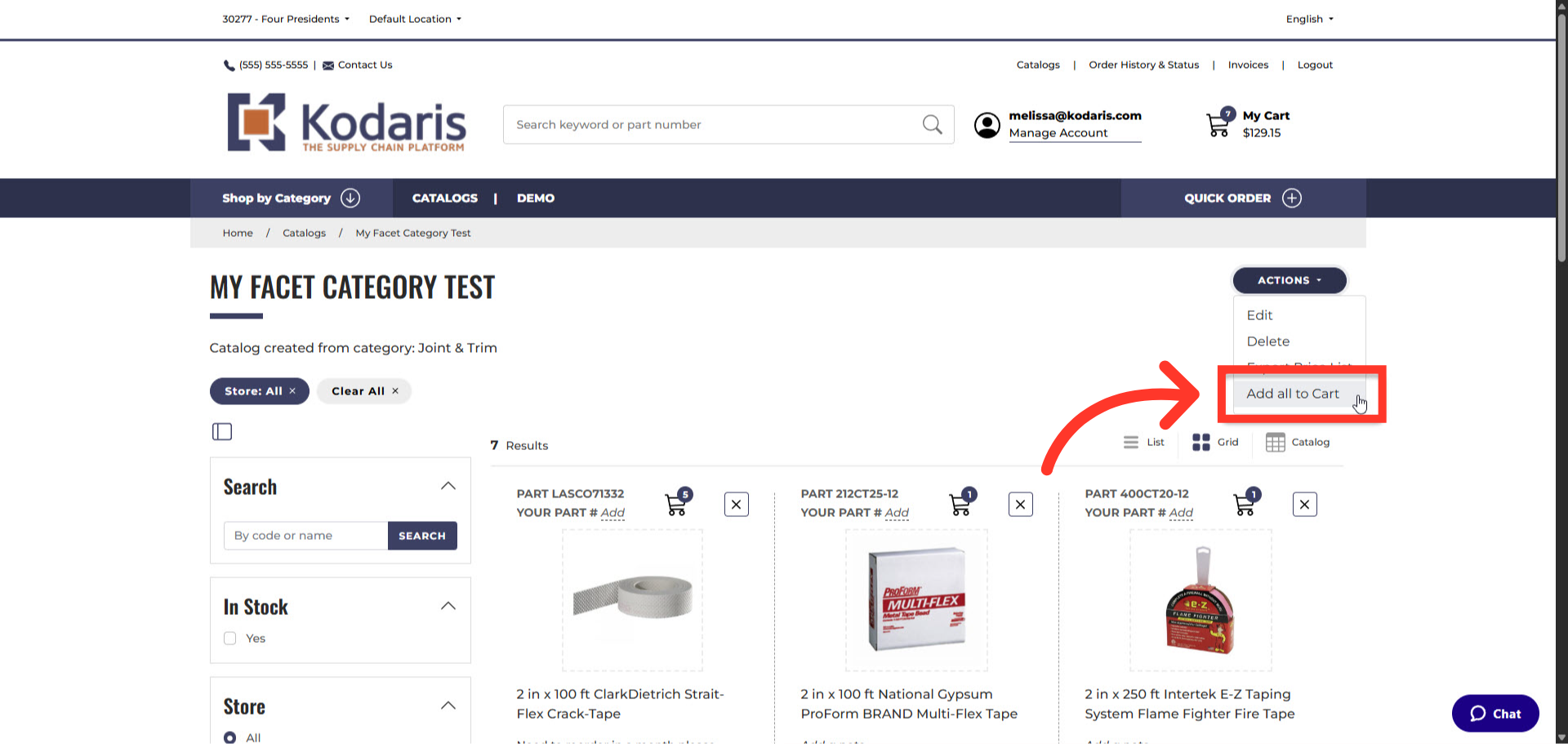
Select "Add all to Cart"
Select "Add all to Cart" from the options.
Click "My Cart"
Click "My Cart" to view your items and proceed to checkout.
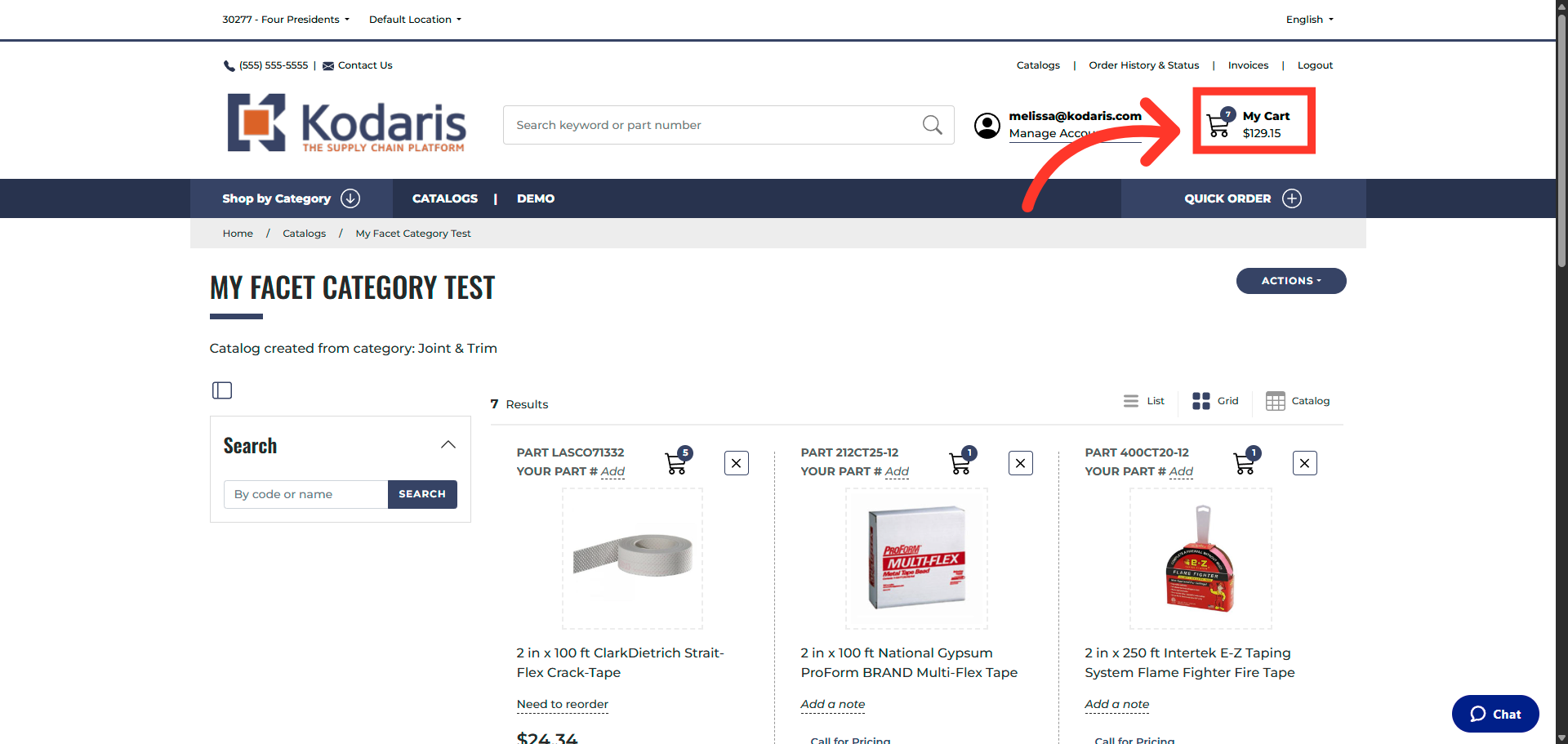
Review Cart Contents
All catalog items, including your notes and quantities, are now in your cart.
In this article