Commerce - Enable Abandoned Cart Feature
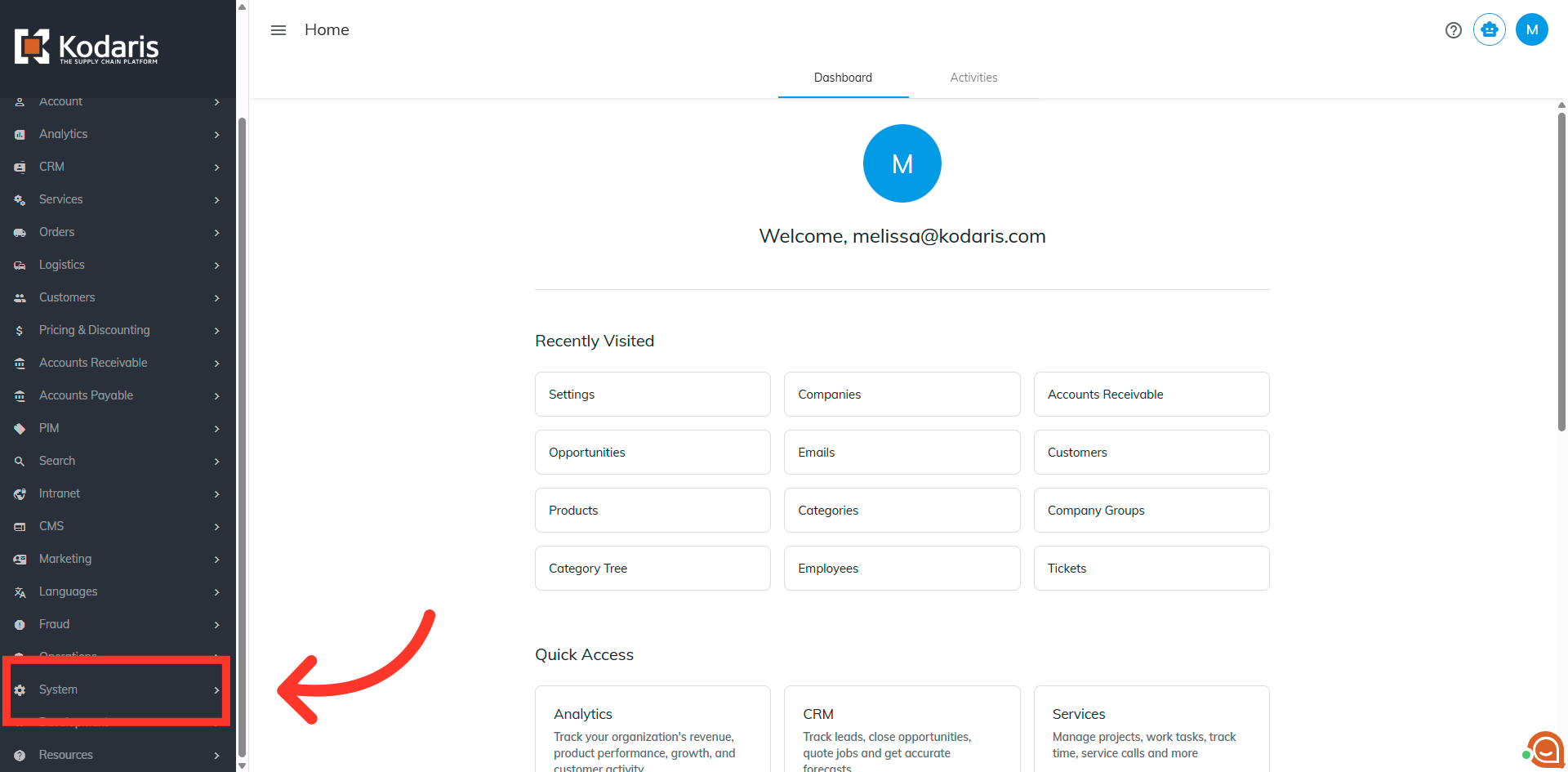
Navigate to the "System" section
The Abandoned Cart feature will automatically send reminder emails to customers who add items to their cart but don't complete their purchase within a specified timeframe. This feature helps recover potential lost sales by re-engaging customers with personalized reminder emails. To enable the Abandoned Cart feature, four settings will need to be configured. To do this, navigate to the "System" section in the operations portal.
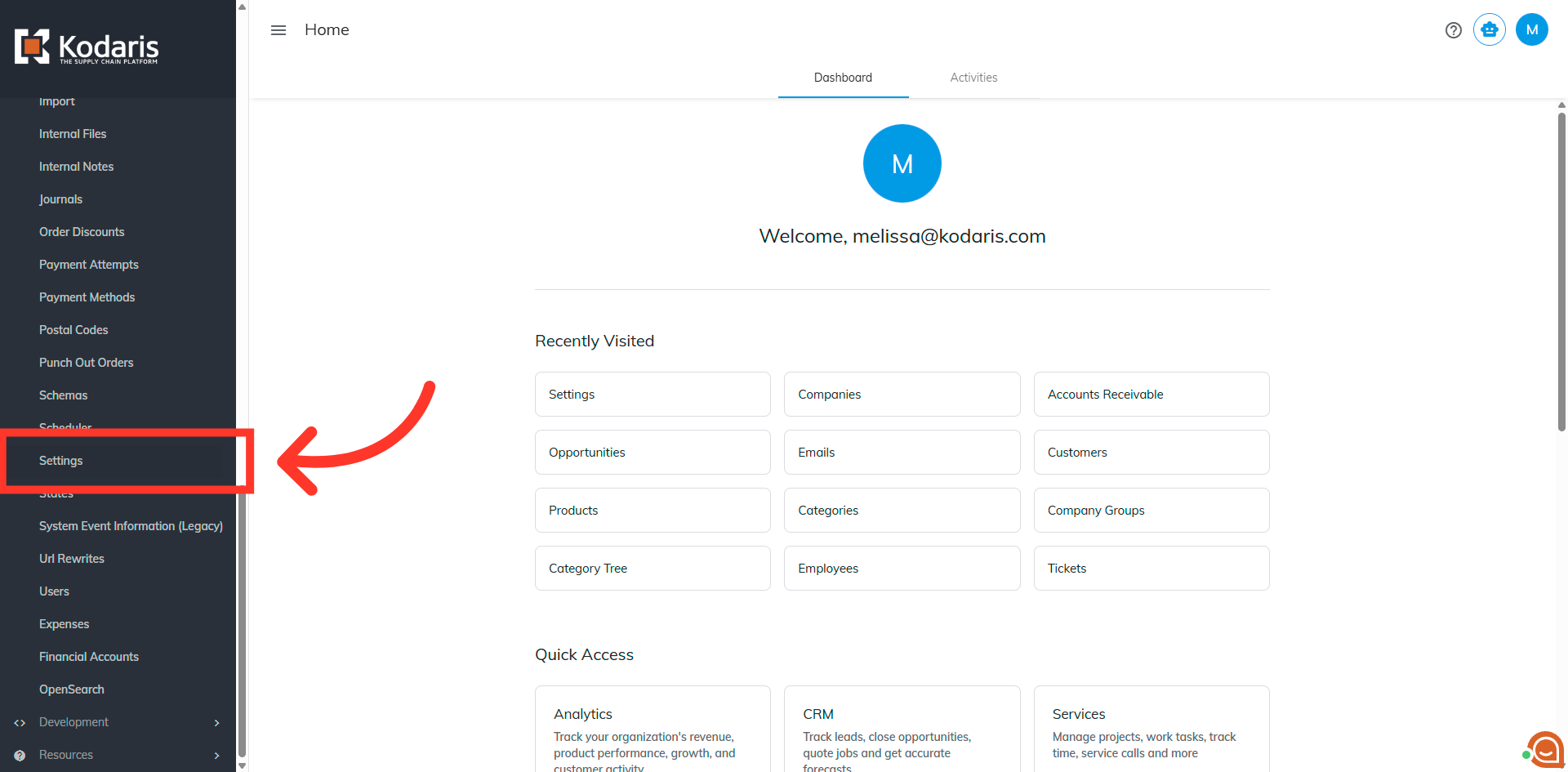
Click "Settings"
Click "Settings". In order to access and edit settings, you will need to be set up either as an "administrator" or a "superuser", or have the following roles: "settingEdit" and "settingView".
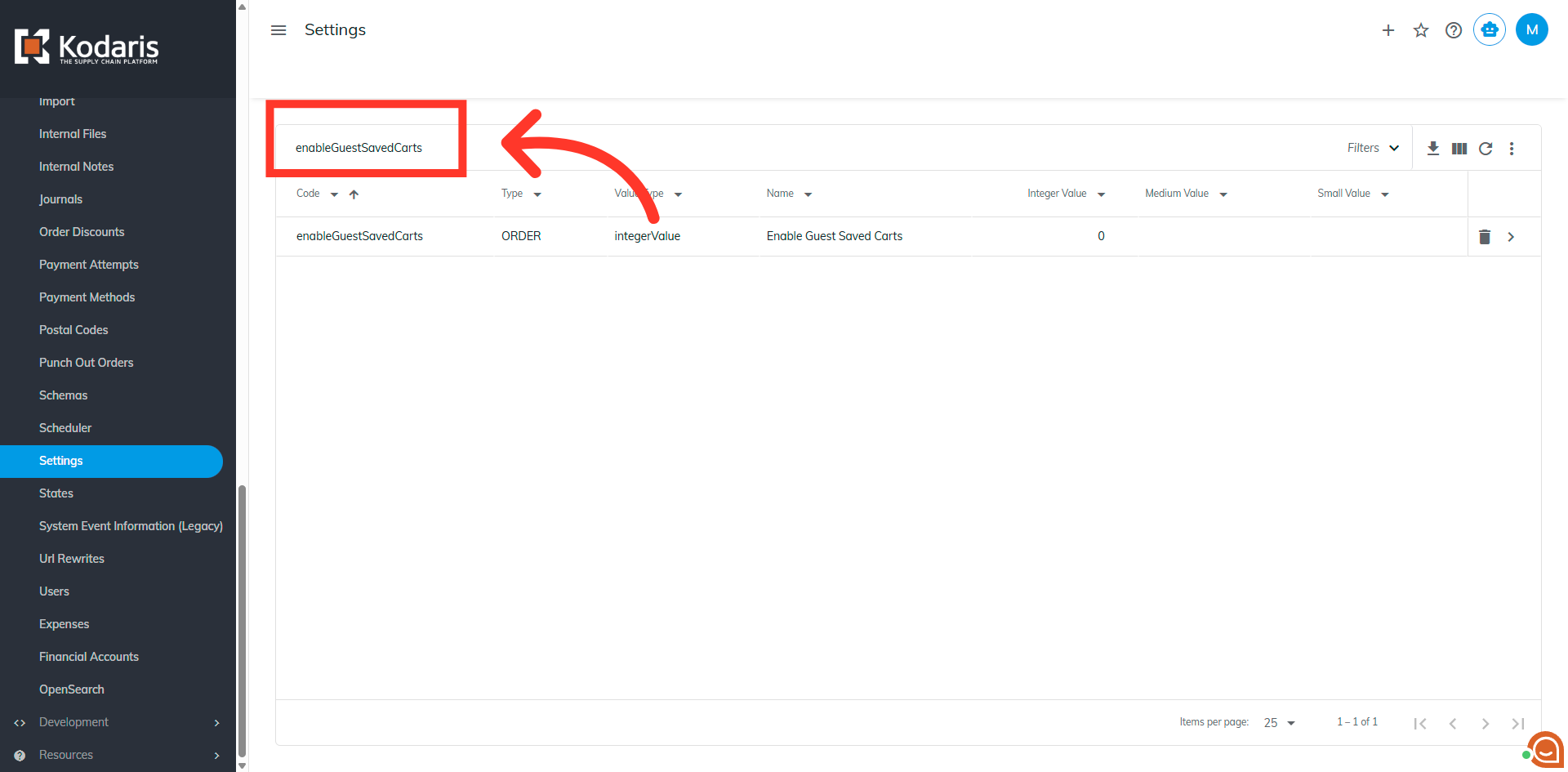
Search for the setting "enableGuestSavedCarts"
Search for the setting "enableGuestSavedCarts". This setting enables saved cart functionality for guest customers. You’ll enable this if you’d like the Abandoned Cart email to be sent to guest users. Once enabled, it will send for created guest abandoned carts going forward. If this setting is left off, the Abandoned Cart email will only be sent to customers registered with an account.
Click on the "more details" icon
Click on the "more details" icon.
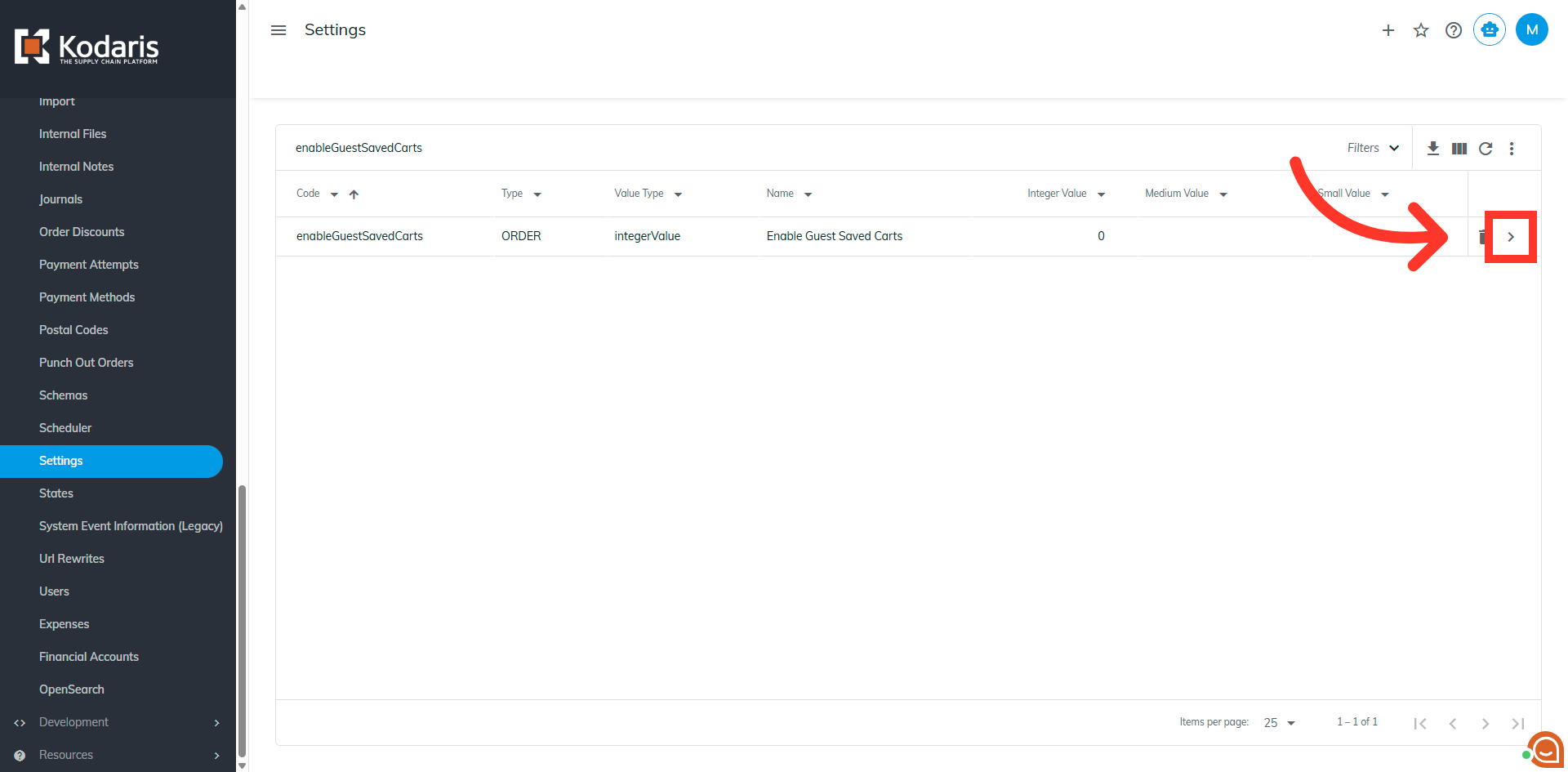
Enter the value
Enter the value of "1" to enable the setting.
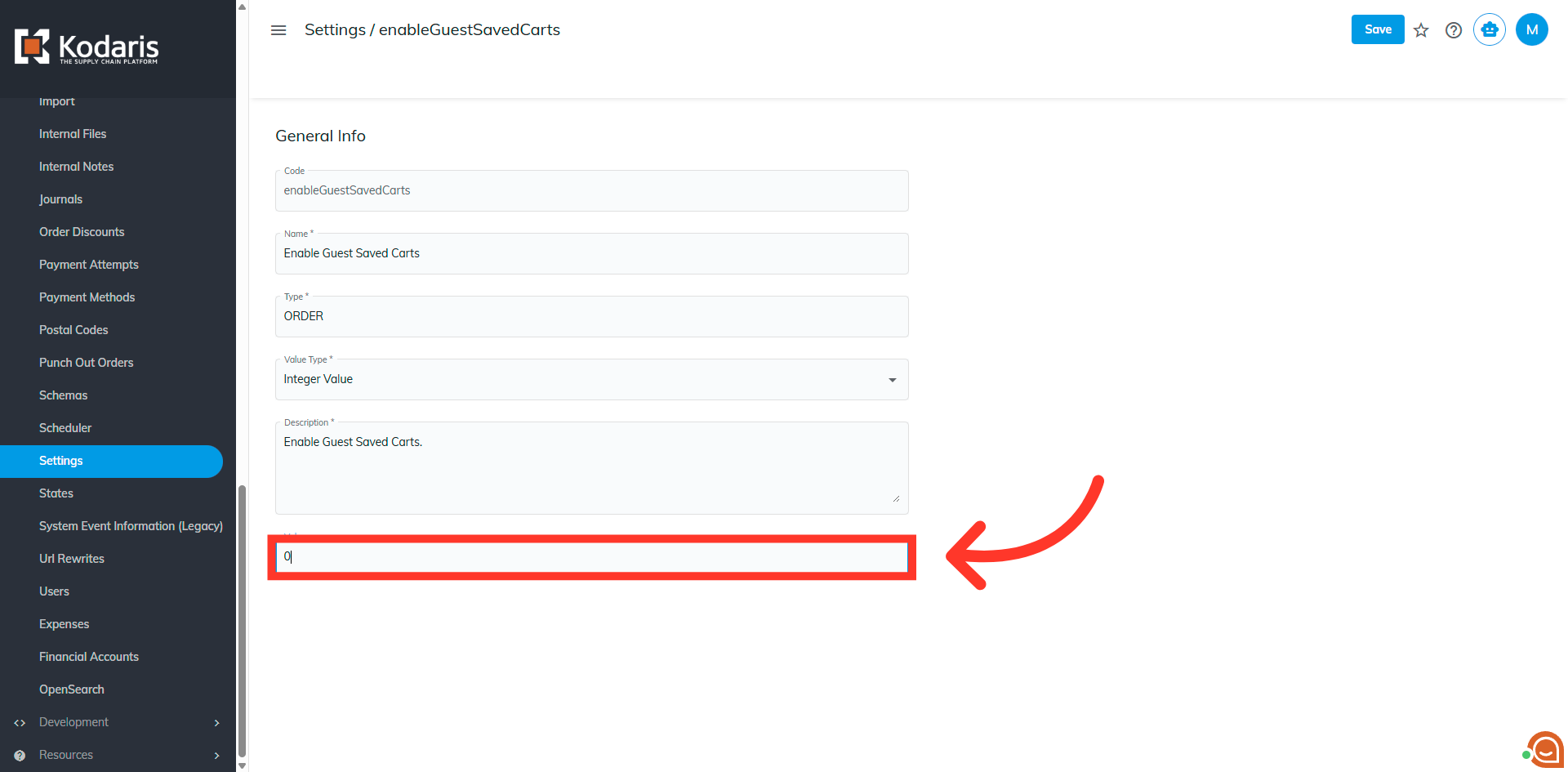
Click "Save"
Click the "Save" button to apply the changes made to the configuration settings.
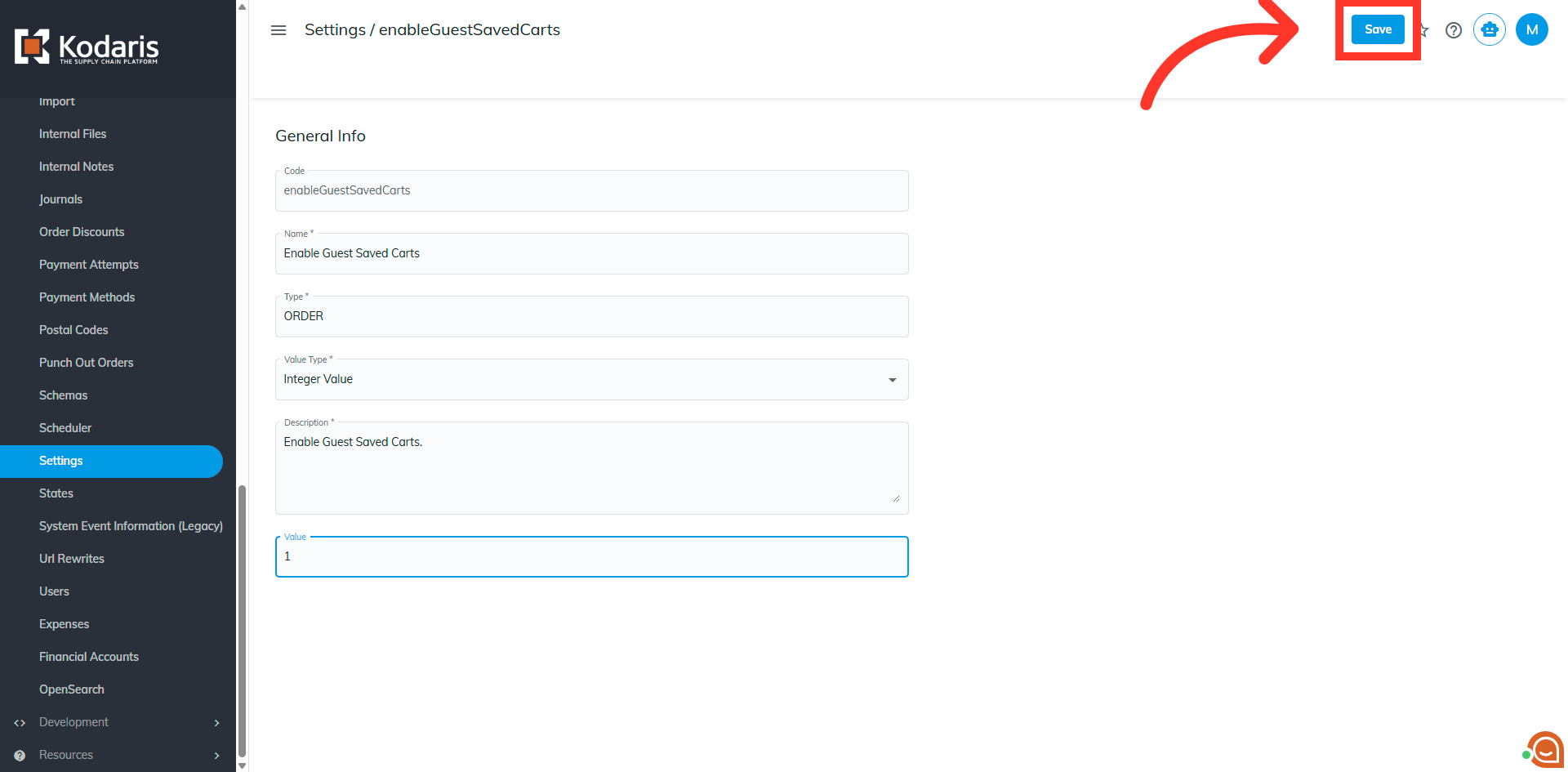
Return to "Settings"
Click "Settings" to navigate back to the main settings page.
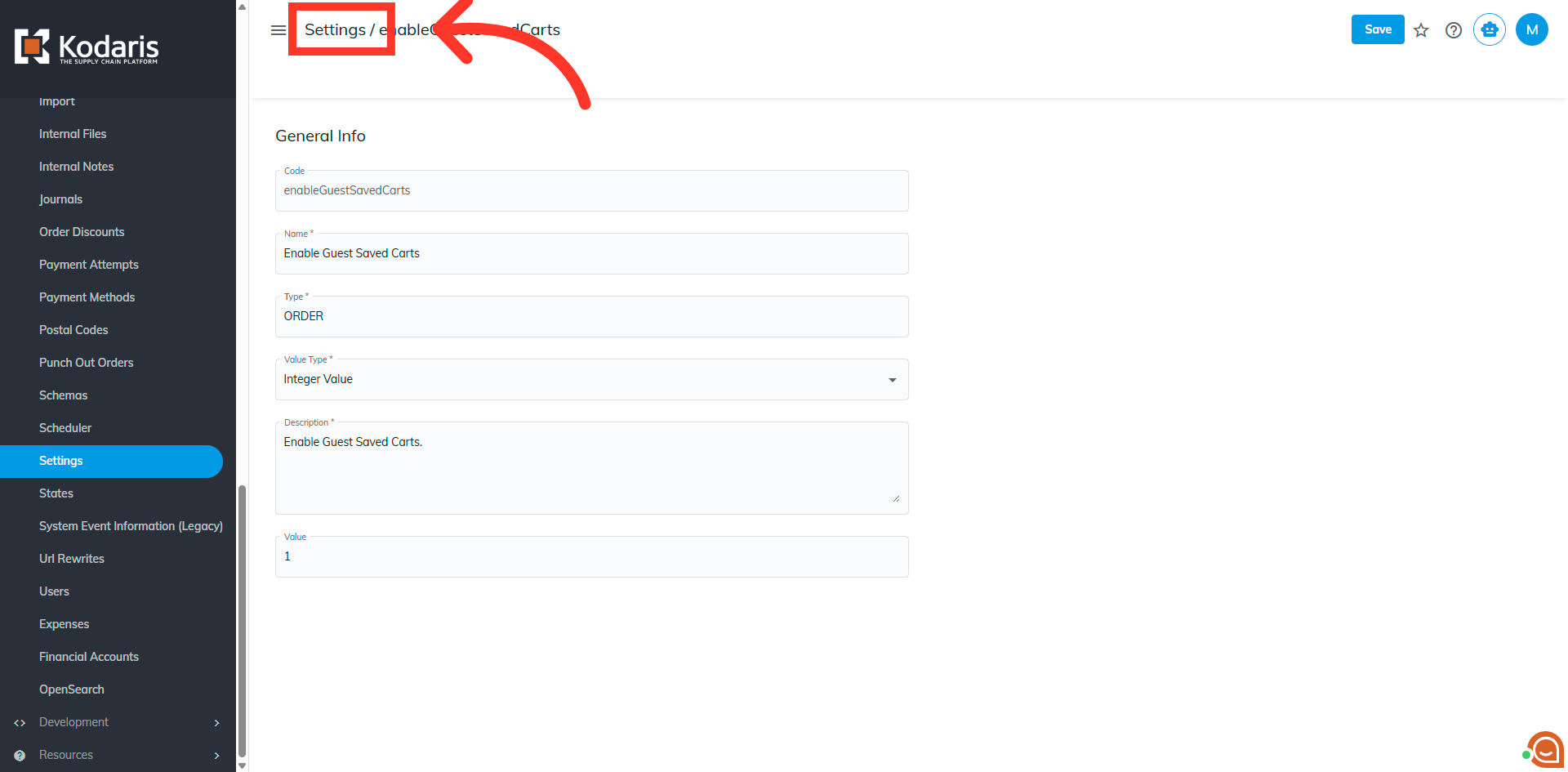
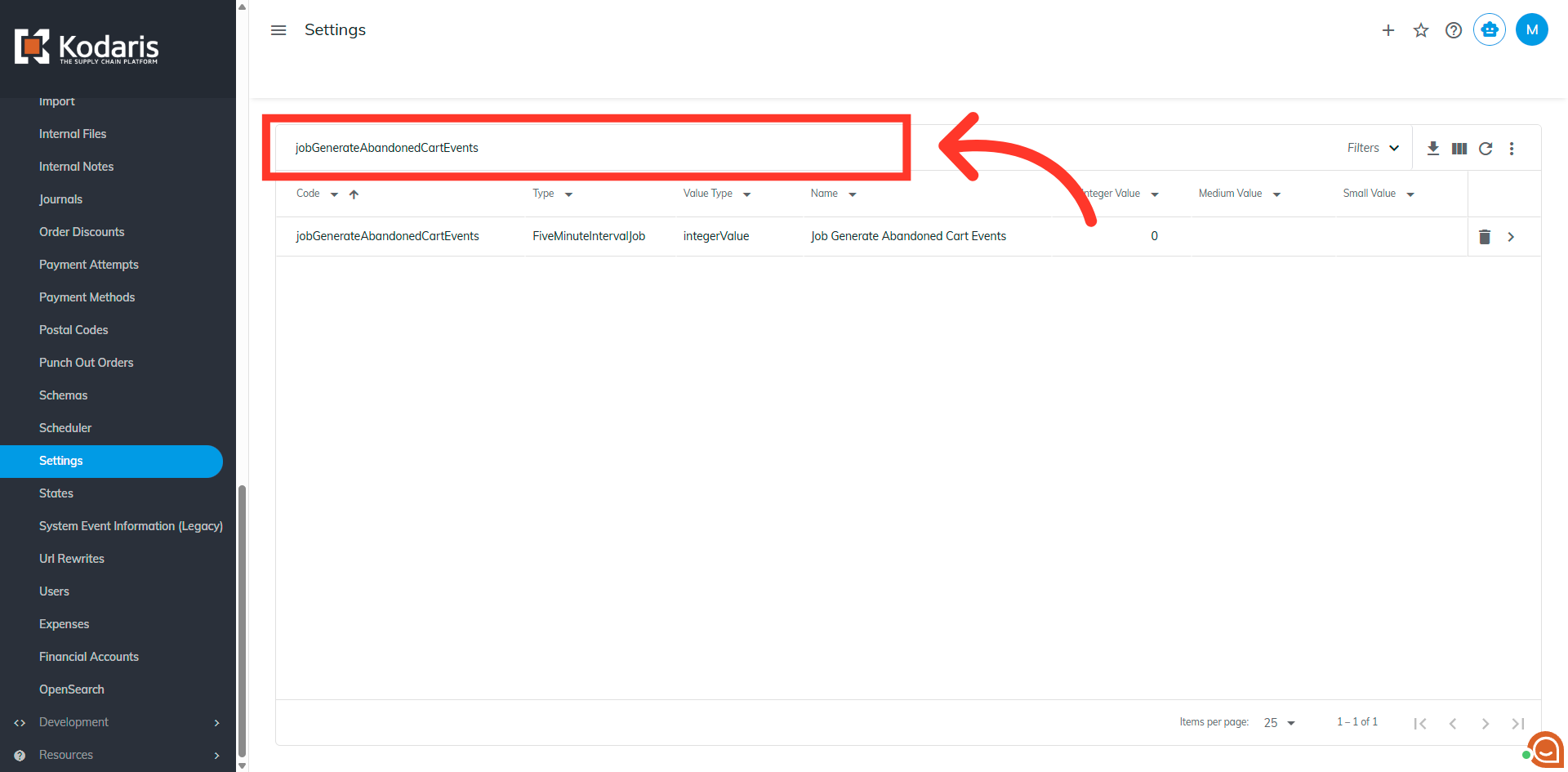
Search for the setting "jobGenerateAbandonedCartEvents"
Search for the setting "jobGenerateAbandonedCartEvents". This setting enables the job that generates abandoned cart events.
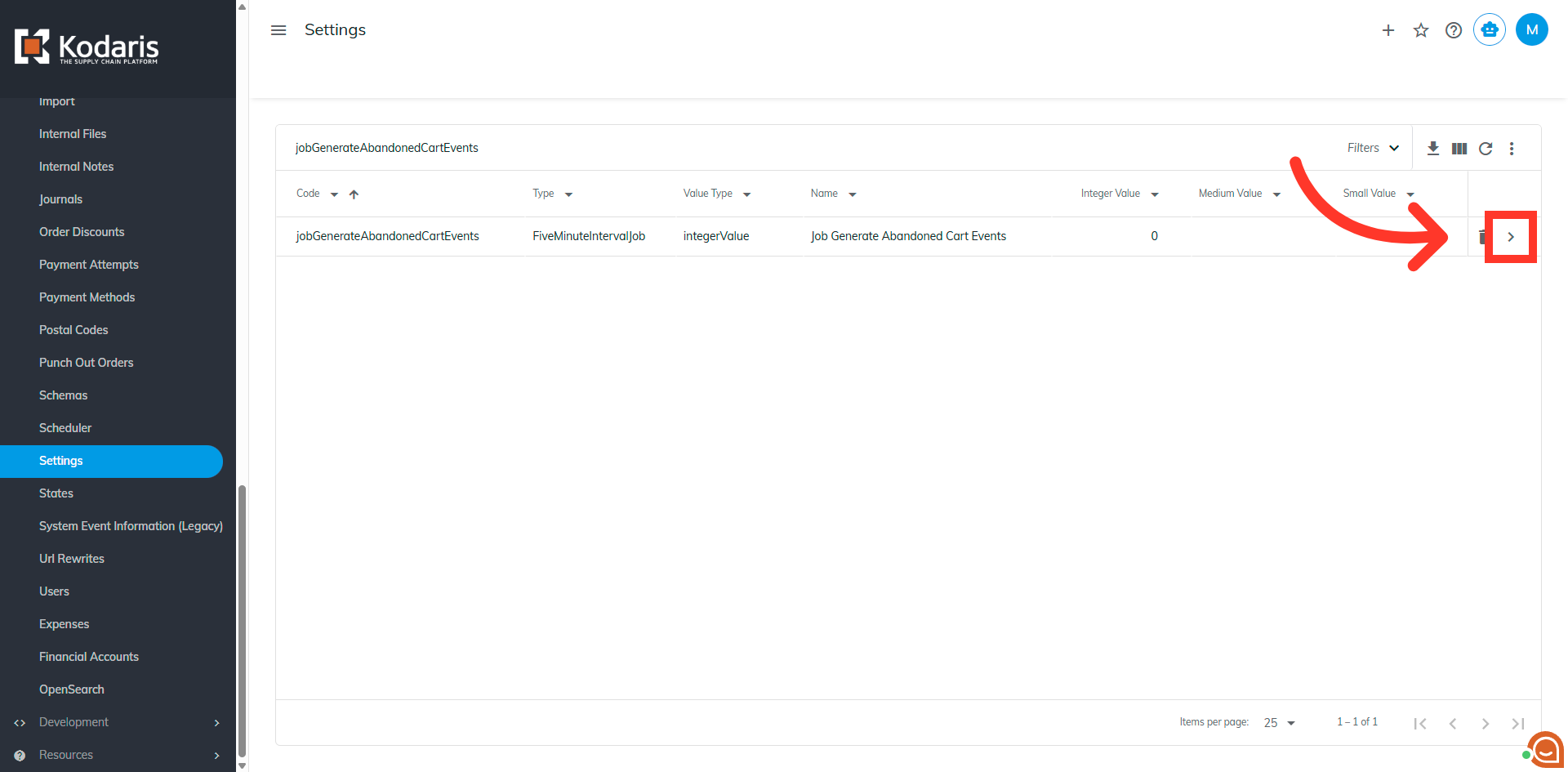
Click on the "more details" icon
Click on the "more details" icon.
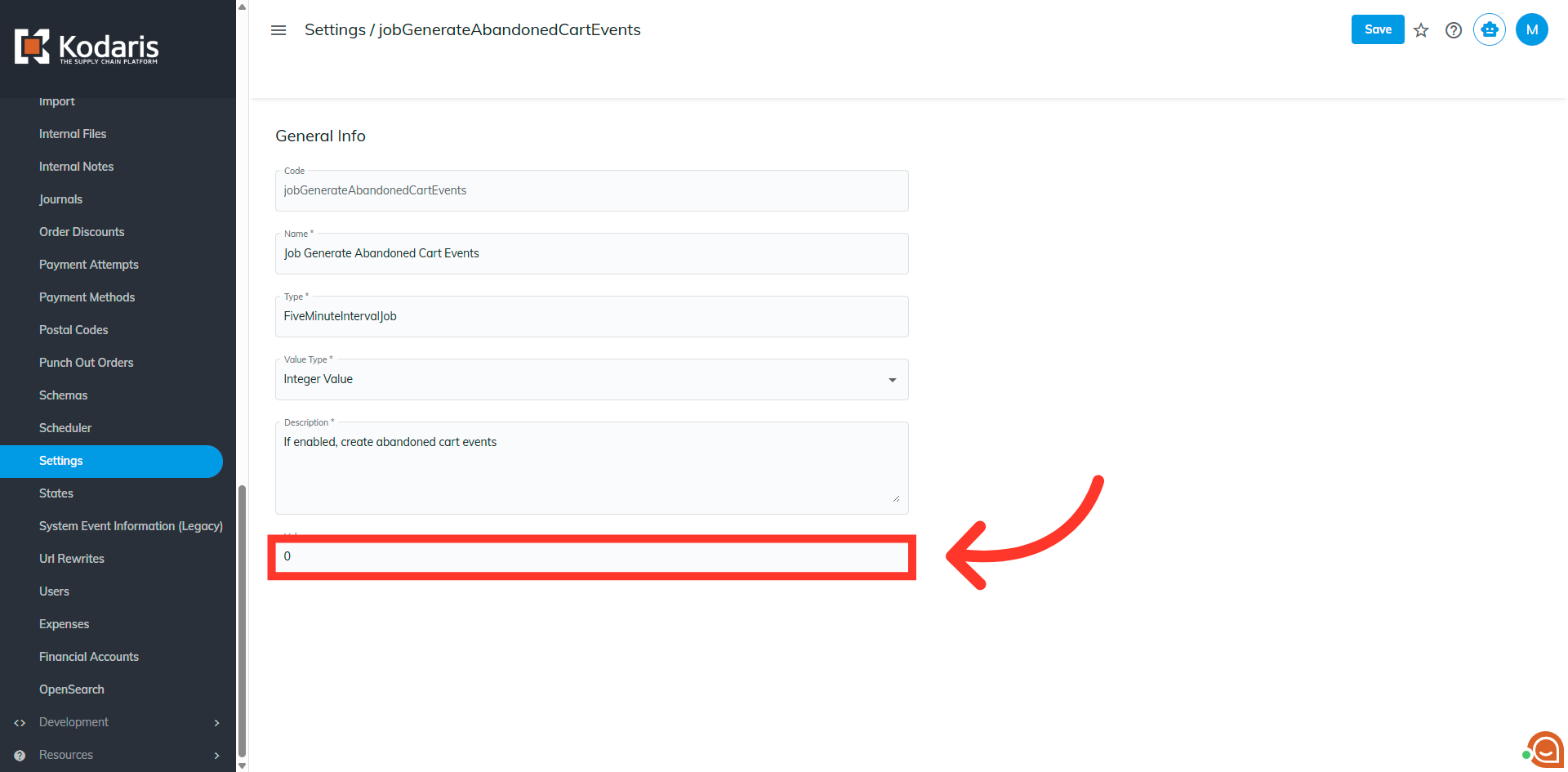
Enter the value
Enter the value of "1" to enable the setting.
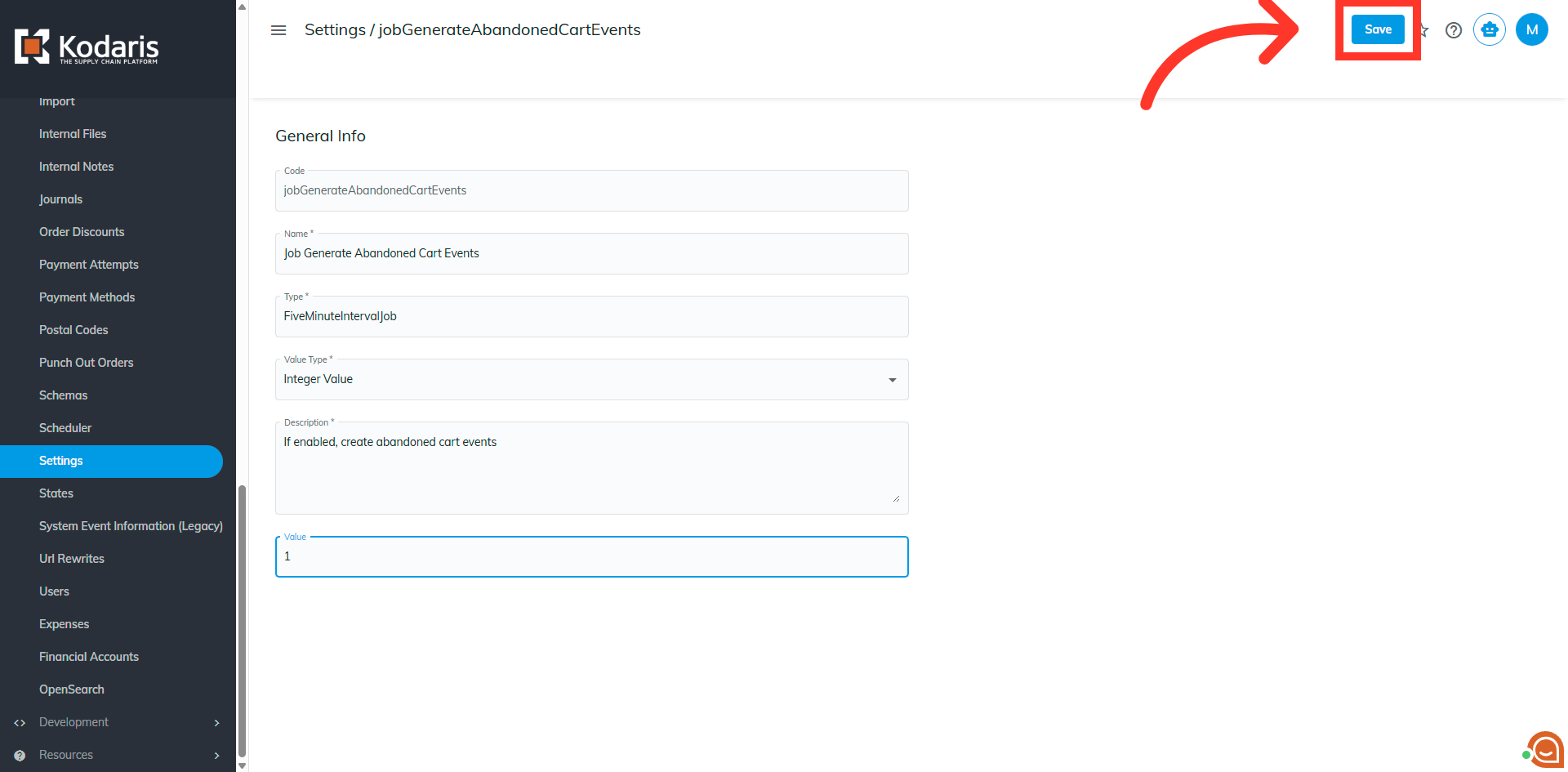
Click "Save"
Click the "Save" button to confirm and save the updated configuration.
Return to Settings
Click "Settings" to navigate back to the main Setting's page
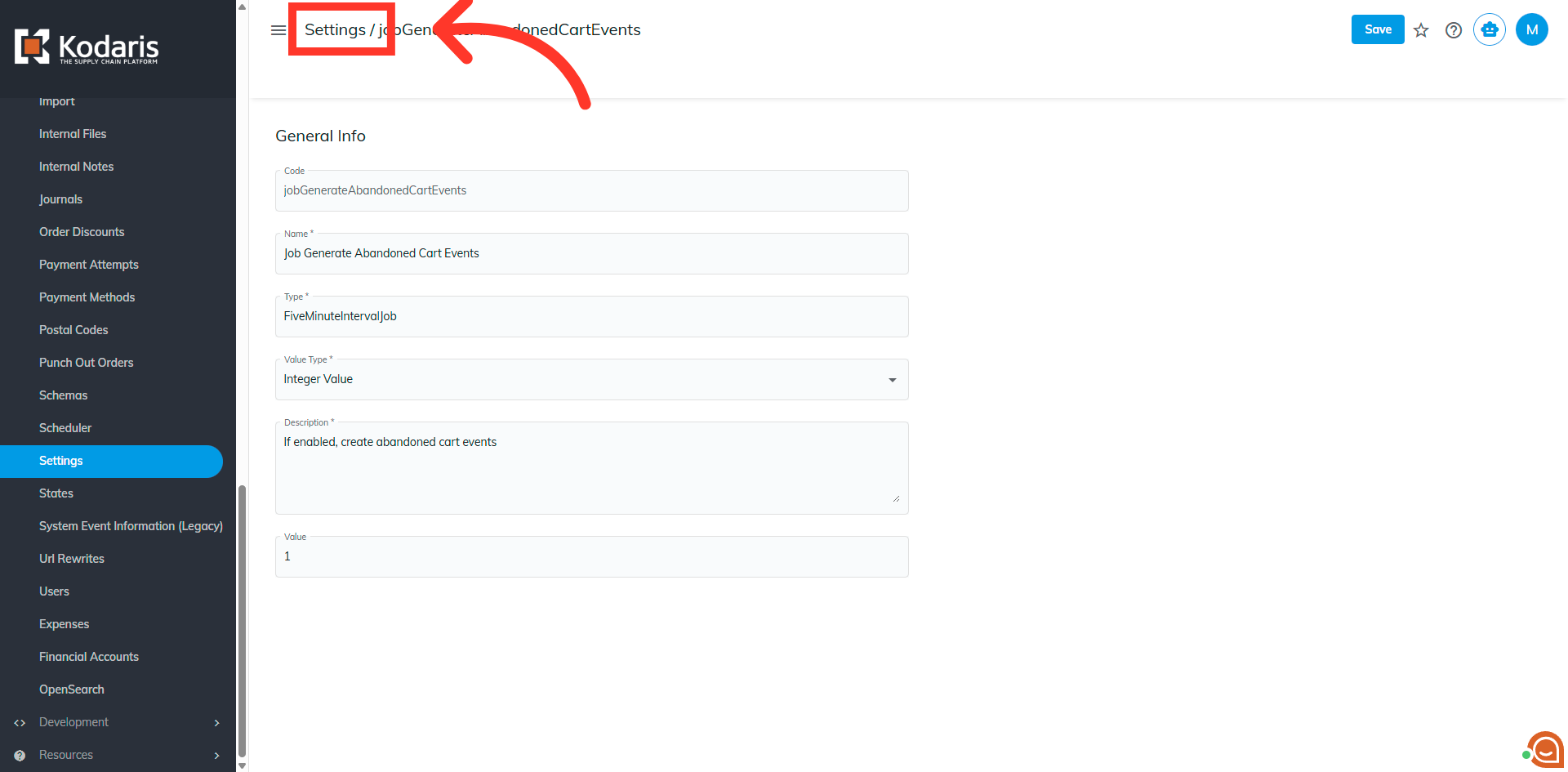
Search for the setting "jobProcessAbandonedCartEvents"
Search for the setting "jobProcessAbandonedCartEvents". This setting enables the job that processes abandoned cart events
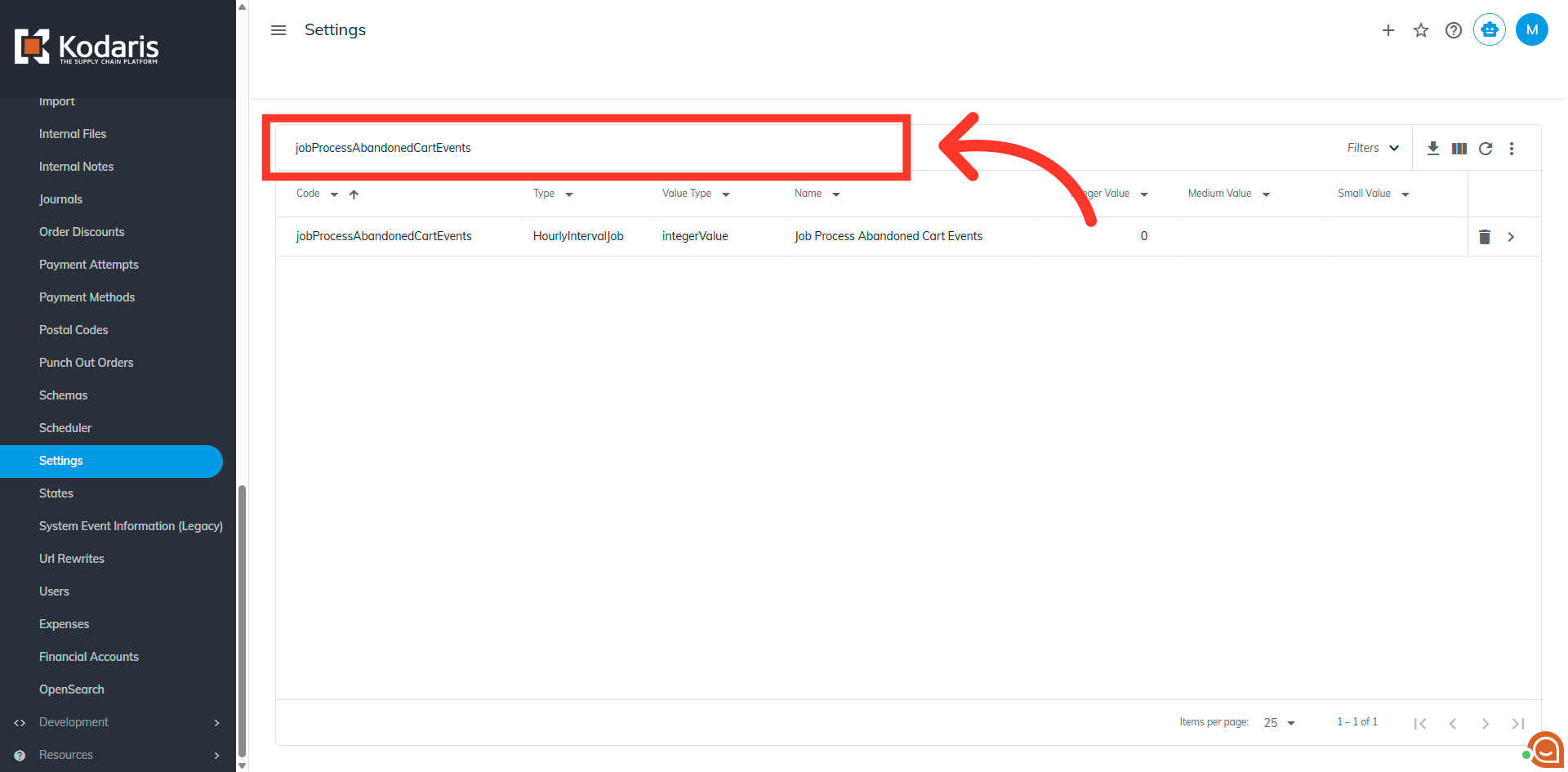
Click on the "more details" icon
Click on the "more details" icon.
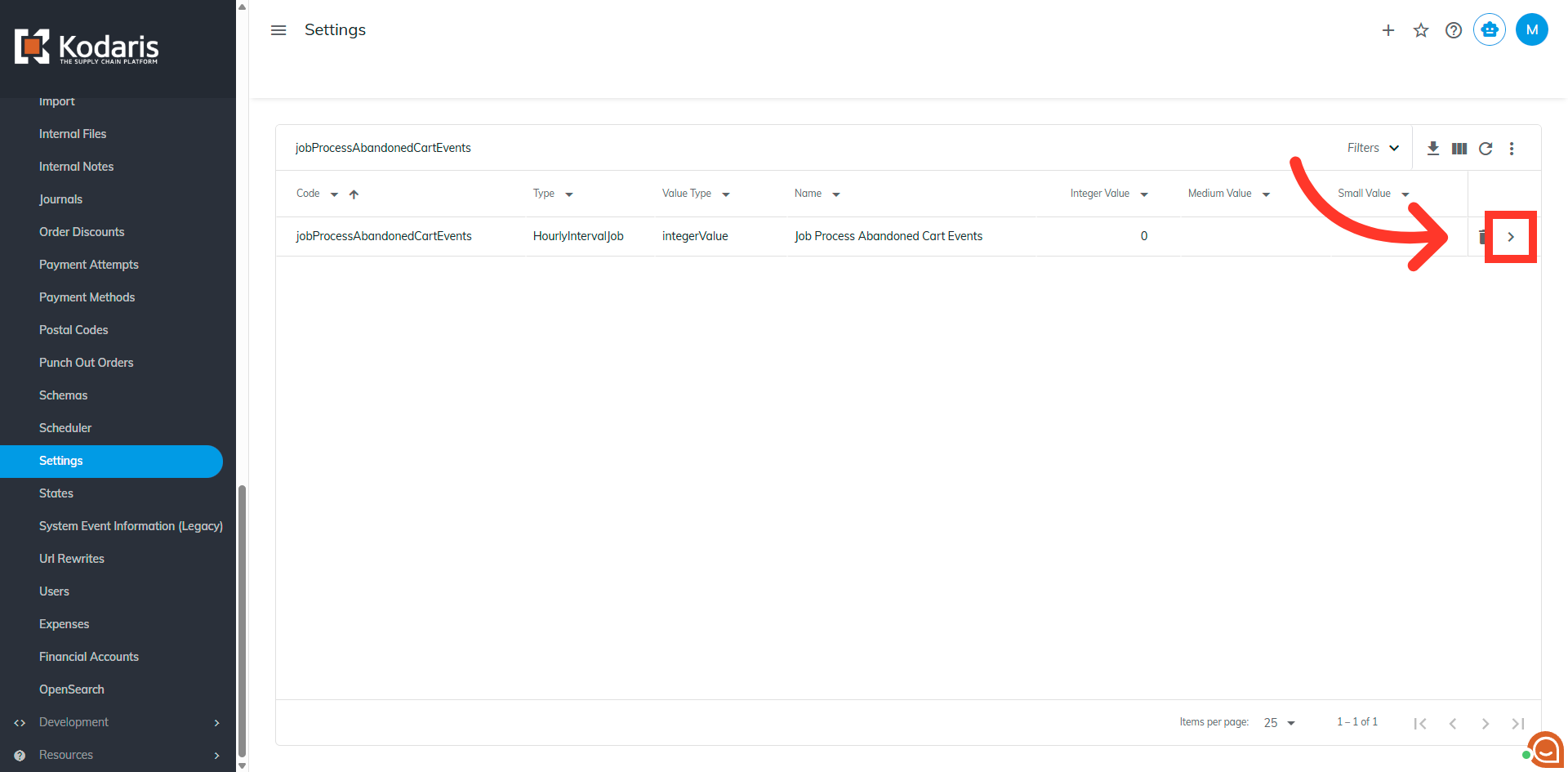
Enter the value
Click into the "Value" field to enter the required numeric value.
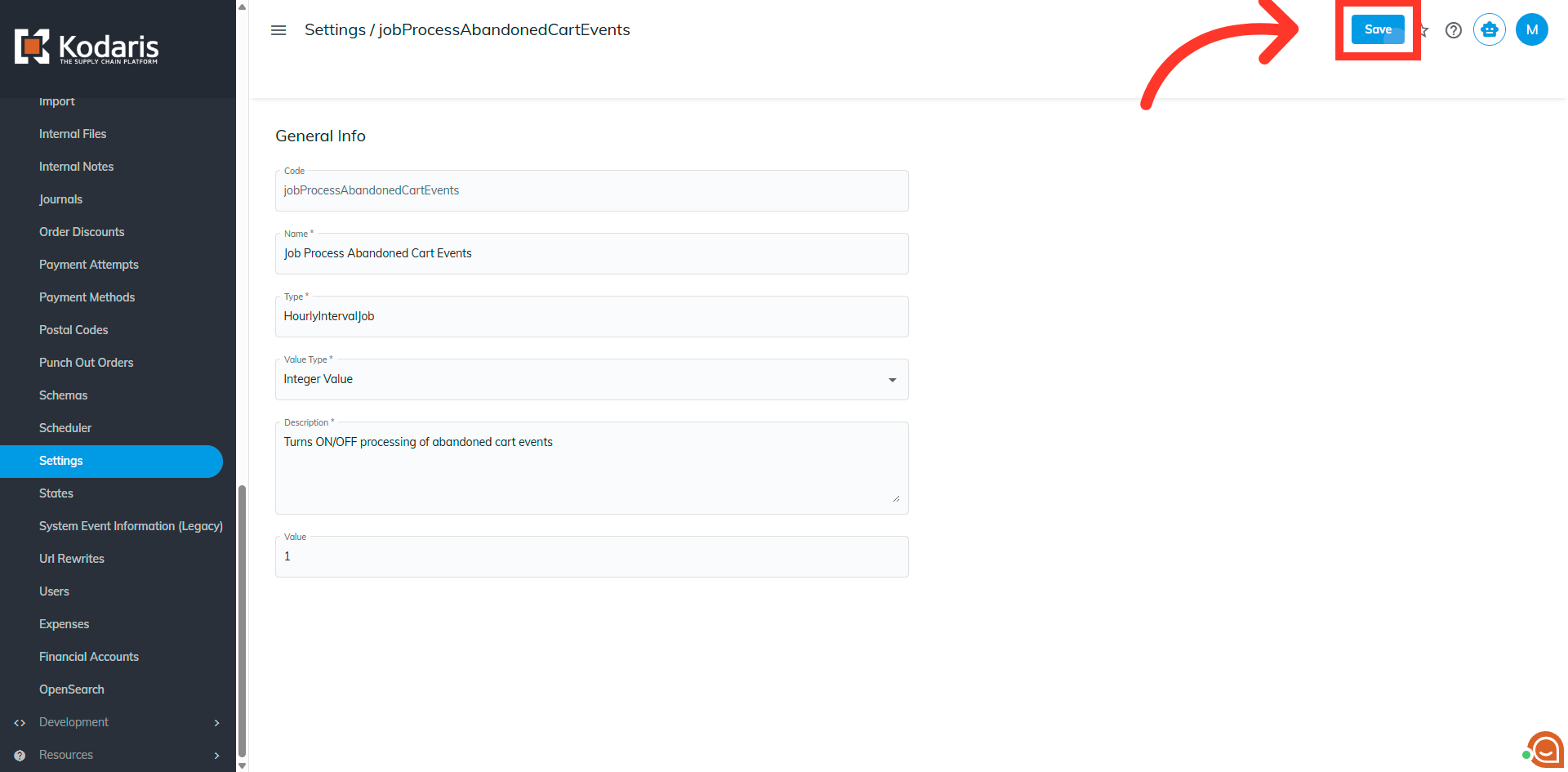
Click "Save"
Click the "Save" button to save the changes made to this setting.
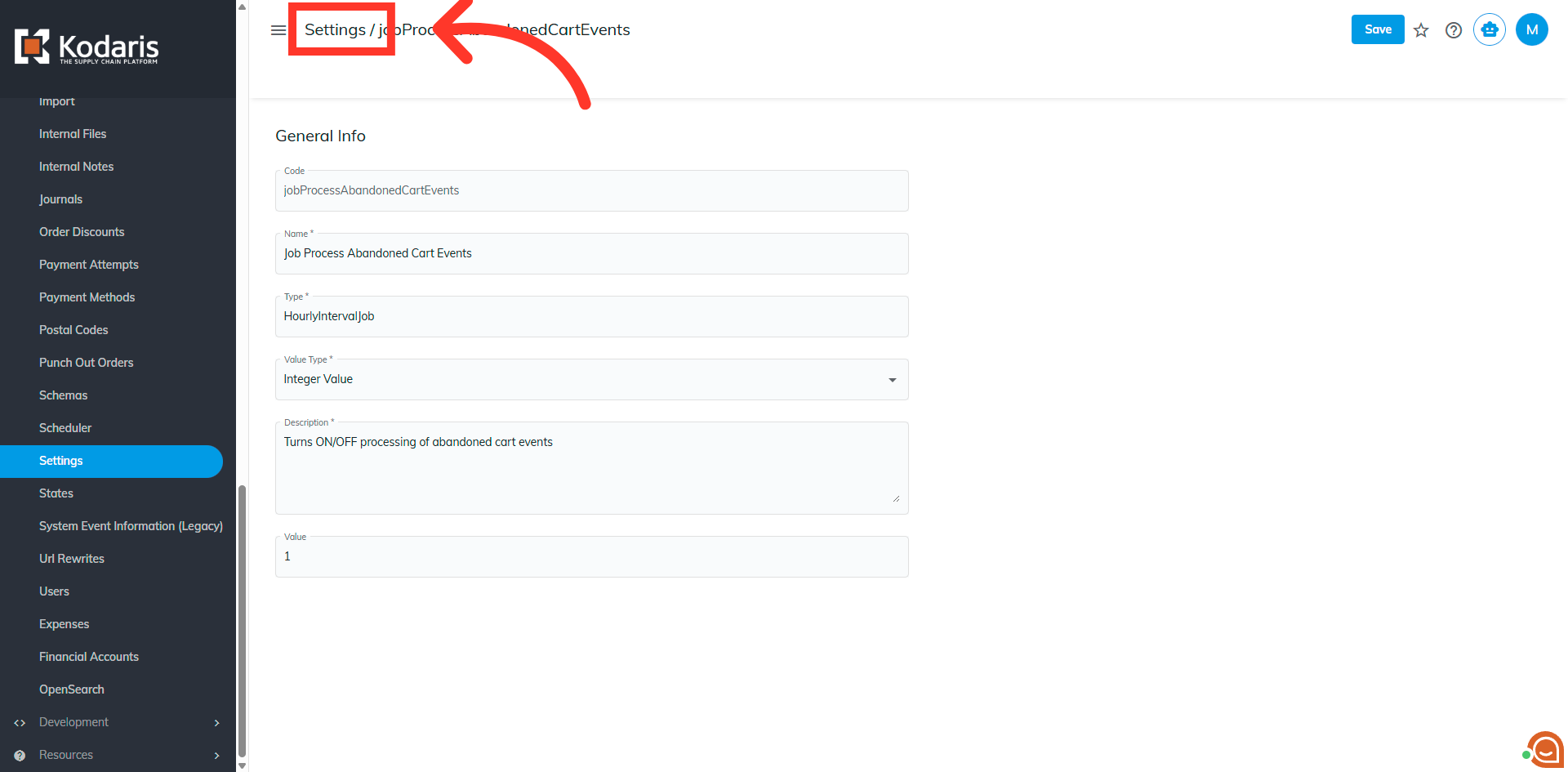
Return to "Settings"
Click "Settings" to navigate back to the main settings page.
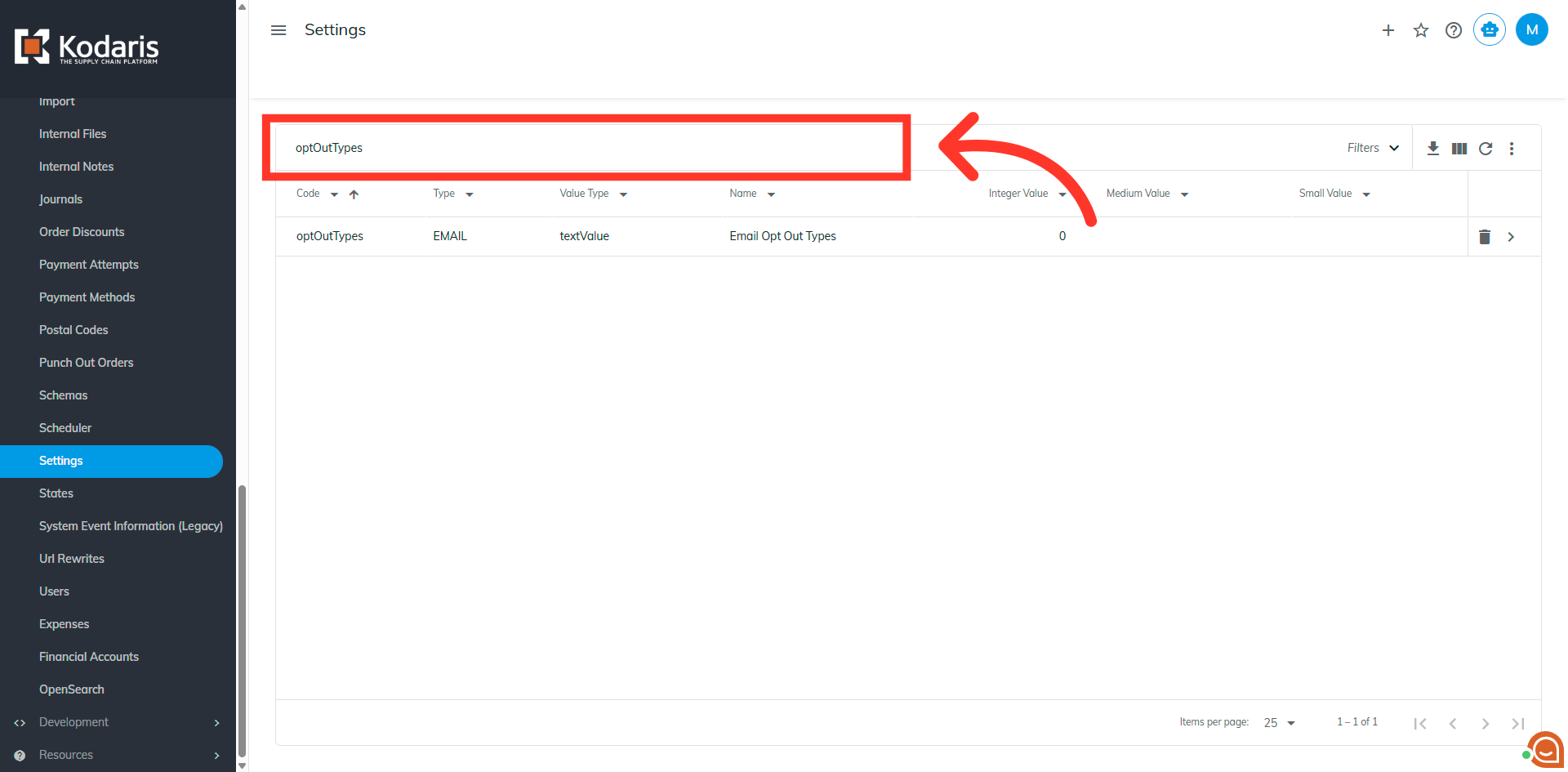
Search for the setting "optOutTypes"
Search for the setting "optOutTypes". This setting lists all available opt-out types.
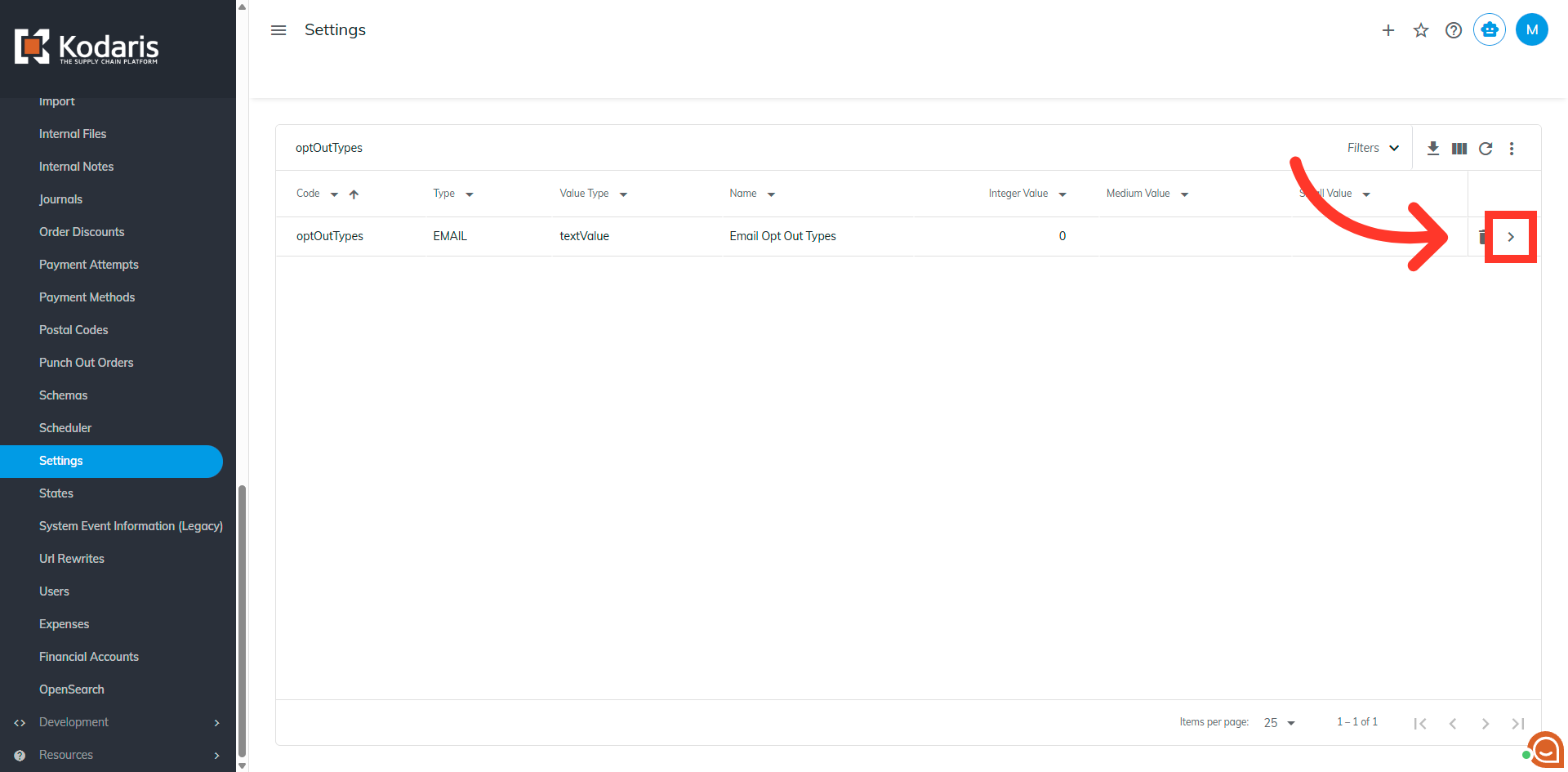
Click on the "more details" icon.
Click on the "more details" icon.
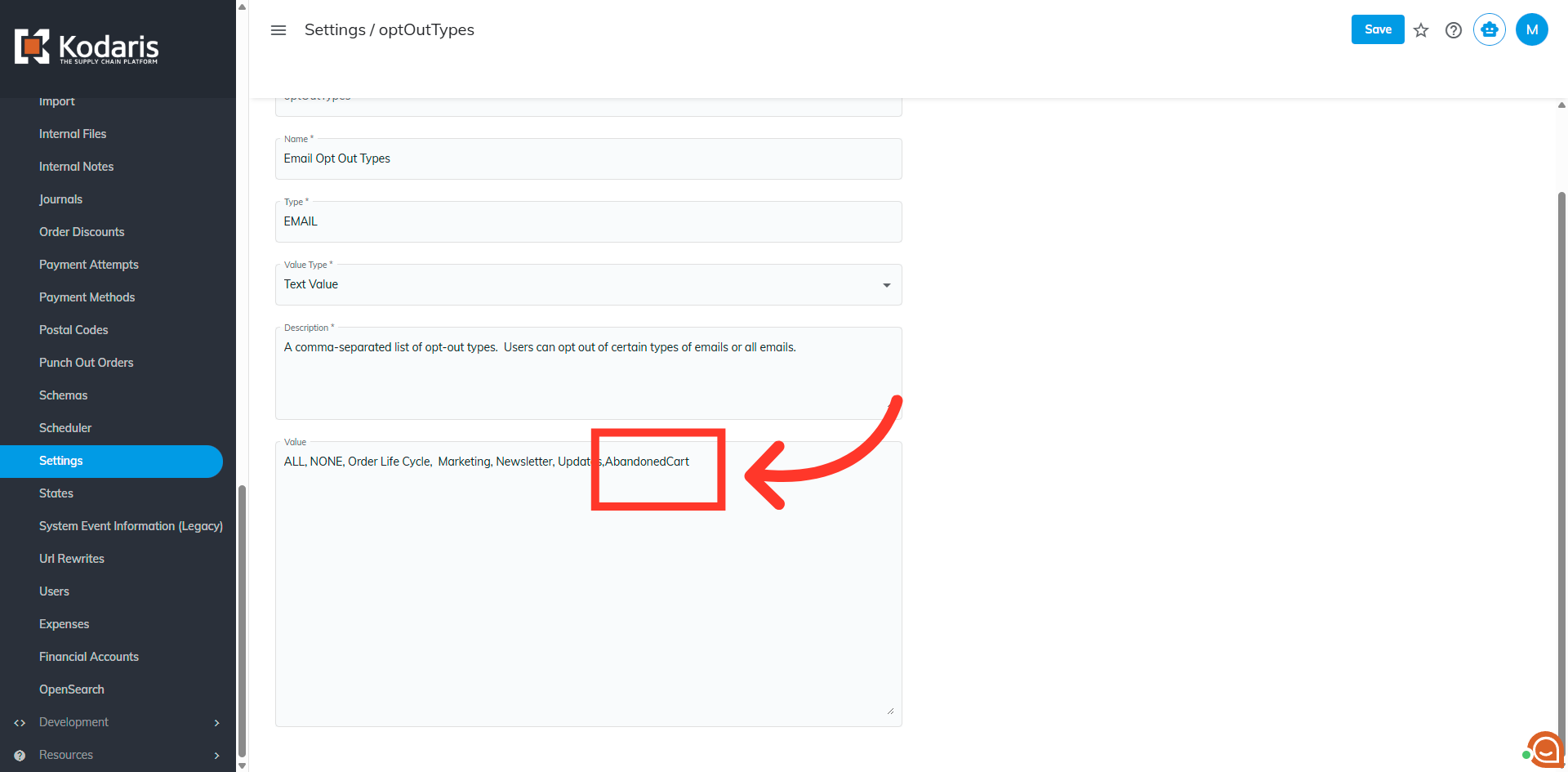
Add the value "AbandonedCart"
Add the value "AbandonedCart". Be sure the values follow the comma separated format.
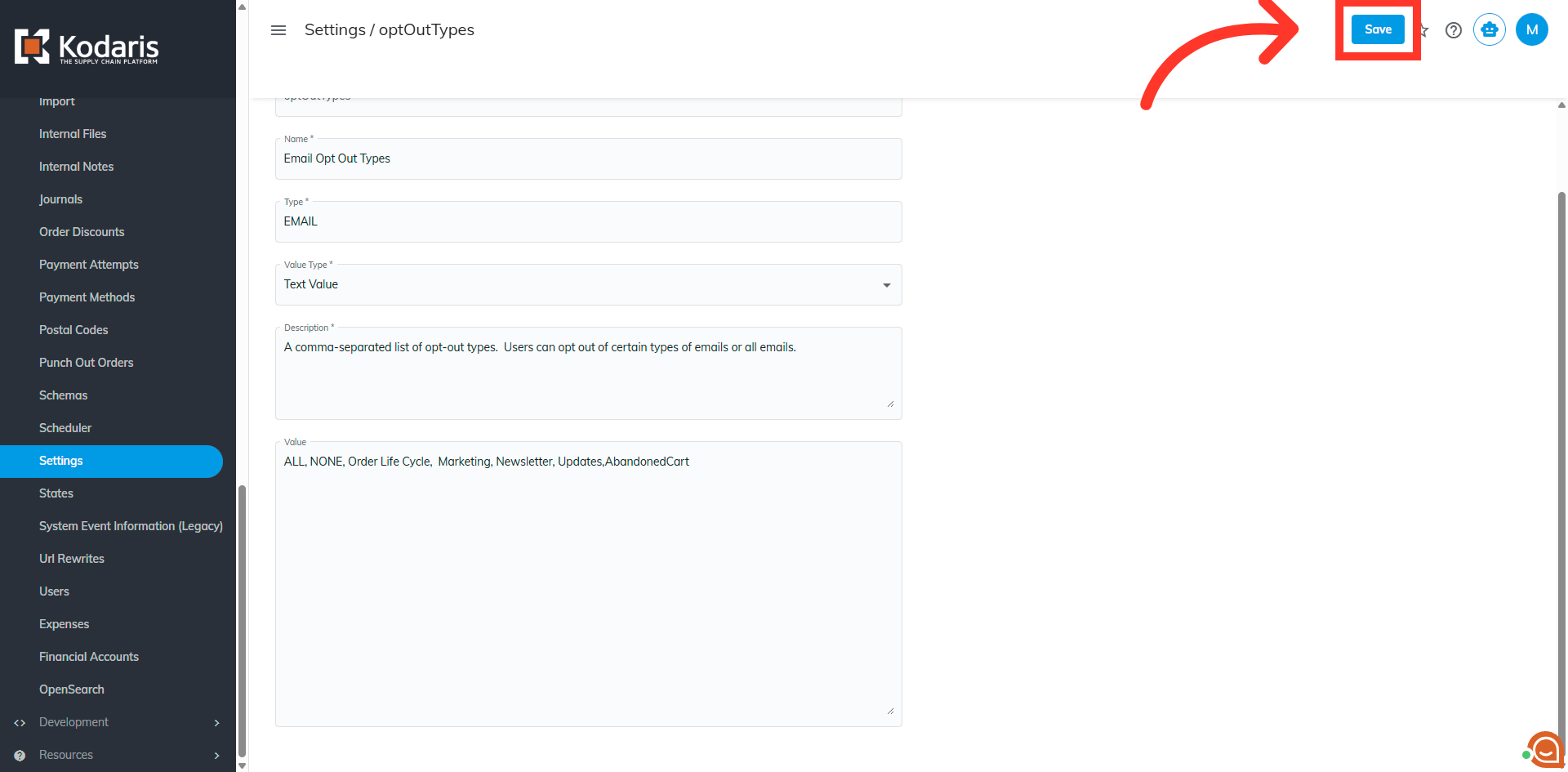
Click "Save"
Click the "Save" button to apply all recent configuration changes. The Abandoned Cart feature has now been enabled.