
Operations PIM - Mass Update Specific Product Attribute Assignments by Import
Navigate to "PIM"
To mass update product attribute assignments, navigate to "PIM" section in your operations portal.

Click "Products"
Then, click "Products". In order to access "Products" you will need to be set up either as an "administrator" or a "superuser", or have the appropriate roles: "productView and productEdit" along with "importEdit" and "importView". These last two roles are needed for importing.

Go to the "Attribute Assignment" tab
Go to the "Attribute Assignment" tab
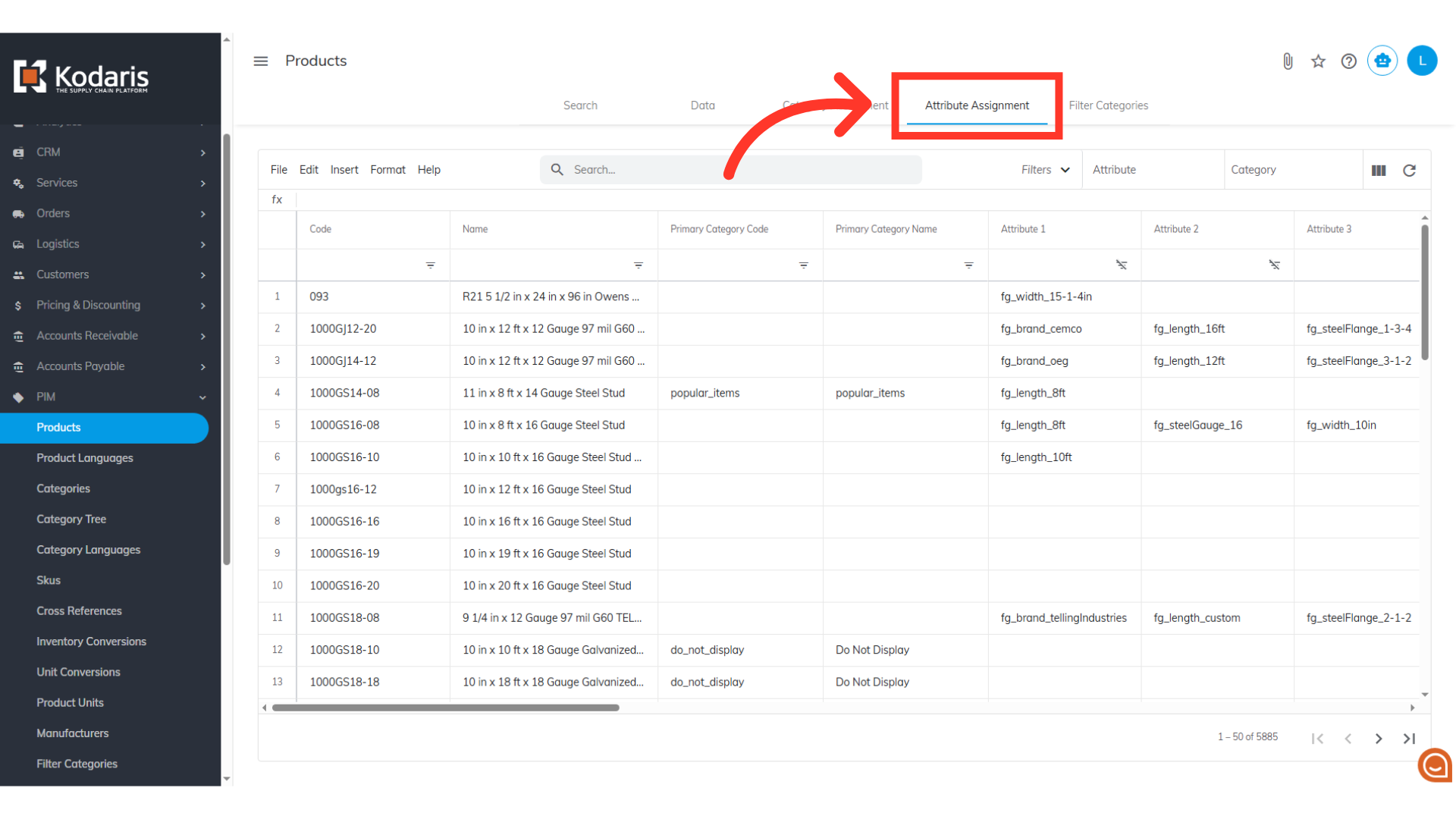
Filter Product List
Before exporting, refine your product list by using the search bar or various column filters, to focus on the specific items whose attributes you intend to update.

Click the "Show/Hide Columns" icon
Next, click the "Show/Hide Columns" icon.

Select needed columns
To prepare your CSV for export, ensure the "Code", "Name", and all "Attribute" columns are displayed. You can uncheck any other columns you don't need to simplify the spreadsheet, though you have the flexibility to add more if required.

Click "File"
Now, click the "File" menu.
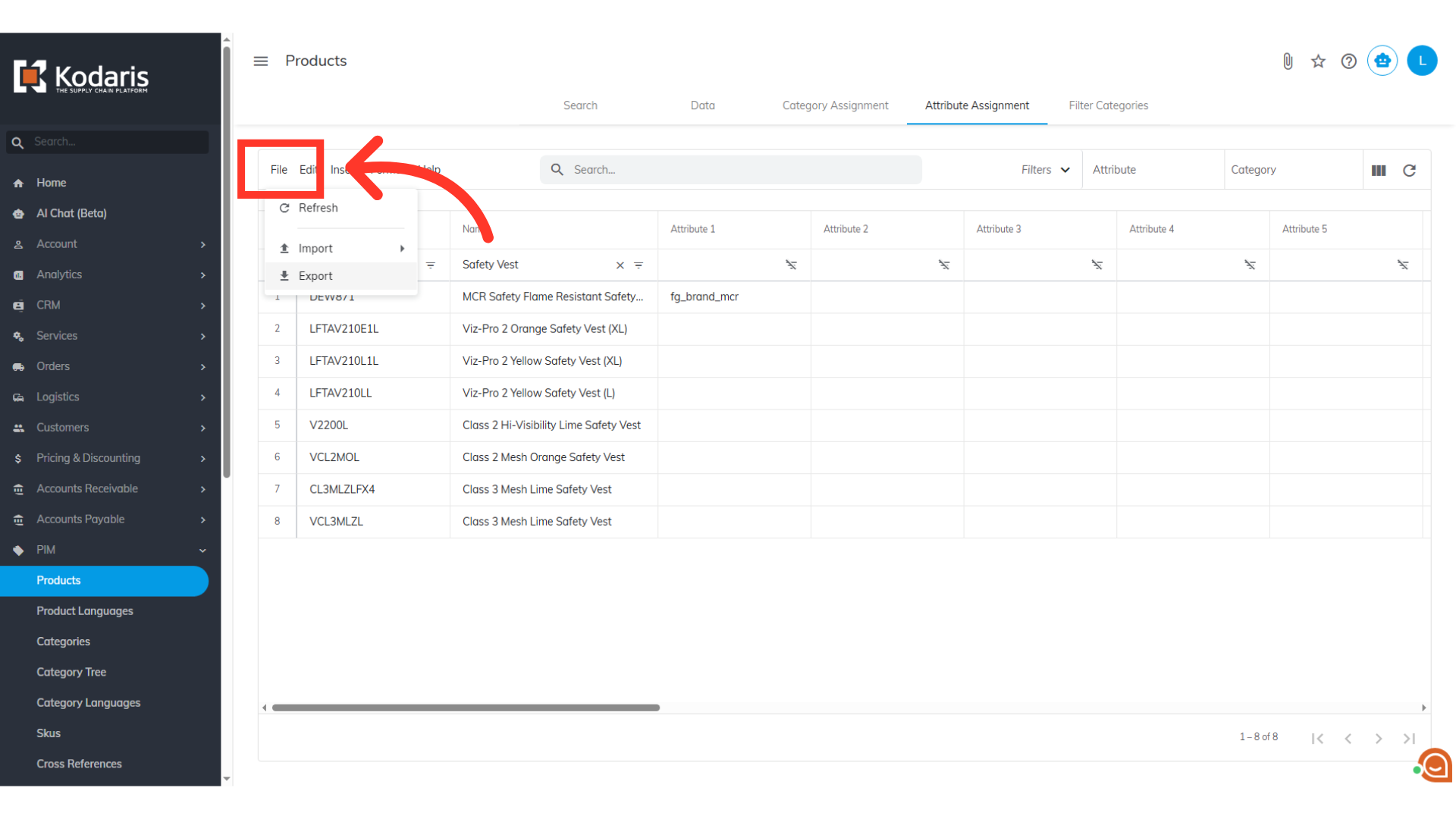
Click "Export"
Then, click the "Export" option.

Rename the file, if needed
Rename the file, if needed.

Click "Save"
Click "Save" to start the export.

Header Row
You can see in this sample export that we have the header row that is needed to import data, and also the exported data from the attribute assignment grid.

"code" column = Product Code
The "code" column contains the product codes. When importing product data, the code is required as it is the identifying factor for matching information.

"name" column = Product Name
The "name" column contains the name of the product - while not required for importing, it can be a helpful reference when updating data.
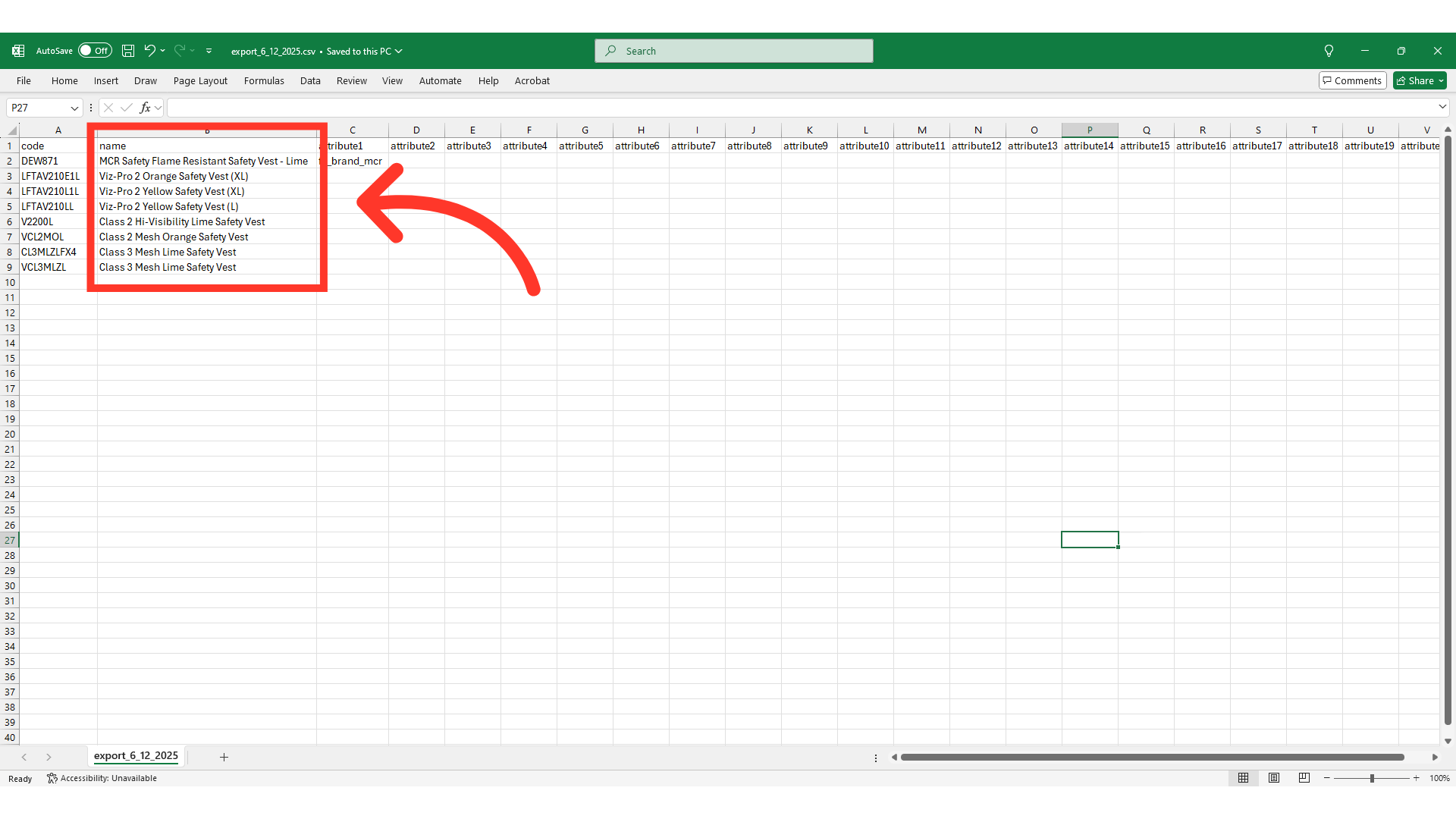
"Attribute #" = Attribute #(1-20)
The "Attribute #(1-20)" are the Product Attribute Assignments you wish to update.

Attribute Codes
You can find the list of all the Attribute Codes in the "Attributes" screen.

Update the spreadsheet
On your spreadsheet, update attribute values or remove assignments by deleting cell values. Make sure to input the correct code for the attributes. You can also add more products if needed.

Click "File"
Now you're ready to import. Return to the Products Attribute Assignment screen in the portal, then, click the "File" menu.
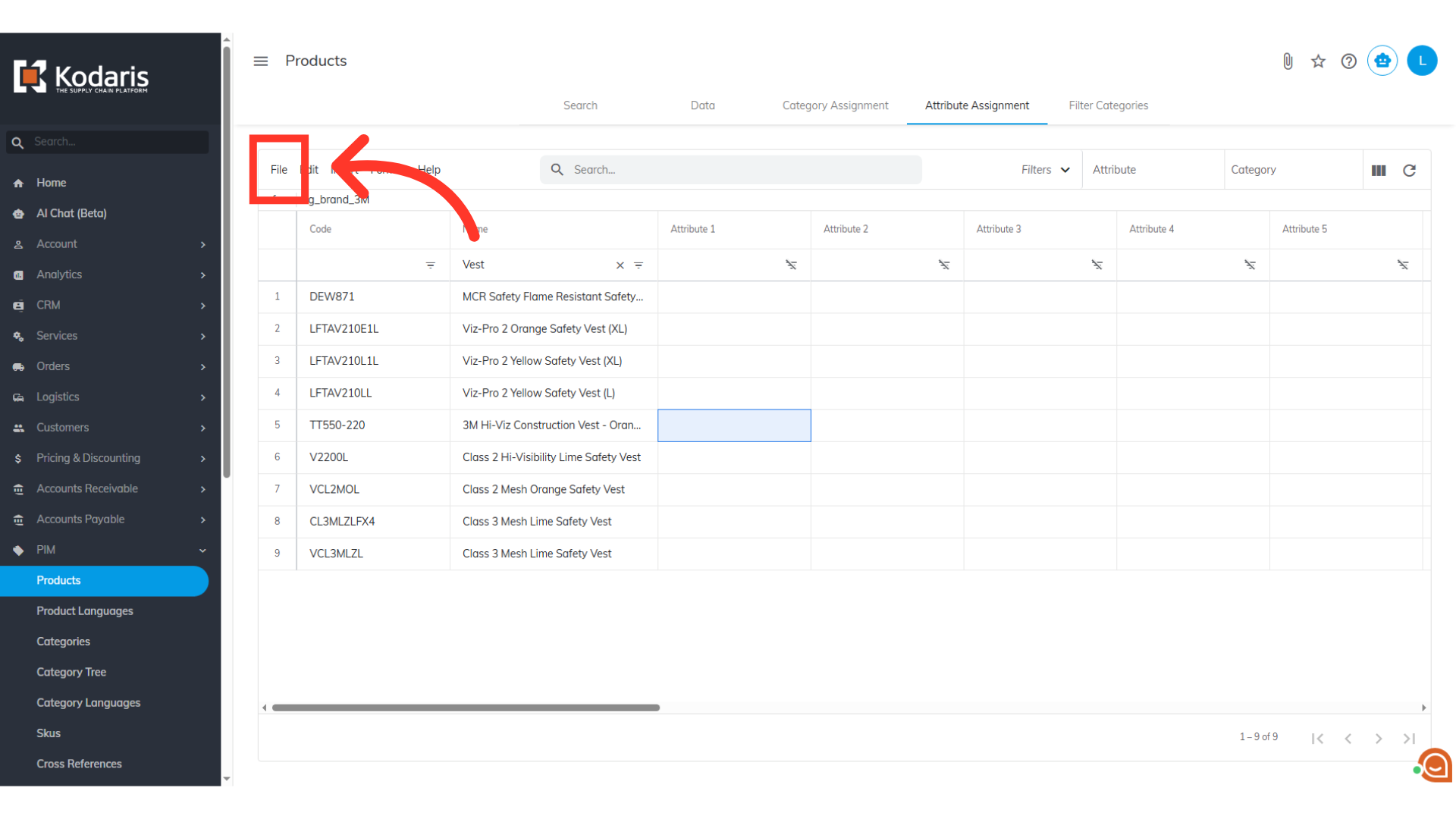
Click "Import"
Click "Import".
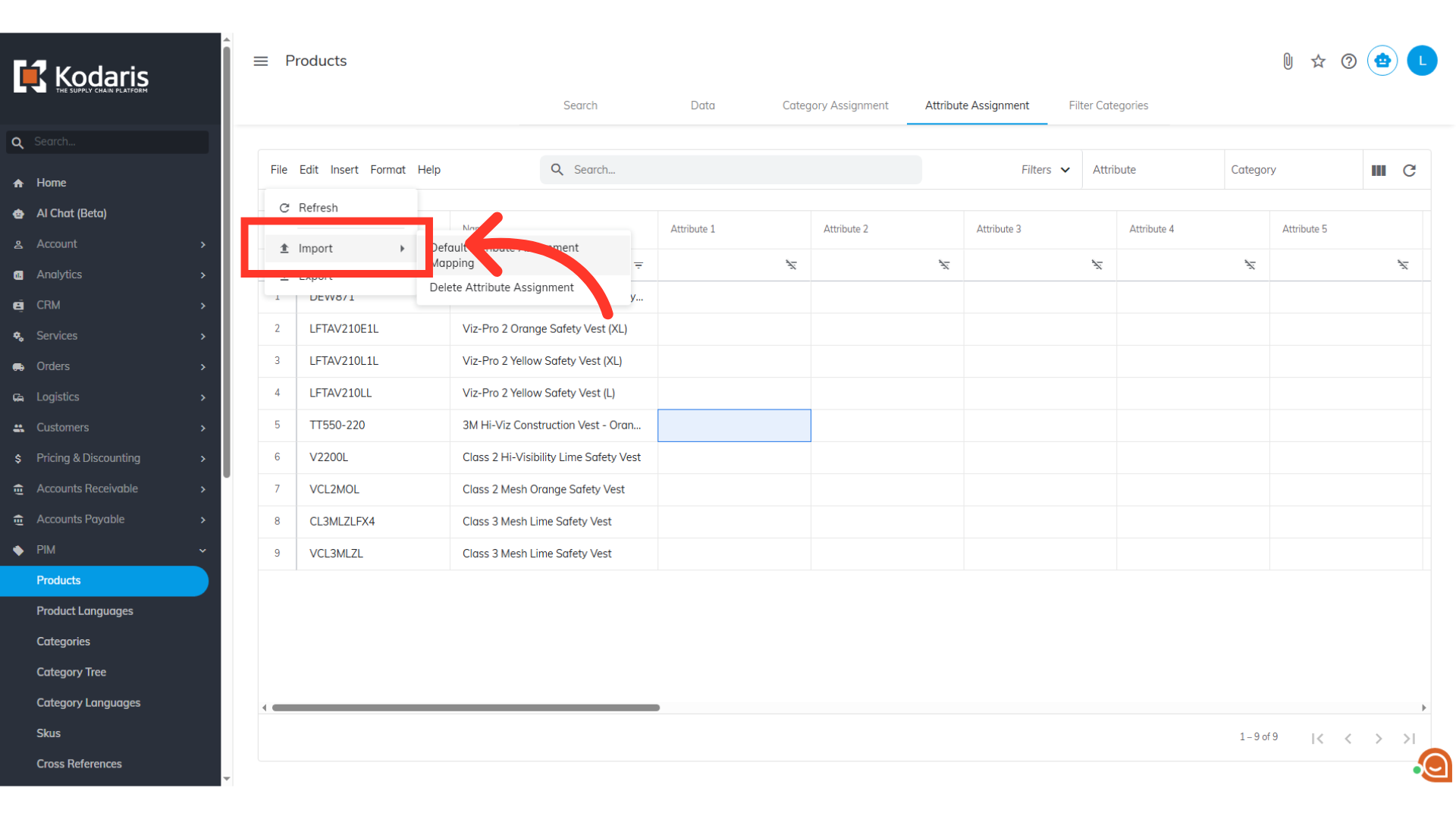
Select "Default Attribute Assignment Mapping"
Select "Default Attribute Assignment Mapping" option

Select your file and click the "Open" button
Choose the .CSV file you would like to import. Please be sure that you select the correct file, as there are no rollbacks for imports. If you are importing large amounts of data, it may take a short amount of time to complete. The import will continue to run in the background.

Verify Updated Assignments
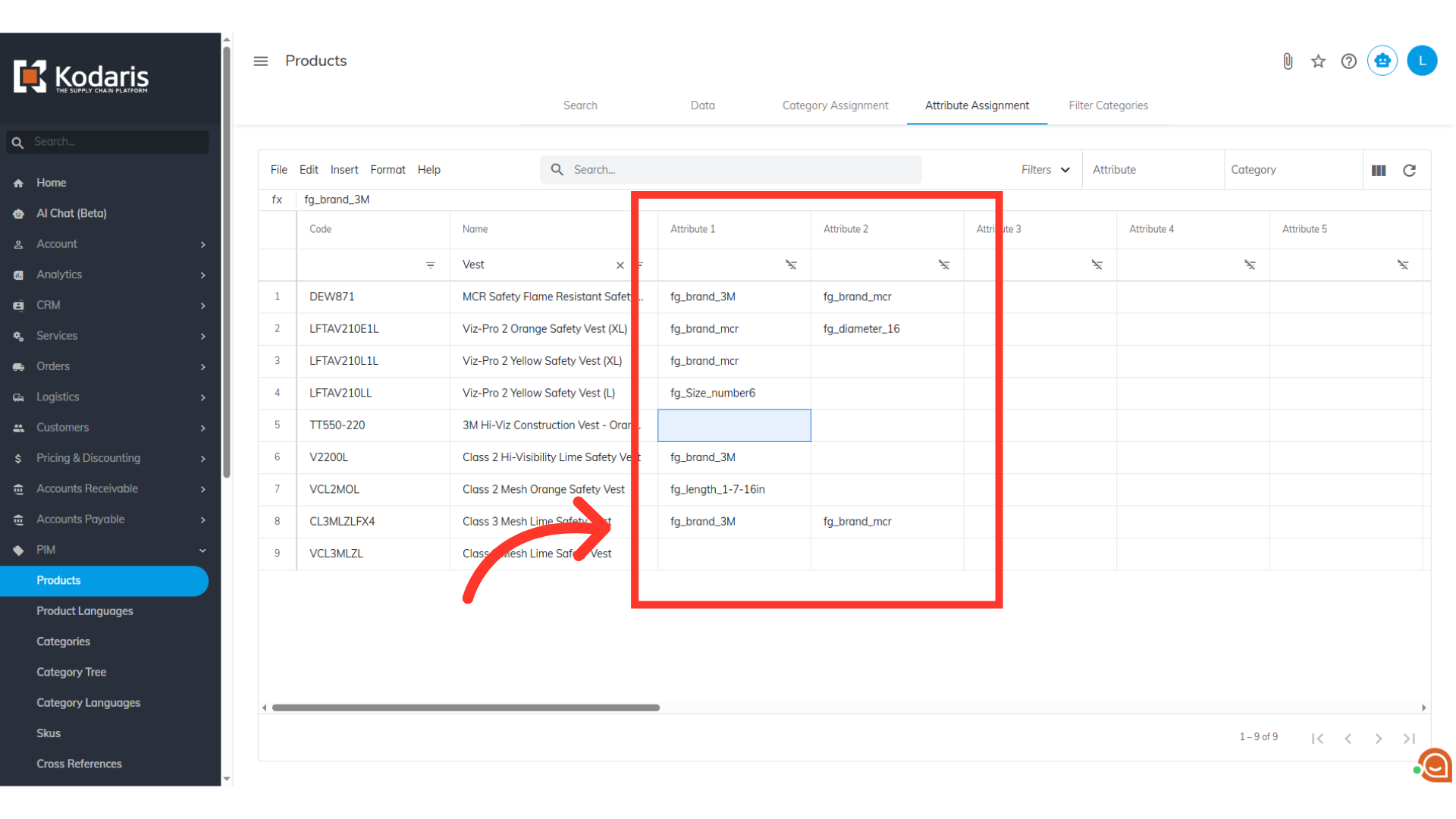
Once the import is complete, you can refresh the "Attribute Assignments" tab screen. The screen will now show all products with your new product attribute assignments, reflecting the changes you made in your spreadsheet.
Email Report
Once the import has completed, you should receive an email report.
