
Update Maximum Product Order
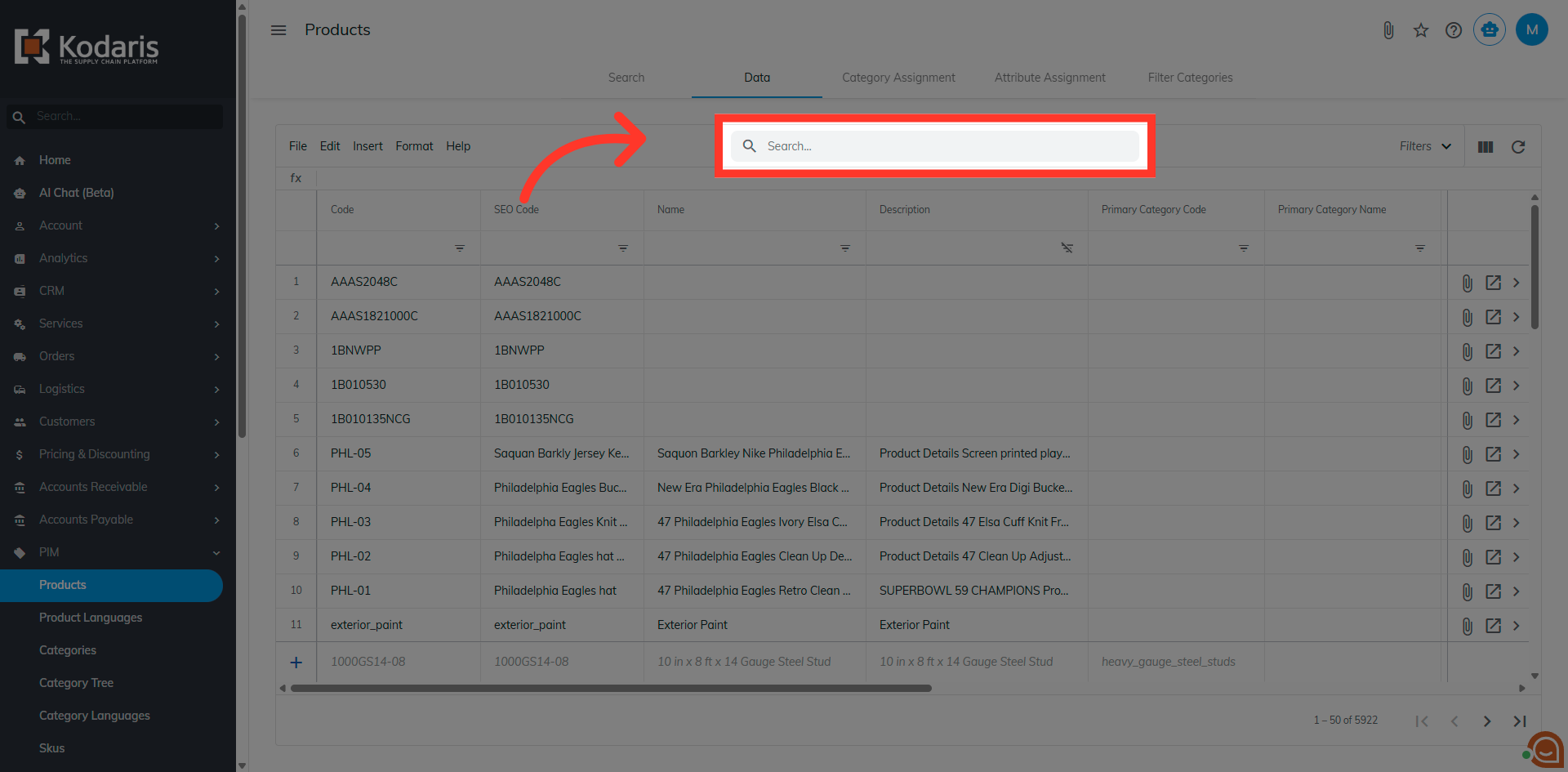
Click "Search..."
Click the Search field to begin locating the product you want to modify.
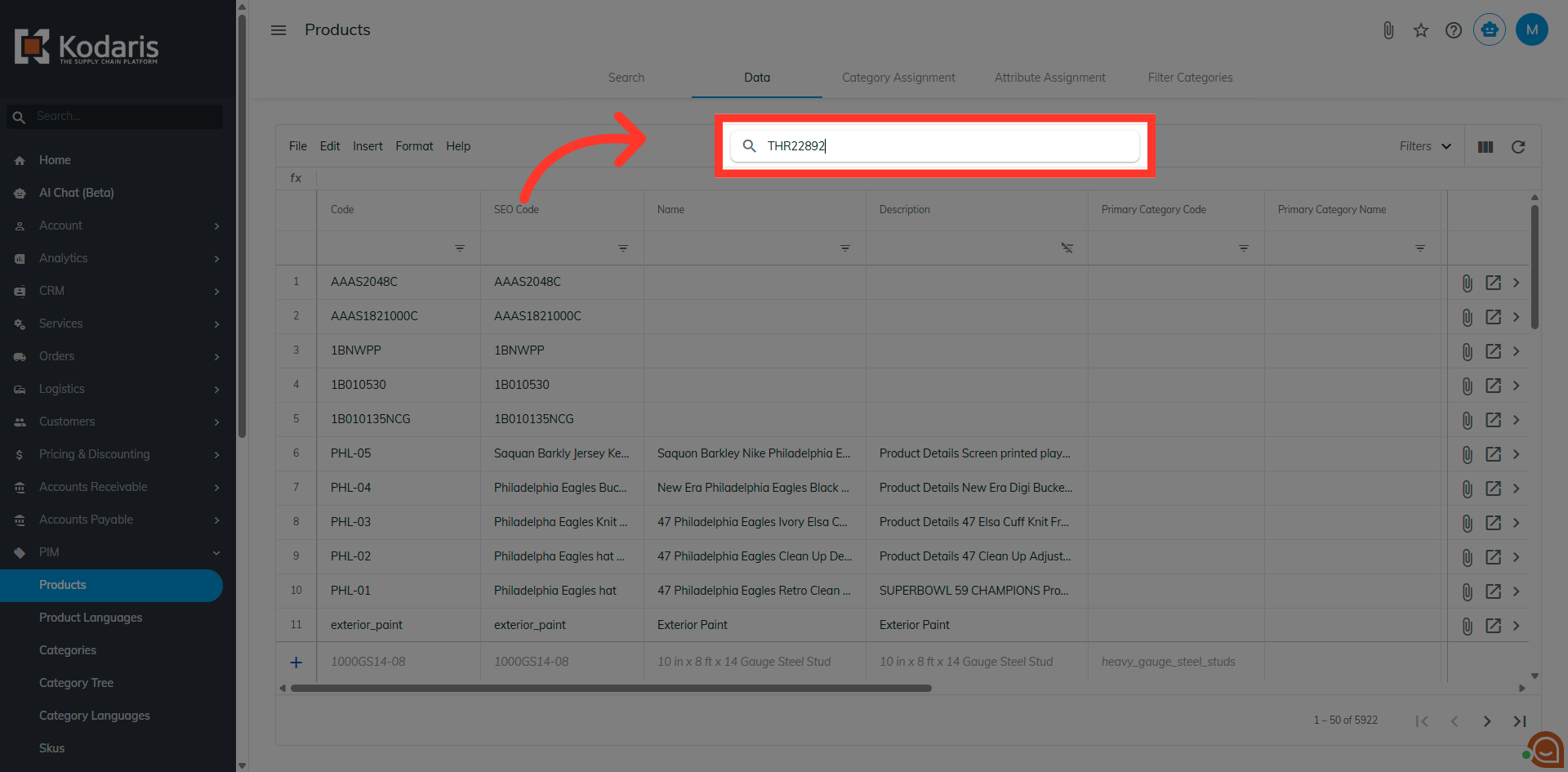
Fill "THR22892"
Fill in the product code field with the specific product identifier to find the item.
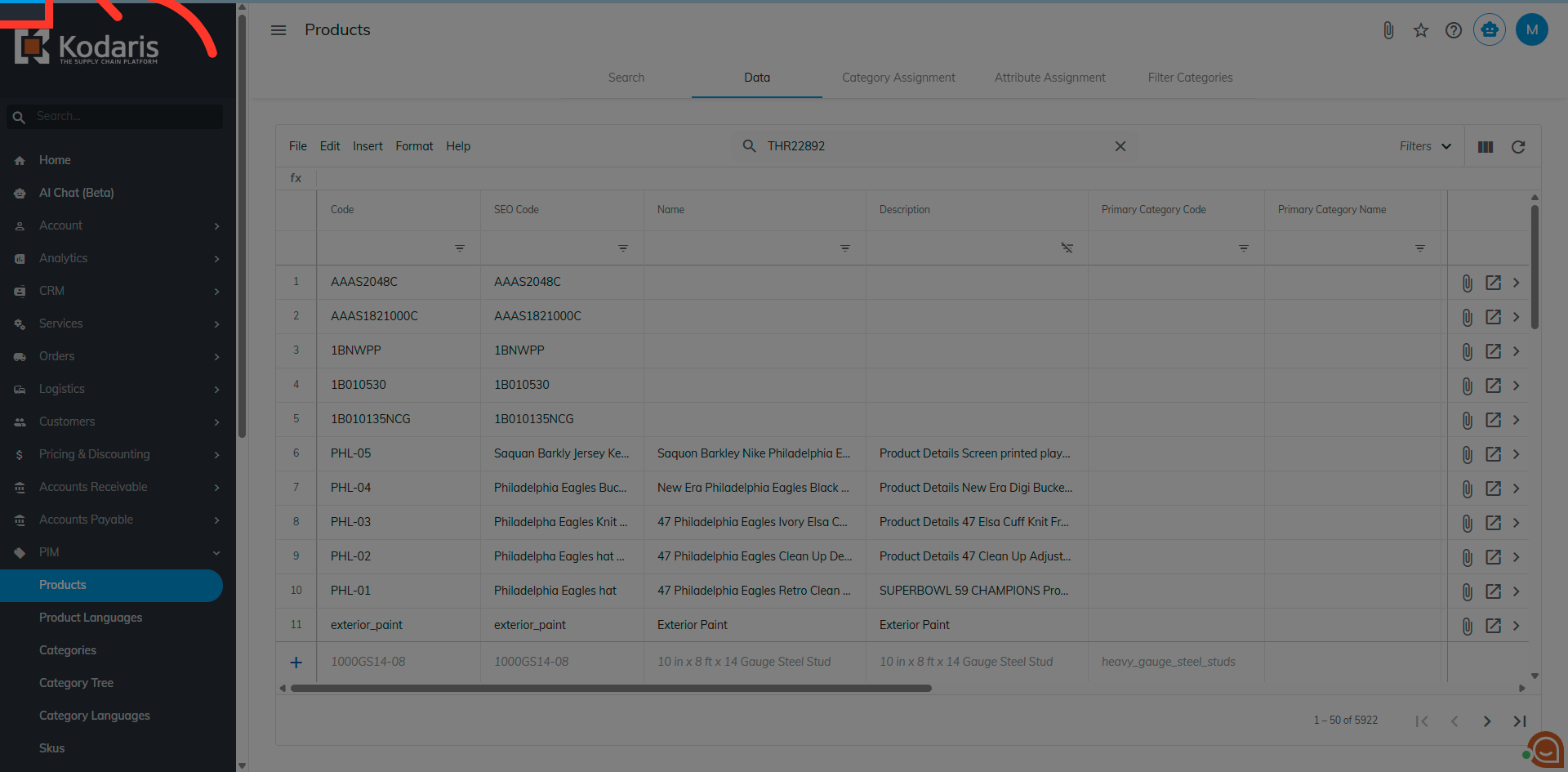
Go here
Navigate to the designated area where product details are displayed for further actions.
Click "view_column"
Click the view_column icon to customize the visible columns in the product list.

Click "Maximum Order Quantity"
Click the Maximum Order Quantity option to focus on the order limit settings for the product.

View "Kodaris - Operations"
View the Kodaris - Operations section to access operational details related to the product.

Click here
Click the specified area to proceed with editing the maximum order quantity settings.
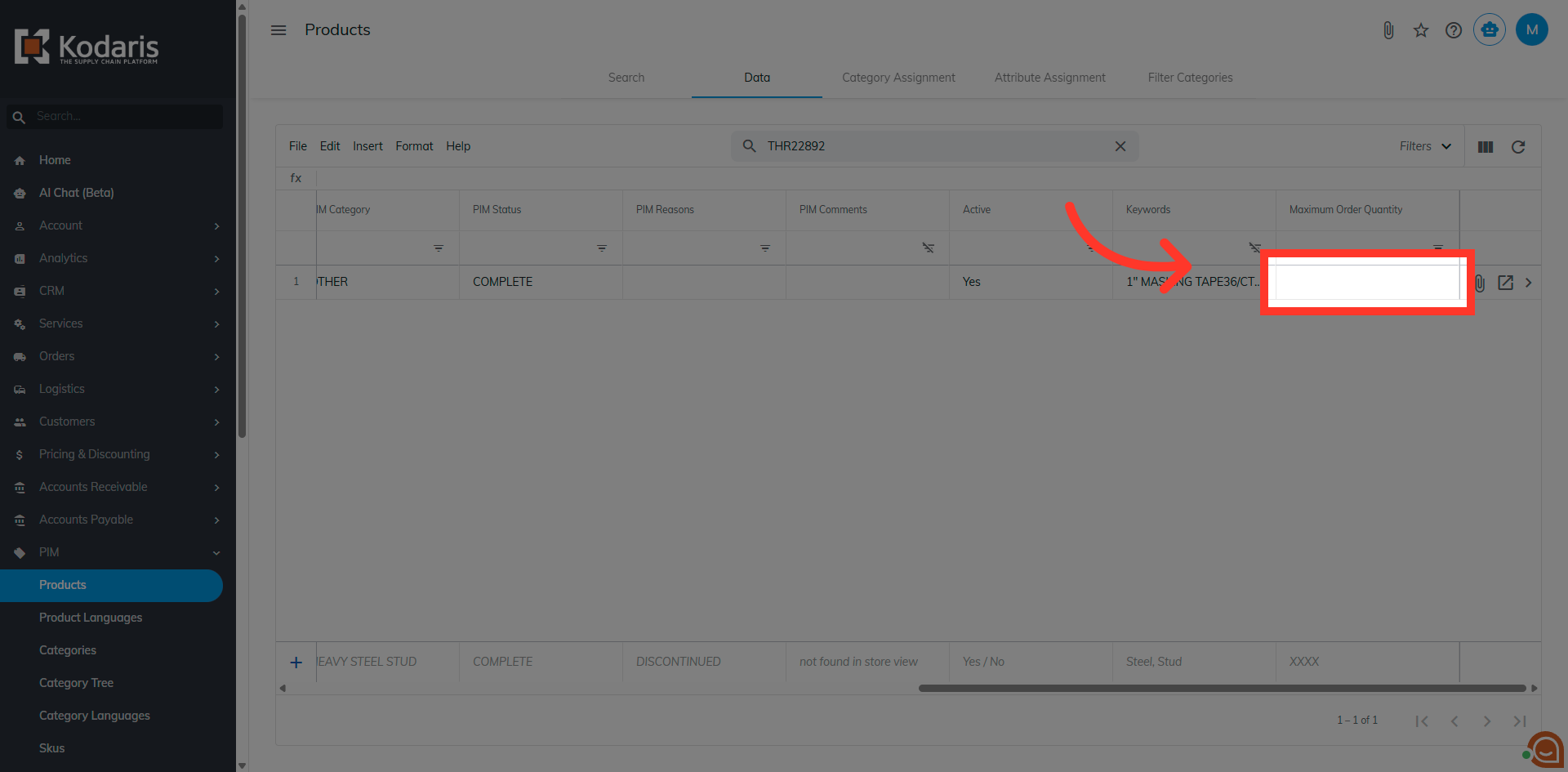
Click here
Click the next indicated area to continue with the configuration process.

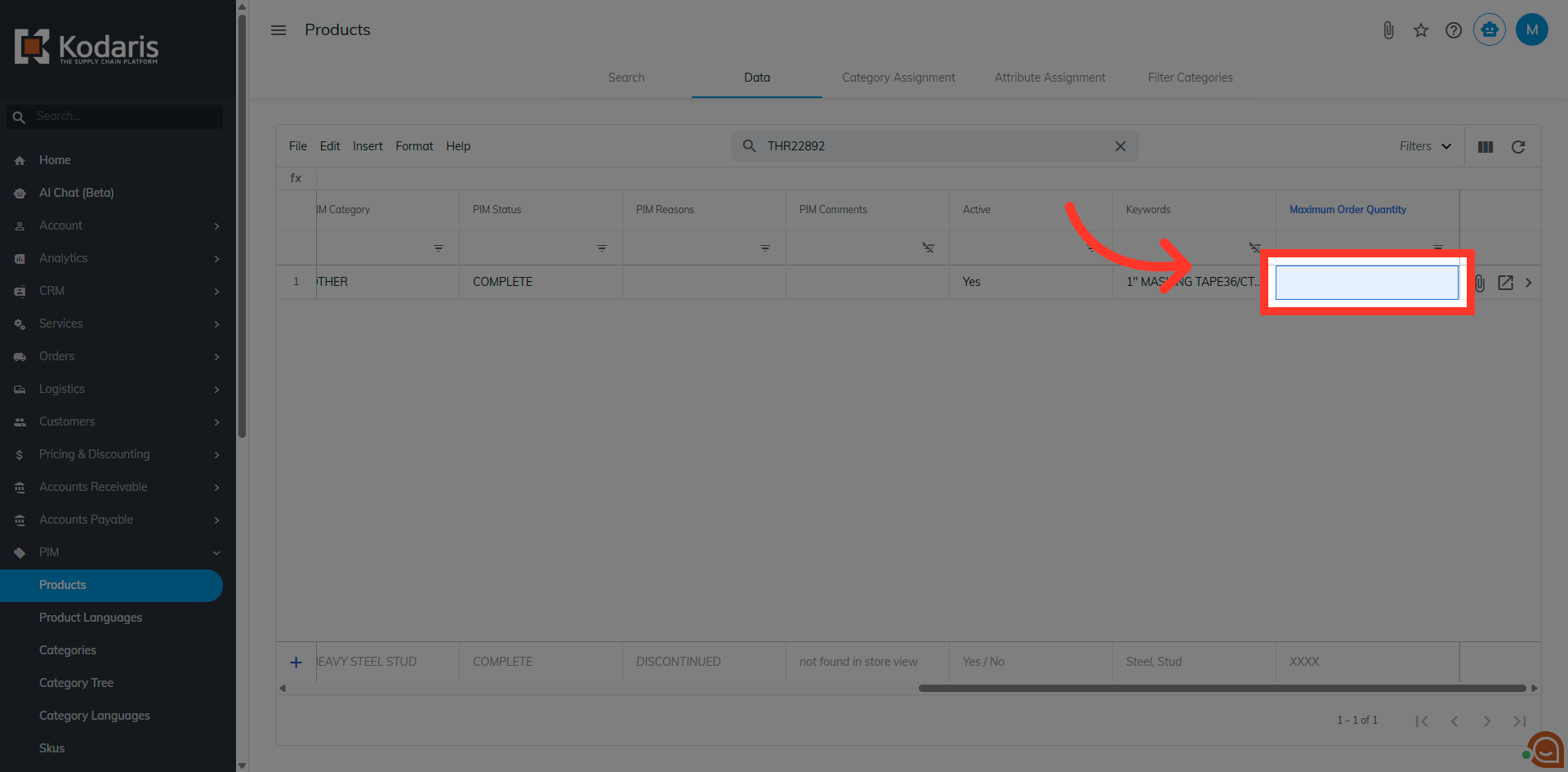
Click here
Click the following area to confirm your selection and prepare for input.
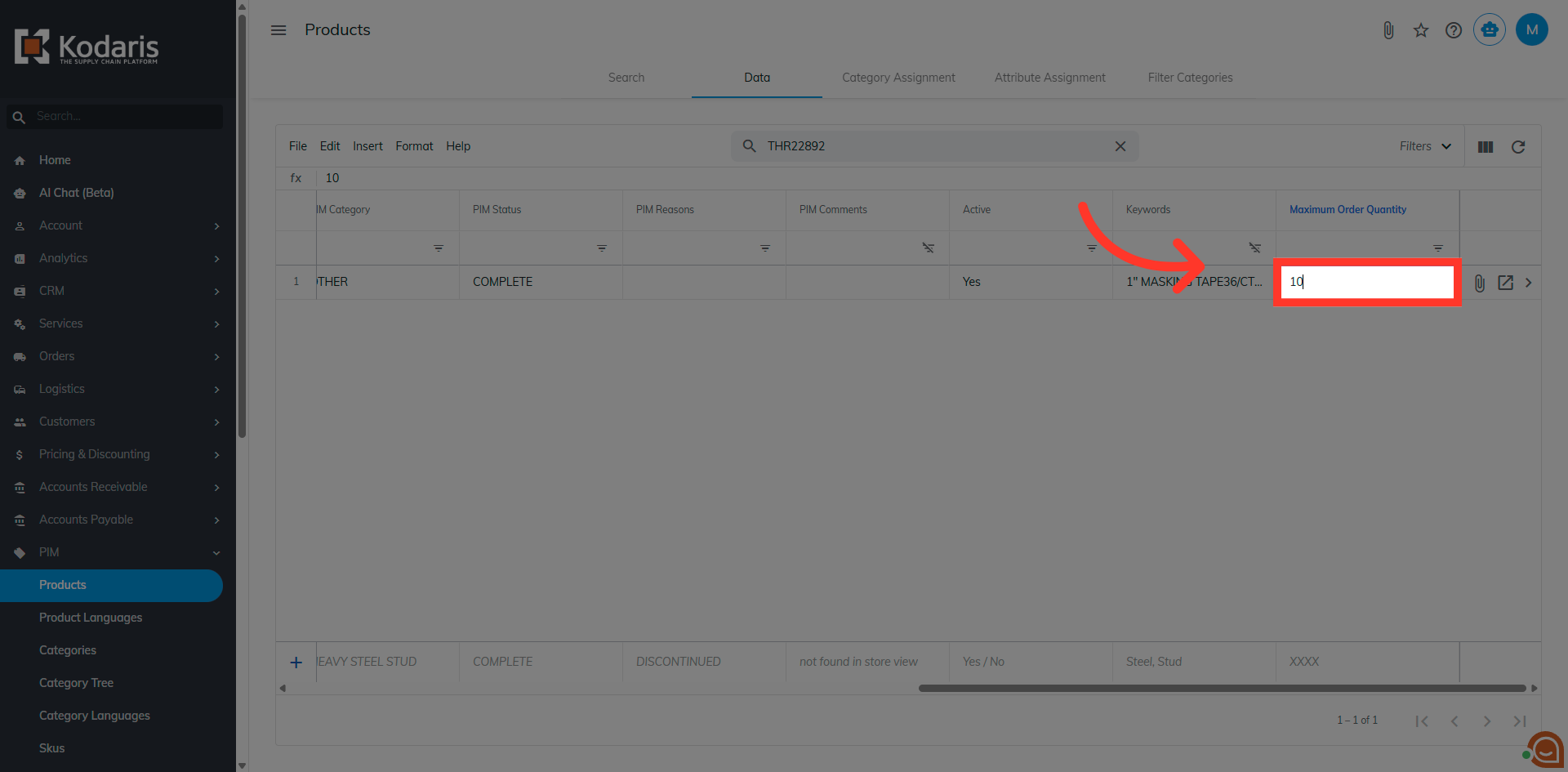
Fill "10"
Fill in the maximum order quantity field with the value 10 to set the order limit.
Go here
Go to the next section to review additional product details and settings.
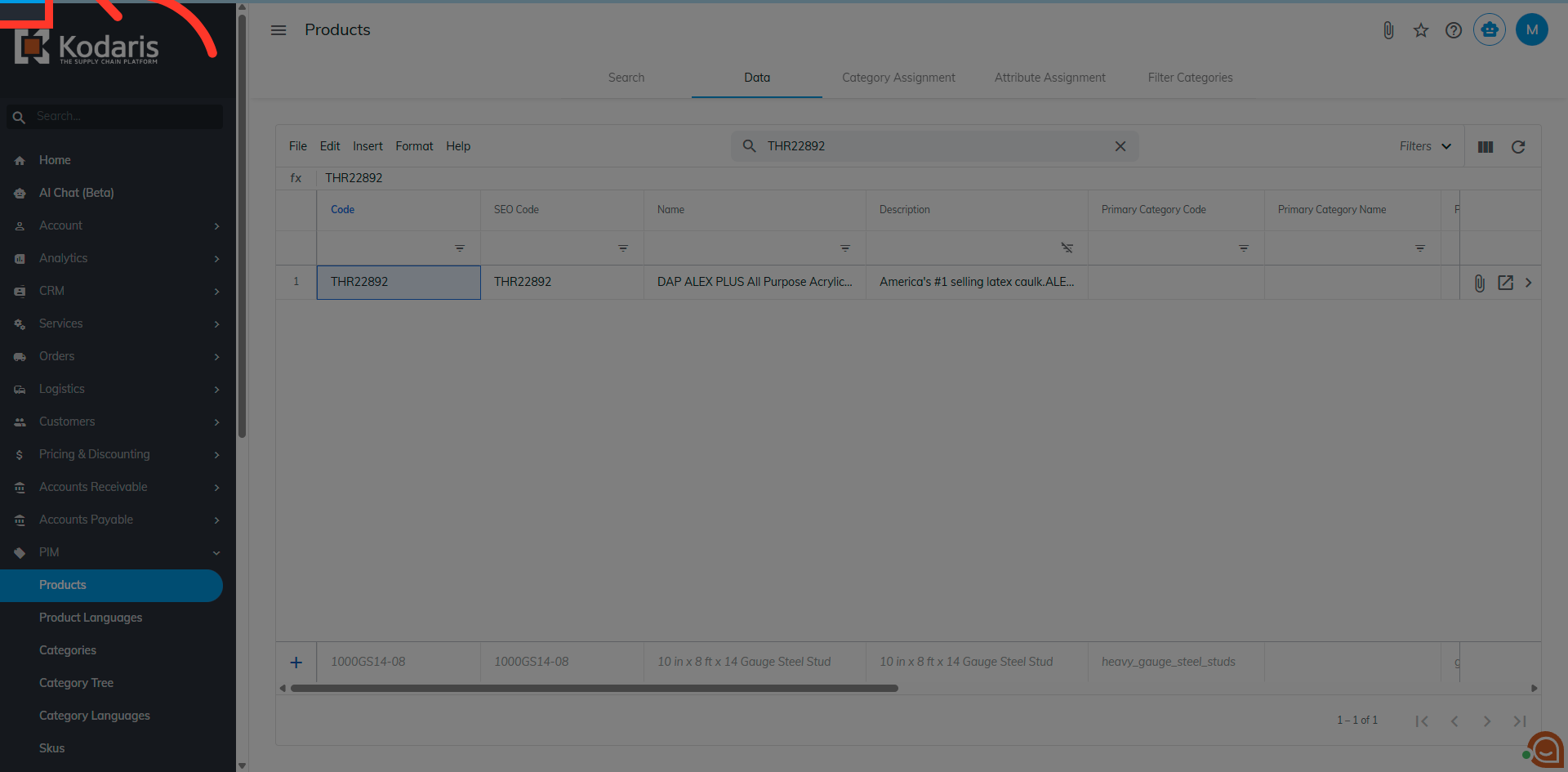
Click "Code menu SEO Code menu Name menu Description menu Primary Category Code menu Primary Category Name menu PIM Product Code menu PIM Category menu PIM Status menu PIM Reasons menu PIM Comments menu..."
Click the menu containing Code, SEO Code, Name, Description, and other product attributes to manage visible information.

Click "+"
Click the plus (+) icon to add a new entry or setting related to the product.

Click "13"
Click the number 13 to select or modify a specific quantity or setting.

Fill "12"
Fill in the field with the value 12 to update the relevant quantity or parameter.

View "Search - THR22892"
View the Search results for product code THR22892 to verify the applied changes and settings.
