Operations AP - Export Vendor Data
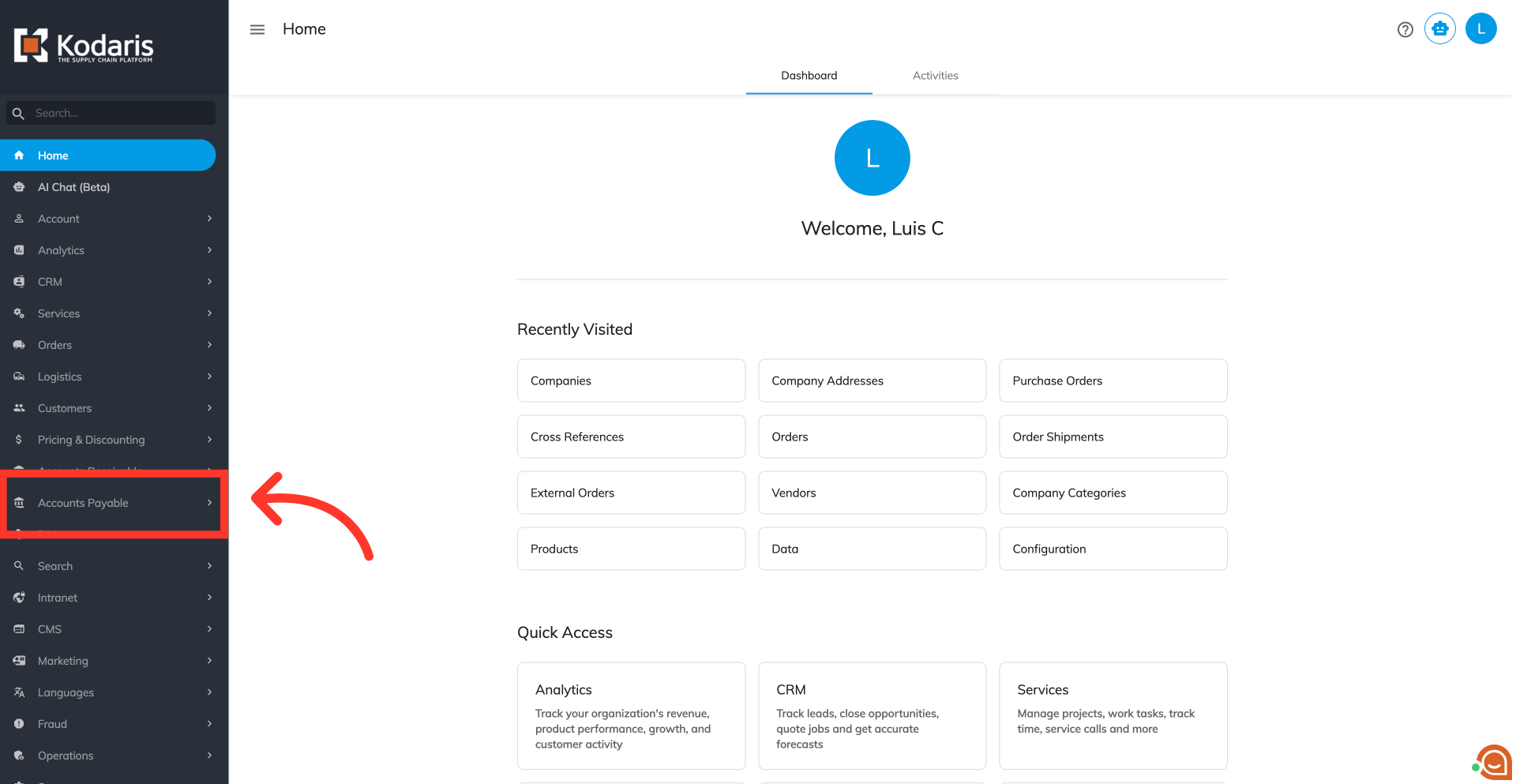
Navigate to "Accounts Payable" section
To export vendor data, navigate to the "Accounts Payable" section in the Operations Portal.
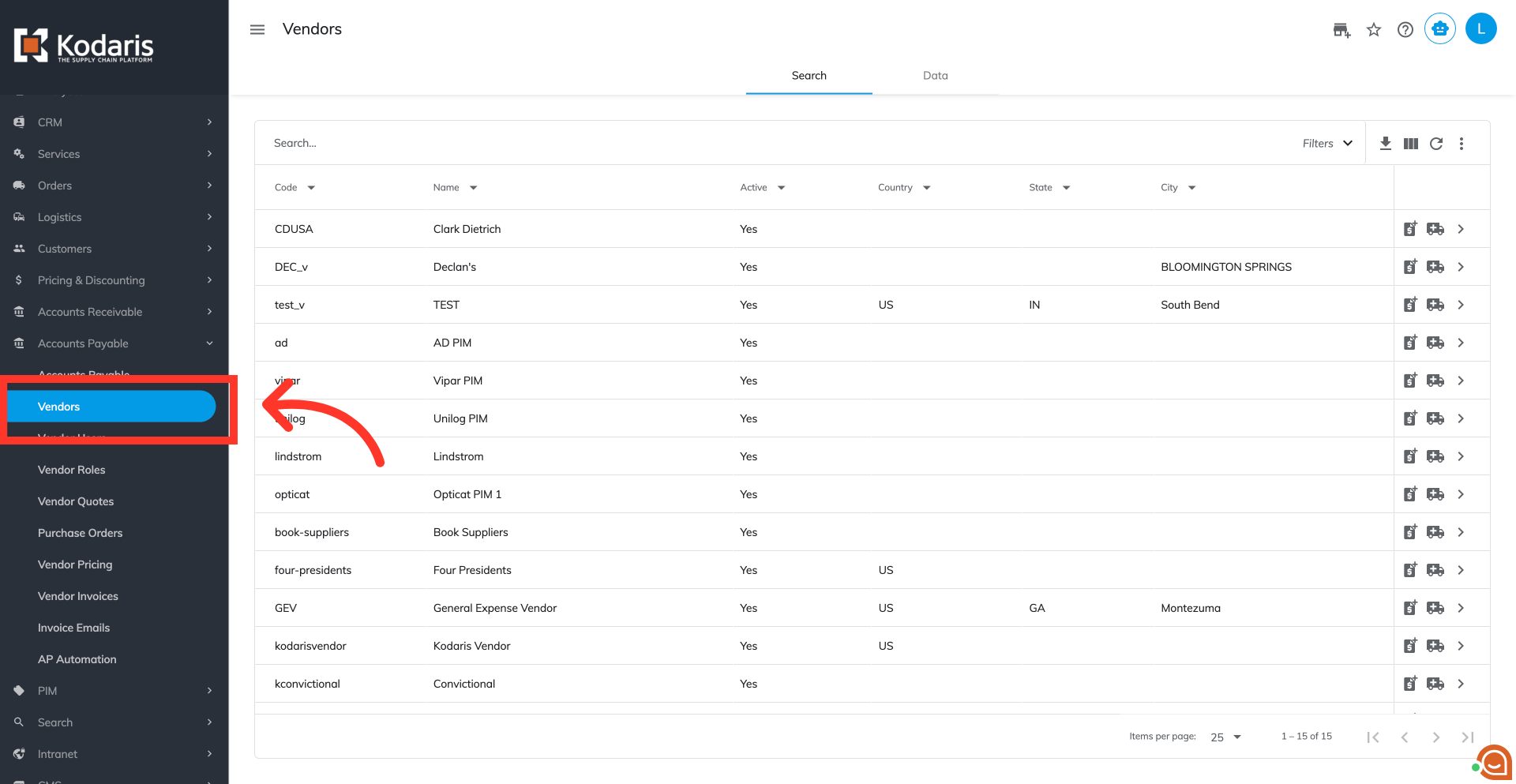
Click on the "Vendors" screen
Then, click on the "Vendor" screen. In order to access the "Vendors" screen you will need to be set up either as an "administrator" or a "superuser", or have the appropriate roles: "vendorView," and "vendorEdit."
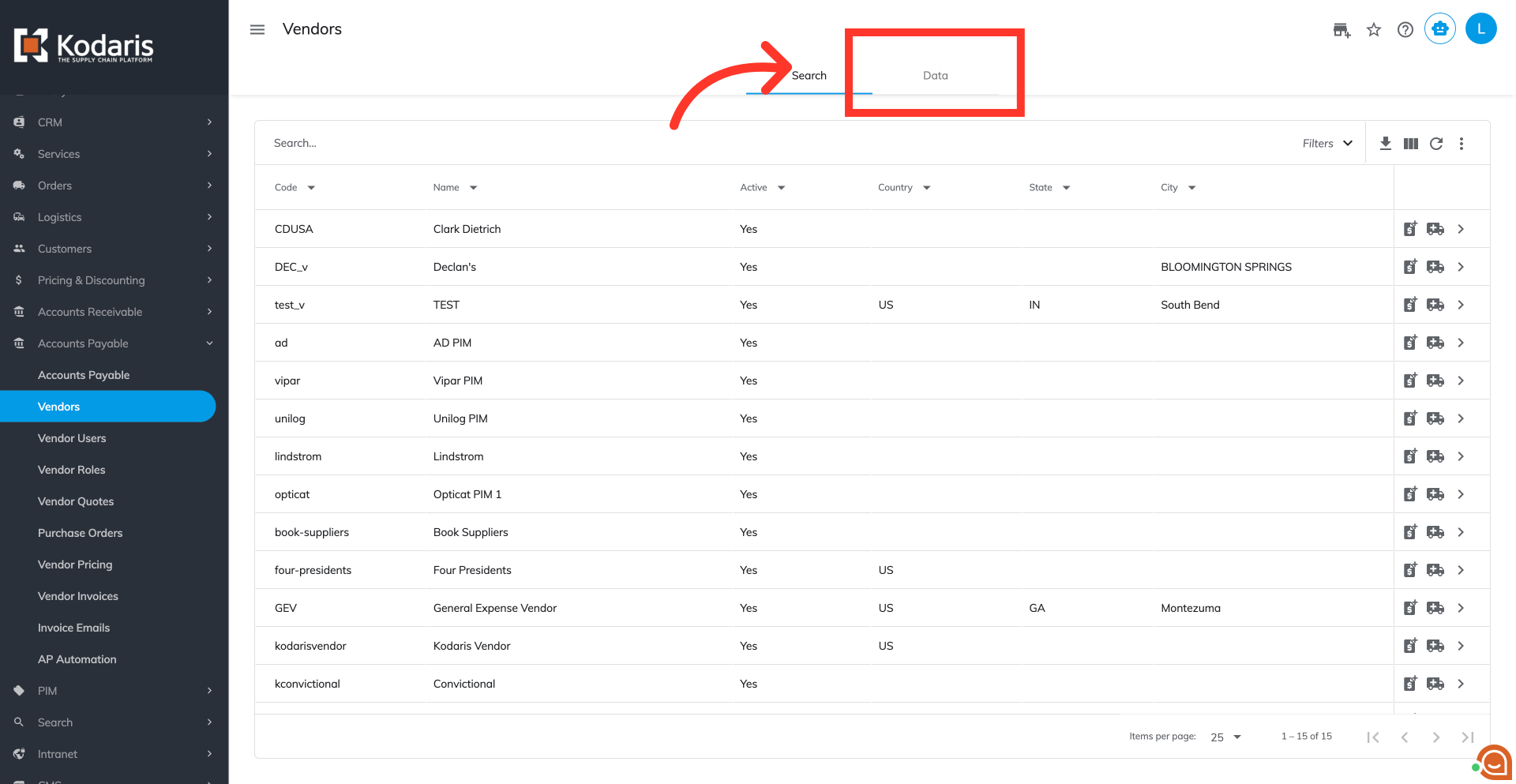
Click on the "Data" tab
Click on the "Data" tab.
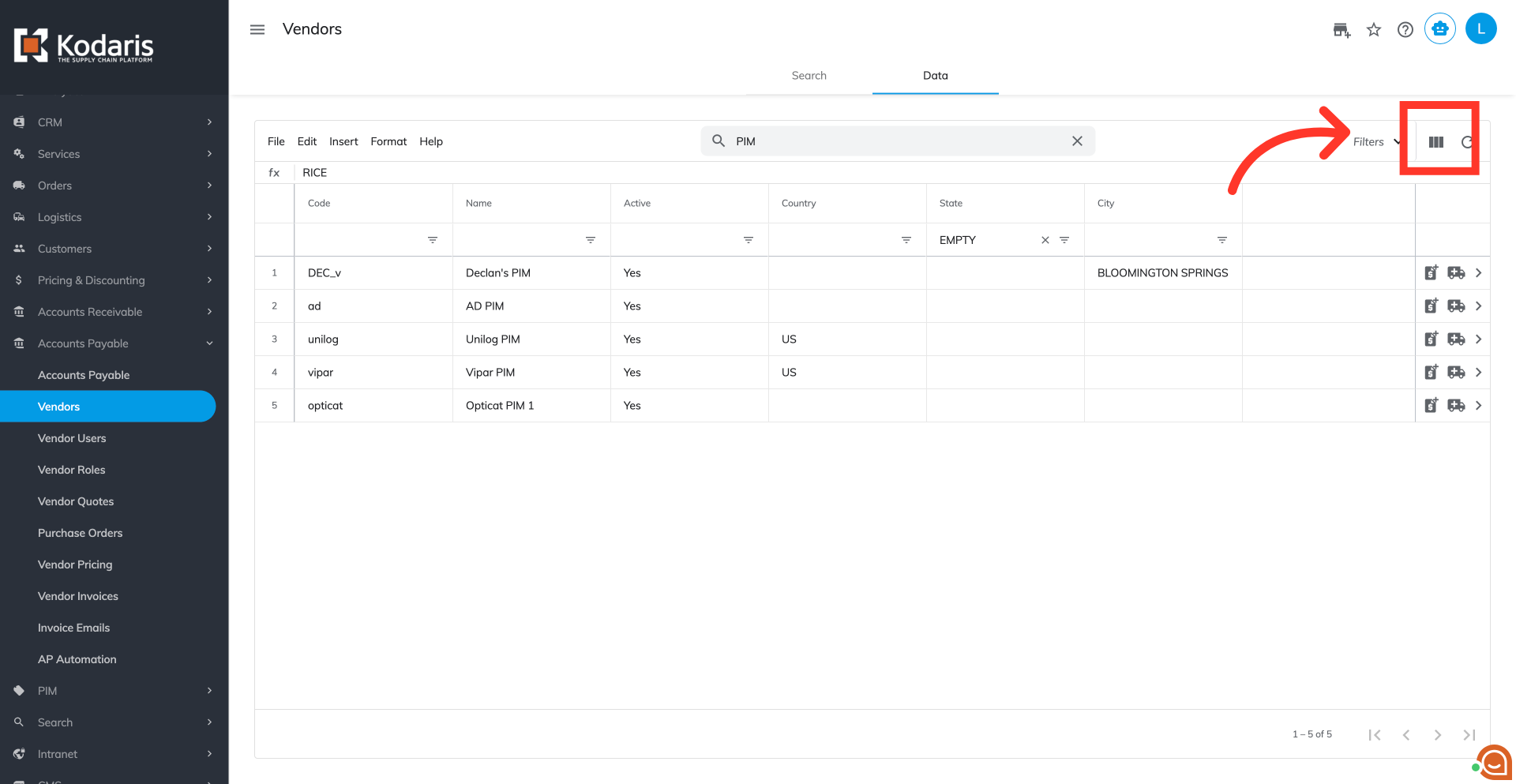
Click "Show/Hide Columns" icon
Click "Show/Hide Columns" icon.
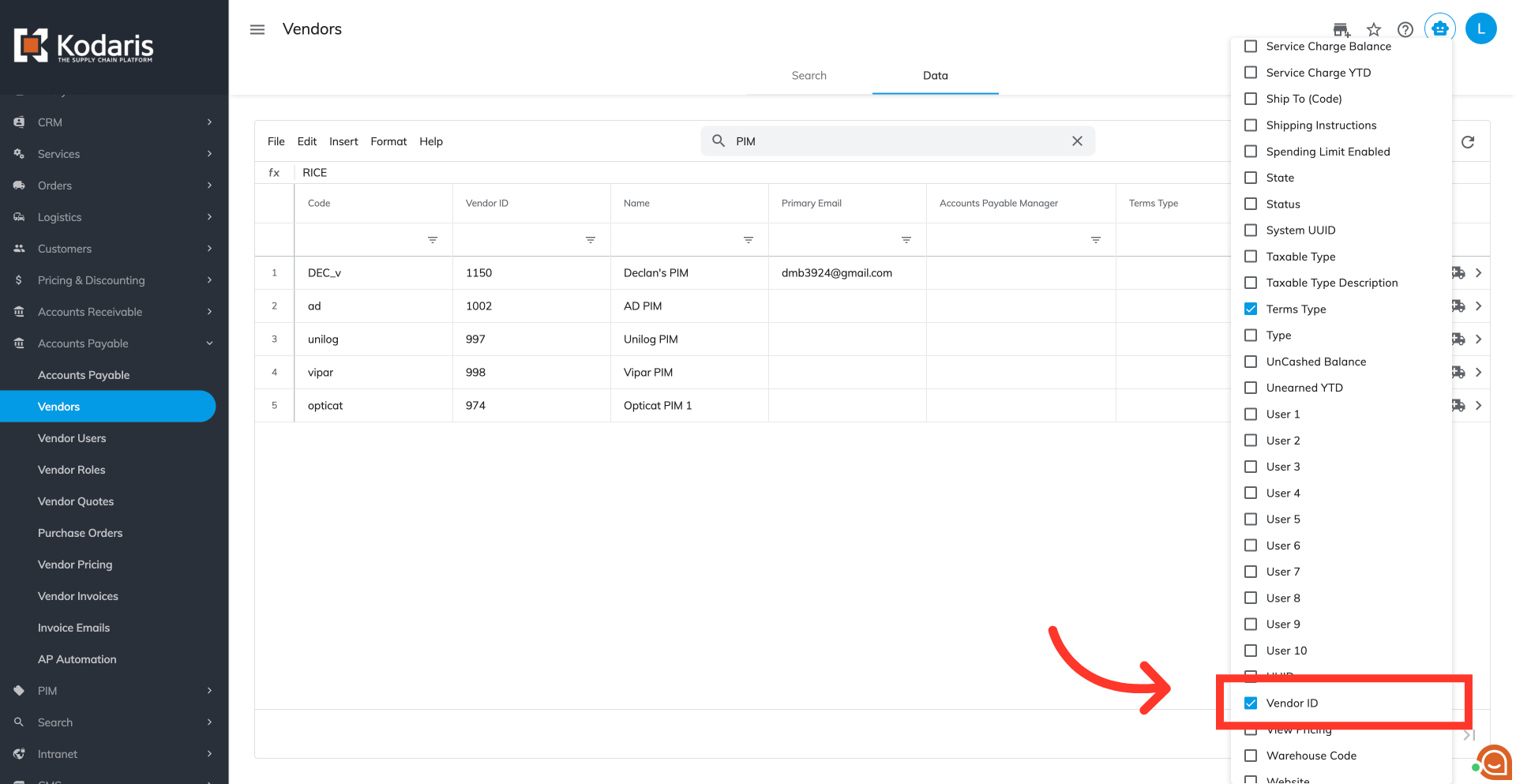
Select the needed columns
Choose the columns you would like to include in the export. For this example, we are choosing "Code," "Vendor ID," "Name," "Primary Email," "Accounts Payable Manager," and "Terms Type" columns.
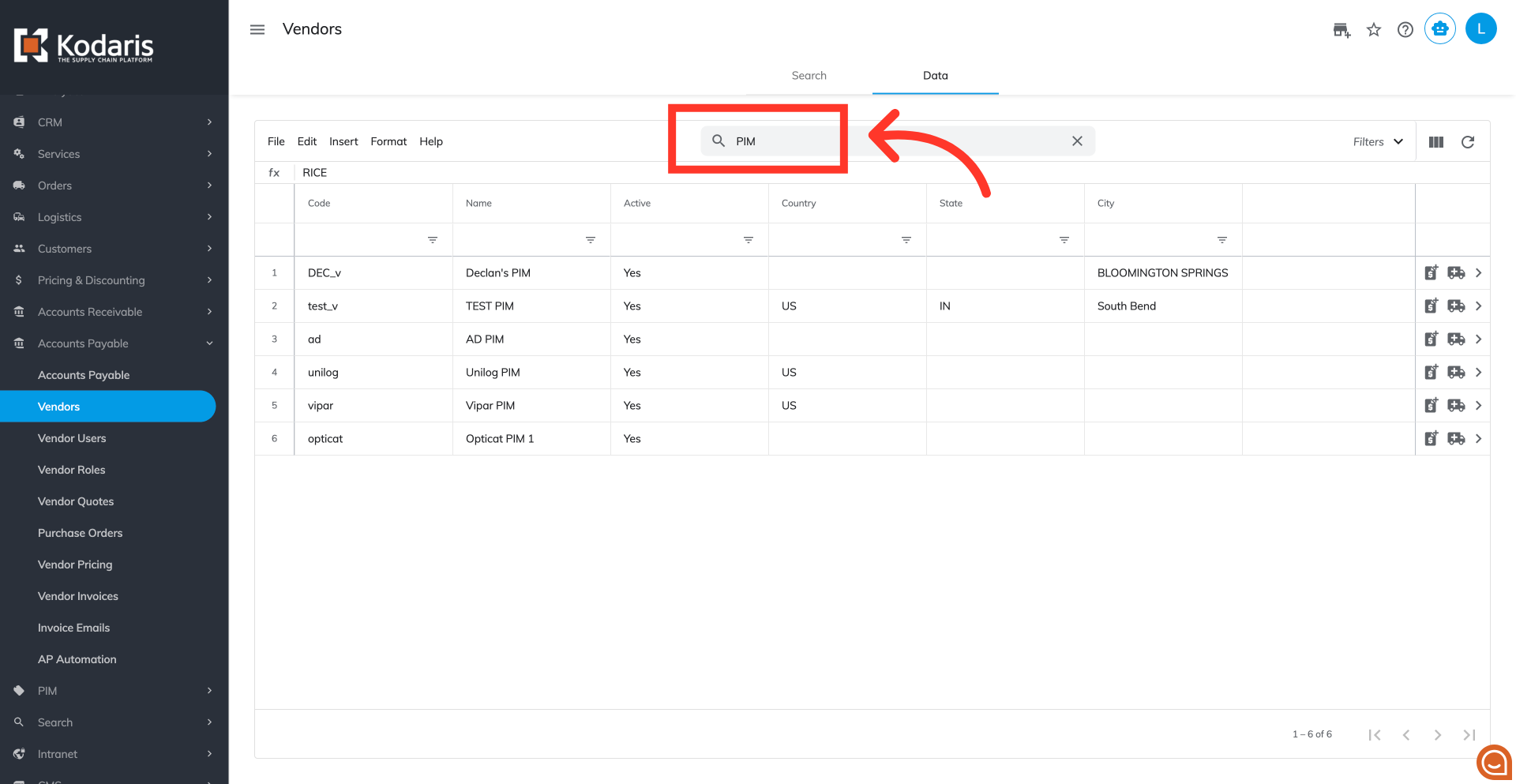
Search for specific vendor data
If you do not need all the vendors in the export, you can use the "Search" field to narrow down the list and find the specific vendors you would like to include in your exported file. Simply type in a keyword to search.
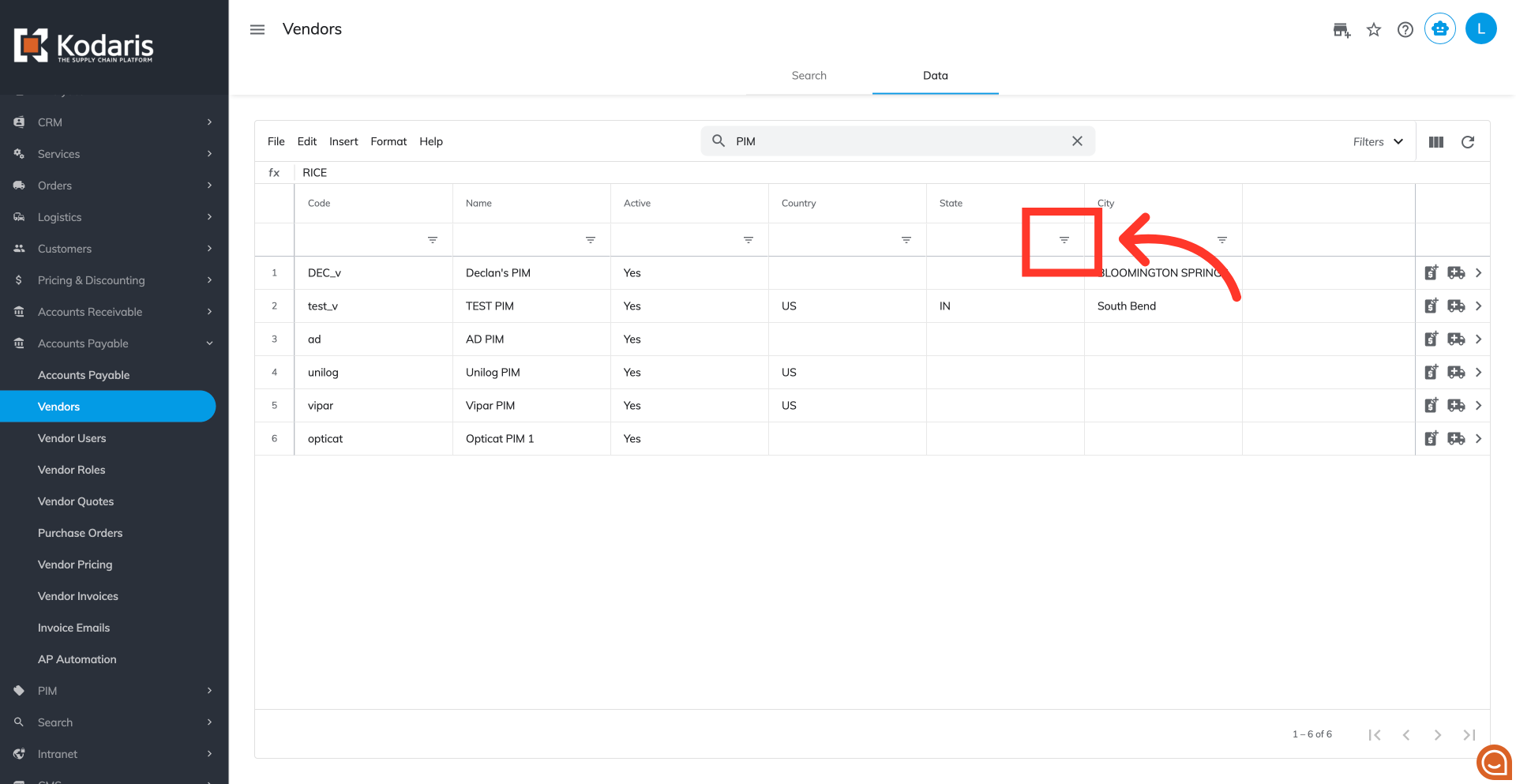
Utilize Column Filters
You can also use column filters to further refine your vendors list.
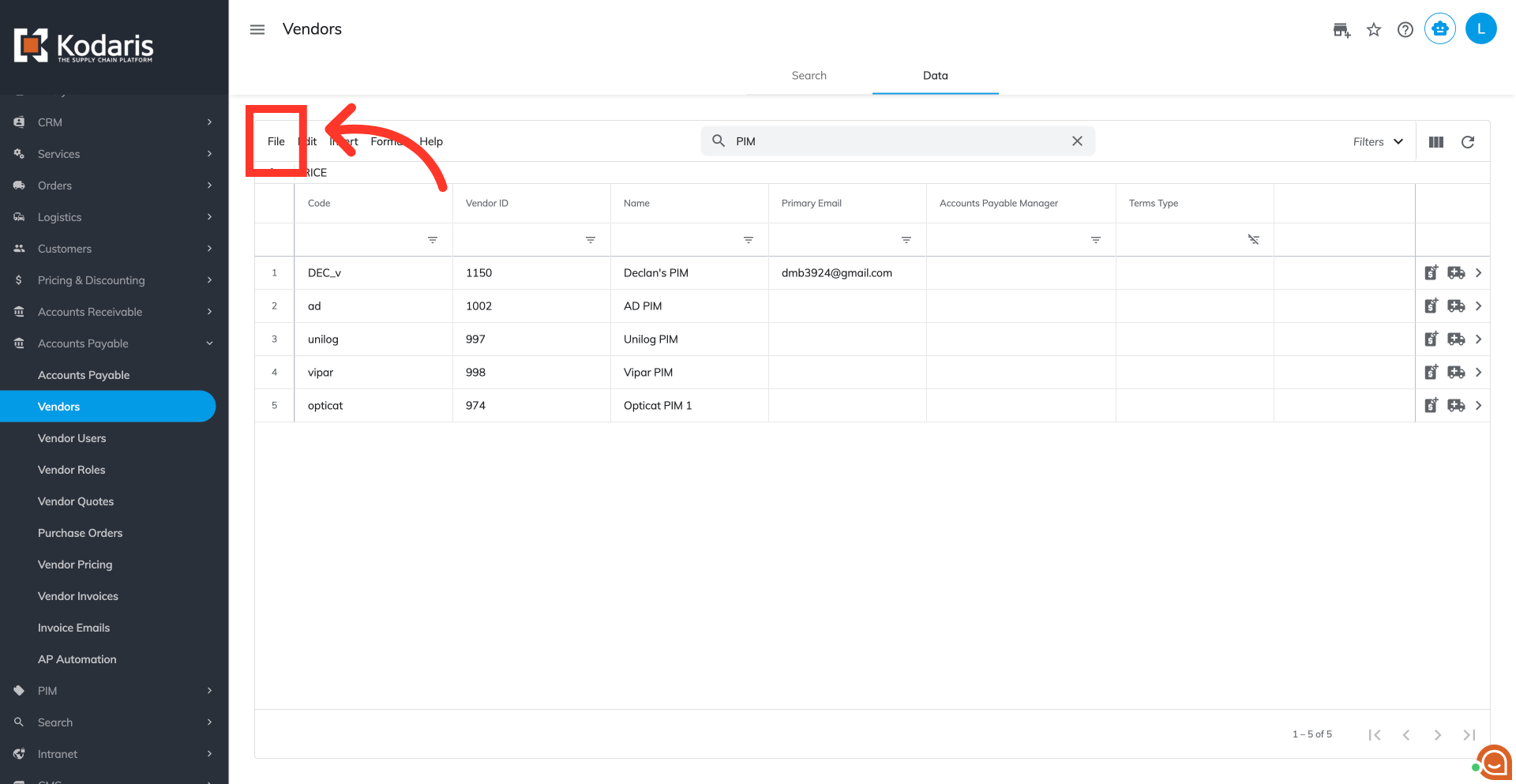
Click the "File" menu
When you are ready to export, click the "File" menu
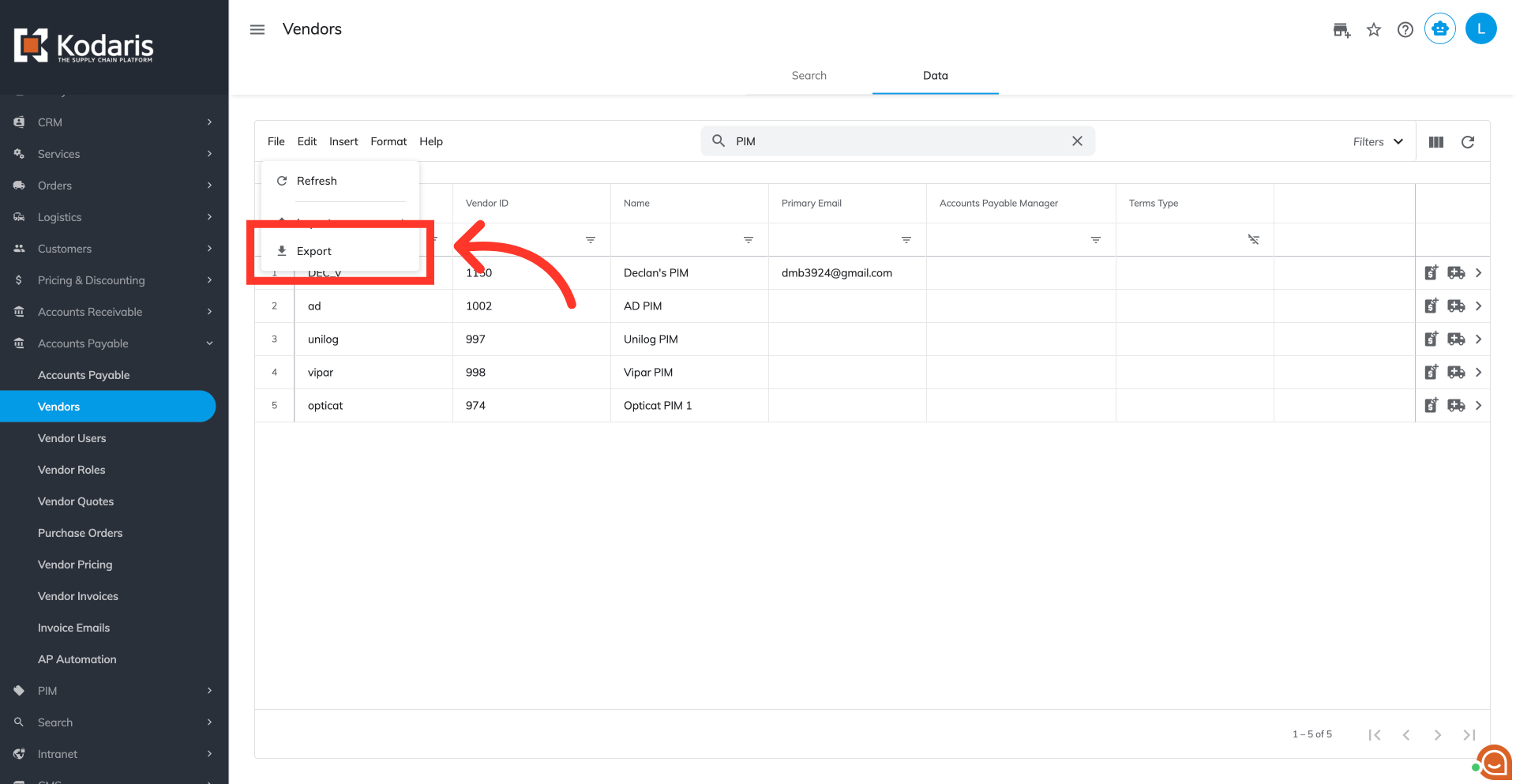
Select the "Export" option
Select the "Export" option
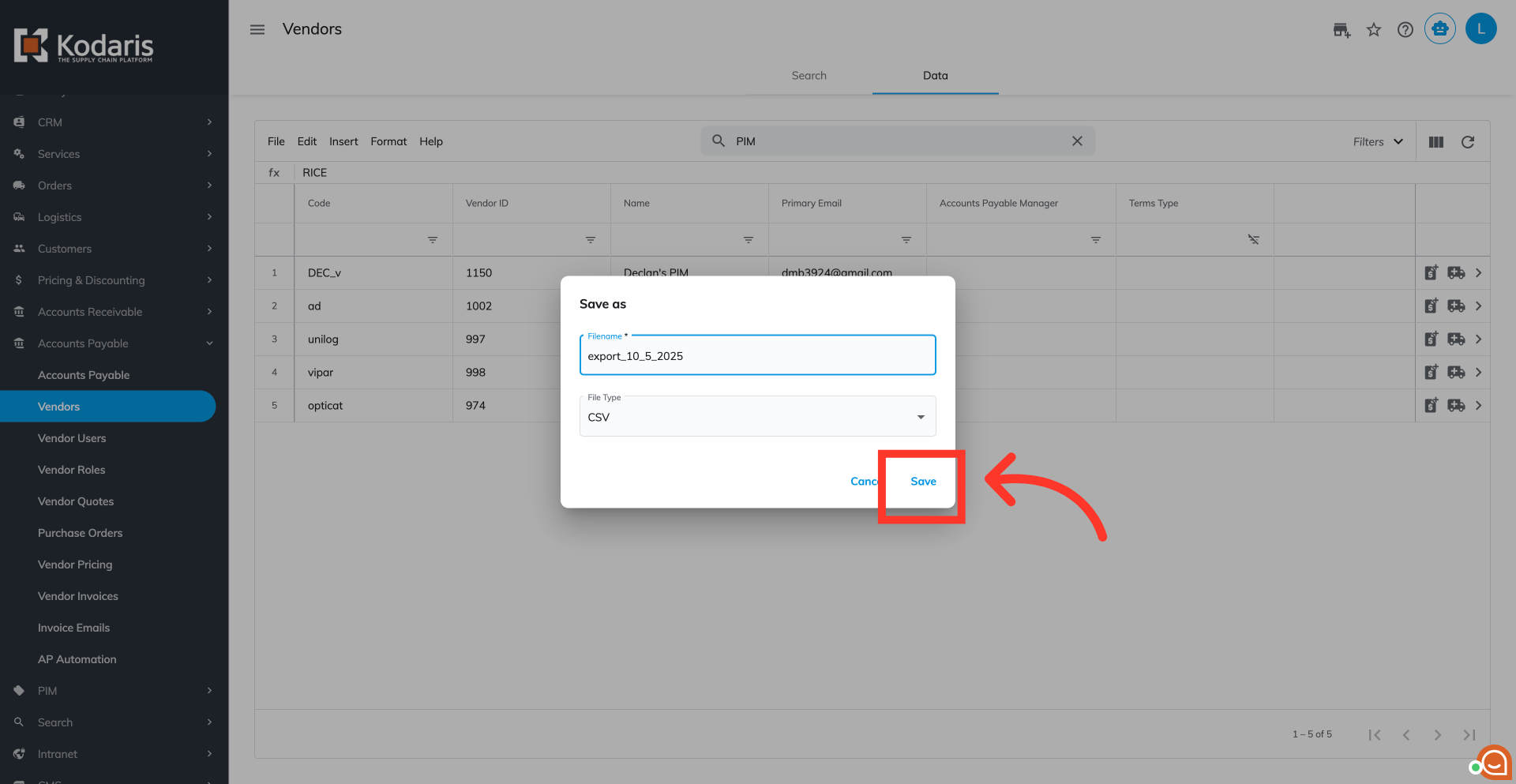
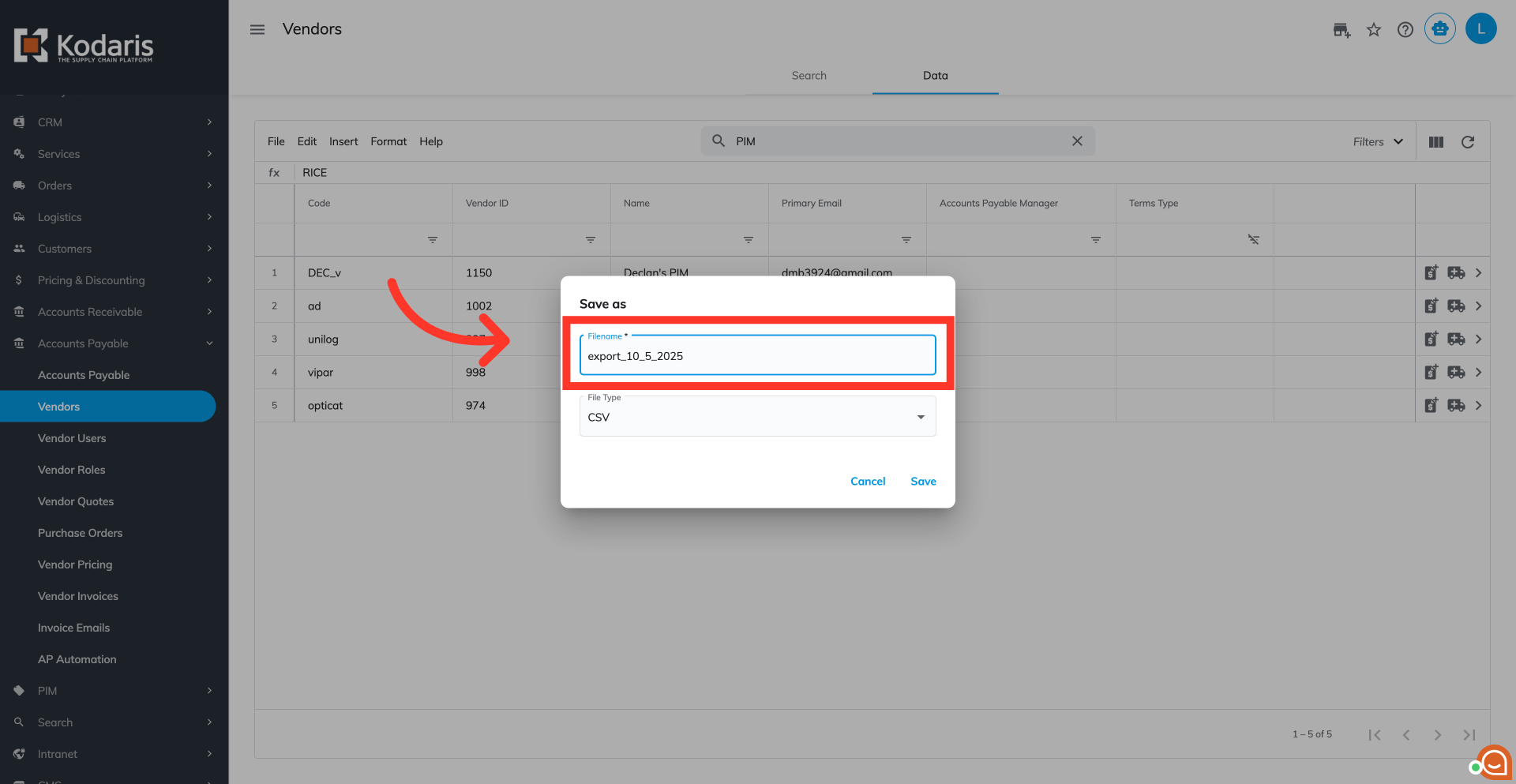
Rename the file, if needed
Rename the file, if needed.
Click "Save"
Lastly, click on the "Save” button.