Order Management - Attaching Files to Orders
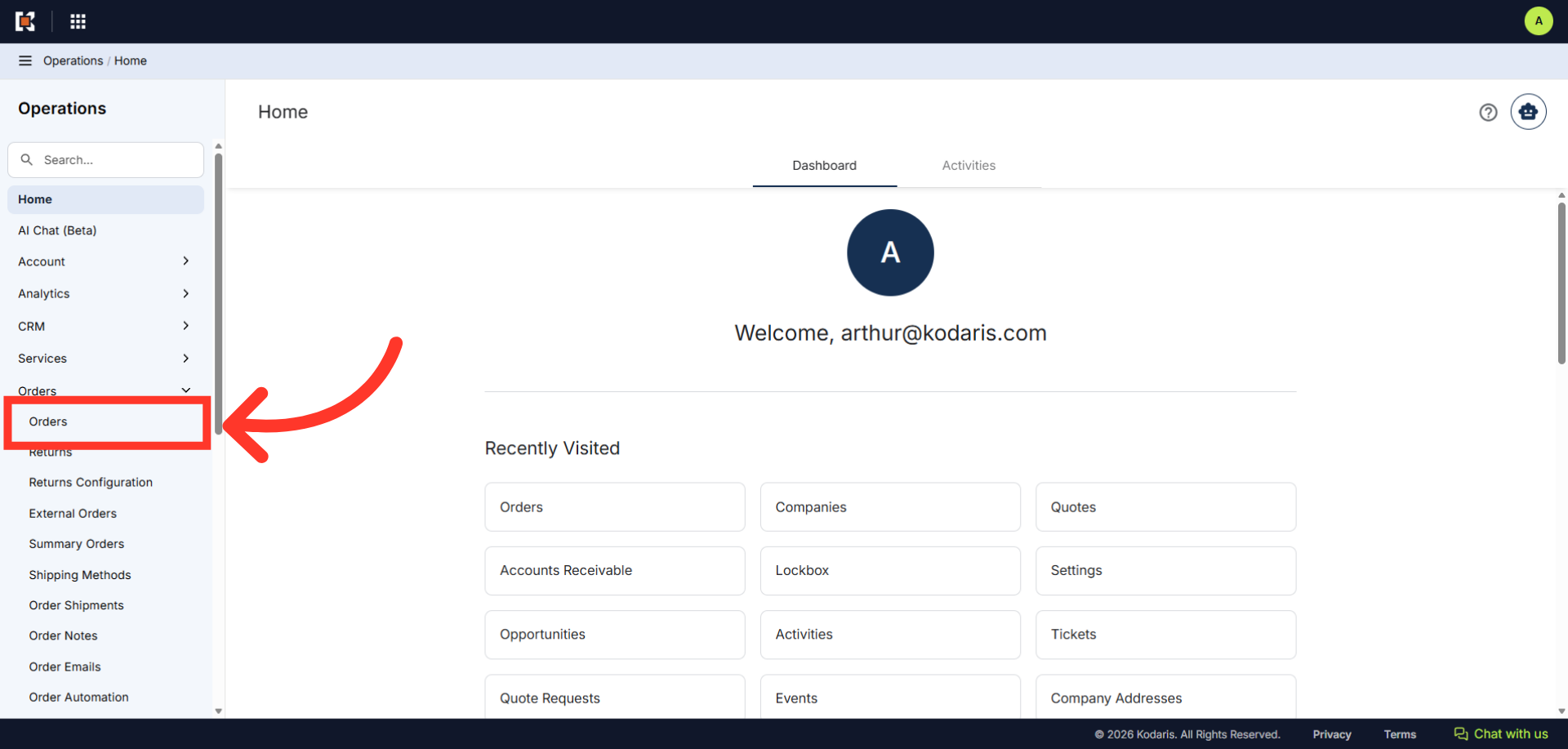
Navigate to "Orders"
You can manually attach files, such as proof of delivery, tax certificates, and spec sheets to orders in the Operations Portal. Files can be made available to customers or shared internally with authorized employees. First, navigate to the "Orders" section.
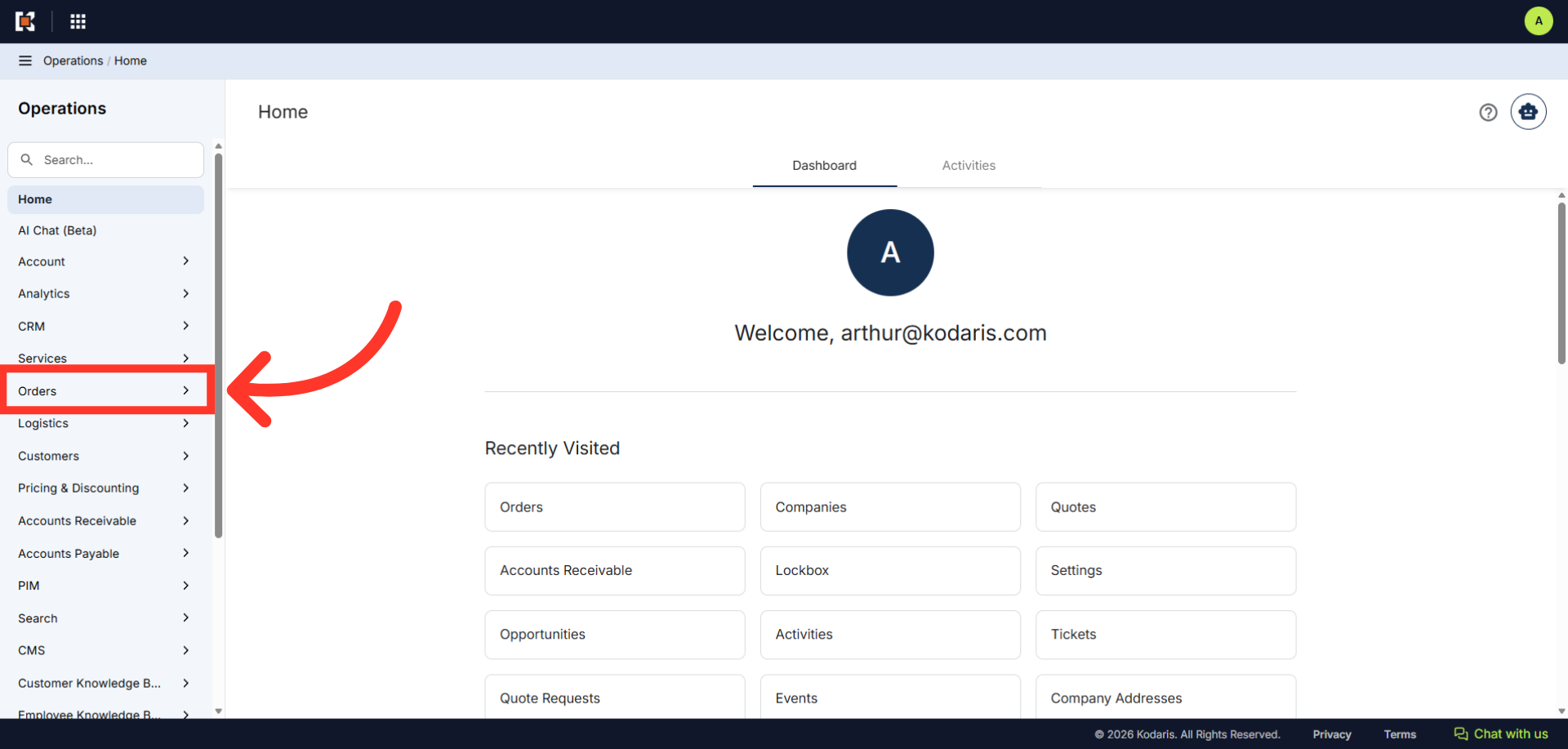
Click "Orders"
Then, click "Orders". In order to access and update "Orders", you will need to be set up either as an "administrator" or a "superuser", or have the following roles: "dispatch", "orderEdit", "crmCompanyOrderView" and "crmCompanyOrderEdit". Just a reminder, "crmCompanyOrderView" and "crmCompanyOrderEdit" access only allows employees to view company orders that are assigned to them.
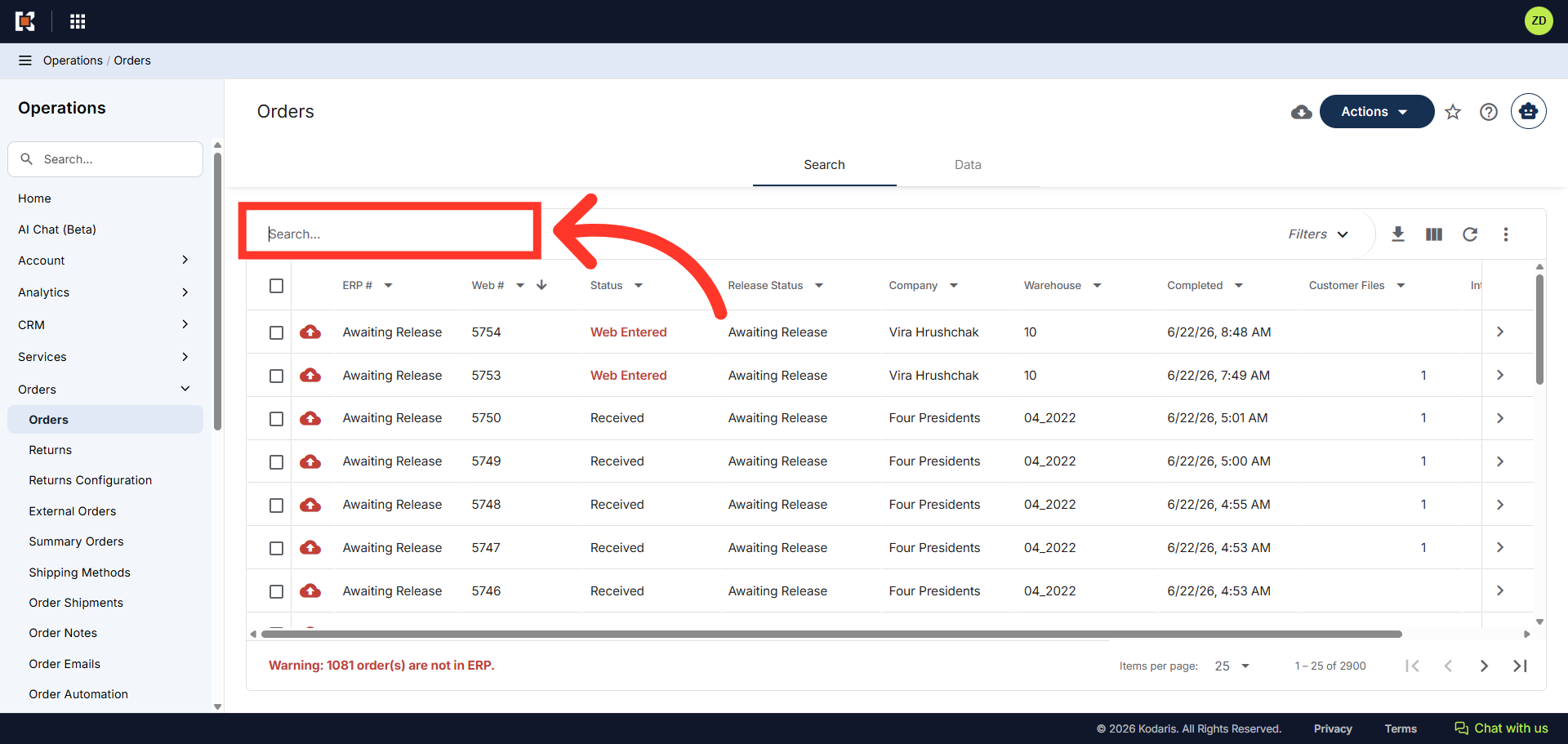
Search for the order
If you know the order number, you can enter the order number in the "Search..." field to find the order.
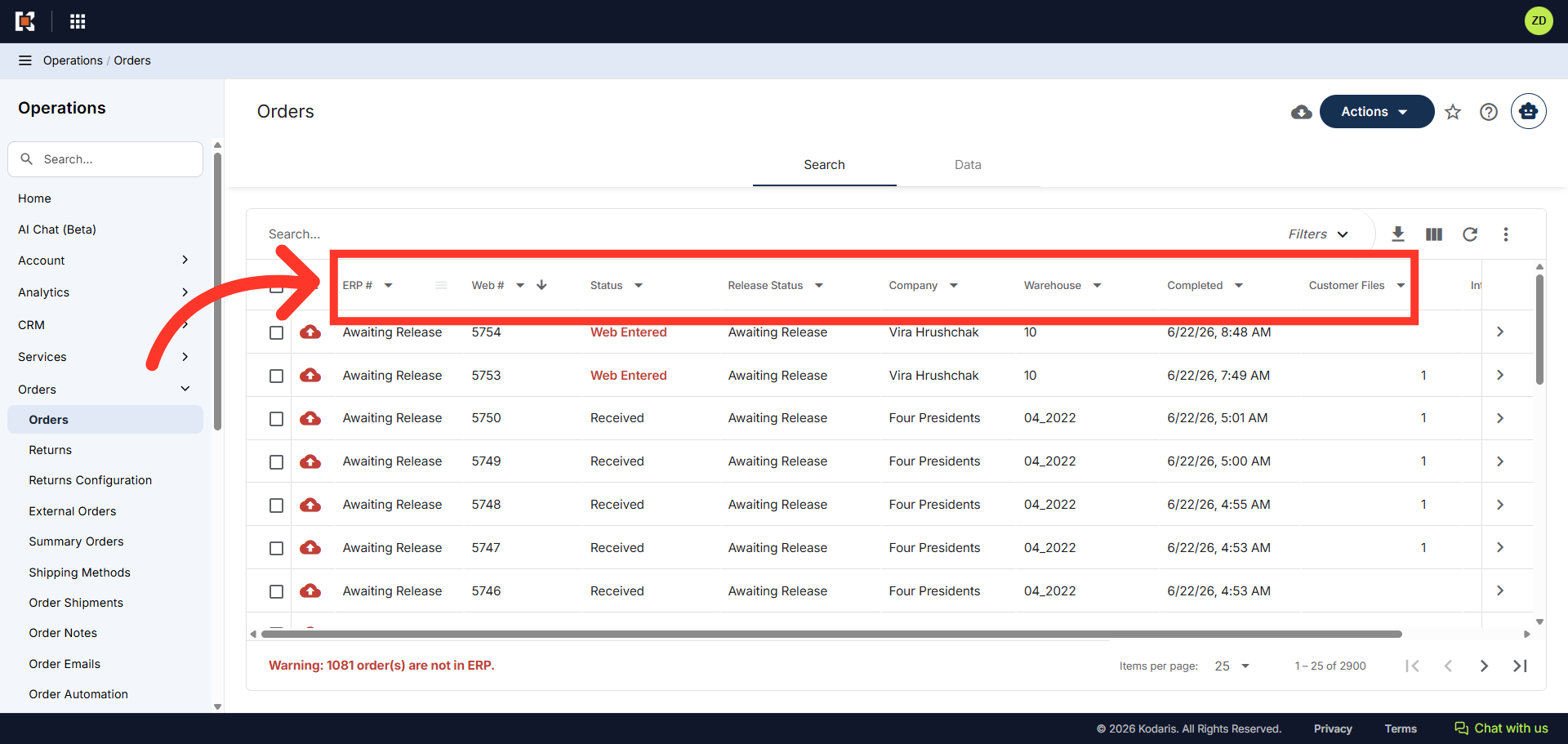
Use filter to narrow down the orders
You can also use the column filters to narrow down orders.
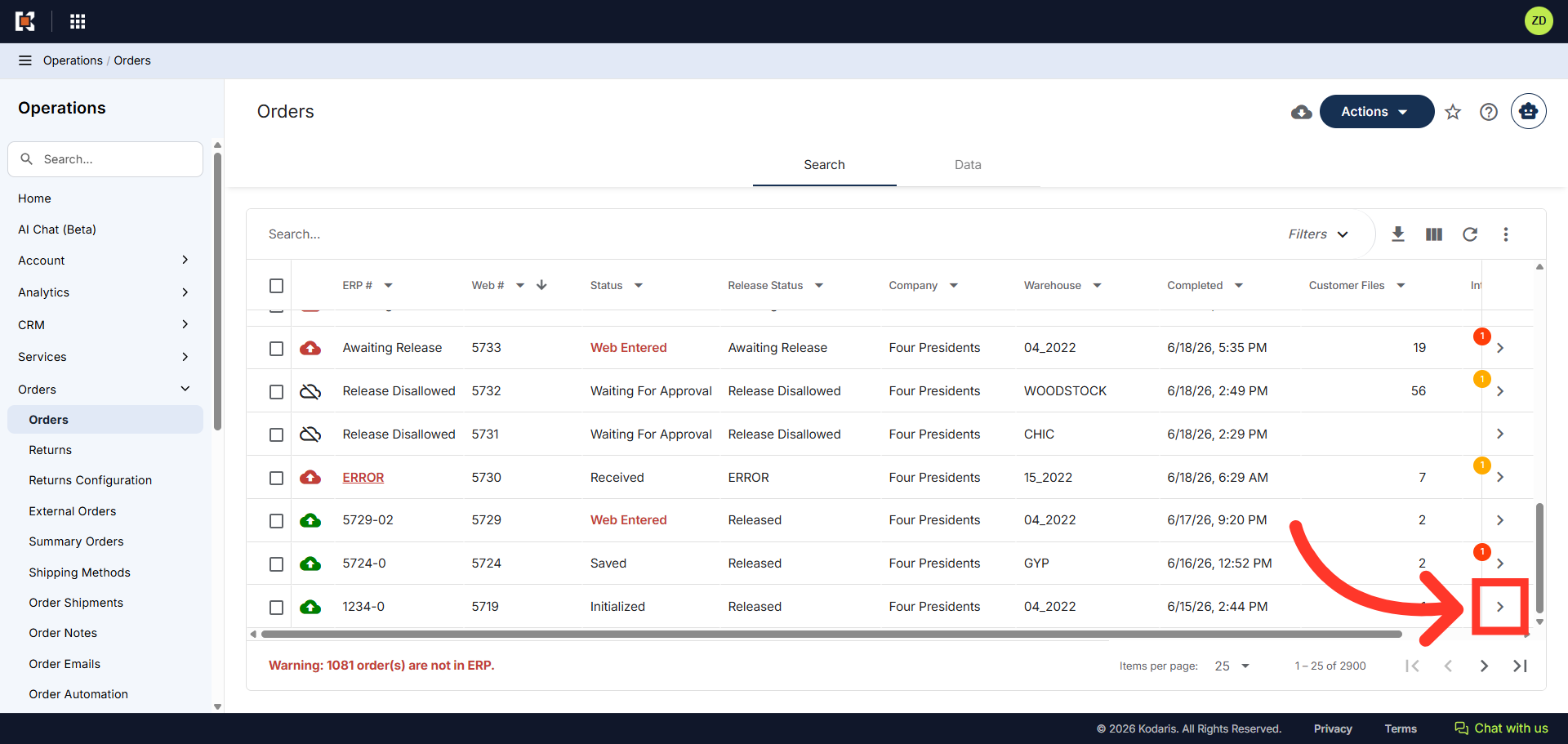
Click on the more details icon
Once you find the order, click the more details icon.
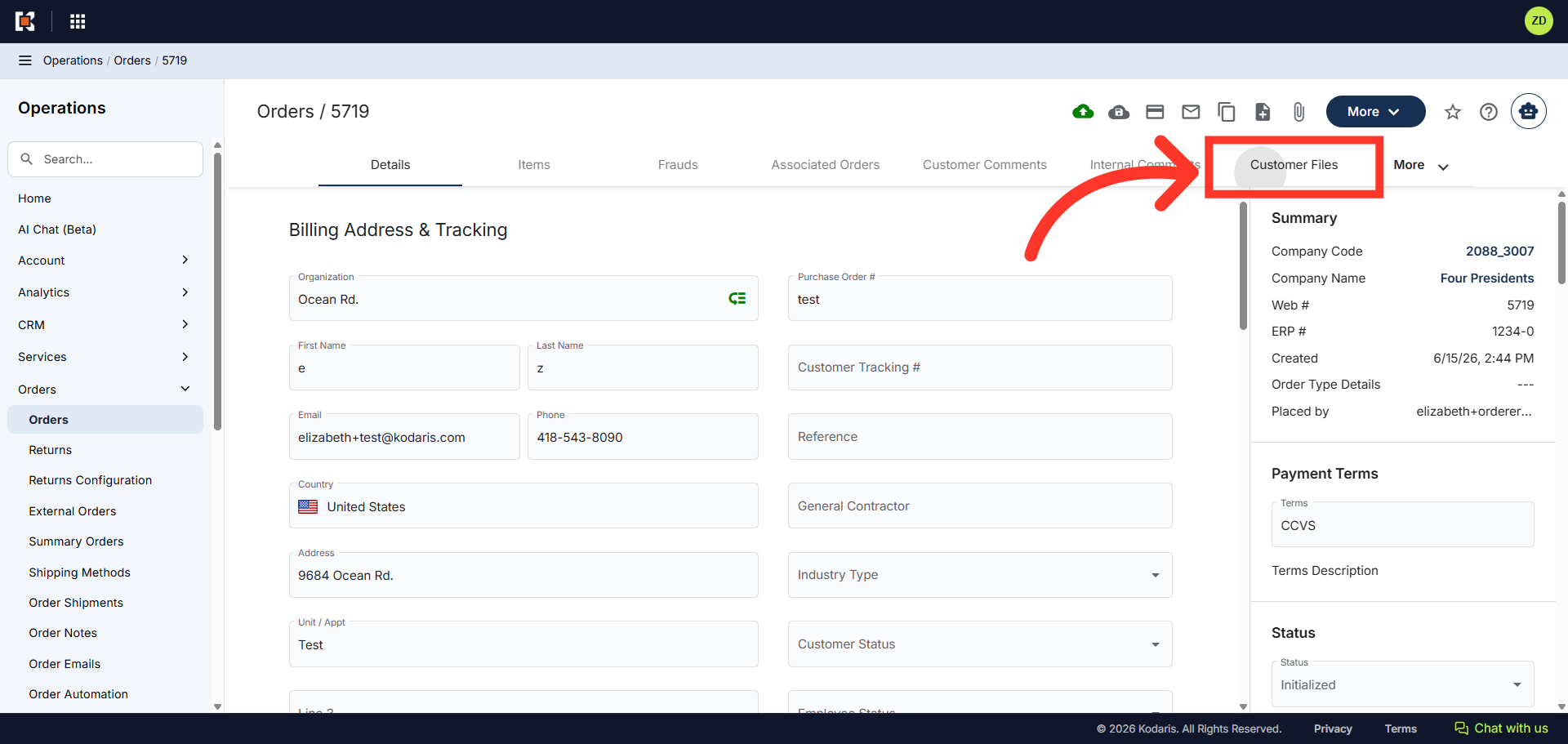
Click "Customer Files"
There are two file tabs you can add files to; Customer Files and Internal Files. In this example we will click, "Customer Files".
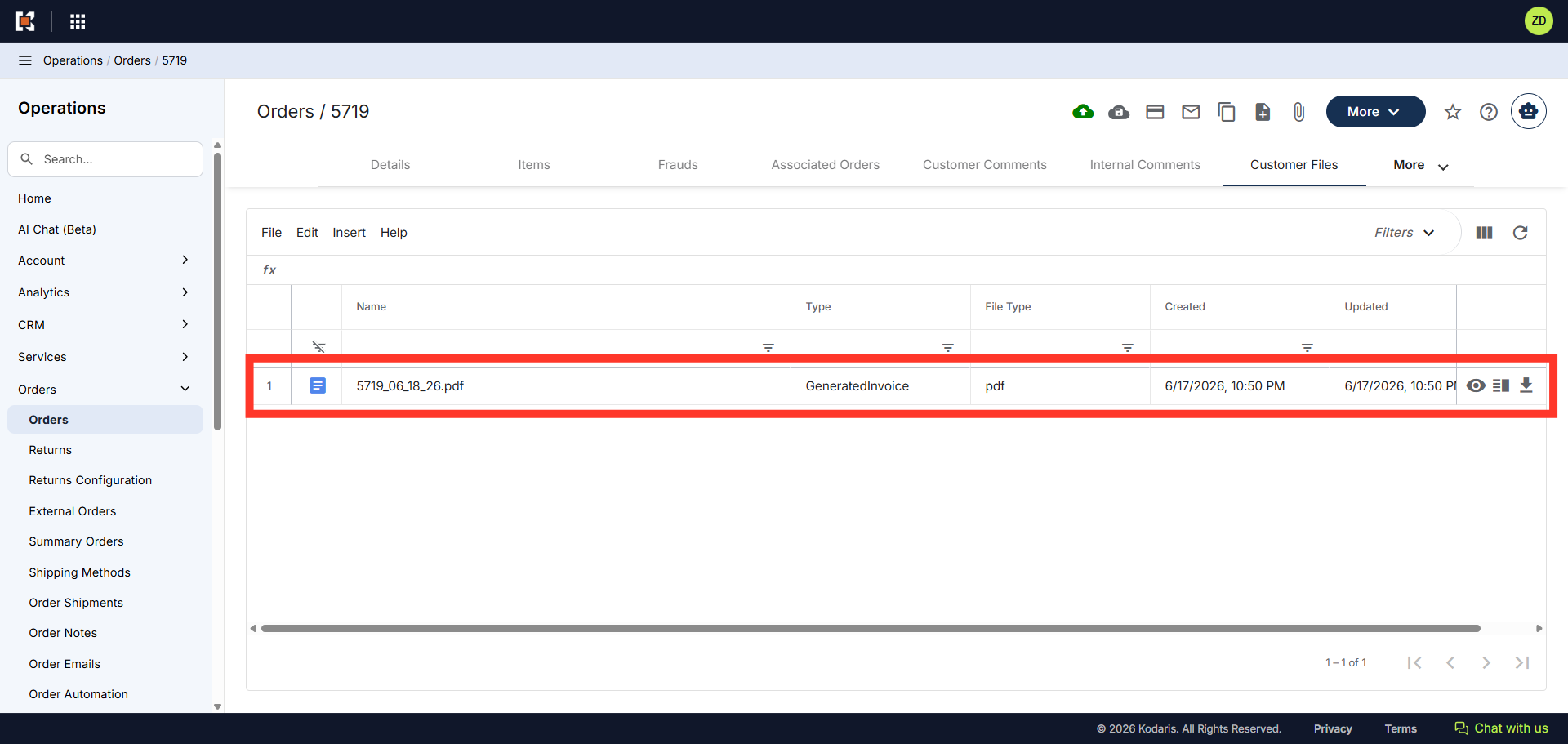
View Customer Files
The Customer Files tab contains all generated files by the customer. You can also attach files here if you would like the customer to access them.
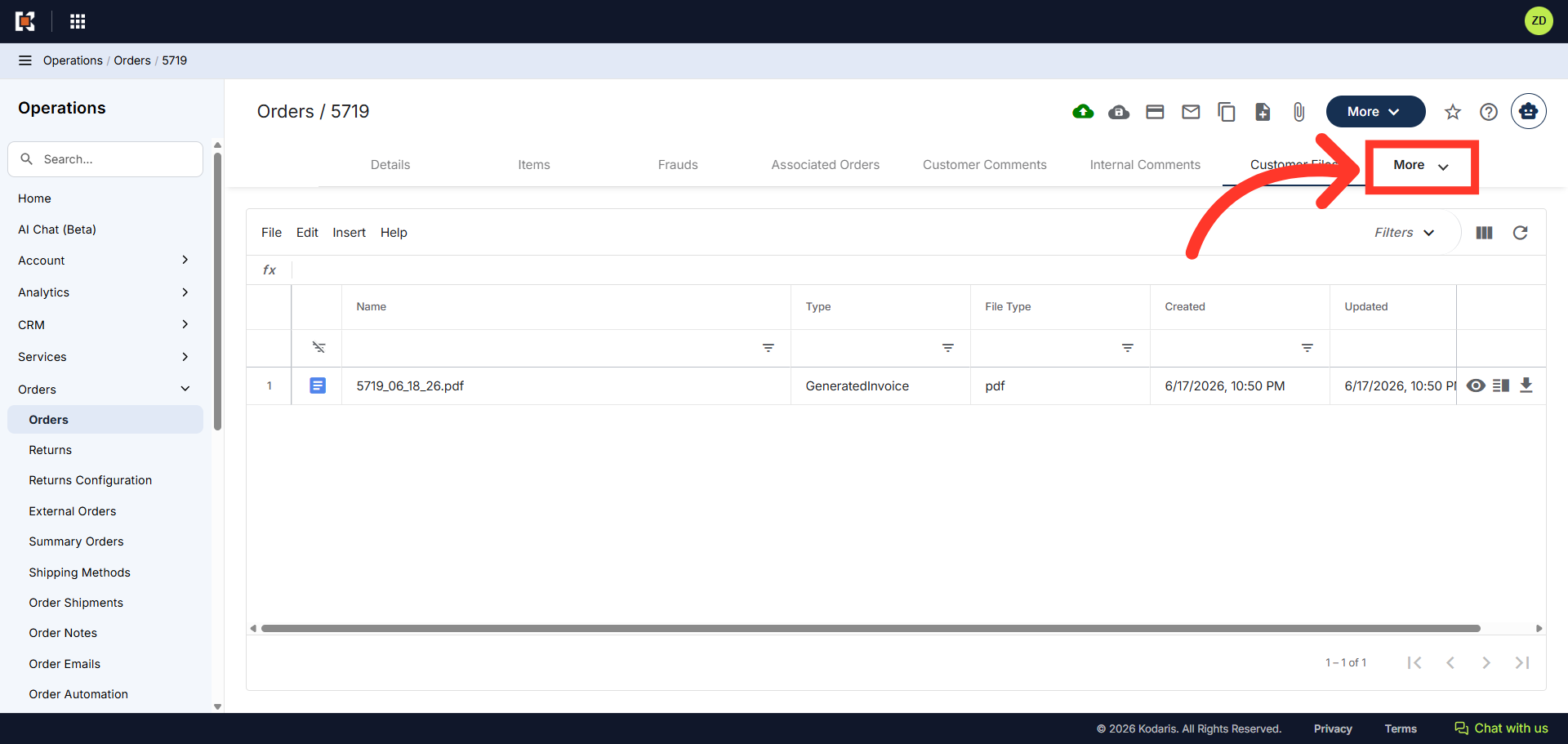
Click "More"
Click the "More" button to access additional options, including "Internal Files".
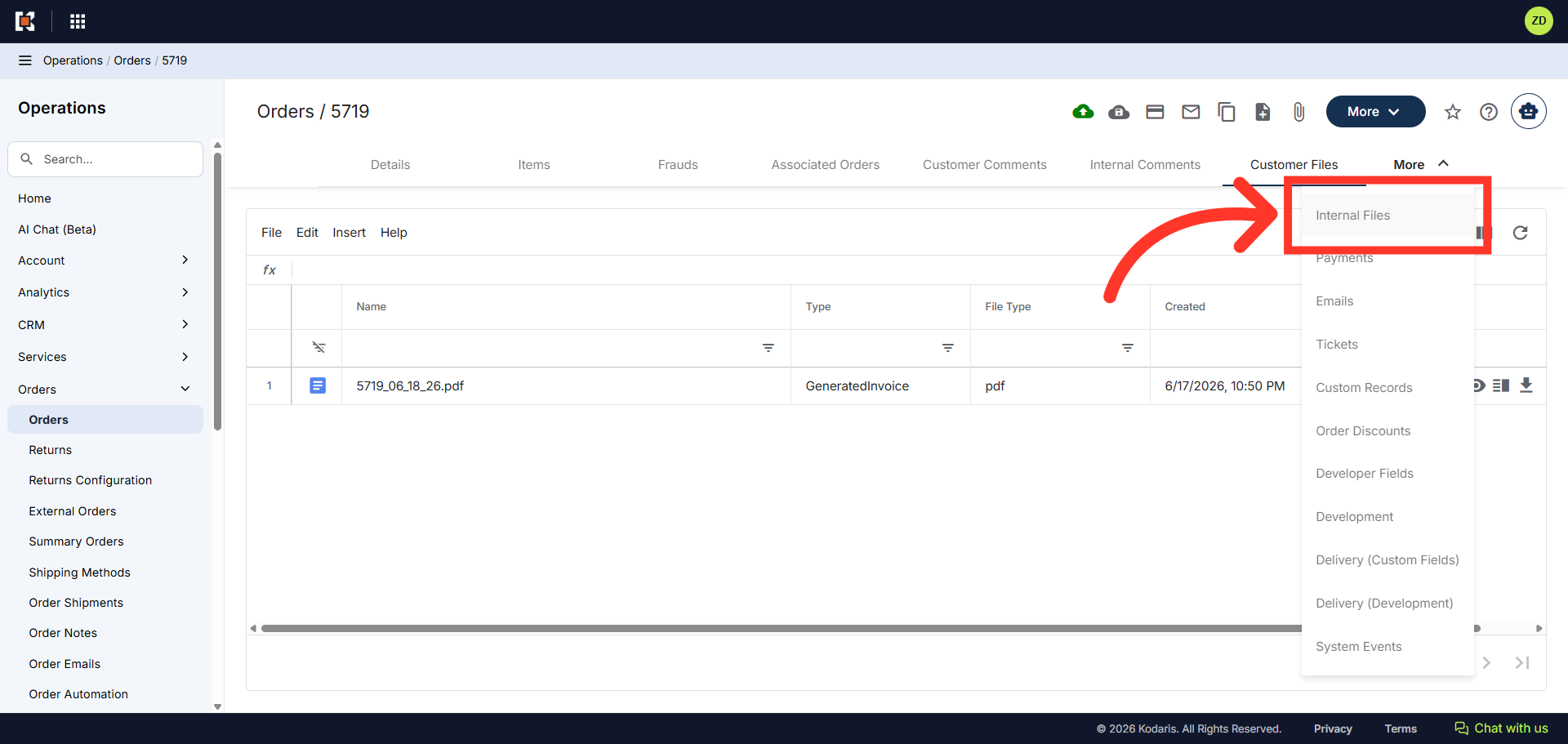
Click "Internal Files"
Select "Internal Files" from the dropdown menu.
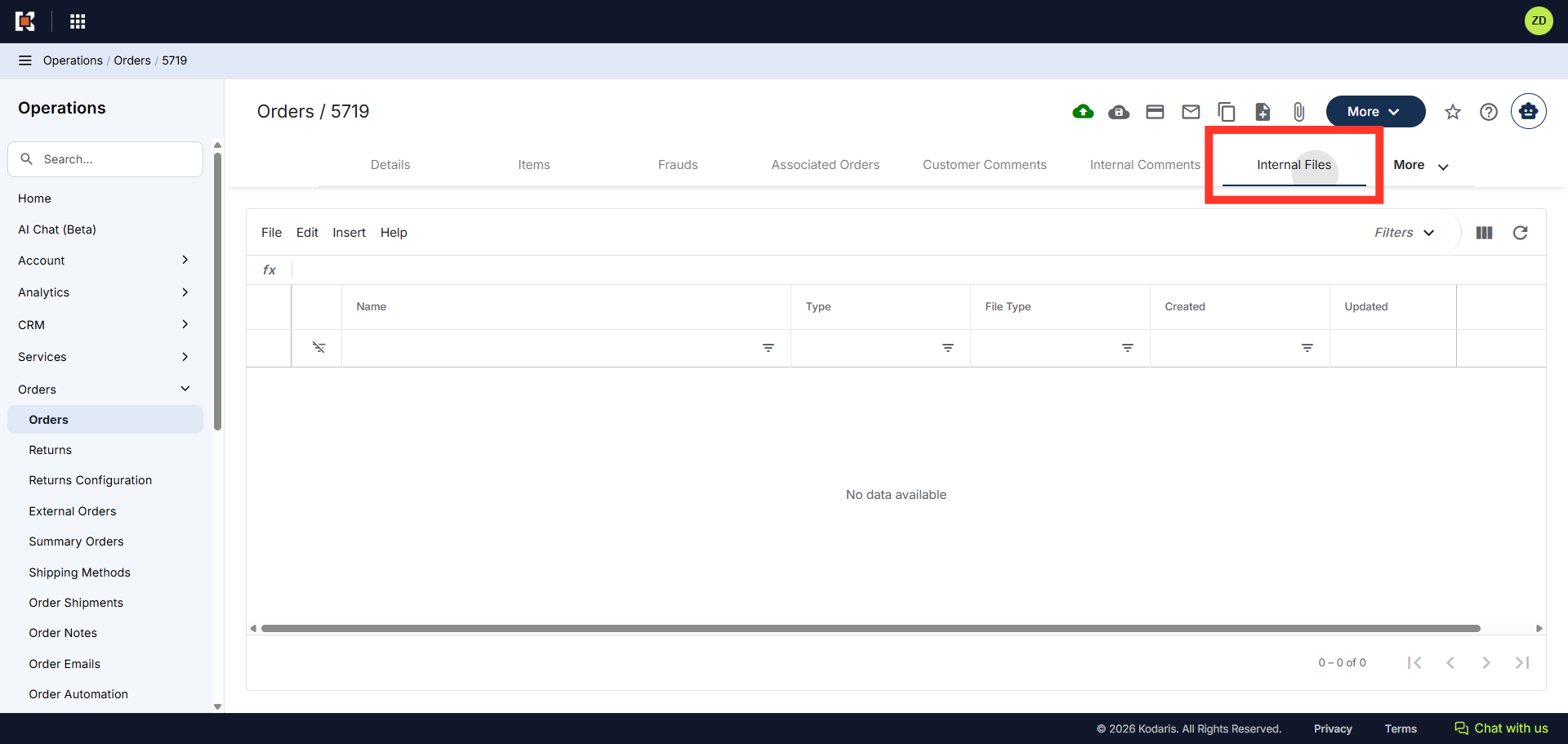
View Internal Files
The Internal Files tab is restricted from your customers, and only you or other authorized employees within your company will be able to access the files in this tab.
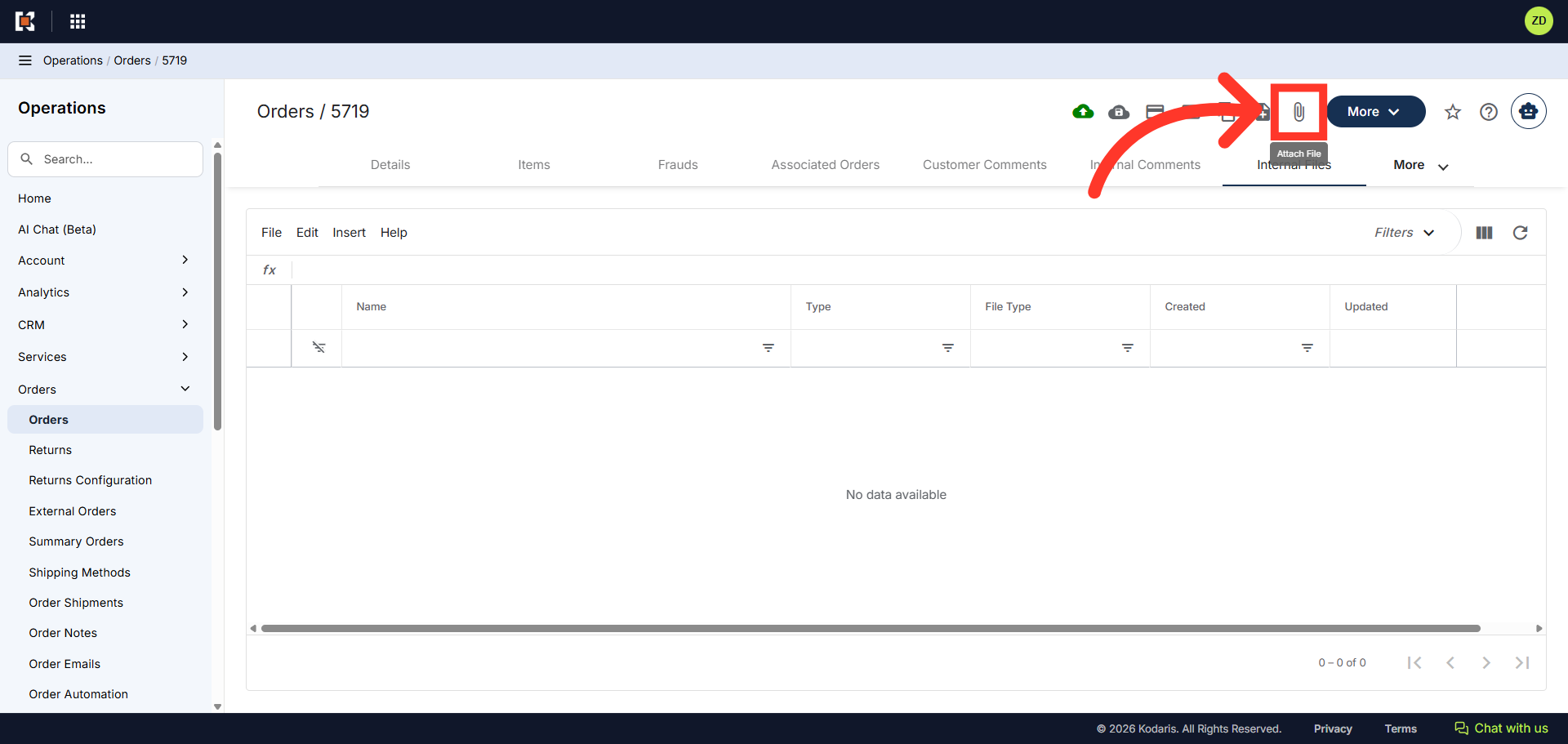
Click "Attach File"
To start attaching a file to the order, click the "Attach File" icon.
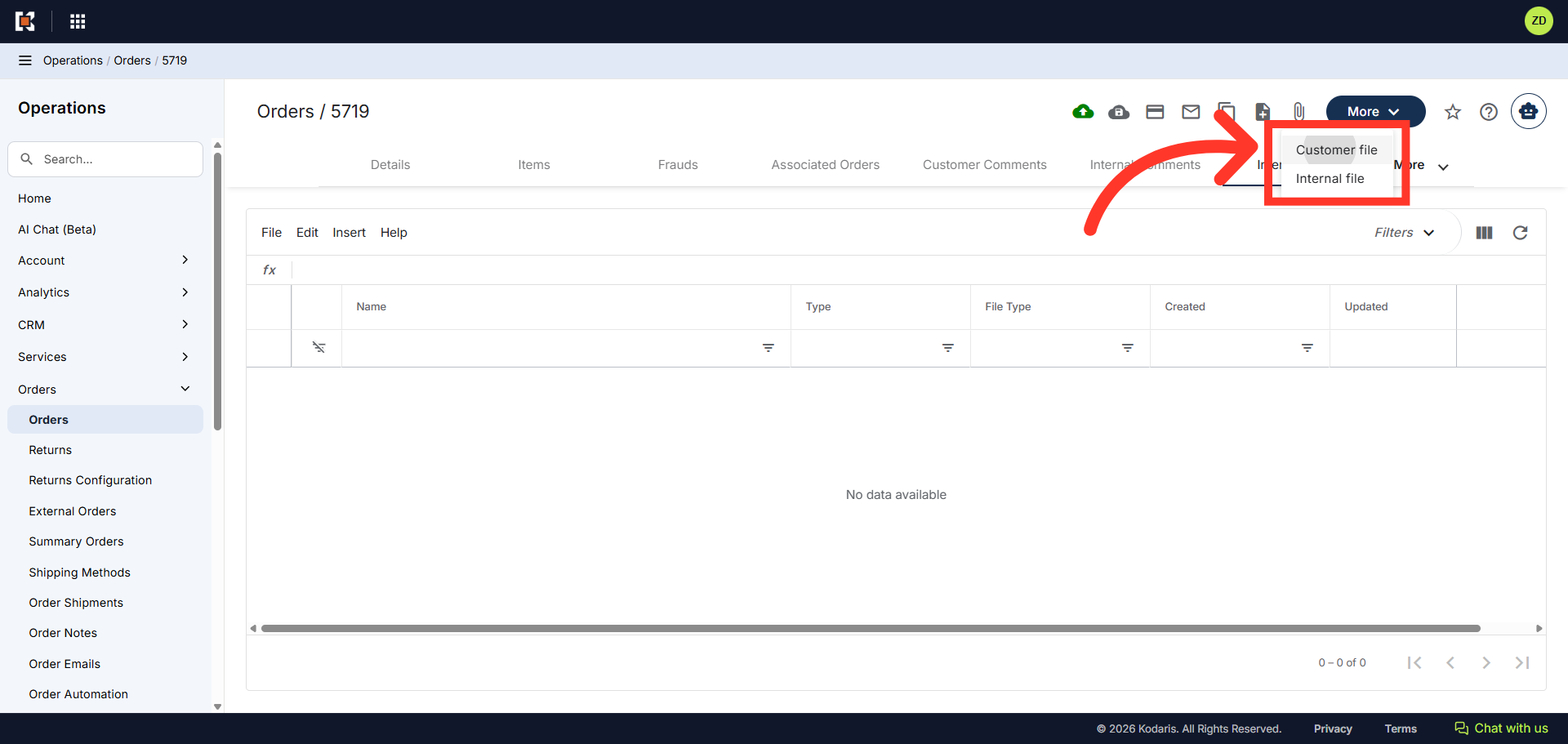
Select file type
Select which option you would like to use when attaching the file. In this example we will select "Customer File".
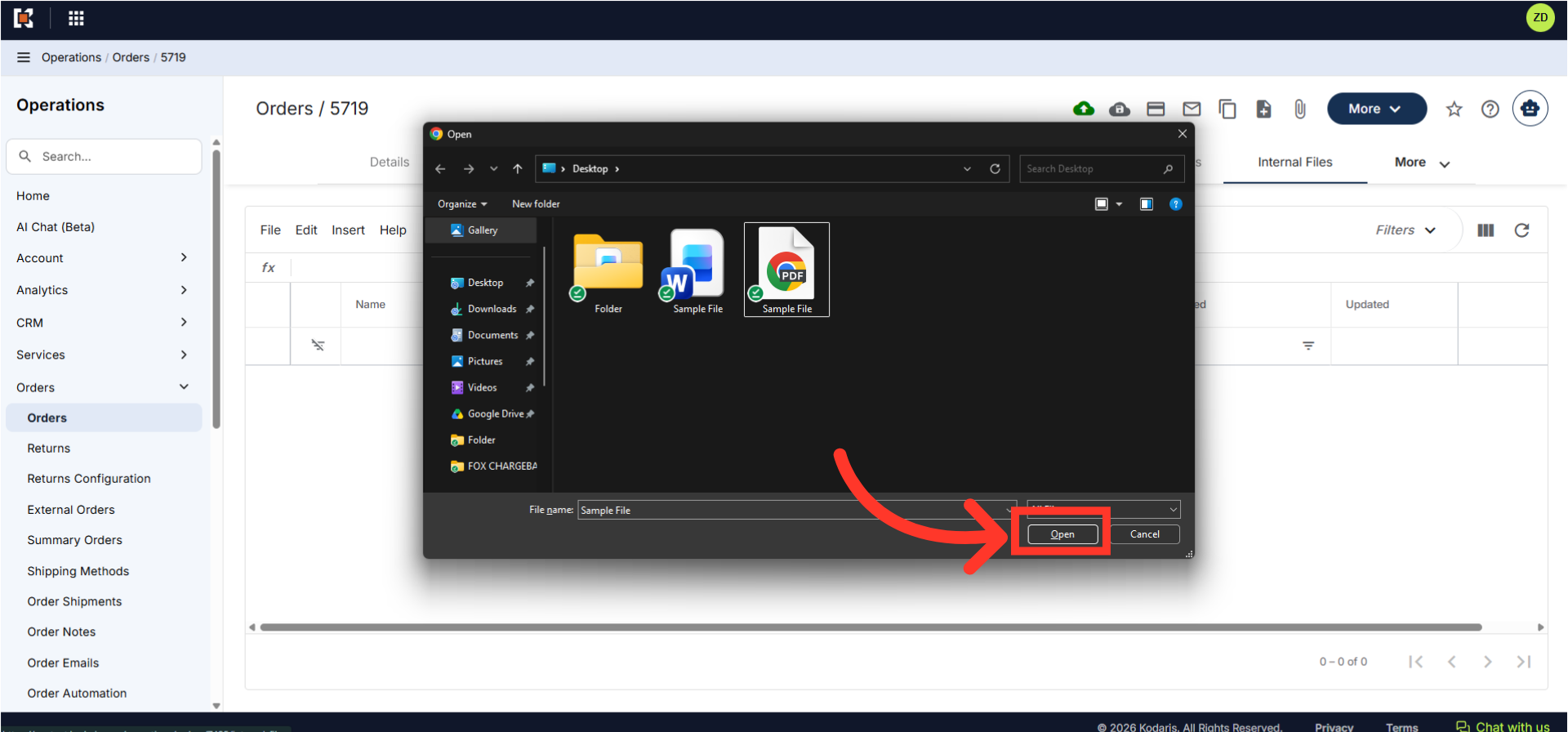
Choose the file to attach
Choose the file you would like to attach to the order and click "Open" to upload the file.
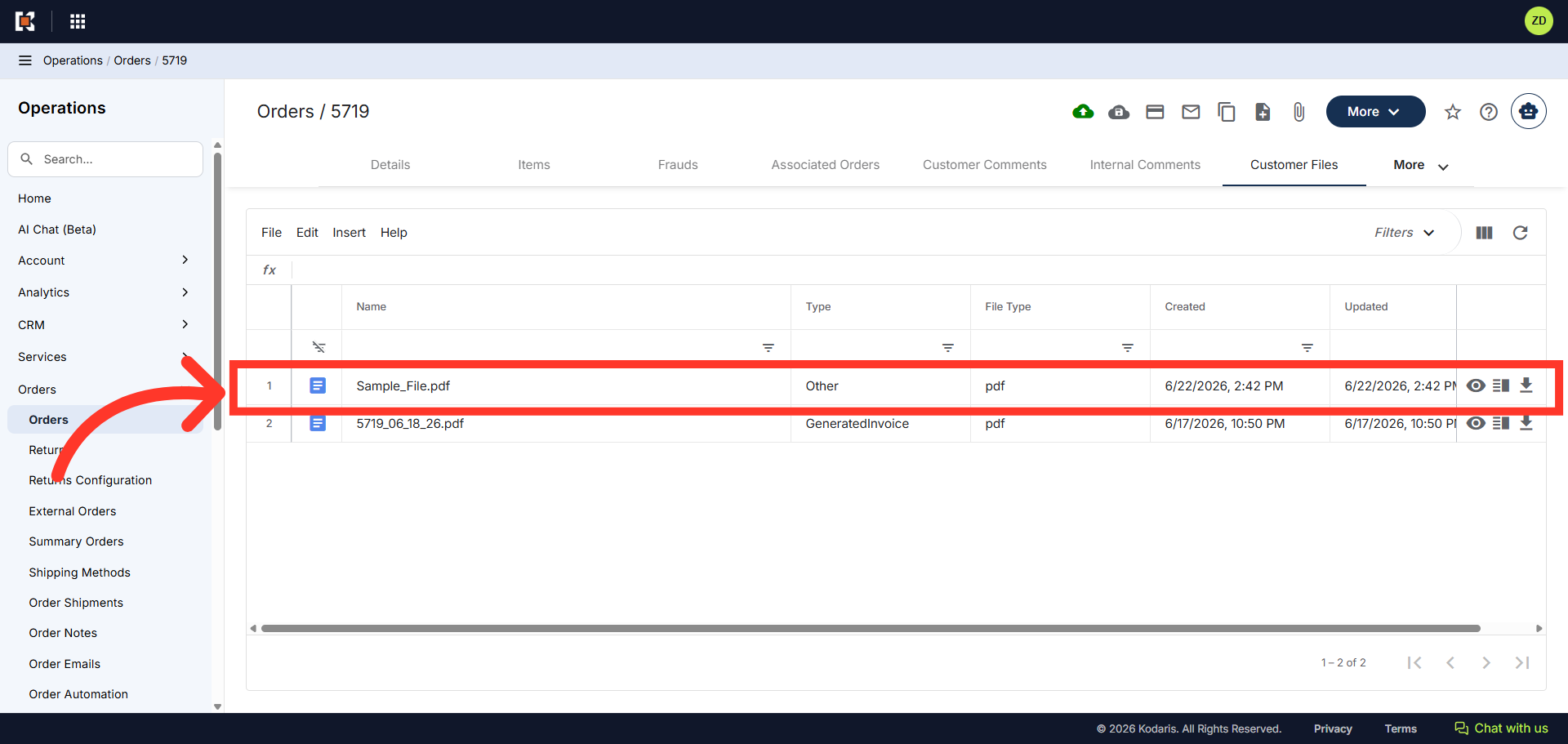
Attached file
Once uploaded, the file is saved under the corresponding tab that you selected earlier.
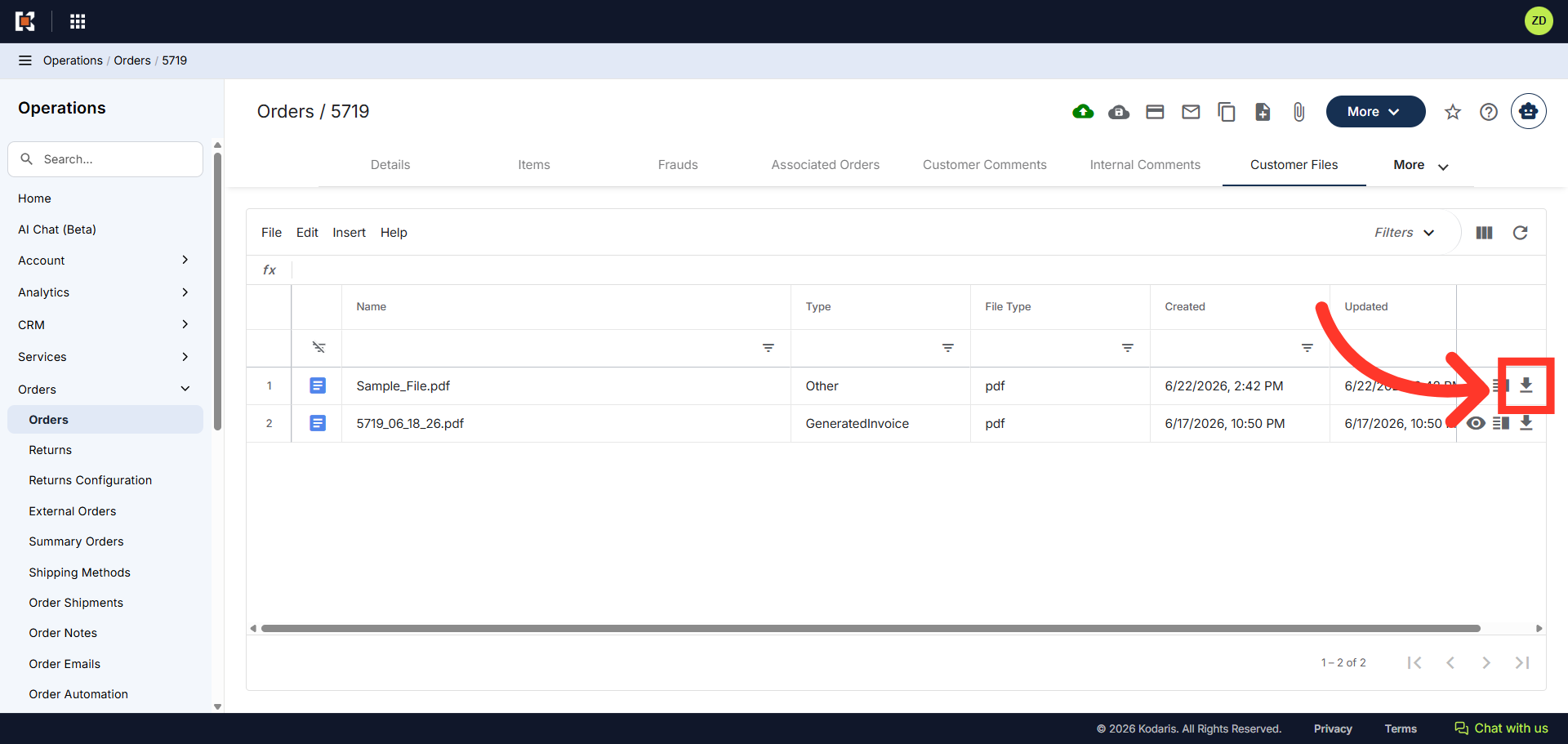
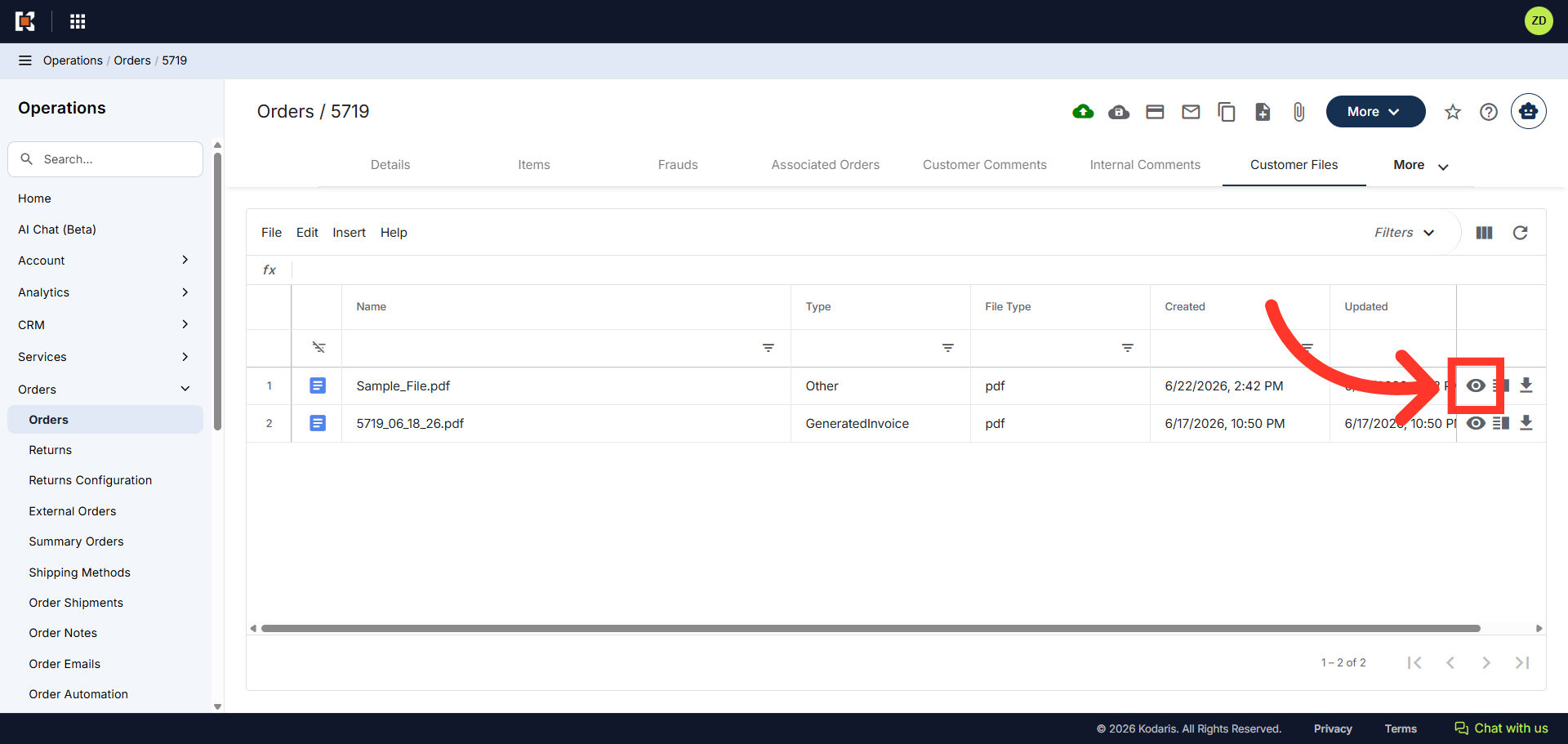
Download icon
Files can either be viewed directly in the browser or can be downloaded. Click the arrow down icon to download the file.
View icon
Click the view icon to preview the file.
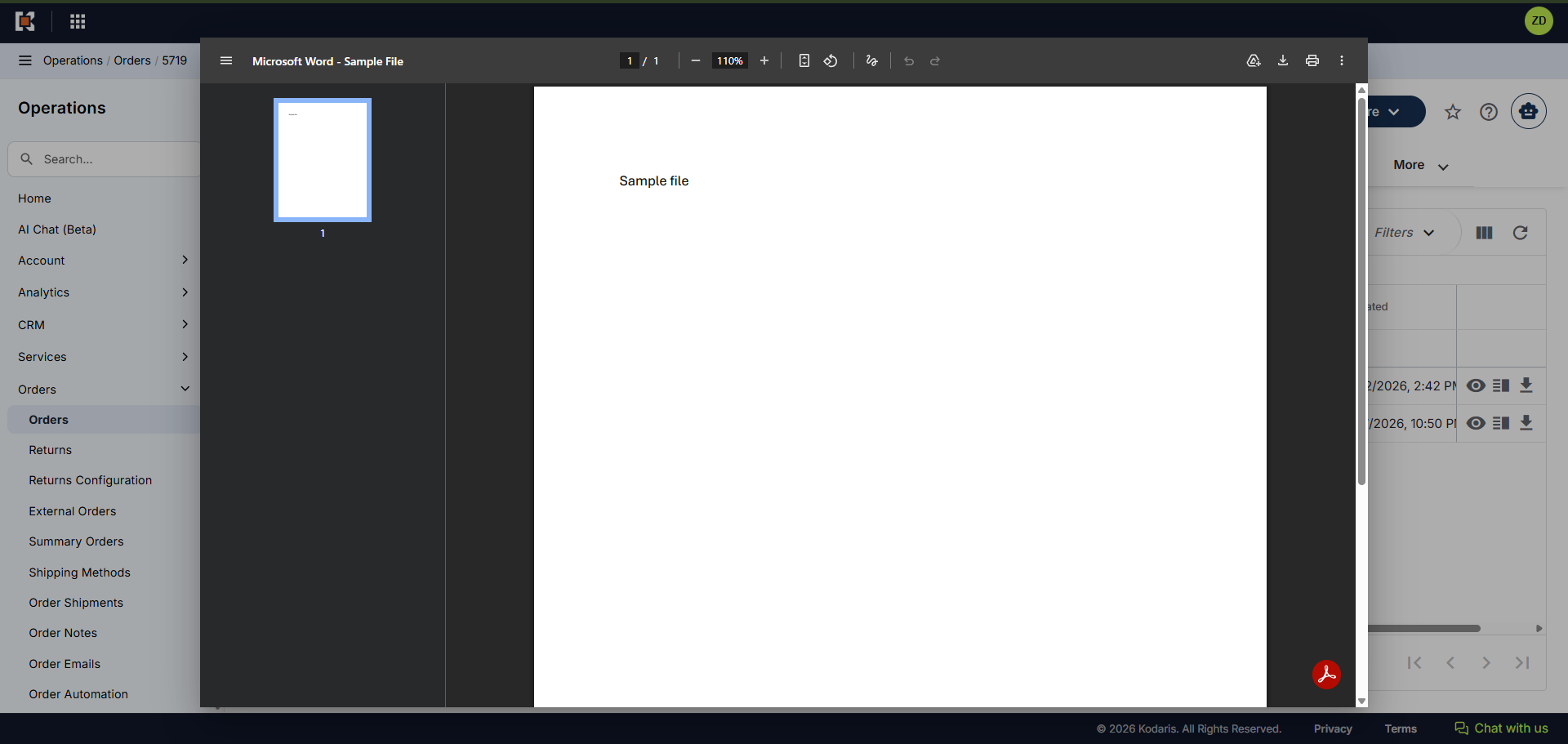
Preview pane
A preview pane should appear on your screen.
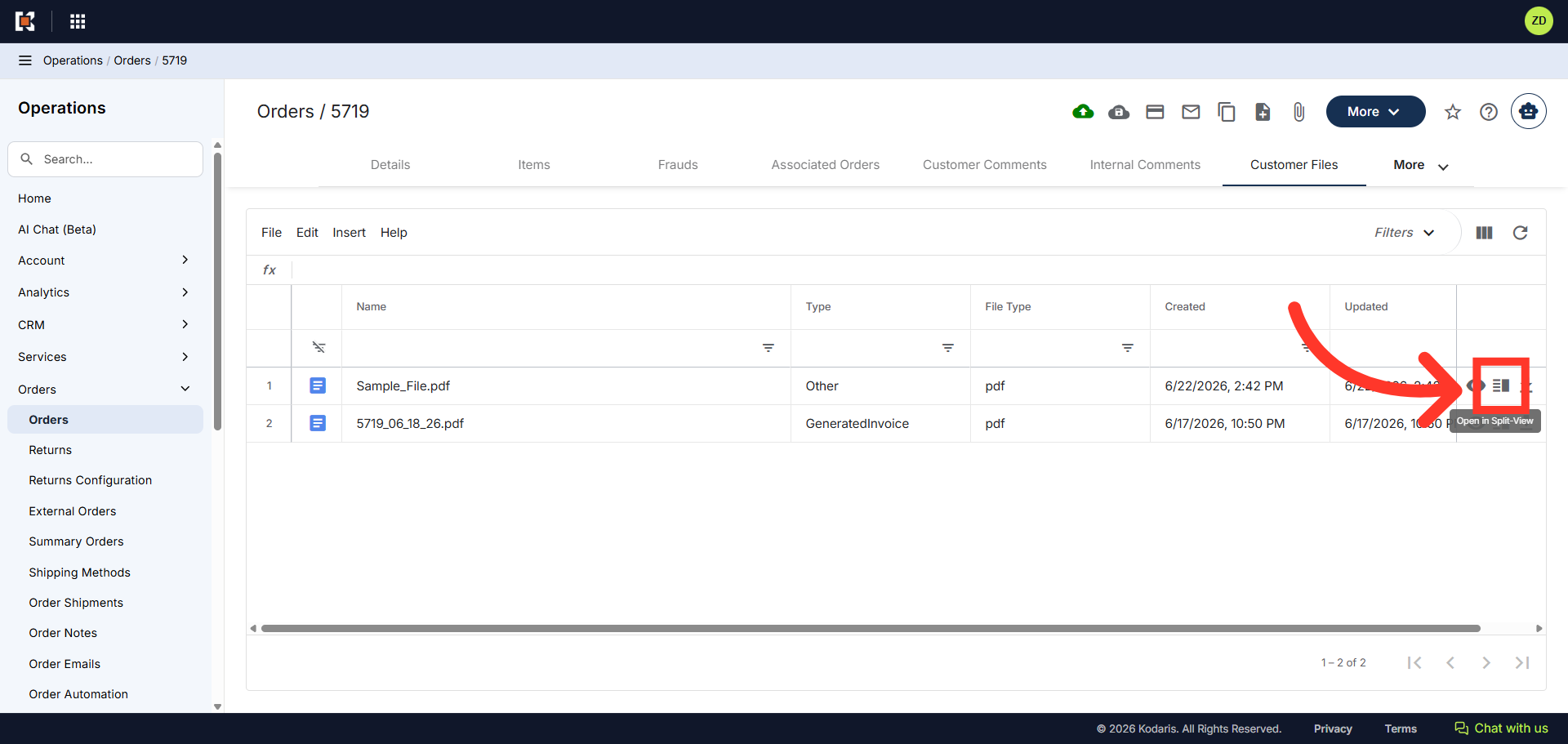
Split View icon
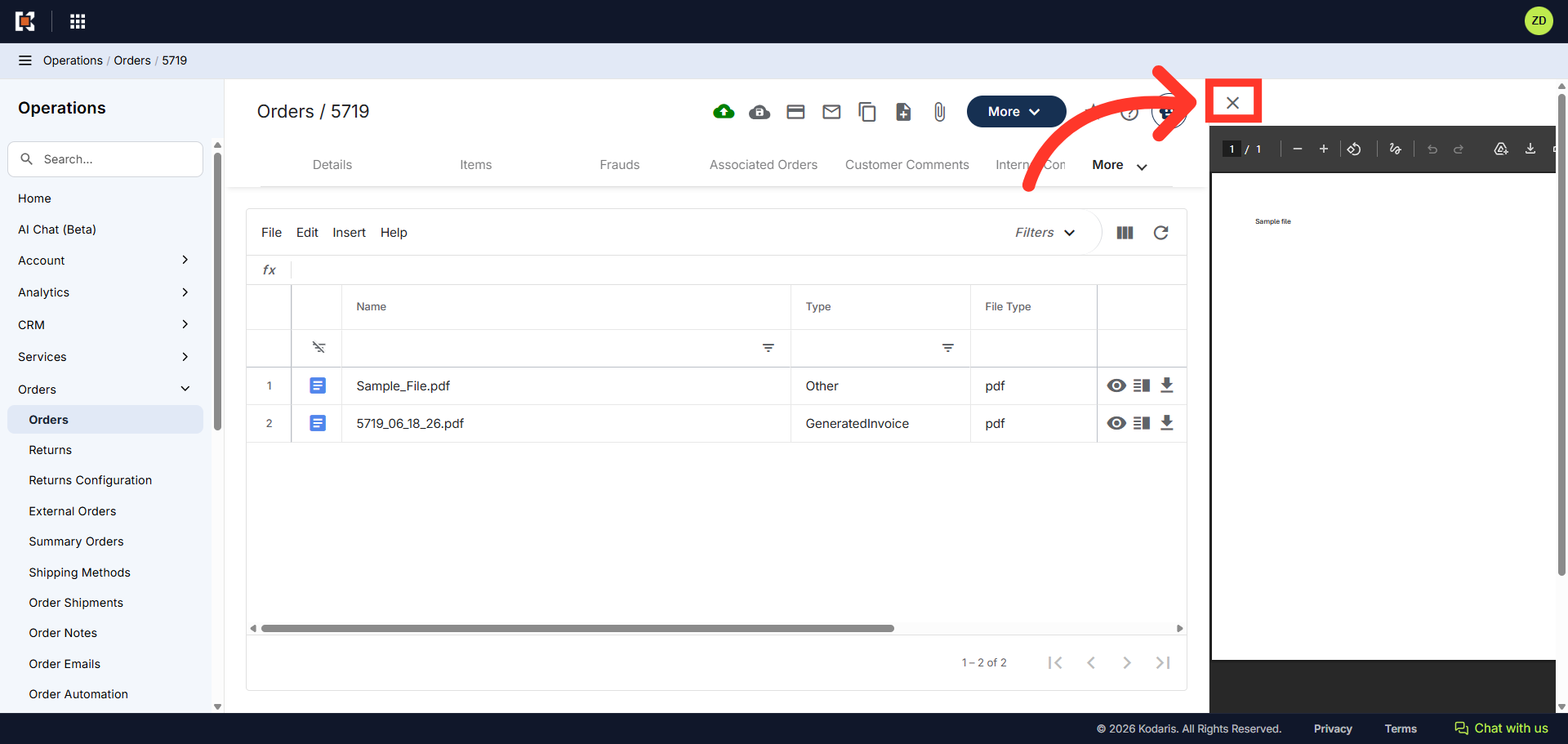
Click the "Open Split View" icon to display the file in the same window.
Close Panel
Click "X" to close the split view.