
Operations Services - Customize Customer Project Fields
Navigate to "Systems" section
To customize customer project fields, navigate to the "Systems" section in your operations portal.

Click "Settings"
Then, select the "Settings" to go to the "Settings" screen. In order to access "Settings" you will need to be set up either as an "administrator" or a "superuser", or have the appropriate roles: "settingEdit," and "settingView."

Search for "Ticket Customer Projects" setting
Search for "Ticket Customer Projects" setting.

Click on the more details icon
Then, click on the more details icon to access your setting details.

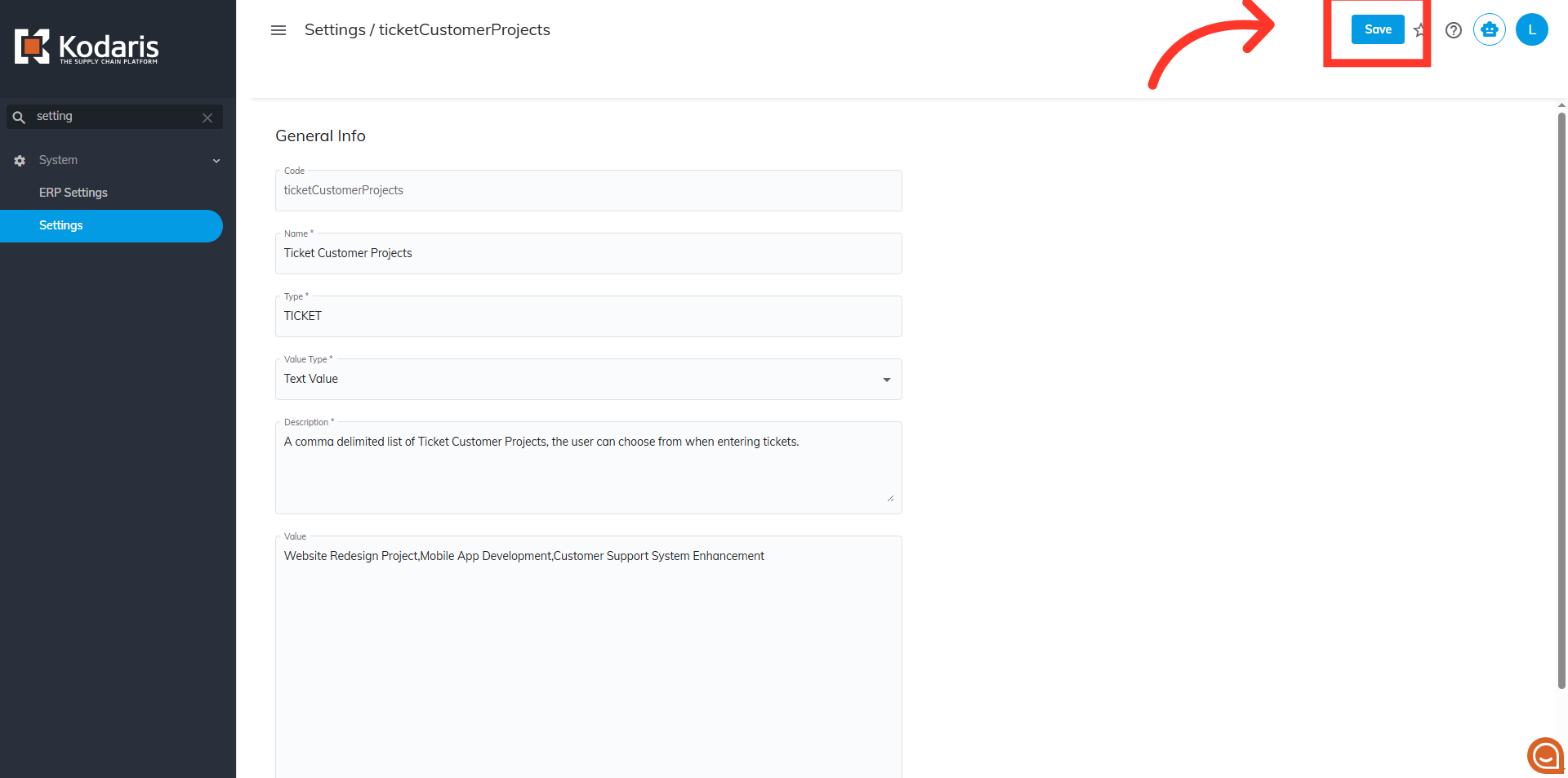
Enter values in the "Value" field
On the details page, populate the Value field with a comma-separated list of the options you want to make available in the "Customer Project".

Click "Save"
Then, click "Save" to apply your changes.
Navigate to "Services" section
Once you have updated the values for your Customer Project field, these will be available in both your customer and operations portal. To verify, navigate to your "Services" section.

Access the "Tickets" screen
Click on "Tickets". In order to access and update "Tickets" your account must be set up either as an "administrator" or a "superuser," or have the roles of "ticketView," "ticketEdit," "ticketViewAssigned," and "ticketEditAssigned."

Search for a ticket
Use the search bar or column filters on the "Search" tab to find the ticket you want to check.
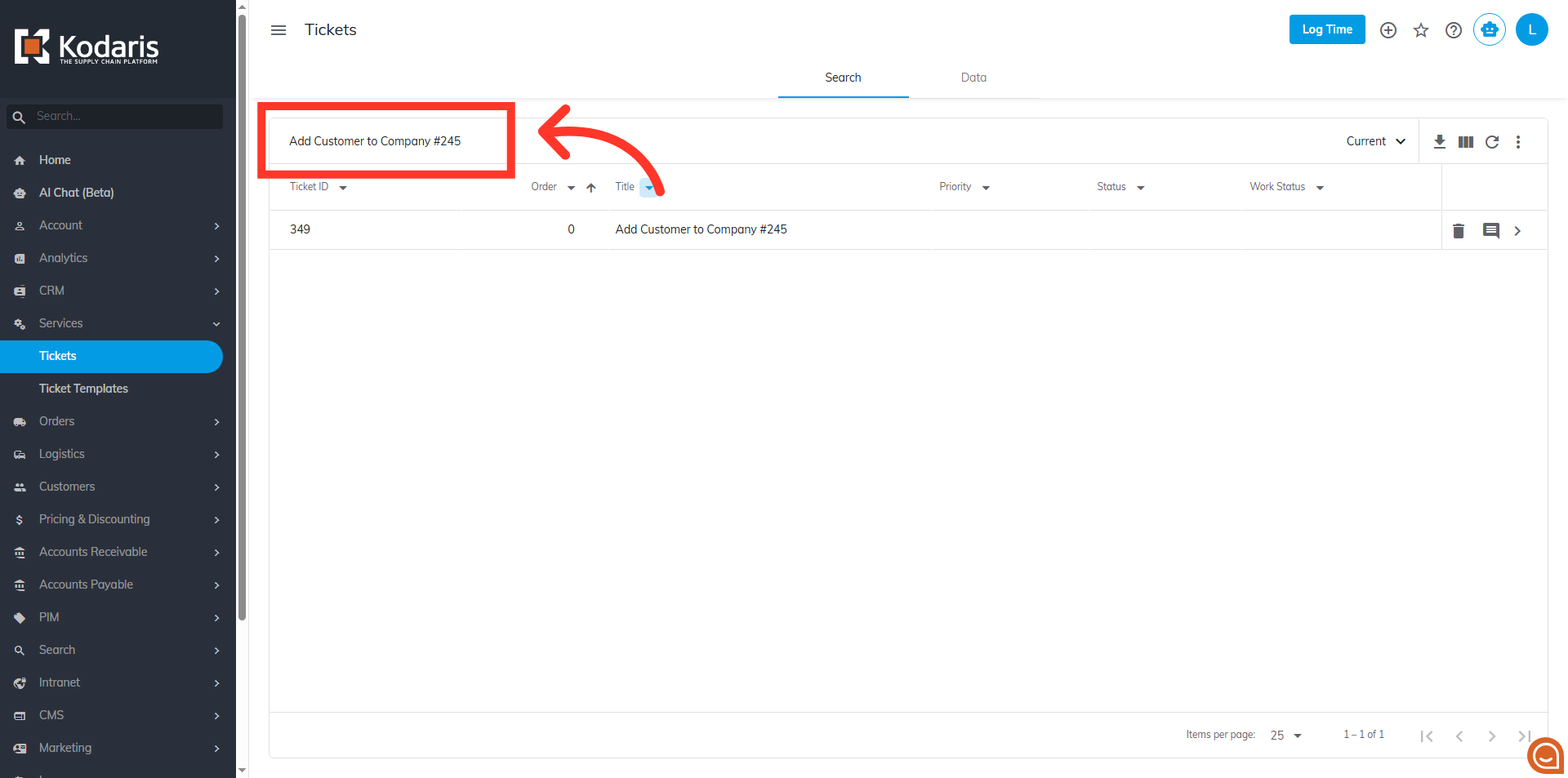
Click on the more details icon
Click on the more details icon to access your ticket’s details screen.

"Customer Project" field
Scroll down to the "Customer Details" section and you will now find the "Customer Project" field, which contains a dropdown with the values you added in your settings.
