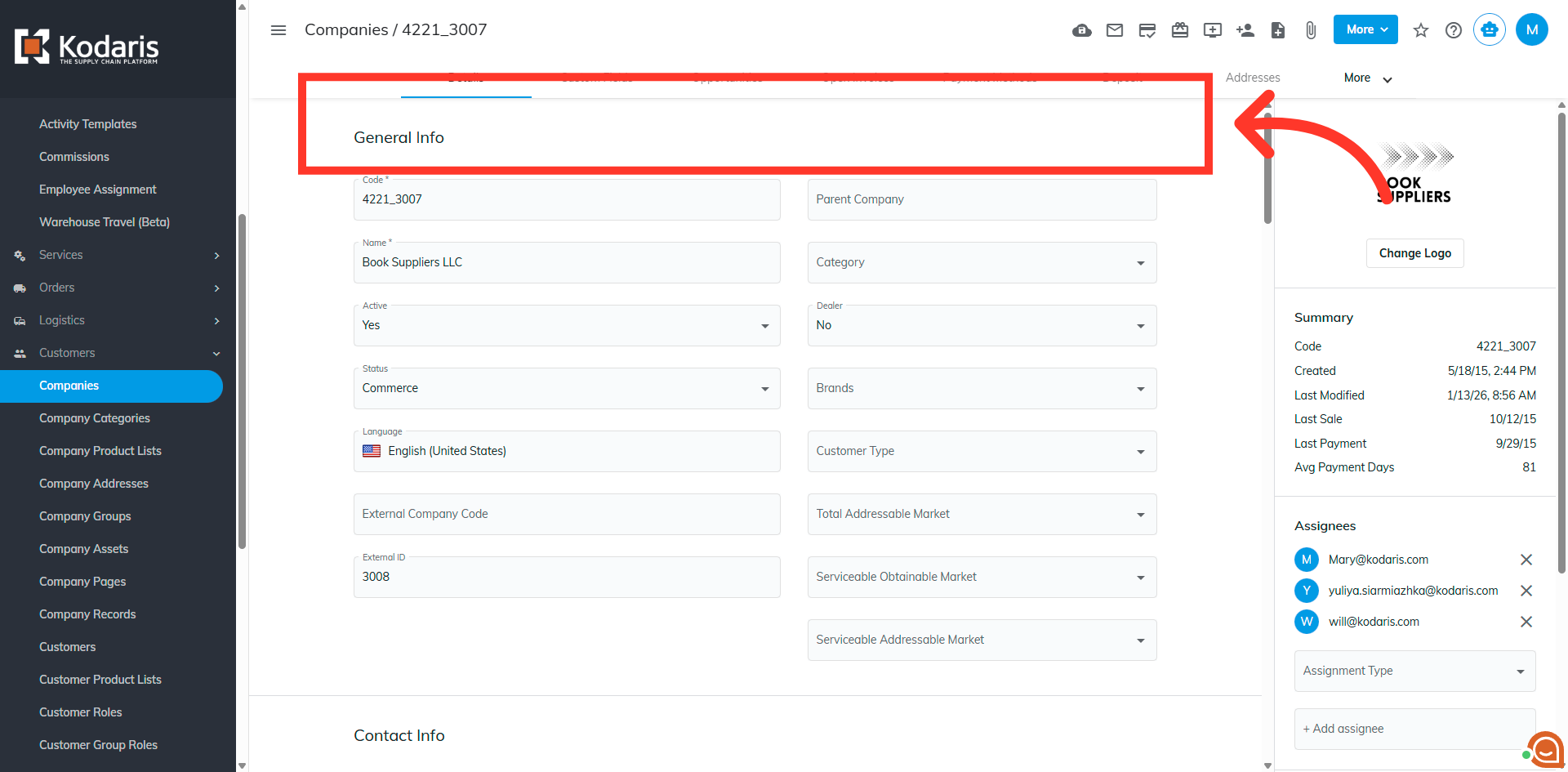
Customer Payments - Reset Card Payment Attempts
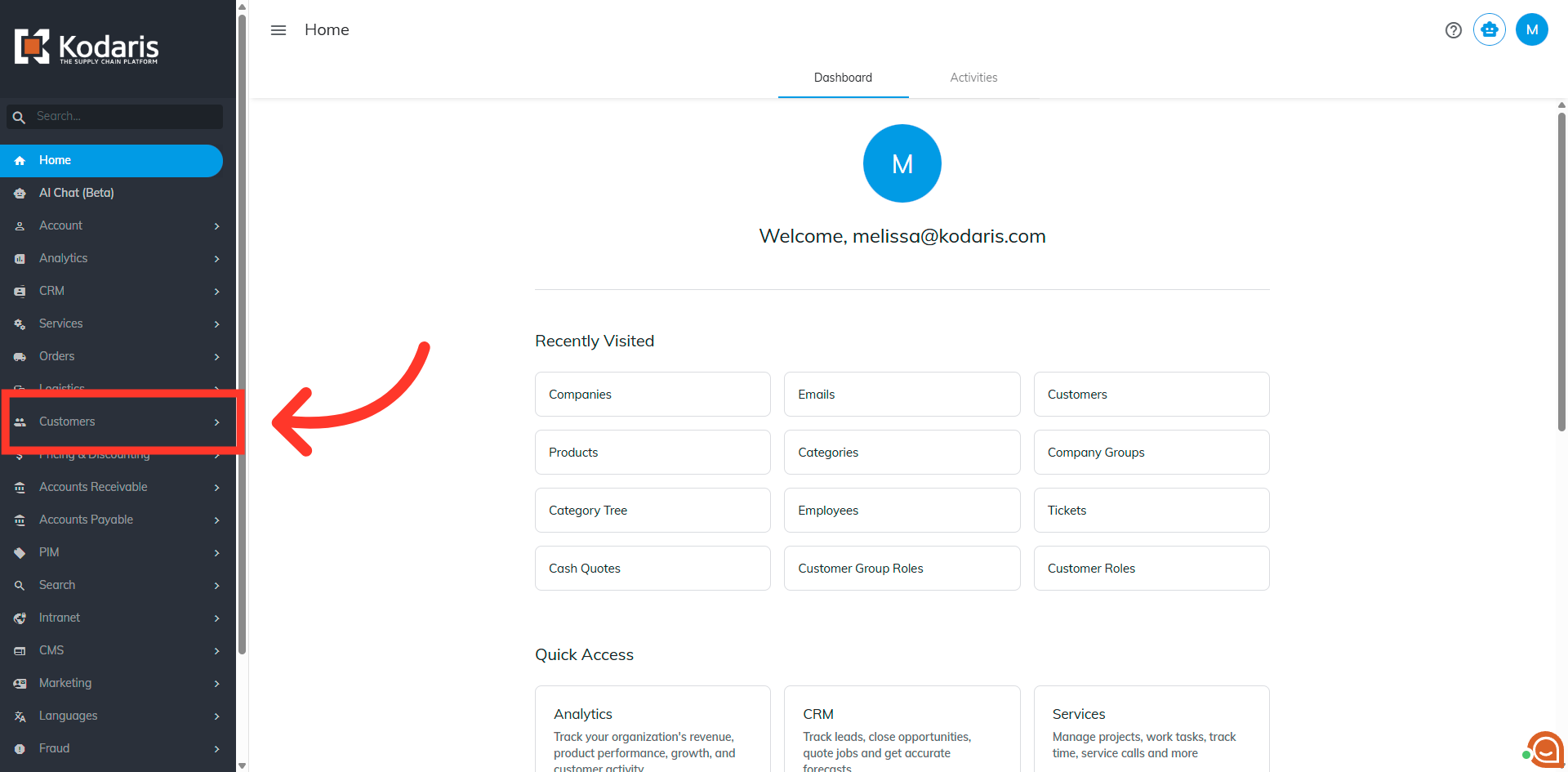
Navigate to "Customers" section
To help protect against potential fraud, there is a setting that will trigger a hold when there have been multiple failed payments attempts on the customer account. To remove the hold placed on the customers account, click on "Customers" under the CRM section in the operations portal.
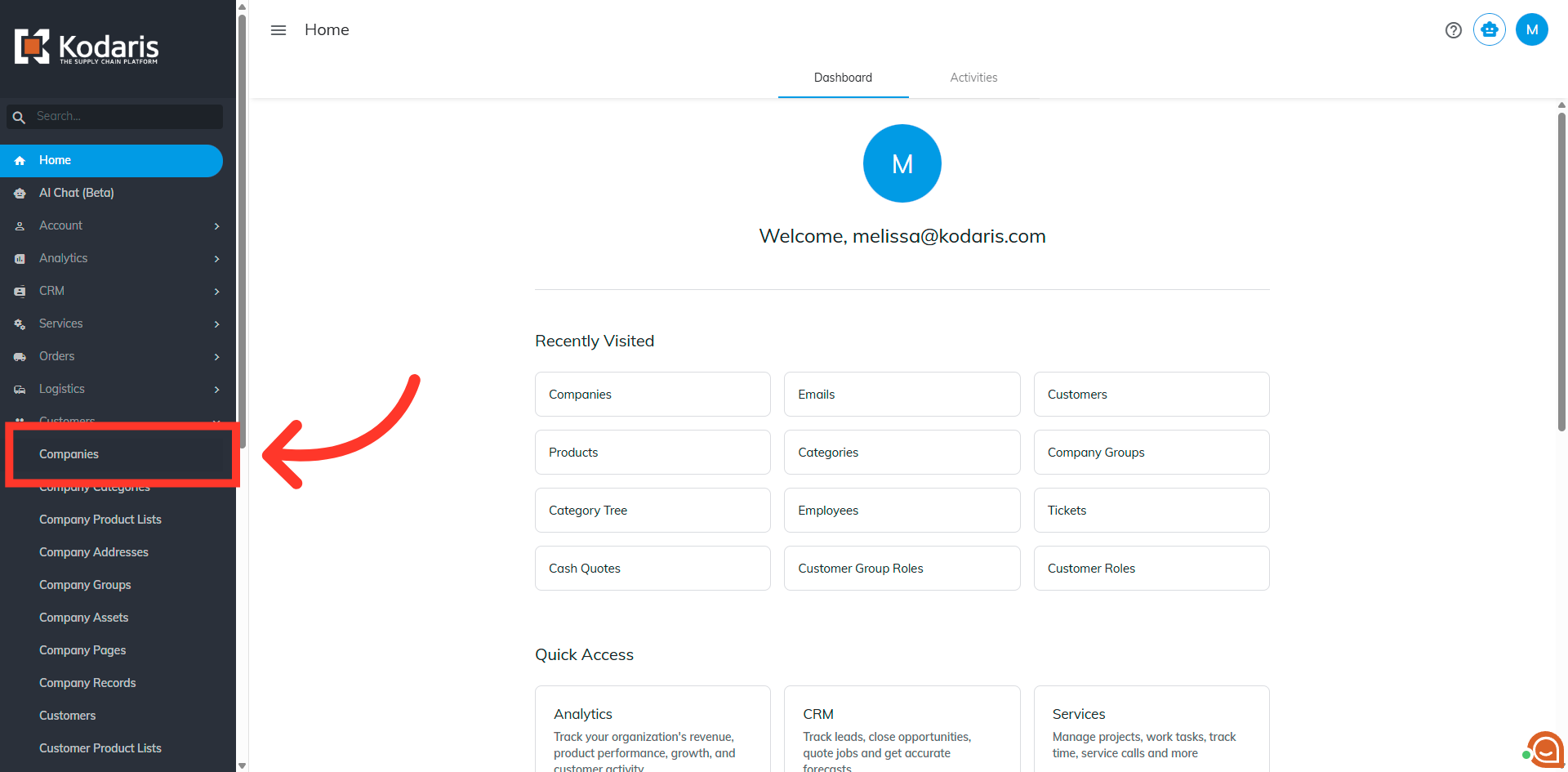
Click "Companies"
Click "Companies". The following roles are needed to be able to access the screens and reset the payment. For "Companies" screen, you will need to be set up either as an "administrator" or "superuser", or have the roles "companyEdit" and "companySettingEdit", or "accountant". For "Orders" screen, you will need to be set up either as an "administrator" or "superuser". or have the roles "orderEdit" and "orderSettingEdit", or "accountant".
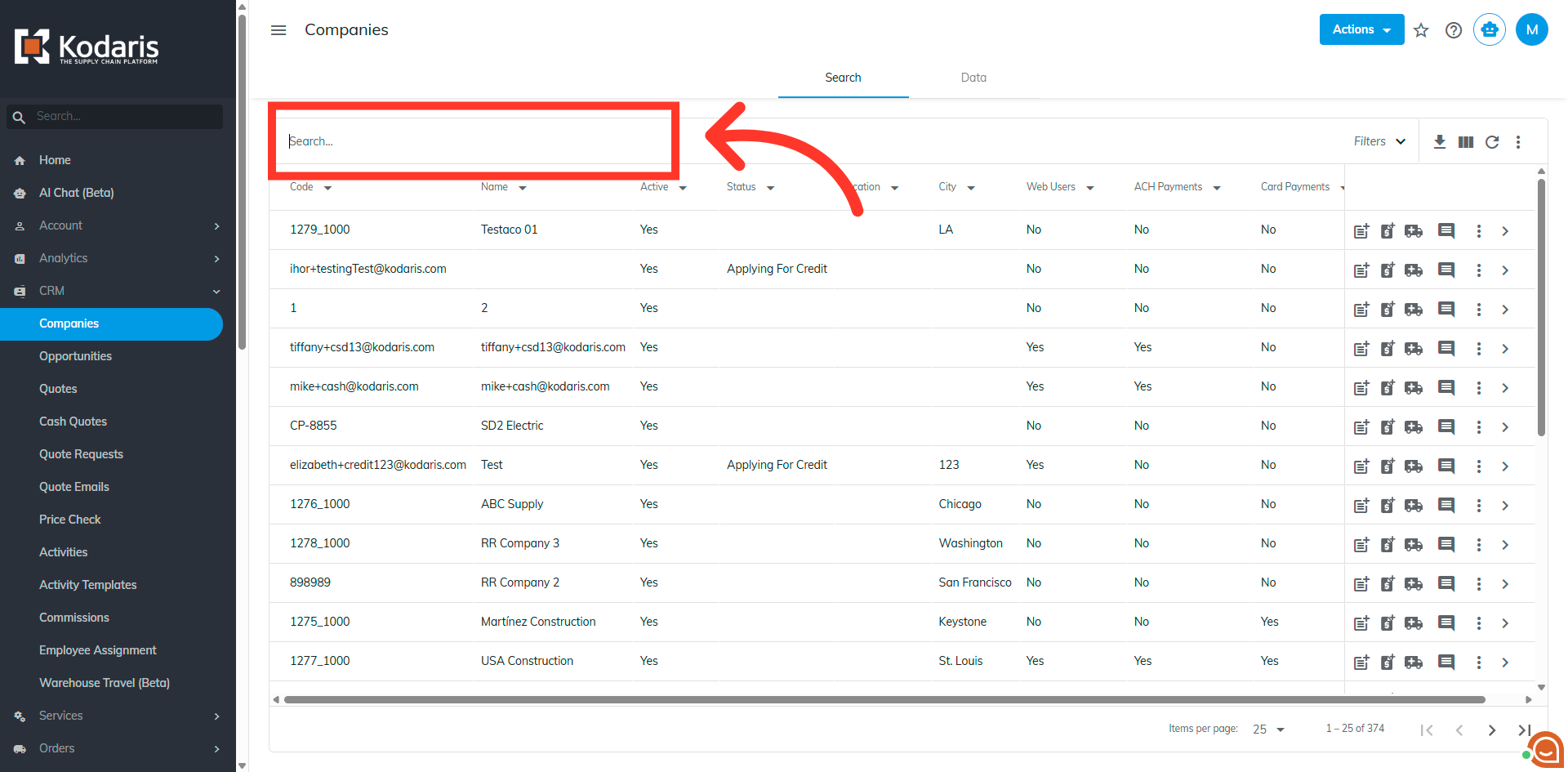
Search for the company
Enter company code or name in the search field.
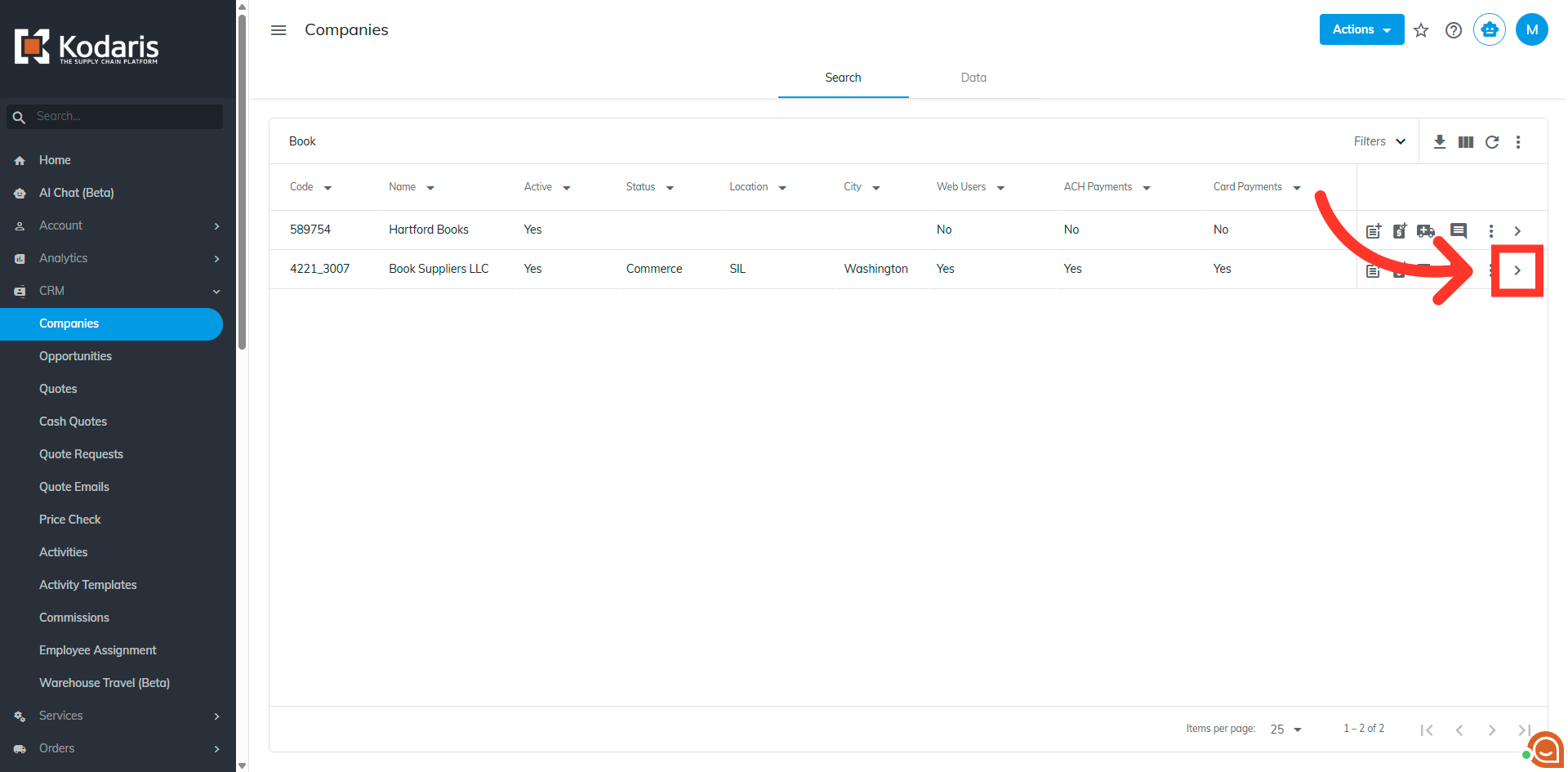
Click the more details icon
Click the more details icon.
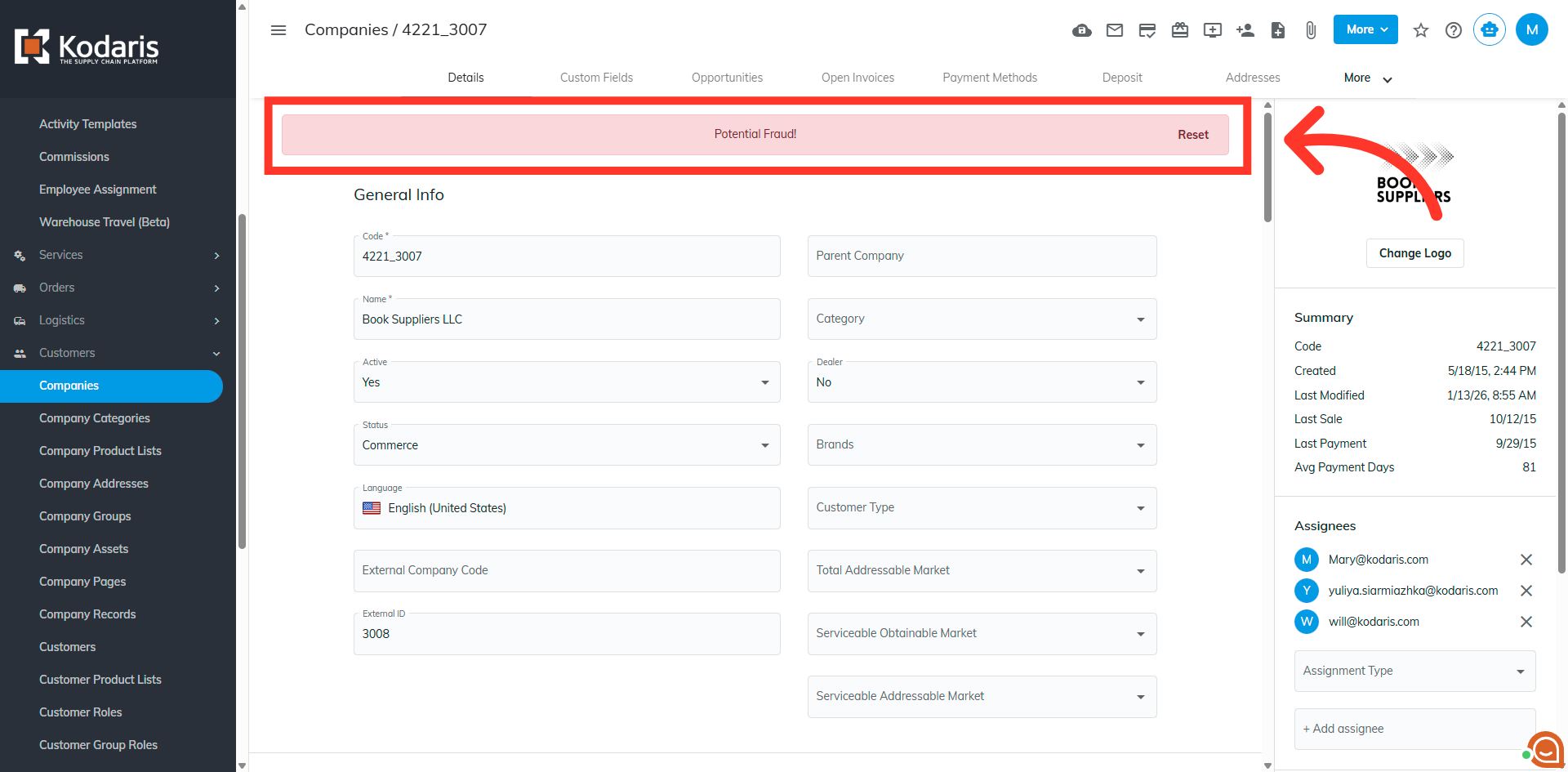
Potential Fraud banner
When a hold has been triggered from declines returned from the payment provider for a payment on account, a "Potential Fraud!" banner is displayed. This prevents the customer from making further payment attempts.
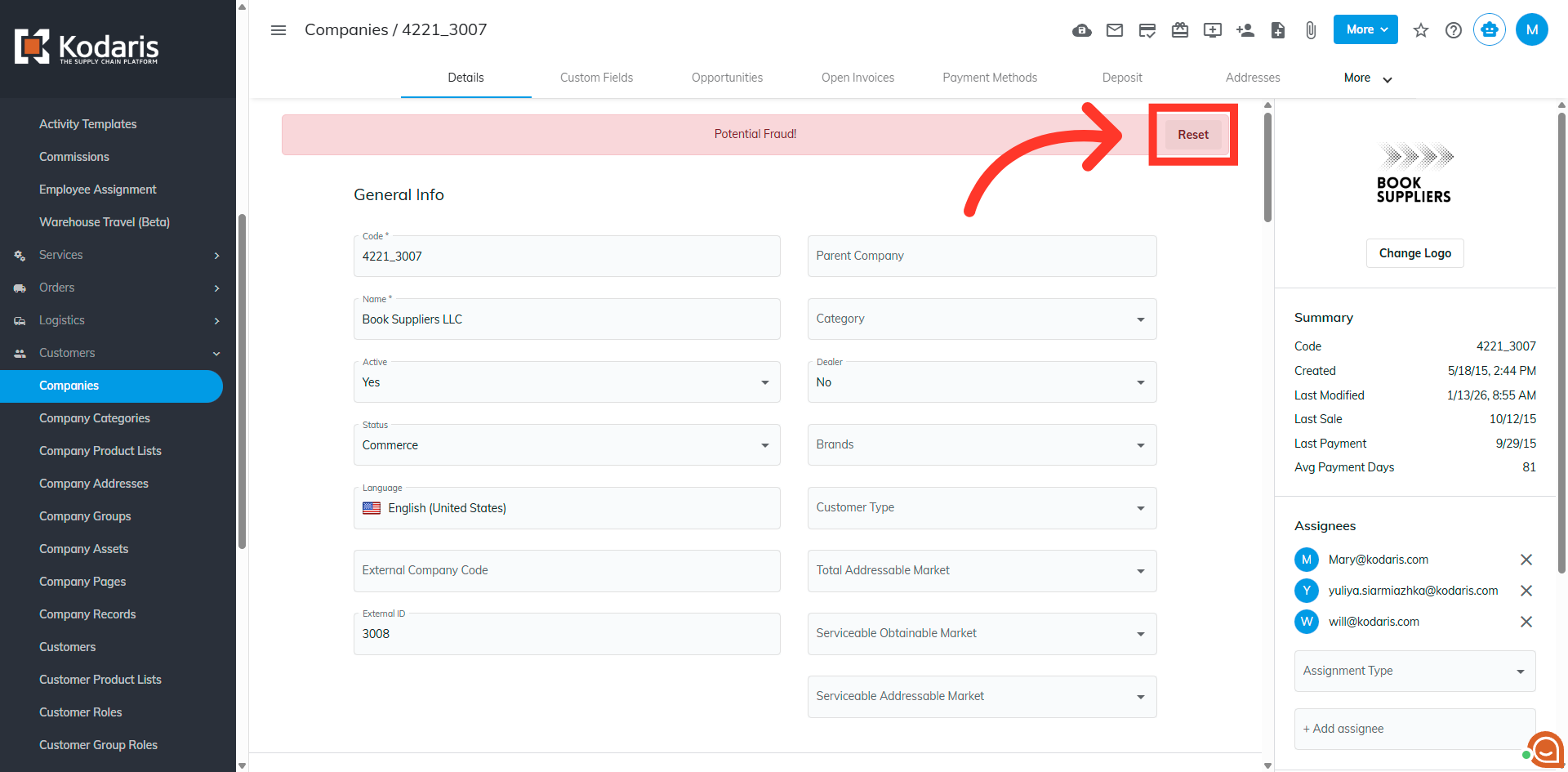
Clearing the Fraud hold
Click the "Reset" button to clear previous card payment attempts, allowing customers to retry payments.
The hold and banner are removed
The hold and banner have been removed. The customer will now be able to retry making a payment.